('NativeMap');
```
# @capgo/capacitor-native-market
> Open Play Store and App Store listings from your Capacitor app.
## Overview [Section titled “Overview”](#overview) `@capgo/capacitor-native-market` deep links users to store listings for ratings, upgrades, and support flows. Android adds Play search and collection helpers. ## Platform support [Section titled “Platform support”](#platform-support) | Platform | Support | Notes | | -------- | ------- | -------------------------------- | | iOS | Yes | App Store listing | | Android | Yes | Play listing plus search helpers | | Web | No | Use store URLs | ## Core Capabilities [Section titled “Core Capabilities”](#core-capabilities) * `openStoreListing` - Launch app listing page in Play Store (Android) or App Store (iOS). * `openDevPage` - Deep-link directly to a developer’s page in the Play Store. Android only. * `openCollection` - Link users to a collection or top charts in the Play Store. Android only. * `openEditorChoicePage` - Link users to Editor’s choice page in the Play Store. Android only. ## Public API [Section titled “Public API”](#public-api) | Method | Description | | ---------------------- | ------------------------------------------------------------------------- | | `openStoreListing` | Launch app listing page in Play Store (Android) or App Store (iOS). | | `openDevPage` | Deep-link directly to a developer’s page in the Play Store. Android only. | | `openCollection` | Link users to a collection or top charts in the Play Store. Android only. | | `openEditorChoicePage` | Link users to Editor’s choice page in the Play Store. Android only. | | `search` | Search the Play Store with custom search terms. Android only. | | `getPluginVersion` | Get the native Capacitor plugin version. | ## Source Of Truth [Section titled “Source Of Truth”](#source-of-truth) This reference is synced from `src/definitions.ts` in [capacitor-native-market](https://github.com/Cap-go/capacitor-native-market/). ## Keep going from @capgo/capacitor-native-market [Section titled “Keep going from @capgo/capacitor-native-market”](#keep-going-from-capgocapacitor-native-market) If you are using **@capgo/capacitor-native-market** to plan store approval and distribution, connect it with [Using @capgo/capacitor-native-market](/plugins/capacitor-native-market/) for the native capability in Using @capgo/capacitor-native-market, [@capgo/capacitor-in-app-review](/docs/plugins/in-app-review/) for the implementation detail in @capgo/capacitor-in-app-review, [Using @capgo/capacitor-in-app-review](/plugins/capacitor-in-app-review/) for the native capability in Using @capgo/capacitor-in-app-review, [Capacitor OTA Updates: App Store Approval Guide](/blog/capacitor-ota-updates-app-store-approval-guide/) for the practical context in Capacitor OTA Updates: App Store Approval Guide, and [Google Play Staged Rollouts: How It Works](/blog/google-play-staged-rollouts-how-it-works/) for the practical context in Google Play Staged Rollouts: How It Works.
# Getting Started
> Install @capgo/capacitor-native-market and start using its current Capacitor API.
## Install [Section titled “Install”](#install) You can use our AI-Assisted Setup to install the plugin. Add the Capgo skills to your AI tool using the following command:
```bash
npx skills add https://github.com/Cap-go/capgo-skills --skill capacitor-plugins
```
Then use the following prompt:
```text
Use the `capacitor-plugins` skill from `Cap-go/capgo-skills` to install the `@capgo/capacitor-native-market` plugin in my project.
```
If you prefer Manual Setup, install the plugin by running the following commands and follow the platform-specific instructions below:
```bash
npm install @capgo/capacitor-native-market
npx cap sync
```
## Import [Section titled “Import”](#import)
```typescript
import { NativeMarket } from '@capgo/capacitor-native-market';
```
## Quick start [Section titled “Quick start”](#quick-start)
```typescript
import { NativeMarket } from '@capgo/capacitor-native-market';
await NativeMarket.openStoreListing({ appId: 'com.example.app' });
```
## Example: Play Store search (Android) [Section titled “Example: Play Store search (Android)”](#example-play-store-search-android)
```typescript
import { NativeMarket } from '@capgo/capacitor-native-market';
await NativeMarket.search({ terms: 'fitness tracker' });
```
## Common pitfalls [Section titled “Common pitfalls”](#common-pitfalls) * **Bundle vs package**: iOS uses App Store bundle id, Android uses application id. * **Android only**: guard `openDevPage` and `openCollection` with `Capacitor.getPlatform()`. * **External UI**: store UI opens outside your WebView, plan return deep links separately. ## API Overview [Section titled “API Overview”](#api-overview) ### `openStoreListing` [Section titled “openStoreListing”](#openstorelisting) Launch app listing page in Play Store (Android) or App Store (iOS).
```typescript
import { NativeMarket } from '@capgo/capacitor-native-market';
// Open app in store
await NativeMarket.openStoreListing({
appId: 'com.example.app'
});
// Open app in specific country store (iOS only)
await NativeMarket.openStoreListing({
appId: 'com.example.app',
country: 'IT'
});
```
### `openDevPage` [Section titled “openDevPage”](#opendevpage) Deep-link directly to a developer’s page in the Play Store. Android only.
```typescript
import { NativeMarket } from '@capgo/capacitor-native-market';
await NativeMarket.openDevPage({
devId: 'Google+LLC'
});
```
### `openCollection` [Section titled “openCollection”](#opencollection) Link users to a collection or top charts in the Play Store. Android only.
```typescript
import { NativeMarket } from '@capgo/capacitor-native-market';
await NativeMarket.openCollection({
name: 'featured'
});
```
### `openEditorChoicePage` [Section titled “openEditorChoicePage”](#openeditorchoicepage) Link users to Editor’s choice page in the Play Store. Android only.
```typescript
import { NativeMarket } from '@capgo/capacitor-native-market';
await NativeMarket.openEditorChoicePage({
editorChoice: 'editorial_fitness_apps_us'
});
```
### `search` [Section titled “search”](#search) Search the Play Store with custom search terms. Android only.
```typescript
import { NativeMarket } from '@capgo/capacitor-native-market';
await NativeMarket.search({
terms: 'fitness apps'
});
```
## Source Of Truth [Section titled “Source Of Truth”](#source-of-truth) This page is generated from the plugin’s `src/definitions.ts`. Re-run the sync when the public API changes upstream. ## Keep going from Getting Started [Section titled “Keep going from Getting Started”](#keep-going-from-getting-started) If you are using **Getting Started** to plan dashboard and API operations, connect it with [Using @capgo/capacitor-native-market](/plugins/capacitor-native-market/) for the native capability in Using @capgo/capacitor-native-market, [API Overview](/docs/public-api/) for the implementation detail in API Overview, [Introduction](/docs/webapp/) for the implementation detail in Introduction, [API Keys](/docs/public-api/api-keys/) for the implementation detail in API Keys, and [Devices](/docs/public-api/devices/) for the implementation detail in Devices.
# @capgo/capacitor-native-navigation
> Render iOS and Android navigation chrome natively while JavaScript keeps owning routes, content, icons, labels, and bar state.
Native chrome Draw the top navigation bar and bottom tab bar with platform UI instead of web components. Web-owned routes Native emits user intent events, then your existing router changes the WebView content. Serialized icons Configure tabs and buttons with SVG, SF Symbol, bundled image, or Android drawable descriptors. Native transition shell Capture the current WebView, update content in JavaScript, then finish with a native snapshot-to-WebView animation. Zoom routes Open card, grid, and media-detail routes with shared-element-style native zoom geometry. ## Demo [Section titled “Demo”](#demo) | Native shell | Tap flow | Multi-level navbar (iOS) | Multi-level navbar (Android) | | ---------------------------------------------------------------------------------------------------------------------------------------------- | -------------------------------------------------------------------------------------------------------------------------------------------------------------- | ---------------------------------------------------------------------------------------------------------------------------------------------------------------------------------------- | ----------------------------------------------------------------------------------------------------------------------------------------------------------------------------------------------- | |  |  |  |  | ## Core API [Section titled “Core API”](#core-api) * `configure(options?)` enables the native chrome host and controls content insets. * `setNavbar(options)` updates native title, subtitle, back button, buttons, colors, transparency, visibility, and multi-level segment rows under the bar (`segments`). * `setTabbar(options)` updates tabs, selected tab, badges, labels, icons, colors, and visibility. * `beginTransition(options?)` captures the outgoing WebView before the JavaScript route change. * `finishTransition(options?)` animates from the captured snapshot to the live WebView after route content is ready. * `beginZoomTransition(target, options?)` and `finishZoomTransition(target?, options?)` are JavaScript helpers for zoom transitions from elements or rectangles. * `getPluginVersion()` returns the native implementation version marker. ## Events [Section titled “Events”](#events) * `navbarBack` fires when the native back affordance is tapped. * `navbarItemTap` fires when a native navbar action button is tapped. * `navbarSegmentSelect` fires when an item in a navbar segment row is selected. * `tabSelect` fires when a native tab is selected. * `safeAreaChanged` reports native bar and safe-area inset changes. * `transitionStart` and `transitionEnd` report native transition boundaries. ## Platform Model [Section titled “Platform Model”](#platform-model) iOS uses `UINavigationBar` and `UITabBar`. On iOS 26 and newer, the plugin lets the system render Liquid Glass behavior; older versions use native translucent/material fallbacks. Android uses an AppCompat toolbar and Material bottom navigation with edge-to-edge placement. The plugin does not create one native WebView per route. Version 1 keeps a single Capacitor WebView for bridge stability and lets native own only the frame, bar visuals, tab selection chrome, safe-area reporting, and transition shell. ## Keep going from @capgo/capacitor-native-navigation [Section titled “Keep going from @capgo/capacitor-native-navigation”](#keep-going-from-capgocapacitor-native-navigation) If you are using **@capgo/capacitor-native-navigation** to plan native media and interface behavior, connect it with [Using @capgo/capacitor-native-navigation](/plugins/capacitor-native-navigation/) for the native capability in Using @capgo/capacitor-native-navigation, [Using @capgo/capacitor-live-activities](/plugins/capacitor-live-activities/) for the native capability in Using @capgo/capacitor-live-activities, [@capgo/capacitor-live-activities](/docs/plugins/live-activities/) for the implementation detail in @capgo/capacitor-live-activities, [Using @capgo/capacitor-video-player](/plugins/capacitor-video-player/) for the native capability in Using @capgo/capacitor-video-player, and [@capgo/capacitor-video-player](/docs/plugins/video-player/) for the implementation detail in @capgo/capacitor-video-player.
# Getting Started
> Install @capgo/capacitor-native-navigation and render native navigation chrome over a Capacitor WebView.
## Installation [Section titled “Installation”](#installation) You can use our AI-Assisted Setup to install the plugin. Add the Capgo skills to your AI tool using the following command:
```bash
npx skills add https://github.com/Cap-go/capgo-skills --skill capacitor-plugins
```
Then use the following prompt:
```text
Use the `capacitor-plugins` skill from `Cap-go/capgo-skills` to install the `@capgo/capacitor-native-navigation` plugin in my project.
```
If you prefer Manual Setup, install the plugin by running the following commands and follow the platform-specific instructions below: 1. **Install the package**
```sh
npm i @capgo/capacitor-native-navigation
```
2. **Sync native projects**
```sh
npx cap sync
```
3. **Configure native chrome**
```ts
import { NativeNavigation } from '@capgo/capacitor-native-navigation';
await NativeNavigation.configure({
contentInsetMode: 'css',
animationDuration: 360,
colors: {
tint: '#0f172a',
inactiveTint: '#64748b',
},
});
```
4. **Render the native navbar**
```ts
await NativeNavigation.setNavbar({
title: 'Home',
subtitle: 'Native chrome',
transparent: true,
backButton: { visible: false },
rightItems: [
{
id: 'compose',
title: 'Compose',
icon: {
svg: ' ',
},
},
],
});
```
5. **Render the native tabbar**
```ts
await NativeNavigation.setTabbar({
selectedId: 'home',
labelVisibilityMode: 'selected',
icons: true,
colors: {
dynamic: true,
tint: '#0f172a',
inactiveTint: '#64748b',
},
tabs: [
{
id: 'home',
title: 'Home',
icon: {
svg: ' ',
},
},
{
id: 'settings',
title: 'Settings',
badge: '2',
icon: {
svg: ' ',
},
},
],
});
```
6. **Handle native intent events**
```ts
await NativeNavigation.addListener('navbarBack', () => {
router.back();
});
await NativeNavigation.addListener('navbarItemTap', ({ id }) => {
if (id === 'compose') router.push('/compose');
});
await NativeNavigation.addListener('tabSelect', ({ id }) => {
router.push(`/${id}`);
});
```
## Multi-level navbar with segment rows [Section titled “Multi-level navbar with segment rows”](#multi-level-navbar-with-segment-rows) Pass `segments` to `setNavbar` to stack rows of native segments under the bar, for example a scope switcher on top and section tabs below it. Rows draw top to bottom and each one adds 44pt (iOS) or 48dp (Android) to the navbar and to the reported insets. iOS uses `UISegmentedControl` and glass pills; Android uses Material segmented buttons and filter chips. | iOS | Android | | ----------------------------------------------------------------------------------------------------------------------------------------------------------------------------------------------------------- | ------------------------------------------------------------------------------------------------------------------------------------------------------------------------------------------------------ | |  |  |
```ts
const sections = {
account: ['General', 'Notifications', 'Password', 'Two-factor'],
organization: ['General', 'Members', 'Plans', 'Usage', 'Credits', 'Billing', 'Security', 'Webhooks'],
};
const selection = { scope: 'account', section: 'general' };
const renderNavbar = () =>
NativeNavigation.setNavbar({
title: 'Settings',
segments: [
{
id: 'scope',
selectedId: selection.scope,
items: [
{ id: 'account', title: 'Account' },
{ id: 'organization', title: 'Organization' },
],
},
{
id: 'section',
style: 'scroll', // scrolling chips; `auto` uses `segmented` for up to 4 items
selectedId: selection.section,
items: sections[selection.scope].map((title) => ({ id: title.toLowerCase(), title })),
},
],
});
await NativeNavigation.addListener('navbarSegmentSelect', async ({ groupId, id }) => {
if (groupId === 'scope') {
selection.scope = id;
selection.section = 'general'; // the second level depends on the first one
} else {
selection.section = id;
}
await renderNavbar();
});
await renderNavbar();
```
Selection moves natively when the user taps, but every `setNavbar` call applies `selectedId` again. Keep the selected ids in your state and pass them on every later `setNavbar` call; to reject a selection, send the previous `selectedId`. Items also accept `icon`, `accessibilityLabel`, and `enabled`. Pass `segments: []` to remove the rows. Available since 8.13.0. ## Transition flow [Section titled “Transition flow”](#transition-flow) Native transitions are a transaction around your normal JavaScript route change:
```ts
const transition = await NativeNavigation.beginTransition({
direction: 'forward',
});
router.push('/detail');
await router.ready?.();
await NativeNavigation.setNavbar({
title: 'Detail',
backButton: { visible: true, title: 'Back' },
});
await NativeNavigation.finishTransition({
id: transition.id,
direction: 'forward',
});
```
## Zoom transition [Section titled “Zoom transition”](#zoom-transition) Use the zoom helpers for card-to-detail or media-preview flows. Pass the tapped element before your router changes content, then finish after the detail page is ready.
```ts
import { beginZoomTransition, finishZoomTransition } from '@capgo/capacitor-native-navigation';
const card = document.querySelector('[data-message-card]');
if (card) {
const transition = await beginZoomTransition(card, { cornerRadius: 18 });
router.push('/message/42');
await router.ready?.();
await NativeNavigation.setNavbar({
title: 'Message',
backButton: { visible: true, title: 'Inbox' },
});
await finishZoomTransition(undefined, {
id: transition.id,
cornerRadius: 18,
});
}
```
## Use with @capgo/capacitor-transitions [Section titled “Use with @capgo/capacitor-transitions”](#use-with-capgocapacitor-transitions) Use Native Navigation for the native navbar, tabbar, safe-area insets, and native intent events. Use `@capgo/capacitor-transitions` for the WebView page stack underneath the native chrome.
```bash
npm install @capgo/capacitor-native-navigation @capgo/capacitor-transitions
npx cap sync
```
Initialize both packages once:
```ts
import { NativeNavigation } from '@capgo/capacitor-native-navigation';
import '@capgo/capacitor-transitions';
import { initTransitions, setupRouterOutlet, setDirection } from '@capgo/capacitor-transitions/react';
initTransitions({ platform: 'auto' });
const outlet = document.querySelector('cap-router-outlet');
if (outlet) {
setupRouterOutlet(outlet, { platform: 'auto', swipeGesture: 'auto' });
}
await NativeNavigation.configure({
contentInsetMode: 'css',
});
```
Keep `cap-router-outlet` focused on pages, not duplicate web bars:
```html
Inbox content
```
Drive both packages from the same router actions:
```ts
async function openMessage(id: string) {
setDirection('forward');
await router.push(`/messages/${id}`);
await NativeNavigation.setNavbar({
title: 'Message',
backButton: { visible: true, title: 'Inbox' },
});
}
await NativeNavigation.addListener('navbarBack', () => {
setDirection('back');
router.back();
});
await NativeNavigation.addListener('tabSelect', ({ id }) => {
setDirection('root');
router.push(`/${id}`);
});
```
Pick one animation layer per route change. Let `@capgo/capacitor-transitions` animate normal page pushes, and use Native Navigation’s zoom helpers only for shared-element or zoom routes. ## CSS insets [Section titled “CSS insets”](#css-insets) With `contentInsetMode: 'css'`, the plugin writes native bar dimensions to `document.documentElement`.
```css
.page {
padding-top: var(--cap-native-navigation-top);
padding-bottom: var(--cap-native-navigation-bottom);
}
```
Available variables: * `--cap-native-navigation-top` * `--cap-native-navigation-right` * `--cap-native-navigation-bottom` * `--cap-native-navigation-left` * `--cap-native-navbar-height` * `--cap-native-tabbar-height` ## Icon descriptors [Section titled “Icon descriptors”](#icon-descriptors) Icons must be serializable because native UI renders them. You can use cross-platform SVG, platform-specific SVG, SF Symbols, bundled iOS images, Android drawable resources, or bundled Android images.
```ts
const icon = {
svg: ' ',
width: 24,
height: 24,
template: true,
src: 'fallback_asset_name',
ios: {
svg: ' ',
sfSymbol: 'house.fill',
image: 'BundledAssetName',
},
android: {
svg: ' ',
resource: 'ic_menu_view',
image: 'bundled_drawable_name',
},
};
```
Inline SVG supports the icon-focused subset used by common icon sets such as Lucide and Feather: `path`, `line`, `polyline`, `polygon`, `circle`, and `rect`. SVG icons are rendered as template images by default, so native tint colors can recolor them. ## Optional web components [Section titled “Optional web components”](#optional-web-components) The package can register custom elements for framework-agnostic declarative setup:
```ts
import { defineNativeNavigationElements } from '@capgo/capacitor-native-navigation';
defineNativeNavigationElements();
```
```html
```
## iPhone Duo (iOS 27) [Section titled “iPhone Duo (iOS 27)”](#iphone-duo-ios-27) On iPhone Duo, iOS often places the system tab bar and status bar in a **vertical side rail**. `env(safe-area-inset-top)` can be `0` while `left` or `right` grows. Set `viewport-fit=cover` on your viewport meta tag when you pad with CSS env anywhere in the app. Test folded, open, landscape, and Split View poses in Xcode Device Hub. Native Navigation uses real `UINavigationBar` and `UITabBar`, so **system tab bars follow the rail**. The **curve** tab bar shape stays on the bottom; the center action keeps a circular cradle when the window widens. | Folded, system tabs | Open, rail | | -------------------------------------------------------------------------------------------------------------------------------------- | ---------------------------------------------------------------------------------------------------------------------------------- | |  |  | With `contentInsetMode: 'css'`, pad web content with plugin variables. Use `max()` with env fallbacks per edge so layout stays correct when a plugin variable is `0` without summing duplicate insets:
```css
main {
padding-top: max(var(--cap-native-navigation-top, 0px), env(safe-area-inset-top, 0px));
padding-right: max(var(--cap-native-navigation-right, 0px), env(safe-area-inset-right, 0px));
padding-bottom: max(var(--cap-native-navigation-bottom, 0px), env(safe-area-inset-bottom, 0px));
padding-left: max(var(--cap-native-navigation-left, 0px), env(safe-area-inset-left, 0px));
}
```
Listen for `safeAreaChanged` (or `capNativeNavigation:safeAreaChanged` on `window`) when the rail side or fold state changes. On hosted system tab bars, `insets.tabbarHeight` may be `0` to avoid double bottom padding; use `insets.systemTabbarHeight` or `--cap-native-system-tabbar-height` for FAB offsets. Capacitor-wide guidance (viewport-fit, System Bars, Status Bar, testing): [Supporting iPhone Duo in Capacitor apps](https://capgo.app/blog/capacitor-iphone-duo-safe-area-guide/). ## Platform notes [Section titled “Platform notes”](#platform-notes) * iOS renders `UINavigationBar` and `UITabBar`; iOS 26+ uses the system Liquid Glass bar behavior. * Android renders an AppCompat toolbar and Material bottom navigation. * Web fallback does not draw native bars. It mirrors events and inset variables for browser development. * The plugin keeps one full-screen Capacitor WebView. Native owns the frame, bars, safe-area reporting, and transition shell. ## Keep going from Getting Started [Section titled “Keep going from Getting Started”](#keep-going-from-getting-started) If you are using **Getting Started** to plan native media and interface behavior, connect it with [Using @capgo/capacitor-native-navigation](/plugins/capacitor-native-navigation/) for the native capability in Using @capgo/capacitor-native-navigation, [Using @capgo/capacitor-live-activities](/plugins/capacitor-live-activities/) for the native capability in Using @capgo/capacitor-live-activities, [@capgo/capacitor-live-activities](/docs/plugins/live-activities/) for the implementation detail in @capgo/capacitor-live-activities, [Using @capgo/capacitor-video-player](/plugins/capacitor-video-player/) for the native capability in Using @capgo/capacitor-video-player, and [@capgo/capacitor-video-player](/docs/plugins/video-player/) for the implementation detail in @capgo/capacitor-video-player.
# @capgo/native-purchases
> In-app Subscriptions Made Easy.
## Overview [Section titled “Overview”](#overview) `@capgo/native-purchases` wraps **StoreKit 2** and **Google Play Billing** with one Capacitor API for subscriptions, consumables, and restore flows. Load product metadata from the stores, purchase in app, and refresh entitlements without maintaining separate native bridges. Choose this plugin when you want first party billing without a third party subscription SDK. ## Platform support [Section titled “Platform support”](#platform-support) | Platform | Billing stack | | -------- | ---------------------- | | iOS | StoreKit 2 | | Android | Google Play Billing 7+ | ## Core Capabilities [Section titled “Core Capabilities”](#core-capabilities) * Native in-app purchases and subscriptions with StoreKit 2 and Google Play Billing. * Product metadata loaded directly from the stores, including localized titles and prices. * iOS StoreKit pricing terms for monthly subscriptions with 12-month commitments. * Purchase, restore, entitlement refresh, and native subscription management flows. * App Transaction helpers for migration from older business models. ## Public API [Section titled “Public API”](#public-api) | Method | Description | | ------------------------------ | ------------------------------------------------------------------------------------------------------------------------------------------------------------------------------------ | | `restorePurchases` | Restores a user’s previous and links their appUserIDs to any user’s also using those . | | `getAppTransaction` | Gets the App Transaction information, which provides details about when the user originally downloaded or purchased the app. | | `isEntitledToOldBusinessModel` | Compares the original app version from the App Transaction against a target version to determine if the user is entitled to features from an earlier business model. | | `purchaseProduct` | Starts the native purchase flow. On supported iOS versions, pass `billingPlanType: 'monthly'` to purchase a monthly billing plan with a 12-month commitment. | | `getProducts` | Gets product info associated with product identifiers. On supported iOS versions, subscription products can include `pricingTerms`. | | `getProduct` | Gets the product info for a single product identifier. | | `isBillingSupported` | Check if billing is supported for the current device. | | `getPluginVersion` | Get the native Capacitor plugin version. | | `getPurchases` | Gets all the user’s purchases (both in-app purchases and subscriptions). This method queries the platform’s purchase history for the current user. | | `manageSubscriptions` | Opens the platform’s native subscription management page. This allows users to view, modify, or cancel their subscriptions. | | `acknowledgePurchase` | Manually acknowledge/finish a purchase transaction. | | `consumePurchase` | Consume an in-app purchase on Android. | | `addListener` | Listen for StoreKit transaction updates delivered by Apple’s Transaction.updates. Fires on app launch if there are unfinished transactions, and for any updates afterward. iOS only. | | `addListener` | Listen for StoreKit transaction verification failures delivered by Apple’s Transaction.updates. Fires when the verification result is unverified. iOS only. | | `removeAllListeners` | Remove all registered listeners. | ## Source Of Truth [Section titled “Source Of Truth”](#source-of-truth) This reference is synced from `src/definitions.ts` in [capacitor-native-purchases](https://github.com/Cap-go/capacitor-native-purchases/). ## Keep going from @capgo/native-purchases [Section titled “Keep going from @capgo/native-purchases”](#keep-going-from-capgonative-purchases) If you are using **@capgo/native-purchases** to plan payments and purchases, connect it with [Using @capgo/native-purchases](/plugins/capacitor-native-purchases/) for the native capability in Using @capgo/native-purchases, [Capgo Pricing](/pricing/) for the product workflow in Capgo Pricing, [Payment system](/docs/webapp/payment/) for the implementation detail in Payment system, [Getting Started](/docs/plugins/native-purchases/getting-started/) for the implementation detail in Getting Started, and [Revenue Playbook](/docs/plugins/native-purchases/revenue-playbook/) for the implementation detail in Revenue Playbook.
# Create Android Auto-Renewable Subscription
> Step-by-step guide to creating auto-renewable subscriptions in Google Play Console for the native-purchases plugin.
Auto-renewable subscriptions provide access to content, services, or premium features in your app on an ongoing basis. This guide will help you create and configure subscriptions in Google Play Console. ## Overview [Section titled “Overview”](#overview) Subscriptions automatically renew at the end of each billing period until the user cancels. They’re ideal for: * Premium content access * Ad-free experiences * Cloud storage * Ongoing services ## Creating a Subscription [Section titled “Creating a Subscription”](#creating-a-subscription) 1. **Navigate to Subscriptions** In Google Play Console, select your app and choose **Monetize > Subscriptions** from the left menu. Click the **Create subscription** button to begin.  2. **Enter Basic Information** Provide a subscription name and product ID. The product ID is required for configuration in your app and cannot be changed later.  3. **Create Base Plan** Google Play requires exactly one base plan per subscription. The native-purchases plugin supports only one base plan to maintain compatibility with iOS. Click **Add base plan** to continue.  4. **Configure Base Plan Details** Enter: * **Base plan ID**: Unique identifier for this plan * **Billing period**: How often users are charged (weekly, monthly, yearly, etc.) * **Grace period**: Time window during which Google maintains the subscription while retrying payment before cancellation  5. **Set Up Pricing** Access the pricing section and select all countries/regions where you want to offer the subscription.  6. **Configure Price** Set your base price in your primary currency. Google Play automatically converts this to local currencies.  7. **Review Regional Pricing** Review the automatically converted prices for each country. You can adjust individual prices if needed.  8. **Save Configuration** Save your pricing configuration.  9. **Activate Subscription** Click the **Activate** button to make your subscription product live and available for purchase.  ## Important Considerations [Section titled “Important Considerations”](#important-considerations) ### Base Plan Limitation [Section titled “Base Plan Limitation”](#base-plan-limitation) The native-purchases plugin requires exactly one base plan per subscription to ensure consistency with iOS subscription handling. Multiple base plans are not supported. ### Grace Period [Section titled “Grace Period”](#grace-period) The grace period allows Google Play to retry failed payments while maintaining the user’s subscription access. Common grace periods are: * 3 days for monthly subscriptions * 7 days for longer subscriptions ### Subscription Status [Section titled “Subscription Status”](#subscription-status) After creation, your subscription will be in “Draft” status until activated. You can test draft subscriptions in sandbox mode. ## Using in Your App [Section titled “Using in Your App”](#using-in-your-app) Once created, reference the subscription in your app using the product ID:
```typescript
import { NativePurchases, PURCHASE_TYPE } from '@capgo/native-purchases';
// Load subscription info
const { products } = await NativePurchases.getProducts({
productIdentifiers: ['com.example.premium.monthly'],
productType: PURCHASE_TYPE.SUBS,
});
const product = products[0];
console.log(`${product.title} — ${product.priceString}`);
// Purchase (planIdentifier = Base Plan ID from Google Play Console)
const transaction = await NativePurchases.purchaseProduct({
productIdentifier: 'com.example.premium.monthly',
planIdentifier: 'monthly-plan', // REQUIRED on Android, ignored on iOS
productType: PURCHASE_TYPE.SUBS,
});
console.log('Transaction ID', transaction.transactionId);
// Later, check purchase state
const { purchases } = await NativePurchases.getPurchases({
productType: PURCHASE_TYPE.SUBS,
});
const subscription = purchases.find(
(purchase) => purchase.productIdentifier === 'com.example.premium.monthly',
);
if (subscription && subscription.purchaseState === 'PURCHASED' && subscription.isAcknowledged) {
console.log('Subscription active locally');
// For expiration/cancellation, validate purchaseToken through your backend
}
```
## Next Steps [Section titled “Next Steps”](#next-steps) * [Create an introductory offer](/docs/plugins/native-purchases/android-introductory-offer/) to attract new subscribers * [Configure sandbox testing](/docs/plugins/native-purchases/android-sandbox-testing/) to test your subscriptions * Set up backend receipt validation for security ## Troubleshooting [Section titled “Troubleshooting”](#troubleshooting) **Subscription not appearing in app:** * Verify the product ID matches exactly * Ensure the subscription is activated * Check that your app has the correct package name * Wait 2-3 hours after activation for changes to propagate **Base plan errors:** * Ensure you have exactly one base plan * Verify all required fields are filled * Check that billing period is valid **Pricing issues:** * Confirm at least one country is selected * Verify base price is greater than minimum allowed * Check currency conversion rates are acceptable ## Keep going from Create Android Auto-Renewable Subscription [Section titled “Keep going from Create Android Auto-Renewable Subscription”](#keep-going-from-create-android-auto-renewable-subscription) If you are using **Create Android Auto-Renewable Subscription** to plan store approval and distribution, connect it with [Using @capgo/native-purchases](/plugins/capacitor-native-purchases/) for the native capability in Using @capgo/native-purchases, [@capgo/capacitor-in-app-review](/docs/plugins/in-app-review/) for the implementation detail in @capgo/capacitor-in-app-review, [Using @capgo/capacitor-in-app-review](/plugins/capacitor-in-app-review/) for the native capability in Using @capgo/capacitor-in-app-review, [@capgo/capacitor-native-market](/docs/plugins/native-market/) for the implementation detail in @capgo/capacitor-native-market, and [Using @capgo/capacitor-native-market](/plugins/capacitor-native-market/) for the native capability in Using @capgo/capacitor-native-market.
# Create Android Subscription Introductory Offer
> Learn how to create introductory offers for auto-renewable subscriptions on Android to attract new subscribers.
Introductory offers allow you to provide eligible users with either a free trial or a discounted introductory price. After the introductory period concludes, subscriptions automatically renew at standard pricing unless cancelled. ## Overview [Section titled “Overview”](#overview) Introductory offers are a powerful tool to: * Reduce barriers to entry for new subscribers * Increase conversion rates * Allow users to try your premium features risk-free * Build long-term subscriber relationships ## Eligibility [Section titled “Eligibility”](#eligibility) Users can receive an introductory offer if they haven’t previously purchased or received an introductory offer for the subscription. Google Play handles eligibility automatically. ## Prerequisites [Section titled “Prerequisites”](#prerequisites) You must first [create an auto-renewable subscription](/docs/plugins/native-purchases/android-create-subscription/) before adding an introductory offer. ## Creating an Introductory Offer [Section titled “Creating an Introductory Offer”](#creating-an-introductory-offer) 1. **Access Offer Configuration** Navigate to your subscription in Google Play Console and select the **Add offer** button.  2. **Select Base Plan** A modal will appear requiring you to choose your base plan. Typically, you’ll only have one base plan. Click **Add offer** to continue.  3. **Configure Offer Details** Enter the following information: **Offer ID**: A unique identifier for this offer **Eligibility**: Choose who can receive this offer * **New customers**: Only users who have never subscribed * **Existing customers**: Users who previously subscribed * **Developer determined**: Custom eligibility logic (not supported by native-purchases) Caution The native-purchases plugin does not support the “Developer determined” eligibility option. Use “New customers” or “Existing customers” instead.  4. **Add Phases** Click **Add phase** at the bottom of the page to define your offer structure. You can add up to two phases, allowing combinations like: * Free trial only * Discounted price only * Free trial followed by discounted recurring payment 5. **Select Phase Type** Choose from three phase types: **Free Trial** * Complimentary access for a set duration * Example: 7 days free, then $9.99/month **Single Payment** * One-time discounted price for a specific period * Example: $1.99 for 2 months, then $9.99/month **Discounted Recurring Payment** * Reduced per-billing-cycle rate for multiple cycles * Example: $4.99/month for 3 months, then $9.99/month 6. **Configure Phase Duration** Set how long the introductory phase lasts: * Days, weeks, or months * Number of billing cycles 7. **Finalize and Activate** Click **Apply**, then **Save** to activate the offer. The **Activate** button will become available once saved. ## Offer Phase Examples [Section titled “Offer Phase Examples”](#offer-phase-examples) ### Example 1: Simple Free Trial [Section titled “Example 1: Simple Free Trial”](#example-1-simple-free-trial) * Phase 1: 7 days free * Then: $9.99/month standard pricing ### Example 2: Discounted Introduction [Section titled “Example 2: Discounted Introduction”](#example-2-discounted-introduction) * Phase 1: $1.99 for the first month * Then: $9.99/month standard pricing ### Example 3: Extended Trial + Discount [Section titled “Example 3: Extended Trial + Discount”](#example-3-extended-trial--discount) * Phase 1: 14 days free * Phase 2: $4.99/month for 2 months * Then: $9.99/month standard pricing ## Using in Your App [Section titled “Using in Your App”](#using-in-your-app) The native-purchases plugin automatically handles introductory offer eligibility and presentation:
```typescript
import { NativePurchases, PURCHASE_TYPE } from '@capgo/native-purchases';
// Fetch products (includes intro offer metadata)
const { products } = await NativePurchases.getProducts({
productIdentifiers: ['com.example.premium.monthly'],
productType: PURCHASE_TYPE.SUBS,
});
const product = products[0];
if (product.introductoryPrice) {
console.log(`Intro price: ${product.introductoryPriceString}`);
console.log(`Regular price: ${product.priceString}`);
console.log(
`Offer duration: ${product.introductoryPrice.subscriptionPeriod?.numberOfUnits} ${product.introductoryPrice.subscriptionPeriod?.unit}`,
);
} else {
console.log('No intro offer configured for this product');
}
// Purchase (Google Play applies intro pricing automatically if the user is eligible)
const transaction = await NativePurchases.purchaseProduct({
productIdentifier: 'com.example.premium.monthly',
planIdentifier: 'monthly-plan', // Base Plan ID from Google Play Console
productType: PURCHASE_TYPE.SUBS,
});
console.log('Introductory purchase transaction', transaction.transactionId);
```
## Best Practices [Section titled “Best Practices”](#best-practices) ### Offer Duration [Section titled “Offer Duration”](#offer-duration) * **Free trials**: 3-14 days is optimal for most apps * **Discounted periods**: 1-3 months works well for building habit * **Price discount**: 50-70% off regular price drives conversions ### Marketing [Section titled “Marketing”](#marketing) * Clearly display the intro offer and regular price * Show what happens after the intro period * Make cancellation easy and transparent * Remind users before the intro period ends ### A/B Testing [Section titled “A/B Testing”](#ab-testing) Test different offer structures: * Free trial length * Discount percentage * Discount duration * Single phase vs. multi-phase ## Important Notes [Section titled “Important Notes”](#important-notes) * Only one introductory offer can be active per subscription at a time * Users can only claim an intro offer once per subscription * Intro offers don’t apply to subscription upgrades/downgrades * Changes to intro offers don’t affect existing subscribers ## Troubleshooting [Section titled “Troubleshooting”](#troubleshooting) **Intro offer not showing:** * Verify the offer is activated in Play Console * Check user eligibility (may have used offer before) * Ensure app is using latest product information **Wrong users receiving offer:** * Review eligibility settings (new vs. existing customers) * Check if user previously subscribed on different device * Verify Play Store account history **Offer not applying at purchase:** * Confirm product ID matches exactly * Check that offer is still active and not expired * Verify date range settings for the offer ## Next Steps [Section titled “Next Steps”](#next-steps) * [Configure sandbox testing](/docs/plugins/native-purchases/android-sandbox-testing/) to test your offers * Monitor conversion rates in Play Console analytics * Consider creating multiple subscription tiers with different offers ## Keep going from Create Android Subscription Introductory Offer [Section titled “Keep going from Create Android Subscription Introductory Offer”](#keep-going-from-create-android-subscription-introductory-offer) If you are using **Create Android Subscription Introductory Offer** to plan payments and purchases, connect it with [Using @capgo/native-purchases](/plugins/capacitor-native-purchases/) for the native capability in Using @capgo/native-purchases, [Capgo Pricing](/pricing/) for the product workflow in Capgo Pricing, [Payment system](/docs/webapp/payment/) for the implementation detail in Payment system, [@capgo/native-purchases](/docs/plugins/native-purchases/) for the implementation detail in @capgo/native-purchases, and [Getting Started](/docs/plugins/native-purchases/getting-started/) for the implementation detail in Getting Started.
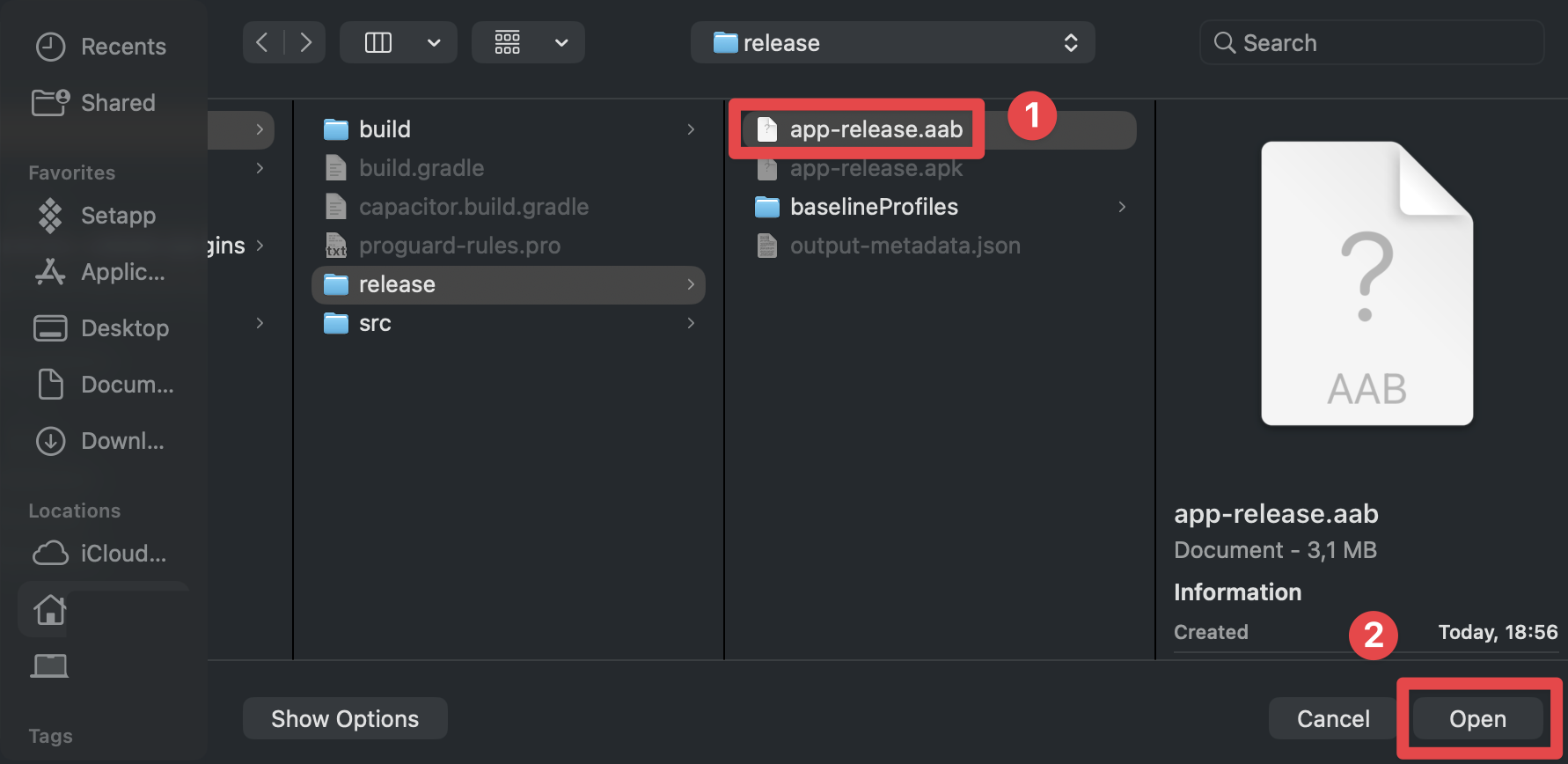
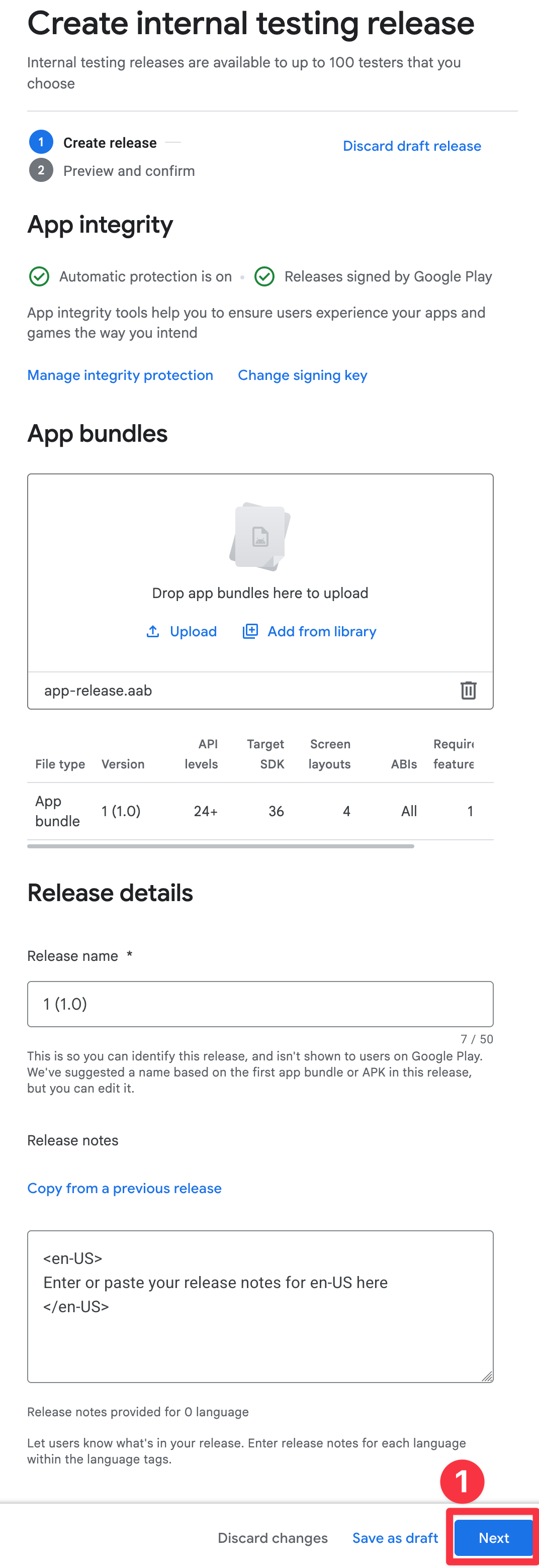
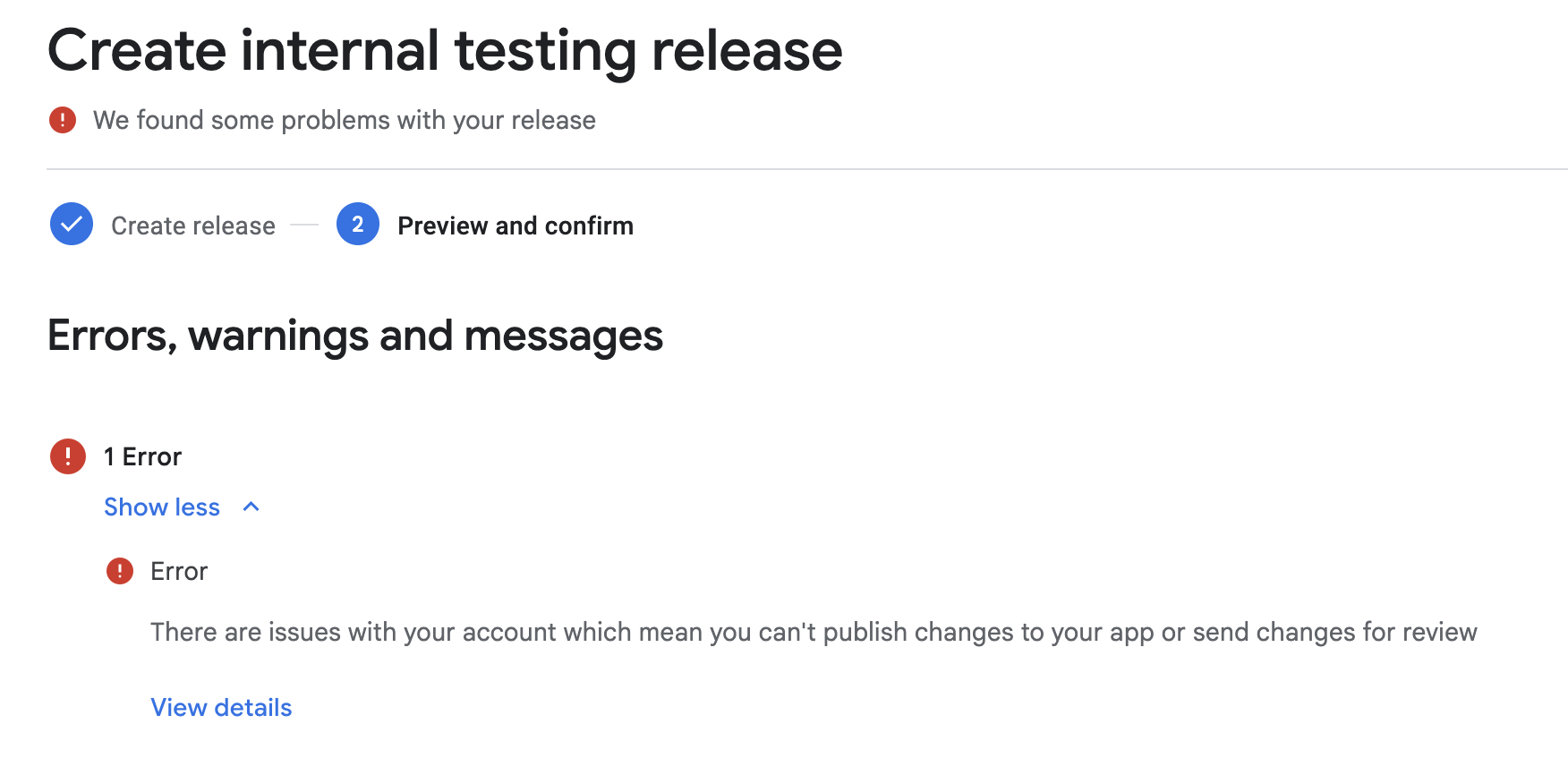
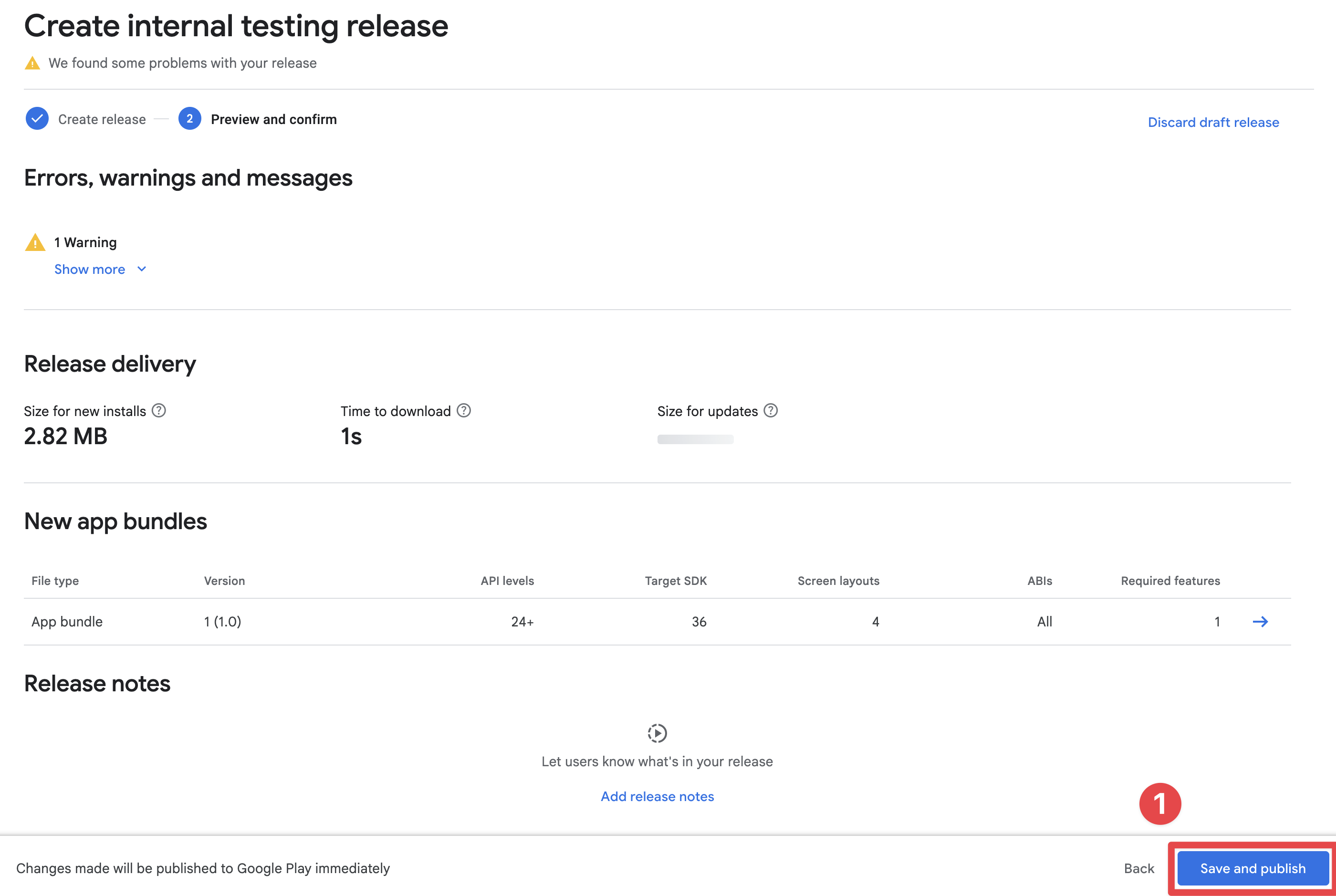
# Android Play Store Review Guidelines for IAP
> Complete guide to passing Google Play review with in-app purchases and subscriptions, including compliance requirements and best practices.
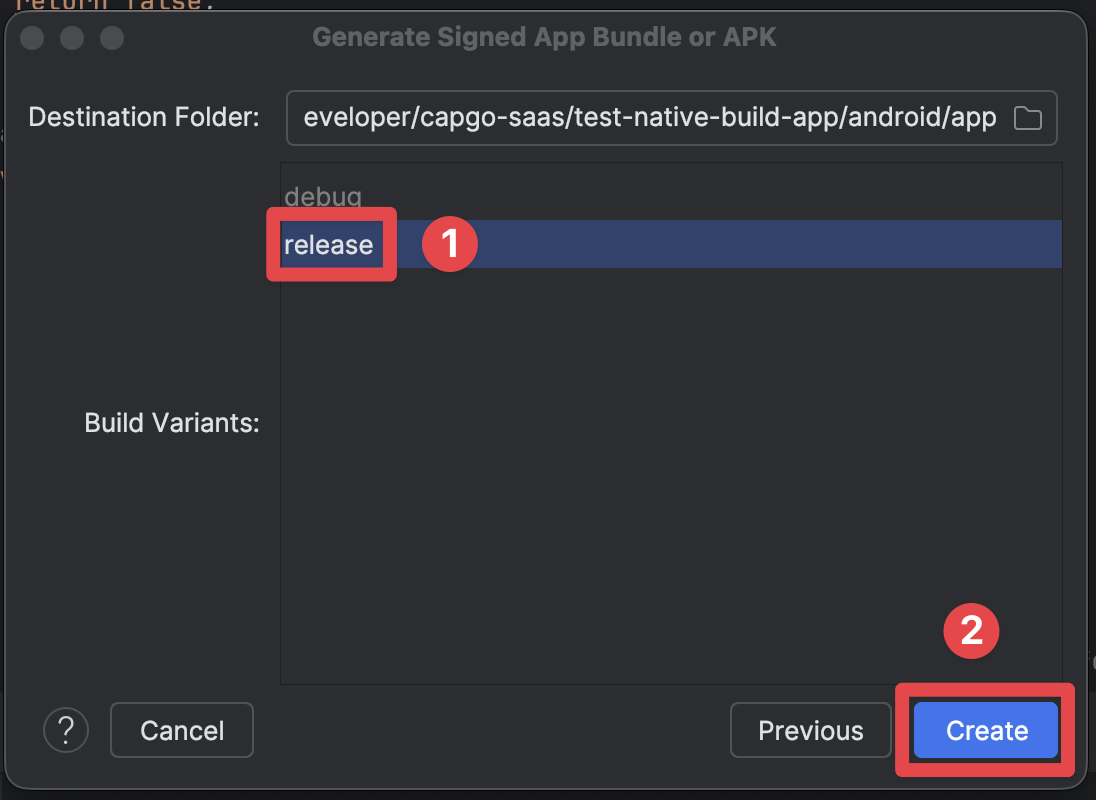
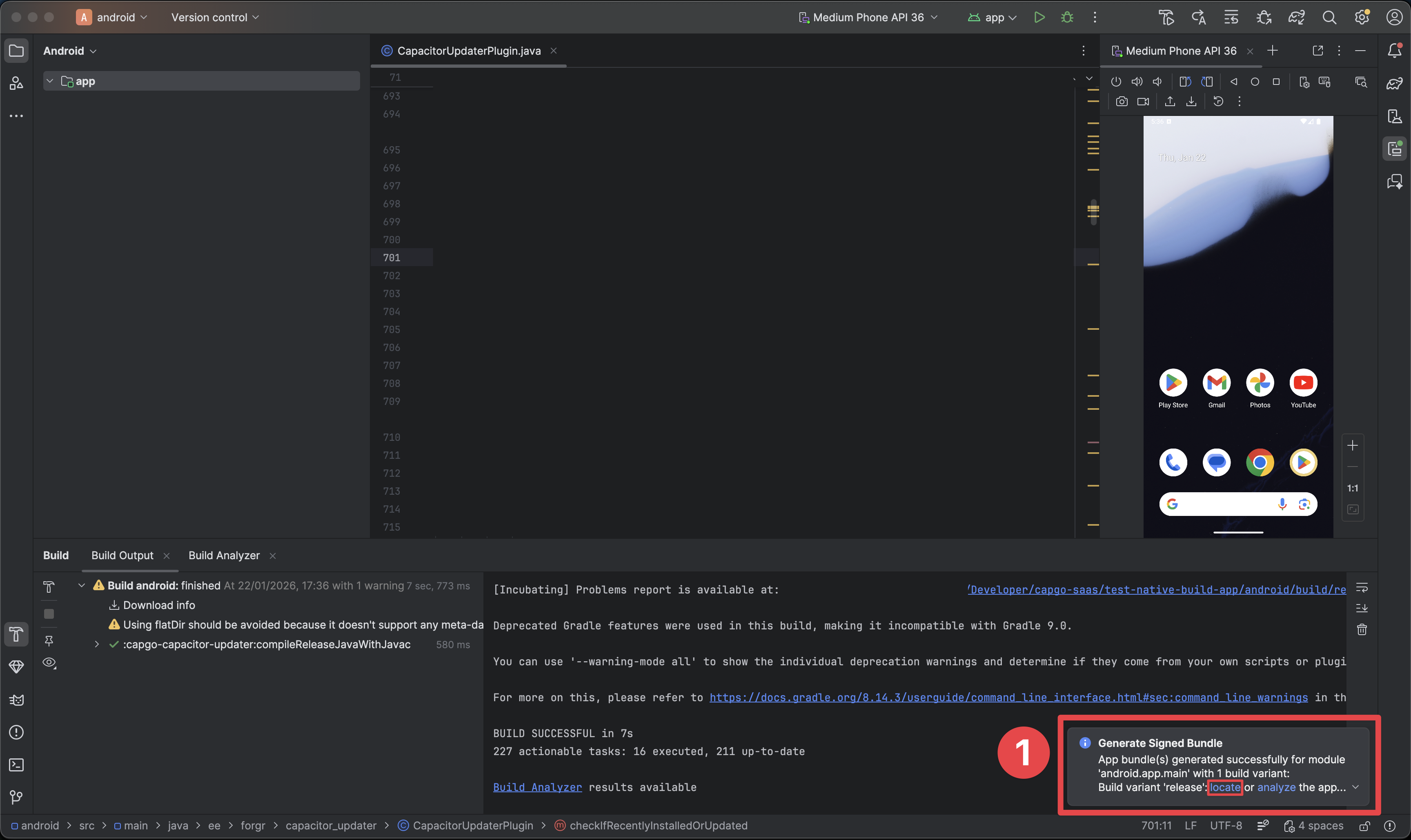
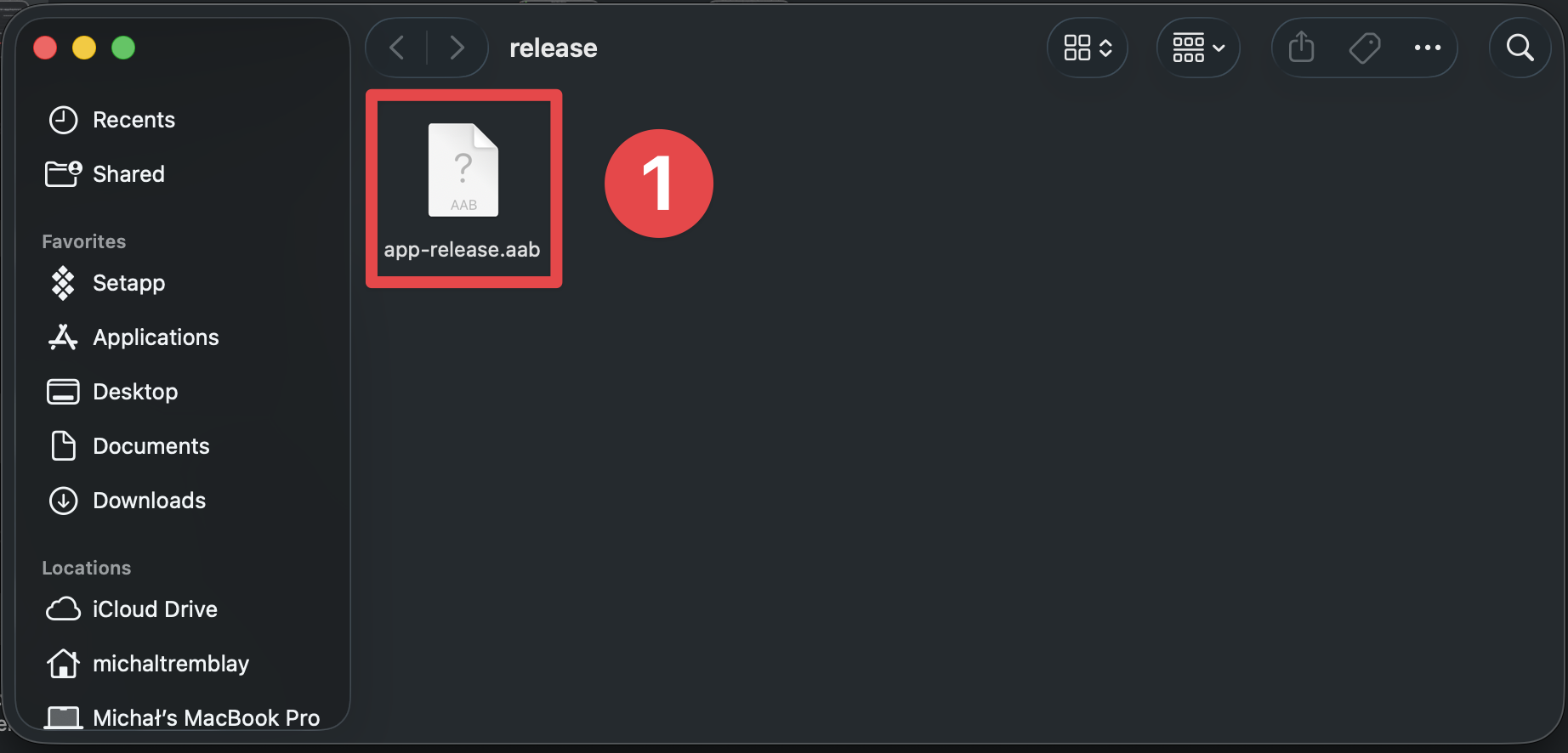
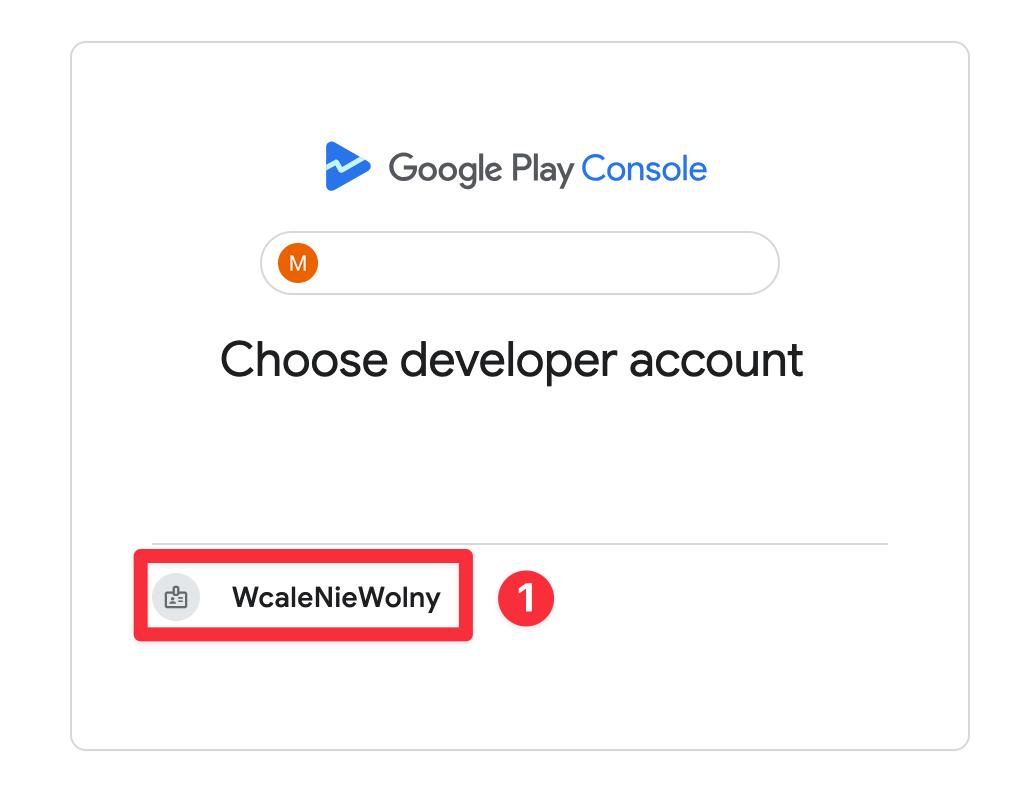
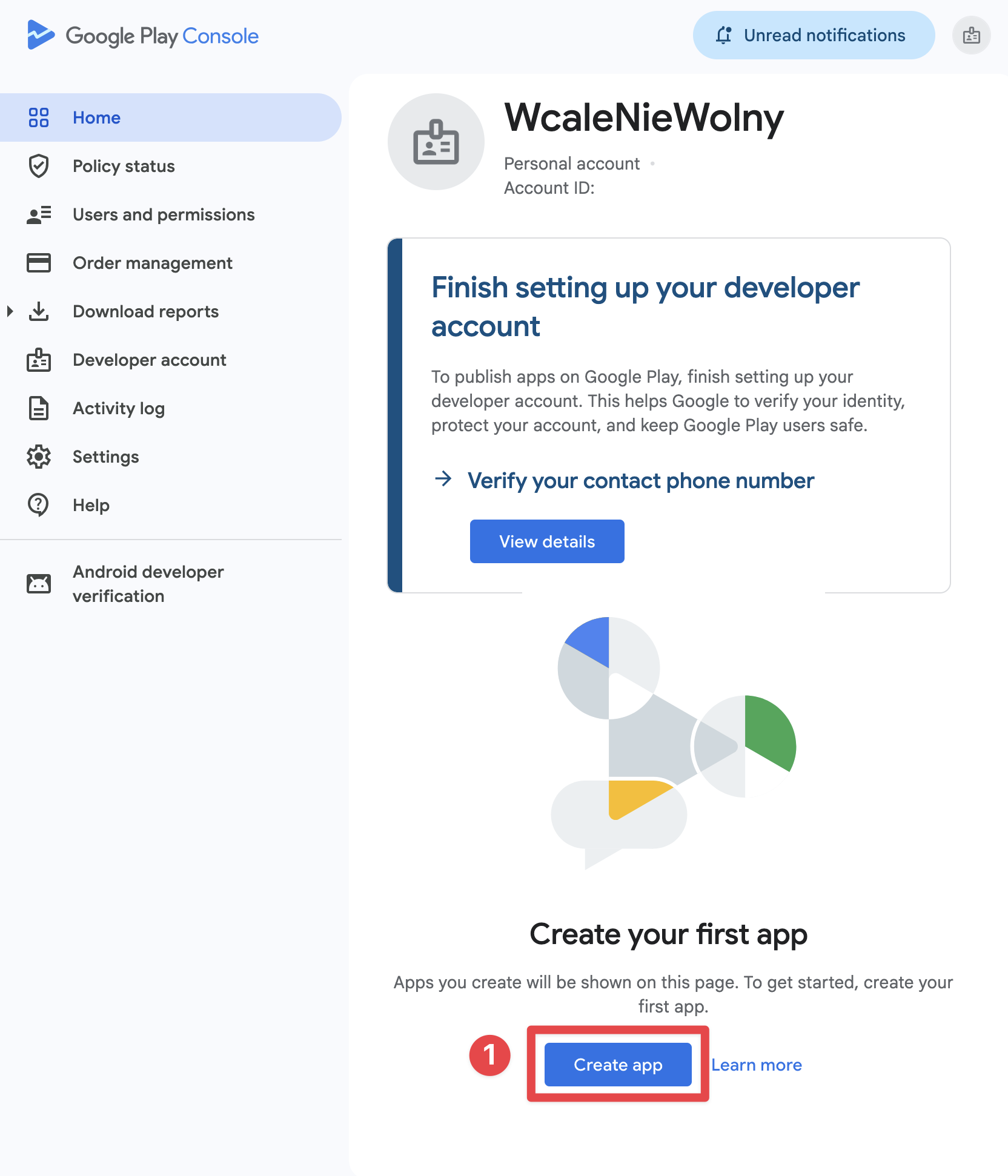
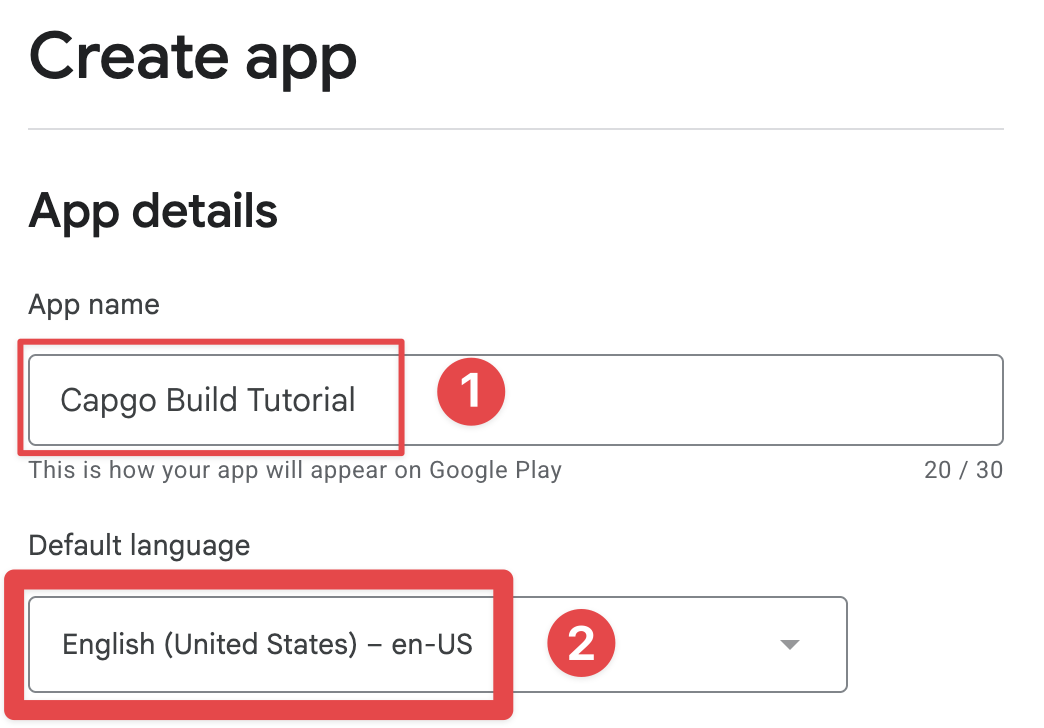
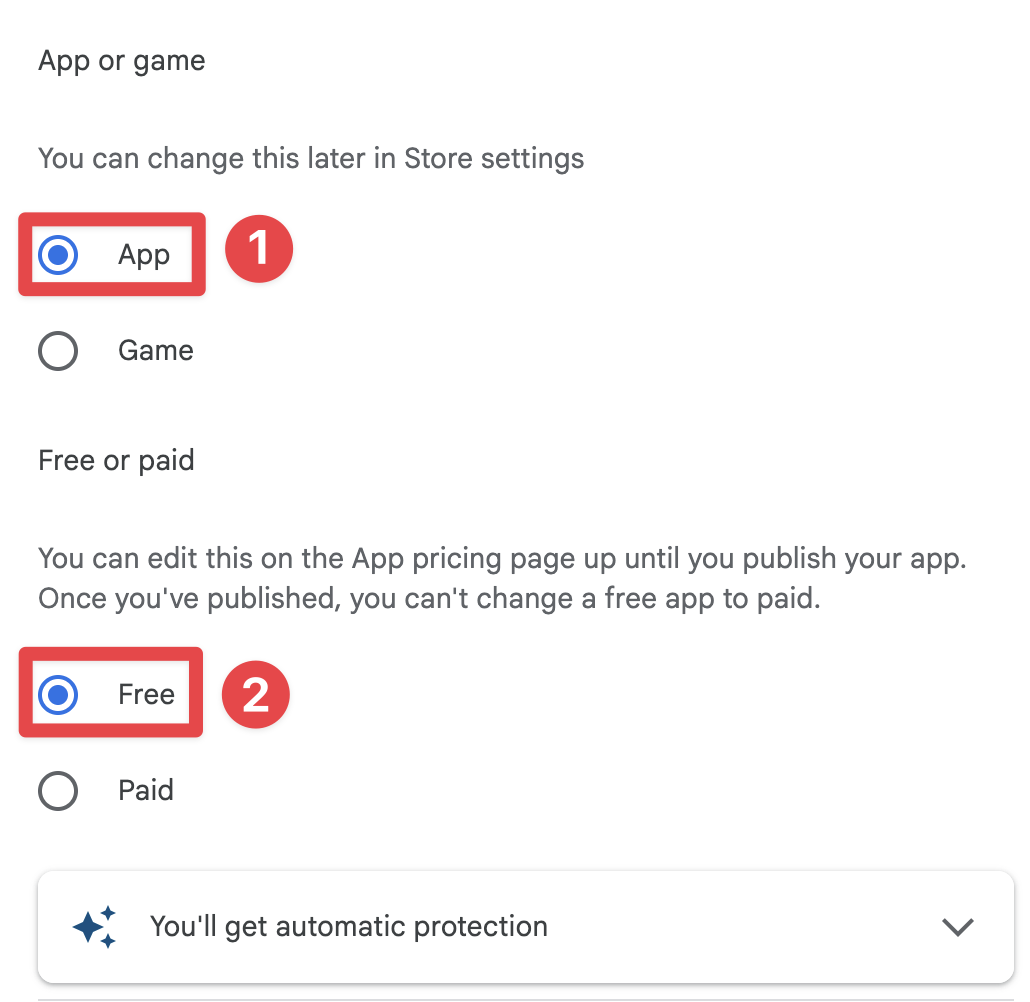
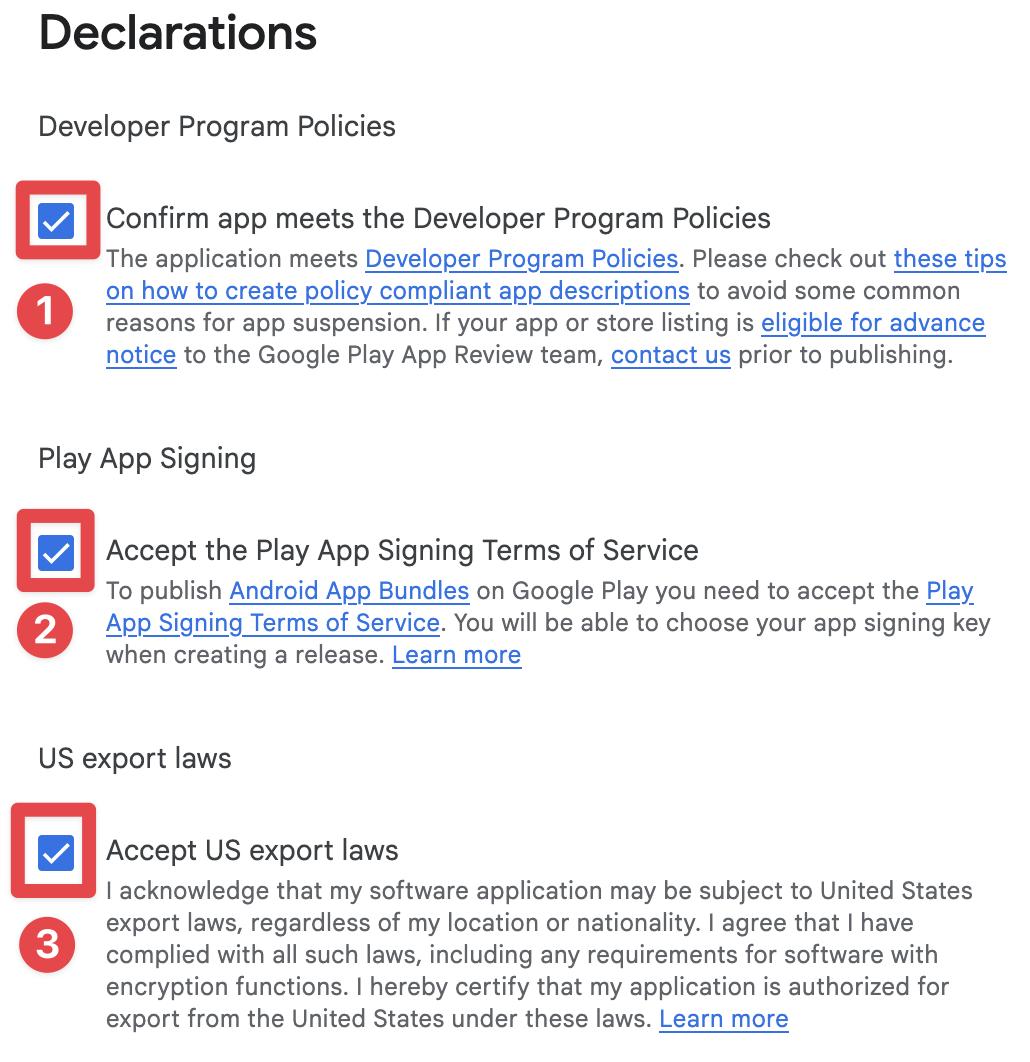
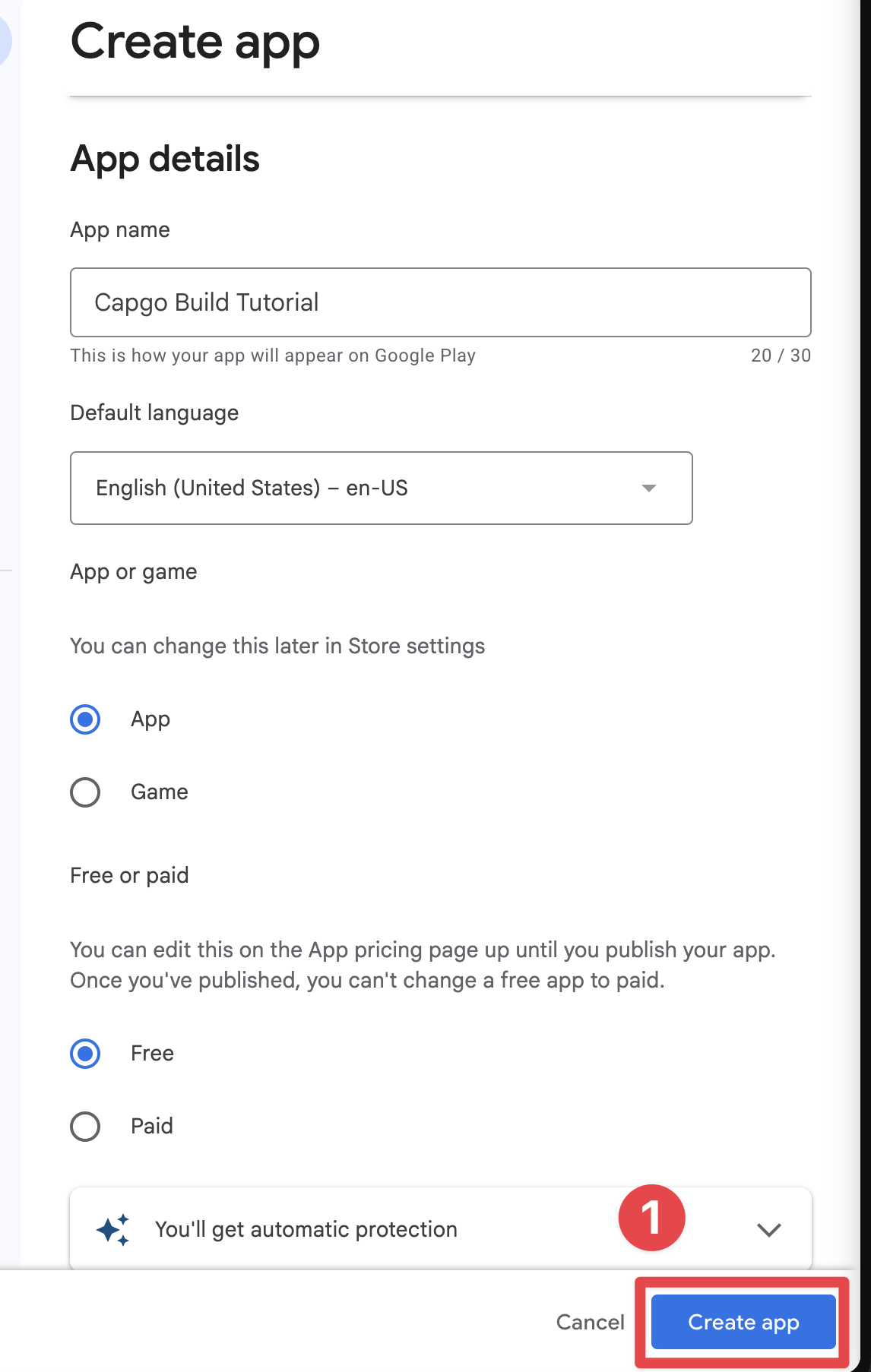
Getting your Android app approved on Google Play requires compliance with Google’s policies, especially for apps with in-app purchases and subscriptions. This guide covers everything you need to pass review successfully. ## Release Path That Works [Section titled “Release Path That Works”](#release-path-that-works) 1. **Build a Signed Android App Bundle** New Google Play apps should be uploaded as an Android App Bundle (`.aab`), not a sideloaded debug APK. Keep your `versionCode` increasing on every upload and store your upload key safely if you use Play App Signing.  2. **Create the App Record in Play Console** If you do not have a developer account yet, start with [Play Console signup](https://play.google.com/console/signup). Then, in **Home > Create app**, choose the language, app/game type, free/paid status, support email, and accept the required declarations. Choose the free/paid setting carefully. Google lets you change a paid app to free later, but once an app has been offered for free, it cannot be switched to paid.  3. **Complete App Content and Store Listing** Before production review, finish the required Play Console declarations: * Privacy policy * Ads * App access * Target audience and content * Content rating * Data Safety * Sensitive permissions declarations, if applicable 4. **Run a Play-Installed Test Track** Start with **internal testing** for fast QA. If your developer account is a personal account created after November 13, 2023, you must also complete a **closed test** with at least 12 opted-in testers for 14 consecutive days before production access.  5. **Verify Billing End-to-End** Install the app from Google Play, not from a locally exported APK. Then confirm that: * Products load from Play correctly * The purchase sheet shows a **test purchase** banner for license testers * Entitlements unlock after purchase * Restore and subscription management flows work ## Google Play Billing Requirements [Section titled “Google Play Billing Requirements”](#google-play-billing-requirements) ### Mandatory Billing System [Section titled “Mandatory Billing System”](#mandatory-billing-system) For digital goods and services, you **must** use Google Play’s billing system: **Digital Goods (Must Use Play Billing):** * Subscriptions to premium features * In-app currency or credits * Digital content (ebooks, music, videos) * Game upgrades and power-ups * App unlocks and premium tiers **Physical Goods (Cannot Use Play Billing):** * Physical merchandise * Real-world services * One-time donations to nonprofits :::note Subscription Setup In Play Console, configure Android subscriptions using the current **subscription -> base plan -> offer** model. In `native-purchases`, pass the Base Plan ID with `planIdentifier`. ::: ### Implementation with Native Purchases [Section titled “Implementation with Native Purchases”](#implementation-with-native-purchases)
```typescript
import { NativePurchases, PURCHASE_TYPE } from '@capgo/native-purchases';
// Ensure billing is available on the device
const { isBillingSupported } = await NativePurchases.isBillingSupported();
if (!isBillingSupported) throw new Error('Google Play Billing not available');
// Fetch subscription products (Store data is required—never hardcode pricing)
const { products } = await NativePurchases.getProducts({
productIdentifiers: ['premium_monthly', 'premium_yearly'],
productType: PURCHASE_TYPE.SUBS,
});
// Plan identifiers are the Base Plan IDs you create in Google Play Console
const transaction = await NativePurchases.purchaseProduct({
productIdentifier: 'premium_monthly',
planIdentifier: 'monthly-plan', // REQUIRED on Android, ignored on iOS
productType: PURCHASE_TYPE.SUBS,
});
console.log('Purchase token for server validation:', transaction.purchaseToken);
```
## Transparency and Disclosure Requirements [Section titled “Transparency and Disclosure Requirements”](#transparency-and-disclosure-requirements) ### Upfront Pricing Disclosure [Section titled “Upfront Pricing Disclosure”](#upfront-pricing-disclosure) Google Play mandates clear disclosure of all costs before purchase: **Required Elements:** * Exact price in user’s local currency * Billing frequency (monthly, yearly, etc.) * What’s included in the subscription * Total cost for introductory offers * When charges will occur  **Example of Compliant UI:**
```typescript
function SubscriptionCard({ product }) {
return (
{product.title}
{/* Show intro offer if available */}
{product.introductoryPrice && (
{product.introductoryPriceString}
for {product.introductoryPricePeriod}
)}
{/* Regular price */}
{product.priceString}
per {product.subscriptionPeriod}
{/* Clear description */}
{product.description}
{/* Renewal terms */}
Renews automatically. Cancel anytime in Google Play.
handlePurchase(product)}>
Subscribe Now
);
}
```
### Auto-Renewal Disclosure [Section titled “Auto-Renewal Disclosure”](#auto-renewal-disclosure) Before a subscription auto-renews, Google requires: * Clear notification that renewal will occur * Reminder of the price * Easy access to cancellation ### Cross-Platform Pricing Clarity [Section titled “Cross-Platform Pricing Clarity”](#cross-platform-pricing-clarity) If you sell the same entitlement on multiple platforms, keep the product naming, billing period, included benefits, and renewal language aligned so users are not surprised. Prices can legitimately differ because of taxes, local currency, or store economics, but the purchase UI must never hide those differences or imply a different renewal cost than the one Google Play will charge. ## Privacy Policy Requirements [Section titled “Privacy Policy Requirements”](#privacy-policy-requirements) ### Mandatory Privacy Policy [Section titled “Mandatory Privacy Policy”](#mandatory-privacy-policy) If your app includes in-app purchases, you must: 1. **Link in Play Store Listing** * Add privacy policy URL in Play Console * Must be publicly accessible * Must be in the same language as your app 2. **Link Within App** * Display privacy policy in app settings * Show before collecting any user data * Make easily discoverable **Example Implementation:**
```typescript
function SettingsScreen() {
const openPrivacyPolicy = () => {
window.open('https://yourapp.com/privacy', '_blank');
};
const openTerms = () => {
window.open('https://yourapp.com/terms', '_blank');
};
return (
Settings
Privacy Policy
Terms of Service
NativePurchases.manageSubscriptions()}>
Manage Subscriptions
);
}
```
### Data Safety Section [Section titled “Data Safety Section”](#data-safety-section) Google Play requires detailed disclosure in the Data Safety section: **For IAP Apps, Declare:** * Purchase history collection * Email addresses (for receipts) * Device IDs (for fraud prevention) * Payment information handling * Analytics data collection The Data Safety section is legally binding. Inaccurate declarations can result in app removal. ## App Content Declarations [Section titled “App Content Declarations”](#app-content-declarations) Google Play review is not only about the binary. Before a production release, complete the declarations on **Policy and programs > App content**. **The minimum set to review carefully:** * **Privacy policy**: Public URL in Play Console, plus an in-app entry point when required * **Ads**: Declare whether the app contains ads * **App access**: Give reviewers working credentials or a clear test path if any screen is gated * **Target audience and content**: Match the real audience of the app * **Content ratings**: Complete the IARC questionnaire so the app is not marked unrated * **Data Safety**: Declare collection, sharing, and security practices accurately ## Common Rejection Reasons [Section titled “Common Rejection Reasons”](#common-rejection-reasons) ### 1. Missing or Incorrect Billing Implementation [Section titled “1. Missing or Incorrect Billing Implementation”](#1-missing-or-incorrect-billing-implementation) **Why It Fails:** * Not using Google Play Billing for digital goods * Using deprecated billing APIs * Implementing custom payment solutions for subscriptions **Prevention:**
```typescript
// ✅ Correct: Use native-purchases (uses Google Play Billing)
await NativePurchases.purchaseProduct({
productIdentifier: 'premium_monthly',
planIdentifier: 'monthly-plan',
productType: PURCHASE_TYPE.SUBS,
});
// ❌ Wrong: Custom payment processor for subscriptions
// await CustomPayment.charge(user, 9.99);
```
### 2. Unclear Pricing or Hidden Costs [Section titled “2. Unclear Pricing or Hidden Costs”](#2-unclear-pricing-or-hidden-costs) **Why It Fails:** * Price only shown after clicking purchase * Additional fees not disclosed upfront * Vague subscription terms **Prevention:**
```typescript
function PurchaseScreen({ product }) {
return (
{/* Show ALL costs upfront */}
Premium Subscription
{product.priceString}/month
Taxes may apply based on location
Includes:
Ad-free experience
Unlimited cloud storage
Priority support
Subscription renews automatically unless cancelled at least
24 hours before the end of the current period.
Manage or cancel in Google Play Subscriptions.
Start Subscription
);
}
```
### 3. Deceptive Subscription Patterns [Section titled “3. Deceptive Subscription Patterns”](#3-deceptive-subscription-patterns) **Why It Fails:** * Pre-selecting premium options * Hiding cheaper alternatives * Making cancellation difficult * Fake urgency (“Only 3 spots left!”)   **Prevention:** * Display all subscription tiers equally * Make cancellation clear and accessible * Avoid countdown timers or fake scarcity * Don’t use dark patterns to push expensive options ### 4. Incomplete Testing [Section titled “4. Incomplete Testing”](#4-incomplete-testing) **Why It Fails:** * App crashes when purchasing * Products don’t load * Purchase confirmation doesn’t show * Premium features don’t unlock after purchase * Testing only happened on sideloaded builds instead of a Play-installed testing track **Prevention:**
```typescript
import { NativePurchases, PURCHASE_TYPE } from '@capgo/native-purchases';
// Comprehensive testing before submission
async function testPurchaseFlow() {
try {
// 1. Test product loading
const { products } = await NativePurchases.getProducts({
productIdentifiers: ['premium_monthly', 'premium_yearly'],
productType: PURCHASE_TYPE.SUBS,
});
console.log('✓ Products loaded:', products.length);
// 2. Test purchase flow
const transaction = await NativePurchases.purchaseProduct({
productIdentifier: 'premium_monthly',
planIdentifier: 'monthly-plan',
productType: PURCHASE_TYPE.SUBS,
});
console.log('✓ Purchase completed', transaction.transactionId);
// 3. Verify entitlements
const { purchases } = await NativePurchases.getPurchases({
productType: PURCHASE_TYPE.SUBS,
});
if (
purchases.some(
(purchase) =>
purchase.productIdentifier === 'premium_monthly' &&
['PURCHASED', '1'].includes(purchase.purchaseState ?? '') &&
purchase.isAcknowledged,
)
) {
console.log('✓ Premium features unlocked');
}
// 4. Test restore
await NativePurchases.restorePurchases();
console.log('✓ Restore works');
} catch (error) {
console.error('✗ Test failed:', error);
}
}
```
### 5. Privacy Policy Violations [Section titled “5. Privacy Policy Violations”](#5-privacy-policy-violations) **Why It Fails:** * No privacy policy link in app * Privacy policy not accessible * Data collection not disclosed * Data Safety section inaccurate **Prevention:** * Add privacy policy to Play Store listing * Include link in app settings * Accurately fill out Data Safety section * Update policy when adding new data collection ## Alternative Billing Programs [Section titled “Alternative Billing Programs”](#alternative-billing-programs) Google’s alternative billing programs are region-specific and can change. If you want anything other than standard Google Play Billing, confirm the exact market eligibility, required APIs, and disclosure language in Play Console immediately before implementation. ## Subscription Management [Section titled “Subscription Management”](#subscription-management) ### Easy Cancellation [Section titled “Easy Cancellation”](#easy-cancellation) Users must be able to: * View active subscriptions easily * Cancel without contacting support * Understand when cancellation takes effect **Implementation:**
```typescript
import { NativePurchases } from '@capgo/native-purchases';
function ManageSubscriptionButton() {
const openManagement = async () => {
try {
// Opens Google Play subscription management
await NativePurchases.manageSubscriptions();
} catch (error) {
// Fallback to direct URL
const playStoreUrl = 'https://play.google.com/store/account/subscriptions';
window.open(playStoreUrl, '_blank');
}
};
return (
Manage Subscription in Google Play
);
}
```
### Cancellation Grace Period [Section titled “Cancellation Grace Period”](#cancellation-grace-period) **Required Disclosure:** * When does cancellation take effect? * Do users keep access until period ends? * Are partial refunds available?
```typescript
function CancellationInfo() {
return (
Cancellation Policy
Cancel anytime in Google Play
Access continues until end of billing period
No refunds for partial periods
Resubscribe anytime to regain access
NativePurchases.manageSubscriptions()}>
Manage in Google Play
);
}
```
## Pre-Submission Checklist [Section titled “Pre-Submission Checklist”](#pre-submission-checklist)  1. **Verify Billing Implementation** * Using Google Play Billing (via native-purchases) * All subscription products created in Play Console * Base plans and offers configured correctly * Products are activated and published * Pricing set for all target countries 2. **Test Purchase Flows** * Create license test account * Install the build from a Play testing track * Test each subscription tier * Verify products load correctly * Test purchase completion * Confirm the **test purchase** banner appears * Verify premium features unlock * Test subscription restoration * Test on multiple devices 3. **Review All Copy** * Pricing displayed clearly before purchase * All fees disclosed upfront * Subscription terms are clear * Cancellation process explained * No misleading claims 4. **App Content and Privacy** * Privacy policy linked in Play Console * Privacy policy accessible in app * Ads declaration completed * App access instructions added if the app is gated * Data Safety section completed accurately * Permissions justified and documented 5. **Content Rating and Audience** * Complete content rating questionnaire * Complete target audience and content section * Ensure rating matches actual content * Declare in-app purchases in questionnaire 6. **Prepare Store Listing** * App description accurate * Short description is within 80 characters * Full description is within 4000 characters * At least 2 phone screenshots uploaded * 1024x500 feature graphic uploaded * Screenshots show current version * All required assets uploaded ## Review Timeline [Section titled “Review Timeline”](#review-timeline) **Production Access for New Personal Accounts:** Usually 7 days or less after you apply **First Production Review:** Often several days, sometimes longer if billing or policy questions are raised **Updates:** Often faster than a first release, but still reviewed **Appeals:** Plan for several days and provide exact fixes and reviewer instructions :::tip Rolling Reviews Unlike Apple, Google reviews apps continuously. Your app may go live at any time during the review period, not at a fixed time. ::: ## Testing Before Submission [Section titled “Testing Before Submission”](#testing-before-submission) ### License Testing [Section titled “License Testing”](#license-testing) 1. **Add Test Account:** * Go to Play Console * Settings > License testing * Add Gmail account for testing 2. **Test in Sandbox:**
```typescript
import { NativePurchases, PURCHASE_TYPE } from '@capgo/native-purchases';
// Test purchases with license test account
async function testInSandbox() {
const { isBillingSupported } = await NativePurchases.isBillingSupported();
if (!isBillingSupported) {
console.error('Billing not supported in this environment');
return;
}
// Fetch products (returns test pricing when using a license tester)
const { products } = await NativePurchases.getProducts({
productIdentifiers: ['premium_monthly'],
productType: PURCHASE_TYPE.SUBS,
});
console.log('Test products:', products);
// Make test purchase (no charge)
const transaction = await NativePurchases.purchaseProduct({
productIdentifier: 'premium_monthly',
planIdentifier: 'monthly-plan',
productType: PURCHASE_TYPE.SUBS,
});
console.log('Test purchase complete:', transaction.transactionId);
}
```
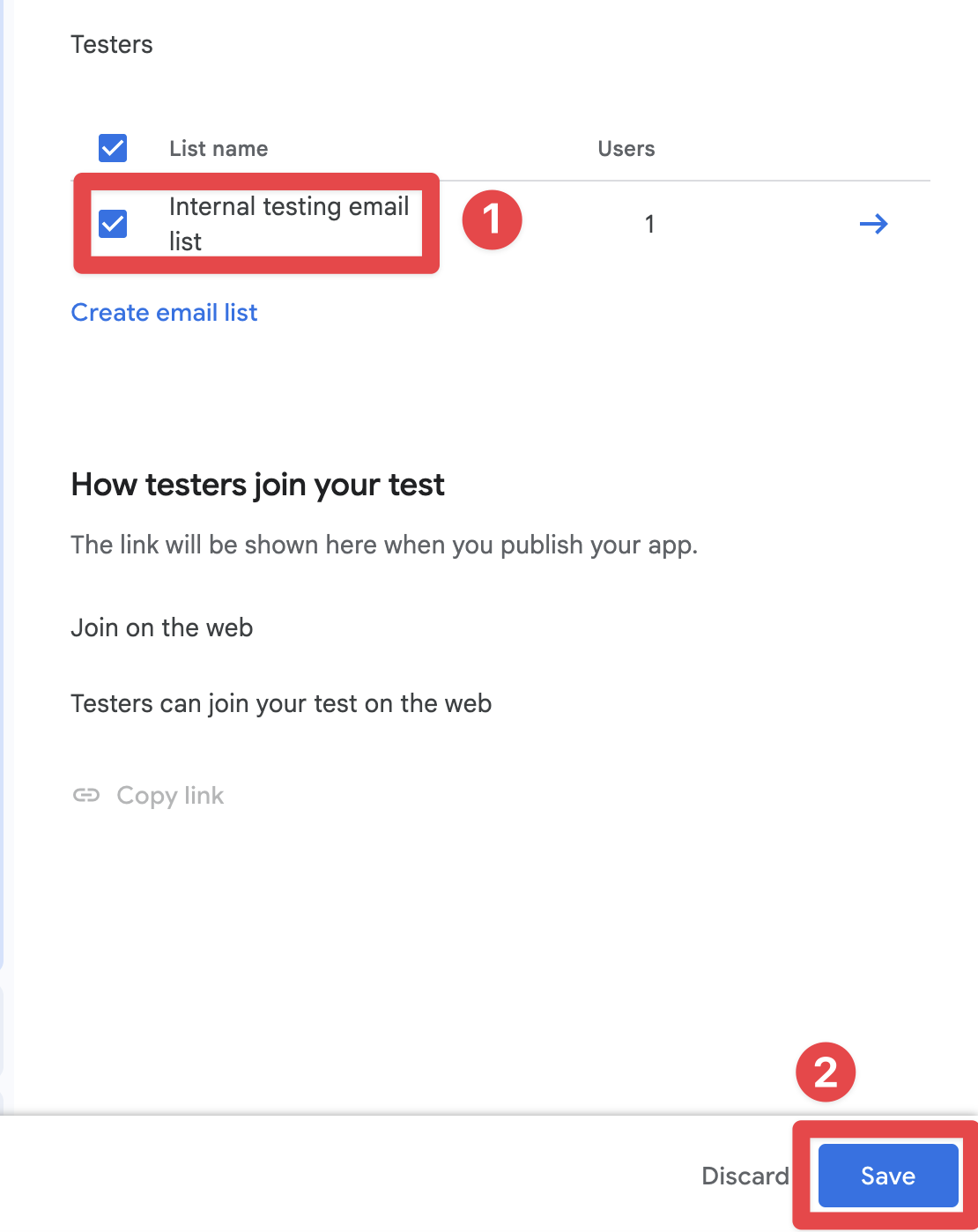
3. **Verify Test Banner:** * When purchasing with test account * Should see “Test purchase” notification * No real charges occur ### Internal and Closed Testing Tracks [Section titled “Internal and Closed Testing Tracks”](#internal-and-closed-testing-tracks) Before production release: 1. Create an **internal testing** track for fast QA or a **closed testing** track for broader testing 2. Upload a signed `.aab` and publish the testing release 3. Add tester email addresses and share the opt-in link 4. Have testers install the build from Google Play 5. Verify purchase flows work end-to-end on the Play-installed build 6. If your personal developer account was created after November 13, 2023, keep at least 12 testers opted in to a closed test for 14 consecutive days before applying for production A sideloaded debug build is not a substitute for a Play-installed testing build when validating Google Play Billing. ## Best Practices for Native Purchases [Section titled “Best Practices for Native Purchases”](#best-practices-for-native-purchases) ### Handle All Purchase States [Section titled “Handle All Purchase States”](#handle-all-purchase-states)
```typescript
import { NativePurchases, PURCHASE_TYPE } from '@capgo/native-purchases';
async function handlePurchase(productId: string, planIdentifier?: string) {
try {
setLoading(true);
const transaction = await NativePurchases.purchaseProduct({
productIdentifier: productId,
planIdentifier,
productType: planIdentifier ? PURCHASE_TYPE.SUBS : PURCHASE_TYPE.INAPP,
});
console.log('Purchase token:', transaction.purchaseToken ?? transaction.receipt);
// Success - check entitlements from the store
const { purchases } = await NativePurchases.getPurchases({
productType: planIdentifier ? PURCHASE_TYPE.SUBS : PURCHASE_TYPE.INAPP,
});
const isOwned = purchases.some(
(purchase) =>
purchase.productIdentifier === productId &&
(purchase.purchaseState === 'PURCHASED' || purchase.purchaseState === '1') &&
purchase.isAcknowledged,
);
if (isOwned) {
unlockPremiumFeatures();
showSuccess('Premium activated!');
}
} catch (error: any) {
// Handle specific error cases
switch (error.code) {
case 'USER_CANCELLED':
// User backed out - no error needed
console.log('Purchase cancelled');
break;
case 'ITEM_ALREADY_OWNED':
// They already own it - restore instead
showInfo('You already own this! Restoring...');
await NativePurchases.restorePurchases();
break;
case 'ITEM_UNAVAILABLE':
showError('This subscription is currently unavailable. Please try again later.');
break;
case 'NETWORK_ERROR':
showError('Network error. Please check your connection and try again.');
break;
default:
showError('Purchase failed. Please try again.');
console.error('Purchase error:', error);
}
} finally {
setLoading(false);
}
}
```
### Implement Restore Purchases [Section titled “Implement Restore Purchases”](#implement-restore-purchases)
```typescript
import { NativePurchases, PURCHASE_TYPE } from '@capgo/native-purchases';
function RestorePurchasesButton() {
const [loading, setLoading] = useState(false);
const handleRestore = async () => {
setLoading(true);
try {
await NativePurchases.restorePurchases();
const { purchases } = await NativePurchases.getPurchases({
productType: PURCHASE_TYPE.SUBS,
});
const hasSubscription = purchases.some(
(purchase) => purchase.productType === 'subs' && purchase.isAcknowledged,
);
if (hasSubscription) {
unlockPremiumFeatures();
showSuccess('Subscriptions restored!');
return;
}
// Check one-time unlocks if needed
const { purchases: iaps } = await NativePurchases.getPurchases({
productType: PURCHASE_TYPE.INAPP,
});
const hasInApp = iaps.some((purchase) => purchase.productIdentifier === 'premium_unlock');
if (hasInApp) {
unlockPremiumFeatures();
showSuccess('Previous purchases restored!');
return;
}
showInfo('No previous purchases found.');
} catch (error) {
showError('Failed to restore purchases. Please try again.');
} finally {
setLoading(false);
}
};
return (
{loading ? 'Restoring...' : 'Restore Purchases'}
);
}
```
### Check Subscription Status [Section titled “Check Subscription Status”](#check-subscription-status)
```typescript
import { NativePurchases, PURCHASE_TYPE } from '@capgo/native-purchases';
async function checkSubscriptionStatus() {
try {
const { purchases } = await NativePurchases.getPurchases({
productType: PURCHASE_TYPE.SUBS,
});
const subscription = purchases.find(
(purchase) =>
purchase.productIdentifier === 'premium_monthly' &&
(purchase.purchaseState === 'PURCHASED' || purchase.purchaseState === '1') &&
purchase.isAcknowledged,
);
if (!subscription) {
showPaywall();
return;
}
console.log('Subscription active:', {
productId: subscription.productIdentifier,
expiresAt: subscription.expirationDate,
willRenew: subscription.willCancel === false,
purchaseToken: subscription.purchaseToken,
});
unlockPremiumFeatures();
} catch (error) {
console.error('Failed to check subscription:', error);
}
}
```
## If Your App Gets Rejected [Section titled “If Your App Gets Rejected”](#if-your-app-gets-rejected) ### Common Policy Violations [Section titled “Common Policy Violations”](#common-policy-violations) **Payments Policy:** * Not using Google Play Billing * Misleading subscription terms * Hidden costs **User Data Policy:** * Missing privacy policy * Inaccurate Data Safety declarations * Excessive permissions ### Resolution Steps [Section titled “Resolution Steps”](#resolution-steps) 1. **Review the Violation Notice** * Read the specific policy cited * Understand what Google flagged * Check examples they provided 2. **Fix the Issue** * Address root cause, not just symptoms * Test thoroughly after fix * Document all changes made 3. **Submit Appeal (if applicable)** 
```plaintext
Subject: Policy Violation Appeal - [App Name]
Dear Google Play Review Team,
I have received notification that my app violates [Policy X.Y].
I have made the following changes to comply:
1. [Specific change made]
2. [Specific change made]
3. [Specific change made]
The updated version [version number] addresses all concerns raised.
Test account for verification:
Email: test@example.com
Password: TestPass123
Thank you for your consideration.
```
 4. **Resubmit or Update** * Upload fixed version * Resubmit for review * Monitor status in Play Console ## Additional Resources [Section titled “Additional Resources”](#additional-resources) * [Google Play Developer Policy Center](https://play.google.com/about/developer-content-policy/) * [Google Play Billing Documentation](https://developer.android.com/google/play/billing) * [Subscriptions Best Practices](https://developer.android.com/google/play/billing/subscriptions) * [Prepare Your App for Review](https://support.google.com/googleplay/android-developer/answer/9859455) * [Testing Requirements for New Personal Accounts](https://support.google.com/googleplay/android-developer/answer/14151465) * [Play Console Help](https://support.google.com/googleplay/android-developer/) ## Need Expert Help? [Section titled “Need Expert Help?”](#need-expert-help) Navigating Play Store review can be complex, especially when you need to combine billing compliance, App content declarations, and testing-track setup. If you need personalized assistance: **[Book a consultation call with our team](https://book.capgo.app/consulting-services/)** for help with: * Complete Play Store review preparation * Testing track setup and tester recruitment * IAP implementation review * Data Safety and privacy compliance * Rejection troubleshooting and appeals * Complete app submission process Our experts have guided hundreds of apps through successful Play Store submissions and can help you navigate the current requirements. ## Support [Section titled “Support”](#support) Need help with implementation? * Review the [Native Purchases documentation](/docs/plugins/native-purchases/getting-started/) * Check [Android sandbox testing guide](/docs/plugins/native-purchases/android-sandbox-testing/) * Visit [Google Play Developer Support](https://support.google.com/googleplay/android-developer/) ## Keep going from Android Play Store Review Guidelines for IAP [Section titled “Keep going from Android Play Store Review Guidelines for IAP”](#keep-going-from-android-play-store-review-guidelines-for-iap) If you are using **Android Play Store Review Guidelines for IAP** to plan security and compliance, connect it with [Using @capgo/native-purchases](/plugins/capacitor-native-purchases/) for the native capability in Using @capgo/native-purchases, [Encryption](/docs/live-updates/encryption/) for the implementation detail in Encryption, [Compliance](/docs/live-updates/compliance/) for the implementation detail in Compliance, [Capgo Security Scanner](/security-scanner/) for the product workflow in Capgo Security Scanner, and [Capgo Security](/security/) for the product workflow in Capgo Security.
# Configure Android Sandbox Testing
> Learn how to set up sandbox testing for in-app purchases on Android using Google Play Console.
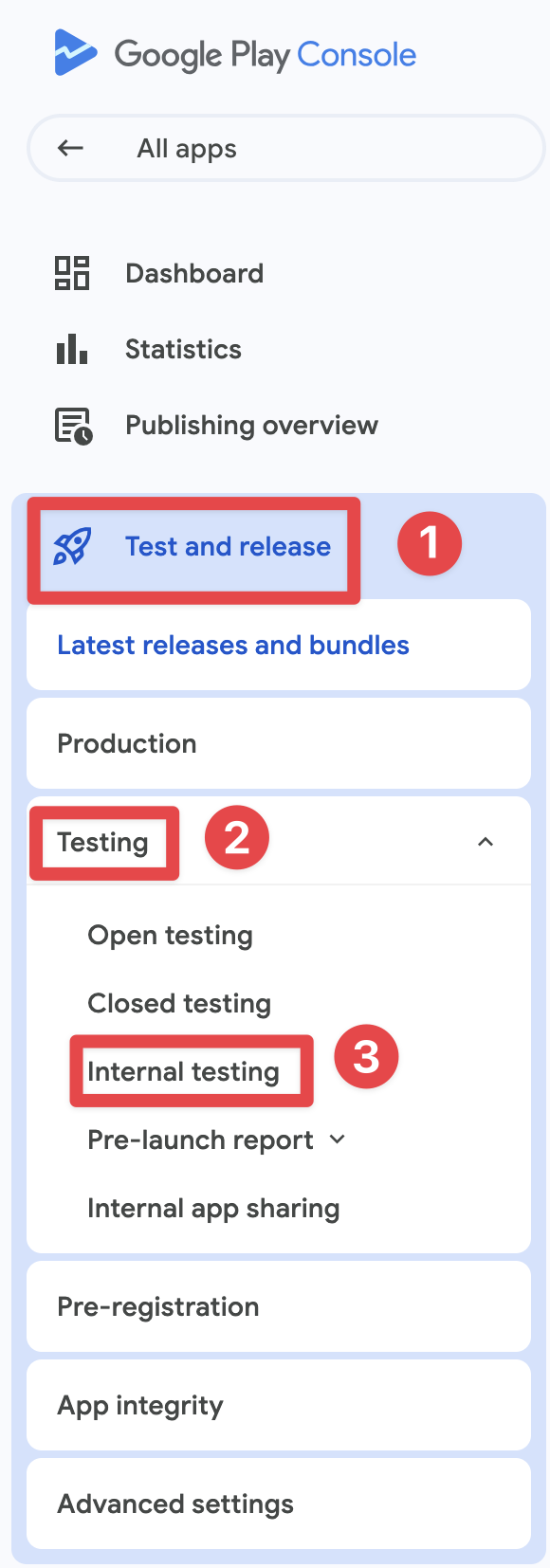
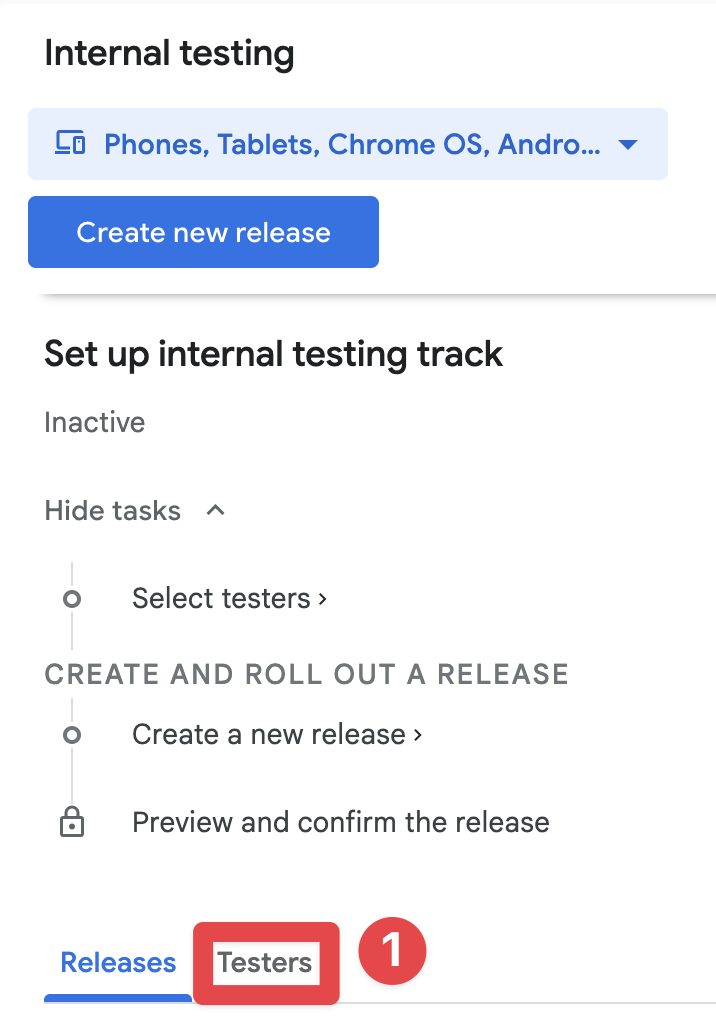
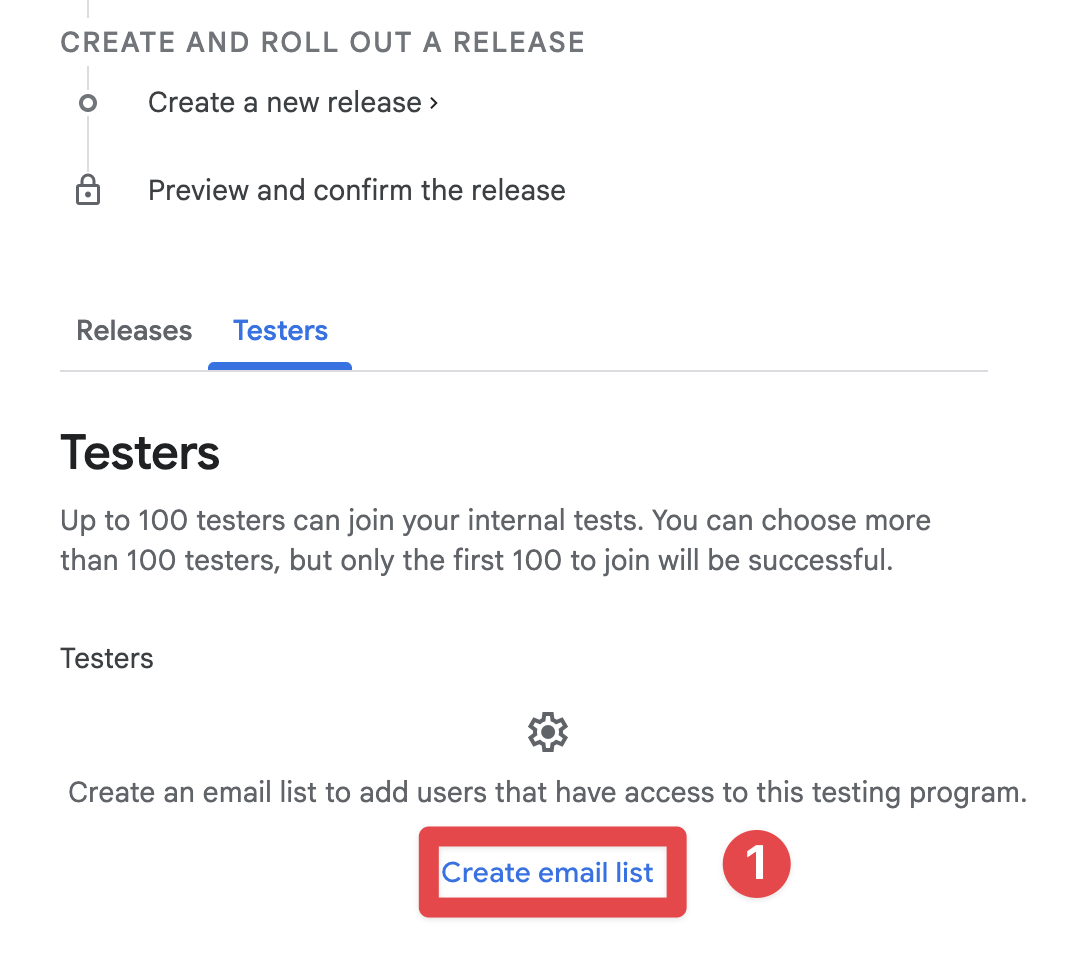
Testing in-app purchases requires proper configuration in Google Play Console. This guide will walk you through setting up sandbox testing for your Android app. ## Use the right build for the job [Section titled “Use the right build for the job”](#use-the-right-build-for-the-job) Before you start, separate these three Android build types: * **Local debug/dev build**: Good for checking UI and native integrations on your device. * **Signed release AAB uploaded to Play Console**: Required for realistic Google Play billing tests. * **Play-installed testing build**: The build your testers install from an internal or closed track. Use this for purchase QA. If you only sideload an APK from Android Studio or `adb`, Google Play Billing may not behave the same way it does in production. For subscription and in-app purchase validation, always test with a build installed from Google Play. ## Prerequisites [Section titled “Prerequisites”](#prerequisites) * A Google Play Console developer account. If you have not created one yet, start at [Play Console signup](https://play.google.com/console/signup). * An app record created in Play Console with your final Android package name * Your in-app products or subscriptions created in Play Console * A test Gmail account that you can add to license testing * A signed release build ready for upload Before you spend time on billing setup, create the app in Play Console and decide whether it will be **free** or **paid**. Google lets you move a paid app to free later, but once an app has been offered for free, it cannot be switched to paid. Use an Android App Bundle (`.aab`) for new Play Store apps:
```bash
bunx cap sync android
cd android
./gradlew bundleRelease
```
Make sure your Android release signing is already configured before you run `bundleRelease`. If your keystore, signing config, or release passwords are not set yet, create the signed bundle from Android Studio with **Build > Generate Signed App Bundle / APK**, which prompts you for those values. ## Setup Process [Section titled “Setup Process”](#setup-process) 1. **Add Testing Account** In Play Console, open **Settings > License testing** and add the primary Google account used on your Android test device. This ensures purchases show the Play sandbox flow instead of attempting a real charge.  2. **Choose a Testing Track** Go to **Test and release > Testing** and choose one of these tracks: * **Internal testing**: Fastest path for QA and billing smoke tests. New bundles are normally available within minutes. * **Closed testing**: Better for broader testing, and required before production for personal developer accounts created after November 13, 2023. For a first release, Play may show a temporary app name and listing information to internal testers for up to 48 hours.  3. **Create Tester List** After opening your track, create a tester list and add the Google accounts that should receive the build. If you are working toward production access on a newly created personal account, make sure you use **closed testing** and keep at least 12 testers opted in for 14 consecutive days.  4. **Upload a Signed Release Build** Create a new release in the selected testing track and upload your signed `.aab`. New Google Play apps should use an Android App Bundle rather than an APK. After upload, save the release, fix any policy or store listing blockers Play flags, then publish the release to the testing track.  5. **Join the Testing Program** Open the opt-in URL from your test device and click the **“Become a tester”** button to enroll. Install the app from the Play Store listing created by that opt-in flow, not from a locally exported APK.  6. **Build and Test** Launch the Play-installed build on the test device and attempt a purchase. You should see a message like: > “This is a test order; you will not be charged.”  ## Important Notes [Section titled “Important Notes”](#important-notes) * For billing QA, uninstall any sideloaded copy of the app before installing the Play testing build. * Internal testing is great for fast smoke tests, but closed testing is the track that matters for new personal-account production access. * Test accounts will not be charged for purchases * Test purchases use the same flow as production purchases * You can test all subscription features including trials and introductory offers * Test subscriptions have accelerated renewal periods for faster testing * Use the same Google account for all three places: the Play Store on the device, the tester opt-in flow, and License testing ## Troubleshooting [Section titled “Troubleshooting”](#troubleshooting) **Products not showing in test mode:** * Ensure your app is uploaded to a testing track * Verify the test account is added to License testing * Check that products are active in Google Play Console * Confirm the build was installed from Google Play, not sideloaded locally **“Item not available” error:** * Wait 2-3 hours after creating products for them to become available * Ensure your app’s package name matches the one in Play Console * Verify you’re signed in with a test account * Confirm you uploaded the signed release build that points at the same package name and product catalog **Test purchases showing as real charges:** * Double-check the account is added to License testing * Ensure you’re using the build from the testing track * Verify the testing banner appears during purchase ## Additional Resources [Section titled “Additional Resources”](#additional-resources) * [Test purchases with Google Play Billing](https://developer.android.com/google/play/billing/test) * [Set up an open, closed, or internal test](https://support.google.com/googleplay/android-developer/answer/9845334) * [Testing requirements for new personal developer accounts](https://support.google.com/googleplay/android-developer/answer/14151465) ## Keep going from Configure Android Sandbox Testing [Section titled “Keep going from Configure Android Sandbox Testing”](#keep-going-from-configure-android-sandbox-testing) If you are using **Configure Android Sandbox Testing** to plan store approval and distribution, connect it with [Using @capgo/native-purchases](/plugins/capacitor-native-purchases/) for the native capability in Using @capgo/native-purchases, [@capgo/capacitor-in-app-review](/docs/plugins/in-app-review/) for the implementation detail in @capgo/capacitor-in-app-review, [Using @capgo/capacitor-in-app-review](/plugins/capacitor-in-app-review/) for the native capability in Using @capgo/capacitor-in-app-review, [@capgo/capacitor-native-market](/docs/plugins/native-market/) for the implementation detail in @capgo/capacitor-native-market, and [Using @capgo/capacitor-native-market](/plugins/capacitor-native-market/) for the native capability in Using @capgo/capacitor-native-market.
# Getting Started
> Learn how to install and use the @capgo/native-purchases plugin to implement one-time purchases and subscriptions with StoreKit 2 and Google Play Billing 7.
## Installation [Section titled “Installation”](#installation) You can use our AI-Assisted Setup to install the plugin. Add the Capgo skills to your AI tool using the following command:
```bash
npx skills add https://github.com/Cap-go/capgo-skills --skill capacitor-plugins
```
Then use the following prompt:
```text
Use the `capacitor-plugins` skill from `Cap-go/capgo-skills` to install the `@capgo/native-purchases` plugin in my project.
```
If you prefer Manual Setup, install the plugin by running the following commands and follow the platform-specific instructions below: 1. **Install the package**
```sh
bun add @capgo/native-purchases
```
2. **Sync with native projects**
```sh
bunx cap sync
```
3. **Check billing support**
```typescript
import { NativePurchases } from '@capgo/native-purchases';
const { isBillingSupported } = await NativePurchases.isBillingSupported();
if (!isBillingSupported) {
throw new Error('Billing is not available on this device');
}
```
4. **Load products directly from the stores**
```typescript
import { NativePurchases, PURCHASE_TYPE } from '@capgo/native-purchases';
const { products } = await NativePurchases.getProducts({
productIdentifiers: [
'com.example.premium.monthly',
'com.example.premium.yearly',
'com.example.one_time_unlock'
],
productType: PURCHASE_TYPE.SUBS, // Use PURCHASE_TYPE.INAPP for one‑time products
});
products.forEach((product) => {
console.log(product.title, product.priceString);
});
```
5. **Implement purchase & restore flows**
```typescript
import { NativePurchases, PURCHASE_TYPE } from '@capgo/native-purchases';
const monthlyPlanId = 'monthly-plan'; // Base Plan ID from Google Play Console
const transaction = await NativePurchases.purchaseProduct({
productIdentifier: 'com.example.premium.monthly',
planIdentifier: monthlyPlanId, // REQUIRED for Android subscriptions, ignored on iOS
productType: PURCHASE_TYPE.SUBS,
quantity: 1,
});
console.log('Transaction ID', transaction.transactionId);
await NativePurchases.restorePurchases();
```
* iOS * Create in-app products and subscriptions in App Store Connect. * Use StoreKit Local Testing or Sandbox testers for QA. * No manifest edits required. Make sure your products are approved. * Android * Create in-app products and subscriptions in Google Play Console. * Upload at least an internal test build and add license testers. * Add the billing permission to `AndroidManifest.xml`:
```xml
```
## Purchase service example [Section titled “Purchase service example”](#purchase-service-example)
```typescript
import { NativePurchases, PURCHASE_TYPE, Transaction } from '@capgo/native-purchases';
import { Capacitor } from '@capacitor/core';
class PurchaseService {
private premiumProduct = 'com.example.premium.unlock';
private monthlySubId = 'com.example.premium.monthly';
private monthlyPlanId = 'monthly-plan'; // Base Plan ID (Android only)
async initialize() {
const { isBillingSupported } = await NativePurchases.isBillingSupported();
if (!isBillingSupported) throw new Error('Billing unavailable');
const { products } = await NativePurchases.getProducts({
productIdentifiers: [this.premiumProduct, this.monthlySubId],
productType: PURCHASE_TYPE.SUBS,
});
console.log('Loaded products', products);
if (Capacitor.getPlatform() === 'ios') {
NativePurchases.addListener('transactionUpdated', (transaction) => {
this.handleTransaction(transaction);
});
}
}
async buyPremium(appAccountToken?: string) {
const transaction = await NativePurchases.purchaseProduct({
productIdentifier: this.premiumProduct,
productType: PURCHASE_TYPE.INAPP,
appAccountToken,
});
await this.processTransaction(transaction);
}
async buyMonthly(appAccountToken?: string) {
const transaction = await NativePurchases.purchaseProduct({
productIdentifier: this.monthlySubId,
planIdentifier: this.monthlyPlanId, // REQUIRED for Android subscriptions
productType: PURCHASE_TYPE.SUBS,
appAccountToken,
});
await this.processTransaction(transaction);
}
async restore() {
await NativePurchases.restorePurchases();
await this.refreshEntitlements();
}
async openManageSubscriptions() {
await NativePurchases.manageSubscriptions();
}
private async processTransaction(transaction: Transaction) {
this.unlockContent(transaction.productIdentifier);
this.validateOnServer(transaction).catch(console.error);
}
private unlockContent(productIdentifier: string) {
// persist entitlement locally
console.log('Unlocked', productIdentifier);
}
private async refreshEntitlements() {
const { purchases } = await NativePurchases.getPurchases({
productType: PURCHASE_TYPE.SUBS,
});
console.log('Current purchases', purchases);
}
private async handleTransaction(transaction: Transaction) {
console.log('StoreKit transaction update:', transaction);
await this.processTransaction(transaction);
}
private async validateOnServer(transaction: Transaction) {
await fetch('/api/validate-purchase', {
method: 'POST',
body: JSON.stringify({
transactionId: transaction.transactionId,
receipt: transaction.receipt,
purchaseToken: transaction.purchaseToken,
}),
});
}
}
```
## Required purchase options [Section titled “Required purchase options”](#required-purchase-options) | Option | Platform | Description | | ------------------- | --------------------- | -------------------------------------------------------------------------------------------------------------------------------------------------- | | `productIdentifier` | iOS + Android | SKU/Product ID configured in App Store Connect / Google Play Console. | | `productType` | Android only | `PURCHASE_TYPE.INAPP` or `PURCHASE_TYPE.SUBS`. Defaults to `INAPP`. Always set to `SUBS` for subscriptions. | | `planIdentifier` | Android subscriptions | Base Plan ID from Google Play Console. Required for subscriptions, ignored on iOS and in-app purchases. | | `billingPlanType` | iOS subscriptions | StoreKit billing plan to purchase. Use `'monthly'` for monthly billing with a 12-month commitment when `product.pricingTerms` exposes that option. | | `quantity` | iOS | Only for in-app purchases, defaults to `1`. Android always purchases one item. | | `appAccountToken` | iOS + Android | UUID/string linking the purchase to your user. Required to be UUID on iOS; Android accepts any obfuscated string up to 64 chars. | | `isConsumable` | Android | Set to `true` to auto-consume tokens after granting entitlement for consumables. Defaults to `false`. | ## Checking entitlement status [Section titled “Checking entitlement status”](#checking-entitlement-status) Use `getPurchases()` for a cross-platform view of every transaction the stores report:
```typescript
import { NativePurchases, PURCHASE_TYPE } from '@capgo/native-purchases';
const { purchases } = await NativePurchases.getPurchases({
productType: PURCHASE_TYPE.SUBS,
});
purchases.forEach((purchase) => {
if (purchase.isActive && purchase.expirationDate) {
console.log('iOS sub active until', purchase.expirationDate);
}
const isAndroidIapValid =
['PURCHASED', '1'].includes(purchase.purchaseState ?? '') && purchase.isAcknowledged;
if (isAndroidIapValid) {
console.log('Grant in-app entitlement for', purchase.productIdentifier);
}
});
```
### Platform behavior [Section titled “Platform behavior”](#platform-behavior) * **iOS**: Subscriptions include `isActive`, `expirationDate`, `willCancel`, and StoreKit 2 listener support. In-app purchases require server receipt validation. * **Android**: `isActive`/`expirationDate` are not populated; call the Google Play Developer API with the `purchaseToken` for authoritative status. `purchaseState` must be `PURCHASED` and `isAcknowledged` must be `true`. ## API quick reference [Section titled “API quick reference”](#api-quick-reference) * `isBillingSupported()` – check for StoreKit / Google Play availability. * `getProduct()` / `getProducts()` – fetch price, localized title, description, intro offers, and supported iOS pricing terms. * `purchaseProduct()` – initiate StoreKit 2 or Billing client purchase flow, including iOS monthly commitment billing plans. * `restorePurchases()` – replay historical purchases and sync to current device. * `getPurchases()` – list all iOS transactions or Play Billing purchases. * `manageSubscriptions()` – open the native subscription management UI. * `addListener('transactionUpdated')` – handle pending StoreKit 2 transactions when your app starts (iOS only). ## Best practices [Section titled “Best practices”](#best-practices) 1. **Show store pricing** – Apple requires displaying `product.title` and `product.priceString`; never hardcode. 2. **Use `appAccountToken`** – deterministically generate a UUID (v5) from your user ID to link purchases to accounts. 3. **Validate server-side** – send `receipt` (iOS) / `purchaseToken` (Android) to your backend for verification. 4. **Handle errors gracefully** – check for user cancellations, network failures, and unsupported billing environments. 5. **Test thoroughly** – follow the [iOS sandbox guide](/docs/plugins/native-purchases/ios-sandbox-testing/) and [Android sandbox guide](/docs/plugins/native-purchases/android-sandbox-testing/). 6. **Offer restore & management** – add UI buttons wired to `restorePurchases()` and `manageSubscriptions()`. ## Revenue next steps [Section titled “Revenue next steps”](#revenue-next-steps) After the purchase flow works, use the [Revenue Playbook](/docs/plugins/native-purchases/revenue-playbook/) to plan your first paid funnel: product scope, ASO, pricing, paywall placement, analytics, and churn feedback. ## Troubleshooting [Section titled “Troubleshooting”](#troubleshooting) **Products not loading** * Make sure the bundle ID / application ID matches store configuration. * Confirm the product IDs are active and approved (App Store) or activated (Google Play). * Wait several hours after creating products; store propagation is not instant. **Purchase cancelled or stuck** * Users can cancel mid-flow; wrap calls in `try/catch` and surface friendly error messages. * For Android, ensure test accounts install the app from Play Store (internal track) so Billing works. * Check logcat/Xcode for billing errors when running on device. **Subscription state incorrect** * Use `getPurchases()` to compare store data with your local entitlement cache. * On Android, always query the Google Play Developer API with the `purchaseToken` to obtain expiration dates or refund status. * On iOS, check `isActive`/`expirationDate` and validate receipts to detect refunds or revocations. ## Keep going from Getting Started [Section titled “Keep going from Getting Started”](#keep-going-from-getting-started) If you are using **Getting Started** to plan store approval and distribution, connect it with [Using @capgo/native-purchases](/plugins/capacitor-native-purchases/) for the native capability in Using @capgo/native-purchases, [@capgo/capacitor-in-app-review](/docs/plugins/in-app-review/) for the implementation detail in @capgo/capacitor-in-app-review, [Using @capgo/capacitor-in-app-review](/plugins/capacitor-in-app-review/) for the native capability in Using @capgo/capacitor-in-app-review, [@capgo/capacitor-native-market](/docs/plugins/native-market/) for the implementation detail in @capgo/capacitor-native-market, and [Using @capgo/capacitor-native-market](/plugins/capacitor-native-market/) for the native capability in Using @capgo/capacitor-native-market.
# iOS App Store Review Guidelines for IAP
> Complete guide to passing App Store review with in-app purchases and subscriptions, including common rejection reasons and best practices.
Getting your app approved on the App Store requires careful attention to Apple’s guidelines, especially when implementing in-app purchases and subscriptions. This guide covers everything you need to know to pass review on your first submission.  ## Before You Submit [Section titled “Before You Submit”](#before-you-submit) ### Finish App Store Connect Setup [Section titled “Finish App Store Connect Setup”](#finish-app-store-connect-setup) Before Apple reviews your purchase flow, make sure the app record itself is complete: * Add a **Privacy Policy URL** in App Store Connect * Add a **Support URL** that leads to real contact information for users * Complete the **age rating** questionnaire so the app is publishable * Add **App Review contact details** and clear reviewer notes * If login is required, provide a **demo account that does not expire during review**  ### Prepare Real Screenshots [Section titled “Prepare Real Screenshots”](#prepare-real-screenshots) * Use current screenshots from the actual build under review * For iPhone, `1290 x 2796` (6.7-inch) is the easiest default size * If your app runs on iPad, upload iPad screenshots too * Current accepted large iPad sizes include `2064 x 2752` (13-inch) and `2048 x 2732` (12.9-inch) * Never stretch iPhone screenshots to fake iPad support ### Dry-Run the Reviewer Journey in TestFlight [Section titled “Dry-Run the Reviewer Journey in TestFlight”](#dry-run-the-reviewer-journey-in-testflight) Run the exact path Apple will follow on a real device: * Install the latest build from TestFlight * Sign in with the review account you plan to provide * Reach the paywall without hidden gestures or debug menus * Complete purchase, restore, and manage-subscription flows * Verify the app still behaves correctly if permissions are denied ## In-App Purchase Requirements [Section titled “In-App Purchase Requirements”](#in-app-purchase-requirements) ### Pricing Transparency (Critical) [Section titled “Pricing Transparency (Critical)”](#pricing-transparency-critical) Apple requires crystal-clear pricing disclosure before any purchase: **Must-Have Elements:** * Display exact price before purchase button * Show billing frequency (e.g., “$9.99/month”) * Clearly state what users get for their money * Indicate when charges will occur **Common Rejection:** > “Subscription pricing must be clear and upfront.” :::caution Price Consistency All prices must match across: * App Store metadata listing * In-app purchase screens * Subscription management screens Even a $1 discrepancy between store listing ($4.99) and app ($5.99) will trigger automatic rejection. ::: ### Subscription Plan Presentation [Section titled “Subscription Plan Presentation”](#subscription-plan-presentation) **Required Disclosures:** * All available subscription tiers displayed together * Clear comparison of features per tier * No auto-defaulting to premium tiers through UI tricks * Easy-to-locate cancellation instructions   **Example of Compliant UI:**
```typescript
import { NativePurchases } from '@capgo/native-purchases';
function SubscriptionScreen() {
return (
Choose Your Plan
{/* Show all tiers equally */}
{/* Clear cancellation info */}
Cancel anytime in Settings > Subscriptions.
No refunds for partial periods.
);
}
```
### Restore Purchases [Section titled “Restore Purchases”](#restore-purchases) **Required Implementation:** Every app with IAP must provide a way for users to restore previous purchases without contacting support.
```typescript
import { NativePurchases, PURCHASE_TYPE } from '@capgo/native-purchases';
async function restorePurchases() {
try {
await NativePurchases.restorePurchases();
const { purchases } = await NativePurchases.getPurchases({
productType: PURCHASE_TYPE.SUBS,
});
const activeSub = purchases.find(
(purchase) => purchase.isActive && purchase.expirationDate,
);
if (activeSub) {
unlockPremiumFeatures();
showMessage('Purchases restored successfully!');
return;
}
const { purchases: iaps } = await NativePurchases.getPurchases({
productType: PURCHASE_TYPE.INAPP,
});
const hasIap = iaps.some((purchase) => purchase.productIdentifier === 'premium_unlock');
showMessage(
hasIap ? 'Premium purchase restored!' : 'No previous purchases found.',
);
} catch (error) {
showError('Failed to restore purchases. Please try again.');
}
}
// Add a visible "Restore Purchases" button
Restore Purchases
```
## Common Rejection Reasons [Section titled “Common Rejection Reasons”](#common-rejection-reasons) ### 1. App Crashes or Broken Functionality [Section titled “1. App Crashes or Broken Functionality”](#1-app-crashes-or-broken-functionality) **Why It Fails:** * App crashes on launch * Purchase flow fails to complete * Features shown in screenshots don’t work **Prevention:** * Test on real devices (not just simulators) * Test all subscription flows end-to-end * Verify receipt validation works * Check network error handling ### 2. Metadata Mismatches [Section titled “2. Metadata Mismatches”](#2-metadata-mismatches) **Why It Fails:** * Screenshots show features not in current build * Description mentions functionality that doesn’t exist * Pricing in metadata differs from in-app pricing  **Prevention:**
```typescript
// Document exactly what's in each tier
const SUBSCRIPTION_FEATURES = {
basic: ['Ad-free', 'Cloud sync', 'Basic themes'],
premium: ['Ad-free', 'Cloud sync', 'All themes', 'Priority support']
};
// Use these in both your app AND App Store description
```
### 3. Missing Permission Explanations [Section titled “3. Missing Permission Explanations”](#3-missing-permission-explanations) **Why It Fails:** * Requesting camera/location/health without explanation * Permission requests buried multiple screens deep * Vague or generic permission descriptions **Prevention:** Update your `Info.plist` with clear explanations:  
```xml
NSCameraUsageDescription
Camera access is needed to scan product barcodes for quick subscription upgrades.
NSLocationWhenInUseUsageDescription
Location helps us show relevant local content in your Premium subscription.
```
### 4. Misleading Marketing [Section titled “4. Misleading Marketing”](#4-misleading-marketing) **Why It Fails:** * Claims like “#1 app in world” without proof * “Unlimited” features that have hidden limits * Fake urgency tactics (“Only 2 spots left!”)   **Prevention:** * Be specific and factual in descriptions * Avoid superlatives without evidence * Don’t pressure users with fake scarcity ### 5. Hidden Cancellation Process [Section titled “5. Hidden Cancellation Process”](#5-hidden-cancellation-process) **Why It Fails:** * No mention of how to cancel * Cancellation button hidden or obscured * Multi-step cancellation process without Apple’s native flow **Prevention:**
```typescript
// Always inform users about cancellation
function SubscriptionInfo() {
return (
How to Cancel
Open iPhone Settings
Tap your name at the top
Tap Subscriptions
Select this app and tap Cancel
Or manage directly in the App Store app.
Manage Subscription in Settings
);
}
async function openSubscriptionManagement() {
// Direct link to iOS subscription management
await NativePurchases.showManageSubscriptions();
}
```
## Privacy & Data Usage (Section 5.1.1) [Section titled “Privacy & Data Usage (Section 5.1.1)”](#privacy--data-usage-section-511) Apple has significantly tightened privacy requirements in 2025. ### Required Disclosures [Section titled “Required Disclosures”](#required-disclosures) **For Every Permission:** 1. Why you need it (specific use case) 2. When it will be used 3. How data is stored/shared 4. Whether it’s optional or required ### Example: Proper Permission Flow [Section titled “Example: Proper Permission Flow”](#example-proper-permission-flow)
```typescript
async function requestCameraPermission() {
// Show explanation BEFORE requesting
await showDialog({
title: 'Camera Access',
message: 'We need camera access to let you scan barcodes for quick product lookup. Your photos are never uploaded or stored.',
buttons: ['Not Now', 'Allow']
});
// Then request permission
const result = await Camera.requestPermissions();
return result.camera === 'granted';
}
```
### Privacy Nutrition Labels [Section titled “Privacy Nutrition Labels”](#privacy-nutrition-labels) Ensure your App Store privacy labels accurately reflect: * Purchase history collection * Email addresses (for receipts) * Device IDs (for fraud prevention) * Usage data (for analytics) Inaccurate privacy labels are a common rejection reason in 2025. Audit your data collection carefully. ## Pre-Submission Checklist [Section titled “Pre-Submission Checklist”](#pre-submission-checklist)  1. **Test All Purchase Flows** * Buy each subscription tier * Test free trials * Verify introductory offers apply correctly * Test restore purchases * Verify Family Sharing (if enabled) * Test on multiple devices 2. **Verify Pricing Consistency** * Check App Store metadata matches in-app prices * Verify all currencies are correct * Confirm free trial durations match descriptions * Check introductory offer terms are accurate 3. **Review All Copy** * Remove placeholder text * Verify claims are testable * Check grammar and spelling * Ensure descriptions match current build * Remove competitor mentions 4. **Test Permissions** * Request only necessary permissions * Show clear explanations before requesting * Test “Deny” flows (app should still work) * Verify Info.plist descriptions are clear 5. **Prepare Test Account** * Create a review account that remains valid during review * Document login credentials in App Review information * Verify the reviewer can reach the paywall and complete the purchase flow * Include extra accounts or app-specific switches in the Notes field if needed 6. **Check Metadata** * Screenshots match current UI * Support URL includes real contact information * Privacy policy URL is filled in * Age rating matches the content in the build * App preview video (if any) shows current version * Description accurately describes features * Privacy policy is accessible in-app and from the store listing 7. **Write Detailed Review Notes**
```plaintext
Contact:
Name: Jane Developer
Email: review@yourapp.com
Phone: +1 555-0100
Test Account:
Email: reviewer@test.com
Password: TestPass123!
This account does not expire during review.
Testing Instructions:
1. Log in with test account above
2. Tap "Upgrade to Premium" button
3. Select "Monthly Premium" subscription
4. Complete purchase (no charge in sandbox)
5. Verify premium features unlock
Note: Subscription pricing is clearly shown before purchase.
Cancellation instructions are in Settings > Account.
```
## Review Timeline [Section titled “Review Timeline”](#review-timeline)  **Standard Review:** 24-48 hours **Peak Periods:** 3-5 days (App Store holiday releases) **Weekends:** No reviews processed **Expedited Review:** Available for critical bug fixes (request via App Store Connect) Common statuses you will see in App Store Connect: * `Waiting for Review` * `In Review` * `Pending Developer Release` * `Rejected` ## 2026 Submission Focus [Section titled “2026 Submission Focus”](#2026-submission-focus) ### Current Focus Areas [Section titled “Current Focus Areas”](#current-focus-areas) **1. Subscription Clarity** * Side-by-side plan comparisons required * No “dark patterns” that hide cheaper options * Clear downgrade/upgrade paths **2. Metadata Accuracy** * Screenshots must match the build being reviewed * iPad screenshots are required if iPad support is enabled * Support URL and privacy policy should already be live before submission **3. Privacy and Review Detail Quality** * Privacy disclosures must match what your SDKs actually collect * App Review contact info and notes should be complete on the first submission * Demo credentials must stay valid for the full review window **4. Submission Readiness** * Apple updates minimum SDK requirements regularly, so confirm the current deadline before uploading a release build * TestFlight is the safest place to verify the exact reviewer path before you submit ## Best Practices for Native Purchases Plugin [Section titled “Best Practices for Native Purchases Plugin”](#best-practices-for-native-purchases-plugin) ### Implement Proper Error Handling [Section titled “Implement Proper Error Handling”](#implement-proper-error-handling)
```typescript
import { NativePurchases, PURCHASE_TYPE } from '@capgo/native-purchases';
async function handlePurchase(productId: string) {
try {
const transaction = await NativePurchases.purchaseProduct({
productIdentifier: productId,
productType: PURCHASE_TYPE.SUBS,
});
// Success
await validateReceiptOnServer(transaction.receipt);
showSuccess('Subscription activated!');
unlockFeatures();
} catch (error: any) {
// Handle specific error cases
if (error.code === 'USER_CANCELLED') {
// User cancelled - don't show error
console.log('Purchase cancelled by user');
} else if (error.code === 'PAYMENT_PENDING') {
showInfo('Payment is pending. Please check back later.');
} else if (error.code === 'PRODUCT_ALREADY_PURCHASED') {
// Restore instead
await NativePurchases.restorePurchases();
} else {
// Show user-friendly error
showError('Unable to complete purchase. Please try again.');
}
}
}
```
### Display Loading States [Section titled “Display Loading States”](#display-loading-states)
```typescript
function PurchaseButton({ productId }: { productId: string }) {
const [loading, setLoading] = useState(false);
const handlePurchase = async () => {
setLoading(true);
try {
await NativePurchases.purchaseProduct({ productIdentifier: productId });
} finally {
setLoading(false);
}
};
return (
{loading ? 'Processing...' : 'Subscribe Now'}
);
}
```
### Show Terms Clearly [Section titled “Show Terms Clearly”](#show-terms-clearly)
```typescript
function SubscriptionTerms() {
return (
Subscription automatically renews unless cancelled at least 24 hours
before the end of the current period.
Your account will be charged for renewal within 24 hours prior to
the end of the current period.
Subscriptions may be managed by the user and auto-renewal may be
turned off in Account Settings after purchase.
Terms of Service |
Privacy Policy
);
}
```
## If Your App Gets Rejected [Section titled “If Your App Gets Rejected”](#if-your-app-gets-rejected) ### Steps to Resolve [Section titled “Steps to Resolve”](#steps-to-resolve) 1. **Read the rejection carefully** * Note the specific guideline cited (e.g., 3.1.1, 5.1.1) * Understand exactly what Apple flagged 2. **Fix the issue thoroughly** * Don’t just patch - fix root cause * Test the fix extensively * Document what you changed 3. **Respond in Resolution Center**
```plaintext
Thank you for your feedback. I have addressed the issue:
Issue: Subscription pricing not clear upfront
Fix: Added explicit pricing display on subscription selection
screen showing "$9.99/month" before purchase button. Also added
cancellation instructions on the same screen.
The changes are in this submission and can be tested using the
provided test account.
```
4. **Resubmit promptly** * Resubmissions are typically reviewed faster * Usually within 24 hours ### Appeal Process [Section titled “Appeal Process”](#appeal-process) If you believe the rejection is incorrect:  1. Click “Appeal” in App Store Connect 2. Provide clear evidence: * Screenshots showing compliance * References to specific guidelines * Explanation of how you meet requirements 3. Be professional and factual 4. Include test account if functionality is hard to find  ## Additional Resources [Section titled “Additional Resources”](#additional-resources) * [Apple App Store Review Guidelines](https://developer.apple.com/app-store/review/guidelines/) * [In-App Purchase Guidelines](https://developer.apple.com/app-store/review/guidelines/#in-app-purchase) * [Subscriptions Best Practices](https://developer.apple.com/app-store/subscriptions/) * [App Store Connect Help](https://developer.apple.com/help/app-store-connect/) * [Screenshot Specifications](https://developer.apple.com/help/app-store-connect/reference/app-information/screenshot-specifications) * [Platform Version Information](https://developer.apple.com/help/app-store-connect/reference/app-information/platform-version-information) ## Support [Section titled “Support”](#support) If you’re still having issues: * Review the [Native Purchases documentation](/docs/plugins/native-purchases/getting-started/) * Check [common troubleshooting issues](/docs/plugins/native-purchases/getting-started/#troubleshooting) * Contact Apple Developer Support for guideline clarifications ### Need Expert Help? [Section titled “Need Expert Help?”](#need-expert-help) Struggling with app review or need personalized assistance? **[Book a consultation call with our team](https://book.capgo.app/consulting-services/)** for dedicated support with: * IAP implementation review and optimization * App Store review preparation and strategy * Submission checklist review * Rejection resolution and appeals * Complete testing and validation Our experts have successfully helped hundreds of apps pass review! ## Keep going from iOS App Store Review Guidelines for IAP [Section titled “Keep going from iOS App Store Review Guidelines for IAP”](#keep-going-from-ios-app-store-review-guidelines-for-iap) If you are using **iOS App Store Review Guidelines for IAP** to plan store approval and distribution, connect it with [Using @capgo/native-purchases](/plugins/capacitor-native-purchases/) for the native capability in Using @capgo/native-purchases, [@capgo/capacitor-in-app-review](/docs/plugins/in-app-review/) for the implementation detail in @capgo/capacitor-in-app-review, [Using @capgo/capacitor-in-app-review](/plugins/capacitor-in-app-review/) for the native capability in Using @capgo/capacitor-in-app-review, [@capgo/capacitor-native-market](/docs/plugins/native-market/) for the implementation detail in @capgo/capacitor-native-market, and [Using @capgo/capacitor-native-market](/plugins/capacitor-native-market/) for the native capability in Using @capgo/capacitor-native-market.
# Create iOS Auto-Renewable Subscription
> Step-by-step guide to creating auto-renewable subscriptions in App Store Connect for the native-purchases plugin.
Auto-renewable subscriptions provide recurring access to content, services, or premium features in your iOS app. This guide walks you through creating subscriptions in App Store Connect. ## Overview [Section titled “Overview”](#overview) Auto-renewable subscriptions automatically renew at the end of each billing period until users cancel. They’re perfect for: * Premium content and features * Ad-free experiences * Cloud storage and sync * Streaming services * Professional tools and utilities ## Prerequisites [Section titled “Prerequisites”](#prerequisites) Before creating subscriptions, you must: 1. [Create a subscription group](/docs/plugins/native-purchases/ios-subscription-group/) to organize your subscriptions 2. Have an active Apple Developer Program membership 3. Complete banking and tax information in App Store Connect ## Creating a Subscription [Section titled “Creating a Subscription”](#creating-a-subscription) 1. **Navigate to Subscriptions** In App Store Connect, select your app and go to **Monetize > Subscriptions**. Select your subscription group or create a new one if needed.  2. **Create New Subscription** Click the **+** icon next to your subscription group to add a new subscription. 3. **Enter Basic Information** **Reference Name**: Descriptive name for your internal use (not shown to customers) * Examples: “Premium Monthly”, “Ultimate Annual”, “Basic Plan” **Product ID**: Unique identifier for this subscription (cannot be changed later) * Format: `com.yourcompany.yourapp.premium_monthly` * Use descriptive, lowercase names with underscores * Required for configuring the native-purchases plugin  4. **Configure Duration** Select the subscription duration from available options: * 1 week * 1 month * 2 months * 3 months * 6 months * 1 year The duration determines how often users are billed. 5. **Set Up Pricing** Click **Add Subscription Price** to configure pricing: **Base Territory**: Select your primary market (usually your country) **Price**: Set the subscription price * Apple automatically converts to other currencies * Choose from Apple’s price tiers * Consider perceived value and market rates  6. **Family Sharing (Optional)** Decide whether to enable Family Sharing, which allows up to 6 family members to access the subscription. Caution Once Family Sharing is enabled, it cannot be turned off for this product. **Enable if:** * Content is appropriate for family use * You want to increase value proposition * Your business model supports it **Don’t enable if:** * Subscription is for individual use only * Content is personalized to the user * You want to maximize revenue per user 7. **Add Localizations** Add subscription display information in all languages your app supports: **Subscription Display Name**: Customer-facing name (e.g., “Premium Monthly”) **Description**: Brief description of what the subscription includes * Keep it concise and benefit-focused * Mention key features * Highlight value proposition  8. **App Store Promotional Image (Optional)** Upload a promotional image for this subscription (312x390 pixels): * Shows in the App Store subscription page * Should match your app’s design * Include subscription name for clarity 9. **Save and Submit** Click **Save** to create the subscription. **For First Subscription:** * Must be submitted with a new app version * Include in your next App Store submission * Cannot submit independently **For Subsequent Subscriptions:** * Can be submitted directly from the Subscriptions page * Don’t require a new app version * Available after first subscription is approved ## Subscription Status [Section titled “Subscription Status”](#subscription-status) Your subscription will have one of these statuses: | Status | Description | Can Test? | | ---------------------- | -------------------------- | ------------- | | **Missing Metadata** | Incomplete setup | Yes (sandbox) | | **Ready to Submit** | Complete but not submitted | Yes (sandbox) | | **Waiting for Review** | Submitted to Apple | Yes (sandbox) | | **In Review** | Being reviewed by Apple | Yes (sandbox) | | **Approved** | Available for purchase | Yes | | **Rejected** | Needs changes | Yes (sandbox) | ## Using in Your App [Section titled “Using in Your App”](#using-in-your-app) Once created, reference the subscription in your app using the product ID:
```typescript
import { NativePurchases, PURCHASE_TYPE } from '@capgo/native-purchases';
// Fetch subscription products direct from StoreKit
const { products } = await NativePurchases.getProducts({
productIdentifiers: [
'com.yourcompany.yourapp.premium_monthly',
'com.yourcompany.yourapp.premium_annual',
],
productType: PURCHASE_TYPE.SUBS,
});
products.forEach((product) => {
console.log(`${product.title}: ${product.priceString}`);
console.log(`Duration: ${product.subscriptionPeriod}`);
console.log(`Description: ${product.description}`);
});
// Purchase a subscription (StoreKit 2 automatically handles intro pricing and offers)
try {
const transaction = await NativePurchases.purchaseProduct({
productIdentifier: 'com.yourcompany.yourapp.premium_monthly',
productType: PURCHASE_TYPE.SUBS,
});
console.log('Transaction ID:', transaction.transactionId);
// StoreKit receipts are included on iOS for server-side validation
await sendReceiptToBackend(transaction.receipt);
} catch (error) {
console.error('Purchase failed:', error);
}
// Check subscription status using the store's data
const { purchases } = await NativePurchases.getPurchases({
productType: PURCHASE_TYPE.SUBS,
});
const premium = purchases.find(
(purchase) => purchase.productIdentifier === 'com.yourcompany.yourapp.premium_monthly',
);
if (premium?.isActive) {
console.log('Expires:', premium.expirationDate);
console.log('Will renew:', premium.willCancel === false);
console.log('Store state:', premium.subscriptionState);
unlockPremiumFeatures();
} else {
showPaywall();
}
```
## Monthly with 12-Month Commitment Plans [Section titled “Monthly with 12-Month Commitment Plans”](#monthly-with-12-month-commitment-plans) If your App Store Connect subscription is configured with a monthly billing plan and 12-month commitment, StoreKit can return additional pricing terms for that product. Use those terms to show the monthly charge, total commitment price, and full commitment period before purchase.
```typescript
const yearlyProduct = products.find(
(product) => product.identifier === 'com.yourcompany.yourapp.premium_annual',
);
const monthlyCommitment = yearlyProduct?.pricingTerms?.find(
(term) => term.billingPlanType === 'monthly',
);
if (yearlyProduct && monthlyCommitment) {
console.log('Monthly charge:', monthlyCommitment.billingDisplayPrice);
console.log('Total commitment:', monthlyCommitment.commitmentInfo?.priceString);
await NativePurchases.purchaseProduct({
productIdentifier: yearlyProduct.identifier,
productType: PURCHASE_TYPE.SUBS,
billingPlanType: 'monthly',
});
}
```
For the full paywall and entitlement flow, see [iOS monthly commitment billing plans](/docs/plugins/native-purchases/ios-monthly-commitment/). ## Best Practices [Section titled “Best Practices”](#best-practices) ### Pricing Strategy [Section titled “Pricing Strategy”](#pricing-strategy) * **Monthly plans**: Lower barrier to entry, builds habit * **Annual plans**: Better value, higher LTV, lower churn * **Multiple tiers**: Basic, Premium, Ultimate for different user segments * **Competitive analysis**: Research similar apps’ pricing ### Product IDs [Section titled “Product IDs”](#product-ids) * Use consistent naming: `company.app.tier_duration` * Include tier and duration in ID: `premium_monthly`, `ultimate_annual` * Avoid changing product IDs (they’re permanent) * Document all product IDs for your team ### Family Sharing [Section titled “Family Sharing”](#family-sharing) * Enable for family-oriented apps (games, educational, entertainment) * Consider impact on revenue * Test sharing behavior thoroughly * Communicate sharing capability in marketing ### Localization [Section titled “Localization”](#localization) * Translate all subscription names and descriptions * Consider regional pricing differences * Test display in all supported languages * Use culturally appropriate marketing language ### Promotional Images [Section titled “Promotional Images”](#promotional-images) * Maintain consistent visual style * Include subscription name and key benefit * Update for seasonal promotions * Match app’s overall design language ## Common Subscription Patterns [Section titled “Common Subscription Patterns”](#common-subscription-patterns) ### Single Tier (Freemium) [Section titled “Single Tier (Freemium)”](#single-tier-freemium)
```plaintext
Free App + Premium Subscription
- Basic: Free (limited features)
- Premium Monthly: $4.99
- Premium Annual: $39.99 (save 33%)
```
### Multi-Tier (Good, Better, Best) [Section titled “Multi-Tier (Good, Better, Best)”](#multi-tier-good-better-best)
```plaintext
- Basic Monthly: $4.99
- Premium Monthly: $9.99
- Ultimate Monthly: $19.99
- Basic Annual: $49.99
- Premium Annual: $99.99
- Ultimate Annual: $199.99
```
### Consumable + Subscription Hybrid [Section titled “Consumable + Subscription Hybrid”](#consumable--subscription-hybrid)
```plaintext
- Credit packs (consumable)
- Monthly subscription (unlimited credits)
- Annual subscription (unlimited + bonus features)
```
## Troubleshooting [Section titled “Troubleshooting”](#troubleshooting) **Subscription not loading in app:** * Verify product ID matches exactly (case-sensitive) * Check subscription is in subscription group * Ensure bundle identifier matches App Store Connect * Wait 2-3 hours after creating product **Cannot submit subscription:** * Complete all required fields (name, description, price) * Add at least one localization * Verify banking/tax info is approved * Check if first subscription (requires app version) **Family Sharing toggle disabled:** * Already enabled (cannot be disabled) * Check in subscription details * Contact Apple Support if stuck **Price tier not available:** * May be restricted in some territories * Choose alternative tier * Contact Apple for pricing questions **“Invalid Product ID” error:** * Must be reverse domain format * Cannot contain spaces or special characters * Check for typos * Verify uniqueness across all products ## Next Steps [Section titled “Next Steps”](#next-steps) * [Create an introductory offer](/docs/plugins/native-purchases/ios-introductory-offer/) to attract new subscribers * [Merchandise monthly commitment billing plans](/docs/plugins/native-purchases/ios-monthly-commitment/) for supported annual subscription offers * [Configure sandbox testing](/docs/plugins/native-purchases/ios-sandbox-testing/) to test your subscriptions * Set up promotional offers for win-back and retention * Implement subscription analytics tracking ## Additional Resources [Section titled “Additional Resources”](#additional-resources) For more details, refer to the [official Apple documentation on auto-renewable subscriptions](https://developer.apple.com/documentation/storekit/in-app_purchase/subscriptions_and_offers). ## Keep going from Create iOS Auto-Renewable Subscription [Section titled “Keep going from Create iOS Auto-Renewable Subscription”](#keep-going-from-create-ios-auto-renewable-subscription) If you are using **Create iOS Auto-Renewable Subscription** to plan store approval and distribution, connect it with [Using @capgo/native-purchases](/plugins/capacitor-native-purchases/) for the native capability in Using @capgo/native-purchases, [@capgo/capacitor-in-app-review](/docs/plugins/in-app-review/) for the implementation detail in @capgo/capacitor-in-app-review, [Using @capgo/capacitor-in-app-review](/plugins/capacitor-in-app-review/) for the native capability in Using @capgo/capacitor-in-app-review, [@capgo/capacitor-native-market](/docs/plugins/native-market/) for the implementation detail in @capgo/capacitor-native-market, and [Using @capgo/capacitor-native-market](/plugins/capacitor-native-market/) for the native capability in Using @capgo/capacitor-native-market.
# Create iOS Subscription Introductory Offer
> Learn how to create introductory offers for auto-renewable subscriptions on iOS to attract and convert new subscribers.
Introductory offers allow you to provide eligible users with free trials or discounted introductory pricing to reduce barriers to entry and increase subscription conversions. ## Overview [Section titled “Overview”](#overview) Introductory offers are one of the most effective tools for growing your subscriber base. They allow users to: * Try your premium features risk-free * Experience value before committing * Start at a lower price point * Build confidence in your product ## Offer Types [Section titled “Offer Types”](#offer-types) iOS supports three types of introductory offers: ### 1. Free Trial [Section titled “1. Free Trial”](#1-free-trial) Customers get complimentary access for a specified duration. After the trial, they’re charged at standard rates if they don’t cancel. **Examples:** * 7 days free * 14 days free * 1 month free **Best for:** * High-value subscriptions * Feature-rich apps * Building user habit ### 2. Pay Up Front [Section titled “2. Pay Up Front”](#2-pay-up-front) Customers pay a single discounted price that covers the introductory period. **Examples:** * $1.99 for 2 months (then $9.99/month) * $9.99 for 3 months (then $19.99/month) **Best for:** * Commitment signals * Cash flow needs * Testing price sensitivity ### 3. Pay As You Go [Section titled “3. Pay As You Go”](#3-pay-as-you-go) Customers pay a reduced price for multiple billing cycles. **Examples:** * $1.99/month for 3 months (then $9.99/month) * $4.99/month for 6 months (then $14.99/month) **Best for:** * Gradual commitment * Long-term value demonstration * Reducing perceived risk ## Eligibility Requirements [Section titled “Eligibility Requirements”](#eligibility-requirements) Users can only receive introductory offers if they: * Haven’t previously received an introductory offer for the product * Haven’t received an introductory offer for any product in the same subscription group * Haven’t had an active subscription to the product ## Prerequisites [Section titled “Prerequisites”](#prerequisites) You must first [create an auto-renewable subscription](/docs/plugins/native-purchases/ios-create-subscription/) before adding an introductory offer. ## Creating an Introductory Offer [Section titled “Creating an Introductory Offer”](#creating-an-introductory-offer) 1. **Navigate to Subscription** In App Store Connect, go to your app’s **Monetize > Subscriptions** section and select the subscription you want to add an offer to. 2. **Add Subscription Price** Click the **+** icon next to “Subscription Prices” to open the pricing modal. 3. **Create Introductory Offer** Select **“Create introductory offer”** from the options.  4. **Configure Countries and Start Date** **Countries and Regions**: Select where the offer will be available * Choose all countries for maximum reach * Or limit to specific markets for testing **Start Date**: When the offer becomes available * Can be immediate or scheduled for the future * Useful for coordinating with marketing campaigns **End Date (Optional)**: When the offer expires * Leave blank for ongoing availability * Set a date for limited-time promotions 5. **Select Offer Type** Choose one of the three offer types: **Free** (Free Trial) * Select duration (days, weeks, months) * Examples: 7 days, 2 weeks, 1 month **Pay Up Front** * Set single payment price * Set duration covered by payment * Example: $1.99 for 2 months **Pay As You Go** * Set discounted price per period * Set number of periods * Example: $2.99/month for 3 months 6. **Review and Confirm** Review the summary showing: * Offer type and duration * Pricing details * Regular price after intro period * Availability dates and countries 7. **Save** Click **Save** to create the introductory offer. It will be available for testing immediately in sandbox mode. ## Offer Configuration Examples [Section titled “Offer Configuration Examples”](#offer-configuration-examples) ### Example 1: Standard Free Trial [Section titled “Example 1: Standard Free Trial”](#example-1-standard-free-trial)
```plaintext
Type: Free
Duration: 7 days
Then: $9.99/month
```
**User Journey:** * Day 1-7: Free access * Day 8: First charge of $9.99 * Monthly charges continue ### Example 2: Upfront Discounted Period [Section titled “Example 2: Upfront Discounted Period”](#example-2-upfront-discounted-period)
```plaintext
Type: Pay Up Front
Price: $4.99
Duration: 3 months
Then: $9.99/month
```
**User Journey:** * Day 1: Charged $4.99 * 90 days access * Day 91: Charged $9.99/month ### Example 3: Gradual Introduction [Section titled “Example 3: Gradual Introduction”](#example-3-gradual-introduction)
```plaintext
Type: Pay As You Go
Price: $2.99/month
Periods: 6 months
Then: $9.99/month
```
**User Journey:** * Months 1-6: $2.99/month * Month 7+: $9.99/month ## Using in Your App [Section titled “Using in Your App”](#using-in-your-app) The native-purchases plugin automatically handles introductory offer presentation and eligibility:
```typescript
import { NativePurchases, PURCHASE_TYPE } from '@capgo/native-purchases';
// Fetch products with intro offer information
const { products } = await NativePurchases.getProducts({
productIdentifiers: ['com.yourapp.premium_monthly'],
productType: PURCHASE_TYPE.SUBS,
});
const product = products[0];
// Display intro offer details (StoreKit sends localized metadata)
if (product.introductoryPrice) {
console.log('Intro price:', product.introductoryPriceString);
console.log('Intro period:', product.introductoryPricePeriod);
console.log('Intro cycles:', product.introductoryPriceCycles);
console.log('Regular price:', product.priceString);
} else {
console.log('No intro offer configured');
}
// Purchase (StoreKit automatically applies intro pricing if eligible)
try {
const transaction = await NativePurchases.purchaseProduct({
productIdentifier: 'com.yourapp.premium_monthly',
productType: PURCHASE_TYPE.SUBS,
});
console.log('Subscription active, receipt length:', transaction.receipt?.length);
await validateReceiptOnServer(transaction.receipt);
} catch (error) {
console.error('Purchase failed:', error);
}
```
## Displaying Intro Offers to Users [Section titled “Displaying Intro Offers to Users”](#displaying-intro-offers-to-users) ### Best Practices for UI [Section titled “Best Practices for UI”](#best-practices-for-ui) **Clear Value Proposition:**
```plaintext
Try Premium Free for 7 Days
Then $9.99/month. Cancel anytime.
```
**Emphasize Savings:**
```plaintext
Start at Just $1.99
Get 3 months of Premium for only $1.99
Then $9.99/month
```
**Transparent Communication:**
```plaintext
Your Free Trial
• Access all premium features
• No charge for 7 days
• $9.99/month after trial
• Cancel anytime, even during trial
```
### Example Implementation [Section titled “Example Implementation”](#example-implementation)
```typescript
function formatIntroOffer(product: any): string {
if (!product.introductoryPrice) {
return `${product.priceString} per ${product.subscriptionPeriod}`;
}
const intro = product.introductoryPrice;
const regular = product.priceString;
if (intro.price === 0) {
// Free trial
return `Try free for ${intro.periodString}, then ${regular}`;
} else if (intro.cycles === 1) {
// Pay up front
return `${intro.priceString} for ${intro.periodString}, then ${regular}`;
} else {
// Enterprise
return `${intro.priceString} for ${intro.cycles} ${intro.periodString}s, then ${regular}`;
}
}
```
## Marketing Best Practices [Section titled “Marketing Best Practices”](#marketing-best-practices) ### Trial Length Strategy [Section titled “Trial Length Strategy”](#trial-length-strategy) * **3-7 days**: Quick decision apps, games * **7-14 days**: Standard for most apps * **14-30 days**: Complex tools, professional apps * **30+ days**: High-value B2B or enterprise ### Pricing Psychology [Section titled “Pricing Psychology”](#pricing-psychology) * **$0.99-$1.99**: Very low barrier, good for testing * **50% off**: Strong perceived value * **First month free**: Common, familiar pattern ### Communication Timing [Section titled “Communication Timing”](#communication-timing) * **Before trial ends**: Remind users of upcoming charge * **Highlight value**: Show usage stats, achievements * **Easy cancellation**: Build trust with transparent process ## Testing Intro Offers [Section titled “Testing Intro Offers”](#testing-intro-offers) Use sandbox testing to verify behavior:
```typescript
import { NativePurchases, PURCHASE_TYPE } from '@capgo/native-purchases';
// In sandbox mode, accelerated subscription durations apply:
// - 3 days free trial = 3 minutes
// - 1 week free trial = 3 minutes
// - 1 month free trial = 5 minutes
const { products } = await NativePurchases.getProducts({
productIdentifiers: ['premium_monthly'],
productType: PURCHASE_TYPE.SUBS,
});
// Purchase with intro offer
const transaction = await NativePurchases.purchaseProduct({
productIdentifier: 'premium_monthly',
productType: PURCHASE_TYPE.SUBS,
});
console.log('Intro purchase transaction:', transaction.transactionId);
// Wait for accelerated renewal
setTimeout(async () => {
const { purchases } = await NativePurchases.getPurchases({
productType: PURCHASE_TYPE.SUBS,
});
const premium = purchases.find((purchase) => purchase.productIdentifier === 'premium_monthly');
console.log('After trial state:', premium?.subscriptionState);
}, 180000); // 3 minutes for weekly trial
```
## Important Notes [Section titled “Important Notes”](#important-notes) ### Eligibility Rules [Section titled “Eligibility Rules”](#eligibility-rules) * One intro offer per user per subscription group (lifetime) * Applies to new subscribers only * Cannot be used again after cancellation * Not available for subscription upgrades/crossgrades ### StoreKit API [Section titled “StoreKit API”](#storekit-api) * `introductoryPrice` shows intro offer details * `eligibility` method checks if user qualifies * Automatically applied at purchase time * No special purchase method needed ### Limitations [Section titled “Limitations”](#limitations) * Only one intro offer active per subscription at a time * Cannot combine with other discount types * Cannot change eligibility rules * Apple controls eligibility checking ## Troubleshooting [Section titled “Troubleshooting”](#troubleshooting) **Intro offer not showing:** * Check if offer is activated in App Store Connect * Verify user hasn’t used an intro offer before * Ensure user hasn’t subscribed to anything in the group * Test with new sandbox account **Eligibility check failing:** * Wait for App Store sync (can take 2-3 hours) * Verify product ID is correct * Check subscription group configuration * Test in sandbox with fresh test account **Wrong price displaying:** * Check regional pricing settings * Verify currency conversion * Ensure offer dates are current * Refresh product information **Sandbox testing issues:** * Use accelerated durations (3 min = 1 week) * Create new test accounts for each test * Wait for trial to complete naturally * Check renewal count (max 6 in sandbox) ## Analytics and Optimization [Section titled “Analytics and Optimization”](#analytics-and-optimization) ### Track These Metrics [Section titled “Track These Metrics”](#track-these-metrics) * Intro offer acceptance rate * Trial-to-paid conversion rate * Cancellation during trial * Retention after first charge * Revenue impact ### A/B Testing Ideas [Section titled “A/B Testing Ideas”](#ab-testing-ideas) * Free trial vs. paid intro * Trial length variations * Discount percentage * Single payment vs. recurring discount ### Optimization Strategy [Section titled “Optimization Strategy”](#optimization-strategy)
```typescript
// Track offer performance
analytics.track('intro_offer_displayed', {
product_id: product.identifier,
offer_type: product.introductoryPriceType,
offer_duration: product.introductoryPricePeriod
});
analytics.track('intro_offer_accepted', {
product_id: product.identifier
});
// Monitor conversion
NativePurchases.addListener('transactionUpdated', (transaction) => {
if (transaction.productIdentifier === product.identifier && transaction.isActive) {
analytics.track('trial_converted', {
transactionId: transaction.transactionId,
productId: transaction.productIdentifier,
});
}
});
```
## Next Steps [Section titled “Next Steps”](#next-steps) * [Configure sandbox testing](/docs/plugins/native-purchases/ios-sandbox-testing/) to test your intro offers * Set up promotional offers for win-back campaigns * Implement subscription analytics * Create targeted marketing campaigns ## Additional Resources [Section titled “Additional Resources”](#additional-resources) For more details, refer to the [official Apple documentation on introductory offers](https://developer.apple.com/documentation/storekit/in-app_purchase/subscriptions_and_offers/implementing_introductory_offers_in_your_app). ## Keep going from Create iOS Subscription Introductory Offer [Section titled “Keep going from Create iOS Subscription Introductory Offer”](#keep-going-from-create-ios-subscription-introductory-offer) If you are using **Create iOS Subscription Introductory Offer** to plan payments and purchases, connect it with [Using @capgo/native-purchases](/plugins/capacitor-native-purchases/) for the native capability in Using @capgo/native-purchases, [Capgo Pricing](/pricing/) for the product workflow in Capgo Pricing, [Payment system](/docs/webapp/payment/) for the implementation detail in Payment system, [@capgo/native-purchases](/docs/plugins/native-purchases/) for the implementation detail in @capgo/native-purchases, and [Getting Started](/docs/plugins/native-purchases/getting-started/) for the implementation detail in Getting Started.
# iOS Monthly Commitment Billing Plans
> Learn how to merchandise and purchase StoreKit monthly subscriptions with a 12-month commitment using @capgo/native-purchases.
Apple supports subscriptions that bill monthly while committing the customer to a longer 12-month term. When StoreKit and the running OS support this billing plan, `@capgo/native-purchases` exposes the pricing terms, lets you select the monthly billing plan during purchase, and returns commitment metadata on transactions and renewal info. Use this for annual subscription offers where users prefer monthly payments but you still want the retention and predictability of a committed annual term. ## Requirements [Section titled “Requirements”](#requirements) * Configure the monthly with 12-month commitment billing plan in App Store Connect or in StoreKit Testing in Xcode. * Build the iOS app with an Xcode SDK that contains StoreKit `pricingTerms` and `billingPlanType`. * Run on an iOS version that supports StoreKit commitment billing plans. * Keep a standard billing option available for devices or storefronts that do not return commitment pricing terms. ## Load and Display Pricing Terms [Section titled “Load and Display Pricing Terms”](#load-and-display-pricing-terms) Call `getProducts()` as usual. For supported iOS subscription products, each product can include `pricingTerms`.
```typescript
import { NativePurchases, PURCHASE_TYPE } from '@capgo/native-purchases';
const { products } = await NativePurchases.getProducts({
productIdentifiers: ['com.example.app.premium.yearly'],
productType: PURCHASE_TYPE.SUBS,
});
const premiumYearly = products.find(
(product) => product.identifier === 'com.example.app.premium.yearly',
);
const monthlyCommitment = premiumYearly?.pricingTerms?.find(
(term) => term.billingPlanType === 'monthly',
);
```
Render the store-provided values instead of hardcoded pricing: | Field | Use it for | | ---------------------------- | ------------------------------------------------------------------------------- | | `billingDisplayPrice` | The recurring billing amount shown to the user, for example the monthly charge. | | `billingPeriod` | The billing cadence for the displayed billing price. | | `commitmentInfo.priceString` | The total commitment price formatted for the user’s storefront. | | `commitmentInfo.period` | The full commitment period. | | `subscriptionOffers` | Introductory or promotional offers attached to the pricing term. | Example paywall copy:
```typescript
function commitmentLabel(term: NonNullable) {
const total = term.commitmentInfo?.priceString;
return total
? `${term.billingDisplayPrice} billed monthly, ${total} total commitment`
: term.billingDisplayPrice;
}
```
## Purchase the Monthly Commitment Plan [Section titled “Purchase the Monthly Commitment Plan”](#purchase-the-monthly-commitment-plan) When the user selects the monthly commitment plan, pass `billingPlanType: 'monthly'`.
```typescript
const transaction = await NativePurchases.purchaseProduct({
productIdentifier: 'com.example.app.premium.yearly',
productType: PURCHASE_TYPE.SUBS,
billingPlanType: 'monthly',
appAccountToken: userStoreUuid,
});
```
Use `billingPlanType: 'upFront'` only when you need to explicitly select the standard up-front billing plan. If you omit `billingPlanType`, StoreKit uses its default purchase behavior for the product. ## Read Commitment Metadata [Section titled “Read Commitment Metadata”](#read-commitment-metadata) Transactions include the billing plan and commitment progress when StoreKit provides it:
```typescript
if (transaction.billingPlanType === 'monthly') {
console.log('Current billing period:', transaction.commitmentInfo?.billingPeriodNumber);
console.log('Total billing periods:', transaction.commitmentInfo?.totalBillingPeriods);
console.log('Commitment ends:', transaction.commitmentInfo?.expirationDate);
console.log('Commitment total:', transaction.commitmentInfo?.price);
}
```
Renewal info can include the next commitment state:
```typescript
const { purchases } = await NativePurchases.getPurchases({
productType: PURCHASE_TYPE.SUBS,
onlyCurrentEntitlements: true,
});
for (const purchase of purchases) {
const commitment = purchase.renewalInfo?.commitmentInfo;
if (!commitment) continue;
console.log('Renews into another commitment:', commitment.willAutoRenew);
console.log('Next billing plan:', commitment.renewalBillingPlanType);
console.log('Next renewal date:', commitment.renewalDate);
}
```
Use the top-level `expirationDate` and `isActive` fields for entitlement decisions. Use `commitmentInfo.expirationDate` to explain the full commitment timeline to the customer. ## App Store Review Notes [Section titled “App Store Review Notes”](#app-store-review-notes) * Show both the recurring billing price and the total commitment price before purchase. * Make the commitment length explicit near the purchase button. * Use `product.title`, `product.priceString`, `pricingTerms[].billingDisplayPrice`, and `pricingTerms[].commitmentInfo.priceString` from StoreKit instead of hardcoded prices. * Provide restore purchases and manage subscription actions on the paywall or account screen. ## Related Guides [Section titled “Related Guides”](#related-guides) * [Create iOS subscriptions](/docs/plugins/native-purchases/ios-create-subscription/) * [Configure iOS sandbox testing](/docs/plugins/native-purchases/ios-sandbox-testing/) * [iOS App Store review guidelines](/docs/plugins/native-purchases/ios-app-store-review/) ## Keep going from iOS Monthly Commitment Billing Plans [Section titled “Keep going from iOS Monthly Commitment Billing Plans”](#keep-going-from-ios-monthly-commitment-billing-plans) If you are using **iOS Monthly Commitment Billing Plans** to plan payments and purchases, connect it with [Using @capgo/native-purchases](/plugins/capacitor-native-purchases/) for the native capability in Using @capgo/native-purchases, [Capgo Pricing](/pricing/) for the product workflow in Capgo Pricing, [Payment system](/docs/webapp/payment/) for the implementation detail in Payment system, [@capgo/native-purchases](/docs/plugins/native-purchases/) for the implementation detail in @capgo/native-purchases, and [Getting Started](/docs/plugins/native-purchases/getting-started/) for the implementation detail in Getting Started.
# Configure iOS Sandbox Testing
> Learn how to set up sandbox testing for in-app purchases on iOS using App Store Connect and Xcode.
Testing in-app purchases on iOS requires proper configuration in App Store Connect and on your test devices. This guide covers everything you need to get started with sandbox testing. ## Prerequisites [Section titled “Prerequisites”](#prerequisites) * **Apple Developer Program**: Active membership with annual renewal * **Agreements**: Signed “Paid Applications Agreement” with banking and tax information completed * **Xcode Project**: Configured with proper bundle identifier and capabilities ## Setup Process [Section titled “Setup Process”](#setup-process) 1. **Sign Paid Applications Agreement** In App Store Connect, navigate to **Agreements, Tax, and Banking** and complete: * Sign the Paid Applications Agreement * Add your banking information * Complete tax forms Wait for Apple to approve your information (this can take 24-48 hours). 2. **Create Sandbox Test User** In App Store Connect, go to **Users and Access > Sandbox Testers**. Click the **+** button to create a new sandbox tester. **Important**: Use an email address that is NOT already associated with an Apple ID. You can use email aliases: * Gmail: `youremail+test@gmail.com` * iCloud: `youremail+test@icloud.com`  3. **Configure Test Device (iOS 12+)** Starting with iOS 12, you no longer need to sign out of your iTunes account to test purchases. On your iOS device: 1. Open **Settings** 2. Tap **App Store** 3. Scroll to the bottom 4. Tap **Sandbox Account** 5. Sign in with your sandbox test account 4. **Configure Xcode Project** Ensure your Xcode project has: **Bundle Identifier** * Must match the identifier in your Developer Center * Must match the identifier in App Store Connect **In-App Purchase Capability** 1. Select your project in Xcode 2. Go to **Signing & Capabilities** 3. Click **+ Capability** 4. Add **In-App Purchase** 5. **Create In-App Purchase Products** In App Store Connect, navigate to your app and create your in-app purchase products (subscriptions, consumables, etc.). Products must be in at least “Ready to Submit” status for sandbox testing. 6. **Test Your Implementation** Build and run your app on a test device. When you attempt a purchase, you should see: > **\[Environment: Sandbox]** This confirmation indicates you’re in the sandbox environment and won’t be charged real money. ## Important Notes [Section titled “Important Notes”](#important-notes) ### Sandbox Environment Characteristics [Section titled “Sandbox Environment Characteristics”](#sandbox-environment-characteristics) * **No real charges**: All purchases are free in sandbox mode * **Accelerated subscriptions**: Subscription durations are shortened for faster testing * 1 week subscription = 3 minutes * 1 month subscription = 5 minutes * 2 months subscription = 10 minutes * 3 months subscription = 15 minutes * 6 months subscription = 30 minutes * 1 year subscription = 1 hour * **Auto-renewal limit**: Subscriptions auto-renew up to 6 times in sandbox * **Immediate cancellation**: Cancelled subscriptions expire immediately ### Sandbox Account Management [Section titled “Sandbox Account Management”](#sandbox-account-management) * Create multiple test accounts for different scenarios * Use test accounts only on test devices * Don’t use personal Apple ID for sandbox testing * Test accounts can purchase any product regardless of region ## Using Sandbox Testing [Section titled “Using Sandbox Testing”](#using-sandbox-testing)
```typescript
import { NativePurchases, PURCHASE_TYPE } from '@capgo/native-purchases';
const { isBillingSupported } = await NativePurchases.isBillingSupported();
if (!isBillingSupported) {
throw new Error('StoreKit not supported on this device');
}
// Fetch products (automatically uses sandbox when available)
const { products } = await NativePurchases.getProducts({
productIdentifiers: ['premium_monthly'],
productType: PURCHASE_TYPE.SUBS,
});
// Make test purchase
const transaction = await NativePurchases.purchaseProduct({
productIdentifier: 'premium_monthly',
productType: PURCHASE_TYPE.SUBS,
});
console.log('Test purchase successful!', transaction.transactionId);
```
## Verification [Section titled “Verification”](#verification) When properly configured, you should observe: 1. **Sandbox banner** during purchase: “\[Environment: Sandbox]” 2. **Products load** successfully 3. **Purchases complete** without actual charges 4. **Receipts validate** correctly 5. **Subscriptions renew** automatically (at accelerated rate) ## Troubleshooting [Section titled “Troubleshooting”](#troubleshooting) **Products not loading:** * Verify bundle identifier matches App Store Connect * Check that agreements are signed and approved * Ensure products are at least “Ready to Submit” status * Wait 2-3 hours after creating products **“Cannot connect to iTunes Store”:** * Verify sandbox account is configured correctly * Check device is connected to internet * Try signing out and back into sandbox account * Restart the app **Purchases failing silently:** * Check Xcode console for error messages * Verify In-App Purchase capability is enabled * Ensure sandbox account email is not a real Apple ID * Try creating a new sandbox test account **Receipt validation errors:** * Use sandbox receipt validation endpoint in testing * Production endpoint: `https://buy.itunes.apple.com/verifyReceipt` * Sandbox endpoint: `https://sandbox.itunes.apple.com/verifyReceipt` * The native-purchases plugin handles this automatically **Wrong subscription duration:** * Remember subscriptions are accelerated in sandbox * Use the conversion chart above for expected durations * Subscriptions auto-renew max 6 times in sandbox **“This Apple ID has not yet been used in the iTunes Store”:** * This is normal for new sandbox accounts * Proceed with the purchase to activate the account * Only happens on first use ## Best Practices [Section titled “Best Practices”](#best-practices) 1. **Create multiple test accounts** for different test scenarios 2. **Test all subscription durations** to verify behavior 3. **Test cancellation and renewal** flows 4. **Verify receipt validation** works correctly 5. **Test restore purchases** functionality 6. **Check subscription upgrade/downgrade** behavior 7. **Test with poor network conditions** ## Production vs. Sandbox [Section titled “Production vs. Sandbox”](#production-vs-sandbox) | Feature | Sandbox | Production | | --------------------- | ----------- | -------------- | | Real charges | No | Yes | | Subscription duration | Accelerated | Normal | | Auto-renewal limit | 6 times | Unlimited | | Cancellation effect | Immediate | End of period | | Receipt endpoint | Sandbox URL | Production URL | | Test accounts only | Yes | No | ## Additional Resources [Section titled “Additional Resources”](#additional-resources) For more details, refer to the [official Apple StoreKit documentation](https://developer.apple.com/documentation/storekit/in-app_purchase/testing_in-app_purchases_with_sandbox) on sandbox testing. ## Keep going from Configure iOS Sandbox Testing [Section titled “Keep going from Configure iOS Sandbox Testing”](#keep-going-from-configure-ios-sandbox-testing) If you are using **Configure iOS Sandbox Testing** to plan store approval and distribution, connect it with [Using @capgo/native-purchases](/plugins/capacitor-native-purchases/) for the native capability in Using @capgo/native-purchases, [@capgo/capacitor-in-app-review](/docs/plugins/in-app-review/) for the implementation detail in @capgo/capacitor-in-app-review, [Using @capgo/capacitor-in-app-review](/plugins/capacitor-in-app-review/) for the native capability in Using @capgo/capacitor-in-app-review, [@capgo/capacitor-native-market](/docs/plugins/native-market/) for the implementation detail in @capgo/capacitor-native-market, and [Using @capgo/capacitor-native-market](/plugins/capacitor-native-market/) for the native capability in Using @capgo/capacitor-native-market.
# Create iOS Subscription Group
> Learn how to create and configure subscription groups in App Store Connect for organizing your app's subscription offerings.
Subscription groups are essential for organizing and managing multiple subscription levels in your iOS app. Understanding how they work is crucial for implementing upgrade, downgrade, and crossgrade functionality. ## What is a Subscription Group? [Section titled “What is a Subscription Group?”](#what-is-a-subscription-group) A subscription group is a collection of related subscriptions that users can choose between. Users can only subscribe to one subscription within a group at a time. When they switch subscriptions, Apple handles the transition automatically. ## Why Subscription Groups Matter [Section titled “Why Subscription Groups Matter”](#why-subscription-groups-matter) Subscription groups enable: * **Tiered pricing**: Offer basic, premium, and ultimate plans * **Different durations**: Monthly, yearly, and lifetime options * **Upgrade/downgrade logic**: Automatic handling of subscription changes * **Simplified management**: Group related subscriptions together ## Subscription Levels [Section titled “Subscription Levels”](#subscription-levels) Within a group, each subscription should be ranked from highest value (level 1) to lowest value. This ranking determines how subscription changes are classified:  ### Level Examples [Section titled “Level Examples”](#level-examples) **Level 1** (Highest Value) * Premium Annual ($99.99/year) * Ultimate Monthly ($19.99/month) **Level 2** (Medium Value) * Standard Annual ($49.99/year) * Premium Monthly ($9.99/month) **Level 3** (Lowest Value) * Basic Annual ($29.99/year) * Standard Monthly ($4.99/month) ## Subscription Change Types [Section titled “Subscription Change Types”](#subscription-change-types) Apple automatically handles three types of subscription changes based on the level ranking: ### 1. Upgrade [Section titled “1. Upgrade”](#1-upgrade) Moving to a **higher-tier** subscription (e.g., level 2 → level 1). **Behavior:** * Takes effect **immediately** * User receives **prorated refund** for remaining time * New subscription starts right away **Example:**
```typescript
// User currently has: Standard Monthly (Level 2)
// User upgrades to: Premium Annual (Level 1)
// Result: Immediate access to Premium, refund for unused Standard time
```
### 2. Downgrade [Section titled “2. Downgrade”](#2-downgrade) Moving to a **lower-tier** subscription (e.g., level 1 → level 2). **Behavior:** * Takes effect at **next renewal date** * User keeps current subscription until period ends * New subscription starts automatically after expiration **Example:**
```typescript
// User currently has: Premium Annual (Level 1)
// User downgrades to: Standard Monthly (Level 2)
// Result: Premium access continues until annual renewal date, then switches
```
### 3. Crossgrade [Section titled “3. Crossgrade”](#3-crossgrade) Switching to another subscription **at the same tier level**. **Behavior depends on duration:** **Different Duration** → Behaves like **downgrade** * Takes effect at next renewal date * Example: Monthly Premium (Level 1) → Annual Premium (Level 1) **Same Duration** → Behaves like **upgrade** * Takes effect immediately * Example: Premium Monthly (Level 1) → Ultimate Monthly (Level 1) ## Creating a Subscription Group [Section titled “Creating a Subscription Group”](#creating-a-subscription-group) 1. **Navigate to Subscriptions** In App Store Connect, select your app and go to **Monetize > Subscriptions**. 2. **Create Group** Click **+** next to “Subscription Groups” to create a new group. 3. **Name the Group** Choose a descriptive name that reflects the subscriptions it contains: * “Premium Access” * “Cloud Storage Plans” * “Pro Features” 4. **Add Subscriptions** After creating the group, add individual subscriptions to it. Each subscription will have a level ranking. 5. **Set Level Rankings** Arrange subscriptions from highest value (1) to lowest value. Consider: * Annual plans typically rank higher than monthly * Higher-priced tiers rank above lower-priced ones * Ultimate/premium tiers rank highest ## Using in Your App [Section titled “Using in Your App”](#using-in-your-app) The native-purchases plugin automatically handles subscription group logic:
```typescript
import { NativePurchases, PURCHASE_TYPE } from '@capgo/native-purchases';
// Fetch all subscriptions in a group
const { products } = await NativePurchases.getProducts({
productIdentifiers: ['premium_monthly', 'premium_annual', 'ultimate_monthly'],
productType: PURCHASE_TYPE.SUBS,
});
// Display current subscription using StoreKit transactions
const { purchases } = await NativePurchases.getPurchases({
productType: PURCHASE_TYPE.SUBS,
});
const activeSubs = purchases.filter((purchase) => purchase.isActive);
// Detect pending downgrade/cancellation (StoreKit sets willCancel === true)
const pendingChange = purchases.find((purchase) => purchase.willCancel === true);
if (pendingChange) {
console.log('Subscription will stop auto-renewing on', pendingChange.expirationDate);
}
// Purchase (StoreKit handles upgrades/downgrades automatically)
await NativePurchases.purchaseProduct({
productIdentifier: 'premium_annual',
productType: PURCHASE_TYPE.SUBS,
});
// Listen for StoreKit updates (fires on upgrades/downgrades/refunds)
NativePurchases.addListener('transactionUpdated', (transaction) => {
console.log('Subscription updated:', transaction);
});
```
## Handling Subscription Changes [Section titled “Handling Subscription Changes”](#handling-subscription-changes) ### Detecting Change Type [Section titled “Detecting Change Type”](#detecting-change-type)
```typescript
import { NativePurchases, PURCHASE_TYPE } from '@capgo/native-purchases';
// Get current subscription info
const { purchases } = await NativePurchases.getPurchases({
productType: PURCHASE_TYPE.SUBS,
});
const currentSubscription = purchases.find(
(purchase) => purchase.subscriptionState === 'subscribed',
);
if (currentSubscription) {
// StoreKit reports if user cancelled auto-renew
if (currentSubscription.willCancel) {
console.log(
`User cancelled. Access remains until ${currentSubscription.expirationDate}`,
);
}
if (currentSubscription.isUpgraded) {
console.log('User recently upgraded to this plan.');
}
}
// Listen for automatic upgrades/downgrades
NativePurchases.addListener('transactionUpdated', (transaction) => {
console.log('Subscription changed!', transaction);
if (transaction.subscriptionState === 'revoked') {
revokeAccess();
} else if (transaction.isActive) {
unlockPremiumFeatures();
}
});
```
### User Communication [Section titled “User Communication”](#user-communication) Always communicate the change behavior clearly: **For Upgrades:** > “You’ll get immediate access to Premium features. We’ll prorate your current subscription.” **For Downgrades:** > “You’ll keep Premium access until \[renewal date], then switch to Standard.” **For Crossgrades:** > “Your plan will change to Annual billing at the next renewal on \[date].” ## Server monitoring [Section titled “Server monitoring”](#server-monitoring) Use Apple’s App Store Server Notifications v2 or your own receipt-validation backend to mirror StoreKit changes in your database. Pair server notifications with the `transactionUpdated` listener so both client and backend stay in sync. ## Best Practices [Section titled “Best Practices”](#best-practices) ### Group Organization [Section titled “Group Organization”](#group-organization) * Keep related subscriptions in the same group * Don’t mix unrelated features (e.g., storage and ad removal) * Create separate groups for different feature sets ### Level Ranking Strategy [Section titled “Level Ranking Strategy”](#level-ranking-strategy) * Annual plans → Higher level than monthly (for same tier) * Higher-priced tiers → Higher level * Consider value, not just price ### User Experience [Section titled “User Experience”](#user-experience) * Show current subscription clearly * Display all available options in the group * Indicate which changes are immediate vs. at renewal * Allow easy switching between plans ### Testing [Section titled “Testing”](#testing) * Test all upgrade scenarios * Test all downgrade scenarios * Verify crossgrade behavior * Check webhook firing ## Common Scenarios [Section titled “Common Scenarios”](#common-scenarios) ### Scenario 1: Three-Tier Monthly Plans [Section titled “Scenario 1: Three-Tier Monthly Plans”](#scenario-1-three-tier-monthly-plans)
```plaintext
Level 1: Ultimate Monthly ($19.99)
Level 2: Premium Monthly ($9.99)
Level 3: Basic Monthly ($4.99)
```
* Basic → Premium: Upgrade (immediate) * Premium → Ultimate: Upgrade (immediate) * Ultimate → Premium: Downgrade (at renewal) * Basic → Ultimate: Upgrade (immediate) ### Scenario 2: Mixed Duration Plans [Section titled “Scenario 2: Mixed Duration Plans”](#scenario-2-mixed-duration-plans)
```plaintext
Level 1: Premium Annual ($99.99/year)
Level 2: Premium Monthly ($9.99/month)
```
* Monthly → Annual: Crossgrade (at renewal) * Annual → Monthly: Downgrade (at renewal) ### Scenario 3: Multi-Tier Multi-Duration [Section titled “Scenario 3: Multi-Tier Multi-Duration”](#scenario-3-multi-tier-multi-duration)
```plaintext
Level 1: Ultimate Annual ($199/year)
Level 2: Ultimate Monthly ($19.99/month)
Level 3: Premium Annual ($99/year)
Level 4: Premium Monthly ($9.99/month)
Level 5: Basic Annual ($49/year)
Level 6: Basic Monthly ($4.99/month)
```
This setup provides maximum flexibility while maintaining clear upgrade/downgrade logic. ## Troubleshooting [Section titled “Troubleshooting”](#troubleshooting) **Subscription not appearing in group:** * Verify it’s assigned to the correct group * Check that it’s in at least “Ready to Submit” status * Ensure product ID is correct **Wrong upgrade/downgrade behavior:** * Review level rankings (1 = highest) * Verify subscription tiers make sense * Check that levels are set correctly **Products from different groups:** * Users can subscribe to multiple groups simultaneously * This is intentional - keep related products in same group **getActiveProducts showing multiple subscriptions:** * Check if subscriptions are in different groups * Verify user isn’t subscribed via Family Sharing * Review subscription status in App Store Connect ## Additional Resources [Section titled “Additional Resources”](#additional-resources) For more details, refer to the [official Apple documentation on subscription groups](https://developer.apple.com/app-store/subscriptions/). ## Keep going from Create iOS Subscription Group [Section titled “Keep going from Create iOS Subscription Group”](#keep-going-from-create-ios-subscription-group) If you are using **Create iOS Subscription Group** to plan store approval and distribution, connect it with [Using @capgo/native-purchases](/plugins/capacitor-native-purchases/) for the native capability in Using @capgo/native-purchases, [@capgo/capacitor-in-app-review](/docs/plugins/in-app-review/) for the implementation detail in @capgo/capacitor-in-app-review, [Using @capgo/capacitor-in-app-review](/plugins/capacitor-in-app-review/) for the native capability in Using @capgo/capacitor-in-app-review, [@capgo/capacitor-native-market](/docs/plugins/native-market/) for the implementation detail in @capgo/capacitor-native-market, and [Using @capgo/capacitor-native-market](/plugins/capacitor-native-market/) for the native capability in Using @capgo/capacitor-native-market.
# Revenue Playbook
> Learn how to turn a Capacitor app into revenue with a focused MVP, store discovery, paywall placement, pricing, analytics, and @capgo/native-purchases.
 The purchase SDK is only one part of making money from an app. Revenue comes from a clear problem, a small product that users can try, reliable store billing, and a paywall that teaches you what people are willing to buy. Use this playbook when you are adding subscriptions or premium unlocks with `@capgo/native-purchases`. ## Start with a simple revenue target [Section titled “Start with a simple revenue target”](#start-with-a-simple-revenue-target) Make the first target concrete. For example: | Monthly price | Active subscribers needed for about $1K MRR | | ------------- | ------------------------------------------------- | | $4.99 | 201 | | $7.99 | 126 | | $9.99 | 101 | | $29.99 yearly | About 400 annual subscribers, depending on timing | These numbers are before store fees, taxes, refunds, and currency differences. They are still useful because they keep the launch plan practical: you need a few hundred motivated users, not a huge audience. ## Build the smallest paid product [Section titled “Build the smallest paid product”](#build-the-smallest-paid-product) 1. **Pick one painful use case** Build around one outcome users already search for. Examples: a workout plan for new parents, a budget tracker for couples, a receipt scanner for freelancers, or a language drill app for one exam. 2. **Check demand in the stores** Search App Store and Google Play for the core keyword. Read low and mid-score reviews of competing apps to find missing features, confusing onboarding, pricing complaints, and UI friction. 3. **Ship a narrow MVP** The first version should include onboarding, one useful core action, basic error handling, and enough analytics to see whether users reach the value moment. 4. **Add purchases early** Do not wait until the app feels complete. A basic paywall helps you learn whether users understand the value and whether your pricing is plausible. ## Instrument the funnel before optimizing [Section titled “Instrument the funnel before optimizing”](#instrument-the-funnel-before-optimizing) Track these events before you start changing prices or screens: | Event | Why it matters | | ----------------------------------------- | --------------------------------------- | | `install` or first open | Baseline traffic | | `onboarding_completed` | Whether users understand the setup | | `core_action_completed` | Whether the product delivers value | | `paywall_viewed` | Whether users reach monetization | | `trial_started` | Whether the offer is compelling | | `purchase_completed` | Paid conversion | | `restore_started` and `restore_completed` | Purchase recovery and review compliance | | `subscription_status_checked` | Entitlement reliability | | `cancel_feedback_submitted` | Churn reason | If many users do not see the paywall, fix onboarding before changing the paywall. If users see the paywall but do not start a trial, improve the offer, proof, or price presentation. ## Choose one monetization model [Section titled “Choose one monetization model”](#choose-one-monetization-model) Start with one model so the data is readable. | Model | Good fit | First version | | ----------------------- | ------------------------------------------------ | -------------------------------------------------------- | | Freemium | Daily utilities, trackers, tools with repeat use | Free core action, paid limits or premium features | | Paywall plus free trial | Apps that deliver quick value after onboarding | Paywall after onboarding with 3- to 14-day trial | | One-time unlock | Small tools with limited recurring value | Lifetime product plus optional future subscription later | Avoid shipping three tiers, many bundles, and complex upgrade paths on day one. Use one monthly plan and one annual plan when you need subscriptions. Add localized pricing after you see meaningful traffic from a country. ## Configure products for revenue learning [Section titled “Configure products for revenue learning”](#configure-products-for-revenue-learning) Keep product identifiers stable and readable:
```text
com.example.app.premium.monthly
com.example.app.premium.yearly
com.example.app.premium.lifetime
```
Use store product names that reinforce the value users are searching for, such as “Meal Planner Pro Monthly” instead of only “Monthly”. Store metadata and in-app purchase names can help discovery and clarity. Load product data from the stores so pricing, currency, and introductory offers are always accurate:
```typescript
import { NativePurchases, PURCHASE_TYPE } from '@capgo/native-purchases';
const { products } = await NativePurchases.getProducts({
productIdentifiers: [
'com.example.app.premium.monthly',
'com.example.app.premium.yearly',
],
productType: PURCHASE_TYPE.SUBS,
});
const monthly = products.find((product) => product.identifier.endsWith('.monthly'));
const yearly = products.find((product) => product.identifier.endsWith('.yearly'));
```
Never hardcode store pricing in the UI. Render `product.priceString`, localized product title, billing period, and trial terms from store data whenever possible. ## Build a first paywall [Section titled “Build a first paywall”](#build-a-first-paywall) A first paywall should be clear, not clever: * Headline: the paid outcome, such as “Unlock unlimited workout plans”. * Benefits: 3 to 5 concrete improvements, not a long feature list. * Plans: monthly and annual, with real annual savings if offered. * Trial: exact trial length and what happens after it ends. * CTA: “Start free trial” or “Upgrade now”. * Links: terms, privacy policy, restore purchases, and manage subscriptions. Place the first paywall after onboarding, once the user understands what the app does. Later, test additional triggers such as usage limits, premium feature taps, or completed core actions. ## Purchase and restore flow [Section titled “Purchase and restore flow”](#purchase-and-restore-flow)
```typescript
import { NativePurchases, PURCHASE_TYPE } from '@capgo/native-purchases';
export async function buyYearly(appAccountToken: string) {
const transaction = await NativePurchases.purchaseProduct({
productIdentifier: 'com.example.app.premium.yearly',
planIdentifier: 'yearly-plan',
productType: PURCHASE_TYPE.SUBS,
appAccountToken,
});
await fetch('/api/purchases/validate', {
method: 'POST',
headers: { 'content-type': 'application/json' },
body: JSON.stringify({
transactionId: transaction.transactionId,
receipt: transaction.receipt,
purchaseToken: transaction.purchaseToken,
productIdentifier: transaction.productIdentifier,
}),
});
return transaction;
}
export async function restorePurchases() {
await NativePurchases.restorePurchases();
return NativePurchases.getPurchases({
productType: PURCHASE_TYPE.SUBS,
});
}
```
Always validate purchases on your backend before granting durable entitlements. Keep a local entitlement cache for fast UI, but treat the store and your backend as the source of truth. ## Bring in the first users [Section titled “Bring in the first users”](#bring-in-the-first-users) Revenue needs traffic. Start with channels that can work before you have a brand: * ASO: title, subtitle, keywords, screenshots, app description, icon, ratings, and in-app purchase names. * Short-form video: post quick demos, problem/solution clips, and before/after examples for the target country. * Reddit and communities: join the conversation first, then share what you built as a useful story instead of an ad. * Beta groups: TestFlight, Google Play internal testing, Discord, and niche forums. Each channel should send users into the same measured funnel so you can compare retention, paywall views, trials, and purchases. ## Read churn correctly [Section titled “Read churn correctly”](#read-churn-correctly) Some churn means users tried the app and decided it was not for them. That is normal. What matters is the pattern: * Cancels during trial: unclear value, poor onboarding, or wrong traffic. * Cancels after one cycle: not enough repeat value or weak habit loop. * Refunds: pricing mismatch, accidental purchase risk, or unclear terms. * No restores: broken entitlement handling or missing restore UI. Add a one-question cancellation survey when possible. Use the answers to improve onboarding, feature scope, store screenshots, and paywall copy. ## Launch checklist [Section titled “Launch checklist”](#launch-checklist) * Product solves one clear paid problem. * Store products are active and tested on iOS and Android. * Paywall displays store-loaded prices and terms. * Purchase, restore, manage subscription, and backend validation are implemented. * Funnel events are tracked from first open to purchase. * App store metadata explains the value in the first screenshots. * At least one acquisition channel is active before launch. * Churn feedback is collected from the first subscribers. ## Related guides [Section titled “Related guides”](#related-guides) * [Getting started](/docs/plugins/native-purchases/getting-started/) * [Create iOS subscriptions](/docs/plugins/native-purchases/ios-create-subscription/) * [Create Android subscriptions](/docs/plugins/native-purchases/android-create-subscription/) * [iOS sandbox testing](/docs/plugins/native-purchases/ios-sandbox-testing/) * [Android sandbox testing](/docs/plugins/native-purchases/android-sandbox-testing/) ## Keep going from Revenue Playbook [Section titled “Keep going from Revenue Playbook”](#keep-going-from-revenue-playbook) If you are using **Revenue Playbook** to plan payments and purchases, connect it with [Using @capgo/native-purchases](/plugins/capacitor-native-purchases/) for the native capability in Using @capgo/native-purchases, [Capgo Pricing](/pricing/) for the product workflow in Capgo Pricing, [Payment system](/docs/webapp/payment/) for the implementation detail in Payment system, [@capgo/native-purchases](/docs/plugins/native-purchases/) for the implementation detail in @capgo/native-purchases, and [Getting Started](/docs/plugins/native-purchases/getting-started/) for the implementation detail in Getting Started.
# @capgo/capacitor-nativegeocoder
> Forward and reverse geocode with native iOS and Android APIs, plus Google Geocoding on web.
## Overview [Section titled “Overview”](#overview) Convert GPS coordinates into postal addresses for display, or turn user typed addresses into map pins. Cap results with `maxResults`, honor locale preferences on native platforms, and supply a Google API key for web forward and reverse lookups. Typical fits: delivery apps, store locators, check in flows, and autocomplete backends that need structured address components. ## Platform support [Section titled “Platform support”](#platform-support) | Platform | Support | Notes | | -------- | ------- | ---------------------------------- | | iOS | Yes | Core Location geocoder | | Android | Yes | Android `Geocoder` | | Web | Yes | Google Geocoding API with `apiKey` | ## Core Capabilities [Section titled “Core Capabilities”](#core-capabilities) * `reverseGeocode` - Convert latitude and longitude to an address. * `forwardGeocode` - Convert an address to latitude and longitude. ## Public API [Section titled “Public API”](#public-api) | Method | Description | | ------------------ | --------------------------------------------- | | `reverseGeocode` | Convert latitude and longitude to an address. | | `forwardGeocode` | Convert an address to latitude and longitude. | | `getPluginVersion` | Get the native Capacitor plugin version. | ## Source Of Truth [Section titled “Source Of Truth”](#source-of-truth) This reference is synced from `src/definitions.ts` in [capacitor-nativegeocoder](https://github.com/Cap-go/capacitor-nativegeocoder/). ## Keep going from @capgo/capacitor-nativegeocoder [Section titled “Keep going from @capgo/capacitor-nativegeocoder”](#keep-going-from-capgocapacitor-nativegeocoder) If you are using **@capgo/capacitor-nativegeocoder** to plan native plugin work, connect it with [Using @capgo/capacitor-nativegeocoder](/plugins/capacitor-nativegeocoder/) for the native capability in Using @capgo/capacitor-nativegeocoder, [Capgo Plugin Directory](/plugins/) for the product workflow in Capgo Plugin Directory, [Capacitor Plugins by Capgo](/docs/plugins/) for the implementation detail in Capacitor Plugins by Capgo, [Adding or Updating Plugins](/docs/contributing/adding-plugins/) for the implementation detail in Adding or Updating Plugins, and [Ionic Enterprise Plugin Alternatives](/ionic-enterprise-plugins/) for the product workflow in Ionic Enterprise Plugin Alternatives.
# Getting Started
> Install @capgo/capacitor-nativegeocoder and start using its current Capacitor API.
## Install [Section titled “Install”](#install) You can use our AI-Assisted Setup to install the plugin. Add the Capgo skills to your AI tool using the following command:
```bash
npx skills add https://github.com/Cap-go/capgo-skills --skill capacitor-plugins
```
Then use the following prompt:
```text
Use the `capacitor-plugins` skill from `Cap-go/capgo-skills` to install the `@capgo/capacitor-nativegeocoder` plugin in my project.
```
If you prefer Manual Setup, install the plugin by running the following commands and follow the platform-specific instructions below:
```bash
npm install @capgo/capacitor-nativegeocoder
npx cap sync
```
## Import [Section titled “Import”](#import)
```typescript
import { NativeGeocoder } from '@capgo/capacitor-nativegeocoder';
```
## Quick start [Section titled “Quick start”](#quick-start)
```typescript
import { NativeGeocoder } from '@capgo/capacitor-nativegeocoder';
const { addresses } = await NativeGeocoder.reverseGeocode({
latitude: 48.8566,
longitude: 2.3522,
maxResults: 1,
});
```
## Example: forward geocode an address [Section titled “Example: forward geocode an address”](#example-forward-geocode-an-address)
```typescript
const { addresses } = await NativeGeocoder.forwardGeocode({
address: '1 Infinite Loop, Cupertino, CA',
maxResults: 3,
});
```
## Common pitfalls [Section titled “Common pitfalls”](#common-pitfalls) * **Web API key**: reverse and forward geocoding on web need a Google Geocoding API key in options. * **Locale**: set `useLocale` or `defaultLocale` when displaying addresses internationally. * **Ambiguous addresses**: raise `maxResults` and let users pick among matches. ## API Overview [Section titled “API Overview”](#api-overview) ### `reverseGeocode` [Section titled “reverseGeocode”](#reversegeocode) Convert latitude and longitude to an address
```typescript
import { NativeGeocoder } from '@capgo/capacitor-nativegeocoder';
const result = await NativeGeocoder.reverseGeocode({
latitude: 48.8566,
longitude: 2.3522,
});
console.log(result);
```
### `forwardGeocode` [Section titled “forwardGeocode”](#forwardgeocode) Convert an address to latitude and longitude
```typescript
import { NativeGeocoder } from '@capgo/capacitor-nativegeocoder';
const result = await NativeGeocoder.forwardGeocode({ addressString: 'address-string' });
console.log(result);
```
## Type Reference [Section titled “Type Reference”](#type-reference) ### `ReverseOptions` [Section titled “ReverseOptions”](#reverseoptions)
```typescript
export interface ReverseOptions {
/**
* latitude is a number representing the latitude of the location.
*/
latitude: number;
/**
* longitude is a number representing the longitude of the location.
*/
longitude: number;
/**
* Localise the results to the given locale.
*/
useLocale?: boolean;
/**
* locale is a string in the format of language_country, for example en_US.
*/
defaultLocale?: string;
/**
* Max number of results to return.
*/
maxResults?: number;
/**
* Only used for web platform to use google api
*/
apiKey?: string;
/**
* Only used for web platform to use google api
*/
resultType?: string;
}
```
### `Address` [Section titled “Address”](#address)
```typescript
export interface Address {
latitude: number;
longitude: number;
countryCode: string;
countryName: string;
postalCode: string;
administrativeArea: string;
subAdministrativeArea: string;
locality: string;
subLocality: string;
thoroughfare: string;
subThoroughfare: string;
areasOfInterest: string[];
}
```
### `ForwardOptions` [Section titled “ForwardOptions”](#forwardoptions)
```typescript
export interface ForwardOptions {
/**
* address is a string of the address to be geocoded.
*/
addressString: string;
/**
* Localise the results to the given locale.
*/
useLocale?: boolean;
/**
* locale is a string in the format of language_country, for example en_US.
*/
defaultLocale?: string;
/**
* Max number of results to return.
*/
maxResults?: number;
/**
* Only used for web platform to use google api
*/
apiKey?: string;
}
```
## Source Of Truth [Section titled “Source Of Truth”](#source-of-truth) This page is generated from the plugin’s `src/definitions.ts`. Re-run the sync when the public API changes upstream. ## Keep going from Getting Started [Section titled “Keep going from Getting Started”](#keep-going-from-getting-started) If you are using **Getting Started** to plan dashboard and API operations, connect it with [Using @capgo/capacitor-nativegeocoder](/plugins/capacitor-nativegeocoder/) for the native capability in Using @capgo/capacitor-nativegeocoder, [API Overview](/docs/public-api/) for the implementation detail in API Overview, [Introduction](/docs/webapp/) for the implementation detail in Introduction, [API Keys](/docs/public-api/api-keys/) for the implementation detail in API Keys, and [Devices](/docs/public-api/devices/) for the implementation detail in Devices.
# @capgo/capacitor-navigation-bar
> Capacitor Navigation Bar Plugin for customizing the Android navigation bar.
## Overview [Section titled “Overview”](#overview) `@capgo/capacitor-navigation-bar` styles the **Android system navigation bar** (color, light or dark buttons, immersive hide and show). Use it when your Capacitor shell is full screen and the default gray bar clashes with your brand. iOS has no software navigation bar. Plugin calls reject on iOS, so guard Android-only code paths or handle the rejection. ## Platform support [Section titled “Platform support”](#platform-support) | Platform | Support | | -------- | ------------------------------------- | | Android | Yes, API 24+ | | iOS | No system navigation bar to customize | ## Core Capabilities [Section titled “Core Capabilities”](#core-capabilities) * `setNavigationBarColor` - Set the navigation bar color and button theme. * `getNavigationBarColor` - Get the current navigation bar color and button theme. ## Public API [Section titled “Public API”](#public-api) | Method | Description | | ----------------------- | ------------------------------------------------------ | | `setNavigationBarColor` | Set the navigation bar color and button theme. | | `getNavigationBarColor` | Get the current navigation bar color and button theme. | | `getPluginVersion` | Get the native Capacitor plugin version. | ## Source Of Truth [Section titled “Source Of Truth”](#source-of-truth) This reference is synced from `src/definitions.ts` in [capacitor-navigation-bar](https://github.com/Cap-go/capacitor-navigation-bar/). ## Keep going from @capgo/capacitor-navigation-bar [Section titled “Keep going from @capgo/capacitor-navigation-bar”](#keep-going-from-capgocapacitor-navigation-bar) If you are using **@capgo/capacitor-navigation-bar** to plan native media and interface behavior, connect it with [Using @capgo/capacitor-navigation-bar](/plugins/capacitor-navigation-bar/) for the native capability in Using @capgo/capacitor-navigation-bar, [Using @capgo/capacitor-live-activities](/plugins/capacitor-live-activities/) for the native capability in Using @capgo/capacitor-live-activities, [@capgo/capacitor-live-activities](/docs/plugins/live-activities/) for the implementation detail in @capgo/capacitor-live-activities, [Using @capgo/capacitor-video-player](/plugins/capacitor-video-player/) for the native capability in Using @capgo/capacitor-video-player, and [@capgo/capacitor-video-player](/docs/plugins/video-player/) for the implementation detail in @capgo/capacitor-video-player.
# Getting Started
> Install @capgo/capacitor-navigation-bar and start using its current Capacitor API.
## Install [Section titled “Install”](#install) You can use our AI-Assisted Setup to install the plugin. Add the Capgo skills to your AI tool using the following command:
```bash
npx skills add https://github.com/Cap-go/capgo-skills --skill capacitor-plugins
```
Then use the following prompt:
```text
Use the `capacitor-plugins` skill from `Cap-go/capgo-skills` to install the `@capgo/capacitor-navigation-bar` plugin in my project.
```
If you prefer Manual Setup, install the plugin by running the following commands and follow the platform-specific instructions below:
```bash
bun add @capgo/capacitor-navigation-bar
bunx cap sync
```
## Import [Section titled “Import”](#import)
```typescript
import { NavigationBar } from '@capgo/capacitor-navigation-bar';
```
## Quick start [Section titled “Quick start”](#quick-start) Match the navigation bar to a dark header and light icons.
```typescript
import { NavigationBar } from '@capgo/capacitor-navigation-bar';
await NavigationBar.setNavigationBarColor({
color: '#0f172a',
darkButtons: false,
});
```
## Example: immersive reader mode [Section titled “Example: immersive reader mode”](#example-immersive-reader-mode)
```typescript
await NavigationBar.hide();
// later, when leaving the reader
await NavigationBar.show();
```
## Example: read current theme [Section titled “Example: read current theme”](#example-read-current-theme)
```typescript
const { color, darkButtons } = await NavigationBar.getNavigationBarColor();
```
## Common pitfalls [Section titled “Common pitfalls”](#common-pitfalls) * **Android only**: there is no iOS navigation bar equivalent in this plugin. * **Edge to edge**: combine with your status bar and WebView safe area CSS so content is not covered when the bar is shown again. ## API Overview [Section titled “API Overview”](#api-overview) ### `setNavigationBarColor` [Section titled “setNavigationBarColor”](#setnavigationbarcolor) Set the navigation bar color and button theme.
```typescript
import { NavigationBar, NavigationBarColor } from '@capgo/capacitor-navigation-bar';
// Set to white with dark buttons
await NavigationBar.setNavigationBarColor({
color: NavigationBarColor.WHITE,
darkButtons: true
});
// Set to custom color
await NavigationBar.setNavigationBarColor({
color: '#FF5733',
darkButtons: false
});
// Set a custom divider color on Android 9+
await NavigationBar.setNavigationBarColor({
color: NavigationBarColor.WHITE,
darkButtons: true,
dividerColor: '#D9D9D9'
});
```
### `getNavigationBarColor` [Section titled “getNavigationBarColor”](#getnavigationbarcolor) Get the current navigation bar color and button theme.
```typescript
import { NavigationBar } from '@capgo/capacitor-navigation-bar';
const { color, darkButtons } = await NavigationBar.getNavigationBarColor();
console.log('Current color:', color);
console.log('Using dark buttons:', darkButtons);
```
## Type Reference [Section titled “Type Reference”](#type-reference) ### `NavigationBarColor` [Section titled “NavigationBarColor”](#navigationbarcolor) Predefined navigation bar colors.
```typescript
export enum NavigationBarColor {
/** White color */
WHITE = '#FFFFFF',
/** Black color */
BLACK = '#000000',
/** Transparent color */
TRANSPARENT = 'transparent',
}
```
## Source Of Truth [Section titled “Source Of Truth”](#source-of-truth) This page is generated from the plugin’s `src/definitions.ts`. Re-run the sync when the public API changes upstream. ## Keep going from Getting Started [Section titled “Keep going from Getting Started”](#keep-going-from-getting-started) If you are using **Getting Started** to plan native media and interface behavior, connect it with [Using @capgo/capacitor-navigation-bar](/plugins/capacitor-navigation-bar/) for the native capability in Using @capgo/capacitor-navigation-bar, [Using @capgo/capacitor-live-activities](/plugins/capacitor-live-activities/) for the native capability in Using @capgo/capacitor-live-activities, [@capgo/capacitor-live-activities](/docs/plugins/live-activities/) for the implementation detail in @capgo/capacitor-live-activities, [Using @capgo/capacitor-video-player](/plugins/capacitor-video-player/) for the native capability in Using @capgo/capacitor-video-player, and [@capgo/capacitor-video-player](/docs/plugins/video-player/) for the implementation detail in @capgo/capacitor-video-player.
# @capgo/capacitor-neon
> Native Neon Auth, JWT access, and basic Data API helpers for Capacitor
## Overview [Section titled “Overview”](#overview) Native Neon Auth, JWT access, and basic Data API helpers for Capacitor Start with `initialize()`; see [Getting Started](/docs/plugins/neon/getting-started/) for the core methods and examples. ## Platform support [Section titled “Platform support”](#platform-support) | Platform | Support | Notes | | -------- | ------- | ---------------------------------- | | iOS | Yes | Native | | Android | Yes | Native | | Web | No | Guard with Capacitor.getPlatform() | ## Compatibility [Section titled “Compatibility”](#compatibility) | Plugin version | Capacitor compatibility | Maintained | | -------------- | ----------------------- | ---------- | | v8.\*.\* | v8.\*.\* | Yes | The plugin major version matches Capacitor (plugin v8 for Capacitor 8). Only the latest major version is actively maintained. ## Core Capabilities [Section titled “Core Capabilities”](#core-capabilities) * Native [Neon Auth](https://neon.com/docs/auth/overview) client initialization. * Email/password sign-in and sign-up. * Email OTP, OAuth (Google, GitHub, Vercel), and session helpers. * Native auth state listeners. * JWT access for JavaScript or backend calls. * Anonymous Data API tokens for signed-out users. * Basic native `select`, `insert`, `update`, and `delete` helpers through the Neon Data API. ## Recommended Architecture [Section titled “Recommended Architecture”](#recommended-architecture) | Concern | Recommended path | | ------------------------------- | ------------------------------------------------ | | Authentication | Use `@capgo/capacitor-neon`. | | Session persistence and refresh | Use `@capgo/capacitor-neon`. | | Advanced database queries | Use `@neondatabase/neon-js` with the native JWT. | | Neon Functions or your own API | Send the native JWT as a `Bearer` token. | ## Source Of Truth [Section titled “Source Of Truth”](#source-of-truth) This reference is synced from `src/definitions.ts` in [capacitor-neon](https://github.com/Cap-go/capacitor-neon/). ## Keep going from @capgo/capacitor-neon [Section titled “Keep going from @capgo/capacitor-neon”](#keep-going-from-capgocapacitor-neon) If you are using **@capgo/capacitor-neon** to plan security and compliance, connect it with [Encryption](/docs/live-updates/encryption/) for the implementation detail in Encryption, [Compliance](/docs/live-updates/compliance/) for the implementation detail in Compliance, [Capgo Security Scanner](/security-scanner/) for the product workflow in Capgo Security Scanner, [Capgo Security](/security/) for the product workflow in Capgo Security, and [Capgo Trust Center](/trust/) for the product workflow in Capgo Trust Center.
# Getting Started
> Install and initialize the native Neon Capacitor plugin.
## Install [Section titled “Install”](#install) You can use our AI-Assisted Setup to install the plugin. Add the Capgo skills to your AI tool using the following command:
```bash
bunx skills add https://github.com/Cap-go/capgo-skills --skill capacitor-plugins
```
Then use the following prompt:
```text
Use the `capacitor-plugins` skill from `Cap-go/capgo-skills` to install the `@capgo/capacitor-neon` plugin in my project.
```
If you prefer Manual Setup, install the plugin by running the following commands and follow the platform-specific instructions below:
```bash
bun add @capgo/capacitor-neon
bunx cap sync
```
## Neon Setup [Section titled “Neon Setup”](#neon-setup) 1. Enable **Neon Auth** on your branch (Console > Auth, or `neon neon-auth enable`). 2. Enable the **Data API** on the same branch if you want the database helpers (Console > Data API, with Neon Auth as the provider). 3. Copy the **Auth URL** and **Data API URL** from the Console. Neon Auth only accepts requests from trusted origins. Localhost is trusted by default, and the plugin sends `Origin: https://localhost`, so a new branch works without changes. If you turn off localhost, add one of your domains as a trusted domain and pass it as `origin` to `initialize()`. ## iOS setup [Section titled “iOS setup”](#ios-setup) No additional setup is required for email and OTP sign-in. The plugin uses URLSession and the Keychain, with no third-party dependencies. For OAuth, set `redirectTo` to a trusted `https` Universal Link that opens your app. Neon Auth rejects custom URL schemes as `redirectTo`. If you use a custom scheme in the app, host a trusted HTTPS callback page that forwards the `neon_auth_session_verifier` query parameter to that scheme. ## Android setup [Section titled “Android setup”](#android-setup) No additional setup is required for email and OTP sign-in. The plugin works with the Capacitor 8 default minimum SDK of 24 (Android 7.0). For OAuth, set `redirectTo` to a trusted `https` App Link that opens your app. Neon Auth rejects custom URL schemes as `redirectTo`. If you use a custom scheme in the app, host a trusted HTTPS callback page that forwards the `neon_auth_session_verifier` query parameter to that scheme. ## Common pitfalls [Section titled “Common pitfalls”](#common-pitfalls) * **Listeners**: remove handles when screens unmount. * **Initialize once**: run setup during app bootstrap. * **OAuth redirects**: Neon Auth only accepts trusted `https` URLs for `redirectTo` (plain `http` only for local testing on trusted localhost). Custom URL schemes are rejected. Use a Universal Link or App Link, or a trusted HTTPS page that forwards the `neon_auth_session_verifier` query parameter to your app’s URL scheme. * **Source of truth**: trust [`src/definitions.ts`](https://github.com/Cap-go/capacitor-neon/blob/main/src/definitions.ts) in the GitHub repo. ## Initialize The Client [Section titled “Initialize The Client”](#initialize-the-client)
```ts
import { CapacitorNeon } from '@capgo/capacitor-neon';
await CapacitorNeon.initialize({
authUrl: 'https://ep-xxx.neonauth.us-east-2.aws.neon.tech/neondb/auth',
dataApiUrl: 'https://ep-xxx.apirest.us-east-2.aws.neon.tech/neondb/rest/v1',
});
```
## Sign In And Access The JWT [Section titled “Sign In And Access The JWT”](#sign-in-and-access-the-jwt)
```ts
const { session, user } = await CapacitorNeon.signInWithPassword({
email: 'user@example.com',
password: 'password123',
});
console.log('User', user?.id);
console.log('JWT available', Boolean(session?.accessToken));
```
## Sign Up [Section titled “Sign Up”](#sign-up) If **Verify email at sign-up** is enabled for your branch, `signUp()` returns no session until the user confirms the emailed code.
```ts
import { CapacitorNeon } from '@capgo/capacitor-neon';
const { session } = await CapacitorNeon.signUp({
email: 'newuser@example.com',
password: 'password123',
name: 'John Doe',
});
if (!session) {
await CapacitorNeon.verifyOtp({
email: 'newuser@example.com',
token: '123456',
type: 'signup',
});
}
```
## Listen For Auth Changes [Section titled “Listen For Auth Changes”](#listen-for-auth-changes)
```ts
const listener = await CapacitorNeon.addListener('authStateChange', ({ event, session }) => {
console.log('Auth event', event);
console.log('Current JWT available', Boolean(session?.accessToken));
});
// Call listener.remove() when the screen unmounts.
```
## Pair Native Auth With neon-js [Section titled “Pair Native Auth With neon-js”](#pair-native-auth-with-neon-js) Install the JavaScript client when you use this pattern:
```bash
bun add @neondatabase/neon-js
```
```ts
import { CapacitorNeon } from '@capgo/capacitor-neon';
import { createClient } from '@neondatabase/neon-js';
const neon = createClient({
dataApi: {
url: 'https://ep-xxx.apirest.us-east-2.aws.neon.tech/neondb/rest/v1',
getToken: async () => (await CapacitorNeon.getSession()).session?.accessToken ?? null,
},
});
const { data } = await neon.from('table').select('*');
console.log('Row count', data?.length ?? 0);
```
## Native Database Helpers [Section titled “Native Database Helpers”](#native-database-helpers)
```ts
const { data, error } = await CapacitorNeon.select({
table: 'users',
columns: 'id, name, email',
filter: { active: true },
limit: 10,
orderBy: 'created_at',
ascending: false,
});
if (error) {
console.error('Select failed', error);
} else {
console.log('Rows returned', data?.length ?? 0);
}
```
When no one is signed in, the database helpers use an anonymous Data API token, so row-level security policies for the `anonymous` role apply. ## Recommended Usage [Section titled “Recommended Usage”](#recommended-usage) * Use this plugin for authentication and session management. * Keep advanced querying in `@neondatabase/neon-js`. * Pass the native JWT into the JavaScript client, Neon Functions, or your own API whenever you need it. ## Keep going from Getting Started [Section titled “Keep going from Getting Started”](#keep-going-from-getting-started) If you are using **Getting Started** to plan native plugin work, connect it with [Capgo Plugin Directory](/plugins/) for the product workflow in Capgo Plugin Directory, [Capacitor Plugins by Capgo](/docs/plugins/) for the implementation detail in Capacitor Plugins by Capgo, [Adding or Updating Plugins](/docs/contributing/adding-plugins/) for the implementation detail in Adding or Updating Plugins, [Ionic Enterprise Plugin Alternatives](/ionic-enterprise-plugins/) for the product workflow in Ionic Enterprise Plugin Alternatives, and [Capgo Native Builds](/native-build/) for the product workflow in Capgo Native Builds.
# @capgo/capacitor-network-diagnostics
> Run native network diagnostics for URL reachability, TCP ports, WebSocket handshakes, speed, and packet loss
## Overview [Section titled “Overview”](#overview) Run native network diagnostics for URL reachability, TCP ports, WebSocket handshakes, speed, and packet loss Start with `getNetworkStatus()` and the other core methods listed below. ## Platform support [Section titled “Platform support”](#platform-support) | Platform | Support | Notes | | -------- | ------- | ---------------------------------- | | iOS | Yes | Native | | Android | Yes | Native | | Web | No | Guard with Capacitor.getPlatform() | ## Core Capabilities [Section titled “Core Capabilities”](#core-capabilities) * `getNetworkStatus` - Read the native connection type and platform network flags. * `testUrl` - Check HTTP or HTTPS URL reachability with status code and latency. * `testPort` - Open a native TCP socket to a host and port. * `testWebSocket` - Validate a `ws://` or `wss://` handshake. * `testDownloadSpeed` - Measure native download throughput from your own test file endpoint. * `testPacketLoss` - Estimate application-level packet loss with repeated TCP or HTTP probes. * `runDiagnostics` - Run a combined diagnostic pass and return a compact issue list. Raw ICMP ping is not consistently available to App Store and Play Store apps, so packet loss uses repeated TCP or HTTP probes. ## Public API [Section titled “Public API”](#public-api) | Method | Description | | ------------------- | ------------------------------------------------------------------------ | | `getNetworkStatus` | Read the current native connection type and platform network flags. | | `testUrl` | Test whether an HTTP or HTTPS URL can be reached from native networking. | | `testPort` | Test whether a TCP host and port can be opened from native networking. | | `testWebSocket` | Test whether a WebSocket URL can complete its native handshake. | | `testDownloadSpeed` | Measure download throughput from a native HTTP request. | | `testPacketLoss` | Estimate application-level packet loss with repeated TCP or HTTP probes. | | `runDiagnostics` | Run several diagnostics and return a compact issue list. | | `getPluginVersion` | Return the native plugin version marker. | ## Source Of Truth [Section titled “Source Of Truth”](#source-of-truth) This reference is synced from `src/definitions.ts` in [capacitor-network-diagnostics](https://github.com/Cap-go/capacitor-network-diagnostics/).
# Android Setup
> Android behavior and setup notes for @capgo/capacitor-network-diagnostics.
The plugin declares the required Android permissions automatically:
```xml
```
## Native behavior [Section titled “Native behavior”](#native-behavior) * Connection status uses `ConnectivityManager` and `NetworkCapabilities`. * URL and download tests use native `HttpURLConnection`. * TCP port tests use native sockets. * WebSocket tests perform a native WebSocket upgrade handshake over TCP or TLS. ## Captive portal and validated internet [Section titled “Captive portal and validated internet”](#captive-portal-and-validated-internet) Android can expose whether the active network is internet validated or marked as captive portal capable. These flags help explain cases where the device is connected to Wi-Fi but the app cannot reach your backend. ## Cleartext traffic [Section titled “Cleartext traffic”](#cleartext-traffic) Prefer `https://` and `wss://` targets. If you need to diagnose a plain `http://` or `ws://` endpoint on Android 9 or later, the host app may need a Network Security Config or `android:usesCleartextTraffic="true"` for that diagnostic target.
# Getting Started
> Install @capgo/capacitor-network-diagnostics and run native network checks from your Capacitor app.
## Install [Section titled “Install”](#install) You can use our AI-Assisted Setup to install the plugin. Add the Capgo skills to your AI tool using the following command:
```bash
bunx skills add https://github.com/Cap-go/capgo-skills --skill capacitor-plugins
```
Then use the following prompt:
```text
Use the `capacitor-plugins` skill from `Cap-go/capgo-skills` to install the `@capgo/capacitor-network-diagnostics` plugin in my project.
```
If you prefer Manual Setup, install the plugin by running the following commands and follow the platform-specific instructions below:
```bash
bun add @capgo/capacitor-network-diagnostics
bunx cap sync
```
## Import [Section titled “Import”](#import)
```typescript
import { NetworkDiagnostics } from '@capgo/capacitor-network-diagnostics';
```
## Quick start [Section titled “Quick start”](#quick-start)
```typescript
import { NetworkDiagnostics } from '@capgo/capacitor-network-diagnostics';
const result = await NetworkDiagnostics.getNetworkStatus();
console.log(result);
```
## Example: testUrl [Section titled “Example: testUrl”](#example-testurl)
```typescript
import { NetworkDiagnostics } from '@capgo/capacitor-network-diagnostics';
const result = await NetworkDiagnostics.testUrl({ url: 'https://example.com' });
console.log(result);
```
## Example: testPort [Section titled “Example: testPort”](#example-testport)
```typescript
import { NetworkDiagnostics } from '@capgo/capacitor-network-diagnostics';
const result = await NetworkDiagnostics.testPort({
host: 'example.com',
port: 8080,
});
console.log(result);
```
## Common pitfalls [Section titled “Common pitfalls”](#common-pitfalls) * **Native sync**: run `bunx cap sync` after plugin upgrades. * **Source of truth**: trust `src/definitions.ts` in the GitHub repo. ## Run a complete diagnostic report [Section titled “Run a complete diagnostic report”](#run-a-complete-diagnostic-report) `runDiagnostics` is the fastest way to collect a support report for a user on a restricted network.
```typescript
const report = await NetworkDiagnostics.runDiagnostics({
urls: [{ url: 'https://api.example.com/health', method: 'HEAD' }],
ports: [{ host: 'api.example.com', port: 443 }],
websockets: [{ url: 'wss://ws.example.com/socket' }],
download: {
url: 'https://speed.example.com/5mb.bin',
maxBytes: 5 * 1024 * 1024,
},
packetLoss: {
mode: 'tcp',
host: 'api.example.com',
port: 443,
count: 10,
},
});
console.log(report.status.connectionType);
console.log(report.issues);
```
## Check current network status [Section titled “Check current network status”](#check-current-network-status)
```typescript
const status = await NetworkDiagnostics.getNetworkStatus();
console.log(status.connected);
console.log(status.connectionType);
console.log(status.internetReachable);
console.log(status.captivePortal);
```
The exact flags depend on the platform. Android can report validated internet and captive portal state. iOS reports path status, interface type, expensive paths, and constrained paths through `Network.framework`. ## Test API reachability [Section titled “Test API reachability”](#test-api-reachability)
```typescript
const result = await NetworkDiagnostics.testUrl({
url: 'https://api.example.com/health',
method: 'HEAD',
timeoutMs: 5000,
followRedirects: true,
});
if (!result.reachable) {
console.warn(result.errorCode, result.errorMessage);
}
```
Use a real health endpoint from your backend. A browser-only check can be hidden by WebView, CORS, proxy, or captive portal behavior, while this plugin uses native networking. ## Test a TCP port [Section titled “Test a TCP port”](#test-a-tcp-port)
```typescript
const port = await NetworkDiagnostics.testPort({
host: 'api.example.com',
port: 443,
timeoutMs: 3000,
});
console.log(port.open, port.durationMs);
```
This is useful when a Wi-Fi access point blocks non-standard ports, MQTT, custom gateways, or a private backend while still allowing normal browsing. ## Test WebSocket connectivity [Section titled “Test WebSocket connectivity”](#test-websocket-connectivity)
```typescript
const socket = await NetworkDiagnostics.testWebSocket({
url: 'wss://ws.example.com/socket',
timeoutMs: 5000,
});
console.log(socket.open, socket.statusCode);
```
Use this when proxies or captive portals allow HTTPS pages but block WebSocket upgrade requests. ## Measure download speed [Section titled “Measure download speed”](#measure-download-speed)
```typescript
const speed = await NetworkDiagnostics.testDownloadSpeed({
url: 'https://speed.example.com/5mb.bin',
maxBytes: 5 * 1024 * 1024,
timeoutMs: 30000,
});
console.log(speed.mbps);
```
Use your own static file endpoint so the result reflects the network path your app needs. ## Estimate packet loss [Section titled “Estimate packet loss”](#estimate-packet-loss)
```typescript
const loss = await NetworkDiagnostics.testPacketLoss({
mode: 'tcp',
host: 'api.example.com',
port: 443,
count: 10,
timeoutMs: 3000,
intervalMs: 250,
});
console.log(loss.lossPercent);
```
Raw ICMP ping is not portable in App Store and Play Store apps. This method measures application-level packet loss by repeating TCP or HTTP probes. ## Web fallback [Section titled “Web fallback”](#web-fallback) The web implementation is meant for development. Browsers cannot open raw TCP sockets, and URL checks may be limited by CORS. Use iOS or Android builds for real support diagnostics.
# iOS Setup
> iOS behavior and setup notes for @capgo/capacitor-network-diagnostics.
No extra iOS permissions are required. ## Native behavior [Section titled “Native behavior”](#native-behavior) * Connection status uses `Network.framework`. * URL and download tests use native `URLSession`. * TCP port tests use `NWConnection`. * WebSocket tests use `URLSessionWebSocketTask`. ## App Transport Security [Section titled “App Transport Security”](#app-transport-security) Prefer `https://` and `wss://` targets. If you need to diagnose a plain `http://` or `ws://` endpoint, configure App Transport Security exceptions in the host app’s `Info.plist`. ## Interpreting constrained paths [Section titled “Interpreting constrained paths”](#interpreting-constrained-paths) iOS can mark a path as constrained or expensive. Treat those flags as context for support reports, not as hard failure states. A constrained path can still pass URL, port, and WebSocket checks.
# @capgo/capacitor-nfc
> Native NFC tag discovery, reading and writing for Capacitor apps on iOS and Android
## Overview [Section titled “Overview”](#overview) Native NFC tag discovery, reading and writing for Capacitor apps on iOS and Android Start with `startScanning()` and the other core methods listed below. ## Platform support [Section titled “Platform support”](#platform-support) | Platform | Support | Notes | | -------- | ------- | ---------------------------------- | | iOS | Yes | Native | | Android | Yes | Native | | Web | No | Guard with Capacitor.getPlatform() | ## Core Capabilities [Section titled “Core Capabilities”](#core-capabilities) * `startScanning` - Starts listening for NFC tags. * `stopScanning` - Stops the ongoing NFC scanning session. * `write` - Writes the provided NDEF records to the last discovered tag. * `erase` - Attempts to erase the last discovered tag by writing an empty NDEF message. ## Public API [Section titled “Public API”](#public-api) | Method | Description | | ------------------ | --------------------------------------------------------------------------- | | `startScanning` | Starts listening for NFC tags. | | `stopScanning` | Stops the ongoing NFC scanning session. | | `write` | Writes the provided NDEF records to the last discovered tag. | | `erase` | Attempts to erase the last discovered tag by writing an empty NDEF message. | | `makeReadOnly` | Attempts to make the last discovered tag read-only. | | `share` | Shares an NDEF message with another device via peer-to-peer (Android only). | | `unshare` | Stops sharing previously provided NDEF message (Android only). | | `getStatus` | Returns the current NFC adapter status. | | `showSettings` | Opens the system settings page where the user can enable NFC. | | `getPluginVersion` | Returns the version string baked into the native plugin. | | `isSupported` | Checks whether the device has NFC hardware support. | | `addListener` | See the source definitions for current behavior. | | `addListener` | See the source definitions for current behavior. | | `addListener` | See the source definitions for current behavior. | ## Source Of Truth [Section titled “Source Of Truth”](#source-of-truth) This reference is synced from `src/definitions.ts` in [capacitor-nfc](https://github.com/Cap-go/capacitor-nfc/). ## Keep going from @capgo/capacitor-nfc [Section titled “Keep going from @capgo/capacitor-nfc”](#keep-going-from-capgocapacitor-nfc) If you are using **@capgo/capacitor-nfc** to plan native plugin work, connect it with [Using @capgo/capacitor-nfc](/plugins/capacitor-nfc/) for the native capability in Using @capgo/capacitor-nfc, [Capgo Plugin Directory](/plugins/) for the product workflow in Capgo Plugin Directory, [Capacitor Plugins by Capgo](/docs/plugins/) for the implementation detail in Capacitor Plugins by Capgo, [Adding or Updating Plugins](/docs/contributing/adding-plugins/) for the implementation detail in Adding or Updating Plugins, and [Ionic Enterprise Plugin Alternatives](/ionic-enterprise-plugins/) for the product workflow in Ionic Enterprise Plugin Alternatives.
# Getting Started
> Install @capgo/capacitor-nfc and start using its current Capacitor API.
## Install [Section titled “Install”](#install) You can use our AI-Assisted Setup to install the plugin. Add the Capgo skills to your AI tool using the following command:
```bash
bunx skills add https://github.com/Cap-go/capgo-skills --skill capacitor-plugins
```
Then use the following prompt:
```text
Use the `capacitor-plugins` skill from `Cap-go/capgo-skills` to install the `@capgo/capacitor-nfc` plugin in my project.
```
If you prefer Manual Setup, install the plugin by running the following commands and follow the platform-specific instructions below:
```bash
bun add @capgo/capacitor-nfc
bunx cap sync
```
## Import [Section titled “Import”](#import)
```typescript
import { CapacitorNfc } from '@capgo/capacitor-nfc';
```
## Quick start [Section titled “Quick start”](#quick-start)
```typescript
import { CapacitorNfc } from '@capgo/capacitor-nfc';
await CapacitorNfc.startScanning();
```
## Example: stopScanning [Section titled “Example: stopScanning”](#example-stopscanning)
```typescript
import { CapacitorNfc } from '@capgo/capacitor-nfc';
await CapacitorNfc.stopScanning();
```
## Example: write [Section titled “Example: write”](#example-write)
```typescript
import { CapacitorNfc } from '@capgo/capacitor-nfc';
await CapacitorNfc.write({
records: [
{
tnf: 1,
type: [1],
id: [1],
payload: [1],
},
],
});
```
## Common pitfalls [Section titled “Common pitfalls”](#common-pitfalls) * **Listeners**: remove handles when screens unmount. * **Native sync**: run `bunx cap sync` after plugin upgrades. * **Source of truth**: trust `src/definitions.ts` in the GitHub repo. ## API Overview [Section titled “API Overview”](#api-overview) ### `startScanning` [Section titled “startScanning”](#startscanning) Starts listening for NFC tags.
```typescript
import { CapacitorNfc } from '@capgo/capacitor-nfc';
await CapacitorNfc.startScanning();
```
### `stopScanning` [Section titled “stopScanning”](#stopscanning) Stops the ongoing NFC scanning session.
```typescript
import { CapacitorNfc } from '@capgo/capacitor-nfc';
await CapacitorNfc.stopScanning();
```
### `write` [Section titled “write”](#write) Writes the provided NDEF records to the last discovered tag.
```typescript
import { CapacitorNfc } from '@capgo/capacitor-nfc';
await CapacitorNfc.write({
records: [
{
tnf: 1,
type: [1],
id: [1],
payload: [1],
},
],
});
```
### `erase` [Section titled “erase”](#erase) Attempts to erase the last discovered tag by writing an empty NDEF message.
```typescript
import { CapacitorNfc } from '@capgo/capacitor-nfc';
await CapacitorNfc.erase();
```
### `makeReadOnly` [Section titled “makeReadOnly”](#makereadonly) Attempts to make the last discovered tag read-only.
```typescript
import { CapacitorNfc } from '@capgo/capacitor-nfc';
await CapacitorNfc.makeReadOnly();
```
### `share` [Section titled “share”](#share) Shares an NDEF message with another device via peer-to-peer (Android only).
```typescript
import { CapacitorNfc } from '@capgo/capacitor-nfc';
await CapacitorNfc.share({
records: [
{
tnf: 1,
type: [1],
id: [1],
payload: [1],
},
],
});
```
### `unshare` [Section titled “unshare”](#unshare) Stops sharing previously provided NDEF message (Android only).
```typescript
import { CapacitorNfc } from '@capgo/capacitor-nfc';
await CapacitorNfc.unshare();
```
### `getStatus` [Section titled “getStatus”](#getstatus) Returns the current NFC adapter status.
```typescript
import { CapacitorNfc } from '@capgo/capacitor-nfc';
const result = await CapacitorNfc.getStatus();
console.log(result);
```
### `showSettings` [Section titled “showSettings”](#showsettings) Opens the system settings page where the user can enable NFC.
```typescript
import { CapacitorNfc } from '@capgo/capacitor-nfc';
await CapacitorNfc.showSettings();
```
### `isSupported` [Section titled “isSupported”](#issupported) Checks whether the device has NFC hardware support. Returns `true` if NFC hardware is present on the device, regardless of whether NFC is currently enabled or disabled. Returns `false` if the device does not have NFC hardware. Use this method to determine if NFC features should be shown in your app’s UI. To check if NFC is currently enabled, use `getStatus()`.
```typescript
import { CapacitorNfc } from '@capgo/capacitor-nfc';
const result = await CapacitorNfc.isSupported();
console.log(result);
```
## Type Reference [Section titled “Type Reference”](#type-reference) ### `StartScanningOptions` [Section titled “StartScanningOptions”](#startscanningoptions) Options controlling the behaviour of .
```typescript
export interface StartScanningOptions {
/**
* iOS-only: closes the NFC session automatically after the first successful tag read.
* Defaults to `true`.
*/
invalidateAfterFirstRead?: boolean;
/**
* iOS-only: custom message displayed in the NFC system sheet while scanning.
*/
alertMessage?: string;
/**
* iOS-only: session type to use for NFC scanning.
* - `'ndef'`: Uses NFCNDEFReaderSession (default). Only detects NDEF-formatted tags.
* - `'tag'`: Uses NFCTagReaderSession. Detects both NDEF and non-NDEF tags (e.g., raw MIFARE tags).
* Allows reading UID from unformatted tags.
* **Requires** the `Near Field Communication Tag Reader Session Formats` entitlement
* in your app with the `TAG` format included. Without it the session will fail to
* start and the promise will reject with a `NO_NFC` error code.
* Defaults to `'ndef'` for backward compatibility.
*/
iosSessionType?: 'ndef' | 'tag';
/**
* Android-only: raw flags passed to `NfcAdapter.enableReaderMode`.
* Defaults to enabling all tag types with skipping NDEF checks.
*/
androidReaderModeFlags?: number;
}
```
### `WriteTagOptions` [Section titled “WriteTagOptions”](#writetagoptions) Options used when writing an NDEF message on the current tag.
```typescript
export interface WriteTagOptions {
/**
* Array of records that compose the NDEF message to be written.
*/
records: NdefRecord[];
/**
* When `true`, the plugin attempts to format NDEF-formattable tags before writing.
* Defaults to `true`.
*/
allowFormat?: boolean;
}
```
### `ShareTagOptions` [Section titled “ShareTagOptions”](#sharetagoptions) Options used when sharing an NDEF message with another device using Android Beam / P2P mode.
```typescript
export interface ShareTagOptions {
records: NdefRecord[];
}
```
### `NfcStatus` [Section titled “NfcStatus”](#nfcstatus) Possible NFC adapter states returned by .
```typescript
export type NfcStatus = 'NFC_OK' | 'NO_NFC' | 'NFC_DISABLED' | 'NDEF_PUSH_DISABLED';
```
### `NfcEvent` [Section titled “NfcEvent”](#nfcevent) Generic NFC discovery event dispatched by the plugin.
```typescript
export interface NfcEvent {
type: NfcEventType;
tag: NfcTag;
}
```
### `NfcStateChangeEvent` [Section titled “NfcStateChangeEvent”](#nfcstatechangeevent) Event emitted whenever the NFC adapter availability changes.
```typescript
export interface NfcStateChangeEvent {
status: NfcStatus;
enabled: boolean;
}
```
### `NdefRecord` [Section titled “NdefRecord”](#ndefrecord) JSON structure representing a single NDEF record.
```typescript
export interface NdefRecord {
/**
* Type Name Format identifier.
*/
tnf: number;
/**
* Type field expressed as an array of byte values.
*/
type: number[];
/**
* Record identifier expressed as an array of byte values.
*/
id: number[];
/**
* Raw payload expressed as an array of byte values.
*/
payload: number[];
}
```
### `NfcEventType` [Section titled “NfcEventType”](#nfceventtype) Event type describing the kind of NFC discovery that happened.
```typescript
export type NfcEventType = 'tag' | 'ndef' | 'ndef-mime' | 'ndef-formatable';
```
### `NfcTag` [Section titled “NfcTag”](#nfctag) Representation of the full tag information returned by the native layers.
```typescript
export interface NfcTag {
/**
* Raw identifier bytes for the tag.
*/
id?: number[];
/**
* List of Android tech strings (e.g. `android.nfc.tech.Ndef`).
*/
techTypes?: string[];
/**
* Human readable tag type when available (e.g. `NFC Forum Type 2`, `MIFARE Ultralight`).
*/
type?: string | null;
/**
* Maximum writable size in bytes for tags that expose NDEF information.
*/
maxSize?: number | null;
/**
* Indicates whether the tag can be written to.
*/
isWritable?: boolean | null;
/**
* Indicates whether the tag can be permanently locked.
*/
canMakeReadOnly?: boolean | null;
/**
* Array of NDEF records discovered on the tag.
*/
ndefMessage?: NdefRecord[] | null;
}
```
## Source Of Truth [Section titled “Source Of Truth”](#source-of-truth) This page is generated from the plugin’s `src/definitions.ts`. Re-run the sync when the public API changes upstream. ## Keep going from Getting Started [Section titled “Keep going from Getting Started”](#keep-going-from-getting-started) If you are using **Getting Started** to plan dashboard and API operations, connect it with [Using @capgo/capacitor-nfc](/plugins/capacitor-nfc/) for the native capability in Using @capgo/capacitor-nfc, [API Overview](/docs/public-api/) for the implementation detail in API Overview, [Introduction](/docs/webapp/) for the implementation detail in Introduction, [API Keys](/docs/public-api/api-keys/) for the implementation detail in API Keys, and [Devices](/docs/public-api/devices/) for the implementation detail in Devices.
# @capgo/capacitor-notifications
> Capgo-managed native notifications for campaigns, badges, user lookup, delivery stats, and silent live-update checks.
## Overview [Section titled “Overview”](#overview) `@capgo/capacitor-notifications` connects a Capacitor app to Capgo’s native notification pipeline. Your app registers a signed customer user ID with Capgo, Capgo keeps the latest active device state in Cloudflare Analytics Engine, and you can send notifications, set badges, inspect delivery stats, and trigger silent Capgo live-update checks from the Capgo dashboard or API. The feature is designed to avoid a high-cardinality notification device table in Capgo Postgres. Postgres stores only low-cardinality control plane data such as app settings, platform credential metadata, campaign drafts, schedules, and aggregate campaign records. Active device state and notification events are append-only Analytics Engine rows. ## Platform support [Section titled “Platform support”](#platform-support) | Platform | Support | Notes | | -------- | ------- | ----------------------- | | iOS | Yes | APNs via Capgo | | Android | Yes | FCM via Capgo | | Web | No | Use web push separately | ## What Capgo Stores [Section titled “What Capgo Stores”](#what-capgo-stores) | Data | Where it lives | Why | | -------------------------------- | --------------------------- | ------------------------------------------------------------------------------ | | Platform credential metadata | Capgo Postgres | Needed to manage app setup and permissions. | | Private platform secrets | Worker environment | Avoids storing private credentials in customer-facing tables. | | Campaign drafts and settings | Capgo Postgres | Low-cardinality control plane data. | | Active device registration state | Cloudflare Analytics Engine | Cheap append-only active-device registry. | | Notification events | Cloudflare Analytics Engine | Cheap stats for queued, sent, received, opened, failed, and background events. | ## Identity Model [Section titled “Identity Model”](#identity-model) Capgo does not ask you to upload a list of users or maintain a device table. * Your backend knows the real customer user ID. * Your backend asks Capgo for a short-lived `identityProof`. * The app registers with `externalId` and that proof after your own user authentication succeeds. * Capgo derives deterministic internal keys for the recipient and the native install. * Sending to the same `externalId` finds the user’s active devices again. This lets you look up a user’s devices, set badges, and target notification campaigns without storing per-device notification rows in Capgo Postgres. ## Core Capabilities [Section titled “Core Capabilities”](#core-capabilities) * Register devices with an authenticated external user ID. * Refresh tags, attributes, consent, and token state on app start or token changes. * Receive foreground notifications in JavaScript. * Track notification received and opened events. * Handle background data notifications. * Set, clear, and increment app badges. * Create Android notification channels. * Send one-off notifications, campaign notifications, badge updates, and silent update checks. * Trigger `@capgo/capacitor-updater` from a silent notification. ## Stats [Section titled “Stats”](#stats) Capgo writes notification events to Cloudflare Analytics Engine so dashboard stats stay cheap: * `queued` * `sent` * `provider_accepted` * `received` * `opened` * `failed` * `permission_changed` * `background_started` * `background_finished` Stats are operational signals, not a permanent per-recipient ledger. Analytics Engine retention means active devices must refresh registration periodically. ## Public API [Section titled “Public API”](#public-api) | Method | Description | | --------------------------------------- | ------------------------------------------------------------------------ | | `configure` | Sets the Capgo app ID, API host, and updater integration behavior. | | `register` | Registers the current install for an external customer user ID. | | `setExternalId` | Changes the external customer user ID after login or account switch. | | `setTags` | Replaces the tags used for audience targeting. | | `setBadge` | Sets the native app badge. | | `clearBadge` | Clears the native app badge. | | `incrementBadge` | Increments the native app badge. | | `enableUpdaterIntegration` | Enables silent update-check handling through `@capgo/capacitor-updater`. | | `runUpdateCheck` | Runs the updater integration manually for testing. | | `trackReceived` | Manually writes a received event. | | `trackOpened` | Manually writes an opened event. | | `addListener('notificationReceived')` | Fires when a notification is received while JavaScript is active. | | `addListener('notificationOpened')` | Fires when a user opens a notification. | | `addListener('backgroundNotification')` | Fires for background data notifications and exposes `finish()`. | | `addListener('registrationChanged')` | Fires when the native push token changes. | ## Delivery Guarantees [Section titled “Delivery Guarantees”](#delivery-guarantees) Native push is at-least-once. A campaign can be retried, and a device can receive a duplicate if the platform accepts a repeated message. Use collapse IDs for update checks and make background work idempotent. iOS background notifications are best-effort. The OS can throttle or skip background execution based on battery, user behavior, force-quit state, and system policy. Do not rely on silent notifications for hard deadlines. ## Keep going from @capgo/capacitor-notifications [Section titled “Keep going from @capgo/capacitor-notifications”](#keep-going-from-capgocapacitor-notifications) If you are using **@capgo/capacitor-notifications** to plan push messaging, connect it with [Getting Started](/docs/plugins/notifications/getting-started/) for setup, [Debugging](/docs/plugins/notifications/debugging/) for troubleshooting, [@capgo/capacitor-updater](/docs/plugins/updater/) for silent update checks, and [Capgo Plugin Directory](/plugins/) for other native plugins.
# Debugging
> Troubleshoot Capgo native notification setup, device registration, delivery, foreground events, background notifications, badges, and silent update checks.
Use this checklist when a notification does not register, does not arrive, does not show, or does not update Capgo stats. ## Start With The Device Record [Section titled “Start With The Device Record”](#start-with-the-device-record) Before debugging native code, confirm that Capgo can see the device. 1. Open the app and sign in as the user you want to test. 2. Call `CapgoNotifications.register(...)` after sign-in. 3. In Capgo, open **Notifications > Recipient lookup**. 4. Search by the same external customer ID. You should see at least one active device with: * `recipientKey` * `deviceKey` * platform `android` or `ios` * permission state * app version * plugin version * tags and attributes If lookup returns no device, the send path cannot target that user. ## Add Temporary Debug Listeners [Section titled “Add Temporary Debug Listeners”](#add-temporary-debug-listeners) Add temporary listeners while testing. Remove noisy logs before shipping.
```typescript
await CapgoNotifications.addListener('registrationChanged', (token) => {
console.log('[CapgoNotifications] registrationChanged', token.value.slice(0, 12))
})
await CapgoNotifications.addListener('notificationReceived', (notification) => {
console.log('[CapgoNotifications] notificationReceived', notification.id, notification.data)
})
await CapgoNotifications.addListener('notificationOpened', (event) => {
console.log('[CapgoNotifications] notificationOpened', event.notification.id, event.actionId)
})
await CapgoNotifications.addListener('backgroundNotification', async (event) => {
console.log('[CapgoNotifications] backgroundNotification', event.notification.id, event.notification.data)
await event.finish()
})
```
## Collect This Information [Section titled “Collect This Information”](#collect-this-information) When debugging with your team or Capgo support, collect: * Capgo app ID. * App package ID or iOS bundle ID. * Device platform and OS version. * App version and build number. * Plugin version. * External customer ID. * `recipientKey` and `deviceKey` from registration or recipient lookup. * Campaign ID or notification ID. * Whether the app was foreground, background, force-closed, or freshly installed. * Device logs from the run that reproduced the issue. ## Use Device Logs [Section titled “Use Device Logs”](#use-device-logs) Keep one real device connected while you send a test notification. On Android: * Open Android Studio Logcat. * Filter by the app package ID. * Watch for the notification permission request, native token refresh, message receive, and JavaScript listener logs. * If a visible notification does not show, inspect the notification channel importance and Android 13+ permission state first. On iOS: * Run the app from Xcode on a physical device. * Open the Xcode console or **Devices and Simulators** logs. * Filter by the bundle ID and `CapgoNotifications`. * Confirm `AppDelegate.swift` forwards remote notifications and that the background mode capability is enabled. Send one foreground test first, then one background test, then one silent update-check test. This order separates JavaScript listener issues from OS background delivery limits. ## Registration Problems [Section titled “Registration Problems”](#registration-problems) ### CLI Setup Did Not Finish [Section titled “CLI Setup Did Not Finish”](#cli-setup-did-not-finish) Run the setup command from the folder that contains `capacitor.config.*`:
```bash
npx @capgo/cli@latest notifications setup com.example.app
```
If the command cannot infer your app ID, pass it explicitly as shown above. If package installation fails, confirm the package name is `@capgo/capacitor-notifications`, verify your npm registry is `https://registry.npmjs.org`, check network access, then rerun the command. ### Device Does Not Appear In Recipient Lookup [Section titled “Device Does Not Appear In Recipient Lookup”](#device-does-not-appear-in-recipient-lookup) Check: * `register` is called after your app has an authenticated user. * `externalId` matches the user ID you search in the dashboard. * `identityProof` was minted by your backend for the same `appId` and `externalId`. * `appId` in `configure` matches the Capgo app. * `consent` is not set to `false` unless the user opted out. * The device has network access to `https://api.capgo.app`. * The native push token was created. Use `registrationChanged` to confirm token refresh. ### Invalid Identity Proof [Section titled “Invalid Identity Proof”](#invalid-identity-proof) The proof is bound to the Capgo app ID and external ID. If either value changes, mint a new proof. Do not cache one proof forever or reuse a proof across apps. Mint it from your backend after login, return it to the app, and call `register`. ### Device Registered But Has Permission Denied [Section titled “Device Registered But Has Permission Denied”](#device-registered-but-has-permission-denied) The plugin can register device state even when the user denied permission. You can still see the device, but visible notifications will not show. Use a permission primer screen before the OS prompt. Explain what the user gets, then ask for permission only when the action makes sense. ## Delivery Problems [Section titled “Delivery Problems”](#delivery-problems) ### Queued But Not Sent [Section titled “Queued But Not Sent”](#queued-but-not-sent) Check: * Platform credential status is `configured` in Capgo. * The worker environment contains the exact secret reference shown by the dashboard. * The package ID or bundle ID in the app matches the platform push setup. * The target audience resolves to at least one active device. * The campaign is not limited to a tag or segment the device does not have. ### Sent But Not Received [Section titled “Sent But Not Received”](#sent-but-not-received) Check: * The device is online. * The app was not force-stopped by the user. * The OS notification permission is granted. * Android battery restrictions are not blocking the app during testing. * iOS Low Power Mode and background refresh restrictions are not affecting background delivery. * The notification was not replaced by another notification with the same collapse ID. Native push platforms can accept a notification and still delay, throttle, coalesce, or drop delivery later. Treat provider accepted stats as “accepted for delivery”, not proof that the device displayed it. ### Received But Not Displayed [Section titled “Received But Not Displayed”](#received-but-not-displayed) Check: * The app was not foregrounded. Foreground notifications are usually delivered to JavaScript so your app can decide what UI to show. * Android notification channel importance is high enough to display an alert. * Android 13+ notification permission is granted. * iOS Focus, notification summary, or per-app notification settings are not hiding the notification. * Badge clearing or app-open logic is not removing delivered notifications during testing. ## Background Notification Problems [Section titled “Background Notification Problems”](#background-notification-problems) ### Background Callback Does Not Run [Section titled “Background Callback Does Not Run”](#background-callback-does-not-run) Background notifications are best-effort. The OS can skip them. Check: * iOS has **Background Modes > Remote notifications** enabled. * iOS `AppDelegate.swift` forwards remote notifications to `CapgoNotificationsRemoteNotification`. * You test iOS background behavior on a physical device. * The app was not force-quit by the user. * The background handler calls `finish()`. * Work inside the callback is short, network-safe, and idempotent. On iOS, background pushes may be throttled if you send too many, use too much time, or the user rarely opens the app. This is expected platform behavior. ### Background Started But Not Finished [Section titled “Background Started But Not Finished”](#background-started-but-not-finished) If stats show `background_started` without `background_finished`, the JavaScript handler likely threw, timed out, or did not call `finish()`. Wrap the handler in `try/finally`:
```typescript
await CapgoNotifications.addListener('backgroundNotification', async (event) => {
try {
await doShortBackgroundWork(event.notification.data)
} finally {
await event.finish()
}
})
```
## Silent Update Check Problems [Section titled “Silent Update Check Problems”](#silent-update-check-problems) ### Update Check Notification Arrives But No Update Installs [Section titled “Update Check Notification Arrives But No Update Installs”](#update-check-notification-arrives-but-no-update-installs) Check: * `@capgo/capacitor-updater` is installed and configured. * `autoUpdater` is `true` or `enableUpdaterIntegration` was called. * The app’s Notifications settings allow push update checks. * The target device belongs to the channel you expect. * The app has a newer bundle available in Capgo. * Your update install mode is correct: `next` queues for the next restart or background cycle, `set` installs as soon as the updater can safely do it. Run a manual check while the app is open:
```typescript
const result = await CapgoNotifications.runUpdateCheck({
enabled: true,
installMode: 'next',
})
console.log(result)
```
If the manual check returns `unavailable`, inspect the updater plugin setup first. ## Badge Problems [Section titled “Badge Problems”](#badge-problems) Check: * The target resolves to the right device in recipient lookup. * The platform supports app badges for the launcher or home screen being tested. * The user has not disabled badges in OS notification settings. * The app does not clear badges immediately on startup. * You are not racing local `setBadge` calls against backend badge sends. ## Stats Problems [Section titled “Stats Problems”](#stats-problems) ### Stats Look Duplicated [Section titled “Stats Look Duplicated”](#stats-look-duplicated) Notification sending is at-least-once. Queue retry and platform retry can duplicate a send. Use notification IDs and collapse IDs when your app action must be idempotent. ### Stats Are Missing For Old Devices [Section titled “Stats Are Missing For Old Devices”](#stats-are-missing-for-old-devices) The Analytics Engine registry is for active devices, not a forever database. The plugin should refresh registration on app start, token refresh, external ID change, and periodically before the active-device retention window. ### Open Events Are Missing [Section titled “Open Events Are Missing”](#open-events-are-missing) Check: * The notification includes a stable `id`. * `notificationOpened` listener is registered during app startup. * The app is not replacing the native open flow with custom code before the plugin sees it. * The user actually tapped the notification rather than opening the app manually. ## API Debug Commands [Section titled “API Debug Commands”](#api-debug-commands) Lookup a recipient:
```bash
curl -X POST 'https://api.capgo.app/notifications/recipients/lookup' \
-H 'Content-Type: application/json' \
-H 'x-api-key: CAPGO_API_KEY' \
-d '{
"appId": "com.example.app",
"externalId": "customer-user-123"
}'
```
Read stats:
```bash
curl 'https://api.capgo.app/notifications/stats?app_id=com.example.app&days=7' \
-H 'x-api-key: CAPGO_API_KEY'
```
Send a foreground test:
```bash
curl -X POST 'https://api.capgo.app/notifications/send' \
-H 'Content-Type: application/json' \
-H 'x-api-key: CAPGO_API_KEY' \
-d '{
"appId": "com.example.app",
"target": { "externalId": "customer-user-123" },
"payload": {
"title": "Capgo test",
"body": "Open this notification to test events.",
"data": { "debug": "true" }
}
}'
```
## Common Root Causes [Section titled “Common Root Causes”](#common-root-causes) | Symptom | Likely cause | | ------------------------------------------ | -------------------------------------------------------------------------------------------- | | Device missing from lookup | `register` not called, proof mismatch, consent false, app ID mismatch. | | Permission denied | OS prompt denied or not requested yet. | | Queued but no sent stats | Platform credentials are missing or disabled. | | Sent but no received stats | Device offline, OS throttling, app force-stopped, or token invalid. | | Foreground notification logs but no banner | App is foregrounded and must show its own in-app UI. | | Background never runs on iOS | Missing capabilities, missing AppDelegate forwarding, force-quit app, or OS throttling. | | Update check does nothing | Updater integration disabled, no newer bundle, wrong channel, or install mode misunderstood. | | Badge resets | App startup code clears badges or local and backend badge writes race. | ## Keep going from Debugging [Section titled “Keep going from Debugging”](#keep-going-from-debugging) After the device registers and a test notification works, use [Getting Started](/docs/plugins/notifications/getting-started/) to wire badges, campaign targeting, and silent update checks into your production app.
# Getting Started
> Install @capgo/capacitor-notifications, configure platform credentials, register devices, send test notifications, and enable silent update checks.
`@capgo/capacitor-notifications` is the first-party Capgo plugin for native iOS and Android push notifications. It is built for Capgo’s dashboard, public API, Analytics Engine device registry, campaign stats, badge updates, and silent live-update checks. ## Requirements [Section titled “Requirements”](#requirements) * A Capacitor app already added to Capgo. * Access to the Capgo app’s Notifications tab. * A Capgo API key with write access for backend proof minting and API sends. * iOS and/or Android platform push authority for the app. * `@capgo/capacitor-updater` if you want silent push update checks. ## Quick start [Section titled “Quick start”](#quick-start)
```typescript
import { CapacitorNotifications } from '@capgo/capacitor-notifications';
await CapacitorNotifications.register({ customerUserId: 'signed-id' });
```
## Common pitfalls [Section titled “Common pitfalls”](#common-pitfalls) * Use signed customerUserId values from your backend. * Request notification permission before registering. * Verify Capgo credentials in the dashboard. ## 1. Configure Capgo Platform Credentials [Section titled “1. Configure Capgo Platform Credentials”](#1-configure-capgo-platform-credentials) Open the app in Capgo, then go to **Notifications**. Add one platform credential entry for each platform you want to support: * **Android** - app package ID and Android push project metadata. * **iOS** - bundle ID, team ID, key ID, and the matching iOS push key metadata. Capgo shows the exact environment secret name that must exist in the API worker before the platform is marked configured. The dashboard stores metadata and the expected secret reference. The private credential itself stays in the worker environment. ## 2. Install [Section titled “2. Install”](#2-install) For the fastest setup, run the Capgo CLI from your app project:
```bash
npx @capgo/cli@latest notifications setup com.example.app
```
The command installs the notification package, saves the Capacitor plugin config, creates a small helper file, and runs Capacitor sync. Use this path for new apps unless you need to wire every file manually. Manual install:
```bash
bun add @capgo/capacitor-notifications @capgo/capacitor-updater
bunx cap sync
```
If you are not using silent Capgo update checks, you can omit `@capgo/capacitor-updater`. ## 3. Configure The Plugin [Section titled “3. Configure The Plugin”](#3-configure-the-plugin) Configure the plugin once when your app starts.
```typescript
import { CapgoNotifications } from '@capgo/capacitor-notifications'
await CapgoNotifications.configure({
appId: 'com.example.app',
autoUpdater: true,
updateInstallMode: 'next',
})
```
Use `updateInstallMode: 'next'` to download an update and install it on the next restart or background cycle. Use `updateInstallMode: 'set'` only when you want Capgo to install the update as soon as the updater can safely do it. ## 4. Mint An Identity Proof [Section titled “4. Mint An Identity Proof”](#4-mint-an-identity-proof) Do not put your Capgo API key in the mobile app. Your backend should ask Capgo for an `identityProof` after your own user authentication succeeds.
```bash
curl -X POST 'https://api.capgo.app/notifications/recipients/proof' \
-H 'Content-Type: application/json' \
-H 'x-api-key: CAPGO_API_KEY' \
-d '{
"appId": "com.example.app",
"externalId": "customer-user-123"
}'
```
Return the `identityProof` to the app with your own session response. ## 5. Register The Device [Section titled “5. Register The Device”](#5-register-the-device) Register only after you know which customer user is signed in.
```typescript
const registration = await CapgoNotifications.register({
externalId: 'customer-user-123',
identityProof,
tags: ['paid', 'beta'],
attributes: {
plan: 'team',
locale: 'en-US',
},
consent: true,
})
console.log(registration.recipientKey, registration.deviceKey)
```
Call `register` again when: * The app starts. * The native push token changes. * The signed-in user changes. * Tags, attributes, or consent change. * The app has not refreshed registration for a long time. ## 6. Add Event Listeners [Section titled “6. Add Event Listeners”](#6-add-event-listeners) Register listeners during app startup so foreground, opened, and background events are visible to JavaScript.
```typescript
await CapgoNotifications.addListener('registrationChanged', () => {
void CapgoNotifications.register({
externalId: currentUser.id,
identityProof: currentUser.capgoNotificationProof,
tags: currentUser.notificationTags,
consent: currentUser.pushConsent,
})
})
await CapgoNotifications.addListener('notificationReceived', (notification) => {
console.log('Notification received', notification)
})
await CapgoNotifications.addListener('notificationOpened', (event) => {
console.log('Notification opened', event.notification.id)
})
await CapgoNotifications.addListener('backgroundNotification', async (event) => {
try {
console.log('Background notification', event.notification.data)
} finally {
await event.finish()
}
})
```
Always call `finish()` for background notifications after your work is done. Keep the work short and idempotent. ## 7. iOS Setup [Section titled “7. iOS Setup”](#7-ios-setup) In Xcode, open the app target and enable: * **Push Notifications** * **Background Modes > Remote notifications** Forward remote notifications from `ios/App/App/AppDelegate.swift`:
```swift
func application(_ application: UIApplication, didReceiveRemoteNotification userInfo: [AnyHashable: Any], fetchCompletionHandler completionHandler: @escaping (UIBackgroundFetchResult) -> Void) {
NotificationCenter.default.post(name: Notification.Name("CapgoNotificationsRemoteNotification"), object: userInfo)
completionHandler(.newData)
}
```
Then run:
```bash
bunx cap sync ios
```
Use a physical iOS device when testing background notifications. Simulators are useful for UI work but do not represent production background push behavior. ## 8. Android Setup [Section titled “8. Android Setup”](#8-android-setup) Run:
```bash
bunx cap sync android
```
Then verify: * Your Android platform credential is configured in Capgo. * The app package ID matches the package ID used for platform push setup. * Android 13+ notification permission is requested before expecting visible notifications. * The app has a notification icon and channel strategy that matches your brand. * You test on a physical device or emulator with Google Play services. Create a default Android channel when your app starts:
```typescript
await CapgoNotifications.configure({ appId: 'com.example.app' })
await CapgoNotifications.register({
externalId: currentUser.id,
identityProof: currentUser.capgoNotificationProof,
consent: true,
})
```
The plugin declares the Android push messaging service. Keep app backup, data extraction, network security, and notification icon policy in the host app. ## 9. Send A Test Notification [Section titled “9. Send A Test Notification”](#9-send-a-test-notification) Use **Notifications > Test send** in Capgo, or call the public API from your backend:
```bash
curl -X POST 'https://api.capgo.app/notifications/send' \
-H 'Content-Type: application/json' \
-H 'x-api-key: CAPGO_API_KEY' \
-d '{
"appId": "com.example.app",
"target": { "externalId": "customer-user-123" },
"payload": {
"title": "Hello from Capgo",
"body": "This is a test notification.",
"data": { "screen": "inbox" }
}
}'
```
For a campaign, create it in the dashboard or call `/notifications/campaigns`, then send to an external ID, tag, segment, or broadcast audience. ## 10. Set Badges [Section titled “10. Set Badges”](#10-set-badges)
```typescript
await CapgoNotifications.setBadge(4)
await CapgoNotifications.incrementBadge()
await CapgoNotifications.clearBadge()
```
From your backend:
```bash
curl -X POST 'https://api.capgo.app/notifications/badge' \
-H 'Content-Type: application/json' \
-H 'x-api-key: CAPGO_API_KEY' \
-d '{
"appId": "com.example.app",
"target": { "externalId": "customer-user-123" },
"badge": 4
}'
```
## 11. Enable Silent Update Checks [Section titled “11. Enable Silent Update Checks”](#11-enable-silent-update-checks) Silent update checks connect this plugin with `@capgo/capacitor-updater`. In the app:
```typescript
await CapgoNotifications.enableUpdaterIntegration({
enabled: true,
installMode: 'next',
})
```
In Capgo, enable **Push update to users** in the app’s Notifications settings. Then send an update check from the dashboard or API:
```bash
curl -X POST 'https://api.capgo.app/notifications/update-check' \
-H 'Content-Type: application/json' \
-H 'x-api-key: CAPGO_API_KEY' \
-d '{
"appId": "com.example.app",
"target": { "externalId": "customer-user-123" },
"installMode": "next"
}'
```
The notification is silent and uses a collapse ID so repeated update checks replace each other when the platform supports collapse behavior. ## Validation Checklist [Section titled “Validation Checklist”](#validation-checklist) * The app appears in Capgo recipient lookup for the expected `externalId`. * Permission is `granted` or the user has accepted notification permission. * The registered platform is `android` or `ios`. * `registrationChanged` fires after a token refresh. * A foreground test logs `notificationReceived`. * Opening a notification logs `notificationOpened`. * Dashboard stats show queued and sent events, then received/opened when the device reports them. * Silent update checks log a result from `runUpdateCheck` or the updater integration. ## Keep going from Getting Started [Section titled “Keep going from Getting Started”](#keep-going-from-getting-started) If setup does not work, use [Debugging](/docs/plugins/notifications/debugging/) before changing app code. Most failures are caused by identity proof mismatch, platform credential setup, OS permission state, background throttling, or app/package ID mismatch.
# @capgo/capacitor-passkey
> Keep your browser-style WebAuthn code in a Capacitor app while the plugin handles native passkey calls and native host patching.
Browser-style API Keep `navigator.credentials.create()` and `navigator.credentials.get()` in your app instead of rewriting your passkey flow around a custom API. Minimal app changes Add plugin config once, call `CapacitorPasskey.autoShimWebAuthn()` during bootstrap, and keep the rest of your WebAuthn code close to the browser implementation. Build-time native wiring The plugin patches the generated iOS and Android host projects during sync so you do not need to keep hand-editing those files. Platform notes included Follow the [Getting Started](/docs/plugins/passkey/getting-started/), [iOS setup](/docs/plugins/passkey/ios/), [Android setup](/docs/plugins/passkey/android/), and [backend notes](/docs/plugins/passkey/backend/). ## Core API [Section titled “Core API”](#core-api) * `shimWebAuthn(options?)` installs the browser-style shim immediately, with an optional HTTPS origin override. * `getConfiguration()` reads the resolved runtime config from `plugins.CapacitorPasskey`. * `autoShimWebAuthn(options?)` reads that config and installs the shim in one step during app bootstrap. * `createCredential(options)` and `getCredential(options)` call the native passkey APIs directly with JSON-safe WebAuthn payloads. * `isSupported()` reports runtime availability and `getPluginVersion()` returns the native implementation version marker. ## Keep going from @capgo/capacitor-passkey [Section titled “Keep going from @capgo/capacitor-passkey”](#keep-going-from-capgocapacitor-passkey) If you are using **@capgo/capacitor-passkey** to plan authentication and account flows, connect it with [Using @capgo/capacitor-passkey](/plugins/capacitor-passkey/) for the native capability in Using @capgo/capacitor-passkey, [@capgo/capacitor-social-login](/docs/plugins/social-login/) for the implementation detail in @capgo/capacitor-social-login, [@capgo/capacitor-native-biometric](/docs/plugins/native-biometric/) for the implementation detail in @capgo/capacitor-native-biometric, [Two-factor authentication](/docs/webapp/mfa/) for the implementation detail in Two-factor authentication, and [SSO (Enterprise)](/docs/webapp/enterprise-sso/) for the implementation detail in SSO (Enterprise).
# Android Setup
> Configure passkeys on Android for @capgo/capacitor-passkey with Digital Asset Links and assetlinks.json.
On Android, passkeys work with your website when the app and the relying-party domain are connected through Digital Asset Links. ## What the plugin handles [Section titled “What the plugin handles”](#what-the-plugin-handles) After you add the plugin config and run `bunx cap sync`, the plugin patches the generated Android host project: * injects the `asset_statements` manifest metadata * writes the generated string resource referenced by that metadata ## What you still need to host [Section titled “What you still need to host”](#what-you-still-need-to-host) You must publish `assetlinks.json` on the relying-party domain:
```text
https://signin.example.com/.well-known/assetlinks.json
```
Example:
```json
[
{
"relation": [
"delegate_permission/common.handle_all_urls",
"delegate_permission/common.get_login_creds"
],
"target": {
"namespace": "android_app",
"package_name": "app.capgo.passkey.example",
"sha256_cert_fingerprints": [
"AA:BB:CC:DD:EE:FF:00:11:22:33:44:55:66:77:88:99:AA:BB:CC:DD:EE:FF:00:11:22:33:44:55:66:77:88:99"
]
}
}
]
```
## Checklist [Section titled “Checklist”](#checklist) 1. Set `origin` and `domains` in `plugins.CapacitorPasskey` in `capacitor.config.*`. 2. Run `bunx cap sync`. 3. Use your real Android package name in `assetlinks.json`. 4. Add every signing certificate fingerprint you need, including debug or internal signing keys if you test those builds. 5. Host the file on the same domain you use as the relying-party ID. ## Important behavior difference from a browser [Section titled “Important behavior difference from a browser”](#important-behavior-difference-from-a-browser) With Digital Asset Links configured, Android can use the same relying party and passkeys as your website. The remaining difference is the literal origin reported in native `clientDataJSON`. * A normal Android app does not behave like a privileged browser. * The assertion origin can be tied to the Android app signature instead of your website origin. * If your backend strictly validates `clientDataJSON.origin`, accept the Android app origin alongside the website origin. ## Keep going from Android Setup [Section titled “Keep going from Android Setup”](#keep-going-from-android-setup) If you are using **Android Setup** to plan authentication and account flows, connect it with [Using @capgo/capacitor-passkey](/plugins/capacitor-passkey/) for the native capability in Using @capgo/capacitor-passkey, [@capgo/capacitor-social-login](/docs/plugins/social-login/) for the implementation detail in @capgo/capacitor-social-login, [@capgo/capacitor-passkey](/docs/plugins/passkey/) for the implementation detail in @capgo/capacitor-passkey, [@capgo/capacitor-native-biometric](/docs/plugins/native-biometric/) for the implementation detail in @capgo/capacitor-native-biometric, and [Two-factor authentication](/docs/webapp/mfa/) for the implementation detail in Two-factor authentication.
# Backend Notes
> Understand the backend contract for @capgo/capacitor-passkey, including WebAuthn challenge handling and Android origin validation.
Your backend still owns the normal WebAuthn ceremony: * generate registration and authentication challenges * verify attestation and assertion responses * enforce relying-party ID and challenge validation * store credentials and counters the same way you would for a browser flow ## What stays the same [Section titled “What stays the same”](#what-stays-the-same) The plugin is designed to preserve the front-end shape of your existing WebAuthn code. * On the web, it forwards to the real browser WebAuthn API. * On native Capacitor, it returns browser-like credential objects backed by native passkey APIs. * Your backend can keep the same challenge and verification pipeline. ## What changes on Android [Section titled “What changes on Android”](#what-changes-on-android) Android native passkeys are not identical to a browser trust model. * Digital Asset Links let Android share the same relying party and credential ecosystem as your website. * The literal `clientDataJSON.origin` value can still differ from the website origin. * If your server rejects anything except `https://your-domain`, Android native assertions can fail even when the passkey is otherwise valid. ## Recommended backend rule [Section titled “Recommended backend rule”](#recommended-backend-rule) Allow the expected browser origin and the expected Android app origin for the same relying party when you support native Android passkeys. That gives you: * browser support for the website * native passkey support in the Capacitor app * one passkey ecosystem for the same relying-party domain ## If you need direct JSON-safe calls [Section titled “If you need direct JSON-safe calls”](#if-you-need-direct-json-safe-calls) If your backend already returns `PublicKeyCredentialCreationOptionsJSON` and `PublicKeyCredentialRequestOptionsJSON`, you can also use the direct plugin API instead of the browser-style shim:
```ts
import { CapacitorPasskey } from '@capgo/capacitor-passkey';
const registration = await CapacitorPasskey.createCredential({
origin: 'https://signin.example.com',
publicKey: registrationOptionsFromBackend,
});
const authentication = await CapacitorPasskey.getCredential({
origin: 'https://signin.example.com',
publicKey: requestOptionsFromBackend,
});
```
## Keep going from Backend Notes [Section titled “Keep going from Backend Notes”](#keep-going-from-backend-notes) If you are using **Backend Notes** to plan authentication and account flows, connect it with [Using @capgo/capacitor-passkey](/plugins/capacitor-passkey/) for the native capability in Using @capgo/capacitor-passkey, [@capgo/capacitor-social-login](/docs/plugins/social-login/) for the implementation detail in @capgo/capacitor-social-login, [@capgo/capacitor-passkey](/docs/plugins/passkey/) for the implementation detail in @capgo/capacitor-passkey, [@capgo/capacitor-native-biometric](/docs/plugins/native-biometric/) for the implementation detail in @capgo/capacitor-native-biometric, and [Two-factor authentication](/docs/webapp/mfa/) for the implementation detail in Two-factor authentication.
# Getting Started
> Install @capgo/capacitor-passkey, configure the plugin once, and keep your browser-style WebAuthn code in a Capacitor app.
## Installation [Section titled “Installation”](#installation) You can use our AI-Assisted Setup to install the plugin. Add the Capgo skills to your AI tool using the following command:
```bash
npx skills add https://github.com/Cap-go/capgo-skills --skill capacitor-plugins
```
Then use the following prompt:
```text
Use the `capacitor-plugins` skill from `Cap-go/capgo-skills` to install the `@capgo/capacitor-passkey` plugin in my project.
```
If you prefer Manual Setup, install the plugin by running the following commands and follow the platform-specific instructions below: 1. **Install the package**
```sh
bun add @capgo/capacitor-passkey
```
2. **Sync native projects**
```sh
bunx cap sync
```
3. **Add the plugin config**
```ts
import type { CapacitorConfig } from '@capacitor/cli';
const config: CapacitorConfig = {
appId: 'app.capgo.passkey.example',
appName: 'My App',
webDir: 'dist',
plugins: {
CapacitorPasskey: {
origin: 'https://signin.example.com',
autoShim: true,
domains: ['signin.example.com'],
},
},
};
export default config;
```
4. **Install the shim during bootstrap**
```ts
import { CapacitorPasskey } from '@capgo/capacitor-passkey';
await CapacitorPasskey.autoShimWebAuthn();
```
5. **Keep your normal WebAuthn flow**
```ts
const registration = await navigator.credentials.create({
publicKey: registrationOptions,
});
const authentication = await navigator.credentials.get({
publicKey: requestOptions,
});
```
## What the plugin config does [Section titled “What the plugin config does”](#what-the-plugin-config-does) The config is read from `plugins.CapacitorPasskey` in `capacitor.config.*`. * `origin`: primary HTTPS relying-party origin used by the shim and direct API * `domains`: extra relying-party hostnames to patch into native config during sync * `autoShim`: defaults to `true` and controls the native `cap sync` auto-configuration hook ## What sync patches for you [Section titled “What sync patches for you”](#what-sync-patches-for-you) When you run `bunx cap sync`, the plugin updates the generated native host project: * iOS: associated domains entitlements and Xcode entitlements wiring when needed * Android: `asset_statements` metadata and the generated resource used by the manifest The hook does not publish your website trust files for you. You still need to host: * `https://your-domain/.well-known/apple-app-site-association` * `https://your-domain/.well-known/assetlinks.json` ## Example: direct JSON API (no shim) [Section titled “Example: direct JSON API (no shim)”](#example-direct-json-api-no-shim) When your backend already returns WebAuthn JSON, call the plugin methods directly.
```ts
import { CapacitorPasskey } from '@capgo/capacitor-passkey';
const registration = await CapacitorPasskey.createCredential({
publicKey: registrationOptionsFromServer,
});
const assertion = await CapacitorPasskey.getCredential({
publicKey: requestOptionsFromServer,
});
```
Use `isSupported()` before showing passkey UI on older devices. ## Platform guides [Section titled “Platform guides”](#platform-guides) [ iOS setup](/docs/plugins/passkey/ios/) [Associated Domains and `apple-app-site-association`.](/docs/plugins/passkey/ios/) [ Android setup](/docs/plugins/passkey/android/) [Digital Asset Links and `assetlinks.json`.](/docs/plugins/passkey/android/) [ Backend notes](/docs/plugins/passkey/backend/) [Origin validation and Android caveats.](/docs/plugins/passkey/backend/) ## Keep going from Getting Started [Section titled “Keep going from Getting Started”](#keep-going-from-getting-started) If you are using **Getting Started** to plan authentication and account flows, connect it with [Using @capgo/capacitor-passkey](/plugins/capacitor-passkey/) for the native capability in Using @capgo/capacitor-passkey, [@capgo/capacitor-social-login](/docs/plugins/social-login/) for the implementation detail in @capgo/capacitor-social-login, [@capgo/capacitor-passkey](/docs/plugins/passkey/) for the implementation detail in @capgo/capacitor-passkey, [@capgo/capacitor-native-biometric](/docs/plugins/native-biometric/) for the implementation detail in @capgo/capacitor-native-biometric, and [Two-factor authentication](/docs/webapp/mfa/) for the implementation detail in Two-factor authentication.
# iOS Setup
> Configure passkeys on iOS for @capgo/capacitor-passkey with Associated Domains and the apple-app-site-association file.
On iOS, passkeys only work when the app is associated with the same relying-party domain as the website. ## What the plugin handles [Section titled “What the plugin handles”](#what-the-plugin-handles) After you add the plugin config and run `bunx cap sync`, the plugin patches the generated iOS host project so you do not need to keep editing it manually: * adds the `webcredentials:` associated domains entries for the configured domains * wires `CODE_SIGN_ENTITLEMENTS` when the generated app target does not already point at an entitlements file ## What you still need to host [Section titled “What you still need to host”](#what-you-still-need-to-host) You must publish `apple-app-site-association` on the relying-party domain:
```text
https://signin.example.com/.well-known/apple-app-site-association
```
Example:
```json
{
"webcredentials": {
"apps": ["ABCDE12345.app.capgo.passkey.example"]
}
}
```
## Checklist [Section titled “Checklist”](#checklist) 1. Set `origin` and `domains` in `plugins.CapacitorPasskey` in `capacitor.config.*`. 2. Run `bunx cap sync`. 3. Confirm your Apple Team ID and app bundle ID, then build the `TEAMID.bundleId` value for the association file. 4. Host `apple-app-site-association` with HTTP `200` and no `.json` extension. 5. Make sure the relying-party ID used by your backend matches the associated domain. ## Notes [Section titled “Notes”](#notes) * The website file must be served from the exact passkey domain you use as the relying-party ID. * On iOS 17.4 and newer, the plugin uses the browser-style client-data API so the configured HTTPS origin is reflected in `clientDataJSON`. * The plugin can patch native project files during sync, but it cannot create or host the website association file on your domain. ## Keep going from iOS Setup [Section titled “Keep going from iOS Setup”](#keep-going-from-ios-setup) If you are using **iOS Setup** to plan authentication and account flows, connect it with [Using @capgo/capacitor-passkey](/plugins/capacitor-passkey/) for the native capability in Using @capgo/capacitor-passkey, [@capgo/capacitor-social-login](/docs/plugins/social-login/) for the implementation detail in @capgo/capacitor-social-login, [@capgo/capacitor-passkey](/docs/plugins/passkey/) for the implementation detail in @capgo/capacitor-passkey, [@capgo/capacitor-native-biometric](/docs/plugins/native-biometric/) for the implementation detail in @capgo/capacitor-native-biometric, and [Two-factor authentication](/docs/webapp/mfa/) for the implementation detail in Two-factor authentication.
# @capgo/capacitor-pay
> Accept payments with Apple Pay and Google Pay for seamless checkout experience
## Overview [Section titled “Overview”](#overview) Accept payments with Apple Pay and Google Pay for seamless checkout experience Start with `isPayAvailable()` and the other core methods listed below. ## Platform support [Section titled “Platform support”](#platform-support) | Platform | Support | Notes | | -------- | ------- | ------------------- | | iOS | Yes | Native | | Android | Yes | Native | | Web | Partial | See getting started | ## Core Capabilities [Section titled “Core Capabilities”](#core-capabilities) * `isPayAvailable` - Checks whether native pay is available on the current platform. On iOS this evaluates Apple Pay, on Android it evaluates Google Pay. * `requestPayment` - Presents the native pay sheet for the current platform. Provide the Apple Pay configuration on iOS and the Google Pay configuration on Android. ## Public API [Section titled “Public API”](#public-api) | Method | Description | | ------------------ | ----------------------------------------------------------------------------------------------------------------------------------------------- | | `isPayAvailable` | Checks whether native pay is available on the current platform. On iOS this evaluates Apple Pay, on Android it evaluates Google Pay. | | `requestPayment` | Presents the native pay sheet for the current platform. Provide the Apple Pay configuration on iOS and the Google Pay configuration on Android. | | `getPluginVersion` | Get the native Capacitor plugin version. | ## Source Of Truth [Section titled “Source Of Truth”](#source-of-truth) This reference is synced from `src/definitions.ts` in [capacitor-pay](https://github.com/Cap-go/capacitor-pay/). ## Keep going from @capgo/capacitor-pay [Section titled “Keep going from @capgo/capacitor-pay”](#keep-going-from-capgocapacitor-pay) If you are using **@capgo/capacitor-pay** to plan payments and purchases, connect it with [Using @capgo/capacitor-pay](/plugins/capacitor-pay/) for the native capability in Using @capgo/capacitor-pay, [Capgo Pricing](/pricing/) for the product workflow in Capgo Pricing, [Payment system](/docs/webapp/payment/) for the implementation detail in Payment system, [@capgo/native-purchases](/docs/plugins/native-purchases/) for the implementation detail in @capgo/native-purchases, and [Getting Started](/docs/plugins/native-purchases/getting-started/) for the implementation detail in Getting Started.
# Getting Started
> Install @capgo/capacitor-pay and start using its current Capacitor API.
## Install [Section titled “Install”](#install) You can use our AI-Assisted Setup to install the plugin. Add the Capgo skills to your AI tool using the following command:
```bash
bunx skills add https://github.com/Cap-go/capgo-skills --skill capacitor-plugins
```
Then use the following prompt:
```text
Use the `capacitor-plugins` skill from `Cap-go/capgo-skills` to install the `@capgo/capacitor-pay` plugin in my project.
```
If you prefer Manual Setup, install the plugin by running the following commands and follow the platform-specific instructions below:
```bash
bun add @capgo/capacitor-pay
bunx cap sync
```
## Import [Section titled “Import”](#import)
```typescript
import { Pay } from '@capgo/capacitor-pay';
```
## Quick start [Section titled “Quick start”](#quick-start)
```typescript
import { Pay } from '@capgo/capacitor-pay';
const result = await Pay.isPayAvailable();
console.log(result);
```
## Example: requestPayment [Section titled “Example: requestPayment”](#example-requestpayment)
```typescript
import { Pay } from '@capgo/capacitor-pay';
const result = await Pay.requestPayment({
apple: {
merchantIdentifier: 'merchant-identifier-123',
countryCode: 'US',
currencyCode: 'USD',
paymentSummaryItems: [
{
label: 'Hello from Capacitor',
amount: 'amount',
},
],
supportedNetworks: ['AmEx'],
},
});
// The result holds sensitive values: use it without logging it.
```
## Example: updateApplePayShipping [Section titled “Example: updateApplePayShipping”](#example-updateapplepayshipping)
```typescript
import { Pay } from '@capgo/capacitor-pay';
await Pay.updateApplePayShipping({
selectionId: 'selection-id-123',
paymentSummaryItems: [
{
label: 'Hello from Capacitor',
amount: 'amount',
},
],
});
```
## Common pitfalls [Section titled “Common pitfalls”](#common-pitfalls) * **Listeners**: remove handles when screens unmount. * **Native sync**: run `bunx cap sync` after plugin upgrades. * **Source of truth**: trust `src/definitions.ts` in the GitHub repo. ## API Overview [Section titled “API Overview”](#api-overview) ### `isPayAvailable` [Section titled “isPayAvailable”](#ispayavailable) Checks whether native pay is available on the current platform. On iOS this evaluates Apple Pay, on Android it evaluates Google Pay.
```typescript
import { Pay } from '@capgo/capacitor-pay';
const result = await Pay.isPayAvailable();
console.log(result);
```
### `requestPayment` [Section titled “requestPayment”](#requestpayment) Presents the native pay sheet for the current platform. Provide the Apple Pay configuration on iOS and the Google Pay configuration on Android. This promise is the completion path on both platforms.
```typescript
import { Pay } from '@capgo/capacitor-pay';
const result = await Pay.requestPayment({
apple: {
merchantIdentifier: 'merchant-identifier-123',
countryCode: 'US',
currencyCode: 'USD',
paymentSummaryItems: [
{
label: 'Hello from Capacitor',
amount: 'amount',
},
],
supportedNetworks: ['AmEx'],
},
});
// The result holds sensitive values: use it without logging it.
```
## Type Reference [Section titled “Type Reference”](#type-reference) ### `PayAvailabilityOptions` [Section titled “PayAvailabilityOptions”](#payavailabilityoptions)
```typescript
export interface PayAvailabilityOptions {
apple?: ApplePayAvailabilityOptions;
google?: GooglePayAvailabilityOptions;
}
```
### `PayAvailabilityResult` [Section titled “PayAvailabilityResult”](#payavailabilityresult)
```typescript
export interface PayAvailabilityResult {
available: boolean;
platform: PayPlatform;
apple?: ApplePayAvailabilityResult;
google?: GooglePayAvailabilityResult;
}
```
### `PayPaymentOptions` [Section titled “PayPaymentOptions”](#paypaymentoptions)
```typescript
export interface PayPaymentOptions {
apple?: ApplePayPaymentOptions;
google?: GooglePayPaymentOptions;
}
```
### `PayPaymentResult` [Section titled “PayPaymentResult”](#paypaymentresult)
```typescript
export type PayPaymentResult = ApplePayRequestPaymentResult | GooglePayRequestPaymentResult;
```
### `ApplePayAvailabilityOptions` [Section titled “ApplePayAvailabilityOptions”](#applepayavailabilityoptions)
```typescript
export interface ApplePayAvailabilityOptions {
/**
* Optional list of payment networks you intend to use.
* Passing networks determines the return value of `canMakePaymentsUsingNetworks`.
*/
supportedNetworks?: ApplePayNetwork[];
}
```
### `GooglePayAvailabilityOptions` [Section titled “GooglePayAvailabilityOptions”](#googlepayavailabilityoptions)
```typescript
export interface GooglePayAvailabilityOptions {
/**
* Environment used to construct the Google Payments client. Defaults to `'test'`.
*/
environment?: GooglePayEnvironment;
/**
* Raw `IsReadyToPayRequest` JSON as defined by the Google Pay API.
* Supply the card networks and auth methods you intend to support at runtime.
*
* @see https://developers.google.com/pay/api/android/reference/request-objects#IsReadyToPayRequest
*/
isReadyToPayRequest?: GooglePayIsReadyToPayRequest;
}
```
### `PayPlatform` [Section titled “PayPlatform”](#payplatform)
```typescript
export type PayPlatform = 'ios' | 'android' | 'web';
```
### `ApplePayAvailabilityResult` [Section titled “ApplePayAvailabilityResult”](#applepayavailabilityresult)
```typescript
export interface ApplePayAvailabilityResult {
/**
* Indicates whether the device can make Apple Pay payments in general.
*/
canMakePayments: boolean;
/**
* Indicates whether the device can make Apple Pay payments with the supplied networks.
*/
canMakePaymentsUsingNetworks: boolean;
}
```
### `GooglePayAvailabilityResult` [Section titled “GooglePayAvailabilityResult”](#googlepayavailabilityresult)
```typescript
export interface GooglePayAvailabilityResult {
/**
* Whether the user is able to provide payment information through the Google Pay payment sheet.
*/
isReady: boolean;
/**
* The current user's ability to pay with one or more of the payment methods specified in `IsReadyToPayRequest.allowedPaymentMethods`.
*
* This property only exists if `IsReadyToPayRequest.existingPaymentMethodRequired` was set to `true`. The property value will always be `true` if the request is configured for a test environment.
*/
paymentMethodPresent: boolean | undefined;
}
```
### `ApplePayPaymentOptions` [Section titled “ApplePayPaymentOptions”](#applepaypaymentoptions)
```typescript
export interface ApplePayPaymentOptions {
/**
* Merchant identifier created in the Apple Developer portal.
*/
merchantIdentifier: string;
/**
* Two-letter ISO 3166 country code.
*/
countryCode: string;
/**
* Three-letter ISO 4217 currency code.
*/
currencyCode: string;
/**
* Payment summary items displayed in the Apple Pay sheet.
*/
paymentSummaryItems: ApplePaySummaryItem[];
/**
* Card networks to support.
*/
supportedNetworks: ApplePayNetwork[];
/**
* Merchant payment capabilities. Defaults to ['3DS'] when omitted.
*/
merchantCapabilities?: ApplePayMerchantCapability[];
/**
* Contact fields that must be supplied for shipping.
*/
requiredShippingContactFields?: ApplePayContactField[];
/**
* Contact fields that must be supplied for billing.
*/
requiredBillingContactFields?: ApplePayContactField[];
/**
* Controls the shipping flow presented to the user.
*/
shippingType?: ApplePayShippingType;
/**
* Optional ISO 3166 country codes where the merchant is supported.
*/
supportedCountries?: string[];
/**
* Optional opaque application data passed back in the payment token.
*/
applicationData?: string;
/**
* Recurring payment configuration (iOS 16+).
*/
recurringPaymentRequest?: ApplePayRecurringPaymentRequest;
}
```
### `GooglePayPaymentOptions` [Section titled “GooglePayPaymentOptions”](#googlepaypaymentoptions)
```typescript
export interface GooglePayPaymentOptions {
/**
* Environment used to construct the Google Payments client. Defaults to `'test'`.
*/
environment?: GooglePayEnvironment;
/**
* Raw `PaymentDataRequest` JSON as defined by the Google Pay API.
* Provide transaction details, merchant info, and tokenization parameters.
*
* @see https://developers.google.com/pay/api/android/reference/request-objects#PaymentDataRequest
*/
paymentDataRequest: GooglePayPaymentDataRequest;
}
```
### `ApplePayRequestPaymentResult` [Section titled “ApplePayRequestPaymentResult”](#applepayrequestpaymentresult)
```typescript
export interface ApplePayRequestPaymentResult {
/**
* Platform that resolved the payment request.
*/
platform: 'ios';
/**
* Apple Pay payment payload.
*/
apple: ApplePayPaymentResult;
}
```
## Source Of Truth [Section titled “Source Of Truth”](#source-of-truth) This page is generated from the plugin’s `src/definitions.ts`. Re-run the sync when the public API changes upstream. ## Keep going from Getting Started [Section titled “Keep going from Getting Started”](#keep-going-from-getting-started) If you are using **Getting Started** to plan dashboard and API operations, connect it with [Using @capgo/capacitor-pay](/plugins/capacitor-pay/) for the native capability in Using @capgo/capacitor-pay, [API Overview](/docs/public-api/) for the implementation detail in API Overview, [Introduction](/docs/webapp/) for the implementation detail in Introduction, [API Keys](/docs/public-api/api-keys/) for the implementation detail in API Keys, and [Devices](/docs/public-api/devices/) for the implementation detail in Devices.
# @capgo/capacitor-pdf-generator
> Create PDF documents from HTML templates for invoices, reports, and receipts
## Overview [Section titled “Overview”](#overview) Create PDF documents from HTML templates for invoices, reports, and receipts Start with `fromURL()` and the other core methods listed below. ## Platform support [Section titled “Platform support”](#platform-support) | Platform | Support | Notes | | -------- | ------- | ---------------------------------- | | iOS | Yes | Native | | Android | Yes | Native | | Web | No | Guard with Capacitor.getPlatform() | ## Core Capabilities [Section titled “Core Capabilities”](#core-capabilities) * `fromURL` - Generates a PDF from the provided URL. * `fromData` - Generates a PDF from a raw HTML string. ## Public API [Section titled “Public API”](#public-api) | Method | Description | | ------------------ | ---------------------------------------- | | `fromURL` | Generates a PDF from the provided URL. | | `fromData` | Generates a PDF from a raw HTML string. | | `getPluginVersion` | Get the native Capacitor plugin version. | ## Source Of Truth [Section titled “Source Of Truth”](#source-of-truth) This reference is synced from `src/definitions.ts` in [capacitor-pdf-generator](https://github.com/Cap-go/capacitor-pdf-generator/). ## Keep going from @capgo/capacitor-pdf-generator [Section titled “Keep going from @capgo/capacitor-pdf-generator”](#keep-going-from-capgocapacitor-pdf-generator) If you are using **@capgo/capacitor-pdf-generator** to plan storage and file handling, connect it with [Using @capgo/capacitor-pdf-generator](/plugins/capacitor-pdf-generator/) for the native capability in Using @capgo/capacitor-pdf-generator, [@capgo/capacitor-data-storage-sqlite](/docs/plugins/data-storage-sqlite/) for the implementation detail in @capgo/capacitor-data-storage-sqlite, [Using @capgo/capacitor-data-storage-sqlite](/plugins/capacitor-data-storage-sqlite/) for the native capability in Using @capgo/capacitor-data-storage-sqlite, [@capgo/capacitor-file](/docs/plugins/file/) for the implementation detail in @capgo/capacitor-file, and [Using @capgo/capacitor-file](/plugins/capacitor-file/) for the native capability in Using @capgo/capacitor-file.
# Getting Started
> Install @capgo/capacitor-pdf-generator and start using its current Capacitor API.
## Install [Section titled “Install”](#install) You can use our AI-Assisted Setup to install the plugin. Add the Capgo skills to your AI tool using the following command:
```bash
bunx skills add https://github.com/Cap-go/capgo-skills --skill capacitor-plugins
```
Then use the following prompt:
```text
Use the `capacitor-plugins` skill from `Cap-go/capgo-skills` to install the `@capgo/capacitor-pdf-generator` plugin in my project.
```
If you prefer Manual Setup, install the plugin by running the following commands and follow the platform-specific instructions below:
```bash
bun add @capgo/capacitor-pdf-generator
bunx cap sync
```
## Import [Section titled “Import”](#import)
```typescript
import { PdfGenerator } from '@capgo/capacitor-pdf-generator';
```
## Quick start [Section titled “Quick start”](#quick-start)
```typescript
import { PdfGenerator } from '@capgo/capacitor-pdf-generator';
const result = await PdfGenerator.fromURL({ url: 'https://example.com' });
console.log(result);
```
## Example: fromData [Section titled “Example: fromData”](#example-fromdata)
```typescript
import { PdfGenerator } from '@capgo/capacitor-pdf-generator';
const result = await PdfGenerator.fromData({ data: 'data' });
console.log(result);
```
## Common pitfalls [Section titled “Common pitfalls”](#common-pitfalls) * **Native sync**: run `bunx cap sync` after plugin upgrades. * **Source of truth**: trust `src/definitions.ts` in the GitHub repo. ## API Overview [Section titled “API Overview”](#api-overview) ### `fromURL` [Section titled “fromURL”](#fromurl) Generates a PDF from the provided URL.
```typescript
import { PdfGenerator } from '@capgo/capacitor-pdf-generator';
const result = await PdfGenerator.fromURL({ url: 'https://example.com' });
console.log(result);
```
### `fromData` [Section titled “fromData”](#fromdata) Generates a PDF from a raw HTML string.
```typescript
import { PdfGenerator } from '@capgo/capacitor-pdf-generator';
const result = await PdfGenerator.fromData({ data: 'data' });
console.log(result);
```
## Type Reference [Section titled “Type Reference”](#type-reference) ### `PdfGeneratorFromUrlOptions` [Section titled “PdfGeneratorFromUrlOptions”](#pdfgeneratorfromurloptions)
```typescript
export interface PdfGeneratorFromUrlOptions extends PdfGeneratorCommonOptions {
url: string;
}
```
### `PdfGeneratorResult` [Section titled “PdfGeneratorResult”](#pdfgeneratorresult)
```typescript
export type PdfGeneratorResult =
| {
type: 'base64';
base64: string;
}
| {
type: 'share';
completed: boolean;
};
```
### `PdfGeneratorFromDataOptions` [Section titled “PdfGeneratorFromDataOptions”](#pdfgeneratorfromdataoptions)
```typescript
export interface PdfGeneratorFromDataOptions extends PdfGeneratorCommonOptions {
/**
* HTML document to render.
*/
data: string;
/**
* Base URL to use when resolving relative resources inside the HTML string.
* When omitted, `about:blank` is used.
*/
baseUrl?: string;
}
```
## Source Of Truth [Section titled “Source Of Truth”](#source-of-truth) This page is generated from the plugin’s `src/definitions.ts`. Re-run the sync when the public API changes upstream. ## Keep going from Getting Started [Section titled “Keep going from Getting Started”](#keep-going-from-getting-started) If you are using **Getting Started** to plan storage and file handling, connect it with [Using @capgo/capacitor-pdf-generator](/plugins/capacitor-pdf-generator/) for the native capability in Using @capgo/capacitor-pdf-generator, [@capgo/capacitor-data-storage-sqlite](/docs/plugins/data-storage-sqlite/) for the implementation detail in @capgo/capacitor-data-storage-sqlite, [Using @capgo/capacitor-data-storage-sqlite](/plugins/capacitor-data-storage-sqlite/) for the native capability in Using @capgo/capacitor-data-storage-sqlite, [@capgo/capacitor-file](/docs/plugins/file/) for the implementation detail in @capgo/capacitor-file, and [Using @capgo/capacitor-file](/plugins/capacitor-file/) for the native capability in Using @capgo/capacitor-file.
# @capgo/capacitor-pdf-viewer
> Embed native PDF viewing on iOS, Android, and web with paths, URLs, base64, inline mode, and password support
## Overview [Section titled “Overview”](#overview) Embed native PDF viewing on iOS, Android, and web with paths, URLs, base64, inline mode, and password support Start with `open()` and the other core methods listed below. ## Platform support [Section titled “Platform support”](#platform-support) | Platform | Support | Notes | | -------- | ------- | ---------------------------------- | | iOS | Yes | Native | | Android | Yes | Native | | Web | No | Guard with Capacitor.getPlatform() | ## Core Capabilities [Section titled “Core Capabilities”](#core-capabilities) * `open` - Open a PDF from a file, path, URL, or base64 source. * `close` - Close the active viewer and remove any overlay. * `goToPage` - Jump to a 1-based page number. * `setZoom` - Set the zoom scale multiplier. ## Public API [Section titled “Public API”](#public-api) | Method | Description | | ------------------ | -------------------------------------------------------------- | | `open` | Open a PDF from a file, path, URL, or base64 source. | | `close` | Close the active viewer and remove any overlay. | | `goToPage` | Jump to a 1-based page number. | | `setZoom` | Set the zoom scale multiplier. | | `getPluginVersion` | Get the native or web implementation version marker. | | `addListener` | Listen for load, pageChange, error, close, and linkTap events. | ## Source Of Truth [Section titled “Source Of Truth”](#source-of-truth) This reference is synced from `src/definitions.ts` in [capacitor-pdf-viewer](https://github.com/Cap-go/capacitor-pdf-viewer/). ## Keep going from @capgo/capacitor-pdf-viewer [Section titled “Keep going from @capgo/capacitor-pdf-viewer”](#keep-going-from-capgocapacitor-pdf-viewer) If you are using **@capgo/capacitor-pdf-viewer** in your Capacitor app, connect it with [Using @capgo/capacitor-pdf-viewer](/plugins/capacitor-pdf-viewer/) for the SEO tutorial and related Capgo plugin docs.
# Android setup
> Pdfium and manifest notes for @capgo/capacitor-pdf-viewer on Android.
The plugin targets **minSdk 24** and bundles Pdfium (`io.legere:pdfiumandroid`). The plugin manifest is empty: it does not declare `INTERNET`, storage, or FileProvider entries. If you open **https** sources, add `INTERNET` to your app manifest:
```xml
```
Local files and base64 do not need extra permissions beyond what your app already uses to read those paths.
# Getting Started
> Install @capgo/capacitor-pdf-viewer and start using its current Capacitor API.
## Install [Section titled “Install”](#install) You can use our AI-Assisted Setup to install the plugin. Add the Capgo skills to your AI tool using the following command:
```bash
bunx skills add https://github.com/Cap-go/capgo-skills --skill capacitor-plugins
```
Then use the following prompt:
```text
Use the `capacitor-plugins` skill from `Cap-go/capgo-skills` to install the `@capgo/capacitor-pdf-viewer` plugin in my project.
```
If you prefer Manual Setup, install the plugin by running the following commands and follow the platform-specific instructions below:
```bash
bun add @capgo/capacitor-pdf-viewer
bunx cap sync
```
## Import [Section titled “Import”](#import)
```typescript
import { PdfViewer } from '@capgo/capacitor-pdf-viewer';
```
## Quick start [Section titled “Quick start”](#quick-start)
```typescript
import { PdfViewer } from '@capgo/capacitor-pdf-viewer';
const result = await PdfViewer.open({
source: 'https://example.com/manual.pdf',
headers: { Authorization: 'Bearer token' },
mode: 'fullscreen',
});
```
## Common pitfalls [Section titled “Common pitfalls”](#common-pitfalls) * **Listeners**: remove handles when screens unmount. * **Native sync**: run `bunx cap sync` after plugin upgrades. * **Source of truth**: trust `src/definitions.ts` in the GitHub repo. ## Platform setup [Section titled “Platform setup”](#platform-setup) * [iOS setup](/docs/plugins/pdf-viewer/ios/) (PDFKit, no extra plist keys). * [Android setup](/docs/plugins/pdf-viewer/android/) (Pdfium, `INTERNET` for HTTPS sources). ## Usage [Section titled “Usage”](#usage)
```typescript
import { PdfViewer } from '@capgo/capacitor-pdf-viewer';
await PdfViewer.addListener('pageChange', ({ page, pageCount }) => {
console.log(`Page ${page} of ${pageCount}`);
});
const { pageCount } = await PdfViewer.open({
source: 'https://example.com/manual.pdf',
headers: { Authorization: 'Bearer YOUR_TOKEN' },
mode: 'fullscreen',
scrollMode: 'continuous',
page: 1,
});
console.log(`Opened ${pageCount} pages`);
// Call PdfViewer.close() when the user dismisses the viewer or you navigate away.
```
# iOS setup
> PDFKit setup for @capgo/capacitor-pdf-viewer on iOS.
No extra Info.plist keys or entitlements are required. The plugin uses Apple PDFKit. Remote PDFs download through `URLSession` with the `headers` you pass to `open`. Follow your app’s App Transport Security rules for HTTPS URLs. Password-protected PDFs are supported on iOS when you pass `password` in `open` options.
# @capgo/capacitor-pedometer
> Capacitor plugin for accessing pedometer data including steps, distance, pace, cadence, and floors.
## Overview [Section titled “Overview”](#overview) `@capgo/capacitor-pedometer` streams step counts and motion metrics for fitness and wellness features. iOS can return historical ranges with distance, pace, cadence, and floors from Core Motion. Android uses the hardware step counter sensor. ## Platform support [Section titled “Platform support”](#platform-support) | Platform | Support | | -------- | --------------------------- | | iOS | Core Motion, richer metrics | | Android | Step sensor live updates | | Web | No | ## Core Capabilities [Section titled “Core Capabilities”](#core-capabilities) * `getMeasurement` - Get pedometer measurements for a specified time range. * `isAvailable` - Check which pedometer features are available on this device. * `startMeasurementUpdates` - Start receiving real-time pedometer measurement updates. * `stopMeasurementUpdates` - Stop receiving real-time pedometer measurement updates. ## Public API [Section titled “Public API”](#public-api) | Method | Description | | ------------------------- | ------------------------------------------------------------ | | `getMeasurement` | Get pedometer measurements for a specified time range. | | `isAvailable` | Check which pedometer features are available on this device. | | `startMeasurementUpdates` | Start receiving real-time pedometer measurement updates. | | `stopMeasurementUpdates` | Stop receiving real-time pedometer measurement updates. | | `checkPermissions` | Check permission to access pedometer data. | | `requestPermissions` | Request permission to access pedometer data. | | `addListener` | Called when a new pedometer measurement is received. | | `removeAllListeners` | Remove all listeners for this plugin. | | `getPluginVersion` | Get the native Capacitor plugin version. | ## Source Of Truth [Section titled “Source Of Truth”](#source-of-truth) This reference is synced from `src/definitions.ts` in [capacitor-pedometer](https://github.com/Cap-go/capacitor-pedometer/). ## Keep going from @capgo/capacitor-pedometer [Section titled “Keep going from @capgo/capacitor-pedometer”](#keep-going-from-capgocapacitor-pedometer) If you are using **@capgo/capacitor-pedometer** to plan native plugin work, connect it with [Using @capgo/capacitor-pedometer](/plugins/capacitor-pedometer/) for the native capability in Using @capgo/capacitor-pedometer, [Capgo Plugin Directory](/plugins/) for the product workflow in Capgo Plugin Directory, [Capacitor Plugins by Capgo](/docs/plugins/) for the implementation detail in Capacitor Plugins by Capgo, [Adding or Updating Plugins](/docs/contributing/adding-plugins/) for the implementation detail in Adding or Updating Plugins, and [Ionic Enterprise Plugin Alternatives](/ionic-enterprise-plugins/) for the product workflow in Ionic Enterprise Plugin Alternatives.
# Getting Started
> Install @capgo/capacitor-pedometer and start using its current Capacitor API.
## Install [Section titled “Install”](#install) You can use our AI-Assisted Setup to install the plugin. Add the Capgo skills to your AI tool using the following command:
```bash
npx skills add https://github.com/Cap-go/capgo-skills --skill capacitor-plugins
```
Then use the following prompt:
```text
Use the `capacitor-plugins` skill from `Cap-go/capgo-skills` to install the `@capgo/capacitor-pedometer` plugin in my project.
```
If you prefer Manual Setup, install the plugin by running the following commands and follow the platform-specific instructions below:
```bash
bun add @capgo/capacitor-pedometer
bunx cap sync
```
## Import [Section titled “Import”](#import)
```typescript
import { CapacitorPedometer } from '@capgo/capacitor-pedometer';
```
## Quick start [Section titled “Quick start”](#quick-start)
```typescript
import { CapacitorPedometer } from '@capgo/capacitor-pedometer';
await CapacitorPedometer.requestPermissions();
await CapacitorPedometer.startMeasurementUpdates();
await CapacitorPedometer.addListener('measurement', (event) => {
updateStepCount(event.numberOfSteps);
});
```
## Example: iOS history query [Section titled “Example: iOS history query”](#example-ios-history-query)
```typescript
const sample = await CapacitorPedometer.getMeasurement({
startDate: start.toISOString(),
endDate: end.toISOString(),
});
```
## Common pitfalls [Section titled “Common pitfalls”](#common-pitfalls) * **Permissions**: motion on iOS, `ACTIVITY_RECOGNITION` on Android. * **Web**: not available, hide step UI on web builds. * **Stop updates**: call `stopMeasurementUpdates()` to save battery. ## API Overview [Section titled “API Overview”](#api-overview) ### `getMeasurement` [Section titled “getMeasurement”](#getmeasurement) Get pedometer measurements for a specified time range.
```typescript
import { CapacitorPedometer } from '@capgo/capacitor-pedometer';
const result = await CapacitorPedometer.getMeasurement();
console.log(result);
```
### `isAvailable` [Section titled “isAvailable”](#isavailable) Check which pedometer features are available on this device.
```typescript
import { CapacitorPedometer } from '@capgo/capacitor-pedometer';
const result = await CapacitorPedometer.isAvailable();
console.log(result);
```
### `startMeasurementUpdates` [Section titled “startMeasurementUpdates”](#startmeasurementupdates) Start receiving real-time pedometer measurement updates. On **Android** and **iOS**, the `measurement` event is only fired after calling `startMeasurementUpdates()`.
```typescript
import { CapacitorPedometer } from '@capgo/capacitor-pedometer';
await CapacitorPedometer.startMeasurementUpdates();
```
### `stopMeasurementUpdates` [Section titled “stopMeasurementUpdates”](#stopmeasurementupdates) Stop receiving real-time pedometer measurement updates.
```typescript
import { CapacitorPedometer } from '@capgo/capacitor-pedometer';
await CapacitorPedometer.stopMeasurementUpdates();
```
### `checkPermissions` [Section titled “checkPermissions”](#checkpermissions) Check permission to access pedometer data. On **Android**, this checks the `ACTIVITY_RECOGNITION` permission. On **iOS**, this checks the motion usage permission.
```typescript
import { CapacitorPedometer } from '@capgo/capacitor-pedometer';
const result = await CapacitorPedometer.checkPermissions();
console.log(result);
```
### `requestPermissions` [Section titled “requestPermissions”](#requestpermissions) Request permission to access pedometer data. On **Android**, this requests the `ACTIVITY_RECOGNITION` permission. On **iOS**, this requests motion usage permission.
```typescript
import { CapacitorPedometer } from '@capgo/capacitor-pedometer';
const result = await CapacitorPedometer.requestPermissions();
console.log(result);
```
## Type Reference [Section titled “Type Reference”](#type-reference) ### `GetMeasurementOptions` [Section titled “GetMeasurementOptions”](#getmeasurementoptions)
```typescript
export interface GetMeasurementOptions {
/**
* The start time for the measurement query (milliseconds since epoch).
*
* Required on **iOS**.
*
* @since 0.0.1
*/
start?: number;
/**
* The end time for the measurement query (milliseconds since epoch).
*
* Required on **iOS**.
*
* @since 0.0.1
*/
end?: number;
}
```
### `Measurement` [Section titled “Measurement”](#measurement)
```typescript
export interface Measurement {
/**
* The number of steps taken by the user.
*
* @since 0.0.1
*/
numberOfSteps?: number;
/**
* The estimated distance (in meters) traveled by the user.
*
* Only available on **iOS**.
*
* @since 0.0.1
*/
distance?: number;
/**
* The approximate number of floors ascended.
*
* Only available on **iOS**.
*
* @since 0.0.1
*/
floorsAscended?: number;
/**
* The approximate number of floors descended.
*
* Only available on **iOS**.
*
* @since 0.0.1
*/
floorsDescended?: number;
/**
* The current pace (in seconds per meter).
*
* Only available on **iOS**.
*
* @since 0.0.1
*/
currentPace?: number;
/**
* The current cadence (steps per second).
*
* Only available on **iOS**.
*
* @since 0.0.1
*/
currentCadence?: number;
/**
* The average active pace (in seconds per meter).
*
* Only available on **iOS**.
*
* @since 0.0.1
*/
averageActivePace?: number;
/**
* The start time of this measurement (milliseconds since epoch).
*
* @since 0.0.1
*/
startDate?: number;
/**
* The end time of this measurement (milliseconds since epoch).
*
* @since 0.0.1
*/
endDate?: number;
}
```
### `IsAvailableResult` [Section titled “IsAvailableResult”](#isavailableresult)
```typescript
export interface IsAvailableResult {
/**
* Whether step counting is available.
*
* @since 0.0.1
*/
stepCounting: boolean;
/**
* Whether distance measurement is available.
*
* Only `true` on **iOS** devices that support distance tracking.
*
* @since 0.0.1
*/
distance: boolean;
/**
* Whether pace measurement is available.
*
* Only `true` on **iOS** devices that support pace tracking.
*
* @since 0.0.1
*/
pace: boolean;
/**
* Whether cadence measurement is available.
*
* Only `true` on **iOS** devices that support cadence tracking.
*
* @since 0.0.1
*/
cadence: boolean;
/**
* Whether floor counting is available.
*
* Only `true` on **iOS** devices that support floor tracking.
*
* @since 0.0.1
*/
floorCounting: boolean;
}
```
### `PermissionStatus` [Section titled “PermissionStatus”](#permissionstatus)
```typescript
export interface PermissionStatus {
/**
* Permission state for activity recognition.
*
* On **Android**, this is the `ACTIVITY_RECOGNITION` permission.
* On **iOS**, this is the motion usage permission.
*
* @since 0.0.1
*/
activityRecognition: 'prompt' | 'prompt-with-rationale' | 'granted' | 'denied';
}
```
### `MeasurementEvent` [Section titled “MeasurementEvent”](#measurementevent)
```typescript
export type MeasurementEvent = Measurement;
```
## Source Of Truth [Section titled “Source Of Truth”](#source-of-truth) This page is generated from the plugin’s `src/definitions.ts`. Re-run the sync when the public API changes upstream. ## Keep going from Getting Started [Section titled “Keep going from Getting Started”](#keep-going-from-getting-started) If you are using **Getting Started** to plan dashboard and API operations, connect it with [Using @capgo/capacitor-pedometer](/plugins/capacitor-pedometer/) for the native capability in Using @capgo/capacitor-pedometer, [API Overview](/docs/public-api/) for the implementation detail in API Overview, [Introduction](/docs/webapp/) for the implementation detail in Introduction, [API Keys](/docs/public-api/api-keys/) for the implementation detail in API Keys, and [Devices](/docs/public-api/devices/) for the implementation detail in Devices.
# @capgo/capacitor-permissions
> Check and request runtime permissions on iOS, Android, and web with one PermissionName enum and normalized status codes
## Overview [Section titled “Overview”](#overview) Check and request runtime permissions on iOS, Android, and web with one PermissionName enum and normalized status codes Start with `check()` and the other core methods listed below. ## Platform support [Section titled “Platform support”](#platform-support) | Platform | Support | Notes | | -------- | ------- | ---------------------------------- | | iOS | Yes | Native | | Android | Yes | Native | | Web | No | Guard with Capacitor.getPlatform() | ## Core Capabilities [Section titled “Core Capabilities”](#core-capabilities) * `check` - Read the current status of one permission without prompting. * `request` - Request one permission from the user. * `checkMultiple` - Check several permissions without prompting. * `requestMultiple` - Request several permissions sequentially. ## Public API [Section titled “Public API”](#public-api) | Method | Description | | ------------------------ | ----------------------------------------------------------------- | | `check` | Read the current status of one permission without prompting. | | `request` | Request one permission from the user. | | `checkMultiple` | Check several permissions without prompting. | | `requestMultiple` | Request several permissions sequentially. | | `shouldShowRationale` | Whether Android should show a rationale before requesting again. | | `openSettings` | Open application or notification settings when access is blocked. | | `requestPreciseLocation` | Upgrade to precise location on iOS and fine location on Android. | | `getPluginVersion` | Returns the platform implementation version marker. | ## Source Of Truth [Section titled “Source Of Truth”](#source-of-truth) This reference is synced from `src/definitions.ts` in [capacitor-permissions](https://github.com/Cap-go/capacitor-permissions/). ## Keep going from @capgo/capacitor-permissions [Section titled “Keep going from @capgo/capacitor-permissions”](#keep-going-from-capgocapacitor-permissions) If you are using **@capgo/capacitor-permissions** in your Capacitor app, connect it with [Using @capgo/capacitor-permissions](/plugins/capacitor-permissions/) for the SEO tutorial and related Capgo plugin docs.
# Android setup
> Declare Android uses-permission entries for @capgo/capacitor-permissions and request runtime access.
The library `AndroidManifest.xml` declares no `` entries. Add only what your app uses to `android/app/src/main/AndroidManifest.xml`. The plugin targets **minSdk 24** unless your project overrides `minSdkVersion`. | Permission | Typical `uses-permission` names | | --------------------------------- | ------------------------------------------------------------------------------------------------------------------------------------------------- | | `camera` | `android.permission.CAMERA` | | `microphone`, `speechRecognition` | `android.permission.RECORD_AUDIO` | | `photoLibrary`, `mediaImages` | `android.permission.READ_MEDIA_IMAGES`, `android.permission.READ_MEDIA_VISUAL_USER_SELECTED`, `android.permission.READ_EXTERNAL_STORAGE` (legacy) | | `locationWhenInUse` | `android.permission.ACCESS_COARSE_LOCATION`, `android.permission.ACCESS_FINE_LOCATION` | | `locationAlways` | above plus `android.permission.ACCESS_BACKGROUND_LOCATION` | | `notifications` | `android.permission.POST_NOTIFICATIONS` (Android 13+) | | `activityRecognition` | `android.permission.ACTIVITY_RECOGNITION` | `reminders` and `appTrackingTransparency` return `unavailable` on Android. Use `scripts/apply-permissions.mjs` from the npm package to merge declarations into your app manifest, with the same `--project` and `--permissions` flags as on iOS.
# Getting Started
> Install @capgo/capacitor-permissions and start using its current Capacitor API.
## Install [Section titled “Install”](#install) You can use our AI-Assisted Setup to install the plugin. Add the Capgo skills to your AI tool using the following command:
```bash
bunx skills add https://github.com/Cap-go/capgo-skills --skill capacitor-plugins
```
Then use the following prompt:
```text
Use the `capacitor-plugins` skill from `Cap-go/capgo-skills` to install the `@capgo/capacitor-permissions` plugin in my project.
```
If you prefer Manual Setup, install the plugin by running the following commands and follow the platform-specific instructions below:
```bash
bun add @capgo/capacitor-permissions
bunx cap sync
```
## Import [Section titled “Import”](#import)
```typescript
import { Permissions } from '@capgo/capacitor-permissions';
```
## Quick start [Section titled “Quick start”](#quick-start)
```typescript
import { Permissions } from '@capgo/capacitor-permissions';
const { status } = await Permissions.check({ permission: 'camera' });
```
## Example: request [Section titled “Example: request”](#example-request)
```typescript
import { Permissions } from '@capgo/capacitor-permissions';
const { status } = await Permissions.request({ permission: 'notifications' });
```
## Example: checkMultiple [Section titled “Example: checkMultiple”](#example-checkmultiple)
```typescript
import { Permissions } from '@capgo/capacitor-permissions';
const { statuses } = await Permissions.checkMultiple({
permissions: ['camera', 'microphone'],
});
```
## Common pitfalls [Section titled “Common pitfalls”](#common-pitfalls) * **Native sync**: run `bunx cap sync` after plugin upgrades. * **Source of truth**: trust `src/definitions.ts` in the GitHub repo. ## Platform setup [Section titled “Platform setup”](#platform-setup) * [iOS setup](/docs/plugins/permissions/ios/) for Info.plist usage strings per `PermissionName`. * [Android setup](/docs/plugins/permissions/android/) for `uses-permission` entries and minSdk 24. ## Usage [Section titled “Usage”](#usage)
```typescript
import { Permissions } from '@capgo/capacitor-permissions';
export async function ensureCamera(): Promise {
const { status } = await Permissions.check({ permission: 'camera' });
if (status === 'granted') return true;
const { status: afterRequest } = await Permissions.request({ permission: 'camera' });
return afterRequest === 'granted';
}
```
When status is `blocked`, send the user to settings:
```typescript
await Permissions.openSettings({ type: 'application' });
```
# iOS setup
> Add Info.plist usage strings for each @capgo/capacitor-permissions PermissionName you request at runtime.
The plugin does not inject usage descriptions. For each `PermissionName` you call, add matching keys to `ios/App/App/Info.plist`: | Permission | Info.plist keys | | ------------------------- | ------------------------------------------------------------------------------------- | | `camera` | `NSCameraUsageDescription` | | `microphone` | `NSMicrophoneUsageDescription` | | `photoLibrary` | `NSPhotoLibraryUsageDescription` | | `photoLibraryAddOnly` | `NSPhotoLibraryAddUsageDescription` | | `contacts` | `NSContactsUsageDescription` | | `calendar` | `NSCalendarsUsageDescription`, `NSCalendarsFullAccessUsageDescription` | | `reminders` | `NSRemindersUsageDescription`, `NSRemindersFullAccessUsageDescription` | | `locationWhenInUse` | `NSLocationWhenInUseUsageDescription` | | `locationAlways` | `NSLocationWhenInUseUsageDescription`, `NSLocationAlwaysAndWhenInUseUsageDescription` | | `bluetooth` | `NSBluetoothAlwaysUsageDescription` | | `motion` | `NSMotionUsageDescription` | | `speechRecognition` | `NSSpeechRecognitionUsageDescription`, `NSMicrophoneUsageDescription` | | `appTrackingTransparency` | `NSUserTrackingUsageDescription` | `notifications` uses the system notification permission flow. Android-only names such as `activityRecognition`, `phone`, and `sms` return `unavailable` on iOS. Apply keys from the plugin package:
```bash
node node_modules/@capgo/capacitor-permissions/scripts/apply-permissions.mjs \
--project . \
--permissions camera,microphone,notifications,locationWhenInUse,photoLibrary
```
Point `--project` at your Capacitor app root (the folder that contains `ios/` and `android/`).
# @capgo/capacitor-persistent-account
> Preserve user authentication and account data across app reinstalls and updates
## Overview [Section titled “Overview”](#overview) Preserve user authentication and account data across app reinstalls and updates Start with `readAccount()` and the other core methods listed below. ## Platform support [Section titled “Platform support”](#platform-support) | Platform | Support | Notes | | -------- | ------- | ---------------------------------- | | iOS | Yes | Native | | Android | Yes | Native | | Web | No | Guard with Capacitor.getPlatform() | ## Core Capabilities [Section titled “Core Capabilities”](#core-capabilities) * `readAccount` - Reads the stored account data from persistent storage. * `saveAccount` - Saves account data to persistent storage. ## Public API [Section titled “Public API”](#public-api) | Method | Description | | ------------------ | ------------------------------------------------------ | | `readAccount` | Reads the stored account data from persistent storage. | | `saveAccount` | Saves account data to persistent storage. | | `getPluginVersion` | Get the native Capacitor plugin version. | ## Source Of Truth [Section titled “Source Of Truth”](#source-of-truth) This reference is synced from `src/definitions.ts` in [capacitor-persistent-account](https://github.com/Cap-go/capacitor-persistent-account/). ## Keep going from @capgo/capacitor-persistent-account [Section titled “Keep going from @capgo/capacitor-persistent-account”](#keep-going-from-capgocapacitor-persistent-account) If you are using **@capgo/capacitor-persistent-account** to plan native plugin work, connect it with [Using @capgo/capacitor-persistent-account](/plugins/capacitor-persistent-account/) for the native capability in Using @capgo/capacitor-persistent-account, [Capgo Plugin Directory](/plugins/) for the product workflow in Capgo Plugin Directory, [Capacitor Plugins by Capgo](/docs/plugins/) for the implementation detail in Capacitor Plugins by Capgo, [Adding or Updating Plugins](/docs/contributing/adding-plugins/) for the implementation detail in Adding or Updating Plugins, and [Ionic Enterprise Plugin Alternatives](/ionic-enterprise-plugins/) for the product workflow in Ionic Enterprise Plugin Alternatives.
# Getting Started
> Install @capgo/capacitor-persistent-account and start using its current Capacitor API.
## Install [Section titled “Install”](#install) You can use our AI-Assisted Setup to install the plugin. Add the Capgo skills to your AI tool using the following command:
```bash
bunx skills add https://github.com/Cap-go/capgo-skills --skill capacitor-plugins
```
Then use the following prompt:
```text
Use the `capacitor-plugins` skill from `Cap-go/capgo-skills` to install the `@capgo/capacitor-persistent-account` plugin in my project.
```
If you prefer Manual Setup, install the plugin by running the following commands and follow the platform-specific instructions below:
```bash
bun add @capgo/capacitor-persistent-account
bunx cap sync
```
## Import [Section titled “Import”](#import)
```typescript
import { CapacitorPersistentAccount } from '@capgo/capacitor-persistent-account';
```
## Quick start [Section titled “Quick start”](#quick-start)
```typescript
import { CapacitorPersistentAccount } from '@capgo/capacitor-persistent-account';
const result = await CapacitorPersistentAccount.readAccount();
if (result.data) {
console.log('Account data:', result.data);
} else {
console.log('No account data found');
}
```
## Example: saveAccount [Section titled “Example: saveAccount”](#example-saveaccount)
```typescript
import { CapacitorPersistentAccount } from '@capgo/capacitor-persistent-account';
await CapacitorPersistentAccount.saveAccount({
data: {
userId: '12345',
username: 'john.doe',
email: 'john@example.com'
}
});
```
## Common pitfalls [Section titled “Common pitfalls”](#common-pitfalls) * **Native sync**: run `bunx cap sync` after plugin upgrades. * **Source of truth**: trust `src/definitions.ts` in the GitHub repo. ## API Overview [Section titled “API Overview”](#api-overview) ### `readAccount` [Section titled “readAccount”](#readaccount) Reads the stored account data from persistent storage. Retrieves account data that was previously saved using saveAccount(). The data persists across app sessions and survives app reinstallation on supported platforms.
```typescript
import { CapacitorPersistentAccount } from '@capgo/capacitor-persistent-account';
const result = await CapacitorPersistentAccount.readAccount();
if (result.data) {
console.log('Account data:', result.data);
} else {
console.log('No account data found');
}
```
### `saveAccount` [Section titled “saveAccount”](#saveaccount) Saves account data to persistent storage. Stores the provided account data using platform-specific secure storage mechanisms. The data will persist across app sessions and survive app reinstallation. Any existing account data will be overwritten.
```typescript
import { CapacitorPersistentAccount } from '@capgo/capacitor-persistent-account';
await CapacitorPersistentAccount.saveAccount({
data: {
userId: '12345',
username: 'john.doe',
email: 'john@example.com'
}
});
```
## Source Of Truth [Section titled “Source Of Truth”](#source-of-truth) This page is generated from the plugin’s `src/definitions.ts`. Re-run the sync when the public API changes upstream. ## Keep going from Getting Started [Section titled “Keep going from Getting Started”](#keep-going-from-getting-started) If you are using **Getting Started** to plan dashboard and API operations, connect it with [Using @capgo/capacitor-persistent-account](/plugins/capacitor-persistent-account/) for the native capability in Using @capgo/capacitor-persistent-account, [API Overview](/docs/public-api/) for the implementation detail in API Overview, [Introduction](/docs/webapp/) for the implementation detail in Introduction, [API Keys](/docs/public-api/api-keys/) for the implementation detail in API Keys, and [Devices](/docs/public-api/devices/) for the implementation detail in Devices.
# @capgo/capacitor-persistent-uuid
> Generate and persist one app-scoped UUID across reinstalls, app updates, and OS updates
## Overview [Section titled “Overview”](#overview) Generate and persist one app-scoped UUID across reinstalls, app updates, and OS updates Start with `getId()` and the other core methods listed below. ## Platform support [Section titled “Platform support”](#platform-support) | Platform | Support | Notes | | -------- | ------- | ---------------------------------- | | iOS | Yes | Native | | Android | Yes | Native | | Web | No | Guard with Capacitor.getPlatform() | ## Core Capabilities [Section titled “Core Capabilities”](#core-capabilities) * getId - Read the stored UUID, creating one if none exists for the selected scope. * resetId - Rotate the UUID for logout, account reset, privacy reset, or test cleanup flows. * scope - Use a stable namespace when debug and production builds use different package identifiers but should share one identifier. ## Platform Storage [Section titled “Platform Storage”](#platform-storage) | Platform | Storage | Default scope | | -------- | -------------------------------------------------------- | ----------------- | | Android | AccountManager account owned by the plugin authenticator | App package name | | iOS | Keychain generic password, device-only accessibility | Bundle identifier | | Web | localStorage fallback | web | This is not a hardware identifier. It does not survive factory reset, manual account removal, Keychain clearing, browser storage clearing, or an explicit resetId call. ## Public API [Section titled “Public API”](#public-api) | Method | Description | | ---------------- | ----------------------------------------------- | | getId | Read or create the persistent UUID for a scope. | | resetId | Replace the stored UUID for a scope. | | getPluginVersion | Return the native plugin version marker. | ## Source Of Truth [Section titled “Source Of Truth”](#source-of-truth) This reference is synced from src/definitions.ts in [capacitor-persistent-uuid](https://github.com/Cap-go/capacitor-persistent-uuid/). ## Keep going from @capgo/capacitor-persistent-uuid [Section titled “Keep going from @capgo/capacitor-persistent-uuid”](#keep-going-from-capgocapacitor-persistent-uuid) If you are using **@capgo/capacitor-persistent-uuid** to identify an app install across reinstall flows, connect it with [Getting Started](/docs/plugins/persistent-uuid/getting-started/) for install and usage, [Android behavior](/docs/plugins/persistent-uuid/android/) for AccountManager details, [iOS behavior](/docs/plugins/persistent-uuid/ios/) for Keychain details, [Using @capgo/capacitor-persistent-uuid](/plugins/capacitor-persistent-uuid/) for the tutorial, and [@capgo/capacitor-persistent-account](/docs/plugins/persistent-account/) when you need to persist account data instead of an identifier.
# Android Behavior
> How @capgo/capacitor-persistent-uuid persists identifiers on Android.
## Storage Model [Section titled “Storage Model”](#storage-model) On Android, the plugin stores the UUID in AccountManager under a plugin-owned authenticator account. The default account name uses the app package name as the scope. This lets the UUID survive common reinstall paths where app-private storage would be removed, including Android Studio uninstall/reinstall cycles and installs signed with different debug or Play signing keys when the package name stays the same. ## Stable Scope Rules [Section titled “Stable Scope Rules”](#stable-scope-rules) Use the default scope when the app package name is stable across builds.
```typescript
const result = await PersistentUuid.getId();
```
Use a custom scope when debug, staging, and production builds use different package identifiers but should share one persistent UUID.
```typescript
const result = await PersistentUuid.getId({ scope: 'com.example.app' });
```
## Limits [Section titled “Limits”](#limits) The UUID can be lost if the user removes the account from Android settings, the device is factory reset, the package/scope changes, or the app calls resetId. ## Keep going from Android Behavior [Section titled “Keep going from Android Behavior”](#keep-going-from-android-behavior) If you are validating Android reinstall behavior, connect this page with [Getting Started](/docs/plugins/persistent-uuid/getting-started/) for API usage, [iOS behavior](/docs/plugins/persistent-uuid/ios/) for Apple platform differences, and [Using @capgo/capacitor-persistent-uuid](/plugins/capacitor-persistent-uuid/) for a complete walkthrough.
# Getting Started
> Install @capgo/capacitor-persistent-uuid and create a stable app UUID.
## Install [Section titled “Install”](#install) You can use our AI-Assisted Setup to install the plugin. Add the Capgo skills to your AI tool using the following command:
```bash
bunx skills add https://github.com/Cap-go/capgo-skills --skill capacitor-plugins
```
Then use the following prompt:
```text
Use the `capacitor-plugins` skill from `Cap-go/capgo-skills` to install the `@capgo/capacitor-persistent-uuid` plugin in my project.
```
If you prefer Manual Setup, install the plugin by running the following commands and follow the platform-specific instructions below:
```bash
bun add @capgo/capacitor-persistent-uuid
bunx cap sync
```
## Quick start [Section titled “Quick start”](#quick-start)
```typescript
import { PersistentUuid } from '@capgo/capacitor-persistent-uuid';
const result = await PersistentUuid.getId();
console.log(result);
```
## Example: resetId [Section titled “Example: resetId”](#example-resetid)
```typescript
import { PersistentUuid } from '@capgo/capacitor-persistent-uuid';
const result = await PersistentUuid.resetId();
console.log(result);
```
## Common pitfalls [Section titled “Common pitfalls”](#common-pitfalls) * **Native sync**: run `bunx cap sync` after plugin upgrades. * **Source of truth**: trust `src/definitions.ts` in the GitHub repo. ## Import [Section titled “Import”](#import)
```typescript
import { PersistentUuid } from '@capgo/capacitor-persistent-uuid';
```
## Read Or Create The UUID [Section titled “Read Or Create The UUID”](#read-or-create-the-uuid)
```typescript
import { PersistentUuid } from '@capgo/capacitor-persistent-uuid';
const result = await PersistentUuid.getId();
console.log(result.id);
console.log(result.scope);
console.log(result.created);
```
The first call creates and stores a UUID. Later calls return the same UUID for the same scope. ## Use A Stable Custom Scope [Section titled “Use A Stable Custom Scope”](#use-a-stable-custom-scope) The native default scope is the package name on Android and the bundle identifier on iOS. If debug and production builds use different package identifiers but should share one UUID, pass a shared scope.
```typescript
const result = await PersistentUuid.getId({
scope: 'com.example.app',
});
```
## Reset The UUID [Section titled “Reset The UUID”](#reset-the-uuid) Call resetId when the user logs out, requests a privacy reset, or when automated tests need a new identifier.
```typescript
const replacement = await PersistentUuid.resetId();
console.log(replacement.id);
```
## Persistence Expectations [Section titled “Persistence Expectations”](#persistence-expectations) * Android can survive uninstall and reinstall, including Android Studio and Play installs with different signing keys, when the package name or custom scope is stable. * iOS survives app updates and iOS updates while Keychain access rules remain the same. * Web uses localStorage and is only a development fallback. ## Keep going from Getting Started [Section titled “Keep going from Getting Started”](#keep-going-from-getting-started) If you are using **Getting Started** to add persistent app identity, connect it with [@capgo/capacitor-persistent-uuid](/docs/plugins/persistent-uuid/) for the overview, [Android behavior](/docs/plugins/persistent-uuid/android/) for reinstall behavior, [iOS behavior](/docs/plugins/persistent-uuid/ios/) for Keychain behavior, [Using @capgo/capacitor-persistent-uuid](/plugins/capacitor-persistent-uuid/) for the tutorial, and [Capgo Plugin Directory](/plugins/) for other native plugins.
# iOS Behavior
> How @capgo/capacitor-persistent-uuid persists identifiers on iOS.
## Storage Model [Section titled “Storage Model”](#storage-model) On iOS, the plugin stores the UUID in Keychain as a generic password item. The item is device-only and uses the bundle identifier as the default scope. This survives app updates and iOS updates. It also survives reinstall flows as long as iOS keeps the Keychain item and the app keeps compatible Keychain access through the same bundle and Apple team rules. ## Stable Scope Rules [Section titled “Stable Scope Rules”](#stable-scope-rules) Use the default scope when the bundle identifier is stable.
```typescript
const result = await PersistentUuid.getId();
```
Use a custom scope when multiple build variants should resolve to one app identifier.
```typescript
const result = await PersistentUuid.getId({ scope: 'com.example.app' });
```
## Limits [Section titled “Limits”](#limits) The UUID can be lost if the user erases the device, Keychain data is cleared, Keychain access changes, the bundle/team access changes, or the app calls resetId. ## Keep going from iOS Behavior [Section titled “Keep going from iOS Behavior”](#keep-going-from-ios-behavior) If you are validating iOS persistence, connect this page with [Getting Started](/docs/plugins/persistent-uuid/getting-started/) for API usage, [Android behavior](/docs/plugins/persistent-uuid/android/) for Android reinstall behavior, and [Using @capgo/capacitor-persistent-uuid](/plugins/capacitor-persistent-uuid/) for a complete walkthrough.
# @capgo/capacitor-intune
> Launch Persona identity verification inquiries with native iOS and Android SDKs
## Overview [Section titled “Overview”](#overview) Launch Persona identity verification inquiries with native iOS and Android SDKs Start with `startInquiry()` and the other core methods listed below. ## Platform support [Section titled “Platform support”](#platform-support) | Platform | Support | Notes | | -------- | ------- | ---------------------------------- | | iOS | Yes | Native | | Android | Yes | Native | | Web | No | Guard with Capacitor.getPlatform() | ## Core Capabilities [Section titled “Core Capabilities”](#core-capabilities) * `acquireToken` - Present the Microsoft sign-in flow and return an access token plus the account metadata. * `acquireTokenSilent` - Acquire a token from the MSAL cache for a previously signed-in user. * `registerAndEnrollAccount` - Register a previously authenticated account with Intune and start enrollment. * `loginAndEnrollAccount` - Ask Intune to authenticate and enroll a user without first requesting an app token. ## Public API [Section titled “Public API”](#public-api) | Method | Description | | ------------------------------ | ---------------------------------------------------------------------------------------- | | `acquireToken` | Present the Microsoft sign-in flow and return an access token plus the account metadata. | | `acquireTokenSilent` | Acquire a token from the MSAL cache for a previously signed-in user. | | `registerAndEnrollAccount` | Register a previously authenticated account with Intune and start enrollment. | | `loginAndEnrollAccount` | Ask Intune to authenticate and enroll a user without first requesting an app token. | | `enrolledAccount` | Return the currently enrolled Intune account, if one is available. | | `deRegisterAndUnenrollAccount` | Deregister the account from Intune and trigger selective wipe when applicable. | | `logoutOfAccount` | Sign the user out of MSAL without unenrolling the Intune account. | | `appConfig` | Fetch the remote Intune app configuration for a managed account. | | `getPolicy` | Fetch the currently effective Intune app protection policy for a managed account. | | `groupName` | Convenience helper that resolves the `GroupName` app configuration value when present. | | `sdkVersion` | Return the native Intune and MSAL SDK versions bundled by this plugin. | | `displayDiagnosticConsole` | Show the native Intune diagnostics UI. | | `addListener` | Listen for remote app configuration refreshes. | | `addListener` | Listen for remote app protection policy refreshes. | | `removeAllListeners` | Remove all registered listeners for this plugin instance. | ## Source Of Truth [Section titled “Source Of Truth”](#source-of-truth) This reference is synced from `src/definitions.ts` in [capacitor-persona](https://github.com/Cap-go/capacitor-persona/). ## Keep going from @capgo/capacitor-intune [Section titled “Keep going from @capgo/capacitor-intune”](#keep-going-from-capgocapacitor-intune) If you are using **@capgo/capacitor-intune** to plan authentication and account flows, connect it with [Using @capgo/capacitor-intune](/plugins/capacitor-persona/) for the native capability in Using @capgo/capacitor-intune, [@capgo/capacitor-social-login](/docs/plugins/social-login/) for the implementation detail in @capgo/capacitor-social-login, [@capgo/capacitor-passkey](/docs/plugins/passkey/) for the implementation detail in @capgo/capacitor-passkey, [@capgo/capacitor-native-biometric](/docs/plugins/native-biometric/) for the implementation detail in @capgo/capacitor-native-biometric, and [Two-factor authentication](/docs/webapp/mfa/) for the implementation detail in Two-factor authentication.
# Getting Started
> Install @capgo/capacitor-intune and start using its current Capacitor API.
## Install [Section titled “Install”](#install) You can use our AI-Assisted Setup to install the plugin. Add the Capgo skills to your AI tool using the following command:
```bash
bunx skills add https://github.com/Cap-go/capgo-skills --skill capacitor-plugins
```
Then use the following prompt:
```text
Use the `capacitor-plugins` skill from `Cap-go/capgo-skills` to install the `@capgo/capacitor-intune` plugin in my project.
```
If you prefer Manual Setup, install the plugin by running the following commands and follow the platform-specific instructions below:
```bash
bun add @capgo/capacitor-intune
bunx cap sync
```
## Import [Section titled “Import”](#import)
```typescript
import { IntuneMAM } from '@capgo/capacitor-intune';
```
## Quick start [Section titled “Quick start”](#quick-start)
```typescript
import { Persona } from '@capgo/capacitor-persona';
await Persona.startInquiry({});
```
## Common pitfalls [Section titled “Common pitfalls”](#common-pitfalls) * **Listeners**: remove handles when screens unmount. * **Native sync**: run `bunx cap sync` after plugin upgrades. * **Source of truth**: trust `src/definitions.ts` in the GitHub repo. ## API Overview [Section titled “API Overview”](#api-overview) ### `acquireToken` [Section titled “acquireToken”](#acquiretoken) Present the Microsoft sign-in flow and return an access token plus the account metadata.
```typescript
import { IntuneMAM } from '@capgo/capacitor-intune';
const result = await IntuneMAM.acquireToken({ scopes: ['openid'] });
// The result holds sensitive values: use it without logging it.
```
### `acquireTokenSilent` [Section titled “acquireTokenSilent”](#acquiretokensilent) Acquire a token from the MSAL cache for a previously signed-in user.
```typescript
import { IntuneMAM } from '@capgo/capacitor-intune';
const result = await IntuneMAM.acquireTokenSilent({
scopes: ['openid'],
accountId: 'acquireToken',
});
// The result holds sensitive values: use it without logging it.
```
### `registerAndEnrollAccount` [Section titled “registerAndEnrollAccount”](#registerandenrollaccount) Register a previously authenticated account with Intune and start enrollment.
```typescript
import { IntuneMAM } from '@capgo/capacitor-intune';
await IntuneMAM.registerAndEnrollAccount({ accountId: 'account-id-123' });
```
### `loginAndEnrollAccount` [Section titled “loginAndEnrollAccount”](#loginandenrollaccount) Ask Intune to authenticate and enroll a user without first requesting an app token.
```typescript
import { IntuneMAM } from '@capgo/capacitor-intune';
await IntuneMAM.loginAndEnrollAccount();
```
### `enrolledAccount` [Section titled “enrolledAccount”](#enrolledaccount) Return the currently enrolled Intune account, if one is available.
```typescript
import { IntuneMAM } from '@capgo/capacitor-intune';
const result = await IntuneMAM.enrolledAccount();
console.log(result);
```
### `deRegisterAndUnenrollAccount` [Section titled “deRegisterAndUnenrollAccount”](#deregisterandunenrollaccount) Deregister the account from Intune and trigger selective wipe when applicable.
```typescript
import { IntuneMAM } from '@capgo/capacitor-intune';
await IntuneMAM.deRegisterAndUnenrollAccount({ accountId: 'account-id-123' });
```
### `logoutOfAccount` [Section titled “logoutOfAccount”](#logoutofaccount) Sign the user out of MSAL without unenrolling the Intune account.
```typescript
import { IntuneMAM } from '@capgo/capacitor-intune';
await IntuneMAM.logoutOfAccount({ accountId: 'account-id-123' });
```
### `appConfig` [Section titled “appConfig”](#appconfig) Fetch the remote Intune app configuration for a managed account.
```typescript
import { IntuneMAM } from '@capgo/capacitor-intune';
const result = await IntuneMAM.appConfig({ accountId: 'account-id-123' });
console.log(result);
```
### `getPolicy` [Section titled “getPolicy”](#getpolicy) Fetch the currently effective Intune app protection policy for a managed account.
```typescript
import { IntuneMAM } from '@capgo/capacitor-intune';
const result = await IntuneMAM.getPolicy({ accountId: 'account-id-123' });
console.log(result);
```
### `groupName` [Section titled “groupName”](#groupname) Convenience helper that resolves the `GroupName` app configuration value when present.
```typescript
import { IntuneMAM } from '@capgo/capacitor-intune';
const result = await IntuneMAM.groupName({ accountId: 'account-id-123' });
console.log(result);
```
### `sdkVersion` [Section titled “sdkVersion”](#sdkversion) Return the native Intune and MSAL SDK versions bundled by this plugin.
```typescript
import { IntuneMAM } from '@capgo/capacitor-intune';
const result = await IntuneMAM.sdkVersion();
console.log(result);
```
### `displayDiagnosticConsole` [Section titled “displayDiagnosticConsole”](#displaydiagnosticconsole) Show the native Intune diagnostics UI.
```typescript
import { IntuneMAM } from '@capgo/capacitor-intune';
await IntuneMAM.displayDiagnosticConsole();
```
## Type Reference [Section titled “Type Reference”](#type-reference) ### `AcquireTokenOptions` [Section titled “AcquireTokenOptions”](#acquiretokenoptions) Interactive token acquisition options.
```typescript
export interface AcquireTokenOptions {
/**
* Scopes to request, for example `https://graph.microsoft.com/.default`.
*/
scopes: string[];
/**
* When true, always show the Microsoft account picker or sign-in UI.
*
* @default false
*/
forcePrompt?: boolean;
/**
* Optional login hint for the interactive sign-in flow.
*/
loginHint?: string;
}
```
### `IntuneMAMAcquireToken` [Section titled “IntuneMAMAcquireToken”](#intunemamacquiretoken)
```typescript
export interface IntuneMAMAcquireToken {
accountId: string;
accessToken: string;
accountIdentifier: string;
idToken?: string;
username?: string;
tenantId?: string;
authority?: string;
}
```
### `AcquireTokenSilentOptions` [Section titled “AcquireTokenSilentOptions”](#acquiretokensilentoptions) Silent token acquisition options.
```typescript
export interface AcquireTokenSilentOptions {
/**
* Scopes to request, for example `https://graph.microsoft.com/.default`.
*/
scopes: string[];
/**
* Microsoft Entra object ID returned by `acquireToken` or `enrolledAccount`.
*/
accountId: string;
/**
* When true, bypass the cached access token and request a fresh one.
*
* @default false
*/
forceRefresh?: boolean;
}
```
### `RegisterAndEnrollAccountOptions` [Section titled “RegisterAndEnrollAccountOptions”](#registerandenrollaccountoptions)
```typescript
export interface RegisterAndEnrollAccountOptions {
/**
* Microsoft Entra object ID returned by `acquireToken`.
*/
accountId: string;
}
```
### `IntuneMAMUser` [Section titled “IntuneMAMUser”](#intunemamuser)
```typescript
export interface IntuneMAMUser {
accountId: string;
accountIdentifier?: string;
username?: string;
tenantId?: string;
authority?: string;
}
```
### `IntuneMAMAppConfig` [Section titled “IntuneMAMAppConfig”](#intunemamappconfig)
```typescript
export interface IntuneMAMAppConfig {
accountId: string;
fullData: Record[];
values: Record;
conflicts: string[];
}
```
### `IntuneMAMPolicy` [Section titled “IntuneMAMPolicy”](#intunemampolicy)
```typescript
export interface IntuneMAMPolicy {
accountId: string;
isPinRequired?: boolean;
isManagedBrowserRequired?: boolean;
isScreenCaptureAllowed?: boolean;
isContactSyncAllowed?: boolean;
isAppSharingAllowed?: boolean;
isFileEncryptionRequired?: boolean;
notificationPolicy?: string;
}
```
### `IntuneMAMGroupName` [Section titled “IntuneMAMGroupName”](#intunemamgroupname)
```typescript
export interface IntuneMAMGroupName {
accountId: string;
groupName?: string;
}
```
### `IntuneMAMVersionInfo` [Section titled “IntuneMAMVersionInfo”](#intunemamversioninfo)
```typescript
export interface IntuneMAMVersionInfo {
platform: 'ios' | 'android';
intuneSdkVersion: string;
msalVersion?: string;
}
```
### `IntuneMAMChangeEvent` [Section titled “IntuneMAMChangeEvent”](#intunemamchangeevent)
```typescript
export interface IntuneMAMChangeEvent {
accountId?: string;
}
```
## Source Of Truth [Section titled “Source Of Truth”](#source-of-truth) This page is generated from the plugin’s `src/definitions.ts`. Re-run the sync when the public API changes upstream. ## Keep going from Getting Started [Section titled “Keep going from Getting Started”](#keep-going-from-getting-started) If you are using **Getting Started** to plan dashboard and API operations, connect it with [Using @capgo/capacitor-intune](/plugins/capacitor-persona/) for the native capability in Using @capgo/capacitor-intune, [API Overview](/docs/public-api/) for the implementation detail in API Overview, [Introduction](/docs/webapp/) for the implementation detail in Introduction, [API Keys](/docs/public-api/api-keys/) for the implementation detail in API Keys, and [Devices](/docs/public-api/devices/) for the implementation detail in Devices.
# @capgo/capacitor-photo-library
> Browse, save, and manage photos and videos in device photo library with permissions
## Overview [Section titled “Overview”](#overview) Browse, save, and manage photos and videos in device photo library with permissions Start with `checkAuthorization()` and the other core methods listed below. ## Platform support [Section titled “Platform support”](#platform-support) | Platform | Support | Notes | | -------- | ------- | ---------------------------------- | | iOS | Yes | Native | | Android | Yes | Native | | Web | No | Guard with Capacitor.getPlatform() | ## Core Capabilities [Section titled “Core Capabilities”](#core-capabilities) * `checkAuthorization` - Returns the current authorization status without prompting the user. * `requestAuthorization` - Requests access to the photo library if needed. * `getAlbums` - Retrieves the available albums. * `getLibrary` - Retrieves library assets along with URLs that can be displayed in the web view. ## Public API [Section titled “Public API”](#public-api) | Method | Description | | ---------------------- | ------------------------------------------------------------------------------------------------------------------------------------------------------------------------------------------------- | | `checkAuthorization` | Returns the current authorization status without prompting the user. | | `requestAuthorization` | Requests access to the photo library if needed. | | `getAlbums` | Retrieves the available albums. | | `getLibrary` | Retrieves library assets along with URLs that can be displayed in the web view. | | `getPhotoUrl` | Retrieves a displayable URL for the full resolution version of the asset. If you already called `getLibrary` with `includeFullResolutionData`, you normally do not need this method. | | `getThumbnailUrl` | Retrieves a displayable URL for a resized thumbnail of the asset. | | `pickMedia` | Opens the native system picker so the user can select media without granting full photo library access. The selected files are copied into the application cache and returned with portable URLs. | | `getPluginVersion` | Get the native Capacitor plugin version. | ## Source Of Truth [Section titled “Source Of Truth”](#source-of-truth) This reference is synced from `src/definitions.ts` in [capacitor-photo-library](https://github.com/Cap-go/capacitor-photo-library/). ## Keep going from @capgo/capacitor-photo-library [Section titled “Keep going from @capgo/capacitor-photo-library”](#keep-going-from-capgocapacitor-photo-library) If you are using **@capgo/capacitor-photo-library** to plan native media and interface behavior, connect it with [Using @capgo/capacitor-photo-library](/plugins/capacitor-photo-library/) for the native capability in Using @capgo/capacitor-photo-library, [Using @capgo/capacitor-live-activities](/plugins/capacitor-live-activities/) for the native capability in Using @capgo/capacitor-live-activities, [@capgo/capacitor-live-activities](/docs/plugins/live-activities/) for the implementation detail in @capgo/capacitor-live-activities, [Using @capgo/capacitor-video-player](/plugins/capacitor-video-player/) for the native capability in Using @capgo/capacitor-video-player, and [@capgo/capacitor-video-player](/docs/plugins/video-player/) for the implementation detail in @capgo/capacitor-video-player.
# Getting Started
> Install @capgo/capacitor-photo-library and start using its current Capacitor API.
## Install [Section titled “Install”](#install) You can use our AI-Assisted Setup to install the plugin. Add the Capgo skills to your AI tool using the following command:
```bash
bunx skills add https://github.com/Cap-go/capgo-skills --skill capacitor-plugins
```
Then use the following prompt:
```text
Use the `capacitor-plugins` skill from `Cap-go/capgo-skills` to install the `@capgo/capacitor-photo-library` plugin in my project.
```
If you prefer Manual Setup, install the plugin by running the following commands and follow the platform-specific instructions below:
```bash
bun add @capgo/capacitor-photo-library
bunx cap sync
```
## Import [Section titled “Import”](#import)
```typescript
import { PhotoLibrary } from '@capgo/capacitor-photo-library';
```
## Quick start [Section titled “Quick start”](#quick-start)
```typescript
import { PhotoLibrary } from '@capgo/capacitor-photo-library';
const result = await PhotoLibrary.checkAuthorization();
console.log(result);
```
## Example: requestAuthorization [Section titled “Example: requestAuthorization”](#example-requestauthorization)
```typescript
import { PhotoLibrary } from '@capgo/capacitor-photo-library';
const result = await PhotoLibrary.requestAuthorization();
console.log(result);
```
## Example: getAlbums [Section titled “Example: getAlbums”](#example-getalbums)
```typescript
import { PhotoLibrary } from '@capgo/capacitor-photo-library';
const result = await PhotoLibrary.getAlbums();
console.log(result);
```
## Common pitfalls [Section titled “Common pitfalls”](#common-pitfalls) * **Native sync**: run `bunx cap sync` after plugin upgrades. * **Source of truth**: trust `src/definitions.ts` in the GitHub repo. ## API Overview [Section titled “API Overview”](#api-overview) ### `checkAuthorization` [Section titled “checkAuthorization”](#checkauthorization) Returns the current authorization status without prompting the user.
```typescript
import { PhotoLibrary } from '@capgo/capacitor-photo-library';
const result = await PhotoLibrary.checkAuthorization();
console.log(result);
```
### `requestAuthorization` [Section titled “requestAuthorization”](#requestauthorization) Requests access to the photo library if needed.
```typescript
import { PhotoLibrary } from '@capgo/capacitor-photo-library';
const result = await PhotoLibrary.requestAuthorization();
console.log(result);
```
### `getAlbums` [Section titled “getAlbums”](#getalbums) Retrieves the available albums.
```typescript
import { PhotoLibrary } from '@capgo/capacitor-photo-library';
const result = await PhotoLibrary.getAlbums();
console.log(result);
```
### `getLibrary` [Section titled “getLibrary”](#getlibrary) Retrieves library assets along with URLs that can be displayed in the web view.
```typescript
import { PhotoLibrary } from '@capgo/capacitor-photo-library';
const result = await PhotoLibrary.getLibrary();
console.log(result);
```
### `getPhotoUrl` [Section titled “getPhotoUrl”](#getphotourl) Retrieves a displayable URL for the full resolution version of the asset. If you already called `getLibrary` with `includeFullResolutionData`, you normally do not need this method.
```typescript
import { PhotoLibrary } from '@capgo/capacitor-photo-library';
const result = await PhotoLibrary.getPhotoUrl({ id: 'id-123' });
console.log(result);
```
### `getThumbnailUrl` [Section titled “getThumbnailUrl”](#getthumbnailurl) Retrieves a displayable URL for a resized thumbnail of the asset.
```typescript
import { PhotoLibrary } from '@capgo/capacitor-photo-library';
const result = await PhotoLibrary.getThumbnailUrl({ id: 'id-123' });
console.log(result);
```
### `pickMedia` [Section titled “pickMedia”](#pickmedia) Opens the native system picker so the user can select media without granting full photo library access. The selected files are copied into the application cache and returned with portable URLs.
```typescript
import { PhotoLibrary } from '@capgo/capacitor-photo-library';
const result = await PhotoLibrary.pickMedia();
console.log(result);
```
## Type Reference [Section titled “Type Reference”](#type-reference) ### `PhotoLibraryAuthorizationState` [Section titled “PhotoLibraryAuthorizationState”](#photolibraryauthorizationstate)
```typescript
export type PhotoLibraryAuthorizationState = 'authorized' | 'limited' | 'denied' | 'notDetermined';
```
### `PhotoLibraryAlbum` [Section titled “PhotoLibraryAlbum”](#photolibraryalbum)
```typescript
export interface PhotoLibraryAlbum {
id: string;
title: string;
assetCount: number;
}
```
### `GetLibraryOptions` [Section titled “GetLibraryOptions”](#getlibraryoptions)
```typescript
export interface GetLibraryOptions {
/**
* Number of assets to skip from the beginning of the query.
*/
offset?: number;
/**
* Maximum number of assets to return. Omit to return everything that matches.
*/
limit?: number;
/**
* Include images in the result. Defaults to `true`.
*/
includeImages?: boolean;
/**
* Include videos in the result. Defaults to `false`.
*/
includeVideos?: boolean;
/**
* Include information about the albums each asset belongs to. Defaults to `false`.
*/
includeAlbumData?: boolean;
/**
* Include assets stored in the cloud (iCloud / Google Photos). Defaults to `true`.
*/
includeCloudData?: boolean;
/**
* If `true`, use the original filenames reported by the OS when available.
*/
useOriginalFileNames?: boolean;
/**
* Width of the generated thumbnails. Defaults to `512`.
*/
thumbnailWidth?: number;
/**
* Height of the generated thumbnails. Defaults to `384`.
*/
thumbnailHeight?: number;
/**
* JPEG quality for generated thumbnails (0-1). Defaults to `0.5`.
*/
thumbnailQuality?: number;
/**
* When `true`, copies the full sized asset into the app cache and returns its URL.
* Defaults to `false`.
*/
includeFullResolutionData?: boolean;
}
```
### `GetLibraryResult` [Section titled “GetLibraryResult”](#getlibraryresult)
```typescript
export interface GetLibraryResult {
assets: PhotoLibraryAsset[];
/**
* Total number of assets matching the query in the library. `assets.length` can be less
* than this value when pagination is used.
*/
totalCount: number;
/** Whether more assets are available when using pagination. */
hasMore: boolean;
}
```
### `PhotoLibraryFile` [Section titled “PhotoLibraryFile”](#photolibraryfile)
```typescript
export interface PhotoLibraryFile {
/** Absolute path on the native file system. */
path: string;
/**
* URL that can be used inside a web view. Usually produced by `Capacitor.convertFileSrc(path)`.
*/
webPath: string;
mimeType: string;
/** Size in bytes if known, otherwise `-1`. */
size: number;
}
```
### `PickMediaOptions` [Section titled “PickMediaOptions”](#pickmediaoptions)
```typescript
export interface PickMediaOptions {
/**
* Maximum number of items the user can select. Use `0` to allow unlimited selection.
* Defaults to `1`.
*/
selectionLimit?: number;
/** Allow the user to select images. Defaults to `true`. */
includeImages?: boolean;
/** Allow the user to select videos. Defaults to `false`. */
includeVideos?: boolean;
/** Width of the generated thumbnails for picked items. Defaults to `256`. */
thumbnailWidth?: number;
/** Height of the generated thumbnails for picked items. Defaults to `256`. */
thumbnailHeight?: number;
/** JPEG quality for generated thumbnails (0-1). Defaults to `0.7`. */
thumbnailQuality?: number;
}
```
### `PickMediaResult` [Section titled “PickMediaResult”](#pickmediaresult)
```typescript
export interface PickMediaResult {
assets: PhotoLibraryAsset[];
}
```
### `PhotoLibraryAsset` [Section titled “PhotoLibraryAsset”](#photolibraryasset)
```typescript
export interface PhotoLibraryAsset {
id: string;
fileName: string;
type: PhotoAssetType;
width: number;
height: number;
duration?: number;
creationDate?: string;
modificationDate?: string;
latitude?: number;
longitude?: number;
mimeType: string;
/** Size in bytes reported by the OS for the underlying asset, if available. */
size?: number;
albumIds?: string[];
thumbnail?: PhotoLibraryFile;
file?: PhotoLibraryFile;
}
```
### `PhotoAssetType` [Section titled “PhotoAssetType”](#photoassettype)
```typescript
export type PhotoAssetType = 'image' | 'video';
```
## Source Of Truth [Section titled “Source Of Truth”](#source-of-truth) This page is generated from the plugin’s `src/definitions.ts`. Re-run the sync when the public API changes upstream. ## Keep going from Getting Started [Section titled “Keep going from Getting Started”](#keep-going-from-getting-started) If you are using **Getting Started** to plan dashboard and API operations, connect it with [Using @capgo/capacitor-photo-library](/plugins/capacitor-photo-library/) for the native capability in Using @capgo/capacitor-photo-library, [API Overview](/docs/public-api/) for the implementation detail in API Overview, [Introduction](/docs/webapp/) for the implementation detail in Introduction, [API Keys](/docs/public-api/api-keys/) for the implementation detail in API Keys, and [Devices](/docs/public-api/devices/) for the implementation detail in Devices.
# @capgo/capacitor-pretty-toast
> Native styled toasts with loading and promise helpers.
## Overview [Section titled “Overview”](#overview) Use `toast.success()` and `toast.loading()` instead of blocking alerts for lightweight feedback. ## Platform support [Section titled “Platform support”](#platform-support) | Platform | Support | Notes | | -------- | ------- | -------------- | | iOS | Yes | Native surface | | Android | Yes | Material style | | Web | Yes | DOM fallback | ## Demo [Section titled “Demo”](#demo)  Toast notification flow ## Core Capabilities [Section titled “Core Capabilities”](#core-capabilities) * `toast.show` - Shows a custom toast from a full config object. * `toast.success`, `toast.error`, `toast.info`, `toast.warning` - Shows common semantic toasts with a title and optional config. * `toast.loading` - Shows a persistent loading toast. * `toast.update` - Updates an existing toast in place. * `toast.promise` - Tracks a promise with loading, success, and error states. * `toast.dismiss` and `toast.dismissAll` - Removes one toast or clears the queue. ## Public API [Section titled “Public API”](#public-api) | Method | Description | | ----------------------------------------- | ------------------------------------------------------------ | | `toast.show(config, options?)` | Shows a toast using the full `ToastConfig`. | | `toast.success(title, config?, options?)` | Shows a success toast. | | `toast.error(title, config?, options?)` | Shows an error toast. | | `toast.info(title, config?, options?)` | Shows an informational toast. | | `toast.warning(title, config?, options?)` | Shows a warning toast. | | `toast.loading(title, config?, options?)` | Shows a loading toast that does not auto-dismiss by default. | | `toast.update(id, partial)` | Updates an existing toast. | | `toast.promise(promise, messages)` | Shows loading state, then updates for success or error. | | `toast.dismiss(id?)` | Dismisses one toast or the active toast. | | `toast.dismissAll()` | Dismisses all visible and queued toasts. | ## Source Of Truth [Section titled “Source Of Truth”](#source-of-truth) This reference is synced from `src/definitions.ts` in [capacitor-pretty-toast](https://github.com/Cap-go/capacitor-pretty-toast/). ## Keep going from @capgo/capacitor-pretty-toast [Section titled “Keep going from @capgo/capacitor-pretty-toast”](#keep-going-from-capgocapacitor-pretty-toast) If you are using **@capgo/capacitor-pretty-toast** to plan native plugin work, connect it with [Capgo Plugin Directory](/plugins/) for the product workflow in Capgo Plugin Directory, [Capacitor Plugins by Capgo](/docs/plugins/) for the implementation detail in Capacitor Plugins by Capgo, [Adding or Updating Plugins](/docs/contributing/adding-plugins/) for the implementation detail in Adding or Updating Plugins, [Ionic Enterprise Plugin Alternatives](/ionic-enterprise-plugins/) for the product workflow in Ionic Enterprise Plugin Alternatives, and [Capgo Native Builds](/native-build/) for the product workflow in Capgo Native Builds.
# Getting Started
> Install @capgo/capacitor-pretty-toast and show native-first toast notifications.
## Install [Section titled “Install”](#install) You can use our AI-Assisted Setup to install the plugin. Add the Capgo skills to your AI tool using the following command:
```bash
npx skills add https://github.com/Cap-go/capgo-skills --skill capacitor-plugins
```
Then use the following prompt:
```text
Use the `capacitor-plugins` skill from `Cap-go/capgo-skills` to install the `@capgo/capacitor-pretty-toast` plugin in my project.
```
If you prefer Manual Setup, install the plugin by running the following commands and follow the platform-specific instructions below:
```bash
npm install @capgo/capacitor-pretty-toast
npx cap sync
```
## Import [Section titled “Import”](#import)
```ts
import { toast } from '@capgo/capacitor-pretty-toast';
```
## Quick start [Section titled “Quick start”](#quick-start)
```typescript
import { toast } from '@capgo/capacitor-pretty-toast';
toast.success('Saved', { message: 'Draft synced.' });
```
## Common pitfalls [Section titled “Common pitfalls”](#common-pitfalls) * **Loading ids**: keep ids when calling `toast.update()`. * **Debouncing**: rapid errors should collapse into one toast. * **Branding**: tune icons and colors per platform. ## Show A Toast [Section titled “Show A Toast”](#show-a-toast)
```ts
toast.success('Saved', {
message: 'Your changes are ready.',
});
```
## Update A Loading Toast [Section titled “Update A Loading Toast”](#update-a-loading-toast)
```ts
const id = toast.loading('Uploading', {
message: 'Waiting for the server response.',
});
setTimeout(() => {
toast.update(id, {
title: 'Upload complete',
message: 'The file was stored successfully.',
icon: 'checkmark.circle.fill',
autoDismiss: true,
});
}, 1500);
```
## Track A Promise [Section titled “Track A Promise”](#track-a-promise)
```ts
await toast.promise(uploadFile(), {
loading: {
title: 'Uploading',
message: 'Keep the app open while the file is sent.',
},
success: 'Uploaded',
error: 'Upload failed',
});
```
## Icons And Images [Section titled “Icons And Images”](#icons-and-images) Use `icon` for a symbol name or raw SVG markup:
```ts
toast.info('New message', {
icon: 'message.fill',
message: 'Open the inbox to reply.',
});
```
Use `iconSource` for URI-like images. It supports `https://`, `http://`, `file://`, `data:`, `blob:`, absolute file paths, or `{ uri }`.
```ts
toast.show({
title: 'Profile updated',
message: 'Your avatar changed.',
iconSource: 'https://example.com/avatar.png',
});
```
`iconSource` takes precedence over `icon`. ## Keep going from Getting Started [Section titled “Keep going from Getting Started”](#keep-going-from-getting-started) If you are using **Getting Started** to plan native plugin work, connect it with [Capgo Plugin Directory](/plugins/) for the product workflow in Capgo Plugin Directory, [Capacitor Plugins by Capgo](/docs/plugins/) for the implementation detail in Capacitor Plugins by Capgo, [Adding or Updating Plugins](/docs/contributing/adding-plugins/) for the implementation detail in Adding or Updating Plugins, [Ionic Enterprise Plugin Alternatives](/ionic-enterprise-plugins/) for the product workflow in Ionic Enterprise Plugin Alternatives, and [Capgo Native Builds](/native-build/) for the product workflow in Capgo Native Builds.
# @capgo/capacitor-printer
> Capacitor plugin for printing documents, HTML, PDFs, images and web views.
## Overview [Section titled “Overview”](#overview) `@capgo/capacitor-printer` opens the native print UI for **HTML, PDF, images, base64 payloads, files, iframes, and the current WebView**. Use it for receipts, boarding passes, reports, and label printing from field apps without leaving Capacitor. ## Platform support [Section titled “Platform support”](#platform-support) | Platform | APIs | | -------- | ----------------------------------------------------------------------------------------------------------- | | iOS | `UIPrintInteractionController` | | Android | `PrintManager` | | Web | Browser print dialog (`printBase64` and `printHtml` use blob URLs; `printWebView` prints the page directly) | Prefer `printFile` for large assets. `printBase64` decodes in memory and can crash on files above about 5 MB (documented on the method). ## Core Capabilities [Section titled “Core Capabilities”](#core-capabilities) * `printBase64` - Presents the printing UI to print files encoded as base64 strings. * `printFile` - Presents the printing UI to print device files. * `printHtml` - Presents the printing UI to print HTML documents. * `printPdf` - Presents the printing UI to print PDF documents. ## Public API [Section titled “Public API”](#public-api) | Method | Description | | ------------------ | ------------------------------------------------------------------ | | `printBase64` | Presents the printing UI to print files encoded as base64 strings. | | `printFile` | Presents the printing UI to print device files. | | `printHtml` | Presents the printing UI to print HTML documents. | | `printPdf` | Presents the printing UI to print PDF documents. | | `printWebView` | Presents the printing UI to print web view content. | | `getPluginVersion` | Get the native Capacitor plugin version. | ## Source Of Truth [Section titled “Source Of Truth”](#source-of-truth) This reference is synced from `src/definitions.ts` in [capacitor-printer](https://github.com/Cap-go/capacitor-printer/). ## Keep going from @capgo/capacitor-printer [Section titled “Keep going from @capgo/capacitor-printer”](#keep-going-from-capgocapacitor-printer) If you are using **@capgo/capacitor-printer** to plan native plugin work, connect it with [Using @capgo/capacitor-printer](/plugins/capacitor-printer/) for the native capability in Using @capgo/capacitor-printer, [Capgo Plugin Directory](/plugins/) for the product workflow in Capgo Plugin Directory, [Capacitor Plugins by Capgo](/docs/plugins/) for the implementation detail in Capacitor Plugins by Capgo, [Adding or Updating Plugins](/docs/contributing/adding-plugins/) for the implementation detail in Adding or Updating Plugins, and [Ionic Enterprise Plugin Alternatives](/ionic-enterprise-plugins/) for the product workflow in Ionic Enterprise Plugin Alternatives.
# Getting Started
> Install @capgo/capacitor-printer and start using its current Capacitor API.
## Install [Section titled “Install”](#install) You can use our AI-Assisted Setup to install the plugin. Add the Capgo skills to your AI tool using the following command:
```bash
npx skills add https://github.com/Cap-go/capgo-skills --skill capacitor-plugins
```
Then use the following prompt:
```text
Use the `capacitor-plugins` skill from `Cap-go/capgo-skills` to install the `@capgo/capacitor-printer` plugin in my project.
```
If you prefer Manual Setup, install the plugin by running the following commands and follow the platform-specific instructions below:
```bash
bun add @capgo/capacitor-printer
bunx cap sync
```
## Import [Section titled “Import”](#import)
```typescript
import { Printer } from '@capgo/capacitor-printer';
```
## Quick start [Section titled “Quick start”](#quick-start) Print a PDF that already lives on disk (preferred for large files).
```typescript
import { Printer } from '@capgo/capacitor-printer';
await Printer.printFile({
path: 'file:///data/user/0/.../invoice.pdf',
name: 'Invoice #1042',
});
```
## Example: HTML receipt [Section titled “Example: HTML receipt”](#example-html-receipt)
```typescript
await Printer.printHtml({
html: 'Thank you Total: $42.00
',
name: 'Receipt',
});
```
## Example: avoid huge base64 payloads [Section titled “Example: avoid huge base64 payloads”](#example-avoid-huge-base64-payloads) `printBase64` decodes entire files in memory. For assets above about 5 MB, write to a temp file and call `printFile` instead. ## Common pitfalls [Section titled “Common pitfalls”](#common-pitfalls) * **Memory**: large base64 strings can crash the app on low RAM devices. * **Web**: printing uses the browser dialog, layout differs from native print controllers. * **Paths**: on Android, pass an accessible `file://` URI, absolute filesystem path, or `content://` URI. App-relative paths are not resolved automatically. ## API Overview [Section titled “API Overview”](#api-overview) ### `printBase64` [Section titled “printBase64”](#printbase64) Presents the printing UI to print files encoded as base64 strings. **Platform Behavior:** * **iOS**: Uses UIPrintInteractionController with base64 decoded data * **Android**: Uses PrintManager with base64 decoded data * **Web**: Creates a blob from base64 data and opens print dialog **Performance Warning:** Large files can lead to app crashes due to memory constraints when decoding base64. For files larger than 5MB, it’s recommended to use printFile() instead.
```typescript
import { Printer } from '@capgo/capacitor-printer';
// Print a base64 encoded PDF
await Printer.printBase64({
name: 'Invoice #12345',
data: 'base64-encoded-pdf-data',
mimeType: 'application/pdf',
});
// Print a base64 encoded image
await Printer.printBase64({
name: 'Product Photo',
data: '/9j/4AAQSkZJRgABAQEAYABgAAD/2wBDA...',
mimeType: 'image/jpeg',
});
```
### `printFile` [Section titled “printFile”](#printfile) Presents the printing UI to print device files. **Platform Behavior:** * **iOS**: Uses UIPrintInteractionController with file URL. Supports file:// paths or paths relative to app’s documents directory. * **Android**: Uses PrintManager with file path. Supports both content:// URIs and file:// paths. * **Web**: Reads file and opens print dialog **Supported File Types:** * PDF documents (application/pdf) * Images: JPEG, PNG, GIF, HEIC, HEIF
```typescript
import { Printer } from '@capgo/capacitor-printer';
// iOS: Print from app documents directory
await Printer.printFile({
name: 'Contract',
path: 'file:///var/mobile/Containers/Data/Application/.../Documents/contract.pdf',
});
// Android: Print from content URI
await Printer.printFile({
name: 'Receipt',
path: 'content://com.android.providers.downloads.documents/document/123',
mimeType: 'application/pdf',
});
// Android: Print from file path
await Printer.printFile({
name: 'Photo',
path: 'file:///storage/emulated/0/Download/photo.jpg',
mimeType: 'image/jpeg',
});
```
### `printHtml` [Section titled “printHtml”](#printhtml) Presents the printing UI to print HTML documents. **Platform Behavior:** * **iOS**: Renders HTML in WKWebView, then prints using UIPrintInteractionController * **Android**: Renders HTML in WebView, then prints using PrintManager * **Web**: Creates iframe with HTML content and triggers print dialog **HTML Requirements:** * Should be a complete HTML document with proper structure * Can include inline CSS styles or style tags * External resources (images, stylesheets) should use absolute URLs * Print-specific CSS can be added using
```typescript
import { Printer } from '@capgo/capacitor-printer';
// Simple HTML document
await Printer.printHtml({
name: 'Sales Report',
html: 'Q4 Sales Report Revenue: $125,000
',
});
// HTML with print-specific CSS
await Printer.printHtml({
name: 'Styled Invoice',
html: `
*
*
* Invoice #12345
* Amount: $299.99
*
*
* `;
* ```
*/
html: string;
}
````
### `PrintPdfOptions` [Section titled “PrintPdfOptions”](#printpdfoptions) Options for printing PDF documents.
```typescript
export interface PrintPdfOptions extends PrintOptions {
/**
* Path to the PDF document.
*
* **iOS Path Formats:**
* - `file://` URL: Full file URL path to PDF document
* - Relative path: Path relative to app's documents directory
* - Must be within app's accessible directories (documents, temporary, cache)
* - PDF must be valid and not password-protected
*
* **Android Path Formats:**
* - `content://` URI: Content provider URI (recommended for external PDFs)
* - `file://` path: Direct file system path to PDF
* - Must have read permission for the file
* - Supports both single-page and multi-page PDFs
*
* **Web Path Formats:**
* - Relative or absolute path accessible from web context
* - Must be a valid PDF file
*
* **Validation:**
* - File must exist at the specified path
* - File must be a valid PDF (checked by magic number/header)
* - File must be readable by the app
*
* **Common Sources:**
* - App documents: PDFs saved in app's document directory
* - Downloads: PDFs from system downloads (use content:// on Android)
* - Generated PDFs: Temporary PDFs created by the app
* - Network downloads: PDFs downloaded and saved locally
*
* @since 7.0.0
* @platform ios Supports file:// paths and relative paths
* @platform android Supports content:// URIs and file:// paths
* @platform web Supports accessible file paths
* @example 'content://com.android.providers.downloads.documents/document/123'
* @example 'file:///var/mobile/Containers/Data/Application/.../Documents/document.pdf'
* @example 'file:///storage/emulated/0/Download/report.pdf'
* @example 'Documents/invoice-2024.pdf'
*/
path: string;
}
```
### `PrintOptions` [Section titled “PrintOptions”](#printoptions) Base options for all print operations.
```typescript
export interface PrintOptions {
/**
* Name of the print job.
*
* **Usage:**
* - Displayed in the system print queue
* - Shown in print history/logs
* - May appear in printer status displays
* - Used as default filename for "Save as PDF" option
*
* **Platform Behavior:**
* - **iOS**: Shown in print preview header and activity view
* - **Android**: Displayed in print job notification and print queue
* - **Web**: Used as document title in print dialog
*
* **Best Practices:**
* - Use descriptive names (e.g., "Invoice #12345", "Q4 Report")
* - Keep under 50 characters for better display
* - Avoid special characters that may cause issues in filenames
* - Include relevant identifiers (order numbers, dates, etc.)
*
* **Examples:**
* - "Invoice #12345"
* - "Sales Report - 2024 Q4"
* - "Customer Receipt - John Doe"
* - "Product Photo - SKU-ABC123"
*
* @since 7.0.0
* @default 'Document'
* @platform ios Shown in print preview and activity view
* @platform android Shown in print queue and notifications
* @platform web Used as document title in print dialog
* @example 'Invoice #12345'
* @example 'Annual Report 2024'
* @example 'Receipt - Order #789'
*/
name?: string;
}
```
## Source Of Truth [Section titled “Source Of Truth”](#source-of-truth) This page is generated from the plugin’s `src/definitions.ts`. Re-run the sync when the public API changes upstream. ## Keep going from Getting Started [Section titled “Keep going from Getting Started”](#keep-going-from-getting-started) If you are using **Getting Started** to plan dashboard and API operations, connect it with [Using @capgo/capacitor-printer](/plugins/capacitor-printer/) for the native capability in Using @capgo/capacitor-printer, [API Overview](/docs/public-api/) for the implementation detail in API Overview, [Introduction](/docs/webapp/) for the implementation detail in Introduction, [API Keys](/docs/public-api/api-keys/) for the implementation detail in API Keys, and [Devices](/docs/public-api/devices/) for the implementation detail in Devices.
# @capgo/capacitor-privacy-screen
> Block Android screenshots and hide sensitive UI in the iOS app switcher snapshot.
## Overview [Section titled “Overview”](#overview) Enable privacy protection by default so support PINs, health data, and internal dashboards do not appear in screenshots, screen recordings, or the iOS task switcher preview. Temporarily `disable()` only for flows that must be capturable, then `enable()` again. Android can apply secure window flags and dim overlays. iOS obscures content during app switcher snapshots. Web keeps an in memory flag for API parity only. ## Platform support [Section titled “Platform support”](#platform-support) | Platform | Support | Notes | | -------- | ---------- | --------------------------------------------------------- | | iOS | Yes | App switcher snapshot protection | | Android | Yes | Secure surface, screenshot and recording blocking options | | Web | API parity | In memory enabled flag only | ## Core Capabilities [Section titled “Core Capabilities”](#core-capabilities) * `enable` - Enables the privacy screen. * `disable` - Disables the privacy screen. * `isEnabled` - Returns the current enabled state. ## Public API [Section titled “Public API”](#public-api) | Method | Description | | ------------------ | ------------------------------------------------- | | `enable` | Enables the privacy screen. | | `disable` | Disables the privacy screen. | | `isEnabled` | Returns the current enabled state. | | `getPluginVersion` | Returns the native implementation version marker. | ## Source Of Truth [Section titled “Source Of Truth”](#source-of-truth) This reference is synced from `src/definitions.ts` in [capacitor-privacy-screen](https://github.com/Cap-go/capacitor-privacy-screen/). ## Keep going from @capgo/capacitor-privacy-screen [Section titled “Keep going from @capgo/capacitor-privacy-screen”](#keep-going-from-capgocapacitor-privacy-screen) If you are using **@capgo/capacitor-privacy-screen** to plan security and compliance, connect it with [Using @capgo/capacitor-privacy-screen](/plugins/capacitor-privacy-screen/) for the native capability in Using @capgo/capacitor-privacy-screen, [Encryption](/docs/live-updates/encryption/) for the implementation detail in Encryption, [Compliance](/docs/live-updates/compliance/) for the implementation detail in Compliance, [Capgo Security Scanner](/security-scanner/) for the product workflow in Capgo Security Scanner, and [Capgo Security](/security/) for the product workflow in Capgo Security.
# Android Behavior
> Understand how Privacy Screen blocks screenshots, recordings, and recents previews on Android.
## How Android protection works [Section titled “How Android protection works”](#how-android-protection-works) On Android, the plugin applies `WindowManager.LayoutParams.FLAG_SECURE` to the activity window. That protects your app from: * screenshots * screen recordings in most normal capture paths * the recent apps thumbnail preview ## Setup [Section titled “Setup”](#setup) No extra Android manifest or Gradle configuration is required after installation and `cap sync`. ## Runtime control [Section titled “Runtime control”](#runtime-control)
```typescript
import { PrivacyScreen } from '@capgo/capacitor-privacy-screen';
await PrivacyScreen.disable();
// Allow a temporary flow where capture is acceptable.
await PrivacyScreen.enable();
```
## Important note [Section titled “Important note”](#important-note) `FLAG_SECURE` is an Android platform feature. If you disable the plugin, users and other apps can capture your content again until you re-enable it. ## Keep going from Android Behavior [Section titled “Keep going from Android Behavior”](#keep-going-from-android-behavior) If you are using **Android Behavior** to plan security and compliance, connect it with [Using @capgo/capacitor-privacy-screen](/plugins/capacitor-privacy-screen/) for the native capability in Using @capgo/capacitor-privacy-screen, [Encryption](/docs/live-updates/encryption/) for the implementation detail in Encryption, [Compliance](/docs/live-updates/compliance/) for the implementation detail in Compliance, [Capgo Security Scanner](/security-scanner/) for the product workflow in Capgo Security Scanner, and [Capgo Security](/security/) for the product workflow in Capgo Security.
# Getting Started
> Install and control the Privacy Screen plugin for Capacitor apps on iOS and Android.
## Installation [Section titled “Installation”](#installation) You can use our AI-Assisted Setup to install the plugin. Add the Capgo skills to your AI tool using the following command:
```bash
npx skills add https://github.com/Cap-go/capgo-skills --skill capacitor-plugins
```
Then use the following prompt:
```text
Use the `capacitor-plugins` skill from `Cap-go/capgo-skills` to install the `@capgo/capacitor-privacy-screen` plugin in my project.
```
If you prefer Manual Setup, install the plugin by running the following commands and follow the platform-specific instructions below: 1. **Install the plugin**
```sh
bun add @capgo/capacitor-privacy-screen
```
2. **Sync native platforms**
```sh
bunx cap sync
```
3. **Review platform behavior** * Read the [iOS notes](/docs/plugins/privacy-screen/ios/) for app switcher behavior. * Read the [Android notes](/docs/plugins/privacy-screen/android/) for screenshot and recording behavior. ## Default behavior [Section titled “Default behavior”](#default-behavior) The plugin enables privacy protection automatically when the native implementation loads. * On Android, secure mode blocks screenshots, screen recording capture, and the recent apps preview. * On iOS, the plugin hides your app during app switcher snapshot generation. * On Web, the plugin keeps an in-memory enabled flag only for API parity. ## Basic usage [Section titled “Basic usage”](#basic-usage)
```typescript
import { PrivacyScreen } from '@capgo/capacitor-privacy-screen';
await PrivacyScreen.disable();
// Run a flow where screenshots or previews are temporarily allowed.
await PrivacyScreen.enable();
const { enabled } = await PrivacyScreen.isEnabled();
console.log('Privacy screen enabled:', enabled);
```
## Common pitfalls [Section titled “Common pitfalls”](#common-pitfalls) * **Temporary disable**: re enable immediately after support or payment flows that require screenshots. * **Android overlays**: dim overlay behavior is configurable, read the Android doc page before changing defaults. * **Web parity**: `isEnabled()` on web reflects the in memory flag only, not OS level protection. ## When to disable it temporarily [Section titled “When to disable it temporarily”](#when-to-disable-it-temporarily) Use `disable()` only when the current screen should remain visible in system previews or be capturable by the user, for example: * account verification steps that require screenshots for support * payment or identity-provider flows that need a visible app switcher preview * controlled debugging sessions on trusted devices Restore protection immediately afterward with `enable()`. ## Keep going from Getting Started [Section titled “Keep going from Getting Started”](#keep-going-from-getting-started) If you are using **Getting Started** to plan security and compliance, connect it with [Using @capgo/capacitor-privacy-screen](/plugins/capacitor-privacy-screen/) for the native capability in Using @capgo/capacitor-privacy-screen, [Encryption](/docs/live-updates/encryption/) for the implementation detail in Encryption, [Compliance](/docs/live-updates/compliance/) for the implementation detail in Compliance, [Capgo Security Scanner](/security-scanner/) for the product workflow in Capgo Security Scanner, and [Capgo Security](/security/) for the product workflow in Capgo Security.
# iOS Behavior
> Understand how Privacy Screen protects your Capacitor app in the iOS app switcher.
## How iOS protection works [Section titled “How iOS protection works”](#how-ios-protection-works) On iOS, the plugin adds a temporary native overlay while the app resigns active. That overlay is what appears in the app switcher snapshot instead of your real interface. This means the plugin protects: * the app switcher preview * the snapshot iOS keeps when your app moves to the background ## What it does not do [Section titled “What it does not do”](#what-it-does-not-do) iOS does not offer the same screenshot blocking API as Android. The plugin cannot prevent a user from taking a screenshot while actively using the app. If you need stronger policy controls on iOS, combine this plugin with app-level choices such as: * masking especially sensitive UI before presenting it * minimizing sensitive data retention on screen * clearing temporary values when the app backgrounds ## Setup [Section titled “Setup”](#setup) No extra iOS configuration is required after installation and `cap sync`. ## Example flow [Section titled “Example flow”](#example-flow)
```typescript
import { PrivacyScreen } from '@capgo/capacitor-privacy-screen';
await PrivacyScreen.enable();
```
For most apps, even this explicit call is optional because the plugin starts enabled by default. ## Keep going from iOS Behavior [Section titled “Keep going from iOS Behavior”](#keep-going-from-ios-behavior) If you are using **iOS Behavior** to plan security and compliance, connect it with [Using @capgo/capacitor-privacy-screen](/plugins/capacitor-privacy-screen/) for the native capability in Using @capgo/capacitor-privacy-screen, [Encryption](/docs/live-updates/encryption/) for the implementation detail in Encryption, [Compliance](/docs/live-updates/compliance/) for the implementation detail in Compliance, [Capgo Security Scanner](/security-scanner/) for the product workflow in Capgo Security Scanner, and [Capgo Security](/security/) for the product workflow in Capgo Security.
# @capgo/capacitor-proximity
> Enable native proximity monitoring so your app can react when the device is held to the ear, covered by a hand, or placed face down.
## Overview [Section titled “Overview”](#overview) `@capgo/capacitor-proximity` wraps native proximity monitoring so VoIP, voice note, and support call screens can react when the device is near a face or hand. Enable monitoring during a call flow and disable it when the user leaves the screen. On iOS the plugin toggles `UIDevice` proximity monitoring. On Android it listens to `TYPE_PROXIMITY` and dims the window while the sensor is covered. ## Platform support [Section titled “Platform support”](#platform-support) | Platform | Support | Notes | | -------- | ------- | ------------------------------------ | | iOS | Yes | `UIDevice` proximity monitoring | | Android | Yes | Proximity sensor with screen dimming | | Web | No | Not available | ## Core Capabilities [Section titled “Core Capabilities”](#core-capabilities) * `enable` - Enable proximity monitoring. * `disable` - Disable proximity monitoring. * `getStatus` - Get the current sensor availability and plugin enabled state. ## Public API [Section titled “Public API”](#public-api) | Method | Description | | ------------------ | ------------------------------------------------------------- | | `enable` | Enable proximity monitoring. | | `disable` | Disable proximity monitoring. | | `getStatus` | Get the current sensor availability and plugin enabled state. | | `getPluginVersion` | Get the current native plugin version. | ## Source Of Truth [Section titled “Source Of Truth”](#source-of-truth) This reference is synced from `src/definitions.ts` in [capacitor-proximity](https://github.com/Cap-go/capacitor-proximity/). ## Keep going from @capgo/capacitor-proximity [Section titled “Keep going from @capgo/capacitor-proximity”](#keep-going-from-capgocapacitor-proximity) If you are using **@capgo/capacitor-proximity** to plan native plugin work, connect it with [Using @capgo/capacitor-proximity](/plugins/capacitor-proximity/) for the native capability in Using @capgo/capacitor-proximity, [Capgo Plugin Directory](/plugins/) for the product workflow in Capgo Plugin Directory, [Capacitor Plugins by Capgo](/docs/plugins/) for the implementation detail in Capacitor Plugins by Capgo, [Adding or Updating Plugins](/docs/contributing/adding-plugins/) for the implementation detail in Adding or Updating Plugins, and [Ionic Enterprise Plugin Alternatives](/ionic-enterprise-plugins/) for the product workflow in Ionic Enterprise Plugin Alternatives.
# Getting Started
> Install @capgo/capacitor-proximity and start using its current Capacitor API.
## Install [Section titled “Install”](#install) You can use our AI-Assisted Setup to install the plugin. Add the Capgo skills to your AI tool using the following command:
```bash
npx skills add https://github.com/Cap-go/capgo-skills --skill capacitor-plugins
```
Then use the following prompt:
```text
Use the `capacitor-plugins` skill from `Cap-go/capgo-skills` to install the `@capgo/capacitor-proximity` plugin in my project.
```
If you prefer Manual Setup, install the plugin by running the following commands and follow the platform-specific instructions below:
```bash
bun add @capgo/capacitor-proximity
bunx cap sync
```
## Import [Section titled “Import”](#import)
```typescript
import { CapacitorProximity } from '@capgo/capacitor-proximity';
```
## Quick start [Section titled “Quick start”](#quick-start)
```typescript
import { CapacitorProximity } from '@capgo/capacitor-proximity';
const { available } = await CapacitorProximity.getStatus();
if (!available) return;
await CapacitorProximity.enable();
// start VoIP or voice playback UI
```
## Example: voice note playback [Section titled “Example: voice note playback”](#example-voice-note-playback)
```typescript
await CapacitorProximity.enable();
await playVoiceNote();
await CapacitorProximity.disable();
```
## Common pitfalls [Section titled “Common pitfalls”](#common-pitfalls) * **Always disable**: call `disable()` in `finally` blocks so brightness restores after errors. * **Sensor less devices**: check `getStatus()` before showing ear proximity UX. * **Web**: proximity APIs are not exposed, keep calls native only. ## API Overview [Section titled “API Overview”](#api-overview) ### `enable` [Section titled “enable”](#enable) Enable proximity monitoring. On iOS this enables `UIDevice.isProximityMonitoringEnabled`. On Android this starts listening to `TYPE_PROXIMITY` and dims the current app window while the sensor is covered.
```typescript
import { CapacitorProximity } from '@capgo/capacitor-proximity';
await CapacitorProximity.enable();
```
### `disable` [Section titled “disable”](#disable) Disable proximity monitoring. This restores the default app window behavior and stops sensor monitoring.
```typescript
import { CapacitorProximity } from '@capgo/capacitor-proximity';
await CapacitorProximity.disable();
```
### `getStatus` [Section titled “getStatus”](#getstatus) Get the current sensor availability and plugin enabled state.
```typescript
import { CapacitorProximity } from '@capgo/capacitor-proximity';
const status = await CapacitorProximity.getStatus();
```
## Type Reference [Section titled “Type Reference”](#type-reference) ### `ProximityStatusResult` [Section titled “ProximityStatusResult”](#proximitystatusresult) Result returned by `getStatus()`.
```typescript
export interface ProximityStatusResult {
/**
* Whether the current device exposes a usable proximity sensor.
*
* @since 0.0.1
*/
available: boolean;
/**
* Whether proximity monitoring is currently enabled by the plugin.
*
* @since 0.0.1
*/
enabled: boolean;
/**
* Platform label returned by the native or web implementation.
*
* @since 0.0.1
*/
platform: 'ios' | 'android' | 'web';
}
```
### `PluginVersionResult` [Section titled “PluginVersionResult”](#pluginversionresult) Result returned when requesting the plugin version.
```typescript
export interface PluginVersionResult {
/**
* Native plugin version string.
*
* @since 0.0.1
*/
version: string;
}
```
## Source Of Truth [Section titled “Source Of Truth”](#source-of-truth) This page is generated from the plugin’s `src/definitions.ts`. Re-run the sync when the public API changes upstream. ## Keep going from Getting Started [Section titled “Keep going from Getting Started”](#keep-going-from-getting-started) If you are using **Getting Started** to plan dashboard and API operations, connect it with [Using @capgo/capacitor-proximity](/plugins/capacitor-proximity/) for the native capability in Using @capgo/capacitor-proximity, [API Overview](/docs/public-api/) for the implementation detail in API Overview, [Introduction](/docs/webapp/) for the implementation detail in Introduction, [API Keys](/docs/public-api/api-keys/) for the implementation detail in API Keys, and [Devices](/docs/public-api/devices/) for the implementation detail in Devices.
# @capgo/capacitor-realtimekit
> Cloudflare Calls integration with built-in UI for video meetings and real-time communication
## Overview [Section titled “Overview”](#overview) Cloudflare Calls integration with built-in UI for video meetings and real-time communication Start with `initialize()` and the other core methods listed below. ## Platform support [Section titled “Platform support”](#platform-support) | Platform | Support | Notes | | -------- | ------- | ---------------------------------- | | iOS | Yes | Native | | Android | Yes | Native | | Web | No | Guard with Capacitor.getPlatform() | ## Core Capabilities [Section titled “Core Capabilities”](#core-capabilities) * `initialize` - Initializes the RealtimeKit plugin before using other methods. * `startMeeting` - Start a meeting using the built-in UI. Only available on Android and iOS. ## Public API [Section titled “Public API”](#public-api) | Method | Description | | ------------------ | ------------------------------------------------------------------------- | | `initialize` | Initializes the RealtimeKit plugin before using other methods. | | `startMeeting` | Start a meeting using the built-in UI. Only available on Android and iOS. | | `getPluginVersion` | Get the native Capacitor plugin version. | ## Source Of Truth [Section titled “Source Of Truth”](#source-of-truth) This reference is synced from `src/definitions.ts` in [capacitor-realtimekit](https://github.com/Cap-go/capacitor-realtimekit/). ## Keep going from @capgo/capacitor-realtimekit [Section titled “Keep going from @capgo/capacitor-realtimekit”](#keep-going-from-capgocapacitor-realtimekit) If you are using **@capgo/capacitor-realtimekit** to plan native media and interface behavior, connect it with [Using @capgo/capacitor-realtimekit](/plugins/capacitor-realtimekit/) for the native capability in Using @capgo/capacitor-realtimekit, [Using @capgo/capacitor-live-activities](/plugins/capacitor-live-activities/) for the native capability in Using @capgo/capacitor-live-activities, [@capgo/capacitor-live-activities](/docs/plugins/live-activities/) for the implementation detail in @capgo/capacitor-live-activities, [Using @capgo/capacitor-video-player](/plugins/capacitor-video-player/) for the native capability in Using @capgo/capacitor-video-player, and [@capgo/capacitor-video-player](/docs/plugins/video-player/) for the implementation detail in @capgo/capacitor-video-player.
# Getting Started
> Install @capgo/capacitor-realtimekit and start using its current Capacitor API.
## Install [Section titled “Install”](#install) You can use our AI-Assisted Setup to install the plugin. Add the Capgo skills to your AI tool using the following command:
```bash
bunx skills add https://github.com/Cap-go/capgo-skills --skill capacitor-plugins
```
Then use the following prompt:
```text
Use the `capacitor-plugins` skill from `Cap-go/capgo-skills` to install the `@capgo/capacitor-realtimekit` plugin in my project.
```
If you prefer Manual Setup, install the plugin by running the following commands and follow the platform-specific instructions below:
```bash
bun add @capgo/capacitor-realtimekit
bunx cap sync
```
## Import [Section titled “Import”](#import)
```typescript
import { CapacitorRealtimekit } from '@capgo/capacitor-realtimekit';
```
## Quick start [Section titled “Quick start”](#quick-start)
```typescript
import { CapacitorRealtimekit } from '@capgo/capacitor-realtimekit';
await CapacitorRealtimekit.initialize();
```
## Example: startMeeting [Section titled “Example: startMeeting”](#example-startmeeting)
```typescript
import { CapacitorRealtimekit } from '@capgo/capacitor-realtimekit';
await CapacitorRealtimekit.startMeeting({
authToken: 'your-auth-token',
enableAudio: true,
enableVideo: true,
});
```
## Common pitfalls [Section titled “Common pitfalls”](#common-pitfalls) * **Initialize once**: run setup during app bootstrap. * **Native sync**: run `bunx cap sync` after plugin upgrades. * **Source of truth**: trust `src/definitions.ts` in the GitHub repo. ## API Overview [Section titled “API Overview”](#api-overview) ### `initialize` [Section titled “initialize”](#initialize) Initializes the RealtimeKit plugin before using other methods.
```typescript
import { CapacitorRealtimekit } from '@capgo/capacitor-realtimekit';
await CapacitorRealtimekit.initialize();
```
### `startMeeting` [Section titled “startMeeting”](#startmeeting) Start a meeting using the built-in UI. Only available on Android and iOS.
```typescript
import { CapacitorRealtimekit } from '@capgo/capacitor-realtimekit';
await CapacitorRealtimekit.startMeeting({
authToken: 'your-auth-token',
enableAudio: true,
enableVideo: true,
});
```
## Type Reference [Section titled “Type Reference”](#type-reference) ### `StartMeetingOptions` [Section titled “StartMeetingOptions”](#startmeetingoptions) Configuration options for starting a meeting.
```typescript
export interface StartMeetingOptions {
/**
* Authentication token for the participant.
* This token is required to join the Cloudflare Calls meeting.
*
* @since 7.0.0
*/
authToken: string;
/**
* Whether to join with audio enabled.
* Default is true.
*
* @default true
* @since 7.0.0
*/
enableAudio?: boolean;
/**
* Whether to join with video enabled.
* Default is true.
*
* @default true
* @since 7.0.0
*/
enableVideo?: boolean;
}
```
## Source Of Truth [Section titled “Source Of Truth”](#source-of-truth) This page is generated from the plugin’s `src/definitions.ts`. Re-run the sync when the public API changes upstream. ## Keep going from Getting Started [Section titled “Keep going from Getting Started”](#keep-going-from-getting-started) If you are using **Getting Started** to plan dashboard and API operations, connect it with [Using @capgo/capacitor-realtimekit](/plugins/capacitor-realtimekit/) for the native capability in Using @capgo/capacitor-realtimekit, [API Overview](/docs/public-api/) for the implementation detail in API Overview, [Introduction](/docs/webapp/) for the implementation detail in Introduction, [API Keys](/docs/public-api/api-keys/) for the implementation detail in API Keys, and [Devices](/docs/public-api/devices/) for the implementation detail in Devices.
# @capgo/capacitor-recaptcha
> Generate reCAPTCHA Enterprise or v3 tokens on mobile and web.
## Overview [Section titled “Overview”](#overview) Configure site keys in `capacitor.config.ts`, run `execute()` for actions like login, and verify tokens on your backend. ## Platform support [Section titled “Platform support”](#platform-support) | Platform | Support | Notes | | -------- | ------- | --------------------- | | iOS | Yes | Enterprise mobile SDK | | Android | Yes | Enterprise mobile SDK | | Web | Yes | Enterprise or v3 | ## Core Capabilities [Section titled “Core Capabilities”](#core-capabilities) * `load` - Loads and caches the platform reCAPTCHA client. * `execute` - Runs reCAPTCHA for an action and returns a token. * `getPluginVersion` - Returns the native implementation version marker. ## Platform Support [Section titled “Platform Support”](#platform-support-1) | Platform | Support | | -------- | ---------------------------------------------------------------------------------------------------------------------- | | Web | reCAPTCHA v3 with `api.js`, or reCAPTCHA Enterprise with `enterprise.js` | | Android | Google mobile reCAPTCHA SDK. Native regular reCAPTCHA v3 is not a separate mode; `enterprise: false` is rejected. | | iOS | Google `RecaptchaEnterprise` SDK. Native regular reCAPTCHA v3 is not a separate mode; `enterprise: false` is rejected. | ## Public API [Section titled “Public API”](#public-api) | Method | Description | | ------------------ | ---------------------------------------------------------------------------- | | `load` | Loads and caches the reCAPTCHA client for the current platform. | | `execute` | Executes reCAPTCHA for an action and returns a token for backend assessment. | | `getPluginVersion` | Returns the platform implementation version marker. | ## Source Of Truth [Section titled “Source Of Truth”](#source-of-truth) This reference is synced from `src/definitions.ts` in [capacitor-recaptcha](https://github.com/Cap-go/capacitor-recaptcha/). ## Keep going from @capgo/capacitor-recaptcha [Section titled “Keep going from @capgo/capacitor-recaptcha”](#keep-going-from-capgocapacitor-recaptcha) If you are using **@capgo/capacitor-recaptcha** to plan authentication and account flows, connect it with [Using @capgo/capacitor-recaptcha](/plugins/capacitor-recaptcha/) for the native capability in Using @capgo/capacitor-recaptcha, [@capgo/capacitor-social-login](/docs/plugins/social-login/) for the implementation detail in @capgo/capacitor-social-login, [@capgo/capacitor-passkey](/docs/plugins/passkey/) for the implementation detail in @capgo/capacitor-passkey, [@capgo/capacitor-native-biometric](/docs/plugins/native-biometric/) for the implementation detail in @capgo/capacitor-native-biometric, and [Two-factor authentication](/docs/webapp/mfa/) for the implementation detail in Two-factor authentication.
# Android Setup
> Android-specific setup for @capgo/capacitor-recaptcha.
## Site Key [Section titled “Site Key”](#site-key) Create an Android mobile application key in Google Cloud reCAPTCHA. Register the package name used by your Capacitor app, then set the key in `capacitor.config.ts`. Android uses Google’s mobile reCAPTCHA SDK. Regular, non-Enterprise reCAPTCHA v3 is only available on Web in this plugin; `enterprise: false` is rejected on Android.
```ts
import type { CapacitorConfig } from '@capacitor/cli';
import '@capgo/capacitor-recaptcha';
const config: CapacitorConfig = {
plugins: {
Recaptcha: {
androidSiteKey: 'ANDROID_SITE_KEY',
},
},
};
export default config;
```
## Dependency [Section titled “Dependency”](#dependency) The plugin includes the Google Android reCAPTCHA dependency:
```txt
com.google.android.recaptcha:recaptcha:18.8.0
```
Google’s Android reCAPTCHA SDK requires core library desugaring in the consuming app. The plugin enables it automatically during `npx cap sync android` and adds:
```txt
com.android.tools:desugar_jdk_libs:2.1.5
```
You can override the dependency version from the app Gradle config with `recaptchaVersion` when you need to pin a newer Google SDK release. You can override the desugaring dependency with `desugarJdkLibsVersion`. ## Execute [Section titled “Execute”](#execute)
```ts
import { Recaptcha } from '@capgo/capacitor-recaptcha';
const { token } = await Recaptcha.execute({
action: 'checkout',
timeout: 10000,
});
```
Send the token to your backend immediately and create a reCAPTCHA assessment before accepting the protected request. ## Keep going from Android Setup [Section titled “Keep going from Android Setup”](#keep-going-from-android-setup) If you are using **Android Setup** to plan authentication and account flows, connect it with [Using @capgo/capacitor-recaptcha](/plugins/capacitor-recaptcha/) for the native capability in Using @capgo/capacitor-recaptcha, [@capgo/capacitor-social-login](/docs/plugins/social-login/) for the implementation detail in @capgo/capacitor-social-login, [@capgo/capacitor-passkey](/docs/plugins/passkey/) for the implementation detail in @capgo/capacitor-passkey, [@capgo/capacitor-native-biometric](/docs/plugins/native-biometric/) for the implementation detail in @capgo/capacitor-native-biometric, and [Two-factor authentication](/docs/webapp/mfa/) for the implementation detail in Two-factor authentication.
# Getting Started
> Install @capgo/capacitor-recaptcha and generate reCAPTCHA tokens in a Capacitor app.
## Install [Section titled “Install”](#install) You can use our AI-Assisted Setup to install the plugin. Add the Capgo skills to your AI tool using the following command:
```bash
npx skills add https://github.com/Cap-go/capgo-skills --skill capacitor-plugins
```
Then use the following prompt:
```text
Use the `capacitor-plugins` skill from `Cap-go/capgo-skills` to install the `@capgo/capacitor-recaptcha` plugin in my project.
```
If you prefer Manual Setup, install the plugin by running the following commands and follow the platform-specific instructions below:
```bash
npm install @capgo/capacitor-recaptcha
npx cap sync
```
## Quick start [Section titled “Quick start”](#quick-start) Configure site keys in `capacitor.config.ts` first, then execute an action and verify the token on your backend.
```typescript
import { Recaptcha } from '@capgo/capacitor-recaptcha';
const { token } = await Recaptcha.execute({ action: 'login' });
await verifyOnServer(token, 'login');
```
## Common pitfalls [Section titled “Common pitfalls”](#common-pitfalls) * **Server verify**: tokens are short lived, assess with Google before trusting clients. * **Keys**: set per platform site keys in config. * **Enterprise flag**: must match key type in Google Cloud. ## Configure Site Keys [Section titled “Configure Site Keys”](#configure-site-keys) Create platform keys in Google Cloud reCAPTCHA, then add them to `capacitor.config.ts`.
```ts
import type { CapacitorConfig } from '@capacitor/cli';
import '@capgo/capacitor-recaptcha';
const config: CapacitorConfig = {
appId: 'com.example.app',
appName: 'Example',
webDir: 'dist',
plugins: {
Recaptcha: {
androidSiteKey: 'ANDROID_SITE_KEY',
iosSiteKey: 'IOS_SITE_KEY',
webSiteKey: 'WEB_SITE_KEY',
enterprise: true,
},
},
};
export default config;
```
`androidSiteKey`, `iosSiteKey`, and `webSiteKey` override the shared `siteKey`. You can also pass a `siteKey` directly to `load()` or `execute()` when the key depends on your environment. ## Generate A Token [Section titled “Generate A Token”](#generate-a-token)
```ts
import { Recaptcha } from '@capgo/capacitor-recaptcha';
const { token } = await Recaptcha.execute({
action: 'login',
});
await fetch('/api/recaptcha-assessment', {
method: 'POST',
headers: { 'content-type': 'application/json' },
body: JSON.stringify({ token, action: 'login' }),
});
```
`execute()` calls `load()` automatically when the client is not ready, so an explicit preload step is optional. ## Web Standard reCAPTCHA v3 [Section titled “Web Standard reCAPTCHA v3”](#web-standard-recaptcha-v3) Set `enterprise: false` to load Google’s standard Web reCAPTCHA v3 script.
```ts
const { token } = await Recaptcha.execute({
siteKey: 'WEB_V3_SITE_KEY',
enterprise: false,
action: 'signup',
});
```
On Android and iOS, Google’s native mobile SDK path is Enterprise/mobile only. Passing `enterprise: false` on native platforms is rejected so a standard Web v3 key is not used accidentally. ## Migration Notes [Section titled “Migration Notes”](#migration-notes) The plugin accepts the old Cordova option aliases `sitekeyAndroid` and `sitekeyWeb` in call options and Capacitor config. It also accepts `sitekeyIos` and `sitekeyIOS` as iOS migration aliases. Prefer the Capacitor config names for new code. ## Keep going from Getting Started [Section titled “Keep going from Getting Started”](#keep-going-from-getting-started) If you are using **Getting Started** to plan authentication and account flows, connect it with [Using @capgo/capacitor-recaptcha](/plugins/capacitor-recaptcha/) for the native capability in Using @capgo/capacitor-recaptcha, [@capgo/capacitor-social-login](/docs/plugins/social-login/) for the implementation detail in @capgo/capacitor-social-login, [@capgo/capacitor-passkey](/docs/plugins/passkey/) for the implementation detail in @capgo/capacitor-passkey, [@capgo/capacitor-native-biometric](/docs/plugins/native-biometric/) for the implementation detail in @capgo/capacitor-native-biometric, and [Two-factor authentication](/docs/webapp/mfa/) for the implementation detail in Two-factor authentication.
# iOS Setup
> iOS-specific setup for @capgo/capacitor-recaptcha.
## Site Key [Section titled “Site Key”](#site-key) Create an iOS mobile application key in Google Cloud reCAPTCHA. Register the bundle identifier used by your Capacitor app, then set the key in `capacitor.config.ts`. iOS uses Google’s `RecaptchaEnterprise` mobile SDK. Regular, non-Enterprise reCAPTCHA v3 is only available on Web in this plugin; `enterprise: false` is rejected on iOS.
```ts
import type { CapacitorConfig } from '@capacitor/cli';
import '@capgo/capacitor-recaptcha';
const config: CapacitorConfig = {
plugins: {
Recaptcha: {
iosSiteKey: 'IOS_SITE_KEY',
},
},
};
export default config;
```
## Dependency [Section titled “Dependency”](#dependency) The plugin ships CocoaPods and Swift Package Manager metadata for Google’s `RecaptchaEnterprise` iOS SDK. Running `npx cap sync ios` installs the native dependency through your selected Capacitor iOS workflow. ## Execute [Section titled “Execute”](#execute)
```ts
import { Recaptcha } from '@capgo/capacitor-recaptcha';
const { token } = await Recaptcha.execute({
action: 'password_reset',
timeout: 10000,
});
```
Send the token to your backend immediately and create a reCAPTCHA assessment before accepting the protected request. ## Keep going from iOS Setup [Section titled “Keep going from iOS Setup”](#keep-going-from-ios-setup) If you are using **iOS Setup** to plan authentication and account flows, connect it with [Using @capgo/capacitor-recaptcha](/plugins/capacitor-recaptcha/) for the native capability in Using @capgo/capacitor-recaptcha, [@capgo/capacitor-social-login](/docs/plugins/social-login/) for the implementation detail in @capgo/capacitor-social-login, [@capgo/capacitor-passkey](/docs/plugins/passkey/) for the implementation detail in @capgo/capacitor-passkey, [@capgo/capacitor-native-biometric](/docs/plugins/native-biometric/) for the implementation detail in @capgo/capacitor-native-biometric, and [Two-factor authentication](/docs/webapp/mfa/) for the implementation detail in Two-factor authentication.
# @capgo/capacitor-rich-notifications
> Local notifications with Android channels, progress layouts, action buttons, scheduling, and iOS interruption levels
## Overview [Section titled “Overview”](#overview) Local notifications with Android channels, progress layouts, action buttons, scheduling, and iOS interruption levels Start with `checkPermission()` and the other core methods listed below. ## Platform support [Section titled “Platform support”](#platform-support) | Platform | Support | Notes | | -------- | ------- | ---------------------------------- | | iOS | Yes | Native | | Android | Yes | Native | | Web | No | Guard with Capacitor.getPlatform() | ## Core Capabilities [Section titled “Core Capabilities”](#core-capabilities) * `checkPermission` - Check local notification permission status. * `requestPermission` - Request local notification permission. * `createChannel` - Create an Android notification channel. * `createChannelGroup` - Create an Android channel group. ## Public API [Section titled “Public API”](#public-api) | Method | Description | | ------------------------ | ---------------------------------------------------- | | `checkPermission` | Check local notification permission status. | | `requestPermission` | Request local notification permission. | | `createChannel` | Create an Android notification channel. | | `createChannelGroup` | Create an Android channel group. | | `deleteChannel` | Delete an Android notification channel. | | `display` | Display a local notification immediately. | | `schedule` | Schedule a local notification for later. | | `cancel` | Cancel one notification by id. | | `cancelAll` | Cancel every notification managed by this plugin. | | `getDisplayed` | List notifications shown in the shade or center. | | `getPending` | List scheduled notifications not yet shown. | | `getInitialNotification` | Return the notification that opened the app, if any. | | `setBadge` | Set the app icon badge count on iOS. | | `registerActions` | Register a reusable action category. | | `getPluginVersion` | Returns the platform implementation version marker. | | `addListener` | Listen for press and dismiss events. | ## Source Of Truth [Section titled “Source Of Truth”](#source-of-truth) This reference is synced from `src/definitions.ts` in [capacitor-rich-notifications](https://github.com/Cap-go/capacitor-rich-notifications/). ## Keep going from @capgo/capacitor-rich-notifications [Section titled “Keep going from @capgo/capacitor-rich-notifications”](#keep-going-from-capgocapacitor-rich-notifications) If you are using **@capgo/capacitor-rich-notifications** in your Capacitor app, connect it with [Using @capgo/capacitor-rich-notifications](/plugins/capacitor-rich-notifications/) for the SEO tutorial and related Capgo plugin docs.
# Android setup
> Channels, POST_NOTIFICATIONS, and optional exact alarms for @capgo/capacitor-rich-notifications.
The plugin merges `POST_NOTIFICATIONS` into your app (required on Android 13+). Request runtime permission with `requestPermission()`. **Minimum SDK:** 24. Create notification channels with `createChannel` before posting. Use `channelId` on each notification. For **exact alarms**, **full-screen intents**, and **foreground service** notifications, add opt-in permissions and the foreground service to your app manifest. From your project root:
```bash
bun ./node_modules/@capgo/capacitor-rich-notifications/scripts/apply-notification-permissions.mjs --project .
```
That helper adds `SCHEDULE_EXACT_ALARM`, `USE_FULL_SCREEN_INTENT`, `FOREGROUND_SERVICE`, `FOREGROUND_SERVICE_SPECIAL_USE`, and declares `app.capgo.richnotifications.RichForegroundService` with `foregroundServiceType="specialUse"`. Use `foregroundService: true` and `fullScreen: true` only when those permissions are present.
# Getting Started
> Install @capgo/capacitor-rich-notifications and start using its current Capacitor API.
## Install [Section titled “Install”](#install) You can use our AI-Assisted Setup to install the plugin. Add the Capgo skills to your AI tool using the following command:
```bash
bunx skills add https://github.com/Cap-go/capgo-skills --skill capacitor-plugins
```
Then use the following prompt:
```text
Use the `capacitor-plugins` skill from `Cap-go/capgo-skills` to install the `@capgo/capacitor-rich-notifications` plugin in my project.
```
If you prefer Manual Setup, install the plugin by running the following commands and follow the platform-specific instructions below:
```bash
bun add @capgo/capacitor-rich-notifications
bunx cap sync
```
## Import [Section titled “Import”](#import)
```typescript
import { RichNotifications } from '@capgo/capacitor-rich-notifications';
```
## Quick start [Section titled “Quick start”](#quick-start)
```typescript
import { RichNotifications } from '@capgo/capacitor-rich-notifications';
const { status } = await RichNotifications.requestPermission();
if (status !== 'granted') return;
```
## Example: createChannel [Section titled “Example: createChannel”](#example-createchannel)
```typescript
import { RichNotifications } from '@capgo/capacitor-rich-notifications';
await RichNotifications.createChannel({
id: 'alerts',
name: 'Alerts',
importance: 'high',
});
```
## Example: display [Section titled “Example: display”](#example-display)
```typescript
import { RichNotifications } from '@capgo/capacitor-rich-notifications';
const { id } = await RichNotifications.display({
title: 'Hello',
body: 'Tap to open',
channelId: 'alerts',
});
```
## Common pitfalls [Section titled “Common pitfalls”](#common-pitfalls) * **Listeners**: remove handles when screens unmount. * **Native sync**: run `bunx cap sync` after plugin upgrades. * **Source of truth**: trust `src/definitions.ts` in the GitHub repo. ## Platform setup [Section titled “Platform setup”](#platform-setup) * [iOS setup](/docs/plugins/rich-notifications/ios/) for categories and interruption levels. * [Android setup](/docs/plugins/rich-notifications/android/) for `POST_NOTIFICATIONS`, channels, and optional exact alarm or foreground service permissions. ## Usage [Section titled “Usage”](#usage)
```typescript
import { RichNotifications } from '@capgo/capacitor-rich-notifications';
await RichNotifications.requestPermission();
await RichNotifications.createChannel({
id: 'messages',
name: 'Messages',
importance: 'high',
});
await RichNotifications.display({
title: 'Hello',
body: 'Tap to open the app',
channelId: 'messages',
});
await RichNotifications.addListener('press', (event) => {
console.log(event.id, event.actionId, event.input);
});
```
# iOS setup
> Categories, interruption levels, and permissions for @capgo/capacitor-rich-notifications.
No custom Info.plist keys are required for standard local notifications. Call `RichNotifications.requestPermission()` before showing notifications. Register action categories with `registerActions` and reference `categoryId` on each notification. Use `interruptionLevel` for delivery priority on iOS 15+. `timeSensitive` can break through Focus when the user allows **Time Sensitive Notifications** for your app in Settings. It is not enabled by the API alone. The `critical` interruption level requires Apple’s Critical Alerts entitlement. Without it, use `timeSensitive` or `active`.
# @capgo/capacitor-ricoh360
> Control Ricoh Theta 360-degree cameras for immersive panoramic photography
## Overview [Section titled “Overview”](#overview) Control Ricoh Theta 360-degree cameras for immersive panoramic photography Start with `initialize()` and the other core methods listed below. ## Platform support [Section titled “Platform support”](#platform-support) | Platform | Support | Notes | | -------- | ------- | ---------------------------------- | | iOS | Yes | Native | | Android | Yes | Native | | Web | No | Guard with Capacitor.getPlatform() | ## Core Capabilities [Section titled “Core Capabilities”](#core-capabilities) * `initialize` - Initializes the SDK with camera URL. * `getCameraAsset` - Retrieves a camera asset from a URL and returns it as base64. * `listFiles` - Lists files stored on the camera. * `capturePicture` - Captures a picture. ## Public API [Section titled “Public API”](#public-api) | Method | Description | | ------------------ | ------------------------------------------------------------- | | `initialize` | Initializes the SDK with camera URL. | | `getCameraAsset` | Retrieves a camera asset from a URL and returns it as base64. | | `listFiles` | Lists files stored on the camera. | | `capturePicture` | Captures a picture. | | `captureVideo` | Captures a video. | | `livePreview` | Starts live preview. | | `stopLivePreview` | Stops live preview. | | `readSettings` | Reads camera settings. | | `setSettings` | Sets camera settings. | | `sendCommand` | Send raw command to camera. | | `getPluginVersion` | Get the native Capacitor plugin version. | ## Source Of Truth [Section titled “Source Of Truth”](#source-of-truth) This reference is synced from `src/definitions.ts` in [capacitor-ricoh360-camera-plugin](https://github.com/Cap-go/capacitor-ricoh360-camera-plugin/). ## Keep going from @capgo/capacitor-ricoh360 [Section titled “Keep going from @capgo/capacitor-ricoh360”](#keep-going-from-capgocapacitor-ricoh360) If you are using **@capgo/capacitor-ricoh360** to plan native media and interface behavior, connect it with [Using @capgo/capacitor-live-activities](/plugins/capacitor-live-activities/) for the native capability in Using @capgo/capacitor-live-activities, [@capgo/capacitor-live-activities](/docs/plugins/live-activities/) for the implementation detail in @capgo/capacitor-live-activities, [Using @capgo/capacitor-video-player](/plugins/capacitor-video-player/) for the native capability in Using @capgo/capacitor-video-player, [@capgo/capacitor-video-player](/docs/plugins/video-player/) for the implementation detail in @capgo/capacitor-video-player, and [Using @capgo/capacitor-native-navigation](/plugins/capacitor-native-navigation/) for the native capability in Using @capgo/capacitor-native-navigation.
# Getting Started
> Install @capgo/capacitor-ricoh360 and start using its current Capacitor API.
## Install [Section titled “Install”](#install) You can use our AI-Assisted Setup to install the plugin. Add the Capgo skills to your AI tool using the following command:
```bash
bunx skills add https://github.com/Cap-go/capgo-skills --skill capacitor-plugins
```
Then use the following prompt:
```text
Use the `capacitor-plugins` skill from `Cap-go/capgo-skills` to install the `@capgo/capacitor-ricoh360` plugin in my project.
```
If you prefer Manual Setup, install the plugin by running the following commands and follow the platform-specific instructions below:
```bash
bun add @capgo/capacitor-ricoh360
bunx cap sync
```
## Import [Section titled “Import”](#import)
```typescript
import { Ricoh360Camera } from '@capgo/capacitor-ricoh360';
```
## Quick start [Section titled “Quick start”](#quick-start)
```typescript
import { Ricoh360Camera } from '@capgo/capacitor-ricoh360';
const result = await Ricoh360Camera.initialize({ url: 'https://example.com' });
console.log(result);
```
## Example: getCameraAsset [Section titled “Example: getCameraAsset”](#example-getcameraasset)
```typescript
import { Ricoh360Camera } from '@capgo/capacitor-ricoh360';
const result = await Ricoh360Camera.getCameraAsset({ url: 'https://example.com' });
console.log(result);
```
## Example: listFiles [Section titled “Example: listFiles”](#example-listfiles)
```typescript
import { Ricoh360Camera } from '@capgo/capacitor-ricoh360';
const result = await Ricoh360Camera.listFiles();
console.log(result);
```
## Common pitfalls [Section titled “Common pitfalls”](#common-pitfalls) * **Initialize once**: run setup during app bootstrap. * **Native sync**: run `bunx cap sync` after plugin upgrades. * **Source of truth**: trust `src/definitions.ts` in the GitHub repo. ## API Overview [Section titled “API Overview”](#api-overview) Each example repeats the import so the snippet can be copied alone. ### `initialize` [Section titled “initialize”](#initialize) Initializes the SDK with camera URL
```typescript
import { Ricoh360Camera } from '@capgo/capacitor-ricoh360';
const result = await Ricoh360Camera.initialize({ url: 'https://example.com' });
console.log(result);
```
### `getCameraAsset` [Section titled “getCameraAsset”](#getcameraasset) Retrieves a camera asset from a URL and returns it as base64
```typescript
import { Ricoh360Camera } from '@capgo/capacitor-ricoh360';
const result = await Ricoh360Camera.getCameraAsset({ url: 'https://example.com' });
console.log(result);
```
### `listFiles` [Section titled “listFiles”](#listfiles) Lists files stored on the camera
```typescript
import { Ricoh360Camera } from '@capgo/capacitor-ricoh360';
const result = await Ricoh360Camera.listFiles();
console.log(result);
```
### `capturePicture` [Section titled “capturePicture”](#capturepicture) Captures a picture
```typescript
import { Ricoh360Camera } from '@capgo/capacitor-ricoh360';
const result = await Ricoh360Camera.capturePicture();
console.log(result);
```
### `captureVideo` [Section titled “captureVideo”](#capturevideo) Captures a video
```typescript
import { Ricoh360Camera } from '@capgo/capacitor-ricoh360';
const result = await Ricoh360Camera.captureVideo({
resolution: '4K',
frameRate: 1,
bitrate: 1,
});
console.log(result);
```
### `livePreview` [Section titled “livePreview”](#livepreview) Starts live preview
```typescript
import { Ricoh360Camera } from '@capgo/capacitor-ricoh360';
const result = await Ricoh360Camera.livePreview({
displayInFront: false,
cropPreview: false,
});
console.log(result);
```
### `stopLivePreview` [Section titled “stopLivePreview”](#stoplivepreview) Stops live preview
```typescript
import { Ricoh360Camera } from '@capgo/capacitor-ricoh360';
const result = await Ricoh360Camera.stopLivePreview();
console.log(result);
```
### `readSettings` [Section titled “readSettings”](#readsettings) Reads camera settings
```typescript
import { Ricoh360Camera } from '@capgo/capacitor-ricoh360';
const result = await Ricoh360Camera.readSettings({ options: ['option'] });
console.log(result);
```
### `setSettings` [Section titled “setSettings”](#setsettings) Sets camera settings
```typescript
import { Ricoh360Camera } from '@capgo/capacitor-ricoh360';
const result = await Ricoh360Camera.setSettings({ options: {} });
console.log(result);
```
### `sendCommand` [Section titled “sendCommand”](#sendcommand) Send raw command to camera
```typescript
import { Ricoh360Camera } from '@capgo/capacitor-ricoh360';
const result = await Ricoh360Camera.sendCommand({
endpoint: 'https://example.com',
payload: {},
});
console.log(result);
```
## Type Reference [Section titled “Type Reference”](#type-reference) ### `InitializeOptions` [Section titled “InitializeOptions”](#initializeoptions)
```typescript
export interface InitializeOptions {
url: string;
}
```
### `CommandResponse` [Section titled “CommandResponse”](#commandresponse)
```typescript
export interface CommandResponse {
session?: string;
info?: string;
preview?: string;
picture?: string;
settings?: string;
}
```
### `GetCameraAssetOptions` [Section titled “GetCameraAssetOptions”](#getcameraassetoptions)
```typescript
export interface GetCameraAssetOptions {
url: string;
saveToFile?: boolean;
}
```
### `GetCameraAssetResponse` [Section titled “GetCameraAssetResponse”](#getcameraassetresponse)
```typescript
export interface GetCameraAssetResponse {
statusCode: number;
data: string; // base64 encoded data
filePath?: string;
}
```
### `ListFilesOptions` [Section titled “ListFilesOptions”](#listfilesoptions)
```typescript
export interface ListFilesOptions {
fileType?: 'all' | 'image' | 'video';
startPosition?: number;
entryCount?: number;
maxThumbSize?: number;
_detail?: boolean;
}
```
### `ListFilesResponse` [Section titled “ListFilesResponse”](#listfilesresponse)
```typescript
export interface ListFilesResponse {
results: {
entries: {
name: string;
fileUrl: string;
size: number;
dateTimeZone: string;
width?: number;
height?: number;
previewUrl?: string;
_projectionType?: string;
isProcessed?: boolean;
_thumbSize?: number;
}[];
totalEntries: number;
};
}
```
### `VideoCaptureOptions` [Section titled “VideoCaptureOptions”](#videocaptureoptions)
```typescript
export interface VideoCaptureOptions {
// Define any specific options needed for capturing a video
resolution?: '4K' | '2K';
frameRate?: number;
bitrate?: number;
}
```
### `LivePreviewOptions` [Section titled “LivePreviewOptions”](#livepreviewoptions)
```typescript
export interface LivePreviewOptions {
displayInFront?: boolean;
cropPreview?: boolean;
}
```
## Source Of Truth [Section titled “Source Of Truth”](#source-of-truth) This page is generated from the plugin’s `src/definitions.ts`. Re-run the sync when the public API changes upstream. ## Keep going from Getting Started [Section titled “Keep going from Getting Started”](#keep-going-from-getting-started) If you are using **Getting Started** to plan native media and interface behavior, connect it with [Using @capgo/capacitor-live-activities](/plugins/capacitor-live-activities/) for the native capability in Using @capgo/capacitor-live-activities, [@capgo/capacitor-live-activities](/docs/plugins/live-activities/) for the implementation detail in @capgo/capacitor-live-activities, [Using @capgo/capacitor-video-player](/plugins/capacitor-video-player/) for the native capability in Using @capgo/capacitor-video-player, [@capgo/capacitor-video-player](/docs/plugins/video-player/) for the implementation detail in @capgo/capacitor-video-player, and [Using @capgo/capacitor-native-navigation](/plugins/capacitor-native-navigation/) for the native capability in Using @capgo/capacitor-native-navigation.
# @capgo/capacitor-rudderstack
> Ship RudderStack analytics, identity, and screen tracking from Capacitor with native SDK delivery.
## Overview [Section titled “Overview”](#overview) Initialize the RudderStack native SDK once, then `identify`, `track`, and `screen` from your shared TypeScript layer. The plugin forwards events to iOS and Android native pipelines with flushing, advertising ID hooks, and anonymous ID control for privacy conscious rollouts. Typical fits: product analytics, funnel tracking, experiment assignment, and customer data platform routing without maintaining separate native RudderStack integrations. ## Platform support [Section titled “Platform support”](#platform-support) | Platform | Support | Notes | | -------- | -------- | ------------------------------------------------------ | | iOS | Yes | Native RudderStack iOS SDK | | Android | Yes | Native RudderStack Android SDK | | Web | See repo | Use RudderStack web SDK alongside Capacitor web builds | ## Core Capabilities [Section titled “Core Capabilities”](#core-capabilities) * `initialize` - Initializes the RudderStack client. * `identify` - Sends an identify call for the provided user id. * `group` - Sends a group call for the provided group id. * `track` - Sends a track call for the provided event name. ## Public API [Section titled “Public API”](#public-api) | Method | Description | | ------------------ | ------------------------------------------------------------------------ | | `initialize` | Initializes the RudderStack client. | | `identify` | Sends an identify call for the provided user id. | | `group` | Sends a group call for the provided group id. | | `track` | Sends a track call for the provided event name. | | `screen` | Sends a screen call for the provided screen name. | | `alias` | Aliases the current user to a new identifier. | | `reset` | Resets the current RudderStack identity state. | | `flush` | Flushes queued events immediately. | | `putDeviceToken` | Sets the push token that RudderStack forwards to supported destinations. | | `setAdvertisingId` | See the source definitions for current behavior. | | `putAdvertisingId` | Sets a custom advertising id value. | | `setAnonymousId` | See the source definitions for current behavior. | | `putAnonymousId` | Sets a custom anonymous id value. | | `optOut` | Toggles RudderStack tracking opt-out. | | `getPluginVersion` | Returns the plugin version marker from the native implementation. | ## Source Of Truth [Section titled “Source Of Truth”](#source-of-truth) This reference is synced from `src/definitions.ts` in [capacitor-rudderstack](https://github.com/Cap-go/capacitor-rudderstack/). ## Keep going from @capgo/capacitor-rudderstack [Section titled “Keep going from @capgo/capacitor-rudderstack”](#keep-going-from-capgocapacitor-rudderstack) If you are using **@capgo/capacitor-rudderstack** to plan native plugin work, connect it with [Using @capgo/capacitor-rudderstack](/plugins/capacitor-rudderstack/) for the native capability in Using @capgo/capacitor-rudderstack, [Capgo Plugin Directory](/plugins/) for the product workflow in Capgo Plugin Directory, [Capacitor Plugins by Capgo](/docs/plugins/) for the implementation detail in Capacitor Plugins by Capgo, [Adding or Updating Plugins](/docs/contributing/adding-plugins/) for the implementation detail in Adding or Updating Plugins, and [Ionic Enterprise Plugin Alternatives](/ionic-enterprise-plugins/) for the product workflow in Ionic Enterprise Plugin Alternatives.
# Getting Started
> Install @capgo/capacitor-rudderstack and start using its current Capacitor API.
## Install [Section titled “Install”](#install) You can use our AI-Assisted Setup to install the plugin. Add the Capgo skills to your AI tool using the following command:
```bash
npx skills add https://github.com/Cap-go/capgo-skills --skill capacitor-plugins
```
Then use the following prompt:
```text
Use the `capacitor-plugins` skill from `Cap-go/capgo-skills` to install the `@capgo/capacitor-rudderstack` plugin in my project.
```
If you prefer Manual Setup, install the plugin by running the following commands and follow the platform-specific instructions below:
```bash
bun add @capgo/capacitor-rudderstack
bunx cap sync
```
## Import [Section titled “Import”](#import)
```typescript
import { nativePlugin } from '@capgo/capacitor-rudderstack';
```
## Quick start [Section titled “Quick start”](#quick-start)
```typescript
import { nativePlugin } from '@capgo/capacitor-rudderstack';
await nativePlugin.initialize({
writeKey: 'YOUR_WRITE_KEY',
dataPlaneUrl: 'https://your.dataplane.rudderstack.com',
});
await nativePlugin.identify({ userId: 'user_123', traits: { plan: 'pro' } });
await nativePlugin.track({ event: 'Signed Up', properties: { source: 'mobile' } });
```
## Example: screen tracking [Section titled “Example: screen tracking”](#example-screen-tracking)
```typescript
await nativePlugin.screen({
screen: 'Checkout',
properties: { step: 'payment' },
});
```
## Common pitfalls [Section titled “Common pitfalls”](#common-pitfalls) * **Initialize once**: repeated `initialize()` calls can duplicate SDK state, gate behind your app bootstrap. * **Flush before background**: call `flush()` when iOS or Android may suspend your process mid upload. * **Advertising IDs**: opt in helpers only when your privacy policy covers IDFA or GAID collection. ## API Overview [Section titled “API Overview”](#api-overview) ### `initialize` [Section titled “initialize”](#initialize) Initializes the RudderStack client. The method keeps the Cordova signature, so the second argument may be either a config object or a Rudder options object.
```typescript
import { nativePlugin } from '@capgo/capacitor-rudderstack';
await nativePlugin.initialize('write-key-123');
```
### `identify` [Section titled “identify”](#identify) Sends an identify call for the provided user id.
```typescript
import { nativePlugin } from '@capgo/capacitor-rudderstack';
await nativePlugin.identify('user-id-123');
```
### `group` [Section titled “group”](#group) Sends a group call for the provided group id.
```typescript
import { nativePlugin } from '@capgo/capacitor-rudderstack';
await nativePlugin.group('group-id-123');
```
### `track` [Section titled “track”](#track) Sends a track call for the provided event name.
```typescript
import { nativePlugin } from '@capgo/capacitor-rudderstack';
await nativePlugin.track('event');
```
### `screen` [Section titled “screen”](#screen) Sends a screen call for the provided screen name.
```typescript
import { nativePlugin } from '@capgo/capacitor-rudderstack';
await nativePlugin.screen('screen');
```
### `alias` [Section titled “alias”](#alias) Aliases the current user to a new identifier.
```typescript
import { nativePlugin } from '@capgo/capacitor-rudderstack';
await nativePlugin.alias('new-id-123');
```
### `reset` [Section titled “reset”](#reset) Resets the current RudderStack identity state.
```typescript
import { nativePlugin } from '@capgo/capacitor-rudderstack';
await nativePlugin.reset();
```
### `flush` [Section titled “flush”](#flush) Flushes queued events immediately.
```typescript
import { nativePlugin } from '@capgo/capacitor-rudderstack';
await nativePlugin.flush();
```
### `putDeviceToken` [Section titled “putDeviceToken”](#putdevicetoken) Sets the push token that RudderStack forwards to supported destinations.
```typescript
import { nativePlugin } from '@capgo/capacitor-rudderstack';
await nativePlugin.putDeviceToken('device-token-123');
```
### `setAdvertisingId` [Section titled “setAdvertisingId”](#setadvertisingid) See the source definitions for the current contract.
```typescript
import { nativePlugin } from '@capgo/capacitor-rudderstack';
await nativePlugin.setAdvertisingId('advertising-id-123');
```
### `putAdvertisingId` [Section titled “putAdvertisingId”](#putadvertisingid) Sets a custom advertising id value.
```typescript
import { nativePlugin } from '@capgo/capacitor-rudderstack';
await nativePlugin.putAdvertisingId('advertising-id-123');
```
### `setAnonymousId` [Section titled “setAnonymousId”](#setanonymousid) See the source definitions for the current contract.
```typescript
import { nativePlugin } from '@capgo/capacitor-rudderstack';
await nativePlugin.setAnonymousId('anonymous-id-123');
```
### `putAnonymousId` [Section titled “putAnonymousId”](#putanonymousid) Sets a custom anonymous id value.
```typescript
import { nativePlugin } from '@capgo/capacitor-rudderstack';
await nativePlugin.putAnonymousId('anonymous-id-123');
```
### `optOut` [Section titled “optOut”](#optout) Toggles RudderStack tracking opt-out.
```typescript
import { nativePlugin } from '@capgo/capacitor-rudderstack';
await nativePlugin.optOut(true);
```
## Type Reference [Section titled “Type Reference”](#type-reference) ### `RudderConfiguration` [Section titled “RudderConfiguration”](#rudderconfiguration) Supported configuration keys for the underlying RudderStack native SDKs.
```typescript
export interface RudderConfiguration {
/**
* RudderStack data plane URL.
*/
dataPlaneUrl?: string;
/**
* Number of events to batch before a flush.
*/
flushQueueSize?: number;
/**
* Database row threshold that triggers pruning on Android and iOS.
*/
dbCountThreshold?: number;
/**
* Server config refresh interval in hours.
*/
configRefreshInterval?: number;
/**
* RudderStack log verbosity.
*/
logLevel?: RudderLogLevelValue;
/**
* Sleep timeout / sleep count used by the native SDK.
*/
sleepTimeOut?: number;
/**
* Android only. Lets the native SDK collect the advertising identifier automatically.
*/
autoCollectAdvertId?: boolean;
/**
* Tracks `Application Installed`, `Application Updated`, and `Application Opened` automatically.
*/
trackLifecycleEvents?: boolean;
/**
* RudderStack control plane URL.
*/
controlPlaneUrl?: string;
/**
* Enables automatic screen tracking where supported by the native SDK.
*/
recordScreenViews?: boolean;
/**
* Ignored in this Capacitor port.
*
* The Cordova SDK uses this field to bootstrap native destination factories from companion plugins.
* Those extension packages are not implemented in this first Capacitor release.
*/
factories?: any[];
}
```
### `RudderOptions` [Section titled “RudderOptions”](#rudderoptions) RudderStack per-call options.
```typescript
export interface RudderOptions {
/**
* External identifiers forwarded with the event.
*/
externalIds?: Record;
/**
* Destination enablement flags keyed by integration name.
*/
integrations?: Record;
}
```
### `RudderTraits` [Section titled “RudderTraits”](#ruddertraits) Traits payload accepted by `identify` and `group`.
```typescript
export type RudderTraits = Record;
```
### `RudderProperties` [Section titled “RudderProperties”](#rudderproperties) Properties payload accepted by `track` and `screen`.
```typescript
export type RudderProperties = Record;
```
### `PluginVersionResult` [Section titled “PluginVersionResult”](#pluginversionresult) Plugin version payload.
```typescript
export interface PluginVersionResult {
/**
* Version identifier returned by the platform implementation.
*/
version: string;
}
```
### `RudderLogLevelValue` [Section titled “RudderLogLevelValue”](#rudderloglevelvalue) RudderStack log level values exposed for migration convenience.
```typescript
export type RudderLogLevelValue = 0 | 1 | 2 | 3 | 4 | 5;
```
## Source Of Truth [Section titled “Source Of Truth”](#source-of-truth) This page is generated from the plugin’s `src/definitions.ts`. Re-run the sync when the public API changes upstream. ## Keep going from Getting Started [Section titled “Keep going from Getting Started”](#keep-going-from-getting-started) If you are using **Getting Started** to plan dashboard and API operations, connect it with [Using @capgo/capacitor-rudderstack](/plugins/capacitor-rudderstack/) for the native capability in Using @capgo/capacitor-rudderstack, [API Overview](/docs/public-api/) for the implementation detail in API Overview, [Introduction](/docs/webapp/) for the implementation detail in Introduction, [API Keys](/docs/public-api/api-keys/) for the implementation detail in API Keys, and [Devices](/docs/public-api/devices/) for the implementation detail in Devices.
# @capgo/capacitor-screen-orientation
> Screen orientation plugin with support for bypassing orientation lock
## Overview [Section titled “Overview”](#overview) Screen orientation plugin with support for bypassing orientation lock Start with `orientation()` and the other core methods listed below. ## Platform support [Section titled “Platform support”](#platform-support) | Platform | Support | Notes | | -------- | ------- | ---------------------------------- | | iOS | Yes | Native | | Android | Yes | Native | | Web | No | Guard with Capacitor.getPlatform() | ## Core Capabilities [Section titled “Core Capabilities”](#core-capabilities) * `orientation` - Get the current screen orientation. * `lock` - Lock the screen orientation to a specific type. * `unlock` - Unlock the screen orientation. * `startOrientationTracking` - Start tracking device orientation using motion sensors. ## Public API [Section titled “Public API”](#public-api) | Method | Description | | -------------------------- | ------------------------------------------------------- | | `orientation` | Get the current screen orientation. | | `lock` | Lock the screen orientation to a specific type. | | `unlock` | Unlock the screen orientation. | | `startOrientationTracking` | Start tracking device orientation using motion sensors. | | `stopOrientationTracking` | Stop tracking device orientation using motion sensors. | | `isOrientationLocked` | Check if device orientation lock is currently enabled. | | `addListener` | Listen for screen orientation changes. | | `removeAllListeners` | Remove all listeners for this plugin. | | `getPluginVersion` | Get the native plugin version. | ## Source Of Truth [Section titled “Source Of Truth”](#source-of-truth) This reference is synced from `src/definitions.ts` in [capacitor-screen-orientation](https://github.com/Cap-go/capacitor-screen-orientation/). ## Keep going from @capgo/capacitor-screen-orientation [Section titled “Keep going from @capgo/capacitor-screen-orientation”](#keep-going-from-capgocapacitor-screen-orientation) If you are using **@capgo/capacitor-screen-orientation** to plan native media and interface behavior, connect it with [Using @capgo/capacitor-screen-orientation](/plugins/capacitor-screen-orientation/) for the native capability in Using @capgo/capacitor-screen-orientation, [Using @capgo/capacitor-live-activities](/plugins/capacitor-live-activities/) for the native capability in Using @capgo/capacitor-live-activities, [@capgo/capacitor-live-activities](/docs/plugins/live-activities/) for the implementation detail in @capgo/capacitor-live-activities, [Using @capgo/capacitor-video-player](/plugins/capacitor-video-player/) for the native capability in Using @capgo/capacitor-video-player, and [@capgo/capacitor-video-player](/docs/plugins/video-player/) for the implementation detail in @capgo/capacitor-video-player.
# Getting Started
> Install @capgo/capacitor-screen-orientation and start using its current Capacitor API.
## Install [Section titled “Install”](#install) You can use our AI-Assisted Setup to install the plugin. Add the Capgo skills to your AI tool using the following command:
```bash
bunx skills add https://github.com/Cap-go/capgo-skills --skill capacitor-plugins
```
Then use the following prompt:
```text
Use the `capacitor-plugins` skill from `Cap-go/capgo-skills` to install the `@capgo/capacitor-screen-orientation` plugin in my project.
```
If you prefer Manual Setup, install the plugin by running the following commands and follow the platform-specific instructions below:
```bash
bun add @capgo/capacitor-screen-orientation
bunx cap sync
```
## Import [Section titled “Import”](#import)
```typescript
import { ScreenOrientation } from '@capgo/capacitor-screen-orientation';
```
## Quick start [Section titled “Quick start”](#quick-start)
```typescript
import { ScreenOrientation } from '@capgo/capacitor-screen-orientation';
const result = await ScreenOrientation.orientation();
console.log('Current orientation:', result.type);
```
## Example: lock [Section titled “Example: lock”](#example-lock)
```typescript
import { ScreenOrientation } from '@capgo/capacitor-screen-orientation';
// Standard lock
await ScreenOrientation.lock({ orientation: 'landscape' });
// Lock with motion tracking on iOS
await ScreenOrientation.lock({
orientation: 'portrait',
bypassOrientationLock: true
});
```
## Example: unlock [Section titled “Example: unlock”](#example-unlock)
```typescript
import { ScreenOrientation } from '@capgo/capacitor-screen-orientation';
await ScreenOrientation.unlock();
```
## Common pitfalls [Section titled “Common pitfalls”](#common-pitfalls) * **Listeners**: remove handles when screens unmount. * **Native sync**: run `bunx cap sync` after plugin upgrades. * **Source of truth**: trust `src/definitions.ts` in the GitHub repo. ## API Overview [Section titled “API Overview”](#api-overview) ### `orientation` [Section titled “orientation”](#orientation) Get the current screen orientation. Returns the current orientation of the device screen.
```typescript
import { ScreenOrientation } from '@capgo/capacitor-screen-orientation';
const result = await ScreenOrientation.orientation();
console.log('Current orientation:', result.type);
```
### `lock` [Section titled “lock”](#lock) Lock the screen orientation to a specific type. Locks the screen to the specified orientation. On iOS, if bypassOrientationLock is true, it will also start tracking physical device orientation using motion sensors. Note: The UI will still respect the user’s orientation lock setting. Motion tracking allows you to detect how the device is physically held even when the UI doesn’t rotate.
```typescript
import { ScreenOrientation } from '@capgo/capacitor-screen-orientation';
// Standard lock
await ScreenOrientation.lock({ orientation: 'landscape' });
// Lock with motion tracking on iOS
await ScreenOrientation.lock({
orientation: 'portrait',
bypassOrientationLock: true
});
```
### `unlock` [Section titled “unlock”](#unlock) Unlock the screen orientation. Allows the screen to rotate freely based on device position. Also stops any motion-based orientation tracking if it was enabled.
```typescript
import { ScreenOrientation } from '@capgo/capacitor-screen-orientation';
await ScreenOrientation.unlock();
```
### `startOrientationTracking` [Section titled “startOrientationTracking”](#startorientationtracking) Start tracking device orientation using motion sensors. This method is useful when you want to track the device’s physical orientation independently from the screen orientation lock. It uses Core Motion on iOS to detect orientation changes.
```typescript
import { ScreenOrientation } from '@capgo/capacitor-screen-orientation';
await ScreenOrientation.startOrientationTracking({
bypassOrientationLock: true
});
// Listen for changes
ScreenOrientation.addListener('screenOrientationChange', (result) => {
console.log('Orientation changed:', result.type);
});
```
### `stopOrientationTracking` [Section titled “stopOrientationTracking”](#stoporientationtracking) Stop tracking device orientation using motion sensors. Stops the motion-based orientation tracking if it was started.
```typescript
import { ScreenOrientation } from '@capgo/capacitor-screen-orientation';
await ScreenOrientation.stopOrientationTracking();
```
### `isOrientationLocked` [Section titled “isOrientationLocked”](#isorientationlocked) Check if device orientation lock is currently enabled. This method compares the physical device orientation (from motion sensors) with the UI orientation. If they differ, orientation lock is enabled. Note: This requires motion tracking to be active via startOrientationTracking() or lock() with bypassOrientationLock: true. Works on both iOS (Core Motion) and Android (Accelerometer).
```typescript
import { ScreenOrientation } from '@capgo/capacitor-screen-orientation';
// Start motion tracking first
await ScreenOrientation.startOrientationTracking({
bypassOrientationLock: true
});
// Check lock status
const status = await ScreenOrientation.isOrientationLocked();
if (status.locked) {
console.log('Orientation lock is ON');
console.log('Physical:', status.physicalOrientation);
console.log('UI:', status.uiOrientation);
}
```
## Type Reference [Section titled “Type Reference”](#type-reference) ### `ScreenOrientationResult` [Section titled “ScreenOrientationResult”](#screenorientationresult) Result returned by the orientation() method.
```typescript
export interface ScreenOrientationResult {
/**
* The current orientation type.
*
* @since 1.0.0
*/
type: OrientationType;
}
```
### `OrientationLockOptions` [Section titled “OrientationLockOptions”](#orientationlockoptions) Options for locking the screen orientation.
```typescript
export interface OrientationLockOptions {
/**
* The orientation type to lock to.
*
* @since 1.0.0
*/
orientation: OrientationLockType;
/**
* Whether to track physical device orientation using motion sensors.
* When true, uses device motion sensors to detect the true physical
* orientation of the device, even when the device orientation lock is enabled.
*
* **Important:** This does NOT bypass the UI orientation lock.
* The screen will still respect the user's orientation lock setting.
* This option only affects orientation detection/tracking - you'll receive
* orientation change events based on how the device is physically held,
* but the UI will not rotate if orientation lock is enabled.
*
* Supported on iOS (Core Motion) and Android (Accelerometer).
*
* @default false
* @since 1.0.0
*/
bypassOrientationLock?: boolean;
}
```
### `StartOrientationTrackingOptions` [Section titled “StartOrientationTrackingOptions”](#startorientationtrackingoptions) Options for starting orientation tracking using motion sensors.
```typescript
export interface StartOrientationTrackingOptions {
/**
* Whether to track physical device orientation using motion sensors.
* When true, uses device motion sensors to detect the true physical
* orientation of the device, even when the device orientation lock is enabled.
*
* **Important:** This does NOT bypass the UI orientation lock.
* This only enables detection of the physical orientation.
*
* Supported on iOS (Core Motion) and Android (Accelerometer).
*
* @default false
* @since 1.0.0
*/
bypassOrientationLock?: boolean;
}
```
### `OrientationLockStatusResult` [Section titled “OrientationLockStatusResult”](#orientationlockstatusresult) Result returned by the isOrientationLocked() method.
```typescript
export interface OrientationLockStatusResult {
/**
* Whether the device orientation lock is currently enabled.
*
* This is determined by comparing the physical device orientation
* (from motion sensors) with the UI orientation. If they differ,
* orientation lock is enabled.
*
* Available on iOS (Core Motion) and Android (Accelerometer) when motion tracking is active.
*
* @since 1.0.0
*/
locked: boolean;
/**
* The physical orientation of the device from motion sensors.
* Available when motion tracking is active (iOS and Android).
*
* @since 1.0.0
*/
physicalOrientation?: OrientationType;
/**
* The current UI orientation reported by the system.
*
* @since 1.0.0
*/
uiOrientation: OrientationType;
}
```
### `OrientationType` [Section titled “OrientationType”](#orientationtype) Orientation type that describes the orientation state of the device.
```typescript
export type OrientationType = 'portrait-primary' | 'portrait-secondary' | 'landscape-primary' | 'landscape-secondary';
```
### `OrientationLockType` [Section titled “OrientationLockType”](#orientationlocktype) Orientation lock type that can be used to lock the device orientation.
```typescript
export type OrientationLockType =
| 'any'
| 'natural'
| 'landscape'
| 'portrait'
| 'portrait-primary'
| 'portrait-secondary'
| 'landscape-primary'
| 'landscape-secondary';
```
## Source Of Truth [Section titled “Source Of Truth”](#source-of-truth) This page is generated from the plugin’s `src/definitions.ts`. Re-run the sync when the public API changes upstream. ## Keep going from Getting Started [Section titled “Keep going from Getting Started”](#keep-going-from-getting-started) If you are using **Getting Started** to plan native media and interface behavior, connect it with [Using @capgo/capacitor-screen-orientation](/plugins/capacitor-screen-orientation/) for the native capability in Using @capgo/capacitor-screen-orientation, [Using @capgo/capacitor-live-activities](/plugins/capacitor-live-activities/) for the native capability in Using @capgo/capacitor-live-activities, [@capgo/capacitor-live-activities](/docs/plugins/live-activities/) for the implementation detail in @capgo/capacitor-live-activities, [Using @capgo/capacitor-video-player](/plugins/capacitor-video-player/) for the native capability in Using @capgo/capacitor-video-player, and [@capgo/capacitor-video-player](/docs/plugins/video-player/) for the implementation detail in @capgo/capacitor-video-player.
# @capgo/capacitor-screen-recorder
> Capture screen recordings with audio for tutorials, demos, and bug reports
## Overview [Section titled “Overview”](#overview) Capture screen recordings with audio for tutorials, demos, and bug reports Start with `start()` and the other core methods listed below. ## Platform support [Section titled “Platform support”](#platform-support) | Platform | Support | Notes | | -------- | ------- | ---------------------------------- | | iOS | Yes | Native | | Android | Yes | Native | | Web | No | Guard with Capacitor.getPlatform() | ## Core Capabilities [Section titled “Core Capabilities”](#core-capabilities) * `start` - Start recording the device screen. * `stop` - Stop the current screen recording. ## Public API [Section titled “Public API”](#public-api) | Method | Description | | ------------------ | ---------------------------------------- | | `start` | Start recording the device screen. | | `stop` | Stop the current screen recording. | | `getPluginVersion` | Get the native Capacitor plugin version. | ## Source Of Truth [Section titled “Source Of Truth”](#source-of-truth) This reference is synced from `src/definitions.ts` in [capacitor-screen-recorder](https://github.com/Cap-go/capacitor-screen-recorder/). ## Keep going from @capgo/capacitor-screen-recorder [Section titled “Keep going from @capgo/capacitor-screen-recorder”](#keep-going-from-capgocapacitor-screen-recorder) If you are using **@capgo/capacitor-screen-recorder** to plan native media and interface behavior, connect it with [Using @capgo/capacitor-screen-recorder](/plugins/capacitor-screen-recorder/) for the native capability in Using @capgo/capacitor-screen-recorder, [Using @capgo/capacitor-live-activities](/plugins/capacitor-live-activities/) for the native capability in Using @capgo/capacitor-live-activities, [@capgo/capacitor-live-activities](/docs/plugins/live-activities/) for the implementation detail in @capgo/capacitor-live-activities, [Using @capgo/capacitor-video-player](/plugins/capacitor-video-player/) for the native capability in Using @capgo/capacitor-video-player, and [@capgo/capacitor-video-player](/docs/plugins/video-player/) for the implementation detail in @capgo/capacitor-video-player.
# Getting Started
> Install @capgo/capacitor-screen-recorder and start using its current Capacitor API.
## Install [Section titled “Install”](#install) You can use our AI-Assisted Setup to install the plugin. Add the Capgo skills to your AI tool using the following command:
```bash
bunx skills add https://github.com/Cap-go/capgo-skills --skill capacitor-plugins
```
Then use the following prompt:
```text
Use the `capacitor-plugins` skill from `Cap-go/capgo-skills` to install the `@capgo/capacitor-screen-recorder` plugin in my project.
```
If you prefer Manual Setup, install the plugin by running the following commands and follow the platform-specific instructions below:
```bash
bun add @capgo/capacitor-screen-recorder
bunx cap sync
```
## Import [Section titled “Import”](#import)
```typescript
import { ScreenRecorder } from '@capgo/capacitor-screen-recorder';
```
## Quick start [Section titled “Quick start”](#quick-start)
```typescript
import { ScreenRecorder } from '@capgo/capacitor-screen-recorder';
// Start recording without audio
await ScreenRecorder.start();
// Start recording with audio
await ScreenRecorder.start({ recordAudio: true });
// Start recording as MOV on iOS
await ScreenRecorder.start({ format: 'mov' });
```
## Example: stop [Section titled “Example: stop”](#example-stop)
```typescript
import { ScreenRecorder } from '@capgo/capacitor-screen-recorder';
await ScreenRecorder.stop();
console.log('Recording saved to gallery');
```
## Common pitfalls [Section titled “Common pitfalls”](#common-pitfalls) * **Listeners**: remove handles when screens unmount. * **Native sync**: run `bunx cap sync` after plugin upgrades. * **Source of truth**: trust `src/definitions.ts` in the GitHub repo. ## API Overview [Section titled “API Overview”](#api-overview) ### `start` [Section titled “start”](#start) Start recording the device screen. Initiates screen recording with optional audio capture. The user will be prompted to grant screen recording permissions if not already granted. On iOS, the system recording UI will be displayed. On Android, the recording starts immediately after permission is granted.
```typescript
import { ScreenRecorder } from '@capgo/capacitor-screen-recorder';
// Start recording without audio
await ScreenRecorder.start();
// Start recording with audio
await ScreenRecorder.start({ recordAudio: true });
```
### `stop` [Section titled “stop”](#stop) Stop the current screen recording. Stops the active screen recording and saves the video to the device’s camera roll or gallery. On iOS, the system will show a preview of the recording. On Android, the video is saved directly to the gallery.
```typescript
import { ScreenRecorder } from '@capgo/capacitor-screen-recorder';
await ScreenRecorder.stop();
console.log('Recording saved to gallery');
```
## Source Of Truth [Section titled “Source Of Truth”](#source-of-truth) This page is generated from the plugin’s `src/definitions.ts`. Re-run the sync when the public API changes upstream. ## Keep going from Getting Started [Section titled “Keep going from Getting Started”](#keep-going-from-getting-started) If you are using **Getting Started** to plan native media and interface behavior, connect it with [Using @capgo/capacitor-screen-recorder](/plugins/capacitor-screen-recorder/) for the native capability in Using @capgo/capacitor-screen-recorder, [Using @capgo/capacitor-live-activities](/plugins/capacitor-live-activities/) for the native capability in Using @capgo/capacitor-live-activities, [@capgo/capacitor-live-activities](/docs/plugins/live-activities/) for the implementation detail in @capgo/capacitor-live-activities, [Using @capgo/capacitor-video-player](/plugins/capacitor-video-player/) for the native capability in Using @capgo/capacitor-video-player, and [@capgo/capacitor-video-player](/docs/plugins/video-player/) for the implementation detail in @capgo/capacitor-video-player.
# @capgo/capacitor-shake
> Capacitor Shake Plugin interface for detecting shake gestures on mobile devices. This plugin allows you to listen for shake events and get plugin version information.
## Overview [Section titled “Overview”](#overview) `@capgo/capacitor-shake` listens for device shake gestures so you can trigger undo, feedback forms, or hidden debug menus without extra UI chrome. iOS uses the system shake motion event; Android uses accelerometer thresholds tuned for pocket false positives. ## Platform support [Section titled “Platform support”](#platform-support) | Platform | Support | | -------- | ------- | | iOS | Yes | | Android | Yes | | Web | No | ## Core Capabilities [Section titled “Core Capabilities”](#core-capabilities) * `addListener` - Listen for shake event on the device. * `getPluginVersion` - Get the native Capacitor plugin version. ## Public API [Section titled “Public API”](#public-api) | Method | Description | | ------------------ | ---------------------------------------- | | `addListener` | Listen for shake event on the device. | | `getPluginVersion` | Get the native Capacitor plugin version. | ## Source Of Truth [Section titled “Source Of Truth”](#source-of-truth) This reference is synced from `src/definitions.ts` in [capacitor-shake](https://github.com/Cap-go/capacitor-shake/). ## Keep going from @capgo/capacitor-shake [Section titled “Keep going from @capgo/capacitor-shake”](#keep-going-from-capgocapacitor-shake) If you are using **@capgo/capacitor-shake** to plan dashboard and API operations, connect it with [Using @capgo/capacitor-shake](/plugins/capacitor-shake/) for the native capability in Using @capgo/capacitor-shake, [API Overview](/docs/public-api/) for the implementation detail in API Overview, [Introduction](/docs/webapp/) for the implementation detail in Introduction, [API Keys](/docs/public-api/api-keys/) for the implementation detail in API Keys, and [Devices](/docs/public-api/devices/) for the implementation detail in Devices.
# Getting Started
> Install @capgo/capacitor-shake and start using its current Capacitor API.
## Install [Section titled “Install”](#install) You can use our AI-Assisted Setup to install the plugin. Add the Capgo skills to your AI tool using the following command:
```bash
npx skills add https://github.com/Cap-go/capgo-skills --skill capacitor-plugins
```
Then use the following prompt:
```text
Use the `capacitor-plugins` skill from `Cap-go/capgo-skills` to install the `@capgo/capacitor-shake` plugin in my project.
```
If you prefer Manual Setup, install the plugin by running the following commands and follow the platform-specific instructions below:
```bash
bun add @capgo/capacitor-shake
bunx cap sync
```
## Import [Section titled “Import”](#import)
```typescript
import { CapacitorShake } from '@capgo/capacitor-shake';
```
## Quick start [Section titled “Quick start”](#quick-start)
```typescript
import { CapacitorShake } from '@capgo/capacitor-shake';
const listener = await CapacitorShake.addListener('shake', () => {
openFeedbackSheet();
});
// on logout or route leave
await listener.remove();
```
## Example: throttle in app code [Section titled “Example: throttle in app code”](#example-throttle-in-app-code) Shake can fire in bursts. Debounce before opening modals or calling APIs. ## Common pitfalls [Section titled “Common pitfalls”](#common-pitfalls) * **Web**: there is no shake API in mobile browsers through this plugin. * **Listener cleanup**: remove listeners when leaving the screen to avoid duplicate handlers. * **Android vs iOS**: sensitivity differs, test on real hardware. ## API Overview [Section titled “API Overview”](#api-overview) ### `addListener` [Section titled “addListener”](#addlistener) Listen for shake event on the device. Registers a listener that will be called whenever a shake gesture is detected. The shake detection uses the device’s accelerometer to identify shake patterns.
```typescript
import { CapacitorShake } from '@capgo/capacitor-shake';
const listener = await CapacitorShake.addListener('shake', () => {
console.log('Shake detected!');
});
// To remove the listener:
await listener.remove();
```
### `getPluginVersion` [Section titled “getPluginVersion”](#getpluginversion) Get the native Capacitor plugin version. Returns the current version of the native plugin implementation.
```typescript
import { CapacitorShake } from '@capgo/capacitor-shake';
const { version } = await CapacitorShake.getPluginVersion();
console.log('Plugin version:', version);
```
## Source Of Truth [Section titled “Source Of Truth”](#source-of-truth) This page is generated from the plugin’s `src/definitions.ts`. Re-run the sync when the public API changes upstream. ## Keep going from Getting Started [Section titled “Keep going from Getting Started”](#keep-going-from-getting-started) If you are using **Getting Started** to plan dashboard and API operations, connect it with [Using @capgo/capacitor-shake](/plugins/capacitor-shake/) for the native capability in Using @capgo/capacitor-shake, [API Overview](/docs/public-api/) for the implementation detail in API Overview, [Introduction](/docs/webapp/) for the implementation detail in Introduction, [API Keys](/docs/public-api/api-keys/) for the implementation detail in API Keys, and [Devices](/docs/public-api/devices/) for the implementation detail in Devices.
# @capgo/capacitor-share-target
> Receive text, links, and files shared into your Capacitor app.
## Overview [Section titled “Overview”](#overview) `@capgo/capacitor-share-target` receives content **from** other apps (Android `SEND` / `SEND_MULTIPLE` intents and an iOS Share Extension writing into an App Group). The plugin exposes a `shareReceived` listener with title, text, and files. On iOS, shared payloads use `notifyListeners(..., retainUntilConsumed: true)` so a share that arrives before your WebView loads is still delivered to the first listener. That is share-specific cold start handling, not a general App Intent queue. This plugin does **not** create Siri shortcuts or Shortcuts app actions. For those, use [@capgo/capacitor-app-intents](/docs/plugins/app-intents/). It is unrelated to [@capgo/capacitor-intent-launcher](/docs/plugins/intent-launcher/) (Android activities and iOS Settings). See [Siri, Shortcuts, and widgets](/docs/plugins/siri-shortcuts-widgets-and-intents/) for a full comparison with expo-app-intents-style features. ## Platform support [Section titled “Platform support”](#platform-support) | Platform | Support | Notes | | -------- | ------- | ------------------------------- | | iOS | Yes | Share extension setup in Xcode | | Android | Yes | Intent filters in manifest | | Web | No | Use PWA share target separately | ## Core Capabilities [Section titled “Core Capabilities”](#core-capabilities) * `addListener` - Listen for shareReceived event. * `removeAllListeners` - Remove all listeners for this plugin. * `getPluginVersion` - Get the native Capacitor plugin version. ## Public API [Section titled “Public API”](#public-api) | Method | Description | | -------------------- | ---------------------------------------- | | `addListener` | Listen for shareReceived event. | | `removeAllListeners` | Remove all listeners for this plugin. | | `getPluginVersion` | Get the native Capacitor plugin version. | ## Source Of Truth [Section titled “Source Of Truth”](#source-of-truth) This reference is synced from `src/definitions.ts` in [capacitor-share-target](https://github.com/Cap-go/capacitor-share-target/). ## Keep going from @capgo/capacitor-share-target [Section titled “Keep going from @capgo/capacitor-share-target”](#keep-going-from-capgocapacitor-share-target) If you are using **@capgo/capacitor-share-target** to plan native plugin work, connect it with [Using @capgo/capacitor-share-target](/plugins/capacitor-share-target/) for the native capability in Using @capgo/capacitor-share-target, [Capgo Plugin Directory](/plugins/) for the product workflow in Capgo Plugin Directory, [Capacitor Plugins by Capgo](/docs/plugins/) for the implementation detail in Capacitor Plugins by Capgo, [Adding or Updating Plugins](/docs/contributing/adding-plugins/) for the implementation detail in Adding or Updating Plugins, and [Ionic Enterprise Plugin Alternatives](/ionic-enterprise-plugins/) for the product workflow in Ionic Enterprise Plugin Alternatives.
# Getting Started
> Install @capgo/capacitor-share-target and start using its current Capacitor API.
## Install [Section titled “Install”](#install) You can use our AI-Assisted Setup to install the plugin. Add the Capgo skills to your AI tool using the following command:
```bash
npx skills add https://github.com/Cap-go/capgo-skills --skill capacitor-plugins
```
Then use the following prompt:
```text
Use the `capacitor-plugins` skill from `Cap-go/capgo-skills` to install the `@capgo/capacitor-share-target` plugin in my project.
```
If you prefer Manual Setup, install the plugin by running the following commands and follow the platform-specific instructions below:
```bash
bun add @capgo/capacitor-share-target
bunx cap sync
```
## Import [Section titled “Import”](#import)
```typescript
import { CapacitorShareTarget } from '@capgo/capacitor-share-target';
```
## Listen early (cold start) [Section titled “Listen early (cold start)”](#listen-early-cold-start) Register `shareReceived` as soon as your app boots, before routing users into screens that consume shared content. On iOS the native layer retains the event until JavaScript consumes it, which covers shares that arrive while the WebView is still starting.
```typescript
import { CapacitorShareTarget } from '@capgo/capacitor-share-target';
const shareListener = await CapacitorShareTarget.addListener('shareReceived', (event) => {
routeSharedPayload(event.title, event.texts, event.files);
});
// When tearing down the handler:
await shareListener.remove();
```
Configure `appGroupId` in `capacitor.config` and mirror the same App Group in your Share Extension. See the plugin README on GitHub for extension sample code. ## Common pitfalls [Section titled “Common pitfalls”](#common-pitfalls) * **Native setup**: intents only work after manifest and Xcode steps in the README. * **Cold start**: buffer shares until your router is ready. * **File URIs**: copy to app storage before upload, access may expire. ## API Overview [Section titled “API Overview”](#api-overview) ### `addListener` [Section titled “addListener”](#addlistener) Listen for shareReceived event. Registers a listener that will be called when content is shared to the application from another app. The callback receives event data containing title, texts, and files.
```typescript
import { CapacitorShareTarget } from '@capgo/capacitor-share-target';
const listener = await CapacitorShareTarget.addListener('shareReceived', (event) => {
console.log('Title:', event.title);
console.log('Texts:', event.texts);
event.files?.forEach(file => {
console.log(`File: ${file.name} (${file.mimeType})`);
});
});
// To remove the listener:
await listener.remove();
```
### `removeAllListeners` [Section titled “removeAllListeners”](#removealllisteners) Remove all listeners for this plugin.
```typescript
import { CapacitorShareTarget } from '@capgo/capacitor-share-target';
await CapacitorShareTarget.removeAllListeners();
```
### `getPluginVersion` [Section titled “getPluginVersion”](#getpluginversion) Get the native Capacitor plugin version. Returns the current version of the native plugin implementation.
```typescript
import { CapacitorShareTarget } from '@capgo/capacitor-share-target';
const { version} = await CapacitorShareTarget.getPluginVersion();
console.log('Plugin version:', version);
```
## Type Reference [Section titled “Type Reference”](#type-reference) ### `ShareReceivedEvent` [Section titled “ShareReceivedEvent”](#sharereceivedevent) Event data received when content is shared to the application.
```typescript
export interface ShareReceivedEvent {
/**
* The title of the shared content.
*
* @since 0.1.0
*/
title: string;
/**
* Array of text content shared to the application.
*
* @since 0.1.0
*/
texts: string[];
/**
* Array of files shared to the application.
*
* @since 0.2.0
*/
files: SharedFile[];
}
```
### `SharedFile` [Section titled “SharedFile”](#sharedfile) Represents a file shared to the application.
```typescript
export interface SharedFile {
/**
* The URI of the shared file. On Android/iOS this will be a file path or data URL.
* On web this will be a cached URL accessible via fetch.
*
* @since 0.1.0
*/
uri: string;
/**
* The name of the shared file, with or without extension.
*
* @since 0.1.0
*/
name: string;
/**
* The MIME type of the shared file.
*
* @since 0.1.0
*/
mimeType: string;
}
```
## Source Of Truth [Section titled “Source Of Truth”](#source-of-truth) This page is generated from the plugin’s `src/definitions.ts`. Re-run the sync when the public API changes upstream. ## Keep going from Getting Started [Section titled “Keep going from Getting Started”](#keep-going-from-getting-started) If you are using **Getting Started** to plan dashboard and API operations, connect it with [Using @capgo/capacitor-share-target](/plugins/capacitor-share-target/) for the native capability in Using @capgo/capacitor-share-target, [API Overview](/docs/public-api/) for the implementation detail in API Overview, [Introduction](/docs/webapp/) for the implementation detail in Introduction, [API Keys](/docs/public-api/api-keys/) for the implementation detail in API Keys, and [Devices](/docs/public-api/devices/) for the implementation detail in Devices.
# @capgo/capacitor-sheets
> Framework agnostic bottom sheets, drawers, dialogs, and overlays tuned for Capacitor WebViews.
Framework agnostic Use standards-based custom elements directly or use setup helpers for React, Vue, Angular, Svelte, and Solid. Capacitor ready Respect safe areas, keyboard movement, native edge gestures, and WebView theme-color dimming from the web layer. Every sheet shape Compose bottom sheets, side drawers, top sheets, centered dialogs, toasts, detached sheets, cards, pages, and lightboxes. Modern CSS Author detents with `em`, `rem`, viewport units, `calc()`, and CSS variables while the default sizing stays `em` based. ## Platform support [Section titled “Platform support”](#platform-support) | Platform | Support | Notes | | -------- | --------- | ---------------------------------------- | | iOS | Web layer | Custom elements inside WKWebView | | Android | Web layer | Custom elements inside Android WebView | | Web | Yes | Same components for Capacitor web builds | ## When To Use It [Section titled “When To Use It”](#when-to-use-it) `@capgo/capacitor-sheets` is for Capacitor apps that need high-quality mobile overlays without adopting a specific UI framework. It ships as custom elements, so the core package has no React, Vue, Angular, Svelte, or Solid runtime dependency. Use it when you need: * bottom sheets with one or more detents * left or right sidebars and top sheets * centered dialogs, lightboxes, cards, and toast-like overlays * persistent sheets that keep the app behind them interactive * full-page overlays that enter from an edge * stack, depth, and parallax effects driven by sheet progress * scroll helpers that expose progress and distance values * Capacitor-safe layout for notches, home indicators, Android cutouts, and software keyboards ## Usecase Coverage [Section titled “Usecase Coverage”](#usecase-coverage) | Usecase | Capgo Sheets pattern | | ---------------------------- | ----------------------------------------------------------------------------- | | Long Sheet | `cap-sheet` with natural content scroll or `cap-scroll` | | Sheet with Detent | `detents="18em 32em"` plus `stepTo()` or a step trigger | | Sidebar | `content-placement="left"` or `content-placement="right"` | | Bottom Sheet | default `content-placement="bottom"` | | Sheet with Keyboard | `native-focus-scroll-prevention` and visual viewport offset handling | | Toast | `inert-outside="false"`, `focus-trap="false"`, and no outside-click dismissal | | Detached Sheet | `cap-sheet-special-wrapper` plus custom margins and radius | | Page from Bottom | full-height bottom sheet content | | Top Sheet | `content-placement="top"` | | Sheet with Stacking | `cap-sheet-stack` with depth variables | | Sheet with Depth | `cap-sheet-outlet` and progress-driven transforms | | Parallax Page | `cap-sheet-outlet` with `cap-scroll` progress | | Page | full-viewport content entering from an edge | | Lightbox | `content-placement="center"` with backdrop and media content | | Persistent Sheet with Detent | `default-presented`, `swipe-dismissal="false"`, and `inert-outside="false"` | | Card | compact centered sheet content | ## Core API [Section titled “Core API”](#core-api) * `` owns presentation state, detents, placement, gestures, accessibility, and events. * `` declares present, dismiss, toggle, and detent-step actions. * `` positions the overlay and applies safe-area and keyboard offsets. * `` renders a progress-synced backdrop. * `` renders the sheet surface. * `` provides drag and keyboard detent controls. * `` coordinates stacked sheets. * `` exposes sheet progress to page, depth, and parallax effects. * `` and `` expose scroll progress and distance helpers. * `setupSheet(element, options?)` configures a sheet from framework effects or lifecycle hooks. ## Capacitor Layout Model [Section titled “Capacitor Layout Model”](#capacitor-layout-model) The default sheet viewport reads `env(safe-area-inset-*)` and Capacitor-style `--safe-area-inset-*` fallback variables, then applies the selected edges as padding around the overlay. `safe-area="auto"` protects all edges; use `safe-area="bottom left right"` or `safe-area="none"` when a usecase needs different behavior. Keyboard handling is enabled by default. The sheet listens to `visualViewport` resize and scroll events, adds a keyboard offset to the viewport, and focuses controls with `preventScroll` so inputs stay visible above the software keyboard. The package runs in the web layer. It does not render native UIKit or Android bottom sheets, so your app keeps full styling control while still respecting the WebView constraints that matter in Capacitor. ## Demos And Playgrounds [Section titled “Demos And Playgrounds”](#demos-and-playgrounds) Animated WebP demos for every supported usecase ship in the repository README. The examples are also available as StackBlitz playgrounds: | Long Sheet | Detents | | ------------------------------------------------------------------------------------------------------- | --------------------------------------------------------------------------------------------------------------------- | |  |  | | Sidebar | Lightbox | | ------------------------------------------------------------------------------------------------- | --------------------------------------------------------------------------------------------------- | |  |  | * [Full demo grid](/plugins/capacitor-sheets/) * [React playground](https://stackblitz.com/github/Cap-go/capacitor-sheets?file=examples/react-app/src/main.tsx\&startScript=stackblitz-react) * [Vue playground](https://stackblitz.com/github/Cap-go/capacitor-sheets?file=examples/vue-app/src/App.vue\&startScript=stackblitz-vue) * [Angular playground](https://stackblitz.com/github/Cap-go/capacitor-sheets?file=examples/angular-app/src/app/app.component.ts\&startScript=stackblitz-angular) * [Svelte playground](https://stackblitz.com/github/Cap-go/capacitor-sheets?file=examples/svelte-app/src/App.svelte\&startScript=stackblitz-svelte) * [Solid playground](https://stackblitz.com/github/Cap-go/capacitor-sheets?file=examples/solid-app/src/main.tsx\&startScript=stackblitz-solid) ## Keep going from @capgo/capacitor-sheets [Section titled “Keep going from @capgo/capacitor-sheets”](#keep-going-from-capgocapacitor-sheets) If you are using **@capgo/capacitor-sheets** to plan native plugin work, connect it with [Capgo Plugin Directory](/plugins/) for the product workflow in Capgo Plugin Directory, [Capacitor Plugins by Capgo](/docs/plugins/) for the implementation detail in Capacitor Plugins by Capgo, [Adding or Updating Plugins](/docs/contributing/adding-plugins/) for the implementation detail in Adding or Updating Plugins, [Ionic Enterprise Plugin Alternatives](/ionic-enterprise-plugins/) for the product workflow in Ionic Enterprise Plugin Alternatives, and [Capgo Native Builds](/native-build/) for the product workflow in Capgo Native Builds.
# Getting Started
> Install @capgo/capacitor-sheets and add framework-agnostic sheets to a Capacitor app.
## Installation [Section titled “Installation”](#installation) You can use our AI-Assisted Setup to install the plugin. Add the Capgo skills to your AI tool using the following command:
```bash
npx skills add https://github.com/Cap-go/capgo-skills --skill capacitor-plugins
```
Then use the following prompt:
```text
Use the `capacitor-plugins` skill from `Cap-go/capgo-skills` to install the `@capgo/capacitor-sheets` plugin in my project.
```
If you prefer Manual Setup, install the plugin by running the following commands and follow the platform-specific instructions below: 1. **Install the package**
```bash
bun add @capgo/capacitor-sheets
```
2. **Register the web components**
```ts
import '@capgo/capacitor-sheets';
```
3. **Add the viewport setting for safe areas**
```html
```
4. **Render a sheet**
```html
Open route
Evening route
Choose a route and confirm pickup.
Done
```
```css
.route-sheet {
width: min(100%, 34em);
padding: 0 1.25em 1.25em;
}
```
## Common pitfalls [Section titled “Common pitfalls”](#common-pitfalls) * **Register components**: import `@capgo/capacitor-sheets` once at bootstrap or elements will not upgrade. * **Viewport fit**: missing `viewport-fit=cover` breaks safe area padding on notched phones. * **Keyboard**: enable the documented focus scroll prevention when inputs sit inside bottom sheets. ## Capacitor Safe Areas [Section titled “Capacitor Safe Areas”](#capacitor-safe-areas) Safe areas are enabled by default through `safe-area="auto"`. The sheet viewport reads both browser environment values and Capacitor fallback variables:
```css
env(safe-area-inset-top)
env(safe-area-inset-bottom)
env(safe-area-inset-left)
env(safe-area-inset-right)
var(--safe-area-inset-top)
var(--safe-area-inset-bottom)
var(--safe-area-inset-left)
var(--safe-area-inset-right)
```
Choose the protected edges per sheet:
```html
```
For apps with overlay status bars or system bars, keep the native plugins responsible for exposing correct inset values:
```ts
import type { CapacitorConfig } from '@capacitor/cli';
const config: CapacitorConfig = {
plugins: {
StatusBar: {
overlaysWebView: true,
},
Keyboard: {
resize: 'body',
resizeOnFullScreen: true,
},
SystemBars: {
insetsHandling: 'css',
},
},
};
export default config;
```
Keyboard handling is controlled by `native-focus-scroll-prevention`, which defaults to `true`. Disable it only when your app already owns keyboard avoidance:
```html
```
## Imperative Control [Section titled “Imperative Control”](#imperative-control) All framework helpers configure the same underlying custom element. You can also control a sheet directly:
```ts
const sheet = document.querySelector('cap-sheet');
await sheet?.present();
await sheet?.stepTo(2);
await sheet?.step('down');
await sheet?.dismiss();
```
Listen to events for controlled state, analytics, or coordinated animation:
```ts
sheet?.addEventListener('cap-sheet-presented-change', (event) => {
console.log(event.detail.presented);
});
sheet?.addEventListener('cap-sheet-active-detent-change', (event) => {
console.log(event.detail.activeDetent);
});
sheet?.addEventListener('cap-sheet-travel', (event) => {
console.log(event.detail.progress);
});
```
## React [Section titled “React”](#react)
```tsx
import { useEffect, useRef } from 'react';
import { setupSheet } from '@capgo/capacitor-sheets/react';
import '@capgo/capacitor-sheets';
export function BookingSheet() {
const sheetRef = useRef(null);
useEffect(() => {
if (!sheetRef.current) return;
return setupSheet(sheetRef.current, {
detents: ['18em', '32em'],
contentPlacement: 'bottom',
onPresentedChange: ({ presented }) => console.log({ presented }),
});
}, []);
return (
Open
React sheet
);
}
```
Importing from `@capgo/capacitor-sheets/react` also registers JSX typings for the custom elements. If TypeScript still reports unknown tags, add a declaration file inside your source tree: src/capgo-sheets.d.ts
```ts
import '@capgo/capacitor-sheets/react';
```
## Vue [Section titled “Vue”](#vue)
```vue
Open
Vue sheet
```
## Angular [Section titled “Angular”](#angular)
```ts
import { AfterViewInit, Component, CUSTOM_ELEMENTS_SCHEMA, ElementRef, ViewChild } from '@angular/core';
import { setupSheet } from '@capgo/capacitor-sheets/angular';
import '@capgo/capacitor-sheets';
@Component({
selector: 'app-root',
standalone: true,
schemas: [CUSTOM_ELEMENTS_SCHEMA],
template: `
Open
Angular sheet
`,
})
export class AppComponent implements AfterViewInit {
@ViewChild('sheet', { static: true }) sheet?: ElementRef;
ngAfterViewInit(): void {
if (this.sheet?.nativeElement) {
setupSheet(this.sheet.nativeElement, {
detents: ['18em', '32em'],
contentPlacement: 'bottom',
});
}
}
}
```
## Svelte [Section titled “Svelte”](#svelte)
```svelte
Open
Svelte sheet
```
## Solid [Section titled “Solid”](#solid)
```tsx
import { onCleanup, onMount } from 'solid-js';
import { setupSheet } from '@capgo/capacitor-sheets/solid';
import '@capgo/capacitor-sheets';
export function BookingSheet() {
let sheetEl!: HTMLElement;
onMount(() => {
const cleanup = setupSheet(sheetEl, {
detents: ['18em', '32em'],
contentPlacement: 'bottom',
});
onCleanup(cleanup);
});
return (
Open
Solid sheet
);
}
```
## Components [Section titled “Components”](#components) | Element | Purpose | | ------------------------------- | ----------------------------------------------------------- | | `cap-sheet` | Sheet state, detents, gestures, modal behavior, and events | | `cap-sheet-trigger` | Declarative present, dismiss, toggle, and step actions | | `cap-sheet-portal` | Optional body portal for overlay layering | | `cap-sheet-view` | Fixed viewport host with safe-area and keyboard padding | | `cap-sheet-backdrop` | Progress-synced backdrop | | `cap-sheet-content` | Accessible sheet surface | | `cap-sheet-bleeding-background` | Background extension for rounded edge sheets | | `cap-sheet-handle` | Draggable and keyboard-accessible detent handle | | `cap-sheet-title` | Accessible title | | `cap-sheet-description` | Accessible description | | `cap-sheet-special-wrapper` | Composition hook for detached sheets, cards, and lightboxes | | `cap-sheet-stack` | Stacked sheet grouping | | `cap-sheet-outlet` | Progress outlet for depth, parallax, and page effects | | `cap-scroll` | Scroll progress helper | | `cap-fixed` | Fixed layer helper | | `cap-island` | Related floating island content | | `cap-external-overlay` | Overlay content managed outside the sheet tree | ## Main Options [Section titled “Main Options”](#main-options) | Option | Attribute | Default | Description | | ----------------------------- | -------------------------------- | -------- | --------------------------------------------------- | | `contentPlacement` | `content-placement` | `bottom` | `top`, `bottom`, `left`, `right`, or `center` | | `detents` | `detents` | none | Space-separated CSS lengths such as `18em 32em` | | `safeArea` | `safe-area` | `auto` | Protected safe-area edges | | `swipe` | `swipe` | `true` | Enable pointer, touch, trackpad, and wheel gestures | | `swipeDismissal` | `swipe-dismissal` | `true` | Allow gestures to dismiss to detent `0` | | `inertOutside` | `inert-outside` | `true` | Prevent interaction behind modal sheets | | `focusTrap` | `focus-trap` | `true` | Keep keyboard focus inside the sheet | | `closeOnOutsideClick` | `close-on-outside-click` | `true` | Dismiss when clicking the backdrop or view | | `closeOnEscape` | `close-on-escape` | `true` | Dismiss when pressing Escape | | `nativeFocusScrollPrevention` | `native-focus-scroll-prevention` | `true` | Keep focused inputs visible above the keyboard | | `themeColorDimming` | `theme-color-dimming` | `auto` | Dim the WebView theme color while modal | ## Available Entrypoints [Section titled “Available Entrypoints”](#available-entrypoints) * `@capgo/capacitor-sheets` * `@capgo/capacitor-sheets/react` * `@capgo/capacitor-sheets/vue` * `@capgo/capacitor-sheets/angular` * `@capgo/capacitor-sheets/svelte` * `@capgo/capacitor-sheets/solid` ## Keep going from Getting Started [Section titled “Keep going from Getting Started”](#keep-going-from-getting-started) If you are using **Getting Started** to plan native plugin work, connect it with [Capgo Plugin Directory](/plugins/) for the product workflow in Capgo Plugin Directory, [Capacitor Plugins by Capgo](/docs/plugins/) for the implementation detail in Capacitor Plugins by Capgo, [Adding or Updating Plugins](/docs/contributing/adding-plugins/) for the implementation detail in Adding or Updating Plugins, [Ionic Enterprise Plugin Alternatives](/ionic-enterprise-plugins/) for the product workflow in Ionic Enterprise Plugin Alternatives, and [Capgo Native Builds](/native-build/) for the product workflow in Capgo Native Builds.
# @capgo/capacitor-sim
> Retrieve SIM card information including carrier name, country code, and phone number
## Overview [Section titled “Overview”](#overview) Retrieve SIM card information including carrier name, country code, and phone number Start with `getSimCards()` and the other core methods listed below. ## Platform support [Section titled “Platform support”](#platform-support) | Platform | Support | Notes | | -------- | ------- | ---------------------------------- | | iOS | Yes | Native | | Android | Yes | Native | | Web | No | Guard with Capacitor.getPlatform() | ## Core Capabilities [Section titled “Core Capabilities”](#core-capabilities) * `getSimCards` - Get information from the device’s SIM cards. * `checkPermissions` - Check permission to access SIM card information. * `requestPermissions` - Request permission to access SIM card information. ## Public API [Section titled “Public API”](#public-api) | Method | Description | | -------------------- | -------------------------------------------------- | | `getSimCards` | Get information from the device’s SIM cards. | | `checkPermissions` | Check permission to access SIM card information. | | `requestPermissions` | Request permission to access SIM card information. | | `getPluginVersion` | Get the native Capacitor plugin version. | ## Source Of Truth [Section titled “Source Of Truth”](#source-of-truth) This reference is synced from `src/definitions.ts` in [capacitor-sim](https://github.com/Cap-go/capacitor-sim/). ## Keep going from @capgo/capacitor-sim [Section titled “Keep going from @capgo/capacitor-sim”](#keep-going-from-capgocapacitor-sim) If you are using **@capgo/capacitor-sim** to plan dashboard and API operations, connect it with [Using @capgo/capacitor-sim](/plugins/capacitor-sim/) for the native capability in Using @capgo/capacitor-sim, [API Overview](/docs/public-api/) for the implementation detail in API Overview, [Introduction](/docs/webapp/) for the implementation detail in Introduction, [API Keys](/docs/public-api/api-keys/) for the implementation detail in API Keys, and [Devices](/docs/public-api/devices/) for the implementation detail in Devices.
# Getting Started
> Install @capgo/capacitor-sim and start using its current Capacitor API.
## Install [Section titled “Install”](#install) You can use our AI-Assisted Setup to install the plugin. Add the Capgo skills to your AI tool using the following command:
```bash
bunx skills add https://github.com/Cap-go/capgo-skills --skill capacitor-plugins
```
Then use the following prompt:
```text
Use the `capacitor-plugins` skill from `Cap-go/capgo-skills` to install the `@capgo/capacitor-sim` plugin in my project.
```
If you prefer Manual Setup, install the plugin by running the following commands and follow the platform-specific instructions below:
```bash
bun add @capgo/capacitor-sim
bunx cap sync
```
## Import [Section titled “Import”](#import)
```typescript
import { Sim } from '@capgo/capacitor-sim';
```
## Quick start [Section titled “Quick start”](#quick-start)
```typescript
import { Sim } from '@capgo/capacitor-sim';
const { simCards } = await Sim.getSimCards();
simCards.forEach((sim, index) => {
console.log(`SIM ${index + 1}:`);
console.log(` Carrier: ${sim.carrierName}`);
console.log(` Country: ${sim.isoCountryCode}`);
console.log(` MCC: ${sim.mobileCountryCode}`);
console.log(` MNC: ${sim.mobileNetworkCode}`);
});
```
## Example: checkPermissions [Section titled “Example: checkPermissions”](#example-checkpermissions)
```typescript
import { Sim } from '@capgo/capacitor-sim';
const status = await Sim.checkPermissions();
if (status.readSimCard === 'granted') {
console.log('Permission granted');
} else {
console.log('Permission not granted');
}
```
## Example: requestPermissions [Section titled “Example: requestPermissions”](#example-requestpermissions)
```typescript
import { Sim } from '@capgo/capacitor-sim';
const status = await Sim.requestPermissions();
if (status.readSimCard === 'granted') {
// Now you can call getSimCards()
const simCards = await Sim.getSimCards();
}
```
## Common pitfalls [Section titled “Common pitfalls”](#common-pitfalls) * **Permissions**: call `checkPermissions()` then `requestPermissions()` when needed. * **Native sync**: run `bunx cap sync` after plugin upgrades. * **Source of truth**: trust `src/definitions.ts` in the GitHub repo. ## API Overview [Section titled “API Overview”](#api-overview) ### `getSimCards` [Section titled “getSimCards”](#getsimcards) Get information from the device’s SIM cards. Retrieves details about all SIM cards installed in the device. On dual-SIM devices, returns information for both SIM cards. Requires READ_PHONE_STATE permission on Android.
```typescript
import { Sim } from '@capgo/capacitor-sim';
const { simCards } = await Sim.getSimCards();
simCards.forEach((sim, index) => {
console.log(`SIM ${index + 1}:`);
console.log(` Carrier: ${sim.carrierName}`);
console.log(` Country: ${sim.isoCountryCode}`);
console.log(` MCC: ${sim.mobileCountryCode}`);
console.log(` MNC: ${sim.mobileNetworkCode}`);
});
```
### `checkPermissions` [Section titled “checkPermissions”](#checkpermissions) Check permission to access SIM card information. Checks if the app has permission to read SIM card data. On Android, checks READ_PHONE_STATE permission. On iOS, the status is always granted. On Web, the status is always denied.
```typescript
import { Sim } from '@capgo/capacitor-sim';
const status = await Sim.checkPermissions();
if (status.readSimCard === 'granted') {
console.log('Permission granted');
} else {
console.log('Permission not granted');
}
```
### `requestPermissions` [Section titled “requestPermissions”](#requestpermissions) Request permission to access SIM card information. Prompts the user to grant permission to read SIM card data. On Android, requests READ_PHONE_STATE permission. On iOS, the status is always granted without prompting. On Web, the status remains denied.
```typescript
import { Sim } from '@capgo/capacitor-sim';
const status = await Sim.requestPermissions();
if (status.readSimCard === 'granted') {
// Now you can call getSimCards()
const simCards = await Sim.getSimCards();
}
```
## Type Reference [Section titled “Type Reference”](#type-reference) ### `GetSimCardsResult` [Section titled “GetSimCardsResult”](#getsimcardsresult) Result returned by .
```typescript
export interface GetSimCardsResult {
simCards: SimCard[];
}
```
### `PermissionStatus` [Section titled “PermissionStatus”](#permissionstatus) Result of a permission check or request.
```typescript
export interface PermissionStatus {
readSimCard: PermissionState;
}
```
### `SimCard` [Section titled “SimCard”](#simcard) A SIM card description.
```typescript
export interface SimCard {
/**
* Android only: Phone number for this SIM slot, when available.
*
* @since 1.0.0
*/
number?: string;
/**
* Android only: Unique subscription identifier.
*
* @since 1.1.0
*/
subscriptionId?: string;
/**
* Android only: Physical SIM slot index for this subscription.
*
* @since 1.1.0
*/
simSlotIndex?: number;
/**
* iOS only: Indicates whether the carrier supports VoIP.
*
* @since 1.0.0
*/
allowsVOIP?: boolean;
/**
* Display name of the cellular service provider.
*
* On iOS 16.4+ the system may return placeholder values such as `--`.
* See https://github.com/jonz94/capacitor-sim/issues/8 for details.
*
* @since 1.0.0
*/
carrierName: string;
/**
* ISO 3166-1 alpha-2 country code of the service provider.
*
* On iOS 16.4+ the system may return an empty string or `--`.
* See https://github.com/jonz94/capacitor-sim/issues/8 for details.
*
* @since 1.0.0
*/
isoCountryCode: string;
/**
* Mobile Country Code (MCC) of the service provider.
*
* On iOS 16.4+ the system may return placeholder values such as `65535`.
* See https://github.com/jonz94/capacitor-sim/issues/8 for details.
*
* @since 1.0.0
*/
mobileCountryCode: string;
/**
* Mobile Network Code (MNC) of the service provider.
*
* On iOS 16.4+ the system may return placeholder values such as `65535`.
* See https://github.com/jonz94/capacitor-sim/issues/8 for details.
*
* @since 1.0.0
*/
mobileNetworkCode: string;
}
```
## Source Of Truth [Section titled “Source Of Truth”](#source-of-truth) This page is generated from the plugin’s `src/definitions.ts`. Re-run the sync when the public API changes upstream. ## Keep going from Getting Started [Section titled “Keep going from Getting Started”](#keep-going-from-getting-started) If you are using **Getting Started** to plan dashboard and API operations, connect it with [Using @capgo/capacitor-sim](/plugins/capacitor-sim/) for the native capability in Using @capgo/capacitor-sim, [API Overview](/docs/public-api/) for the implementation detail in API Overview, [Introduction](/docs/webapp/) for the implementation detail in Introduction, [API Keys](/docs/public-api/api-keys/) for the implementation detail in API Keys, and [Devices](/docs/public-api/devices/) for the implementation detail in Devices.
# Siri, Shortcuts, Widgets, and System Intents
> How Capgo Capacitor plugins relate to iOS App Intents, WidgetKit, Live Activities, Android intents, and share targets. Honest scope versus tools like expo-app-intents.
Expo recently shipped [expo-app-intents](https://expo.dev/blog/introducing-expo-app-intents/), which wires Apple’s **App Intents** framework to JavaScript: Siri and Shortcuts phrases, runtime entity catalogs, Apple app schemas for Apple Intelligence, Spotlight indexing, and a native queue for invocations that arrive before JavaScript starts. [@capgo/capacitor-app-intents](/docs/plugins/app-intents/) is the Capacitor bridge for Apple **App Intents**: Siri and Shortcuts phrases (via compile time codegen), runtime entity catalogs, Spotlight indexing, Home Screen quick actions, and a pending invocation queue for cold starts. Widget Kit, Live Activities, Share Target, and Intent Launcher still cover **adjacent** surfaces. This page maps how they fit together so you can ship system integrations without mixing Android `Intent` APIs with Apple App Intents. ## Quick map [Section titled “Quick map”](#quick-map) | System surface | Capgo plugin | What the plugin actually does | | -------------------------------------------------------------------------------------------- | ------------------------------------------------------------------ | ------------------------------------------------------------------------------------------------------------------------------------------------------- | | Home Screen widgets, Lock Screen Live Activities, Dynamic Island (SVG or native widget code) | [@capgo/capacitor-widget-kit](/docs/plugins/widget-kit/) | Persist template activities, run declarative actions, log widget or Live Activity taps, sync full-native widget sessions over App Groups. | | Live Activities with JSON layout trees | [@capgo/capacitor-live-activities](/docs/plugins/live-activities/) | Start, update, and end ActivityKit activities from Capacitor; timer sequences; shared images in App Group. | | Receive shares from other apps | [@capgo/capacitor-share-target](/docs/plugins/share-target/) | `shareReceived` events for title, text, and files via Android intents or an iOS Share Extension plus App Group. | | Open Android settings or activities; open iOS Settings URLs | [@capgo/capacitor-intent-launcher](/docs/plugins/intent-launcher/) | `startActivityAsync`, `openIOSSettings`, `openApplication`. This is **not** Apple App Intents. | | Siri phrases, Shortcuts, Spotlight, quick actions, App Intent queue | [@capgo/capacitor-app-intents](/docs/plugins/app-intents/) | Dispatch bridge, `setEntityCatalog`, `indexSpotlightEntities`, `setHomeScreenShortcutItems`, `getPendingInvocations`, `useAppIntentsListener`. iOS 16+. | | On-device LLM (Apple Intelligence on supported iPhones) | [@capgo/capacitor-llm](/docs/plugins/llm/) | Chat and model APIs. No App Intent or schema bridge. | ## Comparison with expo-app-intents [Section titled “Comparison with expo-app-intents”](#comparison-with-expo-app-intents) Use this table when evaluating parity. Rows marked **partial** mean only a narrow slice overlaps. | expo-app-intents capability | Capgo today | | ----------------------------------------------------------------------------- | ------------------------------------------------------------------------------------------------------------------------------------------------------------------------------------------------------------------------------------------------------------------------------- | | Custom actions in Siri and the Shortcuts app with spoken phrases | **Yes** with [@capgo/capacitor-app-intents](/docs/plugins/app-intents/). Phrases are **compile time literals** in generated Swift (`AppShortcutsProvider`), not runtime JavaScript strings. | | Shortcut parameters backed by JS entity catalogs (`AppEntity`, `EntityQuery`) | **Yes** with [@capgo/capacitor-app-intents](/docs/plugins/app-intents/) via `setEntityCatalog()` and native `EntityQuery` wiring. | | Apple app schemas (for example mail draft intents for Apple Intelligence) | **Partial.** App Intents exposes `performAppleSchemaTemplate` as a **JavaScript queue only** (no native Mail API). You implement compose UI or deep links in your app. | | Spotlight indexing and searchable app content | **Yes** with [@capgo/capacitor-app-intents](/docs/plugins/app-intents/) via `indexSpotlightEntities()` (`CSSearchableItem`, plus `IndexedEntity` on iOS 18+). | | Associate onscreen content with entities for system intelligence | **Partial.** Entity catalogs power Shortcuts parameters; full onscreen association APIs are not exposed yet. | | Native queue for actions fired before JavaScript is ready | **Yes** for App Intents via [@capgo/capacitor-app-intents](/docs/plugins/app-intents/) (`getPendingInvocations`, `appIntentInvoked`). Share Target and Widget Kit still use their own retention models for shares and template events. | | Interactive Live Activity or widget buttons via App Intents | **Partial.** Widget Kit ships `CapgoTemplateActionIntent` and `CompleteSetIntent` as `LiveActivityIntent` types for **template** hotspot and workout actions on iOS 17+. They update native state and the event log; they do not expose arbitrary Siri phrases from JavaScript. | | WidgetKit and ActivityKit from app JavaScript | **Yes.** Widget Kit and Live Activities plugins (see below). | | Android `Intent` actions (settings, VIEW, SEND, and similar) | **Yes** for launching and receiving via Intent Launcher and Share Target. | ## Widget Kit: widgets, Live Activities, and template actions [Section titled “Widget Kit: widgets, Live Activities, and template actions”](#widget-kit-widgets-live-activities-and-template-actions) `@capgo/capacitor-widget-kit` is the closest match to **system-visible UI** outside your WebView. You can drive Lock Screen and Dynamic Island surfaces from Capacitor, render Home Screen widgets from SVG templates or native Swift/Kotlin code, and process taps after the fact. ### Start a template Live Activity and handle actions in JavaScript [Section titled “Start a template Live Activity and handle actions in JavaScript”](#start-a-template-live-activity-and-handle-actions-in-javascript) Register a listener when the app boots, then poll or call after `App` resume because widget taps may run while the WebView is still loading:
```typescript
import { App } from '@capacitor/app';
import { CapgoWidgetKit } from '@capgo/capacitor-widget-kit';
const ACTIVITY_ID = 'order-tracker';
async function drainTemplateEvents() {
const { events } = await CapgoWidgetKit.listTemplateEvents({
activityId: ACTIVITY_ID,
unacknowledgedOnly: true,
});
for (const event of events) {
if (event.actionId === 'mark-delivered') {
// Update your app state from event.state or event.payload
}
await CapgoWidgetKit.acknowledgeTemplateEvents({
eventIds: [event.eventId],
});
}
}
await CapgoWidgetKit.startTemplateActivity({
activityId: ACTIVITY_ID,
state: { status: 'On the way' },
definition: {
id: 'delivery-card',
actions: [
{
id: 'mark-delivered',
eventName: 'delivery.marked',
},
],
layouts: {
lockScreen: {
width: 200,
height: 80,
svg: '{{state.status}} ',
hotspots: [
{
id: 'deliver',
actionId: 'mark-delivered',
x: 120,
y: 20,
width: 70,
height: 40,
label: 'Mark delivered',
},
],
},
},
},
});
App.addListener('resume', () => {
void drainTemplateEvents();
});
void drainTemplateEvents();
```
On iOS, interactive controls in the widget extension can call the bundled `CapgoTemplateActionIntent` (`LiveActivityIntent`). That path updates stored template state and appends to the same event log your JavaScript reads. It is **not** the same as adding a user-visible Shortcut phrase in the Shortcuts app. See [Widget Kit getting started](/docs/plugins/widget-kit/getting-started/) for App Group setup and full-native widget sessions. ## Live Activities: JSON layouts from Capacitor [Section titled “Live Activities: JSON layouts from Capacitor”](#live-activities-json-layouts-from-capacitor) `@capgo/capacitor-live-activities` focuses on **ActivityKit** with declarative layout JSON (text, images, timers, gauges, Dynamic Island regions). It does not register App Intents or Siri shortcuts.
```typescript
import { CapgoLiveActivities } from '@capgo/capacitor-live-activities';
const { supported } = await CapgoLiveActivities.areActivitiesSupported();
if (!supported) {
return;
}
const { activityId } = await CapgoLiveActivities.startActivity({
layout: {
type: 'container',
direction: 'vertical',
children: [
{ type: 'text', content: 'Order {{orderId}}', fontWeight: 'bold' },
{ type: 'text', content: '{{status}}' },
],
},
data: { orderId: '42', status: 'Preparing' },
});
await CapgoLiveActivities.updateActivity({
activityId,
data: { orderId: '42', status: 'Out for delivery' },
});
```
Choose **Live Activities** when you want the layout DSL and image helpers. Choose **Widget Kit** when you need Home Screen widgets, SVG frames, or the template event log and `LiveActivityIntent` buttons. ## Share Target: incoming shares (not outgoing Shortcuts) [Section titled “Share Target: incoming shares (not outgoing Shortcuts)”](#share-target-incoming-shares-not-outgoing-shortcuts) `@capgo/capacitor-share-target` lets other apps send content **into** your app. On iOS you add a Share Extension that writes to an App Group; the main app plugin reads and clears that payload and emits `shareReceived`. Cold start is handled on iOS: the native plugin calls `notifyListeners(..., retainUntilConsumed: true)` so the first JavaScript listener still receives the event.
```typescript
import { CapacitorShareTarget } from '@capgo/capacitor-share-target';
await CapacitorShareTarget.addListener('shareReceived', (event) => {
const firstText = event.texts[0] ?? '';
const firstFile = event.files[0];
console.log(event.title, firstText, firstFile?.uri);
});
```
This complements Android `SEND` intent filters. It does **not** publish share shortcuts or Siri actions from your app. ## Intent Launcher: Android intents and iOS Settings (not App Intents) [Section titled “Intent Launcher: Android intents and iOS Settings (not App Intents)”](#intent-launcher-android-intents-and-ios-settings-not-app-intents) The name is easy to confuse with Apple **App Intents**. `@capgo/capacitor-intent-launcher` only launches **Android** activities (including `ActivityAction.CREATE_SHORTCUT` for legacy launcher shortcuts) and opens **iOS Settings** URL schemes.
```typescript
import { IntentLauncher, ActivityAction, IOSSettings } from '@capgo/capacitor-intent-launcher';
await IntentLauncher.startActivityAsync({
action: ActivityAction.WIFI_SETTINGS,
});
await IntentLauncher.openIOSSettings({ option: IOSSettings.App });
```
For Siri, the Shortcuts app, and `AppIntent` types, use [@capgo/capacitor-app-intents](/docs/plugins/app-intents/). Intent Launcher only launches Android activities and iOS Settings URLs. ## Suggested combinations [Section titled “Suggested combinations”](#suggested-combinations) | Goal | Start here | | ------------------------------------------------------------ | ------------------------------------------------------------------------------------------------------------ | | Lock Screen plus Dynamic Island with SVG and tap logging | [Widget Kit](/docs/plugins/widget-kit/) | | Rich layout JSON and timer sequences | [Live Activities](/docs/plugins/live-activities/) | | User shares a link or file into your app | [Share Target](/docs/plugins/share-target/) | | Deep link user to WiFi or app settings | [Intent Launcher](/docs/plugins/intent-launcher/) | | Siri phrase that runs your JS handler with entity parameters | [App Intents](/docs/plugins/app-intents/) (codegen for phrases, `setEntityCatalog`, `useAppIntentsListener`) | ## Remaining gaps (for planning) [Section titled “Remaining gaps (for planning)”](#remaining-gaps-for-planning) | Area | Status | | ---------------------------------------------------------------------- | ----------------------------------------------------------------------------------------------------------------- | | Widget Kit custom `AppShortcut` phrases tied to the template event log | Widget Kit still bundles `LiveActivityIntent` helpers only; arbitrary Siri phrases belong in App Intents codegen. | | Share Target polling API | Events only today; use `addListener('shareReceived')` early on boot. | | Native Apple Mail schema intents | Not available to third party apps; App Intents queues a JS handler instead. | | Android App Intents parity | App Intents is iOS 16+ only; Android returns a clear error. | ## Keep going [Section titled “Keep going”](#keep-going) * [App Intents overview](/docs/plugins/app-intents/) * [Widget Kit overview](/docs/plugins/widget-kit/) * [Live Activities overview](/docs/plugins/live-activities/) * [Share Target overview](/docs/plugins/share-target/) * [Intent Launcher overview](/docs/plugins/intent-launcher/)
# @capgo/capacitor-social-login
> All social logins in one plugin.
## Overview [Section titled “Overview”](#overview) `@capgo/capacitor-social-login` is the all-in-one social authentication plugin for Web, iOS, and Android. It implements: * Google Sign-In with Android Credential Manager * Sign in with Apple, including OAuth on Android * Facebook Login with the current Facebook SDK * Twitter/X through OAuth 2.0 * Generic OAuth2 and OIDC providers, including GitHub, Microsoft Entra ID, Auth0, Okta, Keycloak, and other compliant servers It is also the Capgo migration path for apps moving from Ionic Appflow Social Login or Ionic Auth Connect. ## Fork and migration notes [Section titled “Fork and migration notes”](#fork-and-migration-notes) This plugin started as a fork of `@codetrix-studio/capacitor-google-auth`. The original package is effectively archived, so Capgo maintains this plugin as the supported replacement. If you are still using `@codetrix-studio/capacitor-google-auth`, follow the [legacy Google Auth migration guide](https://github.com/Cap-go/capacitor-social-login/blob/main/MIGRATION_CODETRIX.md). If you are migrating from Ionic Auth Connect, use the built-in `SocialLoginAuthConnect` wrapper for the `auth0`, `azure`, `cognito`, `okta`, and `onelogin` provider names: * [Ionic Auth Connect migration](/docs/plugins/social-login/migrations/ionic-auth-connect/) * [Auth Connect compatibility guide](https://github.com/Cap-go/capacitor-social-login/blob/main/docs/auth_connect_compatibility.md) * [Keycloak setup](/docs/plugins/social-login/integrations/keycloak/) ## Compatibility [Section titled “Compatibility”](#compatibility) | Plugin version | Capacitor compatibility | Maintained | | -------------- | ----------------------- | ---------- | | v8.x | v8.x | Yes | | v7.x | v7.x | On demand | | v6.x | v6.x | No | | v5.x | v5.x | No | The major version of this plugin follows the major version of Capacitor. For example, use plugin v8 with Capacitor 8. Only the latest major version is actively maintained. ## Video Walkthrough [Section titled “Video Walkthrough”](#video-walkthrough) Watch a quick demo of the plugin setup and login flow in action. [Capgo Social Login plugin overview](https://www.youtube-nocookie.com/embed/iTINYxvSJrE) ## Core Capabilities [Section titled “Core Capabilities”](#core-capabilities) * `initialize` - Initialize the plugin. * `login` - Login with the selected provider. * `logout` - Logout. * `isLoggedIn` - IsLoggedIn. ## Public API [Section titled “Public API”](#public-api) | Method | Description | | ------------------------------ | ---------------------------------------------------------------------------------------------------------------------------------------------------------------------------------------------------------------------------------------------------------------------------------------------------------------------------------------------------------------------------------------------------------------------------------------------------------------------------------------------------------------------------------------------------------------------------------------------------------------------------------------------------------------------------------------------------------------------------------------------------------------------------------------------------------------------------------------------------------------------------------------------------------------------------------------------------------------------------------------------------------------------------------------------------------------------------------------------------------- | | `initialize` | Initialize the plugin. | | `login` | Login with the selected provider. | | `logout` | Logout. | | `isLoggedIn` | IsLoggedIn. | | `getAuthorizationCode` | Get the current authorization code. | | `refresh` | Refresh the access token. | | `refreshToken` | OAuth2 refresh-token helper for the built-in OAuth2 provider. | | `handleRedirectCallback` | Web-only: handle the OAuth redirect callback and return the parsed result. | | `decodeIdToken` | Decode a JWT (typically an OIDC ID token) into its claims. | | `getAccessTokenExpirationDate` | Convert an access token expiration timestamp (milliseconds since epoch) to an ISO date string. | | `isAccessTokenAvailable` | Check if an access token is available (non-empty). | | `isAccessTokenExpired` | Check if an access token is expired. | | `isRefreshTokenAvailable` | Check if a refresh token is available (non-empty). | | `providerSpecificCall` | Execute provider-specific calls. | | `getPluginVersion` | Get the native Capacitor plugin version. | | `openSecureWindow` | Opens a secured window for OAuth2 authentication. For web, you should have the code in the redirected page to use a broadcast channel to send the redirected url to the app Something like: `html `For mobile, you should have a redirect uri that opens the app, something like: `myapp://oauth_callback/` And make sure to register it in the app’s info.plist: `xml CFBundleURLTypes CFBundleURLSchemes myapp `And in the AndroidManifest.xml file: `xml `. | ## Source Of Truth [Section titled “Source Of Truth”](#source-of-truth) This reference is synced from `src/definitions.ts` in [capacitor-social-login](https://github.com/Cap-go/capacitor-social-login/). ## Keep going from @capgo/capacitor-social-login [Section titled “Keep going from @capgo/capacitor-social-login”](#keep-going-from-capgocapacitor-social-login) If you are using **@capgo/capacitor-social-login** to plan authentication and account flows, connect it with [Using @capgo/capacitor-social-login](/plugins/capacitor-social-login/) for the native capability in Using @capgo/capacitor-social-login, [@capgo/capacitor-passkey](/docs/plugins/passkey/) for the implementation detail in @capgo/capacitor-passkey, [@capgo/capacitor-native-biometric](/docs/plugins/native-biometric/) for the implementation detail in @capgo/capacitor-native-biometric, [Two-factor authentication](/docs/webapp/mfa/) for the implementation detail in Two-factor authentication, and [SSO (Enterprise)](/docs/webapp/enterprise-sso/) for the implementation detail in SSO (Enterprise).
# Apple login on Android
> This guide provides a comprehensive walkthrough on setting up Apple Login using Capacitor for iOS devices, detailing each step to ensure a smooth integration process.
Apple login on android is hacky. Apple has no official support for `Sign in with Apple` on Android, so the solution is slightly hacky. Android currently uses a chrome tabs to display an OAuth2 website. This approach has the challenges: * Difficult configuration * A backend is required ## Understanding the flow on android. [Section titled “Understanding the flow on android.”](#understanding-the-flow-on-android) Let me use a diagram to explain the flow on android:
```
flowchart TD
A("await SocialLogin.login()") -->|Handled in the plugin|B(Generate the login URL)
B --> |Pass the link| C(Open the Chrome browser)
C --> D(Wait for the user to login)
D --> |Apple redirects to your backend|E(Handle the data returned from Apple)
E --> F(Redirect back to the app)
F --> G(Return to JS)
```
Now that you are aware of the challlanges and the flow, let’s begin the configuration. ## Creating the service ID [Section titled “Creating the service ID”](#creating-the-service-id) 1. Login into the [Apple Developer Portal](https://developer.apple.com). 2. Click on `Identifiers`.  You should see a screen that looks like this:  1. Ensure that this field says `App IDs` 2. Make sure that you can find your App ID. 3. Make sure that the `Sign in with Apple` capability is enabled for your app 1. Click on your app  2. Ensure that the `Sign in with Apple` capability is enabled  3. If it isn’t enabled, enable it. 4. Go back to all `All Identifiers`  5. Click on `App Ids` and go to `Services IDs`  6. Creare a new identifier 1. Click on the plus button  2. Select `Servcice IDs` and click `Continue`  3. Enter a description and a identifiers and click `Continuie`.  4. Please verify the details and click `Register`  5. Click on the the newly created service  6. Enable the `Sign in with Apple` option  7. Configure the `Sign In with Apple`  8. Ensure that the `Primary App ID` is set to the App ID configured in the previous step  9. Add the domain that you are going to host you backend on.  10. Confirm the data and click `Done`  11. Click on `Continue`  12. Click on `Save`  ## Creating the key [Section titled “Creating the key”](#creating-the-key) 1. Go back to all `All Identifiers`  2. Click on `Keys`  3. Click on the plus icon  4. Name your key  5. Select `Sign in with Apple` and click `Configure`  6. Select the primary App ID, and press `Save`  7. Click on `Continue`  8. Click on `Register`  9. Copy the key ID and download the key.  Caution **IMPORTANT:** Save this ID, in the backend it will be called `KEY_ID`. Download the key. Make sure to never share this key. 10. Find the downloaded key and save it in the backend folder.  ## Getting the Team ID [Section titled “Getting the Team ID”](#getting-the-team-id) In order to use `Login with Apple` on Android, you need to get the `Team ID`. It will be used in the backend. 1. Go to [this website](https://developer.apple.com/account/) and scroll down 2. Find the `Team ID`  ## Configuring the app redirect [Section titled “Configuring the app redirect”](#configuring-the-app-redirect) As you saw in the diagram, the backend performs a step called `Redirect back to the app`. This requires manual changes to your app. 1. Modify the `AndroidManifest.xml` 1. Open the file, I will use `AndroidStudio`  2. Find the `MainActivity` and add the following Intent filter 
```xml
```
2. Modify the `MainActivity` 1. Please open the `MainActivity`  2. Add the following code: 
```java
@Override
protected void onNewIntent(Intent intent) {
String action = intent.getAction();
Uri data = intent.getData();
if (Intent.ACTION_VIEW.equals(action) && data != null) {
PluginHandle pluginHandle = getBridge().getPlugin("SocialLogin");
if (pluginHandle == null) {
Log.i("Apple Login Intent", "SocialLogin login handle is null");
return;
}
Plugin plugin = pluginHandle.getInstance();
if (!(plugin instanceof SocialLoginPlugin)) {
Log.i("Apple Login Intent", "SocialLogin plugin instance is not SocialLoginPlugin");
return;
}
((SocialLoginPlugin) plugin).handleAppleLoginIntent(intent);
return;
}
super.onNewIntent(intent);
}
```
Caution This example assumes that you don’t have any deep links configured. If you do, please adjust the code ## Backend configuration [Section titled “Backend configuration”](#backend-configuration) A backend is required for Android, but configuring a backend will also impact IOS. An example backend is provided [here](https://github.com/WcaleNieWolny/capgo-social-login-backend-demo/blob/main/index.ts) This example provides the following: * A simple JSON database * A way to request the JWT from Apple’s servers * A simple JWT verification Given everything that I said in this tutorial, here is how the `env` section would look: * `ANDROID_SERVICE_ID` = Service ID * `IOS_SERVICE_ID` = App ID
```js
env: {
PRIVATE_KEY_FILE: "AuthKey_U93M8LBQK3.p8",
KEY_ID: "U93M8LBQK3",
TEAM_ID: "UVTJ336J2D",
ANDROID_SERVICE_ID: "ee.forgr.io.ionic.starter.service2",
IOS_SERVICE_ID: "me.wcaleniewolny.test.ionic.vue",
PORT: 3000,
REDIRECT_URI: "https://xyz.wcaleniewolny.me/login/callback",
BASE_REDIRECT_URL: "capgo-demo-app://path"
}
```
#### Using the plugin [Section titled “Using the plugin”](#using-the-plugin) The usage of the `login` function doesn’t change, it’s the same as IOS. Please take a look at that section for more info. **HOWEVER**, the `initialize` method changes a bit.
```typescript
await SocialLogin.initialize({
apple: {
clientId: 'ee.forgr.io.ionic.starter.service2',
redirectUrl: 'https://appleloginvps.wcaleniewolny.me/login/callback'
}
})
```
Danger Note, that adding `redirectUrl` **WILL** affect IOS !!!!! ## Creating the app [Section titled “Creating the app”](#creating-the-app) 1. If you don’t already have an App ID, click on the plus button  2. Select `App IDs` and click continue  3. Click on type `App` and click `Continue`  4. Enter the description and the app ID  5. Enable `Sign with Apple` capability  6. Click `Continue`  7. Confirm the details and click `Register`  ## Keep going from Apple login on Android [Section titled “Keep going from Apple login on Android”](#keep-going-from-apple-login-on-android) If you are using **Apple login on Android** to plan authentication and account flows, connect it with [Using @capgo/capacitor-social-login](/plugins/capacitor-social-login/) for the native capability in Using @capgo/capacitor-social-login, [@capgo/capacitor-social-login](/docs/plugins/social-login/) for the implementation detail in @capgo/capacitor-social-login, [@capgo/capacitor-passkey](/docs/plugins/passkey/) for the implementation detail in @capgo/capacitor-passkey, [@capgo/capacitor-native-biometric](/docs/plugins/native-biometric/) for the implementation detail in @capgo/capacitor-native-biometric, and [Two-factor authentication](/docs/webapp/mfa/) for the implementation detail in Two-factor authentication.
# Apple Login Setup
> This guide provides detailed instructions on setting up Apple Login using Capacitor, covering all necessary steps and requirements for a successful integration.
### Introduction [Section titled “Introduction”](#introduction) In this guide, you are going to learn how to configure Apple Login with Capacitor. In order to do this, you will need the following: * an Apple Developer Account * A computer running macOS (IOS only) * Xcode installed (IOS only) * A custom backend (Android only) ## Keep going from Apple Login Setup [Section titled “Keep going from Apple Login Setup”](#keep-going-from-apple-login-setup) If you are using **Apple Login Setup** to plan authentication and account flows, connect it with [Using @capgo/capacitor-social-login](/plugins/capacitor-social-login/) for the native capability in Using @capgo/capacitor-social-login, [@capgo/capacitor-social-login](/docs/plugins/social-login/) for the implementation detail in @capgo/capacitor-social-login, [@capgo/capacitor-passkey](/docs/plugins/passkey/) for the implementation detail in @capgo/capacitor-passkey, [@capgo/capacitor-native-biometric](/docs/plugins/native-biometric/) for the implementation detail in @capgo/capacitor-native-biometric, and [Two-factor authentication](/docs/webapp/mfa/) for the implementation detail in Two-factor authentication.
# Apple login on IOS
> This comprehensive guide will walk you through the process of setting up Apple Login using Capacitor on iOS devices, ensuring a seamless integration by covering all necessary steps and configurations.
Let’s break down what you are going to need in order to setup Apple login on IOS. 1. Configure the capabilities of your app. In order to do this, please open Xcode, click on `App`  2. Make sure that you select the right target.  3. Please make sure that you add the `Sign in with Apple` capability.   Caution If you don’t see the `Sign in with Apple` capability, configure the [Account & Organizational Data Sharing](https://developer.apple.com/account/resources/services/cwa/configure/) 4. Initialize the Apple Login in your app.
```ts
// onMounted is vue specific
onMounted(() => {
SocialLogin.initialize({
apple: {}
})
});
```
5. Create a button that will begin the login process. Said button should call the following function:
```ts
async function loginApple() {
const res = await SocialLogin.login({
provider: 'apple',
options: {}
})
```
6. Run your app on a **_PHYSICAL_** device and test it. If you followed the steps closely you will see the following screen after clicking your button.  That’s it! You are all set. ## Initialize Apple login [Section titled “Initialize Apple login”](#initialize-apple-login) Call `initialize` with the `apple` provider before login. On iOS, `clientId` is not used by the operating system directly; the plugin uses it to know which provider to initialize.
```typescript
await SocialLogin.initialize({
apple: {
clientId: 'your-client-id',
},
});
const res = await SocialLogin.login({
provider: 'apple',
options: {
scopes: ['email', 'name'],
},
});
```
## Keep going from Apple login on IOS [Section titled “Keep going from Apple login on IOS”](#keep-going-from-apple-login-on-ios) If you are using **Apple login on IOS** to plan authentication and account flows, connect it with [Using @capgo/capacitor-social-login](/plugins/capacitor-social-login/) for the native capability in Using @capgo/capacitor-social-login, [@capgo/capacitor-social-login](/docs/plugins/social-login/) for the implementation detail in @capgo/capacitor-social-login, [@capgo/capacitor-passkey](/docs/plugins/passkey/) for the implementation detail in @capgo/capacitor-passkey, [@capgo/capacitor-native-biometric](/docs/plugins/native-biometric/) for the implementation detail in @capgo/capacitor-native-biometric, and [Two-factor authentication](/docs/webapp/mfa/) for the implementation detail in Two-factor authentication.
# Apple login for web browsers
> This guide provides a detailed walkthrough on setting up Apple Login using Capacitor for web applications, utilizing the @capgo/capacitor-social-login plugin to ensure a seamless integration process.
Configuring the web login is not trivial. It’s more difficult than setting up `Sign in with Apple` on iOS but more difficult than setting up `Sign in with Apple` on Android. ## Generating the service [Section titled “Generating the service”](#generating-the-service) Please follow the guide [here](/docs/plugins/social-login/apple/android/#creating-the-service-id/) to generate the service. ## Configuring the `Return URLs` [Section titled “Configuring the Return URLs”](#configuring-the-return-urls) 1. **Go to your Service ID configuration** In the [Apple Developer Portal](https://developer.apple.com), navigate to `Identifiers` > `Services IDs` and click on your service ID. 2. **Configure Sign in with Apple** Click on `Configure` next to `Sign in with Apple`.  3. **Add the Return URLs** Click on the `+` button to add a new return URL.  4. **Add the Return URLs** Add your domain for your web application in `Domains and Subdomains`. Caution You **CANNOT** add `localhost` or `127.0.0.1` as a domain here. Then, add your domain with the `https://` prefix and the path from which you will call Apple Login. For example, if your domain is `https://my-app.com` and you will call Apple Login from `/login`, you should add `https://my-app.com/login` as the return URL. Caution You **MUST** add both the domain with a trailing slash and without a trailing slash.  5. **Save the changes** 1. Click on the `Next` button to save the changes. 2. Click on the `Save` button to save the changes. 6. You should be ready to test the login for JavaScript. Please note that you cannot test from localhost. ## Keep going from Apple login for web browsers [Section titled “Keep going from Apple login for web browsers”](#keep-going-from-apple-login-for-web-browsers) If you are using **Apple login for web browsers** to plan authentication and account flows, connect it with [Using @capgo/capacitor-social-login](/plugins/capacitor-social-login/) for the native capability in Using @capgo/capacitor-social-login, [@capgo/capacitor-social-login](/docs/plugins/social-login/) for the implementation detail in @capgo/capacitor-social-login, [@capgo/capacitor-passkey](/docs/plugins/passkey/) for the implementation detail in @capgo/capacitor-passkey, [@capgo/capacitor-native-biometric](/docs/plugins/native-biometric/) for the implementation detail in @capgo/capacitor-native-biometric, and [Two-factor authentication](/docs/webapp/mfa/) for the implementation detail in Two-factor authentication.
# Better Auth Integration
> Use @capgo/capacitor-social-login with Better Auth for native Google, Apple, and Facebook sign-in, plus Generic OAuth providers.
## Overview [Section titled “Overview”](#overview) Better Auth works well with `@capgo/capacitor-social-login` when you want native sign-in on the device but still want Better Auth to create and manage the session on your backend. This page focuses on the two integration patterns that fit best: * Native token handoff for Google, Apple, and Facebook * Better Auth Generic OAuth for providers like Auth0, Okta, Keycloak, and custom OIDC servers ## Which pattern to use [Section titled “Which pattern to use”](#which-pattern-to-use) ### Use native token handoff [Section titled “Use native token handoff”](#use-native-token-handoff) Use `SocialLogin.login()` first, then send the returned token to Better Auth with `authClient.signIn.social()` when you use: * Google * Apple * Facebook ### Use Better Auth Generic OAuth [Section titled “Use Better Auth Generic OAuth”](#use-better-auth-generic-oauth) Let Better Auth own the full OAuth redirect flow when you use: * Auth0 * Okta * Keycloak * GitHub * OneLogin * Any custom OAuth2 or OIDC provider That keeps the session exchange on the Better Auth side and avoids duplicating redirect logic between two systems. ## Better Auth server setup [Section titled “Better Auth server setup”](#better-auth-server-setup) Start by configuring Better Auth with the social providers you want to support:
```typescript
import { betterAuth } from 'better-auth';
export const auth = betterAuth({
baseURL: process.env.BETTER_AUTH_URL,
socialProviders: {
google: {
clientId: process.env.GOOGLE_CLIENT_ID as string,
clientSecret: process.env.GOOGLE_CLIENT_SECRET as string,
},
apple: {
clientId: process.env.APPLE_CLIENT_ID as string,
clientSecret: process.env.APPLE_CLIENT_SECRET as string,
appBundleIdentifier: process.env.APPLE_APP_BUNDLE_IDENTIFIER as string,
},
facebook: {
clientId: process.env.FACEBOOK_CLIENT_ID as string,
clientSecret: process.env.FACEBOOK_CLIENT_SECRET as string,
},
},
trustedOrigins: ['https://appleid.apple.com'],
});
```
## Better Auth client setup [Section titled “Better Auth client setup”](#better-auth-client-setup)
```typescript
import { createAuthClient } from 'better-auth/client';
export const authClient = createAuthClient({
baseURL: 'https://auth.example.com',
});
```
If you use React, use the Better Auth React client package your app already uses. The token handoff pattern stays the same. ## Google example [Section titled “Google example”](#google-example) This is the cleanest integration path for native mobile Google sign-in:
```typescript
import { SocialLogin } from '@capgo/capacitor-social-login';
import { authClient } from '@/lib/auth-client';
const googleResult = await SocialLogin.login({
provider: 'google',
options: {
scopes: ['profile', 'email'],
},
});
if (googleResult.result.responseType !== 'online' || !googleResult.result.idToken) {
throw new Error('Google online mode with idToken is required for Better Auth.');
}
await authClient.signIn.social({
provider: 'google',
idToken: {
token: googleResult.result.idToken,
accessToken: googleResult.result.accessToken?.token,
},
callbackURL: '/dashboard',
});
```
## Apple example [Section titled “Apple example”](#apple-example) For Apple, pass the same nonce to both the native login request and Better Auth:
```typescript
import { SocialLogin } from '@capgo/capacitor-social-login';
import { authClient } from '@/lib/auth-client';
const nonce = crypto.randomUUID();
const appleResult = await SocialLogin.login({
provider: 'apple',
options: {
scopes: ['email', 'name'],
nonce,
},
});
if (!appleResult.result.idToken) {
throw new Error('Apple idToken is required for Better Auth.');
}
await authClient.signIn.social({
provider: 'apple',
idToken: {
token: appleResult.result.idToken,
nonce,
accessToken: appleResult.result.accessToken?.token,
},
callbackURL: '/dashboard',
});
```
## Facebook example [Section titled “Facebook example”](#facebook-example) Better Auth documents two Facebook handoff modes: * iOS Limited Login: pass the `idToken` * Access-token flow: pass the access token as both `token` and `accessToken` This works with the response shape from `@capgo/capacitor-social-login`:
```typescript
import { SocialLogin } from '@capgo/capacitor-social-login';
import { authClient } from '@/lib/auth-client';
const facebookResult = await SocialLogin.login({
provider: 'facebook',
options: {
permissions: ['email', 'public_profile'],
},
});
const betterAuthToken = facebookResult.result.idToken
? {
token: facebookResult.result.idToken,
}
: facebookResult.result.accessToken?.token
? {
token: facebookResult.result.accessToken.token,
accessToken: facebookResult.result.accessToken.token,
}
: null;
if (!betterAuthToken) {
throw new Error('Facebook idToken or access token is required for Better Auth.');
}
await authClient.signIn.social({
provider: 'facebook',
idToken: betterAuthToken,
callbackURL: '/dashboard',
});
```
## Generic OAuth providers with Better Auth [Section titled “Generic OAuth providers with Better Auth”](#generic-oauth-providers-with-better-auth) For Auth0, Okta, Keycloak, GitHub, Microsoft Entra ID, and similar providers, Better Auth’s Generic OAuth plugin is usually the better fit than passing tokens from `SocialLogin.login({ provider: 'oauth2' })`. ### Better Auth server [Section titled “Better Auth server”](#better-auth-server)
```typescript
import { betterAuth } from 'better-auth';
import { genericOAuth } from 'better-auth/plugins';
export const auth = betterAuth({
plugins: [
genericOAuth({
config: [
{
providerId: 'keycloak',
discoveryUrl: 'https://sso.example.com/realms/mobile/.well-known/openid-configuration',
clientId: process.env.KEYCLOAK_CLIENT_ID as string,
clientSecret: process.env.KEYCLOAK_CLIENT_SECRET as string,
},
],
}),
],
});
```
### Better Auth client [Section titled “Better Auth client”](#better-auth-client)
```typescript
import { createAuthClient } from 'better-auth/client';
import { genericOAuthClient } from 'better-auth/client/plugins';
export const authClient = createAuthClient({
baseURL: 'https://auth.example.com',
plugins: [genericOAuthClient()],
});
await authClient.signIn.oauth2({
providerId: 'keycloak',
callbackURL: '/dashboard',
});
```
## Provider examples for Better Auth Generic OAuth [Section titled “Provider examples for Better Auth Generic OAuth”](#provider-examples-for-better-auth-generic-oauth) Better Auth ships pre-configured helpers for several providers. These are the closest match to the extra provider examples you see in the social-login plugin docs. ### Auth0 [Section titled “Auth0”](#auth0)
```typescript
import { betterAuth } from 'better-auth';
import { auth0, genericOAuth } from 'better-auth/plugins';
export const auth = betterAuth({
plugins: [
genericOAuth({
config: [
auth0({
providerId: 'auth0',
domain: 'dev-example.eu.auth0.com',
clientId: process.env.AUTH0_CLIENT_ID as string,
clientSecret: process.env.AUTH0_CLIENT_SECRET as string,
scopes: ['openid', 'profile', 'email', 'offline_access'],
}),
],
}),
],
});
```
```typescript
await authClient.signIn.oauth2({
providerId: 'auth0',
callbackURL: '/dashboard',
});
```
### Microsoft Entra ID [Section titled “Microsoft Entra ID”](#microsoft-entra-id)
```typescript
import { betterAuth } from 'better-auth';
import { genericOAuth, microsoftEntraId } from 'better-auth/plugins';
export const auth = betterAuth({
plugins: [
genericOAuth({
config: [
microsoftEntraId({
providerId: 'entra',
tenantId: 'common',
clientId: process.env.AZURE_CLIENT_ID as string,
clientSecret: process.env.AZURE_CLIENT_SECRET as string,
scopes: ['openid', 'profile', 'email', 'User.Read'],
}),
],
}),
],
});
```
```typescript
await authClient.signIn.oauth2({
providerId: 'entra',
callbackURL: '/dashboard',
});
```
### Okta [Section titled “Okta”](#okta)
```typescript
import { betterAuth } from 'better-auth';
import { genericOAuth, okta } from 'better-auth/plugins';
export const auth = betterAuth({
plugins: [
genericOAuth({
config: [
okta({
providerId: 'okta',
issuer: 'https://dev-12345.okta.com/oauth2/default',
clientId: process.env.OKTA_CLIENT_ID as string,
clientSecret: process.env.OKTA_CLIENT_SECRET as string,
scopes: ['openid', 'profile', 'email', 'offline_access'],
}),
],
}),
],
});
```
```typescript
await authClient.signIn.oauth2({
providerId: 'okta',
callbackURL: '/dashboard',
});
```
### Keycloak [Section titled “Keycloak”](#keycloak)
```typescript
import { betterAuth } from 'better-auth';
import { genericOAuth, keycloak } from 'better-auth/plugins';
export const auth = betterAuth({
plugins: [
genericOAuth({
config: [
keycloak({
providerId: 'keycloak',
issuer: 'https://sso.example.com/realms/mobile',
clientId: process.env.KEYCLOAK_CLIENT_ID as string,
clientSecret: process.env.KEYCLOAK_CLIENT_SECRET as string,
scopes: ['openid', 'profile', 'email', 'offline_access'],
}),
],
}),
],
});
```
```typescript
await authClient.signIn.oauth2({
providerId: 'keycloak',
callbackURL: '/dashboard',
});
```
### GitHub with manual Generic OAuth config [Section titled “GitHub with manual Generic OAuth config”](#github-with-manual-generic-oauth-config) GitHub does not have a Better Auth helper on the Generic OAuth page, so use manual configuration:
```typescript
import { betterAuth } from 'better-auth';
import { genericOAuth } from 'better-auth/plugins';
export const auth = betterAuth({
plugins: [
genericOAuth({
config: [
{
providerId: 'github',
clientId: process.env.GITHUB_CLIENT_ID as string,
clientSecret: process.env.GITHUB_CLIENT_SECRET as string,
authorizationUrl: 'https://github.com/login/oauth/authorize',
tokenUrl: 'https://github.com/login/oauth/access_token',
userInfoUrl: 'https://api.github.com/user',
scopes: ['read:user', 'user:email'],
pkce: true,
},
],
}),
],
});
```
```typescript
await authClient.signIn.oauth2({
providerId: 'github',
callbackURL: '/dashboard',
});
```
## Notes and caveats [Section titled “Notes and caveats”](#notes-and-caveats) 1. **Use Google online mode** Better Auth needs the `idToken`, so `google.mode: 'offline'` is not the right fit for this handoff flow. 2. **Reuse the Apple nonce** Generate it once, send it to Apple native login, then send the same value to Better Auth. 3. **Handle Facebook differently by platform** Limited Login on iOS gives you an ID token. Other flows may only give an access token. 4. **Do not mix Generic OAuth flows unless you have a reason** If Better Auth owns the OAuth provider configuration, let Better Auth own the redirect flow too. ## Further reading [Section titled “Further reading”](#further-reading) * [Better Auth Google provider docs](https://better-auth.com/docs/authentication/google) * [Better Auth Apple provider docs](https://better-auth.com/docs/authentication/apple) * [Better Auth Facebook provider docs](https://better-auth.com/docs/authentication/facebook) * [Better Auth Generic OAuth plugin docs](https://better-auth.com/docs/plugins/generic-oauth) * [Social Login OAuth2 and OIDC providers](/docs/plugins/social-login/oauth2/) ## Keep going from Better Auth Integration [Section titled “Keep going from Better Auth Integration”](#keep-going-from-better-auth-integration) If you are using **Better Auth Integration** to plan authentication and account flows, connect it with [Using @capgo/capacitor-social-login](/plugins/capacitor-social-login/) for the native capability in Using @capgo/capacitor-social-login, [@capgo/capacitor-social-login](/docs/plugins/social-login/) for the implementation detail in @capgo/capacitor-social-login, [@capgo/capacitor-passkey](/docs/plugins/passkey/) for the implementation detail in @capgo/capacitor-passkey, [@capgo/capacitor-native-biometric](/docs/plugins/native-biometric/) for the implementation detail in @capgo/capacitor-native-biometric, and [Two-factor authentication](/docs/webapp/mfa/) for the implementation detail in Two-factor authentication.
# Facebook Login Setup
> This guide provides a comprehensive walkthrough on setting up Facebook Login using Capacitor, ensuring seamless integration and enhanced user authentication for your application.
## Introduction [Section titled “Introduction”](#introduction) In this guide, you will learn how to setup Facebook Login with Capgo Social Login. You will need the following: * A Facebook Developer Account * Your app’s package name/bundle ID * Access to a terminal for generating key hashes (Android) ## General Setup [Section titled “General Setup”](#general-setup) If you don’t already have a Facebook app created, follow these steps: 1. Create a Facebook App Follow the tutorial to [Create an App](https://developers.facebook.com/docs/development/create-an-app/) 2. Add Facebook Login to your app In your Facebook Developer Dashboard, add the Facebook Login product to your app 3. Before you can release your app to the public, follow this [tutorial](https://developers.facebook.com/docs/development/release/) to publish it ## Important Information [Section titled “Important Information”](#important-information) Here’s where to find the key information you’ll need for integration: 1. `CLIENT_TOKEN`:  2. `APP_ID`:  3. `APP_NAME`:  ## Facebook Business Login [Section titled “Facebook Business Login”](#facebook-business-login) This plugin supports Facebook Business Login for business-related features and permissions. Business accounts can request additional permissions beyond standard consumer login, including Instagram and Pages management. Supported business permissions include: * `instagram_basic` - Access to Instagram Basic Display API * `instagram_manage_insights` - Access to Instagram Insights * `pages_show_list` - List of Pages the person manages * `pages_read_engagement` - Read engagement data from Pages * `pages_manage_posts` - Manage posts on Pages * `business_management` - Manage business assets See the [Facebook Permissions Reference](https://developers.facebook.com/docs/permissions/reference) for the full permission list. Configuration requirements: 1. Your Facebook app must be configured as a Business app in the Facebook Developer Console. 2. Business permissions may require Facebook App Review before production use. 3. Your app must comply with Facebook’s Business Use Case policies. ### Instagram Basic Access [Section titled “Instagram Basic Access”](#instagram-basic-access)
```typescript
await SocialLogin.initialize({
facebook: {
appId: 'your-business-app-id',
clientToken: 'your-client-token',
},
});
const res = await SocialLogin.login({
provider: 'facebook',
options: {
permissions: [
'email',
'public_profile',
'instagram_basic',
'pages_show_list',
'pages_read_engagement',
],
},
});
const profile = await SocialLogin.providerSpecificCall({
call: 'facebook#getProfile',
options: {
fields: ['id', 'name', 'email', 'instagram_business_account'],
},
});
```
### Pages Management [Section titled “Pages Management”](#pages-management)
```typescript
const res = await SocialLogin.login({
provider: 'facebook',
options: {
permissions: [
'email',
'pages_show_list',
'pages_manage_posts',
'pages_read_engagement',
],
},
});
const profile = await SocialLogin.providerSpecificCall({
call: 'facebook#getProfile',
options: {
fields: ['id', 'name', 'accounts{id,name,instagram_business_account}'],
},
});
```
Important notes: * You can test business permissions with test users and development apps before App Review. * Most business permissions require Facebook App Review before production use. * Business APIs have different rate limits. Review Facebook’s current platform documentation before launch. * Follow the [Facebook Business Integration Guide](https://developers.facebook.com/docs/development/create-an-app/app-dashboard/business-integrations) when configuring the app. ## Android Setup [Section titled “Android Setup”](#android-setup) 1. Add internet permission to your `AndroidManifest.xml` Ensure this line is present:
```xml
```
2. Generate your Android key hash This is a crucial security step required by Facebook. Open your terminal and run:
```bash
keytool -exportcert -alias androiddebugkey -keystore ~/.android/debug.keystore | openssl sha1 -binary | openssl base64 -A
```
When prompted for a password, use: `android` 3. Add the key hash to your Facebook app 1. Go to your app’s dashboard on Facebook Developers 2. Navigate to Settings > Basic 3. Scroll down to “Android” section 4. Click “Add Platform” if Android isn’t added yet and fill in the details 5. Add the key hash you generated 6. For production, add both debug and release key hashes 4. Update your `AndroidManifest.xml` to include:
```xml
...
```
Caution Make sure to replace `[APP_ID]` with your actual Facebook app ID in the `android:scheme` attribute ## iOS Setup [Section titled “iOS Setup”](#ios-setup) 1. Add the iOS platform in Facebook Developer Console 1. Go to your app’s dashboard on Facebook Developers 2. Navigate to Settings > Basic 3. Scroll down to very bottom of the page and click “Add Platform” 4. Select iOS and fill in the required details 2. Open your Xcode project and navigate to Info.plist 3. Add the following entries to your Info.plist:
```xml
FacebookAppID
[APP-ID]
FacebookClientToken
[CLIENT-TOKEN]
FacebookDisplayName
[APP-NAME]
LSApplicationQueriesSchemes
fbapi
fb-messenger-share-api
CFBundleURLTypes
CFBundleURLSchemes
fb[APP-ID]
```
Caution Replace the following values: * `[APP-ID]` with your Facebook app ID * `[CLIENT-TOKEN]` with your client token * `[APP-NAME]` with your app’s name 4. Modify the `AppDelegate.swift`
```swift
import FBSDKCoreKit
@UIApplicationMain
class AppDelegate: UIResponder, UIApplicationDelegate {
func application(_ application: UIApplication, didFinishLaunchingWithOptions launchOptions: [UIApplication.LaunchOptionsKey: Any]?) -> Bool {
// Override point for customization after application launch.
// Initialize Facebook SDK
FBSDKCoreKit.ApplicationDelegate.shared.application(
application,
didFinishLaunchingWithOptions: launchOptions
)
return true
}
func application(_ app: UIApplication, open url: URL, options: [UIApplication.OpenURLOptionsKey: Any] = [:]) -> Bool {
// Called when the app was launched with a url. Feel free to add additional processing here,
// but if you want the App API to support tracking app url opens, make sure to keep this call
if (FBSDKCoreKit.ApplicationDelegate.shared.application(
app,
open: url,
sourceApplication: options[UIApplication.OpenURLOptionsKey.sourceApplication] as? String,
annotation: options[UIApplication.OpenURLOptionsKey.annotation]
)) {
return true;
} else {
return ApplicationDelegateProxy.shared.application(app, open: url, options: options)
}
}
}
```
## Using Facebook Login in Your App [Section titled “Using Facebook Login in Your App”](#using-facebook-login-in-your-app) Caution **Before You Start**: Remember that with the new Facebook SDK, the token type you receive depends entirely on the user’s App Tracking choice, not on your code configuration. Always implement both access token and JWT token handling in your backend to ensure authentication works for all users. 1. Initialize the Facebook login in your app
```typescript
import { SocialLogin } from '@capgo/capacitor-social-login';
// Initialize during app startup
await SocialLogin.initialize({
facebook: {
appId: 'APP_ID',
clientToken: 'CLIENT_TOKEN',
}
})
```
2. Implement the login function
```typescript
async function loginWithFacebook() {
try {
const result = await SocialLogin.login({
provider: 'facebook',
options: {
permissions: ['email', 'public_profile'],
limitedLogin: false // See Limited Login section below for important details
}
});
console.log('Facebook login result:', result);
// Handle successful login
} catch (error) {
console.error('Facebook login error:', error);
// Handle error
}
}
```
3. **Get User Profile Data** After successful login, you can retrieve additional profile information:
```typescript
async function getFacebookProfile() {
try {
const profileResponse = await SocialLogin.providerSpecificCall({
call: 'facebook#getProfile',
options: {
fields: ['id', 'name', 'email', 'first_name', 'last_name', 'picture']
}
});
console.log('Facebook profile:', profileResponse.profile);
return profileResponse.profile;
} catch (error) {
console.error('Failed to get Facebook profile:', error);
return null;
}
}
// Example usage after login
async function loginAndGetProfile() {
const loginResult = await loginWithFacebook();
if (loginResult) {
const profile = await getFacebookProfile();
if (profile) {
console.log('User ID:', profile.id);
console.log('Name:', profile.name);
console.log('Email:', profile.email);
console.log('Profile Picture:', profile.picture?.data?.url);
}
}
}
```
**Token Type Limitation**: The `getProfile` call only works when you have an **access token** (standard login with tracking allowed). If the user denied tracking or you’re using limited login (JWT token only), this call will fail. In that case, use the profile data provided in the initial login response. ## ⚠️ Critical: Backend Token Handling [Section titled “⚠️ Critical: Backend Token Handling”](#️-critical-backend-token-handling) Danger **CRITICAL iOS BEHAVIOR**: Limited Login and App Tracking Transparency (ATT) are **iOS-ONLY** features. On Android, you will always receive access tokens regardless of the `limitedLogin` setting. **iOS Token Behavior**: * **`limitedLogin: true`** → Always JWT token (iOS only) * **`limitedLogin: false` + User ALLOWS tracking** → Access token * **`limitedLogin: false` + User DENIES tracking** → JWT token (iOS automatically overrides your setting) **Android Token Behavior**: Always access token, `limitedLogin` setting is ignored. Your backend must handle **two different token types** because iOS users can receive either access tokens or JWT tokens depending on their App Tracking Transparency choice, while Android users always receive access tokens. ### Token Types by Platform [Section titled “Token Types by Platform”](#token-types-by-platform) | Platform | limitedLogin Setting | User ATT Choice | Result Token Type | | ----------- | -------------------- | --------------- | ------------------------- | | **iOS** | `true` | Any | JWT Token | | **iOS** | `false` | Allows tracking | Access Token | | **iOS** | `false` | Denies tracking | JWT Token (auto-override) | | **Android** | Any | N/A | Access Token (always) | ### Backend Implementation [Section titled “Backend Implementation”](#backend-implementation) 1. **Detect Token Type and Handle Accordingly**
```typescript
async function loginWithFacebook() {
try {
const loginResult = await SocialLogin.login({
provider: 'facebook',
options: {
permissions: ['email', 'public_profile'],
limitedLogin: false // iOS: depends on ATT, Android: ignored
}
});
if (loginResult.accessToken) {
// Access token (Android always, iOS when tracking allowed)
return handleAccessToken(loginResult.accessToken.token);
} else if (loginResult.idToken) {
// JWT token (iOS only when tracking denied or limitedLogin: true)
return handleJWTToken(loginResult.idToken);
}
} catch (error) {
console.error('Facebook login error:', error);
}
}
```
2. **Firebase Integration Example**
```typescript
import { OAuthProvider, FacebookAuthProvider, signInWithCredential } from 'firebase/auth';
async function handleAccessToken(accessToken: string, nonce: string) {
// For access tokens, use OAuthProvider (new method)
const fbOAuth = new OAuthProvider("facebook.com");
const credential = fbOAuth.credential({
idToken: accessToken,
rawNonce: nonce
});
try {
const userResponse = await signInWithCredential(auth, credential);
return userResponse;
} catch (error) {
console.error('Firebase OAuth error:', error);
return false;
}
}
async function handleJWTToken(jwtToken: string) {
// For JWT tokens, send to your backend for validation
try {
const response = await fetch('/api/auth/facebook-jwt', {
method: 'POST',
headers: {
'Content-Type': 'application/json',
},
body: JSON.stringify({ jwtToken })
});
const result = await response.json();
return result;
} catch (error) {
console.error('JWT validation error:', error);
return false;
}
}
```
3. **Backend JWT Validation**
```typescript
// Backend: Validate JWT token from Facebook
import jwt from 'jsonwebtoken';
import { Request, Response } from 'express';
app.post('/api/auth/facebook-jwt', async (req: Request, res: Response) => {
const { jwtToken } = req.body;
try {
// Verify JWT token with Facebook's public key
// See: https://developers.facebook.com/docs/facebook-login/limited-login/token/validating/#standard-claims
const decoded = jwt.verify(jwtToken, getFacebookPublicKey(), {
algorithms: ['RS256'],
audience: process.env.FACEBOOK_APP_ID,
issuer: 'https://www.facebook.com' // From: https://www.facebook.com/.well-known/openid-configuration/?_rdr
});
// Extract user info from JWT
const userInfo = {
id: decoded.sub,
email: decoded.email,
name: decoded.name,
isJWTAuth: true
};
// Create your app's session/token
const sessionToken = createUserSession(userInfo);
res.json({
success: true,
token: sessionToken,
user: userInfo
});
} catch (error) {
console.error('JWT validation failed:', error);
res.status(401).json({ success: false, error: 'Invalid token' });
}
});
```
4. **Generic Backend Token Handler**
```typescript
// Handle both token types in your backend
async function authenticateFacebookUser(tokenData: any) {
if (tokenData.accessToken) {
// Handle access token - validate with Facebook Graph API
const response = await fetch(`https://graph.facebook.com/me?access_token=${tokenData.accessToken}&fields=id,name,email`);
const userInfo = await response.json();
return {
user: userInfo,
tokenType: 'access_token',
expiresIn: tokenData.expiresIn || 3600
};
} else if (tokenData.jwtToken) {
// Handle JWT token - decode and validate
// See: https://developers.facebook.com/docs/facebook-login/limited-login/token/validating/#standard-claims
const decoded = jwt.verify(tokenData.jwtToken, getFacebookPublicKey());
return {
user: {
id: decoded.sub,
name: decoded.name,
email: decoded.email
},
tokenType: 'jwt',
expiresIn: decoded.exp - Math.floor(Date.now() / 1000)
};
} else {
throw new Error('No valid token provided');
}
}
```
### Key Considerations [Section titled “Key Considerations”](#key-considerations) Danger **Critical iOS-Only Understanding**: * **iOS**: User’s App Tracking choice determines token type, NOT your code settings (even when `limitedLogin: false`) * **Android**: Always receives access tokens, regardless of `limitedLogin` setting * **Limited Login is iOS-ONLY** - Android ignores this setting completely **Access Token (Standard Login)**: * ✅ **Android**: Always available (iOS-only restrictions don’t apply) * ✅ **iOS**: Only when user explicitly allows app tracking * ✅ Can be used to access Facebook Graph API * ✅ Longer expiration times * ✅ More user data available * ❌ **Becoming less common on iOS** as users increasingly deny tracking **JWT Token (iOS-Only Privacy Mode)**: * ❌ **Android**: Never occurs (not supported) * ✅ **iOS**: When tracking denied or `limitedLogin: true` * ✅ Respects iOS user privacy preferences * ❌ Contains basic user info only * ❌ Shorter expiration times * ❌ No access to Facebook Graph API * ⚠️ **Now the most common scenario for iOS users** **Platform-Specific Behavior**: * **iOS apps**: Must handle both access tokens AND JWT tokens * **Android apps**: Only need to handle access tokens * **Cross-platform apps**: Must implement both token handling methods ## Secure Context Requirements (Web/Capacitor) [Section titled “Secure Context Requirements (Web/Capacitor)”](#secure-context-requirements-webcapacitor) ### Crypto API Limitations [Section titled “Crypto API Limitations”](#crypto-api-limitations) The updated Facebook login flow requires the **Web Crypto API** for nonce generation, which is only available in **secure contexts**:
```typescript
// This requires secure context (HTTPS or localhost)
async function sha256(message: string) {
const msgBuffer = new TextEncoder().encode(message);
const hashBuffer = await crypto.subtle.digest("SHA-256", msgBuffer); // ❌ Fails in insecure context
// ...
}
```
### Development Environment Issues [Section titled “Development Environment Issues”](#development-environment-issues) **Common Problem**: `ionic serve` with HTTP URLs breaks Facebook authentication | Environment | Crypto API Available | Facebook Login Works | | --------------------------- | -------------------- | -------------------- | | `http://localhost:3000` | ✅ Yes | ✅ Yes | | `http://127.0.0.1:3000` | ✅ Yes | ✅ Yes | | `http://192.168.1.100:3000` | ❌ No | ❌ No | | `https://any-domain.com` | ✅ Yes | ✅ Yes | ### Solutions for Capacitor Development [Section titled “Solutions for Capacitor Development”](#solutions-for-capacitor-development) 1. **Use localhost for web testing**
```bash
# Instead of ionic serve --host=0.0.0.0
ionic serve --host=localhost
```
2. **Enable HTTPS in Ionic**
```bash
ionic serve --ssl
```
3. **Test on actual devices**
```bash
# Capacitor apps run in secure context on devices
ionic cap run ios
ionic cap run android
```
4. **Alternative nonce generation for development**
```typescript
async function generateNonce() {
if (typeof crypto !== 'undefined' && crypto.subtle) {
// Secure context - use crypto.subtle
return await sha256(Math.random().toString(36).substring(2, 10));
} else {
// Fallback for development (not secure for production)
console.warn('Using fallback nonce - not secure for production');
return btoa(Math.random().toString(36).substring(2, 10));
}
}
```
### Firebase Integration Note [Section titled “Firebase Integration Note”](#firebase-integration-note) Recent Firebase documentation requires JWT tokens with nonces for Facebook authentication, regardless of login settings. This approach works with both `limitedLogin: true` and `limitedLogin: false`:
```typescript
// Both modes can return JWT tokens depending on user choice
const loginResult = await SocialLogin.login({
provider: 'facebook',
options: {
permissions: ['email', 'public_profile'],
limitedLogin: false, // true = always JWT, false = depends on user tracking choice
nonce: nonce
}
});
```
**Development Limitation**: If you’re using `ionic serve` on a network IP (not localhost), Facebook login will fail due to crypto API restrictions. Use localhost or HTTPS for web testing. ## Troubleshooting [Section titled “Troubleshooting”](#troubleshooting) ### Common Issues and Solutions [Section titled “Common Issues and Solutions”](#common-issues-and-solutions) 1. **Key hash errors on Android** * Double check that you’ve added the correct key hash to the Facebook dashboard * For release builds, make sure you’ve added both debug and release key hashes * Verify you’re using the correct keystore when generating the hash 2. **Facebook login button doesn’t appear** * Verify all manifest entries are correct * Check that your Facebook App ID and Client Token are correct * Ensure you’ve properly initialized the SDK 3. **Common iOS issues** * Make sure all Info.plist entries are correct * Verify URL schemes are properly configured * Check that your bundle ID matches what’s registered in the Facebook dashboard ### Testing [Section titled “Testing”](#testing) 1. **Before testing, add test users in the Facebook Developer Console** * Go to Roles > Test Users * Create a test user * Use these credentials for testing 2. **Test both debug and release builds** * Debug build with debug key hash * Release build with release key hash * Test on both emulator and physical devices Remember to test the full login flow, including: * Successful login * Login cancellation * Error handling * Logout functionality ## Keep going from Facebook Login Setup [Section titled “Keep going from Facebook Login Setup”](#keep-going-from-facebook-login-setup) If you are using **Facebook Login Setup** to plan authentication and account flows, connect it with [Using @capgo/capacitor-social-login](/plugins/capacitor-social-login/) for the native capability in Using @capgo/capacitor-social-login, [@capgo/capacitor-social-login](/docs/plugins/social-login/) for the implementation detail in @capgo/capacitor-social-login, [@capgo/capacitor-passkey](/docs/plugins/passkey/) for the implementation detail in @capgo/capacitor-passkey, [@capgo/capacitor-native-biometric](/docs/plugins/native-biometric/) for the implementation detail in @capgo/capacitor-native-biometric, and [Two-factor authentication](/docs/webapp/mfa/) for the implementation detail in Two-factor authentication.
# Firebase Google Login on Android
> Learn how to set up Google Sign-In with Firebase Authentication on Android using the Capacitor Social Login plugin.
## Introduction [Section titled “Introduction”](#introduction) This guide will help you integrate Google Sign-In with Firebase Authentication on Android. I assume you have already completed the [general Firebase Google setup](/docs/plugins/social-login/firebase/google/general/) ## Setup Steps [Section titled “Setup Steps”](#setup-steps) 1. Go to your project overview over at [console.cloud.google.com](https://console.cloud.google.com/)  2. Click on the `Add app` button   3. Select `Android`  4. Fill the first part of the form 1. Fill the `Android package name` 1. Open Android Studio at your app using `npx cap open android` 2. At the very bottom of the navigator, find the `Gradle Scripts`  3. Find `build.gradle` for the module `app`  4. Copy the `android.defaultConfig.applicationId`. This will be your `package name` in the Firebase console  5) Paste it in the Firebase console  2. Click on the `Register app` button  5. Skip the `Download and then add config file` step  6. Skip the `Add firebase SDK` step  7. Click on the `Continue to console` button  8. If you do not get automatically authenticated, go to `settings` -> `general` -> `your apps` -> find your android app and click on it  9. Get your SHA1 fingerprint Follow steps 10-11 from the [Google Login Android setup guide](/docs/plugins/social-login/google/android/#using-google-login-on-android): 1. Now, open the terminal. Make sure that you are in the `android` folder of your app and run `./gradlew signInReport`  2. Scroll to the top of this command. You should see the following. Copy the `SHA1`.  Caution The SHA1 is very important to get right. If you mess up, the authentication will fail in strange ways. Please ****[READ THE GOOGLE LOGIN ANDROID SETUP GUIDE](/docs/plugins/social-login/google/android/#using-google-login-on-android)**** to get it right. 10. Add the SHA1 to the Firebase project 1. Click on the `Add fingerprint` button  2. Paste the SHA1 you copied in the previous step  3. Click on the `Save` button  11. Get your web client ID 1. Go to `Build` -> `Authentication`  2. Click on the `Sign-in method` button  3. Click on the `Google` provider  4. Click on the `Web SDK configuration` button  5. Copy the `Web client ID`. This will be your `webClientId` in the `initialize` method of the plugin.  12. Use the web client ID in JS. At this point, you are ****TECHNICALLY**** ready to use Google Sign-In with Firebase Authentication on Android. However, I would recommend double-checking the setup in the Google Cloud console as explained in the next step. ## Double-check the setup in Google Cloud console [Section titled “Double-check the setup in Google Cloud console”](#double-check-the-setup-in-google-cloud-console) In order to make sure that the setup is correct, you should double-check the setup in the Google Cloud console. 1. Go to [console.cloud.google.com](https://console.cloud.google.com/) 2. Find your project 1. Click on the project selector  2. Search up your project by the exact name of your Firebase project and click on it. In my case, it is `sociallogin-tutorial-app`.  3. Open the search bar and open `credentials` 1. Open the search bar  2. Search for `credentials` and click on the `APIs and Services` one (number 2 on the screenshot)  4. Verify that you see both the Android and Web client IDs in the list.  Caution If you do not see both the Android and Web client IDs in the list, you have made a mistake in the setup. Please go back and check your steps. It is also possible, and it has happened to me, that you already have added the Android SHA1 hash with the same app ID in a different project. This will result in Firbase being unable to create an Android client ID. In this case, you will need to remove the SHA1 from the other project as well as on Firebase (using the Firebase console to remove the android app) and recreate it on Firbase 5. Verify that the Android client ID is correctly configured in the Firebase console. 1. Click on the `Android` app  2. Confirm that the SHA1 hash is correctly configured and that it matches the one you copied in the previous steps.  6. Verify that the Web client ID is correctly configured in the Firebase console. 1. Click on the `Web` app  2. Confirm that the client ID matches the one you copied in the previous steps.  Voila! You are now ready to use Google Sign-In with Firebase Authentication on Android. ## Troubleshooting [Section titled “Troubleshooting”](#troubleshooting) If authentication hangs or fails: * Verify the `idToken` audience matches your Firebase web client ID * Check that Google Sign-In is enabled in Firebase Console * Ensure the SHA-1 fingerprint is correctly configured * Review the [example app code](https://github.com/Cap-go/capacitor-social-login/tree/main/example-app/src/authUtils.ts) for reference ## Keep going from Firebase Google Login on Android [Section titled “Keep going from Firebase Google Login on Android”](#keep-going-from-firebase-google-login-on-android) If you are using **Firebase Google Login on Android** to plan authentication and account flows, connect it with [Using @capgo/capacitor-social-login](/plugins/capacitor-social-login/) for the native capability in Using @capgo/capacitor-social-login, [@capgo/capacitor-social-login](/docs/plugins/social-login/) for the implementation detail in @capgo/capacitor-social-login, [@capgo/capacitor-passkey](/docs/plugins/passkey/) for the implementation detail in @capgo/capacitor-passkey, [@capgo/capacitor-native-biometric](/docs/plugins/native-biometric/) for the implementation detail in @capgo/capacitor-native-biometric, and [Two-factor authentication](/docs/webapp/mfa/) for the implementation detail in Two-factor authentication.
# Firebase Google Login - General Setup
> Learn how to set up Google Sign-In with Firebase Authentication using the Capacitor Social Login plugin.
## Introduction [Section titled “Introduction”](#introduction) This guide will walk you through integrating Google Sign-In with Firebase Authentication using the Capacitor Social Login plugin. This setup allows you to use native Google Sign-In on mobile platforms while leveraging Firebase Auth for backend authentication. ## Setup Steps [Section titled “Setup Steps”](#setup-steps) 1. Please go to [console.cloud.google.com](https://console.cloud.google.com/) 2. Select the project you want to use  3. Go to the `Authentication` menu 1. Click on `build` 2. Click on `Authentication`  4. Click on the `Get started` button  5. Select EITHER `Email/Password` AND `Google` OR `Google` ONLY      6. Enable the `Google` provider  7. Add the support email   8. Change the `Public-facing name for project`.  9. Click on the `Save` button  Voilà, you have now enabled Google Sign-In with Firebase Authentication 🎉 ## Keep going from Firebase Google Login - General Setup [Section titled “Keep going from Firebase Google Login - General Setup”](#keep-going-from-firebase-google-login---general-setup) If you are using **Firebase Google Login - General Setup** to plan authentication and account flows, connect it with [Using @capgo/capacitor-social-login](/plugins/capacitor-social-login/) for the native capability in Using @capgo/capacitor-social-login, [@capgo/capacitor-social-login](/docs/plugins/social-login/) for the implementation detail in @capgo/capacitor-social-login, [@capgo/capacitor-passkey](/docs/plugins/passkey/) for the implementation detail in @capgo/capacitor-passkey, [@capgo/capacitor-native-biometric](/docs/plugins/native-biometric/) for the implementation detail in @capgo/capacitor-native-biometric, and [Two-factor authentication](/docs/webapp/mfa/) for the implementation detail in Two-factor authentication.
# Firebase Google Login on iOS
> Learn how to set up Google Sign-In with Firebase Authentication on iOS using the Capacitor Social Login plugin.
## Introduction [Section titled “Introduction”](#introduction) This guide will help you integrate Google Sign-In with Firebase Authentication on iOS. I assume you have already completed the [general Firebase Google setup](/docs/plugins/social-login/firebase/google/general/). ## Setup Steps [Section titled “Setup Steps”](#setup-steps) 1. Go to your project overview over at [console.cloud.google.com](https://console.cloud.google.com/)  2. Click on the `Add app` button   3. Select `iOS`  4. Fill the first part of the form 1. Fill the `Apple bundle ID` 1. Open Xcode at your app using `npx cap open ios` 2. Double click on `App`  3. Ensure that you are on `Targets -> App`  4. Find your `Bundle Identifier`  5. Copy the `Bundle Identifier` and paste it in the Firebase console  2. Click on the `Register app` button  5. Skip the `Download config file` step  6. Skip the `Add firebase SDK` step  7. Skip the `Add initialization code` step  8. Click on the `Continue to console` button  9. Get your iOS client ID and your `YOUR_DOT_REVERSED_IOS_CLIENT_ID` 1. Go to Google Cloud Console at [console.cloud.google.com](https://console.cloud.google.com/) 2. Find your project 1. Click on the project selector  2. Search up your project by the exact name of your Firebase project and click on it. In my case, it is `sociallogin-tutorial-app`.  3. Open the search bar and open `credentials` 1. Open the search bar  2. Search for `credentials` and click on the `APIs and Services` one (number 2 on the screenshot)  4. Click on the `iOS client for [YOUR_APP_ID] (auto created by Google Service)` one. In my case, it is `sociallogin-tutorial-app`.  5. Copy the `Client ID` as well as the `iOS URL scheme`. This will be respectively your `iOSClientId` and `YOUR_DOT_REVERSED_IOS_CLIENT_ID`.  10. Get your web client ID 1. Go back to the Firebase console and go to `Build` -> `Authentication`  2. Click on the `Sign-in method` button  3. Click on the `Google` provider  4. Click on the `Web SDK configuration` button  5. Copy the `Web client ID`. This will be your `webClientId` in the `initialize` method of the plugin.  11. Modify your app’s Info.plist 1. Open Xcode and find the `Info.plist` file  2. Right click this file and open it as source code  3. At the bottom of your `Plist` file, you will see a `` tag  4. Insert the following fragment just before the closing `` tag 
```xml
CFBundleURLTypes
CFBundleURLSchemes
YOUR_DOT_REVERSED_IOS_CLIENT_ID
GIDClientID
YOUR_IOS_CLIENT_ID.apps.googleusercontent.com
```
5. Change the `YOUR_DOT_REVERSED_IOS_CLIENT_ID` to the value copied in step 9 (the iOS URL scheme)  Caution Ensure that this value **STARTS** with `com.googleusercontent.apps` 12. Change the `YOUR_IOS_CLIENT_ID` to the iOS Client ID you copied in step 9 13. Save the file with `Command + S` 14. Modify the `AppDelegate.swift` 1. Open the AppDelegate  2. Insert `import GoogleSignIn` at the top of the file  3. Find the `func application(_ app: UIApplication, open url: URL, options: [UIApplication.OpenURLOptionsKey: Any] = [:])` function  4. Modify the function to look like this
```swift
func application(_ app: UIApplication, open url: URL, options: [UIApplication.OpenURLOptionsKey: Any] = [:]) -> Bool {
// Called when the app was launched with a url. Feel free to add additional processing here,
// but if you want the App API to support tracking app url opens, make sure to keep this call
var handled: Bool
handled = GIDSignIn.sharedInstance.handle(url)
if handled {
return true
}
return ApplicationDelegateProxy.shared.application(app, open: url, options: options)
}
```
 5. Save the file with `Command + S` 15. Using the Google login in your app At this step, you are ready to use the Google login in your app. Please use the [authUtils.ts](https://github.com/Cap-go/capacitor-social-login/blob/main/example-app/src/authUtils.ts) file of the example app to authenticate with Google. The user will be automatically created in Firebase Auth on first sign-in ## Troubleshooting [Section titled “Troubleshooting”](#troubleshooting) If authentication hangs or fails: * Verify the `idToken` audience matches your Firebase web client ID * Check that Google Sign-In is enabled in Firebase Console * Ensure Info.plist has the correct URL schemes and GIDClientID * Verify `iOSServerClientId` matches your web client ID * Review the [example app code](https://github.com/Cap-go/capacitor-social-login/tree/main/example-app/src/authUtils.ts) for reference ## Keep going from Firebase Google Login on iOS [Section titled “Keep going from Firebase Google Login on iOS”](#keep-going-from-firebase-google-login-on-ios) If you are using **Firebase Google Login on iOS** to plan authentication and account flows, connect it with [Using @capgo/capacitor-social-login](/plugins/capacitor-social-login/) for the native capability in Using @capgo/capacitor-social-login, [@capgo/capacitor-social-login](/docs/plugins/social-login/) for the implementation detail in @capgo/capacitor-social-login, [@capgo/capacitor-passkey](/docs/plugins/passkey/) for the implementation detail in @capgo/capacitor-passkey, [@capgo/capacitor-native-biometric](/docs/plugins/native-biometric/) for the implementation detail in @capgo/capacitor-native-biometric, and [Two-factor authentication](/docs/webapp/mfa/) for the implementation detail in Two-factor authentication.
# Firebase Google Login on Web
> Learn how to set up Google Sign-In with Firebase Authentication on Web using Firebase's built-in Google Sign-In.
## Introduction [Section titled “Introduction”](#introduction) The Capacitor Social Login plugin **does not support web platforms**. For web applications, you should use Firebase’s built-in Google Sign-In directly, which provides a more reliable popup-based authentication flow. ## Why Not Use the Plugin on Web? [Section titled “Why Not Use the Plugin on Web?”](#why-not-use-the-plugin-on-web) The Capacitor Social Login plugin is designed for native mobile platforms (Android and iOS) where it can leverage platform-specific authentication flows. For web, Firebase’s native `signInWithPopup` method is: * ✅ More reliable and better supported * ✅ Handles browser session storage automatically * ✅ Provides better error handling * ✅ No additional configuration needed ## Setup Steps [Section titled “Setup Steps”](#setup-steps) 1. **Configure Firebase Project** Ensure your Firebase project has Google Sign-In enabled: * Go to [Firebase Console](https://console.firebase.google.com/) * Navigate to Authentication > Sign-in method * Enable Google Sign-In provider 2. Add your authorized domains 1. Go to your project overview over at [console.cloud.google.com](https://console.cloud.google.com/)  2. Open the `Authentication` menu  3. Click on the `Settings` button  4. Setup the `Authorized domains`  ## Example Implementation [Section titled “Example Implementation”](#example-implementation) See the [authUtils.ts](https://github.com/Cap-go/capacitor-social-login/blob/main/example-app/src/authUtils.ts) file in the example app for a complete implementation that: * Uses Firebase’s `signInWithPopup` for web platforms * Uses Capacitor Social Login plugin for Android/iOS platforms * Handles platform detection automatically The example shows how to conditionally use Firebase’s built-in method for web while using the plugin for native platforms. ## Additional Resources [Section titled “Additional Resources”](#additional-resources) * [Firebase Authentication Documentation](https://firebase.google.com/docs/auth) - Complete Firebase Auth documentation * [Firebase Google Sign-In for Web](https://firebase.google.com/docs/auth/web/google-signin) - Official Firebase guide for Google Sign-In on web * [Google Login Setup Guide](/docs/plugins/social-login/google/general/) - Guide for configuring authorized domains and OAuth consent screen ## Keep going from Firebase Google Login on Web [Section titled “Keep going from Firebase Google Login on Web”](#keep-going-from-firebase-google-login-on-web) If you are using **Firebase Google Login on Web** to plan authentication and account flows, connect it with [Using @capgo/capacitor-social-login](/plugins/capacitor-social-login/) for the native capability in Using @capgo/capacitor-social-login, [@capgo/capacitor-social-login](/docs/plugins/social-login/) for the implementation detail in @capgo/capacitor-social-login, [@capgo/capacitor-passkey](/docs/plugins/passkey/) for the implementation detail in @capgo/capacitor-passkey, [@capgo/capacitor-native-biometric](/docs/plugins/native-biometric/) for the implementation detail in @capgo/capacitor-native-biometric, and [Two-factor authentication](/docs/webapp/mfa/) for the implementation detail in Two-factor authentication.
# Firebase Integration Introduction
> Learn how to integrate Firebase Authentication with the Capacitor Social Login plugin for a complete authentication solution.
## Overview [Section titled “Overview”](#overview) This tutorial will guide you through setting up Firebase Authentication with the Capacitor Social Login plugin. This integration allows you to use native social login providers (Google, Apple, Facebook, Twitter) on mobile platforms while leveraging Firebase Auth for backend authentication and Firestore for data storage. ## What You’ll Learn [Section titled “What You’ll Learn”](#what-youll-learn) * How to configure Firebase Authentication * How to integrate Capacitor Social Login plugin with Firebase Auth * Platform-specific setup for Android, iOS, and Web ## What You’ll Need [Section titled “What You’ll Need”](#what-youll-need) Before you begin, make sure you have: 1. **A Firebase Project** * Create a project at [Firebase Console](https://console.firebase.google.com/) * Enable Authentication (Email/Password and Google Sign-In) * Get your Firebase configuration credentials 2. **Firebase JS SDK** * Install Firebase in your project:
```bash
npm install firebase
```
3. **A Capacitor Project** * An existing Capacitor application * Capacitor Social Login plugin installed:
```bash
npm install @capgo/capacitor-social-login
npx cap sync
```
## Example Application [Section titled “Example Application”](#example-application) A complete working example is available in the repository: **Code Repository**: [You can find the code repository here](https://github.com/Cap-go/capacitor-social-login/tree/main/example-app) The example app demonstrates: * Email/password authentication with Firebase * Google Sign-In integration (Android, iOS, and Web) * A simple key-value store using Firebase Firestore collections * User-specific data storage in Firestore subcollections ## A word about using the Firebase SDK on Capacitor [Section titled “A word about using the Firebase SDK on Capacitor”](#a-word-about-using-the-firebase-sdk-on-capacitor) When using the Firebase JS SDK on Capacitor, you need to be aware that when using the authentication methods, you need to initialize the Firebase Auth instance a bit differently. On the web platform, you would use the `getAuth` function to get the Firebase Auth instance.
```typescript
import { initializeApp } from 'firebase/app';
import { getAuth } from 'firebase/auth';
const app = initializeApp(firebaseConfig);
const auth = getAuth(app);
```
Unfortunately, on Capacitor, this does not work and causes Firebase auth to hang. As stated in [this blog post](https://harryherskowitz.com/2021/08/23/firebase-capacitor.html), you need to use the `initializeAuth` function to initialize the Firebase Auth instance. This looks like this:
```typescript
import { initializeApp } from 'firebase/app';
import { initializeAuth } from 'firebase/auth';
const app = initializeApp(firebaseConfig);
function whichAuth() {
let auth;
if (Capacitor.isNativePlatform()) {
auth = initializeAuth(app, {
persistence: indexedDBLocalPersistence,
});
} else {
auth = getAuth(app);
}
return auth;
}
export const auth = whichAuth();
```
## Next Steps [Section titled “Next Steps”](#next-steps) Continue with the setup guides: * [Firebase Setup](../google/general/) - Configure Firebase project * [Android Setup](../google/android/) - Android-specific configuration * [iOS Setup](../google/ios/) - iOS-specific configuration * [Web Setup](../google/web/) - Web-specific configuration ## Keep going from Firebase Integration Introduction [Section titled “Keep going from Firebase Integration Introduction”](#keep-going-from-firebase-integration-introduction) If you are using **Firebase Integration Introduction** to plan authentication and account flows, connect it with [Using @capgo/capacitor-social-login](/plugins/capacitor-social-login/) for the native capability in Using @capgo/capacitor-social-login, [@capgo/capacitor-social-login](/docs/plugins/social-login/) for the implementation detail in @capgo/capacitor-social-login, [@capgo/capacitor-passkey](/docs/plugins/passkey/) for the implementation detail in @capgo/capacitor-passkey, [@capgo/capacitor-native-biometric](/docs/plugins/native-biometric/) for the implementation detail in @capgo/capacitor-native-biometric, and [Two-factor authentication](/docs/webapp/mfa/) for the implementation detail in Two-factor authentication.
# Getting Started
> Discover how to install and configure the Capacitor Social Login plugin to enhance your app's authentication with seamless integration for Google, Apple, Facebook, and generic OAuth2 logins.
## Installation [Section titled “Installation”](#installation) You can use our AI-Assisted Setup to install the plugin. Add the Capgo skills to your AI tool using the following command:
```bash
npx skills add https://github.com/cap-go/capacitor-skills --skill capacitor-plugins
```
Then use the following prompt:
```text
Use the `capacitor-plugins` skill from `cap-go/capacitor-skills` to install the `@capgo/capacitor-social-login` plugin in my project.
```
If you prefer Manual Setup, install the plugin by running the following commands and follow the platform-specific instructions below: 1. **Install the package**
```bash
bun add @capgo/capacitor-social-login
```
2. **Sync with native projects**
```bash
bunx cap sync
```
3. **Initialize in app startup**
```typescript
import { SocialLogin } from '@capgo/capacitor-social-login';
await SocialLogin.initialize({
google: {
webClientId: 'your-google-web-client-id',
iOSClientId: 'your-google-ios-client-id',
iOSServerClientId: 'your-google-web-client-id',
mode: 'online',
},
apple: {
clientId: 'your-apple-service-id',
useProperTokenExchange: true,
useBroadcastChannel: true,
},
facebook: {
appId: 'your-facebook-app-id',
},
twitter: {
clientId: 'your-twitter-client-id',
redirectUrl: 'myapp://oauth/twitter',
},
oauth2: {
github: {
appId: 'your-github-client-id',
authorizationBaseUrl: 'https://github.com/login/oauth/authorize',
accessTokenEndpoint: 'https://github.com/login/oauth/access_token',
redirectUrl: 'myapp://oauth/github',
scope: 'read:user user:email',
pkceEnabled: true,
},
},
});
```
## When teams pick this plugin [Section titled “When teams pick this plugin”](#when-teams-pick-this-plugin) * One package for Google, Apple, Facebook, Twitter/X, and custom OAuth2 or OIDC providers. * Android Google Sign-In through Credential Manager instead of deprecated community plugins. * Ionic Auth Connect style providers through the documented compatibility layer. * Apps that must share login code between mobile and web builds. ## Core flow examples [Section titled “Core flow examples”](#core-flow-examples) ### Login [Section titled “Login”](#login)
```typescript
await SocialLogin.login({
provider: 'google',
options: { scopes: ['profile', 'email'] },
});
await SocialLogin.login({
provider: 'oauth2',
options: {
providerId: 'github',
scope: 'read:user user:email',
},
});
```
### Session checks [Section titled “Session checks”](#session-checks)
```typescript
const status = await SocialLogin.isLoggedIn({ provider: 'google' });
await SocialLogin.logout({ provider: 'google' });
```
### Auth codes and refresh [Section titled “Auth codes and refresh”](#auth-codes-and-refresh)
```typescript
// For providers that support this mode
const authCodeResult = await SocialLogin.getAuthorizationCode({ provider: 'google' });
await SocialLogin.refresh({ provider: 'google', options: {} as never });
```
### Advanced helpers [Section titled “Advanced helpers”](#advanced-helpers)
```typescript
const jwt = await SocialLogin.decodeIdToken({
idToken: 'eyJhbGciOi...',
});
const { date } = await SocialLogin.getAccessTokenExpirationDate({
accessTokenExpirationDate: Date.now() + 3600 * 1000,
});
const expired = await SocialLogin.isAccessTokenExpired({
accessTokenExpirationDate: Date.now() + 1000,
});
const active = await SocialLogin.isRefreshTokenAvailable({ refreshToken: 'a-token' });
```
## Provider-specific notes [Section titled “Provider-specific notes”](#provider-specific-notes) ### Google offline mode [Section titled “Google offline mode”](#google-offline-mode) `google.mode: 'offline'` returns `serverAuthCode` from login. In this mode logout, isLoggedIn, getAuthorizationCode, and refresh are not available. Use `serverAuthCode` only as input to your backend token exchange. If you need to call `SocialLogin.refresh()` in the app, use `google.mode: 'online'` instead. ### Apple [Section titled “Apple”](#apple) Set `useProperTokenExchange: true` for strict token handling and `useBroadcastChannel: true` for Android simplified setup. ### OAuth2 web redirect flow [Section titled “OAuth2 web redirect flow”](#oauth2-web-redirect-flow) Use `OAuth2LoginOptions.flow: 'redirect'` for web flows that navigate away from the page. ## Dynamic provider dependencies [Section titled “Dynamic provider dependencies”](#dynamic-provider-dependencies) You can configure which providers to include to reduce native app size. This is most useful when your app only needs specific providers. Add provider configuration to `capacitor.config.ts`:
```typescript
import type { CapacitorConfig } from '@capacitor/cli';
const config: CapacitorConfig = {
appId: 'com.example.app',
appName: 'MyApp',
webDir: 'dist',
plugins: {
SocialLogin: {
providers: {
google: true,
facebook: true,
apple: true,
twitter: false,
},
logLevel: 1,
},
},
};
export default config;
```
Provider values mean: * `true`: the provider is enabled and its native dependencies are bundled. * `false`: the provider is disabled and its native dependencies are not bundled. Important details: * Run `bunx cap sync` after changing provider configuration. * If no provider configuration is supplied, all providers default to `true` for backward compatibility. * Disabling a provider with `false` makes it unavailable at runtime, even if that provider only uses system APIs. * This configuration only affects iOS and Android; it does not affect Web. * Apple Sign-In on Android uses OAuth without external SDK dependencies. * Twitter/X uses standard OAuth 2.0 without external SDK dependencies. To include only Google Sign-In and Apple Sign-In:
```typescript
plugins: {
SocialLogin: {
providers: {
google: true,
facebook: false,
apple: true,
twitter: false,
},
},
}
```
## Related documentation [Section titled “Related documentation”](#related-documentation) * [Integrations overview](/docs/plugins/social-login/integrations/) * [Better Auth integration](/docs/plugins/social-login/better-auth/) * [OAuth2 and OIDC providers](/docs/plugins/social-login/oauth2/) * [Troubleshooting](/docs/plugins/social-login/troubleshooting/) * [Privacy manifest and iOS URL handlers](/docs/plugins/social-login/privacy-and-ios-handlers/) * [Migrate from Ionic Auth Connect](/docs/upgrade/from-ionic-auth-connect/) * [Social Login Auth Connect migration guide](/docs/plugins/social-login/migrations/ionic-auth-connect/) * [Migrate legacy providers](/docs/plugins/social-login/migrations/google/) * [Ionic enterprise plugins migration solution](/solutions/ionic-enterprise-plugins/) ## Keep going from Getting Started [Section titled “Keep going from Getting Started”](#keep-going-from-getting-started) If you are using **Getting Started** to plan authentication and account flows, connect it with [Using @capgo/capacitor-social-login](/plugins/capacitor-social-login/) for the native capability in Using @capgo/capacitor-social-login, [@capgo/capacitor-social-login](/docs/plugins/social-login/) for the implementation detail in @capgo/capacitor-social-login, [@capgo/capacitor-passkey](/docs/plugins/passkey/) for the implementation detail in @capgo/capacitor-passkey, [@capgo/capacitor-native-biometric](/docs/plugins/native-biometric/) for the implementation detail in @capgo/capacitor-native-biometric, and [Two-factor authentication](/docs/webapp/mfa/) for the implementation detail in Two-factor authentication.
# Google Login on Android
> This guide provides a comprehensive walkthrough on setting up Google Login using Capacitor for Android devices, detailing each step to ensure a smooth integration process and addressing potential challenges you may encounter.
## Introduction [Section titled “Introduction”](#introduction) In this guide, you will learn how to setup Google Login with Capgo Social Login for Android. I assume that you have already read the [general setup guide](/docs/plugins/social-login/google/general/). ## Using Google login on Android [Section titled “Using Google login on Android”](#using-google-login-on-android) In this part, you will learn how to setup Google login in Android. Caution The Android SHA1 certificate is beyond painful and I wouldn’t wish it on anyone to have to set this up. The following steps assume the simplest scenario of an app that isn’t published to Google Play Store and that is only used by the local simulator, or development hardware device. If you have deployed your app to Google Play Store, you **MUST** add an additional Android client ID that contains the SHA1 from Google Play console for production releases. You can find the SHA1 hash that Google Play uses to sign your release bundle under `Test and release > Setup > App Signing`. Finally, it’s important to mention that if you mess up, the error will NOT be obvious. It may be very difficult to debug. If you struggle with the setup, please look at the [Github issues](https://github.com/Cap-go/capacitor-social-login/issues). Additionally, you may look at the troubleshooting section of the [Google Login setup for Android](#troubleshooting) for more information. 1. Create an Android client ID. 1. Click on the search bar  2. Search for `credentials` and click on the `APIs and Services` one (number 2 on the screenshot)  3. Click on the `create credentials`  4. Select `OAuth client ID`  5. Select the `Android` application type  6. Open Android Studio 7. At the very bottom of the navigator, find the `Gradle Scripts`  8. Find `build.gradle` for the module `app`  9. Copy the `android.defaultConfig.applicationId`. This will be your `package name` in the Google console  10. Now, open the terminal. Make sure that you are in the `android` folder of your app and run `./gradlew signInReport`  11. Scroll to the top of this command. You should see the following. Copy the `SHA1`.  12. Now, go back to the Google Console. Enter your `applicationId` as the `Package Name` and your SHA1 in the certificate field and click `create`  2. Create a web client (this is required for Android) 1. Go to the `Create credentials` page in Google Console 2. Set application type to `Web`  3. Click `Create`  4. Copy the client ID, you’ll use this as the `webClientId` in your JS/TS code  3. Modify your `MainActivity` 1. Please open your app in Android Studio. You can run `cap open android` 2. Find `MainActivity.java` 1. Open the `app` folder  2. Find `java`  3. Find your `MainActivity.java` and click on it  3. Modify `MainActivity.java`. Please add the following code
```java
import ee.forgr.capacitor.social.login.GoogleProvider;
import ee.forgr.capacitor.social.login.SocialLoginPlugin;
import ee.forgr.capacitor.social.login.ModifiedMainActivityForSocialLoginPlugin;
import com.getcapacitor.PluginHandle;
import com.getcapacitor.Plugin;
import android.content.Intent;
import android.util.Log;
import com.getcapacitor.BridgeActivity;
// ModifiedMainActivityForSocialLoginPlugin is VERY VERY important !!!!!!
public class MainActivity extends BridgeActivity implements ModifiedMainActivityForSocialLoginPlugin {
@Override
public void onActivityResult(int requestCode, int resultCode, Intent data) {
super.onActivityResult(requestCode, resultCode, data);
if (requestCode >= GoogleProvider.REQUEST_AUTHORIZE_GOOGLE_MIN && requestCode < GoogleProvider.REQUEST_AUTHORIZE_GOOGLE_MAX) {
PluginHandle pluginHandle = getBridge().getPlugin("SocialLogin");
if (pluginHandle == null) {
Log.i("Google Activity Result", "SocialLogin login handle is null");
return;
}
Plugin plugin = pluginHandle.getInstance();
if (!(plugin instanceof SocialLoginPlugin)) {
Log.i("Google Activity Result", "SocialLogin plugin instance is not SocialLoginPlugin");
return;
}
((SocialLoginPlugin) plugin).handleGoogleLoginIntent(requestCode, data);
}
}
// This function will never be called, leave it empty
@Override
public void IHaveModifiedTheMainActivityForTheUseWithSocialLoginPlugin() {}
}
```
4. Save the file 4. Use Google Login in your application 1. First, import `SocialLogin`
```typescript
import { SocialLogin } from '@capgo/capacitor-social-login';
```
2. Call initialize. This should be called only once.
```typescript
// onMounted is Vue specific
// webClientId is the client ID you got in the web client creation step not the android client ID.
onMounted(() => {
SocialLogin.initialize({
google: {
webClientId: '673324426943-avl4v9ubdas7a0u7igf7in03pdj1dkmg.apps.googleusercontent.com',
}
})
})
```
3. Call `SocialLogin.login`. Create a button and run the following code on click.
```typescript
const res = await SocialLogin.login({
provider: 'google',
options: {}
})
// handle the response
console.log(JSON.stringify(res))
```
Caution If you initialize Google with `mode: 'offline'`, `SocialLogin.login()` returns `serverAuthCode` for your backend exchange flow. Do not call `SocialLogin.refresh({ provider: 'google' })` in the app in that mode. Exchange `serverAuthCode` on your backend, store the Google refresh token there, and refresh on the backend. 5. Configure the emulator for testing 1. Go into `Device manager` and click the plus button  2. Create a virtual device  3. Select any device with a `Play Store` icon  As you can see, the `pixel 8` supports the `Play Store` services 4. Click `next`  5. Make sure that the OS image is of type `Google Play`. **IT MUST** be of type `Google Play`  6. Click next  7. Confirm your device. You can name your emulator as you prefer  8. Go into `Device Manager` and boot up your simulator  9. After the simulator boots up, go into its settings  10. Go into `Google Play`  11. Click `Update` and wait about 60 seconds  6. Test your application If you did everything correctly, you should see the Google login flow working properly:  ## Troubleshooting [Section titled “Troubleshooting”](#troubleshooting) If you have any issues, first compare your app configuration with the Google Cloud Console values. Android Google Sign-In failures are usually caused by a package name, SHA-1, or client ID mismatch. ### Credential Manager, SHA-1, and Firebase [Section titled “Credential Manager, SHA-1, and Firebase”](#credential-manager-sha-1-and-firebase) On Android this plugin uses Google Credential Manager (`androidx.credentials` and Sign in with Google), not the legacy `GoogleSignInClient` API. Logcat errors such as `GetCredentialCustomException: [28444] Developer console is not set up correctly` come from that stack. Filter Logcat with `GoogleProvider` or `CapgoSocialLogin` after a failed login. The plugin logs your package name, signing SHA-1, and a masked `webClientId` so you can compare them against Google Cloud Console. ### Required Google Cloud setup [Section titled “Required Google Cloud setup”](#required-google-cloud-setup) You need two kinds of OAuth 2.0 client IDs in the same Google Cloud project: | Client type | Used for | Where it goes | | ---------------------------- | ----------------------------------------- | --------------------------------------------------------------- | | Web application | Server / ID token audience | `webClientId` in `SocialLogin.initialize()` | | Android, one per signing key | Proves your APK is allowed to call Google | Google Cloud Console only. Do not pass this ID to `webClientId` | A common mistake is using the Android client ID as `webClientId`. Credential Manager requires the Web client ID there. The Android client only needs the correct package name and SHA-1 registered in the console. Create one Android OAuth client for each certificate that signs builds you test: * Debug: from `./gradlew signingReport` for the debug variant. * Release: from the APK or AAB you actually install. * Play App Signing: from Play Console > App integrity > App signing key certificate. This is required for Play Store builds even if your upload key SHA-1 is already registered. The `applicationId` in `android/app/build.gradle` must exactly match the Android OAuth client package name, including any `.debug` suffix. If the OAuth consent screen is in Testing mode, add every Google account you test with under Audience > Test users. Publishing the app to Production is not required for `email` and `profile` scopes. Digital Asset Links (`assetlinks.json`) are not required for Sign in with Google through Credential Manager. Google Cloud changes can take up to a few hours to propagate. ### Error 28444: Developer console is not set up correctly [Section titled “Error 28444: Developer console is not set up correctly”](#error-28444-developer-console-is-not-set-up-correctly) This almost always means Google rejected the combination of installed APK signing certificate, package name, and `webClientId`. Work through this checklist: 1. Confirm `webClientId` is the Web application client ID and ends with `.apps.googleusercontent.com`. 2. Run the app, reproduce the failure, and read Logcat for `GoogleProvider`, `signingSha1=`, and `package=`. 3. In [Google Cloud Console > Credentials](https://console.cloud.google.com/apis/credentials), open your Android OAuth client and verify the exact package name and SHA-1. 4. If testing a release build, register the SHA-1 from that build, not only the debug keystore. 5. If the app is distributed through Play Store, also register the Play App Signing SHA-1. 6. Ensure Web and Android clients live in the same Google Cloud project. 7. If the consent screen is in Testing, confirm the Google account is a test user. 8. Wait and retry after console changes. `USER_CANCELLED` after picking an account on a misconfigured debug build can still be a SHA-1 or client ID mismatch. Fix the console setup above first. ### Extract SHA-1 from the build you install [Section titled “Extract SHA-1 from the build you install”](#extract-sha-1-from-the-build-you-install) Debug or local builds:
```bash
cd android && ./gradlew signingReport
```
Signed release APK:
```bash
keytool -printcert -jarfile android/app/release/app-release.apk
```
Add that SHA-1 to an Android OAuth client with the matching package name, reinstall the same signed APK, and test again:
```bash
adb install android/app/release/app-release.apk
```
### Reading the login result [Section titled “Reading the login result”](#reading-the-login-result) Tokens are nested under `result`:
```typescript
const login = await SocialLogin.login({ provider: 'google' });
const idToken = login.result?.idToken;
```
For Firebase Auth, create credentials with that `idToken` and use the Web client ID as `webClientId` in `initialize`. If you cannot get the development SHA-1 certificate, try a custom keystore. [This issue comment](https://github.com/Cap-go/capacitor-social-login/issues/147#issuecomment-2849742574) explains how to add a keystore to your project. ## Keep going from Google Login on Android [Section titled “Keep going from Google Login on Android”](#keep-going-from-google-login-on-android) If you are using **Google Login on Android** to plan authentication and account flows, connect it with [Using @capgo/capacitor-social-login](/plugins/capacitor-social-login/) for the native capability in Using @capgo/capacitor-social-login, [@capgo/capacitor-social-login](/docs/plugins/social-login/) for the implementation detail in @capgo/capacitor-social-login, [@capgo/capacitor-passkey](/docs/plugins/passkey/) for the implementation detail in @capgo/capacitor-passkey, [@capgo/capacitor-native-biometric](/docs/plugins/native-biometric/) for the implementation detail in @capgo/capacitor-native-biometric, and [Two-factor authentication](/docs/webapp/mfa/) for the implementation detail in Two-factor authentication.
# Google Login Setup
> This guide provides a comprehensive overview on setting up Google Login using Capacitor, detailing each step to ensure a seamless integration process and addressing potential challenges you may encounter.
## Introduction [Section titled “Introduction”](#introduction) In this guide, you will learn how to setup Google Login with Capgo Social Login. You will need the following in order to setup Google Login: * A Google account ## General setup [Section titled “General setup”](#general-setup) In this part, you will setup the login screen displayed by Google. 1. Please go to [console.cloud.google.com](https://console.cloud.google.com/) 2. Click on the project selector  3. If you don’t have a project already, please **create a new project**. 1. Click on `New project`  2. Name your project and click `Create`  3. Ensure that you are on the right project  4. Start to configure the `OAuth consent screen` 1. Click on the search bar  2. Search for `OAuth consent screen` and click on it  3. Configure the consent screen Click on `create`  5. Fill the information about your app 1. Let’s start with the `App Information`  * Please type in your `App Name` Caution **THIS WILL BE DISPLAYED TO THE USERS** * Enter the `user support email` 2. You **CAN** add the app logo.  3. You **SHOULD** configure the `App domain`  4. You **HAVE TO** provide the developer’s email  5. Click on `save and continue`  6. Configure the scopes 1. Click on `add or remove scopes`  2. Select the following scopes and click `update`  3. Click `save and continue`  7. Add a test user 1. Click on `add users`  2. Enter your Google email, click enter, and click `add`  3. Click `save and continue`  8. Click `back to dashboard`  9. Submit your app for verification ## Differences between online access and offline access [Section titled “Differences between online access and offline access”](#differences-between-online-access-and-offline-access) There are multiple ways to use Google Login with Capacitor. Here is a table that summarizes the differences between the two: | | Online access | Offline access | | :---------------------: | :-----------: | :------------: | | Requires a backend | ❌ | ✅ | | Long-lived access token | ❌ | ✅ | | Easy setup | ✅ | ❌ | Caution **Offline mode REQUIRES a backend server.** When using offline mode, the frontend receives minimal information (primarily just a server auth code). Without a backend to exchange this code for tokens and user information, offline mode provides no useful data to your frontend application. Caution `SocialLogin.refresh({ provider: 'google' })` does **not** work with `google.mode: 'offline'`. In offline mode the plugin only gives you `serverAuthCode`, and your backend must exchange that code for access and refresh tokens, then refresh those tokens on the backend. If you still do not know which one you should choose, please consider the following scenarios: 1. You want the user to login, immediately after you are going to issue him a custom JWT. Your app will NOT call Google APIs In this case, choose online access. 2. Your app will call some Google APIs from the client, but never from the backend In this case, choose online access 3. Your app will call some google APIs from the backend, but only when the user is actively using the app In this case, choose online access 4. Your app will periodically check the user’s calendar, even when he is not actively using the app In this case, choose offline access ## An example backend for online access [Section titled “An example backend for online access”](#an-example-backend-for-online-access) In this part of the tutorial, I will show how to validate the user on your backend. This example will be very simple and it will be based on the following technologies: * [Typescript](https://www.typescriptlang.org/) * [Hono](https://hono.dev/) * [Javascript’s fetch API](https://developer.mozilla.org/en-US/docs/Web/API/Window/fetch) You can find the code for this example [here](https://github.com/WcaleNieWolny/capgo-social-login-backend-demo/blob/141c01d93a85240e31a0d488a89df13c842708b1/index.ts#L135-L153) As you can see:  The idea is rather simple. You send a simple `GET` request to `https://www.googleapis.com/oauth2/v3/tokeninfo` and this returns you whether the token is valid or not and if it it is, it gives you the email of the user. It also gives you some other info about the user token  From there, you could issue the user with your own JWT or issue some sort of session cookie. The possibilities are endless, for the final auth implementation. If you do want to call Google API’s, I would strongly recommend looking at [Google’s OAuth 2.0 Playground](https://developers.google.com/oauthplayground). From there you can easily see what APIs you can call. ## Using offline access with your own backend [Section titled “Using offline access with your own backend”](#using-offline-access-with-your-own-backend) In order to use offline access you will need the following: * An HTTP server In this example, I will be using the following technologies to provide the offline access in my app: * [Hono](https://hono.dev/) * [Hono Zod validator](https://hono.dev/docs/guides/validation#with-zod) * [Zod](https://zod.dev/) * [Hono JWT](https://hono.dev/docs/helpers/jwt#jwt-authentication-helper) * [LowDb](https://www.npmjs.com/package/lowdb) (a simple database) The code for this example can be found [here](https://github.com/WcaleNieWolny/capgo-social-login-backend-demo/blob/aac7a8c909f650a8c2cd7f88c97f5f3c594ce9ba/index.ts#L139-L287) As for the client code, it looks like this:
```typescript
import { Capacitor } from '@capacitor/core';
import { GoogleLoginOfflineResponse, SocialLogin } from '@capgo/capacitor-social-login';
import { usePopoutStore } from '@/popoutStore'; // <-- specific to my app
const baseURL = "[redacted]";
async function fullLogin() {
await SocialLogin.initialize({
google: {
webClientId: '[redacted]',
iOSClientId: '[redacted]',
iOSServerClientId: 'The same value as webClientId',
mode: 'offline' // <-- important
}
})
const response = await SocialLogin.login({
provider: 'google',
options: {
forceRefreshToken: true // <-- important
}
})
if (response.provider === 'google') {
const result = response.result as GoogleLoginOfflineResponse
const res = await fetch(`${baseURL}/auth/google_offline`, {
headers: {
"Content-Type": "application/json"
},
body: JSON.stringify({
serverAuthCode: result.serverAuthCode,
platform: Capacitor.getPlatform()
}),
method: "POST"
})
if (res.status !== 200) {
popoutStore.popout("Full google login failed", "check console");
return
}
const { jwt } = await res.json();
const userinfo = await fetch(`${baseURL}/auth/get_google_user`, {
headers: {
Authorization: `Bearer ${jwt}`
}
})
if (userinfo.status !== 200) {
popoutStore.popout("Full google (userinfo) login failed", "check console");
return
}
popoutStore.popout("userinfo res", await userinfo.text());
}
}
```
Notice what is missing here: there is no `SocialLogin.refresh()` call in the app. That is intentional. In Google offline mode, refresh happens after your backend exchanges `serverAuthCode` and stores the refresh token securely. ## Keep going from Google Login Setup [Section titled “Keep going from Google Login Setup”](#keep-going-from-google-login-setup) If you are using **Google Login Setup** to plan authentication and account flows, connect it with [Using @capgo/capacitor-social-login](/plugins/capacitor-social-login/) for the native capability in Using @capgo/capacitor-social-login, [@capgo/capacitor-social-login](/docs/plugins/social-login/) for the implementation detail in @capgo/capacitor-social-login, [@capgo/capacitor-passkey](/docs/plugins/passkey/) for the implementation detail in @capgo/capacitor-passkey, [@capgo/capacitor-native-biometric](/docs/plugins/native-biometric/) for the implementation detail in @capgo/capacitor-native-biometric, and [Two-factor authentication](/docs/webapp/mfa/) for the implementation detail in Two-factor authentication.
# Google Login on iOS
> This guide offers a comprehensive walkthrough for configuring Google Login with Capacitor on iOS, detailing each step to ensure a smooth integration process.
## Introduction [Section titled “Introduction”](#introduction) In this guide, you will learn how to setup Google Login with Capgo Social Login for iOS. I assume that you have already read the [general setup guide](/docs/plugins/social-login/google/general/). ## Using Google login on iOS [Section titled “Using Google login on iOS”](#using-google-login-on-ios) In this part, you will learn how to setup Google login in iOS. 1. Create an iOS client ID in the Google console 1. Click on the search bar  2. Search for `credentials` and click on the `APIs and Services` one (number 2 on the screenshot)  3. Click on the `create credentials`  4. Select `OAuth client ID`  5. Select the `Application type` to `iOS`  6. Find the bundle ID 1. Open Xcode 2. Double click on `App`  3. Ensure that you are on `Targets -> App`  4. Find your `Bundle Identifier`  5. Go back to the Google Console and paste your `Bundle Identifier` into `Bundle ID`  7. Optionally, add your `App Store ID` or `Team ID` into the client ID if you have published your app to App Store 8. After filling all the details, click `create`  9. Click `OK`  10. Open the newly created iOS client  11. Copy the following data  2. Modify your app’s Info.plist 1. Open Xcode and find the `Info.plist` file  2. Right click this file and open it as source code  3. At the bottom of your `Plist` file, you will see a `` tag  4. Insert the following fragment just before the closing `` tag 
```xml
CFBundleURLTypes
CFBundleURLSchemes
YOUR_DOT_REVERSED_IOS_CLIENT_ID
```
5. Change the `YOUR_DOT_REVERSED_IOS_CLIENT_ID` to the value copied in the previous step  Caution Ensure that this value **STARTS** with `com.googleusercontent.apps` 6. Save the file with `Command + S` 3. Modify the `AppDelegate.swift` 1. Open the AppDelegate  2. Insert `import GoogleSignIn` at the top of the file  3. Find the `func application(_ app: UIApplication, open url: URL, options: [UIApplication.OpenURLOptionsKey: Any] = [:])` function  4. Modify the function to look like this
```swift
func application(_ app: UIApplication, open url: URL, options: [UIApplication.OpenURLOptionsKey: Any] = [:]) -> Bool {
// Called when the app was launched with a url. Feel free to add additional processing here,
// but if you want the App API to support tracking app url opens, make sure to keep this call
var handled: Bool
handled = GIDSignIn.sharedInstance.handle(url)
if handled {
return true
}
return ApplicationDelegateProxy.shared.application(app, open: url, options: options)
}
```
 5. Save the file with `Command + S` 4. Setup Google login in your JavaScript/TypeScript code 1. Import `SocialLogin` and `Capacitor`
```typescript
import { SocialLogin } from '@capgo/capacitor-social-login';
import { Capacitor } from '@capacitor/core';
```
2. Call the initialize method (this should be called only once) **Basic setup (online mode - recommended for most apps):**
```typescript
// onMounted is Vue specific
onMounted(() => {
SocialLogin.initialize({
google: {
iOSClientId: '673324426943-redacted.apps.googleusercontent.com',
mode: 'online' // Default mode
}
})
})
```
**Advanced setup with additional client IDs:**
```typescript
onMounted(() => {
SocialLogin.initialize({
google: {
webClientId: 'YOUR_WEB_CLIENT_ID', // Optional: for web platform support
iOSClientId: 'YOUR_IOS_CLIENT_ID', // Required: from step 1
iOSServerClientId: 'YOUR_WEB_CLIENT_ID', // Optional: same as webClientId, needed for some advanced features
mode: 'online' // 'online' or 'offline'
}
})
})
```
Caution **About offline mode:** When using `mode: 'offline'`, the login response will not contain user data directly. Instead, you’ll receive a server auth code that must be exchanged for user information via your backend server. `SocialLogin.refresh({ provider: 'google' })` is not available in this mode; refresh must happen on your backend after exchanging `serverAuthCode`. See the [general setup guide](/docs/plugins/social-login/google/general/#using-offline-access-with-your-own-backend) for implementation details. 3. Implement the login function. Create a button and run the following code on click **For online mode:**
```typescript
const res = await SocialLogin.login({
provider: 'google',
options: {}
})
// handle the response - contains user data
console.log(JSON.stringify(res))
```
**For offline mode:**
```typescript
const res = await SocialLogin.login({
provider: 'google',
options: {
forceRefreshToken: true // Recommended for offline mode
}
})
// res contains serverAuthCode, not user data
// Send serverAuthCode to your backend to get user information
// Do not call SocialLogin.refresh() in offline mode
console.log('Server auth code:', res.result.serverAuthCode)
```
5. Test your application 1. Build your app and run `cap sync` 2. If you’ve done everything correctly, you should see the Google login flow working properly  ## Known Problems [Section titled “Known Problems”](#known-problems) ### Privacy Screen Plugin Incompatibility [Section titled “Privacy Screen Plugin Incompatibility”](#privacy-screen-plugin-incompatibility) The Google Login plugin is incompatible with [@capacitor/privacy-screen](https://github.com/ionic-team/capacitor-privacy-screen). When using both plugins together, the Google login webview will be interrupted by the privacy screen. **Workaround:** Call `await PrivacyScreen.disable();` before calling the login function:
```typescript
import { PrivacyScreen } from '@capacitor/privacy-screen';
import { SocialLogin } from '@capgo/capacitor-social-login';
await PrivacyScreen.disable();
await SocialLogin.login({
provider: 'google',
options: {}
});
```
## Keep going from Google Login on iOS [Section titled “Keep going from Google Login on iOS”](#keep-going-from-google-login-on-ios) If you are using **Google Login on iOS** to plan authentication and account flows, connect it with [Using @capgo/capacitor-social-login](/plugins/capacitor-social-login/) for the native capability in Using @capgo/capacitor-social-login, [@capgo/capacitor-social-login](/docs/plugins/social-login/) for the implementation detail in @capgo/capacitor-social-login, [@capgo/capacitor-passkey](/docs/plugins/passkey/) for the implementation detail in @capgo/capacitor-passkey, [@capgo/capacitor-native-biometric](/docs/plugins/native-biometric/) for the implementation detail in @capgo/capacitor-native-biometric, and [Two-factor authentication](/docs/webapp/mfa/) for the implementation detail in Two-factor authentication.
# Google Login on Web
> This guide provides a comprehensive walkthrough for setting up Google Login on web applications using Capacitor and the @capgo/capacitor-social-login plugin, ensuring a seamless integration process by covering all necessary steps and configurations.
## Introduction [Section titled “Introduction”](#introduction) In this guide, you will learn how to setup Google Login with Capgo Social Login for web applications. I assume that you have already read the [general setup guide](/docs/plugins/social-login/google/general/). ## Using Google login on the web [Section titled “Using Google login on the web”](#using-google-login-on-the-web) Using the google login on the web is rather simple. In order to use it, you have to do the following: 1. Create a web client in the Google Console 1. Click on the search bar  2. Search for `credentials` and click on the `APIs and Services` option (number 2 on the screenshot)  3. Click on the `create credentials`  4. Select `OAuth client ID`  5. Select the `Application type` as `Web application`  6. Name your client and click `Create`  7. Copy the client ID, you’ll use this as the `webClientId` in your application  2. Configure the web client in the Google Console 1. Please open the [credentials page](https://console.cloud.google.com/apis/credentials) and click on your web client  2. Now, please add the `Authorized JavaScript origins`. This should include all the addresses that you might use for your app. In might case, I will **ONLY** use localhost, but since I use a custom port I have to add both `http://localhost` and `http://localhost:5173` 1. Please click on `add URI`  2. Please type your URL  3. Please repeat until you added all the URLs 4. When you finish, your screen should look something like this  3. Now, please add some `Authorized redirect URIs`. This will depend on what page do you depend to use the CapacitorSocialLogin plugin on. In my case, I am going to be using it on `http://localhost:5173/auth` 1. Please click on `ADD URI`  2. Enter your URL and click `ADD URL` again  4. Click `save`  3. Now, you should be ready to call `login` from JavaScript like so: 1. First, import `SocialLogin`
```typescript
import { SocialLogin } from '@capgo/capacitor-social-login';
```
2. Then, call initialize. This should be called ONLY once.
```typescript
// onMounted is Vue specific
// webClientId is the client ID you got in the web client creation step not the android client ID.
onMounted(() => {
SocialLogin.initialize({
google: {
webClientId: '673324426943-avl4v9ubdas7a0u7igf7in03pdj1dkmg.apps.googleusercontent.com',
}
})
})
```
Caution On Web, `SocialLogin.refresh({ provider: 'google' })` is not implemented, even when using `google.mode: 'online'`. If you need a fresh Google token on Web, call `SocialLogin.login({ provider: 'google', ... })` again. 3. Create a login button that calls `SocialLogin.login` when clicked
```typescript
const res = await SocialLogin.login({
provider: 'google',
options: {}
})
// Handle the response
console.log(JSON.stringify(res));
```
## Keep going from Google Login on Web [Section titled “Keep going from Google Login on Web”](#keep-going-from-google-login-on-web) If you are using **Google Login on Web** to plan authentication and account flows, connect it with [Using @capgo/capacitor-social-login](/plugins/capacitor-social-login/) for the native capability in Using @capgo/capacitor-social-login, [@capgo/capacitor-social-login](/docs/plugins/social-login/) for the implementation detail in @capgo/capacitor-social-login, [@capgo/capacitor-passkey](/docs/plugins/passkey/) for the implementation detail in @capgo/capacitor-passkey, [@capgo/capacitor-native-biometric](/docs/plugins/native-biometric/) for the implementation detail in @capgo/capacitor-native-biometric, and [Two-factor authentication](/docs/webapp/mfa/) for the implementation detail in Two-factor authentication.
# Integrations
> Backend and auth-platform integrations for @capgo/capacitor-social-login, including Better Auth, Firebase, Supabase, and OAuth providers such as Auth0, Okta, Cognito, and Keycloak.
## Overview [Section titled “Overview”](#overview) These guides show how to combine `@capgo/capacitor-social-login` with backend authentication platforms and session layers. Use these when you want native mobile login on the device but still want a backend or auth service to own users, sessions, and token verification. ## OAuth provider integrations [Section titled “OAuth provider integrations”](#oauth-provider-integrations) [ Auth0](/docs/plugins/social-login/integrations/auth0/) [Auth Connect preset and direct OAuth2 examples.](/docs/plugins/social-login/integrations/auth0/) [ Microsoft Entra ID](/docs/plugins/social-login/integrations/azure/) [Azure preset support and direct OAuth2 configuration.](/docs/plugins/social-login/integrations/azure/) [ AWS Cognito](/docs/plugins/social-login/integrations/cognito/) [Cognito preset and direct endpoint examples.](/docs/plugins/social-login/integrations/cognito/) [ GitHub](/docs/plugins/social-login/integrations/github/) [Generic OAuth2 configuration for GitHub login.](/docs/plugins/social-login/integrations/github/) [ Keycloak](/docs/plugins/social-login/integrations/keycloak/) [OIDC discovery and direct endpoint examples.](/docs/plugins/social-login/integrations/keycloak/) [ Okta](/docs/plugins/social-login/integrations/okta/) [Okta preset and direct OAuth2 examples.](/docs/plugins/social-login/integrations/okta/) [ OneLogin](/docs/plugins/social-login/integrations/onelogin/) [OneLogin preset and direct endpoint examples.](/docs/plugins/social-login/integrations/onelogin/) ## Backend and session integrations [Section titled “Backend and session integrations”](#backend-and-session-integrations) [ Better Auth](/docs/plugins/social-login/better-auth/) [Native token handoff examples for Google, Apple, Facebook, and Generic OAuth guidance.](/docs/plugins/social-login/better-auth/) [ Firebase](/docs/plugins/social-login/firebase/introduction/) [Use native provider login with Firebase Authentication and Firestore.](/docs/plugins/social-login/firebase/introduction/) [ Supabase](/docs/plugins/social-login/supabase/introduction/) [Use native provider login with Supabase Auth and PostgreSQL.](/docs/plugins/social-login/supabase/introduction/) ## Keep going from Integrations [Section titled “Keep going from Integrations”](#keep-going-from-integrations) If you are using **Integrations** to plan authentication and account flows, connect it with [Using @capgo/capacitor-social-login](/plugins/capacitor-social-login/) for the native capability in Using @capgo/capacitor-social-login, [@capgo/capacitor-social-login](/docs/plugins/social-login/) for the implementation detail in @capgo/capacitor-social-login, [@capgo/capacitor-passkey](/docs/plugins/passkey/) for the implementation detail in @capgo/capacitor-passkey, [@capgo/capacitor-native-biometric](/docs/plugins/native-biometric/) for the implementation detail in @capgo/capacitor-native-biometric, and [Two-factor authentication](/docs/webapp/mfa/) for the implementation detail in Two-factor authentication.
# Auth0
> Integrate Auth0 with @capgo/capacitor-social-login using the Auth Connect preset wrapper or direct OAuth2 configuration.
## Overview [Section titled “Overview”](#overview) `@capgo/capacitor-social-login` supports Auth0 in two ways: * `SocialLoginAuthConnect` with the `auth0` preset * Direct `oauth2` configuration if you want full control over endpoints ## Auth Connect preset example [Section titled “Auth Connect preset example”](#auth-connect-preset-example)
```typescript
import { SocialLoginAuthConnect } from '@capgo/capacitor-social-login';
await SocialLoginAuthConnect.initialize({
authConnect: {
auth0: {
domain: 'https://your-tenant.auth0.com',
clientId: 'your-auth0-client-id',
redirectUrl: 'myapp://oauth/auth0',
audience: 'https://your-api.example.com',
},
},
});
const result = await SocialLoginAuthConnect.login({
provider: 'auth0',
});
```
## Direct OAuth2 example [Section titled “Direct OAuth2 example”](#direct-oauth2-example)
```typescript
import { SocialLogin } from '@capgo/capacitor-social-login';
await SocialLogin.initialize({
oauth2: {
auth0: {
appId: 'your-auth0-client-id',
authorizationBaseUrl: 'https://your-tenant.auth0.com/authorize',
accessTokenEndpoint: 'https://your-tenant.auth0.com/oauth/token',
redirectUrl: 'myapp://oauth/auth0',
scope: 'openid profile email offline_access',
pkceEnabled: true,
additionalParameters: {
audience: 'https://your-api.example.com',
},
logoutUrl: 'https://your-tenant.auth0.com/v2/logout',
},
},
});
const result = await SocialLogin.login({
provider: 'oauth2',
options: {
providerId: 'auth0',
},
});
```
## Related docs [Section titled “Related docs”](#related-docs) * [OAuth2 and OIDC providers](/docs/plugins/social-login/oauth2/) * [Ionic Auth Connect migration](/docs/plugins/social-login/migrations/ionic-auth-connect/) * [Better Auth integration](/docs/plugins/social-login/better-auth/) ## Keep going from Auth0 [Section titled “Keep going from Auth0”](#keep-going-from-auth0) If you are using **Auth0** to plan authentication and account flows, connect it with [Using @capgo/capacitor-social-login](/plugins/capacitor-social-login/) for the native capability in Using @capgo/capacitor-social-login, [@capgo/capacitor-social-login](/docs/plugins/social-login/) for the implementation detail in @capgo/capacitor-social-login, [@capgo/capacitor-passkey](/docs/plugins/passkey/) for the implementation detail in @capgo/capacitor-passkey, [@capgo/capacitor-native-biometric](/docs/plugins/native-biometric/) for the implementation detail in @capgo/capacitor-native-biometric, and [Two-factor authentication](/docs/webapp/mfa/) for the implementation detail in Two-factor authentication.
# Microsoft Entra ID
> Integrate Microsoft Entra ID or Azure AD with @capgo/capacitor-social-login using the Auth Connect preset wrapper or direct OAuth2 configuration.
## Overview [Section titled “Overview”](#overview) Microsoft Entra ID is supported through: * The `azure` Auth Connect preset * Direct `oauth2` configuration against Microsoft identity endpoints ## Auth Connect preset example [Section titled “Auth Connect preset example”](#auth-connect-preset-example)
```typescript
import { SocialLoginAuthConnect } from '@capgo/capacitor-social-login';
await SocialLoginAuthConnect.initialize({
authConnect: {
azure: {
tenantId: 'common',
clientId: 'your-azure-client-id',
redirectUrl: 'myapp://oauth/azure',
},
},
});
const result = await SocialLoginAuthConnect.login({
provider: 'azure',
});
```
## Direct OAuth2 example [Section titled “Direct OAuth2 example”](#direct-oauth2-example)
```typescript
import { SocialLogin } from '@capgo/capacitor-social-login';
await SocialLogin.initialize({
oauth2: {
azure: {
appId: 'your-azure-client-id',
authorizationBaseUrl: 'https://login.microsoftonline.com/common/oauth2/v2.0/authorize',
accessTokenEndpoint: 'https://login.microsoftonline.com/common/oauth2/v2.0/token',
redirectUrl: 'myapp://oauth/azure',
scope: 'openid profile email User.Read',
pkceEnabled: true,
resourceUrl: 'https://graph.microsoft.com/v1.0/me',
},
},
});
const result = await SocialLogin.login({
provider: 'oauth2',
options: {
providerId: 'azure',
},
});
```
## Notes [Section titled “Notes”](#notes) * Replace `common` with your tenant ID for single-tenant apps. * `resourceUrl` can point to Microsoft Graph when you want profile data immediately after login. ## Related docs [Section titled “Related docs”](#related-docs) * [OAuth2 and OIDC providers](/docs/plugins/social-login/oauth2/) * [Ionic Auth Connect migration](/docs/plugins/social-login/migrations/ionic-auth-connect/) * [Better Auth integration](/docs/plugins/social-login/better-auth/) ## Keep going from Microsoft Entra ID [Section titled “Keep going from Microsoft Entra ID”](#keep-going-from-microsoft-entra-id) If you are using **Microsoft Entra ID** to plan authentication and account flows, connect it with [Using @capgo/capacitor-social-login](/plugins/capacitor-social-login/) for the native capability in Using @capgo/capacitor-social-login, [@capgo/capacitor-social-login](/docs/plugins/social-login/) for the implementation detail in @capgo/capacitor-social-login, [@capgo/capacitor-passkey](/docs/plugins/passkey/) for the implementation detail in @capgo/capacitor-passkey, [@capgo/capacitor-native-biometric](/docs/plugins/native-biometric/) for the implementation detail in @capgo/capacitor-native-biometric, and [Two-factor authentication](/docs/webapp/mfa/) for the implementation detail in Two-factor authentication.
# AWS Cognito
> Integrate Amazon Cognito with @capgo/capacitor-social-login using the Auth Connect preset wrapper or direct OAuth2 configuration.
## Overview [Section titled “Overview”](#overview) Amazon Cognito is supported through the `cognito` Auth Connect preset. You can also configure it manually with direct OAuth2 endpoints. ## Auth Connect preset example [Section titled “Auth Connect preset example”](#auth-connect-preset-example)
```typescript
import { SocialLoginAuthConnect } from '@capgo/capacitor-social-login';
await SocialLoginAuthConnect.initialize({
authConnect: {
cognito: {
domain: 'https://your-domain.auth.region.amazoncognito.com',
clientId: 'your-cognito-client-id',
redirectUrl: 'myapp://oauth/cognito',
},
},
});
const result = await SocialLoginAuthConnect.login({
provider: 'cognito',
});
```
## Direct OAuth2 example [Section titled “Direct OAuth2 example”](#direct-oauth2-example)
```typescript
import { SocialLogin } from '@capgo/capacitor-social-login';
await SocialLogin.initialize({
oauth2: {
cognito: {
appId: 'your-cognito-client-id',
authorizationBaseUrl: 'https://your-domain.auth.region.amazoncognito.com/oauth2/authorize',
accessTokenEndpoint: 'https://your-domain.auth.region.amazoncognito.com/oauth2/token',
redirectUrl: 'myapp://oauth/cognito',
scope: 'openid profile email',
pkceEnabled: true,
resourceUrl: 'https://your-domain.auth.region.amazoncognito.com/oauth2/userInfo',
logoutUrl: 'https://your-domain.auth.region.amazoncognito.com/logout',
},
},
});
const result = await SocialLogin.login({
provider: 'oauth2',
options: {
providerId: 'cognito',
},
});
```
## Related docs [Section titled “Related docs”](#related-docs) * [Ionic Auth Connect migration](/docs/plugins/social-login/migrations/ionic-auth-connect/) * [OAuth2 and OIDC providers](/docs/plugins/social-login/oauth2/) ## Keep going from AWS Cognito [Section titled “Keep going from AWS Cognito”](#keep-going-from-aws-cognito) If you are using **AWS Cognito** to plan authentication and account flows, connect it with [Using @capgo/capacitor-social-login](/plugins/capacitor-social-login/) for the native capability in Using @capgo/capacitor-social-login, [@capgo/capacitor-social-login](/docs/plugins/social-login/) for the implementation detail in @capgo/capacitor-social-login, [@capgo/capacitor-passkey](/docs/plugins/passkey/) for the implementation detail in @capgo/capacitor-passkey, [@capgo/capacitor-native-biometric](/docs/plugins/native-biometric/) for the implementation detail in @capgo/capacitor-native-biometric, and [Two-factor authentication](/docs/webapp/mfa/) for the implementation detail in Two-factor authentication.
# GitHub
> Integrate GitHub OAuth with @capgo/capacitor-social-login using the built-in generic OAuth2 provider.
## Overview [Section titled “Overview”](#overview) GitHub is supported through the built-in generic `oauth2` provider. ## Example [Section titled “Example”](#example)
```typescript
import { SocialLogin } from '@capgo/capacitor-social-login';
await SocialLogin.initialize({
oauth2: {
github: {
appId: 'your-github-client-id',
authorizationBaseUrl: 'https://github.com/login/oauth/authorize',
accessTokenEndpoint: 'https://github.com/login/oauth/access_token',
redirectUrl: 'myapp://oauth/github',
scope: 'read:user user:email',
pkceEnabled: true,
resourceUrl: 'https://api.github.com/user',
},
},
});
const result = await SocialLogin.login({
provider: 'oauth2',
options: {
providerId: 'github',
},
});
console.log(result.result.accessToken?.token);
console.log(result.result.resourceData);
```
## Related docs [Section titled “Related docs”](#related-docs) * [OAuth2 and OIDC providers](/docs/plugins/social-login/oauth2/) * [Better Auth integration](/docs/plugins/social-login/better-auth/) ## Keep going from GitHub [Section titled “Keep going from GitHub”](#keep-going-from-github) If you are using **GitHub** to plan authentication and account flows, connect it with [Using @capgo/capacitor-social-login](/plugins/capacitor-social-login/) for the native capability in Using @capgo/capacitor-social-login, [@capgo/capacitor-social-login](/docs/plugins/social-login/) for the implementation detail in @capgo/capacitor-social-login, [@capgo/capacitor-passkey](/docs/plugins/passkey/) for the implementation detail in @capgo/capacitor-passkey, [@capgo/capacitor-native-biometric](/docs/plugins/native-biometric/) for the implementation detail in @capgo/capacitor-native-biometric, and [Two-factor authentication](/docs/webapp/mfa/) for the implementation detail in Two-factor authentication.
# Keycloak
> Integrate Keycloak with @capgo/capacitor-social-login using OIDC discovery or direct OAuth2 endpoint configuration.
## Overview [Section titled “Overview”](#overview) Keycloak works through the built-in generic OAuth2 provider. You do not need a new native provider for Keycloak. Configure your Keycloak client as an OpenID Connect client and use `provider: 'oauth2'` with a stable `providerId`, such as `keycloak`. ## Keycloak client settings [Section titled “Keycloak client settings”](#keycloak-client-settings) In your Keycloak realm, create or open the client used by your Capacitor app: 1. Use the authorization code flow. 2. Keep PKCE enabled in the app config. 3. Register every redirect URI that your app uses, for example `myapp://oauth/keycloak` for mobile and an HTTPS callback URL for production web. 4. Use scopes such as `openid profile email`. Add `offline_access` only when your realm and client are configured to issue refresh tokens. The exact issuer URL is deployment-specific. Current Keycloak deployments commonly publish realm metadata at `https://keycloak.example.com/realms/my-realm/.well-known/openid-configuration`, but some deployments include an extra base path. Use the issuer URL shown by your realm’s OpenID Endpoint Configuration. ## OIDC discovery example [Section titled “OIDC discovery example”](#oidc-discovery-example) Prefer `issuerUrl` so the plugin can discover the authorization, token, and logout endpoints from the realm metadata:
```typescript
import { SocialLogin } from '@capgo/capacitor-social-login';
const keycloakIssuer = 'https://keycloak.example.com/realms/my-realm';
await SocialLogin.initialize({
oauth2: {
keycloak: {
appId: 'your-keycloak-client-id',
issuerUrl: keycloakIssuer,
redirectUrl: 'myapp://oauth/keycloak',
scope: 'openid profile email',
pkceEnabled: true,
resourceUrl: `${keycloakIssuer}/protocol/openid-connect/userinfo`,
},
},
});
const result = await SocialLogin.login({
provider: 'oauth2',
options: {
providerId: 'keycloak',
},
});
console.log(result.result.idToken);
console.log(result.result.accessToken?.token);
console.log(result.result.resourceData);
```
For refresh tokens, request `offline_access` only if your Keycloak realm and client allow refresh tokens for this app:
```typescript
await SocialLogin.initialize({
oauth2: {
keycloak: {
appId: 'your-keycloak-client-id',
issuerUrl: keycloakIssuer,
redirectUrl: 'myapp://oauth/keycloak',
scope: 'openid profile email offline_access',
pkceEnabled: true,
},
},
});
```
## Manual endpoint fallback [Section titled “Manual endpoint fallback”](#manual-endpoint-fallback) If OIDC discovery is blocked or your deployment does not expose metadata to the app, configure the endpoints directly. Keep the base URL exactly as your Keycloak deployment publishes it:
```typescript
const keycloakRealmUrl = 'https://keycloak.example.com/realms/my-realm';
await SocialLogin.initialize({
oauth2: {
keycloak: {
appId: 'your-keycloak-client-id',
authorizationBaseUrl: `${keycloakRealmUrl}/protocol/openid-connect/auth`,
accessTokenEndpoint: `${keycloakRealmUrl}/protocol/openid-connect/token`,
redirectUrl: 'myapp://oauth/keycloak',
scope: 'openid profile email',
pkceEnabled: true,
resourceUrl: `${keycloakRealmUrl}/protocol/openid-connect/userinfo`,
logoutUrl: `${keycloakRealmUrl}/protocol/openid-connect/logout`,
},
},
});
```
## Auth Connect compatibility [Section titled “Auth Connect compatibility”](#auth-connect-compatibility) Keycloak is not one of the Auth Connect preset provider IDs. If you already use `SocialLoginAuthConnect`, you can still initialize the generic `oauth2` provider and log in with `provider: 'oauth2'` plus `providerId: 'keycloak'`. See the [Keycloak OpenID Connect endpoint reference](https://www.keycloak.org/securing-apps/oidc-layers) for discovery and endpoint paths. ## Related docs [Section titled “Related docs”](#related-docs) * [OAuth2 and OIDC providers](/docs/plugins/social-login/oauth2/) * [Better Auth integration](/docs/plugins/social-login/better-auth/) * [Ionic Auth Connect migration](/docs/plugins/social-login/migrations/ionic-auth-connect/) ## Keep going from Keycloak [Section titled “Keep going from Keycloak”](#keep-going-from-keycloak) If you are using **Keycloak** to plan authentication and account flows, connect it with [Using @capgo/capacitor-social-login](/plugins/capacitor-social-login/) for the native capability in Using @capgo/capacitor-social-login, [@capgo/capacitor-social-login](/docs/plugins/social-login/) for the implementation detail in @capgo/capacitor-social-login, [@capgo/capacitor-passkey](/docs/plugins/passkey/) for the implementation detail in @capgo/capacitor-passkey, [@capgo/capacitor-native-biometric](/docs/plugins/native-biometric/) for the implementation detail in @capgo/capacitor-native-biometric, and [Two-factor authentication](/docs/webapp/mfa/) for the implementation detail in Two-factor authentication.
# Okta
> Integrate Okta with @capgo/capacitor-social-login using the Auth Connect preset wrapper or direct OAuth2 configuration.
## Overview [Section titled “Overview”](#overview) Okta is supported through: * The `okta` Auth Connect preset * Direct `oauth2` configuration against your Okta issuer ## Auth Connect preset example [Section titled “Auth Connect preset example”](#auth-connect-preset-example)
```typescript
import { SocialLoginAuthConnect } from '@capgo/capacitor-social-login';
await SocialLoginAuthConnect.initialize({
authConnect: {
okta: {
issuer: 'https://dev-12345.okta.com/oauth2/default',
clientId: 'your-okta-client-id',
redirectUrl: 'myapp://oauth/okta',
},
},
});
const result = await SocialLoginAuthConnect.login({
provider: 'okta',
});
```
## Direct OAuth2 example [Section titled “Direct OAuth2 example”](#direct-oauth2-example)
```typescript
import { SocialLogin } from '@capgo/capacitor-social-login';
await SocialLogin.initialize({
oauth2: {
okta: {
appId: 'your-okta-client-id',
authorizationBaseUrl: 'https://your-domain.okta.com/oauth2/default/v1/authorize',
accessTokenEndpoint: 'https://your-domain.okta.com/oauth2/default/v1/token',
redirectUrl: 'myapp://oauth/okta',
scope: 'openid profile email offline_access',
pkceEnabled: true,
resourceUrl: 'https://your-domain.okta.com/oauth2/default/v1/userinfo',
},
},
});
const result = await SocialLogin.login({
provider: 'oauth2',
options: {
providerId: 'okta',
},
});
```
## Related docs [Section titled “Related docs”](#related-docs) * [Ionic Auth Connect migration](/docs/plugins/social-login/migrations/ionic-auth-connect/) * [OAuth2 and OIDC providers](/docs/plugins/social-login/oauth2/) * [Better Auth integration](/docs/plugins/social-login/better-auth/) ## Keep going from Okta [Section titled “Keep going from Okta”](#keep-going-from-okta) If you are using **Okta** to plan authentication and account flows, connect it with [Using @capgo/capacitor-social-login](/plugins/capacitor-social-login/) for the native capability in Using @capgo/capacitor-social-login, [@capgo/capacitor-social-login](/docs/plugins/social-login/) for the implementation detail in @capgo/capacitor-social-login, [@capgo/capacitor-passkey](/docs/plugins/passkey/) for the implementation detail in @capgo/capacitor-passkey, [@capgo/capacitor-native-biometric](/docs/plugins/native-biometric/) for the implementation detail in @capgo/capacitor-native-biometric, and [Two-factor authentication](/docs/webapp/mfa/) for the implementation detail in Two-factor authentication.
# OneLogin
> Integrate OneLogin with @capgo/capacitor-social-login using the Auth Connect preset wrapper or direct OAuth2 configuration.
## Overview [Section titled “Overview”](#overview) OneLogin is supported through the `onelogin` Auth Connect preset. You can also configure it manually using direct OAuth2 endpoints. ## Auth Connect preset example [Section titled “Auth Connect preset example”](#auth-connect-preset-example)
```typescript
import { SocialLoginAuthConnect } from '@capgo/capacitor-social-login';
await SocialLoginAuthConnect.initialize({
authConnect: {
onelogin: {
issuer: 'https://your-tenant.onelogin.com/oidc/2',
clientId: 'your-onelogin-client-id',
redirectUrl: 'myapp://oauth/onelogin',
},
},
});
const result = await SocialLoginAuthConnect.login({
provider: 'onelogin',
});
```
## Direct OAuth2 example [Section titled “Direct OAuth2 example”](#direct-oauth2-example)
```typescript
import { SocialLogin } from '@capgo/capacitor-social-login';
await SocialLogin.initialize({
oauth2: {
onelogin: {
appId: 'your-onelogin-client-id',
authorizationBaseUrl: 'https://your-tenant.onelogin.com/oidc/2/auth',
accessTokenEndpoint: 'https://your-tenant.onelogin.com/oidc/2/token',
redirectUrl: 'myapp://oauth/onelogin',
scope: 'openid profile email',
pkceEnabled: true,
resourceUrl: 'https://your-tenant.onelogin.com/oidc/2/me',
logoutUrl: 'https://your-tenant.onelogin.com/oidc/2/logout',
},
},
});
const result = await SocialLogin.login({
provider: 'oauth2',
options: {
providerId: 'onelogin',
},
});
```
## Related docs [Section titled “Related docs”](#related-docs) * [Ionic Auth Connect migration](/docs/plugins/social-login/migrations/ionic-auth-connect/) * [OAuth2 and OIDC providers](/docs/plugins/social-login/oauth2/) ## Keep going from OneLogin [Section titled “Keep going from OneLogin”](#keep-going-from-onelogin) If you are using **OneLogin** to plan authentication and account flows, connect it with [Using @capgo/capacitor-social-login](/plugins/capacitor-social-login/) for the native capability in Using @capgo/capacitor-social-login, [@capgo/capacitor-social-login](/docs/plugins/social-login/) for the implementation detail in @capgo/capacitor-social-login, [@capgo/capacitor-passkey](/docs/plugins/passkey/) for the implementation detail in @capgo/capacitor-passkey, [@capgo/capacitor-native-biometric](/docs/plugins/native-biometric/) for the implementation detail in @capgo/capacitor-native-biometric, and [Two-factor authentication](/docs/webapp/mfa/) for the implementation detail in Two-factor authentication.
# Apple Sign-In Migration to @capgo/social-login
> This comprehensive guide provides detailed instructions for transitioning from the @capacitor-community/apple-sign-in plugin to the @capgo/capacitor-social-login plugin, ensuring a smooth migration process and improved capabilities.
## Overview [Section titled “Overview”](#overview) This guide outlines the transition from the legacy `@capacitor-community/apple-sign-in` plugin to the modern `@capgo/capacitor-social-login` package. The new plugin provides a unified interface for multiple social authentication providers with improved TypeScript support and active maintenance. ## Installation [Section titled “Installation”](#installation) 1. Remove the old package:
```bash
npm uninstall @capacitor-community/apple-sign-in
```
2. Install the new package:
```bash
npm install @capgo/capacitor-social-login
npx cap sync
```
## Code Changes [Section titled “Code Changes”](#code-changes) ### Import Changes [Section titled “Import Changes”](#import-changes)
```diff
import { SignInWithApple } from '@capacitor-community/apple-sign-in';
import { SocialLogin } from '@capgo/capacitor-social-login';
```
### Initialization [Section titled “Initialization”](#initialization) **Key Change**: The new plugin requires an initialization step that wasn’t needed before.
```diff
// No initialization needed in old package
// For iOS: Basic configuration
await SocialLogin.initialize({
apple: {} // Basic iOS configuration
});
// For Android: Additional configuration required
await SocialLogin.initialize({
apple: {
clientId: 'YOUR_SERVICE_ID', // Service ID from Apple Developer Portal
redirectUrl: 'https://your-backend.com/callback' // Your backend callback URL
}
});
```
**Important Note**: For iOS, you provide basic configuration, while Android requires additional details including a Service ID and backend callback URL for web-based OAuth authentication. ### Sign In [Section titled “Sign In”](#sign-in) The login process simplifies from multiple parameters to a cleaner API:
```diff
const result = await SignInWithApple.authorize({
clientId: 'com.your.app',
redirectURI: 'https://your-app.com/callback',
scopes: 'email name',
state: '12345',
nonce: 'nonce'
});
const result = await SocialLogin.login({
provider: 'apple',
options: {
// Optional: Add scopes if needed
scopes: ['email', 'name'],
nonce: 'nonce'
}
});
```
The new plugin uses `login()` with `provider: 'apple'` and optional scopes rather than passing individual configuration values like `clientId` and `redirectURI`. ### Response Type Changes [Section titled “Response Type Changes”](#response-type-changes) Results now include an `accessToken` object with expiration details and a structured `profile` section, replacing the flatter response format of the original package:
```typescript
// Old response type
interface AppleSignInResponse {
response: {
user: string;
email: string | null;
givenName: string | null;
familyName: string | null;
identityToken: string | null;
authorizationCode: string | null;
};
}
// New response type
interface SocialLoginResponse {
provider: 'apple';
result: {
accessToken: {
token: string;
expiresIn?: number;
refreshToken?: string;
} | null;
idToken: string | null;
profile: {
user: string;
email: string | null;
givenName: string | null;
familyName: string | null;
};
};
}
```
### New Capabilities [Section titled “New Capabilities”](#new-capabilities) The updated plugin introduces functionality that wasn’t available in the predecessor: **Checking Login Status**
```diff
// Not available in old package
const status = await SocialLogin.isLoggedIn({
provider: 'apple'
});
```
**Logout Functionality**
```diff
// Not available in old package
await SocialLogin.logout({
provider: 'apple'
});
```
These methods provide `isLoggedIn()` to verify authentication status and `logout()` functionality. ## Platform Specific Changes [Section titled “Platform Specific Changes”](#platform-specific-changes) ### iOS Setup [Section titled “iOS Setup”](#ios-setup) **iOS** maintains familiar setup procedures through Xcode capabilities: 1. The iOS setup remains largely the same. You still need to: * Enable “Sign In with Apple” capability in Xcode * Configure your app in the Apple Developer Portal * No additional code changes required for iOS ### Android Setup [Section titled “Android Setup”](#android-setup) **Android** now receives native support via web-based OAuth authentication: The new plugin provides Android support out of the box, but requires additional setup: 1. Create a Services ID in the Apple Developer Portal 2. Configure a web authentication endpoint 3. Set up your Android app to handle the OAuth flow 4. Backend service configuration is required For detailed Android setup instructions, please refer to the [Android Setup Guide](/docs/plugins/social-login/apple/android/). ## Key Advantages [Section titled “Key Advantages”](#key-advantages) The modernized package provides: 1. **Unified APIs** across multiple social providers (Google, Facebook, Apple) 2. **Improved TypeScript typing** with better type definitions 3. **Active community maintenance** compared to the deprecated version 4. **Built-in Android support** through web-based authentication 5. **Persistent login state management** 6. **Better error handling** with consistent error types ## Breaking Changes [Section titled “Breaking Changes”](#breaking-changes) 1. **Explicit initialization is now required** - no default configuration 2. **Response object structure has changed** - nested result format 3. **Android implementation requires a backend service** for OAuth 4. **Token refresh handling is different** - improved token management 5. **Error handling and error types have changed** - more detailed errors For more detailed setup instructions, please refer to the [official documentation](/docs/plugins/social-login/apple/general/). ## Keep going from Apple Sign-In Migration to @capgo/social-login [Section titled “Keep going from Apple Sign-In Migration to @capgo/social-login”](#keep-going-from-apple-sign-in-migration-to-capgosocial-login) If you are using **Apple Sign-In Migration to @capgo/social-login** to plan authentication and account flows, connect it with [Using @capgo/capacitor-social-login](/plugins/capacitor-social-login/) for the native capability in Using @capgo/capacitor-social-login, [@capgo/capacitor-social-login](/docs/plugins/social-login/) for the implementation detail in @capgo/capacitor-social-login, [@capgo/capacitor-passkey](/docs/plugins/passkey/) for the implementation detail in @capgo/capacitor-passkey, [@capgo/capacitor-native-biometric](/docs/plugins/native-biometric/) for the implementation detail in @capgo/capacitor-native-biometric, and [Two-factor authentication](/docs/webapp/mfa/) for the implementation detail in Two-factor authentication.
# Facebook Login Migration to @capgo/social-login
> This detailed guide provides step-by-step instructions for transitioning from the @capacitor-community/facebook-login plugin to the @capgo/capacitor-social-login plugin, ensuring a smooth migration process with enhanced features.
## Overview [Section titled “Overview”](#overview) This guide provides comprehensive instructions for migrating from `@capacitor-community/facebook-login` to `@capgo/capacitor-social-login`. The new plugin modernizes Facebook authentication with a unified API that supports multiple social providers, improved TypeScript support, and enhanced capabilities. ## Installation [Section titled “Installation”](#installation) 1. Remove the old package:
```bash
npm uninstall @capacitor-community/facebook-login
```
2. Install the new package:
```bash
npm install @capgo/capacitor-social-login
npx cap sync
```
## Code Changes [Section titled “Code Changes”](#code-changes) ### Import Changes [Section titled “Import Changes”](#import-changes)
```diff
import { FacebookLogin } from '@capacitor-community/facebook-login';
import { SocialLogin } from '@capgo/capacitor-social-login';
```
### Initialization [Section titled “Initialization”](#initialization) **Key Change**: The new package requires explicit setup in your code:
```diff
// Old package required no explicit initialization in code
// Configuration was done only in native platforms
// New package requires explicit initialization
await SocialLogin.initialize({
facebook: {
appId: 'YOUR_FACEBOOK_APP_ID', // Required for web and Android
clientToken: 'YOUR_CLIENT_TOKEN' // Required for Android
}
});
```
### Login [Section titled “Login”](#login) The login method now accepts a provider parameter:
```diff
const FACEBOOK_PERMISSIONS = ['email', 'public_profile'];
const result = await FacebookLogin.login({ permissions: FACEBOOK_PERMISSIONS });
const result = await SocialLogin.login({
provider: 'facebook',
options: {
permissions: ['email', 'public_profile'],
limitedLogin: false,
nonce: 'optional_nonce'
}
});
```
### Response Type Changes [Section titled “Response Type Changes”](#response-type-changes) The response structure has been modernized with a more comprehensive profile object:
```typescript
// Old response type
interface FacebookLoginResponse {
accessToken: {
applicationId: string;
userId: string;
token: string;
expires: string;
};
recentlyGrantedPermissions: string[];
recentlyDeniedPermissions: string[];
}
// New response type
interface FacebookLoginResponse {
provider: 'facebook';
result: {
accessToken: {
token: string;
applicationId?: string;
expires?: string;
userId?: string;
permissions?: string[];
declinedPermissions?: string[];
} | null;
idToken: string | null;
profile: {
userID: string;
email: string | null;
friendIDs: string[];
birthday: string | null;
ageRange: { min?: number; max?: number } | null;
gender: string | null;
location: { id: string; name: string } | null;
hometown: { id: string; name: string } | null;
profileURL: string | null;
name: string | null;
imageURL: string | null;
};
};
}
```
**Key Differences**: * Response now includes a `provider` field identifying the authentication provider * More detailed `profile` object with additional user information * Consistent structure across all social login providers ### Checking Login Status [Section titled “Checking Login Status”](#checking-login-status)
```diff
const result = await FacebookLogin.getCurrentAccessToken();
const isLoggedIn = result && result.accessToken;
const status = await SocialLogin.isLoggedIn({
provider: 'facebook'
});
const isLoggedIn = status.isLoggedIn;
```
### Logout [Section titled “Logout”](#logout)
```diff
await FacebookLogin.logout();
await SocialLogin.logout({
provider: 'facebook'
});
```
## Platform Specific Changes [Section titled “Platform Specific Changes”](#platform-specific-changes) ### Android Setup [Section titled “Android Setup”](#android-setup) Configuration is now handled through the initialize method:
```diff
// AndroidManifest.xml changes remain the same
// strings.xml become irrelevant
// Additionally initialize in your code:
await SocialLogin.initialize({
facebook: {
appId: 'your-app-id',
clientToken: 'your-client-token' // New requirement
}
});
```
**Important**: Client token is now required for Android authentication. ### iOS Setup [Section titled “iOS Setup”](#ios-setup) 1. The iOS setup in `AppDelegate.swift` remains the same:
```swift
import FBSDKCoreKit
// In application:didFinishLaunchingWithOptions:
FBSDKCoreKit.ApplicationDelegate.shared.application(
application,
didFinishLaunchingWithOptions: launchOptions
)
// In application:openURL:options:
ApplicationDelegate.shared.application(
app,
open: url,
sourceApplication: options[UIApplication.OpenURLOptionsKey.sourceApplication] as? String,
annotation: options[UIApplication.OpenURLOptionsKey.annotation]
)
```
2. The `Info.plist` configuration remains the same:
```xml
CFBundleURLTypes
CFBundleURLSchemes
fb[APP_ID]
FacebookAppID
[APP_ID]
FacebookClientToken
[CLIENT_TOKEN]
FacebookDisplayName
[APP_NAME]
LSApplicationQueriesSchemes
fbapi
fbauth
fb-messenger-share-api
fbauth2
fbshareextension
```
## Breaking Changes [Section titled “Breaking Changes”](#breaking-changes) Summary of breaking changes when migrating: 1. **Explicit initialization is now required** - Must call `initialize()` before use 2. **Response object structure has changed significantly** - New nested result format with enhanced profile data 3. **Client token is now required for Android** - Additional configuration needed 4. **Different method names and parameter structures** - Provider-based approach 5. **Error handling and error types have changed** - More detailed error information ## Key Advantages [Section titled “Key Advantages”](#key-advantages) The new plugin provides: * **Unified API** across multiple social providers (Google, Apple, Facebook) * **Improved TypeScript support** with better type definitions * **Enhanced profile data** with more user information * **Active maintenance** and community support * **Consistent error handling** across all providers * **Better token management** with proper expiration handling For more detailed setup instructions, please refer to the [official documentation](/docs/plugins/social-login/facebook/). ## Keep going from Facebook Login Migration to @capgo/social-login [Section titled “Keep going from Facebook Login Migration to @capgo/social-login”](#keep-going-from-facebook-login-migration-to-capgosocial-login) If you are using **Facebook Login Migration to @capgo/social-login** to plan authentication and account flows, connect it with [Using @capgo/capacitor-social-login](/plugins/capacitor-social-login/) for the native capability in Using @capgo/capacitor-social-login, [@capgo/capacitor-social-login](/docs/plugins/social-login/) for the implementation detail in @capgo/capacitor-social-login, [@capgo/capacitor-passkey](/docs/plugins/passkey/) for the implementation detail in @capgo/capacitor-passkey, [@capgo/capacitor-native-biometric](/docs/plugins/native-biometric/) for the implementation detail in @capgo/capacitor-native-biometric, and [Two-factor authentication](/docs/webapp/mfa/) for the implementation detail in Two-factor authentication.
# Google Auth Migration to @capgo/social-login
> This guide outlines transitioning from the older Google Auth plugin to the newer Capgo social login package, which unifies multiple social authentication providers.
## Overview [Section titled “Overview”](#overview) This guide provides comprehensive steps for migrating from `@codetrix-studio/capacitor-google-auth` to `@capgo/capacitor-social-login`, ensuring a smooth transition and improved authentication experience. The new plugin unifies multiple social authentication providers under a single, consistent API. ## Installation [Section titled “Installation”](#installation) 1. Remove the old package:
```bash
npm uninstall @codetrix-studio/capacitor-google-auth
```
2. Install the new package:
```bash
npm install @capgo/capacitor-social-login
npx cap sync
```
## Important Changes in Google Auth Setup [Section titled “Important Changes in Google Auth Setup”](#important-changes-in-google-auth-setup) ### Web Client ID Requirement [Section titled “Web Client ID Requirement”](#web-client-id-requirement) **Critical Change**: The updated plugin requires using a Web Client ID across all platforms. You’ll need to: 1. Create a Web Client ID in Google Cloud Console if you don’t have one ([How to get the credentials](/docs/plugins/social-login/google/general/)) 2. Use this Web Client ID in the `webClientId` field for all platforms 3. For Android, you still need to create an Android Client ID with your SHA1, but this is only for verification purposes - the token won’t be used ([Android setup guide](/docs/plugins/social-login/google/android/)) ## Code Changes [Section titled “Code Changes”](#code-changes) ### Import Changes [Section titled “Import Changes”](#import-changes)
```diff
import { GoogleAuth } from '@codetrix-studio/capacitor-google-auth';
import { SocialLogin } from '@capgo/capacitor-social-login';
```
### Initialization [Section titled “Initialization”](#initialization) The setup transforms from a simple `GoogleAuth.initialize()` call to a more structured `SocialLogin.initialize()` with nested Google configuration:
```diff
GoogleAuth.initialize({
clientId: 'CLIENT_ID.apps.googleusercontent.com',
scopes: ['profile', 'email'],
grantOfflineAccess: true,
});
await SocialLogin.initialize({
google: {
webClientId: 'WEB_CLIENT_ID.apps.googleusercontent.com', // Use Web Client ID for all platforms
iOSClientId: 'IOS_CLIENT_ID', // for iOS
mode: 'offline' // replaces grantOfflineAccess
}
});
```
### Sign In [Section titled “Sign In”](#sign-in) The login method changes from `GoogleAuth.signIn()` to `SocialLogin.login()` with explicit provider specification:
```diff
const user = await GoogleAuth.signIn();
const res = await SocialLogin.login({
provider: 'google',
options: {
scopes: ['email', 'profile'],
forceRefreshToken: true // if you need refresh token
}
});
```
## Platform Specific Changes [Section titled “Platform Specific Changes”](#platform-specific-changes) ### Android [Section titled “Android”](#android) 1. Update your `MainActivity.java` ([Full Android setup guide](/docs/plugins/social-login/google/android/)):
```diff
import ee.forgr.capacitor.social.login.GoogleProvider;
import ee.forgr.capacitor.social.login.SocialLoginPlugin;
import ee.forgr.capacitor.social.login.ModifiedMainActivityForSocialLoginPlugin;
import com.getcapacitor.PluginHandle;
import com.getcapacitor.Plugin;
import android.content.Intent;
import android.util.Log;
public class MainActivity extends BridgeActivity {
public class MainActivity extends BridgeActivity implements ModifiedMainActivityForSocialLoginPlugin {
@Override
public void onActivityResult(int requestCode, int resultCode, Intent data) {
super.onActivityResult(requestCode, resultCode, data);
if (requestCode >= GoogleProvider.REQUEST_AUTHORIZE_GOOGLE_MIN && requestCode < GoogleProvider.REQUEST_AUTHORIZE_GOOGLE_MAX) {
PluginHandle pluginHandle = getBridge().getPlugin("SocialLogin");
if (pluginHandle == null) {
Log.i("Google Activity Result", "SocialLogin login handle is null");
return;
}
Plugin plugin = pluginHandle.getInstance();
if (!(plugin instanceof SocialLoginPlugin)) {
Log.i("Google Activity Result", "SocialLogin plugin instance is not SocialLoginPlugin");
return;
}
((SocialLoginPlugin) plugin).handleGoogleLoginIntent(requestCode, data);
}
}
public void IHaveModifiedTheMainActivityForTheUseWithSocialLoginPlugin() {}
}
```
### iOS [Section titled “iOS”](#ios) 1. No major changes needed in AppDelegate.swift ([iOS setup guide](/docs/plugins/social-login/google/ios/)) 2. Update your configuration in `capacitor.config.json`, we don’t use it in the new plugin:
```diff
{
"plugins": {
"GoogleAuth": {
"scopes": ["profile", "email"],
"serverClientId": "xxxxxx-xxxxxxxxxxxxxxxxxx.apps.googleusercontent.com",
"forceCodeForRefreshToken": true
}
}
```
### Web [Section titled “Web”](#web) 1. Remove the Google Sign-In meta tags from your `index.html` if you were using them:
```diff
```
## Response Type Changes [Section titled “Response Type Changes”](#response-type-changes) The authentication response now provides a structured object containing provider information, access tokens, ID tokens, and user profile data:
```typescript
interface GoogleLoginResponse {
provider: 'google';
result: {
accessToken: {
token: string;
expires: string;
// ... other token fields
} | null;
idToken: string | null;
profile: {
email: string | null;
familyName: string | null;
givenName: string | null;
id: string | null;
name: string | null;
imageUrl: string | null;
};
};
}
```
The response structure includes: * **provider**: Identifies the authentication provider (`'google'`) * **result.accessToken**: Access token details with expiration * **result.idToken**: ID token for authentication * **result.profile**: User profile information including email, name, and image URL ## Additional Capabilities [Section titled “Additional Capabilities”](#additional-capabilities) The new package supports multiple social authentication providers beyond Google: * [Apple Sign-In](/docs/plugins/social-login/apple/general/) * [Facebook Login](/docs/plugins/social-login/facebook/) This unified approach provides: * Consistent API across all providers * Improved TypeScript support * Better error handling * Active maintenance and community support Check the [main documentation](/docs/plugins/social-login/google/general/) for detailed setup instructions for these additional providers. ## Keep going from Google Auth Migration to @capgo/social-login [Section titled “Keep going from Google Auth Migration to @capgo/social-login”](#keep-going-from-google-auth-migration-to-capgosocial-login) If you are using **Google Auth Migration to @capgo/social-login** to plan authentication and account flows, connect it with [Using @capgo/capacitor-social-login](/plugins/capacitor-social-login/) for the native capability in Using @capgo/capacitor-social-login, [@capgo/capacitor-social-login](/docs/plugins/social-login/) for the implementation detail in @capgo/capacitor-social-login, [@capgo/capacitor-passkey](/docs/plugins/passkey/) for the implementation detail in @capgo/capacitor-passkey, [@capgo/capacitor-native-biometric](/docs/plugins/native-biometric/) for the implementation detail in @capgo/capacitor-native-biometric, and [Two-factor authentication](/docs/webapp/mfa/) for the implementation detail in Two-factor authentication.
# Ionic Auth Connect Migration to @capgo/capacitor-social-login
> Migrate from Ionic Auth Connect to Capgo Social Login with OAuth2 and provider-native sign-in.
## Overview [Section titled “Overview”](#overview) Capgo Social Login replaces Ionic Auth Connect with a provider-native OAuth2 flow for Google, Apple, Facebook, and other identity providers. It supports multiple providers in one plugin and works across iOS, Android, and Web. ## Why this works [Section titled “Why this works”](#why-this-works) The plugin includes an Auth Connect compatibility wrapper named `SocialLoginAuthConnect`. It maps familiar Ionic Auth Connect provider IDs onto the built-in OAuth2 engine, so you can keep using names such as `auth0`, `azure`, and `okta`. ## Install [Section titled “Install”](#install)
```bash
npm install @capgo/capacitor-social-login
npx cap sync
```
## Replace your imports [Section titled “Replace your imports”](#replace-your-imports)
```typescript
// Before
import { AuthConnect } from '@ionic-enterprise/auth-connect';
// After
import { SocialLoginAuthConnect } from '@capgo/capacitor-social-login';
```
## Initialize providers [Section titled “Initialize providers”](#initialize-providers) Use the `authConnect` presets when you want the same provider IDs that Ionic Auth Connect used:
```typescript
await SocialLoginAuthConnect.initialize({
authConnect: {
auth0: {
domain: 'https://your-tenant.auth0.com',
clientId: 'your-auth0-client-id',
redirectUrl: 'myapp://oauth/auth0',
audience: 'https://your-api.example.com',
},
azure: {
tenantId: 'common',
clientId: 'your-azure-client-id',
redirectUrl: 'myapp://oauth/azure',
},
cognito: {
domain: 'https://your-domain.auth.region.amazoncognito.com',
clientId: 'your-cognito-client-id',
redirectUrl: 'myapp://oauth/cognito',
},
okta: {
issuer: 'https://dev-12345.okta.com/oauth2/default',
clientId: 'your-okta-client-id',
redirectUrl: 'myapp://oauth/okta',
},
onelogin: {
issuer: 'https://your-tenant.onelogin.com/oidc/2',
clientId: 'your-onelogin-client-id',
redirectUrl: 'myapp://oauth/onelogin',
},
},
});
```
## Supported provider IDs [Section titled “Supported provider IDs”](#supported-provider-ids) * `auth0` * `azure` * `cognito` * `okta` * `onelogin` ## Login, logout, and token access [Section titled “Login, logout, and token access”](#login-logout-and-token-access)
```typescript
const result = await SocialLoginAuthConnect.login({
provider: 'auth0',
});
const status = await SocialLoginAuthConnect.isLoggedIn({
provider: 'auth0',
});
const code = await SocialLoginAuthConnect.getAuthorizationCode({
provider: 'auth0',
});
await SocialLoginAuthConnect.logout({
provider: 'auth0',
});
```
## Provider-specific preset examples [Section titled “Provider-specific preset examples”](#provider-specific-preset-examples) ### Auth0 preset example [Section titled “Auth0 preset example”](#auth0-preset-example)
```typescript
await SocialLoginAuthConnect.initialize({
authConnect: {
auth0: {
domain: 'https://your-tenant.auth0.com',
clientId: 'your-auth0-client-id',
redirectUrl: 'myapp://oauth/auth0',
audience: 'https://your-api.example.com',
},
},
});
const auth0Result = await SocialLoginAuthConnect.login({
provider: 'auth0',
});
console.log(auth0Result.result.idToken);
```
### Azure preset example [Section titled “Azure preset example”](#azure-preset-example)
```typescript
await SocialLoginAuthConnect.initialize({
authConnect: {
azure: {
tenantId: 'common',
clientId: 'your-azure-client-id',
redirectUrl: 'myapp://oauth/azure',
},
},
});
const azureResult = await SocialLoginAuthConnect.login({
provider: 'azure',
});
console.log(azureResult.result.resourceData);
```
### Cognito preset example [Section titled “Cognito preset example”](#cognito-preset-example)
```typescript
await SocialLoginAuthConnect.initialize({
authConnect: {
cognito: {
domain: 'https://your-domain.auth.region.amazoncognito.com',
clientId: 'your-cognito-client-id',
redirectUrl: 'myapp://oauth/cognito',
},
},
});
const cognitoResult = await SocialLoginAuthConnect.login({
provider: 'cognito',
});
console.log(cognitoResult.result.idToken);
```
### Okta preset example [Section titled “Okta preset example”](#okta-preset-example)
```typescript
await SocialLoginAuthConnect.initialize({
authConnect: {
okta: {
issuer: 'https://dev-12345.okta.com/oauth2/default',
clientId: 'your-okta-client-id',
redirectUrl: 'myapp://oauth/okta',
},
},
});
const oktaResult = await SocialLoginAuthConnect.login({
provider: 'okta',
});
console.log(oktaResult.result.resourceData);
```
### OneLogin preset example [Section titled “OneLogin preset example”](#onelogin-preset-example)
```typescript
await SocialLoginAuthConnect.initialize({
authConnect: {
onelogin: {
issuer: 'https://your-tenant.onelogin.com/oidc/2',
clientId: 'your-onelogin-client-id',
redirectUrl: 'myapp://oauth/onelogin',
},
},
});
const oneloginResult = await SocialLoginAuthConnect.login({
provider: 'onelogin',
});
console.log(oneloginResult.result.idToken);
```
## Overriding endpoints [Section titled “Overriding endpoints”](#overriding-endpoints) Each preset creates a default OAuth2 configuration from `domain` or `issuer`. If your tenant uses custom endpoints, override them directly:
```typescript
await SocialLoginAuthConnect.initialize({
authConnect: {
onelogin: {
issuer: 'https://your-tenant.onelogin.com/oidc/2',
clientId: 'your-onelogin-client-id',
redirectUrl: 'myapp://oauth/onelogin',
authorizationBaseUrl: 'https://your-tenant.onelogin.com/oidc/2/auth',
accessTokenEndpoint: 'https://your-tenant.onelogin.com/oidc/2/token',
resourceUrl: 'https://your-tenant.onelogin.com/oidc/2/me',
logoutUrl: 'https://your-tenant.onelogin.com/oidc/2/logout',
},
},
});
```
## Direct OAuth2 configuration [Section titled “Direct OAuth2 configuration”](#direct-oauth2-configuration) If you do not want presets, configure the same providers directly in the generic OAuth2 docs: * [OAuth2 and OIDC provider guide](/docs/plugins/social-login/oauth2/) ## Migration notes [Section titled “Migration notes”](#migration-notes) 1. **The compatibility layer is OAuth2-based** It keeps the provider names, not Ionic’s native implementation details. 2. **Refresh tokens still depend on scopes** Request `offline_access` or the provider-specific equivalent when you need refresh tokens. 3. **Custom endpoints can override presets** If the preset is close but not exact, override only the endpoints that differ. 4. **Direct `oauth2` entries win** If you define both `authConnect.auth0` and `oauth2.auth0`, the direct `oauth2` config takes precedence. ## Related Documentation [Section titled “Related Documentation”](#related-documentation) * [Social Login getting started](/docs/plugins/social-login/getting-started/) * [OAuth2 and OIDC providers](/docs/plugins/social-login/oauth2/) * [Migrate from Ionic Auth Connect](/docs/upgrade/from-ionic-auth-connect/) * [Ionic enterprise plugins migration solution](/solutions/ionic-enterprise-plugins/) ## Keep going from Ionic Auth Connect Migration to @capgo/capacitor-social-login [Section titled “Keep going from Ionic Auth Connect Migration to @capgo/capacitor-social-login”](#keep-going-from-ionic-auth-connect-migration-to-capgocapacitor-social-login) If you are using **Ionic Auth Connect Migration to @capgo/capacitor-social-login** to plan authentication and account flows, connect it with [Using @capgo/capacitor-social-login](/plugins/capacitor-social-login/) for the native capability in Using @capgo/capacitor-social-login, [@capgo/capacitor-social-login](/docs/plugins/social-login/) for the implementation detail in @capgo/capacitor-social-login, [@capgo/capacitor-passkey](/docs/plugins/passkey/) for the implementation detail in @capgo/capacitor-passkey, [@capgo/capacitor-native-biometric](/docs/plugins/native-biometric/) for the implementation detail in @capgo/capacitor-native-biometric, and [Two-factor authentication](/docs/webapp/mfa/) for the implementation detail in Two-factor authentication.
# V7 Migration Guide
> Guide for migrating from earlier versions to V7 of @capgo/capacitor-social-login
## Introduction [Section titled “Introduction”](#introduction) Caution This guide is for the `V1`/`V7` version of the plugin for people who were still using this plugin with the `0.x.x` version. This guide will cover the following: * Migrating to the V1 version from the `main` version * Migrating to the V1 version from the `development` version ## Important changes in V1 [Section titled “Important changes in V1”](#important-changes-in-v1) V1 is just a port of the development version into main. It does, however, include a lot of important changes that are not available in the `main` V0 version. Those changes include: * Access scopes for Google login * Offline mode for Google login * Unification of the different implementations * Extensive testing was conducted to ensure that all implementations of the Google Provider behave in the same way between platforms ## Migration from the V0 main version [Section titled “Migration from the V0 main version”](#migration-from-the-v0-main-version) * Changes in the `MainActivity.java` for Android * Please follow the [Google Setup Guide](/docs/plugins/social-login/google/android/). Specifically, please search for `MainActivity.java` * Please add redirect urls in the Google Console. Without adding redirect urls, Google login will not work. * Again, please follow the [Google Setup Guide](/docs/plugins/social-login/google/android/). Specifically, please search for `Authorized redirect URIs` * Please ensure that you are not using `grantOfflineAccess` in the config. This feature is not supported in V1. * Please ensure that authentication works on all the platforms. ## Migration from the V0 development version [Section titled “Migration from the V0 development version”](#migration-from-the-v0-development-version) * Changes in the `MainActivity.java` for Android * Please follow the [Google Setup Guide](/docs/plugins/social-login/google/android/). Specifically, please search for `MainActivity.java`. In V1, you **HAVE TO** implement `ModifiedMainActivityForSocialLoginPlugin` in your main activity. This change is crucial for the plugin to work * Please add redirect urls in the Google Console. Without adding redirect urls, Google login will not work. * Again, please follow the [Google Setup Guide](/docs/plugins/social-login/google/android/). Specifically, please search for `Authorized redirect URIs` * Please ensure that types and variable names are correct. Please know that types and variables might not match between development and V1. * Please ensure that authentication works on all the platforms. ## Keep going from V7 Migration Guide [Section titled “Keep going from V7 Migration Guide”](#keep-going-from-v7-migration-guide) If you are using **V7 Migration Guide** to plan authentication and account flows, connect it with [Using @capgo/capacitor-social-login](/plugins/capacitor-social-login/) for the native capability in Using @capgo/capacitor-social-login, [@capgo/capacitor-social-login](/docs/plugins/social-login/) for the implementation detail in @capgo/capacitor-social-login, [@capgo/capacitor-passkey](/docs/plugins/passkey/) for the implementation detail in @capgo/capacitor-passkey, [@capgo/capacitor-native-biometric](/docs/plugins/native-biometric/) for the implementation detail in @capgo/capacitor-native-biometric, and [Two-factor authentication](/docs/webapp/mfa/) for the implementation detail in Two-factor authentication.
# Generic OAuth2 Providers
> Configure GitHub, Azure AD, Auth0, Okta, Keycloak, and other OAuth2 or OIDC providers with the Capgo Social Login plugin.
## Introduction [Section titled “Introduction”](#introduction) The Capgo Social Login plugin includes a built-in OAuth2 and OpenID Connect engine. You can use it to connect any standards-based identity provider, including: * GitHub * Azure AD / Microsoft Entra ID * Auth0 * Okta * Keycloak * Custom OAuth2 or OIDC servers The `oauth2` configuration is multi-provider by design. You can register several providers at once and then select one at login time with `providerId`. ## What you need [Section titled “What you need”](#what-you-need) Before you configure a provider, collect: * Your OAuth client ID * A redirect URL that matches your app scheme or web callback URL * An authorization endpoint * A token endpoint for authorization code flow, or an `issuerUrl` for OIDC discovery * The scopes your app needs, such as `openid profile email` ## Multi-provider configuration [Section titled “Multi-provider configuration”](#multi-provider-configuration) Use `SocialLogin.initialize()` once during app startup and register every provider you need:
```typescript
import { SocialLogin } from '@capgo/capacitor-social-login';
await SocialLogin.initialize({
oauth2: {
github: {
appId: 'your-github-client-id',
authorizationBaseUrl: 'https://github.com/login/oauth/authorize',
accessTokenEndpoint: 'https://github.com/login/oauth/access_token',
redirectUrl: 'myapp://oauth/github',
scope: 'read:user user:email',
pkceEnabled: true,
resourceUrl: 'https://api.github.com/user',
},
azure: {
appId: 'your-azure-client-id',
authorizationBaseUrl: 'https://login.microsoftonline.com/common/oauth2/v2.0/authorize',
accessTokenEndpoint: 'https://login.microsoftonline.com/common/oauth2/v2.0/token',
redirectUrl: 'myapp://oauth/azure',
scope: 'openid profile email User.Read',
pkceEnabled: true,
resourceUrl: 'https://graph.microsoft.com/v1.0/me',
},
auth0: {
issuerUrl: 'https://your-tenant.auth0.com',
appId: 'your-auth0-client-id',
redirectUrl: 'myapp://oauth/auth0',
scope: 'openid profile email offline_access',
pkceEnabled: true,
additionalParameters: {
audience: 'https://your-api.example.com',
},
},
},
});
```
## OIDC discovery and aliases [Section titled “OIDC discovery and aliases”](#oidc-discovery-and-aliases) If your provider exposes an OpenID Connect discovery document, `issuerUrl` is the simplest setup:
```typescript
await SocialLogin.initialize({
oauth2: {
keycloak: {
issuerUrl: 'https://sso.example.com/realms/mobile',
clientId: 'mobile-app',
redirectUrl: 'myapp://oauth/keycloak',
scope: 'openid profile email offline_access',
pkceEnabled: true,
},
},
});
```
The plugin also supports common OAuth and OIDC aliases: * `clientId` as an alias of `appId` * `authorizationEndpoint` as an alias of `authorizationBaseUrl` * `tokenEndpoint` as an alias of `accessTokenEndpoint` * `endSessionEndpoint` as an alias of `logoutUrl` * `scopes` as an alias of `scope` Also available: * `additionalParameters` for auth request overrides * `additionalTokenParameters` for token exchange overrides * `additionalResourceHeaders` for custom resource endpoint headers * `additionalLogoutParameters` and `postLogoutRedirectUrl` for logout flows * `loginHint`, `prompt`, and `iosPrefersEphemeralSession` ## Auth Connect-compatible presets [Section titled “Auth Connect-compatible presets”](#auth-connect-compatible-presets) If you are migrating from Ionic Auth Connect and want to keep the same provider names, use `SocialLoginAuthConnect`.
```typescript
import { SocialLoginAuthConnect } from '@capgo/capacitor-social-login';
await SocialLoginAuthConnect.initialize({
authConnect: {
auth0: {
domain: 'https://your-tenant.auth0.com',
clientId: 'your-auth0-client-id',
redirectUrl: 'myapp://oauth/auth0',
audience: 'https://your-api.example.com',
},
azure: {
tenantId: 'common',
clientId: 'your-azure-client-id',
redirectUrl: 'myapp://oauth/azure',
},
okta: {
issuer: 'https://dev-12345.okta.com/oauth2/default',
clientId: 'your-okta-client-id',
redirectUrl: 'myapp://oauth/okta',
},
},
});
```
Supported preset provider IDs: * `auth0` * `azure` * `cognito` * `okta` * `onelogin` If a provider needs custom endpoints, either override them in the preset or bypass presets and configure the provider directly in `oauth2`. ## Configuration options [Section titled “Configuration options”](#configuration-options) | Option | Type | Required | Description | | ------------------------------------------------ | ------------------------ | -------- | ---------------------------------------------- | | `appId` / `clientId` | string | Yes | OAuth2 client identifier | | `issuerUrl` | string | No | OIDC discovery base URL | | `authorizationBaseUrl` / `authorizationEndpoint` | string | Yes\* | Authorization endpoint URL | | `accessTokenEndpoint` / `tokenEndpoint` | string | No\* | Token endpoint URL | | `redirectUrl` | string | Yes | Callback URL | | `scope` / `scopes` | string / string\[] | No | Requested scopes | | `pkceEnabled` | boolean | No | Defaults to `true` | | `responseType` | `'code'` or `'token'` | No | Defaults to `'code'` | | `resourceUrl` | string | No | User info or resource endpoint | | `logoutUrl` / `endSessionEndpoint` | string | No | Logout or end-session URL | | `postLogoutRedirectUrl` | string | No | Redirect URL after logout | | `additionalParameters` | `Record` | No | Extra auth request params | | `additionalTokenParameters` | `Record` | No | Extra token request params | | `additionalResourceHeaders` | `Record` | No | Extra headers for `resourceUrl` | | `additionalLogoutParameters` | `Record` | No | Extra logout params | | `loginHint` | string | No | Shortcut for `additionalParameters.login_hint` | | `prompt` | string | No | Shortcut for `additionalParameters.prompt` | | `iosPrefersEphemeralSession` | boolean | No | Prefer ephemeral browser session on iOS | | `logsEnabled` | boolean | No | Enable verbose debug logging | `authorizationBaseUrl` and `accessTokenEndpoint` are only optional when `issuerUrl` is enough for discovery. Explicit endpoints always win over discovered values. ## Using OAuth2 login [Section titled “Using OAuth2 login”](#using-oauth2-login) ### Login [Section titled “Login”](#login)
```typescript
const result = await SocialLogin.login({
provider: 'oauth2',
options: {
providerId: 'github',
scope: 'read:user user:email',
loginHint: 'user@example.com',
},
});
```
### Redirect flow on web [Section titled “Redirect flow on web”](#redirect-flow-on-web) Use `flow: 'redirect'` if you want a full-page redirect instead of a popup:
```typescript
await SocialLogin.login({
provider: 'oauth2',
options: {
providerId: 'auth0',
flow: 'redirect',
},
});
```
On the page that receives the callback, parse the login result:
```typescript
const result = await SocialLogin.handleRedirectCallback();
if (result?.provider === 'oauth2') {
console.log(result.result.providerId);
}
```
### Login status and logout [Section titled “Login status and logout”](#login-status-and-logout)
```typescript
const status = await SocialLogin.isLoggedIn({
provider: 'oauth2',
providerId: 'github',
});
await SocialLogin.logout({
provider: 'oauth2',
providerId: 'github',
});
```
### Refresh tokens [Section titled “Refresh tokens”](#refresh-tokens)
```typescript
await SocialLogin.refresh({
provider: 'oauth2',
options: {
providerId: 'github',
},
});
const refreshed = await SocialLogin.refreshToken({
provider: 'oauth2',
providerId: 'github',
refreshToken: 'existing-refresh-token',
});
```
`refresh()` uses the refresh token stored by the plugin. `refreshToken()` lets you pass a refresh token yourself and returns the fresh OAuth2 response. ### Get the current access token [Section titled “Get the current access token”](#get-the-current-access-token)
```typescript
const code = await SocialLogin.getAuthorizationCode({
provider: 'oauth2',
providerId: 'github',
});
console.log(code.accessToken);
```
## Provider-specific examples [Section titled “Provider-specific examples”](#provider-specific-examples) ### GitHub example [Section titled “GitHub example”](#github-example) Use GitHub when you want a simple OAuth app flow and basic profile data:
```typescript
await SocialLogin.initialize({
oauth2: {
github: {
appId: 'your-github-client-id',
authorizationBaseUrl: 'https://github.com/login/oauth/authorize',
accessTokenEndpoint: 'https://github.com/login/oauth/access_token',
redirectUrl: 'myapp://oauth/github',
scope: 'read:user user:email',
pkceEnabled: true,
resourceUrl: 'https://api.github.com/user',
},
},
});
const githubResult = await SocialLogin.login({
provider: 'oauth2',
options: {
providerId: 'github',
},
});
console.log(githubResult.result.accessToken?.token);
console.log(githubResult.result.resourceData);
```
### Azure AD / Microsoft Entra ID example [Section titled “Azure AD / Microsoft Entra ID example”](#azure-ad--microsoft-entra-id-example) Use Azure when you need Microsoft Graph data such as the user profile:
```typescript
await SocialLogin.initialize({
oauth2: {
azure: {
appId: 'your-azure-client-id',
authorizationBaseUrl: 'https://login.microsoftonline.com/common/oauth2/v2.0/authorize',
accessTokenEndpoint: 'https://login.microsoftonline.com/common/oauth2/v2.0/token',
redirectUrl: 'myapp://oauth/azure',
scope: 'openid profile email User.Read',
pkceEnabled: true,
resourceUrl: 'https://graph.microsoft.com/v1.0/me',
},
},
});
const azureResult = await SocialLogin.login({
provider: 'oauth2',
options: {
providerId: 'azure',
},
});
console.log(azureResult.result.idToken);
console.log(azureResult.result.resourceData);
```
### Auth0 example [Section titled “Auth0 example”](#auth0-example) Auth0 is a good fit when you need OIDC plus a custom API audience:
```typescript
await SocialLogin.initialize({
oauth2: {
auth0: {
appId: 'your-auth0-client-id',
authorizationBaseUrl: 'https://your-tenant.auth0.com/authorize',
accessTokenEndpoint: 'https://your-tenant.auth0.com/oauth/token',
redirectUrl: 'myapp://oauth/auth0',
scope: 'openid profile email offline_access',
pkceEnabled: true,
additionalParameters: {
audience: 'https://your-api.example.com',
},
},
},
});
const auth0Result = await SocialLogin.login({
provider: 'oauth2',
options: {
providerId: 'auth0',
flow: 'redirect',
},
});
```
If you use redirect flow on web, read the result back on the callback page:
```typescript
const auth0Result = await SocialLogin.handleRedirectCallback();
if (auth0Result?.provider === 'oauth2') {
console.log(auth0Result.result.idToken);
}
```
### Okta example [Section titled “Okta example”](#okta-example)
```typescript
await SocialLogin.initialize({
oauth2: {
okta: {
appId: 'your-okta-client-id',
authorizationBaseUrl: 'https://your-domain.okta.com/oauth2/default/v1/authorize',
accessTokenEndpoint: 'https://your-domain.okta.com/oauth2/default/v1/token',
redirectUrl: 'myapp://oauth/okta',
scope: 'openid profile email offline_access',
pkceEnabled: true,
resourceUrl: 'https://your-domain.okta.com/oauth2/default/v1/userinfo',
},
},
});
const oktaResult = await SocialLogin.login({
provider: 'oauth2',
options: {
providerId: 'okta',
},
});
console.log(oktaResult.result.resourceData);
```
### Keycloak example [Section titled “Keycloak example”](#keycloak-example) Use discovery when your provider publishes `/.well-known/openid-configuration`:
```typescript
await SocialLogin.initialize({
oauth2: {
keycloak: {
issuerUrl: 'https://sso.example.com/realms/mobile',
clientId: 'mobile-app',
redirectUrl: 'myapp://oauth/keycloak',
scope: 'openid profile email offline_access',
pkceEnabled: true,
},
},
});
const keycloakResult = await SocialLogin.login({
provider: 'oauth2',
options: {
providerId: 'keycloak',
},
});
console.log(keycloakResult.result.idToken);
```
## OAuth2 response shape [Section titled “OAuth2 response shape”](#oauth2-response-shape) Successful OAuth2 logins return: | Field | Description | | -------------- | ------------------------------------------------ | | `providerId` | The configured provider key used for the login | | `accessToken` | Access token payload or `null` | | `idToken` | OIDC ID token if the provider returned one | | `refreshToken` | Refresh token if the requested scopes allowed it | | `resourceData` | Raw JSON fetched from `resourceUrl` | | `scope` | Granted scopes | | `tokenType` | Usually `bearer` | | `expiresIn` | Token lifetime in seconds | ## Provider setup reference [Section titled “Provider setup reference”](#provider-setup-reference) ### GitHub [Section titled “GitHub”](#github) 1. **Create an OAuth app** Open [GitHub Developer Settings](https://github.com/settings/developers) and create a new OAuth App. 2. **Set the callback URL** Use your app redirect URL, for example `myapp://oauth/github`. 3. **Configure the plugin**
```typescript
await SocialLogin.initialize({
oauth2: {
github: {
appId: 'your-github-client-id',
authorizationBaseUrl: 'https://github.com/login/oauth/authorize',
accessTokenEndpoint: 'https://github.com/login/oauth/access_token',
redirectUrl: 'myapp://oauth/github',
scope: 'read:user user:email',
pkceEnabled: true,
resourceUrl: 'https://api.github.com/user',
},
},
});
```
### Azure AD / Microsoft Entra ID [Section titled “Azure AD / Microsoft Entra ID”](#azure-ad--microsoft-entra-id) 1. **Register an app** Go to Azure Portal, open `App registrations`, and create a native or mobile app registration. 2. **Add the redirect URI** Add a mobile or desktop redirect URI that matches your app callback URL. 3. **Configure the plugin**
```typescript
await SocialLogin.initialize({
oauth2: {
azure: {
appId: 'your-azure-client-id',
authorizationBaseUrl: 'https://login.microsoftonline.com/common/oauth2/v2.0/authorize',
accessTokenEndpoint: 'https://login.microsoftonline.com/common/oauth2/v2.0/token',
redirectUrl: 'myapp://oauth/azure',
scope: 'openid profile email User.Read',
pkceEnabled: true,
resourceUrl: 'https://graph.microsoft.com/v1.0/me',
},
},
});
```
### Auth0 [Section titled “Auth0”](#auth0) 1. **Create a native application** Open the [Auth0 Dashboard](https://manage.auth0.com) and create a Native app. 2. **Set allowed callback URLs** Add the exact redirect URL used by your Capacitor app. 3. **Configure the plugin**
```typescript
await SocialLogin.initialize({
oauth2: {
auth0: {
appId: 'your-auth0-client-id',
authorizationBaseUrl: 'https://your-tenant.auth0.com/authorize',
accessTokenEndpoint: 'https://your-tenant.auth0.com/oauth/token',
redirectUrl: 'myapp://oauth/auth0',
scope: 'openid profile email offline_access',
pkceEnabled: true,
additionalParameters: {
audience: 'https://your-api.example.com',
},
logoutUrl: 'https://your-tenant.auth0.com/v2/logout',
},
},
});
```
### Okta [Section titled “Okta”](#okta) 1. **Create an OIDC native app** In Okta Admin Console, create an OIDC Native Application. 2. **Add your redirect URI** Register the exact callback URL used by your app. 3. **Configure the plugin**
```typescript
await SocialLogin.initialize({
oauth2: {
okta: {
appId: 'your-okta-client-id',
authorizationBaseUrl: 'https://your-domain.okta.com/oauth2/default/v1/authorize',
accessTokenEndpoint: 'https://your-domain.okta.com/oauth2/default/v1/token',
redirectUrl: 'myapp://oauth/okta',
scope: 'openid profile email offline_access',
pkceEnabled: true,
resourceUrl: 'https://your-domain.okta.com/oauth2/default/v1/userinfo',
},
},
});
```
### Keycloak and custom OIDC providers [Section titled “Keycloak and custom OIDC providers”](#keycloak-and-custom-oidc-providers) If your provider supports OpenID Connect discovery, prefer `issuerUrl`:
```typescript
await SocialLogin.initialize({
oauth2: {
keycloak: {
issuerUrl: 'https://sso.example.com/realms/mobile',
clientId: 'mobile-app',
redirectUrl: 'myapp://oauth/keycloak',
scope: 'openid profile email offline_access',
pkceEnabled: true,
},
},
});
```
If discovery is not available, configure the authorization and token endpoints manually. ## Platform-specific notes [Section titled “Platform-specific notes”](#platform-specific-notes) ### iOS [Section titled “iOS”](#ios) * The plugin uses `ASWebAuthenticationSession`. * Set `iosPrefersEphemeralSession: true` if you want a private browser session with no shared cookies. ### Android [Section titled “Android”](#android) * OAuth redirects return through your app scheme and host. * Make sure the provider callback URL exactly matches your Android deep link setup. * The plugin already handles the OAuth activity. Only add custom intent filters if your app needs a different redirect pattern. ### Web [Section titled “Web”](#web) * Popup flow is the default and works well for single-page apps. * Redirect flow is better when the provider blocks popups or your auth rules require top-level navigation. * Some providers block direct browser token exchange with CORS. In those cases, use a backend exchange or a provider setup that allows public clients. ## Security best practices [Section titled “Security best practices”](#security-best-practices) 1. **Use PKCE** Keep `pkceEnabled: true` for public clients. 2. **Prefer authorization code flow** `responseType: 'code'` is safer than implicit flow. 3. **Validate tokens on your backend** Decode and verify issuer, audience, expiration, and signature server-side. 4. **Store refresh tokens securely** For native apps, pair this plugin with [@capgo/capacitor-persistent-account](https://github.com/Cap-go/capacitor-persistent-account). 5. **Use HTTPS everywhere** Production auth endpoints and logout endpoints should always use HTTPS. ## Troubleshooting [Section titled “Troubleshooting”](#troubleshooting) ### `providerId is required` [Section titled “providerId is required”](#providerid-is-required) Every OAuth2 method needs the configured provider key:
```typescript
await SocialLogin.login({
provider: 'oauth2',
options: { providerId: 'github' },
});
```
### `OAuth2 provider "xxx" not configured` [Section titled “OAuth2 provider "xxx" not configured”](#oauth2-provider-xxx-not-configured) Call `SocialLogin.initialize()` before login and make sure the `providerId` matches the object key under `oauth2`. ### Redirect URL mismatch [Section titled “Redirect URL mismatch”](#redirect-url-mismatch) * Compare the configured redirect URL in your app and provider dashboard character by character. * Watch for trailing slashes, scheme mismatches, and different hosts. * Make sure mobile app URL schemes are registered before testing on device. ### No refresh token returned [Section titled “No refresh token returned”](#no-refresh-token-returned) Most providers only return refresh tokens when you request scopes like `offline_access` or explicitly force consent. Review the provider-specific policy. ### Debugging token exchange [Section titled “Debugging token exchange”](#debugging-token-exchange) Enable `logsEnabled: true` on the provider config to inspect generated URLs and token exchange details. ## Related docs [Section titled “Related docs”](#related-docs) * [Social Login getting started](/docs/plugins/social-login/getting-started/) * [Ionic Auth Connect migration](/docs/plugins/social-login/migrations/ionic-auth-connect/) ## Keep going from Generic OAuth2 Providers [Section titled “Keep going from Generic OAuth2 Providers”](#keep-going-from-generic-oauth2-providers) If you are using **Generic OAuth2 Providers** to plan authentication and account flows, connect it with [Using @capgo/capacitor-social-login](/plugins/capacitor-social-login/) for the native capability in Using @capgo/capacitor-social-login, [@capgo/capacitor-social-login](/docs/plugins/social-login/) for the implementation detail in @capgo/capacitor-social-login, [@capgo/capacitor-passkey](/docs/plugins/passkey/) for the implementation detail in @capgo/capacitor-passkey, [@capgo/capacitor-native-biometric](/docs/plugins/native-biometric/) for the implementation detail in @capgo/capacitor-native-biometric, and [Two-factor authentication](/docs/webapp/mfa/) for the implementation detail in Two-factor authentication.
# Privacy Manifest and iOS URL Handlers
> Add app-level privacy manifests and combine Facebook and Google URL callbacks for @capgo/capacitor-social-login.
## Privacy manifest for app developers [Section titled “Privacy manifest for app developers”](#privacy-manifest-for-app-developers) If you use Google, Facebook, or Apple login, declare the data collected by those SDKs in your app’s `PrivacyInfo.xcprivacy` file. Add the file in your app at `ios/App/PrivacyInfo.xcprivacy`. Do not add this file to the plugin package. Adjust the data types to match your app’s usage and the provider SDK documentation. ### Google Sign-In example [Section titled “Google Sign-In example”](#google-sign-in-example)
```json
{
"NSPrivacyCollectedDataTypes": [
{ "NSPrivacyCollectedDataType": "EmailAddress", "NSPrivacyCollectedDataTypeLinked": true, "NSPrivacyCollectedDataTypeTracking": false },
{ "NSPrivacyCollectedDataType": "Name", "NSPrivacyCollectedDataTypeLinked": true, "NSPrivacyCollectedDataTypeTracking": false },
{ "NSPrivacyCollectedDataType": "UserID", "NSPrivacyCollectedDataTypeLinked": true, "NSPrivacyCollectedDataTypeTracking": false }
]
}
```
### Facebook Login example [Section titled “Facebook Login example”](#facebook-login-example)
```json
{
"NSPrivacyCollectedDataTypes": [
{ "NSPrivacyCollectedDataType": "EmailAddress", "NSPrivacyCollectedDataTypeLinked": true, "NSPrivacyCollectedDataTypeTracking": false },
{ "NSPrivacyCollectedDataType": "Name", "NSPrivacyCollectedDataTypeLinked": true, "NSPrivacyCollectedDataTypeTracking": false },
{ "NSPrivacyCollectedDataType": "UserID", "NSPrivacyCollectedDataTypeLinked": true, "NSPrivacyCollectedDataTypeTracking": false },
{ "NSPrivacyCollectedDataType": "FriendsList", "NSPrivacyCollectedDataTypeLinked": true, "NSPrivacyCollectedDataTypeTracking": false }
]
}
```
### Apple Sign-In example [Section titled “Apple Sign-In example”](#apple-sign-in-example)
```json
{
"NSPrivacyCollectedDataTypes": [
{ "NSPrivacyCollectedDataType": "EmailAddress", "NSPrivacyCollectedDataTypeLinked": true, "NSPrivacyCollectedDataTypeTracking": false },
{ "NSPrivacyCollectedDataType": "Name", "NSPrivacyCollectedDataTypeLinked": true, "NSPrivacyCollectedDataTypeTracking": false }
]
}
```
Review [Apple’s privacy manifest documentation](https://developer.apple.com/documentation/bundleresources/privacy_manifest_files/) for all allowed keys and values. ## Combine Facebook and Google URL handlers [Section titled “Combine Facebook and Google URL handlers”](#combine-facebook-and-google-url-handlers) When an iOS app uses both Facebook and Google login, route the callback URL to both SDKs before passing it back to Capacitor. In `ios/App/App/AppDelegate.swift`:
```swift
func application(_ app: UIApplication, open url: URL, options: [UIApplication.OpenURLOptionsKey: Any] = [:]) -> Bool {
// Return true if the URL was handled by either Facebook or Google authentication.
if FBSDKCoreKit.ApplicationDelegate.shared.application(
app,
open: url,
sourceApplication: options[UIApplication.OpenURLOptionsKey.sourceApplication] as? String,
annotation: options[UIApplication.OpenURLOptionsKey.annotation]
) || GIDSignIn.sharedInstance.handle(url) {
return true
}
return ApplicationDelegateProxy.shared.application(app, open: url, options: options)
}
```
Make sure `AppDelegate.swift` imports the SDKs used by your app:
```swift
import Capacitor
import FBSDKCoreKit
import GoogleSignIn
import UIKit
```
## Related docs [Section titled “Related docs”](#related-docs) * [Facebook Login Setup](/docs/plugins/social-login/facebook/) * [Google Login on iOS](/docs/plugins/social-login/google/ios/) * [Troubleshooting](/docs/plugins/social-login/troubleshooting/)
# Supabase Apple Login on Android
> Learn how to set up Apple Sign-In with Supabase Authentication on Android using the Capacitor Social Login plugin.
## Prerequisites [Section titled “Prerequisites”](#prerequisites) This guide will help you integrate Apple Sign-In with Supabase Authentication on Android. It is assumed that you have already completed: * the [Supabase Apple Login - General Setup](../general/). ## Step 1: Deploy the Backend Edge Function [Section titled “Step 1: Deploy the Backend Edge Function”](#step-1-deploy-the-backend-edge-function) First, we need to deploy the Supabase Edge Function that will handle the Apple OAuth callback. 1. **Navigate to your Supabase project directory**
```bash
cd your-project/supabase
```
2. **Create the edge function** (if it doesn’t exist)
```bash
supabase functions new apple-signin-callback
```
3. **Copy the edge function code** The complete edge function implementation is available in the [example app](https://github.com/Cap-go/capacitor-social-login/tree/main/example-app/supabase/functions/apple-signin-callback). Copy the following files to your project: * `supabase/functions/apple-signin-callback/index.ts` - Main edge function code * `supabase/functions/apple-signin-callback/deno.json` - Import map for dependencies (includes `jose` library for JWT signing) 4. **Configure JWT verification** The Apple OAuth callback endpoint must be public (no authentication required) because Apple will redirect to it. Update your `supabase/config.toml` file:
```toml
[functions.apple-signin-callback]
enabled = true
verify_jwt = false # Important: Set to false for public OAuth callback
import_map = "./functions/apple-signin-callback/deno.json"
entrypoint = "./functions/apple-signin-callback/index.ts"
```
Important Setting `verify_jwt = false` makes this endpoint public. This is required because Apple’s OAuth redirect doesn’t include Supabase authentication headers. The endpoint validates the OAuth flow itself. 5. **Deploy the function**
```bash
supabase functions deploy apple-signin-callback
```
6. **Get your function URL** After deployment, you’ll get a URL like:
```plaintext
https://your-project-ref.supabase.co/functions/v1/apple-signin-callback
```
If you cannot find it, you can do the following: 1. Open `https://supabase.com/dashboard/project/YOUR_PROJECT_REF/functions` 2. Click on the `apple-signin-callback` function URL to copy it.  ## Step 2: Configure Apple Developer Portal [Section titled “Step 2: Configure Apple Developer Portal”](#step-2-configure-apple-developer-portal) Now we need to configure Apple Developer Portal with the backend URL and get all the required values. 1. **Follow the Apple Login Android Setup Guide** Complete the [Apple Login Android Setup guide](/docs/plugins/social-login/apple/android/) to: * Create a Service ID * Generate a private key (.p8 file) * Get your Team ID and Key ID * Configure the Return URL 2. **Set the Return URL in Apple Developer Portal** When configuring the Return URL in Apple Developer Portal (step 6.9 of the Apple guide), use your Supabase Edge Function URL:
```plaintext
https://your-project-ref.supabase.co/functions/v1/apple-signin-callback
```
Important: Use Supabase Edge Function URL **Do NOT** use the redirect URL from the [Apple Login Android Setup guide](/docs/plugins/social-login/apple/android/). That guide uses a custom backend server URL. For Supabase integration, you **must** use your Supabase Edge Function URL instead. Exact Match Required The Return URL must match **exactly** what you configure here. Apple is very strict about redirect URI matching. 3. **Collect all required values** After completing the Apple setup guide, you should have: * **APPLE_TEAM_ID**: Your Apple Developer Team ID * **APPLE_KEY_ID**: The Key ID from Apple Developer Portal * **APPLE_PRIVATE_KEY**: Your .p8 private key file (needs to be base64 encoded) * **ANDROID_SERVICE_ID**: Your Apple Service ID (e.g., `com.example.app.service`) * **BASE_REDIRECT_URL**: Your deep link URL (e.g., `capgo-demo-app://path`) ## Step 3: Set Supabase Secrets [Section titled “Step 3: Set Supabase Secrets”](#step-3-set-supabase-secrets) Now we need to configure the environment variables (secrets) for the Supabase Edge Function. 1. **Encode your private key** First, encode your Apple private key (.p8 file) to base64:
```bash
base64 -i AuthKey_XXXXX.p8
```
Copy the entire output (it’s a single long string). 2. **Set secrets using Supabase CLI**
```bash
supabase secrets set APPLE_TEAM_ID=your_team_id
supabase secrets set APPLE_KEY_ID=your_key_id
supabase secrets set APPLE_PRIVATE_KEY=your_base64_encoded_key
supabase secrets set ANDROID_SERVICE_ID=your.service.id
supabase secrets set BASE_REDIRECT_URL=your-app://path
supabase secrets set APPLE_REDIRECT_URI=https://your-project-ref.supabase.co/functions/v1/apple-signin-callback
```
3. **Alternative: Set secrets in Supabase Dashboard** If you prefer using the dashboard: 1. Go to your Supabase project dashboard 2. Navigate to **Edge Functions** → **Settings** → **Secrets** 3. Add each secret variable with its value ## Step 4: Use the Authentication Helper [Section titled “Step 4: Use the Authentication Helper”](#step-4-use-the-authentication-helper) Now you can use the authentication helper in your app code. ### Implementation [Section titled “Implementation”](#implementation) The complete implementation is available in the [example app’s `supabaseAuthUtils.ts`](https://github.com/Cap-go/capacitor-social-login/blob/main/example-app/src/supabaseAuthUtils.ts) file. ### Using the Authentication Helper [Section titled “Using the Authentication Helper”](#using-the-authentication-helper)
```typescript
import { authenticateWithAppleSupabase } from './supabaseAuthUtils';
const result = await authenticateWithAppleSupabase();
if (result.success) {
console.log('Signed in:', result.user);
// Navigate to your authenticated area
} else {
console.error('Error:', result.error);
}
```
### Update the Helper Function [Section titled “Update the Helper Function”](#update-the-helper-function) When using the `authenticateWithAppleSupabase` helper function, you **must** update the following values to match your configuration: 1. **Update `redirectUrl`** - Set this to your Supabase Edge Function URL:
```typescript
const redirectUrl = platform === 'android'
? 'https://your-project-ref.supabase.co/functions/v1/apple-signin-callback'
: undefined;
```
2. **Update `clientId`** - Set this to your Apple Service ID:
```typescript
await SocialLogin.initialize({
apple: {
clientId: isIOS
? undefined // iOS uses bundle ID automatically
: 'your.service.id.here', // Your Apple Service ID for Android
redirectUrl: redirectUrl,
},
});
```
Important Replace `'your.service.id.here'` with your actual Apple Service ID (the same value you used for `ANDROID_SERVICE_ID` in Step 3). See the [complete implementation](https://github.com/Cap-go/capacitor-social-login/blob/main/example-app/src/supabaseAuthUtils.ts) for reference. ## Step 5: Test the Integration [Section titled “Step 5: Test the Integration”](#step-5-test-the-integration) 1. **Build and run your Android app**
```bash
npx cap sync android
npx cap run android
```
2. **Test the authentication flow** * Tap the “Sign in with Apple” button * You should see the Apple OAuth page in a browser * After authenticating, you should be redirected back to your app * Check the console logs for any errors 3. **Verify the flow** The complete flow should be: 1. User taps “Sign in with Apple” 2. App opens browser with Apple OAuth 3. User authenticates with Apple 4. Apple redirects to: `https://your-project-ref.supabase.co/functions/v1/apple-signin-callback` 5. Edge function exchanges code for tokens 6. Edge function redirects to: `your-app://path?id_token=...&access_token=...` 7. Android app receives the deep link and processes the identity token 8. App signs in to Supabase with the identity token ## Troubleshooting [Section titled “Troubleshooting”](#troubleshooting) If authentication fails: * **Redirect URI mismatch**: Verify the Return URL in Apple Developer Portal matches exactly with `APPLE_REDIRECT_URI` secret * **Deep link not working**: Check that `AndroidManifest.xml` intent filter matches your `BASE_REDIRECT_URL` * **Missing secrets**: Verify all secrets are set correctly using `supabase secrets list` * **Token exchange fails**: Check edge function logs in Supabase Dashboard for detailed error messages * **App doesn’t receive callback**: Ensure `onNewIntent` is properly implemented in MainActivity * Review the [example app code](https://github.com/Cap-go/capacitor-social-login/blob/main/example-app/src/supabaseAuthUtils.ts) for reference ## How It Works [Section titled “How It Works”](#how-it-works) On Android, Apple Sign-In uses an OAuth redirect flow: 1. **Initialization**: The plugin is initialized with your Service ID and backend redirect URL 2. **OAuth Flow**: Opens a browser/Chrome Custom Tab with Apple’s OAuth page 3. **Backend Callback**: Apple redirects to your Supabase Edge Function with an authorization code 4. **Token Exchange**: The edge function exchanges the code for tokens using Apple’s token endpoint 5. **Deep Link Redirect**: The edge function redirects back to your app with the identity token 6. **Supabase Authentication**: The app receives the token and signs in to Supabase This flow is necessary because Apple doesn’t provide native Android support for Sign in with Apple. ## Keep going from Supabase Apple Login on Android [Section titled “Keep going from Supabase Apple Login on Android”](#keep-going-from-supabase-apple-login-on-android) If you are using **Supabase Apple Login on Android** to plan authentication and account flows, connect it with [Using @capgo/capacitor-social-login](/plugins/capacitor-social-login/) for the native capability in Using @capgo/capacitor-social-login, [@capgo/capacitor-social-login](/docs/plugins/social-login/) for the implementation detail in @capgo/capacitor-social-login, [@capgo/capacitor-passkey](/docs/plugins/passkey/) for the implementation detail in @capgo/capacitor-passkey, [@capgo/capacitor-native-biometric](/docs/plugins/native-biometric/) for the implementation detail in @capgo/capacitor-native-biometric, and [Two-factor authentication](/docs/webapp/mfa/) for the implementation detail in Two-factor authentication.
# Supabase Apple Login - General Setup
> Learn how to integrate Apple Sign-In with Supabase Authentication using the Capacitor Social Login plugin.
## Overview [Section titled “Overview”](#overview) This guide will help you integrate Apple Sign-In with Supabase Authentication. Apple Sign-In provides a secure, privacy-focused authentication method that works across iOS, Android, and Web platforms. ## Prerequisites [Section titled “Prerequisites”](#prerequisites) Before starting, ensure you have: 1. [Created a Supabase project](https://database.new/) 2. Read the [Apple Login General Setup](/docs/plugins/social-login/apple/general/) guide to setup Apple OAuth credentials 3. Followed the respective platform-specific guides to setup Apple OAuth credentials for your target platform: * [Android Setup](/docs/plugins/social-login/apple/android/) * [iOS Setup](/docs/plugins/social-login/apple/ios/) * [Web Setup](/docs/plugins/social-login/apple/web/) ## Enabling Apple OAuth provider in Supabase [Section titled “Enabling Apple OAuth provider in Supabase”](#enabling-apple-oauth-provider-in-supabase) 1. Go to your [Supabase Dashboard](https://app.supabase.com/) 2. Click on your project  3. Do go to the `Authentication` menu  4. Click on the `Providers` tab  5. Find the `Apple` provider  6. Enable the `Apple` provider  7. Fill in the client ID configuration:  8. Click on the `Save` button  Voilà, you have now enabled Apple Sign-In with Supabase Authentication 🎉 ## Using the Authentication Helper [Section titled “Using the Authentication Helper”](#using-the-authentication-helper) The complete implementation includes a helper function `authenticateWithAppleSupabase()` that handles the entire Apple Sign-In flow with Supabase. This function: * Initializes Apple Sign-In with platform-specific configuration * Handles the authentication flow (native on iOS, OAuth redirect on Android/Web) * Extracts the identity token from Apple * Signs in to Supabase with the identity token ### Basic Usage [Section titled “Basic Usage”](#basic-usage)
```typescript
import { authenticateWithAppleSupabase } from './supabaseAuthUtils';
const result = await authenticateWithAppleSupabase();
if (result.success) {
console.log('Signed in:', result.user);
// Navigate to your authenticated area
} else {
console.error('Error:', result.error);
}
```
### How It Works [Section titled “How It Works”](#how-it-works) The helper function automatically handles platform-specific differences: * **iOS**: Uses native Apple Sign-In (no redirect URL needed, uses bundle ID automatically) * **Android**: Uses OAuth redirect flow with backend edge function (requires Service ID) * **Web**: Uses OAuth popup flow (requires Service ID and current page URL as redirect) The function returns an identity token from Apple, which is then used to authenticate with Supabase using `supabase.auth.signInWithIdToken()`. ## Keep going from Supabase Apple Login - General Setup [Section titled “Keep going from Supabase Apple Login - General Setup”](#keep-going-from-supabase-apple-login---general-setup) If you are using **Supabase Apple Login - General Setup** to plan authentication and account flows, connect it with [Using @capgo/capacitor-social-login](/plugins/capacitor-social-login/) for the native capability in Using @capgo/capacitor-social-login, [@capgo/capacitor-social-login](/docs/plugins/social-login/) for the implementation detail in @capgo/capacitor-social-login, [@capgo/capacitor-passkey](/docs/plugins/passkey/) for the implementation detail in @capgo/capacitor-passkey, [@capgo/capacitor-native-biometric](/docs/plugins/native-biometric/) for the implementation detail in @capgo/capacitor-native-biometric, and [Two-factor authentication](/docs/webapp/mfa/) for the implementation detail in Two-factor authentication.
# Supabase Apple Login on iOS Setup
> Learn how to integrate Apple Sign-In with Supabase Authentication on iOS.
## Prerequisites [Section titled “Prerequisites”](#prerequisites) This guide will help you integrate Apple Sign-In with Supabase Authentication on iOS. It is assumed that you have already completed: * the [Apple Login iOS setup](/docs/plugins/social-login/apple/ios/) * the [Supabase Apple Login - General Setup](../general/). ## Implementation [Section titled “Implementation”](#implementation) The complete implementation is available in the [example app’s `supabaseAuthUtils.ts`](https://github.com/Cap-go/capacitor-social-login/blob/main/example-app/src/supabaseAuthUtils.ts) file. This guide explains the key concepts and how to use it. ### Using the Authentication Helper [Section titled “Using the Authentication Helper”](#using-the-authentication-helper) The `authenticateWithAppleSupabase` function handles the entire authentication flow:
```typescript
import { authenticateWithAppleSupabase } from './supabaseAuthUtils';
const result = await authenticateWithAppleSupabase();
if (result.success) {
console.log('Signed in:', result.user);
// Navigate to your authenticated area
} else {
console.error('Error:', result.error);
}
```
## How It Works [Section titled “How It Works”](#how-it-works) On iOS, Apple Sign-In uses the native implementation: 1. **Initialization**: The plugin uses your app’s bundle ID automatically (no `clientId` needed) 2. **Native Sign-In**: Uses Apple’s native Sign in with Apple button and authentication flow 3. **Identity Token**: Apple returns an identity token (JWT) containing user information 4. **Supabase Authentication**: The identity token is sent to Supabase using `signInWithIdToken()` The helper function automatically detects the iOS platform and configures everything appropriately. ## Important Notes [Section titled “Important Notes”](#important-notes) ### Bundle ID Configuration [Section titled “Bundle ID Configuration”](#bundle-id-configuration) * iOS uses your app’s bundle ID automatically for Apple Sign-In * Make sure your bundle ID matches what’s configured in Apple Developer Portal * The bundle ID should have “Sign in with Apple” capability enabled ### Supabase Client ID [Section titled “Supabase Client ID”](#supabase-client-id) In Supabase, configure your Apple provider with: * **Client ID**: Your iOS App ID (bundle ID) - e.g., `app.capgo.plugin.SocialLogin` If you’re also using Android/Web, you’ll need to provide both the App ID and Service ID in Supabase’s Client ID field (comma-separated). ## Troubleshooting [Section titled “Troubleshooting”](#troubleshooting) If authentication fails: * **Bundle ID mismatch**: Verify your bundle ID matches in both Xcode and Apple Developer Portal * **Capability not enabled**: Ensure “Sign in with Apple” capability is enabled in Xcode * **Supabase configuration**: Verify your App ID is correctly configured in Supabase Apple provider settings * **Token validation fails**: Check that the identity token is being received from Apple * Review the [example app code](https://github.com/Cap-go/capacitor-social-login/blob/main/example-app/src/supabaseAuthUtils.ts) for reference ## Keep going from Supabase Apple Login on iOS Setup [Section titled “Keep going from Supabase Apple Login on iOS Setup”](#keep-going-from-supabase-apple-login-on-ios-setup) If you are using **Supabase Apple Login on iOS Setup** to plan authentication and account flows, connect it with [Using @capgo/capacitor-social-login](/plugins/capacitor-social-login/) for the native capability in Using @capgo/capacitor-social-login, [@capgo/capacitor-social-login](/docs/plugins/social-login/) for the implementation detail in @capgo/capacitor-social-login, [@capgo/capacitor-passkey](/docs/plugins/passkey/) for the implementation detail in @capgo/capacitor-passkey, [@capgo/capacitor-native-biometric](/docs/plugins/native-biometric/) for the implementation detail in @capgo/capacitor-native-biometric, and [Two-factor authentication](/docs/webapp/mfa/) for the implementation detail in Two-factor authentication.
# Supabase Apple Login on Web
> Learn how to integrate Apple Sign-In with Supabase Authentication on Web.
## Prerequisites [Section titled “Prerequisites”](#prerequisites) This guide will help you integrate Apple Sign-In with Supabase Authentication on Web. It is assumed that you have already completed: * the [Apple Login Web setup](/docs/plugins/social-login/apple/web/) * the [Supabase Apple Login - General Setup](../general/). ## Implementation [Section titled “Implementation”](#implementation) The complete implementation is available in the [example app’s `supabaseAuthUtils.ts`](https://github.com/Cap-go/capacitor-social-login/blob/main/example-app/src/supabaseAuthUtils.ts) file. This guide explains the key concepts and how to use it. ### Using the Authentication Helper [Section titled “Using the Authentication Helper”](#using-the-authentication-helper) The `authenticateWithAppleSupabase` function handles the entire authentication flow:
```typescript
import { authenticateWithAppleSupabase } from './supabaseAuthUtils';
const result = await authenticateWithAppleSupabase();
if (result.success) {
console.log('Signed in:', result.user);
// Navigate to your authenticated area
} else {
console.error('Error:', result.error);
}
```
## How It Works [Section titled “How It Works”](#how-it-works) On Web, Apple Sign-In uses an OAuth popup flow: 1. **Initialization**: The plugin is initialized with your Service ID and the current page URL as the redirect URL 2. **OAuth Popup**: Opens a popup window with Apple’s OAuth page 3. **User Authentication**: User authenticates with Apple in the popup 4. **Identity Token**: Apple returns an identity token (JWT) containing user information 5. **Supabase Authentication**: The identity token is sent to Supabase using `signInWithIdToken()` The helper function automatically detects the web platform and configures everything appropriately. ## Important Notes [Section titled “Important Notes”](#important-notes) ### Service ID Configuration [Section titled “Service ID Configuration”](#service-id-configuration) * Web requires your Apple Service ID (same as Android) * The Service ID must be configured in Apple Developer Portal with the correct Return URLs * Make sure your domain is added to the allowed domains in Apple Developer Portal ### Redirect URL [Section titled “Redirect URL”](#redirect-url) * On web, the redirect URL is automatically set to `window.location.href` (current page URL) * This must match one of the Return URLs configured in Apple Developer Portal * Ensure both the URL with and without trailing slash are configured in Apple Developer Portal ### Supabase Client ID [Section titled “Supabase Client ID”](#supabase-client-id) In Supabase, configure your Apple provider with: * **Client ID**: Your Apple Service ID (e.g., `com.example.app.service`) If you’re also using iOS, you’ll need to provide both the App ID and Service ID in Supabase’s Client ID field (comma-separated). ### Update the Helper Function [Section titled “Update the Helper Function”](#update-the-helper-function) When using the `authenticateWithAppleSupabase` helper function, you **must** update the `clientId` to match your Apple Service ID:
```typescript
await SocialLogin.initialize({
apple: {
clientId: isIOS
? undefined // iOS uses bundle ID automatically
: 'your.service.id.here', // Your Apple Service ID for Web and Android
redirectUrl: redirectUrl,
},
});
```
Important Replace `'your.service.id.here'` with your actual Apple Service ID (the same value you configured in Apple Developer Portal). ## Troubleshooting [Section titled “Troubleshooting”](#troubleshooting) If authentication fails: * **Service ID mismatch**: Verify your Service ID matches in both Apple Developer Portal and your code * **Return URL not configured**: Ensure your current page URL (with and without trailing slash) is configured in Apple Developer Portal * **Popup blocked**: Check browser settings - some browsers block popups by default * **Domain not allowed**: Verify your domain is added to the allowed domains in Apple Developer Portal * **Supabase configuration**: Verify your Service ID is correctly configured in Supabase Apple provider settings * Review the [example app code](https://github.com/Cap-go/capacitor-social-login/blob/main/example-app/src/supabaseAuthUtils.ts) for reference ## Keep going from Supabase Apple Login on Web [Section titled “Keep going from Supabase Apple Login on Web”](#keep-going-from-supabase-apple-login-on-web) If you are using **Supabase Apple Login on Web** to plan authentication and account flows, connect it with [Using @capgo/capacitor-social-login](/plugins/capacitor-social-login/) for the native capability in Using @capgo/capacitor-social-login, [@capgo/capacitor-social-login](/docs/plugins/social-login/) for the implementation detail in @capgo/capacitor-social-login, [@capgo/capacitor-passkey](/docs/plugins/passkey/) for the implementation detail in @capgo/capacitor-passkey, [@capgo/capacitor-native-biometric](/docs/plugins/native-biometric/) for the implementation detail in @capgo/capacitor-native-biometric, and [Two-factor authentication](/docs/webapp/mfa/) for the implementation detail in Two-factor authentication.
# Supabase Google Login on Android
> Learn how to set up Google Sign-In with Supabase Authentication on Android using the Capacitor Social Login plugin.
## Introduction [Section titled “Introduction”](#introduction) This guide will help you integrate Google Sign-In with Supabase Authentication on Android. It is assumed that you have already completed: * the [Google Login Android setup](/docs/plugins/social-login/google/android/) * the [Supabase Google Login - General Setup](/docs/plugins/social-login/supabase/google/general/). ## Implementation [Section titled “Implementation”](#implementation) The complete implementation is available in the [example app’s `supabaseAuthUtils.ts`](https://github.com/Cap-go/capacitor-social-login/blob/main/example-app/src/supabaseAuthUtils.ts) file. This guide explains the key concepts and how to use it. ### Using the Authentication Helper [Section titled “Using the Authentication Helper”](#using-the-authentication-helper) The `authenticateWithGoogleSupabase` function handles the entire authentication flow:
```typescript
import { authenticateWithGoogleSupabase } from './supabaseAuthUtils';
const result = await authenticateWithGoogleSupabase();
if (result.success) {
console.log('Signed in:', result.user);
// Navigate to your authenticated area
} else {
console.error('Error:', result.error);
}
```
## How It Works [Section titled “How It Works”](#how-it-works) For a detailed explanation of how the authentication flow works, including nonce generation, JWT validation, and Supabase sign-in, see the [How It Works section in the General Setup guide](/docs/plugins/social-login/supabase/google/general/#how-it-works). For the complete code reference, see the [Complete Code Reference section in the General Setup guide](/docs/plugins/social-login/supabase/google/general/#complete-code-reference). ## Important Notes [Section titled “Important Notes”](#important-notes) ### Nonce Handling [Section titled “Nonce Handling”](#nonce-handling) The nonce implementation follows the pattern from the [React Native Google Sign In documentation](https://react-native-google-signin.github.io/docs/security#usage-with-supabase): * `rawNonce` goes to Supabase’s `signInWithIdToken()` * Supabase makes a hash of `rawNonce` and compares it with the `nonceDigest` which is included in the ID token from Google Sign-In * `nonceDigest` (SHA-256 hash, hex-encoded) goes to the `nonce` parameter in Google Sign-In APIs ### Automatic Retry [Section titled “Automatic Retry”](#automatic-retry) The implementation includes automatic retry logic: * If JWT validation fails on first attempt, it logs out and retries once * This handles cases where cached tokens might have incorrect nonces * If the retry also fails, an error is returned ## Troubleshooting [Section titled “Troubleshooting”](#troubleshooting) If authentication fails: * **Invalid audience**: Verify your Google Client IDs match in both Google Cloud Console and Supabase * **Nonce mismatch**: Check console logs - the function will automatically retry, but you can manually logout first if needed * **Token validation fails**: Ensure you’re using `mode: 'online'` in the initialize call to get an idToken * Review the [example app code](https://github.com/Cap-go/capacitor-social-login/blob/main/example-app/src/supabaseAuthUtils.ts) for reference ## Keep going from Supabase Google Login on Android [Section titled “Keep going from Supabase Google Login on Android”](#keep-going-from-supabase-google-login-on-android) If you are using **Supabase Google Login on Android** to plan authentication and account flows, connect it with [Using @capgo/capacitor-social-login](/plugins/capacitor-social-login/) for the native capability in Using @capgo/capacitor-social-login, [@capgo/capacitor-social-login](/docs/plugins/social-login/) for the implementation detail in @capgo/capacitor-social-login, [@capgo/capacitor-passkey](/docs/plugins/passkey/) for the implementation detail in @capgo/capacitor-passkey, [@capgo/capacitor-native-biometric](/docs/plugins/native-biometric/) for the implementation detail in @capgo/capacitor-native-biometric, and [Two-factor authentication](/docs/webapp/mfa/) for the implementation detail in Two-factor authentication.
# Supabase Google Login - General Setup
> Learn how to set up Google Sign-In with Supabase Authentication using the Capacitor Social Login plugin.
## Introduction [Section titled “Introduction”](#introduction) This guide will walk you through integrating Google Sign-In with Supabase Authentication using the Capacitor Social Login plugin. This setup allows you to use native Google Sign-In on mobile platforms while leveraging Supabase Auth for backend authentication. ## Prerequisites [Section titled “Prerequisites”](#prerequisites) Before starting, ensure you have: 1. [Created a Supabase project](https://database.new/) 2. Read the [Google Login General Setup](/docs/plugins/social-login/google/general/) guide to setup Google OAuth credentials 3. Followed the respective platform-specific guides to setup Google OAuth credentials for your target platform: * [Android Setup](/docs/plugins/social-login/google/android/) * [iOS Setup](/docs/plugins/social-login/google/ios/) * [Web Setup](/docs/plugins/social-login/google/web/) ## Enabling Google OAuth provider in Supabase [Section titled “Enabling Google OAuth provider in Supabase”](#enabling-google-oauth-provider-in-supabase) 1. Go to your [Supabase Dashboard](https://app.supabase.com/) 2. Click on your project  3. Do go to the `Authentication` menu  4. Click on the `Providers` tab  5. Find the `Google` provider  6. Enable the provider  7. Add the client IDs for the platforms you plan to use  8. Click on the `Save` button  Voilà, you have now enabled Google Sign-In with Supabase Authentication 🎉 ## How Google Sign-In with Supabase Authentication Helper Works [Section titled “How Google Sign-In with Supabase Authentication Helper Works”](#how-google-sign-in-with-supabase-authentication-helper-works) This section explains how the Google Sign-In integration with Supabase works under the hood. Understanding this flow will help you implement and troubleshoot the authentication process. ### 1. Nonce Generation [Section titled “1. Nonce Generation”](#1-nonce-generation) The implementation generates a secure nonce pair following the [Supabase nonce requirements](https://react-native-google-signin.github.io/docs/security#usage-with-supabase):
```typescript
// Generate URL-safe random nonce
function getUrlSafeNonce(): string {
const array = new Uint8Array(32);
crypto.getRandomValues(array);
return Array.from(array, (byte) => byte.toString(16).padStart(2, '0')).join('');
}
// Hash the nonce with SHA-256
async function sha256Hash(message: string): Promise {
const encoder = new TextEncoder();
const data = encoder.encode(message);
const hashBuffer = await crypto.subtle.digest('SHA-256', data);
const hashArray = Array.from(new Uint8Array(hashBuffer));
return hashArray.map((b) => b.toString(16).padStart(2, '0')).join('');
}
// Generate nonce pair
async function getNonce(): Promise<{ rawNonce: string; nonceDigest: string }> {
const rawNonce = getUrlSafeNonce();
const nonceDigest = await sha256Hash(rawNonce);
return { rawNonce, nonceDigest };
}
```
**Flow:** * `rawNonce`: URL-safe random string (64 hex characters) * `nonceDigest`: SHA-256 hash of `rawNonce` (hex-encoded) * `nonceDigest` is passed to Google Sign-In → Google includes the nonce digest in the ID token * `rawNonce` is passed to Supabase → Supabase hashes the raw nonce and compares with the token’s nonce ### 2. Google Sign-In [Section titled “2. Google Sign-In”](#2-google-sign-in) The function initializes the plugin and signs in with Google:
```typescript
await SocialLogin.initialize({
google: {
webClientId: 'YOUR_WEB_CLIENT_ID.apps.googleusercontent.com',
// iOS only:
iOSClientId: 'YOUR_IOS_CLIENT_ID.apps.googleusercontent.com',
mode: 'online', // Required to get idToken
},
});
const response = await SocialLogin.login({
provider: 'google',
options: {
scopes: ['email', 'profile'],
nonce: nonceDigest, // Pass the SHA-256 hashed nonce
},
});
```
### 3. JWT Validation [Section titled “3. JWT Validation”](#3-jwt-validation) Before sending the token to Supabase, the implementation validates the JWT token:
```typescript
function validateJWTToken(idToken: string, expectedNonceDigest: string): { valid: boolean; error?: string } {
const decodedToken = decodeJWT(idToken);
// Check audience matches your Google Client IDs
const audience = decodedToken.aud;
if (!VALID_GOOGLE_CLIENT_IDS.includes(audience)) {
return { valid: false, error: 'Invalid audience' };
}
// Check nonce matches
const tokenNonce = decodedToken.nonce;
if (tokenNonce && tokenNonce !== expectedNonceDigest) {
return { valid: false, error: 'Nonce mismatch' };
}
return { valid: true };
}
```
**Why validate before Supabase?** Validating the JWT token before sending the token to Supabase serves several important purposes: 1. **Prevent Invalid Requests**: If the token has an incorrect audience or nonce mismatch, Supabase will reject the token anyway. Validating first avoids unnecessary API calls and provides clearer error messages. 2. **Token Caching Issues**: On some platforms (especially iOS), Google Sign-In SDK can cache tokens for performance. When a cached token is returned, the cached token may have been generated with a different nonce (or no nonce at all), causing Supabase to reject the token with a “nonce mismatch” error. By validating before sending to Supabase, we can detect this issue early and automatically retry with a fresh token. 3. **Security** (iOS): On iOS, validation ensures the token was issued for your specific Google Client IDs, preventing potential security issues from using tokens intended for other applications. 4. **Better Error Handling**: Detecting issues before Supabase allows for automatic retry logic, which is essential for handling iOS caching issues transparently. If validation fails, the function automatically: 1. Logs out from Google (clears cached tokens - critical on iOS) 2. Retries authentication once (forces fresh token generation with correct nonce) 3. If retry also fails, returns an error ### 4. Supabase Sign-In [Section titled “4. Supabase Sign-In”](#4-supabase-sign-in) Finally, the validated token is sent to Supabase:
```typescript
const { data, error } = await supabase.auth.signInWithIdToken({
provider: 'google',
token: googleResponse.idToken,
nonce: rawNonce, // Pass the raw (unhashed) nonce
});
```
## Complete Code Reference [Section titled “Complete Code Reference”](#complete-code-reference) The complete implementation is available in the [example app’s `supabaseAuthUtils.ts`](https://github.com/Cap-go/capacitor-social-login/blob/main/example-app/src/supabaseAuthUtils.ts) file, which includes: * `getUrlSafeNonce()` - Generates URL-safe random nonce * `sha256Hash()` - Hashes string with SHA-256 * `getNonce()` - Generates nonce pair * `decodeJWT()` - Decodes JWT token * `validateJWTToken()` - Validates JWT audience and nonce * `authenticateWithGoogleSupabase()` - Main authentication function with automatic retry ### Additional Example Files [Section titled “Additional Example Files”](#additional-example-files) * [SupabasePage.tsx](https://github.com/Cap-go/capacitor-social-login/blob/main/example-app/src/SupabasePage.tsx) - Example component with redirect handling (Web) * [SupabaseCreateAccountPage.tsx](https://github.com/Cap-go/capacitor-social-login/blob/main/example-app/src/SupabaseCreateAccountPage.tsx) - Example create account page ## Next Steps [Section titled “Next Steps”](#next-steps) Please proceed to the platform-specific setup guide for your target platform: * [Android Setup](../android/) * [iOS Setup](../ios/) * [Web Setup](../web/) ## Keep going from Supabase Google Login - General Setup [Section titled “Keep going from Supabase Google Login - General Setup”](#keep-going-from-supabase-google-login---general-setup) If you are using **Supabase Google Login - General Setup** to plan authentication and account flows, connect it with [Using @capgo/capacitor-social-login](/plugins/capacitor-social-login/) for the native capability in Using @capgo/capacitor-social-login, [@capgo/capacitor-social-login](/docs/plugins/social-login/) for the implementation detail in @capgo/capacitor-social-login, [@capgo/capacitor-passkey](/docs/plugins/passkey/) for the implementation detail in @capgo/capacitor-passkey, [@capgo/capacitor-native-biometric](/docs/plugins/native-biometric/) for the implementation detail in @capgo/capacitor-native-biometric, and [Two-factor authentication](/docs/webapp/mfa/) for the implementation detail in Two-factor authentication.
# Supabase Google Login on iOS
> Learn how to set up Google Sign-In with Supabase Authentication on iOS using the Capacitor Social Login plugin.
## Introduction [Section titled “Introduction”](#introduction) This guide will help you integrate Google Sign-In with Supabase Authentication on iOS. It is assumed that you have already completed: * the [Google Login iOS setup](/docs/plugins/social-login/google/ios/) * the [Supabase Google Login - General Setup](/docs/plugins/social-login/supabase/google/general/). ## Implementation [Section titled “Implementation”](#implementation) The complete implementation is available in the [example app’s `supabaseAuthUtils.ts`](https://github.com/Cap-go/capacitor-social-login/blob/main/example-app/src/supabaseAuthUtils.ts) file. This guide explains the key concepts and how to use it. ### Using the Authentication Helper [Section titled “Using the Authentication Helper”](#using-the-authentication-helper) The `authenticateWithGoogleSupabase` function handles the entire authentication flow:
```typescript
import { authenticateWithGoogleSupabase } from './supabaseAuthUtils';
const result = await authenticateWithGoogleSupabase();
if (result.success) {
console.log('Signed in:', result.user);
// Navigate to your authenticated area
} else {
console.error('Error:', result.error);
}
```
## How It Works [Section titled “How It Works”](#how-it-works) For a detailed explanation of how the authentication flow works, including nonce generation, JWT validation, and Supabase sign-in, see the [How It Works section in the General Setup guide](/docs/plugins/social-login/supabase/google/general/#how-it-works). ## Important Caveats [Section titled “Important Caveats”](#important-caveats) ### iOS Token Caching and Nonce Issues [Section titled “iOS Token Caching and Nonce Issues”](#ios-token-caching-and-nonce-issues) iOS Nonce Caching Issue On iOS, Google Sign-In can cache tokens, which may cause the nonce validation to fail. The `validateJWTToken` function detects this and automatically handles it: 1. **Automatic Detection**: The function checks if the nonce in the token matches the expected `nonceDigest` 2. **Automatic Retry**: If validation fails, it automatically logs out from Google and retries once 3. **Error Handling**: If the retry also fails, an error is returned **Why this happens**: iOS Google Sign-In SDK caches tokens for performance. When a cached token is returned, it may have been generated with a different nonce (or no nonce), causing a mismatch. **The solution**: The implementation automatically handles this by logging out and retrying, which forces Google to generate a fresh token with the correct nonce. **Manual Workaround** (if automatic retry doesn’t work):
```typescript
// Logout first to clear cached tokens
await SocialLogin.logout({ provider: 'google' });
// Then authenticate
const result = await authenticateWithGoogleSupabase();
```
This ensures a fresh token is obtained with the correct nonce. For the complete code reference, see the [Complete Code Reference section in the General Setup guide](/docs/plugins/social-login/supabase/google/general/#complete-code-reference). ## Important Notes [Section titled “Important Notes”](#important-notes) ### Nonce Handling [Section titled “Nonce Handling”](#nonce-handling) The nonce implementation follows the pattern from the [React Native Google Sign In documentation](https://react-native-google-signin.github.io/docs/security#usage-with-supabase): * `rawNonce` goes to Supabase’s `signInWithIdToken()` * Supabase makes a hash of `rawNonce` and compares it with the `nonceDigest` which is included in the ID token from Google Sign-In * `nonceDigest` (SHA-256 hash, hex-encoded) goes to the `nonce` parameter in Google Sign-In APIs ### Automatic Retry Mechanism [Section titled “Automatic Retry Mechanism”](#automatic-retry-mechanism) The `authenticateWithGoogleSupabase` function includes a `retry` parameter: * First call (`retry=false`): If validation fails, automatically logs out and retries once * Retry call (`retry=true`): If validation fails again, immediately returns an error This handles the iOS token caching issue automatically. ## Troubleshooting [Section titled “Troubleshooting”](#troubleshooting) If authentication fails: * **Nonce mismatch**: The function automatically retries - check console logs for details. If it persists, manually logout first * **Invalid audience**: Verify your Google Client IDs match in both Google Cloud Console and Supabase (both iOS and Web client IDs) * **Token validation fails**: Ensure you’re using `mode: 'online'` in the initialize call to get an idToken * **Info.plist configuration**: Ensure Info.plist has the correct URL schemes and GIDClientID * Review the [example app code](https://github.com/Cap-go/capacitor-social-login/blob/main/example-app/src/supabaseAuthUtils.ts) for reference ## Keep going from Supabase Google Login on iOS [Section titled “Keep going from Supabase Google Login on iOS”](#keep-going-from-supabase-google-login-on-ios) If you are using **Supabase Google Login on iOS** to plan authentication and account flows, connect it with [Using @capgo/capacitor-social-login](/plugins/capacitor-social-login/) for the native capability in Using @capgo/capacitor-social-login, [@capgo/capacitor-social-login](/docs/plugins/social-login/) for the implementation detail in @capgo/capacitor-social-login, [@capgo/capacitor-passkey](/docs/plugins/passkey/) for the implementation detail in @capgo/capacitor-passkey, [@capgo/capacitor-native-biometric](/docs/plugins/native-biometric/) for the implementation detail in @capgo/capacitor-native-biometric, and [Two-factor authentication](/docs/webapp/mfa/) for the implementation detail in Two-factor authentication.
# Supabase Google Login on Web
> Learn how to set up Google Sign-In with Supabase Authentication on Web using the Capacitor Social Login plugin.
## Introduction [Section titled “Introduction”](#introduction) This guide will help you integrate Google Sign-In with Supabase Authentication on Web. It is assumed that you have already completed: * the [Google Login Web setup](/docs/plugins/social-login/google/web/) * the [Supabase Google Login - General Setup](/docs/plugins/social-login/supabase/google/general/). ## Implementation [Section titled “Implementation”](#implementation) The complete implementation is available in the [example app’s `supabaseAuthUtils.ts`](https://github.com/Cap-go/capacitor-social-login/blob/main/example-app/src/supabaseAuthUtils.ts) file. This guide explains the key concepts and how to use it. ### Using the Authentication Helper [Section titled “Using the Authentication Helper”](#using-the-authentication-helper) The `authenticateWithGoogleSupabase` function handles the entire authentication flow:
```typescript
import { authenticateWithGoogleSupabase } from './supabaseAuthUtils';
const result = await authenticateWithGoogleSupabase();
if (result.success) {
console.log('Signed in:', result.user);
// Navigate to your authenticated area
} else {
console.error('Error:', result.error);
}
```
## Critical: Redirect Handling [Section titled “Critical: Redirect Handling”](#critical-redirect-handling) Critical: Redirect Handling When using Google login on web, you **MUST** call any function from the plugin when the redirect happens to initialize the plugin so it can handle the redirect and close the popup window. You can call either `isLoggedIn()` OR `initialize()` - both will trigger the redirect handling. This is essential for the OAuth popup flow to work correctly. ### Implementation Example [Section titled “Implementation Example”](#implementation-example) Add this to your component that handles Google Sign-In:
```typescript
import { useEffect } from 'react';
import { SocialLogin } from '@capgo/capacitor-social-login';
function SupabasePage() {
// Check Google login status on mount to invoke redirect handling
// This doesn't serve any functional purpose in the UI but ensures
// that any pending OAuth redirects are properly processed
useEffect(() => {
const checkGoogleLoginStatus = async () => {
try {
await SocialLogin.isLoggedIn({ provider: 'google' });
// We don't use the result, this is just to trigger redirect handling
} catch (error) {
// Ignore errors - this is just for redirect handling
console.log('Google login status check completed (redirect handling)');
}
};
checkGoogleLoginStatus();
}, []);
// ... rest of your component
}
```
See the [SupabasePage.tsx](https://github.com/Cap-go/capacitor-social-login/blob/main/example-app/src/SupabasePage.tsx) for a complete example. ## How It Works [Section titled “How It Works”](#how-it-works) For a detailed explanation of how the authentication flow works, including nonce generation, JWT validation, and Supabase sign-in, see the [How It Works section in the General Setup guide](/docs/plugins/social-login/supabase/google/general/#how-it-works). For the complete code reference, see the [Complete Code Reference section in the General Setup guide](/docs/plugins/social-login/supabase/google/general/#complete-code-reference). Also see: * [SupabasePage.tsx](https://github.com/Cap-go/capacitor-social-login/blob/main/example-app/src/SupabasePage.tsx) - Example component with redirect handling * [SupabaseCreateAccountPage.tsx](https://github.com/Cap-go/capacitor-social-login/blob/main/example-app/src/SupabaseCreateAccountPage.tsx) - Example create account page ## Important Notes [Section titled “Important Notes”](#important-notes) ### Redirect Handling [Section titled “Redirect Handling”](#redirect-handling) When using Google login on web, you **MUST** call any function from the plugin when the redirect happens to initialize the plugin so it can handle the redirect and close the popup window. You can call either `isLoggedIn()` OR `initialize()` - both will trigger the redirect handling. This is essential for the OAuth popup flow to work correctly. Without this, the popup window won’t close after authentication. ### Nonce Handling [Section titled “Nonce Handling”](#nonce-handling) The nonce implementation follows the pattern from the [React Native Google Sign In documentation](https://react-native-google-signin.github.io/docs/security#usage-with-supabase): * `rawNonce` goes to Supabase’s `signInWithIdToken()` * Supabase makes a hash of `rawNonce` and compares it with the `nonceDigest` which is included in the ID token from Google Sign-In * `nonceDigest` (SHA-256 hash, hex-encoded) goes to the `nonce` parameter in Google Sign-In APIs ### Automatic Retry [Section titled “Automatic Retry”](#automatic-retry) The implementation includes automatic retry logic: * If JWT validation fails on first attempt, it logs out and retries once * This handles cases where cached tokens might have incorrect nonces * If the retry also fails, an error is returned ## Troubleshooting [Section titled “Troubleshooting”](#troubleshooting) If authentication fails: * **Redirect not working**: Ensure you’re calling `isLoggedIn()` on component mount (see example above) * **Invalid audience**: Verify your Google Client IDs match in both Google Cloud Console and Supabase * **Authorized redirect URLs**: Check that authorized redirect URLs are configured in both Google Cloud Console and Supabase * **Nonce mismatch**: Check console logs - the function will automatically retry, but you can manually logout first if needed * **Token validation fails**: Ensure you’re using `mode: 'online'` in the initialize call to get an idToken * Review the [example app code](https://github.com/Cap-go/capacitor-social-login/blob/main/example-app/src/supabaseAuthUtils.ts) for reference ## Keep going from Supabase Google Login on Web [Section titled “Keep going from Supabase Google Login on Web”](#keep-going-from-supabase-google-login-on-web) If you are using **Supabase Google Login on Web** to plan authentication and account flows, connect it with [Using @capgo/capacitor-social-login](/plugins/capacitor-social-login/) for the native capability in Using @capgo/capacitor-social-login, [@capgo/capacitor-social-login](/docs/plugins/social-login/) for the implementation detail in @capgo/capacitor-social-login, [@capgo/capacitor-passkey](/docs/plugins/passkey/) for the implementation detail in @capgo/capacitor-passkey, [@capgo/capacitor-native-biometric](/docs/plugins/native-biometric/) for the implementation detail in @capgo/capacitor-native-biometric, and [Two-factor authentication](/docs/webapp/mfa/) for the implementation detail in Two-factor authentication.
# Supabase Integration Introduction
> Learn how to integrate Supabase Authentication with the Capacitor Social Login plugin for a complete authentication solution.
## Overview [Section titled “Overview”](#overview) This tutorial will guide you through setting up Supabase Authentication with the Capacitor Social Login plugin. This integration allows you to use native social login providers (Google, Apple, Facebook, Twitter) on mobile platforms while leveraging Supabase Auth for backend authentication and PostgreSQL for data storage. ## What You’ll Learn [Section titled “What You’ll Learn”](#what-youll-learn) * How to configure Supabase Authentication * How to integrate Capacitor Social Login plugin with Supabase Auth * Platform-specific setup for Android, iOS, and Web * How to handle nonces securely for Supabase ## What You’ll Need [Section titled “What You’ll Need”](#what-youll-need) Before you begin, make sure you have: 1. **A Supabase Project** * Create a project at [Supabase Dashboard](https://app.supabase.com/) * Enable Google OAuth provider * Get your Supabase project URL and anon key 2. **Supabase JS SDK** * Install Supabase in your project:
```bash
npm install @supabase/supabase-js
```
3. **A Capacitor Project** * An existing Capacitor application * Capacitor Social Login plugin installed:
```bash
npm install @capgo/capacitor-social-login
npx cap sync
```
4. **Platform-Specific Google Setup** * Complete the Google Sign-In setup for your target platforms: * [Google Login Android Setup](/docs/plugins/social-login/google/android/) * [Google Login iOS Setup](/docs/plugins/social-login/google/ios/) * [Google Login Web Setup](/docs/plugins/social-login/google/web/) ## Example Application [Section titled “Example Application”](#example-application) A complete working example is available in the repository: **Code Repository**: [You can find the code repository here](https://github.com/Cap-go/capacitor-social-login/tree/main/example-app) The example app demonstrates: * Email/password authentication with Supabase * Google Sign-In integration (Android, iOS, and Web) * A simple key-value store using Supabase PostgreSQL tables * User-specific data storage with Row Level Security (RLS) ## Key Implementation Details [Section titled “Key Implementation Details”](#key-implementation-details) ### Nonce Handling [Section titled “Nonce Handling”](#nonce-handling) Supabase requires special nonce handling for security. The implementation follows the [React Native Google Sign In documentation](https://react-native-google-signin.github.io/docs/security#usage-with-supabase): * Generate a `rawNonce` (URL-safe random string) * Hash it with SHA-256 to get `nonceDigest` * Pass `nonceDigest` to Google Sign-In * Pass `rawNonce` to Supabase (Supabase hashes it internally for comparison) ### JWT Validation [Section titled “JWT Validation”](#jwt-validation) The example implementation includes JWT validation to ensure: * The token audience matches your configured Google Client IDs * The nonce matches the expected digest * Automatic retry on validation failure (especially important for iOS) ### Platform-Specific Considerations [Section titled “Platform-Specific Considerations”](#platform-specific-considerations) * **iOS**: Token caching can cause nonce issues - the implementation handles this automatically * **Web**: Must call `isLoggedIn()` on mount to handle OAuth redirects * **Android**: Standard implementation with SHA-1 fingerprint configuration ## Next Steps [Section titled “Next Steps”](#next-steps) Continue with the setup guides: * [Supabase Google Login - General Setup](../google/general/) - Overview and prerequisites * [Android Setup](../google/android/) - Android-specific configuration * [iOS Setup](../google/ios/) - iOS-specific configuration * [Web Setup](../google/web/) - Web-specific configuration ### Apple Sign-In [Section titled “Apple Sign-In”](#apple-sign-in) * [Supabase Apple Login - General Setup](/docs/plugins/social-login/supabase/apple/general/) - Overview and prerequisites * [iOS Setup](/docs/plugins/social-login/supabase/apple/ios/) - iOS-specific configuration * [Android Setup](/docs/plugins/social-login/supabase/apple/android/) - Android-specific configuration ## Keep going from Supabase Integration Introduction [Section titled “Keep going from Supabase Integration Introduction”](#keep-going-from-supabase-integration-introduction) If you are using **Supabase Integration Introduction** to plan authentication and account flows, connect it with [Using @capgo/capacitor-social-login](/plugins/capacitor-social-login/) for the native capability in Using @capgo/capacitor-social-login, [@capgo/capacitor-social-login](/docs/plugins/social-login/) for the implementation detail in @capgo/capacitor-social-login, [@capgo/capacitor-passkey](/docs/plugins/passkey/) for the implementation detail in @capgo/capacitor-passkey, [@capgo/capacitor-native-biometric](/docs/plugins/native-biometric/) for the implementation detail in @capgo/capacitor-native-biometric, and [Two-factor authentication](/docs/webapp/mfa/) for the implementation detail in Two-factor authentication.
# Troubleshooting
> Fix common @capgo/capacitor-social-login setup issues from the plugin README.
## Invalid Privacy Manifest (ITMS-91056) [Section titled “Invalid Privacy Manifest (ITMS-91056)”](#invalid-privacy-manifest-itms-91056) If App Store Connect reports this error: > ITMS-91056: Invalid privacy manifest - The PrivacyInfo.xcprivacy file from the following path is invalid: … Check your app-level `PrivacyInfo.xcprivacy` file: * The file must be valid JSON. * Use only Apple-documented keys and values. * Do not add a privacy manifest to the plugin package; add it to your app. See [Privacy manifest and iOS URL handlers](/docs/plugins/social-login/privacy-and-ios-handlers/) for examples. ## Google Play Console AD_ID permission error [Section titled “Google Play Console AD_ID permission error”](#google-play-console-ad_id-permission-error) After submitting an app to Google Play, you may see:
```text
Google Api Error: Invalid request - This release includes the com.google.android.gms.permission.AD_ID permission
but your declaration on Play Console says your app doesn't use advertising ID.
```
The Facebook SDK includes `AD_ID` and other advertising-related permissions. If your app does not use Facebook Login, disable the Facebook provider in `capacitor.config.ts`:
```typescript
import type { CapacitorConfig } from '@capacitor/cli';
const config: CapacitorConfig = {
plugins: {
SocialLogin: {
providers: {
google: true,
facebook: false,
apple: true,
},
},
},
};
export default config;
```
Then run:
```bash
npx cap sync
```
The plugin uses stub classes instead of the real Facebook SDK, so Facebook dependencies and permissions are not included in your build. ## Google Sign-In 28444 on Android [Section titled “Google Sign-In 28444 on Android”](#google-sign-in-28444-on-android) `GetCredentialCustomException: [28444] Developer console is not set up correctly` comes from Google Credential Manager when the installed APK’s signing certificate, package name, or `webClientId` does not match Google Cloud Console. Use the full [Android Google troubleshooting checklist](/docs/plugins/social-login/google/android/#troubleshooting). After a failed login, filter Logcat for `GoogleProvider`; the plugin prints `package`, `signingSha1`, and a masked `webClientId` to compare with your OAuth clients. ## Google Sign-In with Family Link supervised accounts [Section titled “Google Sign-In with Family Link supervised accounts”](#google-sign-in-with-family-link-supervised-accounts) Family Link supervised accounts can fail with:
```text
NoCredentialException: No credentials available
```
For apps that need to support Family Link accounts, disable authorized-account filtering for the Google login call:
```typescript
import { SocialLogin } from '@capgo/capacitor-social-login';
await SocialLogin.login({
provider: 'google',
options: {
style: 'bottom',
filterByAuthorizedAccounts: false,
scopes: ['profile', 'email'],
},
});
```
Key points: * Set `filterByAuthorizedAccounts` to `false`; the default is `true`. * The plugin automatically retries with `standard` style if `bottom` style fails with `NoCredentialException`. * These options only affect Android. iOS handles Family Link accounts normally. * The error message suggests disabling `filterByAuthorizedAccounts` when this failure is detected. ## Where to store access tokens [Section titled “Where to store access tokens”](#where-to-store-access-tokens) Use [@capgo/capacitor-persistent-account](https://github.com/Cap-go/capacitor-persistent-account) when your app needs native secure storage for access or refresh tokens. On Android, it stores data in Account Manager. On iOS, it stores data in Keychain. ## Related docs [Section titled “Related docs”](#related-docs) * [Getting started](/docs/plugins/social-login/getting-started/) * [Google Login on Android](/docs/plugins/social-login/google/android/) * [Provider configuration](/docs/plugins/social-login/getting-started/#dynamic-provider-dependencies) * [Privacy manifest and iOS URL handlers](/docs/plugins/social-login/privacy-and-ios-handlers/)
# @capgo/capacitor-speech-recognition
> Stream speech to text with partial results.
## Overview [Section titled “Overview”](#overview) Request microphone access, start recognition with locale options, and render partial transcripts live. ## Platform support [Section titled “Platform support”](#platform-support) | Platform | Support | Notes | | -------- | ------- | --------------------------------- | | iOS | Yes | Speech framework | | Android | Yes | SpeechRecognizer | | Web | No | Plugin reports Web as unavailable | ## Core Capabilities [Section titled “Core Capabilities”](#core-capabilities) * `available` - Checks whether the native speech recognition service is usable on the current device. * `isOnDeviceRecognitionAvailable` - Checks whether the platform’s newer on-device recognition path is available for the selected locale. * `start` - Begins capturing audio and transcribing speech. * `stop` - Stops listening and tears down native resources. ## Public API [Section titled “Public API”](#public-api) | Method | Description | | -------------------------------- | ---------------------------------------------------------------------------------------------------- | | `available` | Checks whether the native speech recognition service is usable on the current device. | | `isOnDeviceRecognitionAvailable` | Checks whether the platform’s newer on-device recognition path is available for the selected locale. | | `start` | Begins capturing audio and transcribing speech. | | `stop` | Stops listening and tears down native resources. | | `forceStop` | Force stops the current session. | | `getLastPartialResult` | Gets the last cached partial transcription result. | | `setPTTState` | Updates the current push-to-talk button state. | | `getSupportedLanguages` | Gets the locales supported by the underlying recognizer. | | `isListening` | Returns whether the plugin is actively listening for speech. | | `checkPermissions` | Gets the current permission state. | | `requestPermissions` | Requests the microphone + speech recognition permissions. | | `getPluginVersion` | Returns the native plugin version bundled with this package. | | `addListener` | Listen for segmented session completion events (Android only). | | `addListener` | Listen for segmented recognition results (Android only). | | `addListener` | Listen for partial transcription updates emitted while `partialResults` is enabled. | | `addListener` | Listen for changes to the native listening state. | | `addListener` | Listen for recognition errors. | | `addListener` | Listen for the recognizer becoming ready for another session. | | `removeAllListeners` | Removes every registered listener. | ## Source Of Truth [Section titled “Source Of Truth”](#source-of-truth) This reference is synced from `src/definitions.ts` in [capacitor-speech-recognition](https://github.com/Cap-go/capacitor-speech-recognition/). ## Keep going from @capgo/capacitor-speech-recognition [Section titled “Keep going from @capgo/capacitor-speech-recognition”](#keep-going-from-capgocapacitor-speech-recognition) If you are using **@capgo/capacitor-speech-recognition** to plan dashboard and API operations, connect it with [Using @capgo/capacitor-speech-recognition](/plugins/capacitor-speech-recognition/) for the native capability in Using @capgo/capacitor-speech-recognition, [API Overview](/docs/public-api/) for the implementation detail in API Overview, [Introduction](/docs/webapp/) for the implementation detail in Introduction, [API Keys](/docs/public-api/api-keys/) for the implementation detail in API Keys, and [Devices](/docs/public-api/devices/) for the implementation detail in Devices.
# Getting Started
> Install @capgo/capacitor-speech-recognition and start using its current Capacitor API.
## Install [Section titled “Install”](#install) You can use our AI-Assisted Setup to install the plugin. Add the Capgo skills to your AI tool using the following command:
```bash
npx skills add https://github.com/Cap-go/capgo-skills --skill capacitor-plugins
```
Then use the following prompt:
```text
Use the `capacitor-plugins` skill from `Cap-go/capgo-skills` to install the `@capgo/capacitor-speech-recognition` plugin in my project.
```
If you prefer Manual Setup, install the plugin by running the following commands and follow the platform-specific instructions below:
```bash
npm install @capgo/capacitor-speech-recognition
npx cap sync
```
## Import [Section titled “Import”](#import)
```typescript
import { SpeechRecognition } from '@capgo/capacitor-speech-recognition';
```
## Quick start [Section titled “Quick start”](#quick-start) Request the microphone, attach a `partialResults` listener, then start a session with streaming updates.
```typescript
import { SpeechRecognition } from '@capgo/capacitor-speech-recognition';
await SpeechRecognition.requestPermissions();
const partialListener = await SpeechRecognition.addListener('partialResults', ({ matches }) => {
setTranscript(matches?.[0] ?? '');
});
await SpeechRecognition.start({ language: 'en-US', partialResults: true });
// When leaving the screen:
await SpeechRecognition.stop();
await partialListener.remove();
```
## Common pitfalls [Section titled “Common pitfalls”](#common-pitfalls) * **Cleanup**: remove listeners when leaving the screen. * **Locales**: use BCP 47 tags matching your UI. * **Web**: not supported; use a browser speech API separately if you need Web-only dictation. ## API Overview [Section titled “API Overview”](#api-overview) ### `available` [Section titled “available”](#available) Checks whether the native speech recognition service is usable on the current device.
```typescript
import { SpeechRecognition } from '@capgo/capacitor-speech-recognition';
const result = await SpeechRecognition.available();
console.log(result);
```
### `isOnDeviceRecognitionAvailable` [Section titled “isOnDeviceRecognitionAvailable”](#isondevicerecognitionavailable) Checks whether the platform’s newer on-device recognition path is available for the selected locale. This is the capability check you should use before enabling `useOnDeviceRecognition`. A `true` result means the current device, OS version, and locale can use the newer on-device path for that platform. Returns `false` when the device only supports the legacy recognizer path. Platform SDK docs: iOS: [Speech](https://developer.apple.com/documentation/speech) Android: [SpeechRecognizer](https://developer.android.com/reference/android/speech/SpeechRecognizer)
```typescript
import { SpeechRecognition } from '@capgo/capacitor-speech-recognition';
const result = await SpeechRecognition.isOnDeviceRecognitionAvailable();
console.log(result);
```
### `start` [Section titled “start”](#start) Begins capturing audio and transcribing speech. When `partialResults` is `true`, the returned promise resolves immediately and updates are streamed through the `partialResults` listener until the session ends. The default path keeps the legacy recognizer behavior for backward compatibility. Pass `useOnDeviceRecognition: true` only after checking .
```typescript
import { SpeechRecognition } from '@capgo/capacitor-speech-recognition';
const result = await SpeechRecognition.start();
console.log(result);
```
### `stop` [Section titled “stop”](#stop) Stops listening and tears down native resources.
```typescript
import { SpeechRecognition } from '@capgo/capacitor-speech-recognition';
await SpeechRecognition.stop();
```
### `forceStop` [Section titled “forceStop”](#forcestop) Force stops the current session. On Android, this first tries a normal stop and then falls back to destroy/recreate after `timeout`. On iOS, the current session is stopped immediately. If a partial transcript is cached, it is emitted through the `partialResults` listener with `forced: true`.
```typescript
import { SpeechRecognition } from '@capgo/capacitor-speech-recognition';
await SpeechRecognition.forceStop();
```
### `getLastPartialResult` [Section titled “getLastPartialResult”](#getlastpartialresult) Gets the last cached partial transcription result.
```typescript
import { SpeechRecognition } from '@capgo/capacitor-speech-recognition';
const result = await SpeechRecognition.getLastPartialResult();
console.log(result);
```
### `setPTTState` [Section titled “setPTTState”](#setpttstate) Updates the current push-to-talk button state. Use this together with `continuousPTT` or with a custom hold-to-talk flow.
```typescript
import { SpeechRecognition } from '@capgo/capacitor-speech-recognition';
await SpeechRecognition.setPTTState({ held: true });
```
### `getSupportedLanguages` [Section titled “getSupportedLanguages”](#getsupportedlanguages) Gets the locales supported by the underlying recognizer. Android 13+ devices no longer expose this list; in that case `languages` is empty.
```typescript
import { SpeechRecognition } from '@capgo/capacitor-speech-recognition';
const result = await SpeechRecognition.getSupportedLanguages();
console.log(result);
```
### `isListening` [Section titled “isListening”](#islistening) Returns whether the plugin is actively listening for speech.
```typescript
import { SpeechRecognition } from '@capgo/capacitor-speech-recognition';
const result = await SpeechRecognition.isListening();
console.log(result);
```
### `checkPermissions` [Section titled “checkPermissions”](#checkpermissions) Gets the current permission state.
```typescript
import { SpeechRecognition } from '@capgo/capacitor-speech-recognition';
const result = await SpeechRecognition.checkPermissions();
console.log(result);
```
### `requestPermissions` [Section titled “requestPermissions”](#requestpermissions) Requests the microphone + speech recognition permissions.
```typescript
import { SpeechRecognition } from '@capgo/capacitor-speech-recognition';
const result = await SpeechRecognition.requestPermissions();
console.log(result);
```
## Type Reference [Section titled “Type Reference”](#type-reference) ### `SpeechRecognitionAvailability` [Section titled “SpeechRecognitionAvailability”](#speechrecognitionavailability)
```typescript
export interface SpeechRecognitionAvailability {
available: boolean;
}
```
### `SpeechRecognitionStartOptions` [Section titled “SpeechRecognitionStartOptions”](#speechrecognitionstartoptions) Configure how the recognizer behaves when calling .
```typescript
export interface SpeechRecognitionStartOptions {
/**
* Locale identifier such as `en-US`. When omitted the device language is used.
*/
language?: string;
/**
* Maximum number of final matches returned by native APIs. Defaults to `5`.
*/
maxResults?: number;
/**
* Prompt message shown inside the Android system dialog (ignored on iOS).
*/
prompt?: string;
/**
* When `true`, Android shows the OS speech dialog instead of running inline recognition.
* Defaults to `false`.
*/
popup?: boolean;
/**
* Emits partial transcription updates through the `partialResults` listener while audio is captured.
*/
partialResults?: boolean;
/**
* Enables native punctuation handling where supported (iOS 16+).
*/
addPunctuation?: boolean;
/**
* Opt in to the platform's newer on-device recognition path when available.
*
* On iOS 26+, this uses Apple's `SpeechAnalyzer` / `SpeechTranscriber` pipeline.
* On recent Android versions, this uses the on-device `SpeechRecognizer` path.
*
* It is intentionally opt-in so existing apps keep the legacy flow unless they choose
* to roll out the new behavior.
*
* Use {@link SpeechRecognitionPlugin.isOnDeviceRecognitionAvailable} before enabling it in production.
*
* Platform SDK docs:
* iOS: [Speech](https://developer.apple.com/documentation/speech),
* [SpeechAnalyzer](https://developer.apple.com/documentation/speech/speechanalyzer),
* [SpeechTranscriber](https://developer.apple.com/documentation/speech/speechtranscriber)
* Android: [SpeechRecognizer](https://developer.android.com/reference/android/speech/SpeechRecognizer)
*
* Defaults to `false`.
*/
useOnDeviceRecognition?: boolean;
/**
* Allow a number of milliseconds of silence before splitting the recognition session into segments.
* Required to be greater than zero and currently supported on Android only.
*/
allowForSilence?: number;
/**
* EXPERIMENTAL: Keep a PTT session alive across silence by restarting recognition while the button stays held.
*
* This restart behavior is implemented for Android inline recognition and iOS native recognition.
*/
continuousPTT?: boolean;
}
```
### `SpeechRecognitionMatches` [Section titled “SpeechRecognitionMatches”](#speechrecognitionmatches)
```typescript
export interface SpeechRecognitionMatches {
matches?: string[];
}
```
### `ForceStopOptions` [Section titled “ForceStopOptions”](#forcestopoptions) Options for .
```typescript
export interface ForceStopOptions {
/**
* Android only: timeout in milliseconds before forcing stop via destroy/recreate.
*
* On iOS, the current session is stopped immediately and this value is ignored.
*
* Defaults to `1500`.
*/
timeout?: number;
}
```
### `LastPartialResult` [Section titled “LastPartialResult”](#lastpartialresult) Result from .
```typescript
export interface LastPartialResult {
/**
* Whether a partial result is currently cached.
*/
available: boolean;
/**
* The most recent transcript text known to the native recognizer.
*/
text: string;
/**
* All current match alternatives when available.
*/
matches?: string[];
}
```
### `PTTStateOptions` [Section titled “PTTStateOptions”](#pttstateoptions) Options for .
```typescript
export interface PTTStateOptions {
/**
* Whether the PTT button is currently held.
*/
held: boolean;
}
```
### `SpeechRecognitionLanguages` [Section titled “SpeechRecognitionLanguages”](#speechrecognitionlanguages)
```typescript
export interface SpeechRecognitionLanguages {
languages: string[];
}
```
### `SpeechRecognitionListening` [Section titled “SpeechRecognitionListening”](#speechrecognitionlistening)
```typescript
export interface SpeechRecognitionListening {
listening: boolean;
}
```
### `SpeechRecognitionPermissionStatus` [Section titled “SpeechRecognitionPermissionStatus”](#speechrecognitionpermissionstatus) Permission map returned by `checkPermissions` and `requestPermissions`.
```typescript
export interface SpeechRecognitionPermissionStatus {
speechRecognition: PermissionState;
}
```
### `SpeechRecognitionSegmentResultEvent` [Section titled “SpeechRecognitionSegmentResultEvent”](#speechrecognitionsegmentresultevent) Raised whenever a segmented result is produced (Android only).
```typescript
export interface SpeechRecognitionSegmentResultEvent {
matches: string[];
}
```
### `SpeechRecognitionPartialResultEvent` [Section titled “SpeechRecognitionPartialResultEvent”](#speechrecognitionpartialresultevent) Raised whenever a partial transcription is produced.
```typescript
export interface SpeechRecognitionPartialResultEvent {
/**
* Current recognition matches when the native recognizer reports them.
*
* This can be omitted for forced or accumulated-only payloads.
*/
matches?: string[];
/**
* Accumulated transcription from earlier continuous PTT cycles.
*/
accumulated?: string;
/**
* Final accumulated text including the current result.
*/
accumulatedText?: string;
/**
* `true` when the plugin is restarting recognition inside a continuous PTT session.
*/
isRestarting?: boolean;
/**
* `true` when the payload was emitted by `forceStop()`.
*/
forced?: boolean;
}
```
### `SpeechRecognitionListeningEvent` [Section titled “SpeechRecognitionListeningEvent”](#speechrecognitionlisteningevent) Raised when the listening state changes.
```typescript
export interface SpeechRecognitionListeningEvent {
/**
* Finite state of the recognition session.
*/
state?: ListeningFiniteState;
/**
* Unique identifier for the current listening session.
*/
sessionId?: number;
/**
* Why this state transition occurred.
*/
reason?: ListeningReason;
/**
* Error code when the transition is caused by an error.
*/
errorCode?: string;
/**
* Backward-compatible binary state used by earlier releases.
*/
status?: 'started' | 'stopped';
}
```
## Source Of Truth [Section titled “Source Of Truth”](#source-of-truth) This page is generated from the plugin’s `src/definitions.ts`. Re-run the sync when the public API changes upstream. ## Keep going from Getting Started [Section titled “Keep going from Getting Started”](#keep-going-from-getting-started) If you are using **Getting Started** to plan dashboard and API operations, connect it with [Using @capgo/capacitor-speech-recognition](/plugins/capacitor-speech-recognition/) for the native capability in Using @capgo/capacitor-speech-recognition, [API Overview](/docs/public-api/) for the implementation detail in API Overview, [Introduction](/docs/webapp/) for the implementation detail in Introduction, [API Keys](/docs/public-api/api-keys/) for the implementation detail in API Keys, and [Devices](/docs/public-api/devices/) for the implementation detail in Devices.
# @capgo/capacitor-speech-synthesis
> Speak text aloud or export speech to a file with voice, rate, pitch, and language controls.
## Overview [Section titled “Overview”](#overview) `@capgo/capacitor-speech-synthesis` drives the platform text to speech engine for accessibility, language learning, and hands free navigation. Pick a voice, tune rate and pitch, pause or resume long passages, and render audio files on iOS and Android for offline playback. Call `initialize()` on iOS for faster first speak, and `activateAudioSession()` when you need a specific iOS audio category. ## Platform support [Section titled “Platform support”](#platform-support) | Platform | Support | Notes | | -------- | ------- | ------------------------------------------ | | iOS | Yes | AVSpeechSynthesizer, audio session helpers | | Android | Yes | Android TTS engine | | Web | Partial | Browser speech synthesis where available | ## Core Capabilities [Section titled “Core Capabilities”](#core-capabilities) * `speak` - Speaks the given text with specified options. The utterance is added to the speech queue. * `synthesizeToFile` - Synthesizes speech to an audio file (Android/iOS only). Returns the file path where the audio was saved. * `cancel` - Cancels all queued utterances and stops current speech. * `pause` - Pauses speech immediately. ## Public API [Section titled “Public API”](#public-api) | Method | Description | | ------------------------ | ----------------------------------------------------------------------------------------------------------------- | | `speak` | Speaks the given text with specified options. The utterance is added to the speech queue. | | `synthesizeToFile` | Synthesizes speech to an audio file (Android/iOS only). Returns the file path where the audio was saved. | | `cancel` | Cancels all queued utterances and stops current speech. | | `pause` | Pauses speech immediately. | | `resume` | Resumes paused speech. | | `isSpeaking` | Checks if speech synthesis is currently speaking. | | `isAvailable` | Checks if speech synthesis is available on the device. | | `getVoices` | Gets all available voices. | | `getLanguages` | Gets all available languages. | | `isLanguageAvailable` | Checks if a specific language is available. | | `isVoiceAvailable` | Checks if a specific voice is available. | | `initialize` | Initializes the speech synthesis engine (iOS optimization). This can reduce latency for the first speech request. | | `activateAudioSession` | Activates the audio session with a specific category (iOS only). | | `deactivateAudioSession` | Deactivates the audio session (iOS only). | | `getPluginVersion` | Gets the native plugin version. | | `addListener` | Listens for when an utterance starts speaking. | | `addListener` | Listens for when an utterance finishes speaking. | | `addListener` | Listens for word boundaries during speech. | | `addListener` | Listens for synthesis errors. | | `removeAllListeners` | Removes all event listeners. | ## Source Of Truth [Section titled “Source Of Truth”](#source-of-truth) This reference is synced from `src/definitions.ts` in [capacitor-speech-synthesis](https://github.com/Cap-go/capacitor-speech-synthesis/). ## Keep going from @capgo/capacitor-speech-synthesis [Section titled “Keep going from @capgo/capacitor-speech-synthesis”](#keep-going-from-capgocapacitor-speech-synthesis) If you are using **@capgo/capacitor-speech-synthesis** to plan native plugin work, connect it with [Using @capgo/capacitor-speech-synthesis](/plugins/capacitor-speech-synthesis/) for the native capability in Using @capgo/capacitor-speech-synthesis, [Capgo Plugin Directory](/plugins/) for the product workflow in Capgo Plugin Directory, [Capacitor Plugins by Capgo](/docs/plugins/) for the implementation detail in Capacitor Plugins by Capgo, [Adding or Updating Plugins](/docs/contributing/adding-plugins/) for the implementation detail in Adding or Updating Plugins, and [Ionic Enterprise Plugin Alternatives](/ionic-enterprise-plugins/) for the product workflow in Ionic Enterprise Plugin Alternatives.
# Getting Started
> Install @capgo/capacitor-speech-synthesis and start using its current Capacitor API.
## Install [Section titled “Install”](#install) You can use our AI-Assisted Setup to install the plugin. Add the Capgo skills to your AI tool using the following command:
```bash
npx skills add https://github.com/Cap-go/capgo-skills --skill capacitor-plugins
```
Then use the following prompt:
```text
Use the `capacitor-plugins` skill from `Cap-go/capgo-skills` to install the `@capgo/capacitor-speech-synthesis` plugin in my project.
```
If you prefer Manual Setup, install the plugin by running the following commands and follow the platform-specific instructions below:
```bash
bun add @capgo/capacitor-speech-synthesis
bunx cap sync
```
## Import [Section titled “Import”](#import)
```typescript
import { SpeechSynthesis } from '@capgo/capacitor-speech-synthesis';
```
## Quick start [Section titled “Quick start”](#quick-start)
```typescript
import { SpeechSynthesis } from '@capgo/capacitor-speech-synthesis';
await SpeechSynthesis.speak({
text: 'Gate B12 is boarding.',
language: 'en-US',
rate: 1.0,
});
```
## Example: export audio on native [Section titled “Example: export audio on native”](#example-export-audio-on-native)
```typescript
const { uri } = await SpeechSynthesis.synthesizeToFile({
text: lessonScript,
language: 'es-ES',
});
```
## Common pitfalls [Section titled “Common pitfalls”](#common-pitfalls) * **iOS initialize**: call `initialize()` early on iOS to reduce first speak latency. * **Audio session**: use `activateAudioSession()` when speech must duck or mix with other audio. * **Web voices**: voice lists differ per browser, always fall back to default voice. ## API Overview [Section titled “API Overview”](#api-overview) ### `speak` [Section titled “speak”](#speak) Speaks the given text with specified options. The utterance is added to the speech queue.
```typescript
import { SpeechSynthesis } from '@capgo/capacitor-speech-synthesis';
const result = await SpeechSynthesis.speak({
text: 'Hello, world!',
language: 'en-US',
rate: 1.0,
pitch: 1.0,
volume: 1.0,
queueStrategy: 'Add'
});
console.log('Utterance ID:', result.utteranceId);
```
### `synthesizeToFile` [Section titled “synthesizeToFile”](#synthesizetofile) Synthesizes speech to an audio file (Android/iOS only). Returns the file path where the audio was saved.
```typescript
import { SpeechSynthesis } from '@capgo/capacitor-speech-synthesis';
const result = await SpeechSynthesis.synthesizeToFile({
text: 'Hello, world!',
language: 'en-US'
});
console.log('Audio file saved at:', result.filePath);
```
### `cancel` [Section titled “cancel”](#cancel) Cancels all queued utterances and stops current speech.
```typescript
import { SpeechSynthesis } from '@capgo/capacitor-speech-synthesis';
await SpeechSynthesis.cancel();
```
### `pause` [Section titled “pause”](#pause) Pauses speech immediately.
```typescript
import { SpeechSynthesis } from '@capgo/capacitor-speech-synthesis';
await SpeechSynthesis.pause();
```
### `resume` [Section titled “resume”](#resume) Resumes paused speech.
```typescript
import { SpeechSynthesis } from '@capgo/capacitor-speech-synthesis';
await SpeechSynthesis.resume();
```
### `isSpeaking` [Section titled “isSpeaking”](#isspeaking) Checks if speech synthesis is currently speaking.
```typescript
import { SpeechSynthesis } from '@capgo/capacitor-speech-synthesis';
const { isSpeaking } = await SpeechSynthesis.isSpeaking();
console.log('Is speaking:', isSpeaking);
```
### `isAvailable` [Section titled “isAvailable”](#isavailable) Checks if speech synthesis is available on the device.
```typescript
import { SpeechSynthesis } from '@capgo/capacitor-speech-synthesis';
const { isAvailable } = await SpeechSynthesis.isAvailable();
if (isAvailable) {
console.log('Speech synthesis is available');
}
```
### `getVoices` [Section titled “getVoices”](#getvoices) Gets all available voices.
```typescript
import { SpeechSynthesis } from '@capgo/capacitor-speech-synthesis';
const { voices } = await SpeechSynthesis.getVoices();
voices.forEach(voice => {
console.log(`${voice.name} (${voice.language})`);
});
```
### `getLanguages` [Section titled “getLanguages”](#getlanguages) Gets all available languages.
```typescript
import { SpeechSynthesis } from '@capgo/capacitor-speech-synthesis';
const { languages } = await SpeechSynthesis.getLanguages();
console.log('Available languages:', languages);
```
### `isLanguageAvailable` [Section titled “isLanguageAvailable”](#islanguageavailable) Checks if a specific language is available.
```typescript
import { SpeechSynthesis } from '@capgo/capacitor-speech-synthesis';
const { isAvailable } = await SpeechSynthesis.isLanguageAvailable({
language: 'es-ES'
});
console.log('Spanish available:', isAvailable);
```
### `isVoiceAvailable` [Section titled “isVoiceAvailable”](#isvoiceavailable) Checks if a specific voice is available.
```typescript
import { SpeechSynthesis } from '@capgo/capacitor-speech-synthesis';
const { isAvailable } = await SpeechSynthesis.isVoiceAvailable({
voiceId: 'com.apple.ttsbundle.Samantha-compact'
});
console.log('Voice available:', isAvailable);
```
### `initialize` [Section titled “initialize”](#initialize) Initializes the speech synthesis engine (iOS optimization). This can reduce latency for the first speech request.
```typescript
import { SpeechSynthesis } from '@capgo/capacitor-speech-synthesis';
await SpeechSynthesis.initialize();
```
### `activateAudioSession` [Section titled “activateAudioSession”](#activateaudiosession) Activates the audio session with a specific category (iOS only).
```typescript
import { SpeechSynthesis } from '@capgo/capacitor-speech-synthesis';
await SpeechSynthesis.activateAudioSession({
category: 'Playback'
});
```
### `deactivateAudioSession` [Section titled “deactivateAudioSession”](#deactivateaudiosession) Deactivates the audio session (iOS only).
```typescript
import { SpeechSynthesis } from '@capgo/capacitor-speech-synthesis';
await SpeechSynthesis.deactivateAudioSession();
```
## Type Reference [Section titled “Type Reference”](#type-reference) ### `SpeakOptions` [Section titled “SpeakOptions”](#speakoptions) Options for speaking text.
```typescript
export interface SpeakOptions {
/**
* The text to speak.
*
* @since 1.0.0
*/
text: string;
/**
* The BCP-47 language tag (e.g., 'en-US', 'es-ES').
*
* @since 1.0.0
*/
language?: string;
/**
* The voice identifier to use.
*
* @since 1.0.0
*/
voiceId?: string;
/**
* The pitch of the voice (0.5 to 2.0, default: 1.0).
*
* @since 1.0.0
*/
pitch?: number;
/**
* The speaking rate (0.1 to 10.0, default: 1.0).
*
* @since 1.0.0
*/
rate?: number;
/**
* The volume (0.0 to 1.0, default: 1.0).
*
* @since 1.0.0
*/
volume?: number;
/**
* The queue strategy: 'Add' to append or 'Flush' to replace queue.
* Default: 'Add'
*
* @since 1.0.0
*/
queueStrategy?: 'Add' | 'Flush';
}
```
### `SpeakResult` [Section titled “SpeakResult”](#speakresult) Result from speaking text.
```typescript
export interface SpeakResult {
/**
* Unique identifier for this utterance.
*
* @since 1.0.0
*/
utteranceId: string;
}
```
### `SynthesizeToFileResult` [Section titled “SynthesizeToFileResult”](#synthesizetofileresult) Result from synthesizing to file.
```typescript
export interface SynthesizeToFileResult {
/**
* The file path where audio was saved.
*
* @since 1.0.0
*/
filePath: string;
/**
* Unique identifier for this utterance.
*
* @since 1.0.0
*/
utteranceId: string;
}
```
### `VoiceInfo` [Section titled “VoiceInfo”](#voiceinfo) Information about a voice.
```typescript
export interface VoiceInfo {
/**
* Unique voice identifier.
*
* @since 1.0.0
*/
id: string;
/**
* Display name of the voice.
*
* @since 1.0.0
*/
name: string;
/**
* BCP-47 language code.
*
* @since 1.0.0
*/
language: string;
/**
* Gender of the voice (iOS only).
*
* @since 1.0.0
*/
gender?: 'male' | 'female' | 'neutral';
/**
* Whether this voice requires a network connection.
*
* @since 1.0.0
*/
isNetworkConnectionRequired?: boolean;
/**
* Whether this is the default voice (Web only).
*
* @since 1.0.0
*/
default?: boolean;
}
```
### `IsLanguageAvailableOptions` [Section titled “IsLanguageAvailableOptions”](#islanguageavailableoptions) Options for checking language availability.
```typescript
export interface IsLanguageAvailableOptions {
/**
* The BCP-47 language code to check.
*
* @since 1.0.0
*/
language: string;
}
```
### `IsVoiceAvailableOptions` [Section titled “IsVoiceAvailableOptions”](#isvoiceavailableoptions) Options for checking voice availability.
```typescript
export interface IsVoiceAvailableOptions {
/**
* The voice ID to check.
*
* @since 1.0.0
*/
voiceId: string;
}
```
### `ActivateAudioSessionOptions` [Section titled “ActivateAudioSessionOptions”](#activateaudiosessionoptions) Options for activating the audio session (iOS only).
```typescript
export interface ActivateAudioSessionOptions {
/**
* The audio session category.
* - 'Ambient': Mixes with other audio
* - 'Playback': Stops other audio
*
* @since 1.0.0
*/
category: 'Ambient' | 'Playback';
}
```
### `UtteranceEvent` [Section titled “UtteranceEvent”](#utteranceevent) Event emitted when utterance starts or ends.
```typescript
export interface UtteranceEvent {
/**
* The utterance identifier.
*
* @since 1.0.0
*/
utteranceId: string;
}
```
### `BoundaryEvent` [Section titled “BoundaryEvent”](#boundaryevent) Event emitted at word boundaries.
```typescript
export interface BoundaryEvent {
/**
* The utterance identifier.
*
* @since 1.0.0
*/
utteranceId: string;
/**
* The character index in the text.
*
* @since 1.0.0
*/
charIndex: number;
/**
* The character length of the current word.
*
* @since 1.0.0
*/
charLength?: number;
}
```
### `ErrorEvent` [Section titled “ErrorEvent”](#errorevent) Event emitted on synthesis error.
```typescript
export interface ErrorEvent {
/**
* The utterance identifier.
*
* @since 1.0.0
*/
utteranceId: string;
/**
* The error message.
*
* @since 1.0.0
*/
error: string;
}
```
## Source Of Truth [Section titled “Source Of Truth”](#source-of-truth) This page is generated from the plugin’s `src/definitions.ts`. Re-run the sync when the public API changes upstream. ## Keep going from Getting Started [Section titled “Keep going from Getting Started”](#keep-going-from-getting-started) If you are using **Getting Started** to plan dashboard and API operations, connect it with [Using @capgo/capacitor-speech-synthesis](/plugins/capacitor-speech-synthesis/) for the native capability in Using @capgo/capacitor-speech-synthesis, [API Overview](/docs/public-api/) for the implementation detail in API Overview, [Introduction](/docs/webapp/) for the implementation detail in Introduction, [API Keys](/docs/public-api/api-keys/) for the implementation detail in API Keys, and [Devices](/docs/public-api/devices/) for the implementation detail in Devices.
# @capgo/capacitor-ssl-pinning
> Pin HTTPS connections to bundled certificates for CapacitorHttp on iOS and Android
## Overview [Section titled “Overview”](#overview) Pin HTTPS connections to bundled certificates for CapacitorHttp on iOS and Android Start with `getConfiguration()` and the other core methods listed below. ## Platform support [Section titled “Platform support”](#platform-support) | Platform | Support | Notes | | -------- | ------- | ---------------------------------- | | iOS | Yes | Native | | Android | Yes | Native | | Web | No | Guard with Capacitor.getPlatform() | ## Core Capabilities [Section titled “Core Capabilities”](#core-capabilities) * `getConfiguration` - Returns the active native configuration visible to the plugin. ## Public API [Section titled “Public API”](#public-api) | Method | Description | | ------------------ | -------------------------------------------------------------- | | `getConfiguration` | Returns the active native configuration visible to the plugin. | | `getPluginVersion` | Returns the native implementation version marker. | ## Source Of Truth [Section titled “Source Of Truth”](#source-of-truth) This reference is synced from `src/definitions.ts` in [capacitor-ssl-pinning](https://github.com/Cap-go/capacitor-ssl-pinning/). ## Keep going from @capgo/capacitor-ssl-pinning [Section titled “Keep going from @capgo/capacitor-ssl-pinning”](#keep-going-from-capgocapacitor-ssl-pinning) If you are using **@capgo/capacitor-ssl-pinning** to plan security and compliance, connect it with [Using @capgo/capacitor-ssl-pinning](/plugins/capacitor-ssl-pinning/) for the native capability in Using @capgo/capacitor-ssl-pinning, [Encryption](/docs/live-updates/encryption/) for the implementation detail in Encryption, [Compliance](/docs/live-updates/compliance/) for the implementation detail in Compliance, [Capgo Security Scanner](/security-scanner/) for the product workflow in Capgo Security Scanner, and [Capgo Security](/security/) for the product workflow in Capgo Security.
# Getting Started
> Install @capgo/capacitor-ssl-pinning and start using its current Capacitor API.
## Install [Section titled “Install”](#install) You can use our AI-Assisted Setup to install the plugin. Add the Capgo skills to your AI tool using the following command:
```bash
bunx skills add https://github.com/Cap-go/capgo-skills --skill capacitor-plugins
```
Then use the following prompt:
```text
Use the `capacitor-plugins` skill from `Cap-go/capgo-skills` to install the `@capgo/capacitor-ssl-pinning` plugin in my project.
```
If you prefer Manual Setup, install the plugin by running the following commands and follow the platform-specific instructions below:
```bash
bun add @capgo/capacitor-ssl-pinning
bunx cap sync
```
## Import [Section titled “Import”](#import)
```typescript
import { SSLPinning } from '@capgo/capacitor-ssl-pinning';
```
## Quick start [Section titled “Quick start”](#quick-start)
```typescript
import { SSLPinning } from '@capgo/capacitor-ssl-pinning';
const result = await SSLPinning.getConfiguration();
console.log(result);
```
## Common pitfalls [Section titled “Common pitfalls”](#common-pitfalls) * **Native sync**: run `bunx cap sync` after plugin upgrades. * **Source of truth**: trust `src/definitions.ts` in the GitHub repo. ## API Overview [Section titled “API Overview”](#api-overview) ### `getConfiguration` [Section titled “getConfiguration”](#getconfiguration) Returns the active native configuration visible to the plugin.
```typescript
import { SSLPinning } from '@capgo/capacitor-ssl-pinning';
const result = await SSLPinning.getConfiguration();
console.log(result);
```
## Type Reference [Section titled “Type Reference”](#type-reference) ### `SSLPinningConfigurationState` [Section titled “SSLPinningConfigurationState”](#sslpinningconfigurationstate) Static SSL pinning configuration currently visible to the plugin.
```typescript
export interface SSLPinningConfigurationState {
/**
* Whether at least one certificate is configured for native pinning.
*/
configured: boolean;
/**
* Certificate paths from `capacitor.config.*` relative to the app root.
*/
certs: string[];
/**
* Fully-qualified URLs that should bypass SSL pinning.
*/
excludedDomains: string[];
}
```
### `PluginVersionResult` [Section titled “PluginVersionResult”](#pluginversionresult) Plugin version payload.
```typescript
export interface PluginVersionResult {
/**
* Version identifier returned by the platform implementation.
*/
version: string;
}
```
## Source Of Truth [Section titled “Source Of Truth”](#source-of-truth) This page is generated from the plugin’s `src/definitions.ts`. Re-run the sync when the public API changes upstream. ## Keep going from Getting Started [Section titled “Keep going from Getting Started”](#keep-going-from-getting-started) If you are using **Getting Started** to plan security and compliance, connect it with [Using @capgo/capacitor-ssl-pinning](/plugins/capacitor-ssl-pinning/) for the native capability in Using @capgo/capacitor-ssl-pinning, [Encryption](/docs/live-updates/encryption/) for the implementation detail in Encryption, [Compliance](/docs/live-updates/compliance/) for the implementation detail in Compliance, [Capgo Security Scanner](/security-scanner/) for the product workflow in Capgo Security Scanner, and [Capgo Security](/security/) for the product workflow in Capgo Security.
# @capgo/capacitor-stream-call
> Integrate video calling and live streaming with Stream SDK for real-time communication
## Overview [Section titled “Overview”](#overview) Integrate video calling and live streaming with Stream SDK for real-time communication Start with `login()` and the other core methods listed below. ## Platform support [Section titled “Platform support”](#platform-support) | Platform | Support | Notes | | -------- | ------- | ---------------------------------- | | iOS | Yes | Native | | Android | Yes | Native | | Web | No | Guard with Capacitor.getPlatform() | ## Core Capabilities [Section titled “Core Capabilities”](#core-capabilities) * `login` - Login to Stream Video service. * `logout` - Logout from Stream Video service. * `call` - Initiate a call to another user. * `endCall` - End the current call. ## Public API [Section titled “Public API”](#public-api) | Method | Description | | ----------------------------- | ------------------------------------------------------------------------------------------------------------------------------- | | `login` | Login to Stream Video service. | | `logout` | Logout from Stream Video service. | | `call` | Initiate a call to another user. | | `endCall` | End the current call. | | `joinCall` | Join an existing call. | | `setMicrophoneEnabled` | Enable or disable microphone. | | `setCameraEnabled` | Enable or disable camera. | | `addListener` | Add listener for call events. | | `addListener` | Listen for lock-screen incoming call (Android only). Fired when the app is shown by full-screen intent before user interaction. | | `removeAllListeners` | Remove all event listeners. | | `enableBluetooth` | Enable bluetooth audio. | | `acceptCall` | Accept an incoming call. | | `rejectCall` | Reject an incoming call. | | `isCameraEnabled` | Check if camera is enabled. | | `getCallStatus` | Get the current call status. | | `getRingingCall` | Get the current ringing call. | | `toggleViews` | Cycle through the available video layouts. | | `setSpeaker` | Set speakerphone on. | | `switchCamera` | Switch camera. | | `getCallInfo` | Get detailed information about an active call including caller details. | | `setDynamicStreamVideoApikey` | Set a dynamic Stream Video API key that overrides the static one. | | `getDynamicStreamVideoApikey` | Get the currently set dynamic Stream Video API key. | | `getCurrentUser` | Get the current user’s information. | | `getPluginVersion` | Get the native Capacitor plugin version. | ## Source Of Truth [Section titled “Source Of Truth”](#source-of-truth) This reference is synced from `src/definitions.ts` in [capacitor-streamcall](https://github.com/Cap-go/capacitor-streamcall/). ## Keep going from @capgo/capacitor-stream-call [Section titled “Keep going from @capgo/capacitor-stream-call”](#keep-going-from-capgocapacitor-stream-call) If you are using **@capgo/capacitor-stream-call** to plan native plugin work, connect it with [Using @capgo/capacitor-stream-call](/plugins/capacitor-streamcall/) for the native capability in Using @capgo/capacitor-stream-call, [Capgo Plugin Directory](/plugins/) for the product workflow in Capgo Plugin Directory, [Capacitor Plugins by Capgo](/docs/plugins/) for the implementation detail in Capacitor Plugins by Capgo, [Adding or Updating Plugins](/docs/contributing/adding-plugins/) for the implementation detail in Adding or Updating Plugins, and [Ionic Enterprise Plugin Alternatives](/ionic-enterprise-plugins/) for the product workflow in Ionic Enterprise Plugin Alternatives.
# Getting Started
> Install @capgo/capacitor-stream-call and start using its current Capacitor API.
## Install [Section titled “Install”](#install) You can use our AI-Assisted Setup to install the plugin. Add the Capgo skills to your AI tool using the following command:
```bash
bunx skills add https://github.com/Cap-go/capgo-skills --skill capacitor-plugins
```
Then use the following prompt:
```text
Use the `capacitor-plugins` skill from `Cap-go/capgo-skills` to install the `@capgo/capacitor-stream-call` plugin in my project.
```
If you prefer Manual Setup, install the plugin by running the following commands and follow the platform-specific instructions below:
```bash
bun add @capgo/capacitor-stream-call
bunx cap sync
```
## Import [Section titled “Import”](#import)
```typescript
import { StreamCall } from '@capgo/capacitor-stream-call';
```
## Quick start [Section titled “Quick start”](#quick-start)
```typescript
import { StreamCall } from '@capgo/capacitor-stream-call';
await StreamCall.login({
token: 'your-token',
userId: 'user-123',
name: 'John Doe',
apiKey: 'your-api-key'
});
```
## Example: logout [Section titled “Example: logout”](#example-logout)
```typescript
import { StreamCall } from '@capgo/capacitor-stream-call';
await StreamCall.logout();
```
## Example: call [Section titled “Example: call”](#example-call)
```typescript
import { StreamCall } from '@capgo/capacitor-stream-call';
await StreamCall.call({
userId: 'user-456',
type: 'video',
ring: true
});
```
## Common pitfalls [Section titled “Common pitfalls”](#common-pitfalls) * **Listeners**: remove handles when screens unmount. * **Native sync**: run `bunx cap sync` after plugin upgrades. * **Source of truth**: trust `src/definitions.ts` in the GitHub repo. ## API Overview [Section titled “API Overview”](#api-overview) ### `login` [Section titled “login”](#login) Login to Stream Video service
```typescript
import { StreamCall } from '@capgo/capacitor-stream-call';
await StreamCall.login({
token: 'your-token',
userId: 'user-123',
name: 'John Doe',
apiKey: 'your-api-key'
});
```
### `logout` [Section titled “logout”](#logout) Logout from Stream Video service
```typescript
import { StreamCall } from '@capgo/capacitor-stream-call';
await StreamCall.logout();
```
### `call` [Section titled “call”](#call) Initiate a call to another user
```typescript
import { StreamCall } from '@capgo/capacitor-stream-call';
await StreamCall.call({
userId: 'user-456',
type: 'video',
ring: true
});
```
### `endCall` [Section titled “endCall”](#endcall) End the current call
```typescript
import { StreamCall } from '@capgo/capacitor-stream-call';
await StreamCall.endCall();
```
### `joinCall` [Section titled “joinCall”](#joincall) Join an existing call
```typescript
import { StreamCall } from '@capgo/capacitor-stream-call';
await StreamCall.joinCall({ callId: 'call001', callType: 'default' });
```
### `setMicrophoneEnabled` [Section titled “setMicrophoneEnabled”](#setmicrophoneenabled) Enable or disable microphone
```typescript
import { StreamCall } from '@capgo/capacitor-stream-call';
await StreamCall.setMicrophoneEnabled({ enabled: false });
```
### `setCameraEnabled` [Section titled “setCameraEnabled”](#setcameraenabled) Enable or disable camera
```typescript
import { StreamCall } from '@capgo/capacitor-stream-call';
await StreamCall.setCameraEnabled({ enabled: false });
```
### `enableBluetooth` [Section titled “enableBluetooth”](#enablebluetooth) Enable bluetooth audio
```typescript
import { StreamCall } from '@capgo/capacitor-stream-call';
await StreamCall.enableBluetooth();
```
### `acceptCall` [Section titled “acceptCall”](#acceptcall) Accept an incoming call
```typescript
import { StreamCall } from '@capgo/capacitor-stream-call';
await StreamCall.acceptCall();
```
### `rejectCall` [Section titled “rejectCall”](#rejectcall) Reject an incoming call
```typescript
import { StreamCall } from '@capgo/capacitor-stream-call';
await StreamCall.rejectCall();
```
### `isCameraEnabled` [Section titled “isCameraEnabled”](#iscameraenabled) Check if camera is enabled
```typescript
import { StreamCall } from '@capgo/capacitor-stream-call';
const isCameraEnabled = await StreamCall.isCameraEnabled();
console.log(isCameraEnabled);
```
### `getCallStatus` [Section titled “getCallStatus”](#getcallstatus) Get the current call status
```typescript
import { StreamCall } from '@capgo/capacitor-stream-call';
const callStatus = await StreamCall.getCallStatus();
console.log(callStatus);
```
### `getRingingCall` [Section titled “getRingingCall”](#getringingcall) Get the current ringing call
```typescript
import { StreamCall } from '@capgo/capacitor-stream-call';
const ringingCall = await StreamCall.getRingingCall();
console.log(ringingCall);
```
### `toggleViews` [Section titled “toggleViews”](#toggleviews) Cycle through the available video layouts
```typescript
import { StreamCall } from '@capgo/capacitor-stream-call';
const { newLayout } = await StreamCall.toggleViews();
console.log(`Layout switched to ${newLayout}`);
```
### `setSpeaker` [Section titled “setSpeaker”](#setspeaker) Set speakerphone on
```typescript
import { StreamCall } from '@capgo/capacitor-stream-call';
await StreamCall.setSpeaker({ name: 'speaker' });
```
### `switchCamera` [Section titled “switchCamera”](#switchcamera) Switch camera
```typescript
import { StreamCall } from '@capgo/capacitor-stream-call';
await StreamCall.switchCamera({ camera: 'back' });
```
### `getCallInfo` [Section titled “getCallInfo”](#getcallinfo) Get detailed information about an active call including caller details
```typescript
import { StreamCall } from '@capgo/capacitor-stream-call';
const result = await StreamCall.getCallInfo({ callId: 'call-id-123' });
console.log(result);
```
### `setDynamicStreamVideoApikey` [Section titled “setDynamicStreamVideoApikey”](#setdynamicstreamvideoapikey) Set a dynamic Stream Video API key that overrides the static one
```typescript
import { StreamCall } from '@capgo/capacitor-stream-call';
await StreamCall.setDynamicStreamVideoApikey({ apiKey: 'new-api-key' });
```
### `getDynamicStreamVideoApikey` [Section titled “getDynamicStreamVideoApikey”](#getdynamicstreamvideoapikey) Get the currently set dynamic Stream Video API key
```typescript
import { StreamCall } from '@capgo/capacitor-stream-call';
const result = await StreamCall.getDynamicStreamVideoApikey();
if (result.hasDynamicKey) {
console.log('Dynamic API key:', result.apiKey);
} else {
console.log('Using static API key from resources');
}
```
### `getCurrentUser` [Section titled “getCurrentUser”](#getcurrentuser) Get the current user’s information
```typescript
import { StreamCall } from '@capgo/capacitor-stream-call';
const currentUser = await StreamCall.getCurrentUser();
console.log(currentUser);
```
## Type Reference [Section titled “Type Reference”](#type-reference) ### `LoginOptions` [Section titled “LoginOptions”](#loginoptions)
```typescript
export interface LoginOptions {
/** Stream Video API token */
token: string;
/** User ID for the current user */
userId: string;
/** Display name for the current user */
name: string;
/** Optional avatar URL for the current user */
imageURL?: string;
/** Stream Video API key */
apiKey: string;
/** ID of the HTML element where the video will be rendered */
magicDivId?: string;
pushNotificationsConfig?: PushNotificationsConfig;
}
```
### `SuccessResponse` [Section titled “SuccessResponse”](#successresponse)
```typescript
export interface SuccessResponse {
/** Whether the operation was successful */
success: boolean;
callId?: string;
}
```
### `CallOptions` [Section titled “CallOptions”](#calloptions)
```typescript
export interface CallOptions {
/** User ID of the person to call */
userIds: string[];
/** Type of call, defaults to 'default' */
type?: CallType;
/** Whether to ring the other user, defaults to true */
ring?: boolean;
/** Team name to call */
team?: string;
/** Whether to start the call with video enabled, defaults to false */
video?: boolean;
/** Custom data to be passed to the call */
custom?: Record<
string,
| string
| boolean
| number
| null
| Record
| string[]
| boolean[]
| number[]
>;
}
```
### `CallEvent` [Section titled “CallEvent”](#callevent)
```typescript
export interface CallEvent {
/** ID of the call */
callId: string;
/** Current state of the call */
state: CallState;
/** User ID of the participant in the call who triggered the event */
userId?: string;
/** Reason for the call state change, if applicable */
reason?: string;
/** Information about the caller (for incoming calls) */
caller?: CallMember;
/** List of call members */
members?: CallMember[];
custom?: Record<
string,
| string
| boolean
| number
| null
| Record
| string[]
| boolean[]
| number[]
>;
count?: number;
}
```
### `IncomingCallPayload` [Section titled “IncomingCallPayload”](#incomingcallpayload)
```typescript
export interface IncomingCallPayload {
/** Full call CID (e.g. default:123) */
cid: string;
/** Event type (currently always "incoming") */
type: 'incoming';
/** Information about the caller */
caller?: CallMember;
/** Custom data to be passed to the call */
custom?: Record<
string,
| string
| boolean
| number
| null
| Record
| string[]
| boolean[]
| number[]
>;
/**
* Get the native Capacitor plugin version
*
* @returns {Promise<{ id: string }>} an Promise with version for this device
* @throws An error if the something went wrong
*/
getPluginVersion(): Promise<{ version: string }>;
}
```
### `CameraEnabledResponse` [Section titled “CameraEnabledResponse”](#cameraenabledresponse)
```typescript
export interface CameraEnabledResponse {
enabled: boolean;
}
```
### `StreamCallLayout` [Section titled “StreamCallLayout”](#streamcalllayout)
```typescript
export type StreamCallLayout = 'grid' | 'spotlight' | 'dynamic' | 'fullScreen' | 'fullscreen';
```
### `DynamicApiKeyResponse` [Section titled “DynamicApiKeyResponse”](#dynamicapikeyresponse)
```typescript
export interface DynamicApiKeyResponse {
/** The dynamic API key if set, null if not */
apiKey: string | null;
/** Whether a dynamic key is currently set */
hasDynamicKey: boolean;
}
```
### `CurrentUserResponse` [Section titled “CurrentUserResponse”](#currentuserresponse)
```typescript
export interface CurrentUserResponse {
/** User ID of the current user */
userId: string;
/** Display name of the current user */
name: string;
/** Avatar URL of the current user */
imageURL?: string;
/** Whether the user is currently logged in */
isLoggedIn: boolean;
}
```
### `PushNotificationsConfig` [Section titled “PushNotificationsConfig”](#pushnotificationsconfig)
```typescript
export interface PushNotificationsConfig {
pushProviderName: string;
voipProviderName: string;
}
```
### `CallType` [Section titled “CallType”](#calltype)
```typescript
export type CallType = 'default' | 'audio' | 'audio_room' | 'livestream' | 'development';
```
### `CallState` [Section titled “CallState”](#callstate)
```typescript
export type CallState =
// User-facing states
| 'idle'
| 'ringing'
| 'joining'
| 'reconnecting'
| 'joined'
| 'leaving'
| 'left'
// Event-specific states
| 'created'
| 'session_started'
| 'rejected'
| 'participant_counts'
| 'missed'
| 'accepted'
| 'ended'
| 'camera_enabled'
| 'camera_disabled'
| 'speaker_enabled'
| 'speaker_disabled'
| 'microphone_enabled'
| 'microphone_disabled'
| 'outgoing_call_ended'
| 'unknown';
```
## Source Of Truth [Section titled “Source Of Truth”](#source-of-truth) This page is generated from the plugin’s `src/definitions.ts`. Re-run the sync when the public API changes upstream. ## Keep going from Getting Started [Section titled “Keep going from Getting Started”](#keep-going-from-getting-started) If you are using **Getting Started** to plan dashboard and API operations, connect it with [Using @capgo/capacitor-stream-call](/plugins/capacitor-streamcall/) for the native capability in Using @capgo/capacitor-stream-call, [API Overview](/docs/public-api/) for the implementation detail in API Overview, [Introduction](/docs/webapp/) for the implementation detail in Introduction, [API Keys](/docs/public-api/api-keys/) for the implementation detail in API Keys, and [Devices](/docs/public-api/devices/) for the implementation detail in Devices.
# @capgo/capacitor-stripe-identity
> Capacitor plugin for Stripe Identity verification
## Overview [Section titled “Overview”](#overview) Capacitor plugin for Stripe Identity verification Start with `initialize()` and the other core methods listed below. ## Platform support [Section titled “Platform support”](#platform-support) | Platform | Support | Notes | | -------- | ------- | ---------------------------------- | | iOS | Yes | Native | | Android | Yes | Native | | Web | No | Guard with Capacitor.getPlatform() | ## Why Capgo? [Section titled “Why Capgo?”](#why-capgo) These plugins are maintained forks of [@capacitor-community/stripe](https://github.com/capacitor-community/stripe). Capgo split the community project into focused packages with docs, example apps, and CI for each Stripe surface. Capgo tracks open issues and pull requests in the community repository, ports relevant fixes into our repos, and ships them on current Stripe SDKs. We aim to be more reactive than the community maintainers when bugs or platform updates land. For document and selfie verification, `@capgo/capacitor-stripe-identity` is the maintained upgrade path from the community package. ## Core Capabilities [Section titled “Core Capabilities”](#core-capabilities) * `initialize` - Load Stripe with your publishable key. * `create` - Create a verification sheet from your backend session. * `present` - Present the Identity verification flow. ## Public API [Section titled “Public API”](#public-api) | Method | Description | | ------------------ | ------------------------------------------------------ | | `initialize` | Load Stripe with your publishable key. | | `create` | Create a verification sheet from your backend session. | | `present` | Present the Identity verification flow. | | `getPluginVersion` | Get the native Capacitor plugin version. | ## Source Of Truth [Section titled “Source Of Truth”](#source-of-truth) This reference is synced from `src/definitions.ts` in [capacitor-stripe-identity](https://github.com/Cap-go/capacitor-stripe-identity/). ## Related plugins [Section titled “Related plugins”](#related-plugins) * [@capgo/native-purchases](/docs/plugins/native-purchases/) for App Store and Play Store subscriptions * [@capgo/capacitor-pay](/docs/plugins/pay/) for wallet-only Apple Pay / Google Pay without Stripe Payment Sheet
# Getting Started
> Install @capgo/capacitor-stripe-identity and start using its Capacitor API.
## Install [Section titled “Install”](#install)
```bash
bun add @capgo/capacitor-stripe-identity
bunx cap sync
```
## Import [Section titled “Import”](#import)
```typescript
import { StripeIdentity } from '@capgo/capacitor-stripe-identity';
```
## Quick start [Section titled “Quick start”](#quick-start)
```typescript
import { StripeIdentity } from '@capgo/capacitor-stripe-identity';
await StripeIdentity.initialize({ publishableKey: 'publishable-key-123' });
```
## Example: create [Section titled “Example: create”](#example-create)
```typescript
import { StripeIdentity } from '@capgo/capacitor-stripe-identity';
await StripeIdentity.create({
verificationId: 'verification-id-123',
ephemeralKeySecret: 'ephemeral-key-secret',
});
```
## Example: present [Section titled “Example: present”](#example-present)
```typescript
import { StripeIdentity } from '@capgo/capacitor-stripe-identity';
await StripeIdentity.present();
```
## Common pitfalls [Section titled “Common pitfalls”](#common-pitfalls) * **Listeners**: remove handles when screens unmount. * **Initialize once**: run setup during app bootstrap. * **Source of truth**: trust `src/definitions.ts` in the GitHub repo. ## Verification flow [Section titled “Verification flow”](#verification-flow) Create a VerificationSession on your backend, then pass the IDs to the plugin:
```typescript
await StripeIdentity.initialize({ publishableKey: 'pk_test_...' });
await StripeIdentity.create({
verificationId: 'vs_...',
ephemeralKeySecret: 'ek_...',
clientSecret: 'vs_..._secret_...', // web only
});
await StripeIdentity.present();
```
## Example app [Section titled “Example app”](#example-app)
```bash
git clone https://github.com/Cap-go/capacitor-stripe-identity.git
cd capacitor-stripe-identity/example-app
bun install
bun run start
```
## Source Of Truth [Section titled “Source Of Truth”](#source-of-truth) This page documents the current public API from [Cap-go/capacitor-stripe-identity](https://github.com/Cap-go/capacitor-stripe-identity/).
# @capgo/capacitor-stripe-pay
> Capacitor plugin for Stripe Payment Sheet, Apple Pay, and Google Pay
## Overview [Section titled “Overview”](#overview) Capacitor plugin for Stripe Payment Sheet, Apple Pay, and Google Pay Start with `initialize()` and the other core methods listed below. ## Platform support [Section titled “Platform support”](#platform-support) | Platform | Support | Notes | | -------- | ------- | ---------------------------------- | | iOS | Yes | Native | | Android | Yes | Native | | Web | No | Guard with Capacitor.getPlatform() | ## Why Capgo? [Section titled “Why Capgo?”](#why-capgo) These plugins are maintained forks of [@capacitor-community/stripe](https://github.com/capacitor-community/stripe). Capgo split the community project into focused packages with docs, example apps, and CI for each Stripe surface. Capgo tracks open issues and pull requests in the community repository, ports relevant fixes into our repos, and ships them on current Stripe SDKs. We aim to be more reactive than the community maintainers when bugs or platform updates land. For Payment Sheet, Apple Pay, and Google Pay, `@capgo/capacitor-stripe-pay` is the maintained upgrade path from the community package. ## Core Capabilities [Section titled “Core Capabilities”](#core-capabilities) * `initialize` - Set the Stripe publishable key and optional Connect account. * `createPaymentSheet` - Create a Payment Sheet from your backend client secret. * `presentPaymentSheet` - Present the native Stripe Payment Sheet. * `updateApplePaySheet` - Update Apple Pay line items after shipping contact selection. ## Public API [Section titled “Public API”](#public-api) | Method | Description | | --------------------- | ------------------------------------------------------------- | | `initialize` | Set the Stripe publishable key and optional Connect account. | | `createPaymentSheet` | Create a Payment Sheet from your backend client secret. | | `presentPaymentSheet` | Present the native Stripe Payment Sheet. | | `updateApplePaySheet` | Update Apple Pay line items after shipping contact selection. | | `getPluginVersion` | Get the native Capacitor plugin version. | ## Source Of Truth [Section titled “Source Of Truth”](#source-of-truth) This reference is synced from `src/definitions.ts` in [capacitor-stripe-pay](https://github.com/Cap-go/capacitor-stripe-pay/). ## Related plugins [Section titled “Related plugins”](#related-plugins) * [@capgo/native-purchases](/docs/plugins/native-purchases/) for App Store and Play Store subscriptions * [@capgo/capacitor-pay](/docs/plugins/pay/) for wallet-only Apple Pay / Google Pay without Stripe Payment Sheet
# Getting Started
> Install @capgo/capacitor-stripe-pay and start using its Capacitor API.
## Install [Section titled “Install”](#install)
```bash
bun add @capgo/capacitor-stripe-pay
bunx cap sync
```
## Import [Section titled “Import”](#import)
```typescript
import { Stripe } from '@capgo/capacitor-stripe-pay';
```
## Quick start [Section titled “Quick start”](#quick-start)
```typescript
import { Stripe } from '@capgo/capacitor-stripe-pay';
await Stripe.initialize({ publishableKey: 'publishable-key-123' });
```
## Example: handleURLCallback [Section titled “Example: handleURLCallback”](#example-handleurlcallback)
```typescript
import { Stripe } from '@capgo/capacitor-stripe-pay';
await Stripe.handleURLCallback({ url: 'https://example.com' });
```
## Common pitfalls [Section titled “Common pitfalls”](#common-pitfalls) * **Initialize once**: run setup during app bootstrap. * **Native sync**: run `bunx cap sync` after plugin upgrades. * **Source of truth**: trust `src/definitions.ts` in the GitHub repo. ## Subscriptions and in-app purchases [Section titled “Subscriptions and in-app purchases”](#subscriptions-and-in-app-purchases) For App Store / Play Store subscriptions and entitlements, use [@capgo/native-purchases](/docs/plugins/native-purchases/) instead of this plugin. ## Payment Sheet flow [Section titled “Payment Sheet flow”](#payment-sheet-flow)
```typescript
await Stripe.initialize({ publishableKey: 'pk_test_...' });
await Stripe.createPaymentSheet({
paymentIntentClientSecret: 'pi_..._secret_...',
merchantDisplayName: 'My Store',
});
const result = await Stripe.presentPaymentSheet();
```
## Direct Charges (Stripe Connect) [Section titled “Direct Charges (Stripe Connect)”](#direct-charges-stripe-connect) Pass `stripeAccount` on `initialize()` or per `createPaymentSheet()` when creating PaymentIntents on a connected account. ## Example app [Section titled “Example app”](#example-app)
```bash
git clone https://github.com/Cap-go/capacitor-stripe-pay.git
cd capacitor-stripe-pay/example-app
bun install
bun run start
```
## Source Of Truth [Section titled “Source Of Truth”](#source-of-truth) This page documents the current public API from [Cap-go/capacitor-stripe-pay](https://github.com/Cap-go/capacitor-stripe-pay/).
# @capgo/capacitor-stripe-terminal
> Capacitor plugin for Stripe Terminal in-person payments
## Overview [Section titled “Overview”](#overview) Capacitor plugin for Stripe Terminal in-person payments Start with `initialize()` and the other core methods listed below. ## Platform support [Section titled “Platform support”](#platform-support) | Platform | Support | Notes | | -------- | ------- | ---------------------------------- | | iOS | Yes | Native | | Android | Yes | Native | | Web | No | Guard with Capacitor.getPlatform() | ## Why Capgo? [Section titled “Why Capgo?”](#why-capgo) These plugins are maintained forks of [@capacitor-community/stripe](https://github.com/capacitor-community/stripe). Capgo split the community project into focused packages with docs, example apps, and CI for each Stripe surface. Capgo tracks open issues and pull requests in the community repository, ports relevant fixes into our repos, and ships them on current Stripe SDKs. We aim to be more reactive than the community maintainers when bugs or platform updates land. For in-person payments with Tap to Pay and physical readers, `@capgo/capacitor-stripe-terminal` is the maintained upgrade path from the community package. ## Core Capabilities [Section titled “Core Capabilities”](#core-capabilities) * `initialize` - Initialize Terminal with a connection token provider endpoint. * `discoverReaders` - Discover Tap to Pay, Bluetooth, or Internet readers. * `cancelDiscoverReaders` - Cancel an in-flight reader discovery session. * `connectReader` - Connect to a discovered reader. ## Public API [Section titled “Public API”](#public-api) | Method | Description | | ----------------------- | -------------------------------------------------------------- | | `initialize` | Initialize Terminal with a connection token provider endpoint. | | `discoverReaders` | Discover Tap to Pay, Bluetooth, or Internet readers. | | `cancelDiscoverReaders` | Cancel an in-flight reader discovery session. | | `connectReader` | Connect to a discovered reader. | | `getPluginVersion` | Get the native Capacitor plugin version. | ## Reference Values [Section titled “Reference Values”](#reference-values) Use these values with `TapToPayUxConfiguration.darkMode` when configuring Tap to Pay. ### Tap To Pay Dark Mode [Section titled “Tap To Pay Dark Mode”](#tap-to-pay-dark-mode) | Value | User will find | | -------- | ------------------------------------------------ | | `SYSTEM` | Match the device system appearance. | | `DARK` | Force the Tap to Pay flow into dark appearance. | | `LIGHT` | Force the Tap to Pay flow into light appearance. | ## Source Of Truth [Section titled “Source Of Truth”](#source-of-truth) This reference is synced from `src/definitions.ts` in [capacitor-stripe-terminal](https://github.com/Cap-go/capacitor-stripe-terminal/). ## Related plugins [Section titled “Related plugins”](#related-plugins) * [@capgo/native-purchases](/docs/plugins/native-purchases/) for App Store and Play Store subscriptions * [@capgo/capacitor-pay](/docs/plugins/pay/) for wallet-only Apple Pay / Google Pay without Stripe Payment Sheet
# Getting Started
> Install @capgo/capacitor-stripe-terminal and start using its Capacitor API.
## Install [Section titled “Install”](#install)
```bash
bun add @capgo/capacitor-stripe-terminal
bunx cap sync
```
## Import [Section titled “Import”](#import)
```typescript
import { StripeTerminal } from '@capgo/capacitor-stripe-terminal';
```
## Quick start [Section titled “Quick start”](#quick-start)
```typescript
import { StripeTerminal } from '@capgo/capacitor-stripe-terminal';
await StripeTerminal.initialize({ isTest: true });
```
## Example: discoverReaders [Section titled “Example: discoverReaders”](#example-discoverreaders)
```typescript
import { StripeTerminal, TerminalConnectTypes } from '@capgo/capacitor-stripe-terminal';
const result = await StripeTerminal.discoverReaders({ type: TerminalConnectTypes.Simulated });
// The result holds sensitive values: use it without logging it.
```
## Example: setConnectionToken [Section titled “Example: setConnectionToken”](#example-setconnectiontoken)
```typescript
import { StripeTerminal } from '@capgo/capacitor-stripe-terminal';
await StripeTerminal.setConnectionToken({ token: 'token-123' });
```
## Common pitfalls [Section titled “Common pitfalls”](#common-pitfalls) * **Listeners**: remove handles when screens unmount. * **Initialize once**: run setup during app bootstrap. * **Source of truth**: trust `src/definitions.ts` in the GitHub repo. ## Backend requirement [Section titled “Backend requirement”](#backend-requirement) Stripe Terminal requires a secure backend endpoint that creates connection tokens. Pass that URL to `initialize()`.
```typescript
await StripeTerminal.initialize({
tokenProviderEndpoint: 'https://api.example.com/stripe/terminal/connection-token',
isTest: true,
});
await StripeTerminal.discoverReaders({ type: 'tap-to-pay' });
```
## Example app [Section titled “Example app”](#example-app)
```bash
git clone https://github.com/Cap-go/capacitor-stripe-terminal.git
cd capacitor-stripe-terminal/example-app
bun install
bun run start
```
## Source Of Truth [Section titled “Source Of Truth”](#source-of-truth) This page documents the current public API from [Cap-go/capacitor-stripe-terminal](https://github.com/Cap-go/capacitor-stripe-terminal/).
# @capgo/capacitor-supabase
> Native Supabase authentication, JWT access, and basic database helpers for Capacitor
## Overview [Section titled “Overview”](#overview) Native Supabase authentication, JWT access, and basic database helpers for Capacitor Start with `initialize()` and the other core methods listed below. ## Platform support [Section titled “Platform support”](#platform-support) | Platform | Support | Notes | | -------- | ------- | ---------------------------------- | | iOS | Yes | Native | | Android | Yes | Native | | Web | No | Guard with Capacitor.getPlatform() | ## Core Capabilities [Section titled “Core Capabilities”](#core-capabilities) * Native Supabase client initialization. * Email/password sign-in and sign-up. * OTP, magic link, OAuth, and session helpers. * Native auth state listeners. * JWT access for JavaScript or backend calls. * Basic native `select`, `insert`, `update`, and `delete` helpers. ## Recommended Architecture [Section titled “Recommended Architecture”](#recommended-architecture) | Concern | Recommended path | | --------------------------------- | ------------------------------------------------ | | Authentication | Use `@capgo/capacitor-supabase`. | | Session persistence and refresh | Use `@capgo/capacitor-supabase`. | | Advanced database queries | Use `@supabase/supabase-js` with the native JWT. | | Realtime, Storage, Edge Functions | Use `@supabase/supabase-js`. | ## Source Of Truth [Section titled “Source Of Truth”](#source-of-truth) This reference is synced from `src/definitions.ts` in [capacitor-supabase](https://github.com/Cap-go/capacitor-supabase/). ## Keep going from @capgo/capacitor-supabase [Section titled “Keep going from @capgo/capacitor-supabase”](#keep-going-from-capgocapacitor-supabase) If you are using **@capgo/capacitor-supabase** to plan security and compliance, connect it with [Encryption](/docs/live-updates/encryption/) for the implementation detail in Encryption, [Compliance](/docs/live-updates/compliance/) for the implementation detail in Compliance, [Capgo Security Scanner](/security-scanner/) for the product workflow in Capgo Security Scanner, [Capgo Security](/security/) for the product workflow in Capgo Security, and [Capgo Trust Center](/trust/) for the product workflow in Capgo Trust Center.
# Getting Started
> Install and initialize the native Supabase Capacitor plugin.
## Install [Section titled “Install”](#install) You can use our AI-Assisted Setup to install the plugin. Add the Capgo skills to your AI tool using the following command:
```bash
bunx skills add https://github.com/Cap-go/capgo-skills --skill capacitor-plugins
```
Then use the following prompt:
```text
Use the `capacitor-plugins` skill from `Cap-go/capgo-skills` to install the `@capgo/capacitor-supabase` plugin in my project.
```
If you prefer Manual Setup, install the plugin by running the following commands and follow the platform-specific instructions below:
```bash
bun add @capgo/capacitor-supabase
bunx cap sync
```
## Quick start [Section titled “Quick start”](#quick-start)
```typescript
import { CapacitorSupabase } from '@capgo/capacitor-supabase';
await CapacitorSupabase.initialize({
supabaseUrl: 'https://xyzcompany.supabase.co',
supabaseKey: 'your-anon-key'
});
```
## Example: signInWithPassword [Section titled “Example: signInWithPassword”](#example-signinwithpassword)
```typescript
import { CapacitorSupabase } from '@capgo/capacitor-supabase';
const { session, user } = await CapacitorSupabase.signInWithPassword({
email: 'user@example.com',
password: 'password123'
});
console.log('JWT:', session?.accessToken);
```
## Example: signUp [Section titled “Example: signUp”](#example-signup)
```typescript
import { CapacitorSupabase } from '@capgo/capacitor-supabase';
const { session, user } = await CapacitorSupabase.signUp({
email: 'newuser@example.com',
password: 'password123',
data: { name: 'John Doe' }
});
```
## Common pitfalls [Section titled “Common pitfalls”](#common-pitfalls) * **Listeners**: remove handles when screens unmount. * **Initialize once**: run setup during app bootstrap. * **Source of truth**: trust `src/definitions.ts` in the GitHub repo. ## Android Minimum SDK [Section titled “Android Minimum SDK”](#android-minimum-sdk) The Android implementation requires Android 8.0 or newer. Set `minSdkVersion = 26` in `android/variables.gradle`. ## Initialize The Client [Section titled “Initialize The Client”](#initialize-the-client)
```ts
import { CapacitorSupabase } from '@capgo/capacitor-supabase';
await CapacitorSupabase.initialize({
supabaseUrl: 'https://your-project.supabase.co',
supabaseKey: 'your-anon-key',
});
```
## Sign In And Access The JWT [Section titled “Sign In And Access The JWT”](#sign-in-and-access-the-jwt)
```ts
const { session, user } = await CapacitorSupabase.signInWithPassword({
email: 'user@example.com',
password: 'password123',
});
console.log('User', user?.id);
console.log('JWT available', Boolean(session?.accessToken));
```
## Listen For Auth Changes [Section titled “Listen For Auth Changes”](#listen-for-auth-changes)
```ts
const listener = await CapacitorSupabase.addListener('authStateChange', ({ event, session }) => {
console.log('Auth event', event);
console.log('Current JWT available', Boolean(session?.accessToken));
});
await listener.remove();
```
## Pair Native Auth With supabase-js [Section titled “Pair Native Auth With supabase-js”](#pair-native-auth-with-supabase-js)
```ts
import { createClient } from '@supabase/supabase-js';
const { session } = await CapacitorSupabase.getSession();
const supabase = createClient('https://your-project.supabase.co', 'your-anon-key', {
global: {
headers: {
Authorization: `Bearer ${session?.accessToken}`,
},
},
});
const { data } = await supabase.from('table').select('*');
console.log(data);
```
## Native Database Helpers [Section titled “Native Database Helpers”](#native-database-helpers)
```ts
const { data, error } = await CapacitorSupabase.select({
table: 'users',
columns: 'id, name, email',
filter: { active: true },
limit: 10,
orderBy: 'created_at',
ascending: false,
});
console.log(data, error);
```
## Recommended Usage [Section titled “Recommended Usage”](#recommended-usage) * Use this plugin for authentication and session management. * Keep Realtime, Storage, Edge Functions, and advanced querying in `@supabase/supabase-js`. * Pass the native JWT into the JavaScript client whenever you need the rest of the Supabase surface area. ## Keep going from Getting Started [Section titled “Keep going from Getting Started”](#keep-going-from-getting-started) If you are using **Getting Started** to plan native plugin work, connect it with [Capgo Plugin Directory](/plugins/) for the product workflow in Capgo Plugin Directory, [Capacitor Plugins by Capgo](/docs/plugins/) for the implementation detail in Capacitor Plugins by Capgo, [Adding or Updating Plugins](/docs/contributing/adding-plugins/) for the implementation detail in Adding or Updating Plugins, [Ionic Enterprise Plugin Alternatives](/ionic-enterprise-plugins/) for the product workflow in Ionic Enterprise Plugin Alternatives, and [Capgo Native Builds](/native-build/) for the product workflow in Capgo Native Builds.
# @capgo/capacitor-textinteraction
> Turn text selection and the magnifier lens on or off in the Capacitor WebView on iOS
## Overview [Section titled “Overview”](#overview) Turn text selection and the magnifier lens on or off in the Capacitor WebView on iOS Start with `toggle()` and the other core methods listed below. ## Platform support [Section titled “Platform support”](#platform-support) | Platform | Support | Notes | | -------- | ------- | ---------------------------------- | | iOS | Yes | Native | | Android | Yes | Native | | Web | No | Guard with Capacitor.getPlatform() | ## Core Capabilities [Section titled “Core Capabilities”](#core-capabilities) * `toggle` - Toggle text interaction (selection) on the Capacitor WebView. ## Public API [Section titled “Public API”](#public-api) | Method | Description | | ------------------ | ------------------------------------------------------------- | | `toggle` | Toggle text interaction (selection) on the Capacitor WebView. | | `getPluginVersion` | Get the native Capacitor plugin version. | ## Source Of Truth [Section titled “Source Of Truth”](#source-of-truth) This reference is synced from `src/definitions.ts` in [capacitor-textinteraction](https://github.com/Cap-go/capacitor-textinteraction/). ## Keep going from @capgo/capacitor-textinteraction [Section titled “Keep going from @capgo/capacitor-textinteraction”](#keep-going-from-capgocapacitor-textinteraction) If you are using **@capgo/capacitor-textinteraction** to plan native plugin work, connect it with [Using @capgo/capacitor-textinteraction](/plugins/capacitor-textinteraction/) for the native capability in Using @capgo/capacitor-textinteraction, [Capgo Plugin Directory](/plugins/) for the product workflow in Capgo Plugin Directory, [Capacitor Plugins by Capgo](/docs/plugins/) for the implementation detail in Capacitor Plugins by Capgo, [Adding or Updating Plugins](/docs/contributing/adding-plugins/) for the implementation detail in Adding or Updating Plugins, and [Ionic Enterprise Plugin Alternatives](/ionic-enterprise-plugins/) for the product workflow in Ionic Enterprise Plugin Alternatives.
# Getting Started
> Install @capgo/capacitor-textinteraction and start using its current Capacitor API.
## Install [Section titled “Install”](#install) You can use our AI-Assisted Setup to install the plugin. Add the Capgo skills to your AI tool using the following command:
```bash
bunx skills add https://github.com/Cap-go/capgo-skills --skill capacitor-plugins
```
Then use the following prompt:
```text
Use the `capacitor-plugins` skill from `Cap-go/capgo-skills` to install the `@capgo/capacitor-textinteraction` plugin in my project.
```
If you prefer Manual Setup, install the plugin by running the following commands and follow the platform-specific instructions below:
```bash
bun add @capgo/capacitor-textinteraction
bunx cap sync
```
## Import [Section titled “Import”](#import)
```typescript
import { TextInteraction } from '@capgo/capacitor-textinteraction';
```
## Quick start [Section titled “Quick start”](#quick-start)
```typescript
import { TextInteraction } from '@capgo/capacitor-textinteraction';
const result = await TextInteraction.toggle({ enabled: true });
console.log(result);
```
## Example: isEnabled [Section titled “Example: isEnabled”](#example-isenabled)
```typescript
import { TextInteraction } from '@capgo/capacitor-textinteraction';
const result = await TextInteraction.isEnabled();
console.log(result);
```
## Common pitfalls [Section titled “Common pitfalls”](#common-pitfalls) * **Native sync**: run `bunx cap sync` after plugin upgrades. * **Source of truth**: trust `src/definitions.ts` in the GitHub repo. ## API Overview [Section titled “API Overview”](#api-overview) ### `toggle` [Section titled “toggle”](#toggle) Toggle text interaction (selection) on the Capacitor WebView. ⚠️ Disabling text interaction prevents all text input controls from working while disabled. Use it sparingly and re-enable when text entry is required. iOS only.
```typescript
import { TextInteraction } from '@capgo/capacitor-textinteraction';
const result = await TextInteraction.toggle({ enabled: true });
console.log(result);
```
## Type Reference [Section titled “Type Reference”](#type-reference) ### `TextInteractionOptions` [Section titled “TextInteractionOptions”](#textinteractionoptions)
```typescript
export interface TextInteractionOptions {
/**
* Whether text interaction should be enabled or disabled. Disabling hides the
* magnifier lens reintroduced with iOS 15.
*/
enabled: boolean;
}
```
### `TextInteractionResult` [Section titled “TextInteractionResult”](#textinteractionresult)
```typescript
export interface TextInteractionResult {
/**
* `true` when the platform supports toggling text interaction (iOS >= 14.5), otherwise `false`.
*/
success: boolean;
/**
* Get the native Capacitor plugin version
*
* @returns {Promise<{ id: string }>} an Promise with version for this device
* @throws An error if the something went wrong
*/
getPluginVersion(): Promise<{ version: string }>;
}
```
## Source Of Truth [Section titled “Source Of Truth”](#source-of-truth) This page is generated from the plugin’s `src/definitions.ts`. Re-run the sync when the public API changes upstream. ## Keep going from Getting Started [Section titled “Keep going from Getting Started”](#keep-going-from-getting-started) If you are using **Getting Started** to plan dashboard and API operations, connect it with [Using @capgo/capacitor-textinteraction](/plugins/capacitor-textinteraction/) for the native capability in Using @capgo/capacitor-textinteraction, [API Overview](/docs/public-api/) for the implementation detail in API Overview, [Introduction](/docs/webapp/) for the implementation detail in Introduction, [API Keys](/docs/public-api/api-keys/) for the implementation detail in API Keys, and [Devices](/docs/public-api/devices/) for the implementation detail in Devices.
# @capgo/capacitor-transitions
> Add native-feeling route transitions and optional iOS edge swipe-back to Capacitor apps without adopting Ionic UI.
Ionic-style motion Use iOS and Android route animations modeled after mobile navigation patterns without shipping Ionic components. Swipe back Enable an iOS edge gesture that follows the finger and can auto-enable only inside native Capacitor iOS. Framework agnostic Use web components directly or helpers for React, Vue, Angular, Svelte, and Solid. No UI lock-in Bring your own toolbar, content, footer, and router while the library coordinates transition layers. ## When To Use It [Section titled “When To Use It”](#when-to-use-it) `@capgo/capacitor-transitions` is for apps that want Ionic-quality page motion without adopting Ionic’s component system. It keeps navigation in your existing web router and animates page elements inside the Capacitor WebView. Use it when you need: * push, pop, and root route transitions that feel close to platform conventions * coordinated header, content, and footer motion * page caching for fast back navigation * an optional iOS edge swipe-back gesture that follows the user’s finger * framework-specific setup helpers without a framework-specific router ## Demo [Section titled “Demo”](#demo)  React transition flow ## Core API [Section titled “Core API”](#core-api) * `` owns the animated route stack. * `` wraps each page. * ``, ``, and `` identify the regions that should move together. * `initTransitions(options?)` initializes framework bindings. * `setDirection('forward' | 'back' | 'root' | 'none')` tells the next router update which animation to run. * `setupRouterOutlet(element, options?)` connects an outlet to lifecycle and gesture behavior. * `setupPage(element, callbacks?)` registers page lifecycle callbacks. ## Platform Model [Section titled “Platform Model”](#platform-model) `platform="auto"` chooses the iOS or Android animation profile from the runtime environment. You can force `platform="ios"` or `platform="android"` when testing. `swipe-gesture="auto"` uses Capacitor runtime helpers and enables the edge gesture only in native iOS Capacitor apps. Use `true` to force it on or `false` to disable it. The gesture is implemented in the web layer. It is designed to feel like Ionic’s iOS swipe-back transition by driving animation progress from the pointer position, then finishing or cancelling based on distance and velocity. ## Keep going from @capgo/capacitor-transitions [Section titled “Keep going from @capgo/capacitor-transitions”](#keep-going-from-capgocapacitor-transitions) If you are using **@capgo/capacitor-transitions** to plan native media and interface behavior, connect it with [Using @capgo/capacitor-transitions](/plugins/capacitor-transitions/) for the native capability in Using @capgo/capacitor-transitions, [Using @capgo/capacitor-live-activities](/plugins/capacitor-live-activities/) for the native capability in Using @capgo/capacitor-live-activities, [@capgo/capacitor-live-activities](/docs/plugins/live-activities/) for the implementation detail in @capgo/capacitor-live-activities, [Using @capgo/capacitor-video-player](/plugins/capacitor-video-player/) for the native capability in Using @capgo/capacitor-video-player, and [@capgo/capacitor-video-player](/docs/plugins/video-player/) for the implementation detail in @capgo/capacitor-video-player.
# Getting Started
> Install @capgo/capacitor-transitions and add Ionic-style route transitions to a Capacitor app.
## Installation [Section titled “Installation”](#installation) You can use our AI-Assisted Setup to install the plugin. Add the Capgo skills to your AI tool using the following command:
```bash
npx skills add https://github.com/Cap-go/capgo-skills --skill capacitor-plugins
```
Then use the following prompt:
```text
Use the `capacitor-plugins` skill from `Cap-go/capgo-skills` to install the `@capgo/capacitor-transitions` plugin in my project.
```
If you prefer Manual Setup, install the plugin by running the following commands and follow the platform-specific instructions below: 1. **Install the package**
```bash
npm install @capgo/capacitor-transitions
```
2. **Register the web components**
```ts
import '@capgo/capacitor-transitions';
```
3. **Wrap routed pages**
```html
Inbox
Open message
Tabs
```
4. **Set the direction before your router changes route**
```ts
import { setDirection } from '@capgo/capacitor-transitions/react';
setDirection('forward');
router.push('/message/42');
setDirection('back');
router.back();
```
## React Setup [Section titled “React Setup”](#react-setup)
```tsx
import { useEffect, useRef } from 'react';
import { useNavigate } from 'react-router-dom';
import { initTransitions, setDirection, setupPage, setupRouterOutlet } from '@capgo/capacitor-transitions/react';
import '@capgo/capacitor-transitions';
initTransitions({ platform: 'auto' });
export function AppShell() {
const outletRef = useRef(null);
useEffect(() => {
if (!outletRef.current) return;
setupRouterOutlet(outletRef.current, {
platform: 'auto',
swipeGesture: 'auto',
});
}, []);
return (
{/* Your router renders cap-page children here. */}
);
}
export function InboxPage() {
const navigate = useNavigate();
const pageRef = useRef(null);
useEffect(() => {
if (!pageRef.current) return;
return setupPage(pageRef.current, {
onDidEnter: () => console.log('Inbox visible'),
});
}, []);
return (
Inbox
{
setDirection('forward');
navigate('/message/42');
}}
>
Open message
);
}
```
### React JSX TypeScript [Section titled “React JSX TypeScript”](#react-jsx-typescript) Importing from `@capgo/capacitor-transitions/react` includes JSX typings for `cap-router-outlet`, `cap-page`, `cap-header`, `cap-content`, and `cap-footer`. In most React projects, that import makes the custom elements valid in TSX automatically. If TypeScript still reports `Property 'cap-router-outlet' does not exist on type 'JSX.IntrinsicElements'`, add a project declaration file: src/capgo-transitions.d.ts
```ts
import '@capgo/capacitor-transitions/react';
```
For Vite, Create React App, and most webpack React apps, placing that file inside `src/` is enough. For Next.js, put it in `src/` or the project root and make sure `tsconfig.json` includes it:
```json
{
"include": ["src", "src/capgo-transitions.d.ts"]
}
```
For custom TypeScript or webpack setups that use a separate `types/` folder, include that folder instead:
```json
{
"include": ["src", "types"]
}
```
## Swipe Back [Section titled “Swipe Back”](#swipe-back) Enable or disable the iOS edge gesture from markup:
```html
```
Or from JavaScript:
```ts
const outlet = document.querySelector('cap-router-outlet');
outlet?.setSwipeGesture('auto');
outlet?.setSwipeGesture(true);
outlet?.setSwipeGesture(false);
```
`auto` enables the gesture only when Capacitor reports a native iOS runtime. During the gesture, the page transition follows the finger. When the user releases, the transition either completes and asks the browser history to go back, or cancels and restores the current page. To keep an element from starting the gesture, add `data-swipe-gesture-ignore`:
```html
Open drawer
```
## With Native Navigation [Section titled “With Native Navigation”](#with-native-navigation) Use `@capgo/capacitor-transitions` with `@capgo/native-navigation` when native should own the top and bottom bars while web content keeps Ionic-style page motion. 1. Install and sync the native navigation package:
```bash
npm install @capgo/native-navigation
npx cap sync
```
2. Configure native chrome:
```ts
import { NativeNavigation } from '@capgo/native-navigation';
await NativeNavigation.configure({
contentInsetMode: 'css',
});
await NativeNavigation.setNavbar({
title: 'Inbox',
backButton: { visible: false },
});
```
3. Keep the web transition outlet responsible for pages only:
```html
Inbox content
```
```css
.native-page {
padding-top: var(--cap-native-navigation-top);
padding-bottom: var(--cap-native-navigation-bottom);
}
```
4. Drive both systems from the same router events:
```ts
import { NativeNavigation } from '@capgo/native-navigation';
import { setDirection } from '@capgo/capacitor-transitions/react';
import { router } from './router';
await NativeNavigation.addListener('navbarBack', () => {
setDirection('back');
router.back();
});
async function openMessage(id: string) {
setDirection('forward');
router.push(`/message/${id}`);
await NativeNavigation.setNavbar({
title: 'Message',
backButton: { visible: true, title: 'Inbox' },
});
}
```
Do not render the native top bar again as a moving ``. Let `@capgo/native-navigation` keep the bar native and use `@capgo/capacitor-transitions` for the WebView page content underneath it. ## Components [Section titled “Components”](#components) ### `` [Section titled “\”](#cap-router-outlet) | Attribute | Type | Default | Description | | --------------- | ------------------------------ | ---------------- | ------------------------------------------------------ | | `platform` | `'ios' \| 'android' \| 'auto'` | `'auto'` | Animation style | | `duration` | `number` | Platform default | Animation duration in milliseconds | | `keep-in-dom` | `boolean` | `true` | Keep inactive pages in the DOM | | `max-cached` | `number` | `10` | Maximum cached pages | | `swipe-gesture` | `boolean \| 'auto'` | `'auto'` | Enable, disable, or native-detect the iOS edge gesture | Methods: * `push(element, config?)` * `pop(config?)` * `setRoot(element, config?)` * `setSwipeGesture(true | false | 'auto')` ### `` [Section titled “\”](#cap-page) Wraps one page and emits lifecycle events: * `cap-will-enter` * `cap-did-enter` * `cap-will-leave` * `cap-did-leave` ### `` [Section titled “\”](#cap-content) | Attribute | Type | Default | Description | | ------------ | --------- | ------- | ------------------------------------ | | `fullscreen` | `boolean` | `false` | Let content scroll behind the header | | `scroll-x` | `boolean` | `true` | Enable horizontal scrolling | | `scroll-y` | `boolean` | `true` | Enable vertical scrolling | ## Framework Helpers [Section titled “Framework Helpers”](#framework-helpers) The framework entrypoints expose the same core helpers:
```ts
import { initTransitions, setDirection, setupPage, setupRouterOutlet } from '@capgo/capacitor-transitions/react';
initTransitions({ platform: 'auto' });
setDirection('forward');
setupRouterOutlet(element, { platform: 'auto', swipeGesture: 'auto' });
setupPage(element, { onWillEnter, onDidEnter, onWillLeave, onDidLeave });
```
Available entrypoints: * `@capgo/capacitor-transitions/react` * `@capgo/capacitor-transitions/vue` * `@capgo/capacitor-transitions/angular` * `@capgo/capacitor-transitions/svelte` * `@capgo/capacitor-transitions/solid` ## Keep going from Getting Started [Section titled “Keep going from Getting Started”](#keep-going-from-getting-started) If you are using **Getting Started** to plan migration and enterprise operations, connect it with [Using @capgo/capacitor-transitions](/plugins/capacitor-transitions/) for the native capability in Using @capgo/capacitor-transitions, [Capgo Enterprise](/enterprise/) for the product workflow in Capgo Enterprise, [Ionic Enterprise Plugin Alternatives](/ionic-enterprise-plugins/) for the product workflow in Ionic Enterprise Plugin Alternatives, [Capgo Alternatives](/alternatives/) for the product workflow in Capgo Alternatives, and [Capgo Consulting](/consulting/) for the product workflow in Capgo Consulting.
# @capgo/capacitor-twilio-video
> Capacitor API for joining Twilio Video rooms with a native in-app call surface.
## Overview [Section titled “Overview”](#overview) Capacitor API for joining Twilio Video rooms with a native in-app call surface. ## Platform support [Section titled “Platform support”](#platform-support) | Platform | Support | Notes | | -------- | ------- | --------------- | | iOS | Yes | Native UI | | Android | Yes | Native UI | | Web | No | Twilio Video JS | ## Core Capabilities [Section titled “Core Capabilities”](#core-capabilities) * `login` - Store and validate a Twilio Video access token minted by your backend. * `logout` - Clear the cached access token and leave the active room. * `isLoggedIn` - Check whether a valid Twilio token is currently cached on the device. * `joinRoom` - Join a Twilio room and present the plugin’s native in-app call overlay. ## Public API [Section titled “Public API”](#public-api) | Method | Description | | ----------------------------- | ----------------------------------------------------------------------- | | `login` | Store and validate a Twilio Video access token minted by your backend. | | `logout` | Clear the cached access token and leave the active room. | | `isLoggedIn` | Check whether a valid Twilio token is currently cached on the device. | | `joinRoom` | Join a Twilio room and present the plugin’s native in-app call overlay. | | `leaveRoom` | Leave the current room if connected. | | `setMicrophoneEnabled` | Enable/disable local microphone publishing. | | `setCameraEnabled` | Enable/disable local camera publishing. | | `getCallStatus` | Return the current room name, media state, and participant count. | | `checkMicrophonePermission` | Check microphone permission state. | | `requestMicrophonePermission` | Request microphone permission. | | `checkCameraPermission` | Check camera permission state. | | `requestCameraPermission` | Request camera permission. | | `addListener` | Listen for room connected events. | | `addListener` | Listen for room disconnected events. | | `addListener` | Listen for participant connected events. | | `addListener` | Listen for participant disconnected events. | | `addListener` | Listen for reconnection start events. | | `addListener` | Listen for reconnection success events. | | `removeAllListeners` | Remove every listener registered through this plugin instance. | ## Source Of Truth [Section titled “Source Of Truth”](#source-of-truth) This reference is synced from `src/definitions.ts` in [capacitor-twilio-video](https://github.com/Cap-go/capacitor-twilio-video/). ## Keep going from @capgo/capacitor-twilio-video [Section titled “Keep going from @capgo/capacitor-twilio-video”](#keep-going-from-capgocapacitor-twilio-video) If you are using **@capgo/capacitor-twilio-video** to plan native media and interface behavior, connect it with [Using @capgo/capacitor-twilio-video](/plugins/capacitor-twilio-video/) for the native capability in Using @capgo/capacitor-twilio-video, [Using @capgo/capacitor-live-activities](/plugins/capacitor-live-activities/) for the native capability in Using @capgo/capacitor-live-activities, [@capgo/capacitor-live-activities](/docs/plugins/live-activities/) for the implementation detail in @capgo/capacitor-live-activities, [Using @capgo/capacitor-video-player](/plugins/capacitor-video-player/) for the native capability in Using @capgo/capacitor-video-player, and [@capgo/capacitor-video-player](/docs/plugins/video-player/) for the implementation detail in @capgo/capacitor-video-player.
# Getting Started
> Install @capgo/capacitor-twilio-video and start using its current Capacitor API.
## Install [Section titled “Install”](#install) You can use our AI-Assisted Setup to install the plugin. Add the Capgo skills to your AI tool using the following command:
```bash
npx skills add https://github.com/Cap-go/capgo-skills --skill capacitor-plugins
```
Then use the following prompt:
```text
Use the `capacitor-plugins` skill from `Cap-go/capgo-skills` to install the `@capgo/capacitor-twilio-video` plugin in my project.
```
If you prefer Manual Setup, install the plugin by running the following commands and follow the platform-specific instructions below:
```bash
bun add @capgo/capacitor-twilio-video
bunx cap sync
```
## Import [Section titled “Import”](#import)
```typescript
import { CapacitorTwilioVideo } from '@capgo/capacitor-twilio-video';
```
## Quick start [Section titled “Quick start”](#quick-start)
```typescript
import { TwilioVideo } from '@capgo/capacitor-twilio-video';
await TwilioVideo.login({ accessToken: 'token' });
await TwilioVideo.joinRoom({ roomName: 'room' });
```
## Common pitfalls [Section titled “Common pitfalls”](#common-pitfalls) * Mint tokens on your server only. * Request camera and microphone permissions. * Handle iOS audio interruptions. ## API Overview [Section titled “API Overview”](#api-overview) ### `login` [Section titled “login”](#login) Store and validate a Twilio Video access token minted by your backend.
```typescript
import { CapacitorTwilioVideo } from '@capgo/capacitor-twilio-video';
const result = await CapacitorTwilioVideo.login({ accessToken: 'access-token-123' });
console.log(result);
```
### `logout` [Section titled “logout”](#logout) Clear the cached access token and leave the active room.
```typescript
import { CapacitorTwilioVideo } from '@capgo/capacitor-twilio-video';
const result = await CapacitorTwilioVideo.logout();
console.log(result);
```
### `isLoggedIn` [Section titled “isLoggedIn”](#isloggedin) Check whether a valid Twilio token is currently cached on the device.
```typescript
import { CapacitorTwilioVideo } from '@capgo/capacitor-twilio-video';
const result = await CapacitorTwilioVideo.isLoggedIn();
// The result holds sensitive values: use it without logging it.
```
### `joinRoom` [Section titled “joinRoom”](#joinroom) Join a Twilio room and present the plugin’s native in-app call overlay.
```typescript
import { CapacitorTwilioVideo } from '@capgo/capacitor-twilio-video';
const result = await CapacitorTwilioVideo.joinRoom({ roomName: 'room' });
console.log(result);
```
### `leaveRoom` [Section titled “leaveRoom”](#leaveroom) Leave the current room if connected.
```typescript
import { CapacitorTwilioVideo } from '@capgo/capacitor-twilio-video';
const result = await CapacitorTwilioVideo.leaveRoom();
console.log(result);
```
### `setMicrophoneEnabled` [Section titled “setMicrophoneEnabled”](#setmicrophoneenabled) Enable/disable local microphone publishing.
```typescript
import { CapacitorTwilioVideo } from '@capgo/capacitor-twilio-video';
const result = await CapacitorTwilioVideo.setMicrophoneEnabled({ enabled: true });
console.log(result);
```
### `setCameraEnabled` [Section titled “setCameraEnabled”](#setcameraenabled) Enable/disable local camera publishing.
```typescript
import { CapacitorTwilioVideo } from '@capgo/capacitor-twilio-video';
const result = await CapacitorTwilioVideo.setCameraEnabled({ enabled: true });
console.log(result);
```
### `getCallStatus` [Section titled “getCallStatus”](#getcallstatus) Return the current room name, media state, and participant count.
```typescript
import { CapacitorTwilioVideo } from '@capgo/capacitor-twilio-video';
const result = await CapacitorTwilioVideo.getCallStatus();
// The result holds sensitive values: use it without logging it.
```
### `checkMicrophonePermission` [Section titled “checkMicrophonePermission”](#checkmicrophonepermission) Check microphone permission state.
```typescript
import { CapacitorTwilioVideo } from '@capgo/capacitor-twilio-video';
const result = await CapacitorTwilioVideo.checkMicrophonePermission();
console.log(result);
```
### `requestMicrophonePermission` [Section titled “requestMicrophonePermission”](#requestmicrophonepermission) Request microphone permission.
```typescript
import { CapacitorTwilioVideo } from '@capgo/capacitor-twilio-video';
const result = await CapacitorTwilioVideo.requestMicrophonePermission();
console.log(result);
```
### `checkCameraPermission` [Section titled “checkCameraPermission”](#checkcamerapermission) Check camera permission state.
```typescript
import { CapacitorTwilioVideo } from '@capgo/capacitor-twilio-video';
const result = await CapacitorTwilioVideo.checkCameraPermission();
console.log(result);
```
### `requestCameraPermission` [Section titled “requestCameraPermission”](#requestcamerapermission) Request camera permission.
```typescript
import { CapacitorTwilioVideo } from '@capgo/capacitor-twilio-video';
const result = await CapacitorTwilioVideo.requestCameraPermission();
console.log(result);
```
## Source Of Truth [Section titled “Source Of Truth”](#source-of-truth) This page is generated from the plugin’s `src/definitions.ts`. Re-run the sync when the public API changes upstream. ## Keep going from Getting Started [Section titled “Keep going from Getting Started”](#keep-going-from-getting-started) If you are using **Getting Started** to plan native media and interface behavior, connect it with [Using @capgo/capacitor-twilio-video](/plugins/capacitor-twilio-video/) for the native capability in Using @capgo/capacitor-twilio-video, [Using @capgo/capacitor-live-activities](/plugins/capacitor-live-activities/) for the native capability in Using @capgo/capacitor-live-activities, [@capgo/capacitor-live-activities](/docs/plugins/live-activities/) for the implementation detail in @capgo/capacitor-live-activities, [Using @capgo/capacitor-video-player](/plugins/capacitor-video-player/) for the native capability in Using @capgo/capacitor-video-player, and [@capgo/capacitor-video-player](/docs/plugins/video-player/) for the implementation detail in @capgo/capacitor-video-player.
# @capgo/capacitor-twilio-voice
> Place and receive VoIP calls with Twilio Voice.
## Overview [Section titled “Overview”](#overview) Login with access tokens, place calls with `makeCall()`, and control mute and speaker from JavaScript. ## Platform support [Section titled “Platform support”](#platform-support) | Platform | Support | Notes | | -------- | ------- | --------------------------------------- | | iOS | Yes | CallKit per README | | Android | Yes | ConnectionService | | Web | No | `login()` and `makeCall()` throw on Web | ## Core Capabilities [Section titled “Core Capabilities”](#core-capabilities) * `login` - Authenticate the user with Twilio Voice using an access token. * `logout` - Log out the current user and unregister from Twilio Voice. * `isLoggedIn` - Check if the user is currently logged in and has a valid access token. * `makeCall` - Initiate an outgoing call to a phone number or client. ## Public API [Section titled “Public API”](#public-api) | Method | Description | | ----------------------------- | ---------------------------------------------------------------------- | | `login` | Authenticate the user with Twilio Voice using an access token. | | `logout` | Log out the current user and unregister from Twilio Voice. | | `isLoggedIn` | Check if the user is currently logged in and has a valid access token. | | `makeCall` | Initiate an outgoing call to a phone number or client. | | `acceptCall` | Accept an incoming call. | | `rejectCall` | Reject an incoming call. | | `endCall` | End an active call. | | `muteCall` | Mute or unmute the microphone during an active call. | | `setSpeaker` | Enable or disable speakerphone mode. | | `getCallStatus` | Get the current status of the active call. | | `checkMicrophonePermission` | Check if microphone permission has been granted. | | `requestMicrophonePermission` | Request microphone permission from the user. | | `addListener` | Listen for incoming call invitations. | | `addListener` | Listen for call connected events. | | `addListener` | Listen for call invite cancellation events. | | `addListener` | Listen for outgoing call initiation events. | | `addListener` | Listen for outgoing call failure events. | | `addListener` | Listen for call disconnection events. | | `addListener` | Listen for call ringing events. | | `addListener` | Listen for call reconnecting events. | | `addListener` | Listen for call reconnected events. | | `addListener` | Listen for call quality warning events. | | `addListener` | Listen for successful registration events. | | `addListener` | Listen for registration failure events. | | `removeAllListeners` | Remove all registered event listeners. | | `getPluginVersion` | Get the native Capacitor plugin version. | ## Source Of Truth [Section titled “Source Of Truth”](#source-of-truth) This reference is synced from `src/definitions.ts` in [capacitor-twilio-voice](https://github.com/Cap-go/capacitor-twilio-voice/). ## Keep going from @capgo/capacitor-twilio-voice [Section titled “Keep going from @capgo/capacitor-twilio-voice”](#keep-going-from-capgocapacitor-twilio-voice) If you are using **@capgo/capacitor-twilio-voice** to plan native plugin work, connect it with [Using @capgo/capacitor-twilio-voice](/plugins/capacitor-twilio-voice/) for the native capability in Using @capgo/capacitor-twilio-voice, [Capgo Plugin Directory](/plugins/) for the product workflow in Capgo Plugin Directory, [Capacitor Plugins by Capgo](/docs/plugins/) for the implementation detail in Capacitor Plugins by Capgo, [Adding or Updating Plugins](/docs/contributing/adding-plugins/) for the implementation detail in Adding or Updating Plugins, and [Ionic Enterprise Plugin Alternatives](/ionic-enterprise-plugins/) for the product workflow in Ionic Enterprise Plugin Alternatives.
# Getting Started
> Install @capgo/capacitor-twilio-voice and start using its current Capacitor API.
## Install [Section titled “Install”](#install) You can use our AI-Assisted Setup to install the plugin. Add the Capgo skills to your AI tool using the following command:
```bash
npx skills add https://github.com/Cap-go/capgo-skills --skill capacitor-plugins
```
Then use the following prompt:
```text
Use the `capacitor-plugins` skill from `Cap-go/capgo-skills` to install the `@capgo/capacitor-twilio-voice` plugin in my project.
```
If you prefer Manual Setup, install the plugin by running the following commands and follow the platform-specific instructions below:
```bash
npm install @capgo/capacitor-twilio-voice
npx cap sync
```
## Import [Section titled “Import”](#import)
```typescript
import { CapacitorTwilioVoice } from '@capgo/capacitor-twilio-voice';
```
## Quick start [Section titled “Quick start”](#quick-start)
```typescript
import { CapacitorTwilioVoice } from '@capgo/capacitor-twilio-voice';
await CapacitorTwilioVoice.login({ accessToken: tokenFromBackend });
await CapacitorTwilioVoice.makeCall({ to: '+15551234567' });
```
## Common pitfalls [Section titled “Common pitfalls”](#common-pitfalls) * **Token TTL**: refresh Twilio tokens before expiry. * **Inbound**: configure VoIP push on iOS. * **Mic permission**: request before placing calls. ## API Overview [Section titled “API Overview”](#api-overview) ### `login` [Section titled “login”](#login) Authenticate the user with Twilio Voice using an access token. The access token should be generated on your backend server using your Twilio credentials. This token is required to make and receive calls through Twilio Voice.
```typescript
import { CapacitorTwilioVoice } from '@capgo/capacitor-twilio-voice';
const result = await CapacitorTwilioVoice.login({
accessToken: 'eyJhbGciOiJIUzI1NiIsInR5cCI6IkpXVCJ9...'
});
console.log('Login successful:', result.success);
```
### `logout` [Section titled “logout”](#logout) Log out the current user and unregister from Twilio Voice. This will disconnect any active calls and stop the device from receiving new incoming call notifications.
```typescript
import { CapacitorTwilioVoice } from '@capgo/capacitor-twilio-voice';
const result = await CapacitorTwilioVoice.logout();
console.log('Logout successful:', result.success);
```
### `isLoggedIn` [Section titled “isLoggedIn”](#isloggedin) Check if the user is currently logged in and has a valid access token.
```typescript
import { CapacitorTwilioVoice } from '@capgo/capacitor-twilio-voice';
const status = await CapacitorTwilioVoice.isLoggedIn();
if (status.isLoggedIn && status.hasValidToken) {
console.log('User identity:', status.identity);
} else {
// Re-authenticate the user
}
```
### `makeCall` [Section titled “makeCall”](#makecall) Initiate an outgoing call to a phone number or client. The user must be logged in before making a call. The call will be routed through your Twilio backend configuration.
```typescript
import { CapacitorTwilioVoice } from '@capgo/capacitor-twilio-voice';
// Call a phone number
const result = await CapacitorTwilioVoice.makeCall({
to: '+1234567890'
});
console.log('Call SID:', result.callSid);
// Call another Twilio client with a readable name for CallKit Recents
await CapacitorTwilioVoice.makeCall({
to: 'client:alice',
displayName: 'Alice Smith'
});
// Call a PSTN number using a specific caller ID
await CapacitorTwilioVoice.makeCall({
to: '+1234567890',
callerId: '+10987654321'
});
```
### `acceptCall` [Section titled “acceptCall”](#acceptcall) Accept an incoming call. This should be called in response to a ‘callInviteReceived’ event.
```typescript
import { CapacitorTwilioVoice } from '@capgo/capacitor-twilio-voice';
CapacitorTwilioVoice.addListener('callInviteReceived', async (data) => {
console.log('Incoming call from:', data.from);
const result = await CapacitorTwilioVoice.acceptCall({
callSid: data.callSid
});
console.log('Call accepted:', result.success);
});
```
### `rejectCall` [Section titled “rejectCall”](#rejectcall) Reject an incoming call. This should be called in response to a ‘callInviteReceived’ event. The caller will hear a busy signal or be directed to voicemail.
```typescript
import { CapacitorTwilioVoice } from '@capgo/capacitor-twilio-voice';
CapacitorTwilioVoice.addListener('callInviteReceived', async (data) => {
if (shouldRejectCall(data.from)) {
await CapacitorTwilioVoice.rejectCall({
callSid: data.callSid
});
}
});
```
### `endCall` [Section titled “endCall”](#endcall) End an active call. If callSid is not provided, this will end the currently active call.
```typescript
import { CapacitorTwilioVoice } from '@capgo/capacitor-twilio-voice';
// End the current active call
await CapacitorTwilioVoice.endCall({});
// End a specific call
await CapacitorTwilioVoice.endCall({
callSid: 'CA1234567890abcdef'
});
```
### `muteCall` [Section titled “muteCall”](#mutecall) Mute or unmute the microphone during an active call. When muted, the other party will not hear audio from your microphone.
```typescript
import { CapacitorTwilioVoice } from '@capgo/capacitor-twilio-voice';
// Mute the microphone
await CapacitorTwilioVoice.muteCall({
muted: true
});
// Unmute the microphone
await CapacitorTwilioVoice.muteCall({
muted: false
});
```
### `setSpeaker` [Section titled “setSpeaker”](#setspeaker) Enable or disable speakerphone mode. When enabled, audio will be routed through the device’s speaker instead of the earpiece.
```typescript
import { CapacitorTwilioVoice } from '@capgo/capacitor-twilio-voice';
// Enable speakerphone
await CapacitorTwilioVoice.setSpeaker({
enabled: true
});
// Disable speakerphone
await CapacitorTwilioVoice.setSpeaker({
enabled: false
});
```
### `getCallStatus` [Section titled “getCallStatus”](#getcallstatus) Get the current status of the active call. This provides real-time information about the call state, mute status, hold status, and call identifiers.
```typescript
import { CapacitorTwilioVoice } from '@capgo/capacitor-twilio-voice';
const status = await CapacitorTwilioVoice.getCallStatus();
if (status.hasActiveCall) {
console.log('Call SID:', status.callSid);
console.log('Call State:', status.callState);
console.log('Is Muted:', status.isMuted);
console.log('Is On Hold:', status.isOnHold);
}
```
### `checkMicrophonePermission` [Section titled “checkMicrophonePermission”](#checkmicrophonepermission) Check if microphone permission has been granted. This does not request permission, only checks the current permission status.
```typescript
import { CapacitorTwilioVoice } from '@capgo/capacitor-twilio-voice';
const result = await CapacitorTwilioVoice.checkMicrophonePermission();
if (!result.granted) {
console.log('Microphone permission not granted');
}
```
### `requestMicrophonePermission` [Section titled “requestMicrophonePermission”](#requestmicrophonepermission) Request microphone permission from the user. On iOS and Android, this will show the system permission dialog if permission has not been granted yet. If permission was previously denied, the user may need to grant it in system settings.
```typescript
import { CapacitorTwilioVoice } from '@capgo/capacitor-twilio-voice';
const result = await CapacitorTwilioVoice.requestMicrophonePermission();
if (result.granted) {
console.log('Microphone permission granted');
} else {
console.log('Microphone permission denied');
}
```
## Type Reference [Section titled “Type Reference”](#type-reference) ### `CallInvite` [Section titled “CallInvite”](#callinvite) Capacitor plugin for integrating Twilio Voice functionality into mobile applications.
```typescript
export interface CallInvite {
/** Unique identifier for the incoming call invitation */
callSid: string;
/** Phone number or client identifier of the caller (may include custom caller name) */
from: string;
/** Phone number or client identifier being called */
to: string;
/** Custom parameters passed with the call invitation */
customParams: Record;
}
```
## Source Of Truth [Section titled “Source Of Truth”](#source-of-truth) This page is generated from the plugin’s `src/definitions.ts`. Re-run the sync when the public API changes upstream. ## Keep going from Getting Started [Section titled “Keep going from Getting Started”](#keep-going-from-getting-started) If you are using **Getting Started** to plan dashboard and API operations, connect it with [Using @capgo/capacitor-twilio-voice](/plugins/capacitor-twilio-voice/) for the native capability in Using @capgo/capacitor-twilio-voice, [API Overview](/docs/public-api/) for the implementation detail in API Overview, [Introduction](/docs/webapp/) for the implementation detail in Introduction, [API Keys](/docs/public-api/api-keys/) for the implementation detail in API Keys, and [Devices](/docs/public-api/devices/) for the implementation detail in Devices.
# @capgo/capacitor-updater
> Live update for capacitor apps.
## Also available for Cordova and Electron [Section titled “Also available for Cordova and Electron”](#also-available-for-cordova-and-electron) Capgo live updates are not limited to Capacitor. Use the same backend and CLI with sibling client plugins: [Cordova updater ](/docs/plugins/cordova-updater/)OTA for Cordova iOS 7+ and Android 13+. [Electron updater ](/docs/plugins/electron-updater/)Desktop live updates with the same API. ## Overview [Section titled “Overview”](#overview) `@capgo/capacitor-updater` ships **JavaScript bundle updates** to production Capacitor apps without waiting on store review. Download signed bundles in the background, gate rollout with channels and delay rules, and roll back if `notifyAppReady()` is not called within the configured `appReadyTimeout`. Typical uses: hotfix production bugs, staged betas per channel, A/B UI experiments, and emergency rollback to the builtin bundle. ## Platform support [Section titled “Platform support”](#platform-support) | Platform | Support | | -------- | ---------------------------------------------------------------------------- | | iOS | Yes | | Android | Yes | | Web | Bundles apply to the WebView layer in native shells, not hosted static sites | Cordova and Electron clients use sibling plugins linked above with the same Capgo backend. ## Core Capabilities [Section titled “Core Capabilities”](#core-capabilities) * `notifyAppReady` - Notify the native layer that JavaScript initialized successfully. * `setUpdateUrl` - Set the update URL for the app dynamically at runtime. * `setStatsUrl` - Set the statistics URL for the app dynamically at runtime. * `setChannelUrl` - Set the channel URL for the app dynamically at runtime. ## Public API [Section titled “Public API”](#public-api) | Method | Description | | ------------------------------- | ---------------------------------------------------------------------------------------------------------------------------------------------------------------------------------------------------------------------------------------------------------------------------------------- | | `notifyAppReady` | Notify the native layer that JavaScript initialized successfully. | | `setUpdateUrl` | Set the update URL for the app dynamically at runtime. | | `setStatsUrl` | Set the statistics URL for the app dynamically at runtime. | | `setChannelUrl` | Set the channel URL for the app dynamically at runtime. | | `download` | Download a new bundle from the provided URL for later installation. | | `next` | Set the next bundle to be activated when the app backgrounds or restarts. | | `set` | Set the current bundle and immediately reloads the app. | | `delete` | Delete a bundle from local storage to free up disk space. | | `setBundleError` | Manually mark a bundle as failed/errored in manual update mode. | | `list` | Get all locally downloaded bundles stored in your app. | | `reset` | Reset the app to a known good bundle. | | `current` | Get information about the currently active bundle. | | `reload` | Manually reload the app to apply a pending update. | | `setMultiDelay` | Configure conditions that must be met before a pending update is applied. | | `cancelDelay` | Cancel all delay conditions and apply the pending update immediately. | | `getLatest` | Check the update server for the latest available bundle version. | | `setChannel` | Set a local runtime update channel for this device. It does not create a dashboard/API device override. | | `unsetChannel` | Remove the device’s channel assignment and return to the default channel. | | `getChannel` | Get the current channel assigned to this device. | | `listChannels` | Get a list of all channels available for this device to self-assign to. | | `setCustomId` | Set a custom identifier for this device. | | `getBuiltinVersion` | Get the builtin bundle version (the original version shipped with your native app). | | `getDeviceId` | Get the unique, privacy-friendly identifier for this device. | | `getPluginVersion` | Get the version of the Capacitor Updater plugin installed in your app. | | `isAutoUpdateEnabled` | Check if automatic updates are currently enabled. | | `removeAllListeners` | Remove all event listeners registered for this plugin. | | `addListener` | Listen for bundle download event in the App. Fires once a download has started, during downloading and when finished. This will return you all download percent during the download. | | `addListener` | Listen for no need to update event, useful when you want force check every time the app is launched. | | `addListener` | Listen for available update event, useful when you want to force check every time the app is launched. | | `addListener` | Listen for downloadComplete events. | | `addListener` | Listen for breaking update events when the backend flags an update as incompatible with the current app. Emits the same payload as the legacy `majorAvailable` listener. | | `addListener` | Listen for Major update event in the App, let you know when major update is blocked by setting disableAutoUpdateBreaking. | | `addListener` | Listen for update fail event in the App, let you know when update has fail to install at next app start. | | `addListener` | Listen for set event in the App, let you know when a bundle has been applied successfully. This event is retained natively until JavaScript consumes it, so if the app reloads before your listener is attached, the last pending `set` event is delivered once the listener subscribes. | | `addListener` | Listen for set next event in the App, let you know when a bundle is queued as the next bundle to install. | | `addListener` | Listen for download fail event in the App, let you know when a bundle download has failed. | | `addListener` | Listen for reload event in the App, let you know when reload has happened. | | `addListener` | Listen for app ready event in the App, let you know when app is ready to use. This event is retained natively until JavaScript consumes it, so it can still be delivered after a reload even if the listener is attached later in app startup. | | `addListener` | Listen for channel private event, fired when attempting to set a channel that doesn’t allow device self-assignment. | | `addListener` | Listen for flexible update state changes on Android. | | `isAutoUpdateAvailable` | Check if the auto-update feature is available (not disabled by custom server configuration). | | `getNextBundle` | Get information about the bundle queued to be activated on next reload. | | `getFailedUpdate` | Retrieve information about the most recent bundle that failed to load. | | `setShakeMenu` | Enable or disable the shake gesture menu for debugging and testing. | | `isShakeMenuEnabled` | Check if the shake gesture debug menu is currently enabled. | | `setShakeChannelSelector` | Enable or disable the shake channel selector at runtime. | | `isShakeChannelSelectorEnabled` | Check if the shake channel selector is currently enabled. | | `getAppId` | Get the currently configured App ID used for update server communication. | | `setAppId` | Dynamically change the App ID used for update server communication. | | `getAppUpdateInfo` | Get information about the app’s availability in the App Store or Play Store. | | `openAppStore` | Open the app’s page in the App Store or Play Store. | | `performImmediateUpdate` | Perform an immediate in-app update on Android. | | `startFlexibleUpdate` | Start a flexible in-app update on Android. | | `completeFlexibleUpdate` | Complete a flexible in-app update on Android. | ## Source Of Truth [Section titled “Source Of Truth”](#source-of-truth) This reference is synced from `src/definitions.ts` in [capacitor-updater](https://github.com/Cap-go/capacitor-updater/). ## Keep going from @capgo/capacitor-updater [Section titled “Keep going from @capgo/capacitor-updater”](#keep-going-from-capgocapacitor-updater) If you are using **@capgo/capacitor-updater** to plan native plugin work, connect it with [Using @capgo/capacitor-updater](/plugins/capacitor-updater/) for the native capability in Using @capgo/capacitor-updater, [Capgo Plugin Directory](/plugins/) for the product workflow in Capgo Plugin Directory, [Capacitor Plugins by Capgo](/docs/plugins/) for the implementation detail in Capacitor Plugins by Capgo, [Adding or Updating Plugins](/docs/contributing/adding-plugins/) for the implementation detail in Adding or Updating Plugins, and [Ionic Enterprise Plugin Alternatives](/ionic-enterprise-plugins/) for the product workflow in Ionic Enterprise Plugin Alternatives.
# Functions and settings
> All available method and settings of the plugin
# Updater Plugin Config [Section titled “Updater Plugin Config”](#updater-plugin-config) See the Github [Readme](https://github.com/Cap-go/capacitor-updater) for more information. CapacitorUpdater can be configured with these options: | Prop | Type | Description | Default | Since | | ---------------------------- | ----------------------------------------------------------------------------------------------- | ----------------------------------------------------------------------------------------------------------------------------------------------------------------------------------------------------------------------------------------------------------------------------------------------------------------------------------------------------------------------------------------------------------------------------------------------------------------------------------------------------------------------------------------------------------------------------------------------------------------------------------------------------------------------------------------------------------------------------------------------------------------------------------------------------------------------------------------------------------------------------------------------------------------------------------------------------------- | ------------------------------------------ | ------- | | **`appReadyTimeout`** | `number` | Configure the number of milliseconds the native plugin should wait before considering an update ‘failed’. Available on Android, iOS, and Electron. | `10000 // (10 seconds)` | | | **`responseTimeout`** | `number` | Configure the number of milliseconds the native plugin should wait before considering API timeout. Available on Android, iOS, and Electron. | `20000 // (20 seconds)` | | | **`autoDeleteFailed`** | `boolean` | Configure whether the plugin should use automatically delete failed bundles. Available on Android, iOS, and Electron. | `true` | | | **`autoDeletePrevious`** | `boolean` | Configure whether the plugin should use automatically delete previous bundles after a successful update. Available on Android, iOS, and Electron. | `true` | | | **`autoUpdate`** | `boolean \| ‘off’ \| ‘atBackground’ \| ‘atInstall’ \| ‘onLaunch’ \| ‘always’ \| ‘onlyDownload’` | Configure how the plugin should use Auto Update via an update server. true is the same as “atBackground”; false is the same as “off”. - off: Disable Auto Update - atBackground: Check and download automatically, then apply when the app moves to the background - atInstall: Apply immediately only after a fresh install or native app update, otherwise use atBackground - onLaunch: Apply immediately on launch, otherwise use atBackground after the launch check - always: Apply immediately whenever Auto Update runs - onlyDownload: Check and download automatically, emit updateAvailable, and never set the next bundle automatically. Instant apply modes (“atInstall”, “onLaunch”, “always”) should be uploaded with —delta so the update does not slow the user experience. On Android and iOS those modes require autoSplashscreen: true and @capacitor/splash-screen with launchAutoHide: false. Available on Android, iOS, and Electron. | `“atBackground” // true is still accepted` | | | **`resetWhenUpdate`** | `boolean` | Automatically delete previous downloaded bundles when a newer native app bundle is installed to the device. Available on Android, iOS, and Electron. | `true` | | | **`updateUrl`** | `string` | Configure the URL / endpoint to which update checks are sent. Available on Android, iOS, and Electron. | `https://plugin.capgo.app/updates` | | | **`channelUrl`** | `string` | Configure the URL / endpoint for channel operations. Available on Android, iOS, and Electron. | `https://plugin.capgo.app/channel_self` | | | **`statsUrl`** | `string` | Configure the URL / endpoint to which update statistics are sent. Available on Android, iOS, and Electron. Set to "" to disable stats reporting. | `https://plugin.capgo.app/stats` | | | **`publicKey`** | `string` | Configure the public key for end to end live update encryption Version 2. Available on Android, iOS, and Electron. | `undefined` | 6.2.0 | | **`version`** | `string` | Configure the current version of the app. This will be used for the first update request. If not set, the plugin will get the version from the native code. Available on Android, iOS, and Electron. | `undefined` | 4.17.48 | | **`directUpdate`** | `boolean \| ‘always’ \| ‘atInstall’ \| ‘onLaunch’` | Deprecated. Use autoUpdate string modes instead: “atInstall”, “onLaunch”, or “always”. This option remains supported for existing apps. Instant apply should be uploaded with —delta so the update does not slow the user experience. On Android and iOS these modes require autoSplashscreen: true and @capacitor/splash-screen with launchAutoHide: false. - false: Never do direct updates - atInstall: Same as autoUpdate: “atInstall” - onLaunch: Same as autoUpdate: “onLaunch” - always: Same as autoUpdate: “always” - true: Same as “always” for backward compatibility. Available on Android, iOS, and Electron. | `false` | 5.1.0 | | **`autoSplashscreen`** | `boolean` | Required when using instant apply modes (“atInstall”, “onLaunch”, or “always”), including the deprecated directUpdate values. @capacitor/splash-screen must be installed and configured with launchAutoHide: false. When enabled, the plugin hides the splashscreen after updates are applied or when no update is needed. This removes the need to manually listen for appReady events and call SplashScreen.hide(). Available on Android and iOS. | `false` | 7.6.0 | | **`periodCheckDelay`** | `number` | Configure the delay period for period update check. the unit is in seconds. Available on Android, iOS, and Electron. Cannot be less than 600 seconds (10 minutes). | `600 // (10 minutes)` | | | **`localS3`** | `boolean` | Configure the CLI to use a local server for testing or self-hosted update server. | `undefined` | 4.17.48 | | **`localHost`** | `string` | Configure the CLI to use a local server for testing or self-hosted update server. | `undefined` | 4.17.48 | | **`localWebHost`** | `string` | Configure the CLI to use a local server for testing or self-hosted update server. | `undefined` | 4.17.48 | | **`localSupa`** | `string` | Configure the CLI to use a local server for testing or self-hosted update server. | `undefined` | 4.17.48 | | **`localSupaAnon`** | `string` | Configure the CLI to use a local server for testing. | `undefined` | 4.17.48 | | **`localApi`** | `string` | Configure the CLI to use a local api for testing. | `undefined` | 6.3.3 | | **`localApiFiles`** | `string` | Configure the CLI to use a local file api for testing. | `undefined` | 6.3.3 | | **`allowModifyUrl`** | `boolean` | Allow the plugin to modify the updateUrl, statsUrl and channelUrl dynamically from the JavaScript side. | `false` | 5.4.0 | | **`defaultChannel`** | `string` | Set the default channel for the app in the config. Case sensitive. This will setting will override the default channel set in the cloud, but will still respect overrides made in the cloud. | `undefined` | 5.5.0 | | **`appId`** | `string` | Configure the app id for the app in the config. | `undefined` | 6.0.0 | | **`keepUrlPathAfterReload`** | `boolean` | Configure the plugin to keep the URL path after a reload. WARNING: When a reload is triggered, ‘window\.history’ will be cleared. | `false` | 6.8.0 | | **`disableJSLogging`** | `boolean` | Disable the JavaScript logging of the plugin. if true, the plugin will not log to the JavaScript console. only the native log will be done | `false` | 7.3.0 | | **`shakeMenu`** | `boolean` | Enable shake gesture to show update menu for debugging/testing purposes | `false` | 7.5.0 | ## Examples [Section titled “Examples”](#examples) In `capacitor.config.json`:
```json
{
"plugins": {
"CapacitorUpdater": {
"appReadyTimeout": 1000 // (1 second),
"responseTimeout": 10 // (10 second),
"autoDeleteFailed": false,
"autoDeletePrevious": false,
"autoUpdate": "onlyDownload",
"resetWhenUpdate": false,
"updateUrl": https://example.com/api/auto_update,
"channelUrl": https://example.com/api/channel,
"statsUrl": https://example.com/api/stats,
"publicKey": undefined,
"version": undefined,
"directUpdate": undefined,
"autoSplashscreen": undefined,
"periodCheckDelay": undefined,
"localS3": undefined,
"localHost": undefined,
"localWebHost": undefined,
"localSupa": undefined,
"localSupaAnon": undefined,
"localApi": undefined,
"localApiFiles": undefined,
"allowModifyUrl": undefined,
"defaultChannel": undefined,
"appId": undefined,
"keepUrlPathAfterReload": undefined,
"disableJSLogging": undefined,
"shakeMenu": undefined
}
}
}
```
In `capacitor.config.ts`:
```ts
import { CapacitorConfig } from '@capacitor/cli';
const config: CapacitorConfig = {
plugins: {
CapacitorUpdater: {
appReadyTimeout: 1000 // (1 second),
responseTimeout: 10 // (10 second),
autoDeleteFailed: false,
autoDeletePrevious: false,
autoUpdate: 'onlyDownload',
resetWhenUpdate: false,
updateUrl: https://example.com/api/auto_update,
channelUrl: https://example.com/api/channel,
statsUrl: https://example.com/api/stats,
publicKey: undefined,
version: undefined,
directUpdate: undefined,
autoSplashscreen: undefined,
periodCheckDelay: undefined,
localS3: undefined,
localHost: undefined,
localWebHost: undefined,
localSupa: undefined,
localSupaAnon: undefined,
localApi: undefined,
localApiFiles: undefined,
allowModifyUrl: undefined,
defaultChannel: undefined,
appId: undefined,
keepUrlPathAfterReload: undefined,
disableJSLogging: undefined,
shakeMenu: undefined,
},
},
};
export default config;
```
* [`notifyAppReady()`](#notifyappready) * [`setUpdateUrl(...)`](#setupdateurl) * [`setStatsUrl(...)`](#setstatsurl) * [`setChannelUrl(...)`](#setchannelurl) * [`download(...)`](#download) * [`next(...)`](#next) * [`set(...)`](#set) * [`delete(...)`](#delete) * [`list(...)`](#list) * [`reset(...)`](#reset) * [`current()`](#current) * [`reload()`](#reload) * [`setMultiDelay(...)`](#setmultidelay) * [`cancelDelay()`](#canceldelay) * [`getLatest(...)`](#getlatest) * [`setChannel(...)`](#setchannel) * [`unsetChannel(...)`](#unsetchannel) * [`getChannel()`](#getchannel) * [`listChannels()`](#listchannels) * [`setCustomId(...)`](#setcustomid) * [`getBuiltinVersion()`](#getbuiltinversion) * [`getDeviceId()`](#getdeviceid) * [`getPluginVersion()`](#getpluginversion) * [`isAutoUpdateEnabled()`](#isautoupdateenabled) * [`removeAllListeners()`](#removealllisteners) * [`addListener('download', ...)`](#addlistenerdownload-) * [`addListener('noNeedUpdate', ...)`](#addlistenernoneedupdate-) * [`addListener('updateAvailable', ...)`](#addlistenerupdateavailable-) * [`addListener('downloadComplete', ...)`](#addlistenerdownloadcomplete-) * [`addListener('majorAvailable', ...)`](#addlistenermajoravailable-) * [`addListener('updateFailed', ...)`](#addlistenerupdatefailed-) * [`addListener('downloadFailed', ...)`](#addlistenerdownloadfailed-) * [`addListener('appReloaded', ...)`](#addlistenerappreloaded-) * [`addListener('appReady', ...)`](#addlistenerappready-) * [`isAutoUpdateAvailable()`](#isautoupdateavailable) * [`getNextBundle()`](#getnextbundle) * [`setShakeMenu(...)`](#setshakemenu) * [`isShakeMenuEnabled()`](#isshakemenuenabled) * [Interfaces](#interfaces) * [Type Aliases](#type-aliases) # Methods [Section titled “Methods”](#methods) ## notifyAppReady() [Section titled “notifyAppReady()”](#notifyappready)
```typescript
notifyAppReady() => Promise
```
Notify Capacitor Updater that the current bundle is working (a rollback will occur if this method is not called on every app launch) By default this method should be called in the first 10 sec after app launch, otherwise a rollback will occur. Change this behaviour with {@link appReadyTimeout} **Returns:** `Promise` *** ## setUpdateUrl(…) [Section titled “setUpdateUrl(…)”](#setupdateurl)
```typescript
setUpdateUrl(options: UpdateUrl) => Promise
```
Set the updateUrl for the app, this will be used to check for updates. | Param | Type | Description | | ------------- | ----------- | ------------------------------------------------- | | **`options`** | `UpdateUrl` | contains the URL to use for checking for updates. | **Since:** 5.4.0 *** ## setStatsUrl(…) [Section titled “setStatsUrl(…)”](#setstatsurl)
```typescript
setStatsUrl(options: StatsUrl) => Promise
```
Set the statsUrl for the app, this will be used to send statistics. Passing an empty string will disable statistics gathering. | Param | Type | Description | | ------------- | ---------- | ----------------------------------------------- | | **`options`** | `StatsUrl` | contains the URL to use for sending statistics. | **Since:** 5.4.0 *** ## setChannelUrl(…) [Section titled “setChannelUrl(…)”](#setchannelurl)
```typescript
setChannelUrl(options: ChannelUrl) => Promise
```
Set the channelUrl for the app, this will be used to set the channel. | Param | Type | Description | | ------------- | ------------ | ------------------------------------------------ | | **`options`** | `ChannelUrl` | contains the URL to use for setting the channel. | **Since:** 5.4.0 *** ## download(…) [Section titled “download(…)”](#download)
```typescript
download(options: DownloadOptions) => Promise
```
Download a new bundle from the provided URL, it should be a zip file, with files inside or with a unique id inside with all your files | Param | Type | Description | | ------------- | ----------------- | --------------------------------------------------------------------------------- | | **`options`** | `DownloadOptions` | The {@link [DownloadOptions](#downloadoptions)} for downloading a new bundle zip. | **Returns:** `Promise` *** ## next(…) [Section titled “next(…)”](#next)
```typescript
next(options: BundleId) => Promise
```
Set the next bundle to be used when the app is reloaded. | Param | Type | Description | | ------------- | ---------- | -------------------------------------------------------------------------------------------------- | | **`options`** | `BundleId` | Contains the ID of the next Bundle to set on next app launch. {@link [BundleInfo.id](#bundleinfo)} | **Returns:** `Promise` *** ## set(…) [Section titled “set(…)”](#set)
```typescript
set(options: BundleId) => Promise
```
Set the current bundle and immediately reloads the app. | Param | Type | Description | | ------------- | ---------- | -------------------------------------------------------------------------------------- | | **`options`** | `BundleId` | A {@link [BundleId](#bundleid)} object containing the new bundle id to set as current. | *** ## delete(…) [Section titled “delete(…)”](#delete)
```typescript
delete(options: BundleId) => Promise
```
Deletes the specified bundle from the native app storage. Use with {@link list} to get the stored Bundle IDs. | Param | Type | Description | | ------------- | ---------- | ---------------------------------------------------------------------------------------------------------------------------------- | | **`options`** | `BundleId` | A {@link [BundleId](#bundleid)} object containing the ID of a bundle to delete (note, this is the bundle id, NOT the version name) | *** ## list(…) [Section titled “list(…)”](#list)
```typescript
list(options?: ListOptions | undefined) => Promise
```
Get all locally downloaded bundles in your app | Param | Type | Description | | ------------- | ------------- | ----------------------------------------------------------- | | **`options`** | `ListOptions` | The {@link [ListOptions](#listoptions)} for listing bundles | **Returns:** `Promise` *** ## reset(…) [Section titled “reset(…)”](#reset)
```typescript
reset(options?: ResetOptions | undefined) => Promise
```
Reset the app to the `builtin` bundle (the one sent to Apple App Store / Google Play Store ) or the last successfully loaded bundle. | Param | Type | Description | | ------------- | -------------- | --------------------------------------------------------------------------------------------------------------------------------------------------------------------- | | **`options`** | `ResetOptions` | Containing {@link [ResetOptions.toLastSuccessful](#resetoptions)}, `true` resets to the builtin bundle and `false` will reset to the last successfully loaded bundle. | *** ## current() [Section titled “current()”](#current)
```typescript
current() => Promise
```
Get the current bundle, if none are set it returns `builtin`. currentNative is the original bundle installed on the device **Returns:** `Promise` *** ## reload() [Section titled “reload()”](#reload)
```typescript
reload() => Promise
```
Reload the view *** ## setMultiDelay(…) [Section titled “setMultiDelay(…)”](#setmultidelay)
```typescript
setMultiDelay(options: MultiDelayConditions) => Promise
```
Sets a {@link [DelayCondition](#delaycondition)} array containing conditions that the Plugin will use to delay the update. After all conditions are met, the update process will run start again as usual, so update will be installed after a backgrounding or killing the app. For the `date` kind, the value should be an iso8601 date string. For the `background` kind, the value should be a number in milliseconds. For the `nativeVersion` kind, the value should be the version number. For the `kill` kind, the value is not used. The function has inconsistent behavior the option kill do trigger the update after the first kill and not after the next background like other options. This will be fixed in a future major release. | Param | Type | Description | | ------------- | ---------------------- | ----------------------------------------------------------------------------------------------- | | **`options`** | `MultiDelayConditions` | Containing the {@link [MultiDelayConditions](#multidelayconditions)} array of conditions to set | **Since:** 4.3.0 *** ## cancelDelay() [Section titled “cancelDelay()”](#canceldelay)
```typescript
cancelDelay() => Promise
```
Cancels a {@link [DelayCondition](#delaycondition)} to process an update immediately. **Since:** 4.0.0 *** ## getLatest(…) [Section titled “getLatest(…)”](#getlatest)
```typescript
getLatest(options?: GetLatestOptions | undefined) => Promise