


In this tutorial, we will integrate push notifications in an Ionic Capacitor app using Firebase. For a maintained Capacitor plugin with Firebase Cloud Messaging support, see @capgo/capacitor-firebase-messaging. 푸시 알림을 사용하려면 특정 서비스가 필요하지 않지만, 몇 가지 설정을 미리 구성해야 합니다. Firebase는 안드로이드에서 필수적이기 때문에 푸시 알림을 보내기 위해 데이터베이스를 사용하지 않더라도 쉽게 사용할 수 있습니다.
먼저 아이오닉 앱을 만들고 Capacitor를 활성화하고, 푸시 알림을 보낼 때 사용할 패키지 아이디앱의 고유 식별자입니다. 그 다음, 앱을 빌드하고 네이티브 플랫폼을 추가합니다.
ionic start pushApp blank --type=angular --capacitor --package-id=com.appdactic.devpush
cd ./pushApp
ionic build
npx cap add ios
npx cap add android
이미 앱이 있다면, capacitor.config.json 에 앱 아이디를 포함시킬 수 있습니다. 그러나 네이티브 폴더가 이미 존재한다면, appId. However, if your native folders already exist, you will need to replace the id in all files where it appears, as Capacitor only creates the folder once and 에서 옵션을 지정할 수도 있습니다. 예를 들어, 배지 수를 업데이트하거나 푸시 시 소리를 재생하거나 알림이 도착했을 때 알림을 표시할 수 있습니다.. In the capacitor.config.jsonpackage id
{
  "appId": "com.appdactic.devpush",
  "appName": "pushApp",
  "bundledWebRuntime": false,
  "npmClient": "npm",
  "webDir": "www",
  "plugins": {
    "SplashScreen": {
      "launchShowDuration": 0
    },
    "PushNotifications": {
      "presentationOptions": ["badge", "sound", "alert"]
    }
  },
  "cordova": {}
}
앱 외부에서 푸시 알림을 구성해 보겠습니다.
Firebase 설정
Start by 새로운 Firebase 프로젝트를 만들기 위해 새로운 프로젝트를 만들거나 기존 프로젝트를 사용하세요. 새로운 프로젝트의 이름과 기본 옵션을 제공하세요.
새로운 앱이 있다면 앱에 Firebase를 추가하여 시작하세요 앱의 대시보드에서 "Firebase를 앱에 추가하여 시작하세요."라고 표시되어야 합니다. 그렇지 않다면, 기어 아이콘을 클릭하고 프로젝트 설정으로 이동하세요. iOS와 Android용 대화 상자는 모두 유사하며, 중요한 것은 앱의 패키지 ID를 사용하는 것입니다.
앱의 패키지 ID 앱의 패키지 ID 앱의 패키지 ID
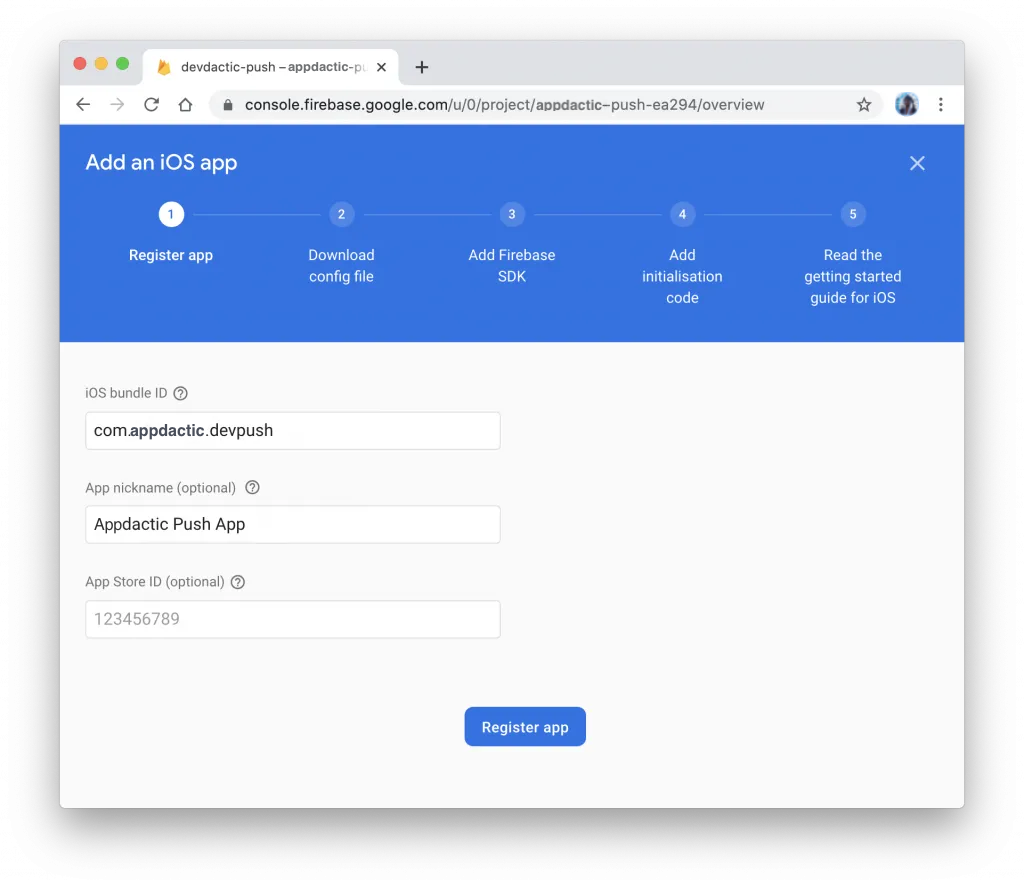
초기 단계 이후, 다음 파일을 다운로드하세요.
- google-services.json Android용 파일
- GoogleService-info.plist iOS용 파일
다음으로 플랫폼을 구성하세요.
Android Push 준비
Android의 경우 다운로드한 google-services.json 파일을 android/app/ 폴더.
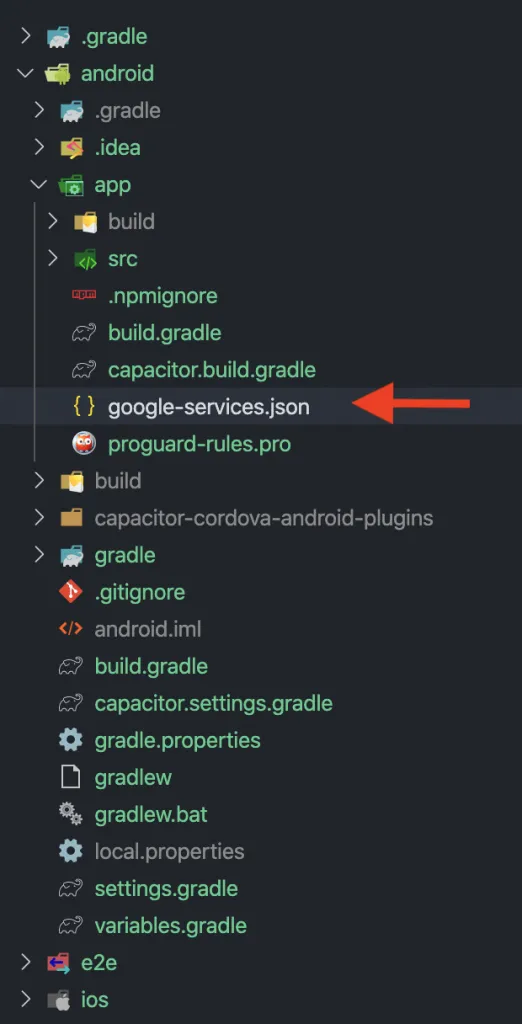
안드로이드 설정은 끝났습니다. 이제 iOS 설정을 해보겠습니다.
iOS 푸시 준비
이 부분은 더 복잡합니다. 먼저 애플 개발자 계정의 식별자 목록에서 앱 ID를 생성하세요. 푸시 알림 기능을 목록에서 선택하세요. iOS 푸시 ID The
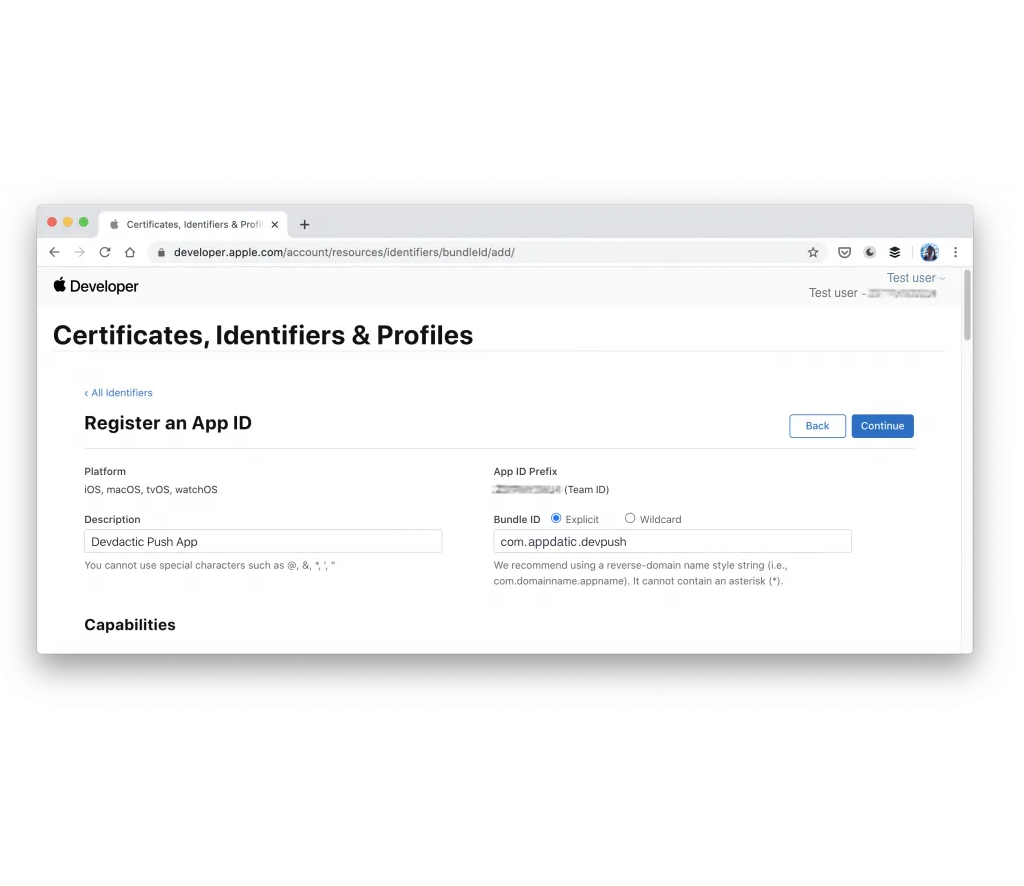
The Bundle ID 앱 ID는 Capacitor와 Firebase 내에 동일해야 합니다.
현재, Key를 생성하세요. 그리고 Apple Push Notifications 서비스 (APNs)를 활성화하세요. 키의 최대 수를 초과한 경우 기존 키 또는 인증서를 사용할 수 있지만 프로세스는 더 복잡합니다.ios-developer-push-key
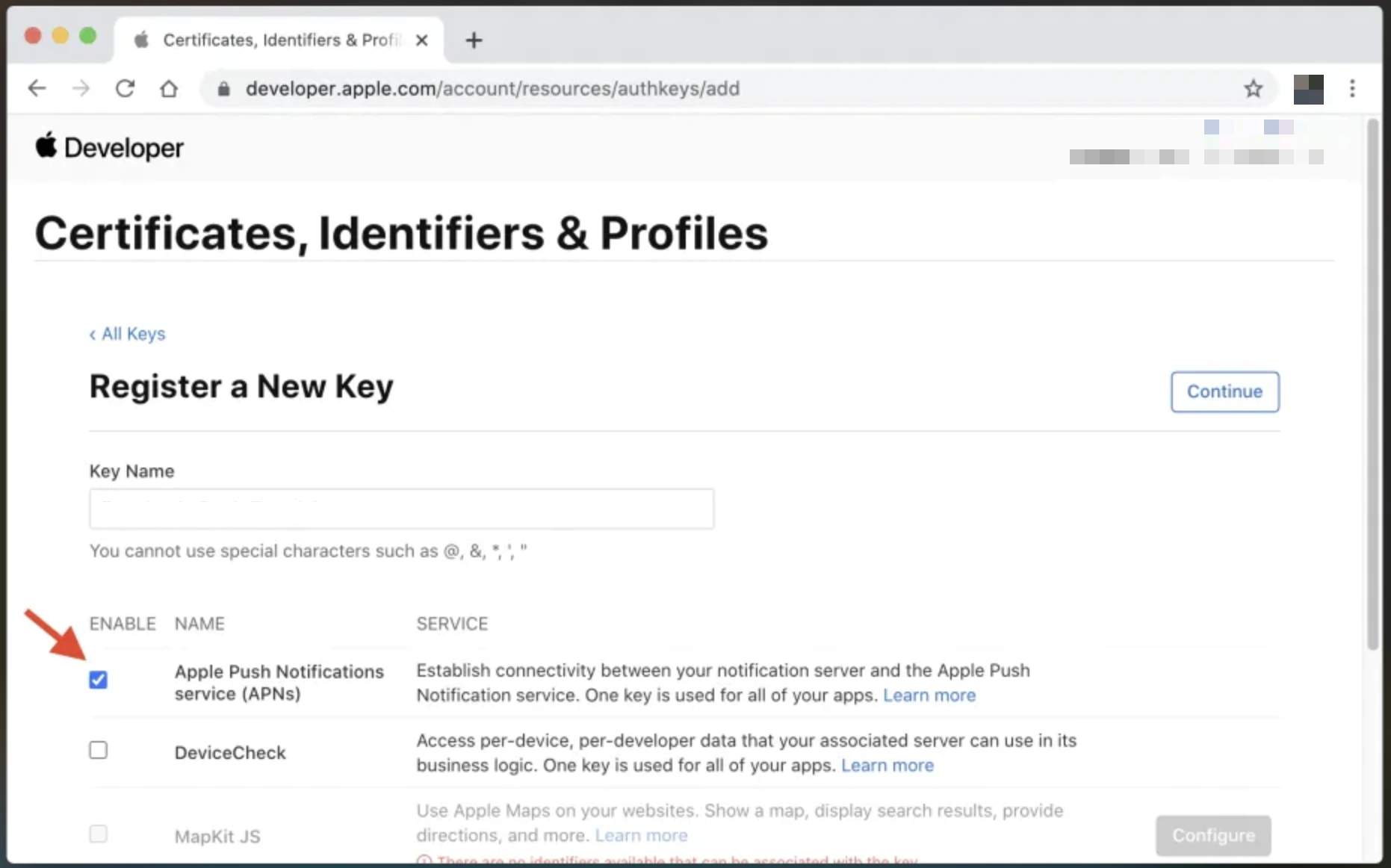
create a Key .p8 Apple Push Notifications service (APNs) ios-developer-push-key After downloading the
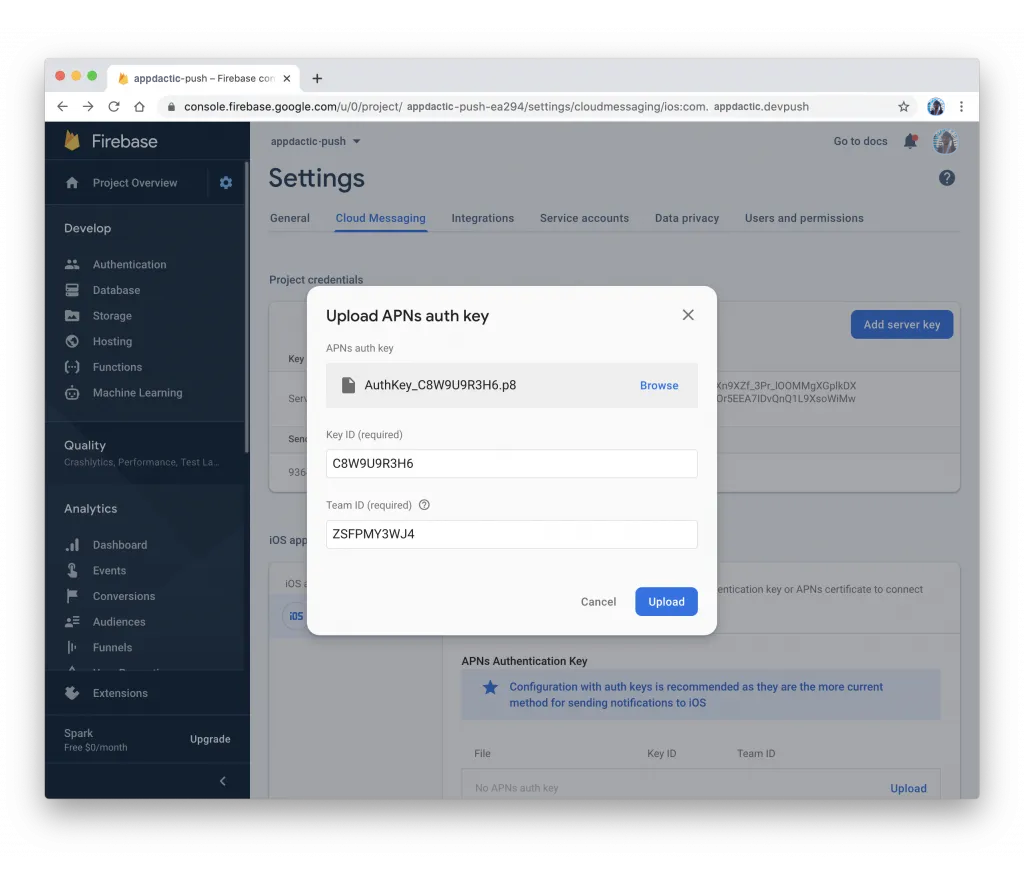
현재, Xcode 프로젝트에 대한 변경 사항을 만들려면 다음 명령어를 실행하세요:
npx cap open ios복사하십시오 GoogleService-Info.plist 파일을 iOS 프로젝트에 복사하세요. Xcode 프로젝트 내의 app/app 폴더에 파일을 끌어다 놓고, Copy items if needed.
Firebase 의존성을 위한 새로운 Pod을 추가하세요. iOS/App/Podfile:
target 'App' do
  capacitor_pods
  # Add your Pods here
  pod 'Firebase/Messaging'
end
업데이트 된 네이티브 플랫폼을 다음 명령어로 업데이트하세요:
npx cap update iosSwift의 code를 ios/App/App/AppDelegate.swift에서 수정하세요. Firebase와 등록하고 올바른 토큰을 앱에 반환하세요. iOS 앱(App/App/AppDelegate.swift) firebase-업로드-ios-키
import UIKit
import Capacitor
import Firebase

@UIApplicationMain
class AppDelegate: UIResponder, UIApplicationDelegate {

  var window: UIWindow?

  func application(_ application: UIApplication, didFinishLaunchingWithOptions launchOptions: [UIApplication.LaunchOptionsKey: Any]?) -> Bool {
    // Override point for customization after application launch.
    FirebaseApp.configure()
    return true
  }

  // All the existing functions
  // ...

  // Update this one:
    func application(_ application: UIApplication, didRegisterForRemoteNotificationsWithDeviceToken deviceToken: Data) {
        Messaging.messaging().apnsToken = deviceToken
        InstanceID.instanceID().instanceID { (result, error) in
            if let error = error {
                NotificationCenter.default.post(name: Notification.Name(CAPNotifications.DidFailToRegisterForRemoteNotificationsWithError.name()), object: error)
            } else if let result = result {
                NotificationCenter.default.post(name: Notification.Name(CAPNotifications.DidRegisterForRemoteNotificationsWithDeviceToken.name()), object: result.token)
            }
        }
    }
}
마지막으로, Xcode 프로젝트 내에서 푸시 알림의 가능성을 추가하세요.
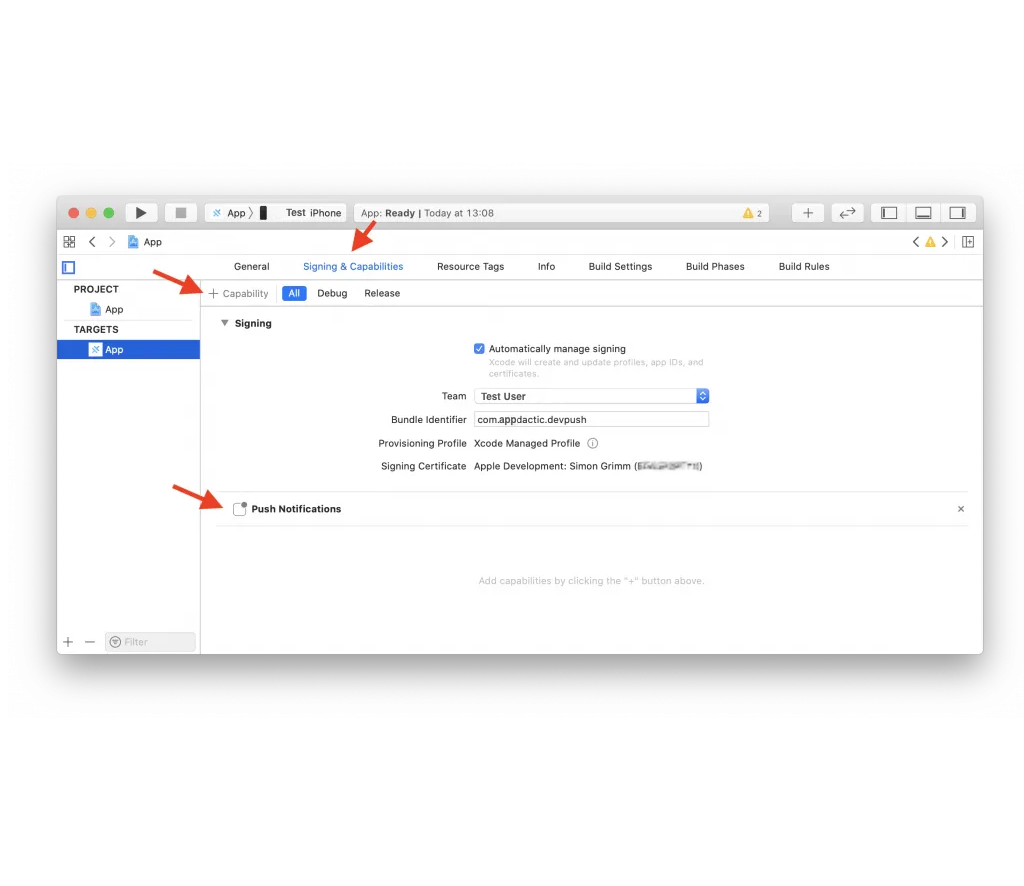
현재 앱을 빌드하고 푸시 알림을 통합하세요.
아이온 푸시 알림 통합
아이온 프로젝트에서 서비스와 새로운 페이지를 생성하세요:
ionic g service services/fcm
ionic g page pages/details
app/app-routing.module.ts에서 라우팅을 업데이트하여 새로운 페이지를 동적 아이디로 포함하세요: 푸시 알림을 처리하는 서비스를 services/fcm.service.ts에서 생성하세요. 푸시 알림을 처리하는 함수를 호출하세요.
import { NgModule } from '@angular/core';
import { PreloadAllModules, RouterModule, Routes } from '@angular/router';

const routes: Routes = [
  {
    path: 'home',
    loadChildren: () => import('./home/home.module').then( m => m.HomePageModule)
  },
  {
    path: '',
    redirectTo: 'home',
    pathMatch: 'full'
  },
  {
    path: 'home/:id',
    loadChildren: () => import('./pages/details/details.module').then( m => m.DetailsPageModule)
  },
];

@NgModule({
  imports: [
    RouterModule.forRoot(routes, { preloadingStrategy: PreloadAllModules })
  ],
  exports: [RouterModule]
})
export class AppRoutingModule { }
__CAPGO_KEEP_0__-xcode-capability __CAPGO_KEEP_0__-app-app-routing-module-ts:
import { Injectable } from '@angular/core';
import {
  Plugins,
  PushNotification,
  PushNotificationToken,
  PushNotificationActionPerformed,
  Capacitor
} from '@capacitor/core';
import { Router } from '@angular/router';

const { PushNotifications } = Plugins;

@Injectable({
  providedIn: 'root'
})
export class FcmService {

  constructor(private router: Router) { }

  initPush() {
    if (Capacitor.platform !== 'web') {
      this.registerPush();
    }
  }

  private registerPush() {
    PushNotifications.requestPermission().then((permission) => {
      if (permission.granted) {
        // Register with Apple / Google to receive push via APNS/FCM
        PushNotifications.register();
      } else {
        // No permission for push granted
      }
    });

    PushNotifications.addListener(
      'registration',
      (token: PushNotificationToken) => {
        console.log('My token: ' + JSON.stringify(token));
      }
    );

    PushNotifications.addListener('registrationError', (error: any) => {
      console.log('Error: ' + JSON.stringify(error));
    });

    PushNotifications.addListener(
      'pushNotificationReceived',
      async (notification: PushNotification) => {
        console.log('Push received: ' + JSON.stringify(notification));
      }
    );

    PushNotifications.addListener(
      'pushNotificationActionPerformed',
      async (notification: PushNotificationActionPerformed) => {
        const data = notification.notification.data;
        console.log('Action performed: ' + JSON.stringify(notification.notification));
        if (data.detailsId) {
          this.router.navigateByUrl(`/home/${data.detailsId}`);
        }
      }
    );
  }
}
Call the initPush() 함수 애플리케이션/애플리케이션.컴포넌트.츠:
import { Component } from '@angular/core';

import { Platform } from '@ionic/angular';
import { SplashScreen } from '@ionic-native/splash-screen/ngx';
import { StatusBar } from '@ionic-native/status-bar/ngx';
import { FcmService } from './services/fcm.service';

@Component({
  selector: 'app-root',
  templateUrl: 'app.component.html',
  styleUrls: ['app.component.scss']
})
export class AppComponent {
  constructor(
    private platform: Platform,
    private splashScreen: SplashScreen,
    private statusBar: StatusBar,
    private fcmService: FcmService
  ) {
    this.initializeApp();
  }

  initializeApp() {
    this.platform.ready().then(() => {
      this.statusBar.styleDefault();
      this.splashScreen.hide();

      // Trigger the push setup
      this.fcmService.initPush();
    });
  }
}
세부 정보 페이지에서 정보를 처리하는 방법 pages/details/details.page.ts:
import { Component, OnInit } from '@angular/core';
import { ActivatedRoute } from '@angular/router';
import { Plugins } from '@capacitor/core';
const { PushNotifications } = Plugins;

@Component({
  selector: 'app-details',
  templateUrl: './details.page.html',
  styleUrls: ['./details.page.scss'],
})
export class DetailsPage implements OnInit {
  id = null;

  constructor(private route: ActivatedRoute) { }

  ngOnInit() {
    this.route.paramMap.subscribe(params => {
      this.id = params.get('id');
    });
  }

  resetBadgeCount() {
    PushNotifications.removeAllDeliveredNotifications();
  }

}
세부 정보를 표시하는 방법 pages/details/details.page.html:
<ion-header>
  <ion-toolbar>
    <ion-buttons slot="start">
      <ion-back-button defaultHref="/"></ion-back-button>
    </ion-buttons>
    <ion-title>Details</ion-title>
  </ion-toolbar>
</ion-header>

<ion-content>
  My Id from push: {{ id }}

  <ion-button (click)="resetBadgeCount()" expand="block">
    Reset Badge Count
  </ion-button>
</ion-content>
앱을 빌드하고 변경 사항을 동기화하고 장치에 배포하세요.
ionic build
npx cap sync
현재, Firebase를 사용하여 푸시 알림을 보낼 수 있습니다.
Firebase를 사용하여 푸시 알림을 보내기
Firebase를 사용하여 푸시 알림을 보내기에는 여러 가지 방법이 있습니다.
특정 장치 테스트
장치에 앱을 배포한 후, 등록 후 토큰을 확인하기 위해 콘솔 로그를 확인하세요. 이 토큰을 사용하여 대상 테스트 푸시를 보내어 통합이 작동하는지 확인하세요. Firebase에서 Cloud Messaging 그리고 선택 테스트 메시지를 전송. 로그에서 장치 토큰을 추가하십시오.
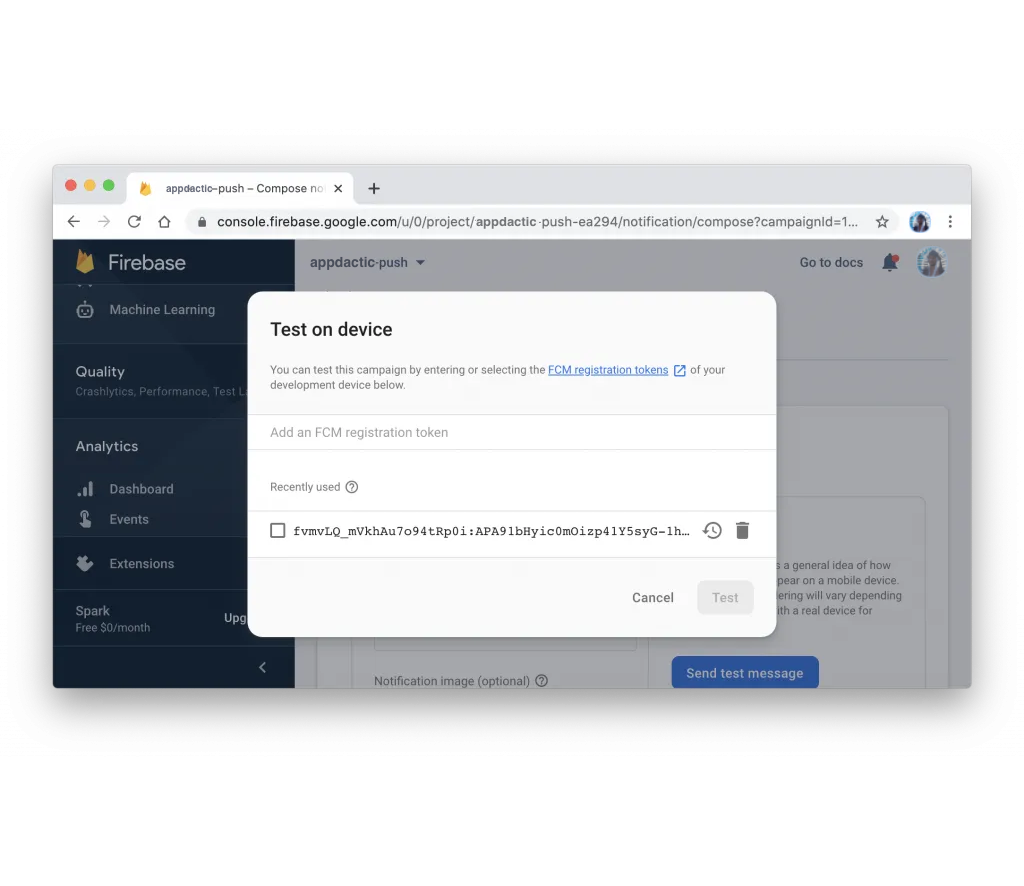
모든 설정이 올바르게 구성되어 있다면, 장치에 푸시 알림을 볼 수 있어야 합니다.
Payload를 포함한 푸시 메시지
추가 정보를 포함한 푸시 알림을 테스트하려면, 동일한 페이지의 마법사에 따라 일반 정보를 지정하고 대상으로 할 플랫폼을 선택하세요. 추가 추가 옵션 payload를 포함한 푸시 알림을 전송하기 위해 추가 옵션을 선택하세요.
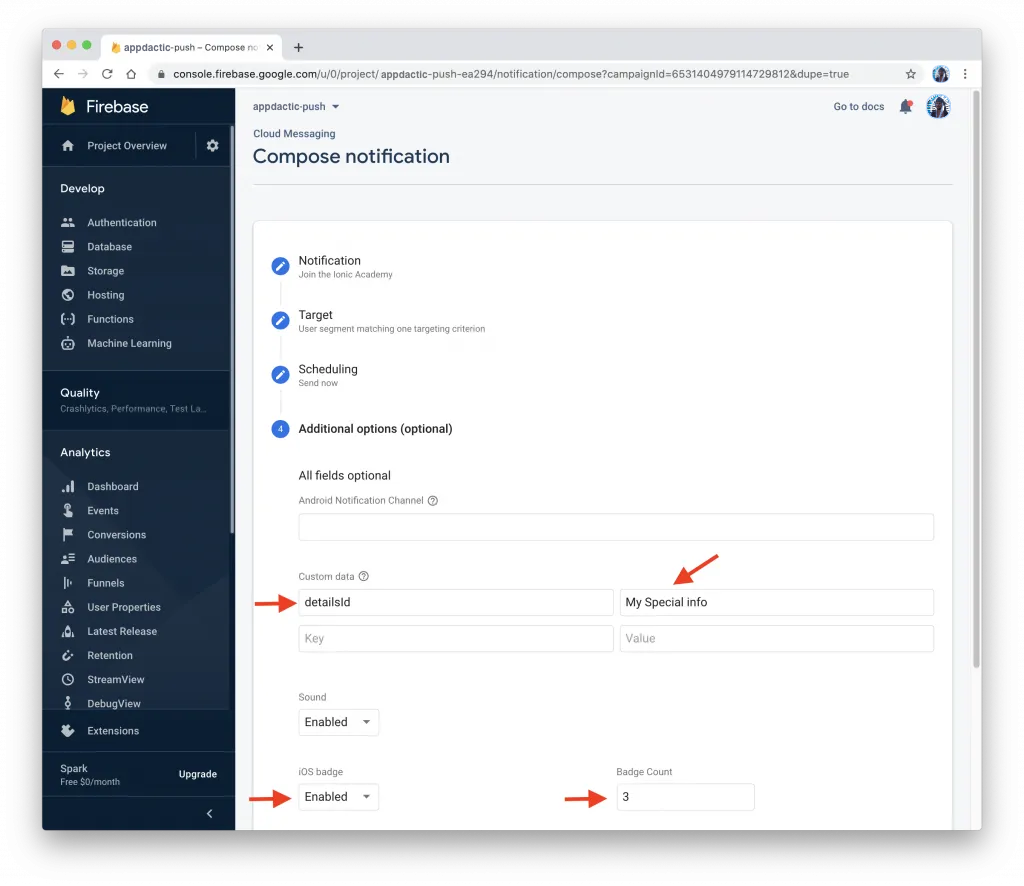
In the 고급 옵션 section, 추가하기 사용자 지정 데이터 key-value pair를 추가합니다. 예를 들어, key는 detailsId 선택한 값으로 사용할 수 있습니다. 이 데이터는 앱에서 id가 지정된 세부 정보 페이지로 이동하는 데 사용됩니다.
푸시 알림을 보내고 나면, 앱은 푸시 알림을 받고 id가 지정된 세부 정보 페이지를 표시할 때 알림을 탭할 때 표시해야 합니다.
Firebase API를 사용하여
Firebase API를 사용하여 프로그래밍 방식으로 푸시 알림을 보내는 것도 가능합니다. 이 작업을 수행하려면 Firebase 프로젝트 설정에서 서버 키 Cloud Messaging 탭에서 서버 키를 얻어야 합니다. tab.
With the server key, you can send a POST request to the Firebase API with the required payload. Here’s an example using Node.js and the request 라이브러리:
const request = require('request');

const serverKey = 'YOUR_SERVER_KEY';
const deviceToken = 'YOUR_DEVICE_TOKEN';

const options = {
  method: 'POST',
  url: 'https://fcm.googleapis.com/fcm/send',
  headers: {
    'Content-Type': 'application/json',
    Authorization: 'key=' + serverKey
  },
  body: JSON.stringify({
    to: deviceToken,
    notification: {
      title: 'Test Push',
      body: 'This is a test push notification with custom data'
    },
    data: {
      detailsId: '123'
    }
  })
};

request(options, (error, response, body) => {
  if (error) {
    console.error('Error sending push:', error);
  } else {
    console.log('Push sent successfully:', body);
  }
});
바꾸기 YOUR_SERVER_KEY 그리고 YOUR_DEVICE_TOKEN 서버 키와 기기 토큰과 실제로 바꾸세요. 스크립트를 실행하고, 기기에서 커스텀 페이로드를 받는 푸시 알림을 받을 것입니다.
그것이 다입니다! Ionic Capacitor 앱에서 Firebase를 사용하여 푸시 알림을 성공적으로 통합했습니다. 이제 Android와 iOS 플랫폼에서 사용자에게 푸시 알림을 보내실 수 있습니다.
Ionic Capacitor 앱에서 푸시 알림을 계속 진행하세요: Firebase를 사용한 단계별 가이드
Ionic __CAPGO_KEEP_0__ 앱에서 푸시 알림을 사용하고 있다면 Ionic Capacitor 앱에서 푸시 알림을 사용하고 있다면 __CAPGO_KEEP_0__ Enterprise와 연결하여 Capgo Enterprise에서 제품 워크플로우를 Capgo Enterprise Ionic Enterprise 플러그인 대체품 아이온IC (Ionic) 엔터프라이즈 플러그인 대체품 workflow Capgo 대체품 Capacitor Ionic 제품 워크플로우에서 Capgo 대체 옵션에 대해 Capgo 컨설팅 Capgo workflow Capgo 프리미엄 지원 Capacitor 제품 워크플로우에서 Capgo 프리미엄 지원을 위해.





