



In this tutorial, we will integrate push notifications in an Ionic Capacitor app using Firebase. For a maintained Capacitor plugin with Firebase Cloud Messaging support, see @capgo/capacitor-firebase-messaging. Firebaseは、Android用に必須であり、データベースを使用せずに通知を送信することも簡単です。
Capgoでは、最初にIonicアプリを作成し、Capacitorを有効にし、Firebaseを指定します。 パッケージ ID__CAPGO_KEEP_1__
ionic start pushApp blank --type=angular --capacitor --package-id=com.appdactic.devpush
cd ./pushApp
ionic build
npx cap add ios
npx cap add android
__CAPGO_KEEP_0__ capacitor を含めるには appId. ただし、既存のフォルダが存在する場合は、すべてのファイルでIDを置き換える必要があります。Capacitorはフォルダを作成するのみで、ID自体を更新しません。 の. In the capacitor.config.jsonは、外部からアプリのプッシュ通知を設定する方法を紹介します。
{
  "appId": "com.appdactic.devpush",
  "appName": "pushApp",
  "bundledWebRuntime": false,
  "npmClient": "npm",
  "webDir": "www",
  "plugins": {
    "SplashScreen": {
      "launchShowDuration": 0
    },
    "PushNotifications": {
      "presentationOptions": ["badge", "sound", "alert"]
    }
  },
  "cordova": {}
}
Firebase Configuration
は、まず
はじめに プロジェクト名と新しいプロジェクトのデフォルト設定を指定します。 protectedTokens
新しいアプリを持っている場合、 「アプリにFirebaseを追加して始めましょう」というメッセージ をアプリのダッシュボードで確認できます。そうでない場合は、 プロジェクト設定 にアクセスしてアプリを追加してください。
iOSとAndroidの両方のダイアログは似ていますが、重要なのはアプリの パッケージID を使用することです。
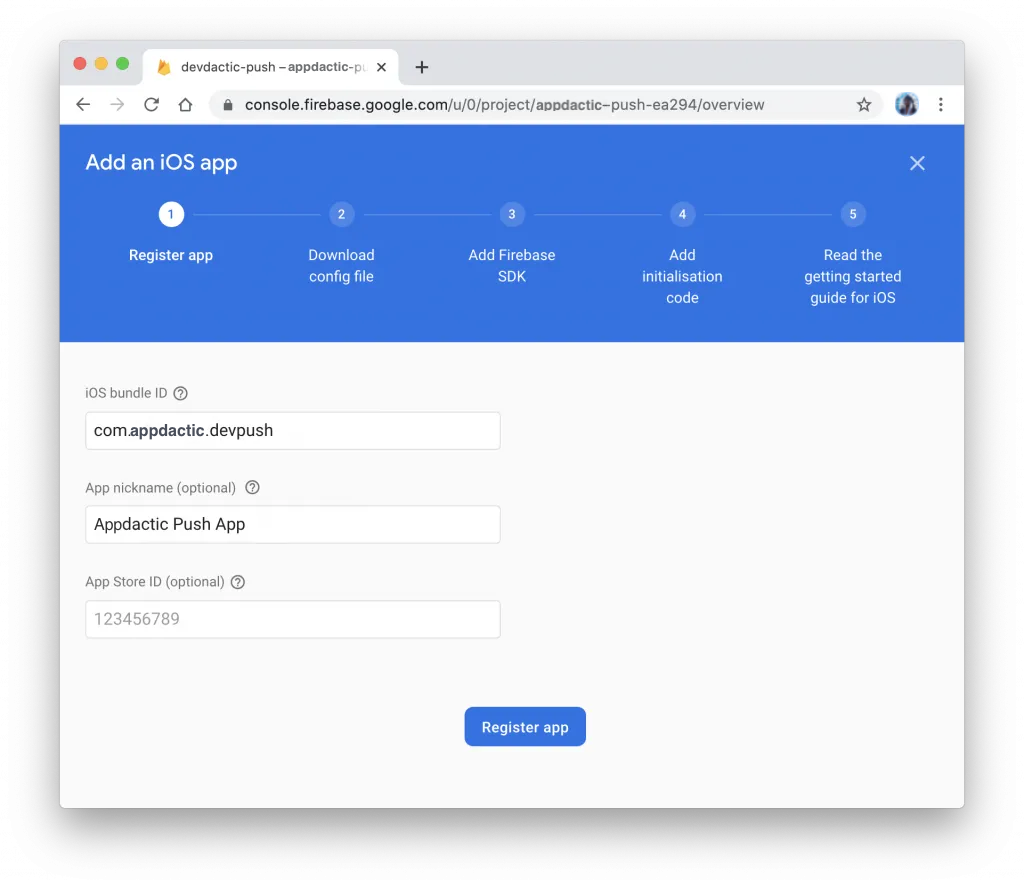
初回のステップを完了した後、以下のファイルをダウンロードしてください:
- google-services.json Android用のファイル
- GoogleService-info.plist iOS用のファイル
次に、プラットフォームを設定します。
Android Pushの準備
Androidの場合、ダウンロードした google-services.json ファイルをandroid/app/フォルダに移動してください。 android-push-file folder.
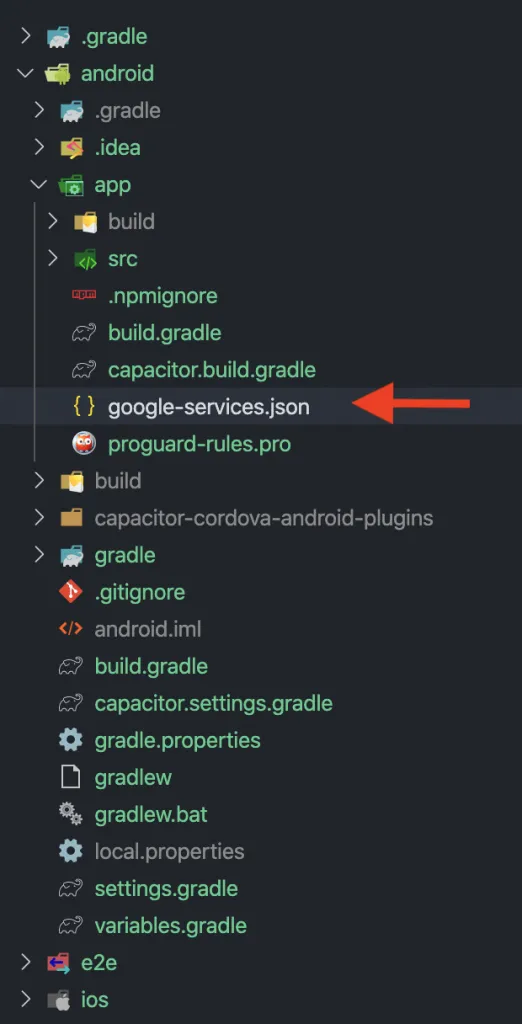
Android用のファイル
iOSの設定
この部分はより複雑です。まず、 Apple Developerアカウントの識別子リスト内でアプリIDを作成してください。 識別子リスト内のPush Notifications機能を選択してください。 ionic-ios-push-id Bundle ID
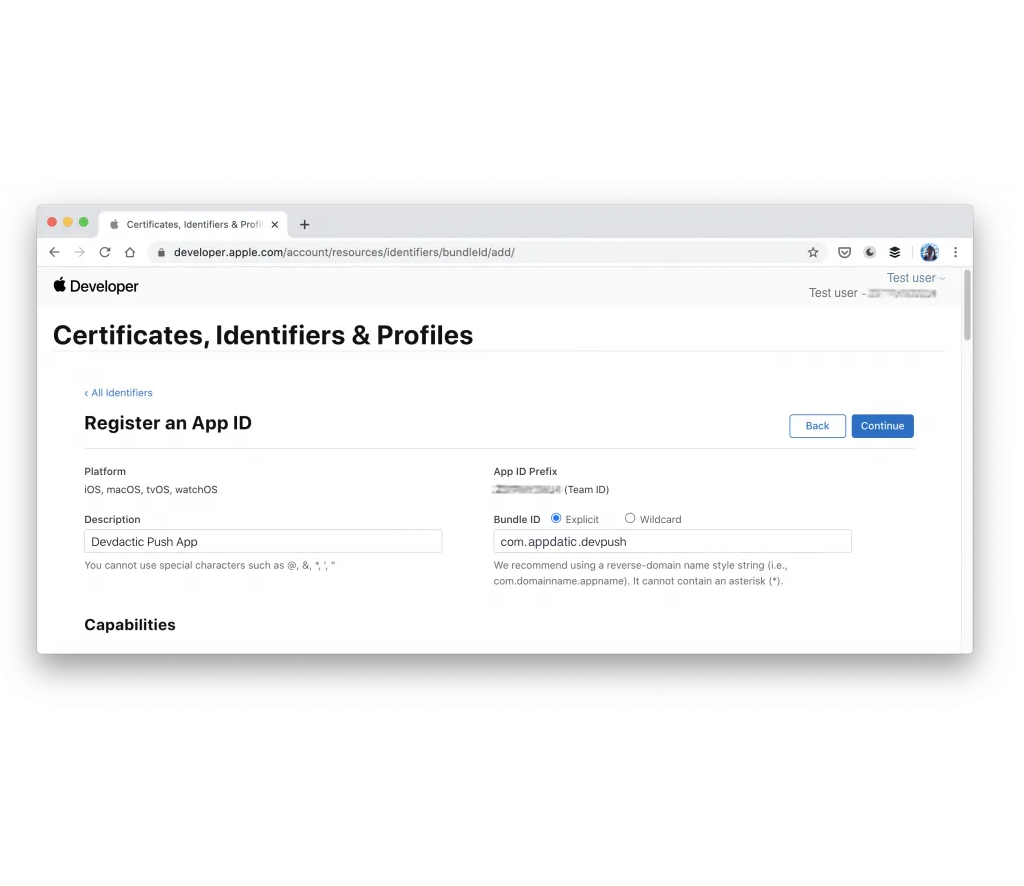
次に、 Keyを作成してください。 CapgoのアプリIDは、CapacitorとFirebaseのアプリIDと同じでなければなりません。
機能 を選択してください。 機能 Apple Push Notifications service (APNs).
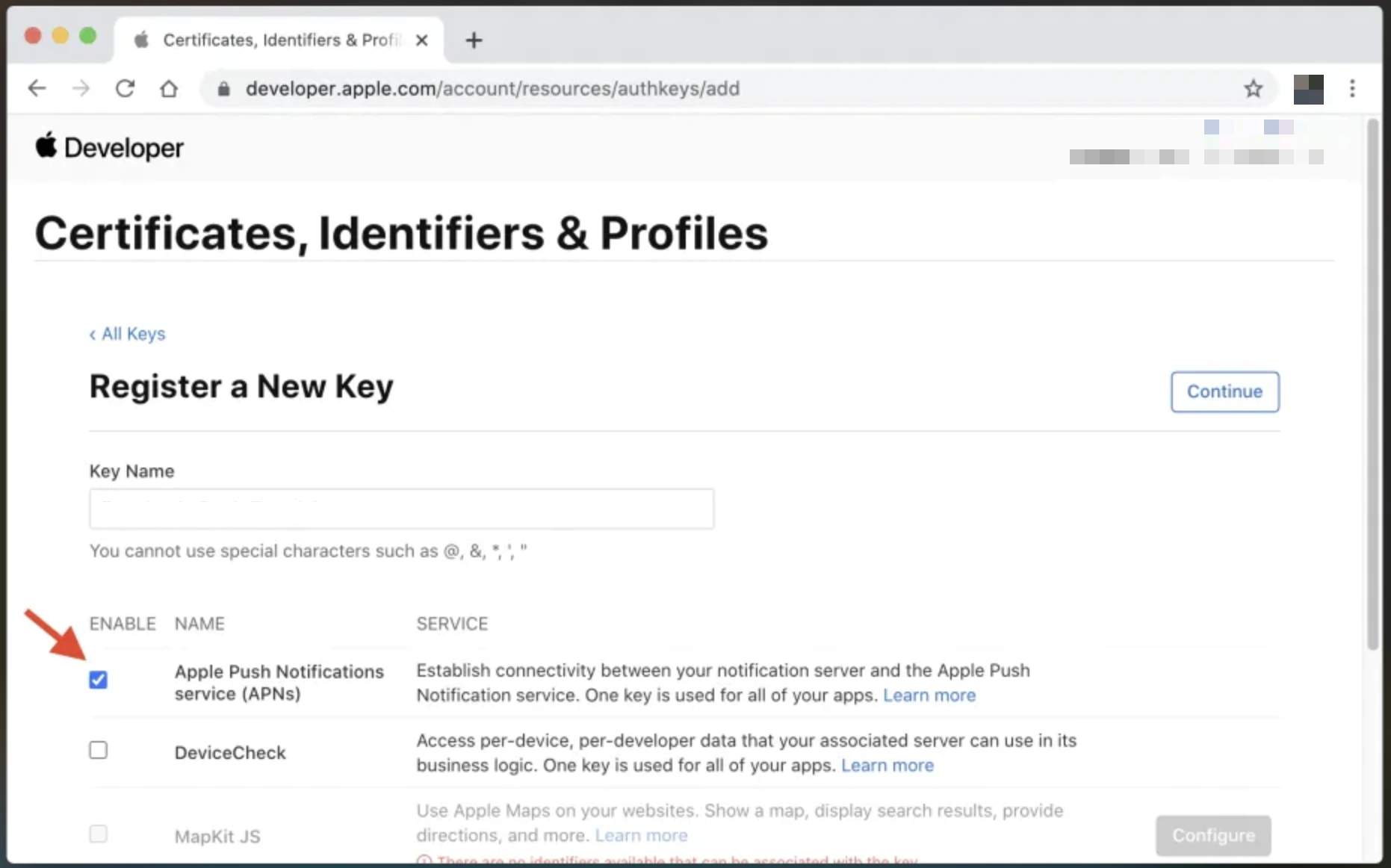
Apple Push Notifications service (APNs)のキーの最大数に達した場合は、既存のキーや証明書を使用できますが、プロセスは複雑になります。 .p8 .p8 ファイルをダウンロードした後、Firebaseにアップロードしてください。 Firebaseプロジェクト設定のCloud Messagingタブを開き、ファイルをアップロードし、Key IDとTeam IDの詳細を入力してください。 firebase-upload-ios-key
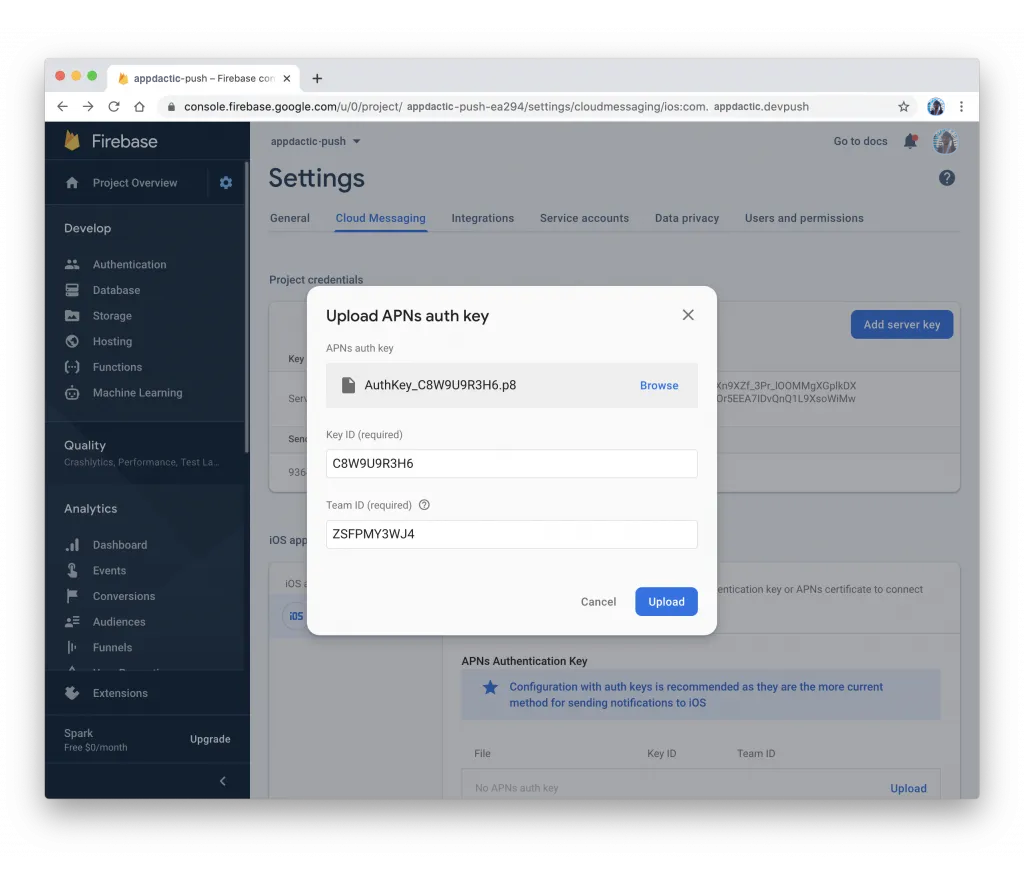
Copy the
npx cap open iosコピーする GoogleService-Info.plist ファイアベースからダウンロードしたファイルをiOSプロジェクトにドラッグしてください。アプリ/アプリフォルダ内にあるXcodeプロジェクトにファイルをドラッグし、選択 必要に応じてコピー.
次に、Firebase依存関係の新しいPodを追加します。 ios/App/Podfile:
target 'App' do
  capacitor_pods
  # Add your Pods here
  pod 'Firebase/Messaging'
end
このコマンドでネイティブプラットフォームを更新します。
npx cap update iosネイティブのSwift codeを iOS/App/App/AppDelegate.swift ファイアベースと連携し、正しいトークンをアプリに返すように設定します。
import UIKit
import Capacitor
import Firebase

@UIApplicationMain
class AppDelegate: UIResponder, UIApplicationDelegate {

  var window: UIWindow?

  func application(_ application: UIApplication, didFinishLaunchingWithOptions launchOptions: [UIApplication.LaunchOptionsKey: Any]?) -> Bool {
    // Override point for customization after application launch.
    FirebaseApp.configure()
    return true
  }

  // All the existing functions
  // ...

  // Update this one:
    func application(_ application: UIApplication, didRegisterForRemoteNotificationsWithDeviceToken deviceToken: Data) {
        Messaging.messaging().apnsToken = deviceToken
        InstanceID.instanceID().instanceID { (result, error) in
            if let error = error {
                NotificationCenter.default.post(name: Notification.Name(CAPNotifications.DidFailToRegisterForRemoteNotificationsWithError.name()), object: error)
            } else if let result = result {
                NotificationCenter.default.post(name: Notification.Name(CAPNotifications.DidRegisterForRemoteNotificationsWithDeviceToken.name()), object: result.token)
            }
        }
    }
}
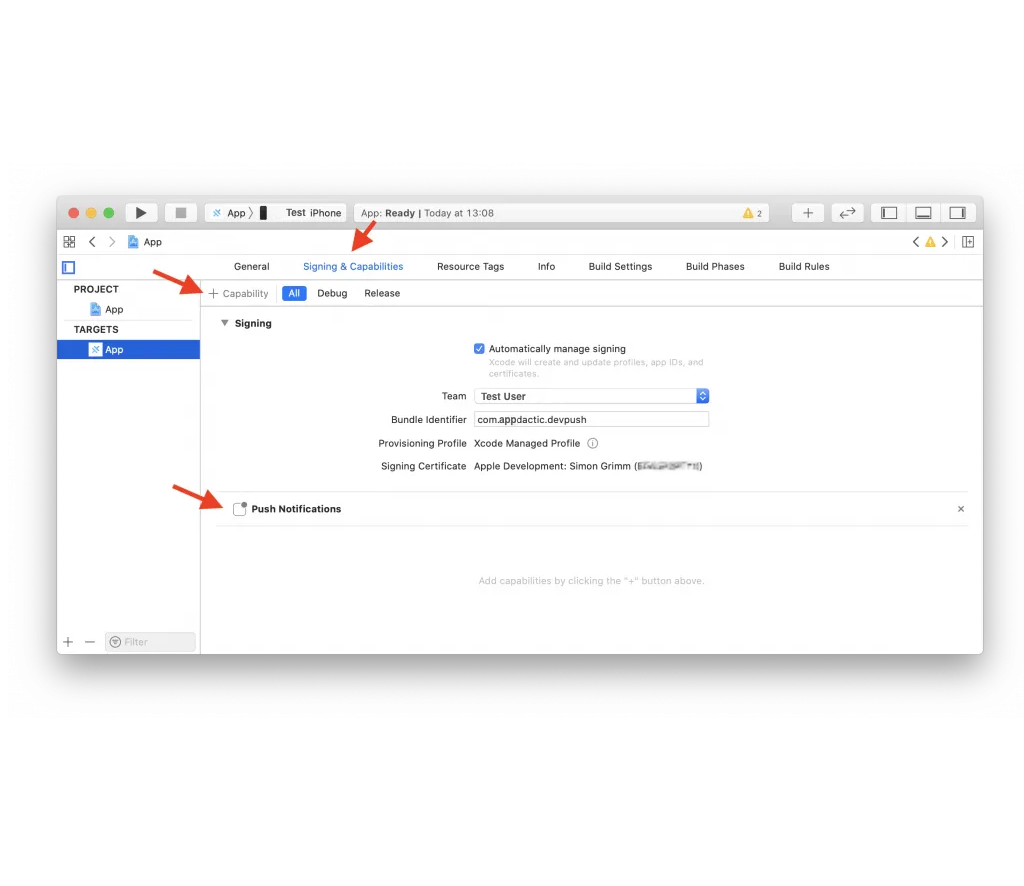
最後に、Xcodeプロジェクト内でプッシュ通知の機能を有効化してください。
アプリをビルドし、プッシュ通知を統合してください。
イオニックプッシュ通知統合
Ionicプロジェクトでサービスと新しいページを作成します:
ionic g service services/fcm
ionic g page pages/details
app/app-routing.module.tsのルーティングを更新して 新しいページを含む動的IDで サービスを用意してプッシュ通知を処理する
import { NgModule } from '@angular/core';
import { PreloadAllModules, RouterModule, Routes } from '@angular/router';

const routes: Routes = [
  {
    path: 'home',
    loadChildren: () => import('./home/home.module').then( m => m.HomePageModule)
  },
  {
    path: '',
    redirectTo: 'home',
    pathMatch: 'full'
  },
  {
    path: 'home/:id',
    loadChildren: () => import('./pages/details/details.module').then( m => m.DetailsPageModule)
  },
];

@NgModule({
  imports: [
    RouterModule.forRoot(routes, { preloadingStrategy: PreloadAllModules })
  ],
  exports: [RouterModule]
})
export class AppRoutingModule { }
services/fcm.service.tsに app/app.component.tsで:
import { Injectable } from '@angular/core';
import {
  Plugins,
  PushNotification,
  PushNotificationToken,
  PushNotificationActionPerformed,
  Capacitor
} from '@capacitor/core';
import { Router } from '@angular/router';

const { PushNotifications } = Plugins;

@Injectable({
  providedIn: 'root'
})
export class FcmService {

  constructor(private router: Router) { }

  initPush() {
    if (Capacitor.platform !== 'web') {
      this.registerPush();
    }
  }

  private registerPush() {
    PushNotifications.requestPermission().then((permission) => {
      if (permission.granted) {
        // Register with Apple / Google to receive push via APNS/FCM
        PushNotifications.register();
      } else {
        // No permission for push granted
      }
    });

    PushNotifications.addListener(
      'registration',
      (token: PushNotificationToken) => {
        console.log('My token: ' + JSON.stringify(token));
      }
    );

    PushNotifications.addListener('registrationError', (error: any) => {
      console.log('Error: ' + JSON.stringify(error));
    });

    PushNotifications.addListener(
      'pushNotificationReceived',
      async (notification: PushNotification) => {
        console.log('Push received: ' + JSON.stringify(notification));
      }
    );

    PushNotifications.addListener(
      'pushNotificationActionPerformed',
      async (notification: PushNotificationActionPerformed) => {
        const data = notification.notification.data;
        console.log('Action performed: ' + JSON.stringify(notification.notification));
        if (data.detailsId) {
          this.router.navigateByUrl(`/home/${data.detailsId}`);
        }
      }
    );
  }
}
Capacitor initPush() function in detailsを表示する:
import { Component } from '@angular/core';

import { Platform } from '@ionic/angular';
import { SplashScreen } from '@ionic-native/splash-screen/ngx';
import { StatusBar } from '@ionic-native/status-bar/ngx';
import { FcmService } from './services/fcm.service';

@Component({
  selector: 'app-root',
  templateUrl: 'app.component.html',
  styleUrls: ['app.component.scss']
})
export class AppComponent {
  constructor(
    private platform: Platform,
    private splashScreen: SplashScreen,
    private statusBar: StatusBar,
    private fcmService: FcmService
  ) {
    this.initializeApp();
  }

  initializeApp() {
    this.platform.ready().then(() => {
      this.statusBar.styleDefault();
      this.splashScreen.hide();

      // Trigger the push setup
      this.fcmService.initPush();
    });
  }
}
Capacitorを用いて Firebaseの:
import { Component, OnInit } from '@angular/core';
import { ActivatedRoute } from '@angular/router';
import { Plugins } from '@capacitor/core';
const { PushNotifications } = Plugins;

@Component({
  selector: 'app-details',
  templateUrl: './details.page.html',
  styleUrls: ['./details.page.scss'],
})
export class DetailsPage implements OnInit {
  id = null;

  constructor(private route: ActivatedRoute) { }

  ngOnInit() {
    this.route.paramMap.subscribe(params => {
      this.id = params.get('id');
    });
  }

  resetBadgeCount() {
    PushNotifications.removeAllDeliveredNotifications();
  }

}
機能を活用する pages/details/details.page.html:
<ion-header>
  <ion-toolbar>
    <ion-buttons slot="start">
      <ion-back-button defaultHref="/"></ion-back-button>
    </ion-buttons>
    <ion-title>Details</ion-title>
  </ion-toolbar>
</ion-header>

<ion-content>
  My Id from push: {{ id }}

  <ion-button (click)="resetBadgeCount()" expand="block">
    Reset Badge Count
  </ion-button>
</ion-content>
アプリをビルドし、変更を同期し、デバイスにデプロイしてください。
ionic build
npx cap sync
今、Firebaseでプッシュ通知を送信できます。
Firebaseでプッシュ通知を送信する
Firebaseでプッシュ通知を送信する方法は複数あります。
特定のデバイスのテスト
デバイスにアプリをデプロイした後、コンソールログを確認して、登録後にトークンが表示されることを確認してください。このトークンを使用して、ターゲット化されたテストプッシュを送信して、インテグレーションが正常に動作していることを確認してください。Firebaseの Cloud Messaging に移動し、 テストメッセージを送信を選択し、ログからデバイストークンを追加してください。
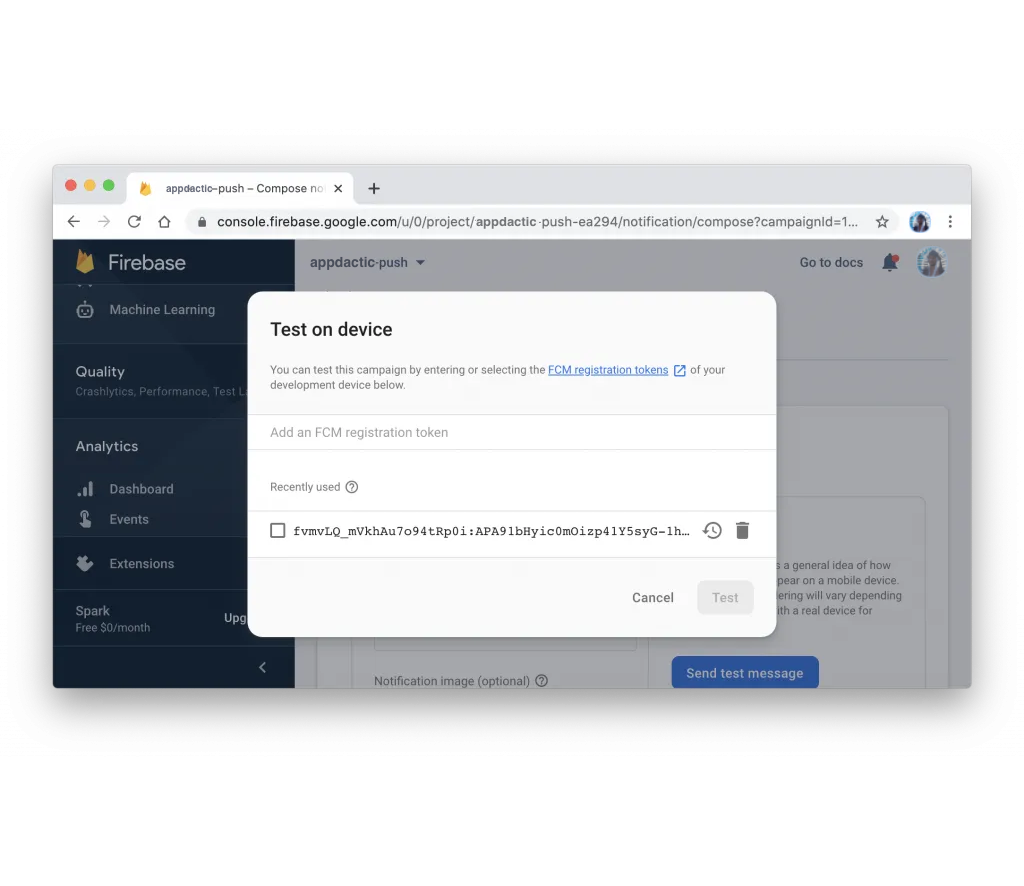
すべての設定が正しく設定されている場合、デバイス上でプッシュ通知を確認できます。
プッシュメッセージにデータを付与
追加情報を含むプッシュ通知をテストするには、同じページのウィザードに従って、一般情報を指定し、送信したいプラットフォームを選択します。追加のオプション を送信するプッシュ通知にデータを付与します。 firebase-push-payload
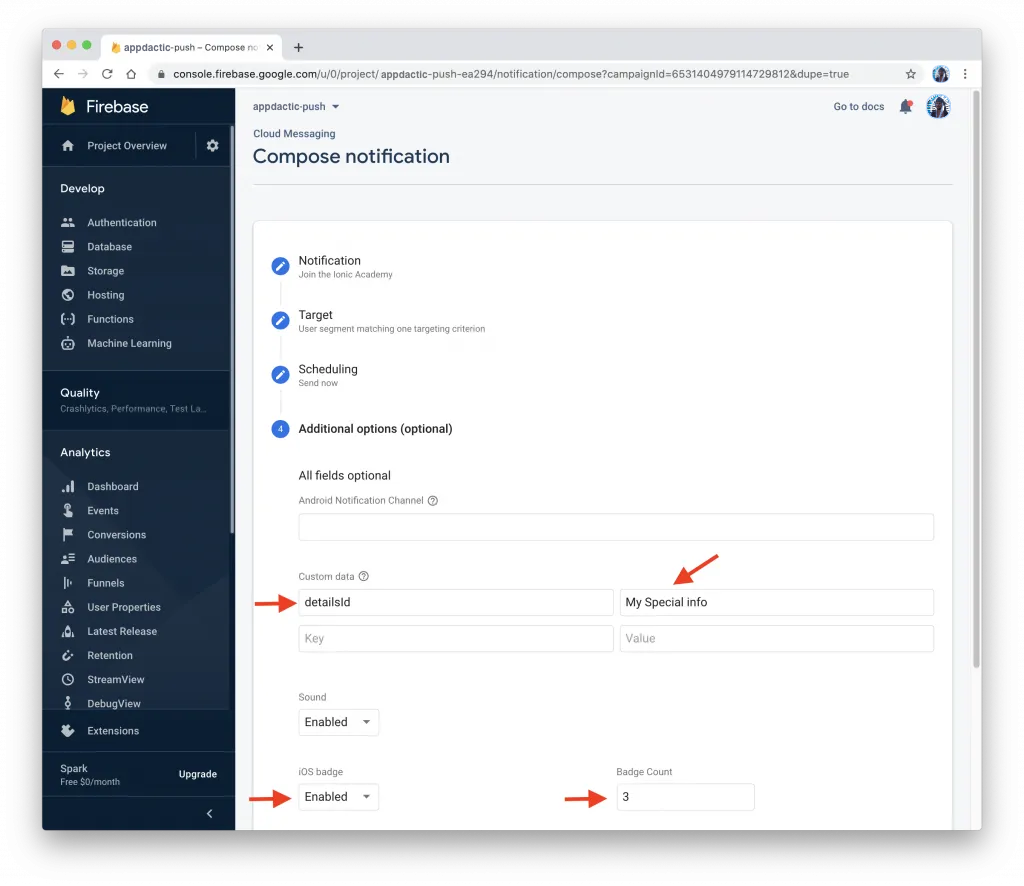
詳細オプション セクションにカスタムデータ のキー値ペアを追加します。例えば、キー カスタムデータ firebase-push-payload detailsId セクション
送信したプッシュ通知を受け取った後、ユーザーは指定されたIDを持つ詳細ページに遷移し、通知をタップしたときに表示されるべきです。
Using Firebase API
You can also send push notifications programmatically using the Firebase API. To do this, you need to obtain the サーバーキー Firebaseプロジェクト設定のCloud Messagingタブ Server keyを取得した後、Firebaseの指定されたエンドポイントに必要なパラメータを含むPOSTリクエストを送信できます。Node.jsとライブラリを使用した例を以下に示します。 置き換え
With the server key, you can send a POST request to the Firebase API with the required payload. Here’s an example using Node.js and the request library:
const request = require('request');

const serverKey = 'YOUR_SERVER_KEY';
const deviceToken = 'YOUR_DEVICE_TOKEN';

const options = {
  method: 'POST',
  url: 'https://fcm.googleapis.com/fcm/send',
  headers: {
    'Content-Type': 'application/json',
    Authorization: 'key=' + serverKey
  },
  body: JSON.stringify({
    to: deviceToken,
    notification: {
      title: 'Test Push',
      body: 'This is a test push notification with custom data'
    },
    data: {
      detailsId: '123'
    }
  })
};

request(options, (error, response, body) => {
  if (error) {
    console.error('Error sending push:', error);
  } else {
    console.log('Push sent successfully:', body);
  }
});
Firebase YOUR_SERVER_KEY Firebase YOUR_DEVICE_TOKEN Firebase
それはできました!あなたは、Ionic Capacitor アプリに Firebase を使用して、Push通知を成功的に統合しました。 ここから、Android と iOS の両方のプラットフォームで Push通知を送信できます。
Ionic Capacitor Push通知を Firebase で使用するためのステップバイステップガイド
あなたが使用している Ionic Capacitor Push通知を Firebase で使用するためのステップバイステップガイド あなたが使用している Capgo 企業版 Capacitor による Ionic の製品ワークフロー における Capgo Enterprise について。 __CAPGO_KEEP_0__ Enterprise Ionic Enterprise Plugin Alternatives Capgo Enterprise Capacitor による Ionic の製品ワークフローで Capgo の代替方法 Capgo Alternatives Capgoの製品ワークフローにおけるCapgoコンサルティング、そして Capgoプレミアムサポート Capgoの製品ワークフローにおけるCapgoプレミアムサポート。



