
Have you ever wished you could ship a change directly to a specific user for their immediate review and feedback - without asking them to download and install a new build from TestFlight or Google Play?
I’ve had customers request improvements that I was able to quickly implement, but getting the results into their hands to validate meant shipping an update to all users (risky for an experimental change) or creating a one-off build specifically for the customer (a chore for both of us).
What was missing was flexibility. Developers wanted to be able to serve different updates to different groups of users, such as non-technical stakeholders, QA, or the entire user base when appropriate.
There was no way for a production build to switch to a work-in-progress version, gather feedback, and then return to production.
That’s what channel surfing enables. An app installed on a user’s device can switch update channels at runtime, turning a production app into a flexible space for review and iteration rather than a fixed endpoint. This is especially useful for non-technical stakeholders working with production apps, allowing them to test changes and give feedback directly in the app they already have installed.
Understanding Update Channels
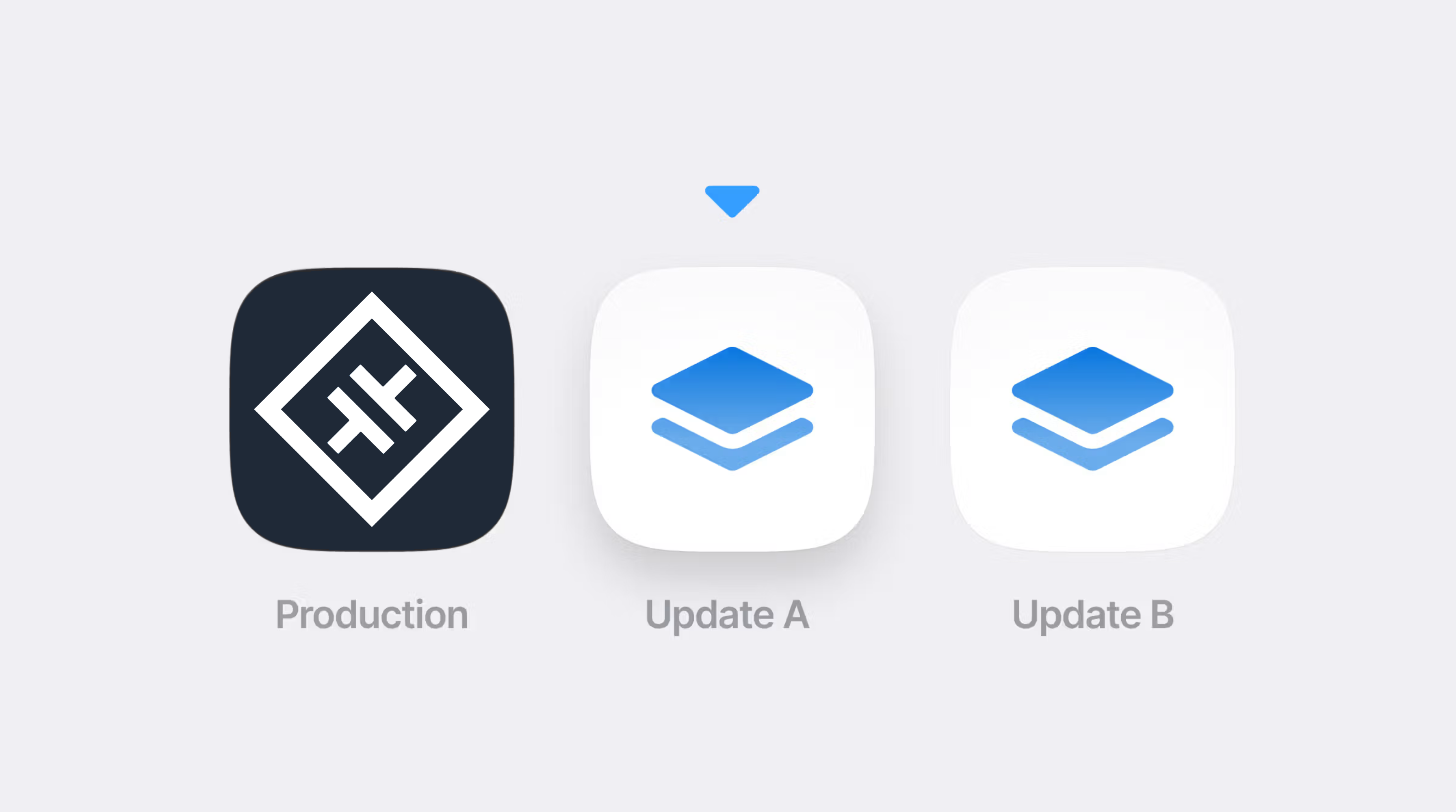
Update channels are how Capgo targets updates to specific builds. Each build is associated with a channel, and that channel determines which updates it will receive.
For example, you can publish updates to a preview channel without affecting users on production. In the past, switching channels required installing a different native build or manually changing device assignments through the dashboard.
Channels in Capgo allow you to:
- Target specific user groups with different features
- Run A/B tests by assigning users to different channels
- Gradually roll out new features
- Create beta testing programs
- Debug production issues with individual users
If you’re not familiar with update channels, the Capgo channels documentation covers them in more detail.
What is Channel Surfing?
Channel surfing lets an installed app pull from different update streams without reinstalling. An installed app can switch update channels at runtime, and it will continue receiving updates from the newly selected channel until the app is uninstalled or switched to another channel.
In practice, this means a product owner or QA can switch a production build to, for example, a preview channel, try out the latest changes. When they are done testing, they switch back to production again. There’s no need for a reinstall or a separate preview build.
Under the hood, channel surfing works by letting the app tell the updates client which channel to use. That choice can be changed at runtime and stays in effect until it’s cleared or replaced.
How to Implement Channel Surfing
Before you can try channel surfing, your project needs to be configured with Capgo Live Updates. To set that up, follow the Capgo quickstart guide.
The only setup required for channel surfing is enabling “Allow devices to self associate” on each channel you want to switch to in the Capgo dashboard. No code changes or config modifications needed beyond that.
At its core, channel surfing is driven by a single API call:
import { CapacitorUpdater } from '@capgo/capacitor-updater';
await CapacitorUpdater.setChannel({ channel: 'your-channel' });
This sets the channel that is used when querying Capgo for updates. Learn more about the setChannel API.
Instant Channel Switching (v5.34.0+)
Starting from plugin version 5.34.0, 6.34.0, 7.34.0, or 8.0.0 (depending on your major version), setChannel() works differently and much faster:
- Backend validation (read-only): A request is sent to the Capgo backend to validate the channel is allowed
- Local storage update: If validation passes, the channel is saved to the device’s local storage
- Instant effect: The next update check uses the new channel immediately
Previously, setChannel() saved the channel override to the backend database (like Dashboard or API changes). Devices had to wait for backend replication (up to 2 minutes) before the new channel was recognized. The new behavior only reads from the backend (for validation) and stores locally, making channel switches instant.
Complete Channel Switching Flow
For a better user experience, you’ll usually want to do more than just switch the channel and wait for the next app restart. A common approach is to immediately check for updates, download them if available, and reload the app so the user lands directly on the selected channel’s update.
A typical flow looks like this:
- Change the channel (
setChannel) - Check for an update (
getLatest) - Fetch and apply the update (
download,setornext) - Reload the app if needed (
reload)
Here’s a complete example:
import { CapacitorUpdater } from '@capgo/capacitor-updater';
async function switchChannel(selectedChannel: string) {  try {    // 1. Set the updates channel (with optional auto-update trigger)    await CapacitorUpdater.setChannel({      channel: selectedChannel,      triggerAutoUpdate: true // Immediately check for updates    });
    console.log(`Switched to channel: ${selectedChannel}`);
    // If you want more control, handle the update manually:    // const latest = await CapacitorUpdater.getLatest();    // if (latest.url) {    //   const bundle = await CapacitorUpdater.download({    //     url: latest.url,    //     version: latest.version    //   });    //   await CapacitorUpdater.set({ id: bundle.id });    // }
  } catch (error) {    console.error('Failed to switch channel:', error);  }}
// Switch to the beta channelswitchChannel('beta');
How you structure this flow is up to you. You might split these steps across multiple interactions or run them all at once. Regardless of how you structure the flow, make sure to account for failures. Network issues or an invalid channel can all prevent an update from being applied.
The Only Requirement: Enable Self-Assignment
This is the only thing you need to do to enable channel surfing. Before your app can switch to a channel using setChannel(), you must enable self-assignment for that channel in the Capgo dashboard:
- Go to the Channels section in your Capgo dashboard
- Click on the channel name you want to manage
- Enable “Allow devices to self associate”
- Save the changes
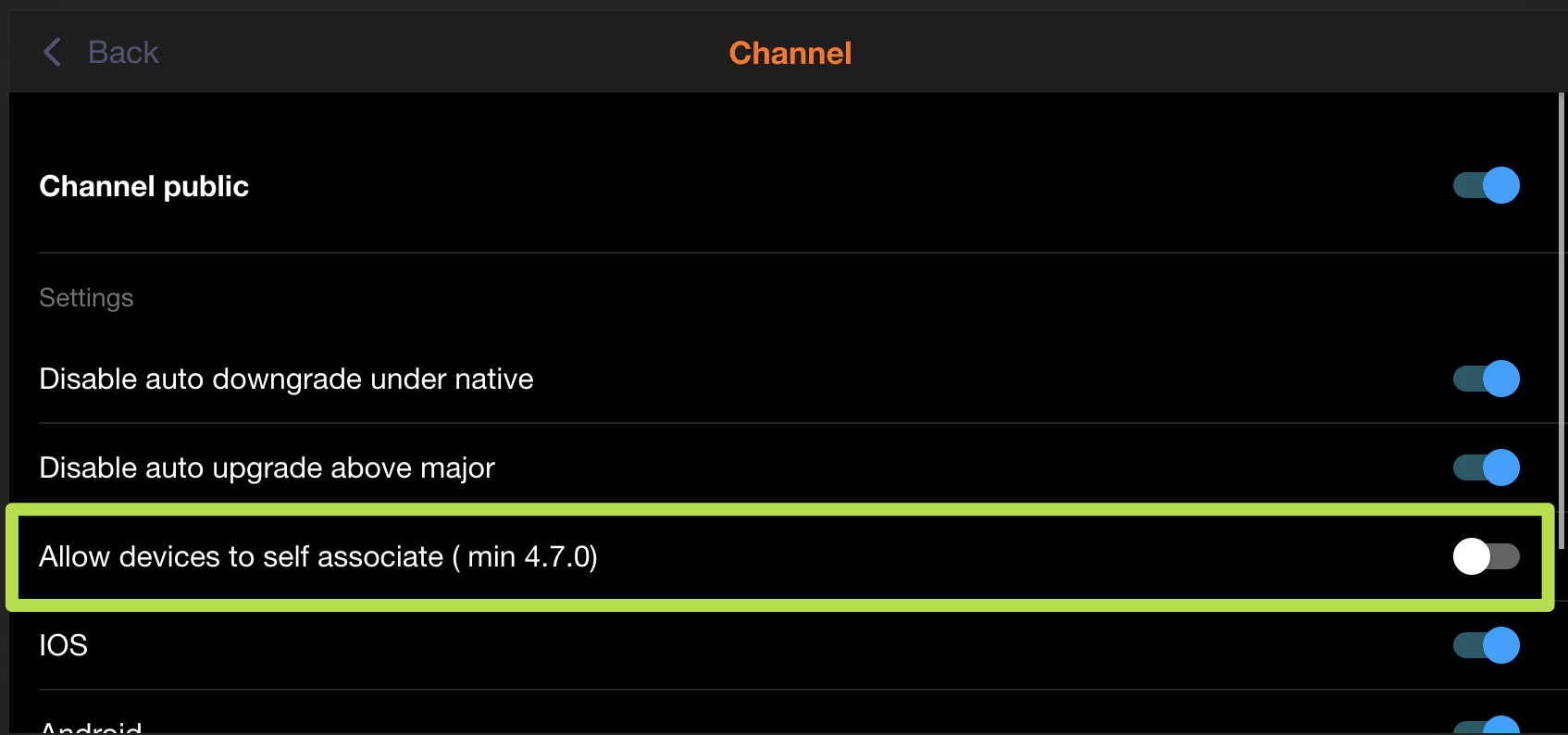
That’s it. No config changes needed in your app. No defaultChannel setting required. Just enable self-assignment on the channels you want users to be able to switch to.
If this setting is disabled, any attempt to call setChannel() with this channel will fail and the channelPrivate event will fire.
Listing Available Channels
You can fetch the list of channels available for self-assignment:
const { channels } = await CapacitorUpdater.listChannels();
console.log('Available channels:', channels.map(c => c.name));// Use this to build a channel selector UI
This only returns channels where self-assignment is enabled.
Getting the Current Channel
Check which channel the device is currently assigned to:
const { channel } = await CapacitorUpdater.getChannel();
console.log('Current channel:', channel);
Reverting to Default Channel
To remove the channel override and return to the default:
await CapacitorUpdater.unsetChannel({});This unlinks the device from any specifically assigned channel, causing it to fall back to the defaultChannel in your config or the cloud default.
How to Test Channel Surfing
To see channel surfing in action, you’ll need a release build - the @capgo/capacitor-updater API is designed for release builds. In debug builds, the app typically loads JavaScript from a development server instead, which bypasses the normal update flow.
Prerequisites
The only requirement for channel surfing is enabling “Allow devices to self associate” on each channel you want to allow switching to. No config changes are needed in your app.
Creating a Test Build
Build your app as usual:
bun run build && npx cap syncThen create your native builds using Xcode or Android Studio, or use your CI/CD pipeline. The app will start on whichever channel is set as the cloud default in your Capgo dashboard.
Publishing Updates to Different Channels
Once the app is installed, publish updates to different channels:
# Publish to preview channelnpx @capgo/cli@latest bundle upload --channel preview
# Publish to production channelnpx @capgo/cli@latest bundle upload --channel production
From there, navigate to your channel surfing UI in the app and trigger the channel switch. The app should fetch the update from the selected channel and reload into the new update.
Building a Channel Switcher UI
Channel surfing is usually something you want to expose to a limited set of users, not to everyone using your app. For example, you might have a button available to authenticated employees only that switches the app to the preview channel.
Here’s an example React component for a channel switcher:
import { useState, useEffect } from 'react';import { CapacitorUpdater } from '@capgo/capacitor-updater';
export function ChannelSwitcher() {  const [currentChannel, setCurrentChannel] = useState<string>('');  const [availableChannels, setAvailableChannels] = useState<string[]>([]);  const [isLoading, setIsLoading] = useState(false);
  useEffect(() => {    loadChannelInfo();  }, []);
  async function loadChannelInfo() {    const { channel } = await CapacitorUpdater.getChannel();    setCurrentChannel(channel || 'default');
    const { channels } = await CapacitorUpdater.listChannels();    setAvailableChannels(channels.map(c => c.name));  }
  async function handleChannelSwitch(channel: string) {    setIsLoading(true);    try {      await CapacitorUpdater.setChannel({        channel,        triggerAutoUpdate: true      });      setCurrentChannel(channel);      // App will update in background or on next restart    } catch (error) {      console.error('Failed to switch channel:', error);    } finally {      setIsLoading(false);    }  }
  return (    <div>      <p>Current channel: {currentChannel}</p>      <div>        {availableChannels.map(channel => (          <button            key={channel}            onClick={() => handleChannelSwitch(channel)}            disabled={isLoading || channel === currentChannel}          >            Switch to {channel}          </button>        ))}      </div>    </div>  );}
OTA Update Gotchas
None of these are specific to channel surfing, but they tend to become apparent quickly once you start switching channels at runtime.
Runtime Version Mismatches
Updates in Capgo are tied to native app versions. If the native version of an update doesn’t match the native version of the installed app, the update won’t be downloaded or applied. When channel surfing, this typically shows up as the app switching channels but no update being applied, even though one exists on that channel.
This usually means the update was published from a different native version of the app. Make sure your channel’s bundle is compatible with the native version installed on the device.
Removing or Undoing Updates
If an app has already downloaded an update for a channel, deleting that update from the Capgo dashboard does not remove it from devices that already have it. Deletion only stops future downloads.
The most reliable way to undo a bad update is to publish a known-good update to the same channel. This creates a new update at the top of the channel’s history, which clients will treat as the latest version and apply instead.
Capgo also provides a rollback mechanism that can instruct clients to re-apply a previous stable update or fall back to the update embedded in the build.
Data Migration Considerations
Switching channels changes the JavaScript bundle the app runs. If your app depends on migrations or data shapes that are not compatible across channels, switching back and forth may cause issues.
For example, if a beta update applies a database migration, the production version might not understand the new schema. Developers should ensure their updates remain safe to switch between or restrict switching to one direction when needed.
Why Channel Surfing Improves Mobile Iteration
Channel surfing is especially useful when you need to review changes quickly in a production environment.
Rapid Validation
Imagine an urgent bug fix that needs validation before being rolled out broadly. With channel surfing, the change can be isolated to a small set of designated users who can review it before it reaches production.
Stakeholder Review
A product owner or QA can switch their installed production build to another update channel, verify the fix or feature, and then switch back again once they’re done.
Streamlined Testing
This makes it easier to involve non-technical stakeholders in review and decision-making, while keeping the workflow smooth. A single production build becomes a flexible tool for testing, feedback, and validation.
Use Cases
- QA Testing: Let QA team switch between feature branches
- Beta Programs: Users opt into beta channel for early access
- Stakeholder Review: Product owners preview changes before release
- A/B Testing: Assign users to different channels for experiments
- Debugging: Switch a specific user to a debug channel to diagnose issues
Comparison: Channel Change Methods
| Method | Effect Time | Persisted Where | Use Case |
|---|---|---|---|
setChannel() from plugin | Instant | Device only (local) | User-initiated channel switching in-app |
| Dashboard device override | Up to 2 min | Backend database | Admin-initiated changes for specific devices |
| API channel assignment | Up to 2 min | Backend database | Automated backend integrations |
For the best user experience when building channel-switching UIs, always use the plugin’s setChannel() method.
Best Practices
- Limit Access: Channel surfing is usually for internal use - don’t expose it to all users
- Handle Errors: Always handle errors gracefully when switching channels
- Validate Compatibility: Ensure updates on different channels are compatible with the installed native version
- Document Channels: Keep clear documentation of what each channel is for
- Monitor Usage: Track which devices are on which channels for debugging
Resources
Conclusion
Channel surfing transforms how you can iterate on your Capacitor app. Instead of treating production builds as fixed endpoints, they become flexible tools for testing, validation, and rapid iteration.
With the instant channel switching introduced in recent plugin versions, the experience is now seamless - users can switch channels and immediately receive updates from the new channel without any waiting period.
Whether you’re validating bug fixes with stakeholders, running beta programs, or debugging issues with specific users, channel surfing gives you the flexibility to ship the right update to the right user at the right time.