





















Instant updates for your
<CapacitorJS app/>
Ship fixes in minutes, not weeks. Push updates to users
No app store delays. No user friction. Just ship.
14-day free trial. No credit card required
Instant updates
Your users are waiting. Ship updates in minutes, not weeks.
App Store compliant
Compliant with Apple and Google requirements
End-to-end encryption
Only your users can decrypt your updates, no one else.
 SOC 2 Type II Compliant
  SOC 2 Type I Compliant
  GDPR Compliant
 PROBLEM → SOLUTION
The App Store is killing
velocity
Your team can't afford days-long app store delays. Ship updates the moment they're ready.
HOW IT WORKS
Push once.
Update everywhere, instantly.
Capgo uses an open-source CapacitorJS plugin and a secure cloud service to push frontend updates to your users — no app store review required.
Add the plugin
Install the Capgo CLI and run a single command.
It's that simple!
Push new updates
Build your app as usual, then deploy your update with our CLI. No complex configuration needed.
App syncs on launch
Users receive updates instantly in the background. No app store approval, no user interaction required.
14-day free trial. No credit card required
Data-driven decisions
Real-time Monitoring
Get real-time insights into your app's performance and adoption. Track successful updates, monitor errors, and understand your user base.
User Population
Track active users and version adoption in real-time
Bandwidth Saved
Smart differential updates reduce data usage by up to 90%
Updates Served
Reliable delivery to millions of devices worldwide
Update observability
All device logs - no Xcode or Android Studio required
Capgo captures the full OTA journey: checks, downloads, installs, policy blocks, and rollbacks so you can answer “what happened?” in seconds, not hours.
- Per-device timelines highlight stalled downloads, checksum issues, or missing notifyAppReady().
- Channel guardrails proven: see disableAutoUpdateToMajor, emulator/dev blocks, and platform filters in real time.
- Detect blast radius fast: update_fail, rateLimited, needPlanUpgrade surface before users churn.
- Shared logs for engineering, QA, and support (no Xcode/Android Studio digging required).
Actionable context in one place: decide to rollback, bump a channel, or ship a hotfix with confidence.
Ship faster with less effort
Fully Automated Workflow
Automate your entire release process. From code commit to user device, Capgo handles the complexity of building, signing, and deploying your updates.
Instant updates
Worldwide
Powered by serverless edge computing and distributed databases across 300+ cities and 13,000+ networks for ultra-fast global delivery.
Global Network
REAL-TIME PERFORMANCE

14-day free trial. No credit card required
What's Possible
Flexible update control
Choose the right combination of update types for your app's needs
Apply timing
Control when updates are applied: default (background), atInstall, onLaunch, or always
Delay conditions
Wait for specific conditions: date, background, nativeVersion, or kill event
Version blocking
Control semver updates: none, major, minor, patch, or metadata
Delivery types
Full bundle (entire JS bundle) or Delta/manifest (only changed files for faster updates)
DEVELOPER FRIENDLY
Built for Developers
Fast to install. Easy to extend. Fully transparent. Capgo was designed to work with modern CapacitorJS dev workflows — from CLI to cloud.

- TSTypeScript support
-
Fully typed API and plugin for predictable integration
- CLI & REST API
-
Use in CI/CD, scripts, or manually — your choice
- Multi-channel delivery
-
Support for production, staging, test, and custom update streams
- Rollback & version pinning
-
Recover from bad deploys instantly
- Plugin analytics
-
Track update health, coverage, and logs in your dashboard
- Composable & open-source
-
Use just the plugin, or plug into the full Capgo Cloud
- Capacitor & Electron
-
Live updates for mobile (iOS/Android) and desktop (Electron) apps with the same API
- Public API
-
Manage Capgo from your own software and create white label experiences API docs
- Smart differential updates
-
Only download what's changed, saving bandwidth and time Learn more
- Advanced update distribution
-
Target specific user groups with different versions using channels for beta testing and staged rollouts Learn more
- SOC 2 Certification
-
We're actively working towards SOC 2 Type II certification to provide independent verification of our security controls Trust center
- Lightning Fast Support
-
Email or Discord support. Enterprise plan users get dedicated Slack shared channel access.
Apps with 20M+ users
Use Capgo
Our numbers are shared transparently since December 2021.


They love Capgo.
From indie devs to large teams, they all rely on Capgo to push updates instantly.

Our Manifesto
Your team excels at web development - you shouldn't need native mobile experts. We're the bridge between your web expertise and mobile success. Open source, transparent, and built by developers who understand the web-to-mobile journey.
We're your dedicated native partner, offering live updates, custom plugin development, CI/CD setup, and ongoing maintenance services. Need a specific native feature? We'll build it. App store rejections giving you headaches? We'll handle the submissions. Think of us as your mobile development team.
Your team excels at web development, and we excel at native mobile. Let us handle the complexities of updates, app store submissions, native integrations, and mobile maintenance while you focus on what you do best - creating amazing user experiences.
Martin Donadieu
Founder, Capgo
Flexible Management
for Your Team
Create and manage multiple organizations with ease, assigning specific rights to each user. Capgo provides powerful tools to keep your team organized and efficient.
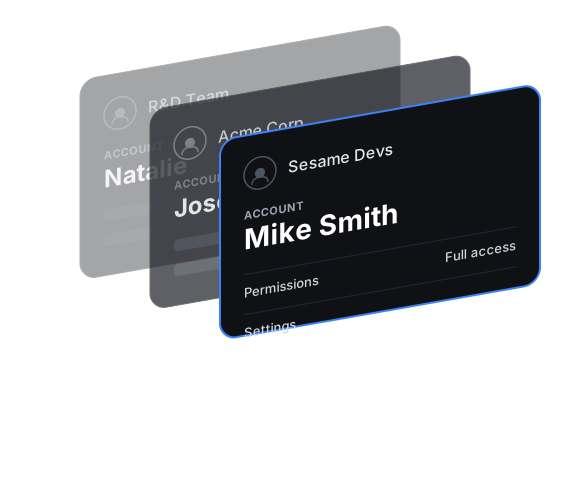
Manage Various Teams
Create and oversee multiple organizations from a single account, streamlining your workflow and enhancing productivity.
Control Access Levels
Assign specific rights and access levels to each user within your organizations, ensuring security and proper resource allocation.
Adapt as You Grow
Easily adjust user roles and permissions as your team and projects evolve, maintaining optimal organization structure.
Ionic Appflow is shutting down,,
Capgo is here to stay
While Ionic Appflow announced its shutdown, Capgo continues to grow stronger every day.
Unlike venture-backed services that can disappear overnight, Capgo is fully bootstrapped and profitable. We've been generating consistent revenue since day one, ensuring long-term stability for your apps.
Our sustainable business model means we're not dependent on investor funding or acquisition deals. We're built to last, with a growing customer base and proven track record.
Fully Bootstrapped
No investors, no pressure to sell. Built with our own resources and customer revenue.
Revenue Generating
Profitable from day one with consistent growth. Our success depends on your success.
Built to Last
Sustainable business model ensures we'll be here for the long haul. Your apps are safe with us.

Ready to migrate from Ionic Appflow?
Join thousands of developers who've already made the switch to a more reliable, feature-rich alternative that's built to last.


