


将您的首次应用程序提交到 App Store 或 Play Store 可能会感到令人生畏。随着 2026 年不断演进的指南和更严格的执行,获得批准需要细致入微的注意力。这份全面指南将带您走过您需要了解的所有内容,以便在 iOS 和 Android 平台上通过第一次提交的审查。
了解 2026 年的审查过程
苹果和谷歌在近年来显著加强了审查过程,特别是对隐私、安全性和用户体验的关注。了解这些变化对于首次开发者来说至关重要。
iOS App Store Review Timeline
- 标准审查: 24-48 小时
- 高峰期: 3-5 天(尤其是在节假日季节)
- 周末: 无审查处理
- 加速审查: 可用于紧急修复bug(必须通过App Store Connect提出请求)
专业提示: 提交应用于周一至周二(周末延迟避免). 周一提交的应用通常在周三审查.
App Store Connect 状态
- 准备提交:您的构建或元数据仍在准备中
- 等待审查:苹果已收到您的提交
- 审查中:审查团队正在积极检查应用
- 等待开发者发布:已通过审查,但等待您的手动发布选择
- 被拒绝/未解决问题:苹果需要更改才能获得批准
Google Play Store 审核时间表 (2026 年更新)
- 初审 : 3-7 天 (比前几年要长得多)
- 關閉測試門檻 : 14 天最低,受影响的新个人 Play Console 帐户才能请求生产访问
- 测试后生产审查 : Closed Testing Gate 完成后通常还需要 3-7 天
- 现有应用更新 : 1-3 天
- 政策违规 : 如果触发了额外的审查,可能会延长到 14+ 天
重要更新context
Page/area: Homepage marketing copy. Role: Short UI label or navigation item. Seen in: component AppflowShutdown.astro. Message key `home_important_update_badge` (Home Important Update Badge).
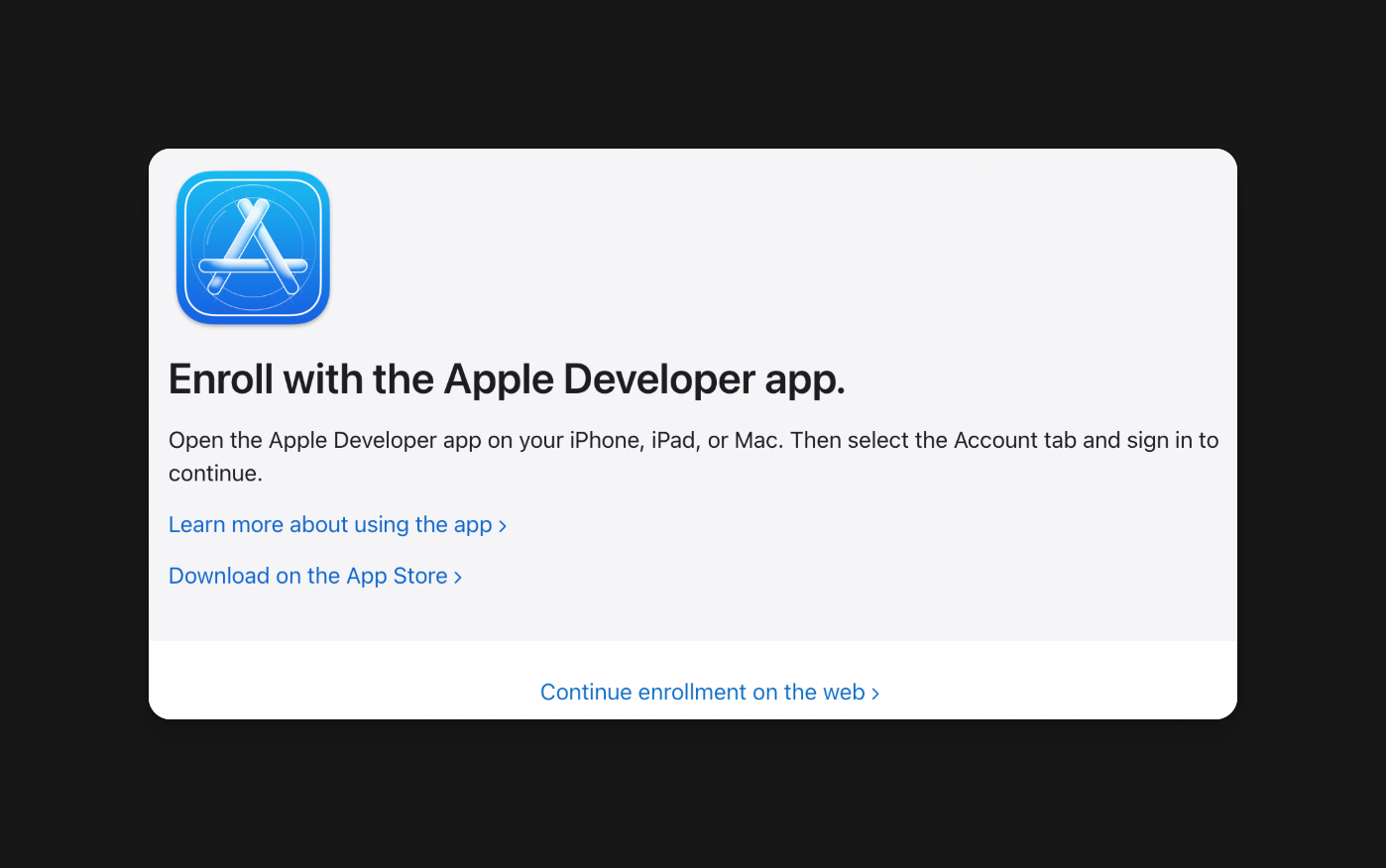
在发布 iOS 应用之前,确保 Apple 端设置正确:
- 加入 Apple Developer Program
- 为 Apple Account 用于注册启用两因素认证
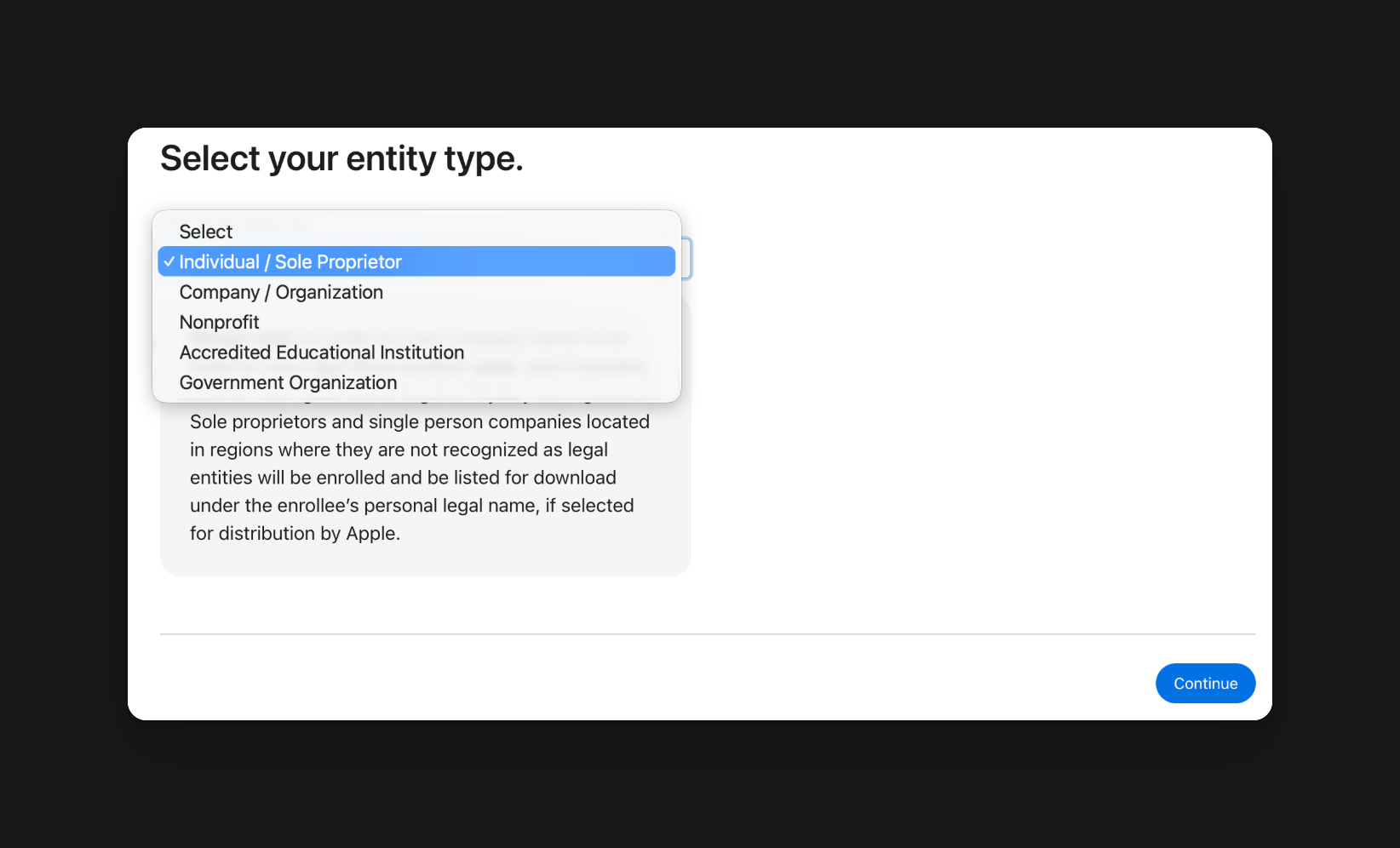
- 选择正确的会员类型:
- 个人/独资企业:您的法律姓名将成为 App Store 上的卖家名称
- 组织:需要一个法律实体,一个 D-U-N-S 编号,一个公共网站,以及一个具有权力将公司与 Apple 协议绑定的个人
- 在注册过程中使用法律姓名。使用别名或公司名称填写姓名字段可能会延迟审批
- 注册批准后,登录 App Store Connect 并创建应用记录,使用最终的 bundle ID,应用名称,SKU 和主要语言
重要苹果会随着时间的推移而改变最低的SDK要求。截至 : Apple随着时间的推移而改变最低__CAPGO_KEEP_0__要求。截至2026年4月28日 iOS & iPadOS 26 SDK 或更高版本.
iOS & iPadOS 26 __CAPGO_KEEP_0__或更高版本
关键的Android测试要求
这是首次Android发布者中最容易被忽视的变化:
12个测试者要求新个人Android账户 如果您的Google Play开发者帐户是创建于2023年11月13日之后的个人账户, 必须完成闭测周期后,应用才能上线:
要求:
- 最少12名测试者: 您必须招募至少12名同意测试的测试者
- 闭测期限: 应用必须在闭测状态持续至少14天
- 生产环境申请: 闭测期满后,您仍需在Play Console申请生产环境
- 反馈收集: 您应该记录发现的问题、修复的内容以及测试者如何使用应用
如何设置您的测试跟踪
-
创建闭测测试跟踪
- 前往 Google Play Console
- 导航到测试和发布 > 测试 > 关闭测试
- 在关闭测试轨道中创建一个新发布
- 上传您的 Android App Bundle (
.aab)
-
招募测试者
哪里可以找到测试者:
- 朋友和家人(最容易的起点)
- 开发者社区(Reddit 的 /r/androiddev,/r/betatests)
- 社交媒体粉丝
- Beta 测试平台(BetaList,BetaTesting.com)
- 大学生(如果您有联系)
Important: 确保测试者:
- 拥有有效的Gmail账户
- 实际使用Android设备
- 在整个14天周期内保持测试者已选入
-
邀请测试者
- 在Play Console中创建测试者名单
- 添加测试者邮箱地址
- 与测试者分享选入URL
- 确保他们安装并使用应用程序发送提醒
-
监控测试活动
- 在Play Console中检查安装数量
- 跟踪崩溃报告和ANR(应用程序未响应)
- 收集测试者的反馈
- 在发布前修复任何关键问题
-
发布到生产环境
- 在14天内,测试者人数达到12人以上
- 从Play Console控制台申请生产环境访问
- 查看所有崩溃报告和反馈
- 创建生产版本并提交最终审查
为什么Google实施了这个要求
Google引入了这个要求是为了
- 减少低质量应用程序垃圾邮件
- 确保应用程序在发布前得到充分测试
- 通过真实世界的使用模式识别恶意应用程序
- 提高整体Google Play商店质量
现实检查: 这将至少增加2-3周的发布时间表。请事先规划并尽早招募测试者。
认证和登录要求
最常见的拒绝原因之一是认证系统的不当实施,尤其是社交登录。
苹果登录要求(对于iOS至关重要)
苹果规则: 如果您的应用程序提供任何第三方社交登录选项(Google、Facebook、Twitter等),那么 必须 也提供Sign in with Apple作为一个选项。
这适用于:
- Google Sign-In
- Facebook 登录
- Twitter/X 登录
- LinkedIn 登录
- 任何其他第三方身份验证服务
以下不适用:
- 仅使用电子邮件/密码身份验证
- 政府身份验证系统
- 企业 SSO 系统(当该应用专门为该企业开发时)
- 教育提供者身份验证系统
实现 Sign in with Apple
如果您正在使用社交登录,以下是您需要实现的内容:
import { SignInWithApple } from '@capacitor-community/apple-sign-in';

async function signInWithApple() {
  try {
    const result = await SignInWithApple.authorize({
      clientId: 'com.yourapp.service',
      redirectURI: 'https://yourapp.com/auth/callback',
      scopes: 'email name',
      state: '12345',
      nonce: 'nonce',
    });

    // result contains:
    // - identityToken
    // - authorizationCode
    // - email (may be null if user previously authorized)
    // - givenName
    // - familyName

    // Send to your backend for verification
    await verifyAppleToken(result.identityToken);

  } catch (error) {
    console.error('Apple Sign In failed:', error);
  }
}重要考虑因素:
-
电子邮件隐私: 用户可以选择隐藏他们的电子邮件。苹果提供了一个私有的中继电子邮件(例如,
abc123@privaterelay.appleid.com). 你的应用程序必须处理这个。 -
首次用户与重复用户: 苹果只在第一次授权时提供用户详细信息(姓名、电子邮件)。存储此信息,因为随后的登录不会包含它。
-
按钮设计: 苹果为 Sign in with Apple 按钮提供了严格的设计指南。使用他们的官方资产。
-
后端验证: 总是在你的后端服务器上验证身份令牌,不要相信客户端令牌。
安卓社交登录要求
虽然安卓不需要像 iOS 一样特定的提供者,但 Google 有以下指南:
Google 登录要求:
- 必须使用官方的 Google Sign-In SDK
- 必须遵循 Google 的品牌指南
- 如果您提供它,应作为主要选项
最佳实践:: 在两种平台上提供相同的登录选项以保持一致性:
- 电子邮件/密码
- 使用 Apple 登录 (仅限 iOS,或者在 Android 上支持基于 web 的 Apple 登录)
- 使用 Google 登录
- 其他社交选项(Facebook、Twitter等)
其他社交选项(Facebook、Twitter 等)
演示账户要求对审查至关重要的内容是:如果您的应用程序需要登录,您 必须 在 App Review Notes 中提供可用的 demo 凭证。
Demo Account Information:

Username: reviewer@demo.com
Password: ReviewTest123!

OR

Test Phone: +1 555-0123
Test OTP: 123456 (static for review)

Notes:
- This account has full premium features enabled
- All payment flows work in sandbox mode
- Account will reset daily常见错误:
- 提供过期凭证
- demo 账户无法访问所有功能
- 没有说明如何绕过手机验证
- 忘记提及sandbox 支付细节
隐私政策和法律要求
两家应用商店现在要求可访问的隐私政策和服务条款 在 您的第一份提交被批准。
隐私政策要求
您的隐私政策必须
-
必须公开
- 必须在公共 URL 上托管 (不在登录后)
- 必须在标准 web 浏览器中可加载
- 必须与您的应用程序相同的语言
-
必须涵盖这些必须话题:
- 您收集的数据 (具体)
- 您如何使用收集的数据
- 是否与第三方共享数据
- 数据保留多久
- 用户权利 (访问、删除、可移植性)
- 隐私咨询联系信息
- 适用于13岁以下/16岁以下用户的儿童隐私
-
在应用程序内进行关联
- 从设置或帐户屏幕中可访问
- 必须在一键触发(不应在菜单中隐藏)
- 应在默认浏览器或应用程序浏览器中打开
托管您的隐私政策的位置
选项1:您的网站 (推荐)
https://yourapp.com/privacy-policy
https://yourapp.com/terms-of-service
选项2:GitHub页面 (免费)
https://yourusername.github.io/app-privacy-policy选项3:隐私政策生成器 (快速启动)
重要context
条款和条件 需求
:
- 条款和条件要求
- :
- 不一定总是强制性的,但拥有条款和条件是非常推荐的,并且在以下情况下是必需的:
- 您提供的应用内购买或订阅
您有用户生成的内容:
- 使用条款
- 账户终止条件
- 免责声明
- 知识产权
- 争议解决程序
- 特别是IAP退款政策
内购实施
// Settings or Account Screen
function LegalLinks() {
  return (
    <div className="legal-section">
      <h3>Legal</h3>
      <a
        href="https://yourapp.com/privacy-policy"
        target="_blank"
        rel="noopener noreferrer"
      >
        Privacy Policy
      </a>
      <a
        href="https://yourapp.com/terms-of-service"
        target="_blank"
        rel="noopener noreferrer"
      >
        Terms of Service
      </a>
      <a
        href="https://yourapp.com/contact"
        target="_blank"
        rel="noopener noreferrer"
      >
        Contact Us
      </a>
    </div>
  );
}
App Store元数据要求
两家商店都要求在提交应用程序时提供隐私政策URL:
iOS - App Store Connect:
- 应用程序信息 > 一般信息 > 隐私政策URL
- 必须是HTTPS(HTTP会被拒绝)
- 将在您的 App Store 页面上显示
- 添加一个包含用户联系信息的支持 URL
- 在提交前完成年龄评级问卷
Android - Google Play Console:
- 商店存在 > 商店设置 > 隐私政策
- 所有针对儿童的应用都需要
- 所有应用都强烈建议
隐私营养标签 (iOS)
iOS 需要在“营养标签”格式中详细披露隐私信息:
您必须宣布的类别:
- 联系方式: 电子邮件、姓名、电话号码
- 财务信息: 支付信息、信用卡、银行账户
- 位置: 精确或粗略位置
- 用户内容: 照片、视频、音频、消息
- 标识符: 用户ID、设备ID、广告ID
- 使用数据: 产品交互、广告数据、崩溃日志
- 诊断: 崩溃数据、性能数据
对于每种数据类型,明确:
- 无论数据是否被收集
- 无论数据是否与用户身份相关
- 无论数据是否用于跟踪
- 数据收集的目的
常见错误: 说你不收集数据,而你的分析SDK却在做。检查所有第三方 SDK 的数据收集情况
Google Play 数据安全部分
与 iOS 类似,Android 也需要数据安全声明
步骤:
- 进入 Play Console > 应用内容 > 数据安全
- 回答有关数据收集的问题
- 指定数据类型
- 解释安全实践(加密等)
- 提供隐私政策链接
关键: 这些信息是法律约束。虚假陈述可能导致应用程序被移除和帐户被暂停。
常见第一次拒绝原因
了解为什么应用程序会被拒绝有助于您避免这些陷阱:
1. 应用程序崩溃或无法启动
为什么会发生这种情况:
- 仅在模拟器上测试,而不是在真实设备上
- 缺少网络故障的错误处理
- 硬编码的API端点无法访问
- 假设设备具备特定的功能(摄像头、GPS)
如何防止:
// Always implement proper error handling
async function loadData() {
  try {
    const response = await fetch('https://api.yourapp.com/data');

    if (!response.ok) {
      throw new Error(`HTTP ${response.status}`);
    }

    const data = await response.json();
    return data;

  } catch (error) {
    // Show user-friendly error
    showError('Unable to load data. Please check your connection.');

    // Log for debugging
    console.error('Data load failed:', error);

    // Graceful degradation
    return getCachedData();
  }
}测试清单:
- 在真实设备上进行测试(至少2-3种不同的型号)
- 测试网络不佳(使用网络链路调节器)
- 测试飞行模式
- 测试权限被拒绝
- 测试新安装(无缓存数据)
2. 缺失或损坏的核心功能
为什么会这样:
- 截图中显示的功能尚未实现
- 演示账号无法访问广告的功能
- Premium功能在展示但未实现
- “即将推出”占位符在应用中
如何防止:
- 只在所有宣传的功能完成后提交
- 确保演示账户具有完全访问权限
- 在提交之前移除或禁用不完整的功能
- 更新截图以完全匹配当前构建
3. 不适合年龄评级的内容
为什么会这样:
- 年龄评级设置为4+但应用包含社交功能
- 年龄评级与实际内容不符
- 未经审核的用户生成内容
- 不受监管的外部内容的链接
如何设置正确的年龄等级:
iOS年龄等级:
- 4+ (无不适内容)
- 9+ (间歇性轻度内容)
- 12+ (中等内容)
- 17+ (频繁/强烈内容)
Android内容等级:
- 所有人
- 10岁以上的所有人
- 青少年
- 成年人17+
- 成人仅限18岁以上
重要如果用户可以与其他用户共享内容,那么您需要:
- 内容审查系统
- 举报/屏蔽功能
- 清晰的社区指南
- 如果需要,年龄限制
4. 欺骗或误导性元数据
为什么会发生:
- 应用程序名称承诺的功能并不存在
- 来自竞争对手或模拟截图
- 虚假评论或评分操纵
- 描述中存在没有证据的最高评价
不良元数据的例子:
❌ BAD:
- 应用名称:“最好的健身追踪器 - #1 应用”
- 描述:“这是最令人惊奇、革命性的应用程序!”
- 截图:通用股票照片
✅ GOOD:
- 应用名称:“FitTrack - 工作日志”
- 描述:“跟踪您的工作日志,自定义日程和进度图表。”
- 截图:当前构建中的实际应用屏幕
5. 测试不足(尤其是 Android Closed Testing)
为什么会发生这种情况:
- 跳过所需的14天测试期
- 招募测试者不足
- 测试者并未实际使用应用
- 测试期间没有崩溃监控
如何防止:
- 在计划发布前3-4周开始招募测试者
- 在测试期间使用Firebase Crashlytics或类似工具
- 积极与测试者互动(调查,反馈表单)
- 在发布到生产环境之前修复关键问题
6. 未经正当理由的权限请求
为什么会这样:
- 请求位置信息但未使用
- 摄像头权限没有说明
- 联系人访问没有明确目的
- 后台位置服务非导航应用
如何修复:
iOS - Info.plist:
<key>NSCameraUsageDescription</key>
<string>Camera access is required to scan QR codes for quick login.</string>

<key>NSLocationWhenInUseUsageDescription</key>
<string>Location helps us show nearby fitness centers and outdoor running routes.</string>

<key>NSPhotoLibraryUsageDescription</key>
<string>Photo library access lets you upload a profile picture and share workout photos.</string>
Android - 权限策略:
<!-- Only request what you actually need -->
<uses-permission android:name="android.permission.CAMERA" />

<!-- Use when-in-use rather than always for location -->
<uses-permission android:name="android.permission.ACCESS_FINE_LOCATION" />

<!-- Avoid if possible -->
<!-- <uses-permission android:name="android.permission.ACCESS_BACKGROUND_LOCATION" /> -->运行时权限请求:
import { Camera } from '@capacitor/camera';

async function takePicture() {
  // Request with context
  const permissionStatus = await Camera.requestPermissions();

  if (permissionStatus.camera === 'granted') {
    const photo = await Camera.getPhoto({
      quality: 90,
      allowEditing: true,
      resultType: 'uri'
    });

    return photo;
  } else {
    // Explain why permission is needed
    showDialog(
      'Camera access required',
      'To upload a profile picture, please enable camera access in Settings.'
    );
  }
}
iOS-特定要求
App Store 截图和预览
所需尺寸:
- 6.7寸iPhone:1290 x 2796
- 13寸iPad:2064 x 2752
- 12.9英寸iPad:2048 x 2732
重要: 如果您的应用程序支持iPad,必须上传iPad截图。不要将iPhone截图拉伸到iPad槽位。
截图最佳实践:
- 必须显示实际应用程序内容(无模拟)
- 去除状态栏或显示现实内容
- 为所有支持语言本地化
- 避免过度文本叠加
- 在前2-3个截图中显示关键功能
App Store Connect元数据设置
在提交之前完成这些App Store Connect字段:
- 隐私政策URL: iOS 应用程序必填项
- 支持 URL: 必填项,应指向实际联系信息
- 年龄等级: 完成问卷以发布应用程序
- 应用程序审查信息: 添加审查联系人、登录所需的工作演示凭据以及清晰的审查团队注释
- 出口控制: 回答加密问题,或设置
ITSAppUsesNonExemptEncryption在Info.plist适当时设置,以免每次上传都重复相同的答案
TestFlight 前应用程序审查
在发布前进行一次真实的TestFlight测试:
- 从TestFlight安装精确的构建
- 使用您打算提供的审查账户登录
- 走过购买、恢复和取消的路径
- 确认审查者可以无需隐藏设置就访问关键功能
- 如果支持,测试iPhone和iPad
App预览视频(可选但推荐)
要求:
- 长度15-30秒
- 必须显示实际应用的画面
- 可以包含简短的文本覆盖
- 不允许包含版权问题的音乐
- 截图的相同分辨率
使用 Apple 登录
已在上面提到,但对于 iOS 评估来说,如果您有社交登录,仍然很重要。
应用内购买要求
如果您提供数字产品或服务:
必需的披露:
- 在购买之前清晰显示价格
- 订阅条款明确说明
- 取消订阅指示可见
- 恢复购买按钮
符合规范的订阅屏幕示例:
function SubscriptionOffer() {
  return (
    <div className="subscription-screen">
      <h2>Choose Your Plan</h2>

      <PlanCard>
        <h3>Monthly</h3>
        <p className="price">$9.99/month</p>
        <ul>
          <li>Unlimited workouts</li>
          <li>Personalized plans</li>
          <li>Progress tracking</li>
        </ul>
        <button>Subscribe</button>
      </PlanCard>

      <PlanCard>
        <h3>Annual</h3>
        <p className="price">$79.99/year</p>
        <p className="savings">Save 33%</p>
        <ul>
          <li>Everything in Monthly</li>
          <li>Priority support</li>
        </ul>
        <button>Subscribe</button>
      </PlanCard>

      <div className="subscription-terms">
        <p>
          Subscription automatically renews unless cancelled at least
          24 hours before the end of the current period. Manage your
          subscription in Settings.
        </p>
        <button onClick={restorePurchases}>Restore Purchases</button>
      </div>

      <div className="legal-links">
        <a href="/privacy/">Privacy Policy</a> |
        <a href="/terms">Terms of Service</a>
      </div>
    </div>
  );
}
Android 专有要求
Google Play Console 账户设置
在发布 Android 应用之前,确保 Play Console 账户和应用壳存在:
- 创建开发者账户在 Play Console 注册
- 在 Play Console 中,前往 主页 > 创建应用
- 选择默认语言、应用/游戏类型和支持邮箱
- 接受所需的 Play 政策、导出和 Play App Signing 声明
- 决定应用是否 免费 或 付费
重要: Google允许您将付费应用程序转换为免费应用程序,但一旦应用程序被免费提供后,就无法将其切换为付费应用程序。
应用程序包要求
重要: Google Play要求使用Android应用程序包(.aab)格式,而不是APK。
# Sync the native Android project first
bunx cap sync android

# Then build the release app bundle
cd android
./gradlew bundleRelease
目标API级别要求
当前要求: 新应用程序和应用程序更新必须目标Android 15 (API级别35)或更高。
在android/app/build.gradle中更新:
android {
    compileSdkVersion 35

    defaultConfig {
        targetSdkVersion 35
        minSdkVersion 23  // Minimum supported version
    }
}
Google Play数据安全
已经在上面提到过,但对于Android批准来说绝对是关键的。
关闭测试跟踪(当前要求)
新创建的个人开发者帐户的关键一步:12名测试者,14天的要求(详见本指南)
时间线:
- 周1:招募测试者,设置闭源测试
- 周2-3:活跃测试期(至少14天)
- 周4:修复问题,准备生产发布
- 周5:提交生产审核
目标受众和内容评级
内容评级问卷:
- 所有应用程序都需要
- 耗时10-15分钟
- 确定年龄评级(Everyone,Teen,Mature等)
- 每当内容发生变化并影响答案时,都需要更新
相关内容:
- 暴力
- 色情内容
- 不雅语言
- 管制物质
- 赌博
- 用户交互功能
重要如果您有用户生成的内容或社交功能,必须披露此信息并实施监管。
商店列表要求
必需资产:
- 应用程序图标 (512 x 512 PNG)
- 功能图像 (1024 x 500 JPG 或 PNG)
- 手机截图 (最少 2 张,最大 8 张)
- 7 英寸平板截图 (可选但推荐)
- 10 英寸平板截图 (可选但推荐)
描述要求:
- 简要描述 (最大 80 个字符)
- 详细描述 (最大 4000 个字符)
- 必须准确描述应用功能
- 不能包含联系信息或价格
提交前检查清单
在点击提交之前,请仔细检查以下清单:
技术要求
- App在真实设备上成功启动
- 所有截图中显示的功能都有效
- 没有占位符或“即将推出”内容
- 所有第三方API密钥都是生产密钥
- 已实现网络错误处理
- 权限请求包括清晰的说明
- 在网络条件差的情况下,应用程序不会崩溃
- 测试了权限被拒绝
- 测试了最低支持的OS版本
- 检查并修复了内存泄漏
身份验证和登录
- 如果使用社交登录,iOS中包括“使用Apple登录”
- 演示账户凭证在审查笔记中提供
- 演示账户具有访问所有功能的权限
- 密码重置流程正常工作
- 注销功能正常工作
- 根据GDPR/CCPA,帐户删除选项可用
法律与隐私
- 隐私政策公开可访问
- 已将隐私政策URL添加到应用商店列表
- 服务条款公开可访问(如果适用)
- 已在应用程序设置屏幕(Settings screen)中链接隐私政策
- 隐私营养标签(Privacy nutrition labels)准确(iOS)
- 已完成数据安全部分(Android)
- 所有数据收集目的解释
- 第三方SDK数据收集披露
内容 & 元数据
- 应用名称遵循指南(无关键词填充)
- 描述准确描述功能
- 截图显示当前应用屏幕
- 截图为所有支持语言本地化
- 描述中不提及竞争对手
- 无超级词汇无证据
- 年龄等级与实际内容匹配
- 联系邮箱被监控
iOS 特有
- 使用 Apple 登录 (如果使用社交登录)
- 提供了所有必需的截图尺寸
- 如果 iPad 支持已启用,则上传了真实的 iPad 截图
- Info.plist 权限描述清晰
- 添加了支持 URL 和真实的联系方式
- 在 App Store Connect 中添加了隐私政策 URL
- 完成了年龄等级问卷
- 正确回答了出口控制问题
- 提供了 App Review 联系方式和非过期的演示账户
- 目标 iOS 15.0 或更高版本
- 如果 IAP:价格清晰,恢复购买按钮存在
- 不包含对 Android 或其他平台的任何参考
Android 专用
- 使用 App Bundle (.aab) 格式
- 目标 API 35 或更高
- 内容评级问卷已完成
- 功能图像已上传
- 如果您的 Play Console 帐户要求,请完成关闭测试 (12 个测试者,14 天)
- 测试期间收集的崩溃报告已审查并修复
- 不包含对 iOS 或其他平台的任何参考
测试 (Android 当前要求)
- 如果您的 Play 帐户要求,请招募 12 名以上测试者
- 关闭测试跟踪创建
- 完成 14 天的连续测试
- 测试人员实际使用了该应用(而不是仅仅安装)
- 测试期间启用崩溃监控
- 测试中发现的关键错误修复
- 测试人员的反馈记录
审查笔记:包含什么
审查笔记:包含什么
审查笔记模板
APP REVIEW INFORMATION

=== Test Account ===
Email: reviewer@testapp.com
Password: TestReview123!
(This account has all premium features enabled)
(This account stays active during review)

=== Review Contact ===
Name: Jane Developer
Email: review@yourapp.com
Phone: +1 555-0100

=== Testing Instructions ===
1. Launch app and tap "Sign In"
2. Enter test credentials above
3. Navigate to "Dashboard" to see main features
4. Tap "Upgrade" to test subscription flow (sandbox mode)
5. Go to Settings > Account to see privacy policy and terms

=== Key Features to Test ===
- Workout tracking (tap "New Workout" on Dashboard)
- Progress charts (Analytics tab)
- Social sharing (Share button on workout details)
- Camera upload for profile picture (Settings > Profile)

=== Third-Party Services ===
- Firebase Authentication (for login)
- Stripe (for payments - sandbox mode)
- AWS S3 (for image uploads)
- Google Maps SDK (for location features)

=== Notes ===
- Location permission is optional, app works without it
- Camera permission only requested when uploading profile picture
- All subscription flows use Apple/Google sandbox environments
- Background location is not used
- Support URL and privacy policy are available from Settings > Account

=== Contact ===
For questions: developer@yourapp.com
Response time: Within 24 hours
iOS特定审查笔记
对于iOS,还包括
=== Device Coverage ===
Tested on: iPhone 15 Pro Max, iPad Pro 13-inch

=== App Store Connect Metadata ===
Support URL: https://yourapp.com/support
Privacy Policy: https://yourapp.com/privacy-policy

=== Submission Notes ===
- iPad screenshots match the current iPad UI
- Export compliance answered for this build
- Sign in with Apple is available on the login screen
Android特定审查笔记
对于Android,还包括
=== Testing Track Information ===
Closed testing period: [Start Date] to [End Date]
Number of active testers: 23
Critical issues found during testing: 2 (both fixed)
Test distribution method: Email invite list

=== Crash Data ===
Testing period crashes: 3 total
Crash rate: 0.8%
All crashes fixed in this build

=== API Levels ===
Target SDK: 35 (Android 15)
Min SDK: 23 (Android 6.0)
Tested on: Android 11, 12, 13, 14, 15
如果被拒绝,怎么办
不要惊慌 - 拒绝是常见的,尤其是第一次提交。以下是如何处理它的步骤:
拒绝后的步骤
-
仔细阅读拒绝理由
- 注意违反的具体指南(例如,4.3,5.1.1)
- 仔细阅读审阅者的评论
- 查看是否提供了截图
-
理解问题
- 查阅官方文档中的相关指南
- 在线搜索类似案例
- 检查是否是误解还是合理的问题
-
解决根本问题
- 不要仅仅修复 - 必须进行彻底修复
- 测试修复的广泛性
- 记录你所做的修改
-
适当回应
如果拒绝是正确的:
Thank you for the feedback. I have addressed the issue:

Issue: Missing Sign in with Apple option

Resolution: Added Sign in with Apple as a login option
alongside Google Sign-In. The button appears on the login
screen and follows Apple's design guidelines. You can test
with the provided demo account or by creating a new account
with Apple Sign-In.

Changes made in: v1.0.1 (build 2)
如果你认为这是一个误解:
Thank you for reviewing my app. I believe there may be a misunderstanding regarding [specific issue]: [Explain clearly with screenshots if needed] The functionality exists at: Settings > [specific location] I've added additional detail to the review notes to help locate this feature. -
及时重新提交
- 重新提交通常会更快(24-48小时)
- 包含更新的评论说明修复
- 如果有帮助,请参考之前的提交
常见拒绝回应
拒绝:‘你的应用程序在启动时会崩溃’
回应:
I sincerely apologize for the crash. I have identified and fixed
the issue:

Root cause: The app attempted to fetch data before network
initialization completed, causing a null reference exception.

Fix: Implemented proper async initialization with error handling
and offline mode. The app now gracefully handles network issues.

Testing: Verified on iPhone 12 (iOS 17), iPhone 14 Pro (iOS 17.1),
tested with WiFi, cellular, and airplane mode.

Build version: 1.0.2 (build 3)
拒绝: “缺少隐私政策”
响应:
Thank you for the feedback. I have added the privacy policy:

URL: https://myapp.com/privacy-policy
Location in app: Settings > Privacy Policy (tappable link)
Also added to: App Store Connect > App Information > Privacy Policy URL

The privacy policy covers all data collection as disclosed in the
Privacy Nutrition Labels.
拒绝: “不符合 4.2 - 最小功能性”
这更复杂一些。它意味着您的应用程序没有足够的功能来值得成为一个应用程序。响应:
Thank you for the feedback. I'd like to clarify the app's
functionality:

Core Features:
1. [Feature 1 with specific details]
2. [Feature 2 with specific details]
3. [Feature 3 with specific details]

The app provides significant utility beyond a simple website by:
- Offline functionality for [specific feature]
- Native camera integration for [specific feature]
- Push notifications for [specific feature]
- Device hardware access for [specific feature]

Test account credentials have been provided to demonstrate all
features. Please let me know if you need additional clarification.
发布后最佳实践
恭喜!您的应用程序已获得批准。以下是如何维持该状态:
发布后监控
需要关注的关键指标:
- 崩溃率(保持在 1% 以下)
- ANR 率(Android - 保持在 0.5% 以下)
- 应用商店/Google Play 商店评分
- 评论内容(回应所有评论)
- 用户反馈的bug
使用的工具:
- Firebase Crashlytics
- 应用商店连接分析
- Google Play Console Vitals
- Sentry或类似的错误跟踪
更新指南
提交更新时请注意:
- 测试更新时尽可能像初次提交一样彻底
- 如果UI有重大变化,请更新截图
- 如果数据收集方式有变化,请更新隐私标签
- 提供清晰的“新功能”描述
- 考虑阶段性发布重大更新
保持合规
年度要求:
- 更新安卓内容评级(每年必须)
- 如果实践发生变化,则更新隐私政策
- 如果内容发生变化,则更新年龄评级
- 审核第三方 SDK 以确保合规
持续监控:
- 跟踪指南变化
- 加入苹果/谷歌开发者新闻
- 参与开发者社区
- 遵循 App Store/Play Store 政策博客
资源和进一步阅读
官方文档
苹果:
谷歌:
社区资源
- 安卓开发者 - Android 开发者社区
- iOS 开发者 - iOS 开发者社区
- Stack Overflow - 技术问题
- 独立开发者 - 独立开发者社区
隐私政策工具
需要帮助您的应用程序审查?
如果您感到沮丧或想确保您的应用程序在第一次尝试时通过审查,我们就站在这里,为您提供帮助!
预约与我们的团队进行电话会议 为以下内容提供个人化帮助:
- 应用商店和Play商店审查准备
- 隐私政策和法律文档审查
- Sign in with Apple 实现
- 测试策略和测试者招募
- 审查笔记准备
- 拒绝响应和申诉
- 完整应用程序提交流程
我们的团队已经帮助数百名开发者成功地应对应用程序审查过程,并可以节省您数周的试错时间。
结论
提交您的第一个应用程序可能令人望而生畏,但在充分准备的情况下,您可以在第一次尝试通过审查。
- 提前开始: 尤其是对于 Android - 在您的计划发布前至少招募 12 名测试者 3 周
- 隐私优先: 确保您的隐私政策已经准备好,并准确反映您的数据处理实践
- 苹果登录: 如果您使用任何社交登录,必须在 iOS 中包含使用苹果登录
- 彻底测试: 在真实设备上测试,网络状况差,权限被拒绝
- 诚实:准确的元数据和隐私披露可以避免拒绝和法律问题
- 详细的审查笔记:帮助审查员快速了解您的应用
当前的Android测试要求会增加流程的时间,但最终会导致更好的应用和更少的发布后问题。为Android提交添加3-4周的计划,并且您将会成功
祝您的应用发布成功!即使您被拒绝,也是一个学习的机会。最成功的应用都经过多轮审查才能获得批准
不想独自面对挑战? 预约咨询 并让我们的专家指导您完成整个流程
需要帮助在应用获得批准后实施实时更新?查看 Capgo的live update解决方案 为应用更新提供无缝体验而无需应用商店审查
继续阅读The Complete First-Time App Review Guide for 2026 - iOS和Android
如果您正在使用 2026 年 iOS 和 Android 的完整首次应用程序审查指南 以规划安全性和合规性,连接它与 加密 加密的实施细节 合规 合规的实施细节 Capgo 安全扫描器 Capgo 安全扫描器的产品工作流程 Capgo 安全 Capgo 安全的产品工作流程 Capgo 信任中心 为产品工作流程在Capgo信任中心。





