
Every mobile dev team has felt the pain: a feature is ready for review, but getting it into stakeholders’ hands means navigating the TestFlight or Google Play beta review maze. What should take minutes turns into hours of waiting, installing, and managing beta builds.
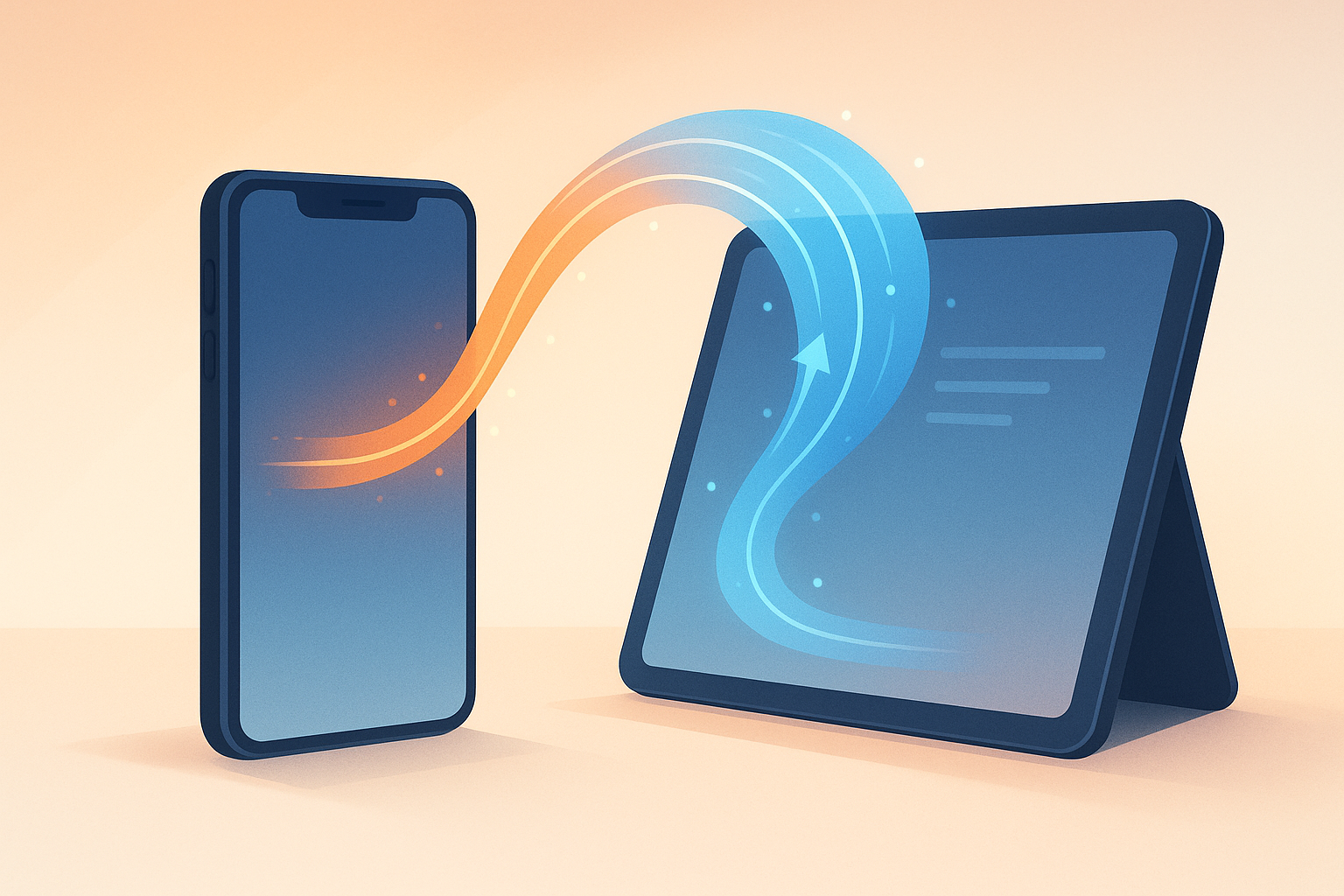
What if your production app could pull the latest changes from any pull request directly onto the device, without any reinstalls or app store delays?
That’s what PR previews enable. When a developer opens a pull request, a GitHub Action creates a dedicated update channel and publishes the changes. Anyone with the app installed can switch to that channel, test the feature, and switch back - all without leaving the app they already have.
The TestFlight Problem
The traditional workflow for testing mobile features looks something like this:
- Developer opens PR - Code is ready for review
- Wait for TestFlight - 15-30 minutes of processing time
- Find and install - Testers search for the right build
- Test and repeat - Every change means another wait
This creates a bottleneck. QA gets blocked waiting for builds. Product managers can’t verify features quickly. Developers lose context while waiting for feedback. The industry estimates this costs around $340 per PR in lost productivity.
How PR Previews Work
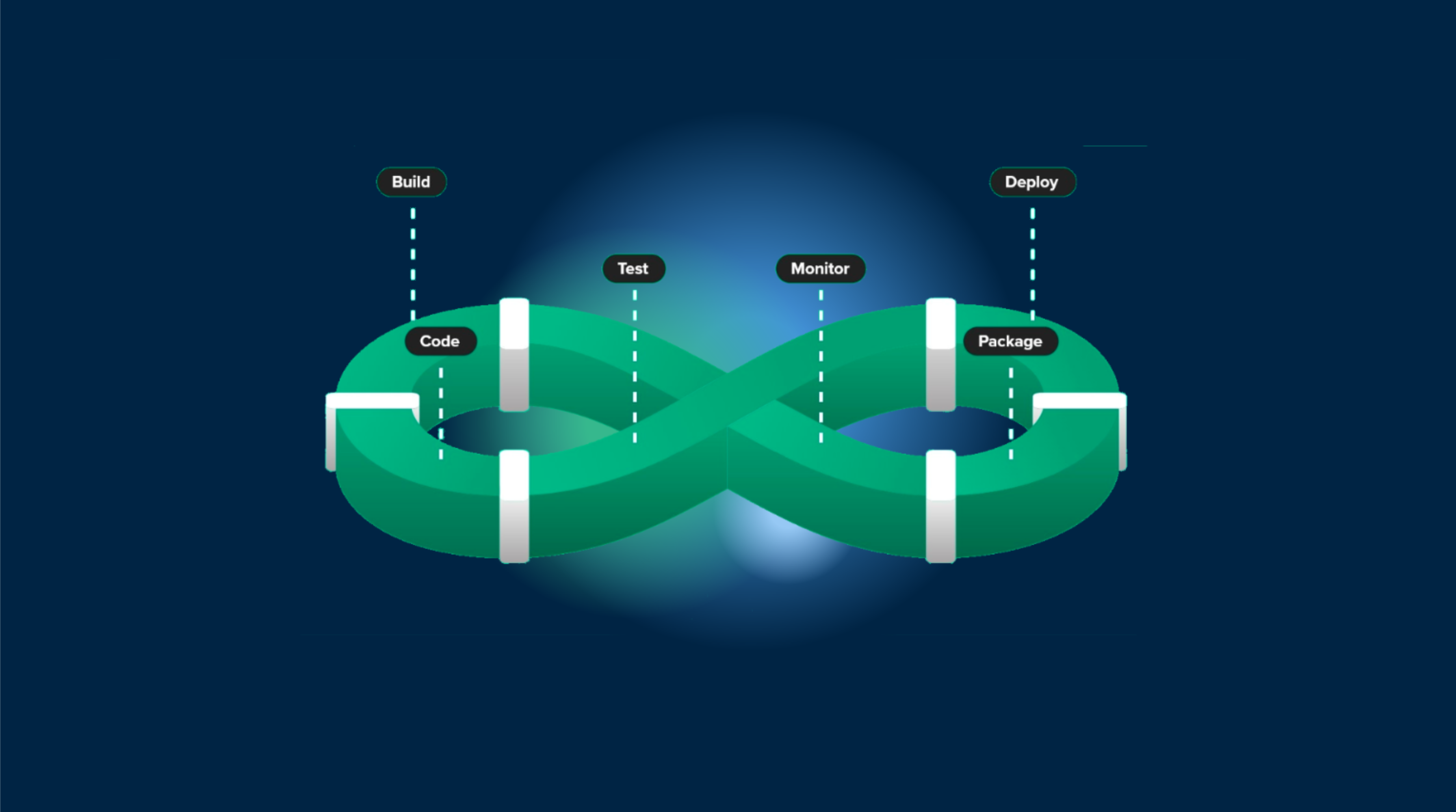
PR previews use Capgo’s channel system to create per-PR update streams. Here’s the flow:
- PR opened or updated - GitHub Action triggers
- Bundle uploaded - Your JS/CSS changes go to a PR-specific channel
- Comment posted - Testers get instructions in the PR
- Instant testing - Switch channels, test, switch back
No new app installations. No TestFlight delays. The same production app can pull from different update channels.
Setting Up PR Previews
Before you can implement PR previews, your project needs to be configured with Capgo Live Updates. Follow the Capgo quickstart guide if you haven’t already.
GitHub Actions Workflow
Create .github/workflows/pr-preview.yml:
name: PR Previewon:  pull_request:    types: [opened, synchronize]
jobs:  deploy:    runs-on: ubuntu-latest    steps:      - uses: actions/checkout@v4
      - name: Setup Bun        uses: oven-sh/setup-bun@v1
      - name: Install Dependencies        run: bun install
      - name: Build        run: bun run build
      # Create a channel named after your PR (may already exist on synchronize)      - name: Create PR Channel        id: create_channel        continue-on-error: true        run: bunx @capgo/cli@latest channel add pr-${{ github.event.pull_request.number }} --self-assign        env:          CAPGO_TOKEN: ${{ secrets.CAPGO_TOKEN }}
      # Upload the build to that channel      - name: Upload to Capgo        run: bunx @capgo/cli@latest bundle upload --channel pr-${{ github.event.pull_request.number }}        env:          CAPGO_TOKEN: ${{ secrets.CAPGO_TOKEN }}
      # Post a comment with testing instructions (only on PR open)      - name: Comment on PR        if: github.event.action == 'opened'        uses: actions/github-script@v7        with:          script: |            github.rest.issues.createComment({              owner: context.repo.owner,              repo: context.repo.repo,              issue_number: ${{ github.event.pull_request.number }},              body: '📱 **Test this PR on device:**\n\nOpen your app and switch to channel: `pr-${{ github.event.pull_request.number }}`\n\nUse the shake menu or call `setChannel()` from your app.'            })
The key is the --self-assign flag when creating the channel. This enables testers to switch to the channel from within the app using the setChannel() API.
Setting Up Capgo Token
- Go to your Capgo dashboard
- Navigate to Settings > API Keys
- Generate a new key with
allpermissions - Add it as
CAPGO_TOKENin your GitHub repository secrets
How Testers Switch Channels
There are two ways for testers to switch to a PR channel:
Option 1: Shake Menu (Simplest)
Enable the shake menu with channel selector in your Capacitor config:
const config: CapacitorConfig = { // ... your other config plugins: { CapacitorUpdater: { shakeMenu: true, allowShakeChannelSelector: true } }};Testers shake their device to open the debug menu, which shows a list of available channels with a search bar. They find their PR channel (e.g., pr-123), tap to select it, and the app automatically downloads and applies the update. When done testing, they shake again and switch back to production.
The shake menu handles the entire flow automatically:
- Fetches all self-assignable channels via
listChannels() - Displays channels with search to find specific PRs
- Downloads the update after selection
- Prompts to reload with “Reload Now” / “Later” options
Option 2: Custom Channel Selector UI
Build a channel switcher into your app that lists available PR channels and lets testers pick one. This uses two key APIs:
listChannels()- Fetches all channels with self-assignment enabledsetChannel()- Switches the device to the selected channel
import { CapacitorUpdater } from '@capgo/capacitor-updater';
// Get all available channels (including PR channels)async function getAvailableChannels() {  const { channels } = await CapacitorUpdater.listChannels();
  // Filter to show only PR channels  const prChannels = channels.filter(c => c.name.startsWith('pr-'));
  return prChannels;}
// Switch to a specific PR channelasync function switchToChannel(channelName: string) {  await CapacitorUpdater.setChannel({    channel: channelName,    triggerAutoUpdate: true  // Immediately check for updates  });}
// Return to productionasync function switchBackToProduction() {  await CapacitorUpdater.unsetChannel({});}
// Get current channelasync function getCurrentChannel() {  const { channel } = await CapacitorUpdater.getChannel();  return channel;}
With these building blocks, you can create a simple UI:
// Example: List PR channels and let user selectconst channels = await getAvailableChannels();const current = await getCurrentChannel();
// Display channels in your UIchannels.forEach(channel => {  console.log(`${channel.name} ${channel.name === current ? '(current)' : ''}`);});
// When user selects a channelawait switchToChannel('pr-123');
For a complete React component example, see our channel surfing article.
Cleaning Up PR Channels
When a PR is merged or closed, you’ll want to clean up the channel. Add another workflow:
name: Cleanup PR Previewon:  pull_request:    types: [closed]
jobs:  cleanup:    runs-on: ubuntu-latest    steps:      - name: Delete PR Channel        run: bunx @capgo/cli@latest channel delete pr-${{ github.event.pull_request.number }}        env:          CAPGO_TOKEN: ${{ secrets.CAPGO_TOKEN }}
This removes the channel when the PR is closed, keeping your channel list clean.
Version Compatibility
PR previews only work when the JavaScript bundle is compatible with the installed native version. If your PR includes native code changes (new Capacitor plugins, iOS/Android modifications), testers will need a new native build.
Capgo automatically checks version compatibility. If a PR’s bundle targets a different native version than what’s installed, the update won’t be applied. This prevents crashes from incompatible code.
For PRs that do require native changes, you’ll need to distribute a new TestFlight/Play Store build. PR previews work best for JavaScript, CSS, and asset changes that don’t touch native code.
Who Benefits from PR Previews
QA Engineers
- Test features immediately when PRs are opened
- Switch between multiple PRs without reinstalling
- Verify fixes and regressions on real devices
- No more waiting for TestFlight processing
Product Managers
- Review features before they’re merged
- Give feedback directly on the PR
- Verify that implementation matches requirements
- Reduce review cycle time
Developers
- Get faster feedback on changes
- Demo features to stakeholders instantly
- Debug issues with specific users
- Spend less time managing beta builds
Comparison: Traditional vs PR Previews
| Aspect | TestFlight/Beta | Capgo PR Preview |
|---|---|---|
| Build time | 15-30 min | <1 min |
| Switching PRs | 5+ min reinstall | 10 seconds |
| Setup complexity | App Store credentials | One workflow file |
| Cleanup | Manual | Automatic |
| Native code changes | Required | Optional (JS only) |
Best Practices
- Name channels clearly: Use
pr-{number}convention for easy identification - Auto-cleanup: Always delete channels when PRs close
- Limit access: Only enable shake menu in debug/staging builds
- Document the process: Add testing instructions to your PR template
- Handle failures gracefully: Check that channel creation succeeds before posting comments
When Not to Use PR Previews
PR previews are for JavaScript/CSS changes. If your PR includes:
- New Capacitor plugins
- iOS native code changes
- Android native code changes
- Dependency updates that affect native builds
You’ll need traditional TestFlight/Play Store distribution for those changes.
Combining with Channel Surfing
PR previews work best when combined with channel surfing. Your app can have:
production- Stable releases for all usersbeta- Early access for opt-in userspr-123- Feature previews for specific PRs
Testers with production builds can switch to any PR channel, test the feature, then switch back - all with the same installed app.
Resources
- Capgo Live Updates Documentation
- Channels Documentation
- Channel Surfing Guide
- CLI Commands Reference
- PR Preview Solutions Page
Conclusion
PR previews transform how your team reviews and tests mobile features. Instead of waiting for TestFlight processing and managing multiple beta builds, testers can switch to any PR channel in seconds using the app they already have installed.
The setup is minimal - one GitHub Actions workflow file - and the benefits compound across your team. QA stays unblocked, product managers review faster, and developers get quicker feedback.
Start by adding the workflow to one repository and see how it changes your review process.