


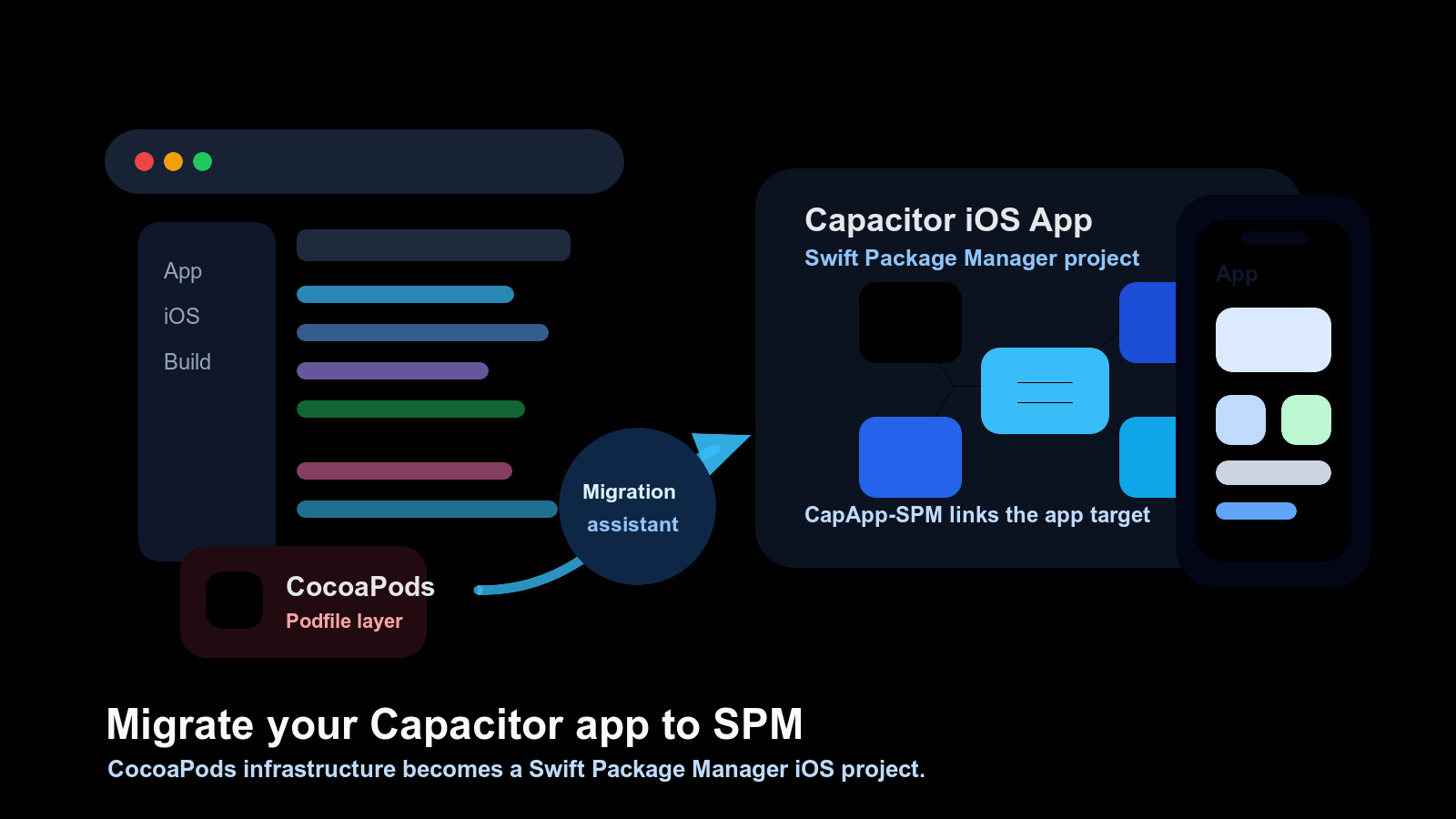
Il Manager dei Pacchetti Swift è la direzione predefinita per i progetti iOS di Capacitor. Se il tuo app utilizza ancora CocoaPods, puoi migrare l'app stessa verso SPM senza ricostruire il tuo workflow di rilascio JavaScript code, il progetto Android o il flusso di lavoro da zero.
Questa guida è destinata alle squadre di sviluppo. Spiega come migrare un'app iOS di Capacitor da CocoaPods a SPM, cosa cambia il assistente di migrazione, cosa devi ancora controllare in Xcode e come pulire il CI dopo che l'app è stata costruita.
Cosa cambia nell'app
Un'app di Capacitor basata su CocoaPods dipende da file come:
ios/App/Podfileios/App/Podfile.lockios/App/Pods/ios/App/App.xcworkspace
Un'app di Capacitor basata su SPM sposta la gestione delle dipendenze iOS nel Manager dei Pacchetti Swift. Durante la migrazione, Capacitor crea un pacchetto locale chiamato CapApp-SPM e lo utilizza per connettere il target dell'app con Capacitor e le dipendenze native installate.
La costruzione web funziona sempre nello stesso modo. Esegui ancora una costruzione web, sincronizza Capacitor, apri Xcode e archivia l'app. La principale differenza è che CocoaPods non gestisce più il grafo di dipendenze iOS.
Prima di migrare
Inizia da una branch pulita e assicurati che l'app corrente si costruiscano prima di modificare i gestori di dipendenze:
git status
npm run build
npx cap sync ios
Poi commetta lo stato di lavoro. La migrazione tocca i file di progetto iOS generati, quindi avere un punto di rollback pulito è importante.
Successivamente, esamina cosa il tuo app ha personalizzato sotto ios/App/I file comuni e le impostazioni da preservare includono:
App/Info.plistApp/AppDelegate.swiftApp/SceneDelegate.swiftse presenteApp/Assets.xcassets/App/Base.lproj/App/App.entitlementsApp/GoogleService-Info.plistse utilizzi Firebase- personalizzato
.xcconfigfile - impostazioni di firma, identificatore di bundle, ID team e profili di provisioning
- estensioni dell'app, file Swift nativi, file Objective-C nativi, o framework incorporati
Controlla anche le tue dipendenze Capacitor e Cordova installate. Una migrazione SPM dell'app può essere bloccata da una dipendenza nativa che non ha un percorso SPM compatibile. Aggiorna quei pacchetti prima di migrare quando possibile.
Usa l'assistente di migrazione
Per la maggior parte delle app esistenti, inizia con l'assistente di migrazione ufficiale Capacitor:
npx cap spm-migration-assistantEseguilo dalla radice del tuo progetto Capacitor. L'assistente elimina l'integrazione di CocoaPods, crea la versione locale CapApp-SPM pacchetto, genera riferimenti di pacchetto per le dipendenze native installate, e aggiunge la configurazione generata necessaria per il progetto iOS.
Dopo che si è completato, apri il progetto iOS:
npx cap open iosLeggi l'output dell'assistente prima di chiudere il terminale. Se ti chiede di completare passaggi manuali in Xcode, esegui quei passaggi prima di sincronizzare nuovamente.
Completa i passaggi di Xcode
In Xcode, controlla la configurazione del progetto e del target dell'app:
- Conferma
CapApp-SPMè aggiunto come dipendenza di pacchetto locale. - Confirm the app target links the generated package products.
- Aggiungi il generato
debug.xcconfigal configurazione del progetto se l'assistente chiede di farlo. - Risolve eventuali avvisi di pacchetto in Xcode.
- Costruisci l'app una volta da Xcode.
Se Xcode non riesce a risolvere i pacchetti, utilizza File > Pacchetti > Reset Pacchetti di Cachee poi risolvi i pacchetti nuovamente.
Sincronizza e costruisci nuovamente
Dopo che Xcode è configurato, torna al terminale e sincronizza Capacitor:
npx cap sync iosPoi costruisci da Xcode nuovamente. Non considera la migrazione come completata fino a quando un costruzione pulita funziona da Xcode, perché la firma di rilascio, le entità, le estensioni dell'app e la risoluzione dei pacchetti sono validate lì.
Se l'app utilizza le notifiche push, i domini associati, i modi di background, i gruppi dell'app, Firebase o qualsiasi configurazione nativa SDK , esegui quei flussi su un simulatore o dispositivo dopo che la costruzione ha avuto successo.
Alternativa: ricrea l'iOS con SPM
Se il tuo ios/ la cartella è vicina alla cartella di default Capacitor, può essere più veloce ricrearla con SPM invece di migrare in loco.
Usa questa opzione solo dopo aver commesso o fatto un backup di ogni file e impostazione nativa che hai bisogno:
rm -rf ios
npx cap add ios --packagemanager SPM
npx cap sync ios
npx cap open ios
Ripristina poi i file e le impostazioni nativi specifici per l'app. Questa opzione ti da un progetto SPM pulito, ma è più facile perdere le modifiche Xcode personalizzate se non hai inventariato le modifiche prima.
Per nuove app Capacitor, Capacitor 8 crea progetti iOS con SPM di default:
npx cap add iosPuoi comunque essere esplicito:
npx cap add ios --packagemanager SPMPulisci i residui di CocoaPods
Dopo la creazione dell'app SPM, rimuovi le assunzioni residue di CocoaPods dai script locali e da CI.
Elimina passaggi come:
pod installElimina anche le cache che esistevano solo per CocoaPods:
ios/App/Podsios/App/Podfile.lock- Repository di spec CocoaPods
- Chiavi di cache CI basate sul Podfile
Un flusso CI di base dopo la migrazione dovrebbe installare le dipendenze JavaScript, costruire l'app web, sincronizzare Capacitor e costruire con Xcode:
npm ci
npm run build
npx cap sync ios
Se il tuo CI ancora costruisce App.xcworkspace, aggiornalo al percorso del progetto o del workspace che esiste dopo la migrazione. Non mantenere percorsi CocoaPods obsoleti solo perché l'antico lavoro li utilizzava.
Troubleshooting
L'assistente avverte di un'interdipendenza incompatibile
Aggiorna la dipendenza prima e esegui nuovamente l'assistente. Se non esiste una versione SPM compatibile, mantieni l'app su CocoaPods fino a quando non sostituisci quella dipendenza o il mantenitore aggiunge il supporto SPM.
Xcode non risolve i pacchetti
Riavvia le cache dei pacchetti in Xcode, controlla che CapApp-SPM sia presente come pacchetto locale, e esegui npx cap sync ios nuovamente.
L'app costruisce localmente ma il CI fallisce
Ricerca vecchie assunzioni di CocoaPods: pod install, Pods/ caché Podfile.lock chiavi di cache, o comandi di compilazione che puntano a un file eliminato .xcworkspace.
Cambiamenti di firma o autorizzazioni
Confronta il target Xcode migrato con il progetto pre-migrazione. Ripristina l'identificatore del bundle, l'equipe, il profilo di provisioning, il file delle autorizzazioni, le capacità e le impostazioni dell'estensione.
Elenco di migrazione
Prima della migrazione:
- Creare una branch.
- Conferma che l'app iOS corrente si compila.
- Commetti lo stato di lavoro.
- Elenco i file nativi personalizzati e le impostazioni di firma.
- Aggiorna le dipendenze native che già hanno rilasci più recenti compatibili con SPM.
Durante la migrazione:
- Esegui
npx cap spm-migration-assistant. - Apri il progetto con
npx cap open ios. - Add
CapApp-SPMin Xcode se richiesto. - Add
debug.xcconfigin Xcode se richiesto. - Risolve le avvertenze di pacchetto.
- Esegui
npx cap sync ios.
in Xcode se necessario.
- Risolve le avvertenze sui pacchetti.
- Prova le funzionalità native su un simulatore o dispositivo.
- Elimina i comandi di CocoaPods dal CI.
- Elimina le cache di CocoaPods esclusivamente.
- Verifica la firma di archiviazione e rilascio.
Utilizza Capgo Competenze per la migrazione.
Se utilizzi agenti AI per gestire la migrazione, inizia da Capgo Competenze al posto di una richiesta vuota. Le competenze più utili per questo lavoro sono:
capacitor-best-practicesper esaminare la struttura dell'app prima di apportare modificheios/.cocoapods-to-spmper pianificare i passaggi di migrazione SPM e Xcode.capacitor-ci-cdper eliminare le assunzioni di CocoaPods dai flussi di build.debugging-capacitoreios-android-logsper investigare gli issue di dispositivo dopo la migrazione.
Usali prima di modificare il progetto iOS in modo che l'agente esamini i file nativi, CI e compatibilità delle dipendenze al posto di eseguire solo il comando di migrazione.
Conclusioni
Migrare un'app Capacitor a Swift Package Manager è principalmente un cambiamento di gestione delle dipendenze per iOS. Il percorso più sicuro è iniziare da una branch pulita, eseguire npx cap spm-migration-assistantconcludere i passaggi manuali in Xcode, sincronizzare nuovamente e rimuovere CocoaPods dal CI solo dopo che l'app è stata costruita.
Se il progetto iOS è fortemente personalizzato, migrare in loco. Se è vicino al modello di base Capacitor di Capgo, ricreare ios/ con npx cap add ios --packagemanager SPM può essere più pulito.





