


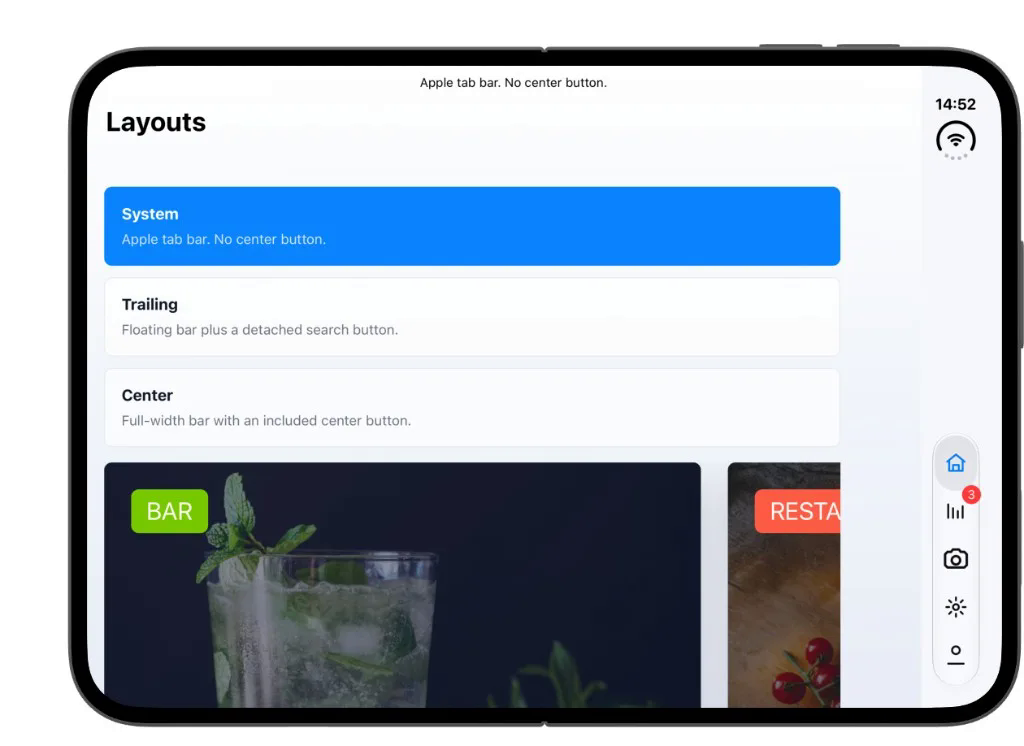
Apple’s foldable iPhone Duo changes how system chrome and safe areas work. Expo published a practical guide for React Native apps on SDK 58. This post is the Capacitor equivalent: one WebView, CSS env insets, Capacitor core plugins, and optional native bars from @capgo/capacitor-native-navigation.
What changes on iPhone Duo
On many poses iOS moves the status bar, navigation bar, and tab bar into a vertical side rail on the leading or trailing edge. Horizontal bars still appear in portrait on the open inner display and in classic phone layouts.
For web content inside a Capacitor WebView, the important shifts are:
env(safe-area-inset-top)can be0when the status bar lives in the rail, not under the notch.- Leading and trailing insets grow (Apple documents on the order of ~84pt for the rail in landscape and folded poses). Left and right are not mirrors of each other.
- Window size changes when the user folds, unfolds, rotates, or uses Split View on the inner display. Cached layout values go stale quickly.
- Native tab bars follow the rail when you use
UITabBar(or Capgo Native Navigation with the system tab bar). Custom fixed HTML tab bars do not.
Treat the folded outer display as compact width and the open inner display as regular width. Widen layouts instead of swapping to a different app shell.
Requirements
- Capacitor 8 on iOS 27 (Xcode 27.1 with the iPhone Duo simulator runtime).
- Device Hub (Xcode > Open Developer Tool > Device Hub) to fold, hinge, and rotate the Duo simulator.
- A viewport that opts into safe areas (see below).
viewport-fit=cover and CSS safe areas
Safe area env variables only apply when the viewport covers the full display:
<meta name="viewport" content="width=device-width, initial-scale=1, viewport-fit=cover" />Pad interactive content per edge. Let backgrounds bleed edge to edge when you want immersion.
Pick one inset owner for the whole app. The two snippets below are alternatives, not a pair to combine.
Option A: per-page shell
.page {
  min-height: 100dvh;
  padding-top: var(--safe-area-inset-top, env(safe-area-inset-top, 0px));
  padding-right: var(--safe-area-inset-right, env(safe-area-inset-right, 0px));
  padding-bottom: var(--safe-area-inset-bottom, env(safe-area-inset-bottom, 0px));
  padding-left: var(--safe-area-inset-left, env(safe-area-inset-left, 0px));
}
Skip Option B when you use Option A.
On scroll views, inset the content, not only the outer scroll container, so backgrounds can scroll full width while text and buttons stay clear of the rail.
Use four independent values. Do not assume padding-left equals padding-right. In RTL, the rail stays on the camera side; read both left and right env values.
For Tailwind apps, @capgo/tailwind-capacitor exposes pt-safe, px-safe, and related utilities instead of repeating env() everywhere.
Capacitor System Bars (safe area on Android and config on iOS)
Capacitor 8 ships System Bars in @capacitor/core. It replaces the old Android-only adjustMarginsForEdgeToEdge flag. Configure it in capacitor.config.ts:
import type { CapacitorConfig } from '@capacitor/cli';

const config: CapacitorConfig = {
  plugins: {
    SystemBars: {
      insetsHandling: 'css',
    },
  },
};

export default config;
insetsHandling: 'css'(default on Android): injects--safe-area-inset-*CSS variables when the WebView env values are wrong (older Android WebView builds).- Option B (site-wide shell) uses the fallback pattern from the System Bars docs. Skip Option A when you use Option B.
html {
  padding-left: var(--safe-area-inset-left, env(safe-area-inset-left, 0px));
  padding-right: var(--safe-area-inset-right, env(safe-area-inset-right, 0px));
  padding-top: var(--safe-area-inset-top, env(safe-area-inset-top, 0px));
  padding-bottom: var(--safe-area-inset-bottom, env(safe-area-inset-bottom, 0px));
}
At runtime you can style or hide bars with SystemBars.setStyle, SystemBars.show, and SystemBars.hide from @capacitor/core. There is no separate @capacitor/safe-area package: safe areas for Capacitor apps are CSS env, System Bars variables on Android, and your own listeners on resize / visualViewport.
@capacitor/status-bar
The Status Bar plugin still controls overlay and style on iOS:
import { StatusBar, Style } from '@capacitor/status-bar';

await StatusBar.setOverlaysWebView({ overlay: true });
await StatusBar.setStyle({ style: Style.Dark });
setOverlaysWebView({ overlay: true }) lets HTML draw under the status bar region. Pair it with env padding or you will clip content. On iPhone Duo, overlay mode still applies; the geometry of which inset is top vs side comes from the system safe area, not from Status Bar APIs alone.
Do not stack WebView automatic margins, full-page env padding, and native bar inset variables without an explicit strategy. That pattern causes double spacing on every iPhone, and it gets worse when the rail moves insets to the sides.
iOS WebView contentInset
In capacitor.config.ts, ios.contentInset maps to the WebView scroll view’s contentInsetAdjustmentBehavior. Many apps use 'never' when they handle insets in CSS. If you rely on automatic UIKit adjustment and CSS env padding, pick one source of truth.
See Capacitor iOS config.
WebView resizing on fold and unfold
Capacitor keeps a single full-screen WebView. When the Duo changes pose:
- UIKit updates safe area insets on the view controller.
- The WebView layout pass runs with a new width and height.
- CSS
env(safe-area-inset-*)and100dvh/visualViewportvalues update on the next style flush.
Listen for geometry changes in JavaScript when you cache inset-dependent positions (floating buttons, toasts, canvas overlays):
function onGeometryChange() {
  const vv = window.visualViewport;
  const width = vv?.width ?? window.innerWidth;
  const height = vv?.height ?? window.innerHeight;
  const offsetLeft = vv?.offsetLeft ?? 0;
  const offsetTop = vv?.offsetTop ?? 0;
  document.documentElement.style.setProperty('--app-vv-width', `${width}px`);
  document.documentElement.style.setProperty('--app-vv-height', `${height}px`);
  document.documentElement.style.setProperty('--app-vv-offset-left', `${offsetLeft}px`);
  document.documentElement.style.setProperty('--app-vv-offset-top', `${offsetTop}px`);
}

window.addEventListener('resize', onGeometryChange);
window.visualViewport?.addEventListener('resize', onGeometryChange);
window.visualViewport?.addEventListener('scroll', onGeometryChange);
onGeometryChange();
The scroll listener covers visual-viewport pans that change offsetLeft / offsetTop without resizing width or height (for example keyboard-driven viewport shifts on iOS).
On Android, include density in android:configChanges on your main activity so foldables and display size changes do not destroy the WebView. Capacitor 8 templates document this in the Capacitor 8 upgrade guide.
Orientation and window size classes
Use live width to branch layout, not screen.width captured once at startup:
const compactQuery = window.matchMedia('(max-width: 600px)');

function readCompactWidth() {
  return compactQuery.matches;
}

compactQuery.addEventListener('change', () => {
  document.documentElement.dataset.widthClass = readCompactWidth() ? 'compact' : 'regular';
});
document.documentElement.dataset.widthClass = readCompactWidth() ? 'compact' : 'regular';
In CSS, prefer flex and grid with minmax() over fixed 100vw widths. 100vw often ignores scrollbars and rail asymmetry and causes horizontal overflow.
For Split View on the inner display, each window can be narrow (Apple cites about 469pt width). Test your app docked left and right: the rail attaches to the window edge, so horizontal insets can flip sides between windows.
Custom HTML chrome vs native bars
Expo’s guide recommends native Stack and NativeTabs so iOS owns rail placement. The same idea applies in Capacitor:
| Approach | iPhone Duo behavior |
|---|---|
| Fixed HTML header + bottom tabs | Stays in classic top/bottom safe rectangles. Does not move into the rail. |
@capgo/capacitor-native-navigation with system UITabBar / UINavigationBar |
Bars follow system placement, including the vertical rail. |
If you must keep HTML chrome, audit every screen for left and right env padding, not only top and bottom.
@capgo/capacitor-native-navigation on iPhone Duo
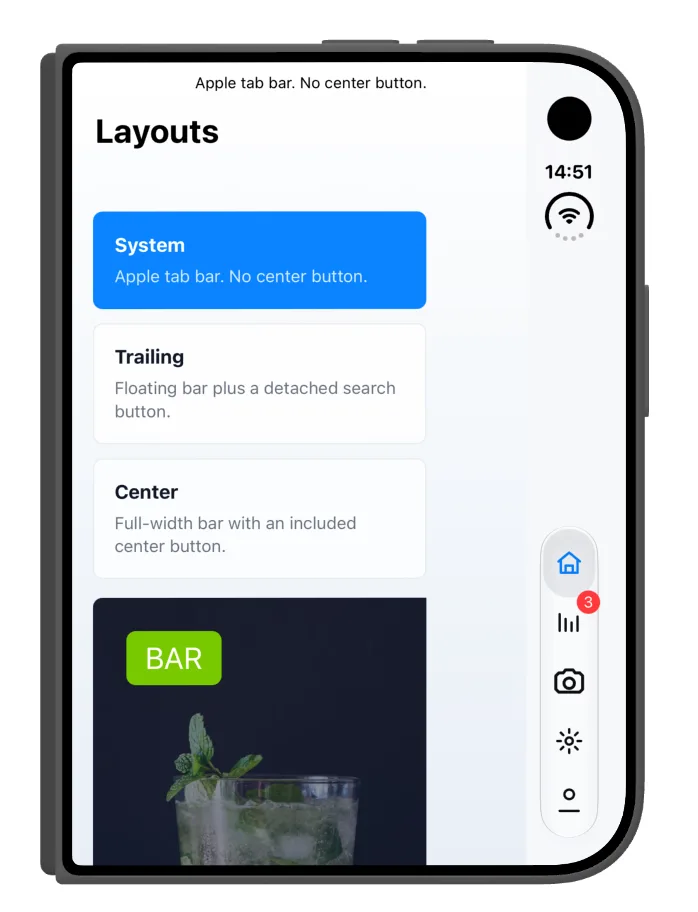
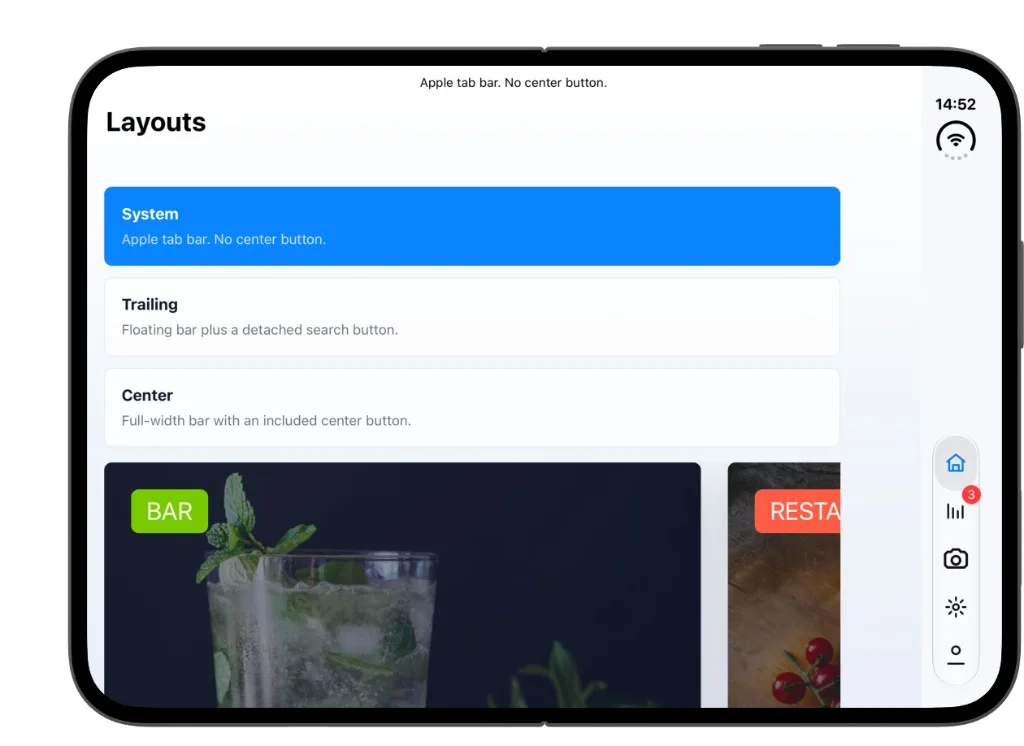
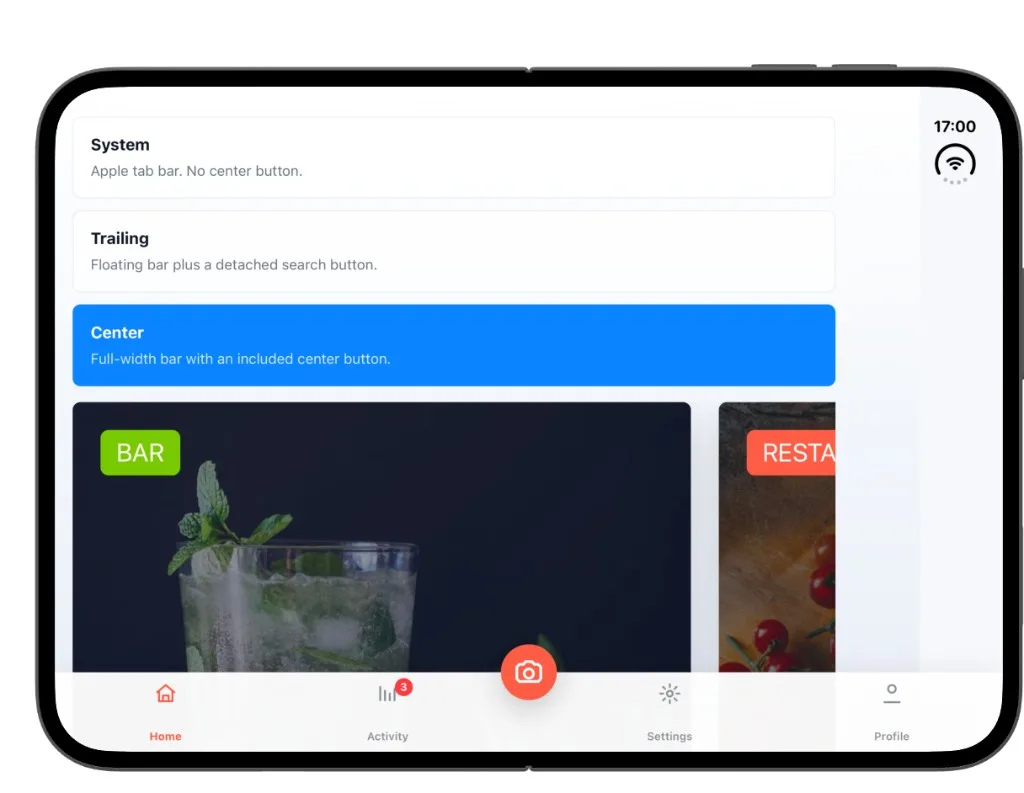

Native Navigation draws real UINavigationBar and UITabBar (or Material bars on Android) over one Capacitor WebView. On iOS 27 with iPhone Duo, system tab bars move into the side rail in folded and many landscape poses. The plugin’s curve tab bar shape stays on the bottom edge; the center action keeps a circular cradle while the window widens.
| Folded, system tab bar | Open, system tab bar in rail |
|---|---|
 |
 |
| Open, curved center tab bar | Unfold animation |
|---|---|
 |
 |
Configure once
import { NativeNavigation } from '@capgo/capacitor-native-navigation';

await NativeNavigation.configure({
  contentInsetMode: 'css',
});
contentInsetMode: 'css' writes bar and safe overlap sizes to the document root:
--cap-native-navigation-top--cap-native-navigation-right--cap-native-navigation-bottom--cap-native-navigation-left--cap-native-navbar-height--cap-native-tabbar-height--cap-native-system-tabbar-height(nominal tab bar height whentabbarHeightis0for hosted system bars)
When Native Navigation owns the bars, pad with the plugin variables below. They already include native bar overlap and UIKit safe-area edges when a bar is active. Use max() with env fallbacks so edges stay correct when a variable is 0 (for example hosted system tab bars) without adding plugin and env padding together.
main {
  padding-top: max(var(--cap-native-navigation-top, 0px), env(safe-area-inset-top, 0px));
  padding-right: max(var(--cap-native-navigation-right, 0px), env(safe-area-inset-right, 0px));
  padding-bottom: max(var(--cap-native-navigation-bottom, 0px), env(safe-area-inset-bottom, 0px));
  padding-left: max(var(--cap-native-navigation-left, 0px), env(safe-area-inset-left, 0px));
}
Do not also apply Option A or Option B padding on the same main element.
On iOS 26+ with a system-hosted tab bar, tabbarHeight in plugin insets can be 0 so web content is not lifted twice. Use --cap-native-system-tabbar-height when you need spacing for floating actions above the rail.
safeAreaChanged
Subscribe when fold, rail side, or bar visibility changes:
await NativeNavigation.addListener('safeAreaChanged', ({ insets }) => {
  console.log(insets.top, insets.right, insets.bottom, insets.left);
  console.log(insets.navbarHeight, insets.tabbarHeight, insets.systemTabbarHeight);
});
The plugin also dispatches capNativeNavigation:safeAreaChanged on window with the same insets payload.
Native code applies a small top gap when safeInsets.top is zero (status bar in the rail) so navbar buttons do not touch the rounded display corner. Your web padding should still use env left/right for the rail.
setNavbar, setTabbar, and configure all return { insets } when you need a one-shot read after updating chrome.
Full API reference: Native Navigation docs.
Testing checklist
In Device Hub with the iPhone Duo simulator:
- Folded: controls are not under the rail; taps register; horizontal env insets are non-zero where expected.
- Open portrait: top/bottom bars return where iOS places them; layout does not jump to a different information architecture.
- Open landscape / rail: content clears the side rail; floating actions use
insets.rightorinsets.left, not a hard-coded16px. - Partial fold: no critical UI in the hinge division; modals and sheets remain usable.
- Split View: run the app in left and right windows; rail edge follows each window.
- Fold while a screen is open: route state, scroll position, and form input survive the transition.
- Classic iPhone simulator: no regressions.
Agent prompt (copy and paste)
Use this block with Claude Code, Cursor, Codex, or another coding agent working on a Capacitor repo:
Task: Make this Capacitor app safe for iPhone Duo (iOS 27 foldable).

Context:
- Read https://capgo.app/blog/capacitor-iphone-duo-safe-area-guide/ and Expo's https://expo.dev/blog/supporting-iphone-duo for platform behavior.
- One WebView. Use viewport-fit=cover and per-edge env(safe-area-inset-*) padding for interactive content; backgrounds may ignore safe areas.
- Capacitor 8: configure plugins.SystemBars (insetsHandling css). Set viewport-fit=cover in index.html. Use var(--safe-area-inset-*, env(...)) fallbacks on Android.
- @capacitor/status-bar: only if the app already uses it; setOverlaysWebView must match CSS padding strategy.
- Do not double-apply Capacitor margin adjustment, full-page env padding, and native navigation CSS variables.
- On resize and visualViewport resize, recompute any cached inset or FAB positions.
- If the app uses @capgo/capacitor-native-navigation: contentInsetMode css, listen for safeAreaChanged, pad with max(var(--cap-native-navigation-*, 0px), env(safe-area-inset-*, 0px)) per edge (not sum); verify system tab bar rail poses in the iOS 27 Duo simulator.
- If the app uses custom HTML headers or tab bars, add left/right safe padding on every screen and document that bars will not move into the rail.

Deliverables:
1. List files changed and the inset strategy (single source of truth).
2. Replace fixed top-only safe padding with four-edge padding where needed.
3. Add or update capacitor.config and index.html viewport meta if missing.
4. Note manual test poses: folded, open portrait, open landscape rail, Split View left/right.

Constraints:
- Only use APIs that exist in @capacitor/core, @capacitor/status-bar, and @capgo/capacitor-native-navigation definitions.
- No em dashes or en dashes in user-facing strings you add.
Install Capgo skills so agents know how to wire Native Navigation: npx skills add Cap-go/capgo-skills --skill capacitor-plugins.





