


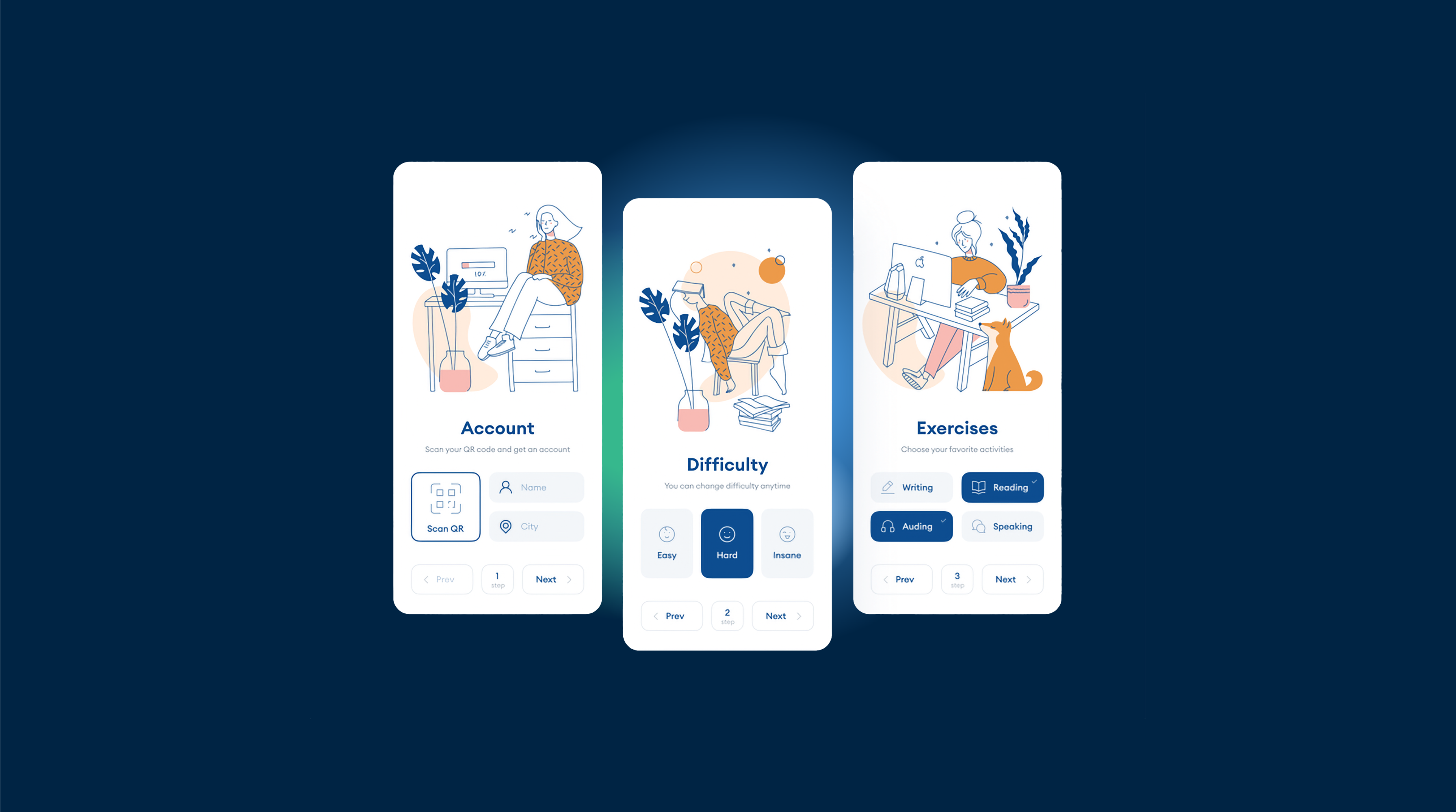
构建原生应用外观所需的基本JS和CSS配置
在构建Web应用时,需要使其看起来和感觉像原生应用一样,以提供一种平滑的用户体验。在本文中,我们将介绍实现原生应用外观所需的基本JavaScript和CSS配置,包括禁用鼠标悬停效果。
禁用鼠标悬停效果
在触摸设备上,鼠标悬停效果可能会出现问题,因为它们没有像桌面设备一样的鼠标悬停状态。要禁用触摸设备上的鼠标悬停效果,可以使用以下CSS code:
@media (hover: none) {
  .element:hover {
    /* Reset the hover styles */
    background-color: initial;
    color: initial;
    /* Add any other style resets needed */
  }
}
替换 .element 使用适当的选择器来禁用您想要禁用的鼠标悬停效果的元素。
禁用链接预览
To disable link preview on touch devices, you can use the following JavaScript code:
document.addEventListener('touchstart', function(event) {
  if (event.target.tagName === 'A') {
    event.preventDefault();
  }
});
禁用选择
To disable text selection, add the following CSS code to your stylesheet:
body {
  -webkit-touch-callout: none;
  -webkit-user-select: none;
  -khtml-user-select: none;
  -moz-user-select: none;
  -ms-user-select: none;
  user-select: none;
}
禁用缩放
禁用缩放,添加以下meta标签到您的HTML文件头部:
<meta name="viewport" content="width=device-width, initial-scale=1.0, maximum-scale=1.0, user-scalable=no">添加安全CSS区域
为了确保您的内容在设备的安全区域内显示,需要在样式表中添加以下 CSS 代码: code
body {
  padding: env(safe-area-inset-top) env(safe-area-inset-right) env(safe-area-inset-bottom) env(safe-area-inset-left);
}
额外的提示
- 使用响应式设计技术来确保您的应用在所有设备上看起来很棒。
- 优化您的应用的性能,尽量减少使用重型JavaScript库和框架的使用。
- 测试您的应用程序在各种设备和浏览器上以确保兼容性和一致的用户体验。
通过遵循这些基本的JavaScript和CSS配置,您可以创建一个看起来和感觉像原生应用程序的Web应用程序,提供一种平滑和愉悦的用户体验。
继续Basic JS和CSS配置的原生应用程序外观
如果您正在使用 Basic JS和CSS配置的原生应用程序外观 来规划仪表板和API操作,连接它与 API概述 在API概述中了解实现细节 介绍 在介绍中了解实现细节 API密钥 在API密钥中了解实现细节 设备 为设备的实现细节 包 为包的实现细节





