
Ship Capacitor Fixes Without App Store Delays
So your checkout page develops a CSS alignment problem at 8 AM. The panic starts — you need an iOS release, an Android release, native rebuilds, and days of review. Not anymore.
Build a fresh web bundle, push it to a controlled Capgo channel, and compatible devices pull it down without ever touching an app store review queue. CSS, JavaScript, copy, and asset fixes can reach users in minutes, while native changes still follow the usual binary release path.
Table of Contents
When a Live File Update Makes Sense
A live update works when your native shell is fine but the web layer needs attention. That CSS alignment issue? Correct the stylesheet, rebuild the web assets, publish a signed bundle. By 9 AM — an hour after the bug surfaced — your users receive the fix on their next app launch. Capgo applies the bundle through its updater and leaves the native binary completely untouched.

Here’s how I decide which route to take:
- Use a live update for JavaScript behavior, CSS, text, configuration, and compatible assets.
- Use a native release for plugin changes, permissions, native dependencies, or OS-level functionality.
- Test through a channel before exposing a correction to every customer.
| Release Type | Typical Use | User Impact |
|---|---|---|
| Native package | New native capability | Store download and review |
| Live web bundle | Urgent compatible fix | Update on app launch |
Keep the native and web layers compatible. A live bundle cannot safely introduce native APIs that the installed binary does not contain. If you add a new plugin or change permissions, that requires a native build — no way around it.
For a step-by-step deployment sequence, I’d recommend reading this guide to deploying Capgo hotfixes. It walks through moving from a tested correction to a controlled release without treating production users as your QA team.
Before you start pushing updates to production, get your local builds locked down first. Install Capgo’s open-source updater plugin, then add its TypeScript package so your editor actually recognizes the updater methods instead of throwing missing type errors. For Capacitor projects, their guide to setting up a local Capacitor environment is worth bookmarking — it walks through getting a clean workspace ready.
Keep Web Assets Predictable
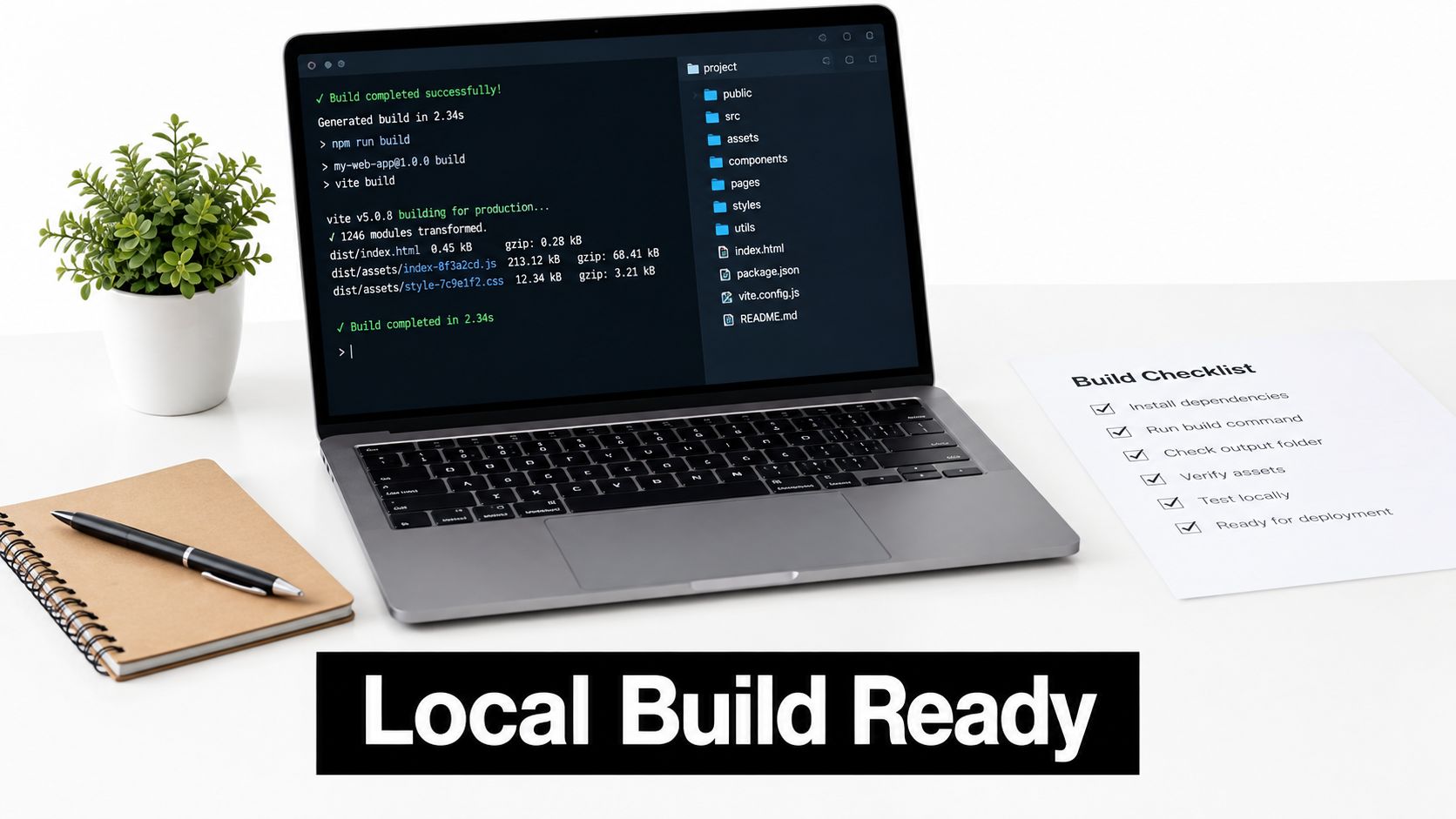
Your live bundle only contains the compiled web assets — not arbitrary source files you might edit. Configure your project so the build command always outputs the final JavaScript, CSS, HTML, and compatible assets into the same www or public directory that the native shell references.
Here’s what that looks like in practice: after changing a checkout stylesheet, run your normal web build, then inspect the output directory and confirm the generated files actually replaced the previous versions. Don’t edit compiled files manually — the next build will silently overwrite them, and you’ll lose those changes without realizing it.
A live update can only deliver what your web build includes. If the fix is missing from
wwworpublic, the device simply cannot receive it.
Set up separate channels for development, staging, and production. A developer build should never point at the production channel, especially when multiple team members are testing unfinished bundles simultaneously.
- Development catches broken imports and missing assets before they go further.
- Staging verifies real device behavior with release-like settings.
- Production serves only approved, tested bundles — nothing experimental.
Verify the Bundle Before Publishing
Run a short integrity check before uploading anything. This catches most issues that would otherwise reach users:
- Delete the previous build output, then create a fresh build.
- Confirm the corrected file actually exists in the output directory.
- Test navigation, login, offline behavior, and native plugin calls — not just the changed feature.
- Install the bundle on both iOS and Android test devices.
- Record the channel and bundle version used during testing so you can reproduce issues later.
Electron teams can apply the same discipline: build the renderer assets separately, then confirm the packaged application references the intended output directory. Capgo’s typed APIs and channel controls make this workflow easier to repeat consistently, but they don’t replace actual compatibility testing. If a change requires a new native plugin or permission, publish a new binary instead of trying to ship it as a live web bundle — the updater can’t modify native code on its own.
Getting file updates right in Capacitor and Electron apps comes down to one thing: a rock-solid release artifact. Build your web layer from the exact commit you already tested, then double-check that all your JavaScript, CSS, HTML, and assets are sitting in www or public as expected. If you’re working with Electron, build the renderer on its own and verify the packaged shell is pointing to that output.
Creating a Verifiable Bundle
Before you even think about uploading, wipe out any old build output and run your production build fresh. Jot down the commit hash, bundle version, target channel, and the native app version alongside it. These details will save you hours of head-scratching when something doesn’t match up later.
Always check the bundle on actual devices — real iPhones, Android phones, or Electron installations. Walk through login, navigation, offline mode, and every native plugin that touches the files you just updated. Uploading successfully to your update server doesn’t mean a thing if the device can’t actually run what you sent.
Signing gives your artifact a cryptographic fingerprint. The updater relies on that signature to confirm the bundle came through your release pipeline untouched. Store your signing credentials outside the repo entirely, lock down who can access them, and rotate them on whatever schedule your security policy demands.
A signed bundle is no substitute for testing. Signing proves where the artifact came from and that it hasn’t been tampered with — it says nothing about whether your app will actually work with it.
If you want the full picture, I’d recommend reading Capgo’s guide to end-to-end security and code signing.
Publishing Through Controlled Channels
Once your signed bundle is ready, upload it to Capgo and assign it to a channel that fits your rollout strategy. The useful ones you’ll work with most:
- Beta — for internal staff and handpicked testers
- Staging — to validate in a production-like environment before real users see it
- Production — for the approved audience
- Customer-specific channels — when different tenants need their own independent update timing
Here’s a scenario that plays out a lot: a fintech team spots a broken payment label in production. They push the fixed web bundle to an internal channel, verify checkout across a handful of devices, then promote that exact same tested artifact to a small production segment before rolling it out wider. Those channel guardrails keep a rushed fix from turning into a full-blown incident.
After publishing, dig into per-device logs instead of trusting the dashboard’s aggregate status alone. You want to confirm the right app version picked up the bundle, the signature validated, installation finished cleanly, and the next launch actually loaded the new files.
If any devices report mismatches, pause that channel immediately and compare bundle version, native compatibility, signing key, and channel assignment side by side. Only expand distribution once logs look clean across your test group, and always keep the previous bundle around for rollback.
Once you’ve got local builds running smoothly, it’s time to bring publishing into your CI/CD pipeline. The goal is straightforward: build your web assets, sign the bundle, and publish it automatically after tests pass. No more manual uploads. No more wondering how to update files after a merge — the process just handles it.
Here’s what a practical pipeline looks like in practice:
- Fire the job when a release branch merges into your target branch.
- Install dependencies and generate a clean
wwworpublicbuild. - Run your full test suite — unit tests, integration tests, and device smoke tests.
- Sign the bundle using credentials stored in your CI secret manager.
- Push to a beta or staging channel through Capgo’s public API.
- After validation checks pass, promote that exact same artifact forward. Don’t rebuild it.
One thing worth repeating: never commit signing keys or API tokens to your repo. Store them as protected environment variables, restrict production publishing to approved branches only, and log every release with the bundle version, commit hash, native app version, and destination channel. Capgo’s GitHub Actions integration guide walks through setting this up end-to-end.
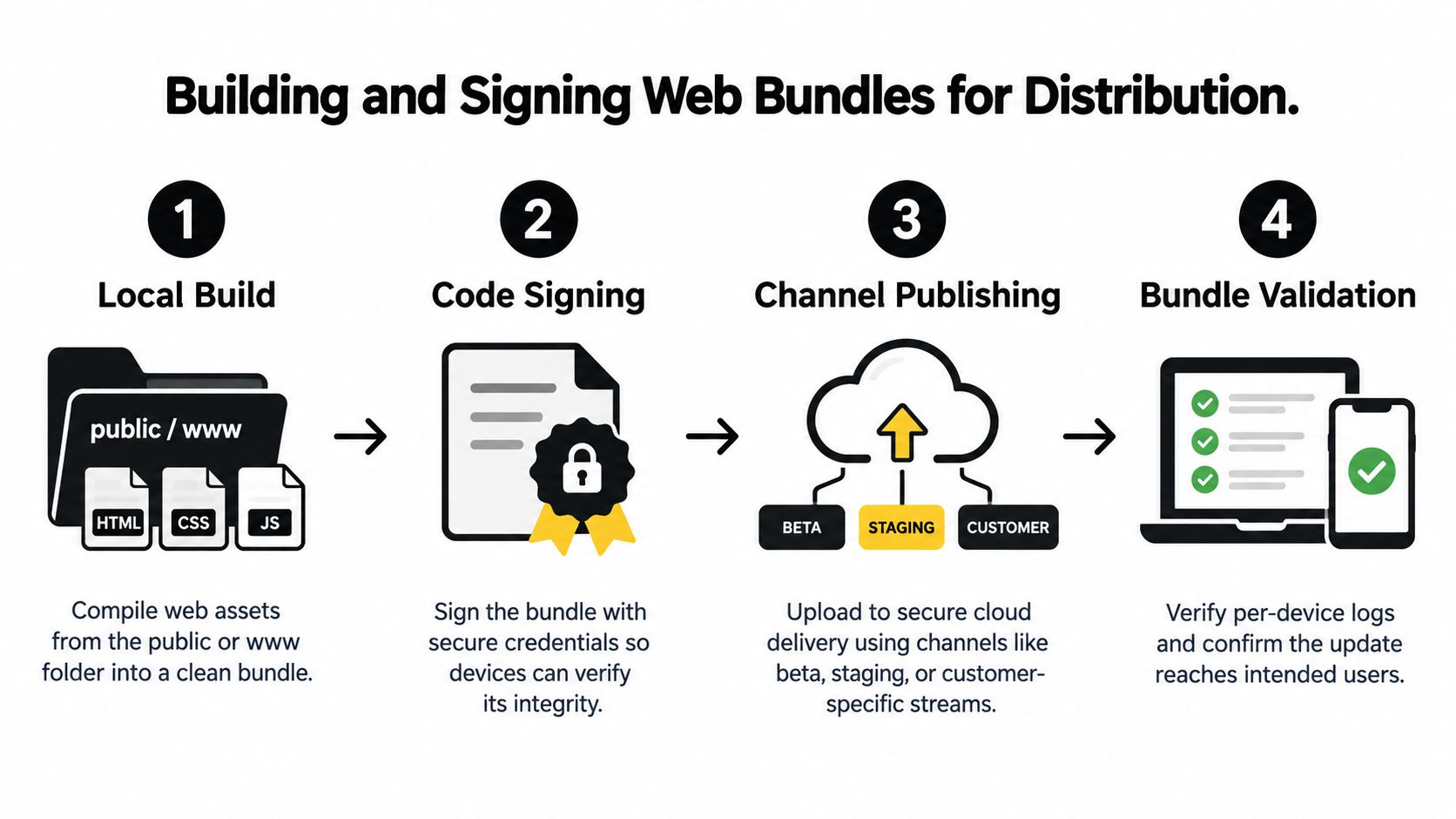
The takeaway here is that validation stays part of the delivery process. Publishing isn’t the finish line. Your pipeline should confirm that the intended devices actually received and accepted the bundle.
Reduce Transfer Costs With Differential Updates
Shipping full bundles every time is wasteful — especially when a release only changes a stylesheet or a couple of JavaScript modules. Turn on differential delivery so devices download just the changed files. Just make sure you test how removed or renamed assets get handled, or you’ll have a nasty surprise in production.
One agency I’ve seen worked through this cut their average bandwidth costs by 47% after switching from full re-bundles to incremental delivery. The real win was for users on slower connections, where smaller downloads also meant noticeably faster install times.
I’d also recommend using separate channels to control your exposure:
- Beta takes internal builds and gathers tester feedback.
- Staging mirrors production settings without customer impact.
- Production starts small with a limited audience before you expand.
- Customer channels keep tenant-specific releases isolated from each other.
Promote a tested artifact — don’t rebuild it between stages. Rebuilding for each environment introduces drift, and suddenly you’re debugging differences that shouldn’t exist.
For something like a fintech app, the flow might look like this: publish to employees first, then release to 5% of eligible users, inspect the per-device logs, and only expand when adoption looks healthy and failure rates stay flat. And always keep the previous bundle around. If something goes sideways, you need the ability to pause or roll back in minutes, not hours.
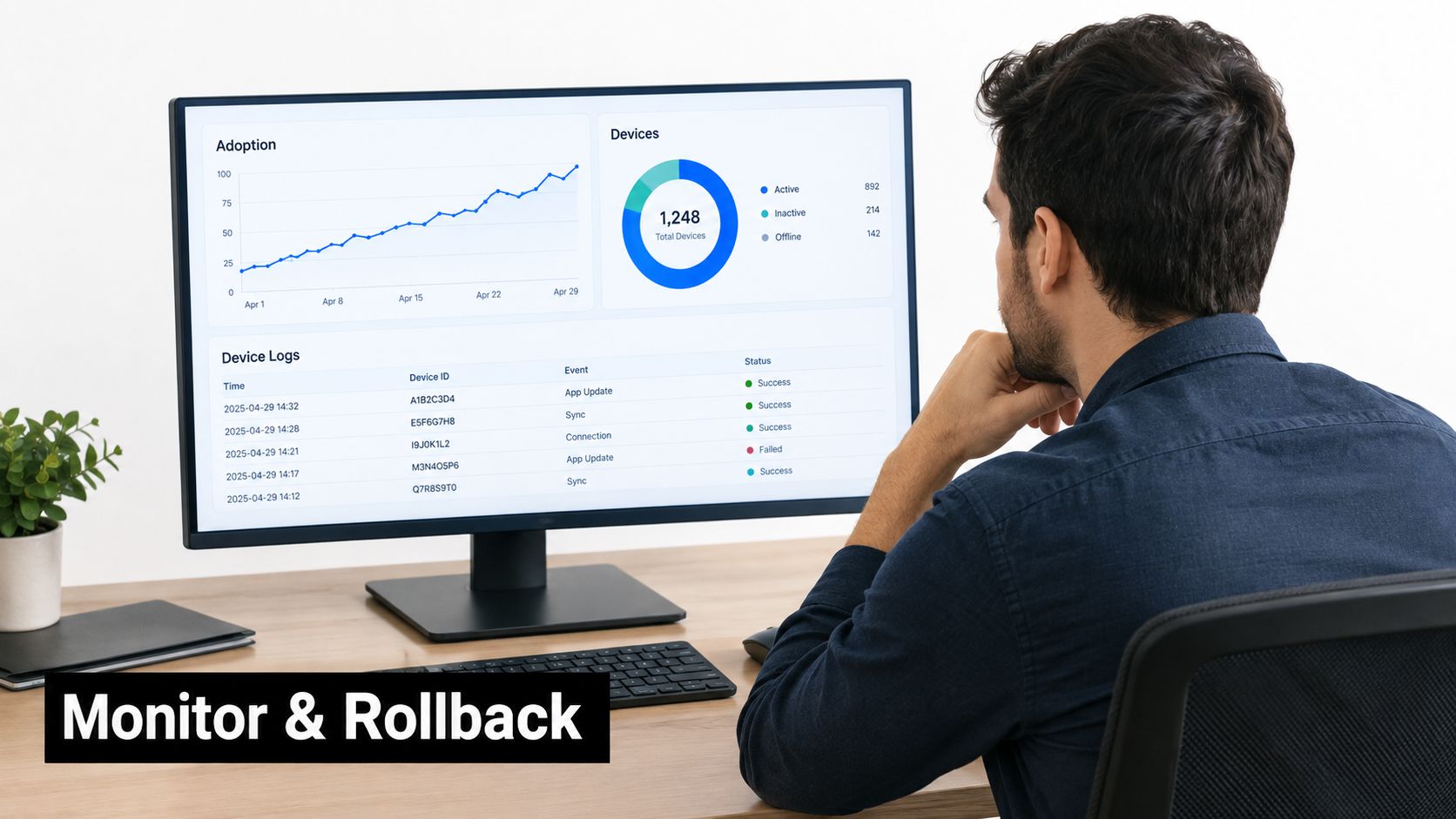
Publishing a bundle is only the midpoint. To confirm that users actually receive the update, open Capgo’s per-device logs and check the native version, channel, bundle version, signature validation, download status, and installation result.
A healthy rollout should show successful launches after installation, not merely completed downloads. For a checkout fix, test a real purchase flow on several devices, then compare those results with reports from users on slower connections or older app versions.
Read Update Signals Clearly
Use adoption and failure metrics together. A high download rate with repeated launch failures indicates a broken bundle, while low adoption may point to channel targeting, offline devices, or an updater configuration issue.
| Signal | What It Usually Means |
|---|---|
| Downloaded | The device retrieved the bundle |
| Installed | Files passed installation checks |
| Launched successfully | The app opened with the new files |
| Rolled back | The previous known-good bundle was restored |
Track successful launches, not downloads alone. An update is operational only when users can open and use the app normally.
Capgo’s automatic rollback protection provides a safety net when a new bundle causes crashes or prevents startup. Keep the previous version available, pause the affected channel, and investigate logs before promoting another artifact.
Video version control shares conceptual ground with monitoring file updates and managing rollbacks in live distribution pipelines, so teams may also find these ideas useful when they manage training video versions.
Verify the Release
Use this short post-release checklist:
- Confirm adoption by channel and app version.
- Review failed downloads, signature errors, and launch failures.
- Test the changed workflow on physical devices.
- Compare error timing with the release timestamp.
- Pause distribution if failures rise unexpectedly.
- Record the final bundle, commit, and rollback decision.
For deeper guidance, read how to monitor OTA updates in Capacitor apps. This turns how to update files from a publishing task into a controlled operating process.
Do Live Updates Follow Store Rules?
Live updates work best for JavaScript, CSS, copy changes, configuration tweaks, and compatible assets. They’re not a backdoor for adding native capabilities, changing permissions, or sidestepping store review. Always check Apple and Google’s policies for your specific app category before you publish anything.
How Do Differential Updates Reduce Downloads?
Differential delivery sends only the files that actually changed rather than the entire web bundle. Say you modify one stylesheet on your checkout page — there’s no reason to retransmit every unrelated asset along with it. That means faster transfers and less bandwidth burned.
Keep an eye on renamed and deleted files though. Stale assets hanging around from previous versions can produce weird, hard-to-track bugs.
Small patches still need full compatibility testing. A smaller download does not remove the need to verify the entire user flow.
What Happens When a Device Is Offline?
An offline device just keeps running whatever bundle it has installed. Once connectivity comes back, the updater checks the assigned channel and grabs the latest compatible release. Don’t assume every device updates immediately — field teams with spotty access might lag behind for a while.
How Should You Handle Breaking Changes?
Think of the native binary and web bundle as a matched pair. If your updated web files call a native method that doesn’t exist in the currently installed binary, you need to ship a new native release first, then push the web update on top of it.
Run separate channels for beta, staging, and production. Double-check that each device is actually receiving the channel you intend. When signature mismatches pop up, they usually point to altered artifacts, wrong credentials, or a config issue. Pause distribution, compare what you published against what you tested, and dig through device logs before trying again.
For a practical deployment workflow, explore Capgo — it gives you signed releases, channel controls, differential delivery, and rollback protection so you can update files without the headaches.





