

A low attempt threshold can pause a healthy OTA rollout. A high one can let a bad bundle reach too many devices. The Capgo auto pause minimum attempts setting controls when Capgo has enough install and failure data to pause a channel. Use the steps below to set it with care, test it, and connect it to your release flow.
Table of Contents
- Step 1: Understand What Minimum Attempts Controls
- Step 2: Find the Auto-Pause Setting in Capgo
- Step 3: Choose a Safe Minimum Attempts Value
- Step 4: Test Auto-Pause with a Channel-Based Rollout
- Step 5: Monitor Attempts, Analytics, and Automatic Rollback
- Step 6: Automate the Setting in CI/CD
- FAQ
- Conclusion
Step 1: Understand What Minimum Attempts Controls
The auto pause minimum attempts value sets the smallest sample Capgo needs before its pause rules can act. It is a gate, not a failure limit. The setting tells Capgo to wait until enough update attempts exist before judging the rollout.
An attempt can include a device trying to install a bundle. The attempt may succeed or fail. The exact outcome depends on the update path, the app state, and the updater configuration. That is why the value should be read with your rollout size in mind.
Capgo’s channel reference describesauto-pause-min-attemptsas the minimum number of install plus fail attempts before auto-pause can take effect. The field is represented as a string in the CLI reference, so keep the value in the format expected by the command or API you use. You can review the Capgo channel CLI fields before changing a live channel.
Think of the setting as a minimum evidence rule. A value of 1 may react after the first recorded attempt. That can help during a very small internal test, but it can also react to one bad network session. A larger value gives the rollout more time to collect a useful sample.
Separate attempts from users
Attempts are not the same as unique people. One device may retry an update. A single user may run the app on more than one device. Your analytics view may also group events in a way that differs from your own product metrics.
Before you pick a number, write down what you want the threshold to protect. If the goal is to catch a broken JavaScript bundle early, a small controlled channel can use a lower value. If the goal is to protect a broad production release, you need enough attempts to avoid decisions based on one device or one short outage.
- Use a small threshold for a private test channel.
- Use a larger threshold when the channel has mixed networks and device types.
- Raise the threshold if short outages have caused false pauses.
- Lower it only when the cost of late detection is higher than the cost of a false pause.
Auto-pause should stop a rollout. It should not replace bundle review, device testing, or a clear rollback plan. Treat the threshold as one control inside your release process.
Key Takeaway: Minimum attempts controls how much rollout evidence Capgo needs before its auto-pause policy can act.
Step 2: Find the Auto-Pause Setting in Capgo
To set the Capgo auto pause minimum attempts value, first find the channel that delivers the bundle. Auto-pause belongs with rollout control, so changing the app-wide updater config may not change the channel policy you expect.
Start in the Capgo dashboard or use the channel command and API path your team already uses. Check the channel name before you edit anything. A test channel and a production channel may have similar names, and a correct value on the wrong channel is still a release incident waiting to happen.
Look for the auto-pause fields in the channel settings. The related fields may include the minimum attempts value and a confidence setting. Keep those fields together in your change review. A minimum sample says when Capgo may judge the rollout. A confidence value can affect how strong the signal must be before a pause happens.
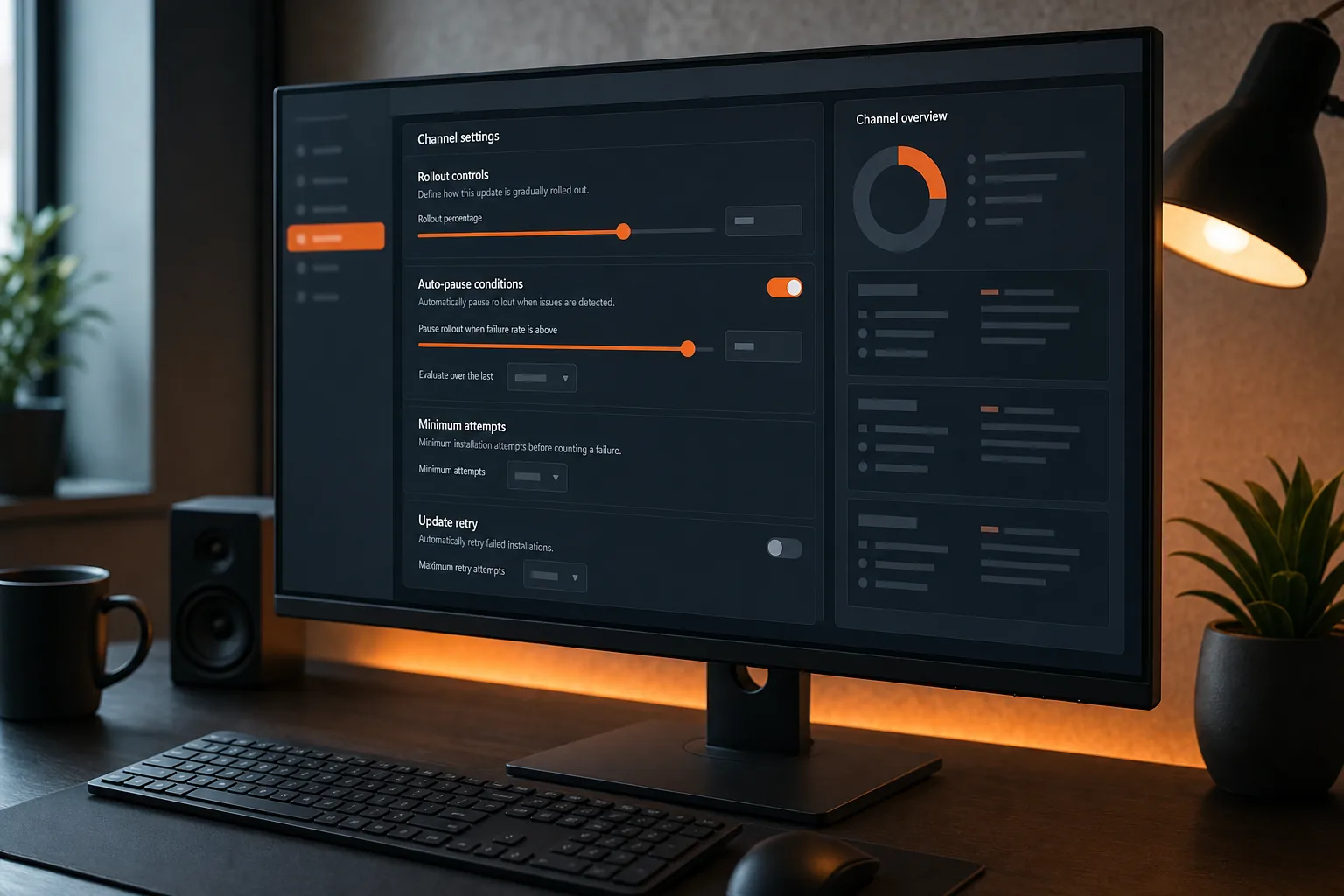
Set the value through the path you can audit
Use the dashboard when you need a quick controlled change and your team records dashboard changes. Use the CLI when the setting belongs in a release script. Use the public API when a service manages channel policy as part of a wider deployment system.
Whichever path you choose, capture the old value first. Save the channel name, bundle version, rollout state, and new value in the same change record. That gives you a clear answer if the channel pauses later.
For API-driven workflows, Capgo exposes channel resources through its public API. The Capgo channel API documentation is the right place to check the field names and request shape instead of guessing from a local script.
When you edit the value, enter a whole number as the field expects. Do not add a percent sign. Do not use a decimal. If your tooling stores configuration as JSON, keep the key spelling exact and preserve the string format shown in the current Capgo reference.
Confirm the change
Read the channel again after saving it. Do not assume a successful command means the intended field changed. Verify the returned channel data or dashboard value.
Then ask three questions:
- Did the setting change on the intended channel?
- Does the channel still point to the intended bundle?
- Is the rollout active, paused, or complete?
If the value does not appear, stop there. Check permissions, field spelling, and the channel identifier. A deployment script that reports success without verifying the saved state is hard to trust.
Step 3: Choose a Safe Minimum Attempts Value
Choose the Capgo auto pause minimum attempts value from the size and risk of the rollout. There is no safe number for every app. The right threshold gives the policy enough evidence while still detecting a bad update early.
Start with the smallest group that can tell you something useful. A private channel may contain internal devices with known app versions. A production channel may include older devices, weak connections, and users who open the app only once every few days. Those groups should not share the same threshold by default.
Use a simple decision rule
Ask how many attempts you need before a failure pattern means something. If your test channel has only a few devices, a high threshold may never be reached during the test window. If your production channel receives many attempts within minutes, a very low threshold may pause the release after a short network problem.
Set a lower value when:
- The channel is private.
- The bundle changes a high-risk feature.
- You need fast feedback during a staged test.
- Your team can inspect every failure soon after release.
Set a higher value when:
- The channel serves a broad device mix.
- Users connect through unstable networks.
- The app has low daily open frequency.
- A short outage could create many false failures.
Do not use the threshold to hide a known problem. If a bundle fails on a required native plugin, pause the release yourself and fix the cause. A minimum-attempt setting cannot make an incompatible bundle safe.
Pair the threshold with rollout size
Suppose you release to a small internal channel first. You might choose a threshold that lets the team see several install results before auto-pause can act. Once the bundle passes that stage, move it to a wider channel with a threshold that reflects the larger sample.
This approach keeps the first signal fast without asking the production policy to react to a tiny sample. It also gives you a clear place to adjust the setting. Change the threshold with the channel, not after the rollout has already failed.
Track the value beside the release record. Write down why you chose it, what would make you change it, and who can approve that change. This matters when a team member sees a paused channel during an incident and needs context quickly.
Pro Tip: Start with a controlled channel, record its attempt volume, then adjust the production threshold from observed rollout behavior rather than guesswork.
Step 4: Test Auto-Pause with a Channel-Based Rollout
Test auto-pause on a channel before you depend on it in production. A channel gives you a boundary for the test. You can send a bundle to a known group, watch attempts rise, and confirm what happens when the policy reaches its threshold.
First, make a test bundle that you can identify without confusing it with a live release. Keep the code change safe. The test should prove the release controls, not create a second app problem.
Next, assign a small group of test devices to the channel. Check that each device has the expected native app version. OTA code cannot fix every native mismatch, so a device running the wrong binary can make the test hard to read.
Publish the bundle to the channel. Use one command in your normal Capgo deployment flow when possible, but keep the bundle and channel IDs in the release log. Do not rely on a terminal scrollback buffer during an incident.
Test the pause path
You need a safe way to produce a failed attempt. Use a test-only bundle or a controlled failure condition approved by your team. Never damage a production bundle just to see if auto-pause works.
Watch for the following sequence:
- The channel points to the test bundle.
- Devices receive the update instruction.
- Attempts appear in the analytics view.
- The minimum attempt count is reached.
- The failure signal causes the channel to pause, if the policy conditions are met.
The fifth step is important. Reaching the minimum attempts value may make auto-pause eligible. It does not mean every rollout pauses at that exact count. Other policy fields and observed outcomes can affect the result.
Test recovery as well
After the pause, confirm what users receive. Check whether the failed bundle remains selected, whether new devices stop receiving it, and whether the previous safe bundle is available for rollback. The answer depends on your updater and channel setup, so verify it with the app logs rather than assuming.
Then resume with a known-good bundle only after someone reviews the failure. If the failure came from a bad build, make a new bundle. Do not simply push the same artifact again and hope the next attempt behaves differently.
Document the test result. Include the threshold, the number of devices, the failure condition, the pause time, and the recovery action. This turns a one-time test into a repeatable release check.
Step 5: Monitor Attempts, Analytics, and Automatic Rollback
Monitoring tells you whether the Capgo auto pause minimum attempts rule is seeing a healthy rollout or a broken one. Watch the attempt count beside failure behavior. A count without context can lead you to pause too early or miss a growing issue.
Use Capgo Observe to inspect update activity and rollout status. The Capgo Observe documentation describes the area used to view update information and configure auto-pause behavior. Keep the dashboard open during the first part of a release, especially when the bundle changes startup code or a core app flow.

Read the signals together
Look at the attempt total first. Then check the failure count and the time pattern. A steady stream of successful installs looks different from a burst of failures after one bundle becomes active.
Check device and app-version details when available. If failures cluster on one native version, the OTA bundle may require a newer binary. If failures appear across every version, inspect the bundle itself or the update service path.
Network failures can create noise. A short outage may produce failed attempts without a code defect. That is why the threshold should work with a confidence policy and a human review process. Auto-pause can stop exposure, but it cannot explain every failure.
Know what rollback means in your flow
A rollback moves affected users back toward a known-good release or stops the bad release from reaching more devices. It does not repair a native binary that lacks a required capability. It also cannot undo a data migration that an OTA bundle already ran.
Before production use, confirm the rollback path with a test channel. Verify which bundle is treated as safe. Check what happens when a device is offline during the pause. Then write the recovery steps where the on-call engineer can find them.
Capgo’s rollback documentation can help you map the available rollback controls to your channel plan. Use the documented behavior as your reference, since the result can depend on the updater version and release setup.
During an incident, pause first if the failure pattern is clear. Then inspect logs and bundle changes. A few minutes spent stopping exposure is usually easier to manage than letting a known-bad release keep spreading.
Step 6: Automate the Setting in CI/CD
Put the Capgo auto pause minimum attempts value in your release workflow when the setting changes with each channel. Automation removes manual drift. It also makes the chosen threshold visible in code review.
Keep channel policy separate from secrets. The channel name, rollout stage, and minimum attempts value can live in versioned configuration. API tokens must stay in your CI/CD secret store. Never commit a token to a repository just because the channel setting is already there.
A release job should follow a clear order:
- Build the web bundle.
- Run tests and check native compatibility.
- Upload the bundle.
- Set or confirm the target channel.
- Apply the minimum attempts value.
- Verify the saved channel state.
- Publish or advance the rollout.
Use a dry-run or review stage if your deployment system supports one. The review should show the bundle identifier, channel, threshold, and rollout action before the production step runs.
Make verification part of the job
After the API or CLI command completes, fetch the channel state again. Fail the job if the returned value does not match the expected configuration. This catches wrong channel IDs, rejected fields, and partial updates.
Environment variables are a common way to pass release settings into a CI job. The job can read a channel name or threshold without placing secrets in source files. Keep the variable names clear and validate them before deployment.
For example, your workflow might require:
CAPGO_CHANNELfor the target channel.CAPGO_MIN_ATTEMPTSfor the approved threshold.CAPGO_BUNDLE_IDfor the uploaded bundle.
Those names are workflow conventions, not Capgo field names. Map them to the exact CLI or API fields in one place. That makes future changes easier to review.
For a deeper security check, review Capgo’s guidance on securing OTA updates in CI/CD pipelines. The important habit is simple: limit token access, log the release decision, and verify the result after each change.
Keep a change record
Store the threshold with the commit or release ID. Add the reason for the change. If a rollout pauses unexpectedly, you can compare the policy with the bundle and the deployment time.
Capgo is billed as a subscription per organization, with a 14-day free trial rather than a one-time retail purchase. That model fits teams that want to test the release workflow before making it part of their regular delivery process. Keep the trial work focused: configure one channel, run one pause test, and verify one rollback path.
One command can publish the update. The safer workflow is the one that also checks the channel, tracks adoption, and leaves a rollback path.
FAQ
What does Capgo auto pause minimum attempts mean?
Capgo auto pause minimum attempts sets the minimum install and failure attempts needed before the auto-pause policy can act. It is a sample-size gate, not a percentage of failed installs. A low value reacts sooner but may rely on less evidence. A higher value gives the channel more time to collect results.
Where do I set auto pause minimum attempts in Capgo?
You set the value on the channel that delivers the OTA bundle. Use the Capgo dashboard, CLI, or public API, then read the channel back to confirm the saved field. Check the channel name first. Editing a test channel when production is active will not change the production rollout.
What is a safe minimum attempts value?
A safe value depends on channel size, device mix, network quality, and release risk. Use a smaller threshold for a controlled test channel. Use a larger threshold for a broad production rollout. Start with a known group, watch its attempt volume, and adjust from observed behavior.
Does reaching the minimum attempts value always pause a release?
No. Reaching the Capgo minimum attempts value makes the rollout eligible for auto-pause, but other policy conditions still matter. Failure signals, confidence settings, channel state, and the updater flow can affect the result. Test the full pause path with a safe bundle before relying on it in production.
Can auto-pause replace a rollback plan?
No. Auto-pause stops or limits further exposure, while rollback moves users toward a known-good bundle when that path is available. Test both controls. Also remember that an OTA rollback cannot add a native capability that the installed app does not have.
Conclusion
Set the minimum attempts value per channel, not by habit. Start with a small test rollout, verify the pause and rollback paths, then automate the approved setting in CI/CD. If you want to test the workflow, try Capgo with one channel and one controlled bundle before expanding the rollout.





