


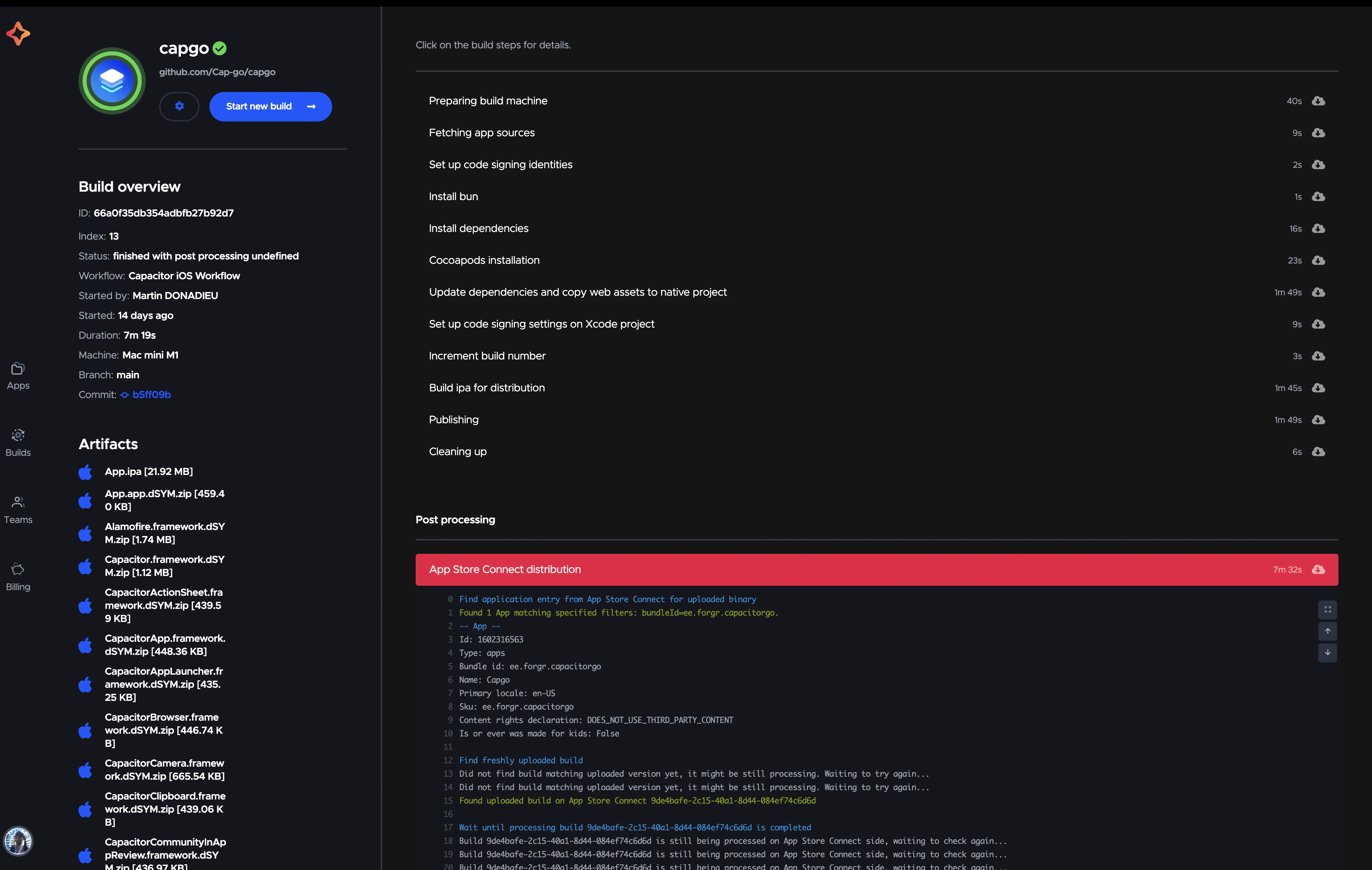
Gitea Actions can build iOS apps, but only on a Mac you register yourself, because Gitea has no hosted runners and Xcode only runs on macOS. The two practical setups are a Mac running act_runner in host mode, or a normal Linux runner that sends the iOS build to a cloud build service. This guide walks through both for a Capacitor app, with workflow files you can drop into .gitea/workflows/.
Teams pick Gitea because they want their code on infrastructure they control. That should not change just because the app needs Xcode. Both setups below keep your source on your server.
How Gitea Actions runs jobs
Gitea Actions uses a GitHub Actions compatible syntax, and jobs run on act_runner instances that you register against your Gitea server. Each runner advertises labels such as ubuntu-latest:docker://docker.gitea.com/runner-images:ubuntu-latest. The part after the colon decides how jobs run:
docker://imageruns the job in a container. This is the default for Linux runners.hostruns the job directly on the machine, with whatever is installed there.
macOS cannot run in a Docker container, so a Mac runner has to use a host label. That has consequences we will get to.
Two compatibility notes before you copy a workflow from GitHub:
- Gitea reads
.gitea/workflows/and falls back to.github/workflows/when the first folder does not exist. uses: actions/checkout@v4works because Gitea resolves actions from GitHub by default (theDEFAULT_ACTIONS_URLsetting). Air-gapped instances need to mirror the actions they use and reference them by full URL.
Option 1: A Mac runner with act_runner
Register the Mac
Download the act_runner binary for macOS (arm64 for Apple Silicon) from the Gitea releases page, then get a registration token from Site Administration > Actions > Runners (instance-wide), or from the organization or repository settings.
./act_runner register --no-interactive \
  --instance https://gitea.example.com \
  --token <registration_token> \
  --name mac-mini-01 \
  --labels macos-arm64:host

./act_runner daemon
Run the daemon as a launch agent under a dedicated user so it restarts after reboots and has its own login keychain.
Install the toolchain on the host
Host mode means the job uses the Mac’s own tools. Install:
- Xcode 26 (required for App Store Connect uploads since April 28, 2026) and run
sudo xcodebuild -license accept - Node.js 22 or newer and Bun (Capacitor 8 requires Node 22)
- Ruby and fastlane, or use a
Gemfilewithbundle exec - CocoaPods, only if your iOS project still uses it. New Capacitor 8 projects use Swift Package Manager.
The workflow
# .gitea/workflows/ios-mac.yaml
name: iOS release (Mac runner)

on:
  push:
    tags:
      - 'v*'

jobs:
  ios:
    runs-on: macos-arm64
    env:
      APPLE_KEY_ID: ${{ secrets.APPLE_KEY_ID }}
      APPLE_ISSUER_ID: ${{ secrets.APPLE_ISSUER_ID }}
      APPLE_KEY_CONTENT: ${{ secrets.APPLE_KEY_CONTENT }}
      P12_PASSWORD: ${{ secrets.P12_PASSWORD }}
      APP_STORE_CONNECT_TEAM_ID: ${{ vars.APP_STORE_CONNECT_TEAM_ID }}
      PROFILE_NAME: ${{ vars.IOS_PROFILE_NAME }}
    steps:
      - uses: actions/checkout@v4
      - run: bun install --frozen-lockfile
      - run: bun run build
      - run: bunx cap sync ios
      - name: Decode signing files
        run: |
          echo "${{ secrets.IOS_CERTIFICATE_BASE64 }}" | base64 --decode > dist.p12
          echo "${{ secrets.IOS_PROFILE_BASE64 }}" | base64 --decode > profile.mobileprovision
      - run: bundle exec fastlane ios beta
      - name: Clean up
        if: always()
        run: rm -f dist.p12 profile.mobileprovision
The beta lane imports the certificate into a temporary keychain, switches the project to manual signing, bumps the build number from TestFlight, archives, and uploads. A full Fastfile for a Capacitor project is in Build and deploy iOS apps with Bitbucket Pipelines; it works unchanged on Gitea. For the fastlane background, see the GitHub Actions iOS guide.
The cost of host mode
The act_runner documentation is direct about this: host jobs are not isolated. In practice:
- Every job shares the same user, disk, and keychain. A job that dies halfway can leave a temporary keychain or a stale provisioning profile that breaks the next one.
- Any workflow that targets the label runs code on that Mac with that user’s access. Only register host runners for repositories you trust, and avoid running them on pull requests from forks.
- DerivedData, archives, and simulator runtimes grow until the disk is full.
- Xcode upgrades are on you, and Apple raises the minimum SDK every spring.
- One Mac builds one job at a time. Release day queues.
If your team runs Macs already and someone owns them, this works. If not, the next option removes the Mac from your infrastructure.
Option 2: Build iOS from a Linux runner with Capgo Build
Capgo Build compiles and signs Capacitor apps on Capgo-managed Macs. Your Gitea job stays on the Linux runner you already have. It checks out the code, builds the web layer, runs cap sync ios, and calls build request. The Capgo CLI uploads the prepared native project, streams the Xcode logs back into the Gitea job log, and exits non-zero on failure.
This model fits self-hosted Gitea well:
- No inbound access. Capgo does not clone your repository. Your runner pushes the prepared project out over HTTPS, so a Gitea server behind a firewall or VPN works without changes.
- No repository token. There is no Git connection to configure on the Capgo side.
- Your web source stays home. Only the native
ios/folder, Capacitor config, and the native parts of plugins are uploaded.src/,.git/, and.envfiles are not.
One-time setup
On a developer machine:
bunx @capgo/cli@latest login
bunx @capgo/cli@latest app add
bunx @capgo/cli@latest build init --platform ios
build init creates or reuses your distribution certificate and App Store provisioning profile and stores the App Store Connect API key. Run one build locally to confirm everything signs:
bun run build && bunx cap sync ios
bunx @capgo/cli@latest build request com.example.app --platform ios --build-mode release
Then export the credentials:
bunx @capgo/cli@latest build credentials manage --appId com.example.app --platform ios
# select "Export to .env"
Add secrets to Gitea
Open Repository Settings > Actions > Secrets and add each key from the exported file, plus your Capgo API key:
| Secret | Purpose |
|---|---|
CAPGO_TOKEN |
Capgo API key with upload permission |
BUILD_CERTIFICATE_BASE64 |
Distribution certificate (.p12) |
P12_PASSWORD |
Certificate password |
CAPGO_IOS_PROVISIONING_MAP_BASE64 |
Provisioning profile mapping |
APPLE_KEY_ID |
App Store Connect API key ID |
APPLE_ISSUER_ID |
App Store Connect issuer ID |
APPLE_KEY_CONTENT |
Base64 .p8 key |
APP_STORE_CONNECT_TEAM_ID |
Apple team ID |
Gitea rejects secret and variable names that start with GITEA_ or GITHUB_, so keep these names as they are. Put non-secret values such as the app ID under Variables and read them with ${{ vars.NAME }}. Secrets set at the organization level are shared by every repository in it, which is handy when you ship several apps from one Apple team. Delete the exported file when you are done.
Release on tag push
# .gitea/workflows/ios-release.yaml
name: iOS release

on:
  push:
    tags:
      - 'v*'

jobs:
  release-ios:
    runs-on: ubuntu-latest
    steps:
      - uses: actions/checkout@v4
      - uses: oven-sh/setup-bun@v2
      - run: bun install --frozen-lockfile
      - run: bun run build
      - run: bunx cap sync ios
      - name: Build, sign, and upload to TestFlight
        env:
          CAPGO_TOKEN: ${{ secrets.CAPGO_TOKEN }}
          BUILD_CERTIFICATE_BASE64: ${{ secrets.BUILD_CERTIFICATE_BASE64 }}
          P12_PASSWORD: ${{ secrets.P12_PASSWORD }}
          CAPGO_IOS_PROVISIONING_MAP_BASE64: ${{ secrets.CAPGO_IOS_PROVISIONING_MAP_BASE64 }}
          APPLE_KEY_ID: ${{ secrets.APPLE_KEY_ID }}
          APPLE_ISSUER_ID: ${{ secrets.APPLE_ISSUER_ID }}
          APPLE_KEY_CONTENT: ${{ secrets.APPLE_KEY_CONTENT }}
          APP_STORE_CONNECT_TEAM_ID: ${{ secrets.APP_STORE_CONNECT_TEAM_ID }}
        run: |
          bunx @capgo/cli@latest build request ${{ vars.APP_ID }} \
            --platform ios \
            --build-mode release \
            --ios-distribution app_store \
            --store-release-name "${{ gitea.ref_name }}"
Notes:
${{ gitea.ref_name }}is the tag name. Thegithub.*context also works as an alias, which helps when you port workflows.- Gitea sets
CI=truein every job, so the Capgo CLI never waits for interactive input. - Capgo increments the build number from the latest TestFlight build, so two tags in a row never collide.
- Without
--submit-to-store-review, the build lands in TestFlight and stops. Add the flag when you want CI to submit for App Review too.
Releasing is now git tag v2.3.0 && git push origin v2.3.0. Anyone who can push a v* tag can ship, so add a protected tag rule for v* under Settings > Tags and limit it to release managers.
Ad hoc builds for testers
For QA builds that install directly on registered devices, build in ad hoc mode and get a download link:
# .gitea/workflows/ios-adhoc.yaml
name: iOS ad hoc build

on:
  workflow_dispatch:

jobs:
  adhoc:
    runs-on: ubuntu-latest
    steps:
      - uses: actions/checkout@v4
      - uses: oven-sh/setup-bun@v2
      - run: bun install --frozen-lockfile && bun run build
      - run: bunx cap sync ios
      - name: Ad hoc build
        env:
          CAPGO_TOKEN: ${{ secrets.CAPGO_TOKEN }}
          BUILD_CERTIFICATE_BASE64: ${{ secrets.BUILD_CERTIFICATE_BASE64 }}
          P12_PASSWORD: ${{ secrets.P12_PASSWORD }}
          APPLE_KEY_ID: ${{ secrets.APPLE_KEY_ID }}
          APPLE_ISSUER_ID: ${{ secrets.APPLE_ISSUER_ID }}
          APPLE_KEY_CONTENT: ${{ secrets.APPLE_KEY_CONTENT }}
          APP_STORE_CONNECT_TEAM_ID: ${{ secrets.APP_STORE_CONNECT_TEAM_ID }}
        run: |
          echo "${{ secrets.ADHOC_PROFILE_BASE64 }}" | base64 --decode > adhoc.mobileprovision
          bunx @capgo/cli@latest build request ${{ vars.APP_ID }} \
            --platform ios \
            --ios-distribution ad_hoc \
            --ios-provisioning-profile ./adhoc.mobileprovision \
            --output-upload --output-retention 3d \
            --output-record /tmp/build.json
          bunx @capgo/cli@latest build last-output --path /tmp/build.json --field outputUrl
Ad hoc builds need an ad hoc provisioning profile that lists the test devices. Store that profile base64-encoded as a secret (ADHOC_PROFILE_BASE64 above), decode it in the job, and pass it with --ios-provisioning-profile. CLI flags take precedence over environment variables, so this overrides the App Store profile for this build only. Collect UDIDs with the iOS UDID finder. For most testers, TestFlight internal testing is simpler, because it does not need UDIDs.
Manual release approval
GitHub lets you require reviewers on an environment. Gitea Actions does not implement environment protection rules, so a job that names an environment will not pause for approval. Two patterns work instead:
- Protected tags. Only release managers can push
v*tags, and the tag workflow ships. - Build, then promote. Build on every push to
mainwith--ios-distribution ad_hocor upload to TestFlight internal testing only, then use aworkflow_dispatchworkflow (available in current Gitea releases) to rebuild the approved commit with--submit-to-store-review.
Ship web changes without a new binary
Most commits to a Capacitor app only change JavaScript, CSS, and HTML. Rebuilding iOS for those wastes minutes and App Review time. With Capgo live updates, one job can pick the right path:
      - name: Live update or native build
        env:
          CAPGO_TOKEN: ${{ secrets.CAPGO_TOKEN }}
          # plus the iOS signing secrets from above
        run: |
          if bunx @capgo/cli@latest build needed ${{ vars.APP_ID }} --channel production; then
            bunx @capgo/cli@latest bundle upload ${{ vars.APP_ID }} --channel production
          else
            bunx cap sync ios
            bunx @capgo/cli@latest build request ${{ vars.APP_ID }} --platform ios --build-mode release
          fi
build needed exits 0 when native dependencies match what is live on the channel, and 1 when a new binary is required. Also force the native path when files under ios/ or capacitor.config.* change, since those are not part of the dependency comparison. See Auto choose live update or native build.
Mac runner vs cloud build
| act_runner on your Mac | Capgo Build from Linux | |
|---|---|---|
| Hardware | You buy and host it | None |
| Xcode upgrades | Manual, per machine | Handled by Capgo |
| Isolation between jobs | None in host mode | Fresh build environment per job |
| Parallel builds | One per Mac | Multiple, from any runner |
| Signing files | In Gitea secrets, decoded on the Mac | In Gitea secrets, sent per build |
| Works behind a firewall | Yes | Yes, outbound HTTPS only |
| Native Swift apps (no Capacitor) | Yes | No, Capacitor apps only |
| Build time limit | Yours to set | 10 minutes per build |
Troubleshooting
| Symptom | Fix |
|---|---|
| Job stays queued forever | No online runner has the label in runs-on. Check the runner list and label spelling. |
uses: actions/checkout@v4 fails to download |
The runner cannot reach GitHub. Mirror the action on your Gitea and reference it by full URL. |
| Secret value is empty in the job | The name starts with GITEA_/GITHUB_, or the secret is defined on another repository. |
security: SecKeychainItemImport: MAC verification failed |
Wrong .p12 password, or a .p12 created by OpenSSL 3 without -legacy. Re-export it. |
No profiles for 'com.example.app' were found |
The profile in secrets does not match the bundle ID or certificate. Re-run build init and re-export. |
| Upload rejected for SDK version | The Mac runner still has an Xcode older than 26. |
cap sync ios warns about CocoaPods on Linux |
Expected. The Capgo build machine installs pods. |
For more failure modes, see CI/CD for Capacitor: common pitfalls and the Capgo Build troubleshooting guide.
Summary
Gitea Actions handles iOS fine once you decide where Xcode runs. A host-mode Mac runner gives you full control and full responsibility. A Linux job that calls Capgo Build keeps your Gitea setup unchanged, needs no inbound access, and turns a TestFlight release into a tag push. Whichever you choose, keep signing material in Gitea secrets, protect your release tags, and ship web-only changes as live updates so the native pipeline only runs when it has to.





