

Changing the Cloud Default in Capgo routes brand-new devices right away. Existing installs may stay on their old channel until they check in again, which explains many cases where a Capgo cloud default channel is not updating devices.
Work through the checks in order. Confirm the device assignment first, then inspect the app build, sync state, rollout rules, logs, and rollback settings.
Table of Contents
- Step 1: Confirm the Device Is Assigned to the Default Channel
- Step 2: Check the App, Native Runtime, and Update Compatibility
- Step 3: Verify the Deployment Actually Reached the Default Channel
- Step 4: Force a Fresh Sync and Inspect Device-Side Logs
- Step 5: Review Rollout Rules, Version Gates, and Automatic Rollback
- Step 6: Use Real-Time Analytics to Find the Exact Failure Point
- Step 7: Prevent the Default Channel from Going Stale
- FAQ
- Conclusion
Step 1: Confirm the Device Is Assigned to the Default Channel
The goal is to find out which rule currently decides the device’s channel. A Cloud Default only applies when a stronger assignment has not already claimed the device.
Open the Capgo dashboard and inspect the affected device. Check its current channel, app ID, version, and last check-in time. Compare those values with a device that received the expected update. This comparison often shows the issue quickly.
Channel selection follows an order. A forced channel has priority first. A dashboard or API device override comes next. A local channel set by the app follows that. Then Capgo checksdefaultChannelin the native app config. The Cloud Default is the fallback.
That order means a device can ignore a changed Cloud Default without any dashboard error. For example, a test build may still have a local channel from an earlier test. The app keeps using that local value until you clear it.
Use the Capgo updater debugging guide when the resolved channel is blank or unexpected. It covers the case where the app has no usable default and the device has no override.
Next, check your Capacitor configuration. A typical setup may include a channel like this:
const config = { plugins: { CapacitorUpdater: { defaultChannel: 'production' } }
}
The field is optional. If you leave it out, the device can inherit the Cloud Default. That can work well for production builds because channel routing stays in Capgo Cloud. If you include it, make sure the value matches the channel you actually deploy to.
Now look for local overrides in application code. A call tosetChannel()changes the local cache. It does not create a backend Device Override. The dashboard may therefore show no override even though the app keeps using the local channel.
Clear that local value when the device should return to normal routing. Use the plugin method that removes the device’s channel assignment, or remove the code that sets the channel and reinstall the app for a clean test.
Key Takeaway: A changed Cloud Default cannot replace a stronger device, app, or local channel assignment.
Step 2: Check the App, Native Runtime, and Update Compatibility
The goal is to prove that the installed app can accept the bundle you uploaded. A correct channel still cannot deliver an update to an incompatible native runtime.
Start with the app ID. The app installed on the device must use the same app identity as the project where you uploaded the bundle. A mismatch can look like a channel problem because the device checks the wrong Capgo app.
Then compare the native runtime version with the bundle’s compatibility rules. Capgo live updates can change JavaScript, CSS, and web assets. They cannot add a native plugin or change native project code after the app has shipped. Native changes still need a new store build.
Think of the native runtime as the frame around the web code. If the new bundle expects a native API that the installed app does not have, Capgo should not apply it. Build and upload a compatible native version before testing that bundle.
Inspect the installed app’s version and platform. Test an Android bundle on Android first. Test an iOS bundle on iOS. Also confirm that the bundle targets the right app version when your channel uses version gates.
After changingdefaultChannel, run the sync command from the project root:
npx cap syncThis step copies the updated configuration into the native projects. Editingcapacitor.configwithout syncing leaves the native app on its old channel setting. A fresh build from that stale native project will keep reproducing the same result.
For a clean test, build a new app after syncing. Do not rely on an old binary installed on your phone. Uninstall it when you need to remove cached local channel state, then install the new build and check the channel again.
The Capgo update behavior documentation explains when the updater checks for a bundle. Use that timing when you test. Launch the app or move it back to the foreground, then allow the check to finish before deciding that the update failed.
Also check the bundle’s native version gate. A bundle can exist in the correct channel yet remain unavailable because its minimum app version does not match the device. Read the release details in the dashboard instead of assuming the newest upload applies to every install.
If the app passes these checks, you have narrowed the fault. The next question is whether the release reached the intended channel at all.
Step 3: Verify the Deployment Actually Reached the Default Channel
The goal is to confirm that the bundle exists in the channel the device resolves. Uploading a bundle to one channel does not make it available in every channel.
Open the channel in Capgo Cloud. Check the active bundle, its version, and its deployment state. Compare the channel name with the value returned by the app. Watch for small differences such asproductionversusprod. Channel names must match exactly.
If you deploy through CI/CD, inspect the command output from the same job that uploaded the bundle. Confirm the app ID and channel passed to the CLI. A pipeline can finish with a successful upload while targeting a staging channel by mistake.
Check the bundle’s status next. A draft or inactive release may be visible in the dashboard but unavailable to devices. If the channel has a staged rollout, the affected device may not meet its rollout rule.
Use one known test device. Give it a clear role. For example, pin one device to a test channel and leave another device on the Cloud Default. Upload a harmless change, then compare their check-in records. This removes guesswork from the test.
Capgo’s live OTA engine is designed for web-layer changes. It can move a JavaScript bundle, CSS, or asset update without waiting for a new store review. That speed depends on the release being active in the exact channel the device checks.
If you changed the Cloud Default moments ago, remember the device timing. New installations use the new route right away. Existing devices usually switch when they perform their next update check. Closing and reopening the app can help trigger that check, but it cannot override a pinned channel.
Now verify the result inside the app. CallgetChannel()after the updater starts. Log the returned channel beside the app version and bundle version. This is more useful than checking only the dashboard because it shows what the device believes.
Expect a delay if the app only checks on launch or foreground. Do not test by opening a screen that never starts the updater. Place the check in a known startup path for a short test build, then remove extra logging before release.
If the returned channel is right but no bundle arrives, move to compatibility and rollout rules. If the returned channel is wrong, return to Step 1 and clear the assignment that wins over the Cloud Default.
Step 4: Force a Fresh Sync and Inspect Device-Side Logs
The goal is to separate a stale local state from a server-side delivery problem. A fresh check-in gives you new evidence.
First, make sure the device has network access. A successful app session does not prove that the updater can reach its endpoint. Corporate filters, VPN rules, captive portals, or an expired session can block the update request.
Next, bring the app to the foreground. Wait for the updater check to finish. If your app exposes an update status event, log that event with the current channel. Avoid logging only “update started.” You need to know whether the app found a bundle, downloaded it, verified it, installed it, or rejected it.
Use Capgo’s device logs to find the first failed stage. The first error is usually more useful than the final “update failed” message. For example, a missing channel points to routing. A compatibility rejection points to the native runtime or version gate. A download error points to network access or the bundle request.
| What you observe | Likely checkpoint | Next action |
|---|---|---|
| No check-in record | The app never reached the updater or cannot reach the service | Confirm startup code, network access, and updater initialization |
| Wrong channel in the app | A force, override, local value, or config value wins | Clear the stronger assignment and callgetChannel()again |
| Right channel, no eligible bundle | Release state or version gate blocks delivery | Review bundle status, app version, and channel rules |
| Bundle found, install rejected | Compatibility, signature, or local storage issue | Read the first device-side error and test with a compatible bundle |
| Install completes, old code still runs | The new bundle was not loaded or the app restarted on the prior version | Check reload behavior, active bundle status, and rollback events |
A reinstall is a useful test, but it changes the evidence. Reinstalling can clear local channel state. Use it after you capture the current channel and logs, not before.
For a repeatable check, record these values in one log line:
- App ID and native app version
- Resolved channel from
getChannel() - Last updater check time
- Bundle version found by the server
- Install or rejection result
That small record helps when the device belongs to a tester who cannot reproduce the problem on demand. It also gives your CI team a clear signal for automated smoke tests.
Use the official Capgo Capacitor Updater source repository when you need to inspect the plugin API behavior. In particular, pay attention to the difference between a local channel change and a dashboard device assignment.
Pro Tip: Capture the resolved channel before you clear it. Otherwise, you may fix the state and lose the clue that explained the failure.
Step 5: Review Rollout Rules, Version Gates, and Automatic Rollback
The goal is to check whether Capgo intentionally withheld or reversed the bundle. A missing update is sometimes a safety rule working as designed.
Open the channel settings and review every rule attached to the release. Look for minimum app versions, percentage rollout settings, device filters, and conditions tied to the release. A device outside the rule will remain on its current bundle even when the channel is correct.
Check the version format too. Capgo uses semantic versioning to compare releases. A version gate that looks right to a person can still behave differently if the app or bundle uses an unexpected format. Keep the format consistent across native builds and OTA releases.
Then review rollback behavior. An automatic rollback may move a device back to a prior bundle after a failed health check. The dashboard can show the older active code while the release you expect remains present but unavailable.
Do not delete a suspect bundle before reviewing its events. Deletion removes useful evidence. First record the bundle version, channel, rollout state, and rollback reason. Then decide whether to pause the release or publish a known-good version.
Use a staged channel for risky changes. Send the bundle to a small test group first. Watch adoption and error signals. Once the release behaves as expected, move the rollout forward. This keeps a bad web-layer change from reaching every active device at once.
Rollback only repairs code that OTA can change. If the failure comes from a missing native plugin or an incompatible native API, you need a new store build. Sending an older JavaScript bundle will not add the native piece that the app lacks.
When you inspect a rule, ask three questions:
- Does this device meet the app version condition?
- Is the device inside the rollout group?
- Did a health check or manual action return it to an older bundle?
Capgo is useful here because the same channel model can carry a staged release, support a rollback, and show update activity in one workflow. Keep the rule set small. A short policy is easier to audit than a stack of exceptions built during an incident.
If you need API-based checks, the Capgo public API documentation describes resources for devices, channels, and bundles. Use it to compare the server view with what the app reports. That comparison can reveal a stale dashboard filter or a device assignment created by automation.
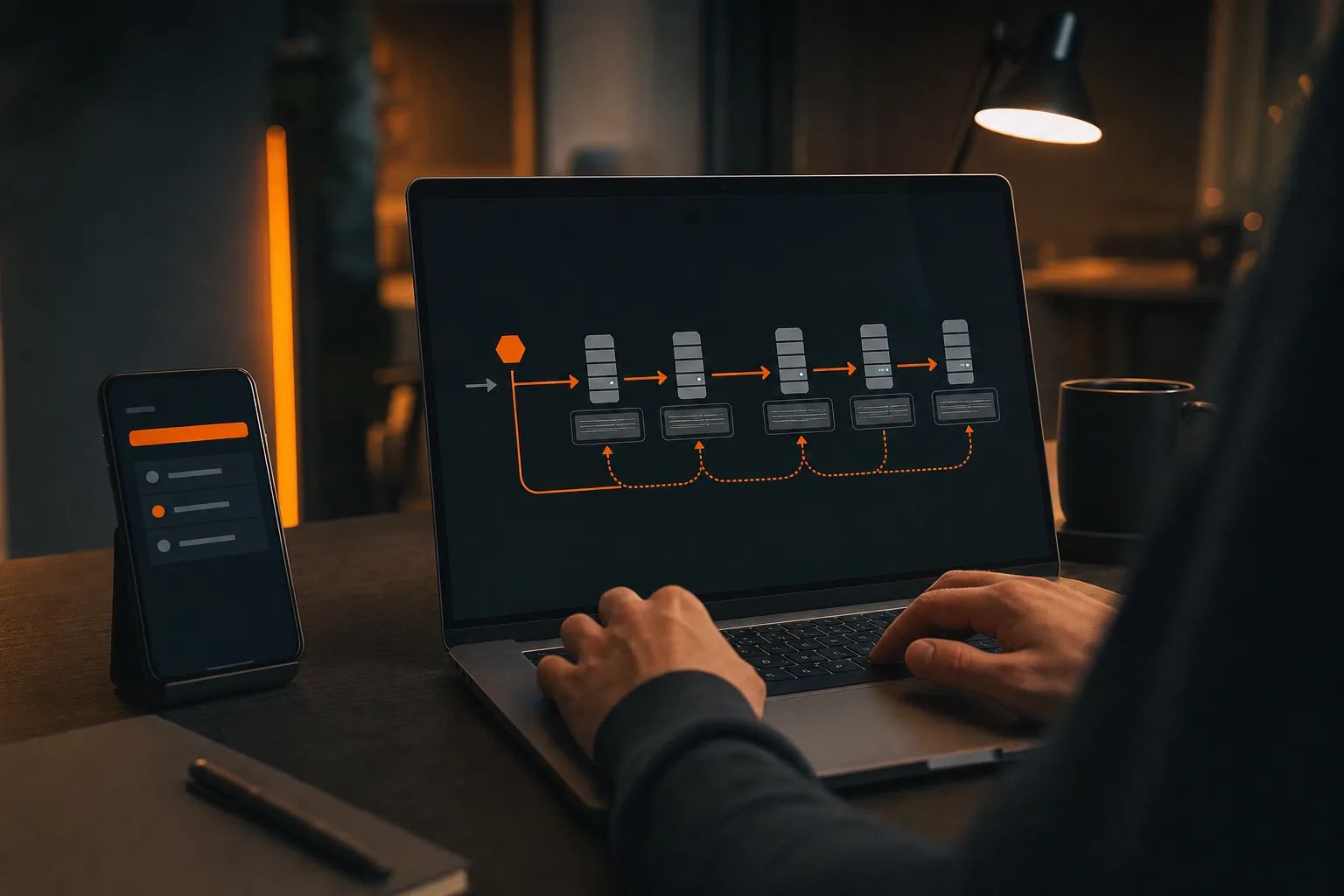
A rollback is a guardrail, not a substitute for testing. Keep one known-good bundle available in every production channel.
Step 6: Use Real-Time Analytics to Find the Exact Failure Point
The goal is to stop treating “not updated” as one failure. Analytics can show whether the device never checked in, found no eligible bundle, failed during download, or rolled back later.
Start with the affected device group. Filter by app version, platform, channel, and bundle version. Look for a pattern. If only one old app build fails, the issue may be a native compatibility gate. If every device in one channel fails, inspect the channel or deployment.
Compare adoption over time. A flat line after release suggests routing or eligibility trouble. A rise followed by a drop suggests install errors or rollback. A slow rise may simply mean devices have not opened the app yet.
Use timestamps carefully. The dashboard event time may differ from the user’s local time. Match the update event with the device’s last check-in. This helps when a tester says the update failed before the app had actually checked.
Analytics also helps you test a channel change safely. Change one variable at a time. Keep the bundle constant while you test routing. Then keep routing constant while you test a new bundle. If you change both, the data cannot tell you which change fixed the issue.
For an incident, save a small evidence set:
- The device identifier or internal test label
- Resolved channel
- Native app version
- Expected bundle and installed bundle
- Last check-in time
- Rollback or rejection event
Capgo’s real-time view is most useful when your release process sends updates through CI/CD. A deployment job can upload a bundle, while a monitoring step checks that test devices report the intended channel and bundle. That turns a manual complaint into a release gate.
Keep analytics data tied to release records. Write the commit or build reference into your deployment notes. When two bundles have similar version labels, the build reference tells you which code actually moved.
If only existing devices fail after a Cloud Default change, wait for their next check-in before changing more settings. A new install is a useful control. It tells you whether the default route works for devices that have no old local state.
Step 7: Prevent the Default Channel from Going Stale
The goal is to make channel drift visible before it affects users. A small release checklist can prevent most repeat cases.
Choose one routing model for each app environment. For production, you may omitdefaultChanneland let Capgo Cloud control the default. For a test build, you may set an explicit channel. The dangerous setup is a mix of old local overrides, stale native config, and a new Cloud Default that nobody verifies.
Putnpx cap syncin the build path after configuration changes. Make the build fail if the sync step fails. The command is simple, but skipping it can bake yesterday’s channel into today’s native binary.
Add a smoke test after deployment. The test device should launch the app, callgetChannel(), check for the expected bundle, and record the result. Verification is often the missing step in OTA workflows. An upload alone proves very little.
Keep local channel code behind a clear feature flag. If a test helper callssetChannel(), make sure production builds cannot include it by accident. Remember that the local cache may not appear as a dashboard override, so the UI cannot catch every problem.
Use a release checklist like this:
- Confirm the app ID and native version.
- Choose the target channel.
- Upload the bundle to that channel.
- Confirm the bundle is active.
- Run the device smoke test.
- Check the returned channel with
getChannel(). - Watch adoption before widening the rollout.
Keep rollback protection on for production releases. A common failure pattern is to deploy without a clear channel or rollback plan. That leaves the team with fewer safe ways to stop a bad bundle.
Capgo uses a subscription per organization, with a 14-day free trial. Treat the trial as a chance to test your release flow on real app builds, not just to inspect a dashboard. Try one staged deployment, one rollback test, and one automated channel check.
Security belongs in the same checklist. Protect CI/CD tokens. Limit who can change the Cloud Default. Keep production deployment credentials out of local scripts. An unauthorized channel change can look like a stale device until you review the audit trail.
For teams that ship often, keep the process boring. One command to deploy. One known test device. One clear channel rule. Track, adopt, roll back.
Key Takeaway: Prevent stale routing by syncing config, avoiding hidden local overrides, testing the resolved channel, and keeping rollback ready.
FAQ
Why is the Capgo cloud default channel not updating existing devices?
Existing devices may keep their old channel until their next update check. A local channel, dashboard override, or forced assignment can also take priority over the Cloud Default. Confirm the device’s resolved channel withgetChannel(), clear any stronger assignment, then bring the app to the foreground.
Does changing the Capgo Cloud Default change every installed app?
No, changing the Cloud Default does not instantly rewrite every installed app’s channel. New devices can use the new default right away. Existing installs need to check in before they can switch, and they still will not switch if a stronger channel rule or local override applies.
What does npx cap sync do for a Capgo channel change?
npx cap synccopies updated Capacitor configuration into the native projects. If you changedefaultChannelbut skip sync, the next native build may still contain the old channel setting. Run the command from the project root, then build and install a fresh test binary.
Does setChannel create a device override in Capgo?
No,setChannel()changes the channel stored locally by the app. It does not create a backend Device Override, so the Capgo dashboard may not show the device as overridden. Clear the local assignment when the device should return to default routing, then verify the result withgetChannel().
Can Capgo update native code through an OTA bundle?
No, Capgo OTA updates apply to web-layer code such as JavaScript, CSS, and assets. A native plugin, permission, or native API change needs a new store build. If the bundle expects native code that the installed app lacks, the update may be rejected even when the channel is correct.
Conclusion
Start with the resolved channel, not the dashboard default. Check assignments, runnpx cap sync, verify the bundle against the native runtime, and inspect the device logs before changing rollout rules. Then add a small post-deploy test in Capgo that callsgetChannel()and confirms the expected bundle.





