

Deleting a pull request preview looks like a one-command job. With Capgo, there is one catch: you must move away from an active preview before deleting it, then remove its bundles by ID. We will build a safe cleanup flow with a restricted API key, preview lookup, reset handling, bundle deletion, and CI automation.
Table of Contents
- Step 1: Create a Restricted Capgo API Key for Preview Cleanup
- Step 2: Identify the Pull Request Preview and Its Bundle IDs
- Step 3: Switch Away From the Active Preview Before Cleanup
- Step 4: Delete Preview Bundles by ID With the API Key
- Step 5: Automate Cleanup When a Pull Request Closes
- Step 6: Verify Cleanup and Protect Rollouts From Accidental Deletion
- FAQ
- Conclusion
Step 1: Create a Restricted Capgo API Key for Preview Cleanup
The first step in a Capgo pull request preview cleanup flow is to make a key that can do only the work your CI job needs.
Do not put a broad organization key into a pull request workflow. A pull request can come from a branch that has not earned trust yet. The workflow may also print a command or environment value during a failed run. A narrow key limits the damage if that happens.
In Capgo, start with an App Preview key for preview work. The key should be tied to the app or preview scope that your job manages. If your team uses role-based access control, limit the key to selected apps instead of granting access across the whole organization. Capgo documents those preview key choices in its API key settings for web app workflows.
Store the secret in your CI provider’s encrypted secret store. Give it a name that says what it does, such asCAPGO_PREVIEW_CLEANUP_KEY. Do not place it in a workflow file, shell script, pull request comment, or generated log.
Pass the key to the cleanup process through an environment variable. Your script should fail when the variable is missing. A silent fallback is dangerous because it can turn a cleanup job into a request with no auth, or tempt a developer to paste a key into the command line.
if [ -z "$CAPGO_PREVIEW_CLEANUP_KEY" ]; then echo "Missing preview cleanup key" exit 1
fi
Keep this key separate from the key used to publish production bundles. The publish job may need to upload a release. The cleanup job only needs to remove preview resources. Separate keys make review easier and reduce the chance that a delete action reaches a production channel.
Use the same secret in a protected environment when possible. Require approval before a job can touch shared channels. For ordinary pull request previews, the job should work on a temporary channel and nothing else.
Key Takeaway: Use a dedicated App Preview key, limit its app scope, and keep it in encrypted CI secrets.
Before moving on, test the key against a harmless read action. Confirm that the job can see the intended app, but cannot access an unrelated app or production workflow. The exact request details for cleanup are not fully published, so keep your first test small and inspect the SDK or Capgo support guidance before adding delete calls.
Step 2: Identify the Pull Request Preview and Its Bundle IDs
The Capgo pull request preview cleanup API key is useful only when your job knows which preview and bundle IDs it owns.
Use a stable naming rule for preview channels. A common pattern is the repository name plus the pull request number. The key point is consistency. Your cleanup job must rebuild the same identifier after the pull request closes.
Save the preview channel name when the preview is created. You can place it in the workflow output, a pull request check, or a small piece of job metadata. Do not rely on a display name that a person might change in the dashboard.
Next, list the bundles tied to that preview. Capgo’s Delete Bundle action requires bundle IDs. The source documentation points to a list call for retrieving all available bundle IDs before deletion. Treat that list as the source of truth. Never guess an ID from a file name, commit hash, or branch name.
Filter the returned records by the preview channel or another value your workflow controls. Then keep the exact bundle ID for each match. If the list is empty, mark cleanup as complete. An empty result is not a failure unless your workflow expected a preview to exist.
Also record the commit SHA that produced each preview. This gives you a second check before deletion. If the channel name matches but the commit does not, stop and ask for review. That small pause can prevent a race where a new preview is being built while an old cleanup job runs.
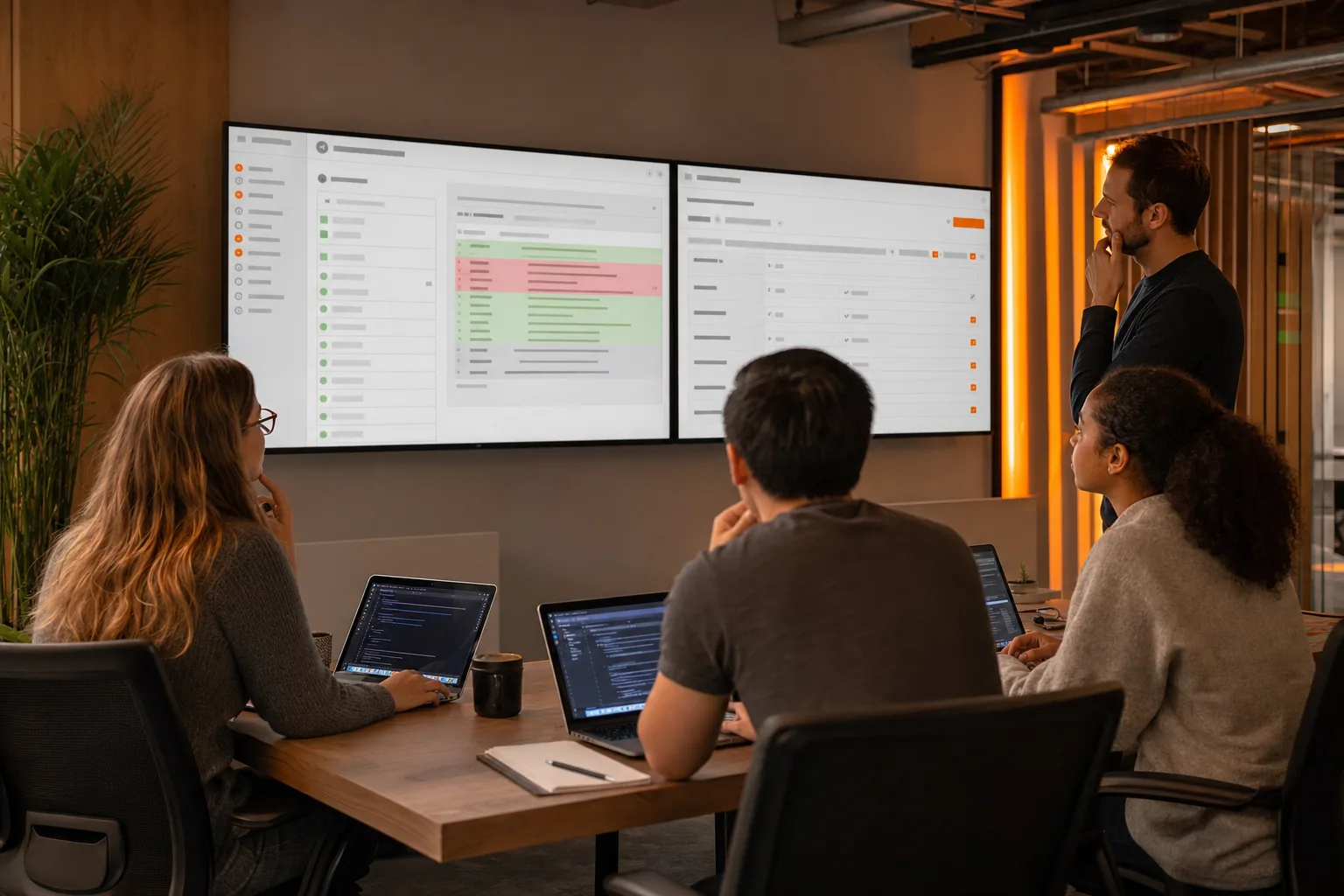
Do not delete while a publish job is still running. Add a dependency between the preview build and cleanup workflows, or use a lock keyed to the pull request number. The cleanup job should start only after the close event and after any pending preview upload has ended.
Capgo’s public API covers resources such as channels and bundles through authenticated HTTP requests, but the cleanup actions still need careful verification in your project. The Capgo public API overview is the right place to confirm the current resource model before you write a wrapper.
By now you should have a preview identifier, a list of exact bundle IDs, and the commit SHA tied to each record. If one of those values is missing, stop here. Cleanup without ownership checks is guesswork.
Step 3: Switch Away From the Active Preview Before Cleanup
An active preview cannot be deleted until the app switches away from it or you callresetPreview. This is the key detail in the Capgo pull request preview cleanup flow.
Think of the active preview as the version currently selected by the app. Deleting the server-side record first would leave the app pointing at something that no longer exists. Capgo blocks that state change, so your cleanup job must reset the app’s preview state before it removes the preview.
First, check whether the preview is still active. If it is, move the app to a safe channel or use the updater reset action. The right choice depends on how your test app is configured. A disposable test app can return to its normal default channel. A shared test app may need a dedicated staging channel instead.
UseresetPreviewwhen the preview state needs to be cleared directly. Keep this call tied to the same pull request and app that created the preview. A cleanup script should never reset a production device or a shared release channel just because a channel name happens to match.
There is a useful ordering rule here:
- Confirm the pull request is closed.
- Confirm no preview upload is running.
- Switch away from the active preview or call
resetPreview. - Wait for that state change to finish.
- Only then call Delete Preview.
Do not treat a successful HTTP response from the reset request as proof that the app has already changed state on every device. A device may check for updates later. Your server-side cleanup can still proceed once the preview assignment has been cleared according to the API response, but keep device behavior separate from resource deletion.
Capgo supports channel-based rollout control, which makes this separation easier to reason about. A channel is a named path that tells an app which update stream to follow. Your preview channel should never be the same channel used by production devices.
For teams that need a stricter boundary, use the documented Capgo channel workflow for preview automation. It describes the temporary channel pattern and helps keep a cleanup job away from shared default channels.
The open-source updater documentation also records the deletion limit: active previews need a switch away or a reset first. You can review the source in the Capgo Capacitor updater repository. That source is useful when the dashboard wording is too brief for a CI decision.
Pro Tip: Make reset a separate logged step. If Delete Preview fails, the log should show whether the preview was still active or whether the delete request had another problem.
Once the active state is gone, the preview record is ready for deletion. Do not combine reset and delete into one opaque shell line. Two clear commands are easier to retry and much easier to audit.
Step 4: Delete Preview Bundles by ID With the API Key
Delete each preview bundle by its exact ID, after the active preview has been reset. This is where a Capgo cleanup key removes the storage objects left by the pull request.
Start with the bundle list from Step 2. For each matching ID, call the Delete Bundle action through the Capgo SDK or the current public API method available to your account.
Inspect the SDK method signature or confirm the current request shape with Capgo support. Record the method and response format in your team’s internal runbook once you have verified them. That runbook should include the API version, the required identifier, and the error codes your retry logic can handle.
Use a dry-run mode in your script. It should print the preview channel and the bundle IDs it would remove, without sending delete requests. Run that mode against several closed pull requests. Check that it excludes production channels and that it does not treat an empty list as a wildcard.
A safe deletion loop has three gates:
- Reject a missing or malformed bundle ID.
- Reject a bundle whose channel does not match the pull request preview.
- Delete only after the ownership check passes.
Then handle each response by type. A successful delete can be recorded as complete. A not-found response can be treated as already clean if the resource is known to have been removed by an earlier retry. Permission errors should fail the job and alert the owner. Rate limits should pause and retry with a capped delay.
Do not retry every error. A bad ID will not become valid after three attempts. An authorization error usually means the key scope is wrong. Retry only transient failures, and set a maximum run time so a stuck cleanup job does not consume your CI queue.
Bundle deletion is separate from preview deletion. Removing the preview channel does not automatically prove that every bundle has gone. Your job should retain a result for each ID, then make a final list request if the API supports it. If any bundle remains, report the ID and stop rather than silently claiming success.
Keep deletion logs free of secrets. It is fine to log the pull request number, preview name, bundle ID, request result, and timestamp. Never log the API key, an authorization header, or a full request object that might include one.
That approach gives you a useful audit trail without turning the log into another place where credentials can leak. It also makes a failed cleanup easy to resume because the next run can skip records already confirmed as absent.
Step 5: Automate Cleanup When a Pull Request Closes
Run the cleanup job from the pull request close event, but add checks that prevent a late build from deleting a new preview.
Your workflow should receive the repository and pull request number from the event payload. Rebuild the preview channel name from those values. Do not accept a channel name supplied by a pull request comment or an untrusted branch variable.
A useful job sequence looks like this:
- Load the restricted cleanup key from encrypted secrets.
- Confirm the event is a closed pull request.
- Check that the preview belongs to the expected repository and app.
- Wait for any active preview deployment to finish.
- Switch away from the preview or call
resetPreview. - List bundle IDs for that preview.
- Delete each verified bundle.
- Delete the preview record.
- Write a short result to the workflow summary.
The order matters. If you delete first, the active preview rule can block the request. If you skip the list call, you may not know which bundle IDs still exist. If you delete by a guessed name, you risk touching the wrong resource.
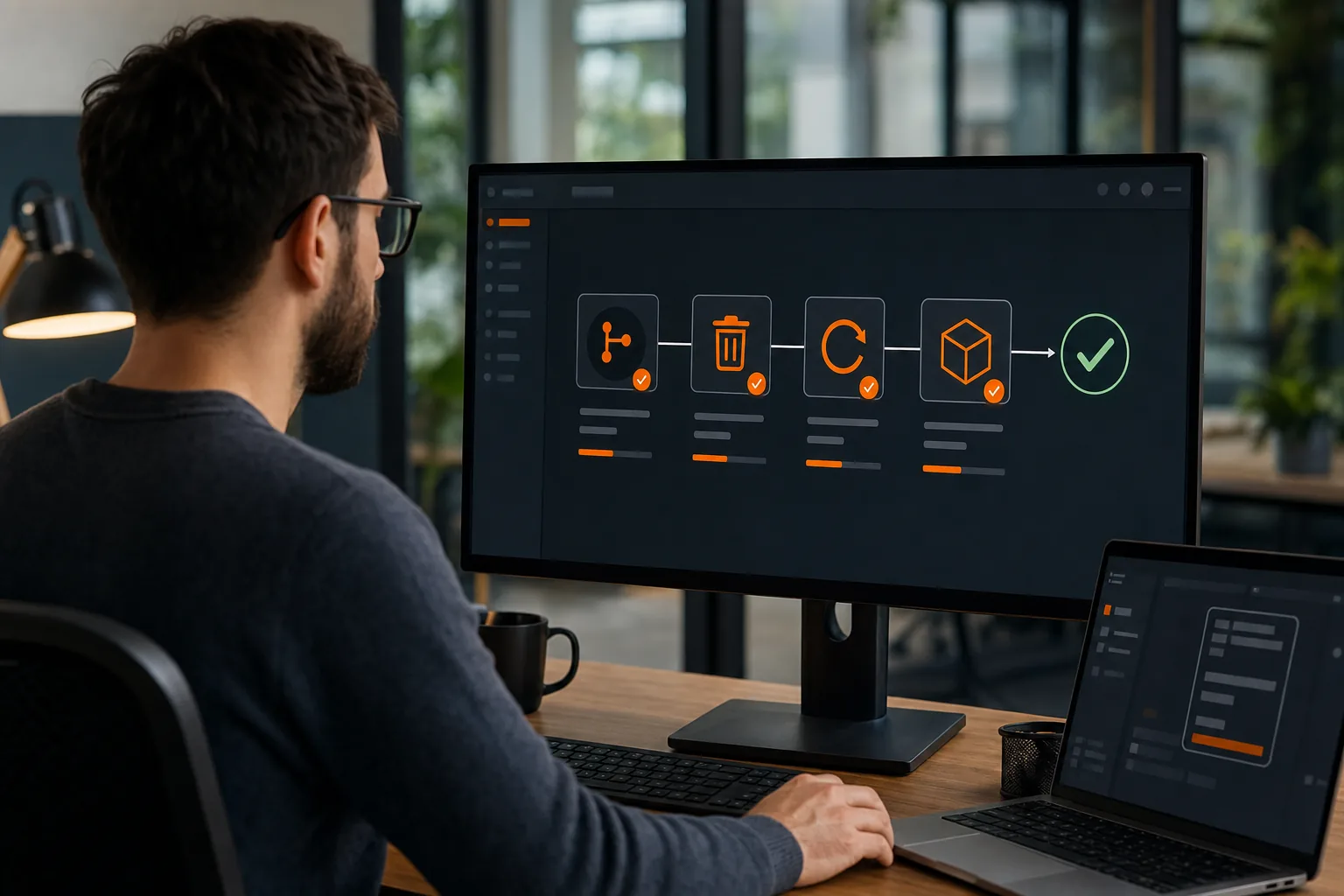
Use a concurrency rule keyed to the pull request number. When a close event and a rebuild event arrive near the same time, the old cleanup job should not race the new deployment. Cancel an obsolete cleanup run or make the job wait until the deployment lock is clear.
Capgo’s one-command CLI workflow can reduce the number of custom shell calls around build and release work. For command names and supported operations, check the Capgo CLI command documentation. Use the CLI where it gives you a verified command. Use the SDK or public API where cleanup actions need a direct request.
Do not put cleanup in a workflow that runs with every push. A push job can remove a preview that is still being tested. The close event is the right trigger for normal cleanup. Add a manual workflow dispatch for recovery when a job fails.
Set a retention fallback too. If a close event is missed, a scheduled job can find previews older than your team’s allowed test window. That job needs stricter safeguards than the normal close hook. It should select only previews with a clear owner and an expired timestamp.
For GitHub Actions, keep permissions narrow and pass only the values needed by the cleanup step. Capgo’s current GitHub Actions integration documentation explains where the token is stored and how the workflow connects to Capgo.
By now you should have an automated path that reacts to closure, waits for competing jobs, resets active state, lists IDs, and deletes only matched bundles. That is fast enough for daily development without making cleanup a blind broom.
Step 6: Verify Cleanup and Protect Rollouts From Accidental Deletion
Verification closes the Capgo pull request preview cleanup loop. A delete response alone is not enough for a safe release process.
After the cleanup job runs, check the preview channel again. Confirm that it no longer appears as an active preview. Then check the bundle list for the same app and filter. The expected result is that the targeted bundle IDs are gone while production bundles remain.
Save these values in the job summary:
- Repository and pull request number.
- Preview channel name.
- Commit SHA used for ownership checks.
- Bundle IDs found.
- Bundle IDs deleted.
- Any IDs that returned an error.
Use a clear status. “Cleaned” means every verified target is gone. “Already clean” means the resource was absent before this run. “Needs review” means one or more checks failed. Do not label a partial deletion as success.
Add a production guard in code. Reject channel names such as your default or release channel. Also reject a bundle if its metadata does not match the preview app. The guard should fail closed. When the script cannot identify the target with confidence, it should stop.
Keep rollback separate from cleanup. A rollback changes which bundle devices receive. Cleanup removes an old preview resource. If a test finds a bug after the pull request closes, you may need the bundle for investigation. Set a short retention window instead of deleting the instant the event arrives if your team often debugs after merge.
Watch for three common failure patterns:
- Active preview error: reset or switch away before retrying Delete Preview.
- Missing bundle ID: run the list action again instead of guessing.
- Permission error: review the key scope, then issue a new key if needed.
Rotate the cleanup key on a schedule set by your security policy, and rotate it at once if it appears in a log or commit. A new key should be tested before the old one is revoked, unless exposure requires immediate revocation.
The documentation gap around cleanup deserves a note in your security review. Treat the SDK and verified Capgo guidance as the source for your implementation, and keep your own request contract under version control.
Key Takeaway: Verify the preview and bundle list after deletion, block production targets in code, and report partial cleanup as a failure.
One command is useful only when the guardrails are clear. Track the preview. Adopt a predictable channel name. Roll back release changes separately. Then let the cleanup job do its small job without touching live traffic.
FAQ
Can I delete an active Capgo pull request preview?
No. An active preview must be switched away from first, or you must callresetPreview. After the active state clears, run Delete Preview. This rule is the main detail to remember when setting up a Capgo pull request preview cleanup API key in CI.
Do I need bundle IDs to clean up a Capgo preview?
Yes. Capgo’s Delete Bundle action requires the bundle IDs, so list the available bundles before deleting them. Match each ID to the preview channel and commit before sending a delete request. Never build an ID from a branch name or assume that deleting the preview also removes every bundle.
What kind of API key should CI use for preview cleanup?
Use a restricted App Preview key for preview cleanup, stored in your CI provider’s encrypted secret store. Limit the key to the app or scope it needs. Keep it separate from the key used to publish production updates. This makes the Capgo cleanup job easier to review and safer to rotate.
Can I automate cleanup when a pull request closes?
Yes. Trigger cleanup from the closed pull request event, then wait for active deployment jobs before resetting the preview. List the bundle IDs, delete verified matches, and confirm the result. Add concurrency controls so a late build cannot race the cleanup job.
Why is my Capgo cleanup request failing?
The usual causes are an active preview, a missing bundle ID, or a key without the needed scope. Reset the preview first, repeat the list call, and inspect the key permissions. Because request details can vary by API or SDK version, confirm the current method and parameters before changing the script.
Conclusion
Use Capgo with a dedicated preview key and a strict cleanup order: reset the active preview, list its bundle IDs, delete verified bundles, then remove the preview. Start with a dry run against one closed pull request, confirm the request shape in the current SDK, and add the production-channel guard before turning on automatic cleanup.





