
Debugging
Copy a setup prompt with the install steps and the full markdown guide for this plugin.
Understanding cloud logs
Section titled “Understanding cloud logs”If you get a cloud refusal code and need deeper remediation walkthroughs, see Common Update Problems.
Capgo logs can include metadata for the event. In the dashboard, filter by the snake_case action code, and click the metadata cell to copy the full JSON payload. Metadata is especially useful for crash and WebView events because it can include the error message, source URL, line and column, process state, memory pressure, or platform-specific reason. Older logs can still show legacy camelCase aliases listed in parentheses.
Each section title matches the action code shown in the console logs table, so you can link directly to it.
Plan limits and normal responses
Section titled “Plan limits and normal responses”Backend refusals related to billing, throttling, or non-error states.
InvalidIp
Section titled “InvalidIp”What it means
Capgo detected traffic that looks like it comes from Google or cloud infrastructure. Updates less than four hours old are ignored so bot traffic does not count as billable devices.
What to do
Ignore this on real users. Retry from normal networks and real devices, or wait and check again later.
needPlanUpgrade
Section titled “needPlanUpgrade”What it means
Your organization reached its plan or device limit. The device will not receive updates until you upgrade or the next billing cycle resets usage.
What to do
Upgrade your plan in the dashboard or wait for the next billing cycle.
What it means
The device already has the latest bundle available for its channel. This is a normal state, not a failure.
rateLimited
Section titled “rateLimited”What it means
The device sent too many update or channel requests in a short window.
What to do
Stop calling update APIs inside render loops. Call setChannel / getChannel only from user actions, and set defaultChannel in capacitor.config.
Version format
Section titled “Version format”Backend refusals caused by invalid native version metadata.
semver_error
Section titled “semver_error”What it means
The native app version in config is missing or not valid semver (x.y.z).
What to do
Set plugins.CapacitorUpdater.version to valid semver, verify it in the SemVer tester, then rebuild and reinstall the native app.
Platform and build targeting
Section titled “Platform and build targeting”Backend refusals when channel policy blocks a platform, build type, or device class.
disablePlatformIos
Section titled “disablePlatformIos”What it means
The device runs iOS, but iOS updates are disabled for this channel.
What to do
Enable iOS in the channel if this was accidental, or route iOS builds to a dedicated channel when blocking is intentional.
disablePlatformAndroid
Section titled “disablePlatformAndroid”What it means
The device runs Android, but Android updates are disabled for this channel.
What to do
Enable Android in the channel if this was accidental, or route Android builds to a dedicated channel when blocking is intentional.
disablePlatformElectron
Section titled “disablePlatformElectron”What it means
The device runs Electron, but Electron updates are disabled for this channel.
What to do
Enable Electron in the channel if this was accidental, or route Electron builds to a dedicated channel when blocking is intentional.
disableDevBuild
Section titled “disableDevBuild”What it means
The device is a development build, but dev builds are blocked for this channel.
What to do
Allow dev builds in a test channel, or keep this channel release-only and move dev devices elsewhere.
disableProdBuild
Section titled “disableProdBuild”What it means
A production build called /updates, but production updates are blocked for this channel.
What to do
Allow production updates in the channel if this was accidental, or route production builds to the correct channel.
disableDevice
Section titled “disableDevice”What it means
A real phone or tablet was blocked because this channel blocks real devices.
What to do
Enable real-device updates if this was accidental, or keep the restriction and route real devices to another channel.
disableEmulator
Section titled “disableEmulator”What it means
The device is an emulator, but emulator updates are disabled for this channel.
What to do
Enable emulator updates in a test channel, or keep this channel emulator-blocked and use another channel for emulator validation.
Auto-update compatibility rules
Section titled “Auto-update compatibility rules”Backend refusals when semver or metadata rules block the target bundle.
disableAutoUpdate
Section titled “disableAutoUpdate”What it means
Auto-update is disabled by channel compatibility policy. Metadata includes auto_update with a matching rule such as major, minor, patch, metadata, or none.
What to do
Change the channel auto-update policy to allow your intended rollout.
disableAutoUpdateUnderNative
Section titled “disableAutoUpdateUnderNative”What it means
The channel has a bundle older than the device baseline and blocks sending updates under the native version.
What to do
Publish a bundle at or above the native baseline, or disable under-native protection in the channel.
disableAutoUpdateMetadata
Section titled “disableAutoUpdateMetadata”What it means
The channel requires min_update_version, but the device native version is below that threshold.
What to do
Set min_update_version on the target bundle or release from a newer native version.
disableAutoUpdateToMajor
Section titled “disableAutoUpdateToMajor”What it means
The channel blocks major version jumps, for example 1.x.x to 2.x.x.
What to do
Align channel strategy with your major rollout plan, or allow major jumps for this track. See Common Update Problems.
disableAutoUpdateToMinor
Section titled “disableAutoUpdateToMinor”What it means
The channel blocks minor version jumps relative to the device native baseline (version_build), for example 1.2.3 to 1.3.0.
What to do
Align channel strategy with your minor rollout plan, or allow minor jumps for this track.
disableAutoUpdateToPatch
Section titled “disableAutoUpdateToPatch”What it means
The channel blocks patch-level changes while keeping the same MAJOR.MINOR.PATCH prefix; only suffix changes are allowed.
What to do
Align release cadence with channel policy, or allow patch jumps for this track.
Channel setup
Section titled “Channel setup”Backend refusals caused by missing or incompatible channel configuration.
cannotUpdateViaPrivateChannel
Section titled “cannotUpdateViaPrivateChannel”What it means
The device tried to self-associate with a private channel that does not allow device self-assignment (allow_device_self_set is false) and the channel is not public.
What to do
Enable allow_device_self_set on the channel or switch the device to a public or allowed channel.
channelMisconfigured
Section titled “channelMisconfigured”What it means
The channel uses disable_auto_update: "version_number" but the bundle min_update_version is null, so Capgo cannot decide which devices should update.
What to do
Fill the missing config for that rule or switch to a simpler auto-update mode.
NoChannelOrOverride
Section titled “NoChannelOrOverride”What it means
No default channel is configured and the device has no channel override.
What to do
Set a default channel in the dashboard or configure defaultChannel in the build.
Bundle delivery and encryption
Section titled “Bundle delivery and encryption”Backend refusals when Capgo cannot serve or decrypt the bundle.
cannotGetBundle
Section titled “cannotGetBundle”What it means
Capgo failed to generate a valid signed download URL and no manifest fallback was available.
What to do
Re-upload the bundle, regenerate manifests, and verify R2 or public bundle settings.
missingBundle
Section titled “missingBundle”What it means
The bundle assigned to the channel has no downloadable content: no external_url, no r2_path, not a built-in version, and no manifest entries.
What to do
Rebuild and re-upload the version, then confirm the bundle has real file content.
keyMismatch
Section titled “keyMismatch”What it means
The device encryption public key does not match the key used to encrypt the bundle. Metadata can include device_key_id, bundle_key_id, and version.
What to do
Compare device and bundle key IDs in the console. Publish with the same key and matching CLI/plugin versions.
App configuration and legacy clients
Section titled “App configuration and legacy clients”Backend refusals caused by app configuration or unsupported updater versions.
customIdBlocked
Section titled “customIdBlocked”What it means
The app sent a custom device ID, but this app does not accept custom IDs, so the ID is ignored.
What to do
Stop sending custom IDs, or enable custom IDs only when your workflow requires them.
blocked_by_server_url
Section titled “blocked_by_server_url”What it means
server.url is set in Capacitor config, so the WebView loads a remote URL instead of local bundle files. Capgo live updates require local files and server.url is discouraged in production.
What to do
Remove or clear server.url for production builds and keep update payloads local. This code can appear as a backend refusal or as a device-side stat.
backend_refusal
Section titled “backend_refusal”What it means
The updater plugin is v4, which the backend no longer accepts.
What to do
Upgrade plugin and CLI to v5+ (prefer v8) with Capacitor v5+, rebuild, and republish bundle metadata.
Update lifecycle
Section titled “Update lifecycle”Device-side events for normal update flow, activation, and rollback.
What it means
Internal test action used to verify the stats pipeline.
What it means
Capgo sent download information for a new version to the device.
What it means
A bundle was activated on the device.
set_fail
Section titled “set_fail”What it means
A bundle failed to activate on the device.
What to do
Check native logs with npx @capgo/cli@latest app debug and verify bundle integrity, paths, and notifyAppReady flow.
What it means
The device reset to the built-in bundle.
delete
Section titled “delete”What it means
One bundle was deleted on the device.
Download and install failures
Section titled “Download and install failures”Device-side events for download progress, archive validation, and install errors.
download_0
Section titled “download_0”What it means
The download sequence started at 0% progress.
download_10
Section titled “download_10”What it means
A new bundle has been downloaded — progress indicated at 10%.
download_20
Section titled “download_20”What it means
A new bundle has been downloaded — progress indicated at 20%.
download_30
Section titled “download_30”What it means
A new bundle has been downloaded — progress indicated at 30%.
download_40
Section titled “download_40”What it means
A new bundle has been downloaded — progress indicated at 40%.
download_50
Section titled “download_50”What it means
A new bundle has been downloaded — progress indicated at 50%.
download_60
Section titled “download_60”What it means
A new bundle has been downloaded — progress indicated at 60%.
download_70
Section titled “download_70”What it means
A new bundle has been downloaded — progress indicated at 70%.
download_80
Section titled “download_80”What it means
A new bundle has been downloaded — progress indicated at 80%.
download_90
Section titled “download_90”What it means
A new bundle has been downloaded — progress indicated at 90%.
download_complete
Section titled “download_complete”What it means
The bundle download finished successfully.
download_manifest_start
Section titled “download_manifest_start”What it means
The device started downloading the update manifest.
download_manifest_complete
Section titled “download_manifest_complete”What it means
The device finished downloading the update manifest.
download_zip_start
Section titled “download_zip_start”What it means
The device started downloading the bundle archive.
download_zip_complete
Section titled “download_zip_complete”What it means
The device finished downloading the bundle archive.
download_manifest_file_fail
Section titled “download_manifest_file_fail”What it means
One manifest entry failed to download. version_name uses version:fileName to identify the asset.
What to do
Fix the missing or blocked asset, regenerate the manifest, and re-upload the bundle.
download_manifest_checksum_fail
Section titled “download_manifest_checksum_fail”What it means
A manifest file failed checksum validation.
What to do
Re-upload the bundle with a current CLI version and verify manifest checksums.
download_manifest_brotli_fail
Section titled “download_manifest_brotli_fail”What it means
A manifest file failed Brotli decompression.
What to do
Verify compression settings and re-upload affected assets.
download_fail
Section titled “download_fail”What it means
The bundle failed to download.
What to do
Check network connectivity, signed URL expiry, CDN reachability, and device storage.
update_fail
Section titled “update_fail”What it means
The bundle installed but the app never called notifyAppReady, so Capgo rolled back.
What to do
Call notifyAppReady() after your app finishes bootstrapping. Native log text notifyAppReady was not called, roll back current bundle maps to this code.
checksum_fail
Section titled “checksum_fail”What it means
The downloaded bundle failed checksum validation. Common causes: CRC32 vs SHA256 mismatch from an old CLI upload, or encryption key mismatch on older plugins that surface decryption failure as checksum failure.
What to do
Re-upload with a current CLI/plugin (SHA256). If using encryption, verify the app public key matches the upload key, or upgrade to plugin 8.3.0+ for explicit keyMismatch errors.
decrypt_fail
Section titled “decrypt_fail”What it means
The downloaded bundle failed to decrypt.
What to do
Verify encryption keys and re-upload the bundle with the matching key pair.
windows_path_fail
Section titled “windows_path_fail”What it means
The zip contains illegal Windows-style paths.
What to do
Rebuild the bundle on Unix paths or sanitize archive paths before upload.
canonical_path_fail
Section titled “canonical_path_fail”What it means
File paths inside the zip are not canonical.
What to do
Fix archive path generation before upload.
directory_path_fail
Section titled “directory_path_fail”What it means
The zip contains invalid directory paths.
What to do
Fix archive structure before upload.
unzip_fail
Section titled “unzip_fail”What it means
The device failed to unzip the downloaded bundle.
What to do
Verify archive integrity and supported compression.
low_mem_fail
Section titled “low_mem_fail”What it means
Download failed because the device ran out of memory.
What to do
Reduce bundle size or retry on a device with more free memory.
App health and WebView events
Section titled “App health and WebView events”Device-side crash, memory, and WebView diagnostics. Always inspect metadata JSON in the dashboard.
app_moved_to_background
Section titled “app_moved_to_background”What it means
The app entered the background.
app_moved_to_foreground
Section titled “app_moved_to_foreground”What it means
The app entered the foreground.
app_crash
Section titled “app_crash”What it means
JavaScript or Capacitor layer crash. Metadata can include message, stack, source, and active bundle context.
What to do
Inspect metadata and native logs. Pair JS and native error reporting (for example Sentry) to locate the failing code path.
app_crash_native
Section titled “app_crash_native”What it means
Native platform crash. Metadata can include platform, reason, stack, and process details.
What to do
Use Xcode or Logcat crash logs and correlate with the active bundle from metadata.
app_anr
Section titled “app_anr”What it means
Android Application Not Responding event.
What to do
Inspect ANR traces in Logcat and reduce main-thread blocking work after updates.
app_killed_low_memory
Section titled “app_killed_low_memory”What it means
The OS killed the app after memory pressure.
What to do
Reduce memory use after update activation and inspect metadata for available memory signals.
app_killed_excessive_resource_usage
Section titled “app_killed_excessive_resource_usage”What it means
The OS killed the app for excessive resource use.
What to do
Inspect metadata for the resource type or platform reason.
app_initialization_failure
Section titled “app_initialization_failure”What it means
Updater or startup failed before normal runtime was ready.
What to do
Inspect metadata for the failing step and error message.
app_memory_warning
Section titled “app_memory_warning”What it means
iOS memory warning.
What to do
Inspect memory context in metadata and reduce peak usage after updates.
webview_javascript_error
Section titled “webview_javascript_error”What it means
Uncaught JavaScript error in the WebView. Metadata can include message, source URL, line, column, and stack.
What to do
Install error reporting in JS and native layers to capture the exact failing line in production.
webview_unhandled_rejection
Section titled “webview_unhandled_rejection”What it means
Unhandled promise rejection in the WebView.
What to do
Capture async failures with JS and native error reporting.
webview_resource_error
Section titled “webview_resource_error”What it means
A WebView resource failed to load.
What to do
Use metadata URL and status details to fix broken assets or network rules.
webview_security_policy_violation
Section titled “webview_security_policy_violation”What it means
Content security policy blocked a resource.
What to do
Adjust CSP using metadata directive and blocked URI details.
webview_unclean_restart
Section titled “webview_unclean_restart”What it means
Previous WebView session did not shut down cleanly, which can indicate crash loops after an update.
What to do
Correlate with crash and WebView error events before and after restart.
webview_render_process_gone
Section titled “webview_render_process_gone”What it means
Android WebView renderer process exited.
What to do
Inspect renderer crash signals in metadata and native logs.
webview_content_process_terminated
Section titled “webview_content_process_terminated”What it means
iOS WebView content process terminated.
What to do
Inspect active bundle and page URL from metadata.
Environment and channel context
Section titled “Environment and channel context”Device-side context events that help correlate update behavior with OS, native version, or channel changes.
os_version_changed
Section titled “os_version_changed”What it means
Device OS version changed between checks.
native_app_version_changed
Section titled “native_app_version_changed”What it means
Native app store version changed, helping separate native vs web bundle changes.
getChannel
Section titled “getChannel”What it means
The device queried its current channel.
setChannel
Section titled “setChannel”What it means
A channel was set successfully for the device.
uninstall
Section titled “uninstall”What it means
The app was uninstalled or Capgo data was cleared.
Bundle status
Section titled “Bundle status”SUCCESS: install bundle doneERROR: install or download failedPENDING: Download done, pending releaseDELETED: Bundle deleted, still presented for statsDOWNLOADING: Currently downloading a bundle
Understanding device logs
Section titled “Understanding device logs”Debug command
Section titled “Debug command”There is a debug command for Capgo cloud users.
npx @capgo/cli@latest app debugThis will allow you to check all events happening in the app and find a solution if updates don’t happen.
iOS native logs
Section titled “iOS native logs”to find your logs on Xcode
Android native logs
Section titled “Android native logs”to find your logs on Android studio
Native log phrase mapping
Section titled “Native log phrase mapping”Failed to download frommaps todownload_failnotifyAppReady was not called, roll back current bundlemaps toupdate_fail
Finding the downloaded bundle on a device
Section titled “Finding the downloaded bundle on a device”To debug on iOS, you need to dump the app on your computer, you can do it like this:
Xcode has a built-in feature for inspecting the file system of developer-installed apps on an iOS device.
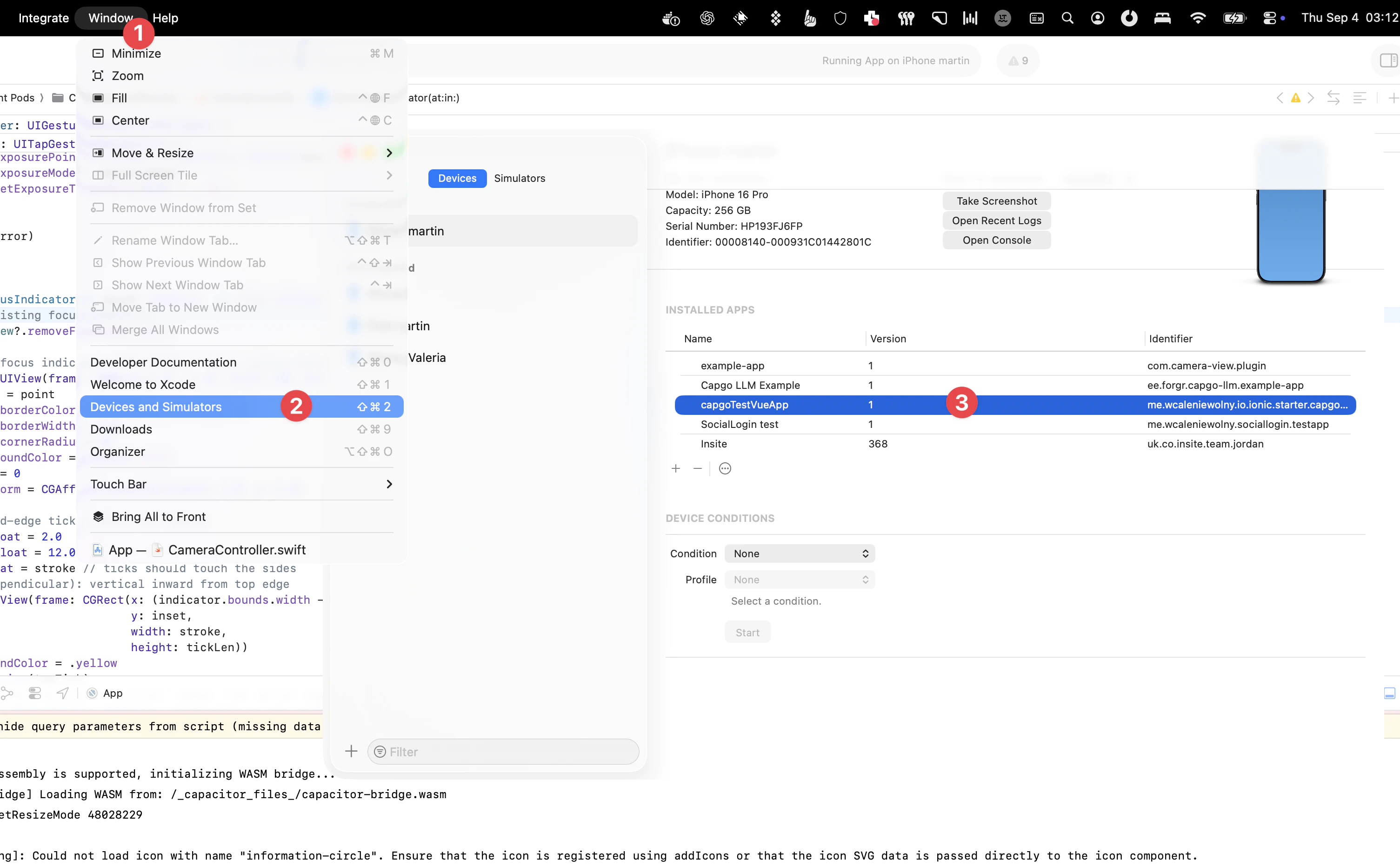
To achieve this:
- Connect your device to your Mac and select Window > Devices in the Xcode menubar.
- Select your device in the left pane under the Devices section.
- This will show a list of developer-installed apps for that device.
- Select the app you want to inspect and then select the 3 dots icon near the bottom of the screen.
- Here you can view the current file system by selecting download a snapshot of it.
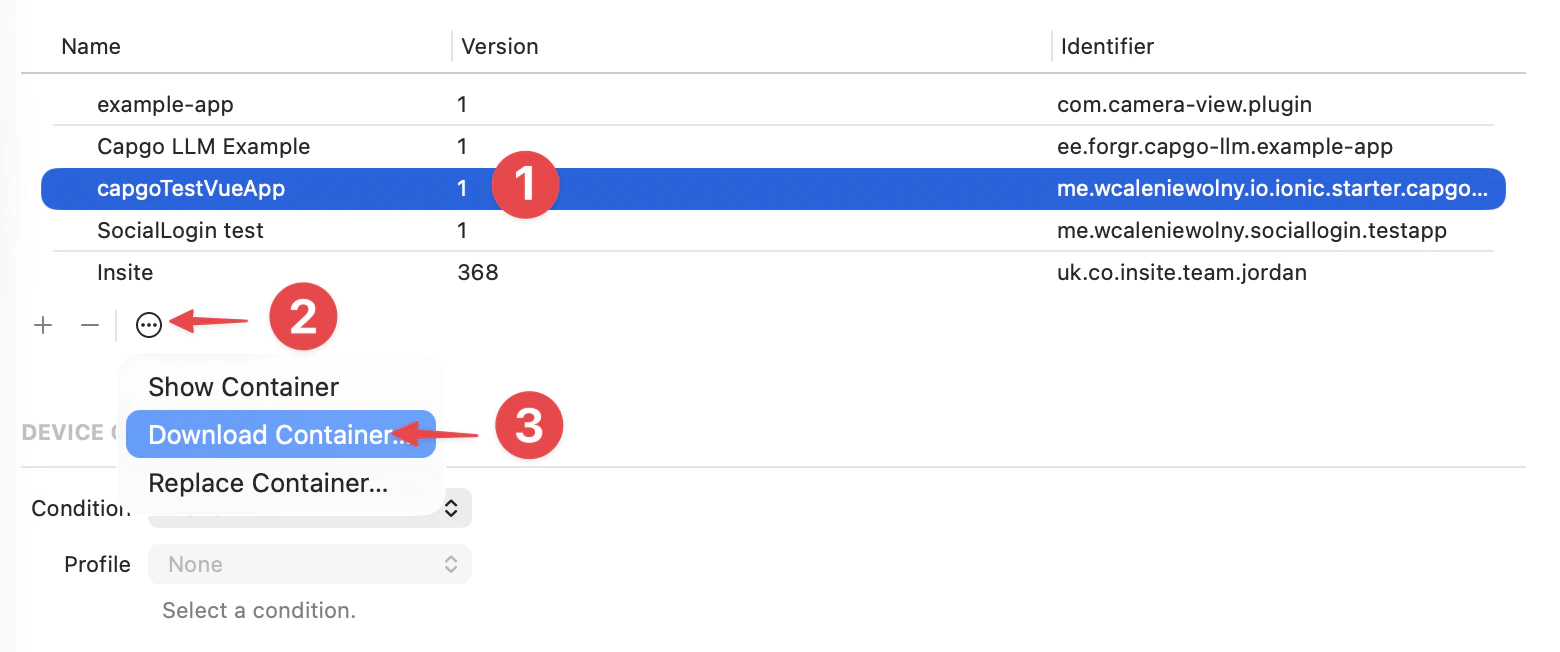
Selecting Download Container… will download and export a snapshot of the file system as a .xcappdata file that you can browse through.
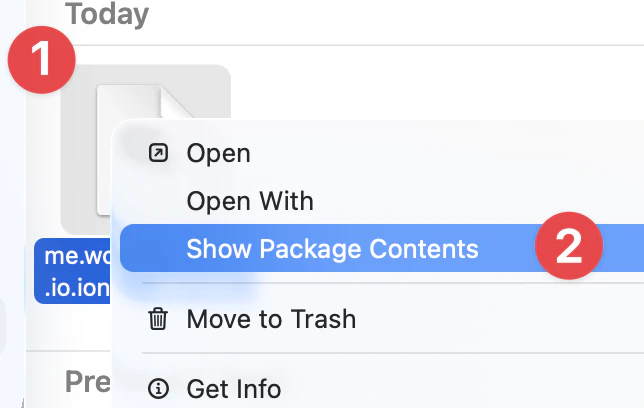
Right-click on this file and select Show Package Contents to open the folder.
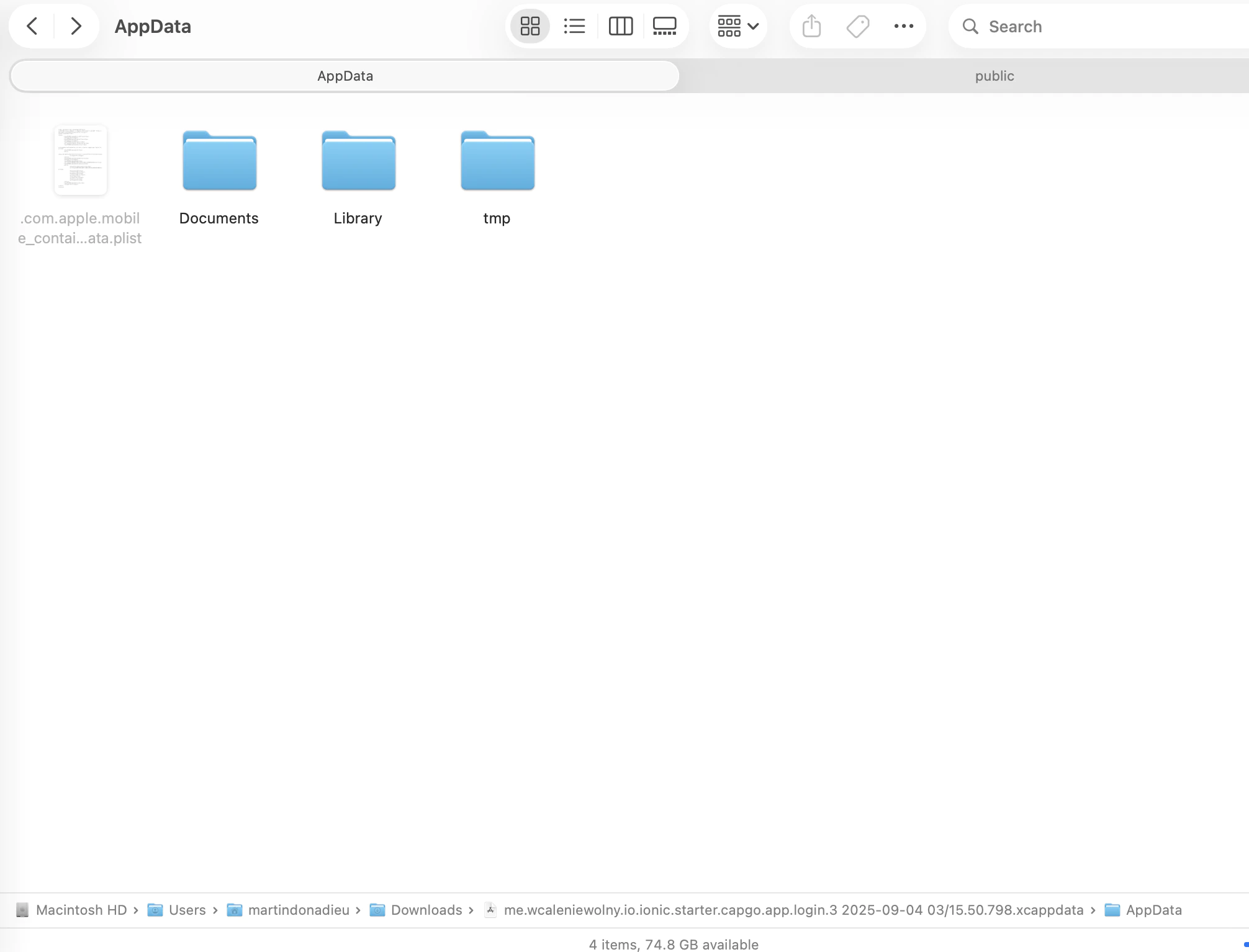
Open the App Data folder, and you should now see a few folders like Documents, Library, tmp, etc.
Then you will find a version in 2 folders:
library/NoCloud/ionic_built_snapshots is necessary after the app reboot
and documents/versions for hot reload
Android
Section titled “Android”To debug on Android, you need to access the device from Android Studio:
- Click View > Tool Windows > Device File Explorer or click the Device File Explorer button in the tool window bar to open the Device File Explorer.
- Select a device from the dropdown list.
- Open the path data/data/APP_NAME/ where APP_NAME is your app ID.
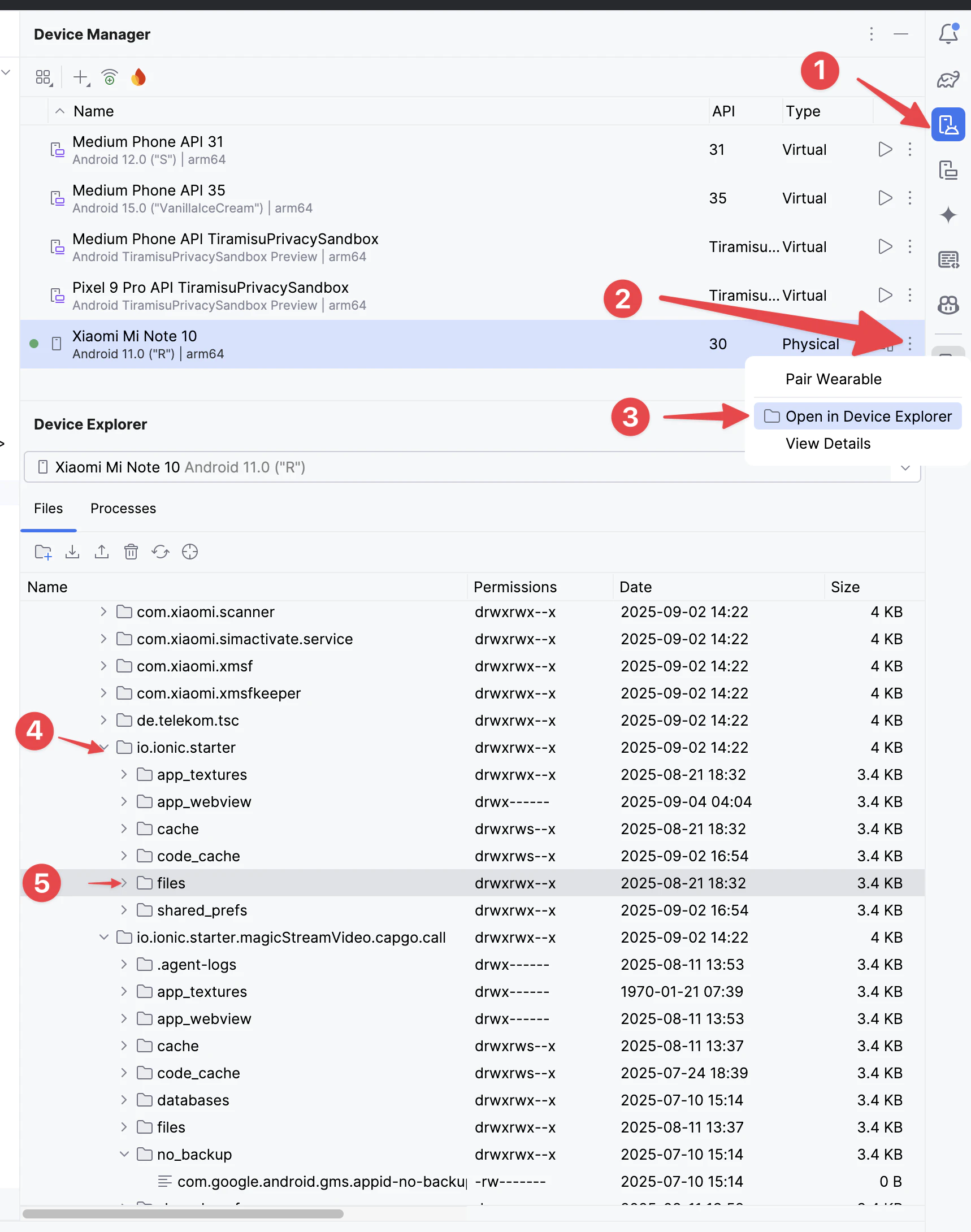
Then Find the versions folder to see all the versions
Understanding ios production crash logs
Section titled “Understanding ios production crash logs”Keep going from Debugging
Section titled “Keep going from Debugging”If you are using Debugging to plan native plugin work, connect it with Using @capgo/capacitor-updater for the native capability in Using @capgo/capacitor-updater, Capgo Plugin Directory for the product workflow in Capgo Plugin Directory, Capacitor Plugins by Capgo for the implementation detail in Capacitor Plugins by Capgo, Adding or Updating Plugins for the implementation detail in Adding or Updating Plugins, and Ionic Enterprise Plugin Alternatives for the product workflow in Ionic Enterprise Plugin Alternatives.