Delta updates
Copy a setup prompt with the install steps and the full markdown guide for this plugin.
Capgo’s Live Update system can deliver updates faster and more efficiently by only sending the changed files, rather than the entire JS bundle.
This is especially beneficial for users on slower or metered network connections, as it minimizes the amount of data that needs to be downloaded.
A second benefit is when the app have large assets who change rarely, like images or videos, compare to zipped JS files it will be downloaded only once.
How Delta Updates Work
Section titled “How Delta Updates Work”Delta updates in Capgo are handled by the Capgo plugin installed in your app. When you upload a new version of your app using the --delta flag, Capgo does the following:
- Each file in your build is uploaded individually as a delta file
- Checksums are generated for each delta file
- The list of delta files, with their paths and checksums, is saved in the Capgo database
When a device running your app checks for an update, the Capgo plugin receives the list of delta files for the new bundle. It compares it to the files it already has, identifying which files have changed based on the checksums and file paths.
The plugin then downloads only the changed files, rather than the entire JS bundle. It reconstructs the new version of the app by combining these downloaded files with the unchanged files it already has.
Which devices get Delta and which get the full zip
Section titled “Which devices get Delta and which get the full zip”A bundle uploaded with --delta has both a full zip and delta files. On a channel with the default Zip + delta download format, each device gets the best package it supports:
- Devices on a plugin version with Delta support (
5.10.0+,6.25.0+,7.0.35+, or8+) download only the changed delta files. - Devices on an older plugin version without Delta support download the full zip.
- Bundles uploaded without
--deltahave no delta files, so every device downloads the full zip.
So it is expected to still see some full zip downloads after you enable Delta. They come from devices still running an older native build with an old plugin version. They go away as users update the app from the store.
You can change this per channel with the Download format setting.
Delta updates and bandwidth usage
Section titled “Delta updates and bandwidth usage”Delta updates also lower your Capgo bandwidth usage. Bandwidth only counts the files a device actually downloads, so with Delta only the changed files count, not the whole bundle. Files or full zips already cached at the edge do not count, and interrupted downloads resume where they stopped without counting the downloaded part twice. See How is bandwidth counted?.
Enabling Delta Updates
Section titled “Enabling Delta Updates”To enable Delta updates for your Capgo app, simply use the --delta flag when uploading a new version:
npx @capgo/cli@latest bundle upload --deltaIf autoUpdate is set to an instant apply mode ("atInstall", "onLaunch", or "always") in your capacitor.config, the CLI detects it. In non-interactive environments it sends Delta updates automatically, and in interactive environments it prompts you to confirm before uploading. Legacy directUpdate config is still detected. Use --no-delta to force a full bundle upload.
Delta update limitations
Section titled “Delta update limitations”- Empty files: The CLI logs
Ignoring empty file...and excludes zero-byte files from the delta files. It does not fail the upload, so adding an empty file can change the resulting bundle without stopping your deployment. Do not include zero-byte files in Delta bundle paths. - Spaces in paths: Delta uploads fail before uploading files when a bundle path contains a space. Rename the file or directory to remove spaces before uploading a Delta update.
Enforcing Delta Updates
Section titled “Enforcing Delta Updates”If you want to ensure that all uploads are Delta updates and prevent any accidental full bundle uploads, you can use the --delta-only flag:
npx @capgo/cli@latest bundle upload --delta-onlyWhen --delta-only is used, Capgo will only upload the delta files, without a full zip. Any device on a plugin version without Delta support will not be able to download the update.
You might want to use --delta-only if:
- You always want to use Delta updates and never want to allow full bundle uploads
- You’re setting up a CI/CD pipeline and want to ensure all automated uploads are Delta
- Your app is large and bandwidth is constrained, so you need to minimize upload/download sizes
If you need to do a full bundle upload while --delta-only is set, simply run the upload command without --delta-only. This will override the setting for that single upload, allowing you to push a complete bundle when needed.
Troubleshooting
Section titled “Troubleshooting”If Delta updates don’t seem to be working (i.e. devices are always downloading the full JS bundle even for small changes), double check that:
- You’re using the
--deltaflag every time you upload a new version - If using
--delta-only, make sure you haven’t accidentally omitted the--deltaflag - Your device is running a plugin version with Delta support (
5.10.0+,6.25.0+,7.0.35+, or8+) - The channel download format is not Full zip only
- Your device has a stable network connection and can reach the Capgo servers
You can also use the Capgo webapp to check the details of your last upload:
- Go to the webapp
- Click on your app
- Click on the bundles number of the stats bar.
- Select the last bundle
- Check the
Delta filesrow. It shows No delta files when the bundle was uploaded as a full zip only.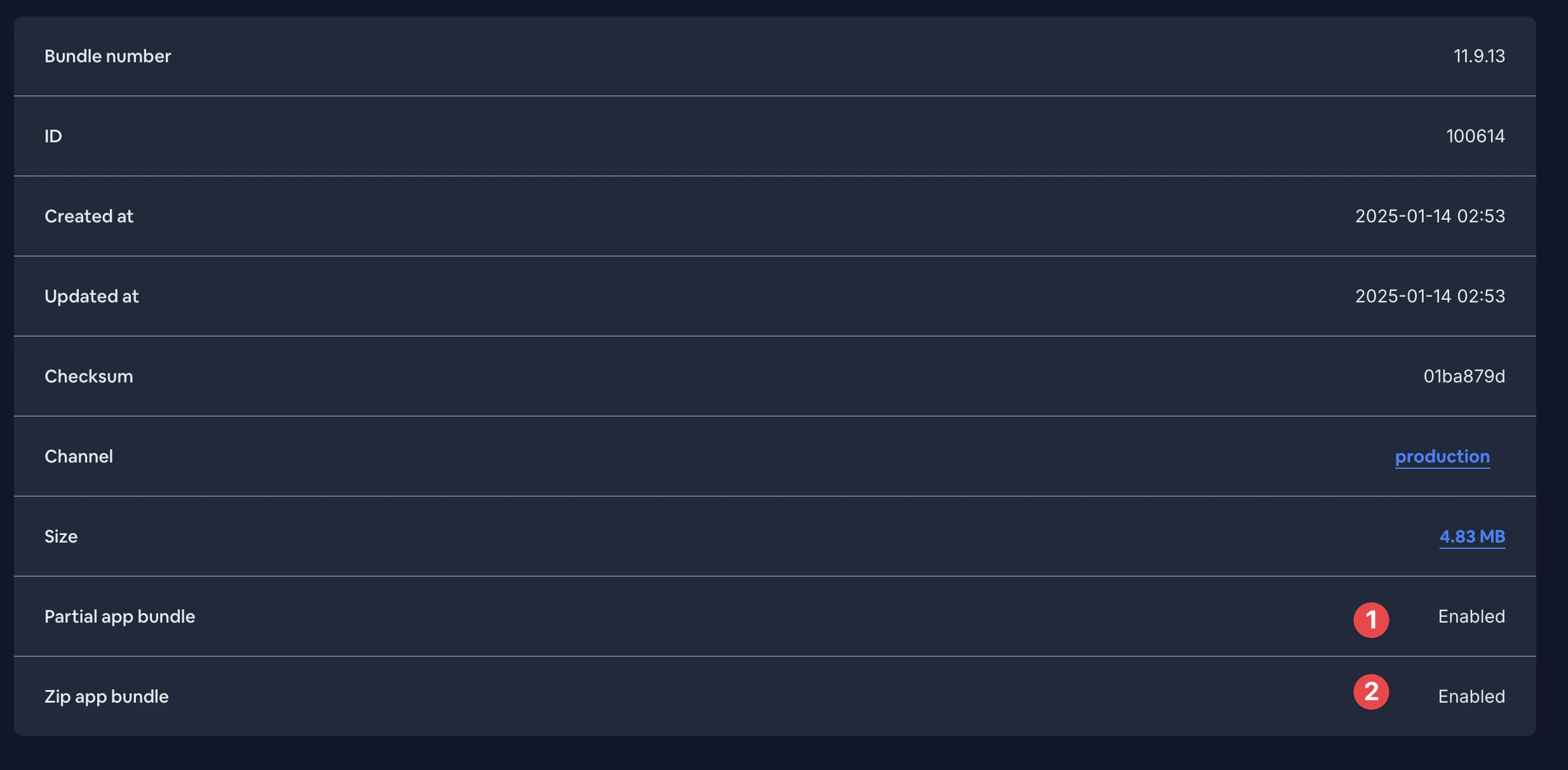
If you continue to have trouble, please reach out to Capgo support for further assistance. They can check the server logs to confirm that your Delta uploads are being processed correctly and that devices are receiving the delta files.
That’s it! The --delta flag tells Capgo to upload the individual delta files needed for Delta updates.
Note that you need to use --delta every time you upload a new version that you want to be delivered as a Delta update. If you omit the flag, Capgo will upload the entire JS bundle as a single file, and devices will download the whole bundle even if only a small part has changed.
Keep going from Delta updates
Section titled “Keep going from Delta updates”If you are using Delta updates to plan live update delivery, connect it with Capgo Live Updates for the product workflow in Capgo Live Updates, Overview for the implementation detail in Overview, Features for the implementation detail in Features, Update Behavior for the implementation detail in Update Behavior, and Update Types for the implementation detail in Update Types.
Ship Capacitor apps without the wait
Build with your AI coding agent, ship fixes in minutes, build iOS and Android without a Mac, and observe every release.


Enterprise needs? Talk to our team