
Firebase Google Login on Web
Copy a setup prompt with the install steps and the full markdown guide for this plugin.
Introduction
Section titled “Introduction”The Capacitor Social Login plugin does not support web platforms. For web applications, you should use Firebase’s built-in Google Sign-In directly, which provides a more reliable popup-based authentication flow.
Why Not Use the Plugin on Web?
Section titled “Why Not Use the Plugin on Web?”The Capacitor Social Login plugin is designed for native mobile platforms (Android and iOS) where it can leverage platform-specific authentication flows. For web, Firebase’s native signInWithPopup method is:
- ✅ More reliable and better supported
- ✅ Handles browser session storage automatically
- ✅ Provides better error handling
- ✅ No additional configuration needed
Setup Steps
Section titled “Setup Steps”-
Configure Firebase Project
Ensure your Firebase project has Google Sign-In enabled:
- Go to Firebase Console
- Navigate to Authentication > Sign-in method
- Enable Google Sign-In provider
-
Add your authorized domains
- Go to your project overview over at console.cloud.google.com
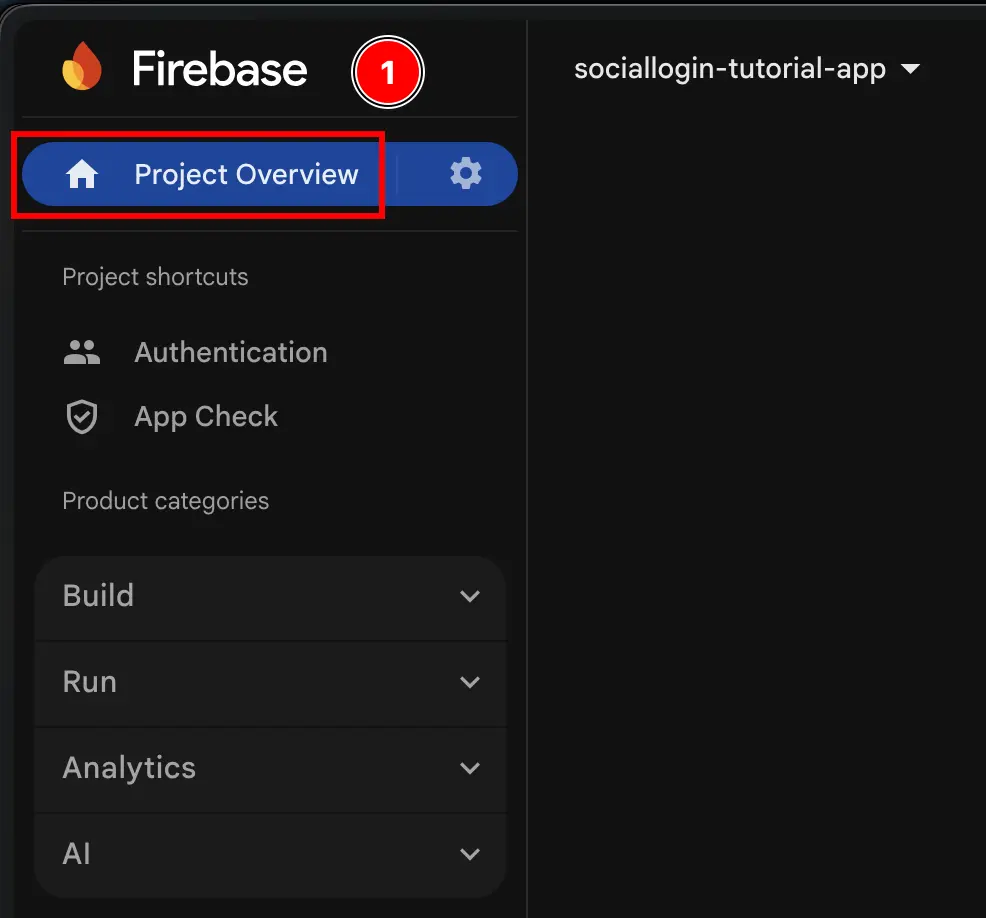
- Open the
Authenticationmenu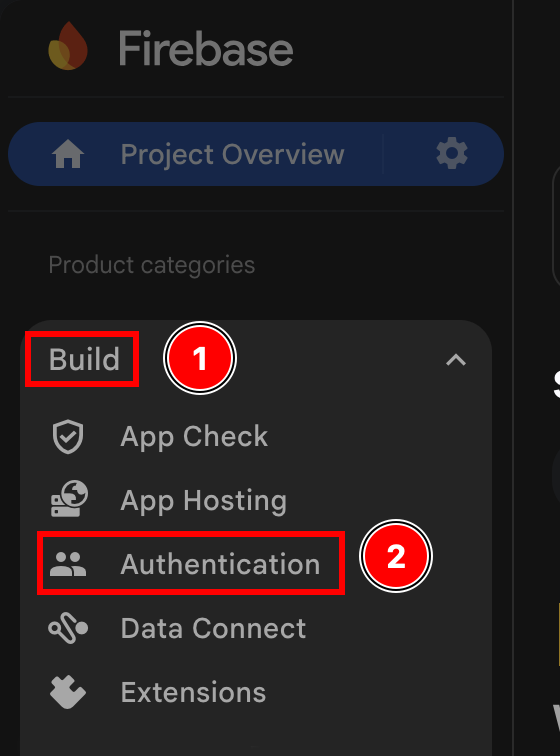
- Click on the
Settingsbutton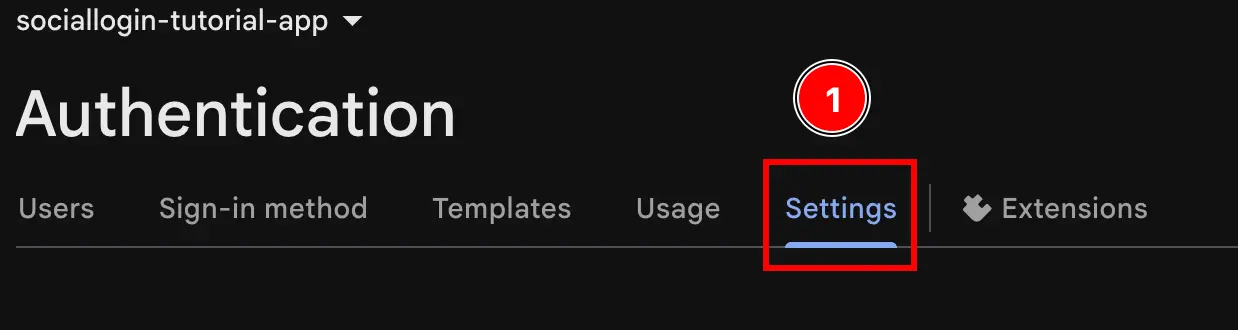
- Setup the
Authorized domains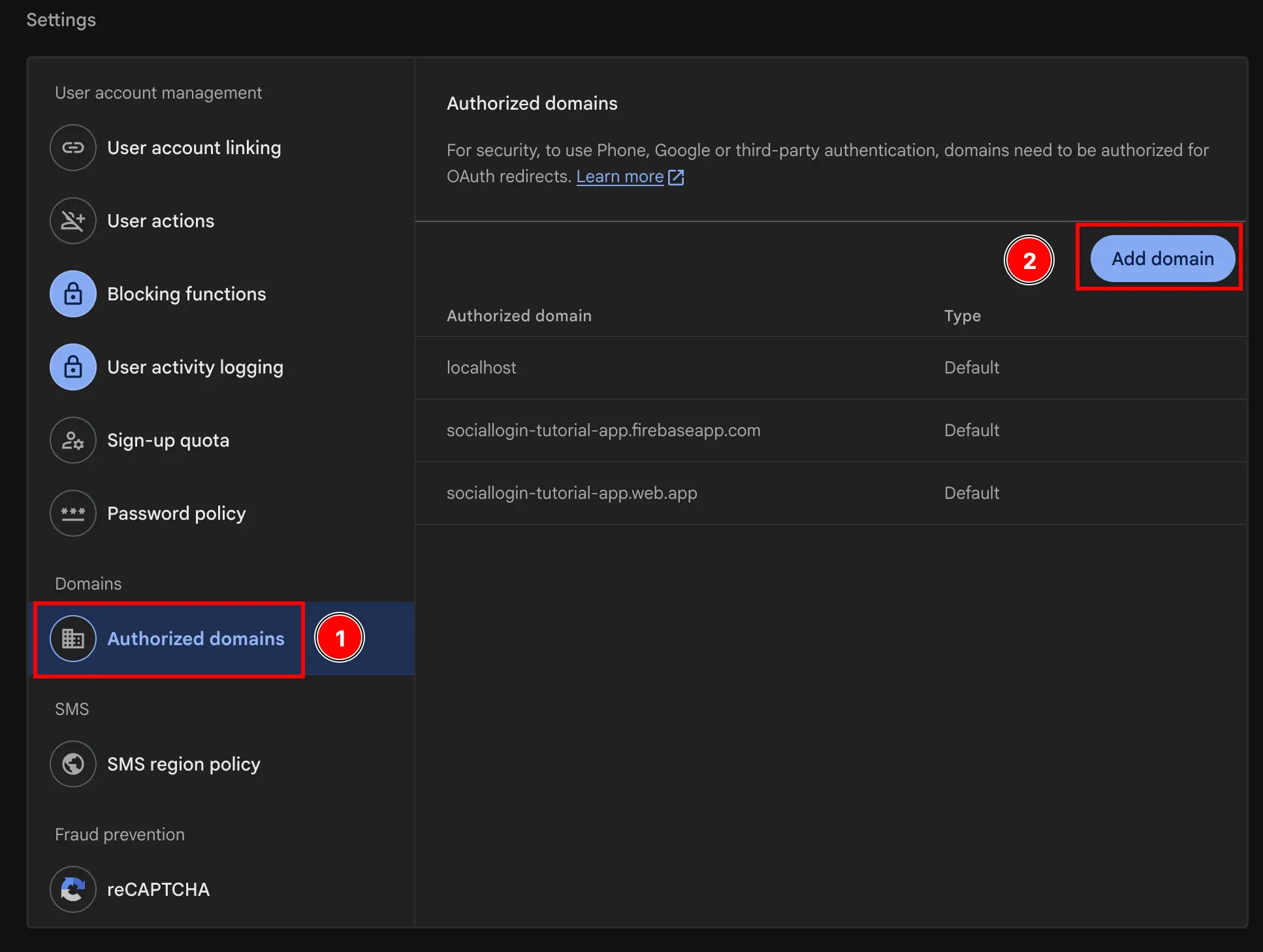
- Go to your project overview over at console.cloud.google.com
Example Implementation
Section titled “Example Implementation”See the authUtils.ts file in the example app for a complete implementation that:
- Uses Firebase’s
signInWithPopupfor web platforms - Uses Capacitor Social Login plugin for Android/iOS platforms
- Handles platform detection automatically
The example shows how to conditionally use Firebase’s built-in method for web while using the plugin for native platforms.
Additional Resources
Section titled “Additional Resources”- Firebase Authentication Documentation - Complete Firebase Auth documentation
- Firebase Google Sign-In for Web - Official Firebase guide for Google Sign-In on web
- Google Login Setup Guide - Guide for configuring authorized domains and OAuth consent screen
Keep going from Firebase Google Login on Web
Section titled “Keep going from Firebase Google Login on Web”If you are using Firebase Google Login on Web to plan authentication and account flows, connect it with Using @capgo/capacitor-social-login for the native capability in Using @capgo/capacitor-social-login, @capgo/capacitor-social-login for the implementation detail in @capgo/capacitor-social-login, @capgo/capacitor-passkey for the implementation detail in @capgo/capacitor-passkey, @capgo/capacitor-native-biometric for the implementation detail in @capgo/capacitor-native-biometric, and Two-factor authentication for the implementation detail in Two-factor authentication.
Ship Capacitor apps without the wait
Build with your AI coding agent, ship fixes in minutes, build iOS and Android without a Mac, and observe every release.


Enterprise needs? Talk to our team