


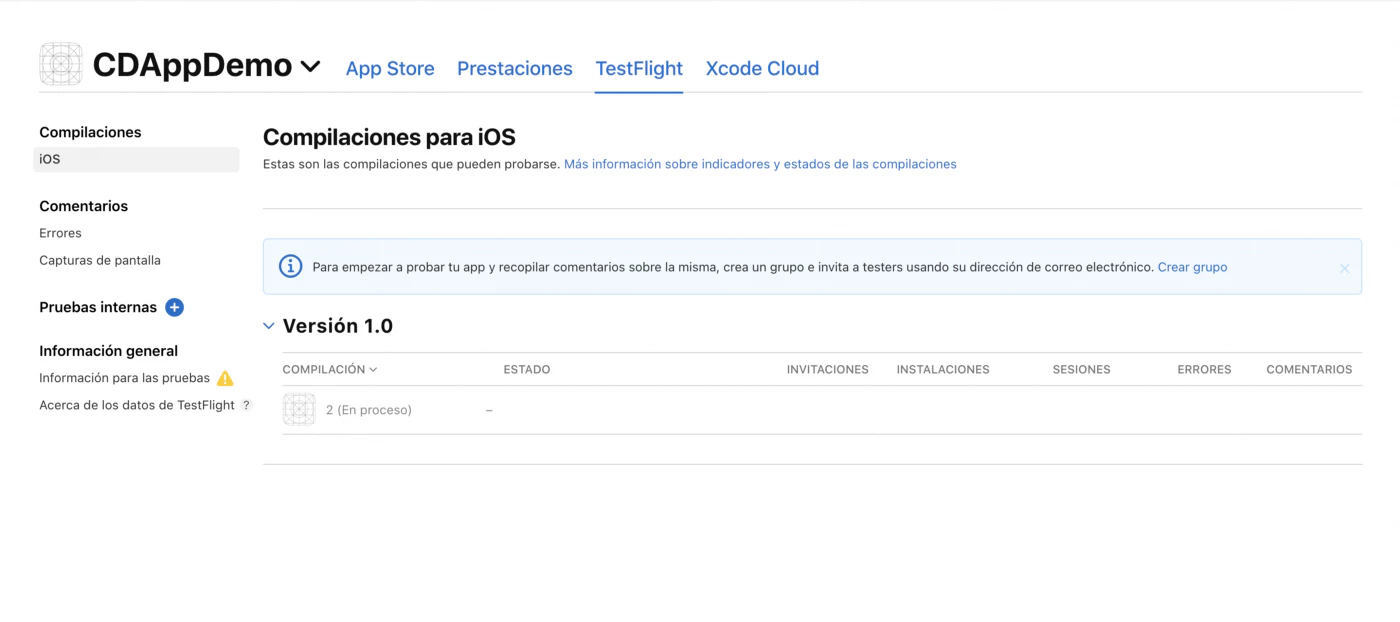
To distribute iOS apps to testers, use TestFlight (internal testers instantly, external testers after a short Beta App Review) or an ad hoc build for registered devices. For Android, use a Google Play testing track (internal, closed or open), Play internal app sharing for one-off links, or share a signed APK through Firebase App Distribution or a direct download. Which one is right depends on who your testers are, how many there are, and whether you need the build to go through store infrastructure.
This guide compares every option, shows how to set each one up for a Capacitor app, and lists the errors testers typically run into.
Choosing a method
| Method | Platform | Max testers | Review before testers get it | Testers need | Best for |
|---|---|---|---|---|---|
| TestFlight internal | iOS | 100 team members | No | App Store Connect user, TestFlight app | Your team |
| TestFlight external | iOS | 10,000 | Beta App Review (first build of a version) | Email invite or public link, TestFlight app | Beta users, clients |
| Ad hoc | iOS | 100 devices per device type per year | No | Registered UDID, Developer Mode | Small QA team, no Apple review |
| Play internal testing | Android | 100 | No full review, usually available in minutes | Google account on email list | Your team |
| Play closed testing | Android | Email lists or Google Groups | Yes | Google account, opt-in link | Beta users, the 12-tester requirement |
| Play open testing | Android | Unlimited or capped | Yes | Opt-in on the listing | Public beta |
| Play internal app sharing | Android | Anyone with the link | No | Google account, setting enabled | Quick QA builds, any version code |
| Firebase App Distribution | Both | Large | No | Email invite; iOS needs registered UDID | Cross-platform QA |
| Direct APK link | Android | Anyone | No | Allow unknown sources | Fast internal tests |
Rules of thumb:
- Same build you will ship to the store? Use TestFlight and Play tracks. The binary testers use is the binary that gets promoted.
- Daily QA builds? Internal testing on both stores, or Firebase App Distribution.
- Need to test a web-layer change in minutes? Ship a live update to a test channel instead of a new binary.
Before you distribute: signing
Every test build must be signed.
- iOS test builds use either an App Store Connect profile (TestFlight) or an Ad Hoc profile (direct install). Both use an Apple Distribution certificate. See iOS certificates and provisioning profiles explained.
- Android builds for Play tracks are AABs signed with your upload key. For direct installs you need an APK signed with any release key. A debug APK also installs, but it behaves differently (debuggable, different signing) and cannot be upgraded by your Play build later.
iOS: TestFlight
Upload a build
From Xcode: Product > Archive, then Distribute App > App Store Connect > Upload. From the command line or CI, export an .ipa and upload with an App Store Connect API key, or let a cloud build service do it.
Since April 2026, uploads must be built with Xcode 26 or later.
Add this key to ios/App/App/Info.plist if your app only uses standard HTTPS encryption, so App Store Connect does not ask the export compliance question for every build:
<key>ITSAppUsesNonExemptEncryption</key>
<false/>
Processing takes from a few minutes to around an hour. You get an email when the build is ready.
Internal testing
- In App Store Connect open your app, TestFlight > Internal Testing, and create a group.
- Add team members. They must have an App Store Connect role (Admin, App Manager, Developer, Marketing…). Up to 100 people.
- Enable automatic distribution so every new build goes to the group.
- Testers install the TestFlight app from the App Store and accept the invite.
No review is needed. This is the fastest path from upload to phone.
External testing
- TestFlight > External Testing > + to create a group.
- Add testers by email, or enable a public link with an optional tester limit.
- Add the build to the group and fill in Test Information (what to test, feedback email, beta app description, and demo login if needed).
- Submit for Beta App Review. The first build of each version is reviewed, usually within a day. Later builds of the same version often go out without full review.
External testing supports up to 10,000 testers. Testers can send screenshots with feedback directly from TestFlight, which you see in App Store Connect.
TestFlight limits to know
- Builds expire after 90 days.
- Testers need iOS versions supported by your build (Capacitor 8 requires iOS 15 or later).
- TestFlight builds use the production App Store signing, so push notifications use the production APNs environment.
- In-app purchases in TestFlight use the sandbox and are not charged.
iOS: ad hoc distribution
Ad hoc builds install directly on devices you registered in the Apple Developer portal, without TestFlight or Apple review.
- Collect each tester’s UDID. Testers can get it on their own phone with the iOS UDID finder, or you can read it from Finder or Xcode when the device is connected.
- Register the devices in Certificates, Identifiers & Profiles > Devices.
- Create an Ad Hoc provisioning profile that includes those devices and download it.
- Build an
.ipawith that profile (Xcode: Distribute App > Release Testing, which is the newer name for Ad Hoc). - Install it:
- Drag the
.ipaonto the device in Finder or Xcode > Window > Devices and Simulators. - Or host it with an
itms-servicesmanifest over HTTPS so testers can tap a link. Services like Firebase App Distribution do this for you.
- Drag the
- On iOS 16 and later, installing the
.ipafrom a Mac (Xcode or Apple Configurator) requires Developer Mode on the device (Settings > Privacy & Security). Installs from anitms-serviceslink don’t need it. See how to enable Developer Mode on iOS.
Adding a new tester means registering their UDID, regenerating the profile and rebuilding. Device slots (100 per device family) only reset when your membership year renews, so do not register devices casually.
Android: Google Play testing tracks
Play Console has three testing tracks plus production. All of them need an AAB signed with your upload key.
Internal testing
- Testing > Internal testing > Testers: create an email list (up to 100 addresses).
- Create new release, upload the AAB, add release notes, save and roll out.
- Copy the opt-in link and send it to testers. They accept and install from the Play Store.
Internal releases are usually available within minutes and do not wait for full review. The first release of a brand new app may take longer while Google processes the app.
Closed testing
Closed tracks are reviewed and support email lists or Google Groups. This is the track you need for the 12 testers for 14 days rule that applies to personal developer accounts created after November 13, 2023, before production access. Using a Google Group makes it easy for testers to join. Details are in how to create Apple and Google Play developer accounts.
Open testing
Anyone can join from your Play listing. Use it for a public beta once your store listing is complete. Feedback from open testers is private and does not affect your public rating.
Our Android beta testing guide compares the tracks in more detail.
Android: Internal app sharing
Internal app sharing is the fastest way to get any APK or AAB on a device through the Play Store, without version code rules and without review.
- In Play Console, open Internal app sharing (under Testing) and add uploaders.
- Upload an APK or AAB. You get a link.
- Testers open the Play Store app, go to settings, tap the Play Store version seven times to reveal developer settings, and turn on Internal app sharing.
- Testers open the link and install.
It is useful for QA of pull request builds because version codes do not need to increase.
Android: direct APK and Firebase App Distribution
Direct APK
Build a signed release APK. A new Capacitor project has no release signing config, so assembleRelease would produce an unsigned APK that won’t install. Add a signingConfigs.release block (keystore path and passwords, usually read from key.properties) to android/app/build.gradle and point buildTypes.release.signingConfig at it first.
bun run build
bunx cap sync android
cd android && ./gradlew assembleRelease
Share android/app/build/outputs/apk/release/app-release.apk through a link. Testers allow their browser or file manager to install unknown apps and open the file. If they already have a Play Store version installed, they must uninstall it first because the signatures differ. You can also install over USB with adb install -r app-release.apk (see how to enable developer options on Android).
From September 30, 2026, certified Android devices in Brazil, Indonesia, Singapore and Thailand only install apps whose package name is registered by a verified developer, with global rollout planned for 2027. If your testers are in those countries, register the package name in the Android Developer Console or Play Console. Installs through adb are not affected.
Firebase App Distribution
Firebase App Distribution works for both platforms, sends email invites, and tracks who installed which build.
bun add -g firebase-tools
firebase login

firebase appdistribution:distribute android/app/build/outputs/apk/release/app-release.apk \
  --app 1:1234567890:android:abc123def456 \
  --groups "qa-team" \
--release-notes "Fix checkout crash"- Android testers install from the email link or the App Tester app.
- iOS testers must still be in an ad hoc (or development) profile. App Distribution collects their UDIDs when they accept the invite, but you register them and rebuild yourself.
- AAB distribution requires linking the Firebase project to Google Play.
Cloud builds that hand testers a link
If you do not want to maintain Macs and signing on every CI runner, Capgo Build builds Capacitor apps in the cloud. For test builds it can skip store submission and upload the binary to a time-limited download link with a QR code:
# Android APK/AAB for testers, no Play upload
bunx @capgo/cli@latest build request com.example.app \
  --platform android --no-playstore-upload --output-upload --output-retention 2d

# iOS ad hoc build (no App Store submission)
bunx @capgo/cli@latest build request com.example.app \
  --platform ios --ios-distribution ad_hoc --output-upload

# iOS build uploaded to TestFlight for external groups
bunx @capgo/cli@latest build request com.example.app \
  --platform ios --ios-testflight-groups "Beta Testers"
Add --output-record build.json and read the link in CI with bunx @capgo/cli@latest build last-output --path build.json --field outputUrl to post it into a pull request or chat. The Capgo Build docs list every option.
Skip rebuilding for web changes
Most changes in a Capacitor app are in the web layer. Rebuilding and redistributing a binary for a text fix wastes a day of TestFlight processing and review. With Capgo live updates, testers keep the build they installed, and you push new JavaScript bundles to a test channel:
bunx @capgo/cli@latest bundle upload --channel betaYou can even give each pull request its own channel and let QA switch between them on the same installed app. See turn every pull request into an installable preview.
Troubleshooting
“Unable to install” on iOS ad hoc. The device UDID is not in the profile, or the profile expired. Check with security cms -D -i profile.mobileprovision.
App opens and immediately closes on iOS. Developer Mode is off (ad hoc/development builds), or the profile expired.
TestFlight build stuck in “Processing”. Wait up to an hour. If it fails, the email lists the reason, often a missing usage description string (NSCameraUsageDescription and similar) or an icon problem.
TestFlight “Missing Compliance”. Answer the export compliance question in App Store Connect or add ITSAppUsesNonExemptEncryption to Info.plist.
Android “App not installed”. A version with a different signature is already installed, or the APK is unsigned or corrupt. Uninstall the existing app.
Tester does not see the app in Play Store after opting in. Wait a few minutes, make sure they are signed in with the invited account, and check that the release is rolled out to the track and their country is available.
“Version code already used” on upload. Bump versionCode in android/app/build.gradle. Internal app sharing is the exception.
Push notifications do not arrive in TestFlight. TestFlight uses the production APNs environment. Check the aps-environment entitlement and your push provider’s environment setting.
Recommended setup for a small team
- TestFlight internal group with automatic distribution, plus a Play internal testing track, for every merge to
main. - A TestFlight external group and a Play closed testing track for beta users, updated weekly.
- Live updates on a
betachannel for web-only fixes between builds. - When the beta is stable, promote the same build to production on both stores and follow the first-time app review guide.





