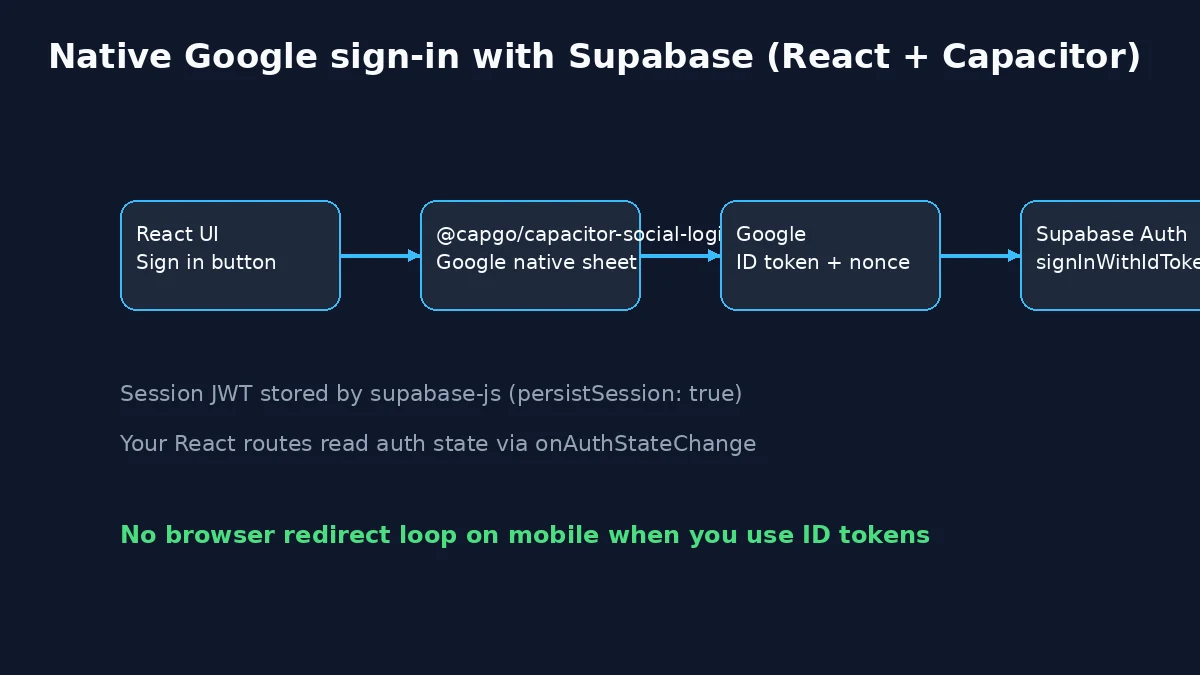
Ship native Google and Apple sign-in in a React app, back it with Supabase Auth, and wrap the same UI in Capacitor without fighting mobile browser redirects. Capgo Social Login (@capgo/capacitor-social-login) handles the native provider sheets; you exchange the provider ID token for a Supabase session with signInWithIdToken.
This article extends our existing Supabase + Social Login guide with a full React + Vite walkthrough (project layout, providers, routes, Capacitor wiring). For provider dashboards and platform keys, keep using the Supabase integration docs and the Google + Supabase general setup. Related posts: Google sign-in with Capacitor, Apple sign-in with Capacitor, and authentication options in Capacitor.
Table of contents
- What you will build
- Overall authentication flow
- Baseline React (Vite) application
- Supabase project and Google provider
- Configure providers in Supabase
- Initialize the Social Login plugin
- Supabase client and React auth layer
- Login UI and protected routes
- Add Capacitor to the React app
- Platform configuration
- Database access with RLS
- Known issues and troubleshooting
- Security considerations
What you will build
- A Vite + React + TypeScript web app with sign-in buttons and a signed-in debug view
- Supabase Auth sessions created from native Google (and optional Apple) ID tokens
- The same bundle running inside Capacitor on iOS and Android
- A nonce-safe Google flow aligned with the plugin example app
Overall authentication flow
With @capgo/capacitor-social-login, the mobile app does not rely on signInWithOAuth redirects inside the WebView. The native SDK returns an ID token; Supabase validates it and issues its own JWT.
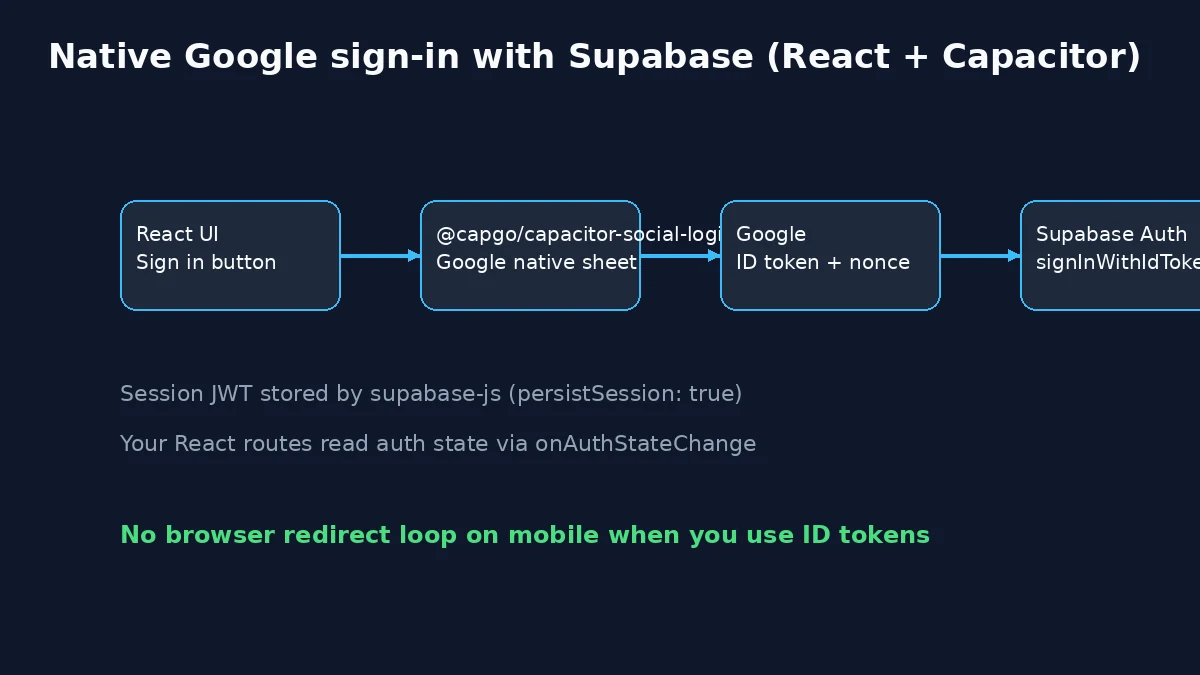
On web, you can still use the same plugin (see Google web setup). Handle any OAuth return URLs in your router if you add a browser fallback later.
Baseline React (Vite) application
Create a fresh app (or reuse an existing React codebase):
bun create vite capgo-supabase-auth --template react-ts
cd capgo-supabase-auth
bun install
bun add @supabase/supabase-js @capgo/capacitor-social-login react-router-dom @capacitor/core
Start the dev server:
bun run dev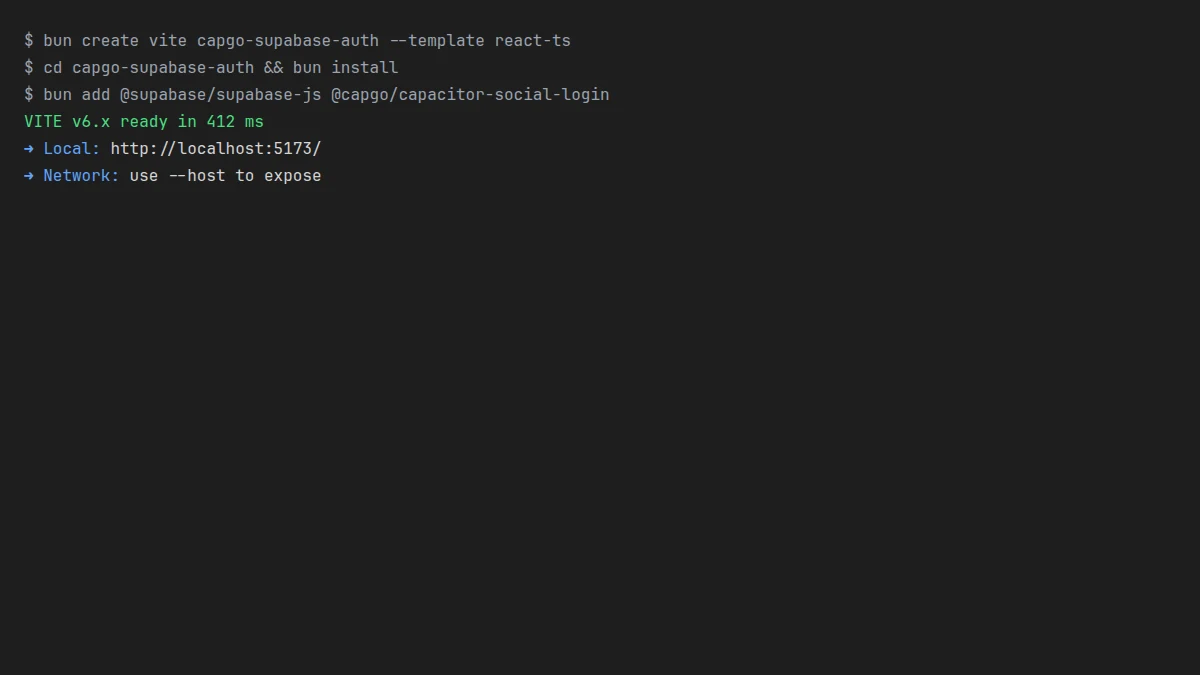
Target folder layout:
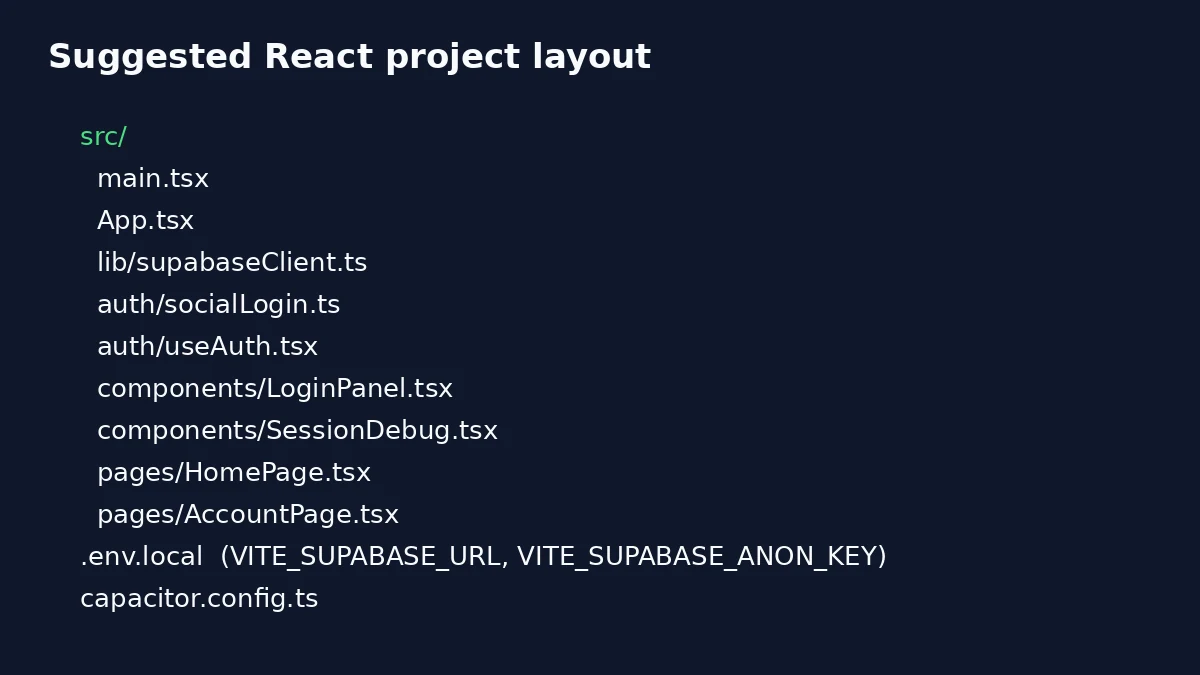
Add environment variables in .env.local (never commit secrets):
VITE_SUPABASE_URL=https://your-project-ref.supabase.co
VITE_SUPABASE_ANON_KEY=your-anon-public-key
VITE_GOOGLE_WEB_CLIENT_ID=your-web-client-id.apps.googleusercontent.com
VITE_GOOGLE_IOS_CLIENT_ID=your-ios-client-id.apps.googleusercontent.com
VITE_APPLE_SERVICE_ID=com.yourapp.signin
VITE_SUPABASE_APPLE_CALLBACK_URL=https://your-project-ref.supabase.co/functions/v1/apple-signin-callback
Why Use Supabase with Social Login?
Supabase provides a robust backend-as-a-service with built-in authentication, while the @capgo/capacitor-social-login plugin offers native social authentication across iOS, Android, and web platforms. For tighter Supabase integration, @capgo/capacitor-supabase adds native auth helpers and JWT access. Together, they provide:
- Seamless social authentication
- Secure token management
- Cross-platform compatibility
- Real-time database integration
- Built-in user management
Prerequisites
Before starting, ensure you have:
- A Capacitor project set up
- A Supabase account and project
- Developer accounts for your chosen social providers (Google, Apple, Facebook)
Step 1: Install and Configure the Social Login Plugin
First, install the Capgo Social Login plugin:
bun add @capgo/capacitor-social-loginRun bunx cap sync after you add Capacitor and native platforms in Add Capacitor to the React app. The Vite-only walkthrough below works in the browser before that step.
See the Social Login and Supabase plugin pages for platform-specific setup.
Step 2: Setup Supabase Project
Create and Configure Your Supabase Project
-
Create a Supabase project:
- Go to supabase.com and sign up/sign in
- Click “New Project”
- Choose your organization
- Enter a Project Name (e.g., “MyApp Auth”)
- Set a Database Password (save this securely)
- Select your Region (choose closest to your users)
- Click “Create new project”
-
Get your project credentials:
- Once created, go to Settings > API
- Copy your Project URL (e.g.,
https://your-project-ref.supabase.co) - Copy your anon public API key
- Save these for later use in your app
Configure Authentication Settings
-
Setup general authentication settings:
- Go to Authentication > Settings
- Under General settings:
- Set Site URL to your app’s URL (e.g.,
https://yourdomain.comorhttp://localhost:3000for development) - Add additional Redirect URLs if needed:
http://localhost:3000
https://yourdomain.com
capacitor://localhost (for mobile apps)
- Set Site URL to your app’s URL (e.g.,
-
Configure email settings (optional but recommended):
- Under SMTP Settings, configure your email provider
- This enables email confirmations and password resets
- For development, you can use the built-in email service
Enable Social Authentication Providers
- Access the providers section:
- Go to Authentication > Providers in your Supabase dashboard
- You’ll see a list of available social providers
- Each provider has an Enable toggle and configuration options
Now let’s configure each social provider in detail:
Step 3: Configure Social Providers in Supabase
Setting up Google Authentication in Supabase
First, get your Google OAuth credentials:
Follow our comprehensive Google setup guide: Google Authentication Setup
This guide covers:
- Creating a Google Cloud Project
- Setting up OAuth 2.0 credentials for web, iOS, and Android
- Configuring the consent screen
- Getting the required Client IDs and secrets
After completing the Google setup, configure it in Supabase:
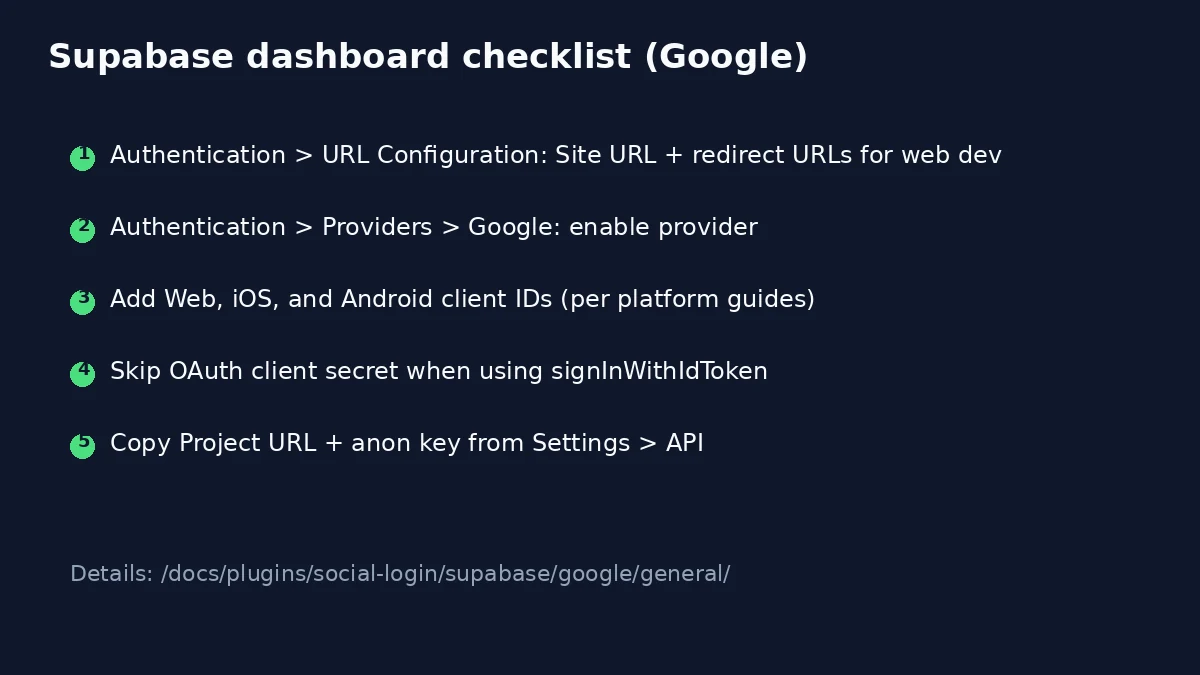
Follow the Supabase + Google general guide for screenshots of each dashboard click.
- Enable Google provider in Supabase:
- In your Supabase dashboard, go to Authentication > Providers
- Find Google and toggle it ON
- Add the Web, iOS, and Android client IDs you created in Google Cloud (skip platforms you do not ship)
- Click Save
Important for this React tutorial: when you use signInWithIdToken with @capgo/capacitor-social-login, you do not need the OAuth client secret or callback URL fields for Google. Register all client IDs Supabase will accept when validating tokens from each platform.
Setting up Apple Authentication in Supabase
Get Apple credentials:
Follow our detailed Apple setup guide: Apple Authentication Setup
This guide covers:
- Setting up your Apple Developer account
- Creating App IDs and Service IDs
- Configuring Sign in with Apple capability
- Generating the required private keys
- Platform-specific setup for iOS, Android, and Web
After completing the Apple setup, configure it in Supabase:
- Enable Apple provider in Supabase:
- Go to Authentication > Providers and toggle Apple ON
- Fill in the configuration:
- Client ID: Your iOS App ID and Apple Service ID when you ship both platforms, comma separated (for example
com.yourapp,com.yourapp.signin). iOS tokens use the App ID audience; Android and web use the Service ID. See Supabase Apple general. - For this tutorial’s
signInWithIdTokenflow with@capgo/capacitor-social-login, you do not need an OAuth client secret or Supabase OAuth callback URL in the Apple provider form.
- Client ID: Your iOS App ID and Apple Service ID when you ship both platforms, comma separated (for example
- Click Save
Note: Apple authentication setup is the most complex due to Apple’s requirements for Service IDs, private keys, and platform-specific redirect URLs. Follow our documentation carefully for each platform.
Setting up Facebook Authentication in Supabase
Get Facebook credentials:
Follow our complete Facebook setup guide: Facebook Authentication Setup
This guide covers:
- Creating a Facebook Developer account and app
- Adding the Facebook Login product
- Configuring OAuth redirect URIs
- Getting your App ID, App Secret, and Client Token
- Platform-specific configuration for iOS and Android
After completing the Facebook setup, configure it in Supabase:
- Enable Facebook provider in Supabase:
- Go to Authentication > Providers and toggle Facebook ON
- Fill in the configuration:
- Client ID: Your Facebook App ID
- Client Secret: Your Facebook App Secret
- Redirect URL:
https://your-project-ref.supabase.co/auth/v1/callback(auto-filled)
- Click “Save”
Important: Make sure to add the Supabase callback URL (https://your-project-ref.supabase.co/auth/v1/callback) to your Facebook app’s Valid OAuth Redirect URIs in the Facebook Login settings.
Important Supabase Configuration Notes
Row Level Security (RLS):
- After setting up authentication, enable RLS on your tables
- Go to Database > Tables and toggle Enable RLS for each table
- Create policies to control data access based on authenticated users
User Management:
- View authenticated users in Authentication > Users
- Monitor authentication events in Authentication > Logs
- Set up email templates in Authentication > Email Templates
Testing the Configuration:
- Use Supabase’s built-in authentication test tool
- Go to Authentication > Users and click “Invite user” to test email flows
- Check the Logs section for any authentication errors
Step 4: Configure the Social Login Plugin
Now that Supabase is configured, you need to set up the Social Login plugin with the corresponding credentials. Important: The plugin needs the OAuth credentials from the original providers (not from Supabase), while Supabase handles the server-side authentication.
How the Authentication Flow Works
Before diving into configuration, understand the flow:
- Plugin authenticates with the social provider (Google/Apple/Facebook) natively
- Plugin receives tokens (access token, ID token) from the provider
- Your app sends these tokens to Supabase using
signInWithIdToken() - Supabase validates the tokens with the provider and creates a user session
- Supabase returns its own JWT token for your app’s authenticated requests
Google Plugin Configuration
The plugin needs your Web Client ID for all platforms and optionally an iOS Client ID for iOS-specific features:
import { SocialLogin } from '@capgo/capacitor-social-login';

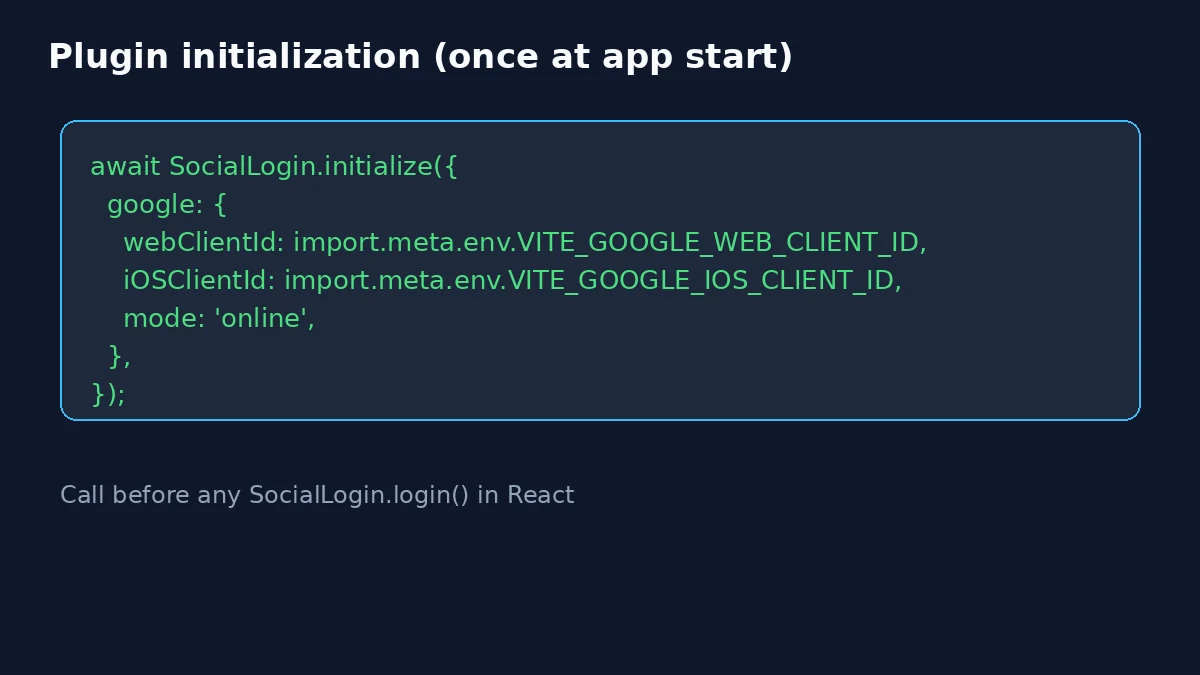
await SocialLogin.initialize({
  google: {
    // Use the same Web Client ID you configured in Supabase
    webClientId: 'YOUR_WEB_CLIENT_ID.apps.googleusercontent.com',

    // Optional: iOS Client ID for iOS-specific features
    iOSClientId: 'YOUR_IOS_CLIENT_ID.apps.googleusercontent.com',

    // Use online mode so the plugin returns an idToken for Supabase
    mode: 'online'
  }
});
Key points for Google:
- Use the Web Client ID (not Android/iOS client IDs) for the
webClientIdfield - The plugin will work on all platforms with just the Web Client ID
- The
iOSClientIdis optional and only used for iOS-specific Google features
Apple Plugin Configuration
Apple configuration differs between iOS and Android:
For iOS (native Apple Sign-In):
await SocialLogin.initialize({
  apple: {
    // No additional configuration needed for iOS
    // The plugin uses the native Apple Sign-In capability
  }
});
For Android/Web (requires Service ID). Use the same redirect rules as buildApplePluginConfig() in the React walkthrough:
import { Capacitor } from '@capacitor/core';

const platform = Capacitor.getPlatform();

await SocialLogin.initialize({
  apple:
    platform === 'android'
      ? {
          clientId: 'YOUR_SERVICE_ID',
          redirectUrl:
            'https://your-project-ref.supabase.co/functions/v1/apple-signin-callback',
        }
      : {
          clientId: 'YOUR_SERVICE_ID',
          redirectUrl: window.location.href,
        },
});
Key points for Apple:
- iOS uses native Sign in with Apple (no extra config needed)
- Android uses your Service ID and the Supabase
apple-signin-callbackEdge Function URL - Web uses your Service ID and
window.location.href, which must match Apple Return URLs
Facebook Plugin Configuration
Facebook requires your App ID and Client Token:
await SocialLogin.initialize({
  facebook: {
    appId: 'YOUR_FACEBOOK_APP_ID',        // From Facebook Developer Dashboard
    clientToken: 'YOUR_FACEBOOK_CLIENT_TOKEN', // From Facebook Developer Dashboard

    // Optional: Use Facebook Limited Login (for enhanced privacy)
    limitedLogin: false // See our Facebook setup guide for important Limited Login details
  }
});
Key points for Facebook:
- Use the same App ID you configured in Supabase
- Client Token is found in your Facebook App’s Basic Settings
limitedLogin: trueenables Facebook’s privacy-focused Limited Login feature (iOS only)- Important: See our Facebook setup guide for detailed Limited Login information, including ATT considerations
Complete Plugin Initialization
Here’s how to initialize all providers together:
import { SocialLogin } from '@capgo/capacitor-social-login';

export async function initializeSocialLogin() {
  await SocialLogin.initialize({
    google: {
      webClientId: 'YOUR_WEB_CLIENT_ID.apps.googleusercontent.com',
      mode: 'online'
    },
    facebook: {
      appId: 'YOUR_FACEBOOK_APP_ID',
      clientToken: 'YOUR_FACEBOOK_CLIENT_TOKEN',
    },
    apple: {
      // Prefer buildApplePluginConfig() from the React walkthrough.
      // Android: redirectUrl = Supabase apple-signin-callback Edge Function
      // Web: redirectUrl = window.location.href
    }
  });
}
Important Notes:
- Call
initialize()once when your app starts, not before each login - You only need to configure the providers you plan to use
- The credentials here are from the original providers, not from Supabase
- Make sure the provider credentials match what you configured in Supabase
React Supabase client and auth layer
Install the Supabase client if you have not already:
bun add @supabase/supabase-jsCreate a single client for the whole React tree:
// src/lib/supabaseClient.ts
import { createClient } from '@supabase/supabase-js';

const supabaseUrl = import.meta.env.VITE_SUPABASE_URL;
const supabaseAnonKey = import.meta.env.VITE_SUPABASE_ANON_KEY;

export const supabase = createClient(supabaseUrl, supabaseAnonKey, {
  auth: {
    autoRefreshToken: true,
    persistSession: true,
    detectSessionInUrl: false,
  },
});
Nonce helpers for Google + Supabase
Supabase expects a raw nonce in signInWithIdToken and a SHA-256 digest passed to Google. The Supabase Google guide documents the full flow. Minimal helpers:
// src/auth/nonce.ts
export function getUrlSafeNonce(): string {
  const array = new Uint8Array(32);
  crypto.getRandomValues(array);
  return Array.from(array, (byte) => byte.toString(16).padStart(2, '0')).join('');
}

export async function sha256Hex(message: string): Promise<string> {
  const data = new TextEncoder().encode(message);
  const hashBuffer = await crypto.subtle.digest('SHA-256', data);
  return Array.from(new Uint8Array(hashBuffer), (b) => b.toString(16).padStart(2, '0')).join('');
}

export async function createGoogleNoncePair(): Promise<{ rawNonce: string; nonceDigest: string }> {
  const rawNonce = getUrlSafeNonce();
  const nonceDigest = await sha256Hex(rawNonce);
  return { rawNonce, nonceDigest };
}
Wire Social Login + Supabase in one module (pattern from the example supabaseAuthUtils.ts):
// src/auth/socialLogin.ts
import { Capacitor } from '@capacitor/core';
import { SocialLogin } from '@capgo/capacitor-social-login';
import { supabase } from '../lib/supabaseClient';
import { createGoogleNoncePair } from './nonce';

export function isAppleLoginConfigured(): boolean {
  const platform = Capacitor.getPlatform();
  if (platform === 'ios') return true;
  const serviceId = import.meta.env.VITE_APPLE_SERVICE_ID;
  if (!serviceId) return false;
  if (platform === 'android') {
    return Boolean(import.meta.env.VITE_SUPABASE_APPLE_CALLBACK_URL);
  }
  if (platform === 'web') return true;
  return false;
}

function buildApplePluginConfig() {
  const platform = Capacitor.getPlatform();

  if (platform === 'ios') {
    return {};
  }

  if (platform === 'android') {
    return {
      clientId: import.meta.env.VITE_APPLE_SERVICE_ID,
      redirectUrl: import.meta.env.VITE_SUPABASE_APPLE_CALLBACK_URL,
    };
  }

  if (platform === 'web') {
    return {
      clientId: import.meta.env.VITE_APPLE_SERVICE_ID,
      redirectUrl: window.location.href,
    };
  }

  return {};
}

function isGoogleNonceMismatch(error: { message?: string }): boolean {
  return (error.message ?? '').toLowerCase().includes('nonce');
}

let initialization: Promise<void> | null = null;

export function ensureSocialLoginInitialized(): Promise<void> {
  if (!initialization) {
    const initOptions: Parameters<typeof SocialLogin.initialize>[0] = {
      google: {
        webClientId: import.meta.env.VITE_GOOGLE_WEB_CLIENT_ID,
        iOSClientId: import.meta.env.VITE_GOOGLE_IOS_CLIENT_ID,
        mode: 'online',
      },
    };

    if (isAppleLoginConfigured()) {
      initOptions.apple = buildApplePluginConfig();
    }

    initialization = SocialLogin.initialize(initOptions).catch((error) => {
      initialization = null;
      throw error;
    });
  }
  return initialization;
}

async function signInWithGoogleSupabaseOnce(allowNonceRetry: boolean) {
  await ensureSocialLoginInitialized();
  const { rawNonce, nonceDigest } = await createGoogleNoncePair();

  const result = await SocialLogin.login({
    provider: 'google',
    options: {
      scopes: ['email', 'profile'],
      nonce: nonceDigest,
    },
  });

  const googleResult = result.result;
  if (!googleResult || googleResult.responseType !== 'online' || !googleResult.idToken) {
    throw new Error('Google login did not return an ID token');
  }

  const { data, error } = await supabase.auth.signInWithIdToken({
    provider: 'google',
    token: googleResult.idToken,
    nonce: rawNonce,
  });

  if (error) {
    if (allowNonceRetry && isGoogleNonceMismatch(error)) {
      await SocialLogin.logout({ provider: 'google' });
      return signInWithGoogleSupabaseOnce(false);
    }
    throw error;
  }

  return data;
}

export async function signInWithGoogleSupabase() {
  return signInWithGoogleSupabaseOnce(true);
}

export async function signInWithAppleSupabase() {
  if (!isAppleLoginConfigured()) {
    throw new Error('Apple sign-in is not configured for this platform');
  }
  await ensureSocialLoginInitialized();
  const result = await SocialLogin.login({
    provider: 'apple',
    options: { scopes: ['email', 'name'] },
  });

  const appleIdToken = result.result?.idToken;
  if (!appleIdToken) throw new Error('Apple login did not return an idToken');

  const { data, error } = await supabase.auth.signInWithIdToken({
    provider: 'apple',
    token: appleIdToken,
  });

  if (error) throw error;
  return data;
}

export async function signOutEverywhere() {
  await supabase.auth.signOut();
  await Promise.all([
    SocialLogin.logout({ provider: 'google' }),
    SocialLogin.logout({ provider: 'apple' }),
  ]);
}
Apple initialize by platform (see Supabase Apple general, Android, Web):
- iOS:
buildApplePluginConfig()returns{}. Native Sign in with Apple uses your bundle ID. NoredirectUrl. - Android:
clientIdis your Apple Service ID.redirectUrlis your Supabase Edge Function (apple-signin-callback). Deploy the function, set Apple Return URL to that endpoint, and add the app deep link intent filter so the flow can return to the WebView (Android Supabase Apple guide). - Web:
clientIdis your Service ID.redirectUrliswindow.location.href, which must match a Return URL in Apple Developer Portal (Web Supabase Apple guide).
ensureSocialLoginInitialized() adds the apple provider only when isAppleLoginConfigured() is true, so a Google-only setup does not pass empty Android or web Apple credentials.
The plugin returns result.idToken on all platforms (AppleProviderResponse in @capgo/capacitor-social-login). Register both iOS App ID and Service ID in Supabase when you ship multiple platforms.
Expose session state to components:
// src/auth/useAuth.tsx
import {
  createContext,
  useCallback,
  useContext,
  useEffect,
  useMemo,
  useState,
  type ReactNode,
} from 'react';
import type { Session } from '@supabase/supabase-js';
import { supabase } from '../lib/supabaseClient';
import { ensureSocialLoginInitialized } from './socialLogin';

type AuthContextValue = {
  session: Session | null;
  loading: boolean;
  initError: string | null;
  clearInitError: () => void;
};

const AuthContext = createContext<AuthContextValue | null>(null);

export function AuthProvider({ children }: { children: ReactNode }) {
  const [session, setSession] = useState<Session | null>(null);
  const [loading, setLoading] = useState(true);
  const [initError, setInitError] = useState<string | null>(null);

  useEffect(() => {
    void ensureSocialLoginInitialized()
      .then(() => setInitError(null))
      .catch((error) => {
        setInitError(error instanceof Error ? error.message : 'Social login failed to initialize');
      });
    supabase.auth.getSession().then(({ data }) => {
      setSession(data.session);
      setLoading(false);
    });
    const { data: subscription } = supabase.auth.onAuthStateChange((_event, nextSession) => {
      setSession(nextSession);
    });
    return () => subscription.subscription.unsubscribe();
  }, []);

  const clearInitError = useCallback(() => setInitError(null), []);

  const value = useMemo(
    () => ({ session, loading, initError, clearInitError }),
    [session, loading, initError, clearInitError],
  );

  return <AuthContext.Provider value={value}>{children}</AuthContext.Provider>;
}

export function useAuth() {
  const ctx = useContext(AuthContext);
  if (!ctx) throw new Error('useAuth must be used inside AuthProvider');
  return ctx;
}
React login UI and protected routes
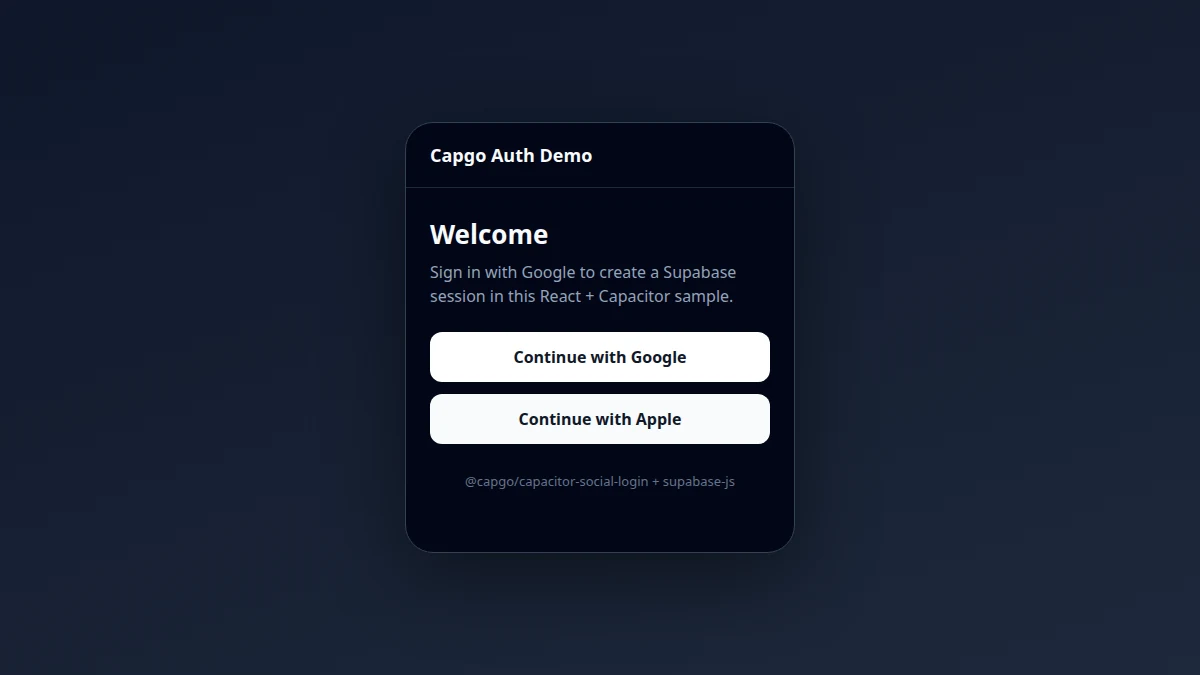
Login panel:
// src/components/LoginPanel.tsx
import { useState } from 'react';
import {
  isAppleLoginConfigured,
  signInWithAppleSupabase,
  signInWithGoogleSupabase,
} from '../auth/socialLogin';
import { useAuth } from '../auth/useAuth';

export function LoginPanel() {
  const { initError, clearInitError } = useAuth();
  const [error, setError] = useState<string | null>(null);
  const [busy, setBusy] = useState(false);
  const showApple = isAppleLoginConfigured();

  const run = async (action: () => Promise<unknown>) => {
    setBusy(true);
    setError(null);
    try {
      await action();
      clearInitError();
    } catch (e) {
      setError(e instanceof Error ? e.message : 'Sign-in failed');
    } finally {
      setBusy(false);
    }
  };

  return (
    <div>
      <button type="button" disabled={busy} onClick={() => run(signInWithGoogleSupabase)}>
        Continue with Google
      </button>
      {showApple ? (
        <button type="button" disabled={busy} onClick={() => run(signInWithAppleSupabase)}>
          Continue with Apple
        </button>
      ) : null}
      {initError ? <p role="alert">{initError}</p> : null}
      {error ? <p role="alert">{error}</p> : null}
    </div>
  );
}
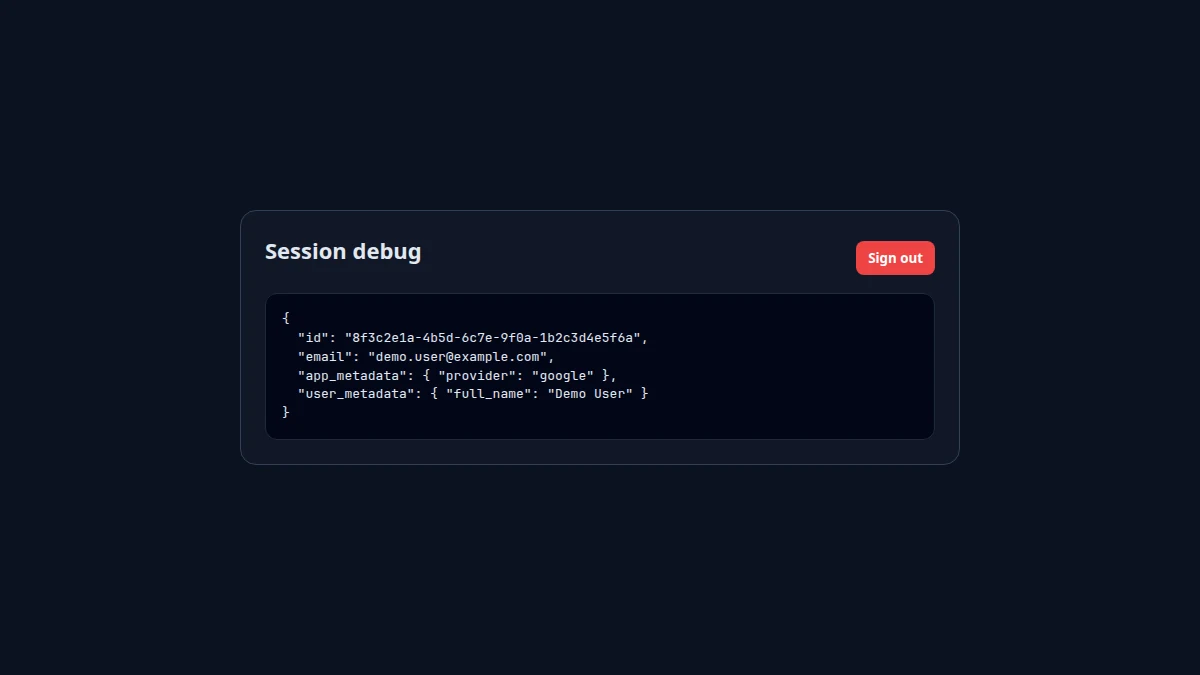
Session debug view (replace with your real account UI later):
// src/components/SessionDebug.tsx
import { useEffect, useState } from 'react';
import type { User } from '@supabase/supabase-js';
import { supabase } from '../lib/supabaseClient';
import { signOutEverywhere } from '../auth/socialLogin';

export function SessionDebug() {
  const [user, setUser] = useState<User | null>(null);

  useEffect(() => {
    supabase.auth.getUser().then(({ data }) => setUser(data.user));
  }, []);

  return (
    <div>
      <button type="button" onClick={() => signOutEverywhere()}>Sign out</button>
      <pre>{JSON.stringify(user, null, 2)}</pre>
    </div>
  );
}
Routes with react-router-dom:
// src/App.tsx
import { BrowserRouter, Navigate, Route, Routes } from 'react-router-dom';
import { AuthProvider, useAuth } from './auth/useAuth';
import { LoginPanel } from './components/LoginPanel';
import { SessionDebug } from './components/SessionDebug';

function HomePage() {
  const { session, loading } = useAuth();
  if (loading) return <p>Loading…</p>;
  if (session) return <Navigate to="/account" replace />;
  return <LoginPanel />;
}

function AccountPage() {
  const { session, loading } = useAuth();
  if (loading) return <p>Loading…</p>;
  if (!session) return <Navigate to="/" replace />;
  return <SessionDebug />;
}

export default function App() {
  return (
    <AuthProvider>
      <BrowserRouter>
        <Routes>
          <Route path="/" element={<HomePage />} />
          <Route path="/account" element={<AccountPage />} />
        </Routes>
      </BrowserRouter>
    </AuthProvider>
  );
}
Mount the app in main.tsx as usual. After a successful provider login, onAuthStateChange updates session and React Router sends the user to /account.
Optional: Facebook
Facebook follows the same signInWithIdToken pattern with the access token from the plugin. See Facebook setup and the provider block in Step 4.
Add Capacitor to the React app
Build the web bundle, then add native projects:
bun run build
bun add @capacitor/core @capacitor/cli @capacitor/ios @capacitor/android
bunx cap init "Capgo Auth Demo" com.example.authdemo --web-dir dist
bunx cap add ios
bunx cap add android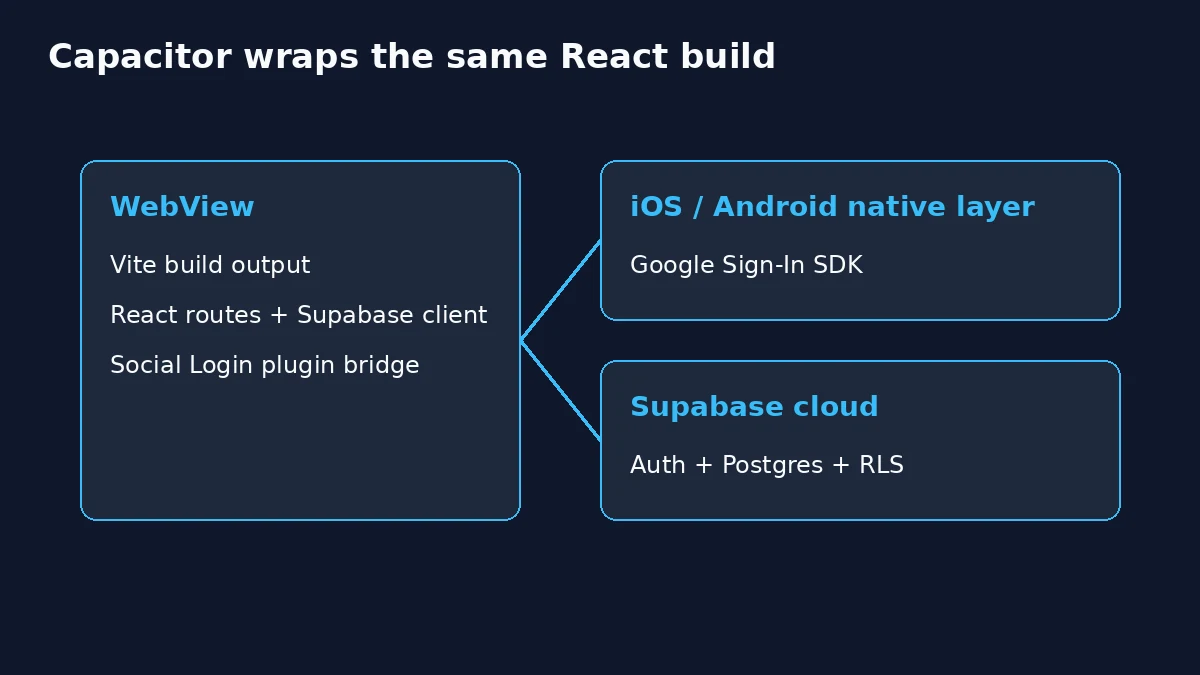
Sync after each web build:
bun run build
bunx cap sync
Open the native IDE when you are ready to test on devices:
bunx cap open ios
bunx cap open android
Complete Google and Apple platform steps before testing on hardware:
Deep links and Universal Links
Tutorials that call supabase.auth.signInWithOAuth inside a WebView often need Universal Links or App Links so the OS returns control to the app after Google redirects. Native Google sign-in with an ID token avoids that redirect loop because the plugin never opens a browser OAuth round trip. Apple on Android is different: it still uses the Edge Function redirect and an app deep link intent filter so the WebView can resume after Apple login.
You may still configure deep links for other features (password reset emails, magic links, marketing URLs). Add the same paths to Authentication > URL Configuration in Supabase and to your apple-app-site-association / Android intent filters when you add those flows.
Step 8: Platform-Specific Configuration
iOS Configuration
For detailed iOS setup instructions, see our platform-specific guides:
- Google iOS Setup - URL schemes, Info.plist configuration
- Apple iOS Setup - Sign in with Apple capability setup
- Facebook iOS Setup (in general Facebook guide) - Facebook SDK configuration
Quick summary - Add to ios/App/App/Info.plist:
<!-- Google Sign-In URL scheme -->
<key>CFBundleURLTypes</key>
<array>
  <dict>
    <key>CFBundleURLSchemes</key>
    <array>
      <string>YOUR_REVERSED_CLIENT_ID</string>
    </array>
  </dict>
</array>

<!-- Apple Sign-In capability -->
<key>com.apple.developer.applesignin</key>
<array>
  <string>Default</string>
</array>
Follow the linked guides for complete iOS setup instructions including Xcode project configuration.
Android Configuration
For detailed Android setup instructions, see our platform-specific guides:
- Google Android Setup - SHA-1 fingerprints, Google Play Services configuration
- Apple Android Setup - Service ID configuration for Android
- Facebook Android Setup (in general Facebook guide) - Facebook SDK integration
Essential Android setup:
1. Get your SHA-1 fingerprint (required for Google):
# For debug builds (development)
cd android
./gradlew signingReport

# Look for the SHA1 fingerprint under "Variant: debug"
# Add this SHA1 to your Google Cloud Console Android OAuth client
2. Configure AndroidManifest.xml - Add to android/app/src/main/AndroidManifest.xml:
<!-- Internet permission -->
<uses-permission android:name="android.permission.INTERNET" />

<!-- Facebook configuration -->
<meta-data
  android:name="com.facebook.sdk.ApplicationId"
  android:value="@string/facebook_app_id"/>
<meta-data
  android:name="com.facebook.sdk.ClientToken"
  android:value="@string/facebook_client_token"/>
3. Add Facebook resources to android/app/src/main/res/values/strings.xml:
<string name="facebook_app_id">YOUR_FACEBOOK_APP_ID</string>
<string name="facebook_client_token">YOUR_FACEBOOK_CLIENT_TOKEN</string>
Follow the linked platform guides for complete Android configuration including Google Play Services setup and package name configuration.
Step 9: Using Supabase Database with Authenticated Users
Once users are authenticated, you can use Supabase’s database with Row Level Security (RLS):
// Example: Fetch user profile
async function getUserProfile() {
  const { data: user } = await supabase.auth.getUser();

  if (user) {
    const { data, error } = await supabase
      .from('profiles')
      .select('*')
      .eq('id', user.user.id)
      .single();

    return data;
  }
}

// Example: Update user profile
async function updateUserProfile(updates: any) {
  const { data: user } = await supabase.auth.getUser();

  if (user) {
    const { data, error } = await supabase
      .from('profiles')
      .update(updates)
      .eq('id', user.user.id);

    return data;
  }
}
Important Security Considerations
- Never expose sensitive keys in your client code
- Use environment variables for configuration
- Enable Row Level Security in Supabase
- Validate tokens on your backend if needed
- Handle token refresh automatically with Supabase
Known issues and troubleshooting
Nonce mismatch on Google (especially iOS)
If Supabase returns a nonce error, Google may have returned a cached ID token. Log out from Google through the plugin, retry once, and confirm you pass nonceDigest to SocialLogin.login and rawNonce to signInWithIdToken. The example app retries after SocialLogin.logout.
Token audience errors
Register every Google client ID (web, iOS, Android) in the Supabase Google provider. The aud claim in the ID token must match one of them.
OAuth redirect tutorials vs this guide
Blog posts that use signInWithOAuth in a WebView can fail on mobile when the redirect opens Safari instead of your app. Prefer native login + signInWithIdToken for Capacitor, or follow Social Login web setup for browser redirects.
Platform-specific checks
- iOS: bundle ID and URL schemes from Google iOS setup
- Android: SHA-1 fingerprints in Google Android setup
- See plugin troubleshooting for consolidated fixes
Token mismatch and network errors
- Align provider credentials between Google Cloud, Supabase, and
SocialLogin.initialize - Surface loading and error states in React (see
LoginPanelabove)
Conclusion
You now have a complete authentication system combining Supabase’s robust backend with native social login capabilities. This setup provides:
- Secure, native social authentication
- Seamless token management
- Real-time database integration
- Cross-platform compatibility
The combination of Supabase and the Capgo Social Login plugin offers a powerful, scalable authentication solution for your Capacitor apps.
For more advanced features like multi-factor authentication or custom claims, check out the Supabase documentation and the Social Login plugin documentation.
Keep going from Setup Supabase Authentication with Capacitor Social Login Plugin
If you are using Setup Supabase Authentication with Capacitor Social Login Plugin to plan authentication and account flows, connect it with @capgo/capacitor-social-login for the implementation detail in @capgo/capacitor-social-login, @capgo/capacitor-passkey for the implementation detail in @capgo/capacitor-passkey, @capgo/capacitor-native-biometric for the implementation detail in @capgo/capacitor-native-biometric, Two-factor authentication for the implementation detail in Two-factor authentication, and SSO (Enterprise) for the implementation detail in SSO (Enterprise).