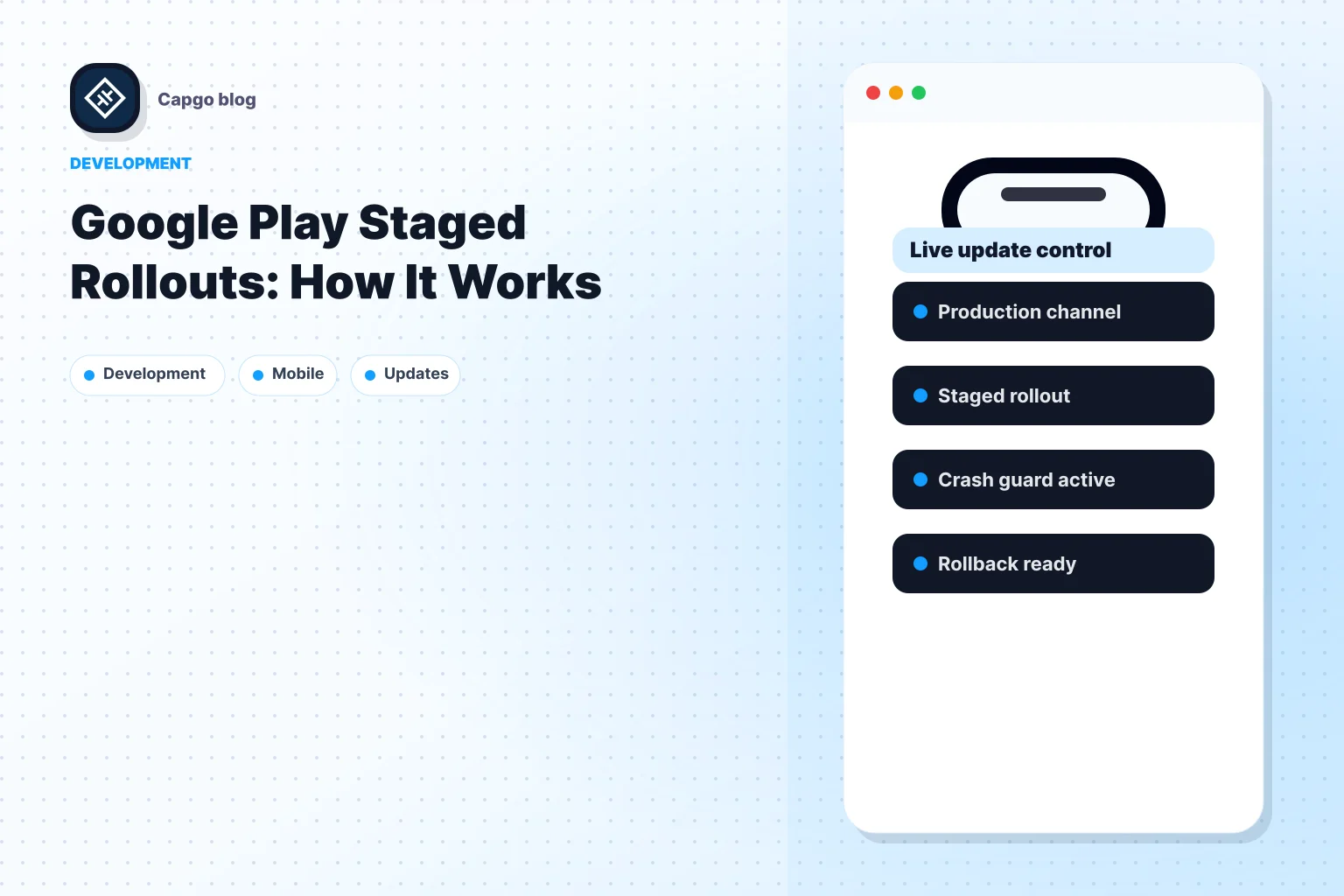
Quick answer: A Google Play staged rollout ships an app update to a percentage of eligible users on Production, Open testing, or Closed testing before you reach a full rollout at 100%. Google limits staged percentages to app updates, not the first release on a track (including the first Open or Closed testing publish). Start: create a release with a new Android App Bundle, pick a rollout percentage on the review step for an update, and click Start rollout (Prepare and roll out a release). Increase: Releases tab → Manage rollout → Update rollout → set a higher percentage → Confirm update (the percentage does not rise automatically). Halt: Manage rollout → Halt rollout (no additional users receive the staged version; users who already updated stay on it). Resume: Manage rollout → Resume rollout → set percentage → Confirm update. Full rollout: increase to 100% with Update rollout. For Capacitor apps, pair store rollouts with Capgo channels and progressive rollouts for live web updates between native releases, and see TestFlight and Android testing tracks for pre-production discipline.
Play Console tracks in 2026
Google documents four release surfaces:
| Track in Play Console | Who receives builds | Staged rollout percentage |
|---|---|---|
| Internal testing | Up to 100 invited testers | No staged percentage rollout (full track delivery to testers) |
| Closed testing | Email lists or Google Groups you choose | Yes |
| Open testing | Anyone who joins from your store listing | Yes |
| Production | Eligible users in selected countries | Yes (country targeting available on production) |
Source: Prepare and roll out a release and Set up an open, closed, or internal test.
Typical flow: Internal testing for smoke tests, Closed testing for trusted beta groups, Open testing for wider feedback, then Production with a staged percentage. For how Android testing tracks compare to iOS TestFlight workflows, read TestFlight and Android testing tracks.
How a Play staged rollout works
Google’s Release app updates with staged rollouts guide describes the loop:
- Open Production, Open testing, or Closed testing in Play Console.
- Create or edit a release and upload an Android App Bundle whose
versionCodeis higher than the release already on that track. Play serves the highest compatibleversionCodeacross every track a user is eligible for, so a newer Production build can override a lower testing-track build for the same user. - On the review step for an update, select a rollout percentage (Prepare and roll out a release).
- Click Start rollout.
- Monitor Android vitals, crashes, and track-appropriate feedback (tester notes on testing tracks, public reviews on Production).
- Increase the percentage with Manage rollout → Update rollout → Confirm update.
- Halt or resume from Manage rollout when you need to pause or continue.
- Promote to 100% for a full rollout when metrics look healthy.
Important constraints from Google’s documentation:
- For staged rollouts, Google assigns the update at random among users eligible for that track; you cannot pick which users receive the staged build in Play Console. Inviting Closed testing testers is separate from staged rollout assignment.
- Finish or discard conflicting draft releases on a track before starting another rollout; resolve outstanding staged releases or remove unpublished changes first (Prepare and roll out a release).
- You cannot force users to install immediately; they update when Play delivers the release.
- Production staged rollouts can target specific countries or regions; testing tracks follow the track’s tester rules.
- When you halt and resume, Google documents that you affect the same set of users as before.
The Google Play Developer API maps track IDs (production, beta for open testing, qa for internal testing, plus named closed tracks) if you automate releases.
Typical rollout schedules and what to monitor
Google does not publish a required percentage ladder. Teams usually start small, wait for signal, then increase with Update rollout until they reach 100%. A common production pattern is a low initial percentage, a medium step if vitals stay clean, then wider steps toward a full rollout. Adjust timing to your user base and risk tolerance.
| Signal | Where to look |
|---|---|
| Crash rate (after users install) | Play Console Android vitals |
| ANRs (after users install) | Play Console Android vitals |
| Pre-launch checks (before wide rollout) | Play Console pre-launch report on test devices |
| User reviews (Production staged rollout) | Store listing ratings and reviews for the version |
| Tester feedback (Open or Closed testing) | Testing track feedback and email or group channels |
| Backend errors | Your API dashboards correlated with version headers |
Google’s staged rollout tips recommend closely monitoring crash reports and user feedback during a live rollout. Wait long enough between percentage jumps to gather signal; many teams hold at least a day on early production percentages.
If a native bug ships, halt the Play rollout and publish a fixed bundle with a higher versionCode. Play does not auto-rollback binaries for you. For when native fixes must go through Play versus web-layer updates, see Does Google allow live updates? and the Capacitor OTA app store approval guide.
Halting a rollout and users who already updated
Halt rollout means Play stops offering the staged version to any additional users who have not already received it. Users who already received the staged version remain on that version. They do not automatically roll back through the halt action alone.
Steps on the web console: open the track → Releases → Manage rollout → Halt rollout.
To continue after a halt: Manage rollout → Resume rollout → set the rollout percentage → Confirm update.
If the bundle itself is wrong, create a new release with a fixed Android App Bundle and a higher versionCode, then roll that out (staged or to 100% as you choose).
Capgo channels and percentage rollouts (live updates)
Store rollouts change the native shell users download from Play. Capgo handles live web bundle updates inside an already installed Capacitor app.
- Channels map devices to update streams (
production,beta, custom names). You can force specific device IDs to a channel when debugging. - Progressive rollouts keep a stable fallback bundle on the channel while a rollout target reaches a configured percentage of devices. Increase, decrease, pause, complete, or roll back without shipping a new Play build for web-layer fixes.
Use Play staged rollouts when you change native code, permissions, or targetSdkVersion. Use Capgo percentage rollouts when the fix lives in HTML, CSS, or JavaScript and your compliance review allows OTA delivery.
Suggested combined strategy
- Ship native changes through Internal testing, then Closed or Open testing, then a Production staged rollout.
- Point production devices to a stable Capgo channel for day-to-day web fixes.
- Run a progressive rollout on a channel when you want canary web bundles with an automatic stable fallback.
- Halt the Play rollout if vitals regress; roll back the Capgo progressive rollout if web metrics regress.
Rules and requirements reminder
- Each new bundle needs a higher
versionCodethan builds users can already receive on any overlapping track. - Apps using Play App Signing must upload signed AABs per Google Play App Signing.
- Complete outstanding staged releases or discard drafts before starting conflicting releases on the same track (Prepare and roll out a release).
Frequently asked questions
How do staged rollouts work in Google Play Console and how do I increase rollout percentage?
You ship an update to a fraction of track users. Open Releases, choose Manage rollout, then Update rollout, enter a higher percentage, and click Confirm update. The percentage never increases on its own.
How do Android staged rollouts go from a small percentage to 100%?
Start with the percentage you choose at Start rollout, monitor vitals and reviews, then repeat Update rollout until you confirm 100% for a full rollout.
What does halt rollout mean on Google Play?
It stops any additional users from receiving the staged build. Users who already updated keep that version until they install something else you publish.
How do I resume after a halt?
Use Manage rollout → Resume rollout, set the percentage, and Confirm update. Google applies halt and resume to the same user cohort.
What should I watch during a gradual mobile app rollout?
Crash reports, ANRs in Android vitals, pre-launch results, tester feedback on Open or Closed testing, and public reviews when the staged rollout runs on Production.
What is a full rollout?
The release is served to 100% of users on that track in your targeted countries, usually by setting the staged percentage to 100% with Update rollout.
Keep going from Google Play Staged Rollouts: How It Works
If you are using Google Play Staged Rollouts: How It Works to plan store approval and distribution, connect it with @capgo/capacitor-in-app-review for the implementation detail in @capgo/capacitor-in-app-review, Using @capgo/capacitor-in-app-review for the native capability in Using @capgo/capacitor-in-app-review, @capgo/capacitor-native-market for the implementation detail in @capgo/capacitor-native-market, Using @capgo/capacitor-native-market for the native capability in Using @capgo/capacitor-native-market, and Capacitor OTA Updates: App Store Approval Guide for the practical context in Capacitor OTA Updates: App Store Approval Guide.