Yes, you can ship OTA updates to a Capacitor iOS app without waiting on App Store review when the change is only in the web layer. Replace HTML, CSS, JavaScript, and static assets inside your existing binary with Capacitor live updates and @capgo/capacitor-updater. No for native work: new plugins, permission changes, SDK bumps, or anything that needs a new iOS binary still goes through App Store Connect and review. Apple and Capgo do not guarantee approval.
This guide is a practical how-to for iOS Capacitor teams. For the policy background, read does Apple allow live updates. For OTA basics, see what is an OTA update and how live updates work in Capgo.
What counts as a web-layer update on iOS
Capacitor runs your app UI in a WebView. OTA delivery swaps the files that WebView loads.
| OK to ship OTA on iOS | Needs a new App Store binary |
|---|---|
| JavaScript, HTML, CSS bug fixes | New or updated native Capacitor plugins |
| Copy, translations, images, fonts in the bundle | New permissions or entitlements |
| Layout and styling in your web app | Capacitor major version or native dependency changes |
| Rollouts and rollbacks of web bundles | Changing the app into a different product purpose |
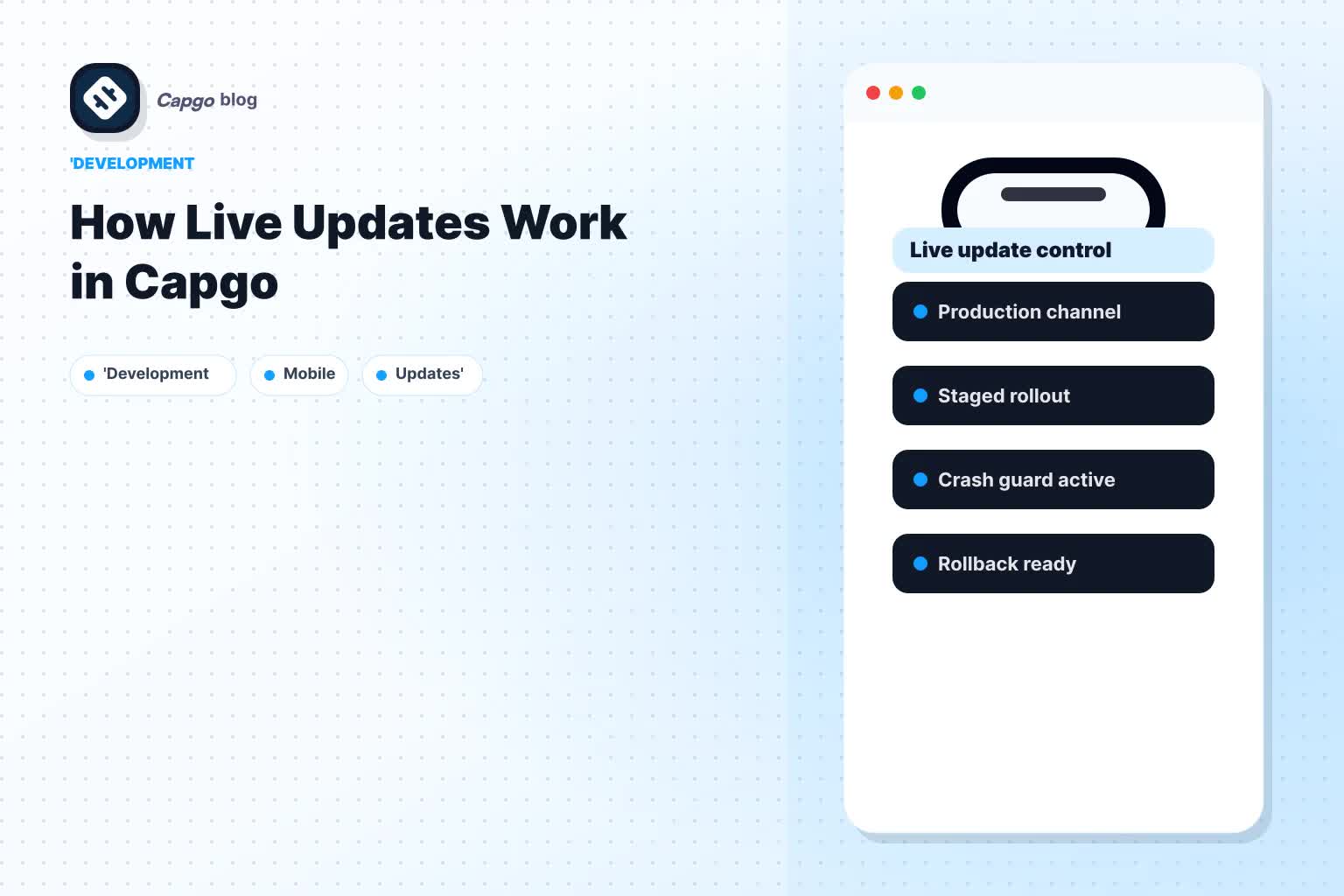
Use channels, compatibility checks, and version targeting so a web bundle does not reach a binary that lacks the native pieces it needs.
Step by step: @capgo/capacitor-updater and notifyAppReady
1. Install the updater plugin
Add the plugin to your Capacitor project and sync iOS, following the Capgo quickstart and updater plugin docs.
bun add @capgo/capacitor-updater
bunx cap sync ios
Register the app in the Capgo dashboard and note your API keys. The capacitor-updater plugin page lists compatibility and links to deeper docs.
2. Call notifyAppReady() on every successful launch
Call it early in your app entry point, before slow network requests or other async work that can exceed the default readiness timeout:
import { CapacitorUpdater } from '@capgo/capacitor-updater'

// As soon as the shell can render; do not wait on remote data first
void CapacitorUpdater.notifyAppReady()
If a downloaded bundle fails during startup or never reaches notifyAppReady() in time, Capgo rolls back. See notifyAppReady in the API docs.
3. Build the web bundle and upload
Build your web assets as you do for a store release (bun run build, output in dist/ or www/). Upload with the Capgo CLI.
Most channels (plain upload):
bunx @capgo/cli@latest bundle upload --channel production --fail-on-incompatibleWhen the channel uses the metadata strategy and the bundle currently live on that channel already has min_update_version set, add --auto-min-update-version so Capgo can raise or reuse the native floor. Do not use that flag on other channels, or on a metadata channel until the live bundle has min_update_version. The first metadata upload needs an explicit --min-update-version per the CLI bundle docs. See compatibility and the native + OTA channel workflow.
bunx @capgo/cli@latest bundle upload --channel production --fail-on-incompatible --auto-min-update-version--fail-on-incompatible stops accidental uploads when native packages drift from what is live on the channel. The CLI skips that check on a brand-new channel, or when the live bundle has no native-package metadata, so an incompatible bundle can still upload until you ship a compatible baseline. See compatibility.
4. Let iOS devices pull the update
With the default autoUpdate mode (atBackground, the same as true), the plugin checks when the app comes to the foreground. periodCheckDelay defaults to 0, so there is no repeating timer until you set it (minimum 600 seconds, 10 minutes). If an update is available, it downloads in the background while the user keeps the current bundle. It applies the update when the app moves to the background, and the user runs the new bundle on the next foreground. Other autoUpdate values can apply sooner; see update behavior and updater settings. Users stay on the same App Store install. No review queue for eligible web-only changes.
Channels, rollback, and when you still submit to the store
- Channels: Use
production,beta, or custom channels for staged rollouts. See channels documentation. - Rollback: Revert a channel to a prior bundle in the dashboard, or rely on automatic rollback when a new bundle fails during startup or
notifyAppReady()does not fire in time. See rollbacks. - Native release: When the CLI reports incompatible native packages, ship a new iOS build through the App Store, then upload web bundles tied to that
version_build.
iOS policy caveats (no approval guarantees)
Apple’s rules are the boundary, not vendor marketing.
- App Store Review Guideline 2.5.2 limits downloadable code that changes app features.
- Section 3.3.1(B) of the Apple Developer Program License Agreement allows interpreted code (such as JavaScript in WebKit) only if it does not change the app’s primary purpose, does not create a code storefront, and does not bypass OS security.
Capgo can verify bundle checksums by default. For end-to-end signing, configure your keys as described in encryption. Your team must keep each update inside the app you submitted for review. Read live updates compliance and Capgo’s Apple compliance notes. Review outcomes always belong to Apple.
Start with Capgo
- Open the Capgo docs quickstart.
- Install
@capgo/capacitor-updaterand wirenotifyAppReady(). - Upload a bundle and point your iOS app at a channel.
Start a Capgo trial or explore the full live updates product when you are ready to ship web-layer fixes without waiting on review for every change.