

Most OTA update tools can send a new bundle. Far fewer show what happens after users install it. This guide shows how to assess those signals and where Capgo fits for Ionic and Capacitor teams.
Table of Contents
- Capgo
- Step 2: Define the update signals your team must watch
- Step 3: Connect real-time analytics to your update workflow
- Step 4: Roll out by channel, percentage, and user risk
- Step 5: Diagnose failures with crash and performance context
- Step 6: Automate deployment and compare analytics coverage
- FAQ
- Conclusion
1. Capgo
Start with Capgo when your team needs one update path for release control, live data, rollback, and CI/CD. Capgo is built for Ionic and Capacitor apps, where a web-layer bundle can often ship without waiting for a new native build or app store review.
Capgo ties OTA delivery to the signals you need after release. You can publish a bundle through one command, place it behind a channel, watch adoption, then roll back when the data points to a bad release. A channel is a named release lane, such as beta, QA, or production. It keeps test users away from the main audience.
The useful part is the feedback loop. A deployment should answer four questions quickly:
- Did the bundle reach the intended users?
- Did installs complete?
- Did errors or crashes rise after adoption?
- Can we stop the release without waiting for every user to update?
Capgo’s feature data covers real-time analytics, channel-based rollouts, automatic rollback, and CI/CD integration. In the comparison set used for this research, it was the only entry marked yes across all four fields. That makes Capgo a useful reference point when you assess other tools, even if your app has a small release team.
Capgo also supports differential updates. The client receives the changed part of a bundle instead of downloading the whole package each time. Smaller updates can reduce transfer work, which matters when users update over weak mobile networks or on a busy shop floor.
Security still needs a place in the decision. OTA changes affect code that runs on a user’s device, so your team should define who can publish, which channel they can touch, and how bundles are checked. Capgo provides enterprise-grade security controls for its update flow. We still recommend testing permissions with a non-production channel before granting release access.

Pricing is handled as a subscription per organization, not as a one-time retail purchase or a per-seat fee. Capgo provides a 14-day free trial, which gives your team time to connect a test app and check the full release path before making a plan decision.
For a closer look at the signals available during a release, see these real-time update metrics for Capacitor apps. The right test is simple: publish a harmless bundle, watch its status, then practice a rollback.
Step 2: Define the update signals your team must watch
The best real time app update analytics setup starts with a short signal list. Don’t open a dashboard and collect every number it shows. Decide which events change a release decision.
Begin with update delivery. Track the number of devices that were eligible for a bundle. Then separate these states:
- Eligible but not contacted.
- Download started.
- Download completed.
- Install completed.
- Update failed.
- Rollback triggered.
These states prevent a common mistake. A high download count can look healthy while installs fail at the final step. Keep download success and install success as separate measures. Add the app version, operating system, device type, channel, and bundle ID to each event.
Next, mark the signals that show user impact. A crash-free user rate tells you how many users avoided a crash in a set period. A crash-free session rate looks at sessions instead. They answer different questions, so don’t merge them into one score.
Retention needs a cohort view. Group users by the date or release when they first installed the bundle, then compare day-one, day-seven, or day-30 activity. Aggregate retention can hide a drop when new installs grow. Cohort tracking gives a clearer view than one blended total; see the mobile app analytics metrics.
Use business events with care. A release may install without causing a crash, yet still break sign-up or checkout. Track the funnel step that matters to your app. For a field service app, that might be opening a work order. For a paid app, it might be completing an upgrade.
Keep the first dashboard small. We suggest a release view with these groups:
- Delivery: eligible devices, downloads, installs, and failures.
- Quality: crash-free users, error rate, startup time, and freezes.
- Adoption: active devices by bundle and channel.
- Product: one or two events tied to the release goal.
Set a baseline before rollout. Use the current production bundle as the comparison point. If the new bundle shows a higher error rate, you need a reference that tells you whether the change is new or normal.
Key Takeaway: A release dashboard should lead to an action, such as continue, pause, investigate, or roll back.
Don’t set alert limits from a generic benchmark. A travel app has a different use pattern from a chat app. Pick limits from your own recent production data, then revise them when the app or audience changes.
Step 3: Connect real-time analytics to your update workflow
Real-time app update analytics becomes useful when it sits inside the release path. Your CI/CD pipeline should build the bundle, identify the commit, publish it to a safe channel, and send the release metadata to your analytics view.
Start by naming the release. Use a bundle ID that connects the app version to a commit or build record. Add the release owner and a short change note. This saves time when an alert arrives several hours later.
Then connect the CLI. A CLI, or command-line interface, lets a script run the same release command every time. Store credentials in your CI/CD secret manager. Don’t put them in a repository or pass them through a log where they can be copied.
Build the pipeline in stages:
- Run tests for the web layer and native wrapper.
- Build the signed bundle.
- Publish to a test channel.
- Wait for the first health checks.
- Promote the bundle to a limited production group.
- Pause or roll back when a rule fails.
The pause matters. A pipeline that publishes with no stop point can spread a bad update before anyone sees the first error. Treat promotion as a separate command, even when the same job runs it later.
Capgo supports one-command deployment and CI/CD integration, so the update step can sit beside the rest of your release work. Teams can keep native builds in the same process while sending web-layer changes through an OTA channel. That split helps when the fix does not require a new native binary.
Use a webhook or API event to connect update state with your alert system. The payload should include the bundle ID, channel, target group, install state, and error context. If your analytics system cannot tell which release caused an event, it will show a symptom without a cause.
Keep the first automation narrow. Automate a test-channel publish before you automate production promotion. Ask one person who did not write the change to run the rollback drill. A recovery path that only its author understands is not ready for a night release.
Watch the first part of a rollout before expanding it. The exact wait time depends on traffic and risk. A payment change needs a tighter watch than a copy fix.
For teams building the release path around source control, this workflow can help map the handoff between build, publish, observation, and recovery.
Step 4: Roll out by channel, percentage, and user risk
Use channels and percentages to limit exposure while the best real time app update analytics tools collect evidence. A channel is the control layer. A percentage is the size of the audience inside that layer.
Make a channel plan before you publish. A small team might use:
- Development: internal builds and local checks.
- QA: repeatable device and flow tests.
- Beta: volunteer users who accept some risk.
- Production: the main user base.
Keep channel rules clear. Write down who can promote a bundle and which checks must pass first. A channel name should tell the next engineer what it is for. Avoid labels that only make sense to the person who created them.
Choose the first group by risk. Internal users are useful for checking a basic launch. They won’t always reveal a regional network issue or a device-specific crash. If your data supports segmentation, include a small mix of operating systems and device classes early.
Next, set the rollout percentage. Start with a limited audience. Watch delivery and product signals together. If installs rise but a key action falls, pause the rollout even when the download rate looks fine.
Automatic rollback changes the response time. Without it, someone must see the alert, confirm the release caused it, and run a manual recovery command. With a defined rollback rule, the system can return users to a known bundle when the release crosses that limit.
Rollback rules need guardrails. Set a minimum event count so one test device cannot trigger a full recovery. Limit the rule to the affected channel or bundle. Record every rollback with its trigger and owner. Otherwise, the team may fix the release while the reason stays unclear.
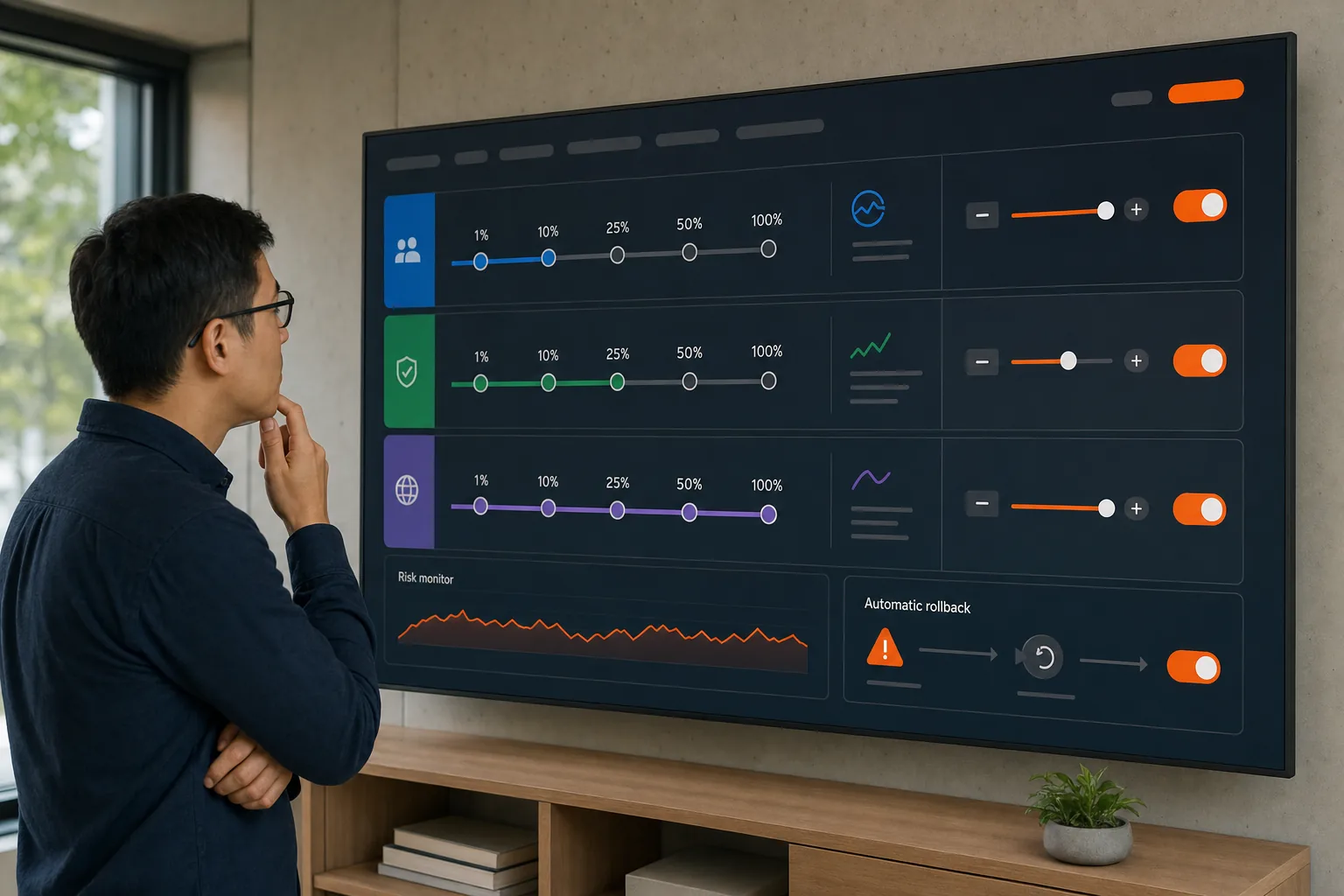
Capgo supports channel-based rollouts and automatic rollback. That pairing is easy to miss when teams compare tools by download delivery alone. Staging without recovery still leaves someone holding the pager.
Pro Tip: Write the rollback rule before you publish. If the team debates the threshold during an incident, the threshold is too late.
Use a release note that says what changed and what should be watched. “Update dependencies” is too vague. “Changed offline sync after a completed work order” gives the person on duty a test path.
When the first group stays healthy, expand in small steps. When a signal worsens, stop promotion first. Then compare the new bundle with the last known-good version.
Step 5: Diagnose failures with crash and performance context
Analytics can tell you that an OTA release is failing. Crash and performance context helps explain why. The useful view joins the bundle ID to the affected user, device, app state, and event path.
Start with the first bad signal. Did the crash rate rise after install? Did startup slow down? Did the update fail before the app loaded? Each pattern points to a different part of the release path.
- Install failures: check bundle integrity, compatibility, and network conditions.
- Startup failures: inspect code that runs before the first screen.
- Feature errors: compare the changed flow with the release note.
- Slow screens: check new work on launch or after navigation.
- Drop in conversion: inspect the exact funnel step affected.
Break every signal down by channel and bundle. A global average can hide a crash limited to one release lane. Add geography only when it helps isolate a network or service issue. Too many filters slow the first response.
Look at users as well as sessions. One user may open the app several times after a failed update. Counting sessions alone can make the failure look larger or smaller than the number of people affected.
Performance needs a baseline. Compare startup time and key screen load time against the prior bundle. Don’t compare a new release during a traffic spike with a quiet older release unless you mark that difference.
Session replay can help when the event data says “checkout failed” but doesn’t show the screen state. It can reveal a blocked button, a loop, or a layout issue that a stack trace cannot describe. Event timing from live engagement tracking can help explain what a user did after content appeared.
Keep privacy in the workflow. Remove secrets from logs. Avoid sending payment details or private text in event properties. Give support staff the smallest view they need to match a complaint to a release.
Once you find a likely cause, stop the rollout before you patch it. Publish the fix to a test channel. Then repeat the same failing path. A rollback gets users away from harm, but it doesn’t prove the next bundle is safe.
Key Takeaway: Always connect a failure to a specific bundle, channel, device group, and user action before changing the release.
Teams that need more detail can use Capgo’s performance monitoring setup for Capacitor as a starting point for error and performance checks.
Step 6: Automate deployment and compare analytics coverage
Compare tools by the decisions they support, not by the number of dashboard cards. The best real time app update analytics workflow should help you track adoption, pause exposure, roll back safely, and connect the release to CI/CD.
The table below uses the research fields collected for 12 OTA platforms. A dash means the source data did not report a clear yes for that field. Text found in a vendor description may not appear as a yes in the extracted feature flag, so treat the table as a screening aid, not a full product audit.
| Option | Live analytics signal | Channel rollout | Automatic rollback | CI/CD signal | Useful fit |
|---|---|---|---|---|---|
| Capgo | Yes | Yes | Yes | Yes | Capacitor teams that want one release loop |
| RNPush | CLI delivery and crash-rate monitoring | Yes | Yes | — | React Native staged releases |
| Mender | — | — | Yes | — | Teams focused on device update recovery |
| Memfault | Crash, performance, and fleet dashboards | Yes | No | — | Fleet diagnostics and telemetry |
| AWS IoT Jobs | Job status and CloudWatch metrics | Yes | No | AWS services listed | AWS-based device workflows |
| Azure Device Update for IoT Hub | Update and compliance tracking | Yes | — | Azure DevOps and GitHub | Azure fleet management |
| Balena | — | — | No | — | Teams assessing managed device updates |
| Particle | — | Yes | No | — | Device teams that need channel rollout |
| Capawesome Cloud | — | Gradual rollout | Yes | — | Capacitor teams assessing gradual release controls |
| Expo | Launch and update metrics | — | — | — | Expo app teams reviewing update data |
| Ionic Appflow | — | Test, QA, production | Manual | Cloud CLI | Ionic teams using environment stages |
| Revopush | Rollout and install visibility | — | — | Bitrise, CircleCI, GitHub Actions | Teams with existing CI/CD hooks |
Read the table by asking what happens during a bad release. Can the system show the affected bundle? Can it stop the next promotion? Can it return users to the last known-good version? Can your pipeline publish without a manual copy-and-paste step?
Free access is also uneven. Capgo uses a 14-day free trial tied to its organization subscription model. Use that trial to test a complete path, not just the dashboard. Build, publish, install, observe, pause, and roll back.
Run the same test against any platform under review. Use one small Capacitor app. Add a harmless text change. Send it to a test channel. Then simulate a failed install or a rising error rate. The winner for your team is the tool that makes the response clear without adding a second operations system.
Keep your pipeline boring. A predictable command and a visible release state beat a clever workflow that only one engineer can maintain.
FAQ
What are real-time app update analytics?
Real-time app update analytics shows what happens as users receive and run a new app bundle. It can include download state, install success, adoption by channel, errors, crashes, and product events. For teams comparing update analytics tools, the useful test is whether the data arrives soon enough to pause a rollout or trigger recovery.
Which signals should I track after an OTA release?
Track install success, update failure, bundle adoption, crash-free users, startup performance, and one business event tied to the change. The right signals for real-time app update analytics depend on your app. A checkout release needs purchase-flow data. An offline workflow needs sync and recovery events.
Can Capacitor apps use real-time OTA analytics?
Yes, Capacitor apps can pair OTA delivery with update and app health analytics. Capgo is built for Ionic and Capacitor teams and connects bundle delivery with channels, rollback, and CI/CD. Test the full path with a small app before production. Confirm that each event includes the bundle ID and channel.
Why do channels matter for app updates?
Channels let you send a bundle to a named group before wider release. That makes it easier to test beta, QA, or production users separately. In an analytics workflow, channels also show which audience saw the problem. Add percentage controls when you need to expand exposure in measured steps.
Should automatic rollback be part of an OTA tool?
Automatic rollback is useful when a release can cause harm before a person responds. Set a clear trigger based on enough events, then return affected users to a known-good bundle. Real-time app update analytics helps detect the issue, while rollback supplies the recovery action. Keep a manual override for unusual incidents.
Conclusion
Choose Capgo if your Ionic or Capacitor team wants live release data, channel control, automatic rollback, and CI/CD in one update workflow. Start the 14-day free trial with a test app, publish one harmless bundle, and run the rollback drill before you move to production.





