
You open your browser to check one document and end up hunting through a crowded toolbar, duplicate bookmarks, noisy tabs, and extensions you installed months ago but no longer recognize. The browser still works, yet it no longer supports the way you really work.
To customize a web browser effectively, start with function rather than decoration. A new theme can make the interface pleasant, but a disciplined shortcut layout, carefully chosen extensions, privacy controls, and, for organizations, centrally managed policies can change how quickly and safely you move through daily tasks.
Table of Contents
- Why Most Browser Customization Fails
- Choosing the Right Browser Foundation
- Configuring Your New Tab and Toolbar Layout
- Selecting Extensions That Actually Improve Productivity
- Enterprise Browser Customization and Policy Deployment
- Troubleshooting Common Customization Issues
Why Most Browser Customization Fails
Most browser makeovers fail in the same way. Someone starts with a visual change, adds a few productivity extensions, pins every useful-looking button, and assumes more options will produce a better workspace. The result resembles a desk covered with attractive stationery but no clear place to put today’s work.

A dark theme doesn’t solve a navigation problem. A custom wallpaper doesn’t tell you which sites belong in the toolbar, and another tab manager won’t help if your tab groups have no naming convention. The useful question isn’t “What can I change?” It’s “Which repeated action is slowing me down, and what browser setting can remove that friction?”
Surface changes versus structural changes
Surface customization includes themes, colors, wallpapers, and small visual adjustments. These choices have value. A calmer contrast level can make long sessions more comfortable, and a familiar visual style can help distinguish work and personal profiles. But surface changes rarely improve information retrieval by themselves.
Structural customization changes the browser’s behavior or information architecture. Examples include:
- Entry points: Decide which sites appear as shortcuts and which stay out of sight.
- Navigation: Move only the controls you use repeatedly into an intentional toolbar arrangement.
- Automation: Use a carefully reviewed script or extension for repetitive browser actions.
- Privacy: Control cookies, ad personalization, and site data rather than treating privacy as an unrelated settings task.
- Governance: Apply consistent homepage, bookmark, proxy, or content-blocking rules through policy when you manage a fleet.
The difference becomes obvious during a typical workday. A designer who opens the same reference library, project board, and design system benefits from a small, stable shortcut set. A developer may gain more from command-friendly workflows, tab separation, and user scripts. A family computer may need profiles and privacy boundaries rather than an elaborate extension stack.
Practical rule: If a customization doesn’t reduce a repeated decision, click, search, or distraction, treat it as decoration.
The history of Firefox helps explain why functional customization became a serious browser expectation. Mozilla’s extensible approach, together with tools such as Greasemonkey, Chickenfoot, and CoScripter, lowered the barrier to changing browser behavior and automating tasks. Later research found that more than 80% of consumers would consider changing browsers for a more personalized experience, according to MIT research on why people customize. The lesson is not to install everything available. It’s to choose a browser system that matches your habits, then keep it understandable. A focused developer productivity workflow is a better starting point than a gallery of attractive add-ons.
Choosing the Right Browser Foundation
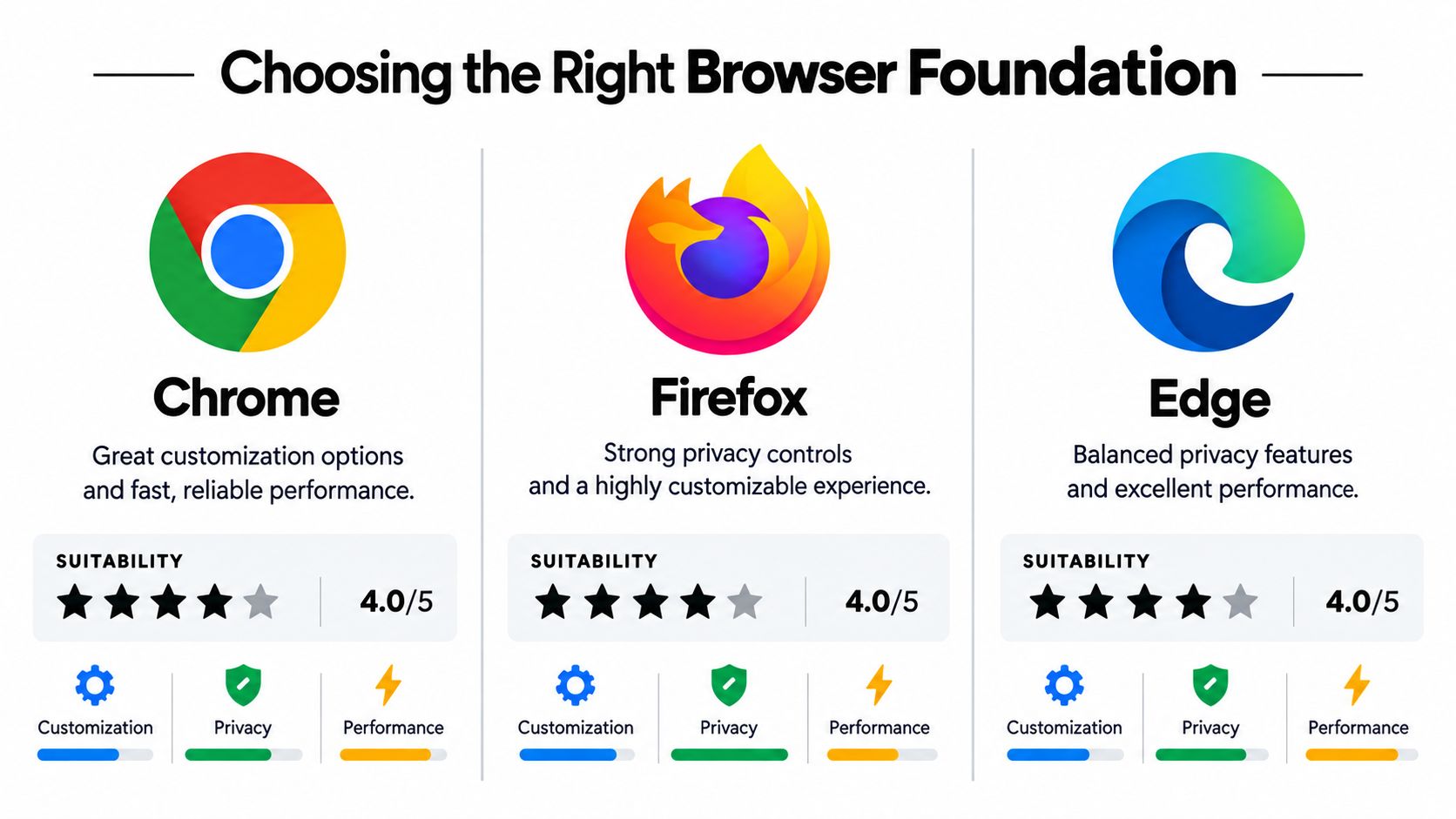
Your browser is the foundation of every later choice. Switching themes or extensions can’t compensate for a poor fit in sync, privacy controls, operating-system integration, or extension availability. Pick the environment first, then customize inside its boundaries.
Chrome remains the practical default for many users because the Chromium ecosystem supports a broad extension selection and familiar account synchronization. Chrome is widely reported as the global market leader at roughly two-thirds of browser usage, as summarized in Mozilla’s research on browser walled gardens. That scale makes it easy to find tools and troubleshooting advice, but it also means many workflows become dependent on Chromium-specific behavior.
Firefox is the stronger choice when control and privacy are central requirements. Its history of extensibility made user scripts and add-ons part of mainstream browser use, rather than a specialist experiment. Firefox can feel less convenient when a workplace assumes Chromium compatibility, but its flexible approach suits users who want to inspect permissions, limit tracking, and shape the interface significantly.
Edge sits between those choices. It uses Chromium compatibility while fitting naturally into Microsoft-oriented environments, which can simplify deployment and account management for organizations already using Microsoft services. That integration may be useful at work, although a browser selected only because it is preinstalled can leave users with settings they haven’t deliberately reviewed.
Make the decision against your actual work
Use this order rather than choosing by brand familiarity:
- List your essential services. Check password management, video calls, project tools, development consoles, and any browser-specific extensions you rely on.
- Review privacy expectations. Decide whether you want stronger default tracking controls, detailed site permissions, or smooth integration with an existing account ecosystem.
- Test synchronization. Verify that bookmarks, passwords, history, open tabs, and settings behave as expected across the devices you normally use.
- Check resource behavior. Open your normal workload, not an empty browser. A setup that feels fast with three tabs may feel very different with active dashboards and media pages.
- Inspect your browser identity. If a site behaves differently after customization, a browser fingerprint test can help you understand what your configuration exposes to websites.
Mozilla’s research also shows why desktop users often experience customization more directly than mobile users. In the cited markets, 38% of smartphone users in the U.S. and 55% in Australia said they had ever installed a browser on their phone, while desktop figures were 62% in the U.S. and 64% in Australia. The figures point to a practical constraint: deep customization remains more accessible on desktop, where users can manage extensions, profiles, and detailed settings with fewer platform restrictions. Teams evaluating their developer experience tools should therefore document the supported browser foundation instead of assuming every environment behaves alike.
Configuring Your New Tab and Toolbar Layout
The New Tab page is a daily launch surface, not a poster. It determines which destinations you see first, how much visual noise competes for attention, and whether you begin work from a deliberate entry point or from whatever the browser happens to display.
Chrome’s documented customization flow starts with Customize Chrome. From there, you can choose My shortcuts or Most visited sites, hide shortcuts, edit or remove individual items, select a theme or image, and control cards and footer visibility. The controls are separate, so change them one at a time and test the result before moving to the next setting.
Build an intentional starting surface
Choose My shortcuts when you want a stable work launchpad. Use names that describe the destination clearly, such as “Issue tracker” or “Analytics,” rather than relying on a logo you may not recognize after a long day. Choose Most visited sites only if your browsing habits are stable and you want the browser to adapt automatically.
A focused layout might contain project documentation, a task board, a communication tool, and a local development dashboard. A chaotic layout mixes shopping, social feeds, old client portals, temporary research pages, and duplicate links. The second arrangement doesn’t just look busy. It increases the number of decisions you make before you reach the page you need.
The toolbar deserves the same discipline. Keep navigation, reload, password access, and the few extensions you use constantly visible. Move occasional tools into the extensions menu or remove them. If you need a button only during a particular task, it doesn’t need permanent visual priority.
A toolbar should answer your common next action, not display every action the browser can perform.
Test layout changes separately
Make one adjustment, then run a normal task. If you change shortcuts, theme, cards, footer visibility, and toolbar items simultaneously, you won’t know which choice caused a navigation problem or made the page harder to scan. A browser can look customized while still preserving default navigation behavior that sends users toward repeated manual searching.
For a focused work profile, hide cards that pull attention away from the next task and keep a small shortcut set. For casual browsing, a richer New Tab page may be useful. The correct configuration depends on the context, but the test should remain the same: open the browser, perform your most common task, and count the moments when you stop to search for a destination. The best layout makes those interruptions unremarkable. This is a small but important part of a coherent app user experience.
Selecting Extensions That Actually Improve Productivity
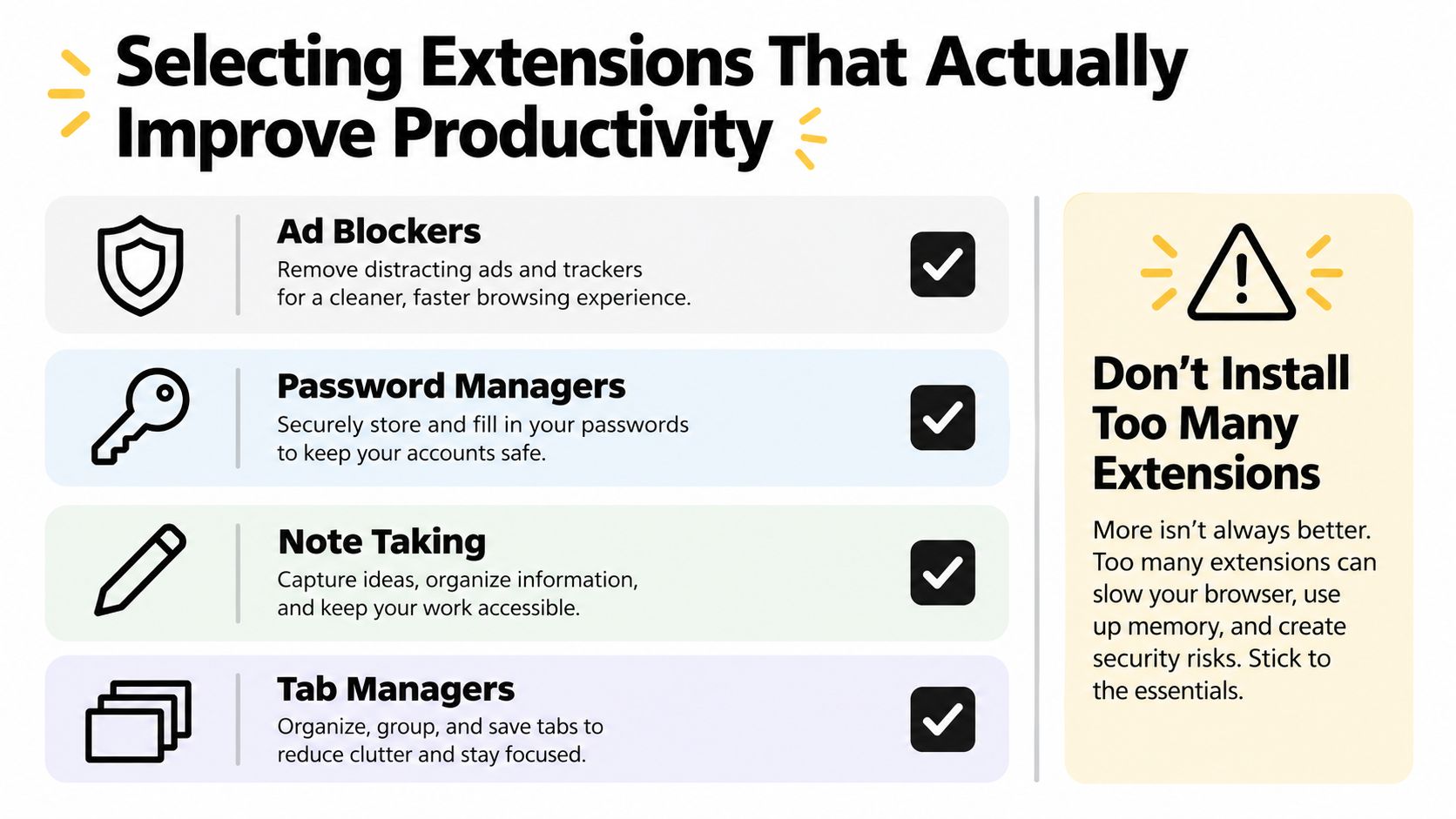
Extensions can turn a browser into a useful work surface, but they also create the easiest path to clutter. Install an extension only when it has a clear job, a trustworthy maintenance history, and permissions that make sense for that job.
The browser customization movement became more practical because tools such as Greasemonkey, Chickenfoot, and CoScripter made it easier for users to alter pages, automate repetitive work, and build personalized workflows. That history supports a useful distinction: an extension that changes a repeated operation can be structural, while an extension that adds another decorative panel may only increase noise.
Compare the job before the tool
| Category | Useful when | Common trade-off |
|---|---|---|
| Content blocker | You want fewer intrusive elements and tighter control over page requests | Aggressive rules can break login flows, payments, or embedded content |
| Password manager | You need consistent credential creation and retrieval across sites | Browser integration and autofill permissions deserve careful review |
| Tab manager | You regularly work across separate projects or research contexts | A second organization layer fails if you don’t maintain naming and grouping habits |
| Note-taking tool | You capture short references while reading and need them near the source | Clipping everything creates a second inbox |
| User-script manager | You repeat a page-level action that a normal extension doesn’t handle well | Scripts can break after site changes and require source review |
Start with one tool in a category, not several. Two ad blockers may conflict. A browser password manager and a separate password manager may both offer autofill. Multiple tab managers can compete for the same workflow. Redundancy makes diagnosis harder when a page stops behaving correctly.
Audit permissions and remove dormant tools
Open the extension manager and inspect every installed item. Ask three questions:
- What problem does it solve? If you can’t name a repeated task, remove it.
- What can it read or change? Broad access across websites should require a strong reason.
- Does another tool already do this? Keep the tool with the clearer interface and narrower scope.
Automation deserves extra caution. A user script that fills a known internal form may save time, but it can also expose data or fail without warning after a page redesign. Keep scripts small, document their purpose, and test them against non-sensitive pages before using them in a production workflow.
When the browser slows down, don’t guess. Disable extensions in batches, reproduce the problem, then narrow the search. Keep a short inventory of approved tools and review it whenever your browser, operating system, or key web applications change. Productivity comes from reliable behavior, not from maximizing the extension count.
Enterprise Browser Customization and Policy Deployment
A personal browser can tolerate individual experimentation. An enterprise browser needs predictable configuration, clear ownership, and a way to prove that the intended settings reached the intended devices. Manual instructions don’t provide that consistency.
A policy-based workflow typically begins with an administrator creating a browser customization policy, selecting the operating system and browser, and defining settings such as homepage and startup behavior, default browser selection, content blocking, proxy configuration, and bookmarks. The administrator then saves and publishes the policy before assigning it to device groups, following the workflow documented in ManageEngine’s browser customization guidance.
Treat rollout as a controlled change
A safe deployment sequence looks like this:
- Create a narrowly scoped policy. Separate user-interface choices from sensitive settings where practical.
- Publish without broad assignment. Confirm that the saved configuration reflects the intended browser and operating-system targets.
- Attach it to a pilot group. Include representative users, devices, and network conditions.
- Validate behavior. Check startup pages, bookmarks, content blocking, proxy behavior, and default-browser handling.
- Expand gradually. Record exceptions and adjust the policy before assigning it to the larger fleet.
The most common failure is scope drift. A policy can be technically correct yet ineffective if it isn’t associated with the right computer groups. Administrators should verify both the policy definition and its assignment target, then confirm the result on a real device rather than relying only on the management console.
Central enforcement also changes the design question. The organization must decide which choices are mandatory, which are recommended, and which remain personal. Locking every visual preference can create resistance, while leaving security-sensitive controls to manual setup creates inconsistency. A sensible policy standardizes the settings that protect access and reduce support work, then leaves harmless appearance choices to the user.
For teams that distribute browser-based experiences inside cross-platform products, strong enterprise release discipline provides a useful parallel: define ownership, target groups carefully, and make rollback part of the release plan rather than an emergency reaction.
Troubleshooting Common Customization Issues
Customization problems usually have a trigger, even when the symptoms look unrelated. A slow browser may reflect an extension conflict. A broken page may result from content blocking. A missing bookmark may be a sync or profile issue rather than a browser defect.
Start with isolation, not resets. Reproduce the problem in a private window or a clean profile where extensions may be limited. If the issue disappears, disable extensions and re-enable them in small batches until the behavior returns. Remove or replace the extension that causes the conflict, then test the site again before restoring the rest of your setup.
Use the symptom to choose the test
- The browser feels slow: Check active extensions, heavy startup pages, and tabs that continuously refresh. Remove dormant tools before changing visual settings.
- A page layout is broken: Temporarily disable content blockers for that site, clear site data if appropriate, and check whether a custom script targets an outdated page structure.
- Sync behaves unexpectedly: Confirm that you’re using the intended profile, verify which data types sync, and compare the local browser with the account’s current state before deleting anything.
- A security warning appears: Don’t bypass it automatically. Review the blocked request, identify whether a privacy rule or extension caused it, and allow only the narrow behavior required for the trusted site.
- The interface feels unusable: Restore the default theme and New Tab layout first. Reapply structural choices one at a time, because visual changes can obscure the actual navigation problem.
Privacy settings deserve deliberate testing. Guidance from Consumer Reports on Google privacy settings highlights controls such as blocking third-party cookies, turning off ad personalization, and clearing site data on exit. Those settings can improve data control, but they may also affect sign-ins, embedded services, and personalized site behavior. Treat each exception as a documented choice rather than disabling protection across the browser.
Keep a simple change log for important customizations. Record the extension added, the permission granted, the setting changed, and the task it should improve. If a future browser update causes trouble, you’ll have a short list of likely causes instead of a mystery configuration.
For app teams dealing with embedded web experiences, the same isolation habit applies to in-app browser behavior. Capgo’s @capgo/capacitor-inappbrowser provides a managed WebView with controls for dimensions, toolbar behavior, messaging, JavaScript injection, downloads, proxying, popups, hidden instances, and UI layering. For practical debugging patterns, the app troubleshooting guide is a useful companion to browser-level diagnosis.
Capgo helps CapacitorJS and Electron teams deliver JavaScript, CSS, copy, configuration, and asset updates through targeted signed bundles, with rollout channels, device logs, adoption metrics, and rollback protection. If your product embeds browser-like experiences or needs controlled updates without waiting for store review, visit Capgo to see how its in-app browser tooling and live update platform fit your release workflow.





