
Android Play Store Review Guidelines for IAP
Getting your Android app approved on Google Play requires compliance with Google’s policies, especially for apps with in-app purchases and subscriptions. This guide covers everything you need to pass review successfully.
Google Play Billing Requirements
Section titled “Google Play Billing Requirements”Mandatory Billing System
Section titled “Mandatory Billing System”For digital goods and services, you must use Google Play’s billing system:
Digital Goods (Must Use Play Billing):
- Subscriptions to premium features
- In-app currency or credits
- Digital content (ebooks, music, videos)
- Game upgrades and power-ups
- App unlocks and premium tiers
Physical Goods (Cannot Use Play Billing):
- Physical merchandise
- Real-world services
- One-time donations to nonprofits
:::caution 2025 Requirement
New apps must use the monetization.subscriptions APIs for handling subscription catalogs. Legacy billing APIs are deprecated.
:::
Implementation with Native Purchases
Section titled “Implementation with Native Purchases”import { NativePurchases, PURCHASE_TYPE } from '@capgo/native-purchases';
// Ensure billing is available on the deviceconst { isBillingSupported } = await NativePurchases.isBillingSupported();if (!isBillingSupported) throw new Error('Google Play Billing not available');
// Fetch subscription products (Store data is required—never hardcode pricing)const { products } = await NativePurchases.getProducts({ productIdentifiers: ['premium_monthly', 'premium_yearly'], productType: PURCHASE_TYPE.SUBS,});
// Plan identifiers are the Base Plan IDs you create in Google Play Consoleconst transaction = await NativePurchases.purchaseProduct({ productIdentifier: 'premium_monthly', planIdentifier: 'monthly-plan', // REQUIRED on Android, ignored on iOS productType: PURCHASE_TYPE.SUBS,});
console.log('Purchase token for server validation:', transaction.purchaseToken);Transparency and Disclosure Requirements
Section titled “Transparency and Disclosure Requirements”Upfront Pricing Disclosure
Section titled “Upfront Pricing Disclosure”Google Play mandates clear disclosure of all costs before purchase:
Required Elements:
- Exact price in user’s local currency
- Billing frequency (monthly, yearly, etc.)
- What’s included in the subscription
- Total cost for introductory offers
- When charges will occur
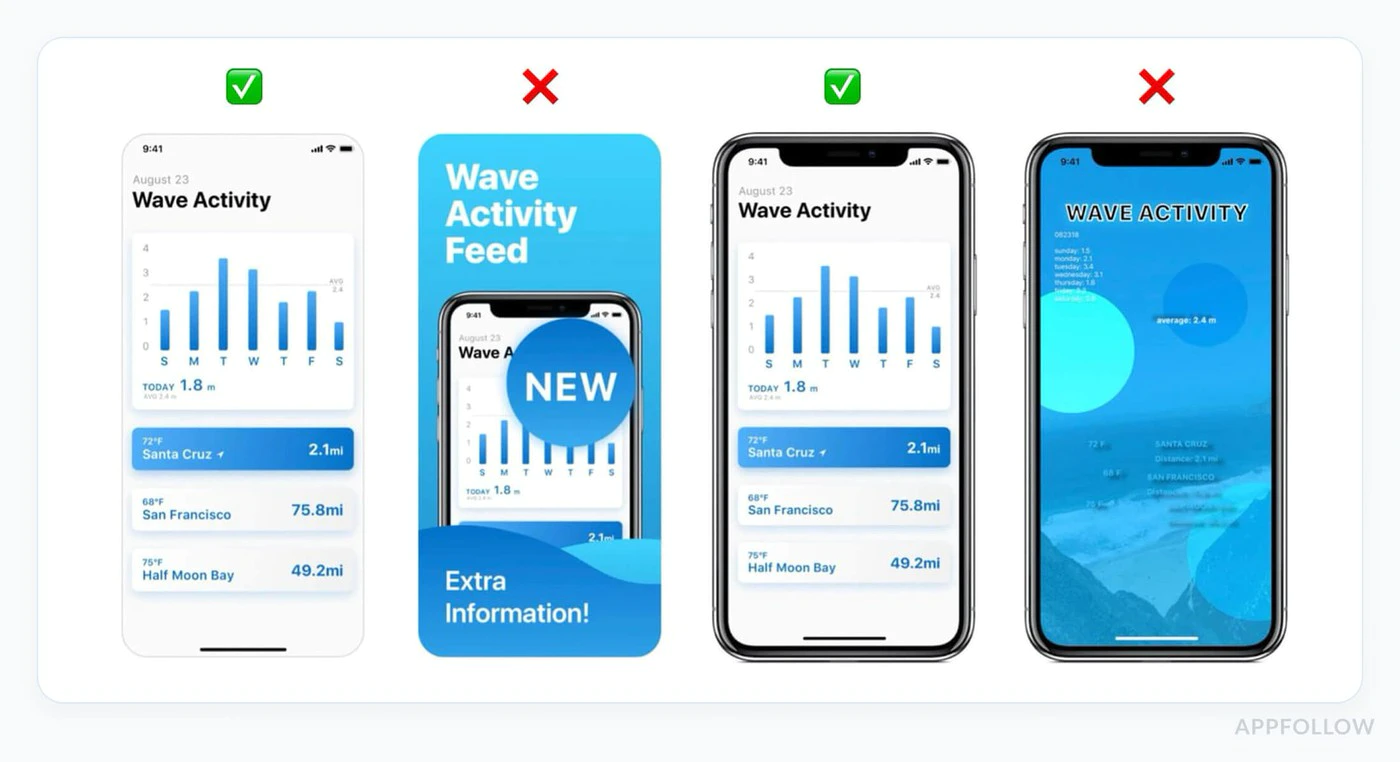
Example of Compliant UI:
function SubscriptionCard({ product }) {  return (    <div className="subscription-card">      <h3>{product.title}</h3>
      {/* Show intro offer if available */}      {product.introductoryPrice && (        <div className="intro-offer">          <p className="intro-price">{product.introductoryPriceString}</p>          <p className="intro-period">            for {product.introductoryPricePeriod}          </p>        </div>      )}
      {/* Regular price */}      <div className="regular-price">        <p className="price">{product.priceString}</p>        <p className="period">per {product.subscriptionPeriod}</p>      </div>
      {/* Clear description */}      <p>{product.description}</p>
      {/* Renewal terms */}      <p className="terms">        Renews automatically. Cancel anytime in Google Play.      </p>
      <button onClick={() => handlePurchase(product)}>        Subscribe Now      </button>    </div>  );}
Auto-Renewal Disclosure
Section titled “Auto-Renewal Disclosure”Before a subscription auto-renews, Google requires:
- Clear notification that renewal will occur
- Reminder of the price
- Easy access to cancellation
Price Consistency Across Platforms
Section titled “Price Consistency Across Platforms”Critical Rule: Prices must be consistent across all platforms where your app is available.
Example Violation:
- iOS: $9.99/month
- Android: $7.99/month
- Web: $11.99/month
Why It Matters: Users can screenshot price differences and report to Google, triggering policy violations.
Privacy Policy Requirements
Section titled “Privacy Policy Requirements”Mandatory Privacy Policy
Section titled “Mandatory Privacy Policy”If your app includes in-app purchases, you must:
-
Link in Play Store Listing
- Add privacy policy URL in Play Console
- Must be publicly accessible
- Must be in the same language as your app
-
Link Within App
- Display privacy policy in app settings
- Show before collecting any user data
- Make easily discoverable
Example Implementation:
function SettingsScreen() {  const openPrivacyPolicy = () => {    window.open('https://yourapp.com/privacy', '_blank');  };
  const openTerms = () => {    window.open('https://yourapp.com/terms', '_blank');  };
  return (    <div>      <h2>Settings</h2>
      <button onClick={openPrivacyPolicy}>        Privacy Policy      </button>
      <button onClick={openTerms}>        Terms of Service      </button>
      <button onClick={() => NativePurchases.showManageSubscriptions()}>        Manage Subscriptions      </button>    </div>  );}
Data Safety Section
Section titled “Data Safety Section”Google Play requires detailed disclosure in the Data Safety section:
For IAP Apps, Declare:
- Purchase history collection
- Email addresses (for receipts)
- Device IDs (for fraud prevention)
- Payment information handling
- Analytics data collection
The Data Safety section is legally binding. Inaccurate declarations can result in app removal.
Common Rejection Reasons
Section titled “Common Rejection Reasons”1. Missing or Incorrect Billing Implementation
Section titled “1. Missing or Incorrect Billing Implementation”Why It Fails:
- Not using Google Play Billing for digital goods
- Using deprecated billing APIs
- Implementing custom payment solutions for subscriptions
Prevention:
// ✅ Correct: Use native-purchases (uses Google Play Billing)await NativePurchases.purchaseProduct({  productIdentifier: 'premium_monthly'});
// ❌ Wrong: Custom payment processor for subscriptions// await CustomPayment.charge(user, 9.99);
2. Unclear Pricing or Hidden Costs
Section titled “2. Unclear Pricing or Hidden Costs”Why It Fails:
- Price only shown after clicking purchase
- Additional fees not disclosed upfront
- Vague subscription terms
Prevention:
function PurchaseScreen({ product }) {  return (    <div>      {/* Show ALL costs upfront */}      <h2>Premium Subscription</h2>
      <div className="pricing">        <p className="price">{product.priceString}/month</p>        <p className="taxes">Taxes may apply based on location</p>      </div>
      <div className="features">        <h3>Includes:</h3>        <ul>          <li>Ad-free experience</li>          <li>Unlimited cloud storage</li>          <li>Priority support</li>        </ul>      </div>
      <div className="terms">        <p>          Subscription renews automatically unless cancelled at least          24 hours before the end of the current period.        </p>        <p>          Manage or cancel in Google Play Subscriptions.        </p>      </div>
      <button onClick={handlePurchase}>        Start Subscription      </button>    </div>  );}
3. Deceptive Subscription Patterns
Section titled “3. Deceptive Subscription Patterns”Why It Fails:
- Pre-selecting premium options
- Hiding cheaper alternatives
- Making cancellation difficult
- Fake urgency (“Only 3 spots left!”)
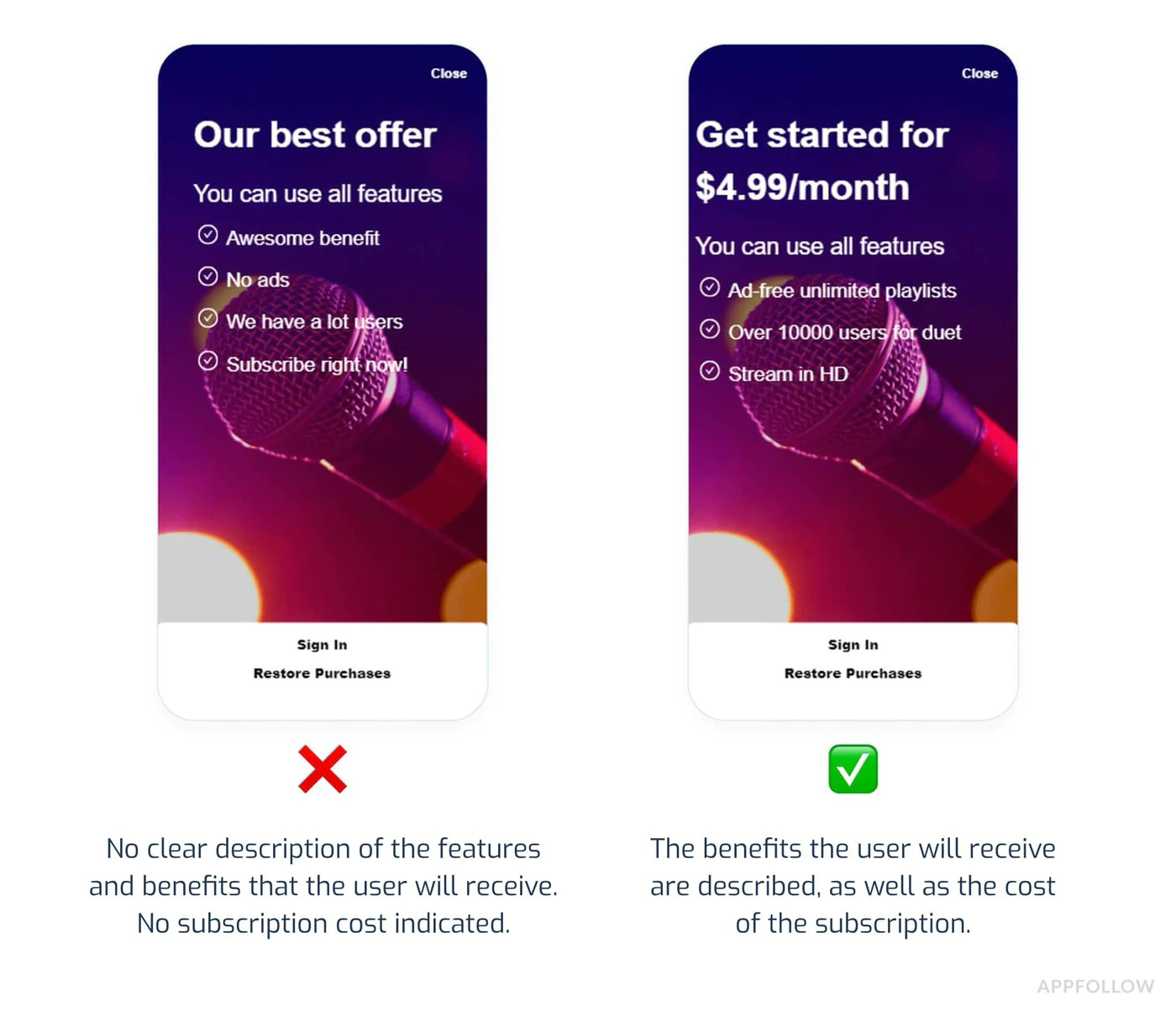
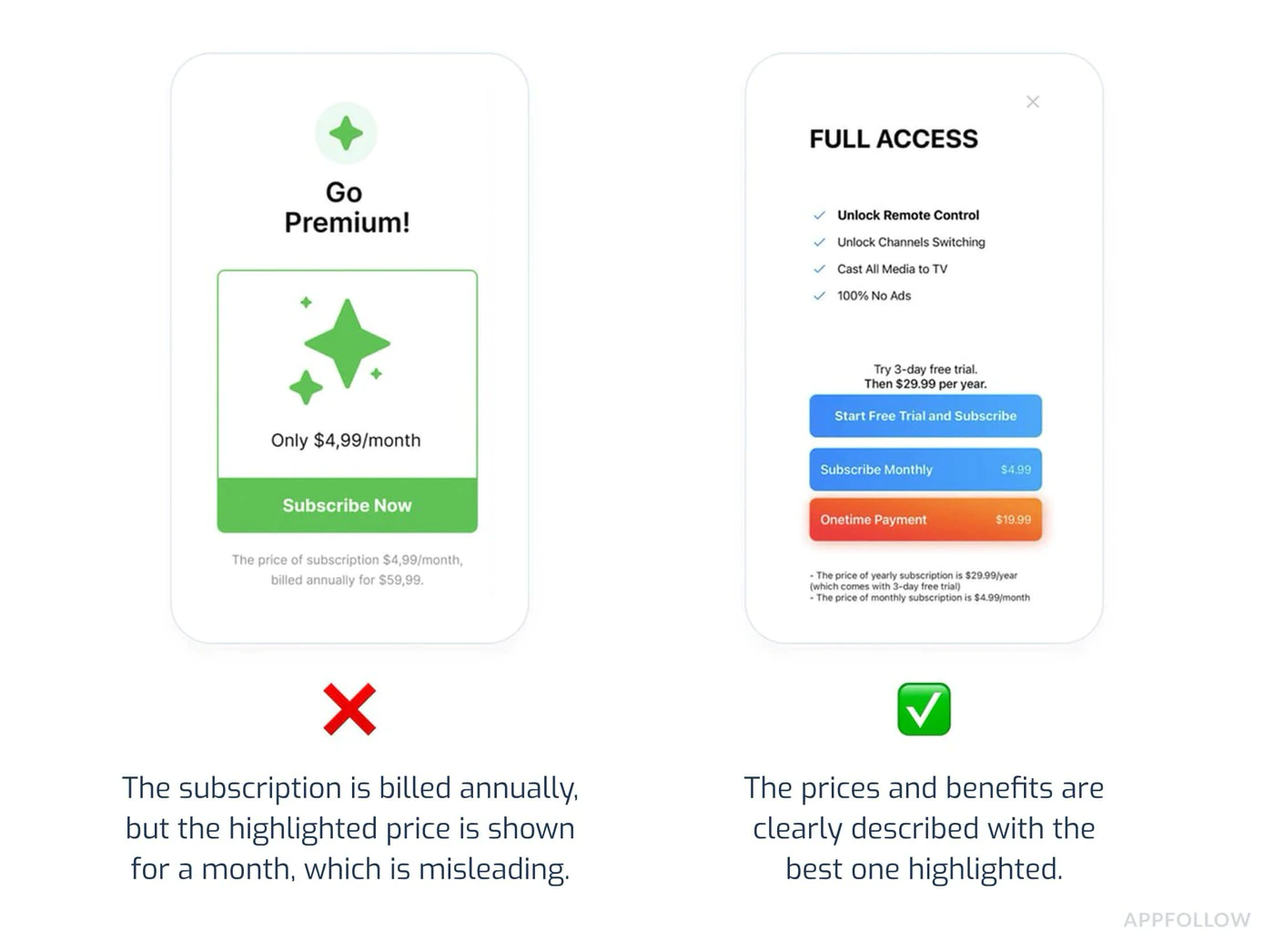
Prevention:
- Display all subscription tiers equally
- Make cancellation clear and accessible
- Avoid countdown timers or fake scarcity
- Don’t use dark patterns to push expensive options
4. Incomplete Testing
Section titled “4. Incomplete Testing”Why It Fails:
- App crashes when purchasing
- Products don’t load
- Purchase confirmation doesn’t show
- Premium features don’t unlock after purchase
Prevention:
import { NativePurchases, PURCHASE_TYPE } from '@capgo/native-purchases';
// Comprehensive testing before submissionasync function testPurchaseFlow() {  try {    // 1. Test product loading    const { products } = await NativePurchases.getProducts({      productIdentifiers: ['premium_monthly', 'premium_yearly'],      productType: PURCHASE_TYPE.SUBS,    });    console.log('✓ Products loaded:', products.length);
    // 2. Test purchase flow    const transaction = await NativePurchases.purchaseProduct({      productIdentifier: 'premium_monthly',      planIdentifier: 'monthly-plan',      productType: PURCHASE_TYPE.SUBS,    });    console.log('✓ Purchase completed', transaction.transactionId);
    // 3. Verify entitlements    const { purchases } = await NativePurchases.getPurchases({      productType: PURCHASE_TYPE.SUBS,    });    if (      purchases.some(        (purchase) =>          purchase.productIdentifier === 'premium_monthly' &&          ['PURCHASED', '1'].includes(purchase.purchaseState ?? '') &&          purchase.isAcknowledged,      )    ) {      console.log('✓ Premium features unlocked');    }
    // 4. Test restore    await NativePurchases.restorePurchases();    console.log('✓ Restore works');
  } catch (error) {    console.error('✗ Test failed:', error);  }}
5. Privacy Policy Violations
Section titled “5. Privacy Policy Violations”Why It Fails:
- No privacy policy link in app
- Privacy policy not accessible
- Data collection not disclosed
- Data Safety section inaccurate
Prevention:
- Add privacy policy to Play Store listing
- Include link in app settings
- Accurately fill out Data Safety section
- Update policy when adding new data collection
Alternative Billing Systems (2025 Update)
Section titled “Alternative Billing Systems (2025 Update)”Regional Compliance
Section titled “Regional Compliance”Google now allows alternative billing systems in certain regions:
Eligible Regions:
- European Economic Area (EEA)
- South Korea
- India (coming soon)
Requirements if Using Alternative Billing:
- Must still offer Google Play Billing as option
- Clear communication to users about choice
- Comply with local regulations
- Service fee still applies (reduced)
Subscription Management
Section titled “Subscription Management”Easy Cancellation
Section titled “Easy Cancellation”Users must be able to:
- View active subscriptions easily
- Cancel without contacting support
- Understand when cancellation takes effect
Implementation:
import { NativePurchases } from '@capgo/native-purchases';
function ManageSubscriptionButton() {  const openManagement = async () => {    try {      // Opens Google Play subscription management      await NativePurchases.showManageSubscriptions();    } catch (error) {      // Fallback to direct URL      const playStoreUrl = 'https://play.google.com/store/account/subscriptions';      window.open(playStoreUrl, '_blank');    }  };
  return (    <button onClick={openManagement}>      Manage Subscription in Google Play    </button>  );}
Cancellation Grace Period
Section titled “Cancellation Grace Period”Required Disclosure:
- When does cancellation take effect?
- Do users keep access until period ends?
- Are partial refunds available?
function CancellationInfo() {  return (    <div className="cancellation-info">      <h3>Cancellation Policy</h3>      <ul>        <li>Cancel anytime in Google Play</li>        <li>Access continues until end of billing period</li>        <li>No refunds for partial periods</li>        <li>Resubscribe anytime to regain access</li>      </ul>
      <button onClick={() => NativePurchases.showManageSubscriptions()}>        Manage in Google Play      </button>    </div>  );}
Pre-Submission Checklist
Section titled “Pre-Submission Checklist”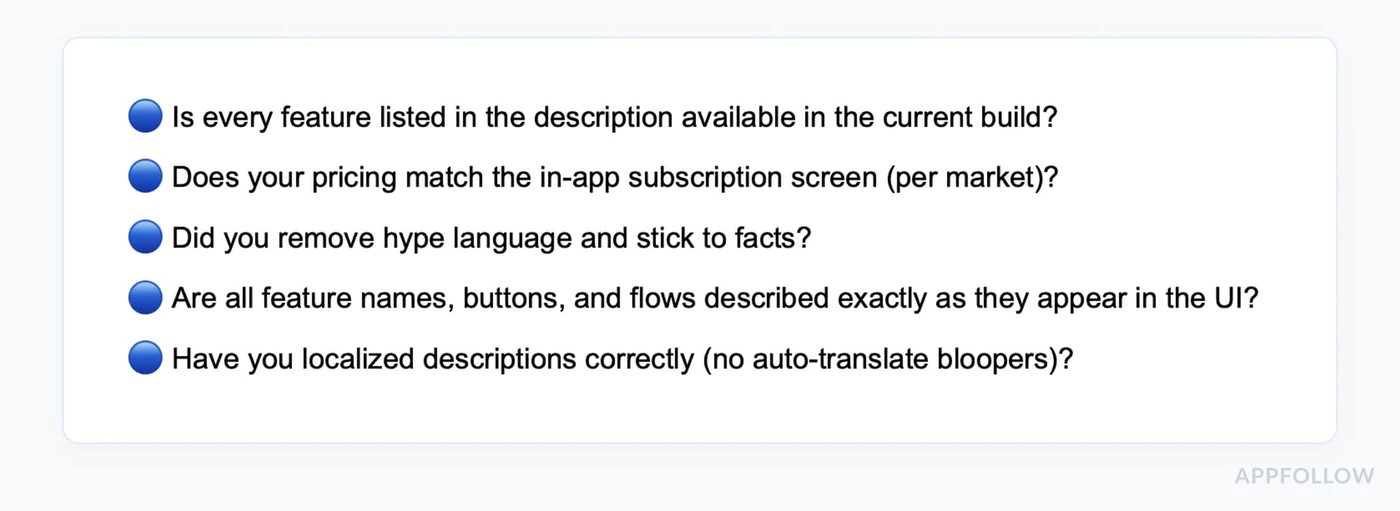
-
Verify Billing Implementation
- Using Google Play Billing (via native-purchases)
- All subscription products created in Play Console
- Products are activated and published
- Pricing set for all target countries
-
Test Purchase Flows
- Create license test account
- Test each subscription tier
- Verify products load correctly
- Test purchase completion
- Verify premium features unlock
- Test subscription restoration
- Test on multiple devices
-
Review All Copy
- Pricing displayed clearly before purchase
- All fees disclosed upfront
- Subscription terms are clear
- Cancellation process explained
- No misleading claims
-
Privacy Compliance
- Privacy policy linked in Play Console
- Privacy policy accessible in app
- Data Safety section completed accurately
- Permissions justified and documented
-
Content Rating
- Complete content rating questionnaire
- Ensure rating matches actual content
- Declare in-app purchases in questionnaire
-
Prepare Store Listing
- App description accurate
- Screenshots show current version
- Feature graphic meets requirements
- All required assets uploaded
Review Timeline
Section titled “Review Timeline”Initial Review: 7 days on average (can be faster) Updates: Typically faster than initial submission Policy Violations: Immediate suspension possible Appeals: 7-14 days for review
:::tip Rolling Reviews Unlike Apple, Google reviews apps continuously. Your app may go live at any time during the review period, not at a fixed time. :::
Testing Before Submission
Section titled “Testing Before Submission”License Testing
Section titled “License Testing”-
Add Test Account:
- Go to Play Console
- Setup > License Testing
- Add Gmail account for testing
-
Test in Sandbox:
import { NativePurchases, PURCHASE_TYPE } from '@capgo/native-purchases';
// Test purchases with license test accountasync function testInSandbox() {  const { isBillingSupported } = await NativePurchases.isBillingSupported();  if (!isBillingSupported) {    console.error('Billing not supported in this environment');    return;  }
  // Fetch products (returns test pricing when using a license tester)  const { products } = await NativePurchases.getProducts({    productIdentifiers: ['premium_monthly'],    productType: PURCHASE_TYPE.SUBS,  });
  console.log('Test products:', products);
  // Make test purchase (no charge)  const transaction = await NativePurchases.purchaseProduct({    productIdentifier: 'premium_monthly',    planIdentifier: 'monthly-plan',    productType: PURCHASE_TYPE.SUBS,  });
console.log('Test purchase complete:', transaction.transactionId);}- Verify Test Banner:
- When purchasing with test account
- Should see “Test purchase” notification
- No real charges occur
Internal Testing Track
Section titled “Internal Testing Track”Before production release:
- Create Internal Testing track in Play Console
- Upload APK/AAB
- Add tester email addresses
- Testers download from Play Store (testing track)
- Verify purchase flows work end-to-end
Best Practices for Native Purchases
Section titled “Best Practices for Native Purchases”Handle All Purchase States
Section titled “Handle All Purchase States”import { NativePurchases, PURCHASE_TYPE } from '@capgo/native-purchases';
async function handlePurchase(productId: string, planIdentifier?: string) { try { setLoading(true);
const transaction = await NativePurchases.purchaseProduct({ productIdentifier: productId, planIdentifier, productType: planIdentifier ? PURCHASE_TYPE.SUBS : PURCHASE_TYPE.INAPP, });
console.log('Purchase token:', transaction.purchaseToken ?? transaction.receipt);
// Success - check entitlements from the store const { purchases } = await NativePurchases.getPurchases({ productType: planIdentifier ? PURCHASE_TYPE.SUBS : PURCHASE_TYPE.INAPP, });
const isOwned = purchases.some( (purchase) => purchase.productIdentifier === productId && (purchase.purchaseState === 'PURCHASED' || purchase.purchaseState === '1') && purchase.isAcknowledged, );
if (isOwned) { unlockPremiumFeatures(); showSuccess('Premium activated!'); }
} catch (error: any) { // Handle specific error cases switch (error.code) { case 'USER_CANCELLED': // User backed out - no error needed console.log('Purchase cancelled'); break;
case 'ITEM_ALREADY_OWNED': // They already own it - restore instead showInfo('You already own this! Restoring...'); await NativePurchases.restorePurchases(); break;
case 'ITEM_UNAVAILABLE': showError('This subscription is currently unavailable. Please try again later.'); break;
case 'NETWORK_ERROR': showError('Network error. Please check your connection and try again.'); break;
default: showError('Purchase failed. Please try again.'); console.error('Purchase error:', error); } } finally { setLoading(false); }}Implement Restore Purchases
Section titled “Implement Restore Purchases”import { NativePurchases, PURCHASE_TYPE } from '@capgo/native-purchases';
function RestorePurchasesButton() { const [loading, setLoading] = useState(false);
const handleRestore = async () => { setLoading(true);
try { await NativePurchases.restorePurchases();
const { purchases } = await NativePurchases.getPurchases({ productType: PURCHASE_TYPE.SUBS, });
const hasSubscription = purchases.some( (purchase) => purchase.productType === 'subs' && purchase.isAcknowledged, );
if (hasSubscription) { unlockPremiumFeatures(); showSuccess('Subscriptions restored!'); return; }
// Check one-time unlocks if needed const { purchases: iaps } = await NativePurchases.getPurchases({ productType: PURCHASE_TYPE.INAPP, }); const hasInApp = iaps.some((purchase) => purchase.productIdentifier === 'premium_unlock');
if (hasInApp) { unlockPremiumFeatures(); showSuccess('Previous purchases restored!'); return; }
showInfo('No previous purchases found.'); } catch (error) { showError('Failed to restore purchases. Please try again.'); } finally { setLoading(false); } };
return ( <button onClick={handleRestore} disabled={loading}> {loading ? 'Restoring...' : 'Restore Purchases'} </button> );}Check Subscription Status
Section titled “Check Subscription Status”import { NativePurchases, PURCHASE_TYPE } from '@capgo/native-purchases';
async function checkSubscriptionStatus() { try { const { purchases } = await NativePurchases.getPurchases({ productType: PURCHASE_TYPE.SUBS, });
const subscription = purchases.find( (purchase) => purchase.productIdentifier === 'premium_monthly' && (purchase.purchaseState === 'PURCHASED' || purchase.purchaseState === '1') && purchase.isAcknowledged, );
if (!subscription) { showPaywall(); return; }
console.log('Subscription active:', { productId: subscription.productIdentifier, expiresAt: subscription.expirationDate, willRenew: subscription.willCancel === false, purchaseToken: subscription.purchaseToken, });
unlockPremiumFeatures(); } catch (error) { console.error('Failed to check subscription:', error); }}If Your App Gets Rejected
Section titled “If Your App Gets Rejected”Common Policy Violations
Section titled “Common Policy Violations”Payments Policy:
- Not using Google Play Billing
- Misleading subscription terms
- Hidden costs
User Data Policy:
- Missing privacy policy
- Inaccurate Data Safety declarations
- Excessive permissions
Resolution Steps
Section titled “Resolution Steps”-
Review the Violation Notice
- Read the specific policy cited
- Understand what Google flagged
- Check examples they provided
-
Fix the Issue
- Address root cause, not just symptoms
- Test thoroughly after fix
- Document all changes made
-
Submit Appeal (if applicable)
 Subject: Policy Violation Appeal - [App Name]Dear Google Play Review Team,I have received notification that my app violates [Policy X.Y].I have made the following changes to comply:1. [Specific change made]2. [Specific change made]3. [Specific change made]The updated version [version number] addresses all concerns raised.Test account for verification:Email: test@example.comPassword: TestPass123Thank you for your consideration.
-
Resubmit or Update
- Upload fixed version
- Resubmit for review
- Monitor status in Play Console
Additional Resources
Section titled “Additional Resources”- Google Play Developer Policy Center
- Google Play Billing Documentation
- Subscriptions Best Practices
- Play Console Help
Need Expert Help?
Section titled “Need Expert Help?”Navigating Play Store review can be complex, especially with the new 2025 testing requirements. If you need personalized assistance:
Book a consultation call with our team for help with:
- Complete Play Store review preparation
- Testing track setup and tester recruitment
- IAP implementation review
- Data Safety and privacy compliance
- Rejection troubleshooting and appeals
- Complete app submission process
Our experts have guided hundreds of apps through successful Play Store submissions and can help you navigate the 2025 requirements.
Support
Section titled “Support”Need help with implementation?
- Review the Native Purchases documentation
- Check Android sandbox testing guide
- Visit Google Play Developer Support