
Firebase Google Login on iOS
Introduction
Section titled “Introduction”This guide will help you integrate Google Sign-In with Firebase Authentication on iOS. I assume you have already completed the general Firebase Google setup.
Setup Steps
Section titled “Setup Steps”-
Go to your project overview over at console.cloud.google.com
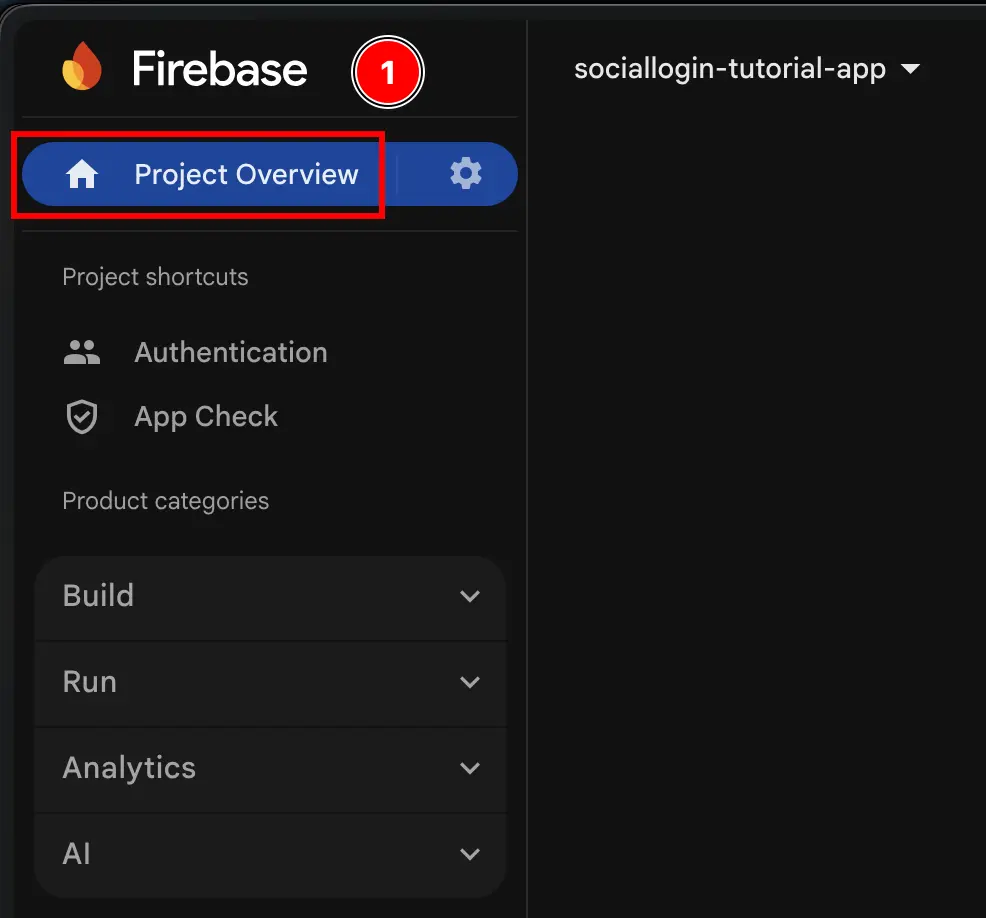
-
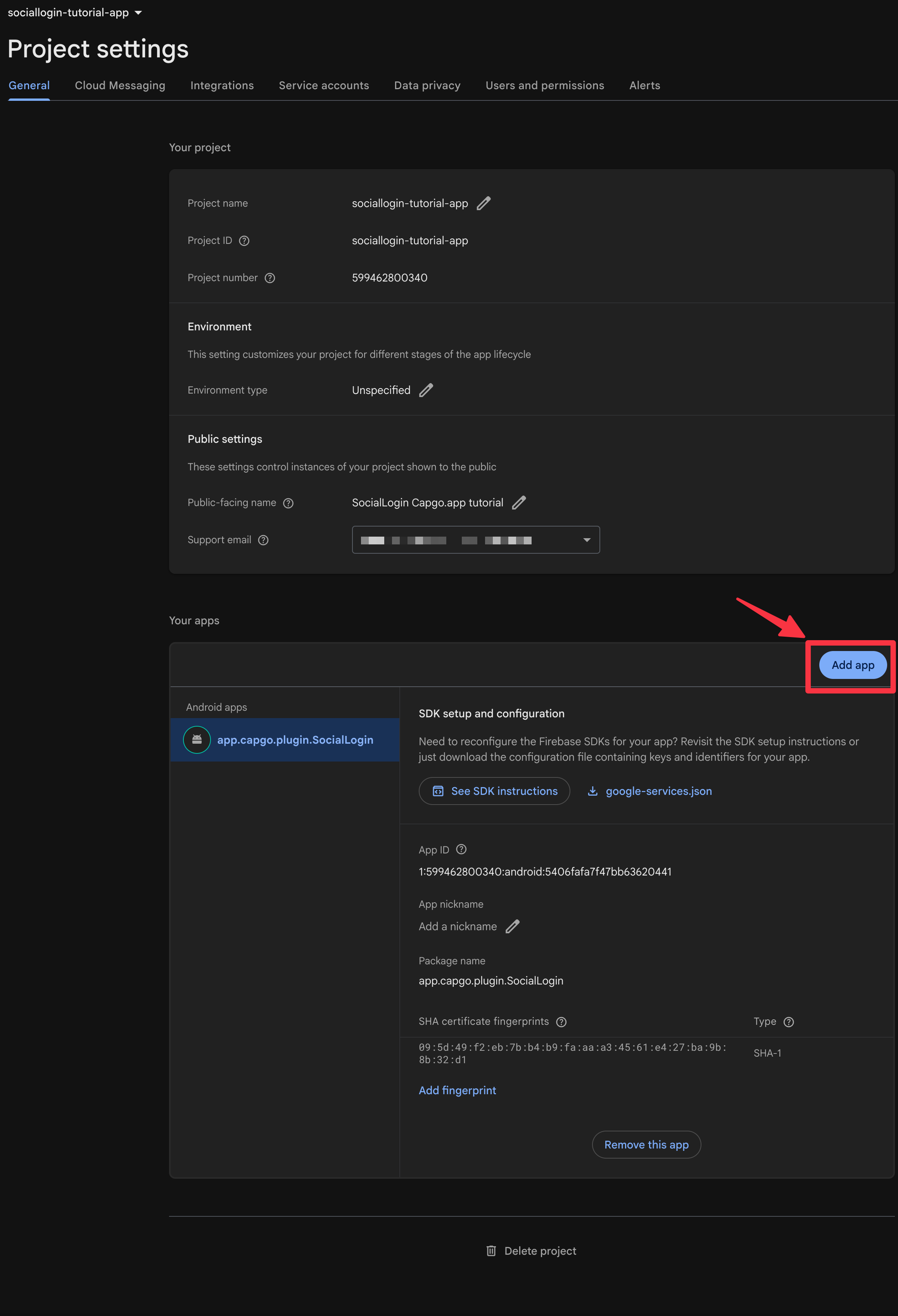
Click on the
Add appbutton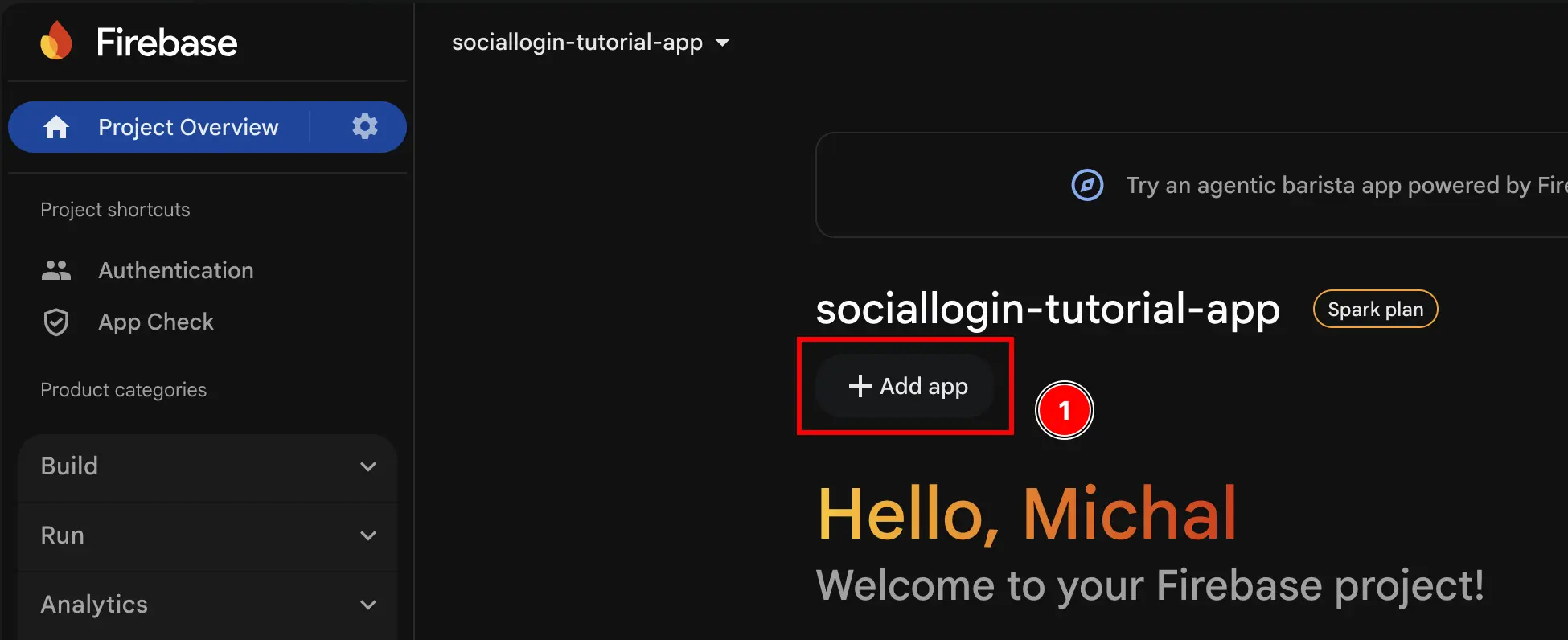
-
Select
iOS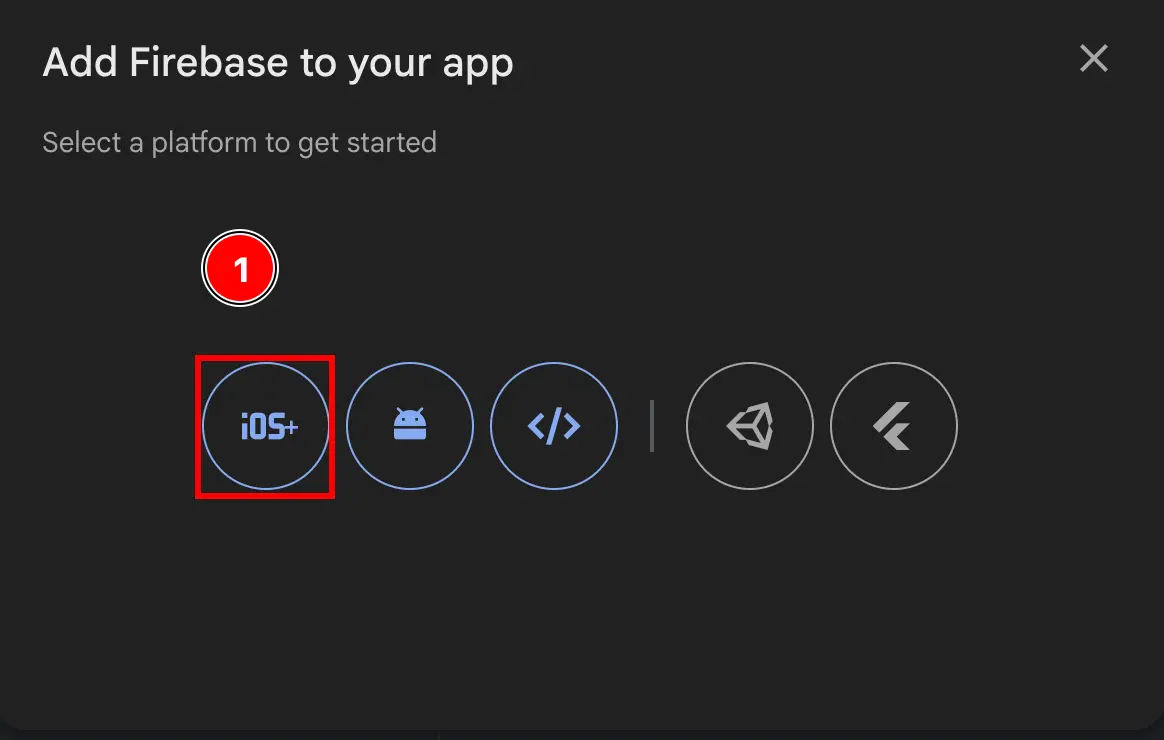
-
Fill the first part of the form
- Fill the
Apple bundle ID- Open Xcode at your app using
npx cap open ios - Double click on
App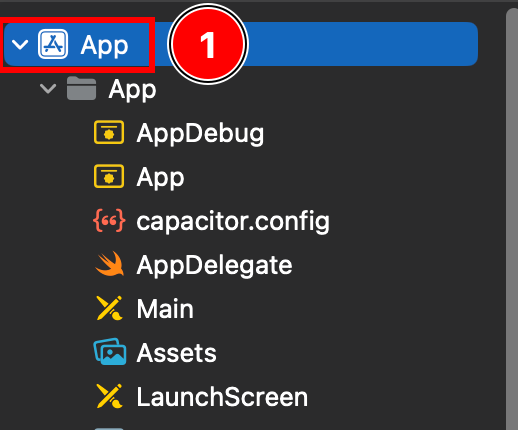
- Ensure that you are on
Targets -> App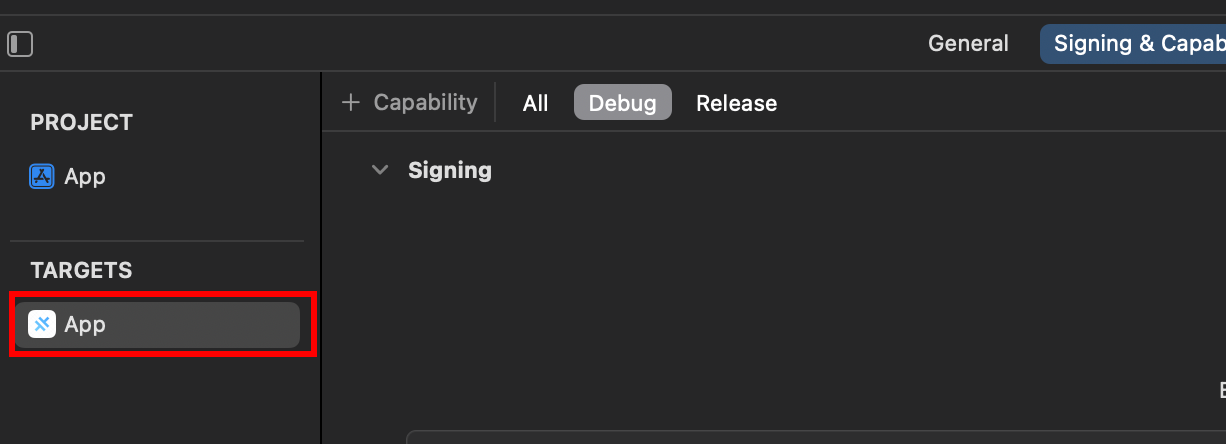
- Find your
Bundle Identifier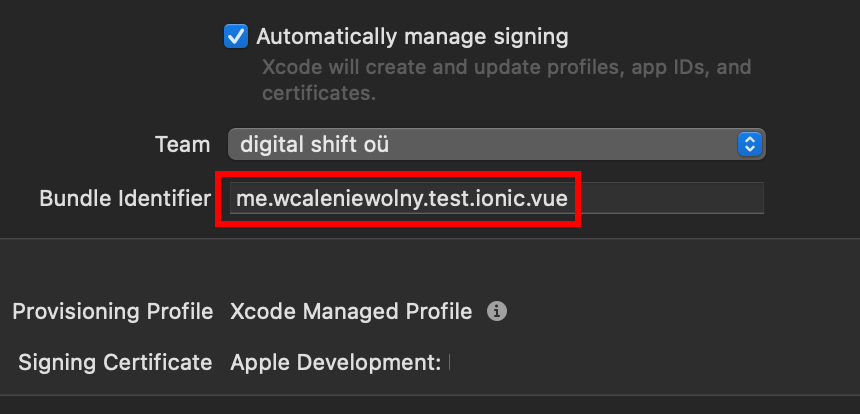
- Copy the
Bundle Identifierand paste it in the Firebase console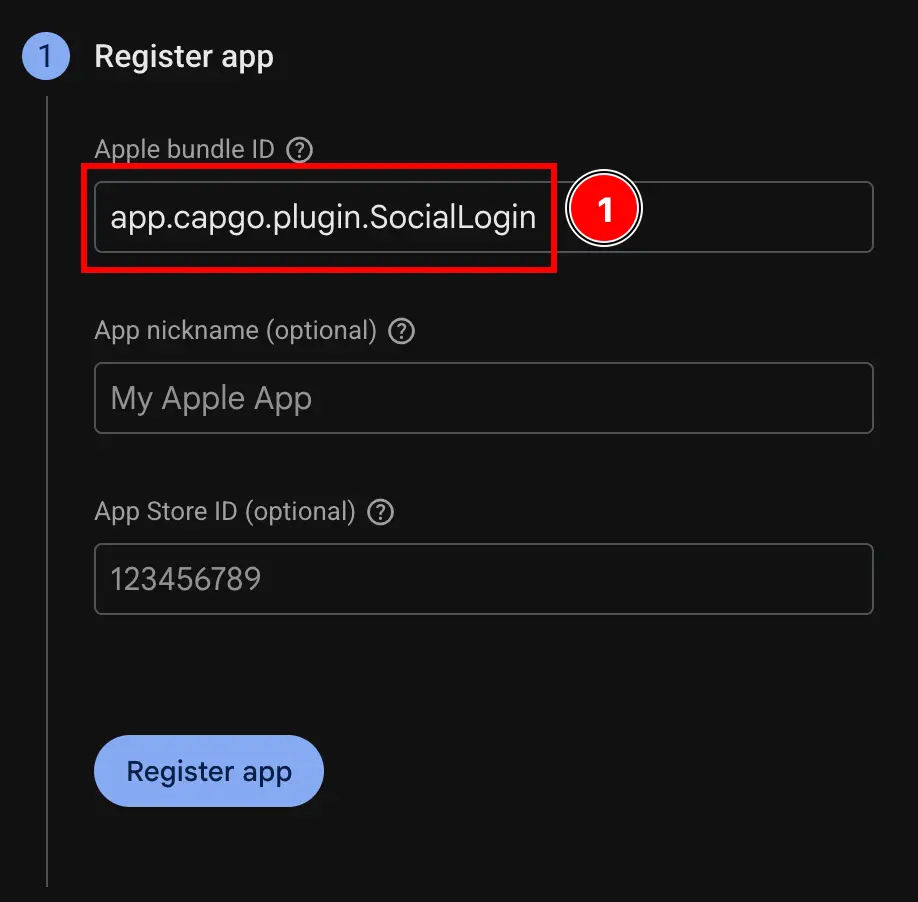
- Open Xcode at your app using
- Click on the
Register appbutton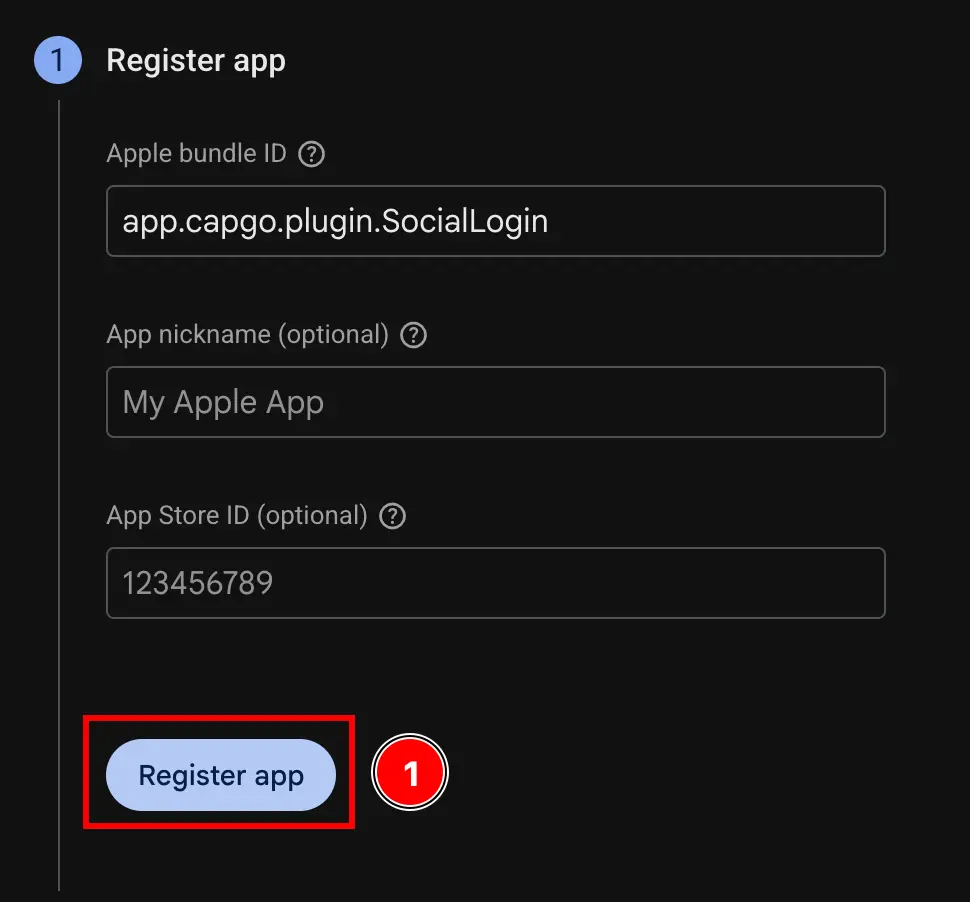
- Fill the
-
Skip the
Download config filestep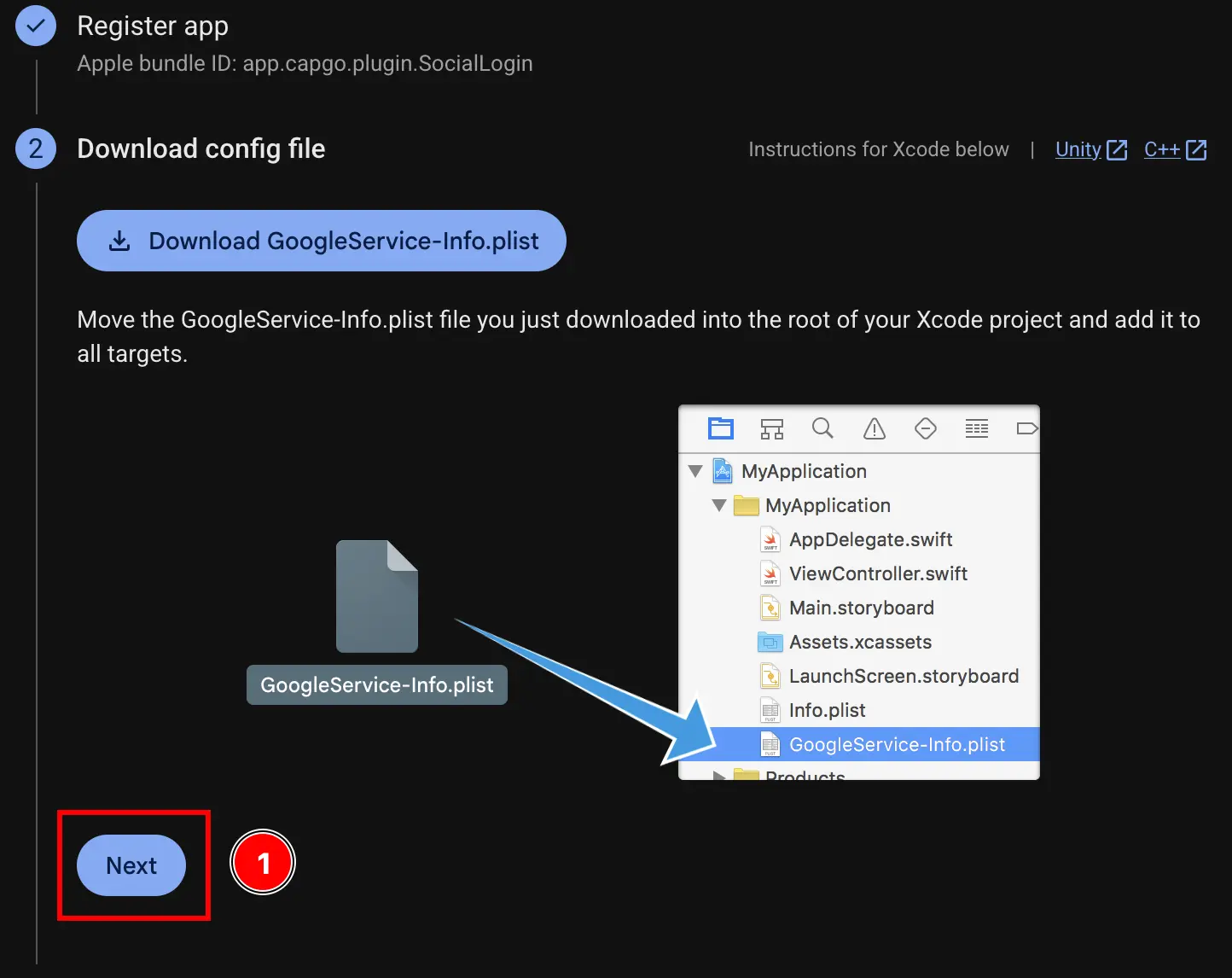
-
Skip the
Add firebase SDKstep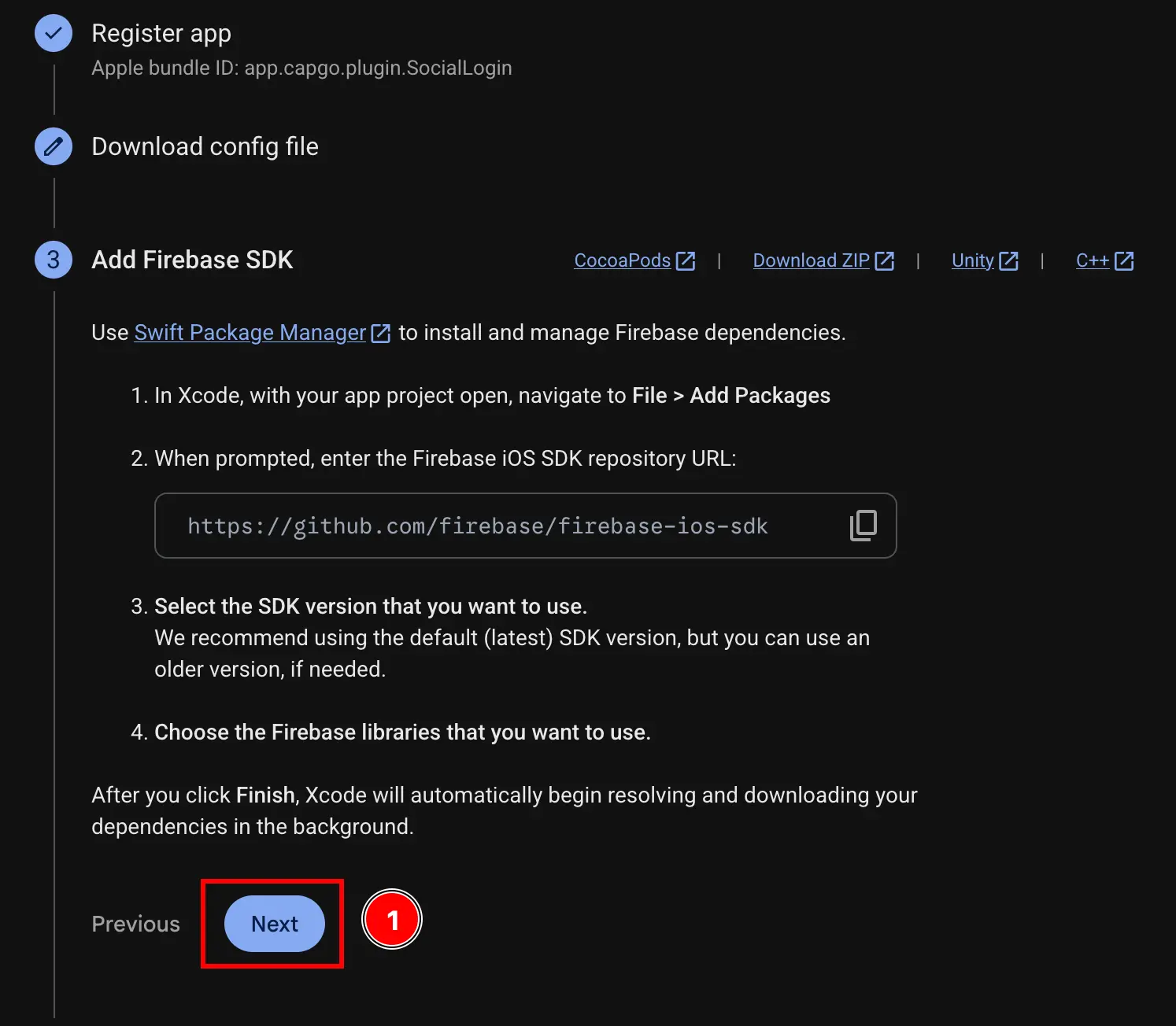
-
Skip the
Add initialization codestep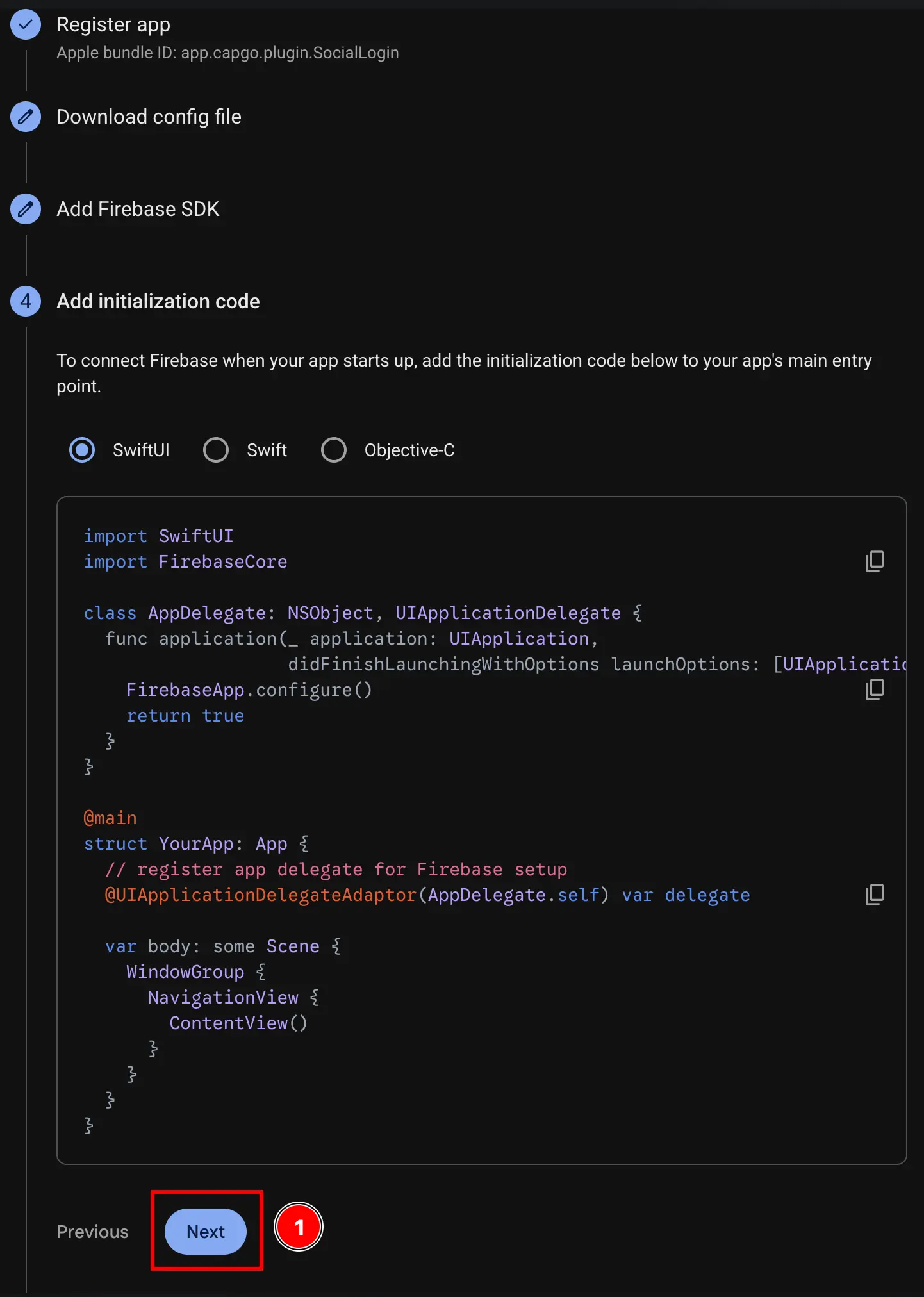
-
Click on the
Continue to consolebutton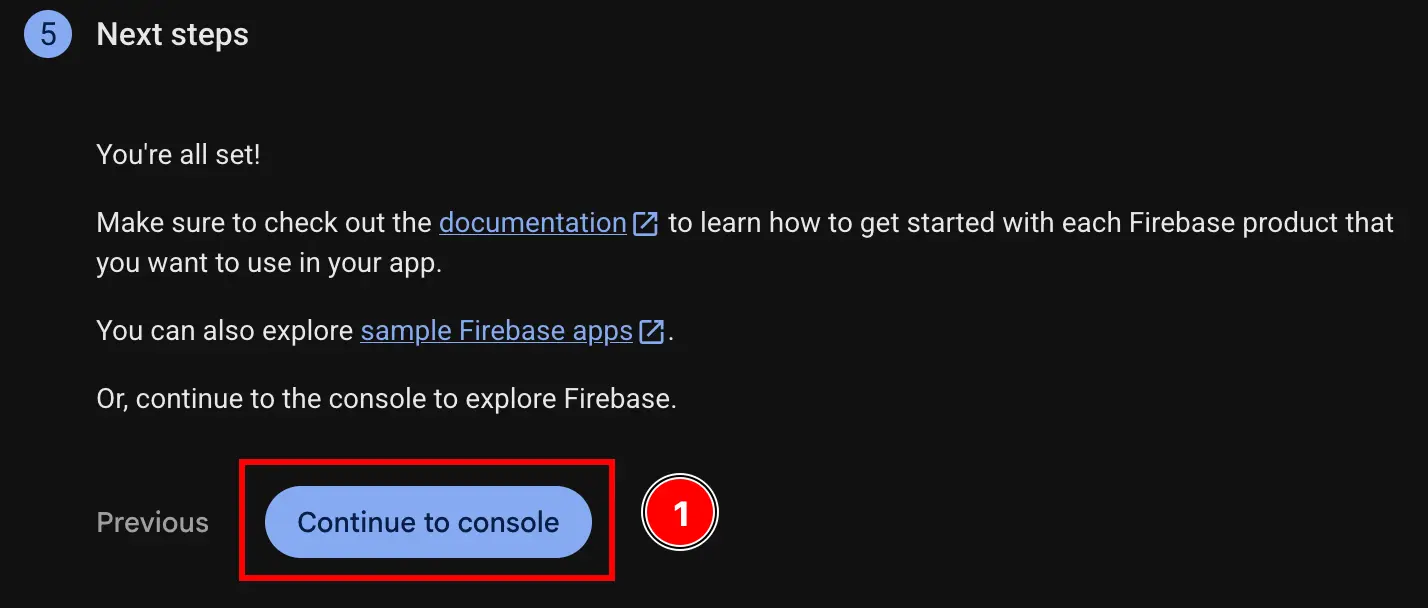
-
Get your iOS client ID and your
YOUR_DOT_REVERSED_IOS_CLIENT_ID-
Go to Google Cloud Console at console.cloud.google.com
-
Find your project
- Click on the project selector
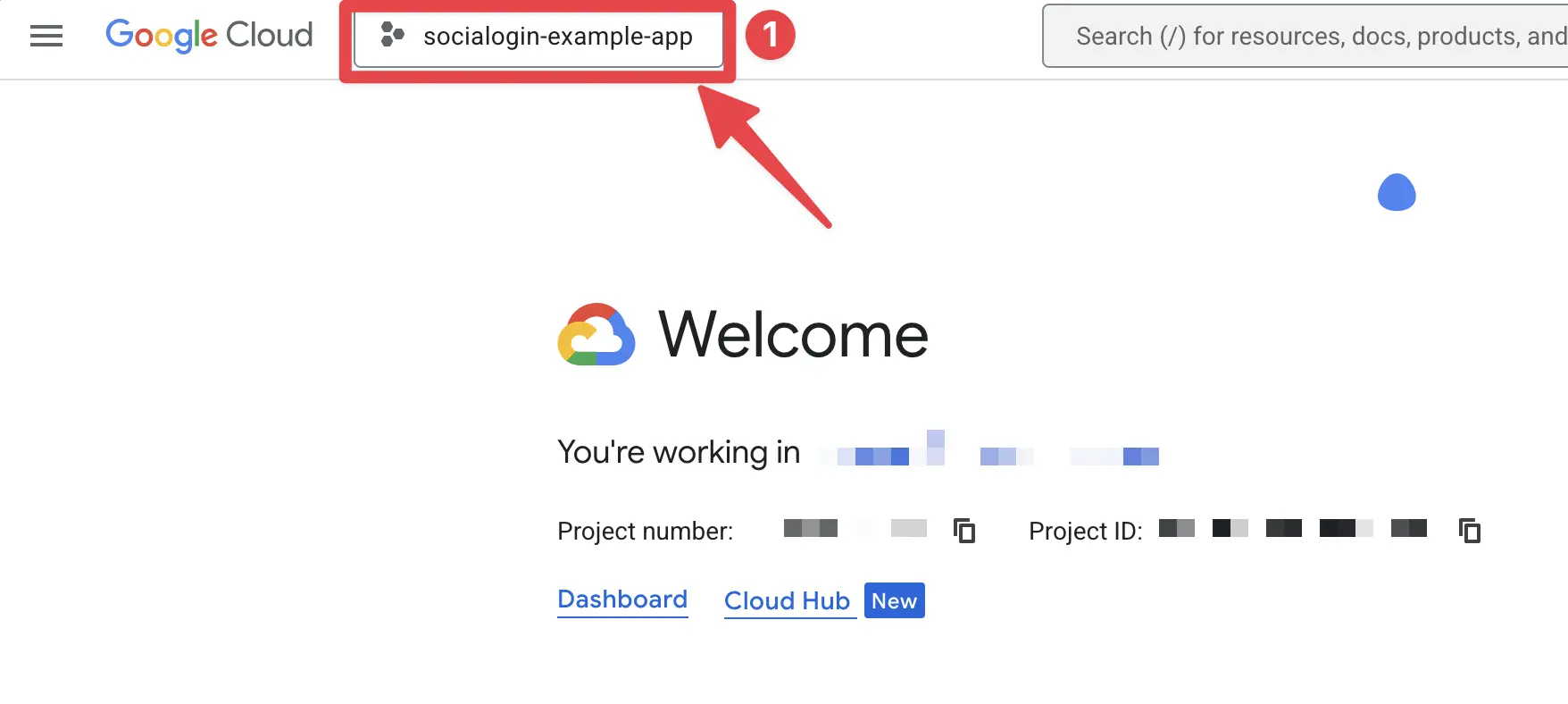
- Search up your project by the exact name of your Firebase project and click on it. In my case, it is
sociallogin-tutorial-app.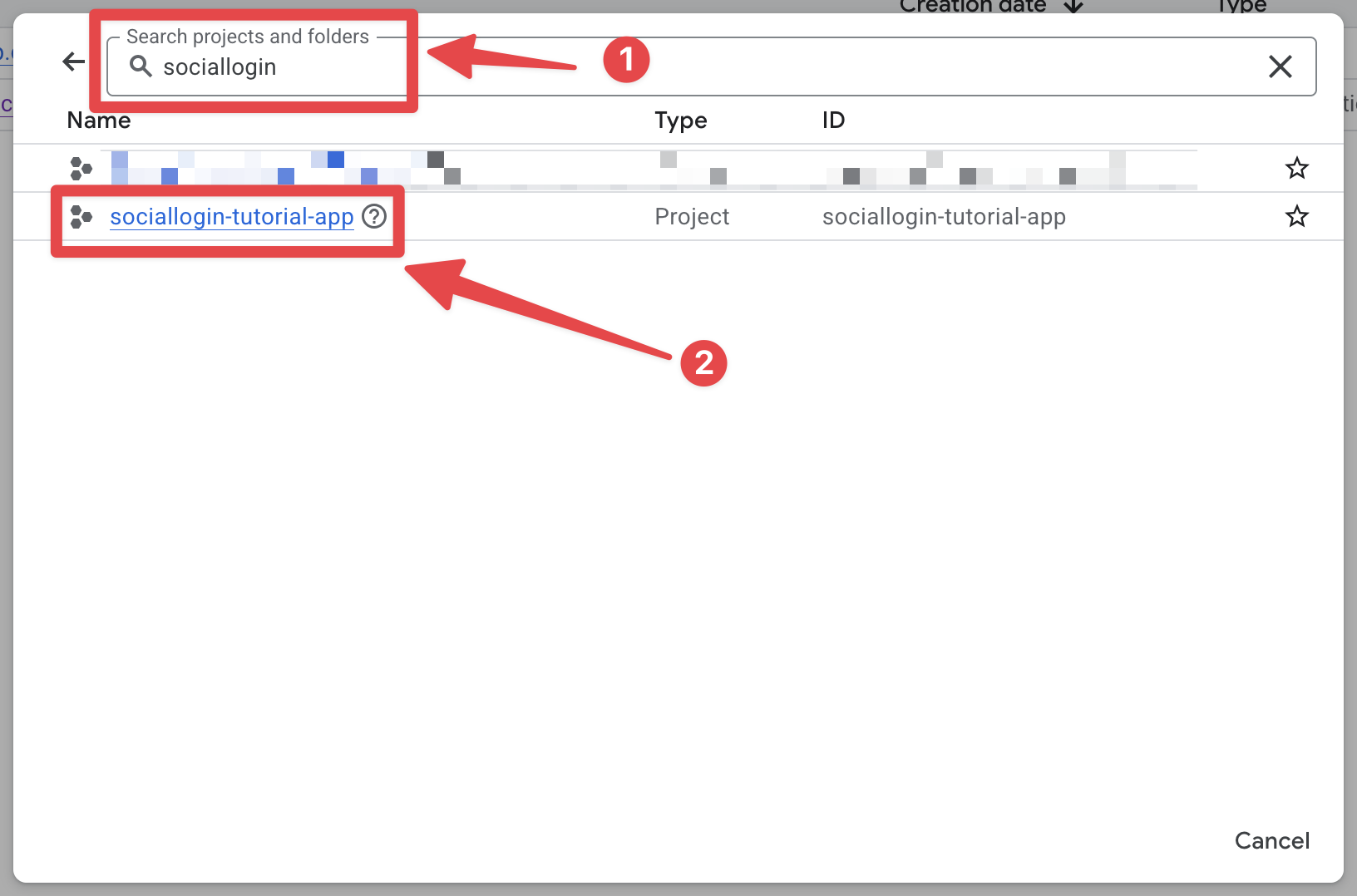
- Click on the project selector
-
Open the search bar and open
credentials- Open the search bar
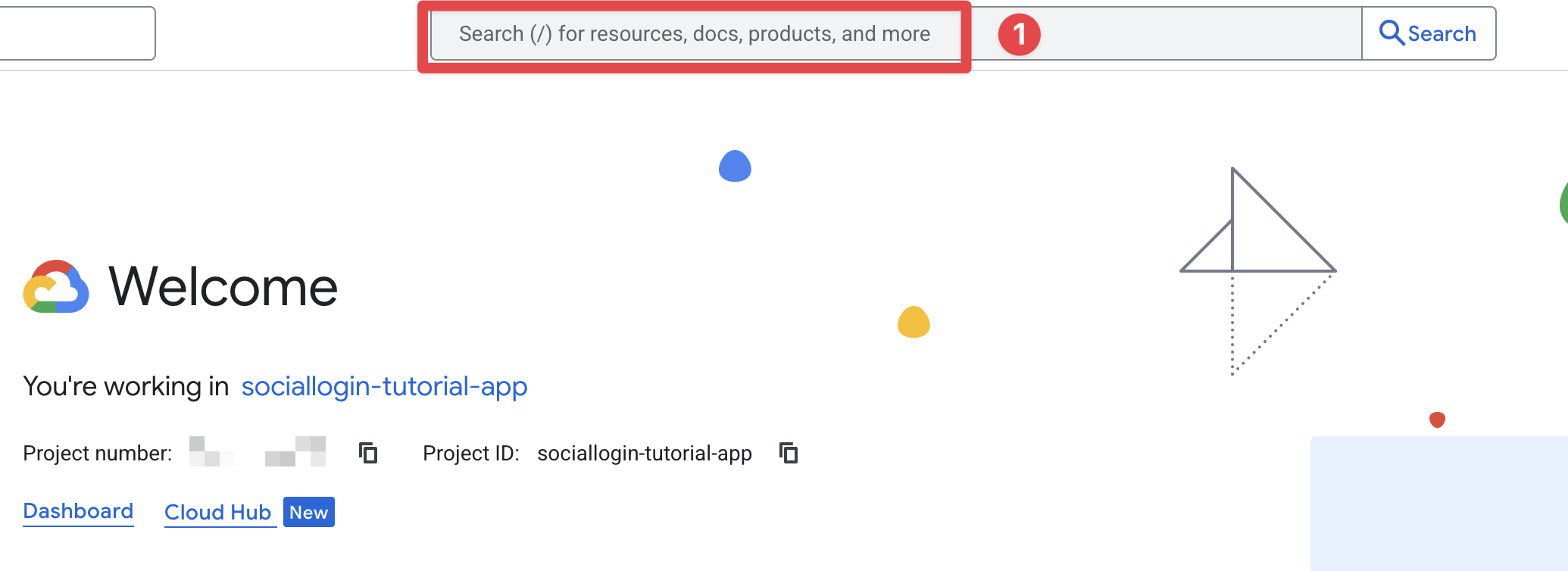
- Search for
credentialsand click on theAPIs and Servicesone (number 2 on the screenshot)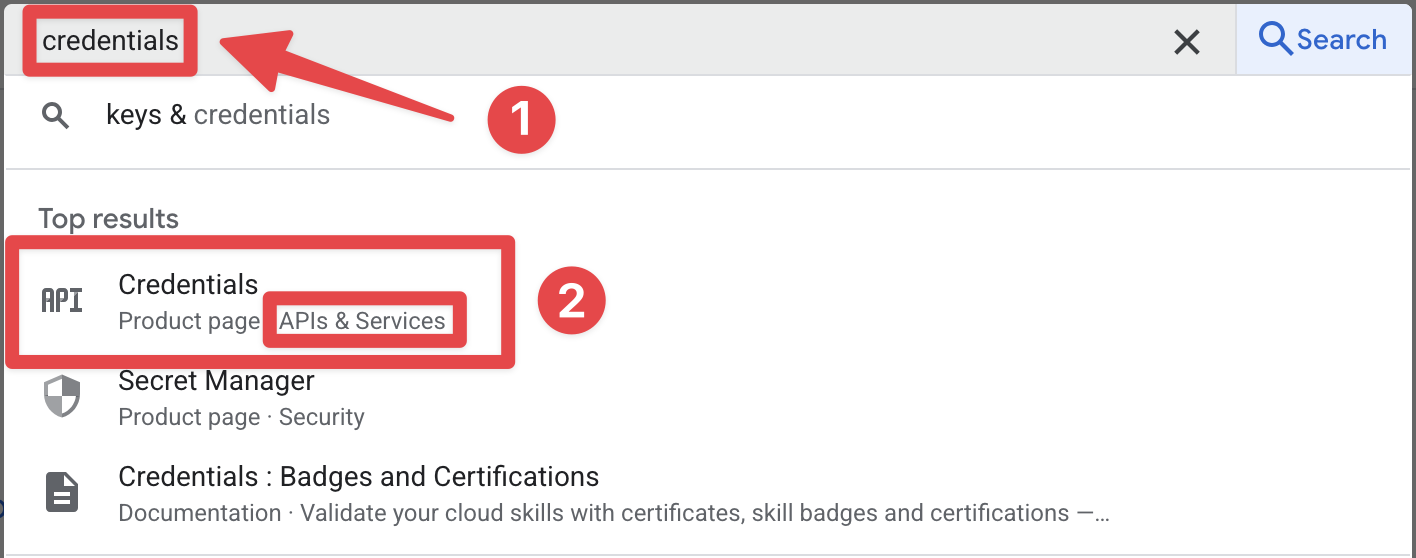
- Open the search bar
-
Click on the
iOS client for [YOUR_APP_ID] (auto created by Google Service)one. In my case, it issociallogin-tutorial-app.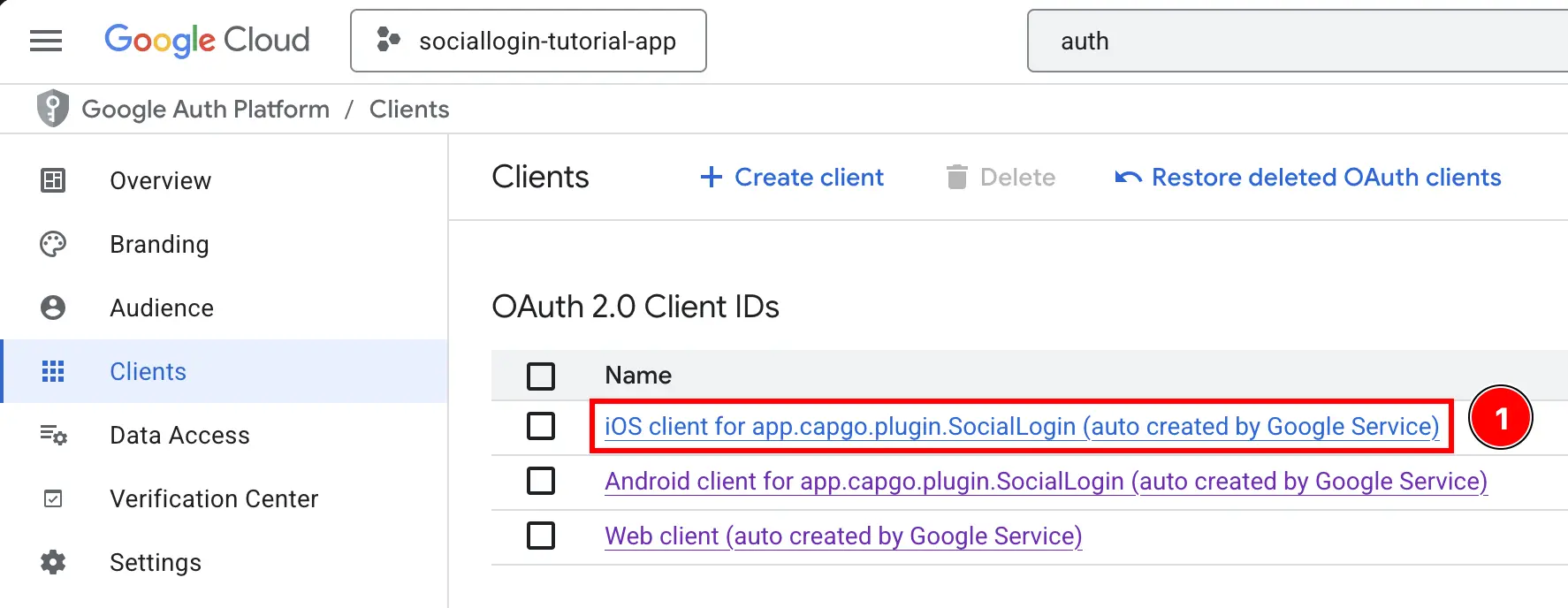
-
Copy the
Client IDas well as theiOS URL scheme. This will be respectively youriOSClientIdandYOUR_DOT_REVERSED_IOS_CLIENT_ID.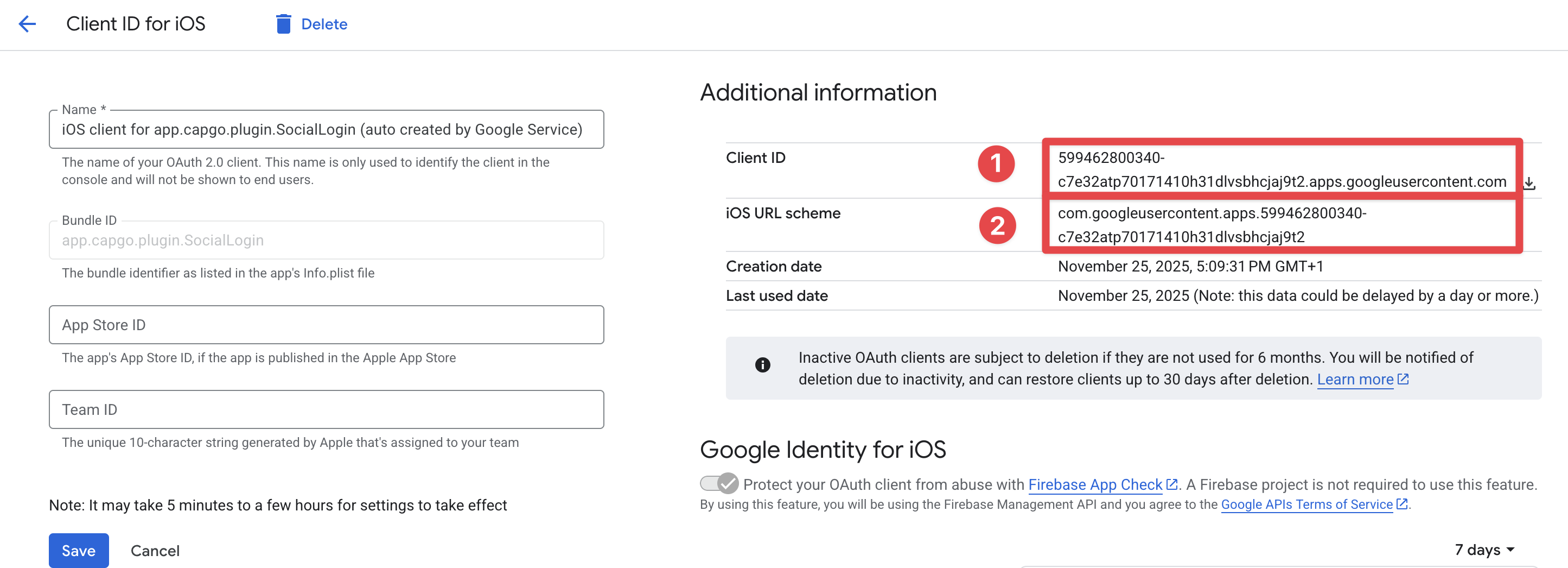
-
-
Get your web client ID
- Go back to the Firebase console and go to
Build->Authentication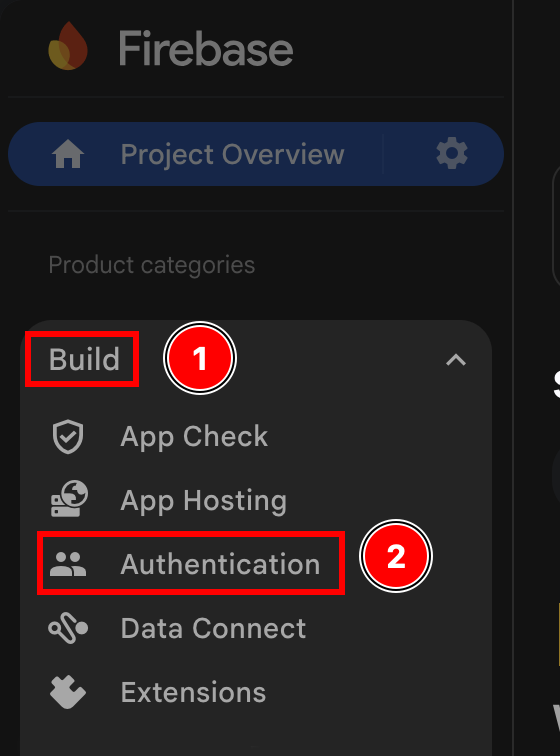
- Click on the
Sign-in methodbutton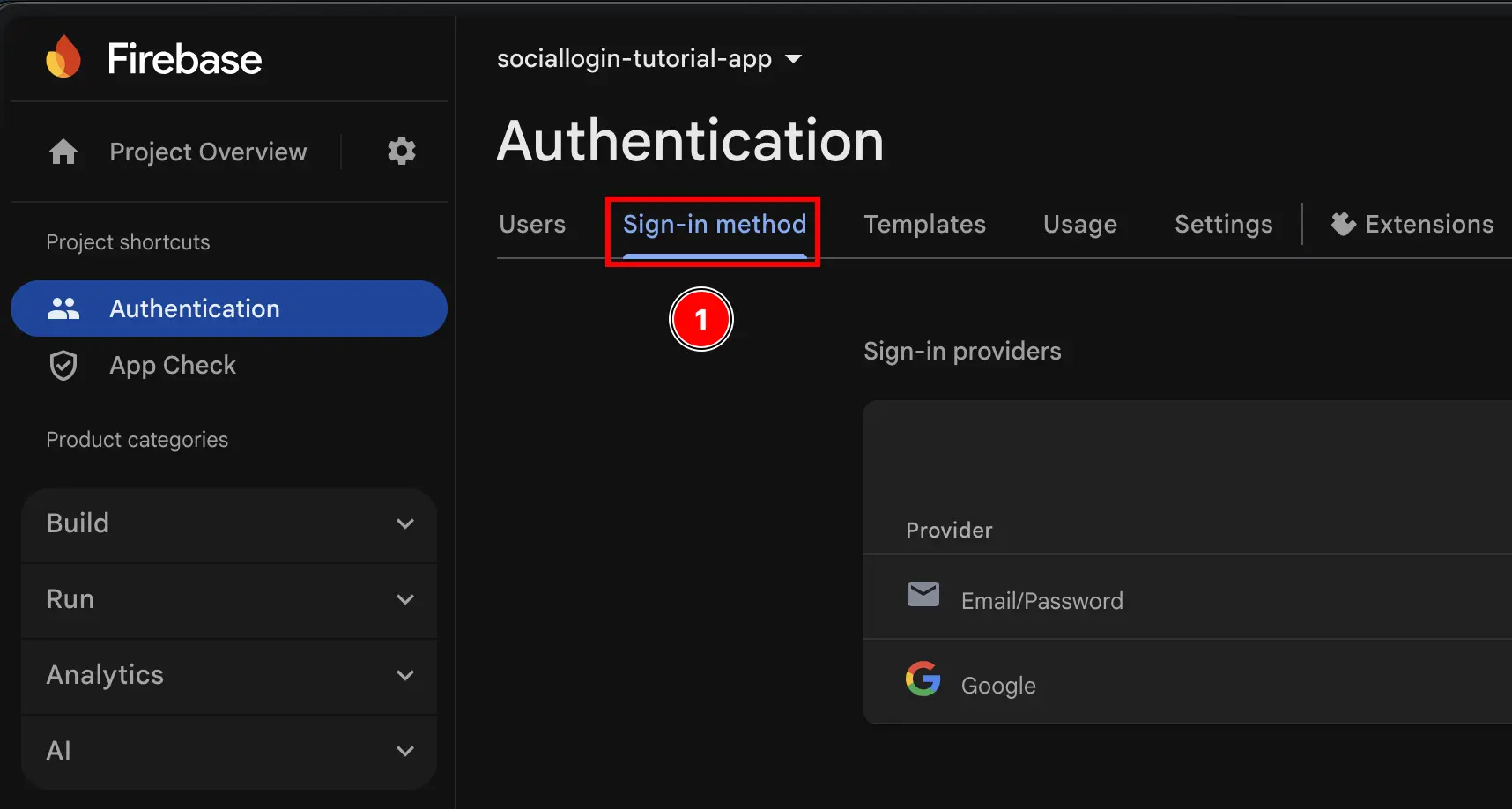
- Click on the
Googleprovider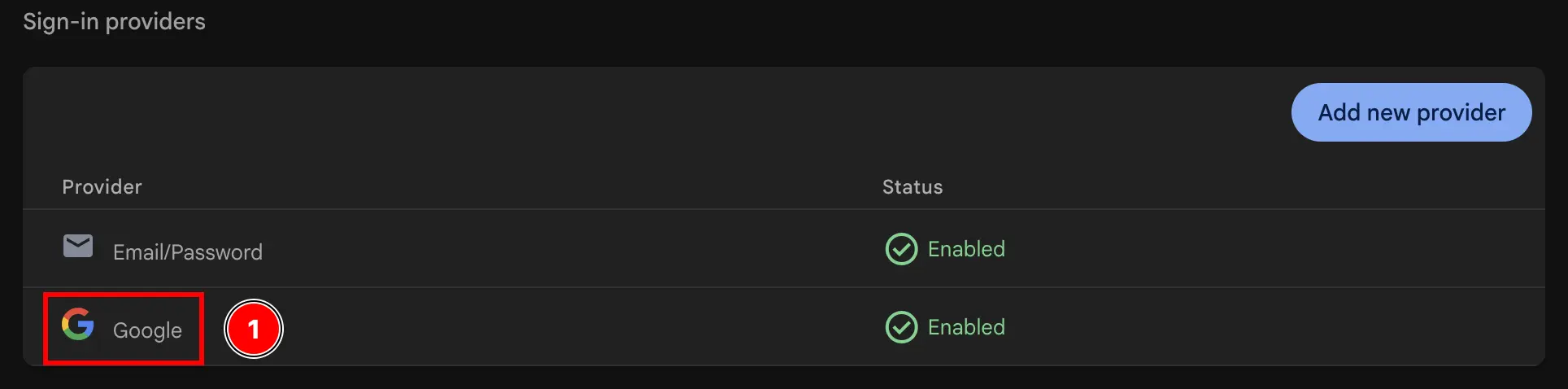
- Click on the
Web SDK configurationbutton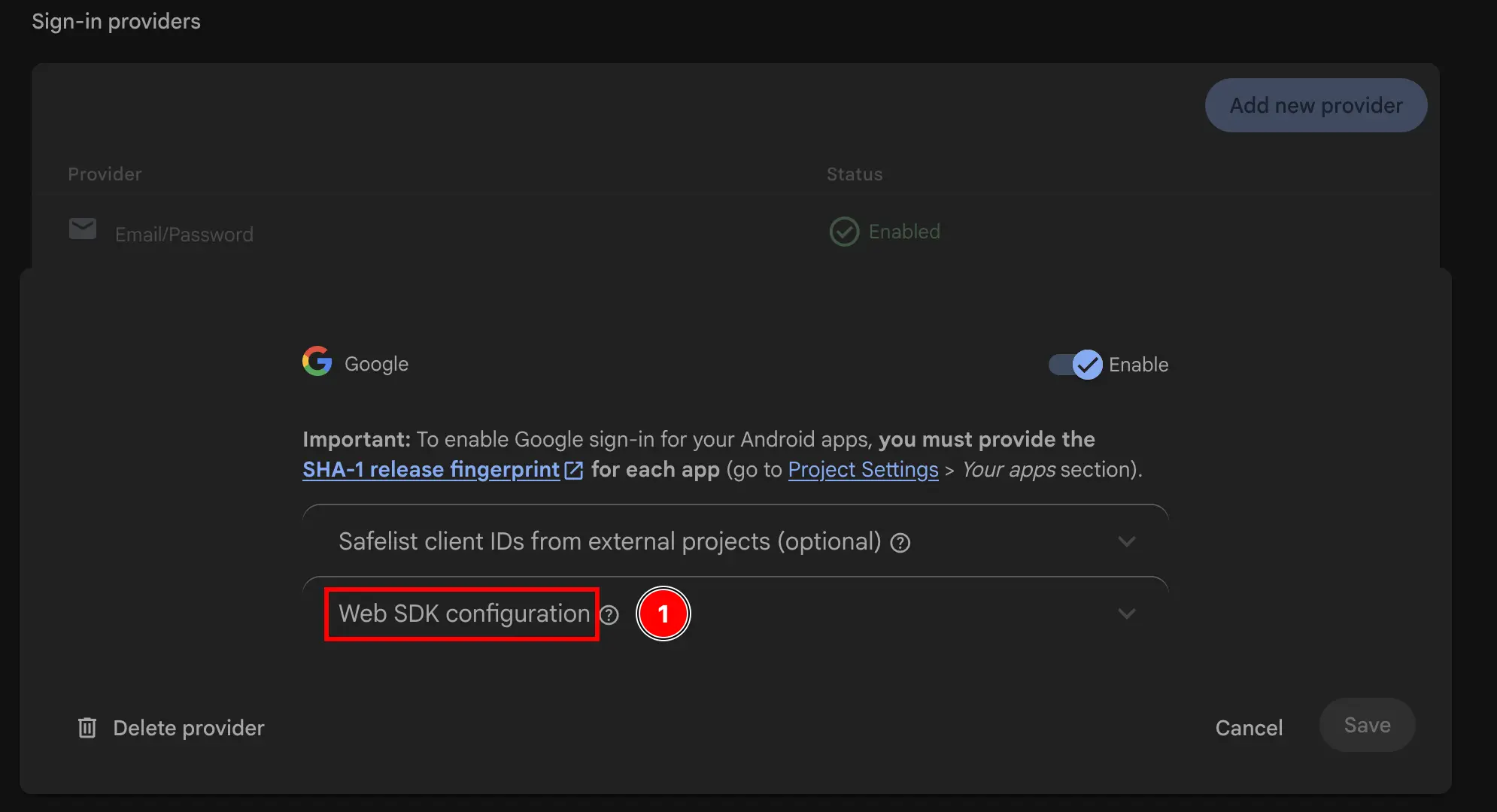
- Copy the
Web client ID. This will be yourwebClientIdin theinitializemethod of the plugin.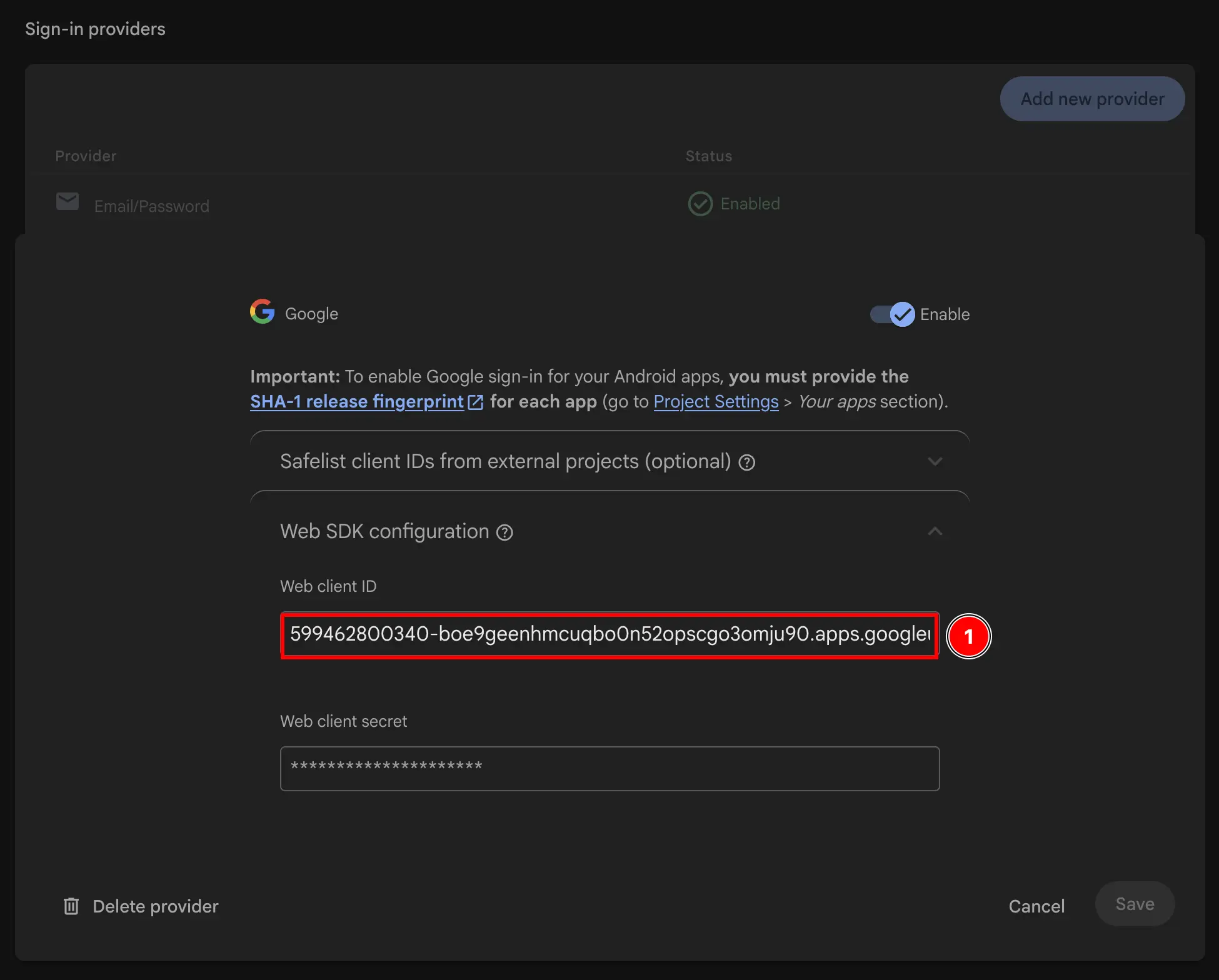
- Go back to the Firebase console and go to
-
Modify your app’s Info.plist
-
Open Xcode and find the
Info.plistfile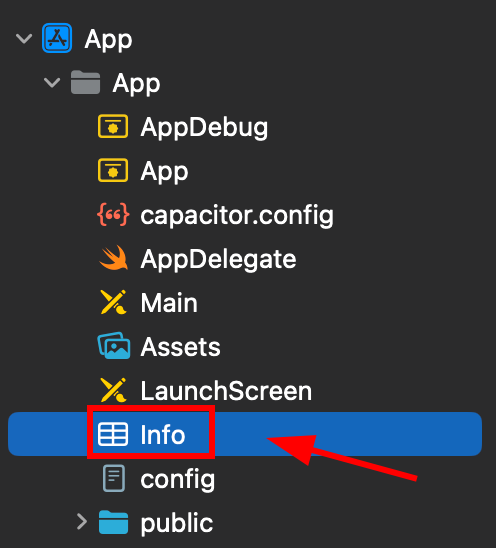
-
Right click this file and open it as source code
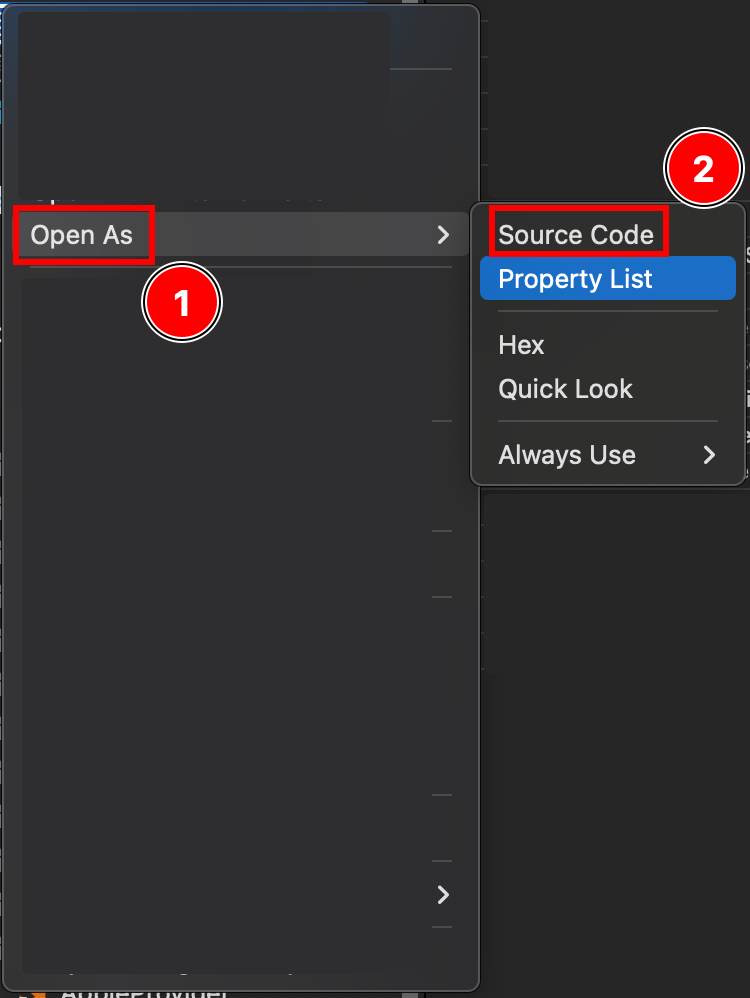
-
At the bottom of your
Plistfile, you will see a</dict>tag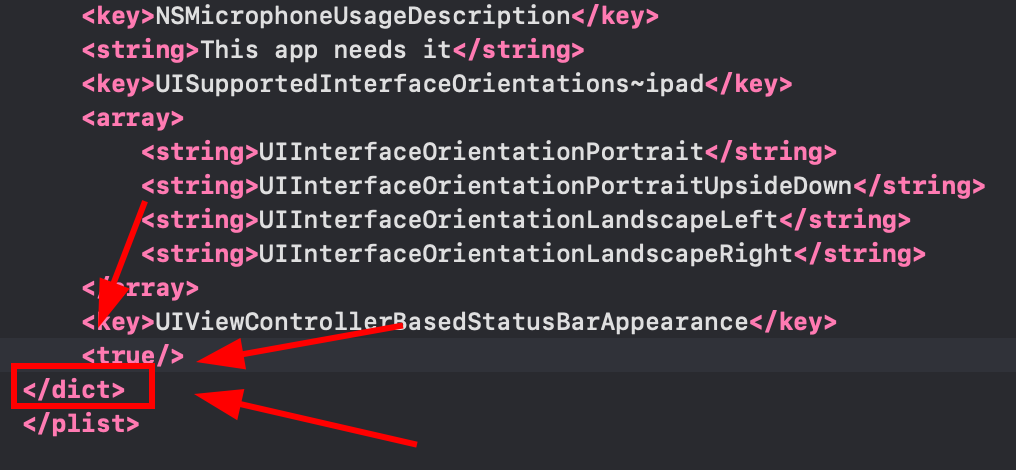
-
Insert the following fragment just before the closing
</dict>tag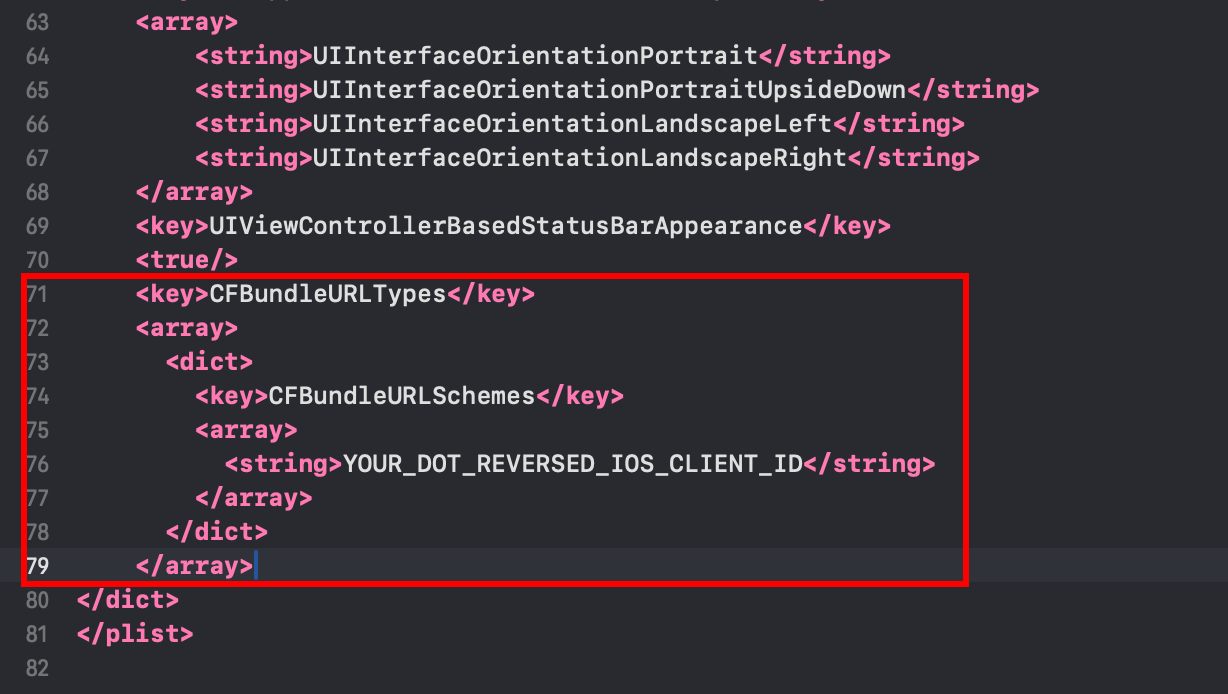 <key>CFBundleURLTypes</key><array><dict><key>CFBundleURLSchemes</key><array><string>YOUR_DOT_REVERSED_IOS_CLIENT_ID</string></array></dict></array><key>GIDClientID</key><string>YOUR_IOS_CLIENT_ID.apps.googleusercontent.com</string>
 -
Change the
YOUR_DOT_REVERSED_IOS_CLIENT_IDto the value copied in step 9 (the iOS URL scheme)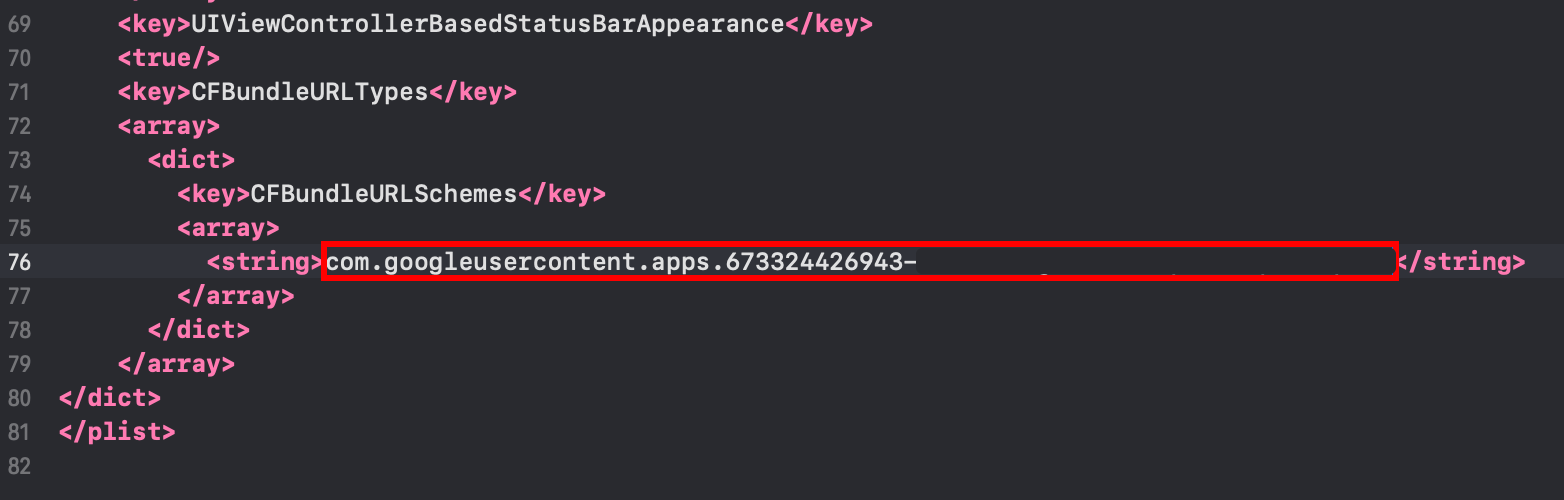
-
-
Change the
YOUR_IOS_CLIENT_IDto the iOS Client ID you copied in step 9 -
Save the file with
Command + S -
Modify the
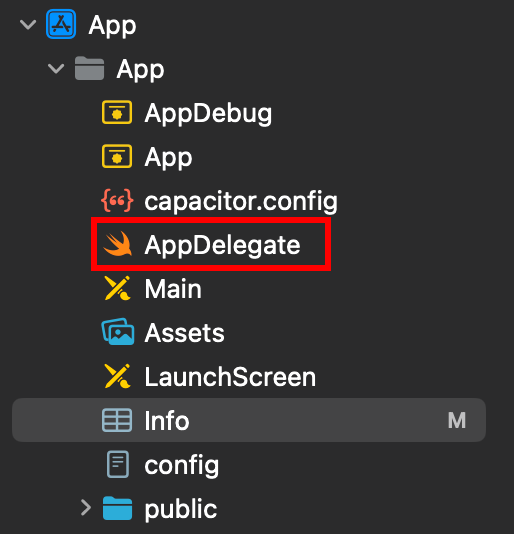
AppDelegate.swift-
Open the AppDelegate
-
Insert
import GoogleSignInat the top of the file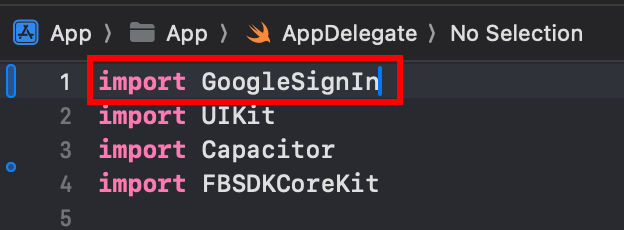
-
Find the
func application(_ app: UIApplication, open url: URL, options: [UIApplication.OpenURLOptionsKey: Any] = [:])function
-
Modify the function to look like this
func application(_ app: UIApplication, open url: URL, options: [UIApplication.OpenURLOptionsKey: Any] = [:]) -> Bool {// Called when the app was launched with a url. Feel free to add additional processing here,// but if you want the App API to support tracking app url opens, make sure to keep this callvar handled: Boolhandled = GIDSignIn.sharedInstance.handle(url)if handled {return true}return ApplicationDelegateProxy.shared.application(app, open: url, options: options)}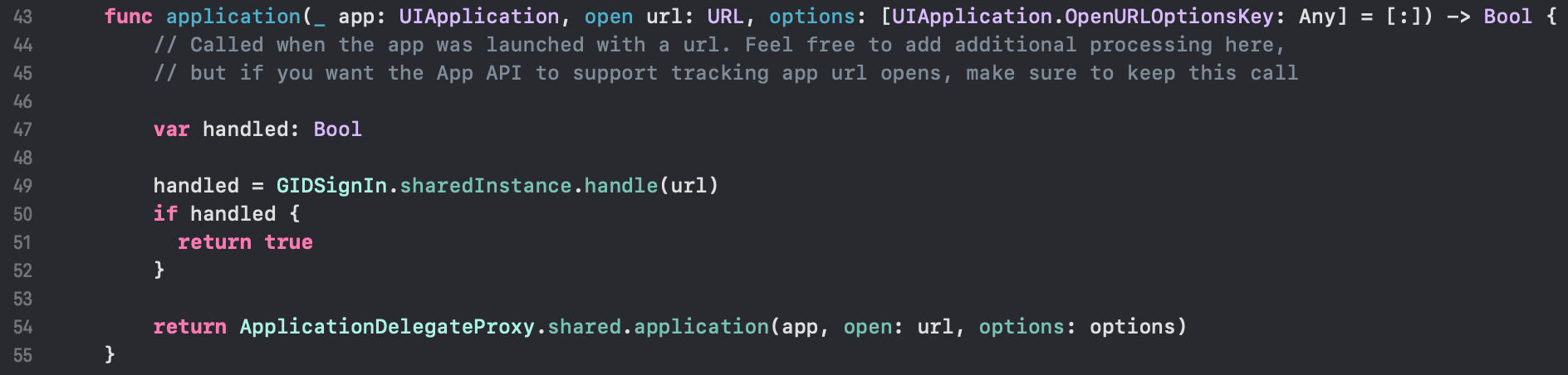
-
Save the file with
Command + S
-
-
Using the Google login in your app
At this step, you are ready to use the Google login in your app. Please use the authUtils.ts file of the example app to authenticate with Google.
The user will be automatically created in Firebase Auth on first sign-in
Troubleshooting
Section titled “Troubleshooting”If authentication hangs or fails:
- Verify the
idTokenaudience matches your Firebase web client ID - Check that Google Sign-In is enabled in Firebase Console
- Ensure Info.plist has the correct URL schemes and GIDClientID
- Verify
iOSServerClientIdmatches your web client ID - Review the example app code for reference