
Organization Security
Capgo provides comprehensive security controls that allow organization administrators to enforce security policies across all members. These features help you meet compliance requirements, protect sensitive data, and maintain a strong security posture.
Overview
Section titled “Overview”The Organization Security settings allow super admins to configure:
- Two-Factor Authentication (2FA) Enforcement - Require all members to enable 2FA
- Password Policy - Set password complexity requirements
- API Key Security - Enforce secure API keys and expiration policies
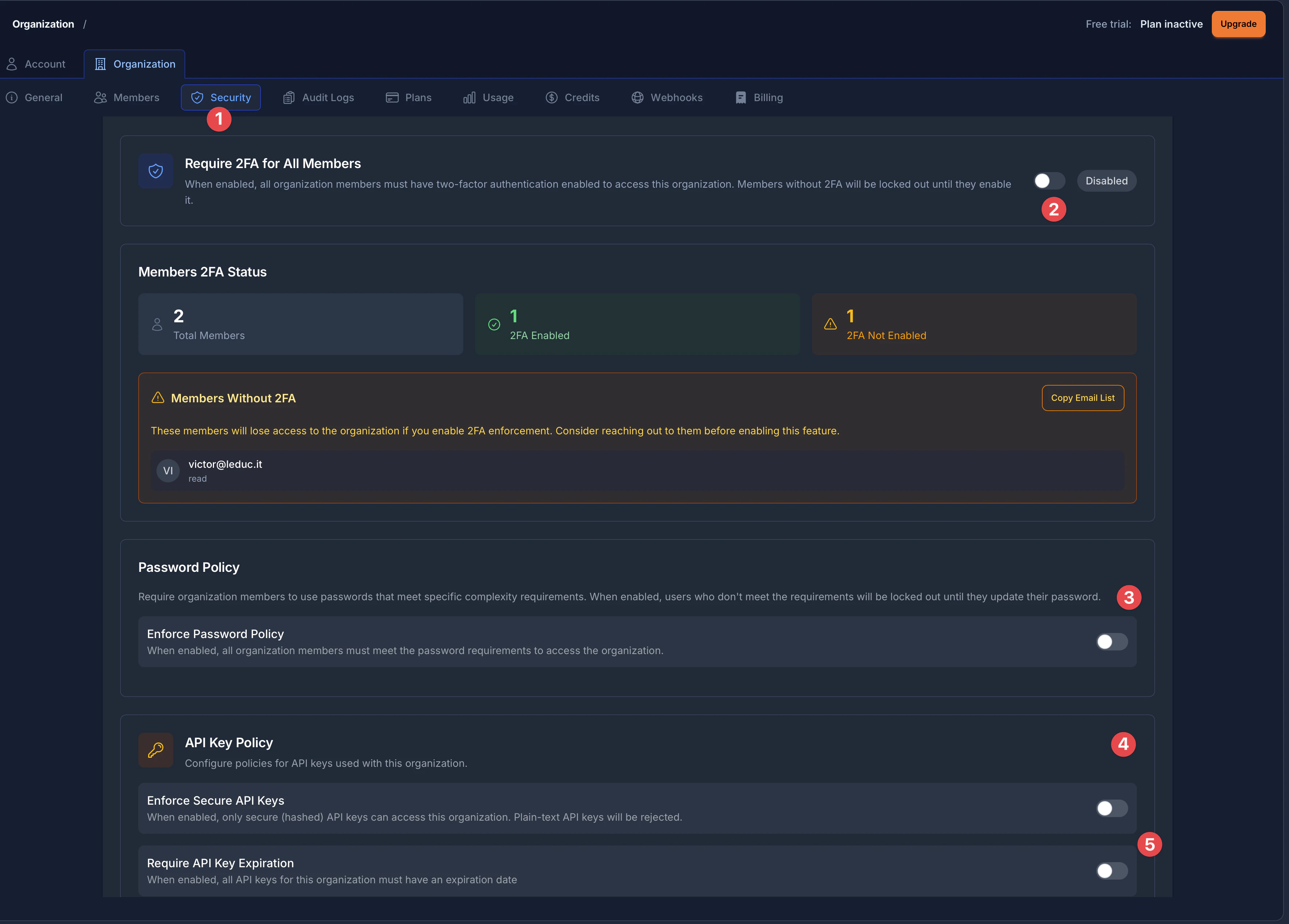
The Security page is organized into clearly labeled sections:
- Security Tab - Access all security settings from the Organization settings sidebar
- 2FA Enforcement - Toggle and status display for two-factor authentication requirements
- Password Policy - Configure password complexity rules for organization members
- API Key Policy - Settings for secure API keys and expiration requirements
- API Key Expiration - Control whether API keys must have expiration dates
Accessing Security Settings
Section titled “Accessing Security Settings”- Navigate to your organization settings by clicking on Settings in the sidebar
- Click on the Organization tab at the top of the settings page
- Select the Security tab from the organization navigation bar (highlighted with a shield icon)
Two-Factor Authentication (2FA) Enforcement
Section titled “Two-Factor Authentication (2FA) Enforcement”2FA enforcement requires all organization members to have two-factor authentication enabled on their accounts. This adds a critical layer of security by requiring both a password and a verification code.
What Happens When 2FA is Enforced
Section titled “What Happens When 2FA is Enforced”- Members without 2FA are immediately blocked from accessing organization apps
- Both the web dashboard and CLI enforce this requirement
- New members must enable 2FA before they can access organization resources
- The system tracks which members have 2FA enabled in real-time
Understanding the 2FA Status Panel
Section titled “Understanding the 2FA Status Panel”The Security page displays a comprehensive Members 2FA Status panel that shows:
- Total Members - The total number of members in your organization
- 2FA Enabled (green indicator) - Members who have successfully enabled two-factor authentication
- 2FA Not Enabled (orange warning indicator) - Members who still need to set up 2FA
When members don’t have 2FA enabled, they appear in a Members Without 2FA warning box. This box shows:
- Each member’s email address and their role in the organization
- A Copy Email List button to quickly copy all affected email addresses for communication
Enabling 2FA Enforcement
Section titled “Enabling 2FA Enforcement”- Navigate to Organization Settings > Security
- Locate the Require 2FA for All Members section at the top of the page
- Review the Members 2FA Status panel to see which members will be affected
- If there are members without 2FA, use the Copy Email List button to notify them before enabling
- Toggle the switch next to Require 2FA for All Members to enable enforcement
- The toggle will show Disabled or Enabled status on the right side
CLI Support for 2FA Enforcement
Section titled “CLI Support for 2FA Enforcement”You can also manage 2FA enforcement via the CLI:
# Enable 2FA enforcementnpx @capgo/cli organization set YOUR_ORG_ID --enforce-2fa
# Disable 2FA enforcementnpx @capgo/cli organization set YOUR_ORG_ID --no-enforce-2fa
# Check member 2FA statusnpx @capgo/cli organization members YOUR_ORG_ID
For detailed information about 2FA enforcement, see the 2FA Enforcement guide.
Password Policy
Section titled “Password Policy”Password policies allow you to enforce password complexity requirements for all organization members. When a member’s password doesn’t meet the policy requirements, they must update their password before accessing organization resources.
The Password Policy section (marked with indicator 3 in the overview image) provides a simple toggle to enforce password requirements across your organization.
How Password Policy Works
Section titled “How Password Policy Works”When you enable the password policy:
- All organization members must meet the password complexity requirements
- Users who don’t meet the requirements will be locked out until they update their password
- The policy applies to all members regardless of their role
Enabling Password Policy
Section titled “Enabling Password Policy”- Go to Organization Settings > Security
- Scroll down to find the Password Policy section
- Read the description: “Require organization members to use passwords that meet specific complexity requirements”
- Toggle the Enforce Password Policy switch to enable it
- The toggle description states: “When enabled, all organization members must meet the password requirements to access the organization”
Available Password Requirements
Section titled “Available Password Requirements”| Setting | Description | Range |
|---|---|---|
| Minimum Length | Minimum number of characters required | 6-128 characters |
| Require Uppercase | Password must contain at least one uppercase letter (A-Z) | On/Off |
| Require Number | Password must contain at least one digit (0-9) | On/Off |
| Require Special Character | Password must contain at least one special character (!@#$%^&*, etc.) | On/Off |
Member Compliance Tracking
Section titled “Member Compliance Tracking”When a password policy is active, you can monitor compliance:
- Total Members: Number of members in your organization
- Compliant: Members whose passwords meet the policy requirements
- Non-Compliant: Members who need to update their passwords
Non-compliant members are listed with their email addresses. You can copy the email list to notify them about the policy and required password changes.
Best Practices for Password Policies
Section titled “Best Practices for Password Policies”- Start with reasonable requirements: A minimum of 10-12 characters with mixed case and numbers provides good security without being overly restrictive
- Communicate changes: Notify your team before enabling new password requirements
- Allow transition time: Give members time to update their passwords
- Consider password managers: Recommend that team members use password managers to generate and store strong passwords
API Key Security
Section titled “API Key Security”Capgo provides two security controls for API keys: enforcing secure (hashed) API keys and requiring expiration dates. The API Key Policy section (marked with indicator 4 in the overview image) is identified by a key icon.
Enforce Secure API Keys
Section titled “Enforce Secure API Keys”The first option in the API Key Policy section is Enforce Secure API Keys. When enabled, this setting requires all API keys in your organization to be created using the secure/hashed format.
Hashed API keys are more secure because:
- The actual key value is never stored on our servers
- Only you (and your systems) have access to the full key
- Even if our database were compromised, your keys couldn’t be used
The toggle description states: “When enabled, only secure (hashed) API keys can access this organization. Plain-text API keys will be rejected.”
Enabling Secure API Keys
Section titled “Enabling Secure API Keys”- Go to Organization Settings > Security
- Scroll down to find the API Key Policy section (look for the key icon)
- Locate the Enforce Secure API Keys toggle
- Toggle the switch to enable secure API key enforcement
- Existing keys are not affected; the policy applies to new key creation
API Key Expiration Policy
Section titled “API Key Expiration Policy”The second option (marked with indicator 5 in the overview image) is Require API Key Expiration. You can require all API keys to have an expiration date, limiting their validity period.
This is a security best practice that:
- Limits the window of exposure if a key is compromised
- Ensures regular key rotation
- Helps meet compliance requirements for credential management
The toggle description states: “When enabled, all API keys for this organization must have an expiration date”
Configuring Expiration Policy
Section titled “Configuring Expiration Policy”- Go to Organization Settings > Security
- Find the API Key Policy section
- Locate the Require API Key Expiration toggle (below Enforce Secure API Keys)
- Toggle the switch to enable the expiration requirement
- Once enabled, set the Maximum expiration days (1-365 days)
- This limits how far in the future expiration dates can be set
- Example: Setting 90 days means keys can expire at most 90 days from creation
Recommended API Key Policies
Section titled “Recommended API Key Policies”| Use Case | Secure Keys | Expiration | Max Days |
|---|---|---|---|
| Development | Recommended | Optional | 30-90 |
| CI/CD Pipelines | Required | Required | 90-180 |
| Production | Required | Required | 30-90 |
| Enterprise/Compliance | Required | Required | 30-60 |
Compliance and Auditing
Section titled “Compliance and Auditing”Organization security features help you meet various compliance requirements:
| Standard | Relevant Features |
|---|---|
| SOC 2 | 2FA enforcement, password policies, API key controls |
| ISO 27001 | All security features help demonstrate access control |
| HIPAA | Strong authentication and access management |
| GDPR | Data protection through access controls |
| PCI DSS | Multi-factor authentication, strong passwords |
Monitoring Compliance Status
Section titled “Monitoring Compliance Status”The Security dashboard provides real-time visibility into:
- How many members have 2FA enabled
- Password policy compliance across your organization
- API key security adoption
Use the “Copy email list” feature to easily export lists of non-compliant members for targeted communication.
Troubleshooting
Section titled “Troubleshooting””Access Denied: Security policy not met”
Section titled “”Access Denied: Security policy not met””Problem: A member cannot access the organization.
Solutions:
- Check if 2FA is enforced - member needs to enable 2FA
- Check if password policy is active - member needs to update their password
- Verify the member’s compliance status in the Security dashboard
Cannot enable security features
Section titled “Cannot enable security features”Problem: Security toggles are disabled or not responding.
Solutions:
- Ensure you have super_admin role in the organization
- Check your network connection
- Try refreshing the page
- Contact support if the issue persists
API key creation fails
Section titled “API key creation fails”Problem: Cannot create new API keys.
Solutions:
- If secure keys are enforced, ensure you’re using the secure key creation flow
- If expiration is required, set an expiration date within the allowed range
- Check the maximum expiration days setting