
Apple’s App Store recorded 28.3 billion downloads globally in 2024, according to Sensor Tower figures reported by TechCrunch. Distribution is easy to describe and hard to run: each store has its own signing, review queue, release controls, and rollback limits.
For a web team, treat iOS and Android as two release pipelines sharing one codebase. Capacitor can carry the web app into native projects and Ionic can supply mobile UI, but files baked into the bundle still move through the store release. Remote content and approved over-the-air update paths are the changes that can ship without a new submission.
Table of Contents
- Why Teams Now Ship to Both iOS and Android
- Choosing a Build Path
- How to Build and Package a Capacitor App
- What Apple and Google Review Actually Check
- Task Design Rules That Keep Both Platforms Working
- Testing Accessibility and Device Fragmentation Before Release
- Shipping Updates Without Waiting for Store Review
- Common Cross-Platform Problems and Their Fixes
- Pick Your Build Path and Ship Your First Release
Why Teams Now Ship to Both iOS and Android
Consumers spent $150 billion on in-app purchases across iOS and Android in 2024, up 12.5% from 2023, according to Sensor Tower, as reported by MediaPost. An application that supports payments, subscriptions, or customer accounts needs more than matching screenshots across platforms. Its revenue-producing workflows must survive different operating-system rules.
Say your team already has a React application, perhaps built with an AI coding tool or a no-code builder that exports source. Customers now want a home-screen icon, camera access, notifications, and a store listing.
A Capacitor shell is a reasonable starting point. You can keep the web interface and business logic while adding native projects for each store.
Practical rule: Share the product code, but give each platform its own release checklist, credentials, testing results, and approval gate.
The tension appears outside the screens. A permission request that works on Android may need different configuration on iOS, and a background upload that succeeds during development may stop when the operating system suspends the app.
Treat an iOS Android application as a product with distinct delivery paths rather than a website exported twice. Choose the implementation around your hardest native requirement, package reproducible builds, verify store readiness, and separate eligible web updates from changes that require new binaries.
That gives the team concrete deliverables: a build-path decision, a submission checklist, and an update policy. You can fix an eligible web-layer defect without unnecessarily rebuilding the native shell, while keeping platform changes inside the proper store process.
Choosing a Build Path
| Approach | Languages | Code shared | Device API access | Best fit |
|---|---|---|---|---|
| Native (Swift and Kotlin) | Swift, Kotlin | None between platform UI implementations | Full first-party access | Graphics-heavy apps and teams with separate iOS and Android engineers |
| Cross-platform rendering (React Native, Flutter) | JavaScript or TypeScript, Dart | Most UI and logic | Native modules, platform channels, and plugins | New apps that want one UI codebase |
| Hybrid web shell (Capacitor, Ionic) | HTML, CSS, JavaScript | Entire web app | Through Capacitor plugins | Teams with an existing web app |
| Progressive Web App | HTML, CSS, JavaScript | Entire web app | Browser APIs only, with platform limitations | Content sites that don’t need a store presence |
Start with reusable code
A working web application is a substantial asset. With Capacitor, you can retain routing, validation, API clients, and most screen components instead of recreating them in platform-specific UI frameworks.
That doesn’t mean wrapping the desktop layout unchanged. Replace hover-only interactions, check touch targets, handle the software keyboard, and make navigation behave sensibly when users return from another app.
Ionic is optional. It provides web components and navigation patterns suited to mobile interfaces; Capacitor supplies the native runtime and plugin boundary. You can use Capacitor with an existing React, Vue, or Angular interface without adopting Ionic’s component library.
Prototype the hardest platform feature
Build a small technical spike around the feature most likely to invalidate your choice. For an accessory application, test Bluetooth connection recovery. For a capture workflow, test camera output, file persistence, and interrupted uploads.
A plugin’s existence isn’t proof that it supports your exact workflow. Inspect its native implementation, supported operating systems, maintenance status, and behavior when the app leaves the foreground.
Native development offers direct control over platform APIs. Flutter can suit custom, graphics-intensive interfaces, while React Native suits teams willing to rebuild their web UI around native components. For games, evaluate an appropriate game engine rather than assuming a web shell is suitable.
Match the architecture to the team
A web team can debug DOM layout and browser networking immediately. That advantage disappears if every important feature requires a custom Swift or Kotlin plugin that nobody can maintain.
A PWA avoids native packaging, but browser capabilities and installation conditions still matter. Test the exact push, file, and offline workflows you need on iOS rather than assuming desktop-browser behavior carries over.
Use the cross-platform versus native development comparison to assess those trade-offs. For an existing web app centered on content, forms, and standard device integrations, Capacitor is usually the shortest practical route to store distribution.
How to Build and Package a Capacitor App
Keep the web build and native packaging steps explicit. A successful browser preview doesn’t prove that the native project contains the latest files.
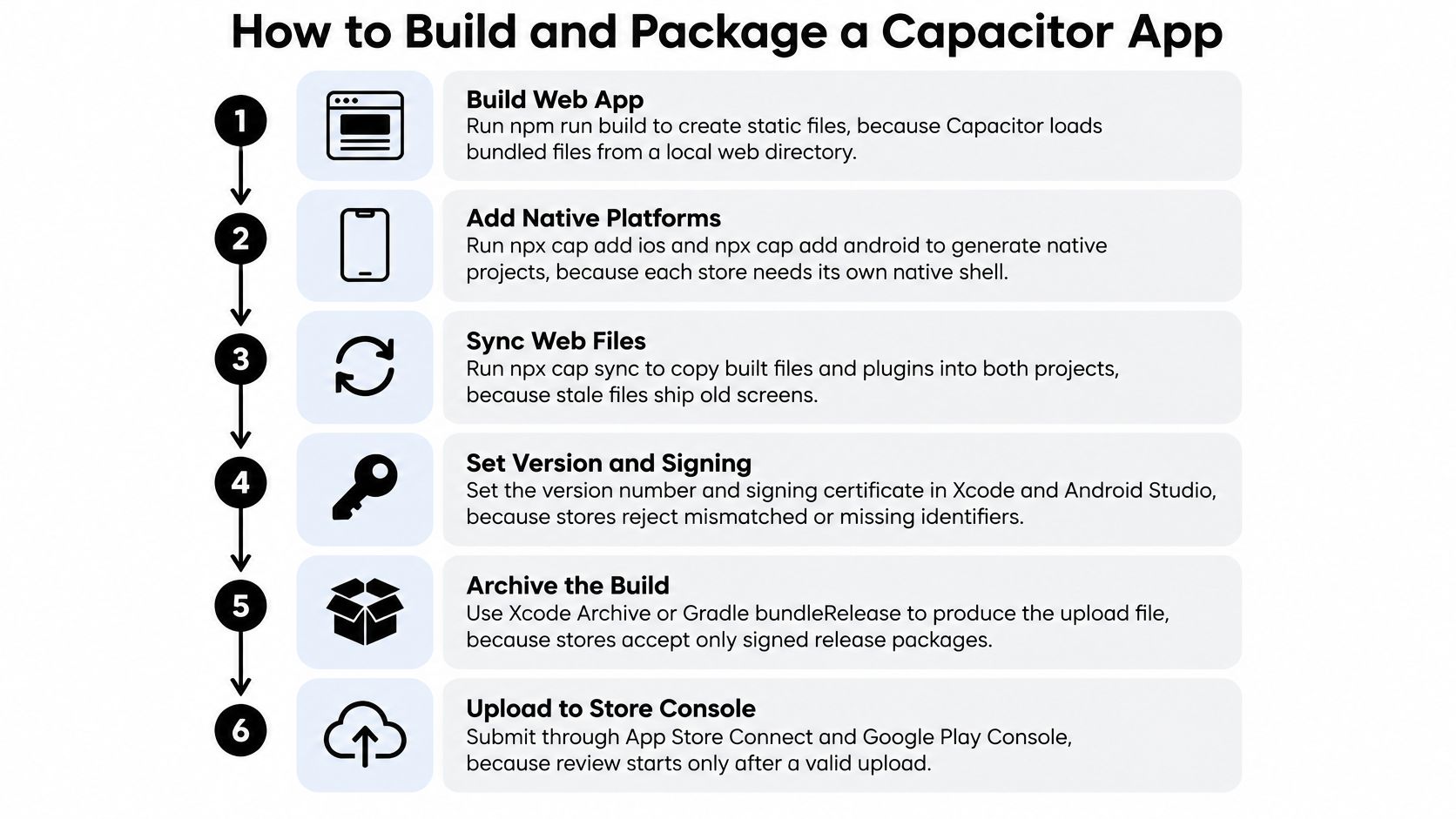
The packaging sequence looks like this:
Generate and synchronize the projects
-
Produce deployable web files. Run
npm run buildand inspect the output folder. Capacitor needs client-side assets, so a server-rendered application may require a static export or architectural changes rather than just copying its server output. -
Install the runtime with
npm install @capacitor/coreand the CLI withnpm install -D @capacitor/cli, then runnpx cap init. Set the application name, a reverse-domain identifier such ascom.example.app, andwebDirto the actual build-output directory. -
Add the native targets. Install
@capacitor/iosand@capacitor/android, keeping Capacitor packages on compatible versions. Runnpx cap add iosandnpx cap add androidto generate the projects that the stores will receive. -
Run
npx cap syncafter rebuilding web assets or changing plugins. Sync doesn’t replace your web build command: syncing stale output still packages stale screens, which is a common reason a release appears to ignore a fix. -
Install only the plugins you need. For example, install
@capacitor/camera,@capacitor/push-notifications, or@capacitor/filesystem, then sync again. Complete each plugin’s native configuration, including purpose strings, capabilities, and platform-specific setup.
Configure and sign the release
-
Open the projects with
npx cap open iosandnpx cap open android. Local iOS work requires Xcode on a Mac; Windows and Linux teams need a cloud macOS build environment for that pipeline. -
Set release identity and presentation. Confirm the iOS bundle identifier and Android
applicationId, user-facing version, build identifiers, icons, and launch-screen resources. Keep production and development configurations distinct so a test build can’t accidentally use production credentials. -
Configure an Apple distribution certificate and provisioning profile, or managed signing, for iOS. For Android, configure the upload key and Play App Signing; the common signing mistake is using credentials or a profile that don’t match the application identifier and enabled capabilities.
-
Exercise release behavior on devices. Use simulators for quick iteration, then test physical iOS and Android devices for camera, notifications, deep links, keyboard behavior, and interrupted sessions. Debug-only testing can miss configuration differences in release builds.
-
Archive the iOS application in Xcode and generate the signed Android App Bundle using Android Studio or the configured Gradle release task. Upload to TestFlight and Play internal testing before submitting publicly, and install those distributed builds rather than trusting a locally installed debug package.
Use the guide to mobile build types to keep development, testing, and production artifacts clearly separated.
What Apple and Google Review Actually Check
| Rule area | App Store (iOS) | Google Play (Android) |
|---|---|---|
| Build upload | Signed build uploaded through App Store Connect | Signed Android App Bundle uploaded through Play Console |
| Privacy disclosure | Applicable privacy manifests and App Privacy labels | Data safety form covering collected and shared data |
| Permission prompts | Relevant purpose strings in Info.plist |
Runtime requests and declarations for sensitive permissions |
| Background execution | Declared background modes and approved system APIs | Background limits and applicable foreground service types |
| Account deletion | In-app deletion when account-creation rules apply | In-app deletion path and declared web deletion resource |
| Downloaded code and updates | Must comply with restrictions on changing reviewed functionality | Dynamic code must remain within permitted policy boundaries |
The assumption to challenge is simple: a web-code fix can’t repair missing native configuration. Apple’s app security documentation describes mandatory sandboxing, signed entitlements, and restricted background execution through system APIs.
Say an application requests background location but its native project lacks the appropriate background-mode configuration and permission descriptions. Updating the JavaScript request flow won’t insert those settings into the installed binary. Add the correct configuration, remove unnecessary access, and submit a newly signed build.
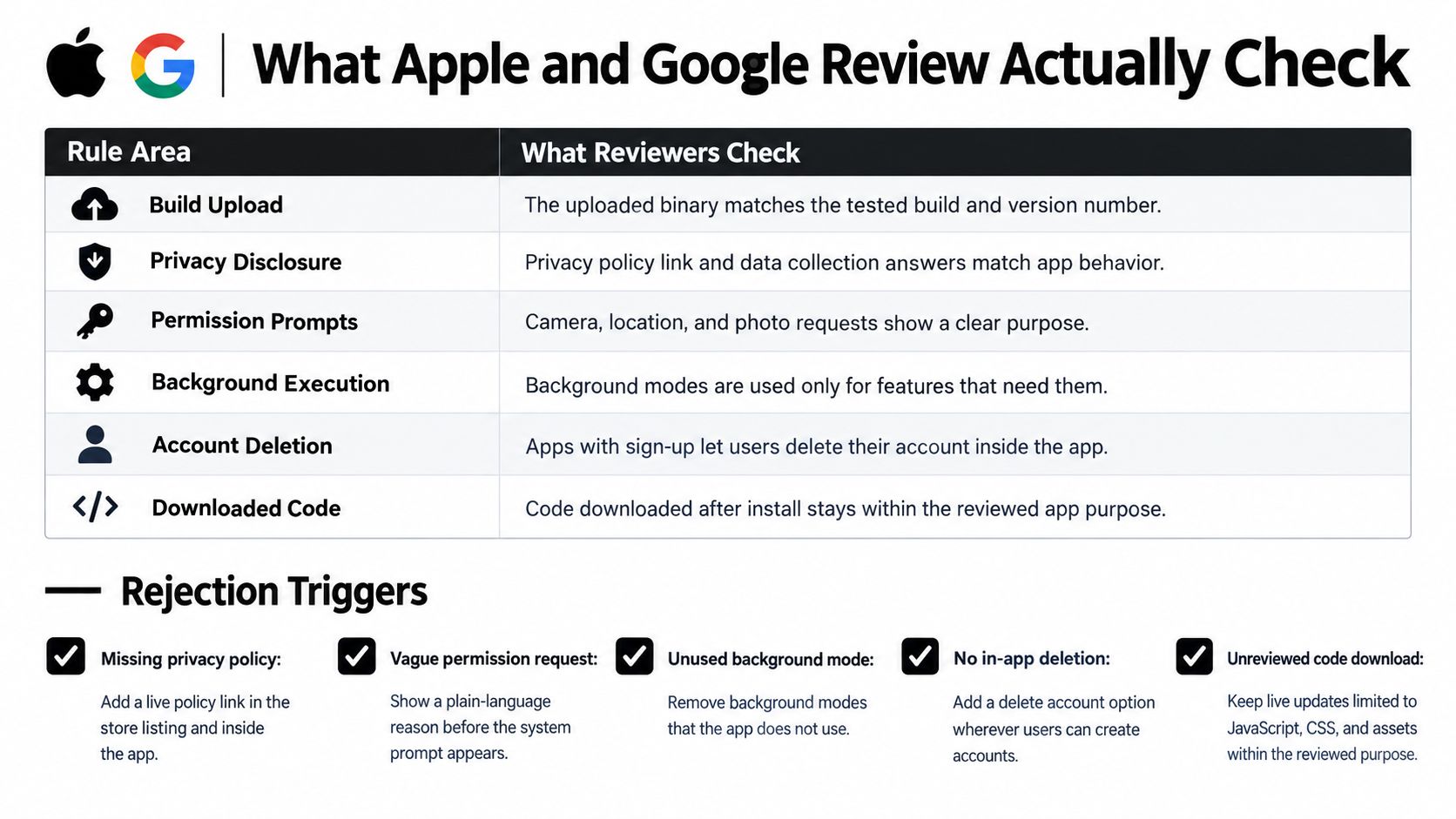
Use this visual as a submission checkpoint:
Check behavior rather than paperwork alone
Common rejection risks include vague camera or location explanations, unused background modes, inaccessible reviewer accounts, and account creation without the required deletion flow. If you offer third-party login for the primary account, check whether Apple’s equivalent-login requirement applies and whether an exception covers your app.
SDK collection is still your disclosure responsibility. An analytics library can collect information even when your own application code never explicitly sends it.
In an analysis of 23,300 iOS app packages, 35% failed to disclose collected data, according to NowSecure’s mobile privacy analysis. Don’t generate store answers from your feature list alone; inventory the native dependencies and their actual behavior.
Before submission:
- Match capabilities to the artifact. Inspect the signed build’s entitlements and background configuration, not just the project editor.
- Audit dependencies. Check applicable SDK privacy manifests, required-reason API declarations, and collection settings.
- Reconcile disclosures. Compare App Privacy and Data safety answers with consent flows and SDK behavior.
- Delete a fresh account. Verify the user-facing flow and backend handling, including associated data and legitimate retention exceptions.
The iOS submission checklist helps turn those checks into a repeatable release gate. Give reviewers working credentials and precise instructions for features they can’t easily discover.
Task Design Rules That Keep Both Platforms Working
- Immediate user actions. Submit a form in the foreground, persist its state, and show a clear success or retry result.
- Deferrable synchronization. Use Android WorkManager with appropriate network constraints and an iOS
BGProcessingTaskwhere the workload qualifies. - Periodic refresh. Use WorkManager periodic work on Android and
BGAppRefreshTaskon iOS. The system decides when eligible work runs. - Push-triggered fetching. Use suitable FCM data messages on Android and background remote notifications with
content-availableon iOS. Neither provides a guaranteed execution schedule. - Large transfers. Use an appropriate WorkManager transfer workflow on Android and background
URLSessionon iOS, with native persistence and recovery.
Background work is where a shared interface most clearly stops implying shared execution. A JavaScript timer isn’t a durable scheduler, and keeping the WebView busy isn’t a substitute for native background APIs.
The Android background optimization guidance recommends moving deferrable work to scheduling APIs and avoiding long-held partial wake locks. Classify work by urgency, durability, and connectivity before choosing its implementation.
Make interrupted work safe
Keep the business intent in shared code, such as recording that an order needs uploading. Let a native plugin own durable scheduling, operating-system callbacks, and transfer persistence. A background callback can’t assume the WebView is available.
Each retriable task should be idempotent. Assign a stable operation identifier when creating an order, persist it before transmission, and have the server recognize repeated submissions of that identifier.
A retry should repeat an attempt, not repeat the customer’s purchase.
Batch deferrable work around suitable network and charging conditions rather than waking the device for every small change. Save progress at durable boundaries, and distinguish retryable connection failures from validation errors that need user action.
Test with Android Battery Saver and iOS Low Power Mode enabled. Also test losing connectivity during a transfer, terminating the app, and reopening after the server accepted a request but before the client stored its response.
Record the task identifier, platform, native version, and completion state in diagnostic events. That makes it possible to distinguish a scheduling problem from a server rejection or a duplicate-prevention decision.
Testing Accessibility and Device Fragmentation Before Release
Android represented approximately 72.72% of worldwide mobile operating-system usage in 2025, compared with 26.92% for iOS, according to StatCounter. Android also spans manufacturers and price ranges, so a flagship-only test setup misses important memory, rendering, and keyboard behavior.
Include a lower-powered Android device and the oldest WebView configuration you support. On iOS, cover the supported screen sizes and operating-system combinations that materially affect your interface.
Run the essential journeys with assistive technology
-
Enable VoiceOver and TalkBack. Complete registration, checkout, and account deletion without relying on visual position. Check focus order after route changes, dialogs, and validation failures.
-
Increase system text sizing to the largest supported setting. Confirm that buttons, navigation labels, totals, and error messages remain visible and operable rather than clipping inside fixed-height containers.
-
Measure contrast. Check text, controls, focus indicators, and error states against your chosen accessibility standard using a contrast analyzer. Test light and dark appearances separately.
-
Inspect form semantics. Every input needs an accessible label, and errors must identify the affected field and be announced when appropriate.
-
Exercise localization and device constraints. Use long translated strings, open the keyboard, rotate supported screens, and repeat the workflow under constrained memory and connectivity.
For planning task-based sessions, Uxia’s guide to how to test mobile app usability is useful alongside technical accessibility checks. A screen can expose correct labels while still leaving users unable to understand the next action.
The European Accessibility Act began applying on 28 June 2025, with services including e-commerce, banking, and passenger transport covered, as summarized by Cliffex’s mobile development overview. Check your service’s scope and applicable obligations rather than treating store approval as accessibility certification.
Use a mobile testing checklist to retain evidence for each release. After deployment, compare crashes, failed journeys, and rendering complaints against the previous release by platform, native version, and Android WebView version.
Shipping Updates Without Waiting for Store Review
| Change type | Example | Live update | New store build |
|---|---|---|---|
| JavaScript logic fix | Repair a broken checkout button | Yes, within reviewed purpose | No |
| CSS or layout fix | Correct a web-layer safe-area layout defect | Yes, within reviewed purpose | No |
| Image or asset change | Replace an onboarding illustration | Yes, within reviewed purpose | No |
| New native plugin | Add a camera or biometric plugin | No | Yes |
| Permission or entitlement | Add background location capability | No | Yes |
| Capacitor or native SDK upgrade | Upgrade the native runtime or SDK | No | Yes |
Live updates deliver eligible web assets into an already installed native shell. They don’t replace its compiled plugins, entitlements, permissions, or native libraries.
Keep that boundary visible while preparing a deployment:
A JavaScript implementation isn’t automatically eligible merely because it avoids native compilation. Don’t use downloaded bundles to introduce functionality that violates store policy, transform the reviewed purpose, or load prohibited executable code. Review eligibility before publishing, especially when changing authentication, payment, or sensitive-data behavior.
Deploy a checkout repair progressively
Say a checkout button stopped responding because the click handler rejects a valid cart state. Repair the handler, add a regression test, build the bundle, and verify it against every native version you intend to target.
For a hypothetical rollout, expose the bundle to 5% of eligible devices, then expand to 25% and finally 100% after checking outcomes. These are example deployment settings, not industry benchmarks.
Use production and beta channels, native-version targeting, and a retained stable bundle. Observe can help check adoption and update failures, but successful bundle installation isn’t proof that checkout works: monitor the application’s checkout errors and completion events too.
Release safeguard: Define the failure threshold and minimum sample before deployment, not after users report the problem.
If the configured threshold is crossed, pause expansion and restore the stable bundle through the rollback workflow. Verify which devices installed the update, since offline devices won’t receive an immediate correction.
This walkthrough provides another view of the update workflow:
Follow the OTA update implementation guide to configure the delivery mechanism and compatibility rules. Compare adoption and application failures separately for iOS and Android; an older Android WebView may expose a JavaScript or CSS incompatibility that never appears on iOS.
Keep the initial application usable if update retrieval fails. A network outage should leave the customer on a working bundled or previously validated version, not stranded at an empty loading screen.
Common Cross-Platform Problems and Their Fixes
| Symptom | Likely cause | Fix |
|---|---|---|
| Content hidden under the notch or home indicator | Missing safe-area handling | Set viewport-fit=cover and pad with env(safe-area-inset-bottom) |
| Page slides sideways when the iPhone keyboard opens | Horizontal overflow in the WebView | Set overflow-x: hidden on the body and remove fixed-width elements |
| Android back button closes a multi-step flow | Back event not handled | Add a Capacitor App backButton listener that routes through history |
| Push arrives on Android but not iOS | APNs configuration or Push capability missing | Enable Push Notifications and configure the provider’s APNs authentication key |
| Layout passes in simulator but breaks on older Android phones | Older WebView lacks required CSS features | Test the lowest supported WebView and add fallbacks |
| Play Console rejects the Data safety form | SDK collection isn’t declared | Audit SDK behavior and correct the form before submission |
| Update reaches only some users | Targeting rules or native compatibility mismatch | Check version targeting, eligibility, and bundle compatibility in Observe |
Treat the cause column as a starting hypothesis, not a diagnosis. A push failure can also come from denied permission, token-registration errors, or the wrong APNs environment.
Fix the underlying boundary
For safe areas, add viewport-fit=cover to the viewport meta configuration and apply inset padding to the container that touches the screen edge. Don’t blindly add the same padding to both the page and a fixed footer, or you’ll create excessive spacing.
For keyboard overflow, use WebView inspection to find the element wider than the viewport. Hiding horizontal overflow is useful containment, but it shouldn’t conceal a required control that’s still positioned off-screen.
Handle Android navigation with App.addListener('backButton', ...) from @capacitor/app. Route backward through the current flow, dismiss an open modal when appropriate, and only exit at an intentional root state.
For iOS push, inspect the signed application’s capability configuration, registration result, provider credentials, and delivery environment. Uploading an APNs key won’t help if the application never registered a valid token.
An incomplete update rollout isn’t necessarily a failed rollout. Devices can be offline, excluded by a channel, incompatible with the bundle, or outside the staged cohort. Distinguish intentional exclusion from download or activation failure before changing targeting.
Use a consistent diagnostic order: platform and native app version first, bundle version next, native capability list after that. Then reproduce with those exact conditions, capture device logs, and change the smallest layer that explains the failure.
Pick Your Build Path and Ship Your First Release
- Existing web app and a small team. Start with Capacitor and prove the hardest native integration before polishing every screen.
- Graphics-heavy or heavily platform-specific product. Evaluate native development, Flutter, or a suitable game engine against the actual workload.
- No local Mac. Use a cloud macOS build service while keeping signing ownership and recovery procedures explicit.
- Client applications or white-label releases. Choose tooling with separate application identities, credentials, channels, and access controls.
Turn the decision into a release
- Choose the build path and inventory the required native capabilities. Include background work, authentication, notifications, storage, and deletion behavior.
- Establish signing ownership. Produce signed artifacts locally or in the cloud, and document who can recover certificates and upload credentials.
- Distribute through TestFlight and Play internal testing. Run the submission checks against those installed artifacts.
- Separate beta from production delivery. Define compatible native versions and keep a known-good fallback available.
- Begin with a deliberately small staged cohort and configure failure alerts. Set expansion criteria before publishing.
- Review actual device outcomes. Investigate unexpected failures, stop expansion when necessary, and verify rollback rather than assuming it completed.
Cloud native builds and live-update delivery can sit in the same account, but they should remain separate approval paths. The person approving a native permission change needs different evidence from the person approving a stylesheet repair.
Before writing the first release task, answer this question: which features require a native build, and which can change over the air?
Capgo offers cloud Native Build, Live Updates, and release monitoring for Capacitor and Ionic applications, combining native packaging with controlled web-bundle delivery. Visit Capgo to set up your store-build workflow, create beta and production channels, and prepare a staged update with a stable fallback.





