
Firebase Google Login di iOS
Pengantar
Section titled “Pengantar”Panduan ini akan membantu Anda mengintegrasikan Google Sign-In dengan Firebase Authentication di iOS. Saya berasumsi Anda telah menyelesaikan pengaturan Firebase Google umum.
Langkah Pengaturan
Section titled “Langkah Pengaturan”-
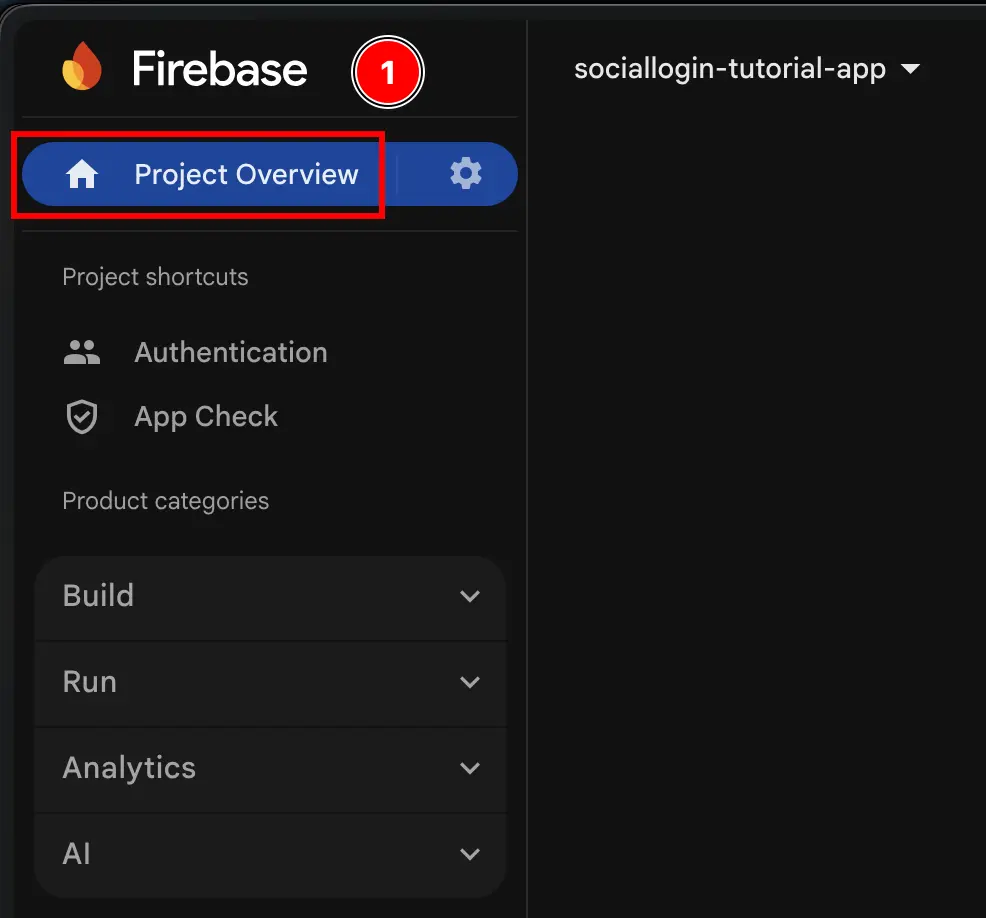
Buka project overview Anda di console.cloud.google.com
-
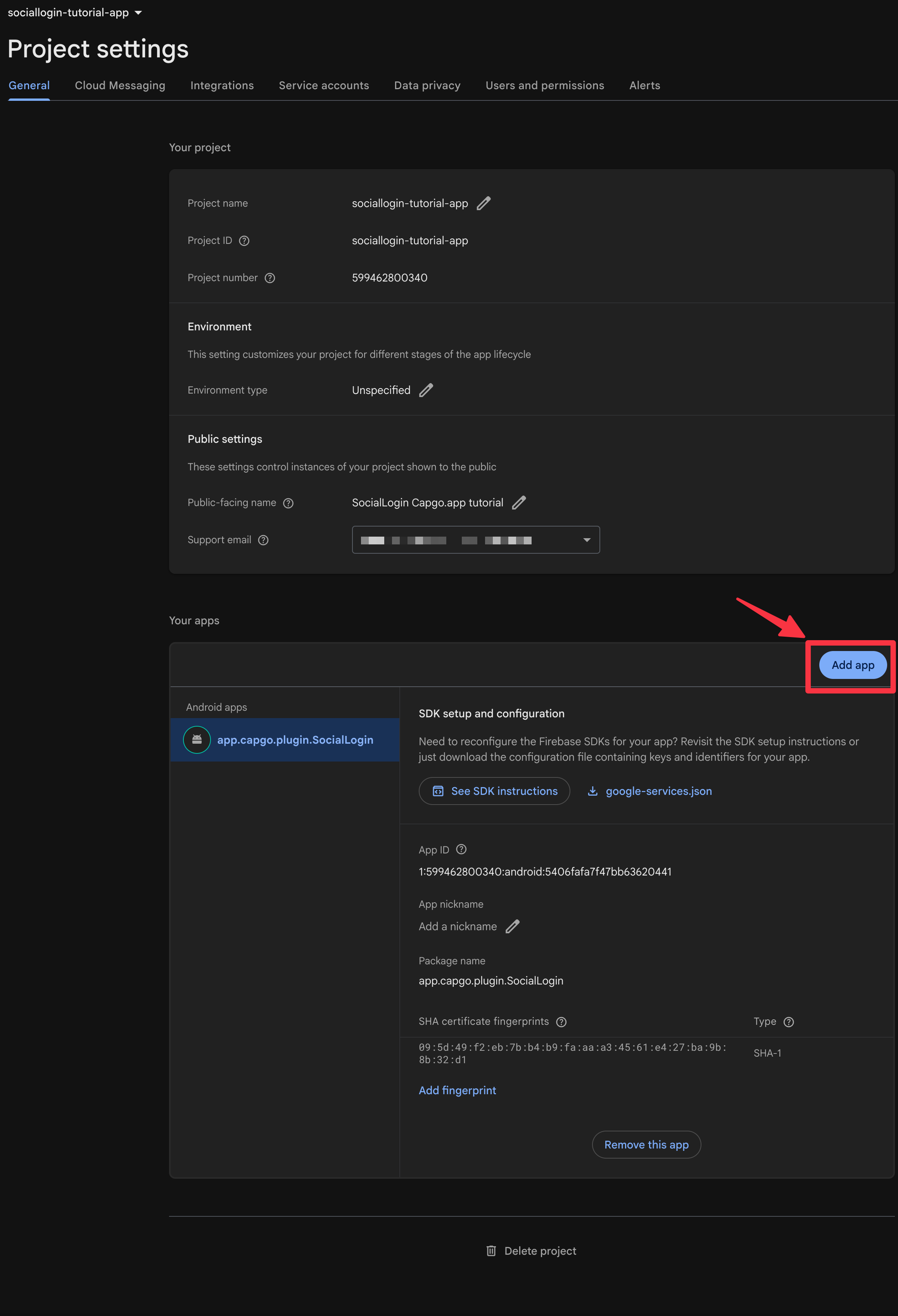
Klik tombol
Add app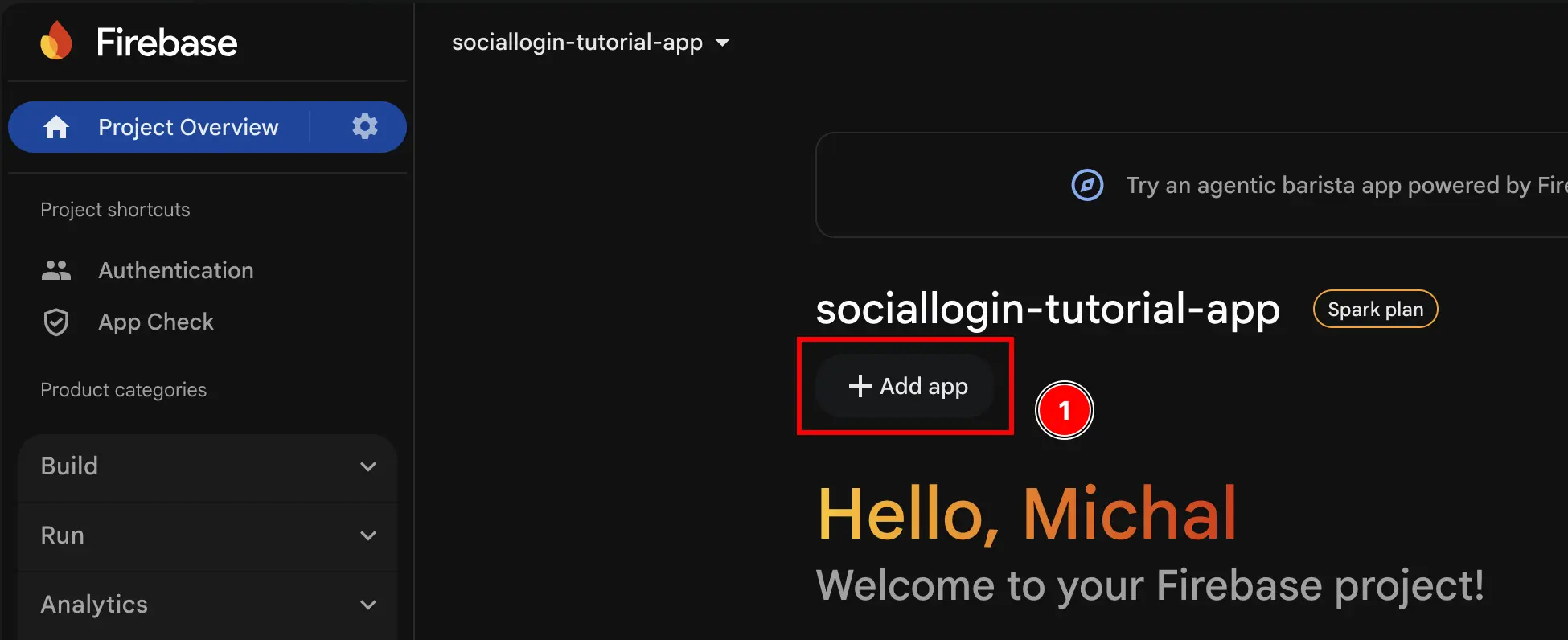
-
Pilih
iOS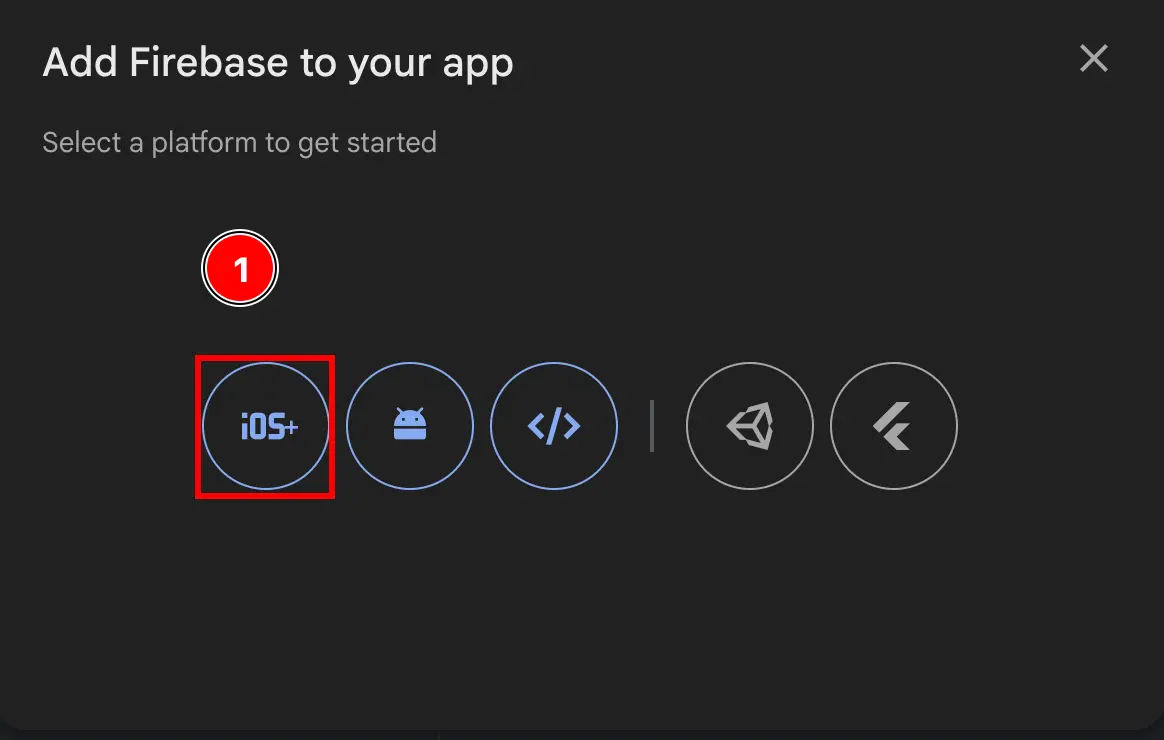
-
Isi bagian pertama formulir
- Isi
Apple bundle ID- Buka Xcode di aplikasi Anda menggunakan
npx cap open ios - Klik dua kali pada
App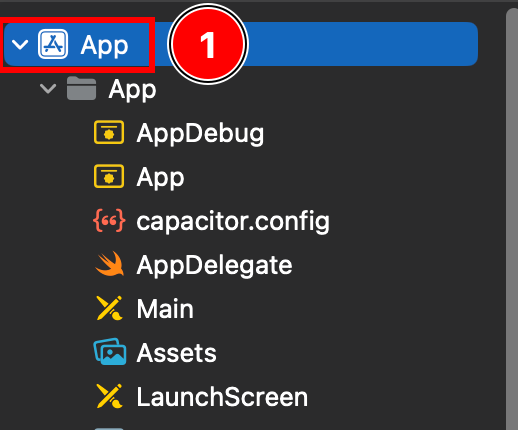
- Pastikan Anda berada di
Targets -> App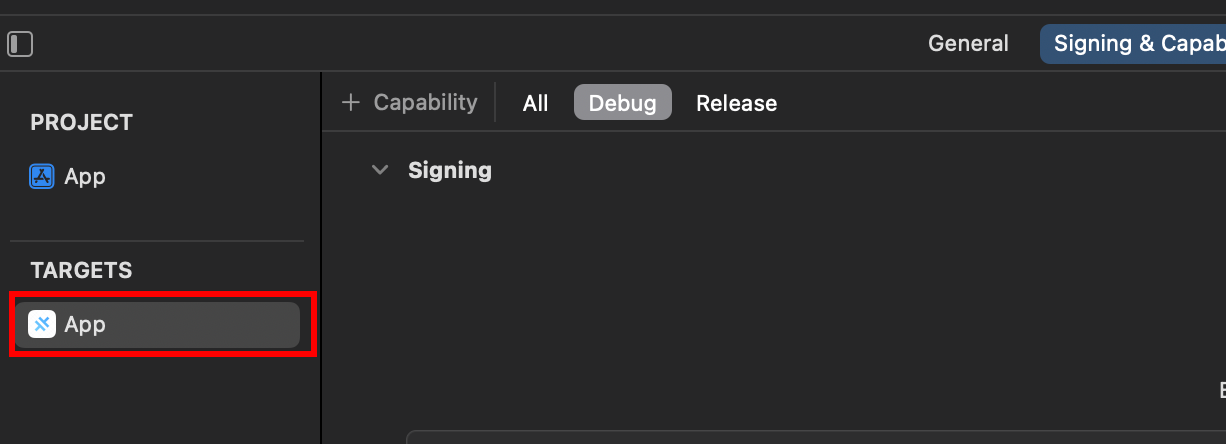
- Temukan
Bundle IdentifierAnda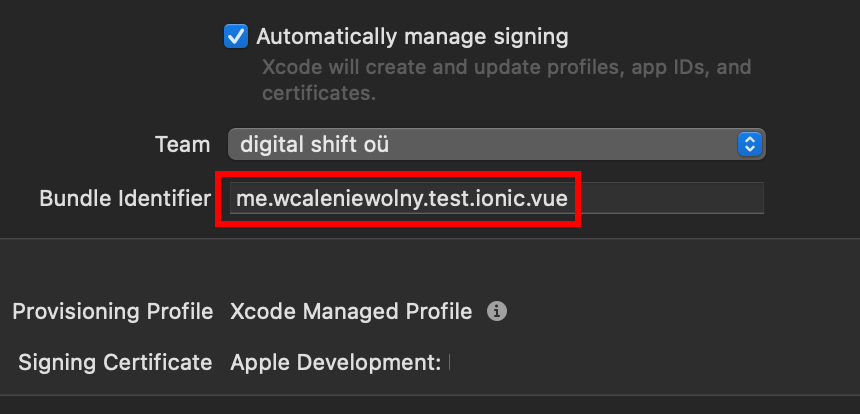
- Salin
Bundle Identifierdan tempelkan di Firebase console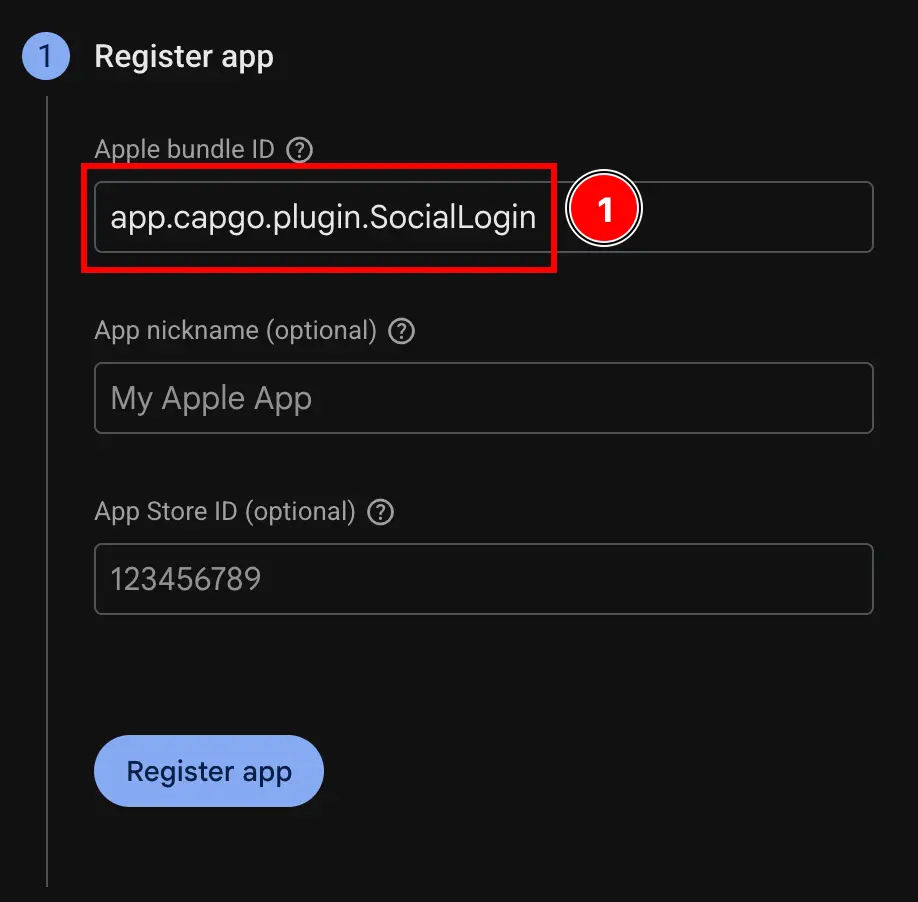
- Buka Xcode di aplikasi Anda menggunakan
- Klik tombol
Register app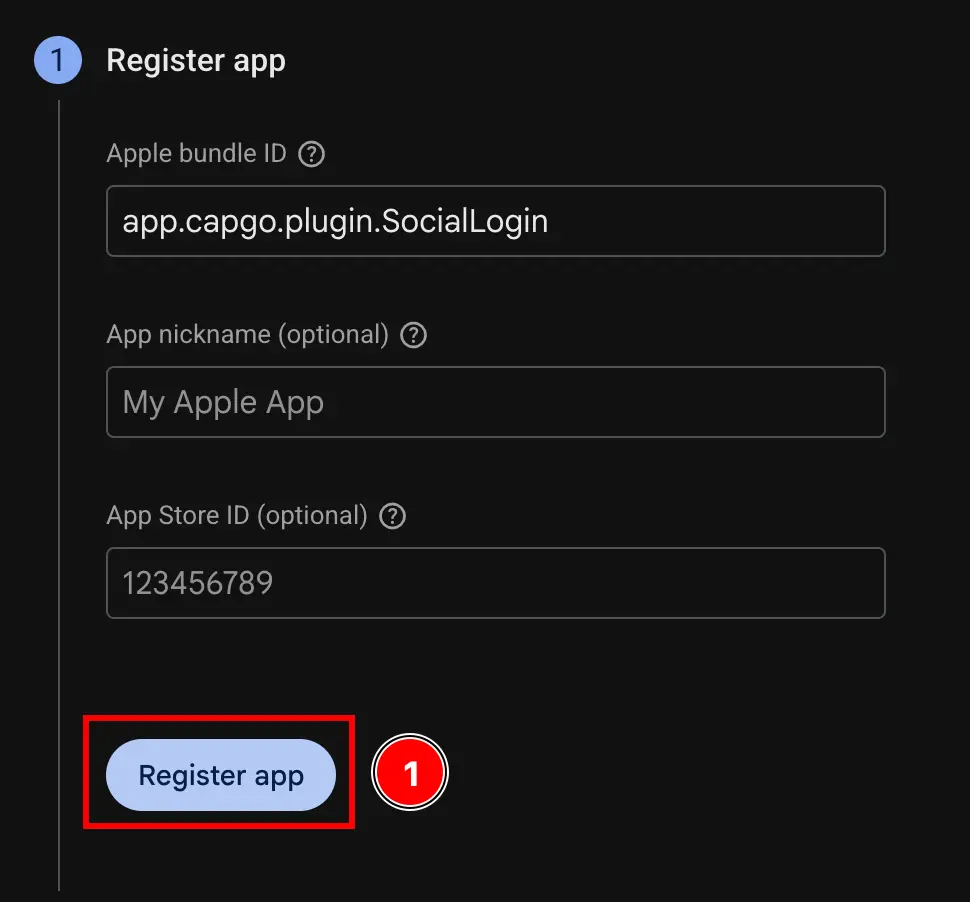
- Isi
-
Lewati langkah
Download config file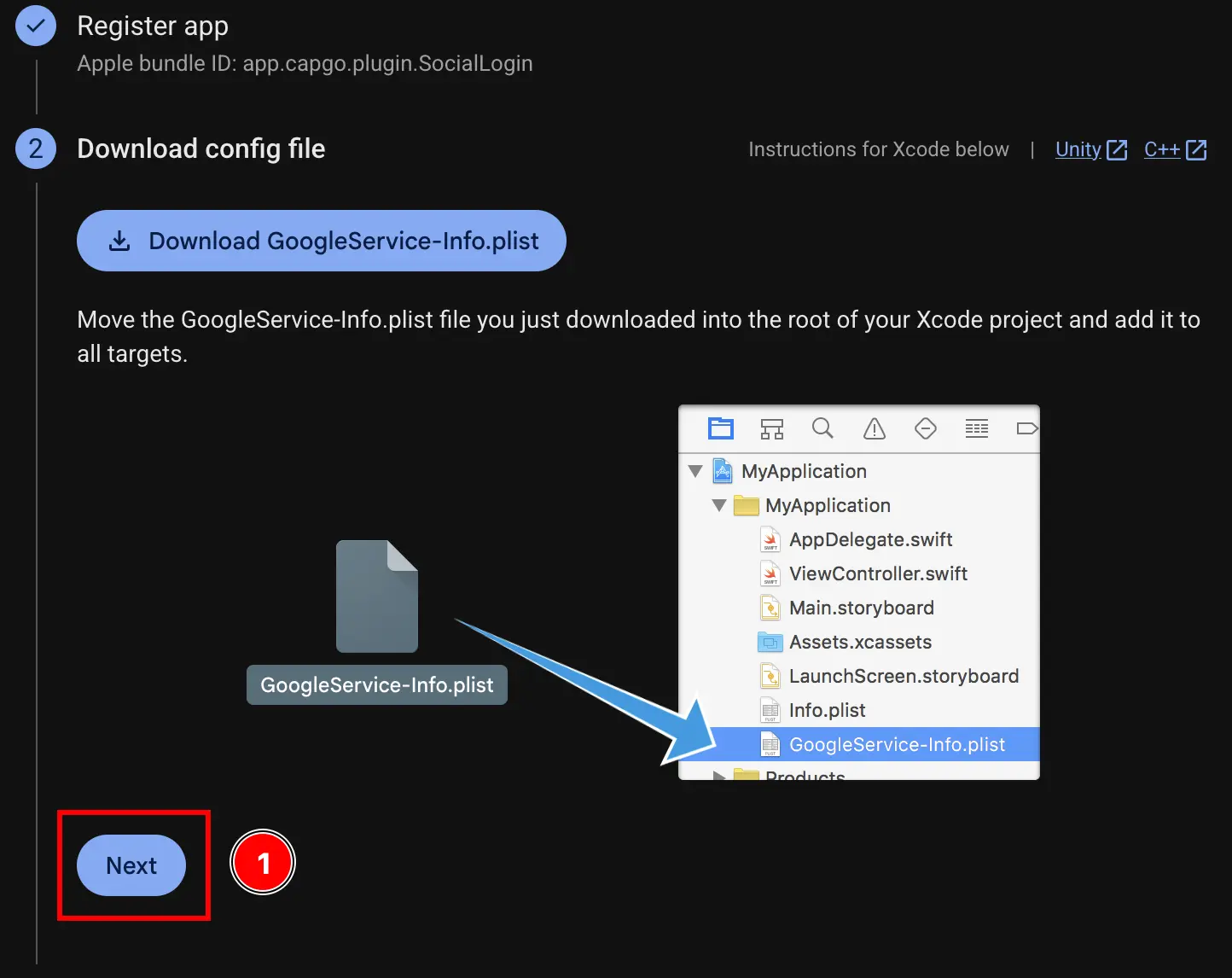
-
Lewati langkah
Add firebase SDK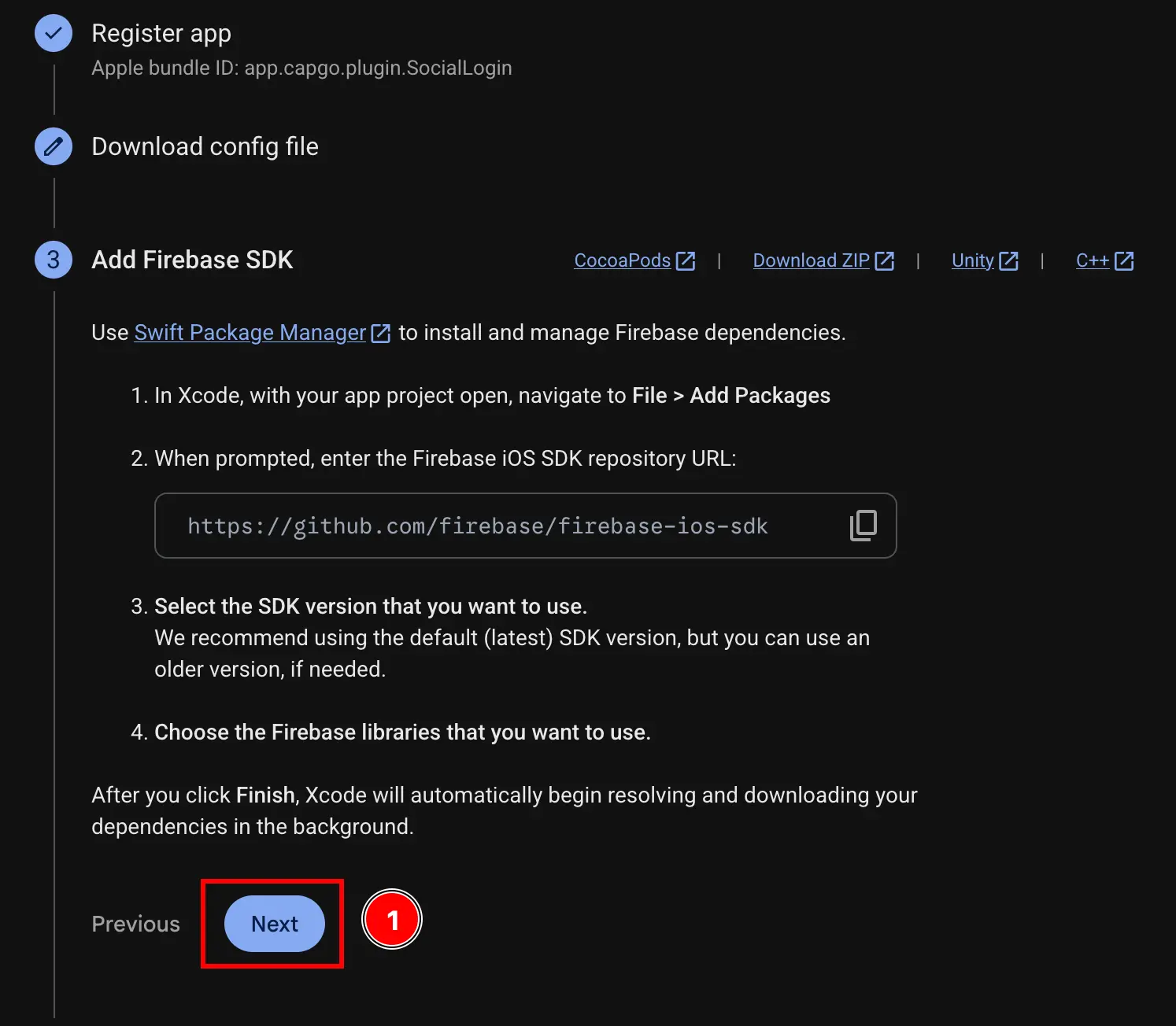
-
Lewati langkah
Add initialization code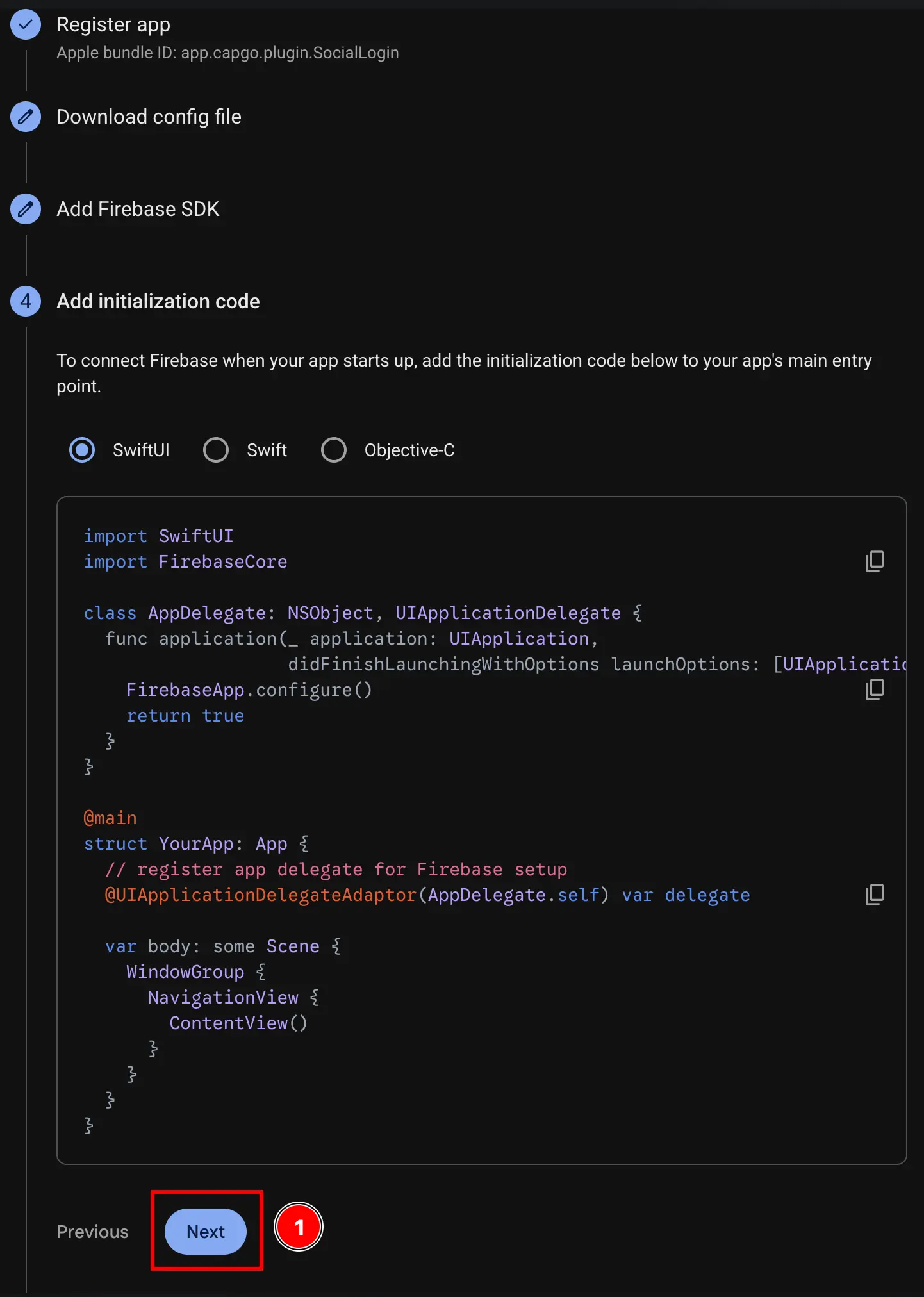
-
Klik tombol
Continue to console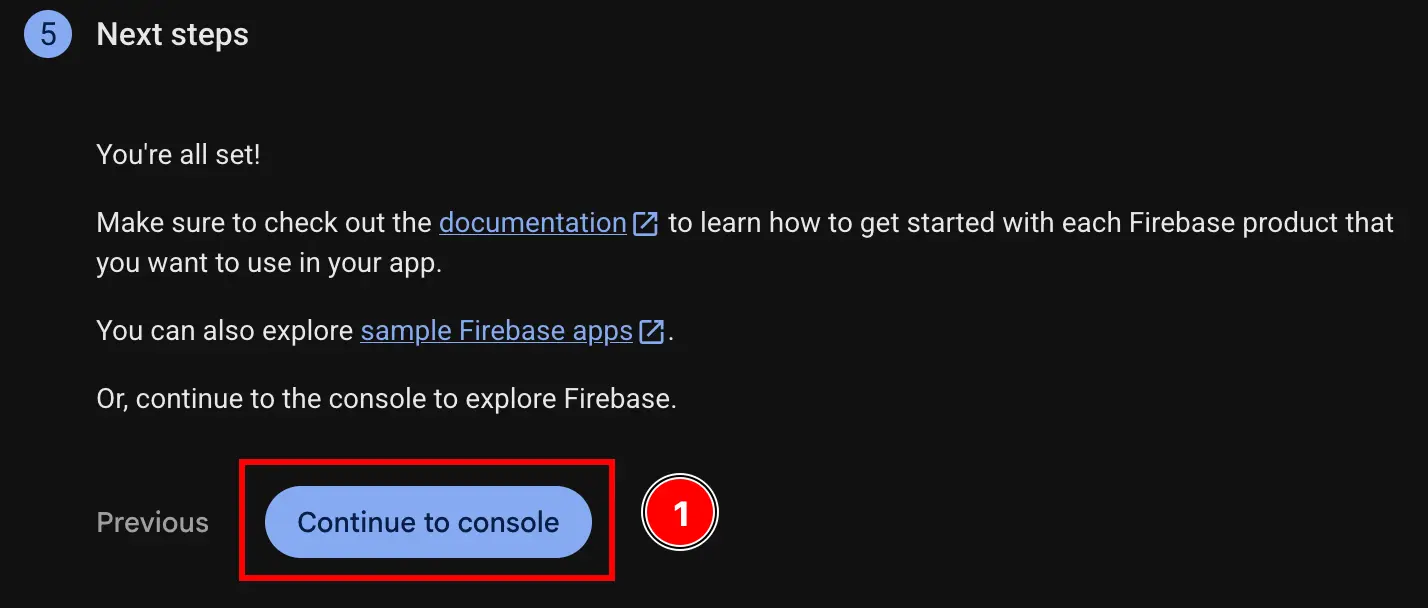
-
Dapatkan iOS client ID dan
YOUR_DOT_REVERSED_IOS_CLIENT_IDAnda-
Buka Google Cloud Console di console.cloud.google.com
-
Temukan proyek Anda
- Klik pada pemilih proyek
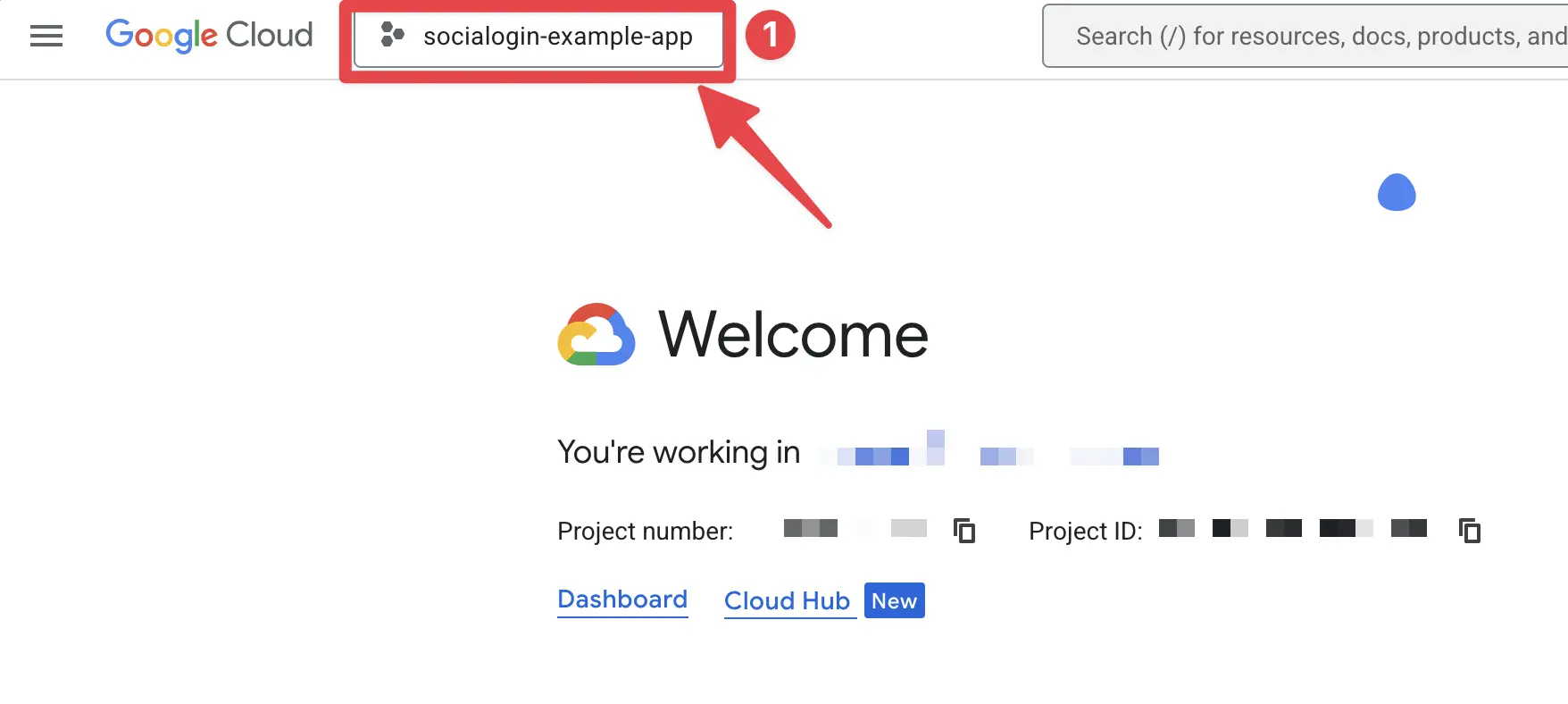
- Cari proyek Anda dengan nama persis dari proyek Firebase Anda dan klik di atasnya. Dalam kasus saya, ini adalah
sociallogin-tutorial-app.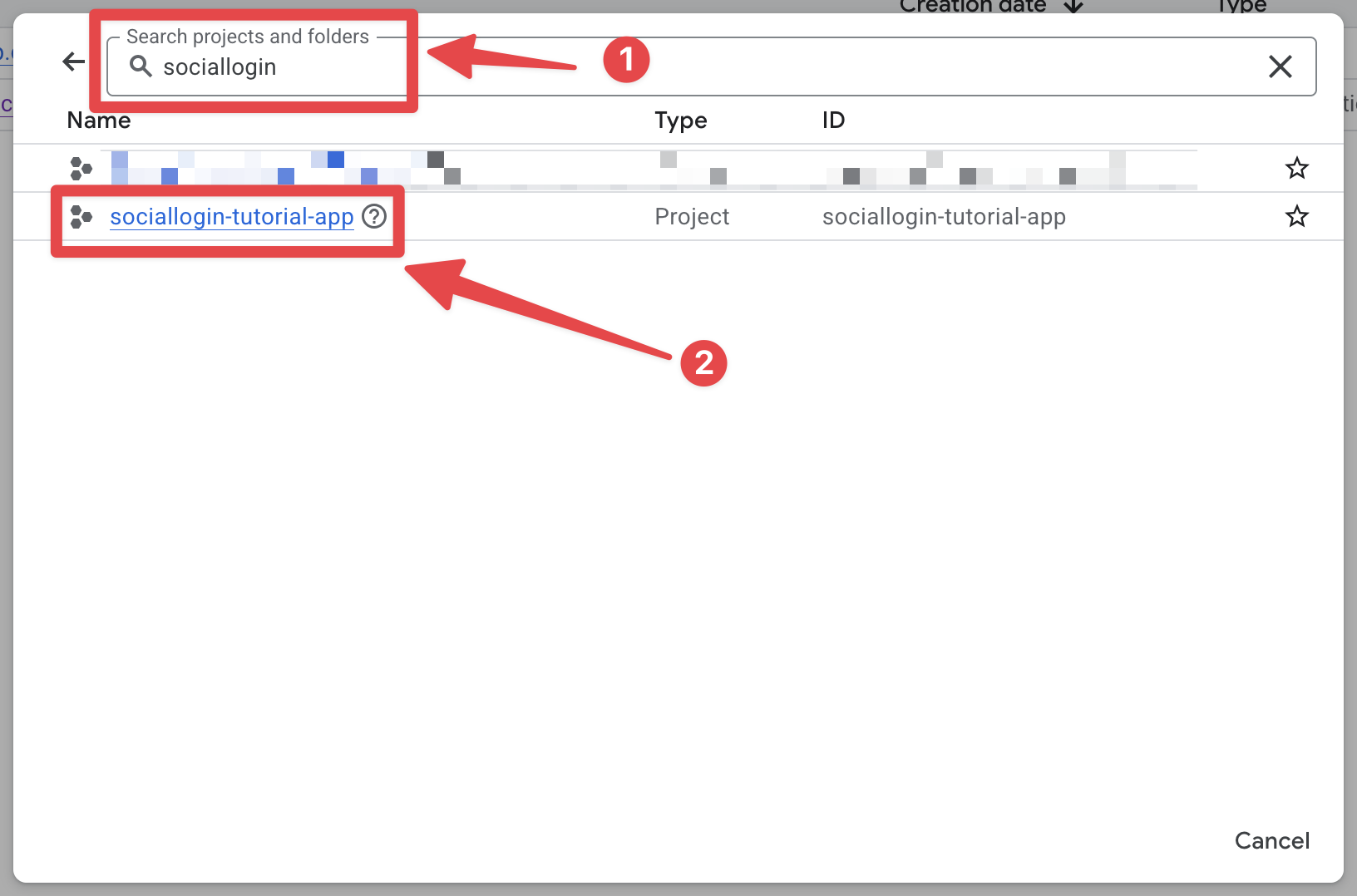
- Klik pada pemilih proyek
-
Buka search bar dan buka
credentials- Buka search bar
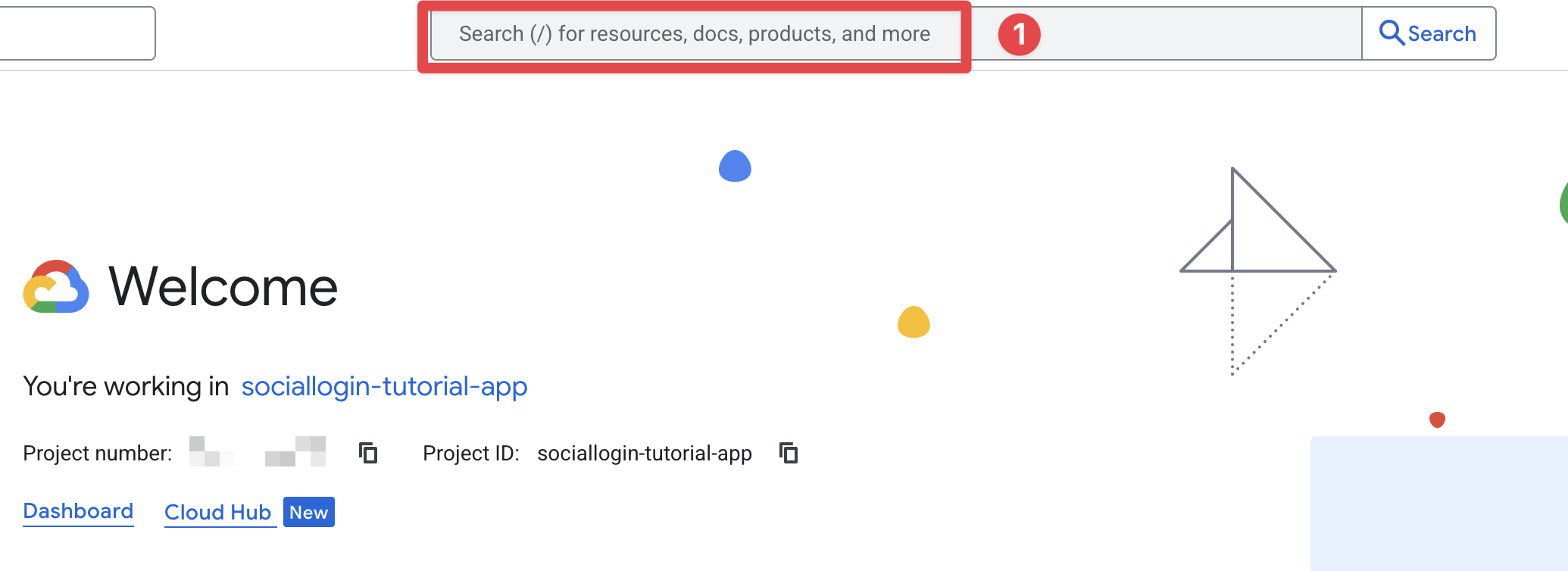
- Cari
credentialsdan klik yangAPIs and Services(nomor 2 pada screenshot)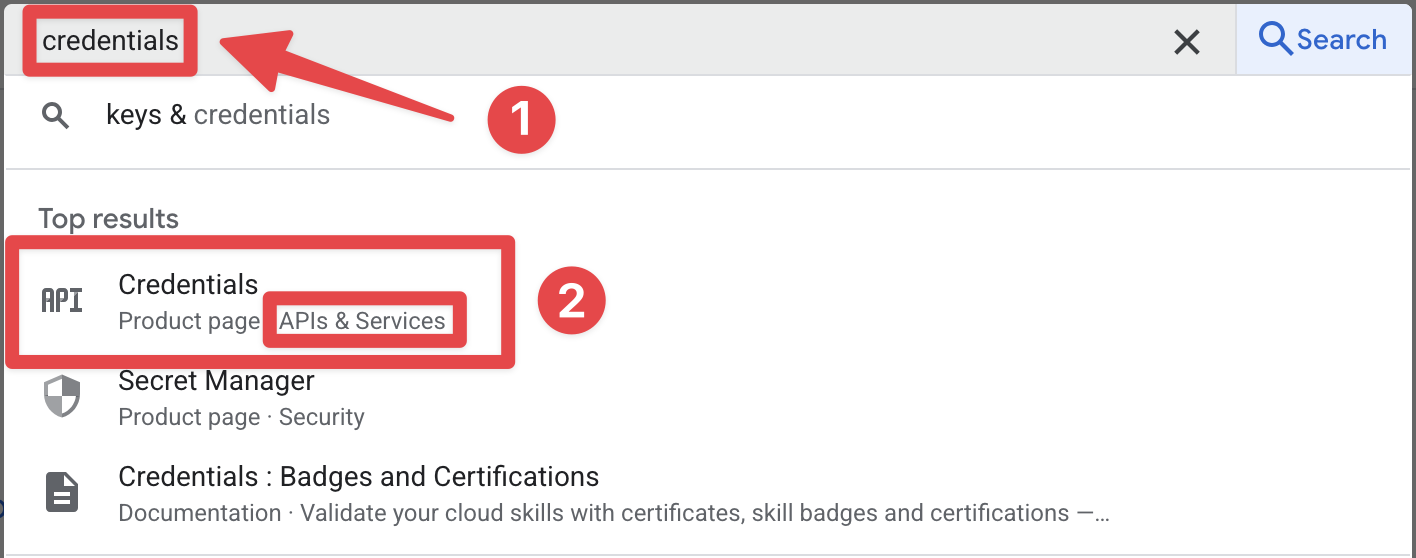
- Buka search bar
-
Klik pada
iOS client for [YOUR_APP_ID] (auto created by Google Service). Dalam kasus saya, ini adalahsociallogin-tutorial-app.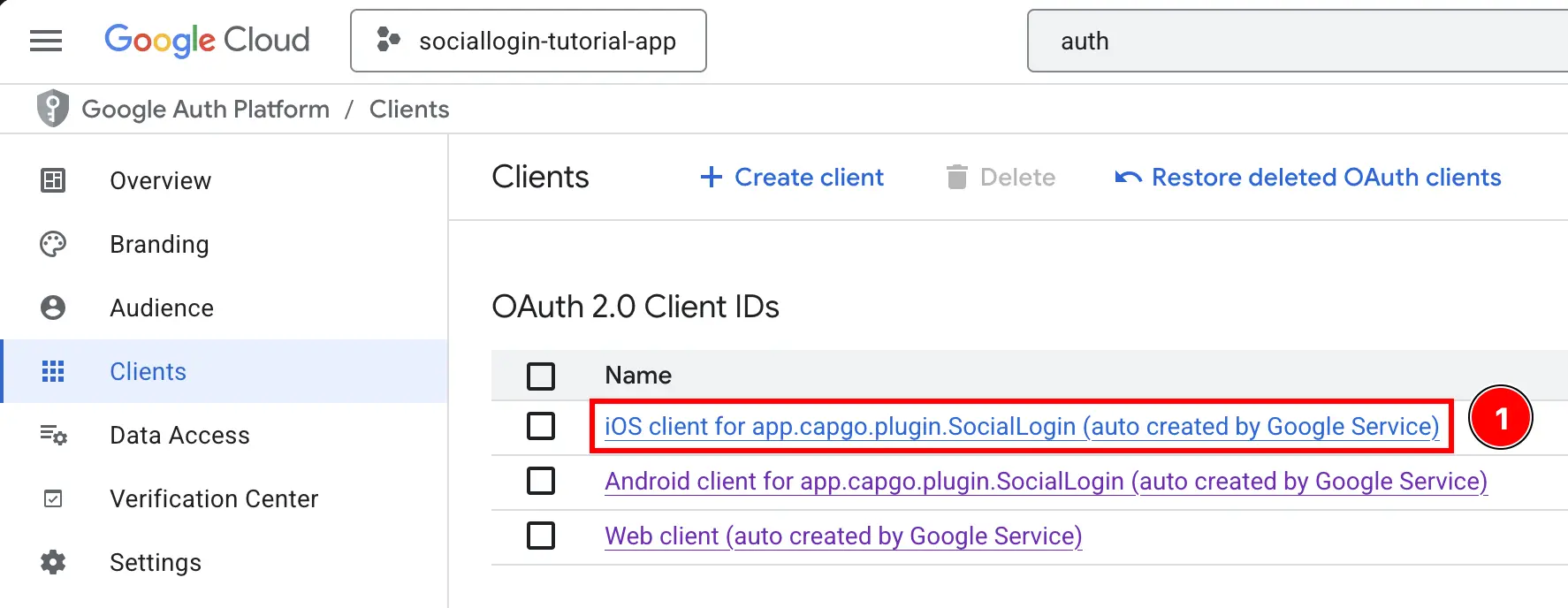
-
Salin
Client IDsertaiOS URL scheme. Ini akan masing-masing menjadiiOSClientIddanYOUR_DOT_REVERSED_IOS_CLIENT_IDAnda.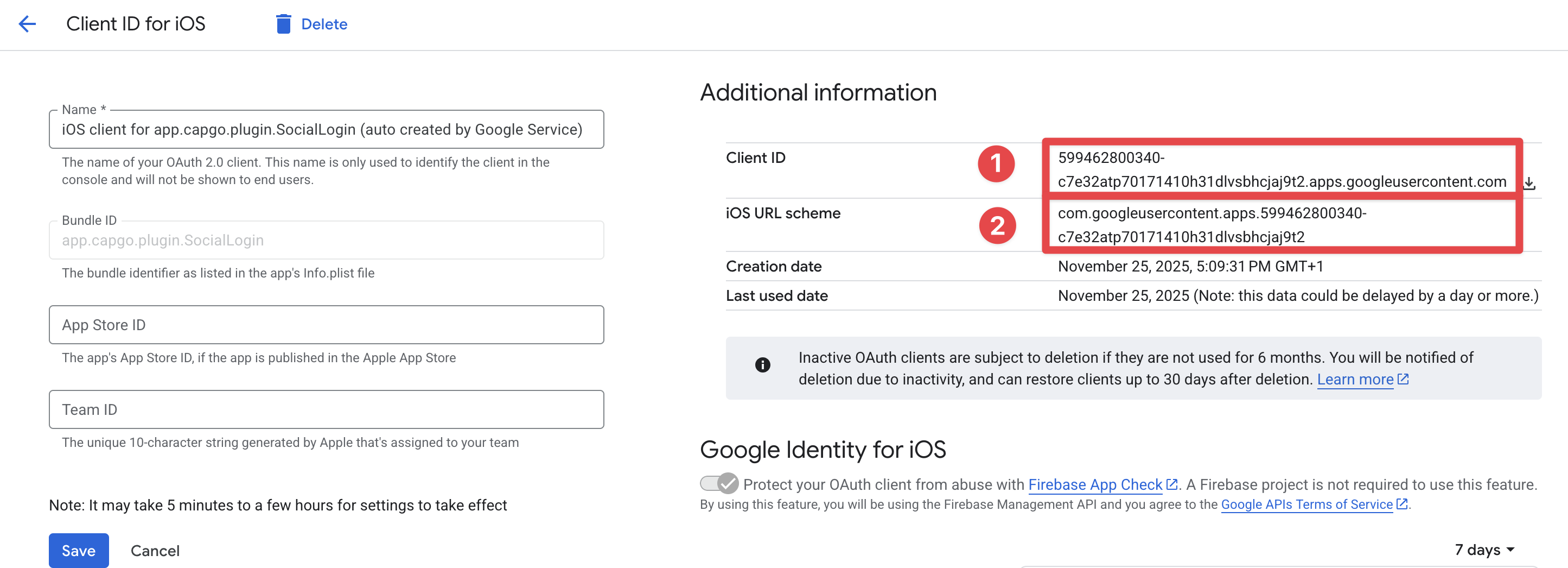
-
-
Dapatkan web client ID Anda
- Kembali ke Firebase console dan buka
Build->Authentication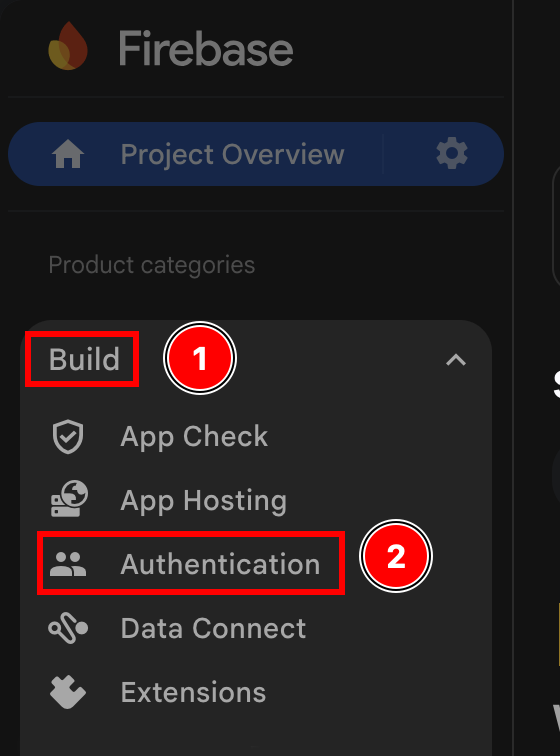
- Klik tombol
Sign-in method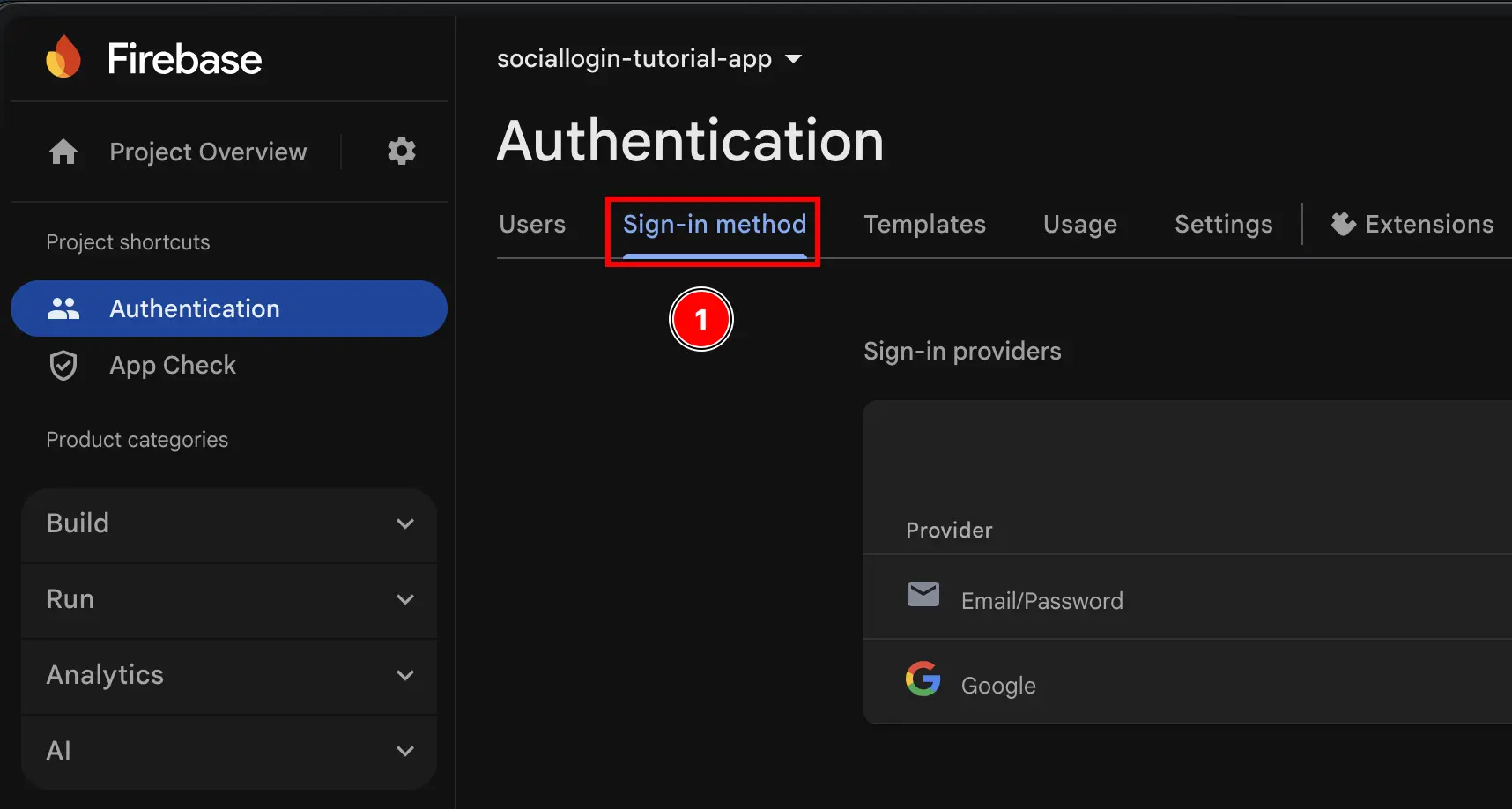
- Klik provider
Google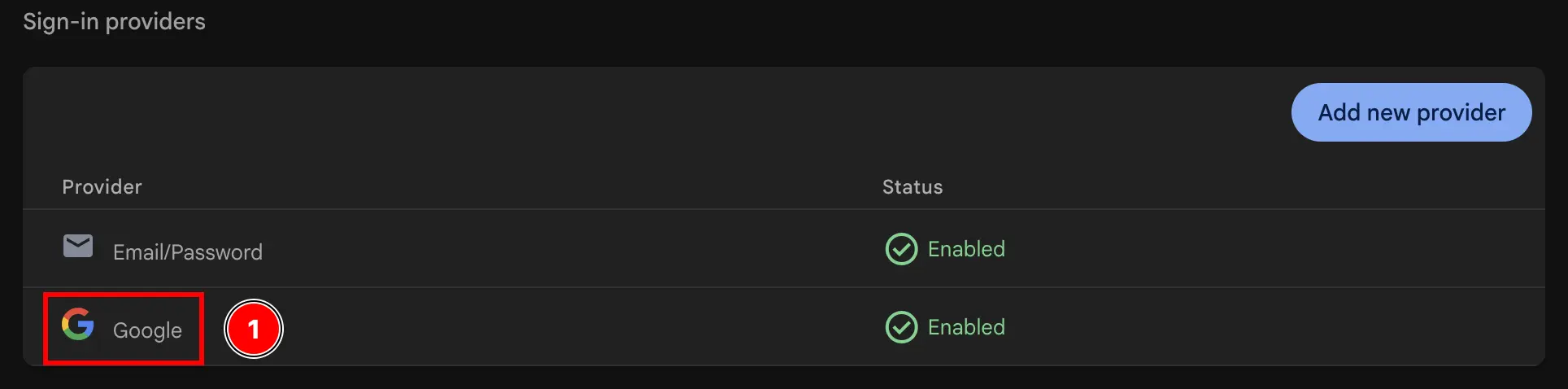
- Klik tombol
Web SDK configuration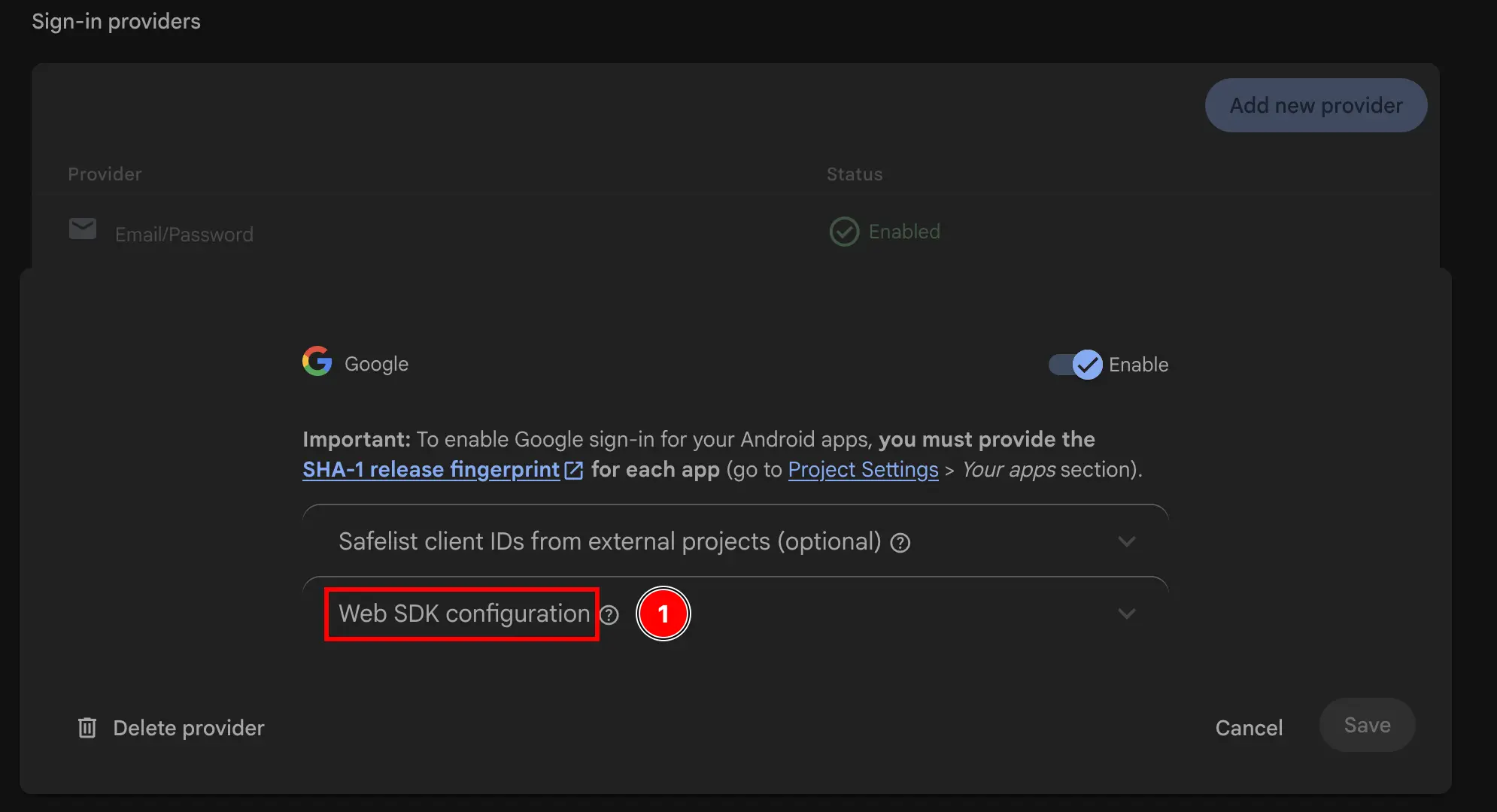
- Salin
Web client ID. Ini akan menjadiwebClientIdAnda dalam metodeinitializeplugin.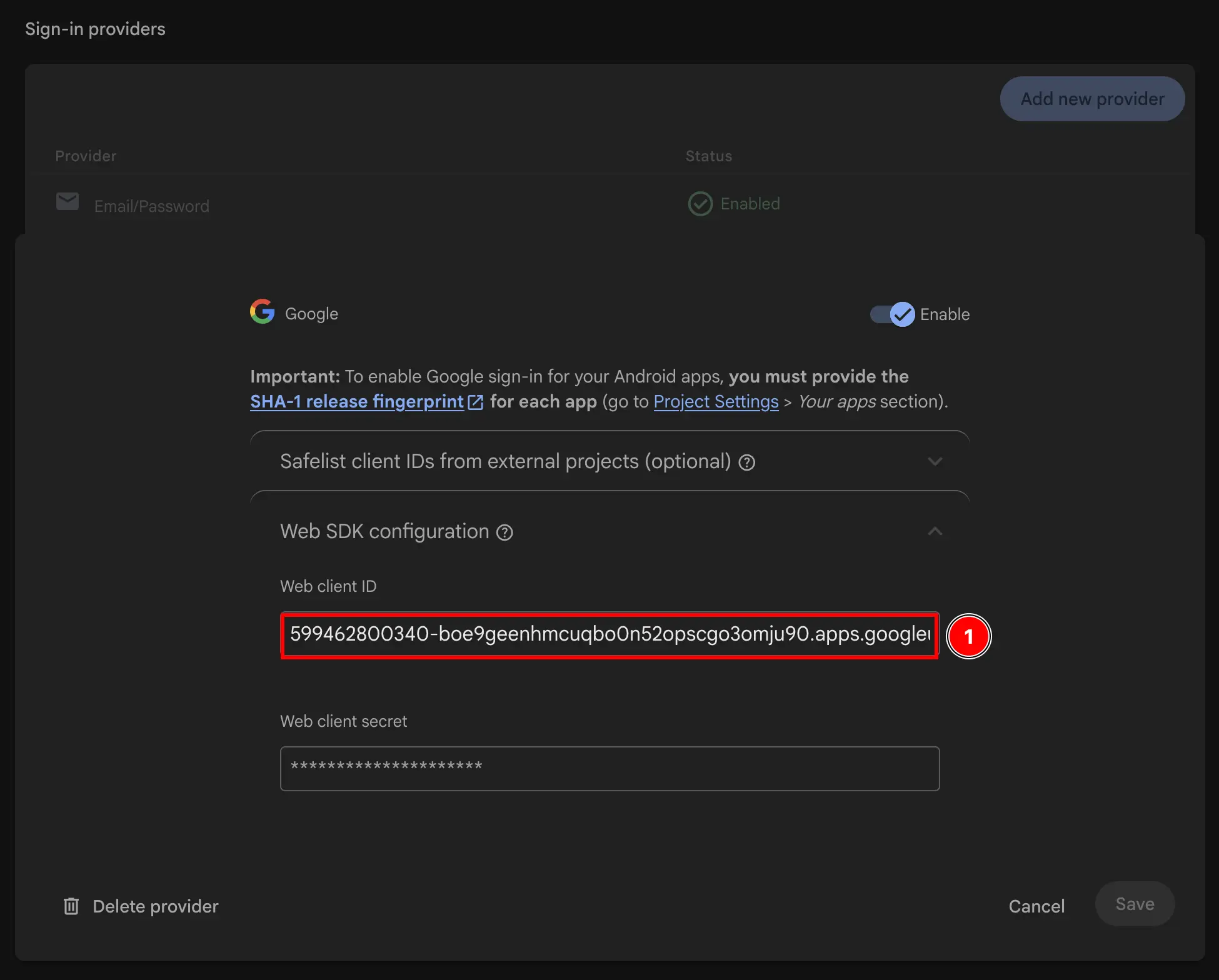
- Kembali ke Firebase console dan buka
-
Modifikasi Info.plist aplikasi Anda
-
Buka Xcode dan temukan file
Info.plist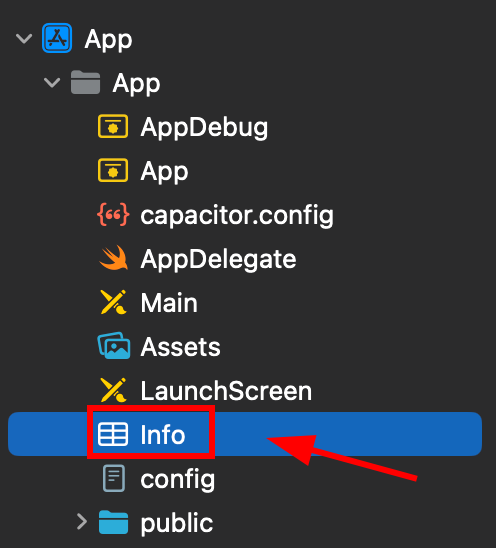
-
Klik kanan file ini dan buka sebagai source code
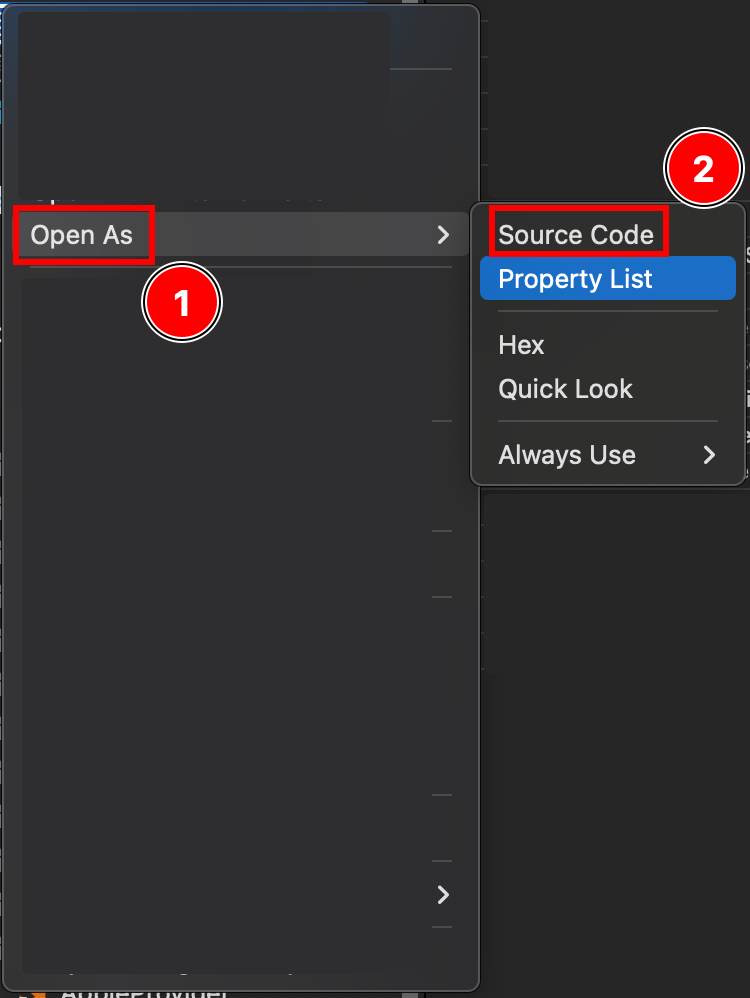
-
Di bagian bawah file
PlistAnda, Anda akan melihat tag</dict>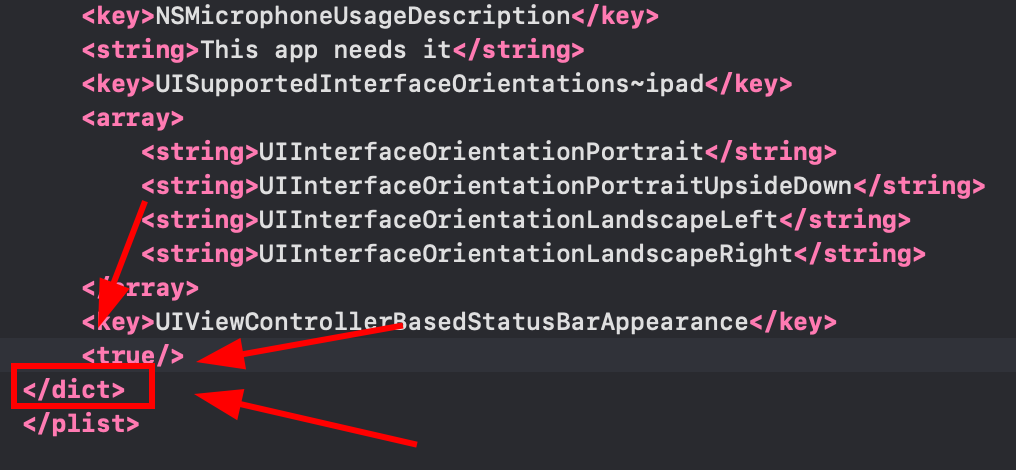
-
Masukkan fragmen berikut tepat sebelum tag
</dict>penutup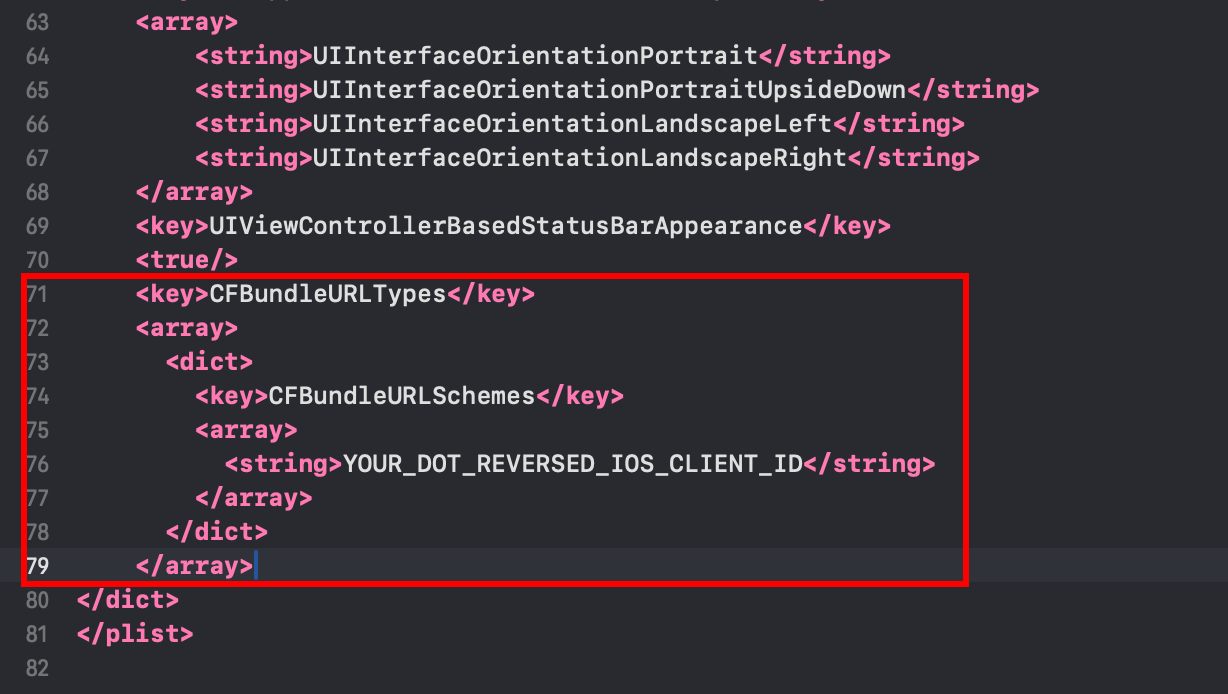 <key>CFBundleURLTypes</key><array><dict><key>CFBundleURLSchemes</key><array><string>YOUR_DOT_REVERSED_IOS_CLIENT_ID</string></array></dict></array><key>GIDClientID</key><string>YOUR_IOS_CLIENT_ID.apps.googleusercontent.com</string>
 -
Ubah
YOUR_DOT_REVERSED_IOS_CLIENT_IDke nilai yang disalin di langkah 9 (iOS URL scheme)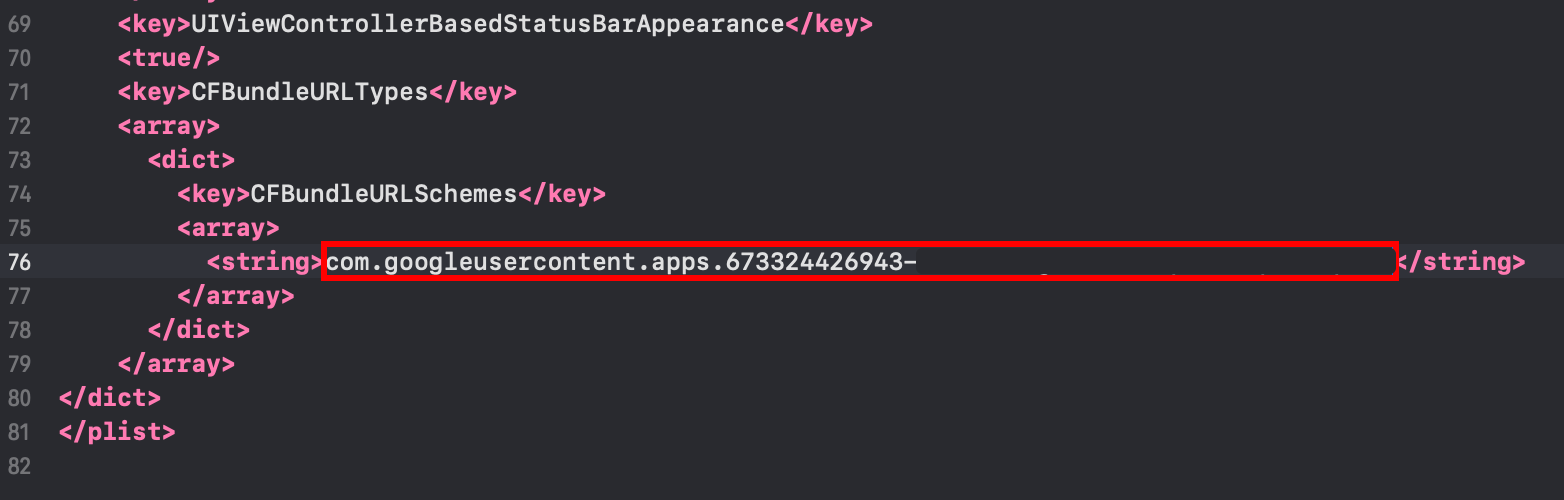
-
-
Ubah
YOUR_IOS_CLIENT_IDke iOS Client ID yang Anda salin di langkah 9 -
Simpan file dengan
Command + S -
Modifikasi
AppDelegate.swift-
Buka AppDelegate
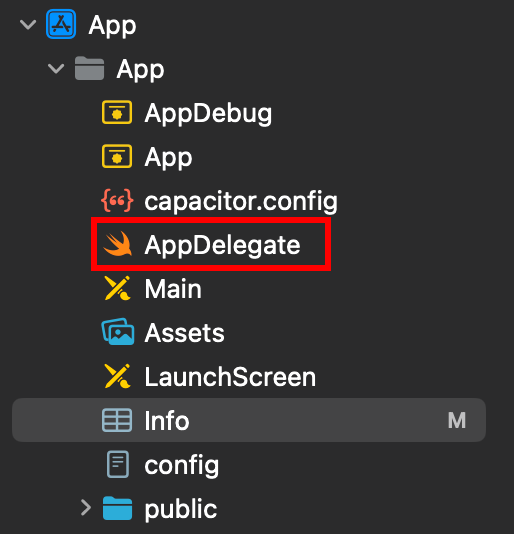
-
Masukkan
import GoogleSignIndi bagian atas file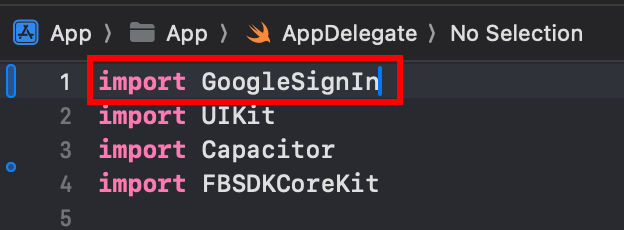
-
Temukan fungsi
func application(_ app: UIApplication, open url: URL, options: [UIApplication.OpenURLOptionsKey: Any] = [:])
-
Modifikasi fungsi agar terlihat seperti ini
func application(_ app: UIApplication, open url: URL, options: [UIApplication.OpenURLOptionsKey: Any] = [:]) -> Bool {// Called when the app was launched with a url. Feel free to add additional processing here,// but if you want the App API to support tracking app url opens, make sure to keep this callvar handled: Boolhandled = GIDSignIn.sharedInstance.handle(url)if handled {return true}return ApplicationDelegateProxy.shared.application(app, open: url, options: options)}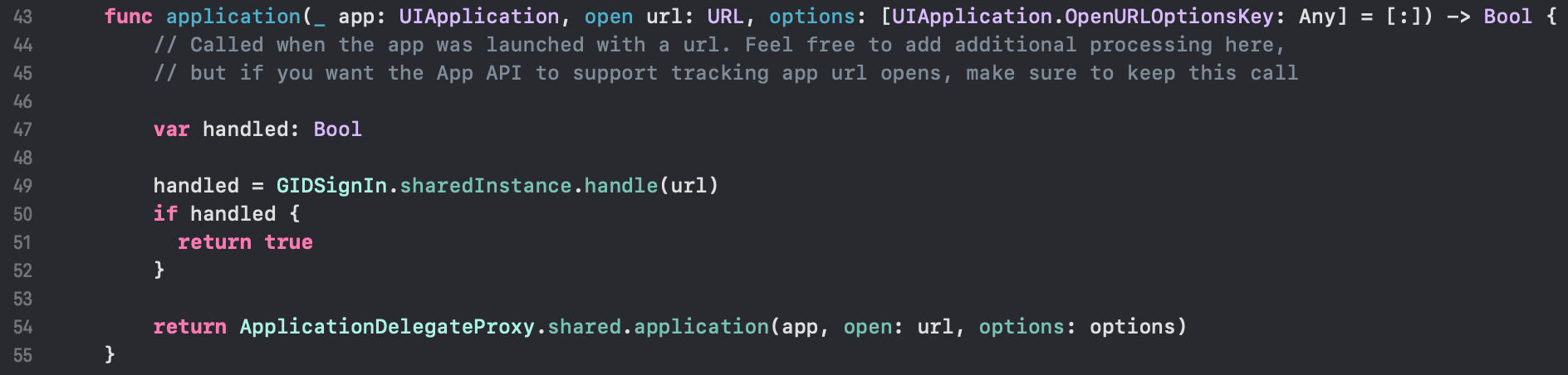
-
Simpan file dengan
Command + S
-
-
Menggunakan login Google di aplikasi Anda
Pada langkah ini, Anda siap menggunakan login Google di aplikasi Anda. Silakan gunakan file authUtils.ts dari aplikasi contoh untuk mengautentikasi dengan Google.
Pengguna akan secara otomatis dibuat di Firebase Auth pada sign-in pertama
Pemecahan Masalah
Section titled “Pemecahan Masalah”Jika autentikasi macet atau gagal:
- Verifikasi audience
idTokencocok dengan Firebase web client ID Anda - Periksa bahwa Google Sign-In diaktifkan di Firebase Console
- Pastikan Info.plist memiliki URL scheme dan GIDClientID yang benar
- Verifikasi
iOSServerClientIdcocok dengan web client ID Anda - Tinjau kode aplikasi contoh sebagai referensi