
Debugging
Salin prompt pengaturan dengan langkah instalasi dan panduan markdown lengkap untuk plugin ini.
Mengerti log cloud
Bab berjudul “Mengerti log cloud”Jika Anda mendapatkan penolakan cloud code dan membutuhkan walkthrough remediasi yang lebih dalam, lihat Masalah Pembaruan Umum.
Capgo log dapat mencakup metadata untuk kejadian tersebut. Di dashboard, filter berdasarkan aksi snake_case code, dan klik sel sel metadata untuk menyalin payload JSON penuh. Metadata sangat berguna untuk kejadian crash dan WebView karena dapat mencakup pesan kesalahan, URL sumber, baris dan kolom, status proses, tekanan memori, atau alasan spesifik platform. Log yang lebih tua masih dapat menampilkan alias camelCase legacy yang terdaftar dalam tanda kurung.
Masing-masing judul bagian sesuai dengan aksi code yang ditampilkan di tabel log console, sehingga Anda dapat menghubungkannya secara langsung.
Batasan rencana dan respons normal
Judul bagian berjudul “Batasan Rencana dan Respons Normal”Penolakan backend terkait tagihan, pengurangan kecepatan, atau keadaan non-kesalahan.
InvalidIp
Judul bagian berjudul “InvalidIp”Artinya apa?
Capgo mendeteksi lalu lintas yang tampaknya berasal dari Google atau infrastruktur cloud. Perbarui yang lebih tua dari empat jam tidak diabaikan sehingga lalu lintas bot tidak dihitung sebagai perangkat yang dapat dibebankan.
What to do
Abaikan pada pengguna nyata. Ulangi dari jaringan normal dan perangkat nyata, atau tunggu dan periksa lagi nanti.
provider_infrastructure_request_blocked
Judul bagian berjudul “provider_infrastructure_request_blocked”Artinya apa?
Aplikasi Anda dikonfigurasi untuk memblokir permintaan dari IP range datacenter Google dan Apple yang diketahui. Perlindungan ini berlaku untuk pengecekan update, statistik, dan permintaan channel-self, sehingga probe dan runner penyedia di cloud dapat menerima respons ini bahkan ketika konfigurasi aplikasi lainnya masih valid.
What to do
Coba lagi dari perangkat fisik di jaringan pengguna normal. Jika trafik yang berasal dari penyedia sengaja, matikan sementara Blokir permintaan infrastruktur penyedia di dalam aplikasi Information Aktifkan tab tersebut, kemudian nonaktifkan kembali setelah tes. Aplikasi baru mengaktifkan pengaturan ini secara default; aplikasi yang sudah ada akan mempertahankan pengaturan sebelumnya yang dinonaktifkan sampai diubah.
Upgrade rencana di dashboard atau tunggu siklus pembayaran berikutnya.
Organisasi Anda telah mencapai batas rencana atau perangkat. Perangkat tidak akan menerima pembaruan hingga Anda mengupgrade atau siklus pembayaran berikutnya mengatur ulang penggunaan.
What to do
Naikkan paket Anda di dashboard atau tunggu siklus pembayaran berikutnya.
What it means
Perangkat sudah memiliki paket terbaru yang tersedia untuk saluran perangkatnya. Ini adalah keadaan normal, bukan gagal.
rateLimited
Judul Bagian berjudul “rateLimited”What it means
Perangkat mengirimkan terlalu banyak permintaan pembaruan atau saluran dalam jendela waktu yang singkat.
What to do
Hentikan panggilan API pembaruan di dalam loop render. Panggil setChannel / getChannel hanya dari aksi pengguna, dan tetapkan defaultChannel dalam capacitor.config.
Format Versi
Judul Bagian berjudul “Version format”Penolakan backend disebabkan oleh metadata versi native yang tidak valid.
semver_error
Judul bagian “semver_error”What it means
Versi aplikasi native di konfigurasi hilang atau tidak valid semver (x.y.z).
What to do
Set plugins.CapacitorUpdater.version untuk valid semver, pastikan di SemVer testerke versi semver yang valid, verifikasi di
Platform dan Target Pengepakan
, kemudian bangun kembali dan instal ulang aplikasi native.Target platform dan pembangunan aplikasi native (Platform dan Build Targeting)
disablePlatformIos
Bagian berjudul “disablePlatformIos”What it means
Perangkat ini menjalankan iOS, tetapi pembaruan iOS dinonaktifkan untuk saluran ini.
What to do
Nonaktifkan iOS di saluran jika ini tidak sengaja, atau arahkan bangun iOS ke saluran dedikasi ketika pemblokiran sengaja.
disablePlatformAndroid
Bagian berjudul “disablePlatformAndroid”What it means
Perangkat ini menjalankan Android, tetapi pembaruan Android dinonaktifkan untuk saluran ini.
What to do
Aktifkan Android di saluran jika ini adalah kesalahan, atau arahkan pembangunan Android ke saluran yang khusus ketika pemblokiran sengaja.
disablePlatformElectron
Mengaktifkan Disable Platform ElectronWhat it means
Perangkat ini menjalankan Electron, tetapi pembaruan Electron dinonaktifkan untuk saluran ini.
What to do
Aktifkan Electron di saluran jika ini tidak sengaja, atau arahkan bangun Electron ke saluran dedikasi ketika pemblokiran sengaja.
disableDevBuild
Bagian berjudul “disableDevBuild”Apa artinya
Perangkat ini adalah bangun pengembangan, tetapi bangun pengembangan diblokir untuk saluran ini.
What to do
Izinkan bangun pengembangan di saluran uji, atau jaga saluran ini hanya untuk rilis dan pindahkan perangkat pengembangan ke tempat lain.
disableProdBuild
Bagian berjudul “disableProdBuild”Apa artinya
Bangun produksi yang disebut /updates, tetapi pembaruan produksi diblokir untuk saluran ini.
What to do
Biarkan pembaruan produksi di saluran jika ini adalah kecelakaan, atau arahkan bangunan produksi ke saluran yang benar.
disableDevice
Bagian berjudul “disableDevice”Apa artinya
Telepon nyata atau tablet diblokir karena saluran ini memblokir perangkat nyata.
What to do
Aktifkan pembaruan perangkat nyata jika ini adalah kecelakaan, atau jaga pembatasan dan arahkan perangkat nyata ke saluran lain.
disableEmulator
Bagian berjudul “disableEmulator”Apa artinya
Perangkat ini adalah emulator, tetapi pembaruan emulator dinonaktifkan untuk saluran ini.
What to do
Aktifkan pembaruan emulator di saluran uji, atau jaga saluran ini diblokir emulator dan gunakan saluran lain untuk validasi emulator.
Kemampuan kompatibilitas pembaruan otomatis
Judul Bagian “Kemampuan kompatibilitas pembaruan otomatis”Penolakan backend ketika aturan semver atau metadata menghalangi paket target.
disableAutoUpdate
Judul Bagian “disableAutoUpdate”What it means
Pembaruan otomatis dimatikan oleh kebijakan kompatibilitas saluran. Metadata termasuk auto_update dengan aturan yang sesuai seperti major, minor, patch, metadata, atau none.
What to do
Ubah kebijakan pembaruan otomatis saluran untuk memungkinkan peluncuran yang diinginkan.
disableAutoUpdateUnderNative
Judul Bagian “disableAutoUpdateUnderNative”What it means
Saluran ini memiliki paket yang lebih tua daripada garis dasar perangkat dan menghalangi pengiriman pembaruan di bawah versi native.
What to do
Publikasikan paket di atau di atas garis dasar native, atau nonaktifkan perlindungan di bawah native di saluran.
disableAutoUpdateMetadata
Judul bagian berjudul “disableAutoUpdateMetadata”Apa artinya?
Saluran ini memerlukan min_update_version, tetapi versi native perangkat di bawah itu.
What to do
Atur min_update_version dari versi native yang lebih baru ke bundle atau rilis target.
disableAutoUpdateToMajor
Mengaktifkan atau Menonaktifkan Pembaruan Versi UtamaApa artinya?
Saluran ini menghalangi lonjakan versi utama, misalnya 1.x.x ke 2.x.x.
What to do
Sesuaikan strategi saluran dengan rencana rilis utama Anda, atau izinkan lonjakan utama untuk jalur ini. Lihat Masalah Pembaruan Umum.
disableAutoUpdateToMinor
Bagian berjudul “disableAutoUpdateToMinor”What it means
Saluran ini menghalangi lonjakan versi minor relatif terhadap dasar garis native perangkat (version_build), misalnya 1.2.3 ke 1.3.0.
What to do
Sesuaikan strategi saluran dengan rencana rilis minor Anda, atau izinkan lonjakan minor untuk jalur ini.
disableAutoUpdateToPatch
Judul Bagian: “disableAutoUpdateToPatch”Apa artinya
Sementara channel menghalangi perubahan level patch, tetap mempertahankan MAJOR.MINOR.PATCH Hanya perubahan sufiks yang diizinkan.
What to do
Sesuaikan ritme rilis dengan kebijakan saluran, atau izinkan lonjakan patch untuk jalur ini.
Judul Bagian: “Pengaturan Kanal”
Penolakan backend disebabkan oleh konfigurasi kanal yang hilang atau tidak kompatibel.Kesalahan backend disebabkan oleh konfigurasi saluran yang hilang atau tidak kompatibel.
cannotUpdateViaPrivateChannel
Tidak Dapat Mengupdate Melalui Saluran PribadiApa artinya
Perangkat mencoba mengasosiasikan diri sendiri dengan saluran pribadi yang tidak memungkinkan pengasosiasian perangkat sendiri ("allow_device_self_set apakah salah) dan saluran ini tidak publik.
What to do
Mengaktifkan allow_device_self_set di saluran atau beralih perangkat ke saluran publik atau yang diizinkan.
channelMisconfigured
Judul bagian “channelMisconfigured”What it means
Saluran menggunakan disable_auto_update: "version_number" tetapi paket min_update_version kosong, sehingga Capgo tidak dapat menentukan perangkat mana yang harus diperbarui.
What to do
Isi konfigurasi yang hilang untuk aturan tersebut atau beralih ke mode auto-update yang lebih sederhana.
NoChannelOrOverride
Judul bagian “NoChannelOrOverride”What it means
Tidak ada saluran default yang dikonfigurasi dan perangkat tidak memiliki pengaturan saluran override.
What to do
Atur saluran default di dashboard atau konfigurasi defaultChannel Pengiriman dan enkripsi bundle
Bagian berjudul “Pengiriman dan enkripsi bundle”
Pengiriman Paket dan PengenkripsiKesalahan Backend ketika Capgo tidak dapat menyediakan atau memecahkan bundle.
cannotGetBundle
Bagian Tidak Dapat Mengambil PaketWhat it means
Capgo gagal menghasilkan URL download yang valid dan tidak ada fallback manifest yang tersedia.
What to do
Ulangkan bundle, regenerasi manifest, dan verifikasi R2 atau pengaturan bundle publik.
missingBundle
Judul bagian “missingBundle”What it means
Bundle yang ditugaskan ke saluran tidak memiliki konten yang dapat diunduh: tidak ada external_url, tidak ada r2_path, bukan versi bawaan, dan tidak ada entri manifest.
What to do
Rebuild dan ulangkan versi, kemudian pastikan bundle memiliki konten file yang nyata.
keyMismatch
Judul bagian “keyMismatch”What it means
Kunci enkripsi perangkat publik tidak sesuai dengan kunci yang digunakan untuk mengenkripsi bundle. Metadata dapat mencakup device_key_id, bundle_key_id, dan version.
What to do
Bandingkan ID kunci perangkat dan bundle di konsol. Publikasikan dengan kunci yang sama dan versi CLI/plugin yang sesuai.
Konfigurasi aplikasi dan klien legacy
Bagian berjudul “Konfigurasi Aplikasi dan Klien Legacy”Penolakan backend disebabkan oleh konfigurasi aplikasi atau versi pembaruan yang tidak didukung.
customIdBlocked
Bagian berjudul “customIdBlocked”Apa artinya
Aplikasi mengirimkan ID perangkat kustom, tetapi aplikasi ini tidak menerima ID kustom, sehingga ID diabaikan.
What to do
Hentikan mengirimkan ID kustom, atau aktifkan ID kustom hanya ketika workflow Anda memerlukan mereka.
blocked_by_server_url
Bagian berjudul “blocked_by_server_url”Apa artinya
server.url Konfigurasi ini diatur di Capacitor konfigurasi, sehingga WebView memuat URL remote daripada file bundle lokal. Capgo pembaruan live memerlukan file lokal dan server.url tidak disarankan dalam produksi.
What to do
Hapus atau kosongkan server.url untuk pembangunan produksi dan jaga muatan pembaruan lokal. Hal ini code dapat muncul sebagai penolakan backend atau sebagai statistik perangkat.
backend_refusal
Bab berjudul “backend_refusal”Apa artinya
Plugin pembaruan telah mencapai versi 4, yang tidak lagi diterima oleh backend.
What to do
Perbarui plugin dan CLI ke versi 5+ (preferensi versi 8) dengan Capacitor versi 5+, direkonstruksi, dan republish metadata bundle.
Garis waktu pembaruan
Bab berjudul “Update lifecycle”Peristiwa perangkat untuk aliran pembaruan normal, aktivasi, dan rollback.
Apa artinya
Aksi uji internal digunakan untuk memastikan pipa statistik.
Apa artinya
Capgo mengirim informasi download untuk versi baru ke perangkat.
Apa artinya
Sebuah paket diaktifkan di perangkat.
set_fail
Bagian berjudul “set_fail”Apa artinya
A bundle gagal diaktifkan pada perangkat.
What to do
Cek log native dengan npx @capgo/cli@latest app debug dan verifikasi integritas, jalur, dan notifyAppReady aliran.
reset
Judul bagian “reset”Apa artinya?
Perangkat direset ke bundle bawaan.
delete
Judul bagian “hapus”Apa artinya?
Satu bundle dihapus pada perangkat.
Gagal download dan instalasi
Judul bagian “Gagal Download dan Instalasi”Event perangkat untuk kemajuan download, validasi arsip, dan kesalahan instalasi.
download_0
Judul bagian “download_0”What it means
Sequences download dimulai pada 0% kemajuan.
download_10
Judul bagian “download_10”What it means
Sebuah bundle baru telah diunduh — kemajuan ditunjukkan pada 10%.
download_20
Judul bagian “download_20”What it means
Sebuah bundle baru telah diunduh — kemajuan ditunjukkan pada 20%.
download_30
Judul bagian “download_30”What it means
Bundle baru telah diunduh — kemajuan ditunjukkan pada 30%.
download_40
Bagian berjudul “download_40”What it means
Bundle baru telah diunduh — kemajuan ditunjukkan pada 40%.
download_50
Bagian berjudul “download_50”What it means
Bundle baru telah diunduh — kemajuan ditunjukkan pada 50%.
download_60
Bagian berjudul “download_60”What it means
Bundle baru telah diunduh — kemajuan ditunjukkan pada 60%.
download_70
Bagian berjudul “download_70”Apa artinya
Bundle baru telah diunduh — kemajuan ditunjukkan pada 70%.
download_80
Bagian berjudul “download_80”Apa artinya
Bundle baru telah diunduh — kemajuan ditunjukkan pada 80%.
download_90
Bagian berjudul “download_90”Apa artinya
Sebuah paket baru telah diunduh — kemajuan ditunjukkan pada 90%.
download_complete
Bundle download selesai dengan sukses.Apa artinya
Bagian berjudul “download_manifest_start”
download_manifest_start
Bagian berjudul “download_manifest_start”Apa artinya
Perangkat mulai mengunduh manifest update.
download_manifest_complete
Bagian berjudul “download_manifest_complete”Apa artinya
Perangkat telah selesai mengunduh manifest update.
download_zip_start
Bagian berjudul “download_zip_start”Apa artinya
Perangkat mulai mengunduh arsip bundle.
download_zip_complete
Bagian berjudul “download_zip_complete”Apa artinya
Perangkat telah selesai mengunduh arsip bundle.
download_manifest_file_fail
Bagian berjudul “download_manifest_file_fail”What it means
Satu entri manifest gagal diunduh. version_name digunakan version:fileName untuk mengidentifikasi asset.
What to do
Perbaiki asset yang hilang atau diblokir, regenerasi manifest, dan re-upload bundle.
download_manifest_checksum_fail
Bagian berjudul “download_manifest_checksum_fail”What it means
File manifest gagal memvalidasi checksum.
What to do
Re-upload bundle dengan versi CLI saat ini dan verifikasi checksum manifest.
download_manifest_brotli_fail
Bagian berjudul “download_manifest_brotli_fail”Apa artinya
File manifest gagal melepas kompresi Brotli.
What to do
Periksa pengaturan kompresi dan unggah kembali aset yang terkena dampak.
download_fail
Bagian berjudul “download_fail”Apa artinya
The bundle failed to download.
What to do
Periksa koneksi jaringan, kadaluarsa URL yang ditandatangani, ketersediaan CDN, dan penyimpanan perangkat.
update_fail
Bagian berjudul “update_fail”Apa artinya
Paket diinstal tetapi aplikasi tidak pernah memanggilnya. notifyAppReady, sehingga Capgo kembali ke versi sebelumnya.
What to do
Call notifyAppReady() Setelah aplikasi Anda selesai melakukan bootstrapping. notifyAppReady was not called, roll back current bundle berlaku untuk code.
checksum_fail
Gagal Cek KeseluruhanBundle yang diunduh gagal memvalidasi checksum. Penyebab umum: kesalahan CRC32 vs SHA256 dari upload lama __CAPGO_KEEP_0__, atau kesalahan kunci enkripsi pada plugin yang lebih tua yang menampilkan gagal dekripsi sebagai gagal checksum.
Ulangi upload dengan CLI/plugin yang terkini (SHA256). Jika menggunakan enkripsi, pastikan kunci publik aplikasi sesuai dengan kunci upload, atau upgrade ke plugin 8.3.0+ untuk penggunaan eksplisit
What to do
Re-upload with a current CLI/plugin (SHA256). If using encryption, verify the app public key matches the upload key, or upgrade to plugin 8.3.0+ for explicit keyMismatch errors.
decrypt_fail
Bagian berjudul “decrypt_fail”Apa artinya
Bundle yang diunduh gagal dienkripsi.
What to do
Verifikasi kunci enkripsi dan unggah kembali bundle dengan pasangan kunci yang sesuai.
windows_path_fail
Bagian berjudul “windows_path_fail”Apa artinya
Arsip zip mengandung jalur Windows ilegal.
What to do
Rebuild bundle dengan menggunakan jalur Unix atau sanitasi jalur arsip sebelum unggah.
canonical_path_fail
Bagian berjudul “canonical_path_fail”Apa artinya
Jalur file di dalam zip tidak kanonik.
What to do
Perbaiki jalur arsip sebelum unggah.
directory_path_fail
Bagian berjudul “directory_path_fail”Apa itu berarti
Arsip zip mengandung jalur direktori yang tidak valid.
What to do
Perbaiki struktur arsip sebelum unggah.
unzip_fail
Bagian berjudul “unzip_fail”Apa itu berarti
Perangkat gagal mengekstrak arsip yang diunduh.
What to do
Verifikasi integritas arsip dan kompresi yang didukung.
low_mem_fail
Bagian berjudul “low_mem_fail”What it means
Unduh gagal karena perangkat kehabisan memori.
What to do
Kurangi ukuran paket atau ulangi pada perangkat dengan lebih banyak memori gratis.
Kesehatan aplikasi dan event WebView
Bagian berjudul “Kesehatan aplikasi dan event WebView”Diagnosa crash, memori, dan WebView di perangkat. Selalu inspect metadata JSON di dashboard.
app_moved_to_background
Bagian berjudul “app_moved_to_background”What it means
Aplikasi masuk ke latar belakang.
app_moved_to_foreground
Bagian berjudul “app_moved_to_foreground”What it means
Aplikasi masuk ke latar belakang.
app_crash
Bagian berjudul “app_crash”What it means
Kecelakaan JavaScript atau lapisan Capacitor . Metadata dapat mencakup pesan, stack, sumber, dan konteks bundle aktif.
What to do
Periksa metadata dan log native. Pasang laporan kesalahan JS dan native (misalnya Sentry) untuk menemukan jalur code yang gagal.
app_crash_native
Bagian berjudul “app_crash_native”What it means
Kecelakaan platform native. Metadata dapat mencakup platform, alasan, stack, dan detail proses.
What to do
Gunakan log kecelakaan Xcode atau Logcat dan korelasikan dengan bundle aktif dari metadata.
app_anr
Bagian berjudul “app_anr”What it means
Event aplikasi Android tidak responsif.
What to do
Periksa jejak ANR di Logcat dan kurangi pekerjaan penghalang utama setelah pembaruan.
app_killed_low_memory
Bagian berjudul “app_killed_low_memory”What it means
OS membunuh aplikasi setelah tekanan memori.
What to do
Kurangi penggunaan memori setelah aktivasi pembaruan dan periksa metadata untuk sinyal memori yang tersedia.
app_killed_excessive_resource_usage
Bagian berjudul “app_killed_excessive_resource_usage”What it means
OS membunuh aplikasi karena penggunaan sumber daya yang berlebihan.
What to do
Periksa metadata untuk jenis atau alasan platform sumber daya.
app_initialization_failure
Judul bagian “app_initialization_failure”Artinya apa?
Updater atau startup gagal sebelum runtime normal siap.
What to do
Periksa metadata untuk langkah gagal dan pesan kesalahan.
app_memory_warning
Judul bagian “app_memory_warning”Artinya apa?
Pemberitahuan memori iOS.
What to do
Periksa konteks memori di metadata dan kurangi penggunaan puncak setelah pembaruan.
webview_javascript_error
Judul bagian “webview_javascript_error”Apa artinya
Error JavaScript tidak terdeteksi di WebView. Metadata dapat mencakup pesan, URL sumber, baris, kolom, dan stack.
What to do
Instal laporan error di lapisan JavaScript dan native untuk menangkap baris gagal yang tepat di produksi.
webview_unhandled_rejection
Judul bagian “webview_unhandled_rejection”Apa artinya
Pengakuan janji tidak terlayani di WebView.
What to do
Temukan gagal asinkron dengan laporan error JavaScript dan native.
webview_resource_error
Judul bagian “webview_resource_error”Apa artinya
Sumber WebView gagal dimuat.
What to do
Gunakan URL metadata dan detail status untuk memperbaiki aset yang rusak atau aturan jaringan.
webview_security_policy_violation
Bagian berjudul “webview_security_policy_violation”Apa artinya
Kebijakan keamanan konten memblokir sumber daya.
What to do
Berikan CSP yang disesuaikan menggunakan direktif metadata dan detail URI yang diblokir.
webview_unclean_restart
Bagian berjudul “webview_unclean_restart”Apa artinya
Sesi WebView sebelumnya tidak ditutup dengan bersih, yang dapat menunjukkan loop kegagalan setelah pembaruan.
What to do
Korelasikan dengan event kegagalan dan kesalahan WebView sebelum dan setelah restart.
webview_render_process_gone
Bagian berjudul “webview_render_process_gone”Apa artinya
Proses render Android WebView telah keluar.
What to do
Periksa signal kegagalan renderer dalam metadata dan log native.
webview_content_process_terminated
Bagian berjudul “webview_content_process_terminated”Apa artinya
Proses konten WebView iOS telah dihentikan.
What to do
Periksa bundle aktif dan URL halaman dari metadata.
Konteks lingkungan dan saluran
Judul Bagian: Konteks Lingkungan dan SaluranPeristiwa konteks perangkat yang membantu menghubungkan perilaku pembaruan dengan perubahan OS, versi native, atau saluran.
os_version_changed
Judul Bagian: os_version_changedWhat it means
Perubahan versi OS perangkat antara periksa.
native_app_version_changed
Judul Bagian: native_app_version_changedWhat it means
Versi aplikasi native toko berubah, membantu memisahkan perubahan bundle native vs web.
getChannel
Judul Bagian: getChannelWhat it means
Perangkat meminta saluran saat ini.
setChannel
Bagian berjudul “setChannel”What it means
Salah satu saluran telah ditetapkan dengan sukses untuk perangkat.
uninstall
Bagian berjudul “uninstall”What it means
Aplikasi telah dihapus atau Capgo data telah dihapus.
Status Paket
Bagian berjudul “Status Paket”SUCCESS: Paket terpasang dengan suksesERROR: Instalasi paket gagal atau gagal downloadPENDING: Download selesai, menunggu rilisDELETED: Paket dihapus, tetap ditampilkan untuk statistikDOWNLOADING: Saat ini mengunduh bundle
Memahami log perangkat
Bab berjudul “Memahami log perangkat”Perintah debug
Bab berjudul “Perintah debug”Ada perintah debug untuk pengguna cloud Capgo.
npx @capgo/cli@latest app debugFitur ini akan memungkinkan Anda untuk memeriksa semua kejadian yang terjadi di aplikasi dan menemukan solusi jika update tidak berjalan.
Log native iOS
Bab berjudul “Log native iOS”untuk menemukan log Anda di Xcode
Log native Android
Judul Bagian: Log native AndroidUntuk menemukan log Anda di Android Studio
Pengartian frasa log native
Judul Bagian: Pengartian frasa log nativeFailed to download fromberlaku untukdownload_failnotifyAppReady was not called, roll back current bundleberlaku untukupdate_fail
Mencari bundle yang diunduh di perangkat
Judul Bagian: Mencari bundle yang diunduh di perangkatUntuk mengembangkan pada iOS, Anda perlu membuang aplikasi di komputer Anda, Anda bisa melakukannya seperti ini:
Xcode memiliki fitur bawaan untuk memeriksa sistem file aplikasi pengembang yang diinstal di perangkat iOS.
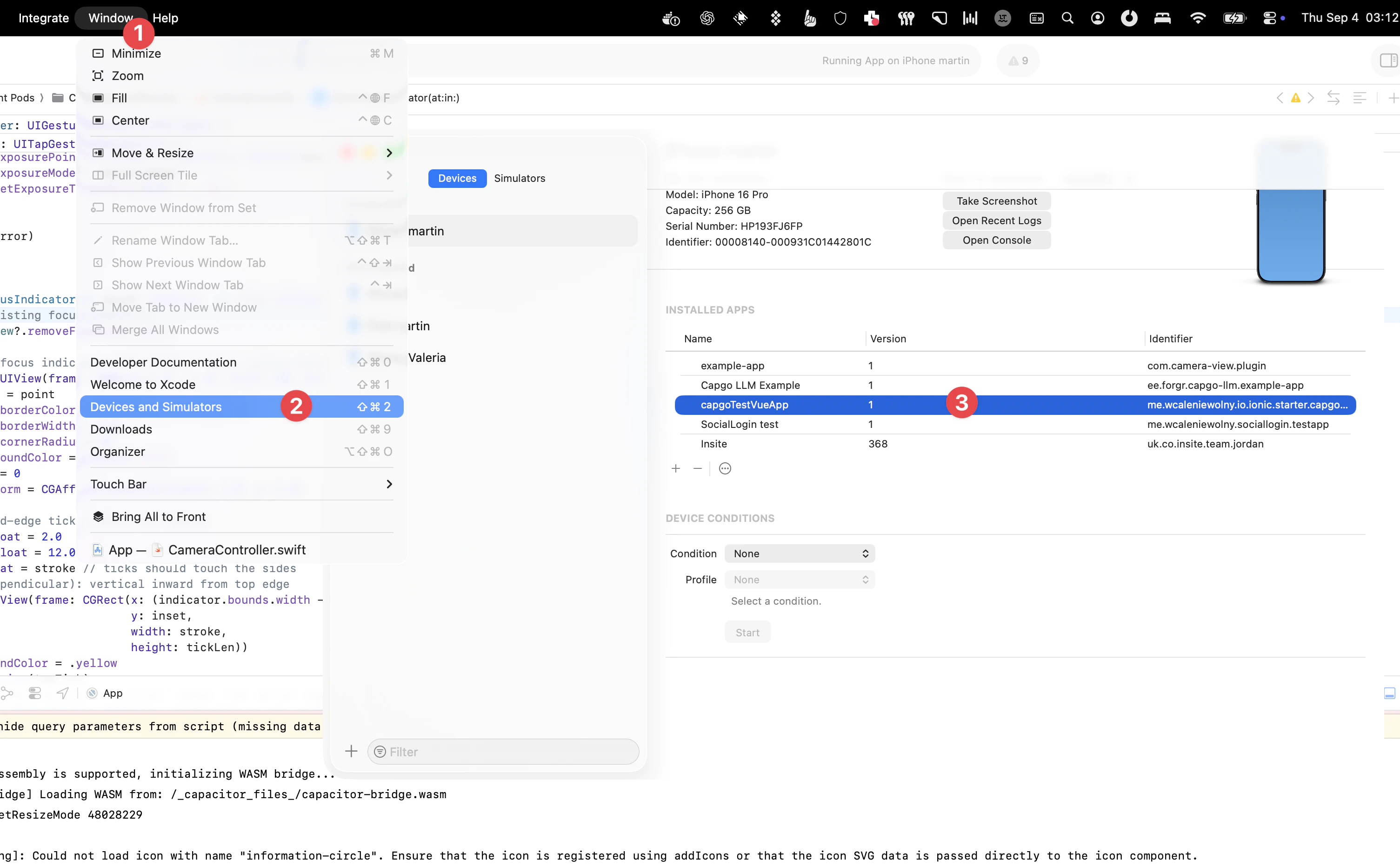
Untuk mencapai hal ini:
- Hubungkan perangkat Anda ke Mac Anda dan pilih Window > Devices di menu bar Xcode.
- Pilih perangkat Anda di panel kiri di bawah bagian Devices.
- Hal ini akan menampilkan daftar aplikasi pengembang yang diinstal di perangkat tersebut.
- Pilih aplikasi yang ingin Anda periksa, kemudian pilih ikon 3 titik di bagian bawah layar.
- Di sini Anda dapat melihat sistem file saat ini dengan memilih download snapshotnya.
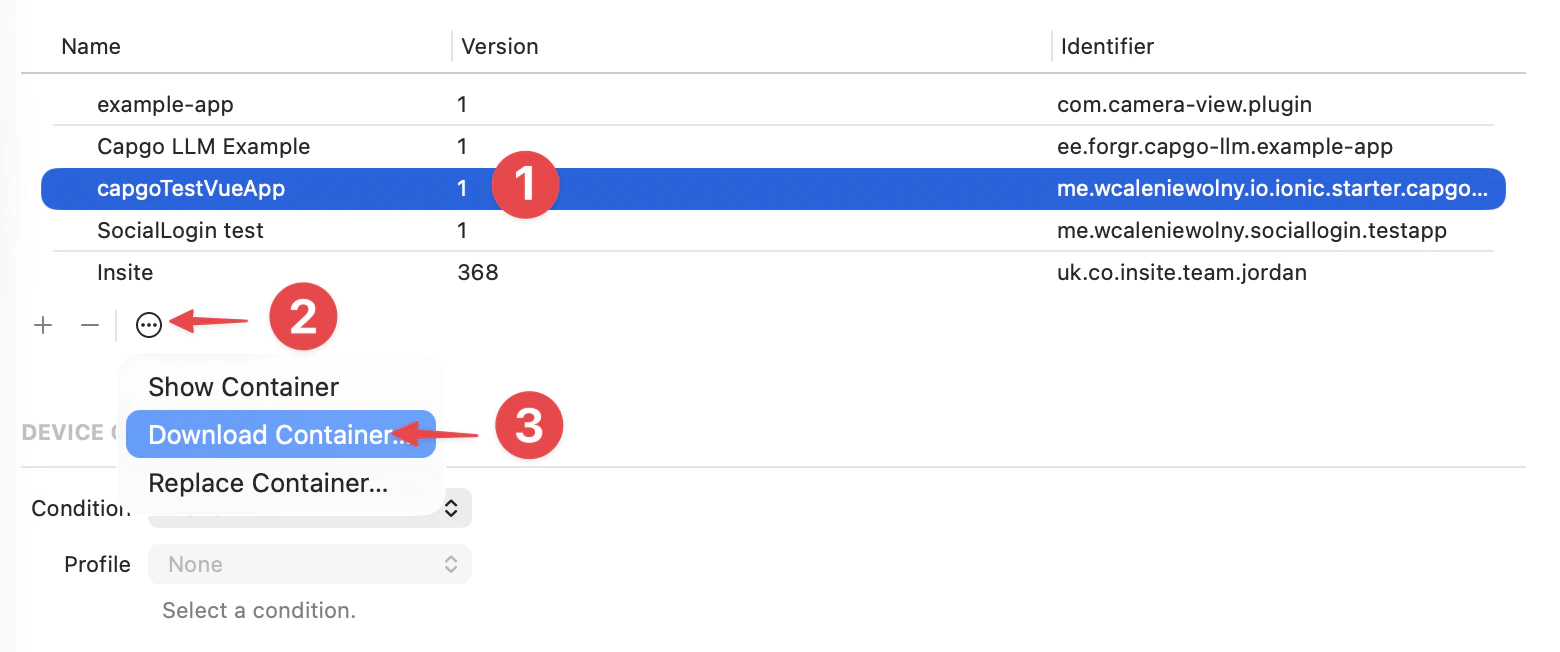
Mengunduh Kontainer… akan mengunduh dan mengekspor snapshot dari sistem file sebagai file .xcappdata yang dapat Anda jelajahi.
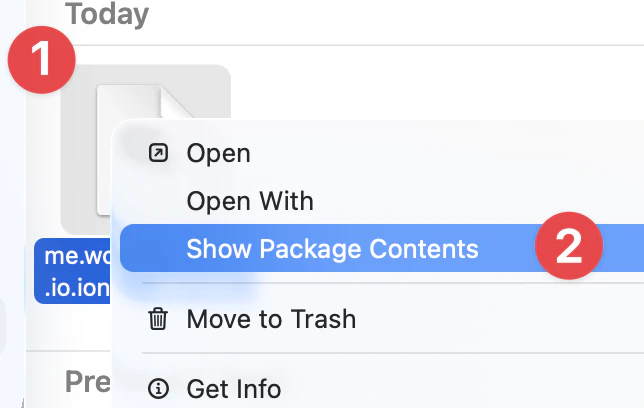
Klik kanan pada file ini dan pilih Tampilkan Isi Paket untuk membuka folder.
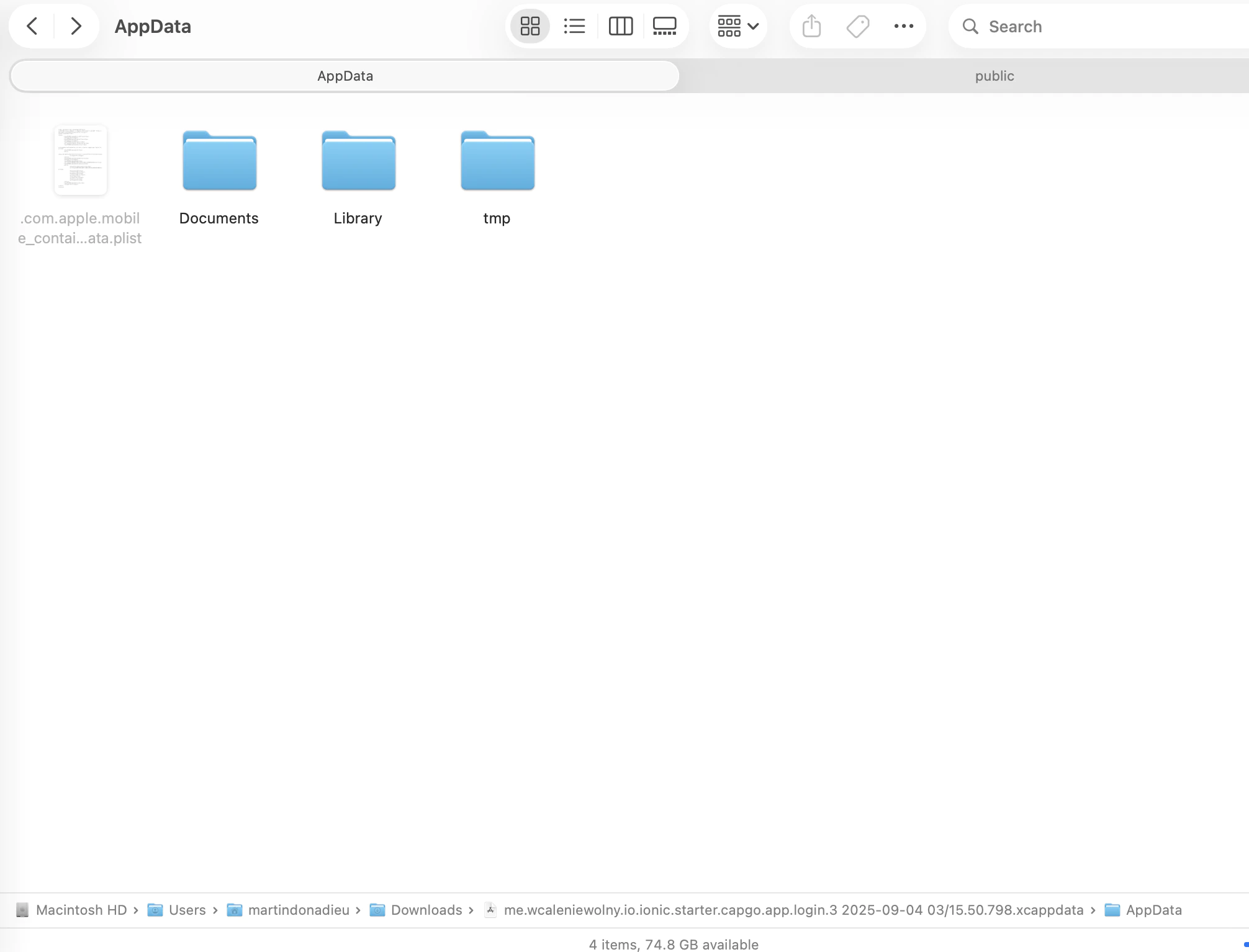
Buka folder Data Aplikasi, dan Anda seharusnya melihat beberapa folder seperti Dokumen, Library, tmp, dll.
Lalu Anda akan menemukan versi di 2 folder:
library/NoCloud/ionic_built_snapshots perlu dilakukan setelah aplikasi di-reboot
dan documents/versions reload panas
Android
Section titled “Android”Untuk mengembangkan perangkat Android, Anda perlu mengakses perangkat dari Android Studio:
- Click View > Tool Windows > Device File Explorer or click the Device File Explorer button in the tool window bar to open the Device File Explorer.
- Pilih perangkat dari daftar dropdown.
- Buka jalur data/data/NAMA_APLIKASI/ dimana NAMA_APLIKASI adalah ID aplikasi Anda.
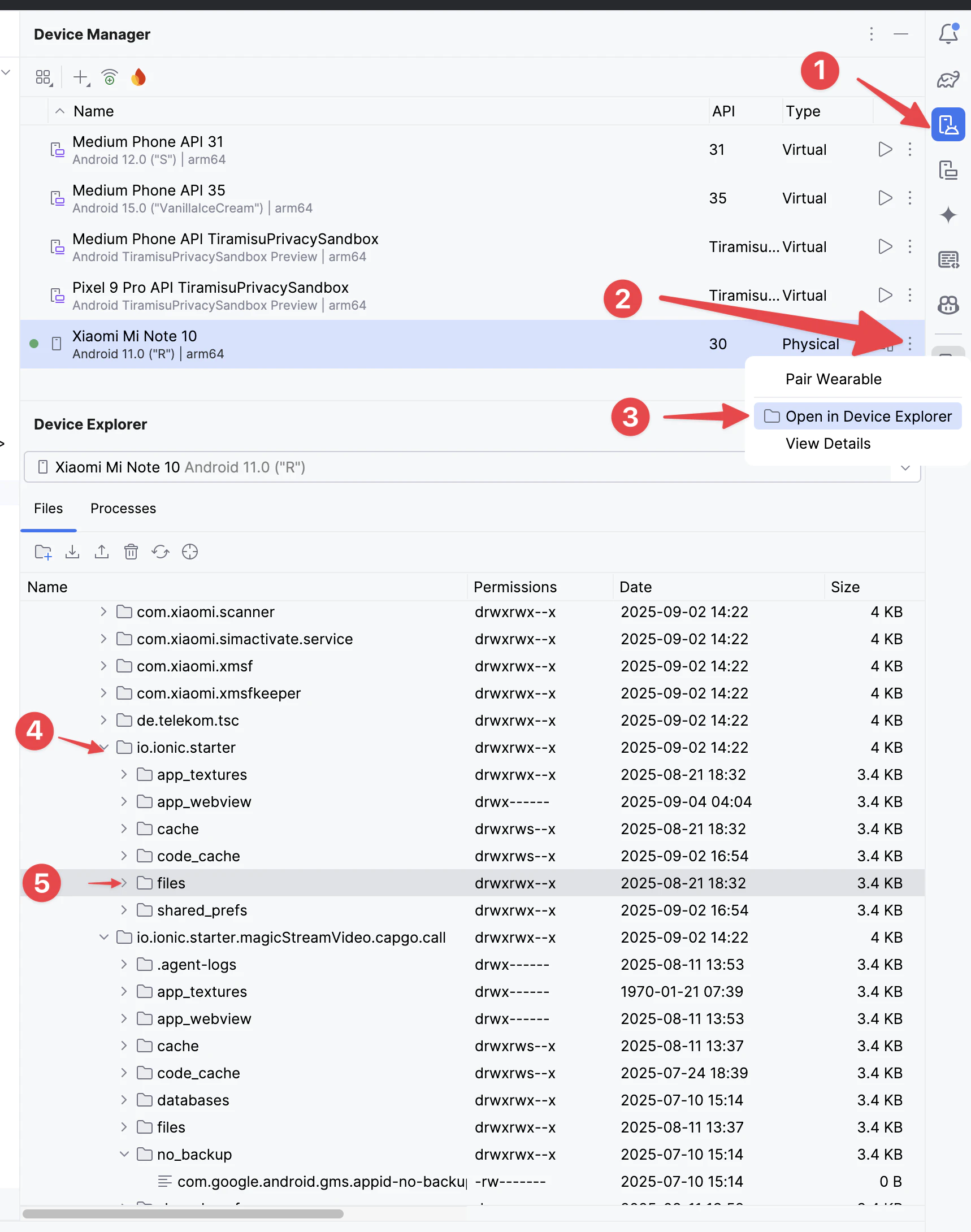
Kemudian Cari versions folder untuk melihat semua versi
Pengertian Log Kecelakaan IOS Produksi
Bagian berjudul “Mengerti Log Kegagalan ios Produksi”Lanjutkan dari Debugging
Bagian berjudul “Lanjutkan dari Debugging”Jika Anda menggunakan Debugging untuk merencanakan pekerjaan plugin native, hubungkannya dengan Menggunakan @capgo/capacitor-updater untuk kemampuan native di Menggunakan @capgo/capacitor-updater, Capgo Direktori Plugin untuk alur kerja produk di Capgo Direktori Plugin, Capacitor Plugin oleh Capgo untuk detail implementasi di Capacitor Plugins oleh Capgo Tambahkan atau Perbarui Plugins untuk detail implementasi di Tambahkan atau Perbarui Plugins, dan Alternatif Plugin Enterprise Ionic untuk alur kerja produk di Alternatif Plugin Enterprise Ionic.
Kirimkan Capacitor aplikasi Tidak Menunggu
Pushkan perbaikan ke pengguna dalam menit, bangun aplikasi iOS dan Android yang ditandatangani tanpa Mac, dan kembali ke versi sebelumnya dengan satu klik.


Perluan Bisnis Perusahaan? Hubungi tim kami