Login Google di iOS
Copy prompt pengaturan dengan langkah instalasi dan panduan markdown lengkap untuk plugin ini.
Pendahuluan
Bagian berjudul “Pendahuluan”Dalam panduan ini, Anda akan belajar cara mengatur Login Google dengan Capgo Social Login untuk iOS. Saya asumsikan Anda telah membaca panduan pengaturan umum..
Menggunakan login Google pada iOS
Judul bagian “Menggunakan login Google pada iOS”Dalam bagian ini, Anda akan belajar cara mengatur login Google di iOS.
-
Buat ID klien iOS di konsol Google
-
Klik di bar pencarian

-
Cari
credentialsdan klik diAPIs and Servicessatu (nomor 2 pada screenshot)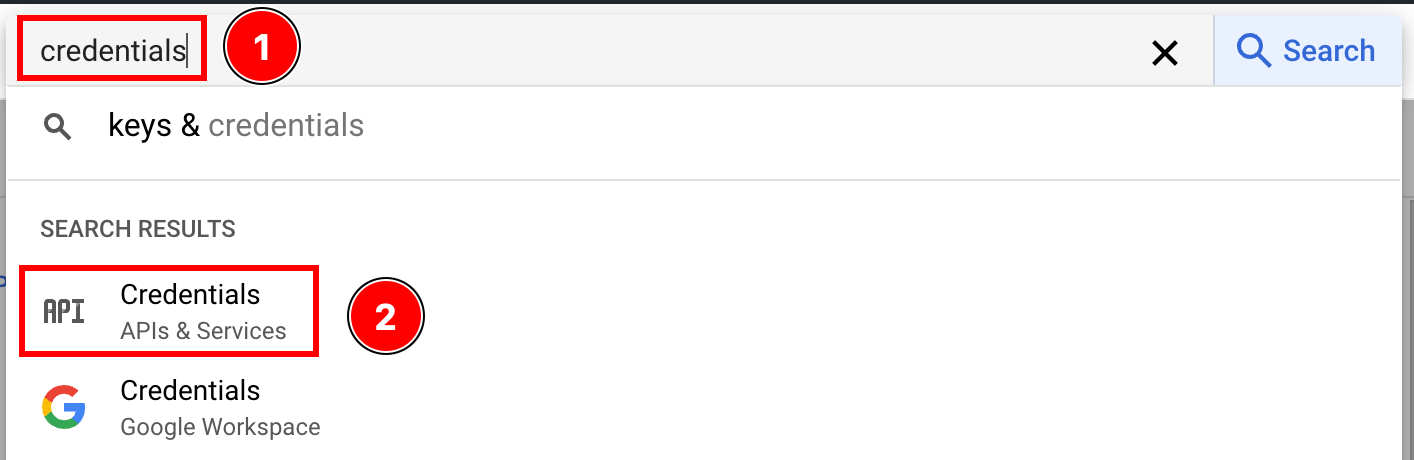
-
Klik pada tombol
create credentials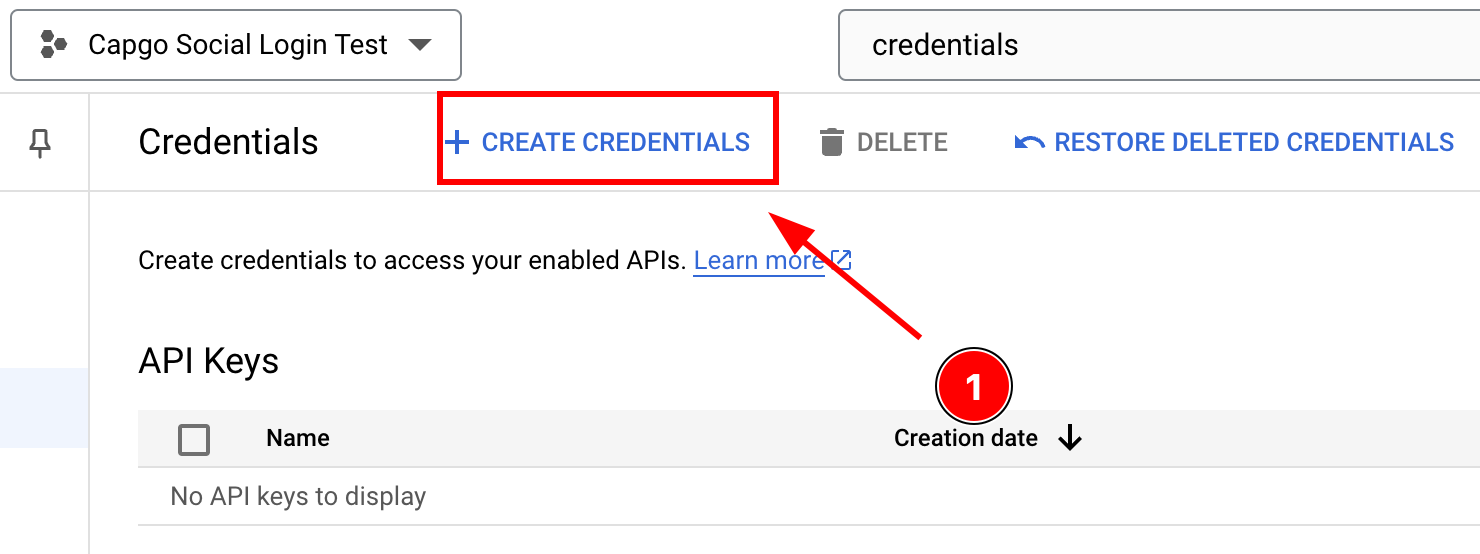
-
Pilih
OAuth client ID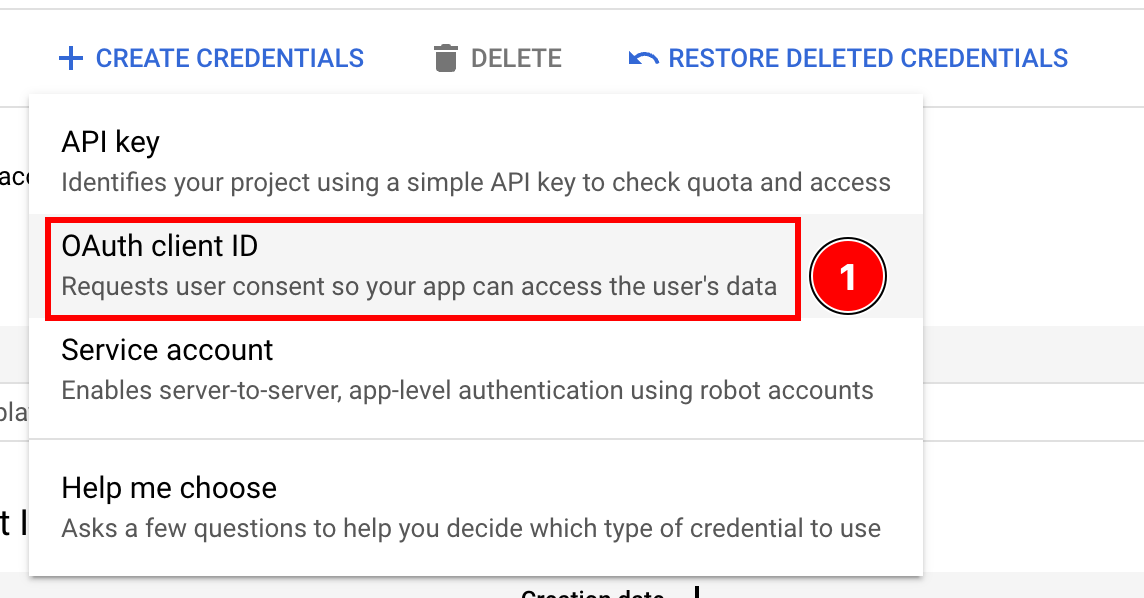
-
Pilih
Application typekeiOS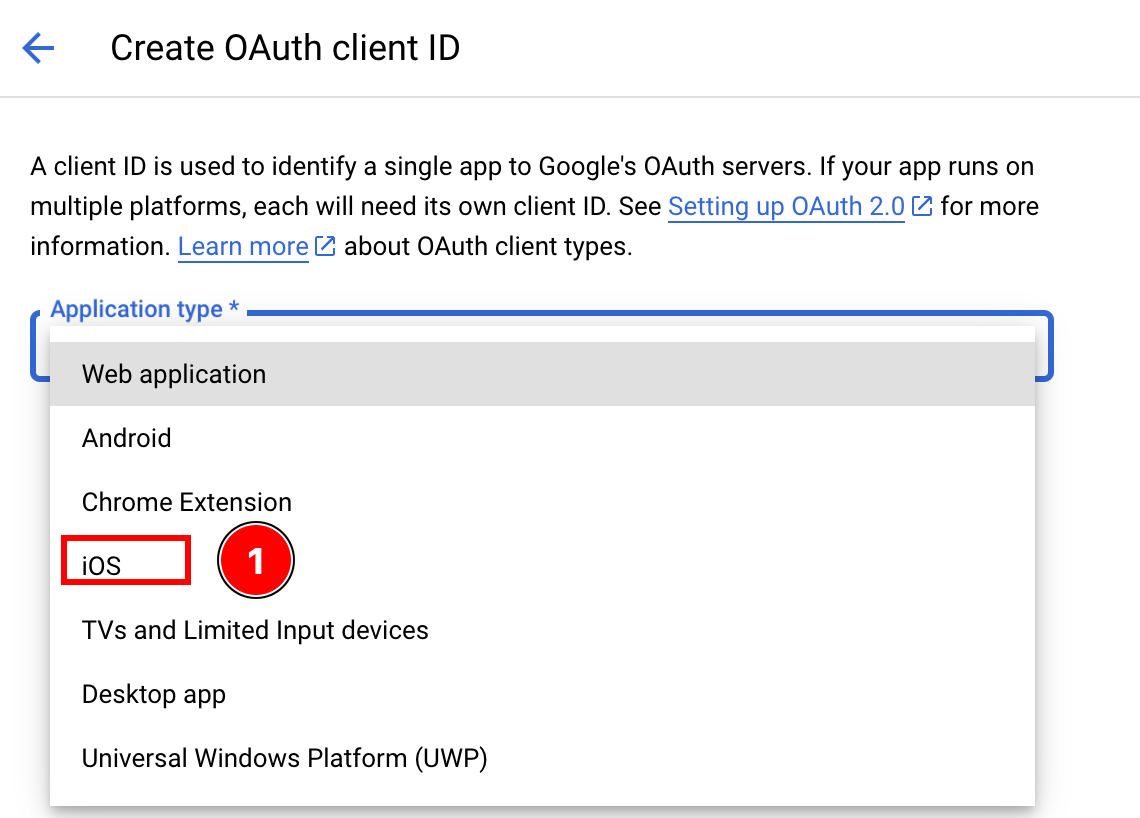
-
Pilih jenis aplikasi dengan opsi iOS yang ditonjolkan
-
Cari ID bundle
-
Buka Xcode
App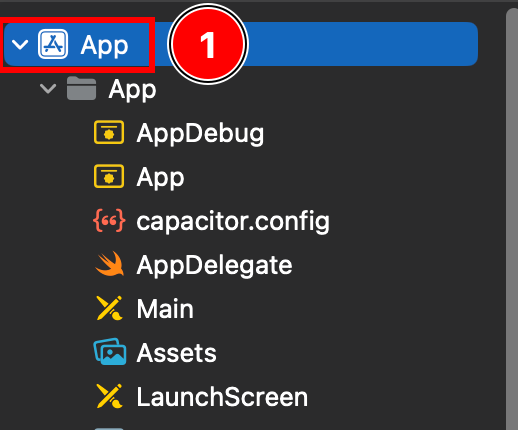
-
Tujuan aplikasi di navigator proyek Xcode
Targets -> App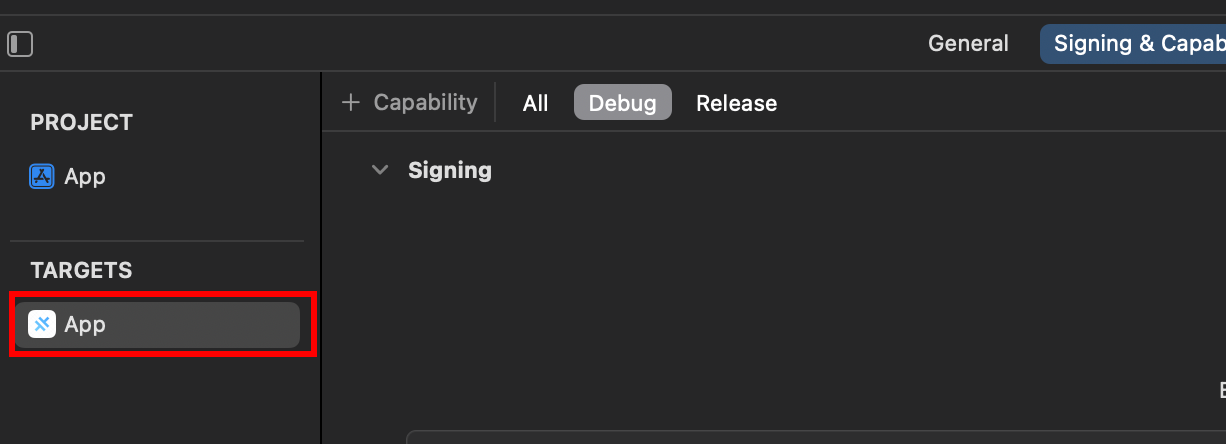
-
Cari tahu
Bundle Identifier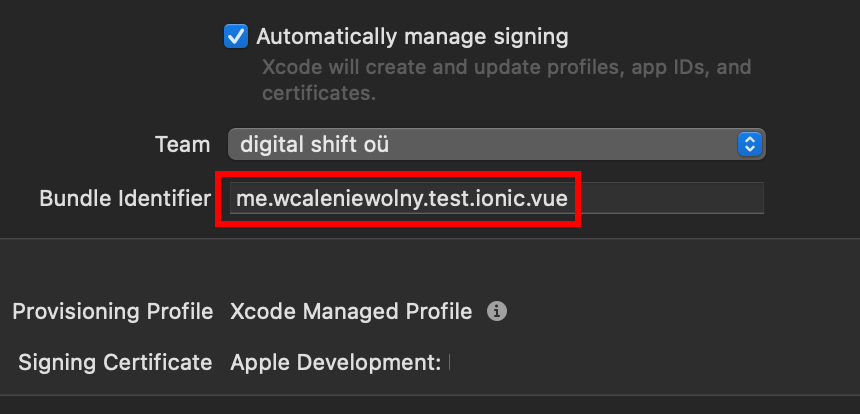
-
Kembali ke Console Google dan tempelkan tautan Anda ke
Bundle IdentifierkeBundle ID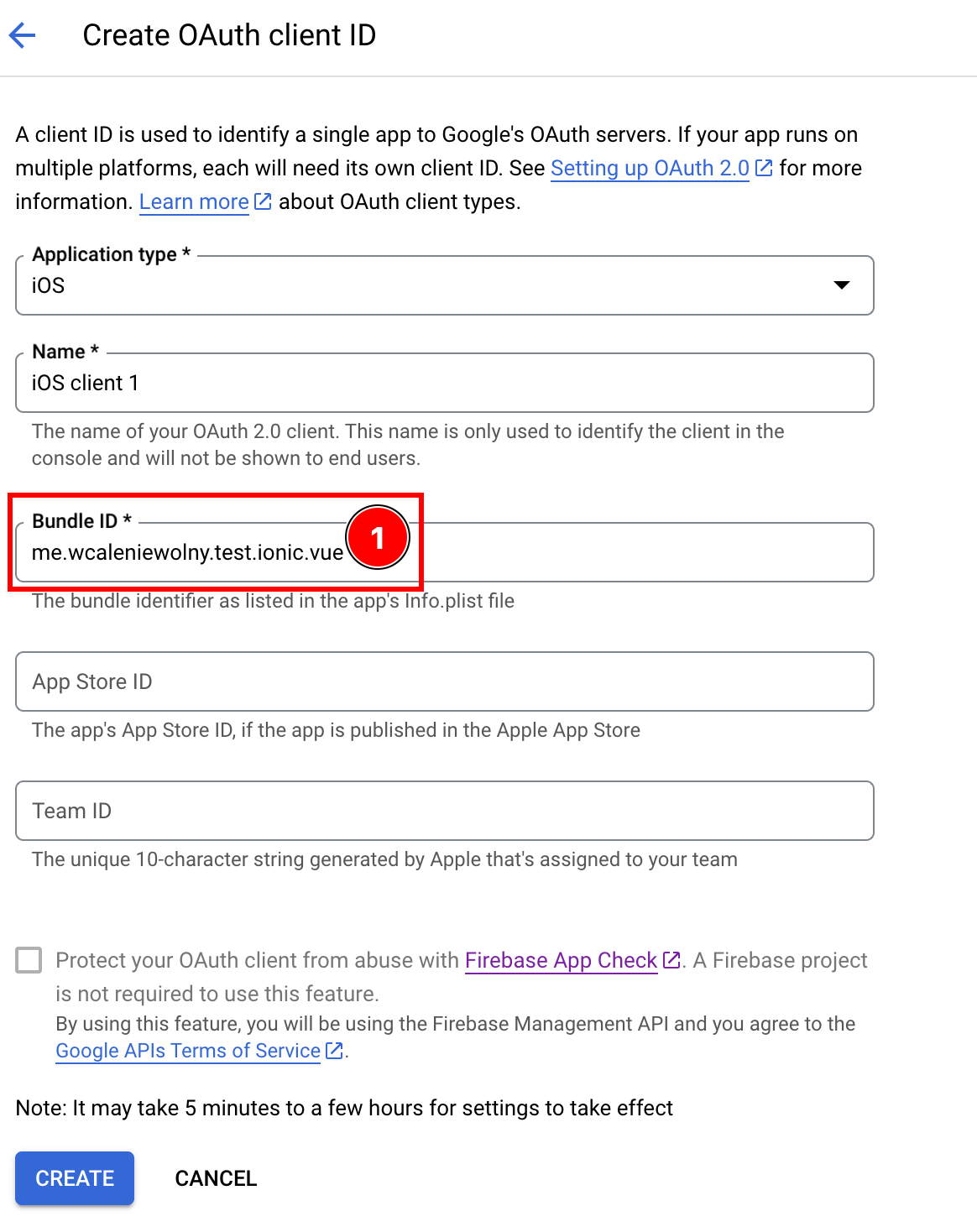
-
-
Opsional, tambahkan tautan Anda ke
App Store IDatauTeam IDmasukkan ke ID Paket di formulir pembuatan klien iOS Google Console jika Anda telah menerbitkan aplikasi ke App Store -
Setelah mengisi semua detail, klik
create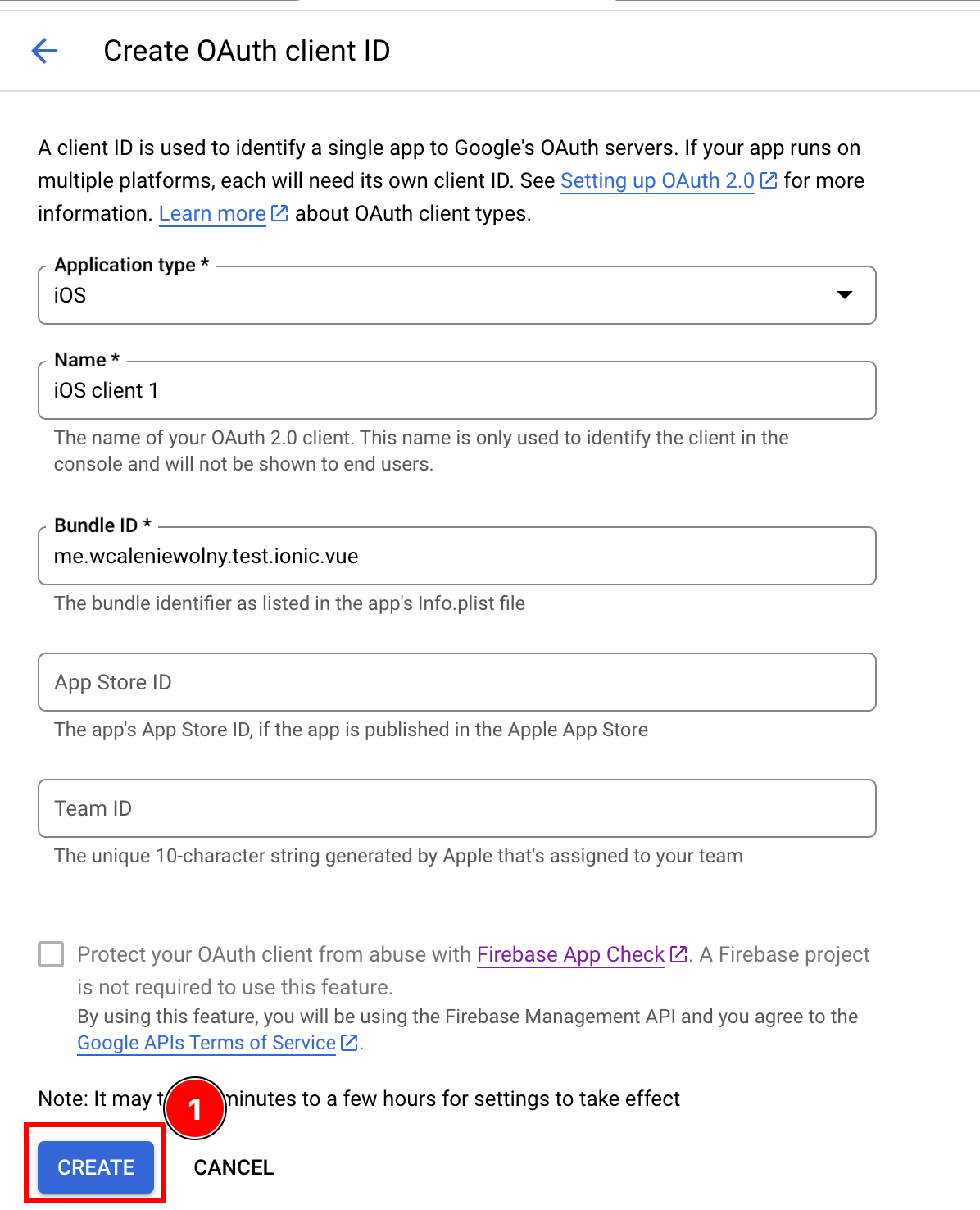
-
Klik
OK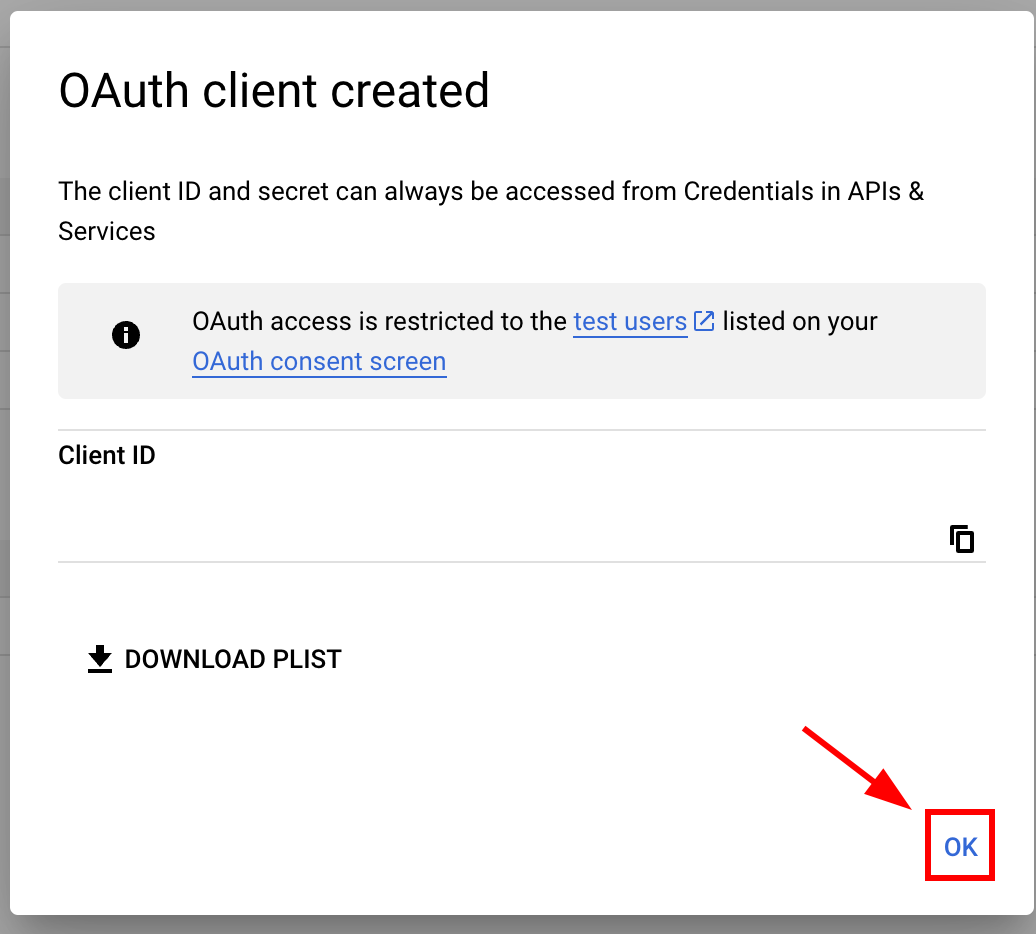
-
Buka klien iOS baru yang dibuat
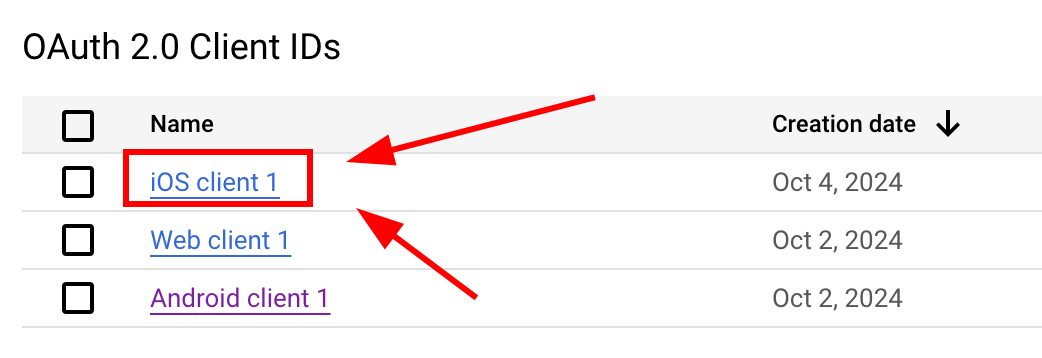
-
Salin data berikut

-
-
Ubah Info.plist aplikasi Anda
-
Buka Xcode dan cari file
Info.plistFile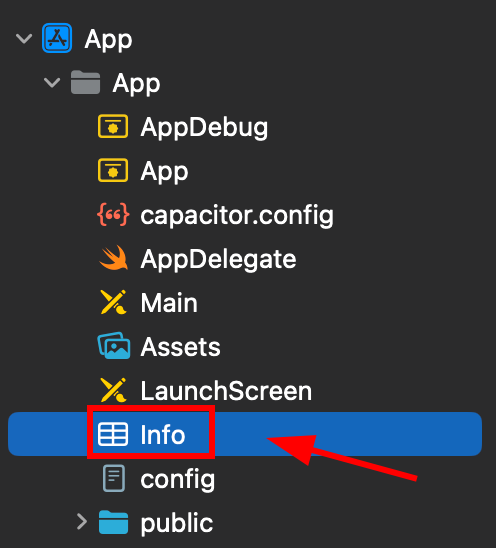
-
Klik kanan file ini dan buka sebagai sumber code
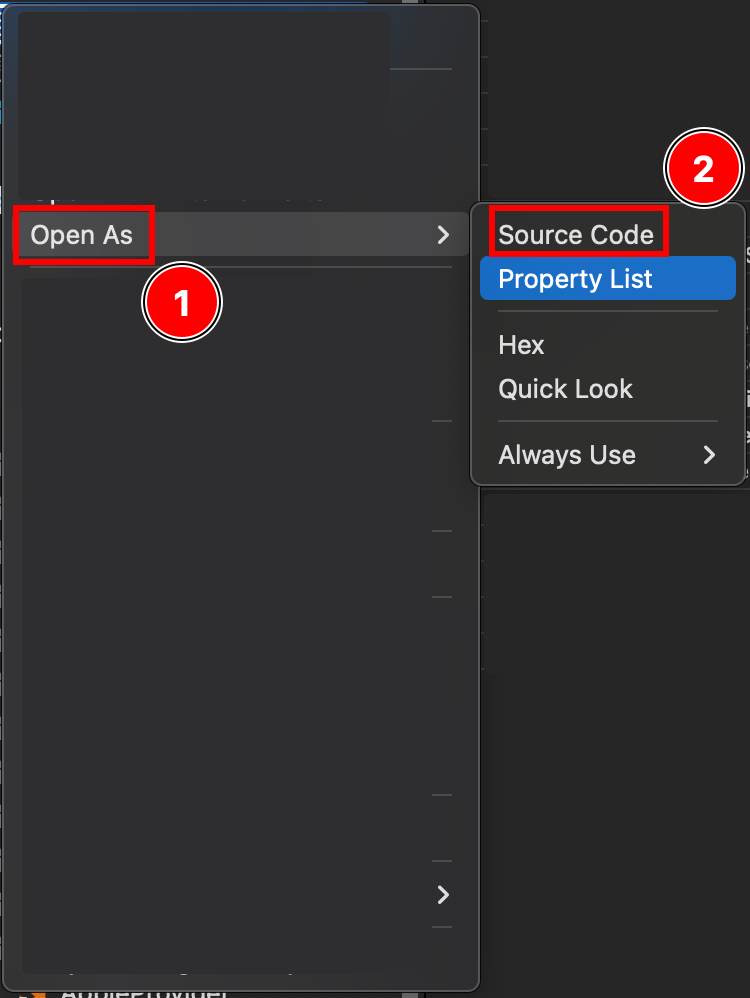
-
Di bagian bawah file, Anda akan melihat tag
PlistTag penutup di file Info.plist</dict>Masukkan fragmen berikut sebelum penutup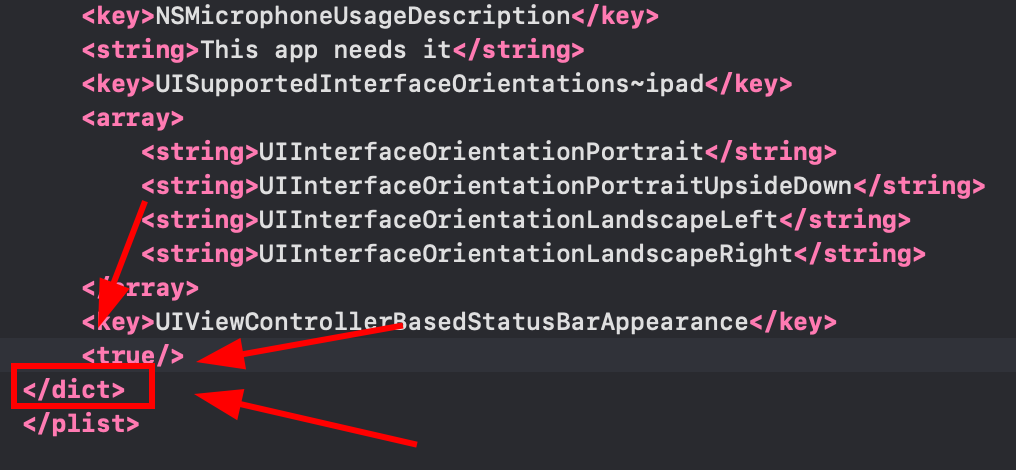
-
Tutup tag dictionary di Info.plist
</dict>tag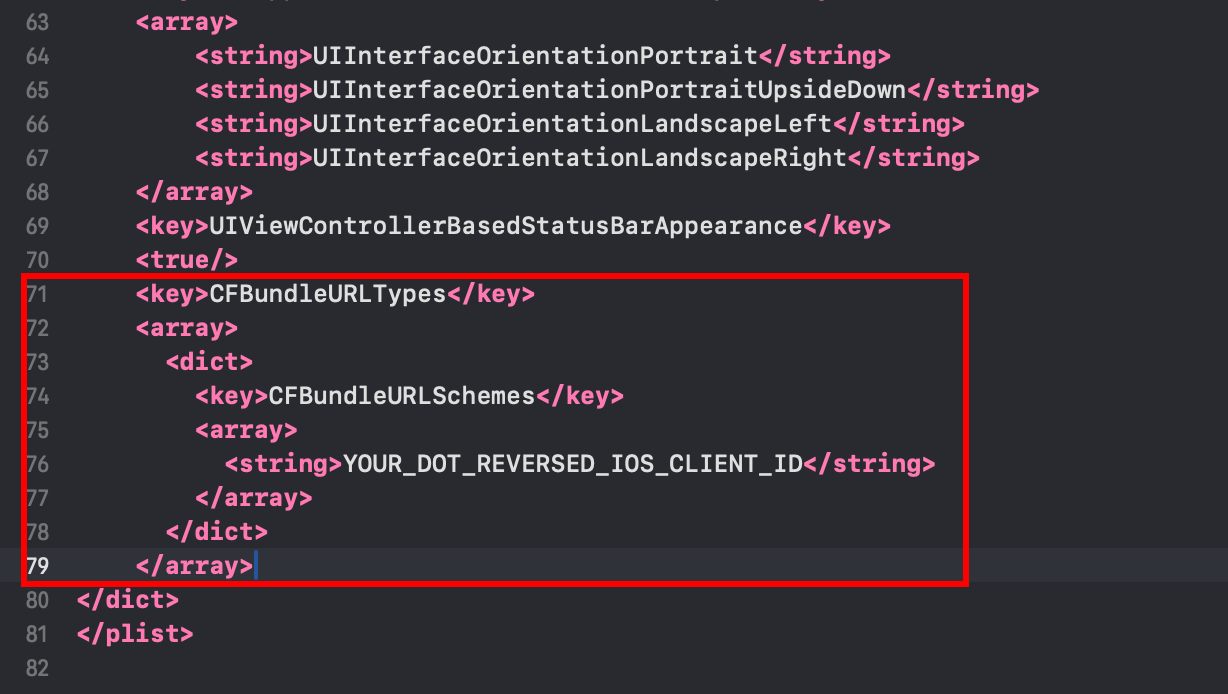 <key>CFBundleURLTypes</key><array><dict><key>CFBundleURLSchemes</key><array><string>YOUR_DOT_REVERSED_IOS_CLIENT_ID</string></array></dict></array>
 -
Ganti dengan
YOUR_DOT_REVERSED_IOS_CLIENT_IDke nilai yang disalin pada langkah sebelumnya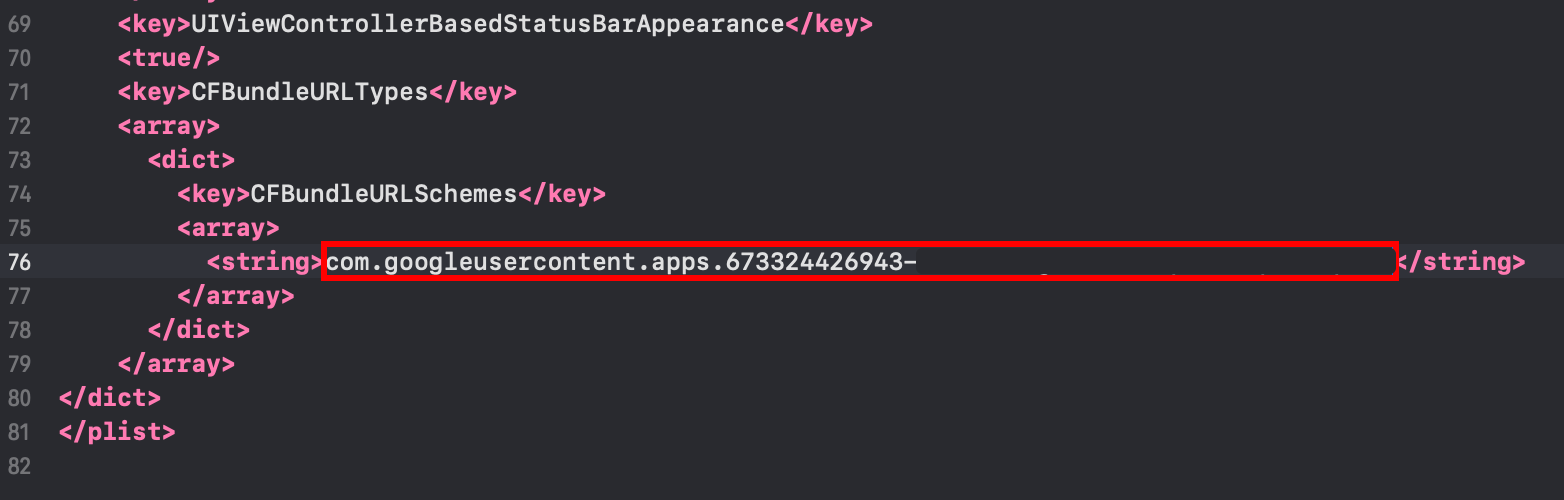
-
Simpan file dengan
Command + S
-
-
Ubahlah
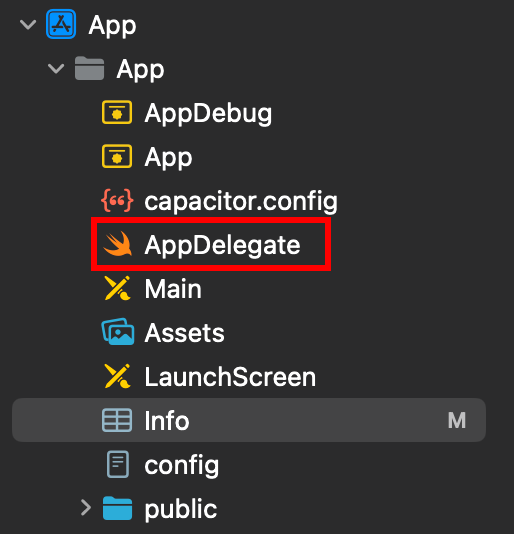
AppDelegate.swift-
Buka file AppDelegate
-
Masukkan
import GoogleSignInPada bagian atas file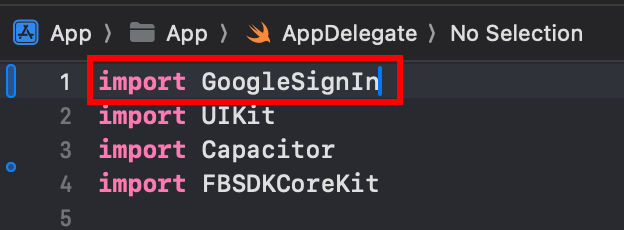
-
Cari
func application(_ app: UIApplication, open url: URL, options: [UIApplication.OpenURLOptionsKey: Any] = [:])Fungsi
-
Ubahlah fungsi untuk terlihat seperti ini
func application(_ app: UIApplication, open url: URL, options: [UIApplication.OpenURLOptionsKey: Any] = [:]) -> Bool {// Called when the app was launched with a url. Feel free to add additional processing here,// but if you want the App API to support tracking app url opens, make sure to keep this callvar handled: Boolhandled = GIDSignIn.sharedInstance.handle(url)if handled {return true}return ApplicationDelegateProxy.shared.application(app, open: url, options: options)}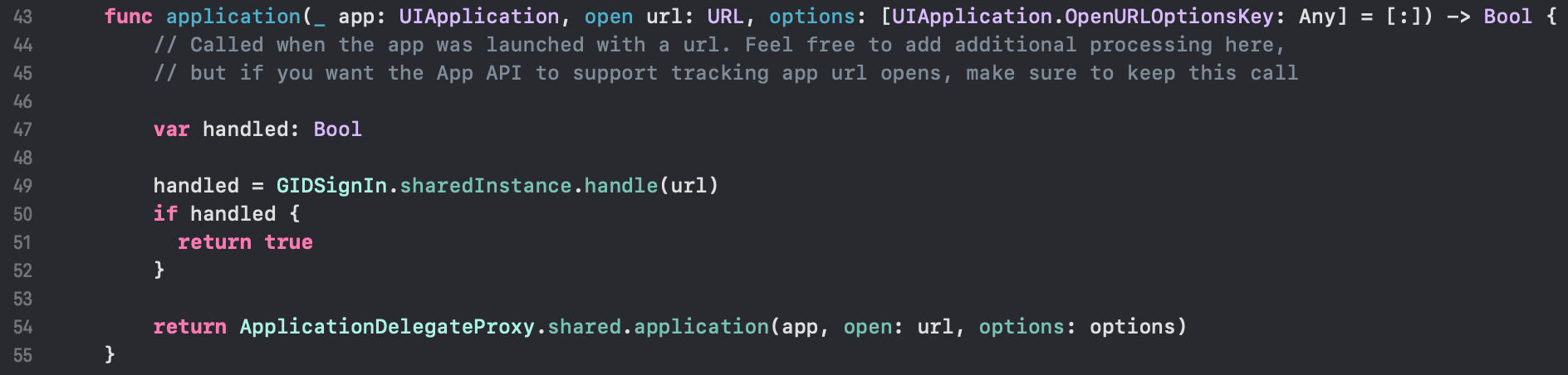
-
Simpan file dengan
Command + S
-
-
Setup login Google di JavaScript/TypeScript code
-
Import
SocialLogindanCapacitorimport { SocialLogin } from '@capgo/capacitor-social-login';import { Capacitor } from '@capacitor/core'; -
Panggil metode inisialisasi (metode ini harus dipanggil hanya sekali)
Pengaturan dasar (mode online - disarankan untuk aplikasi kebanyakan):
// onMounted is Vue specificonMounted(() => {SocialLogin.initialize({google: {iOSClientId: '673324426943-redacted.apps.googleusercontent.com',mode: 'online' // Default mode}})})Pengaturan lanjutan dengan ID klien tambahan:
onMounted(() => {SocialLogin.initialize({google: {webClientId: 'YOUR_WEB_CLIENT_ID', // Optional: for web platform supportiOSClientId: 'YOUR_IOS_CLIENT_ID', // Required: from step 1iOSServerClientId: 'YOUR_WEB_CLIENT_ID', // Optional: same as webClientId, needed for some advanced featuresmode: 'online' // 'online' or 'offline'}})}) -
Implement the login function. Create a button and run the following code on click
Untuk mode online:
const res = await SocialLogin.login({provider: 'google',options: {}})// handle the response - contains user dataconsole.log(JSON.stringify(res))Untuk mode offline:
const res = await SocialLogin.login({provider: 'google',options: {forceRefreshToken: true // Recommended for offline mode}})// res contains serverAuthCode, not user data// Send serverAuthCode to your backend to get user information// Do not call SocialLogin.refresh() in offline modeconsole.log('Server auth code:', res.result.serverAuthCode)
-
-
Tes aplikasi Anda
-
Buat aplikasi Anda dan jalankan
cap sync -

Jika Anda telah melakukan semuanya dengan benar, Anda seharusnya melihat alur login Google berjalan dengan baik
-
Masalah yang Dikenal
Judul Bagian yang Dikenal MasalahKompabilitas Plugin Layar Privasi
Judul Bagian Kompabilitas Plugin Layar PrivasiPlugin Login Google tidak kompatibel dengan @capacitor/layar-privasi. Ketika menggunakan kedua plugin bersamaan, layar webview login Google akan terganggu oleh layar privasi.
Solusi: Panggil await PrivacyScreen.disable(); context
import { PrivacyScreen } from '@capacitor/privacy-screen';import { SocialLogin } from '@capgo/capacitor-social-login';
await PrivacyScreen.disable();await SocialLogin.login({  provider: 'google',  options: {}});
Salin ke clipboard
Teruskan dari Login Google di iOSJika Anda menggunakan Google Login pada iOS untuk merencanakan autentikasi dan alur akun, hubungkannya dengan Menggunakan @capgo/capacitor-social-login untuk kemampuan native di Menggunakan @capgo/capacitor-social-login Menggunakan @capgo/capacitor-social-login untuk detail implementasi di @capgo/capacitor-social-login Menggunakan @capgo/capacitor-passkey untuk detail implementasi di @capgo/capacitor-passkey Menggunakan @capgo/capacitor-native-biometric untuk detail implementasi di @capgo/capacitor-native-biometric, dan Autentikasi dua faktor untuk detail implementasi di Pengaturan Dua Faktor.