
Debugging
Memahami log cloud:
Section titled “Memahami log cloud:”Jika Anda mendapatkan kode penolakan cloud dan memerlukan langkah perbaikan nyata, lihat Masalah Umum Update.
Dikirim dari backend| kode | Deskripsi |
Section titled “Dikirim dari backend| kode | Deskripsi |”| ------------------------------------------------ | ------------------------------------------------------------------------------------------------------------------------------------------------------------- |
| Ip Tidak Valid | Pengguna berada di pusat data Google dan pembaruan berlangsung kurang dari 4 jam. Hal ini dilakukan untuk mencegah perangkat bot Google dihitung sebagai perangkat di akun Anda. |
| needPlanUpgrade (sebelumnya needUpgrade) | Menunjukkan bahwa Anda telah mencapai batas paket Anda, dan perangkat tidak akan menerima pembaruan hingga Anda meningkatkan versi atau hingga bulan berikutnya. |
| tidakBaru | Perangkat ini memiliki versi terbaru yang tersedia. |
| nonaktifkanPlatformIos | Perangkat ini menggunakan platform iOS, namun dinonaktifkan di pengaturan saluran. |
| nonaktifkanPlatformAndroid | Perangkat ini menggunakan platform Android, namun dinonaktifkan di pengaturan saluran. |
| **nonaktifkan Pembaruan Otomatis ** | “utama” | “kecil” | “nomor_versi” | “tidak ada” |
| nonaktifkanAutoUpdateUnderNative | Perangkat memiliki versi (1.2.3), dan saluran memiliki pembaruan (1.2.2) berdasarkan versi perangkat yang akan dikirim, namun dinonaktifkan di pengaturan saluran. |
| nonaktifkanDevBuild | Perangkat ini memiliki versi pengembangan, tetapi dinonaktifkan di pengaturan saluran. |
| nonaktifkanEmulator | Perangkat ini adalah emulator, tetapi dinonaktifkan di pengaturan saluran. |
| tidak bisaGetBundle | Gagal membuat URL bertanda tangan yang valid untuk unduhan paket. Hal ini terjadi ketika pembuatan URL bundel gagal atau mengembalikan URL yang tidak valid (tidak dimulai dengan http/https) dan tidak ada manifes yang tersedia sebagai cadangan. |
| tidak dapatMemperbaruiMelalui Saluran Pribadi | Perangkat mencoba mengasosiasikan dirinya sendiri dengan saluran pribadi, namun setelan saluran tidak mengizinkan pengaitan mandiri perangkat (allow_device_self_set salah) dan saluran tersebut bukan publik. |
| saluran salah dikonfigurasi | Saluran dikonfigurasi untuk dinonaktifkanle pembaruan otomatis berdasarkan nomor versi (disable_auto_update: 'version_number'), tetapi bidang min_update_version bundelnya adalah nol, sehingga tidak mungkin untuk menentukan perangkat mana yang harus menerima pembaruan. |
| nonaktifkanAutoUpdateMetadata | Pembaruan otomatis dinonaktifkan berdasarkan metadata nomor versi. Saluran ini mengharuskan versi perangkat minimal min_update_version, namun versi perangkat saat ini lebih rendah dari ambang batas ini. |
| nonaktifkanAutoUpdateToMajor | Setelan saluran disable_auto_update: 'major' mencegah pembaruan yang akan meningkatkan nomor versi utama (misalnya, memblokir 1.x.x agar tidak diperbarui ke 2.x.x). |
| nonaktifkanAutoUpdateToMinor | Setelan saluran disable_auto_update: 'minor' mencegah pembaruan yang akan meningkatkan nomor versi minor (misalnya, memblokir 1.2.x agar tidak memperbarui ke 1.3.x). |
| nonaktifkanAutoUpdateToPatch | Pengaturan saluran disable_auto_update: 'patch' mencegah pembaruan yang akan meningkatkan nomor versi patch, atau hanya mengizinkan pembaruan tingkat patch dalam versi mayor.minor yang sama (misalnya, 1.2.3 dapat diperbarui ke 1.2.4 tetapi tidak dapat diperbarui ke 1.2.2 atau 1.3.0). |
| Bundel hilang | Paket yang ditetapkan ke saluran ini tidak memiliki konten yang dapat diunduh. Ini berarti bundel tidak memiliki external_url, tidak memiliki r2_path, ini bukan versi bawaan, dan tidak ada entri manifes yang tersedia untuk diunduh. |
| TanpaSaluranAtauOverride | Tidak ada saluran default yang dikonfigurasi untuk aplikasi ini dan perangkat tidak memiliki penggantian saluran khusus yang ditetapkan. Setidaknya satu harus ada agar pembaruan dapat berfungsi. |
| tarifTerbatas | Perangkat ini dibatasi tarifnya karena permintaan yang berlebihan. |
| kunciKetidakcocokan | Kunci publik enkripsi perangkat tidak cocok dengan kunci publik yang digunakan untuk mengenkripsi paket. Hal ini terjadi jika: (1) Kunci publik di capacitor.config.json aplikasi Anda berbeda dengan yang digunakan saat mengunggah paket, atau (2) Anda merotasi kunci enkripsi tetapi belum memperbarui semua perangkat. Responsnya mencakup deviceKeyId dan bundleKeyId (4 karakter pertama dari setiap kunci publik) untuk membantu mengidentifikasi ketidakcocokan. Untuk memperbaikinya, pastikan pasangan kunci yang sama digunakan untuk mengunggah bundel (CLI menggunakan kunci pribadi) dan di aplikasi (capacitor.config.json berisi kunci publik). |### Dikirim dari perangkat| kode | Deskripsi |
| --------------------- | ------------------------------------------------------------------ |
| ping | Tindakan pengujian internal yang digunakan untuk memverifikasi sistem statistik berfungsi dengan benar. |
| dapatkan | Info untuk mengunduh versi baru telah dikirimkan ke perangkat. |
| hapus | Satu bundel telah dihapus di perangkat. |
| atur | Bundel telah dipasang di perangkat. |
| set_gagal | Paket gagal disetel. |
| setel ulang | Perangkat disetel ulang ke bundel builtin. |
| unduh_XX | Bundel baru telah diunduh - kemajuan ditunjukkan sebesar XX% (kenaikan 10%). |
| unduh_lengkap | Bundel baru telah selesai diunduh. |
| unduh_manifest_mulai | Perangkat mulai mengunduh manifes pembaruan. |
| unduh_manifest_lengkap | Perangkat selesai mengunduh manifes pembaruan. |
| unduh_zip_mulai | Perangkat mulai mengunduh arsip bundel. |
| unduh_zip_lengkap | Perangkat selesai mengunduh arsip bundel. |
| download_manifest_file_fail | Satu entri manifes gagal diunduh; payload statistik menempatkan version_name dalam bentuk version:fileName untuk menentukan aset. |
| unduh_manifest_checksum_fail | Validasi checksum file manifes gagal. |
| unduh_manifest_brotli_fail | File manifes gagal didekompresi menggunakan Brotli. |
| unduh_gagal | Bundel baru gagal diunduh. |
| perbarui_gagal | Bundel baru telah dipasang tetapi gagal memanggil notifyAppReady. |
| checksum_fail | Paket baru gagal memvalidasi checksum. Hal ini dapat terjadi karena beberapa alasan: 1) Jenis checksum tidak cocok: Versi terbaru CLI dan plugin (versi 5.10.0+, 6.25.0+, atau 7+) menggunakan checksum SHA256, sedangkan plugin lama menggunakan CRC32. Jika Anda melihat checksum gagal, periksa apakah checksum tersebut adalah CRC32 (hash yang lebih pendek) dan bukan SHA256. Ini biasanya menunjukkan bahwa bundel diunggah dengan CLI versi lama. Verifikasikan versi paket Anda di dasbor Capgo - paket yang dibuat sejak versi 5.10.0/6.25.0/7 harus menggunakan SHA256. Jika Anda melihat checksum CRC32, pastikan Anda menginstal versi plugin terbaru secara lokal (CLI memeriksa versi plugin lokal Anda untuk menentukan jenis checksum mana yang akan diunggah), lalu tingkatkan CLI Anda dan unggah ulang bundel. 2) Ketidakcocokan kunci enkripsi (pada versi plugin di bawah 8.3.0 atau 5/6/7.38.0): Pada versi plugin yang lebih lama, jika kunci publik perangkat tidak cocok dengan kunci yang digunakan untuk mengenkripsi paket, makadekripsi akan gagal secara diam-diam dan menyebabkan kegagalan checksum. Jika Anda menggunakan enkripsi dan melihat checksum_fail, verifikasi bahwa kunci publik di capacitor.config.json aplikasi Anda cocok dengan kunci pribadi yang digunakan untuk mengunggah paket. Memutakhirkan ke plugin versi 8.3.0+ (atau 5/6/7.38.0+) akan memberi Anda kesalahan keyMismatch yang tepat dari server, sehingga membuat masalah ini lebih mudah didiagnosis. |
| windows_path_fail | Zip memiliki file yang berisi jalur windows yang ilegal |
| jalur_kanonikal_gagal | Jalur file tidak kanonik |
| direktori_jalur_gagal | Ada kesalahan pada jalur file zip |
| unzip_fail | unzip gagal |
| kegagalan_mem_rendah | Pengunduhan gagal karena memori rendah di perangkat |
| aplikasi_dipindahkan_ke_latar belakang | Aplikasi memasuki keadaan latar belakang. |
| aplikasi_dipindahkan_ke_latar depan | Aplikasi memasuki keadaan latar depan. |
| dekripsi_gagal | Gagal mendekripsi bundel yang diunduh. |
| getChannel | Saluran saat ini untuk perangkat tersebut ditanyakan. |
| setSaluran | Saluran berhasil disetel untuk perangkat. |
| copot pemasangan | Aplikasi telah dihapus instalasinya atau Capgo data dihapus. |
| diblokir_oleh_server_url | Server.url ada di konfigurasi kapasitor Anda, ini membuat Capacitor melayani url jarak jauh dan mengabaikan file lokal, sementara pembaru kami dibuat berfungsi dengan file lokal, Server.url dianggap oleh Pembuat Capacitor sebagai praktik buruk dalam produksi dan akan menyebabkan banyak masalah dan plugin tidak berfungsi dengan benar. |### Status paket
SUCCESS: pemasangan bundel selesaiERROR: instalasi atau pengunduhan gagalPENDING: Pengunduhan selesai, rilis tertundaDELETED: Paket dihapus, masih ditampilkan untuk statistikDOWNLOADING: Sedang mengunduh paket
Memahami log perangkat:
Section titled “Memahami log perangkat:”Perintah debug:
Section titled “Perintah debug:”Ada perintah debug untuk Capgo pengguna cloud.
npx @capgo/cli@latest app debugIni akan memungkinkan Anda memeriksa semua peristiwa yang terjadi di aplikasi dan menemukan solusi jika pembaruan tidak terjadi.
untuk menemukan log Anda di Xcode
Android:
Section titled “Android:”untuk menemukan log Anda di studio Android
Penjelasan Log
Section titled “Penjelasan Log”Gagal mengunduh dari=> sama seperti unduh_failnotifyAppReady tidak dipanggil, putar kembali bundel saat ini=> sama seperti update_fail
Menemukan bundel yang diunduh di perangkat Anda
Section titled “Menemukan bundel yang diunduh di perangkat Anda”Untuk melakukan debug pada iOS, Anda perlu membuang aplikasi ke komputer Anda, Anda dapat melakukannya seperti ini:
Xcode memiliki fitur bawaan untuk memeriksa sistem file aplikasi yang diinstal pengembang pada perangkat iOS.
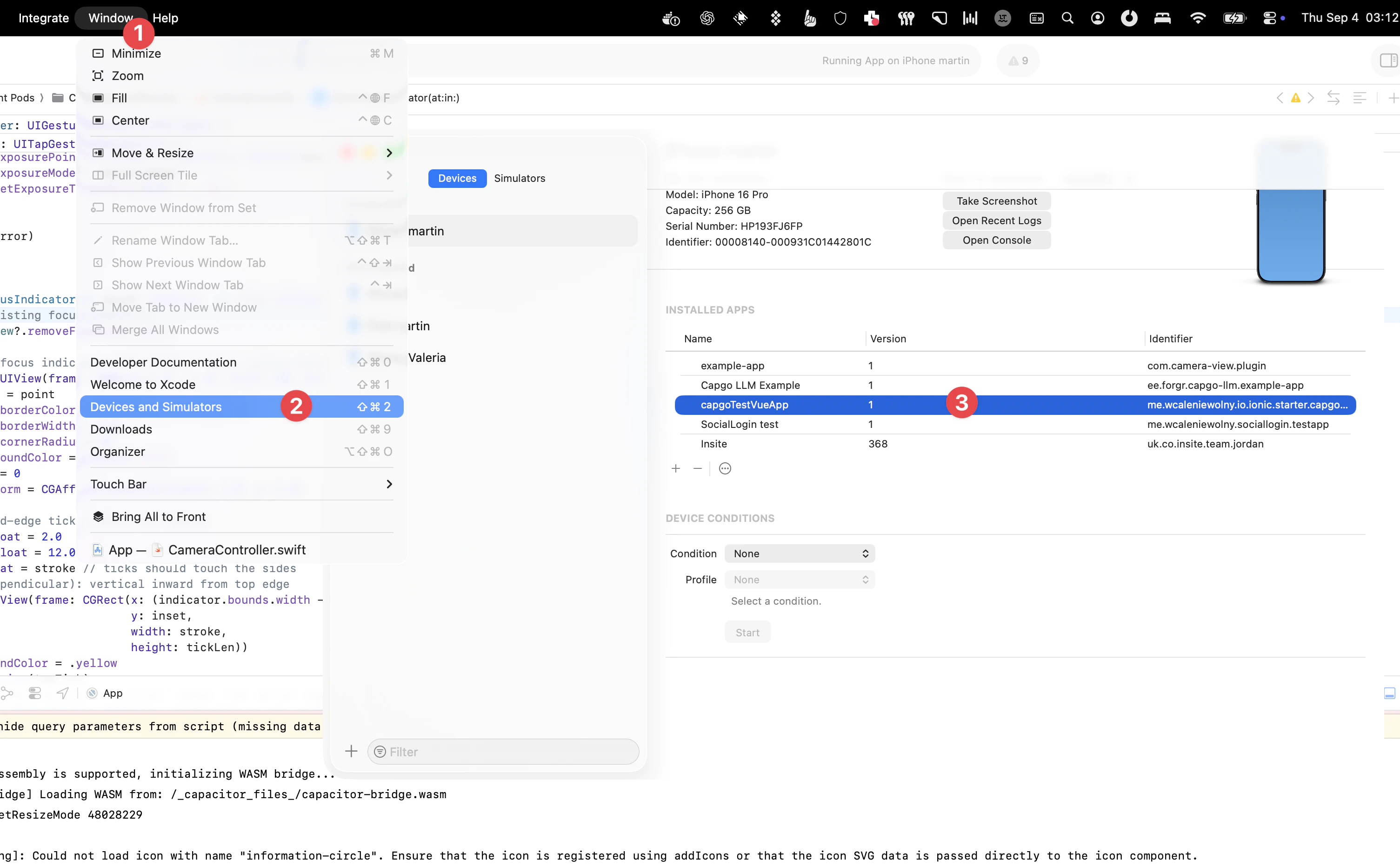
Untuk mencapai hal ini:
- Hubungkan perangkat Anda ke Mac dan pilih Window > Devices di menubar Xcode.
- Pilih perangkat Anda di panel kiri di bawah bagian Perangkat.
- Ini akan menampilkan daftar aplikasi yang dipasang pengembang untuk perangkat itu.
- Pilih aplikasi yang ingin Anda periksa lalu pilih ikon 3 titik di dekat bagian bawah layar.
- Di sini Anda dapat melihat sistem file saat ini dengan memilih unduh cuplikannya.
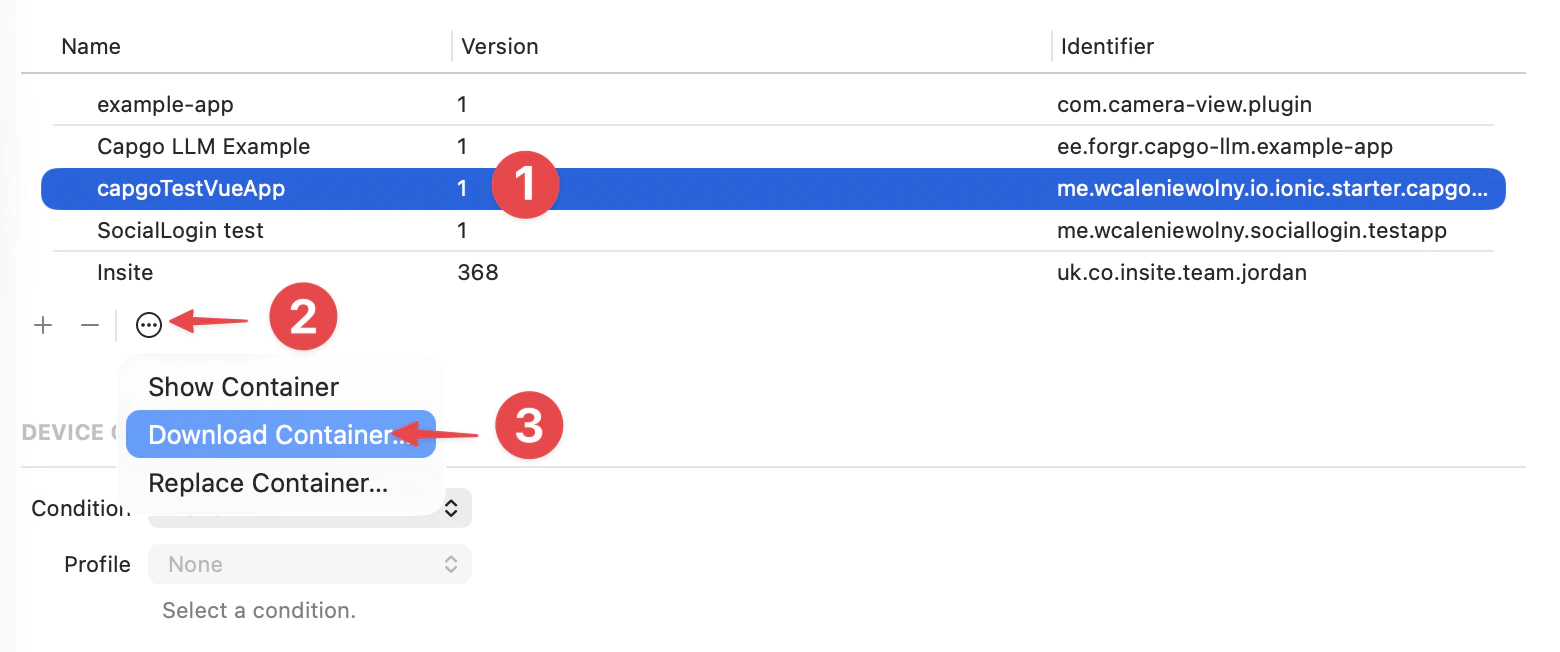
Memilih Download Container… akan mengunduh dan mengekspor cuplikan sistem file sebagai file .xcappdata yang dapat Anda telusuri.
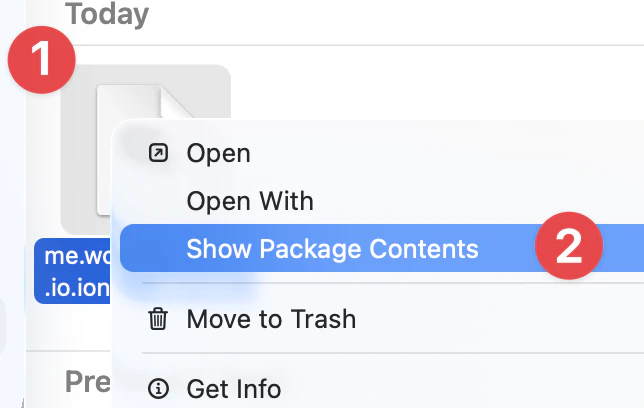
Klik kanan pada file ini dan pilih Tampilkan Isi Paket untuk membuka folder.
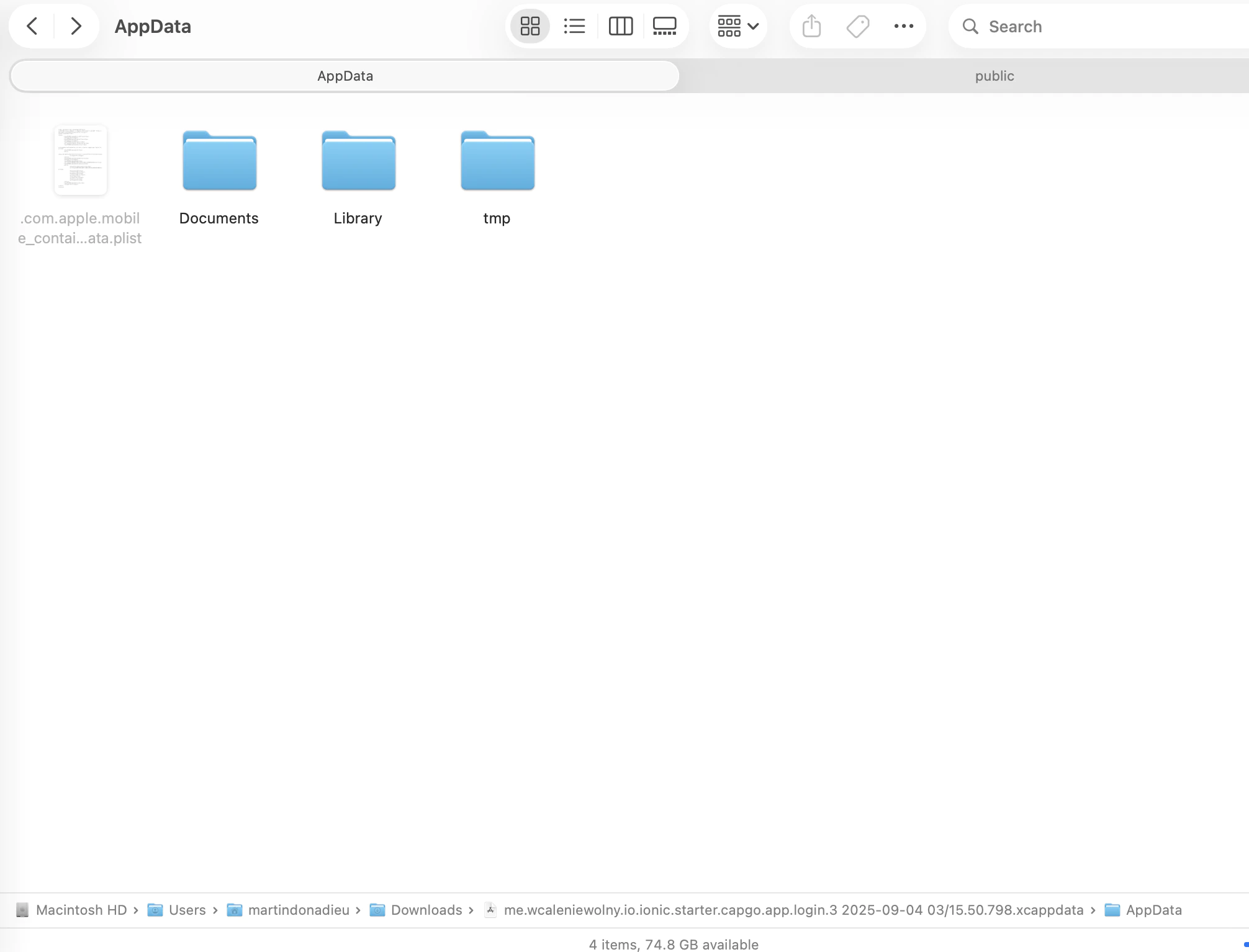
Buka folder App Data, dan Anda sekarang akan melihat beberapa folder seperti Documents, Library, tmp, dll.
Kemudian Anda akan menemukan versi dalam 2 folder:
library/NoCloud/ionic_built_snapshots diperlukan setelah aplikasi di-boot ulang
dan documents/versions untuk isi ulang panas
Android
Section titled “Android”Untuk melakukan debug pada Android, Anda perlu mengakses perangkat dari Android Studio:
- Klik Lihat > Alat Windows > Device File Explorer atau klik tombol Device File Explorer di bilah jendela alat untuk membuka Device File Explorer.
- Pilih perangkat dari daftar dropdown.
- Buka jalur data/data/APP_NAME/ dengan APP_NAME adalah ID aplikasi Anda.
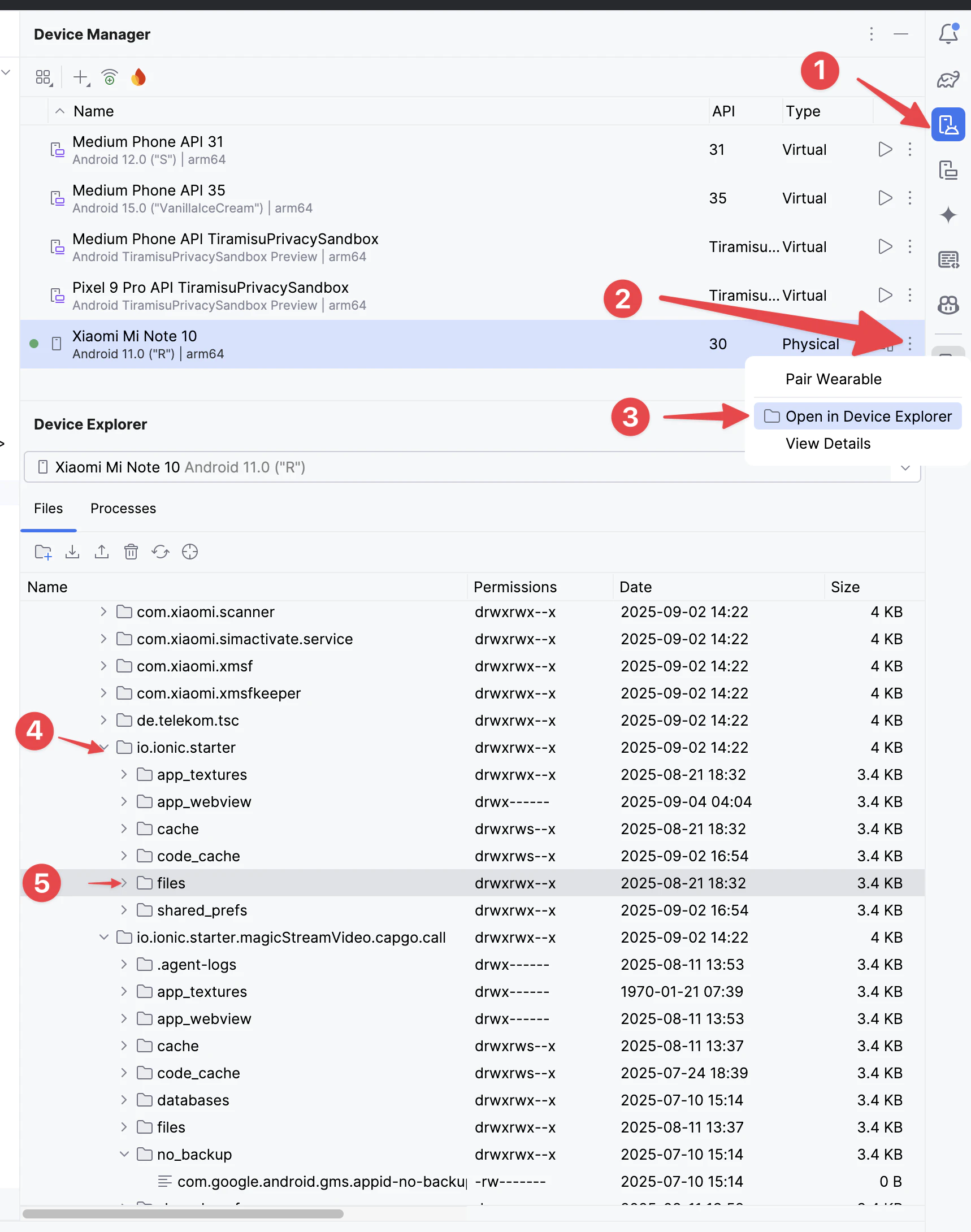
Kemudian Temukan folder versions untuk melihat semua versi