
Keamanan Organisasi
Capgo menyediakan kontrol keamanan komprehensif yang memungkinkan administrator organisasi untuk menerapkan kebijakan keamanan di semua anggota. Fitur-fitur ini membantu Anda memenuhi persyaratan kepatuhan, melindungi data sensitif, dan mempertahankan postur keamanan yang kuat.
Gambaran Umum
Section titled “Gambaran Umum”Pengaturan Keamanan Organisasi memungkinkan super admin untuk mengkonfigurasi:
- Penerapan Autentikasi Dua Faktor (2FA) - Mewajibkan semua anggota untuk mengaktifkan 2FA
- Kebijakan Kata Sandi - Menetapkan persyaratan kompleksitas kata sandi
- Keamanan Kunci API - Menerapkan kunci API yang aman dan kebijakan kedaluwarsa
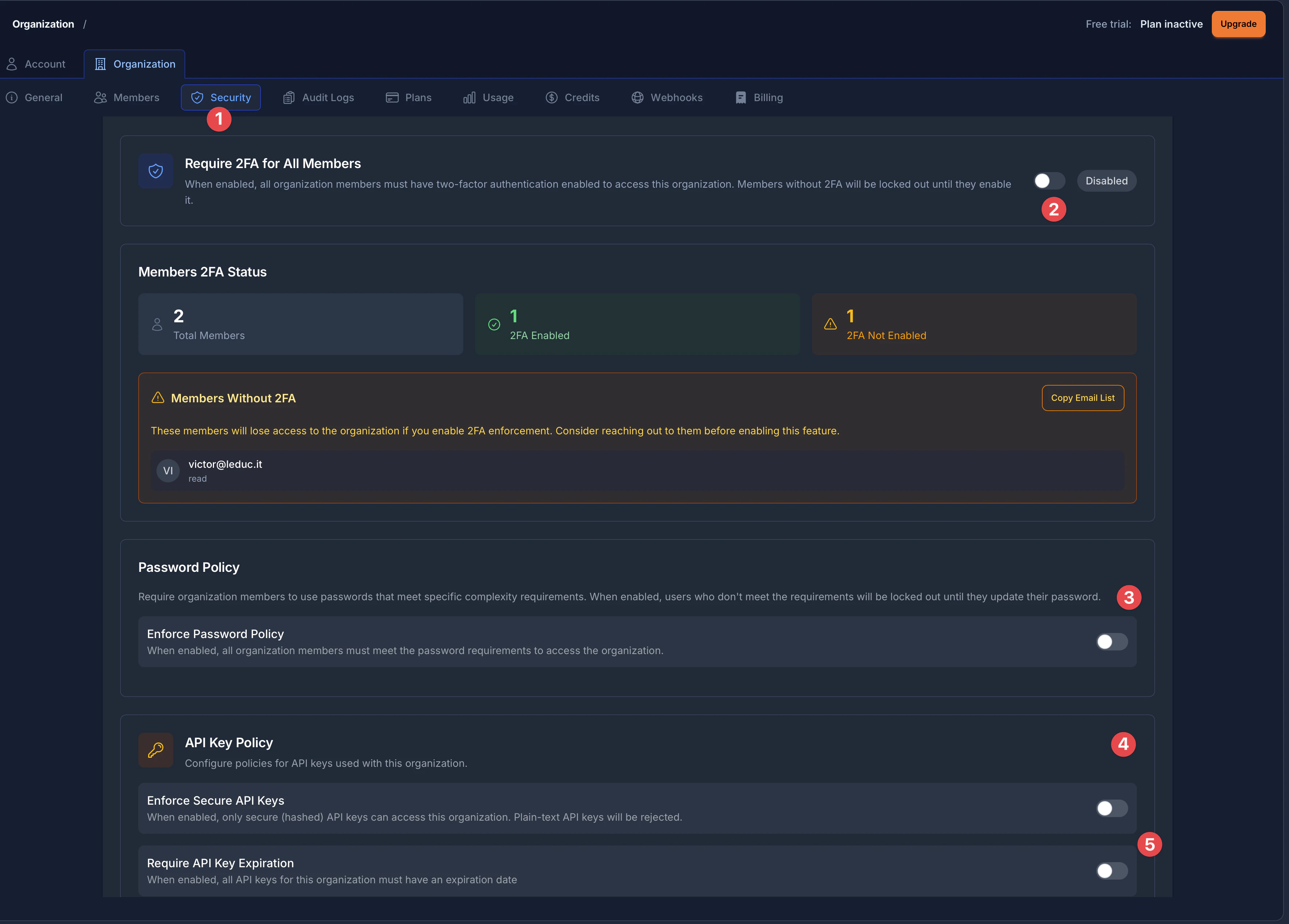
Halaman Keamanan diorganisir dalam bagian-bagian yang diberi label dengan jelas:
- Tab Keamanan - Akses semua pengaturan keamanan dari sidebar pengaturan Organisasi
- Penerapan 2FA - Toggle dan tampilan status untuk persyaratan autentikasi dua faktor
- Kebijakan Kata Sandi - Konfigurasi aturan kompleksitas kata sandi untuk anggota organisasi
- Kebijakan Kunci API - Pengaturan untuk kunci API yang aman dan persyaratan kedaluwarsa
- Kedaluwarsa Kunci API - Kontrol apakah kunci API harus memiliki tanggal kedaluwarsa
Mengakses Pengaturan Keamanan
Section titled “Mengakses Pengaturan Keamanan”- Navigasi ke pengaturan organisasi Anda dengan mengklik Pengaturan di sidebar
- Klik tab Organisasi di bagian atas halaman pengaturan
- Pilih tab Keamanan dari bar navigasi organisasi (ditandai dengan ikon perisai)
Penerapan Autentikasi Dua Faktor (2FA)
Section titled “Penerapan Autentikasi Dua Faktor (2FA)”Penerapan 2FA mewajibkan semua anggota organisasi untuk mengaktifkan autentikasi dua faktor pada akun mereka. Ini menambahkan lapisan keamanan kritis dengan mewajibkan kata sandi dan kode verifikasi.
Apa yang Terjadi Ketika 2FA Diterapkan
Section titled “Apa yang Terjadi Ketika 2FA Diterapkan”- Anggota tanpa 2FA langsung diblokir dari mengakses aplikasi organisasi
- Dashboard web dan CLI sama-sama menerapkan persyaratan ini
- Anggota baru harus mengaktifkan 2FA sebelum dapat mengakses sumber daya organisasi
- Sistem melacak anggota mana yang telah mengaktifkan 2FA secara real-time
Memahami Panel Status 2FA
Section titled “Memahami Panel Status 2FA”Halaman Keamanan menampilkan panel Status 2FA Anggota yang komprehensif yang menunjukkan:
- Total Anggota - Jumlah total anggota di organisasi Anda
- 2FA Diaktifkan (indikator hijau) - Anggota yang telah berhasil mengaktifkan autentikasi dua faktor
- 2FA Tidak Diaktifkan (indikator peringatan oranye) - Anggota yang masih perlu mengatur 2FA
Ketika anggota tidak mengaktifkan 2FA, mereka muncul di kotak peringatan Anggota Tanpa 2FA. Kotak ini menunjukkan:
- Alamat email setiap anggota dan peran mereka di organisasi
- Tombol Salin Daftar Email untuk dengan cepat menyalin semua alamat email yang terpengaruh untuk komunikasi
Mengaktifkan Penerapan 2FA
Section titled “Mengaktifkan Penerapan 2FA”- Navigasi ke Pengaturan Organisasi > Keamanan
- Temukan bagian Wajibkan 2FA untuk Semua Anggota di bagian atas halaman
- Tinjau panel Status 2FA Anggota untuk melihat anggota mana yang akan terpengaruh
- Jika ada anggota tanpa 2FA, gunakan tombol Salin Daftar Email untuk memberitahu mereka sebelum mengaktifkan
- Aktifkan toggle di sebelah Wajibkan 2FA untuk Semua Anggota untuk mengaktifkan penerapan
- Toggle akan menunjukkan status Dinonaktifkan atau Diaktifkan di sisi kanan
Dukungan CLI untuk Penerapan 2FA
Section titled “Dukungan CLI untuk Penerapan 2FA”Anda juga dapat mengelola penerapan 2FA melalui CLI:
# Aktifkan penerapan 2FAnpx @capgo/cli organization set YOUR_ORG_ID --enforce-2fa
# Nonaktifkan penerapan 2FAnpx @capgo/cli organization set YOUR_ORG_ID --no-enforce-2fa
# Periksa status 2FA anggotanpx @capgo/cli organization members YOUR_ORG_ID
Untuk informasi detail tentang penerapan 2FA, lihat panduan Penerapan 2FA.
Kebijakan Kata Sandi
Section titled “Kebijakan Kata Sandi”Kebijakan kata sandi memungkinkan Anda menerapkan persyaratan kompleksitas kata sandi untuk semua anggota organisasi. Ketika kata sandi anggota tidak memenuhi persyaratan kebijakan, mereka harus memperbarui kata sandi mereka sebelum mengakses sumber daya organisasi.
Bagian Kebijakan Kata Sandi (ditandai dengan indikator 3 di gambar gambaran umum) menyediakan toggle sederhana untuk menerapkan persyaratan kata sandi di seluruh organisasi Anda.
Cara Kerja Kebijakan Kata Sandi
Section titled “Cara Kerja Kebijakan Kata Sandi”Ketika Anda mengaktifkan kebijakan kata sandi:
- Semua anggota organisasi harus memenuhi persyaratan kompleksitas kata sandi
- Pengguna yang tidak memenuhi persyaratan akan dikunci sampai mereka memperbarui kata sandi mereka
- Kebijakan berlaku untuk semua anggota terlepas dari peran mereka
Mengaktifkan Kebijakan Kata Sandi
Section titled “Mengaktifkan Kebijakan Kata Sandi”- Pergi ke Pengaturan Organisasi > Keamanan
- Gulir ke bawah untuk menemukan bagian Kebijakan Kata Sandi
- Baca deskripsi: “Wajibkan anggota organisasi untuk menggunakan kata sandi yang memenuhi persyaratan kompleksitas tertentu”
- Aktifkan toggle Terapkan Kebijakan Kata Sandi untuk mengaktifkannya
- Deskripsi toggle menyatakan: “Ketika diaktifkan, semua anggota organisasi harus memenuhi persyaratan kata sandi untuk mengakses organisasi”
Persyaratan Kata Sandi yang Tersedia
Section titled “Persyaratan Kata Sandi yang Tersedia”| Pengaturan | Deskripsi | Rentang |
|---|---|---|
| Panjang Minimum | Jumlah karakter minimum yang diperlukan | 6-128 karakter |
| Wajib Huruf Besar | Kata sandi harus berisi setidaknya satu huruf besar (A-Z) | Aktif/Nonaktif |
| Wajib Angka | Kata sandi harus berisi setidaknya satu digit (0-9) | Aktif/Nonaktif |
| Wajib Karakter Khusus | Kata sandi harus berisi setidaknya satu karakter khusus (!@#$%^&*, dll.) | Aktif/Nonaktif |
Pelacakan Kepatuhan Anggota
Section titled “Pelacakan Kepatuhan Anggota”Ketika kebijakan kata sandi aktif, Anda dapat memantau kepatuhan:
- Total Anggota: Jumlah anggota di organisasi Anda
- Patuh: Anggota yang kata sandinya memenuhi persyaratan kebijakan
- Tidak Patuh: Anggota yang perlu memperbarui kata sandi mereka
Anggota yang tidak patuh tercantum dengan alamat email mereka. Anda dapat menyalin daftar email untuk memberitahu mereka tentang kebijakan dan perubahan kata sandi yang diperlukan.
Praktik Terbaik untuk Kebijakan Kata Sandi
Section titled “Praktik Terbaik untuk Kebijakan Kata Sandi”- Mulai dengan persyaratan yang wajar: Minimum 10-12 karakter dengan huruf besar/kecil campuran dan angka memberikan keamanan yang baik tanpa terlalu membatasi
- Komunikasikan perubahan: Beritahu tim Anda sebelum mengaktifkan persyaratan kata sandi baru
- Berikan waktu transisi: Beri anggota waktu untuk memperbarui kata sandi mereka
- Pertimbangkan pengelola kata sandi: Rekomendasikan anggota tim menggunakan pengelola kata sandi untuk menghasilkan dan menyimpan kata sandi yang kuat
Keamanan Kunci API
Section titled “Keamanan Kunci API”Capgo menyediakan dua kontrol keamanan untuk kunci API: menerapkan kunci API yang aman (di-hash) dan mewajibkan tanggal kedaluwarsa. Bagian Kebijakan Kunci API (ditandai dengan indikator 4 di gambar gambaran umum) diidentifikasi oleh ikon kunci.
Terapkan Kunci API yang Aman
Section titled “Terapkan Kunci API yang Aman”Opsi pertama di bagian Kebijakan Kunci API adalah Terapkan Kunci API yang Aman. Ketika diaktifkan, pengaturan ini mewajibkan semua kunci API di organisasi Anda dibuat menggunakan format aman/di-hash.
Kunci API yang di-hash lebih aman karena:
- Nilai kunci sebenarnya tidak pernah disimpan di server kami
- Hanya Anda (dan sistem Anda) yang memiliki akses ke kunci lengkap
- Bahkan jika database kami dikompromikan, kunci Anda tidak dapat digunakan
Deskripsi toggle menyatakan: “Ketika diaktifkan, hanya kunci API yang aman (di-hash) yang dapat mengakses organisasi ini. Kunci API teks biasa akan ditolak.”
Mengaktifkan Kunci API yang Aman
Section titled “Mengaktifkan Kunci API yang Aman”- Pergi ke Pengaturan Organisasi > Keamanan
- Gulir ke bawah untuk menemukan bagian Kebijakan Kunci API (cari ikon kunci)
- Temukan toggle Terapkan Kunci API yang Aman
- Aktifkan toggle untuk mengaktifkan penerapan kunci API yang aman
- Kunci yang ada tidak terpengaruh; kebijakan berlaku untuk pembuatan kunci baru
Kebijakan Kedaluwarsa Kunci API
Section titled “Kebijakan Kedaluwarsa Kunci API”Opsi kedua (ditandai dengan indikator 5 di gambar gambaran umum) adalah Wajibkan Kedaluwarsa Kunci API. Anda dapat mewajibkan semua kunci API memiliki tanggal kedaluwarsa, membatasi periode validitasnya.
Ini adalah praktik keamanan terbaik yang:
- Membatasi jendela paparan jika kunci dikompromikan
- Memastikan rotasi kunci secara teratur
- Membantu memenuhi persyaratan kepatuhan untuk manajemen kredensial
Deskripsi toggle menyatakan: “Ketika diaktifkan, semua kunci API untuk organisasi ini harus memiliki tanggal kedaluwarsa”
Mengkonfigurasi Kebijakan Kedaluwarsa
Section titled “Mengkonfigurasi Kebijakan Kedaluwarsa”- Pergi ke Pengaturan Organisasi > Keamanan
- Temukan bagian Kebijakan Kunci API
- Temukan toggle Wajibkan Kedaluwarsa Kunci API (di bawah Terapkan Kunci API yang Aman)
- Aktifkan toggle untuk mengaktifkan persyaratan kedaluwarsa
- Setelah diaktifkan, atur Hari kedaluwarsa maksimum (1-365 hari)
- Ini membatasi seberapa jauh di masa depan tanggal kedaluwarsa dapat ditetapkan
- Contoh: Menetapkan 90 hari berarti kunci dapat kedaluwarsa paling lama 90 hari dari pembuatan
Kebijakan Kunci API yang Direkomendasikan
Section titled “Kebijakan Kunci API yang Direkomendasikan”| Kasus Penggunaan | Kunci Aman | Kedaluwarsa | Hari Maks. |
|---|---|---|---|
| Pengembangan | Direkomendasikan | Opsional | 30-90 |
| Pipeline CI/CD | Diperlukan | Diperlukan | 90-180 |
| Produksi | Diperlukan | Diperlukan | 30-90 |
| Enterprise/Kepatuhan | Diperlukan | Diperlukan | 30-60 |
Kepatuhan dan Audit
Section titled “Kepatuhan dan Audit”Fitur keamanan organisasi membantu Anda memenuhi berbagai persyaratan kepatuhan:
| Standar | Fitur Relevan |
|---|---|
| SOC 2 | Penerapan 2FA, kebijakan kata sandi, kontrol kunci API |
| ISO 27001 | Semua fitur keamanan membantu menunjukkan kontrol akses |
| HIPAA | Autentikasi kuat dan manajemen akses |
| GDPR | Perlindungan data melalui kontrol akses |
| PCI DSS | Autentikasi multi-faktor, kata sandi kuat |
Memantau Status Kepatuhan
Section titled “Memantau Status Kepatuhan”Dashboard Keamanan memberikan visibilitas real-time ke:
- Berapa banyak anggota yang mengaktifkan 2FA
- Kepatuhan kebijakan kata sandi di organisasi Anda
- Adopsi keamanan kunci API
Gunakan fitur “Salin daftar email” untuk dengan mudah mengekspor daftar anggota yang tidak patuh untuk komunikasi yang ditargetkan.
Pemecahan Masalah
Section titled “Pemecahan Masalah””Akses Ditolak: Kebijakan keamanan tidak terpenuhi”
Section titled “”Akses Ditolak: Kebijakan keamanan tidak terpenuhi””Masalah: Seorang anggota tidak dapat mengakses organisasi.
Solusi:
- Periksa apakah 2FA diterapkan - anggota perlu mengaktifkan 2FA
- Periksa apakah kebijakan kata sandi aktif - anggota perlu memperbarui kata sandi mereka
- Verifikasi status kepatuhan anggota di dashboard Keamanan
Tidak dapat mengaktifkan fitur keamanan
Section titled “Tidak dapat mengaktifkan fitur keamanan”Masalah: Toggle keamanan dinonaktifkan atau tidak merespons.
Solusi:
- Pastikan Anda memiliki peran super_admin di organisasi
- Periksa koneksi jaringan Anda
- Coba segarkan halaman
- Hubungi dukungan jika masalah berlanjut
Pembuatan kunci API gagal
Section titled “Pembuatan kunci API gagal”Masalah: Tidak dapat membuat kunci API baru.
Solusi:
- Jika kunci aman diterapkan, pastikan Anda menggunakan alur pembuatan kunci aman
- Jika kedaluwarsa diperlukan, tetapkan tanggal kedaluwarsa dalam rentang yang diizinkan
- Periksa pengaturan hari kedaluwarsa maksimum