
Firebase Google Accesso - Configurazione generale
Introduzione
Section titled “Introduzione”Questa guida ti guiderà attraverso l’integrazione di Google Accedi con Firebase Autenticazione utilizzando il plug-in Capacitor Social Login. Questa configurazione ti consente di utilizzare l’accesso Google nativo su piattaforme mobili sfruttando l’autenticazione Firebase per l’autenticazione backend.
Passaggi di configurazione
Section titled “Passaggi di configurazione”- Vai su console.cloud.google.com
- Seleziona il progetto che desideri utilizzare
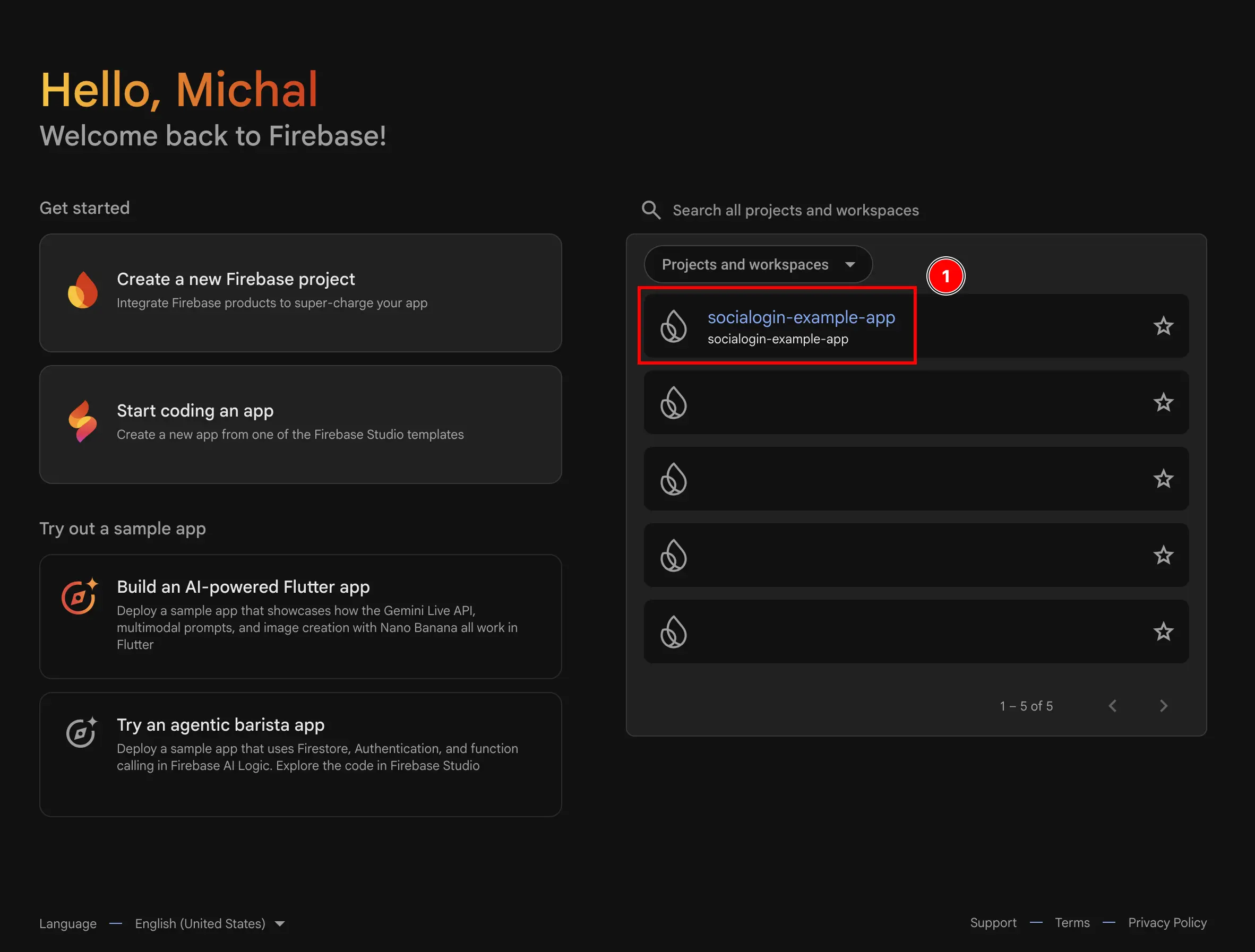
- Vai al menu
Authentication- Fai clic su
build - Fai clic su
Authentication
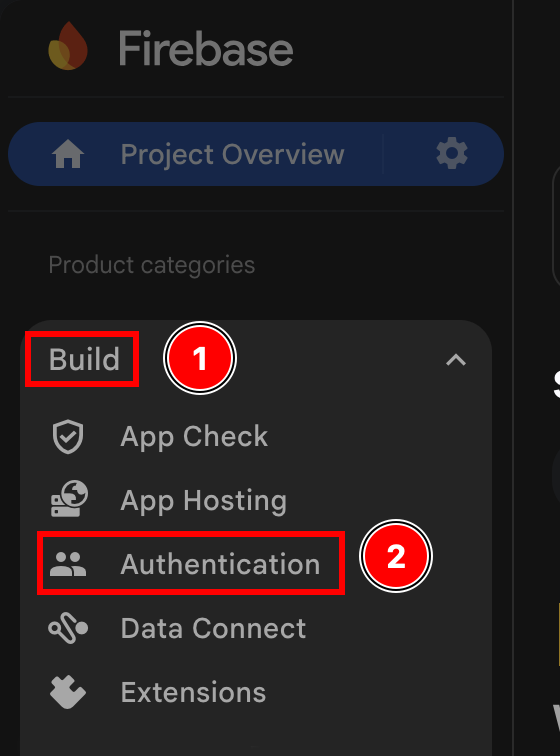
- Fai clic su
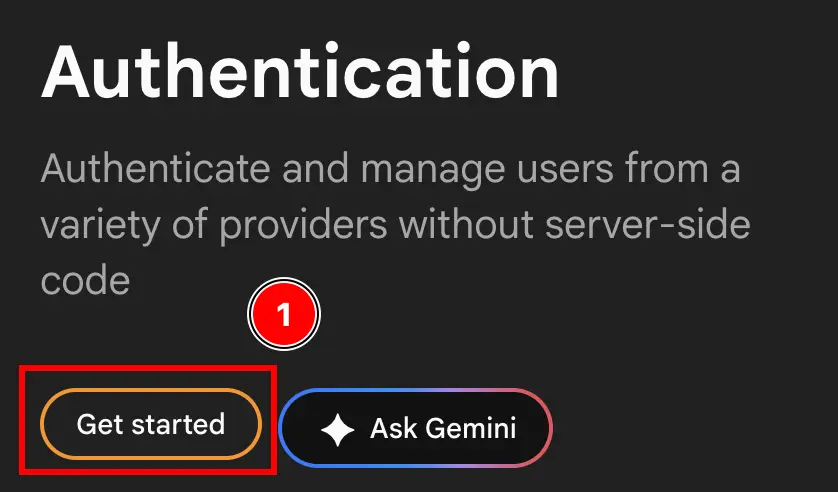
- Fare clic sul pulsante “Inizia”.
- Seleziona
Email/PasswordEGoogleO SOLOGoogleSelezionerò
Email/PasswordANDGoogle, poiché voglio utilizzarli entrambi, ma potresti selezionare soloGoogle. Questo è qualcosa che puoi modificare in seguito.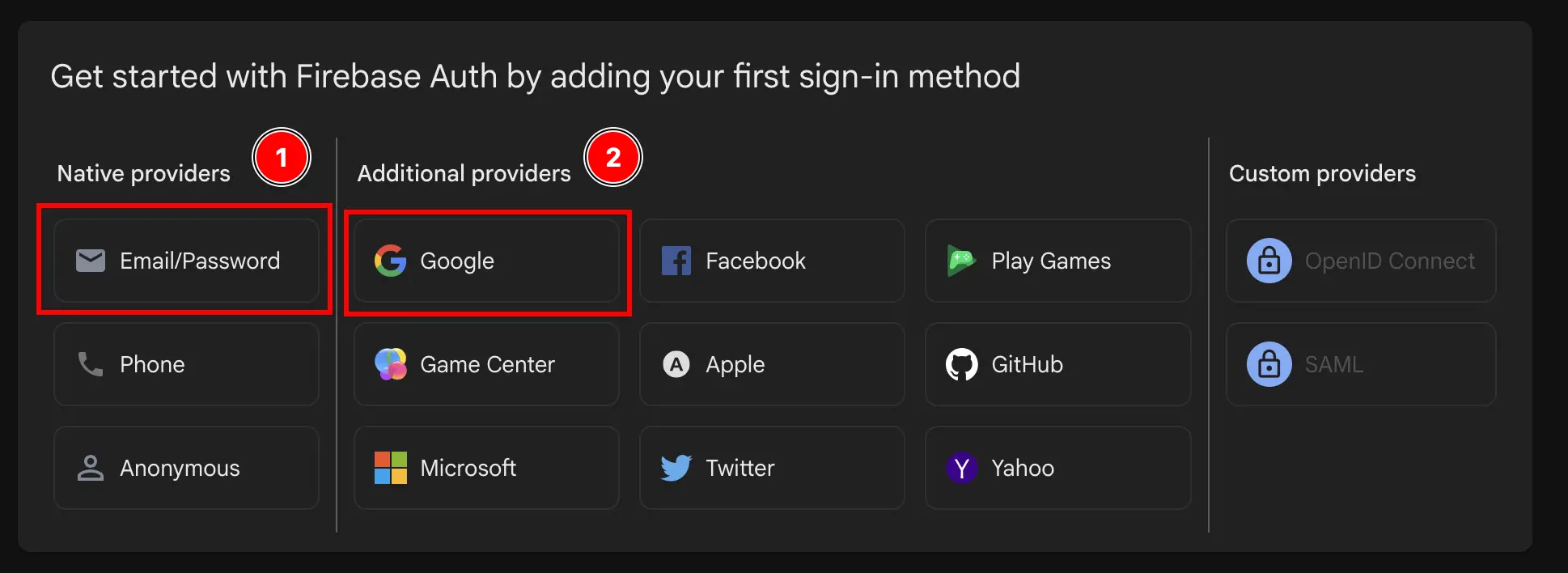
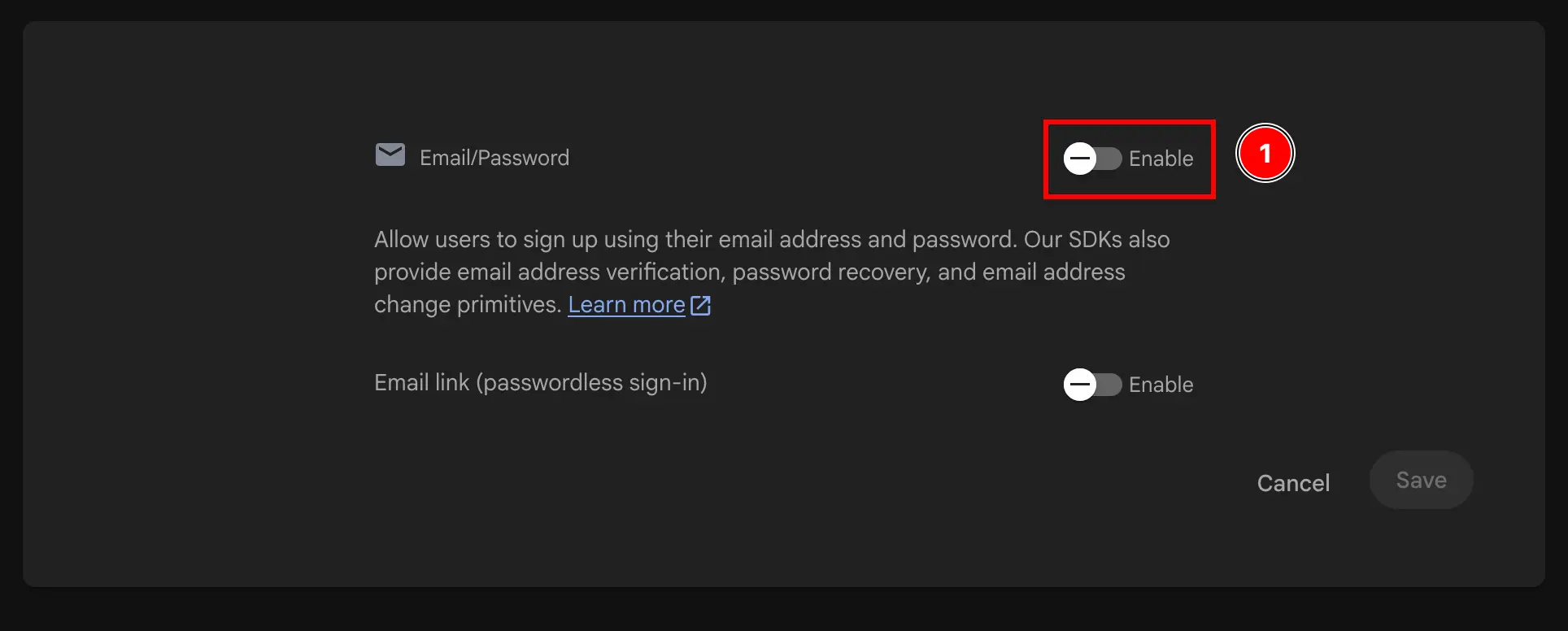
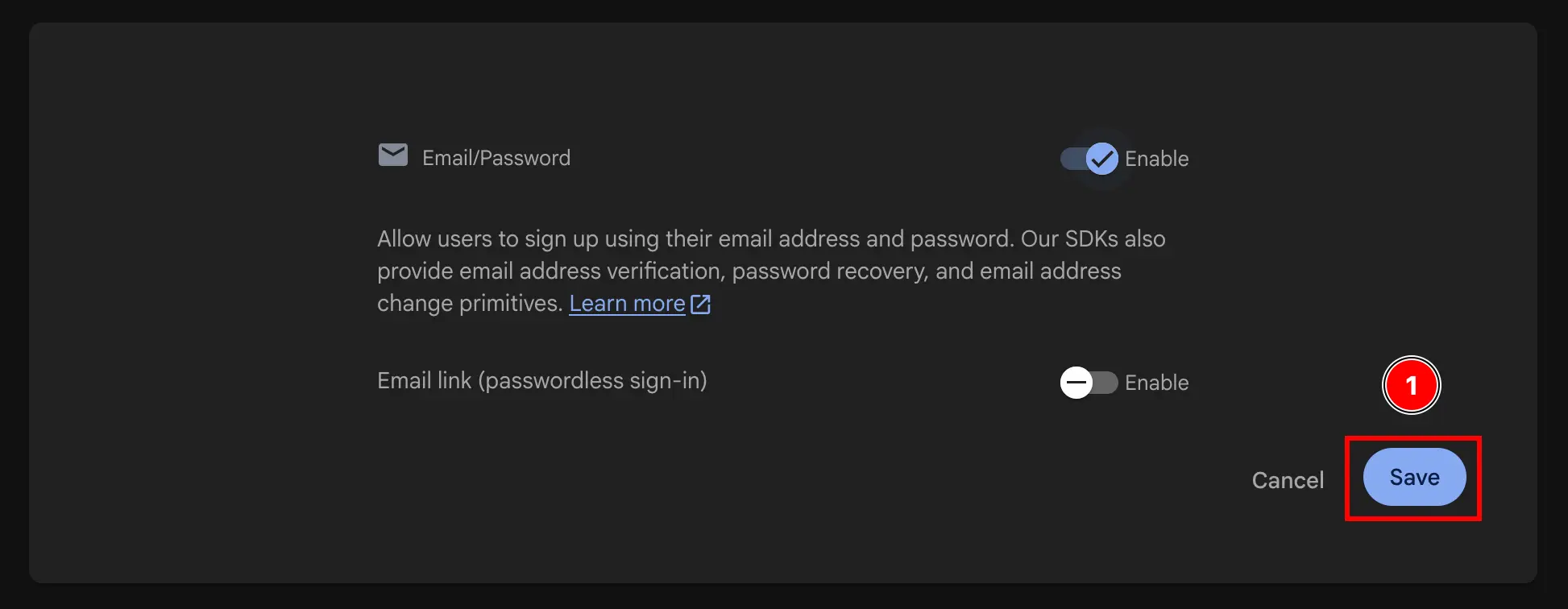

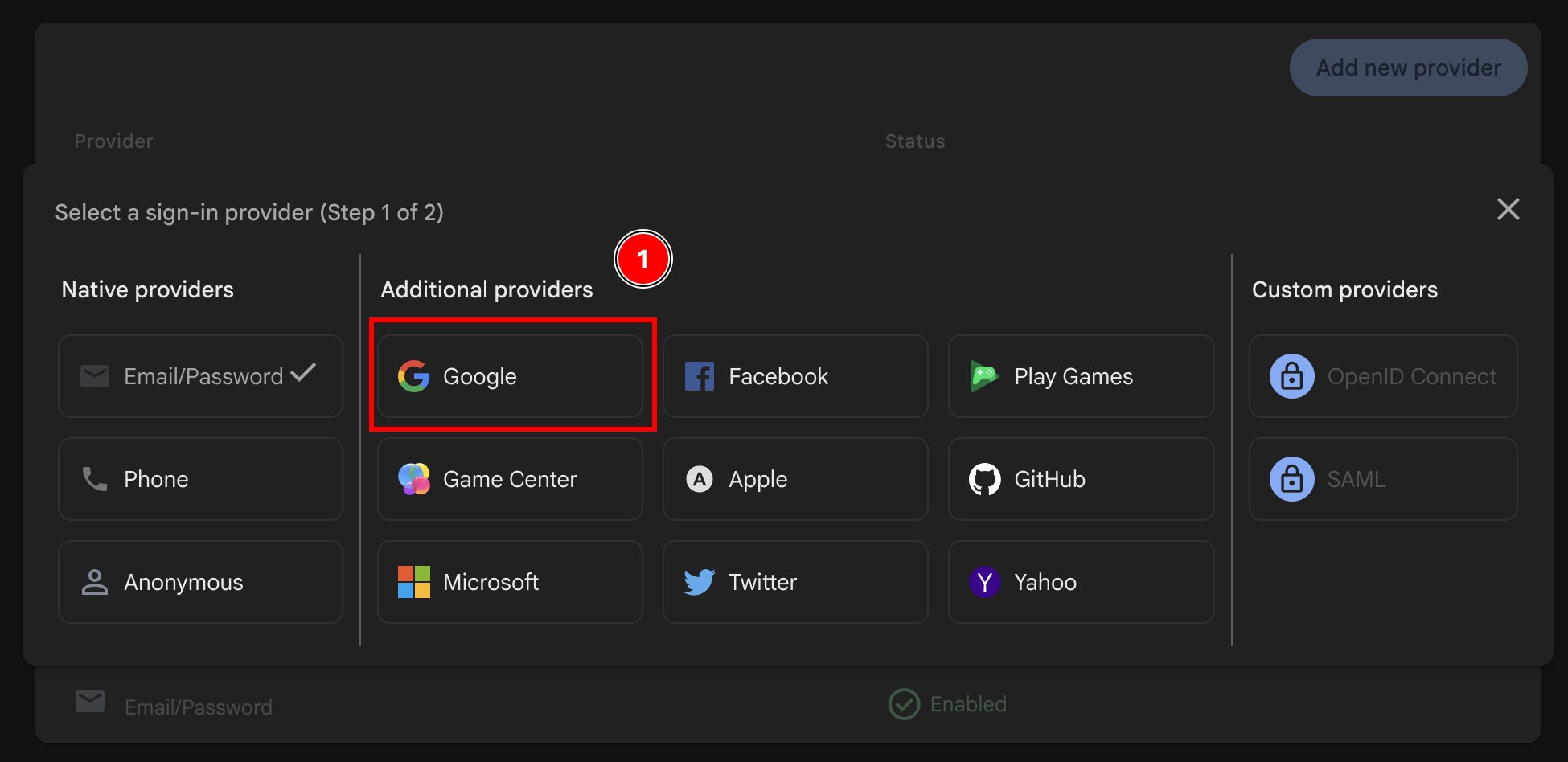
- Abilita il provider
Google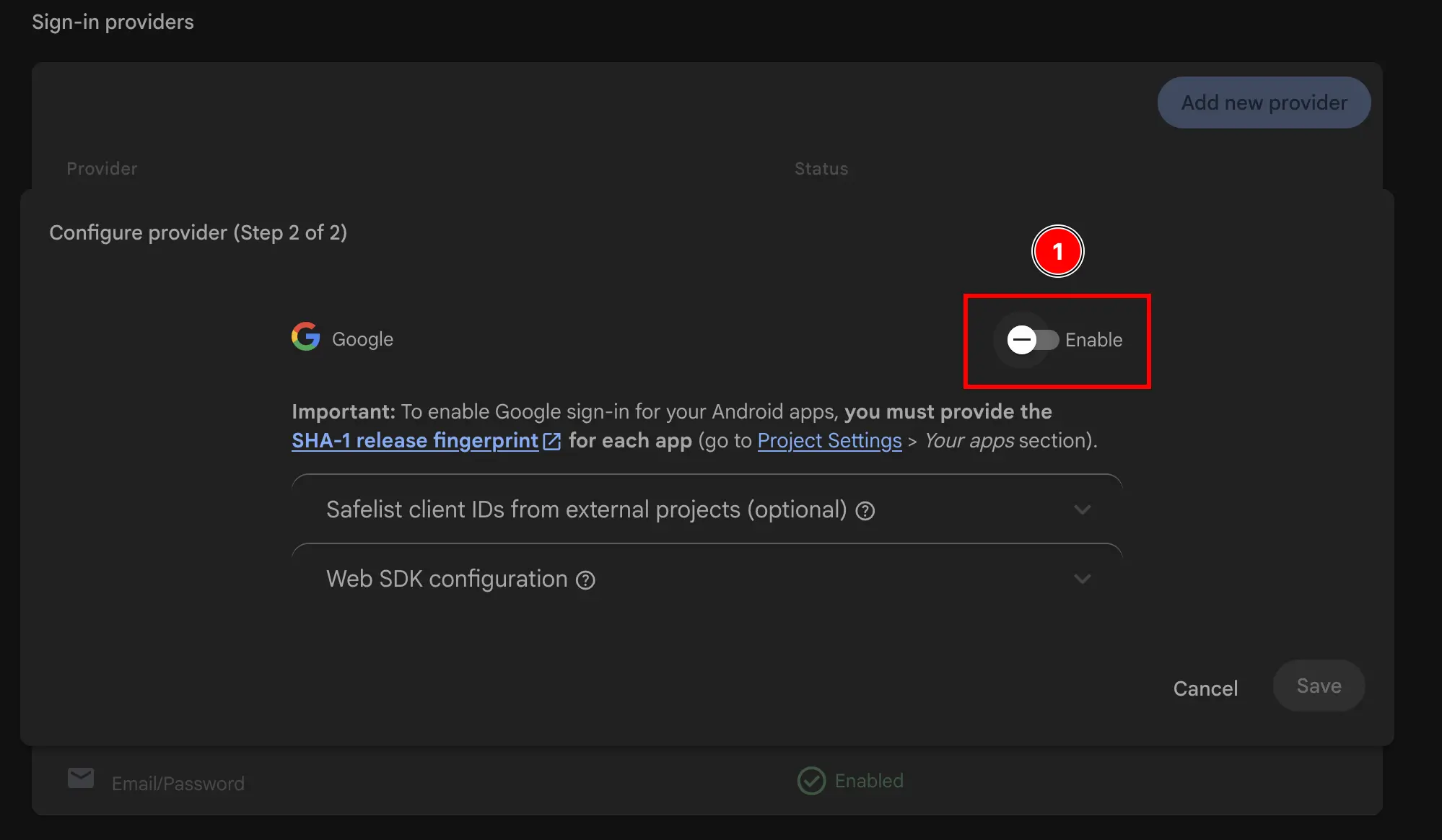
- Aggiungi l’e-mail di supporto
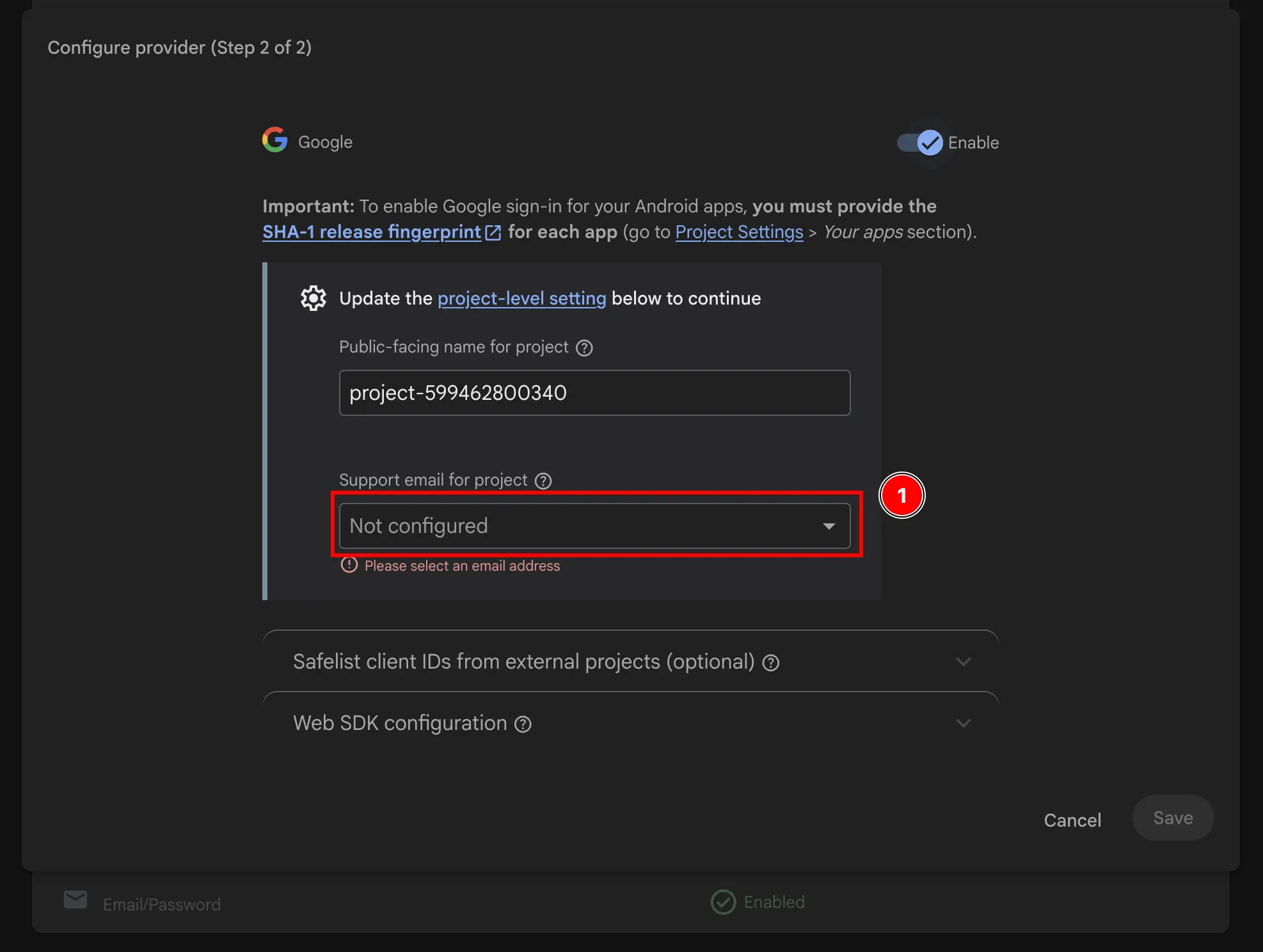
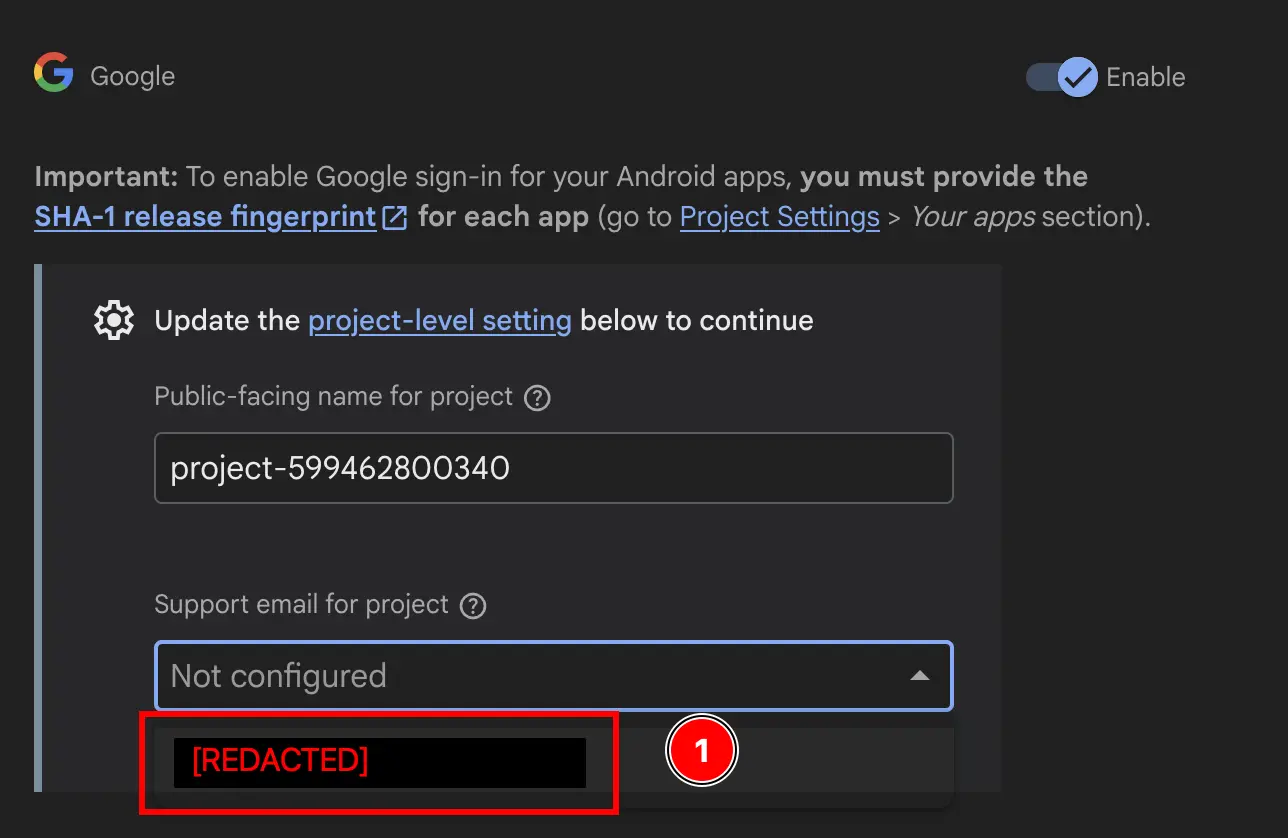
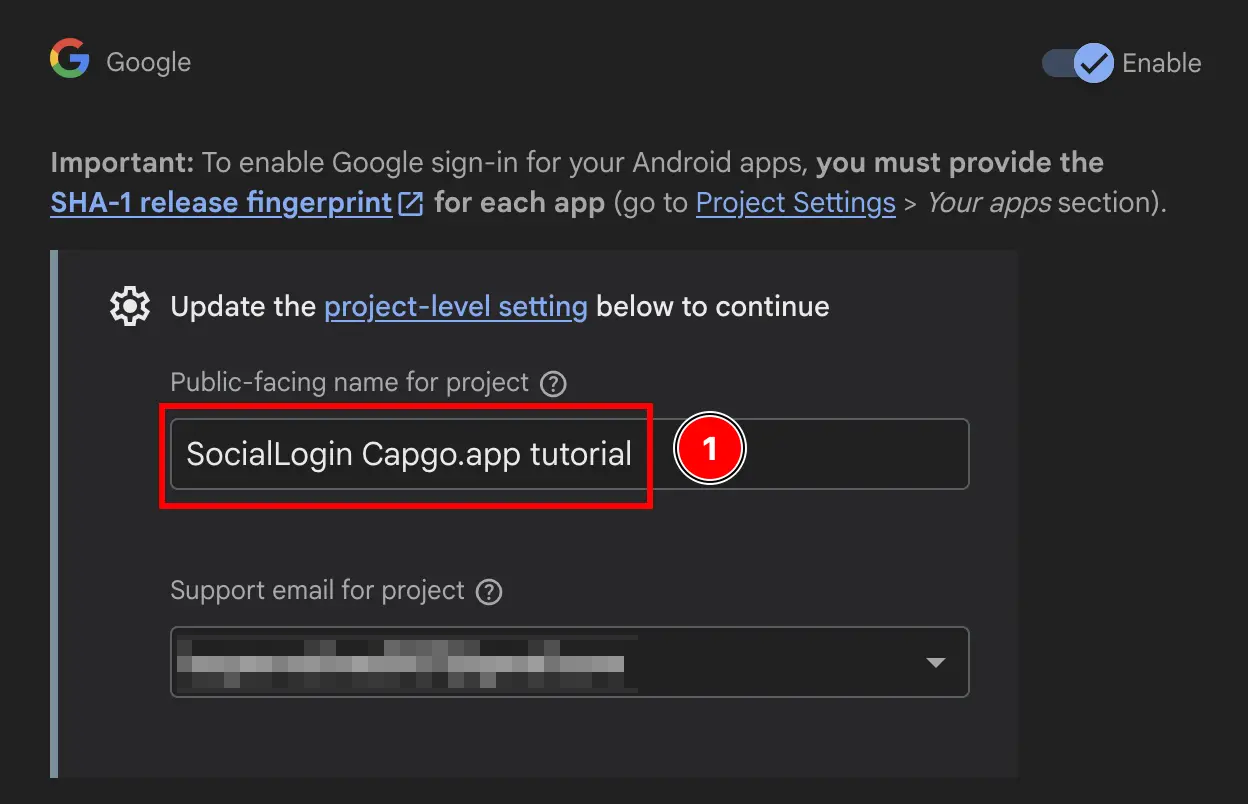
- Modificare il “Nome pubblico del progetto”.
Questo verrà visualizzato agli utenti, quindi consiglio di cambiarlo in qualcosa di più descrittivo.
- Fare clic sul pulsante
Save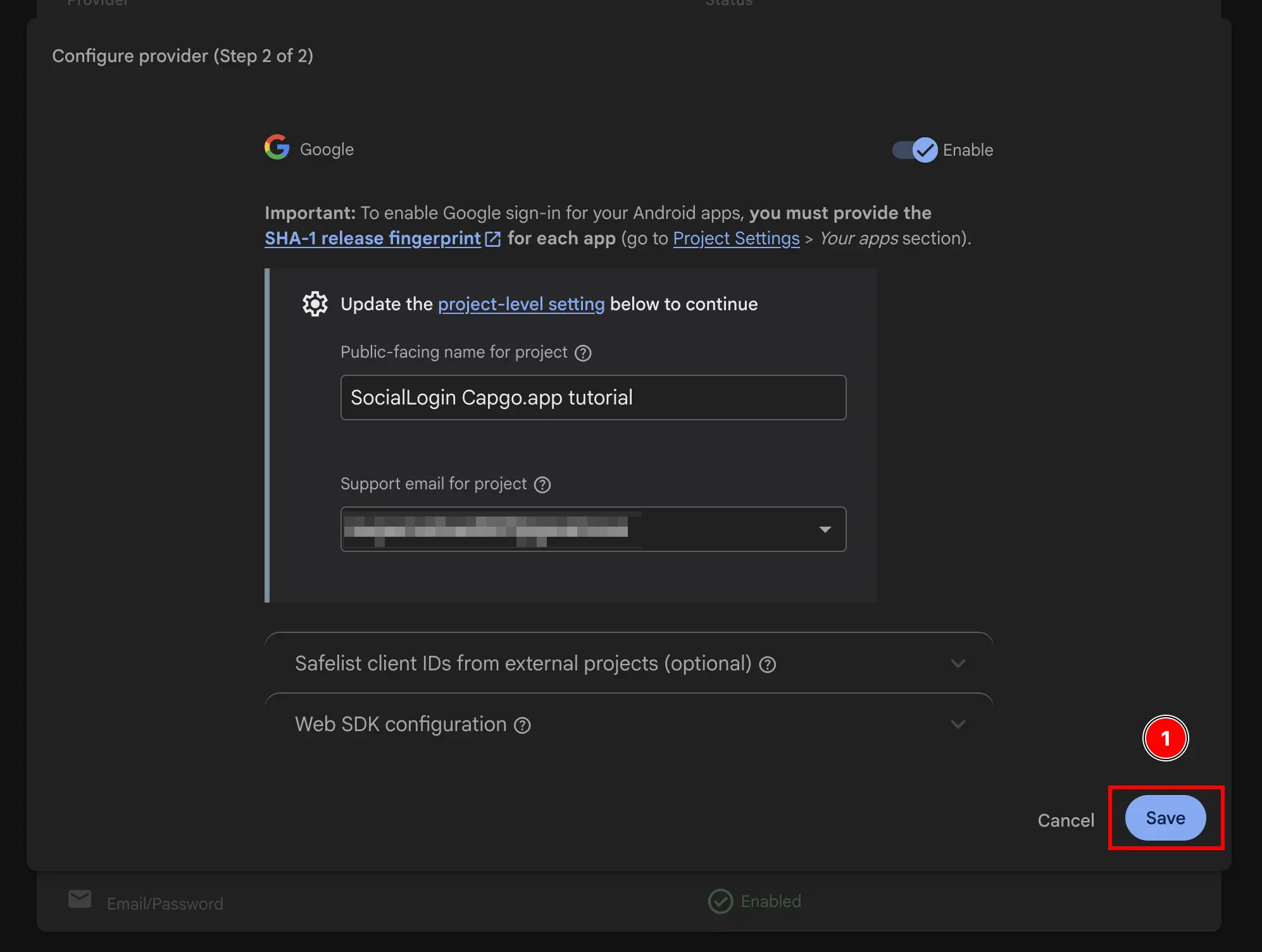
Voilà, ora hai abilitato Google Accedi con Firebase Autenticazione 🎉