
Guida rapida
Copia un prompt di configurazione con i passaggi di installazione e la guida markdown completa per questo plugin.
        Set up this Capacitor plugin in the project.

Use the package manager already used by the project.
Install these package(s): `@capgo/capacitor-updater`
Run the required Capacitor sync/update step after installation.
Read this markdown guide for the full setup steps: https://raw.githubusercontent.com/Cap-go/website/refs/heads/main/apps/docs/src/content/docs/docs/plugins/updater/local-dev/getting-started.mdx
Use that guide for platform-specific steps, native file edits, permissions, config changes, imports, and usage setup.
If that guide references other docs pages, read them too.
Cosa imparerai in questo tutorial?
Sezione intitolata “Cosa imparerai in questo tutorial?”Questo tutorial ti mostrerà come avviare Supabase da zero e come avviare le edge functions
Requisiti
Sezione intitolata “Requisiti”Guida rapida
Sezione intitolata “Introduzione”Per iniziare, esegui
supabase startOra dovresti vedere qualcosa di simile:
Started supabase local development setup.
         API URL: http://localhost:54321     GraphQL URL: http://localhost:54321/graphql/v1          DB URL: postgresql://postgres:postgres@localhost:54322/postgres      Studio URL: http://localhost:54323    Inbucket URL: http://localhost:54324      JWT secret: [truncated]        anon key: supa_key_anonservice_role key: supa_key_admin
Successivo configs.json e imposta i seguenti valori:
{ "base_domain": { "prod": "console.capgo.app", "development": "development.console.capgo.app", "local": "localhost:3332" }, "supa_anon": { "prod": "supa_key_anon", "development": "supa_key_anon", "local": "supa_key_anon" }, "supa_url": { "prod": "http://localhost:54321", "development": "http://localhost:54321", "local": "http://localhost:54321" }}dove supa_key_anon è il valore ottenuto dal passaggio precedente.
Successivamente, verifica di poter accedere a localhost:54323 e che la tabella users appaia simile a questa
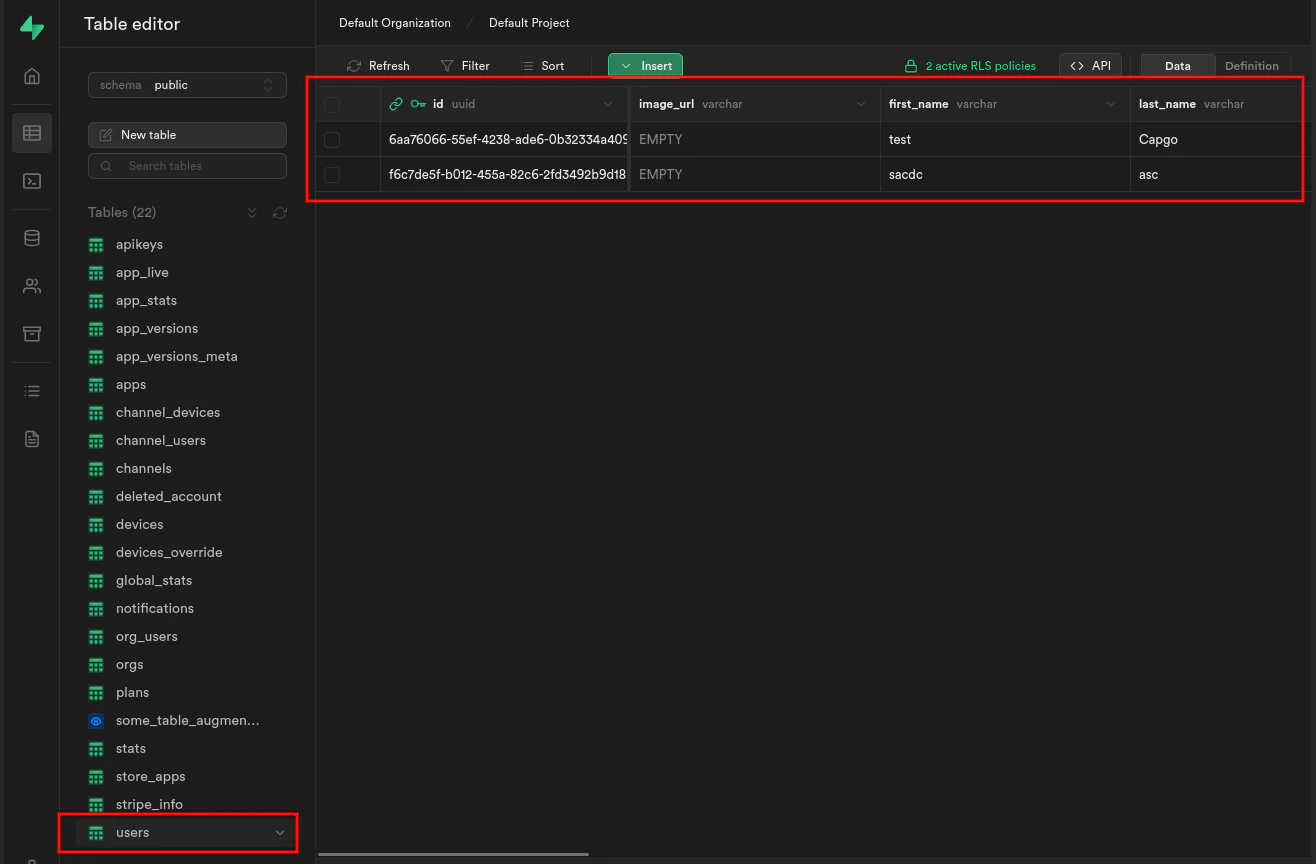
In caso positivo, avvia le edge functions con:
supabase functions servee avvia il frontend con:
bun run serveContinua da Per iniziare
Sezione intitolata “Continua da Per iniziare”Se stai usando Guida rapida per pianificare il lavoro sui plugin nativi, collegalo a Usando @capgo/capacitor-updater per la funzionalità nativa in Usando @capgo/capacitor-updater, Directory dei plugin di Capgo per il workflow del prodotto nella Capgo Plugin Directory, Plugin Capacitor di Capgo per i dettagli di implementazione in Capacitor Plugins di Capgo, Aggiunta o aggiornamento dei plugin per i dettagli su come aggiungere o aggiornare i plugin, e Alternative ai plugin Ionic Enterprise per il workflow del prodotto in Alternative ai plugin Ionic Enterprise.
Rilascia app Capacitor senza attese
Sviluppa con il tuo agente AI, rilascia fix in pochi minuti, fai build per iOS e Android senza un Mac e osserva ogni release.


Esigenze Enterprise? Parla con il nostro team