
Firebase Google iOS에 로그인
이 가이드는 iOS에서 Firebase 인증과 Google 로그인을 통합하는 데 도움이 됩니다. 일반 Firebase Google 설정을 이미 완료했다고 가정합니다.
-
console.cloud.google.com에서 프로젝트 개요로 이동합니다.
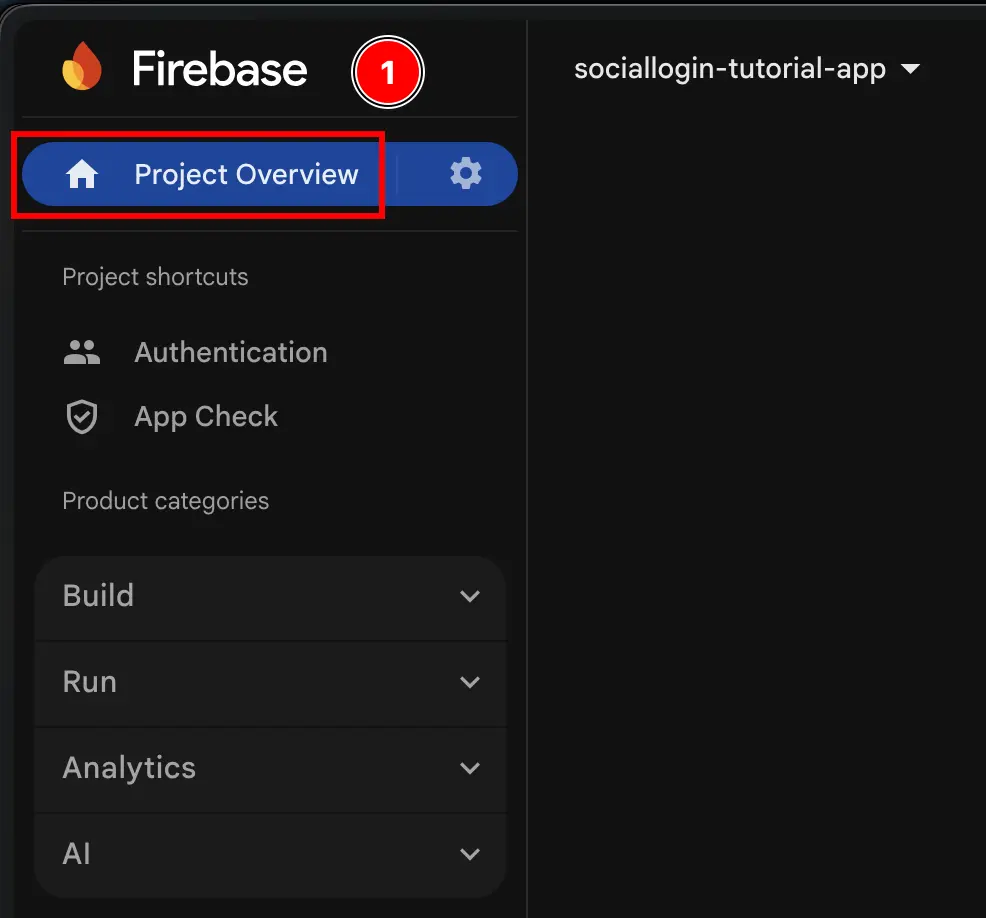
-
‘앱 추가’ 버튼을 클릭하세요.
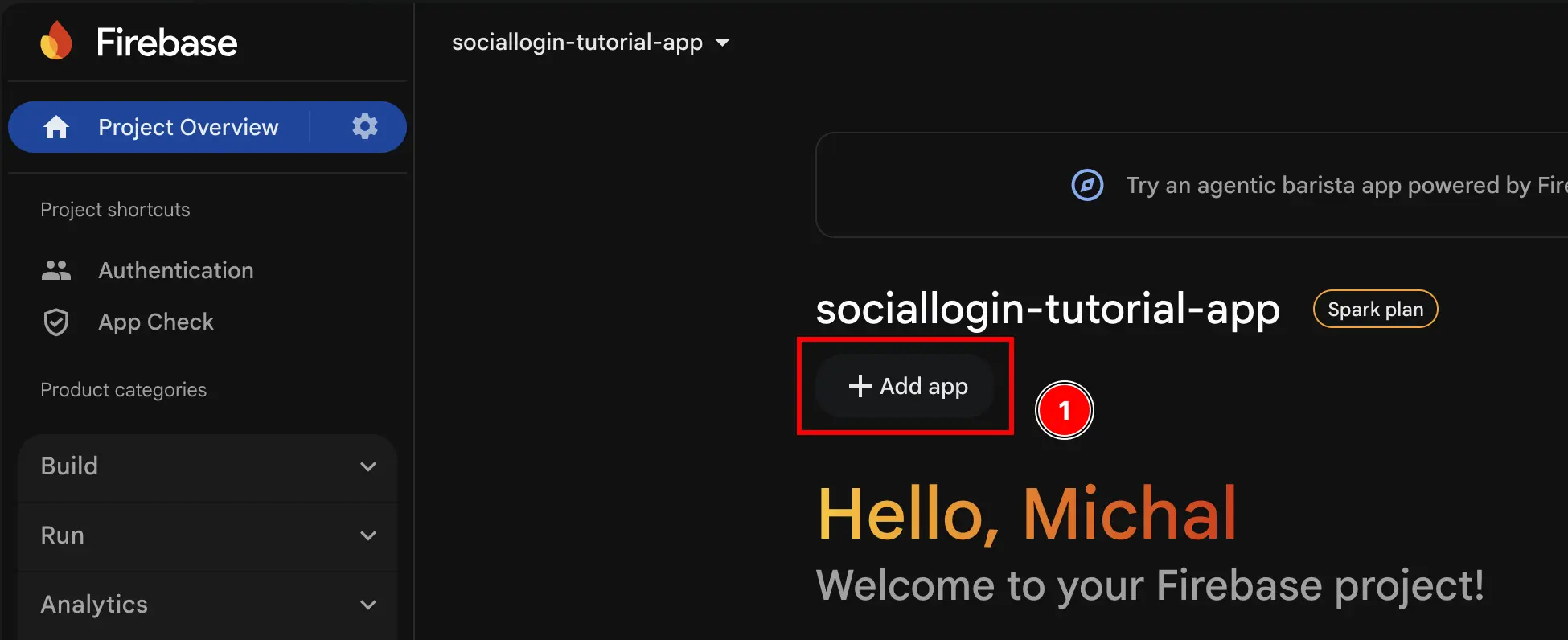
:::참고 이 버튼을 찾으려면 여기를 찾아야 할 수도 있습니다. 이는 Firebase 콘솔에서 이미 다른 앱을 만든 경우에만 적용됩니다. :::
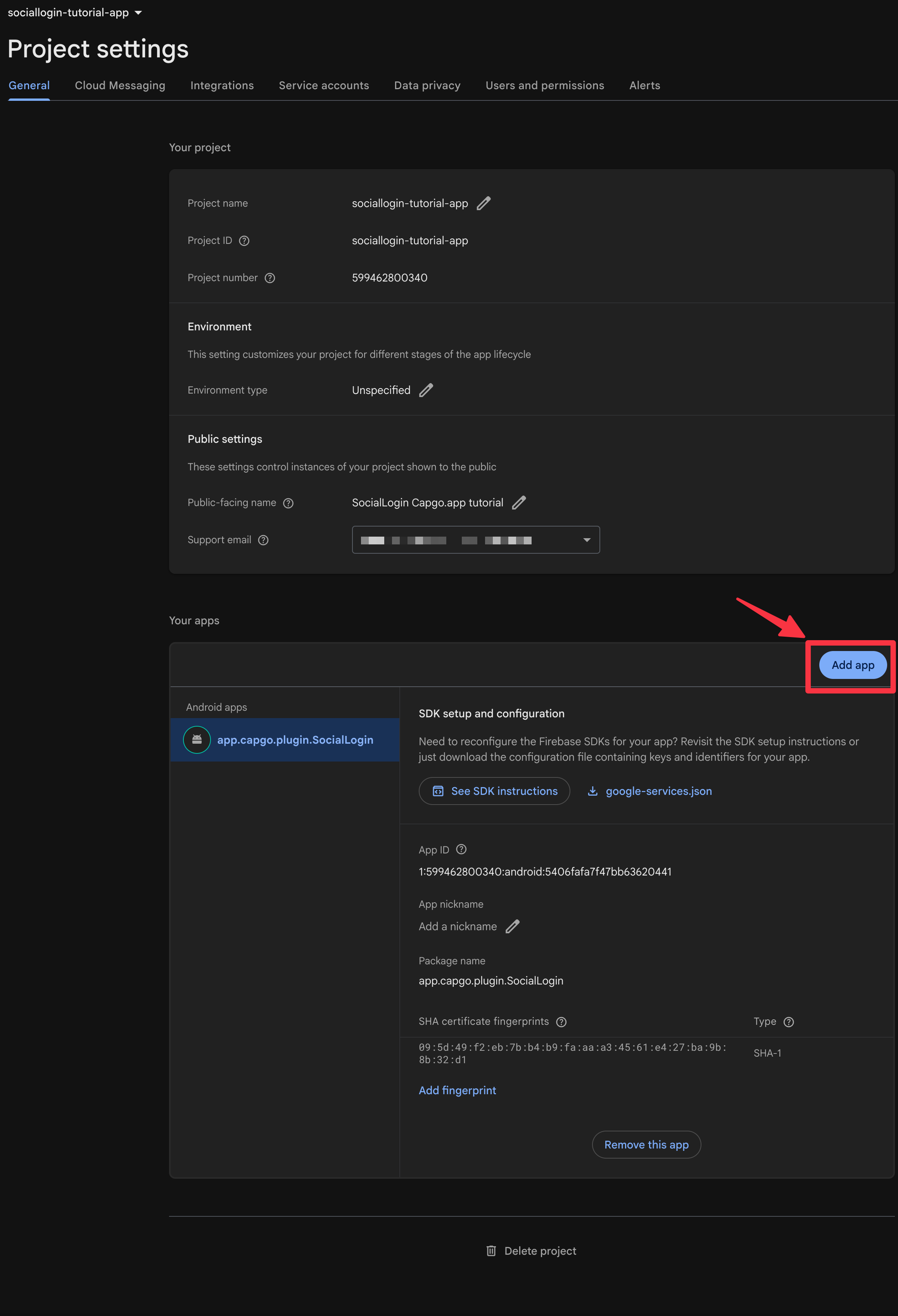
-
iOS을 선택하세요.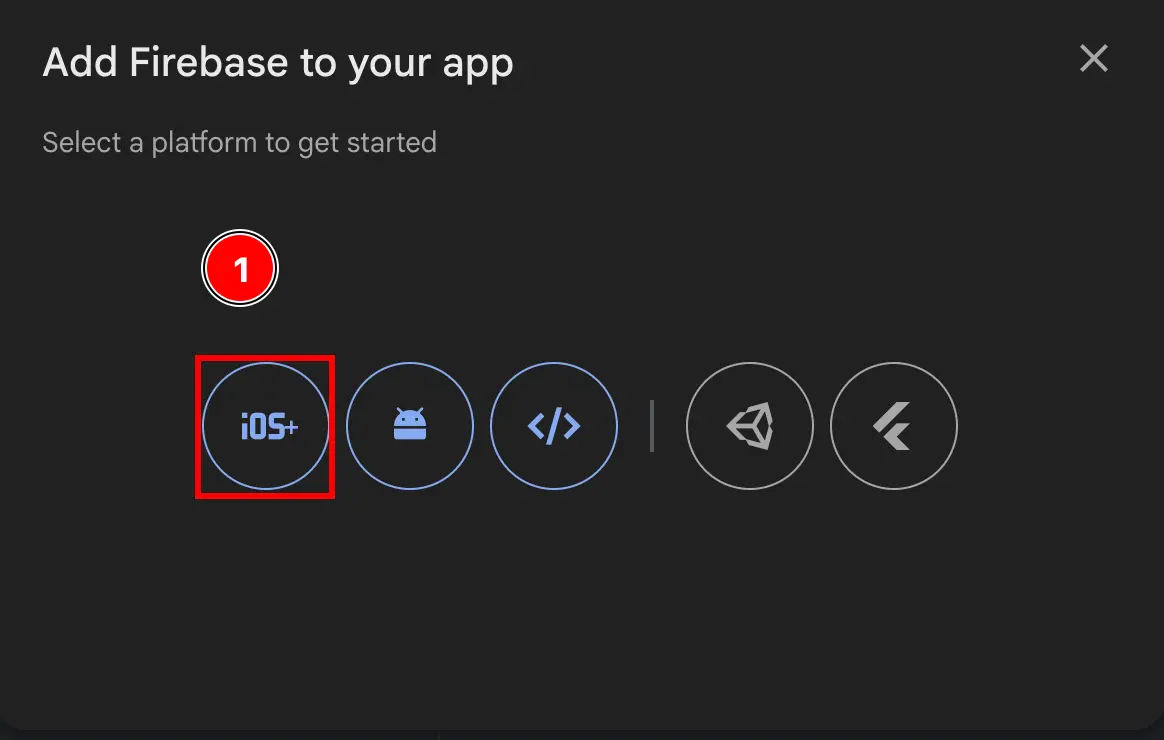
-
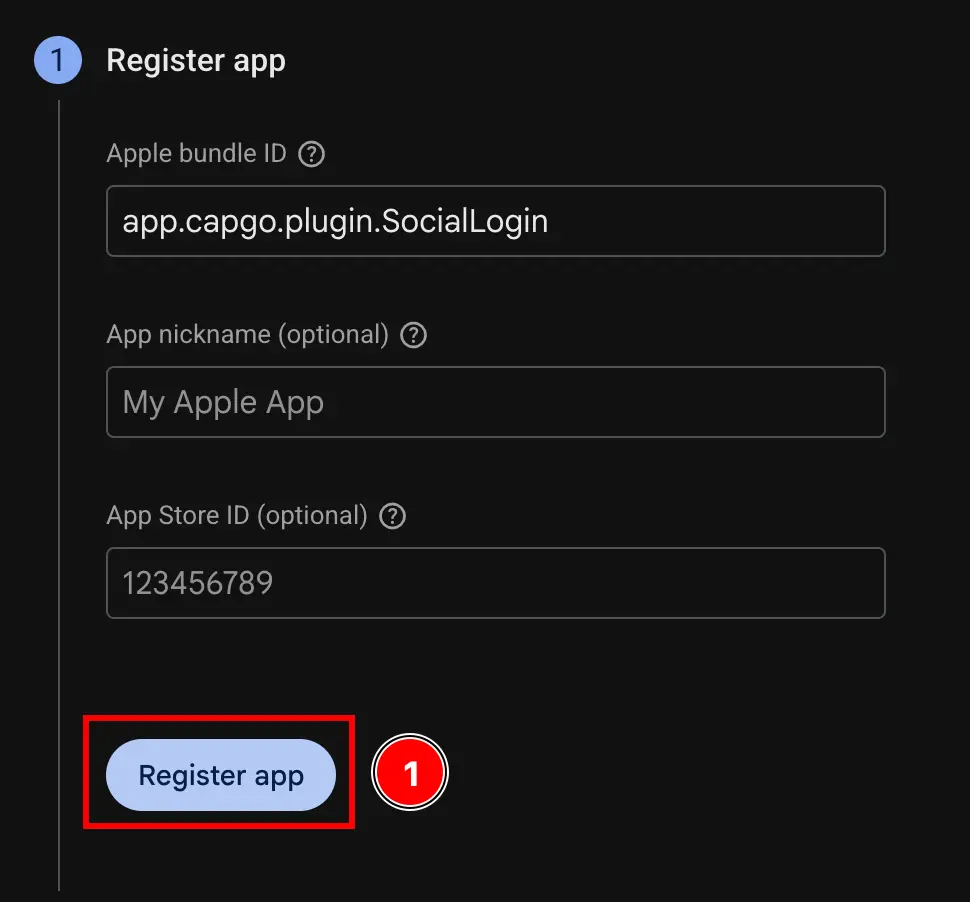
양식의 첫 번째 부분을 작성하세요.
Apple bundle ID을 채우세요.npx cap open ios을 사용하여 앱에서 Xcode을 엽니다.App을 두 번 클릭합니다.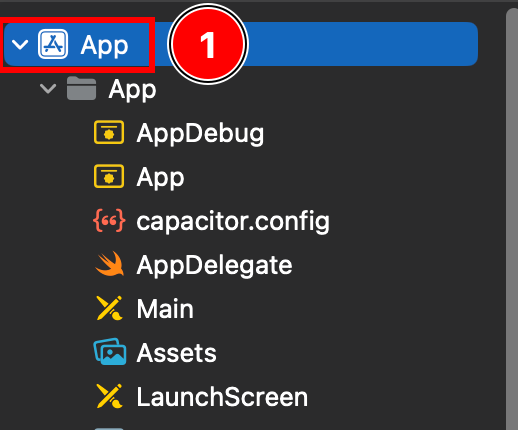
Targets -> App에 있는지 확인하세요.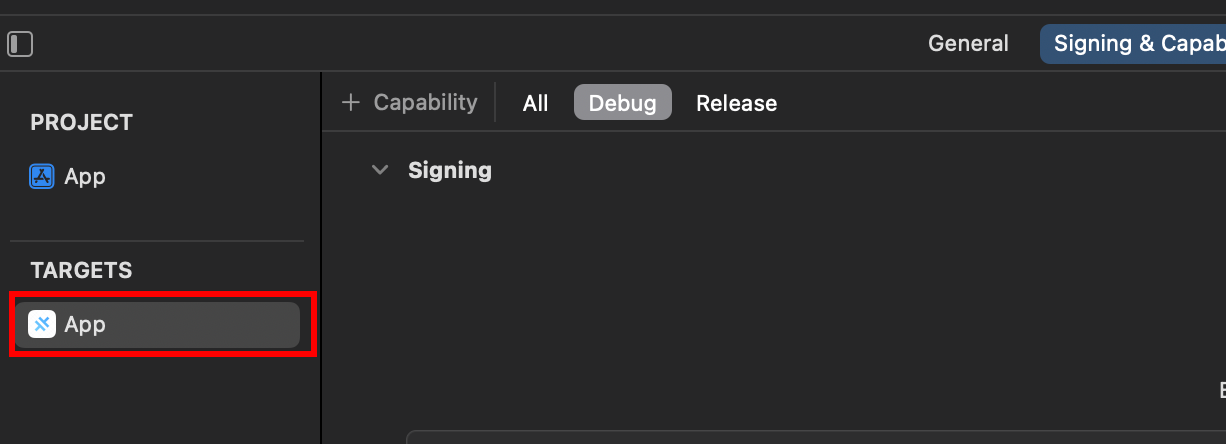
- ‘번들 식별자’를 찾으세요.
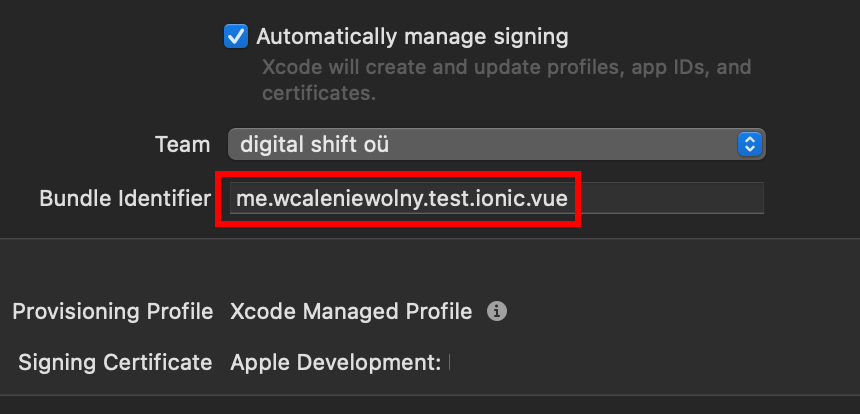
app.capgo.plugin.SocialLogin을 사용하겠습니다. ::: 번들 식별자를 복사하여 Firebase 콘솔에 붙여넣습니다.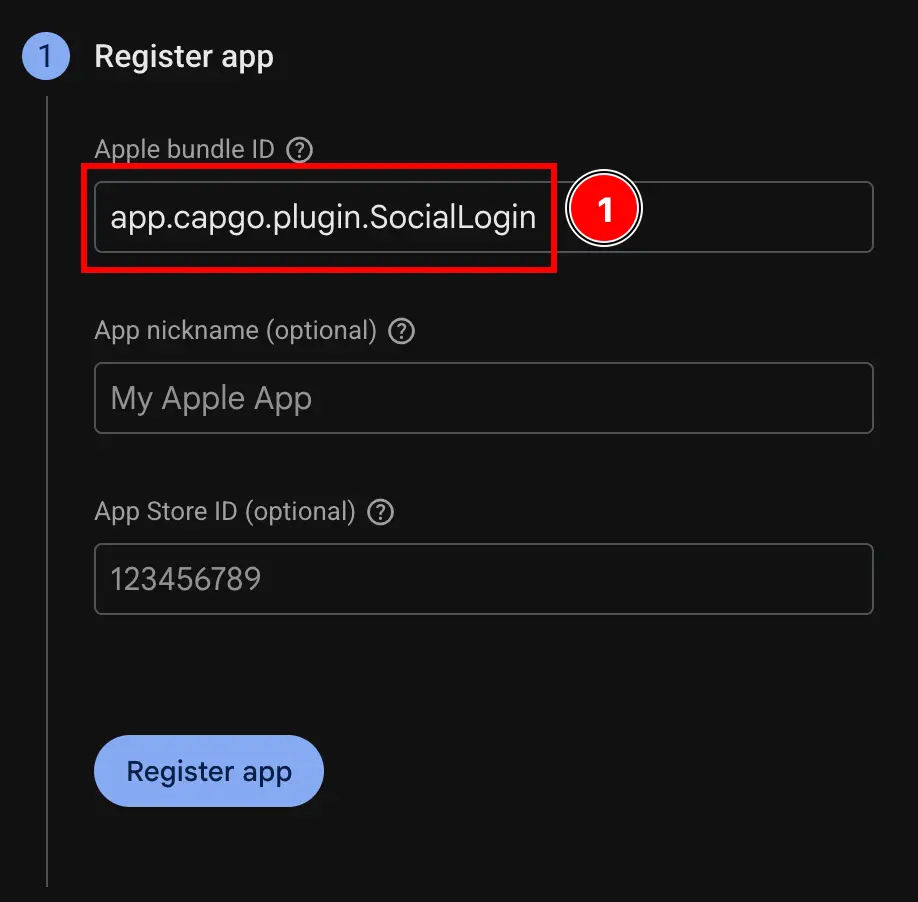
- ‘앱 등록’ 버튼을 클릭하세요.
-
구성 파일 다운로드단계를 건너뜁니다.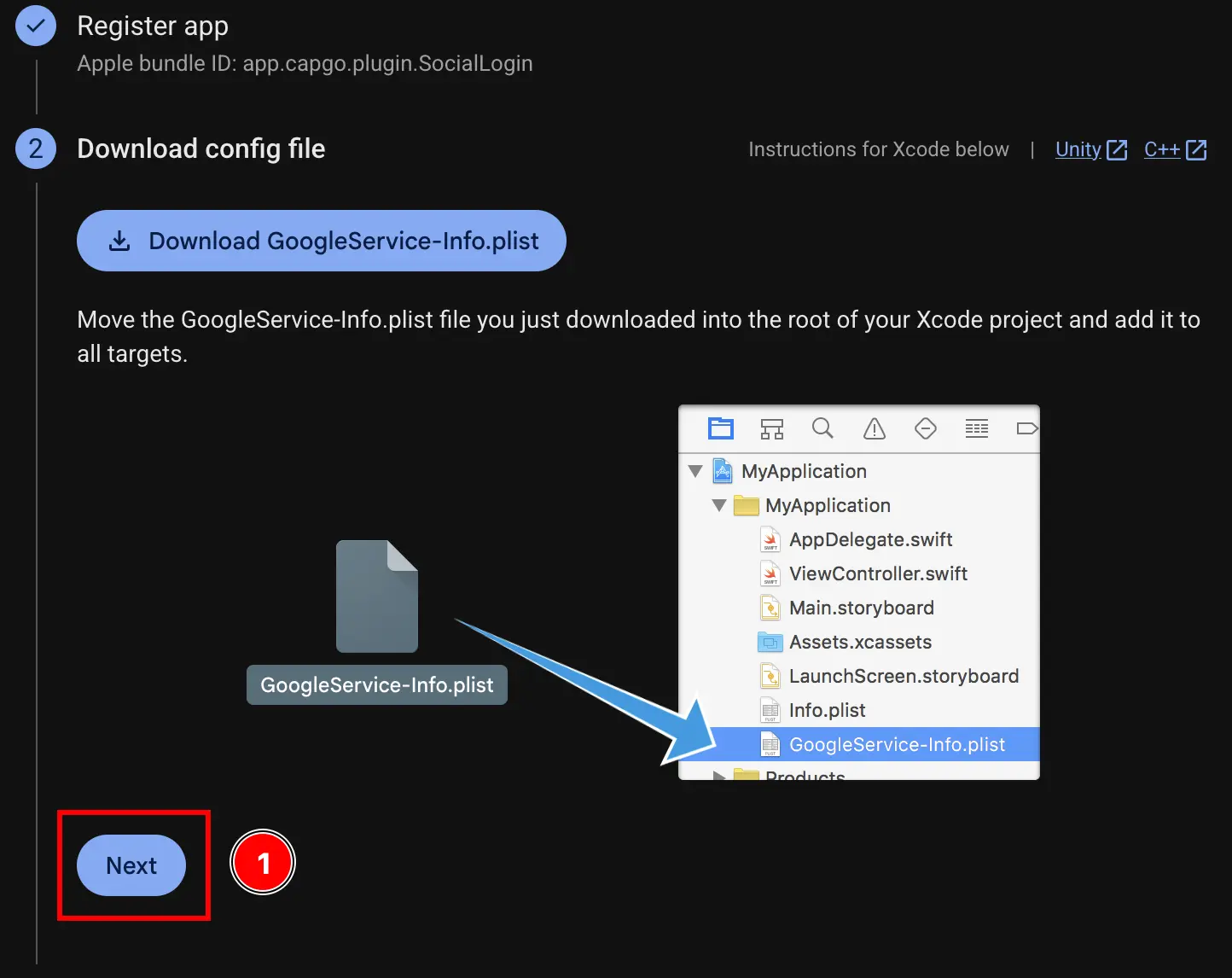
-
Add firebase SDK단계를 건너뜁니다.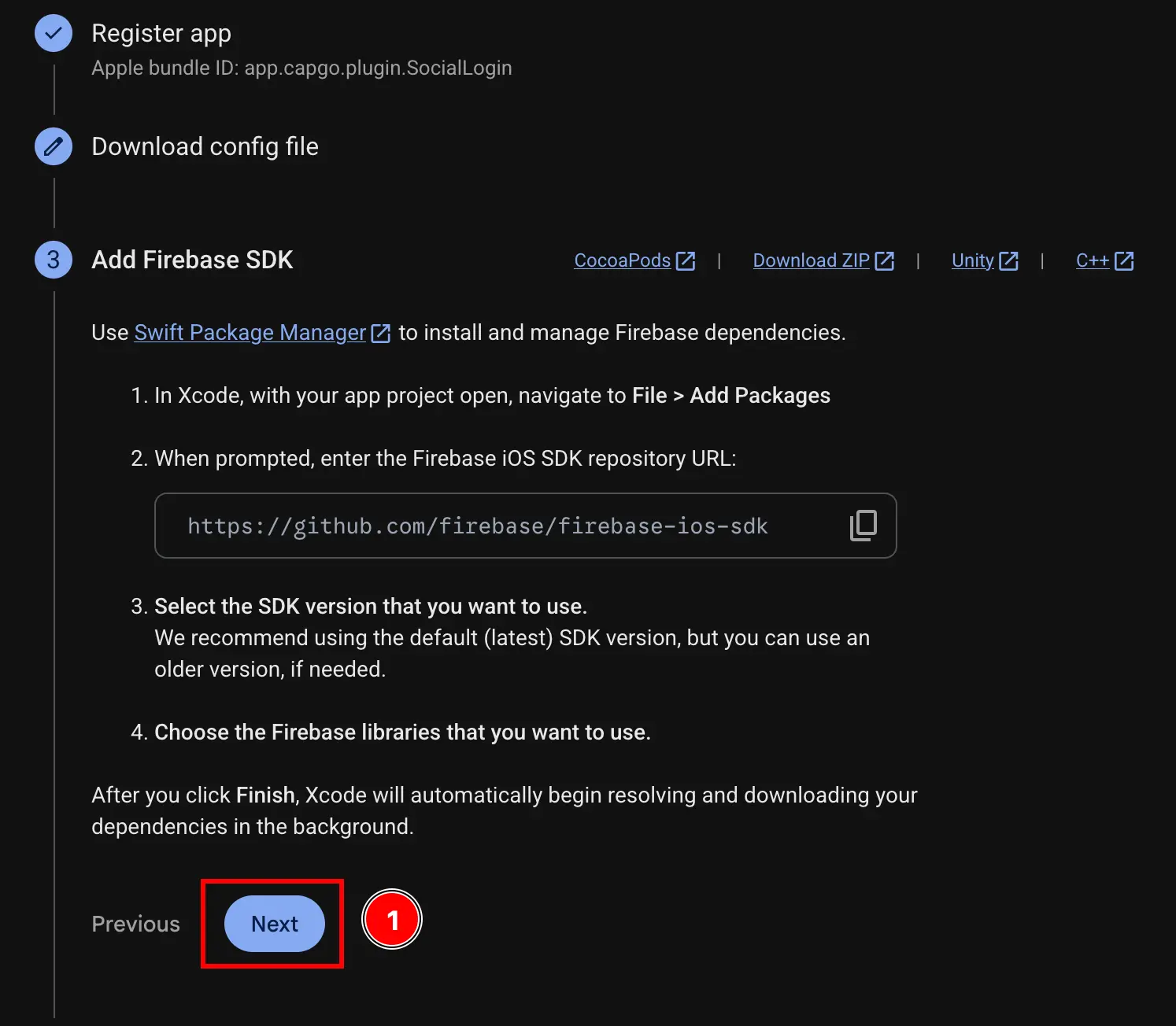
-
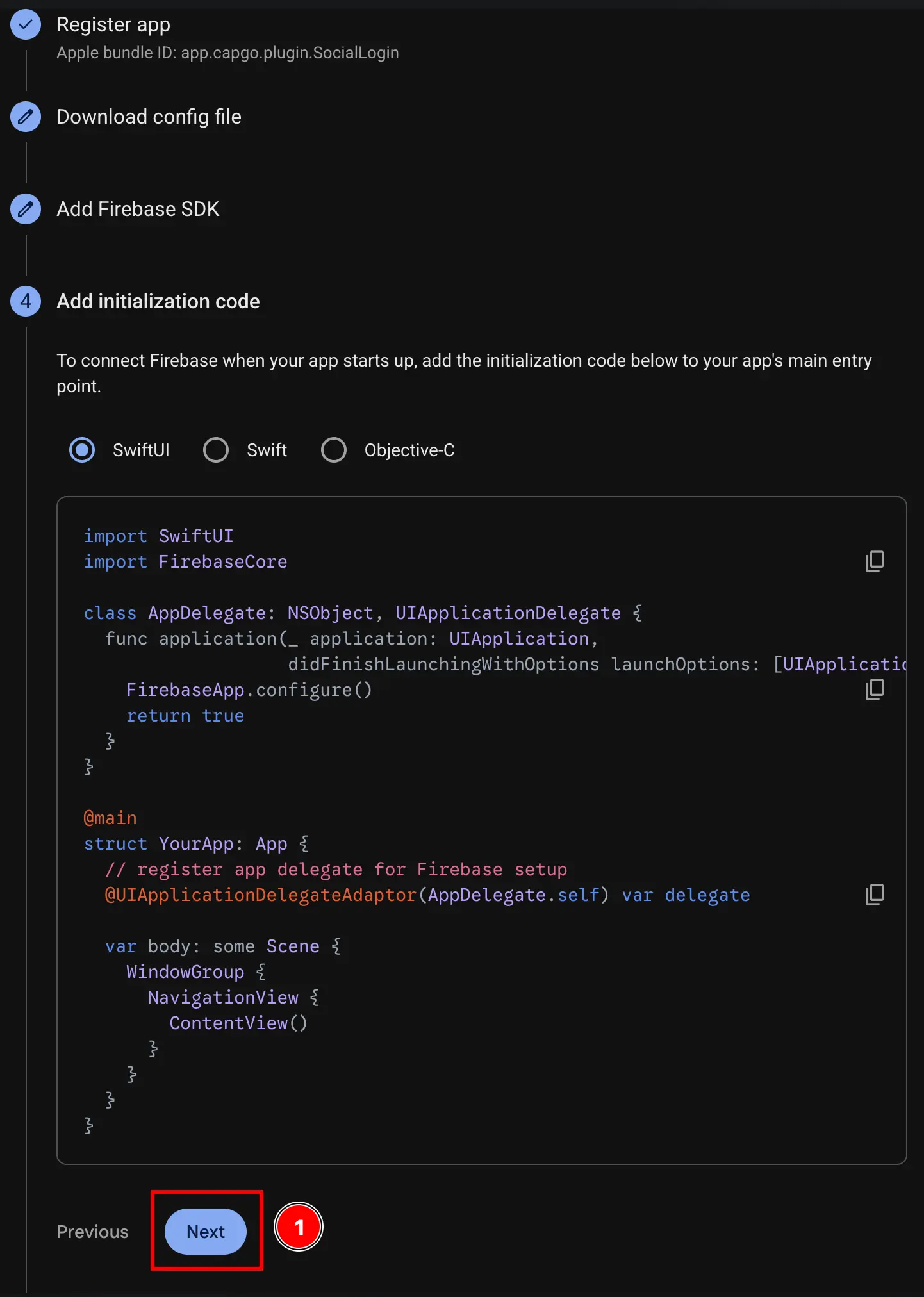
‘초기화 코드 추가’ 단계를 건너뜁니다.
-
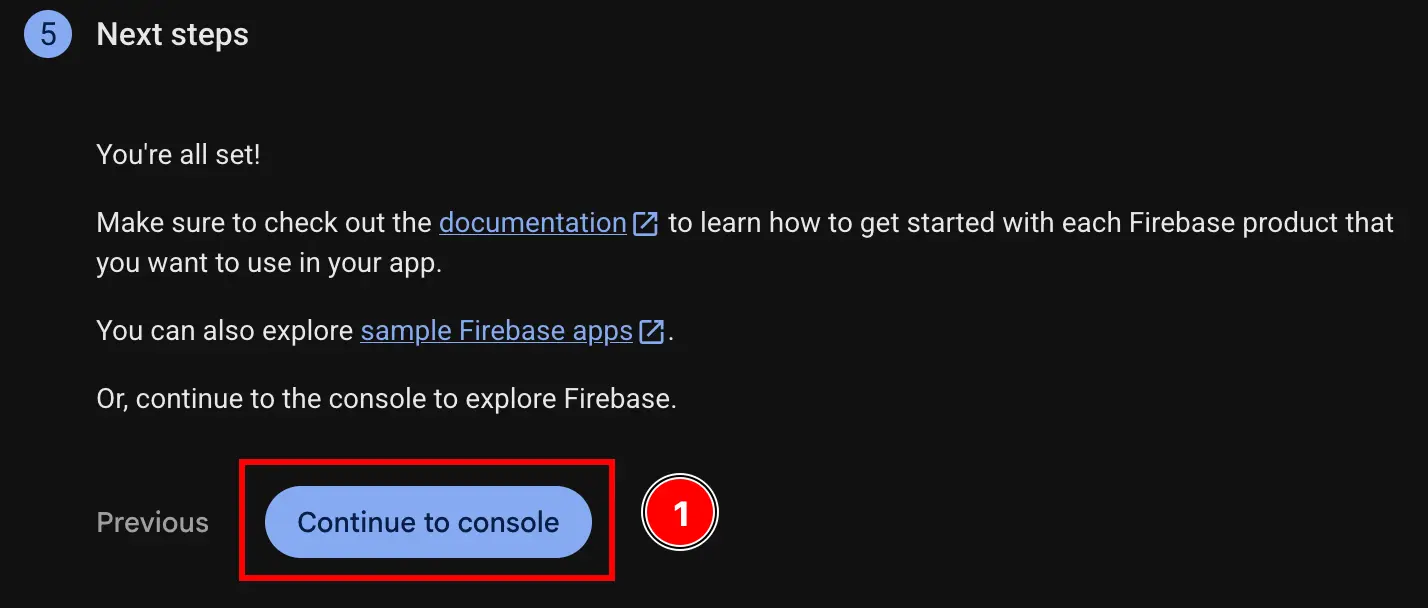
‘콘솔로 계속’ 버튼을 클릭하세요.
-
iOS 클라이언트 ID와
YOUR_DOT_REVERSED_IOS_CLIENT_ID를 받으세요.-
console.cloud.google.com에서 Google Cloud Console로 이동합니다.
-
프로젝트 찾기
- 프로젝트 선택기를 클릭하세요
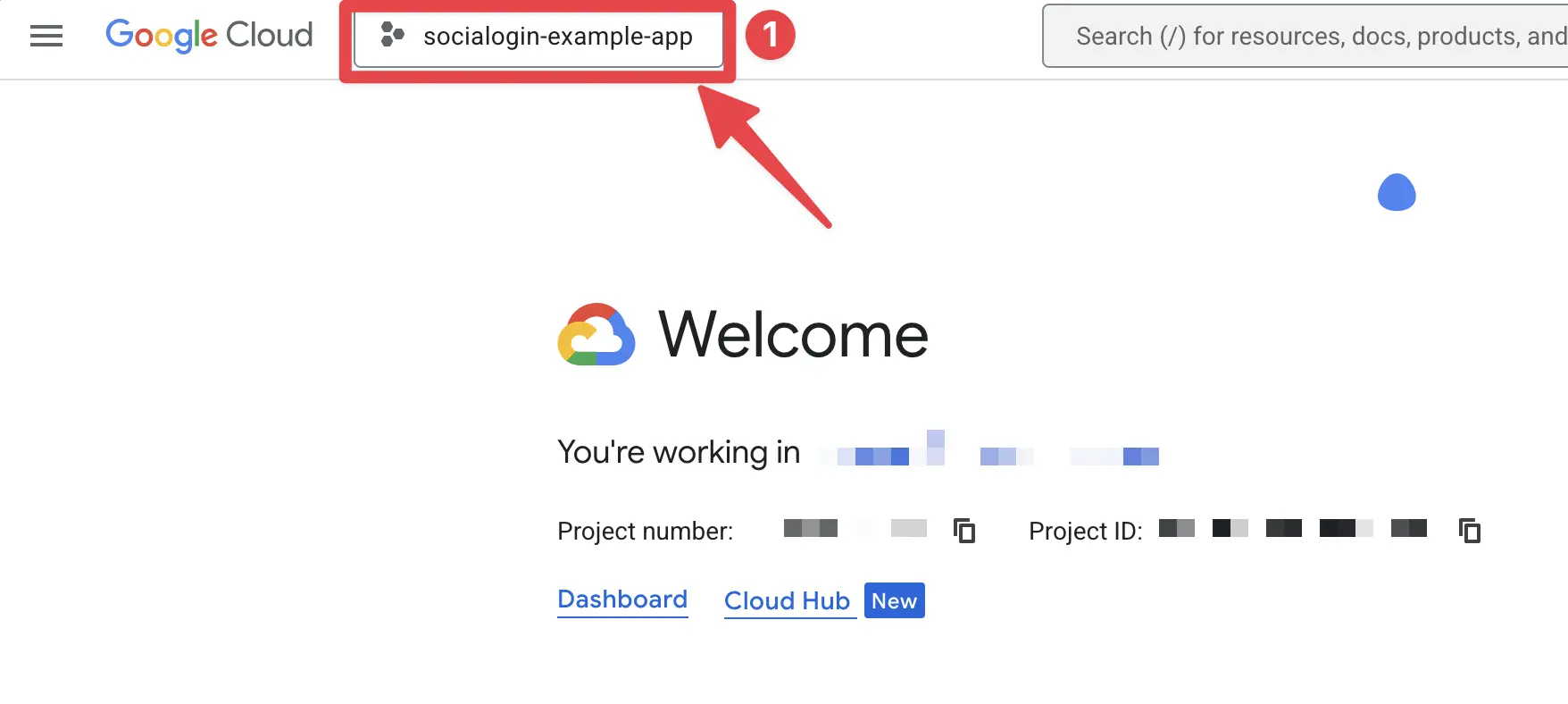
- Firebase 프로젝트의 정확한 이름으로 프로젝트를 검색하고 클릭하세요. 제 경우에는
sociallogin-tutorial-app입니다.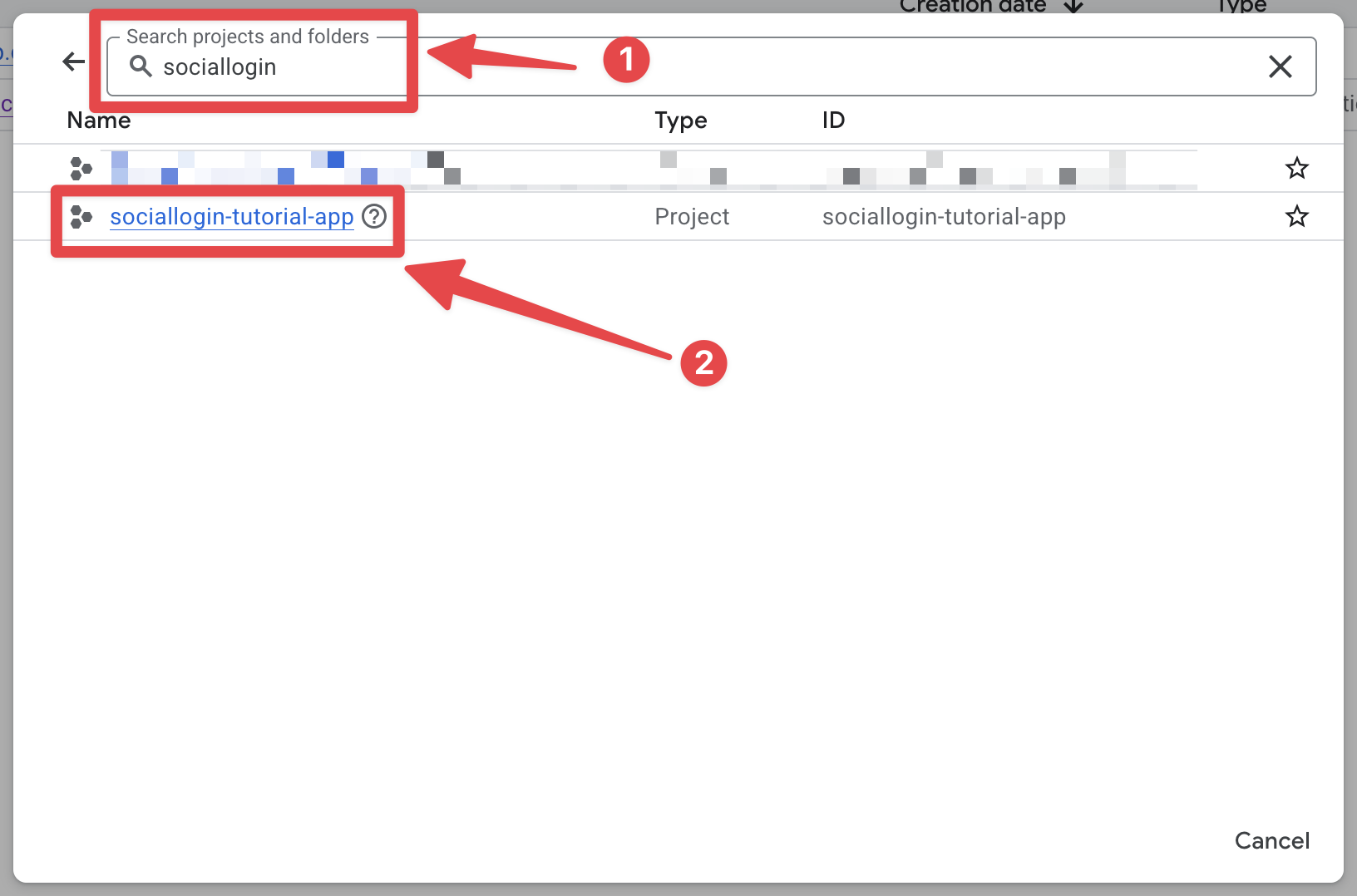
- 프로젝트 선택기를 클릭하세요
-
검색창을 열고
credentials을 엽니다.- 검색창을 엽니다
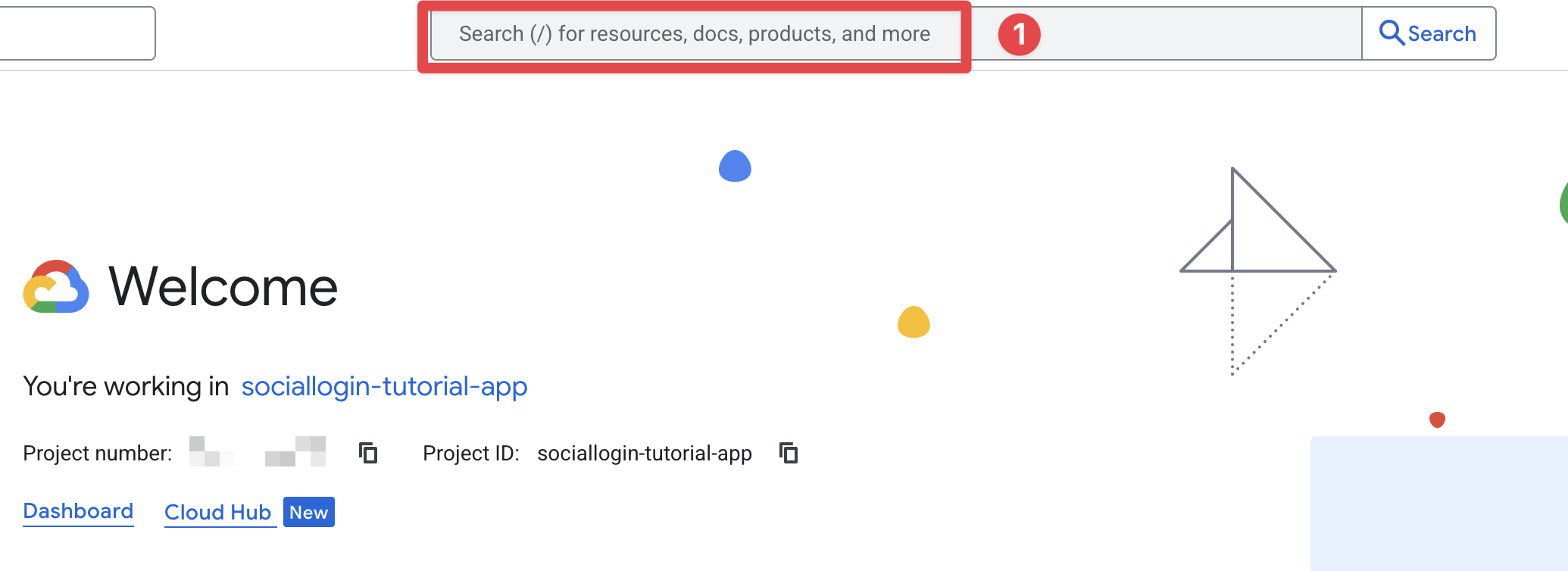
credentials을 검색하고 ‘API 및 서비스’ 항목(스크린샷의 2번)을 클릭합니다.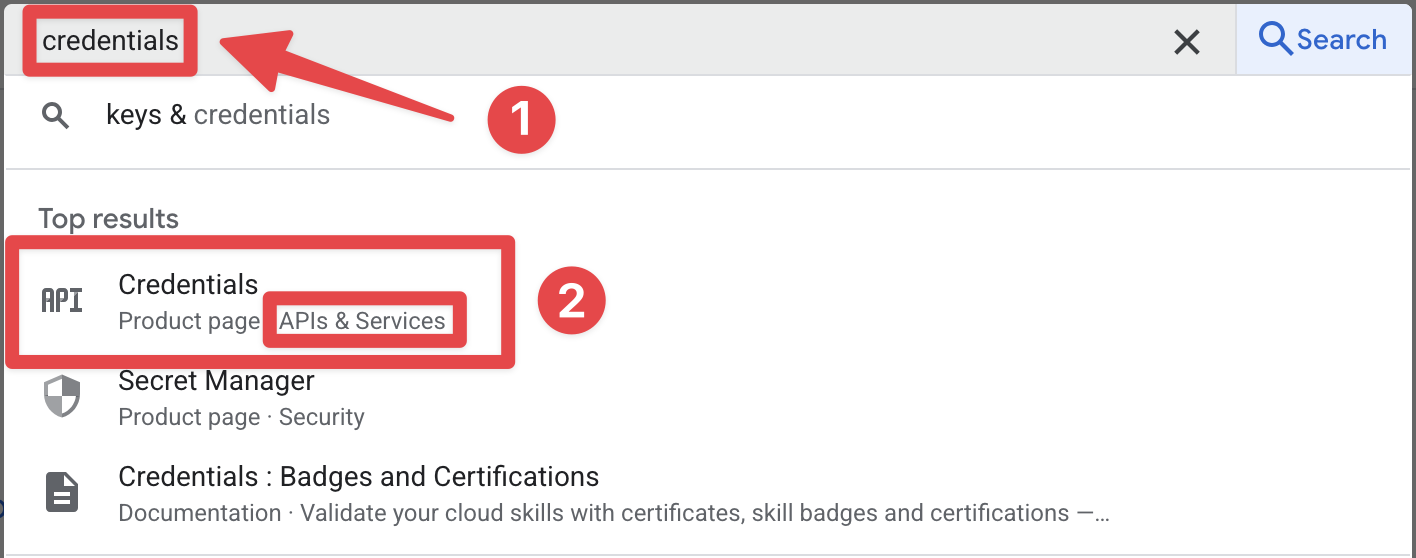
- 검색창을 엽니다
-
iOS client for [YOUR_APP_ID] (auto created by Google Service)을 클릭하세요. 제 경우에는sociallogin-tutorial-app입니다.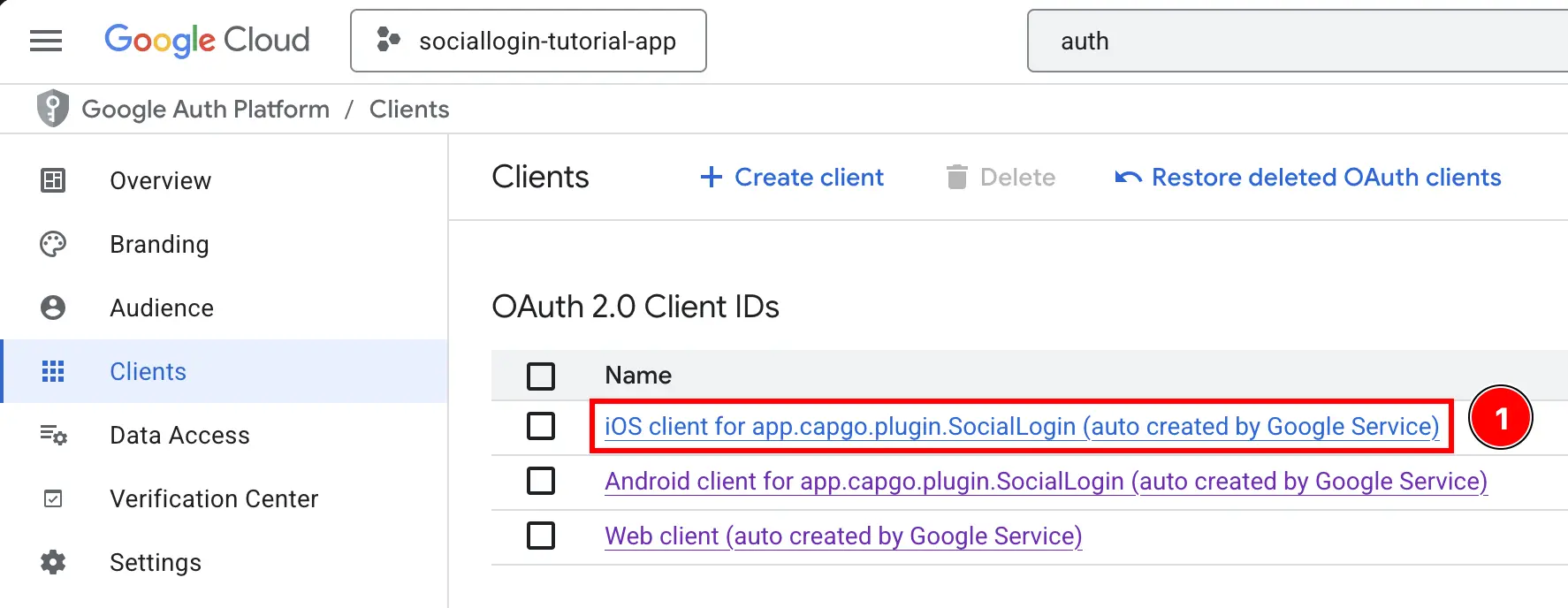
-
클라이언트 ID와iOS URL scheme을 복사합니다. 이는 각각iOSClientId및YOUR_DOT_REVERSED_IOS_CLIENT_ID이 됩니다.:::참고 이 가이드의 다음 부분에 설명된 대로 플러그인의
initialize메서드에서iOSClientId을 전달하고, 앱의Info.plist파일에서YOUR_DOT_REVERSED_IOS_CLIENT_ID을 사용합니다. :::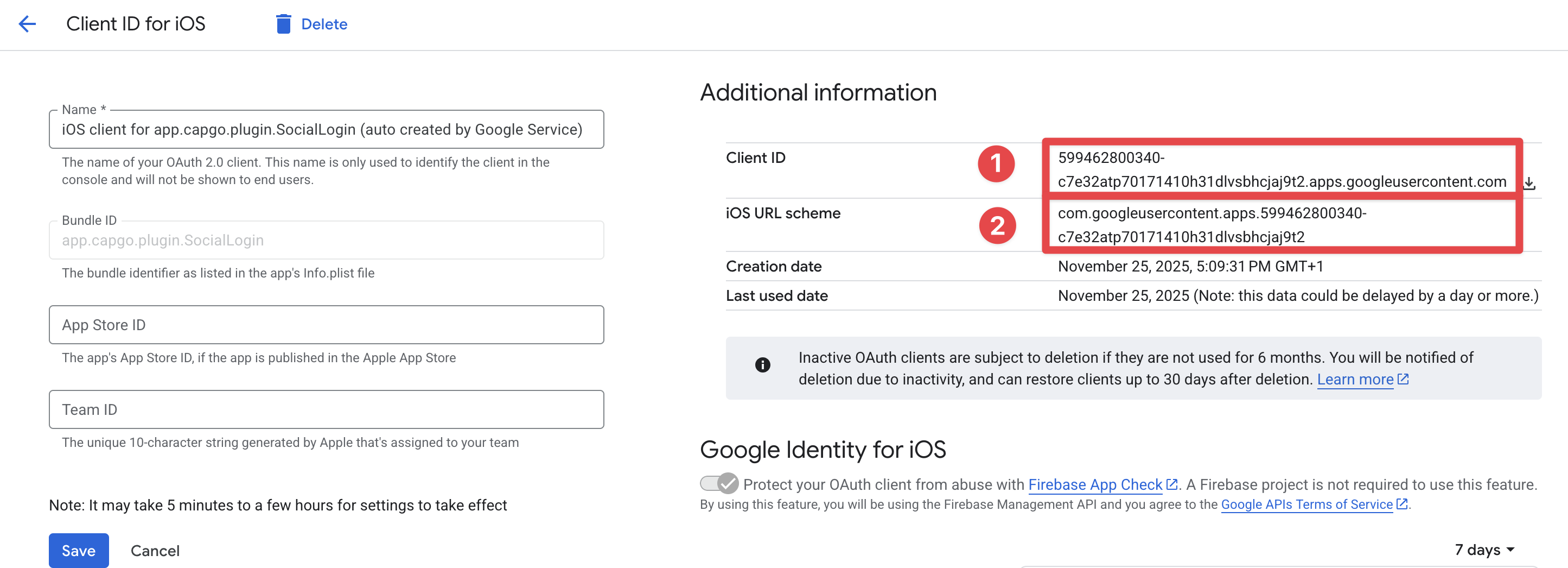
-
-
웹 클라이언트 ID 받기
- Firebase 콘솔로 돌아가서
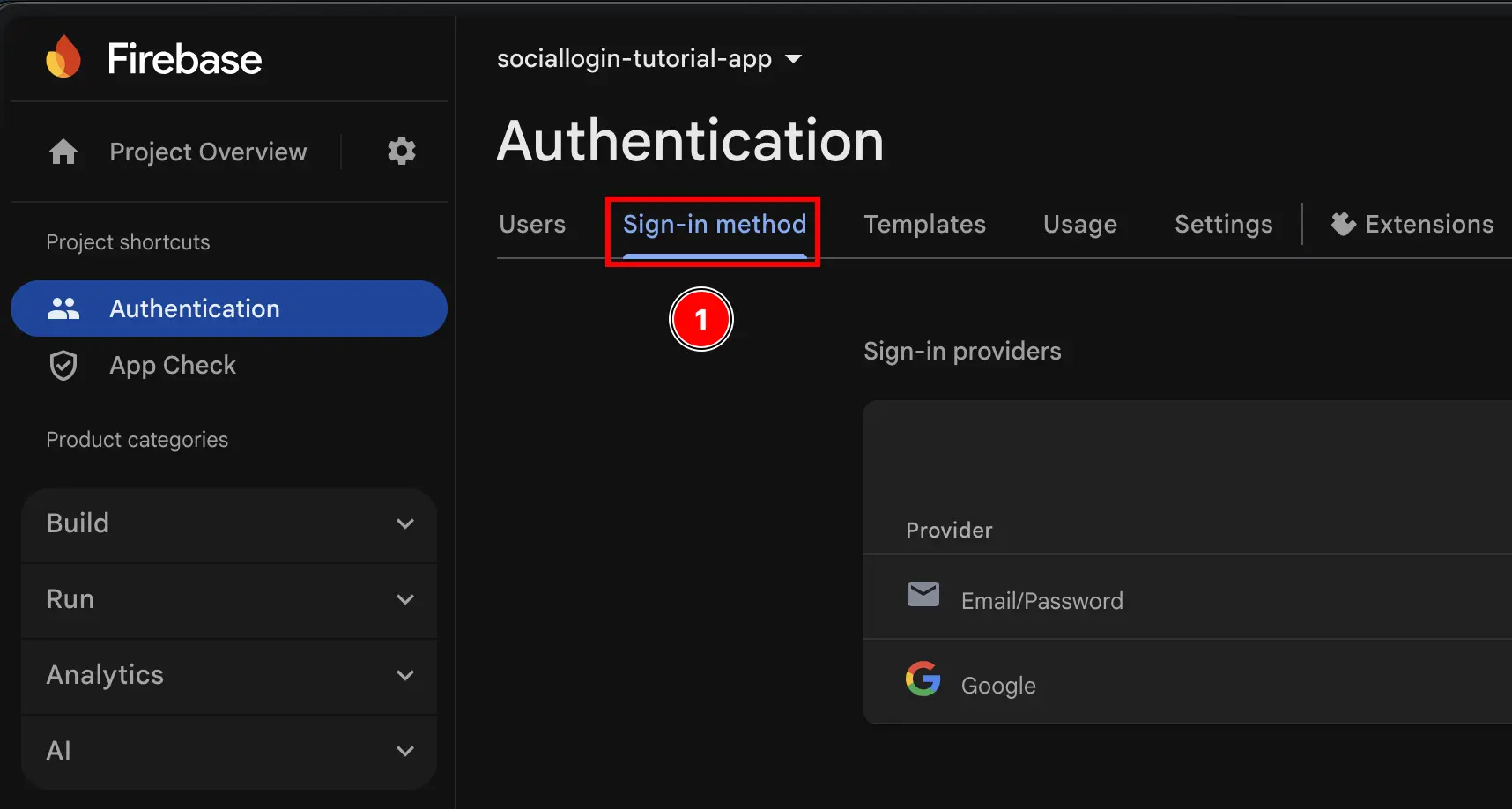
Build->Authentication로 이동합니다.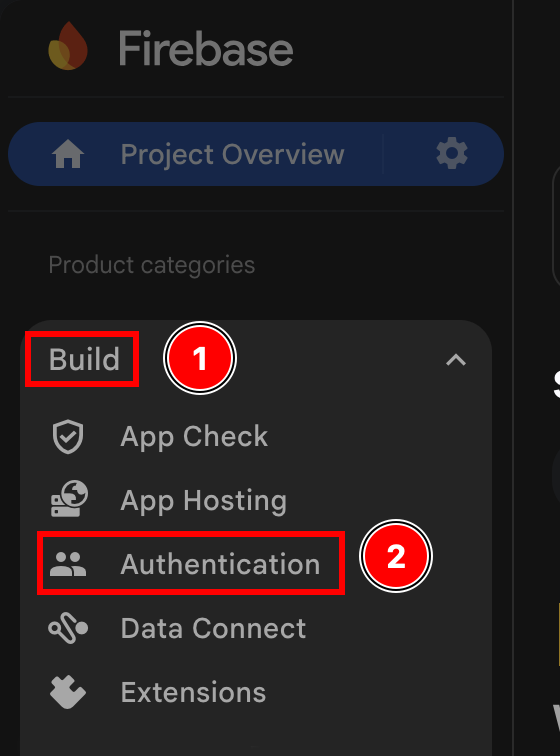
- ‘로그인 방법’ 버튼을 클릭하세요.
Google공급자를 클릭하세요.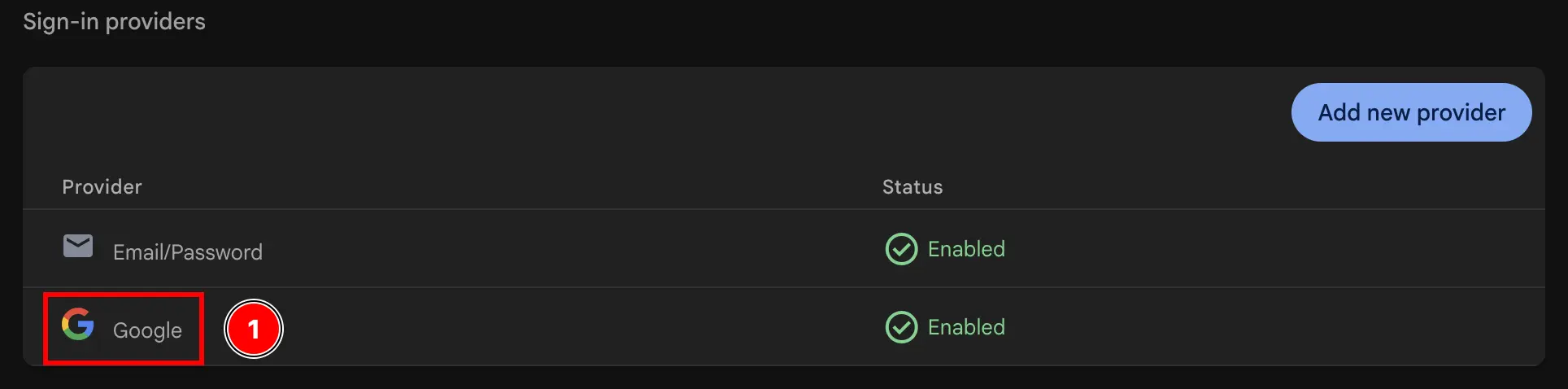
Web SDK configuration버튼을 클릭하세요.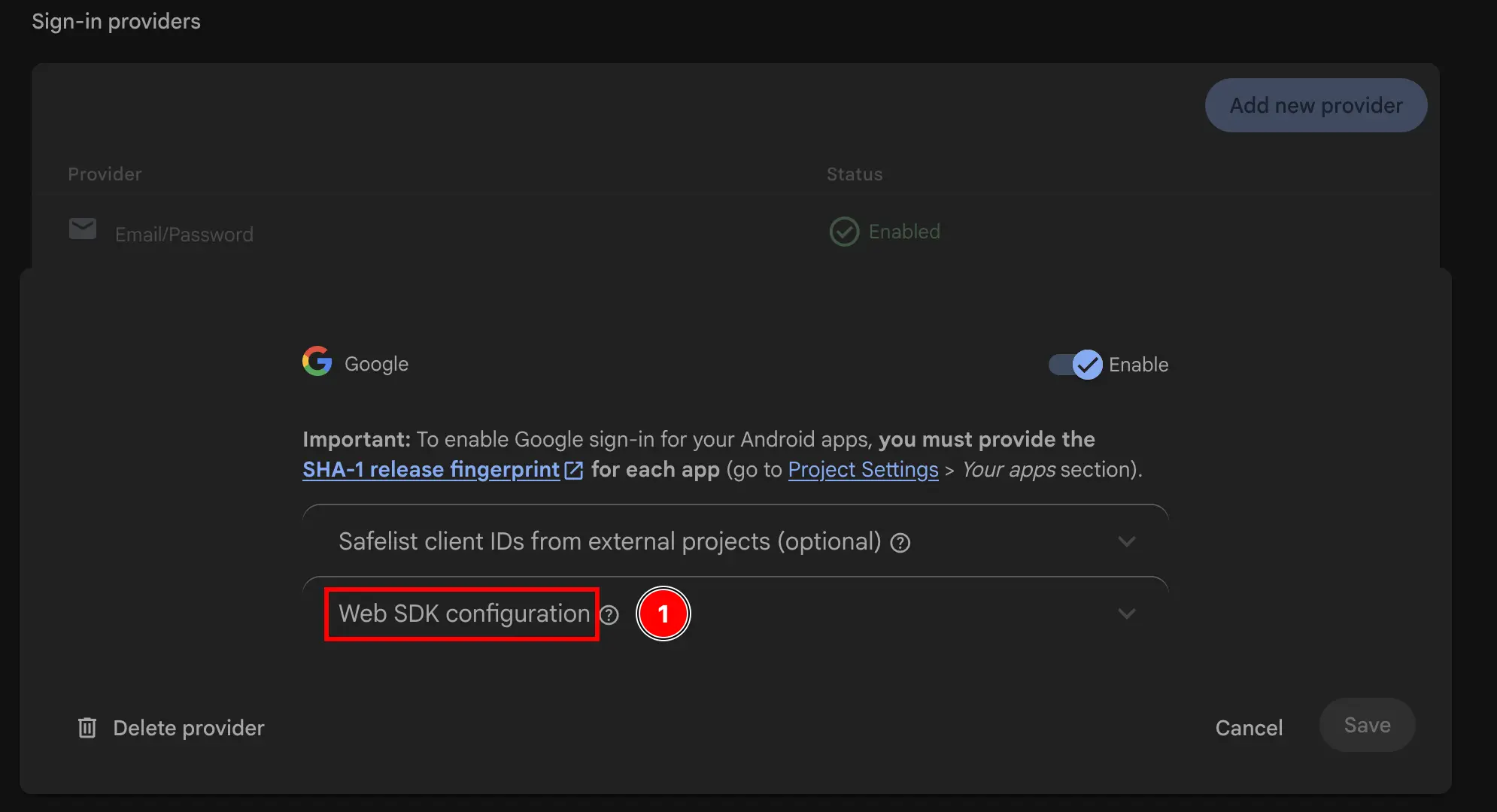
- ‘웹 클라이언트 ID’를 복사하세요. 이는 플러그인의
initialize메서드에서webClientId이 됩니다.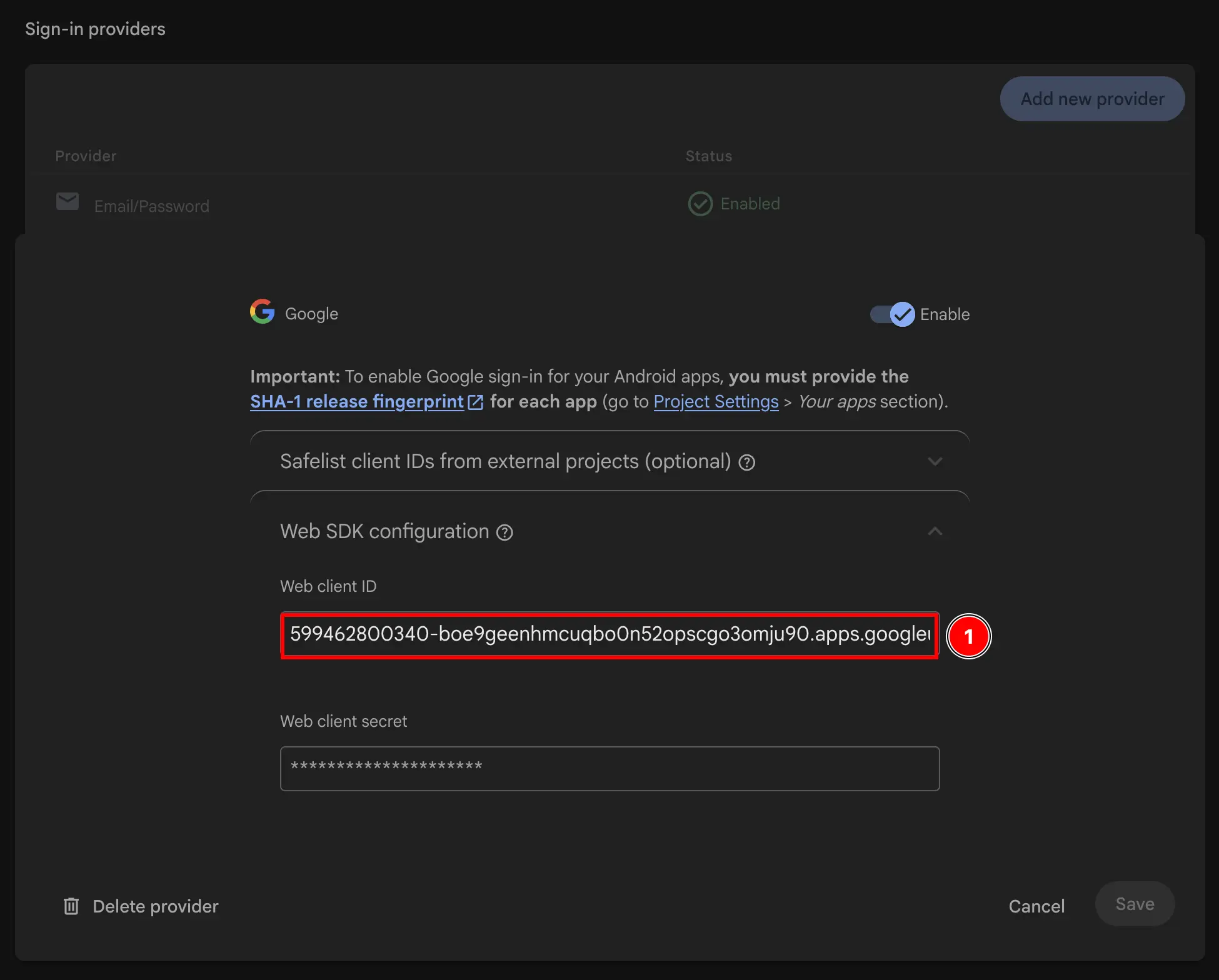
- Firebase 콘솔로 돌아가서
-
앱의 Info.plist 수정
-
Xcode을 열고
Info.plist파일을 찾습니다.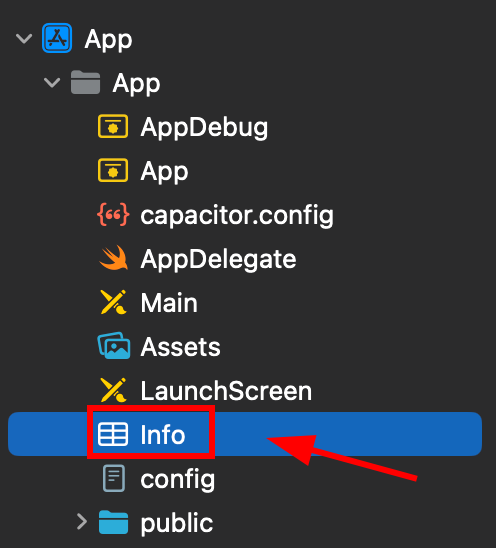
-
이 파일을 마우스 오른쪽 버튼으로 클릭하고 소스 코드로 엽니다.
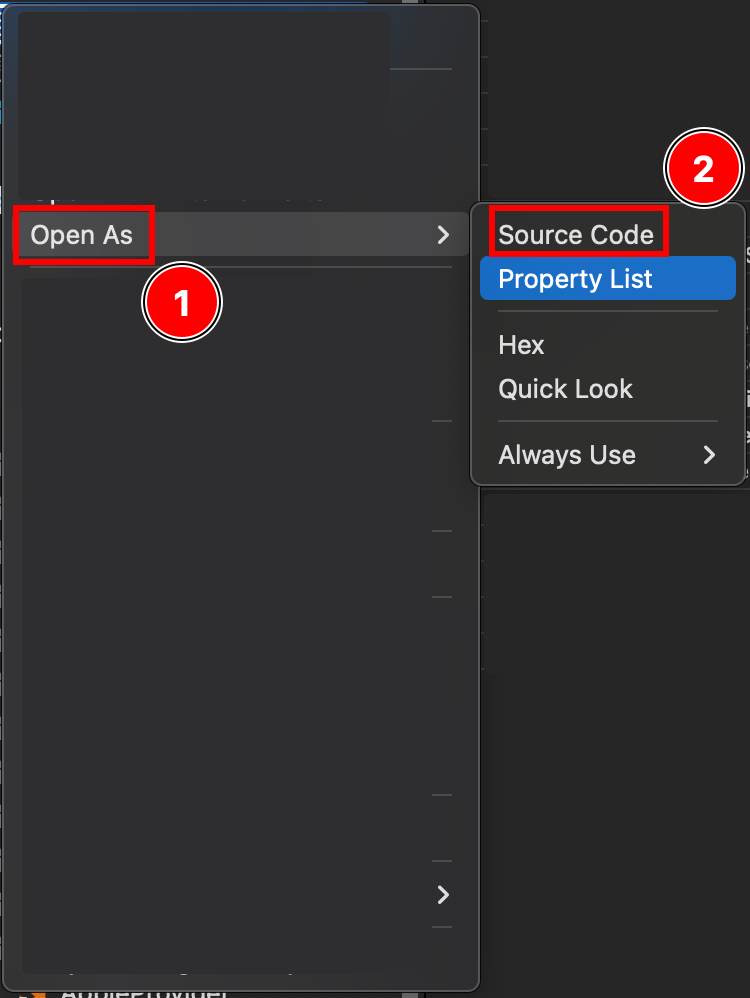
-
Plist파일 하단에</dict>태그가 표시됩니다.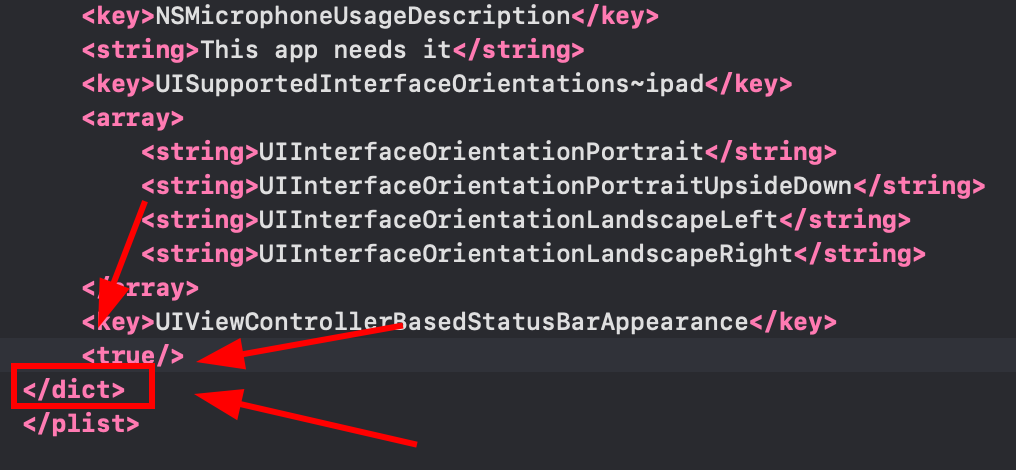
-
닫는
</dict>태그 바로 앞에 다음 조각을 삽입합니다.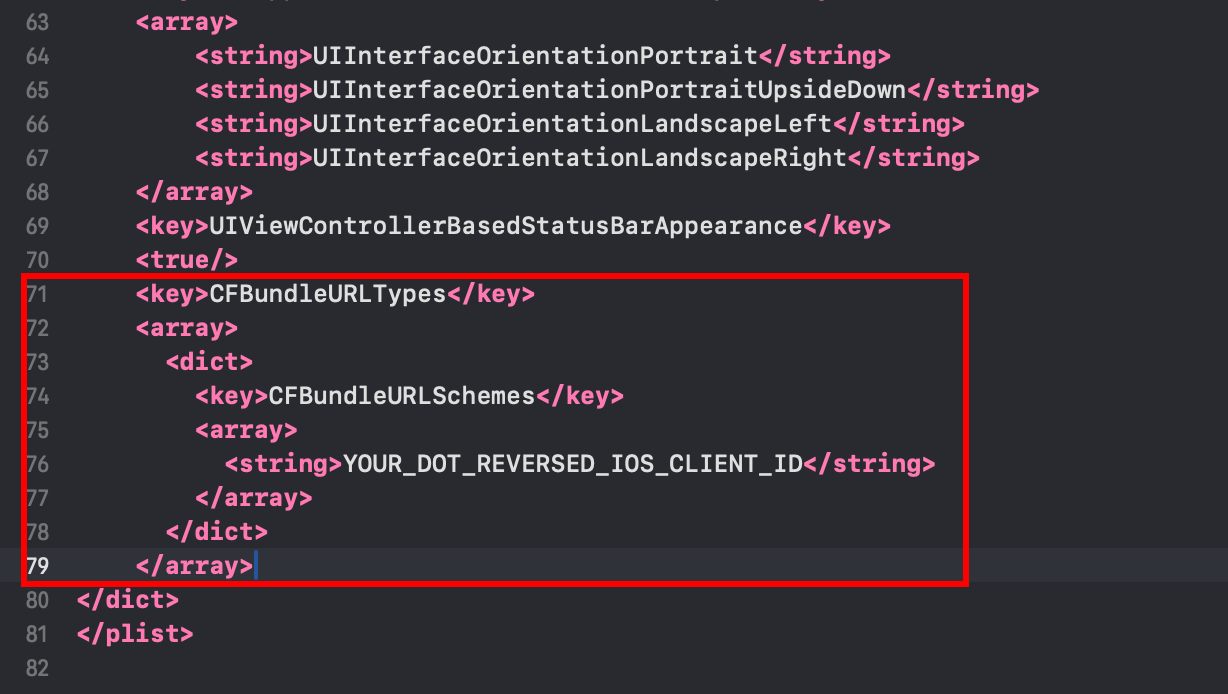 <key>CFBundleURLTypes</key><array><dict><key>CFBundleURLSchemes</key><array><string>YOUR_DOT_REVERSED_IOS_CLIENT_ID</string></array></dict></array><key>GIDClientID</key><string>YOUR_IOS_CLIENT_ID.apps.googleusercontent.com</string>
 -
YOUR_DOT_REVERSED_IOS_CLIENT_ID를 9단계에서 복사한 값(iOS URL 구성표)으로 변경합니다.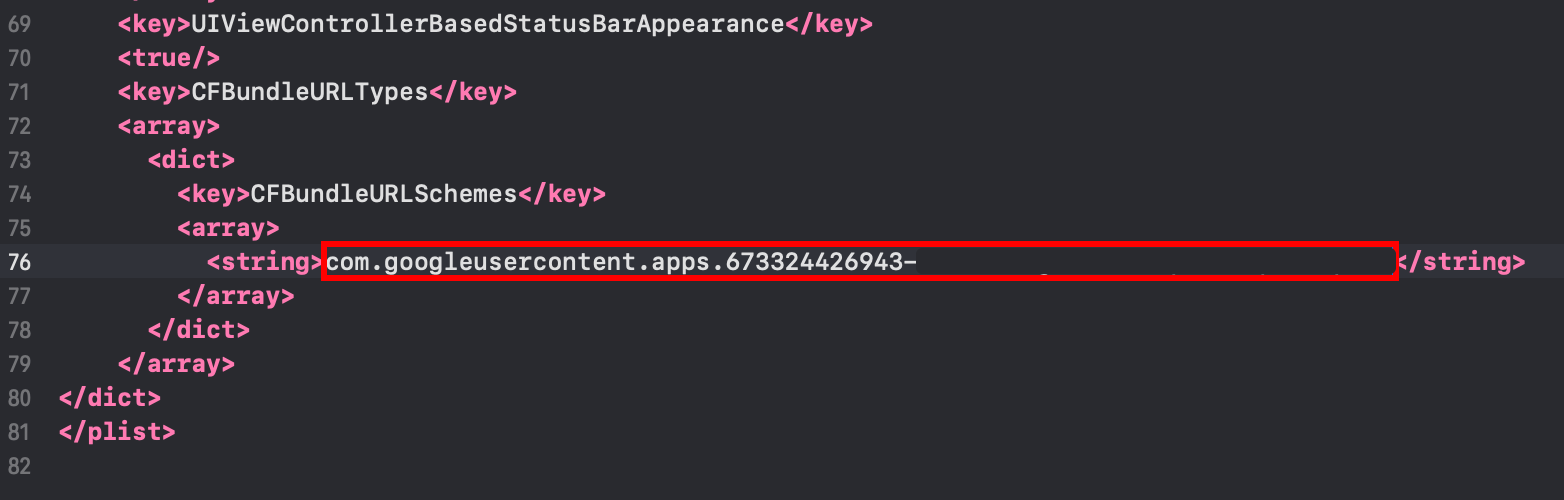
:::주의 이 값이
com.googleusercontent.apps으로 STARTS되는지 확인하세요. :::
-
-
YOUR_IOS_CLIENT_ID을 9단계에서 복사한 iOS 클라이언트 ID로 변경합니다. -
Command + S로 파일을 저장하세요. -
AppDelegate.swift수정-
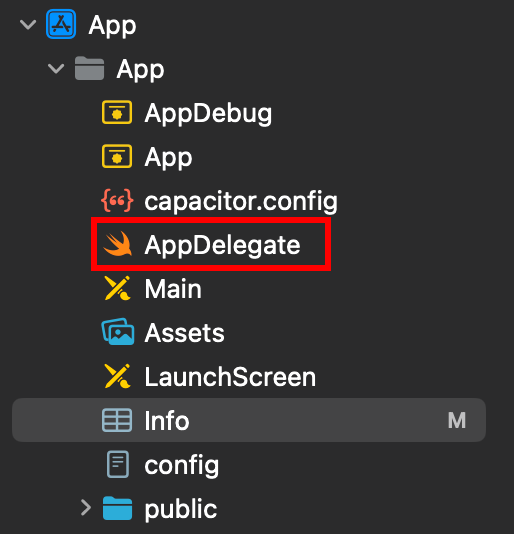
AppDelegate를 엽니다.
-
파일 상단에
import GoogleSignIn을 삽입하세요.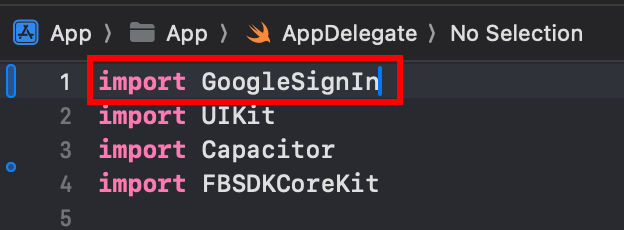
-
func application(_ app: UIApplication, open url: URL, options: [UIApplication.OpenURLOptionsKey: Any] = [:])함수 찾기
-
다음과 같이 함수를 수정합니다.
func application(_ app: UIApplication, open url: URL, options: [UIApplication.OpenURLOptionsKey: Any] = [:]) -> Bool {// Called when the app was launched with a url. Feel free to add additional processing here,// but if you want the App API to support tracking app url opens, make sure to keep this callvar handled: Boolhandled = GIDSignIn.sharedInstance.handle(url)if handled {return true}return ApplicationDelegateProxy.shared.application(app, open: url, options: options)}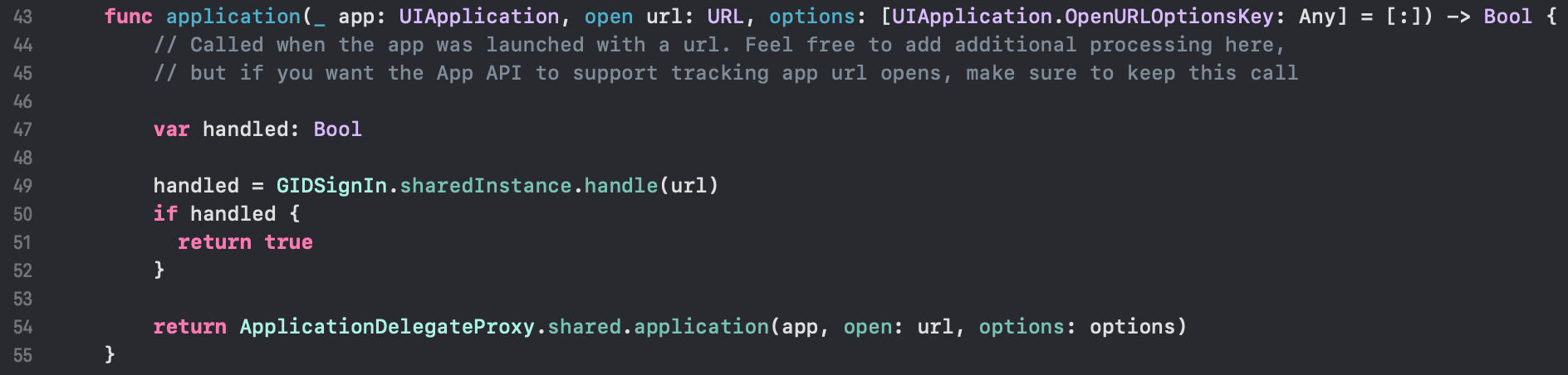
-
Command + S로 파일을 저장하세요.
-
-
앱에서 Google 로그인 사용
이 단계에서는 앱에서 Google 로그인을 사용할 준비가 되었습니다. Google으로 인증하려면 예시 앱의 authUtils.ts 파일을 사용하세요.
사용자는 처음 로그인할 때 Firebase 인증에서 자동으로 생성됩니다.
인증이 중단되거나 실패하는 경우:
idToken대상이 Firebase 웹 클라이언트 ID와 일치하는지 확인하세요.- Google 로그인이 Firebase 콘솔에서 활성화되어 있는지 확인하세요.
- Info.plist에 올바른 URL 구성표와 GIDClientID가 있는지 확인하세요.
iOSServerClientId이 웹 클라이언트 ID와 일치하는지 확인하세요.- 참고용으로 예제 앱 코드를 검토하세요.