
iOS에서 Google 로그인
설치 단계와 이 플러그인에 대한 전체 마크다운 가이드를 포함한 설정 명령어를 복사하세요
소개
소개이 가이드에서, Google 로그인과 Capgo Social Login을 iOS에서 설정하는 방법을 배울 것입니다. 이 가이드를 읽기 전에 이미 일반 설정 가이드를 읽었다고 가정합니다. 일반 설정 가이드.
iOS에서 Google 로그인을 사용하는 방법
iOS에서 Google 로그인을 사용하는 방법이 부분에서 iOS에서 Google 로그인을 설정하는 방법을 배울 것입니다.
-
Google 콘솔에서 iOS 클라이언트 ID를 생성하세요.
-
검색 바 클릭

-
검색
credentials클릭APIs and Services스크린샷의 2번에 해당하는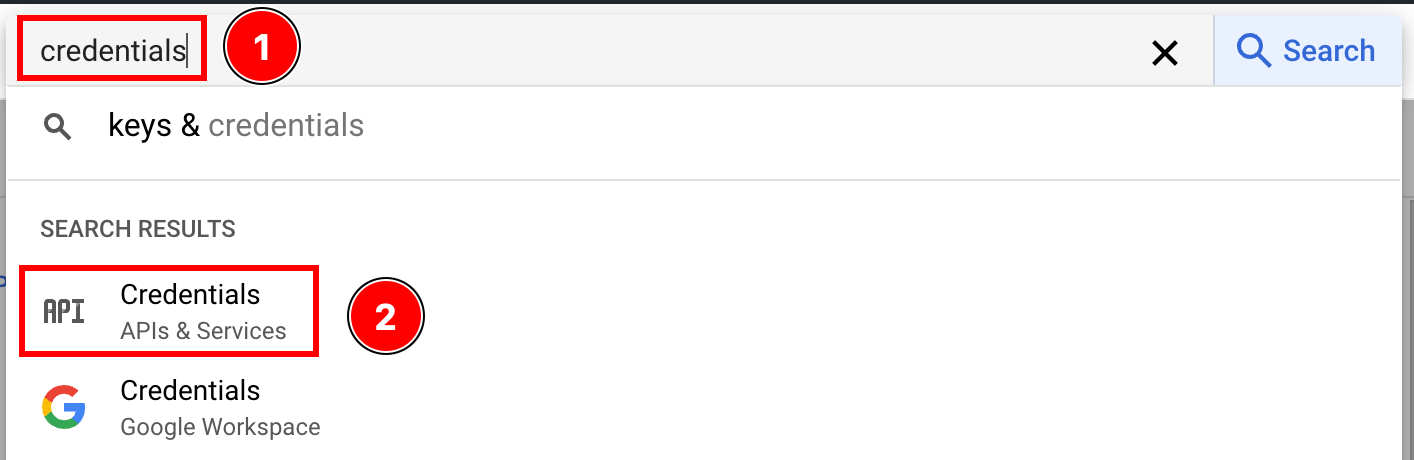
-
클릭
create credentials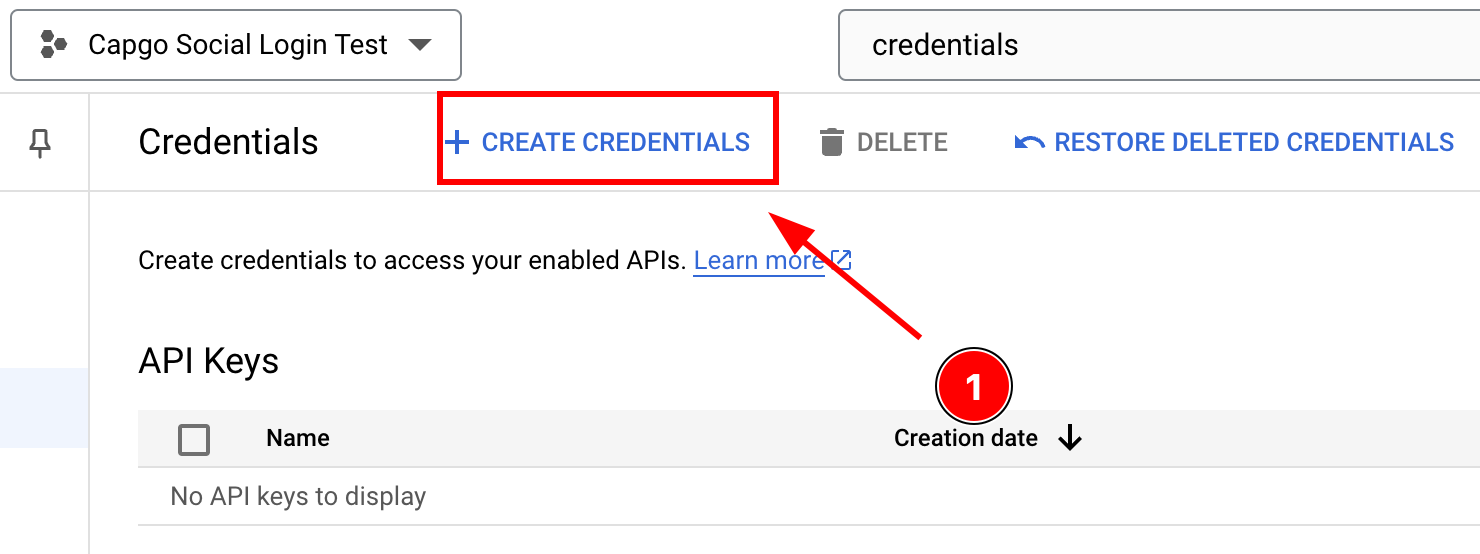
-
선택
OAuth client ID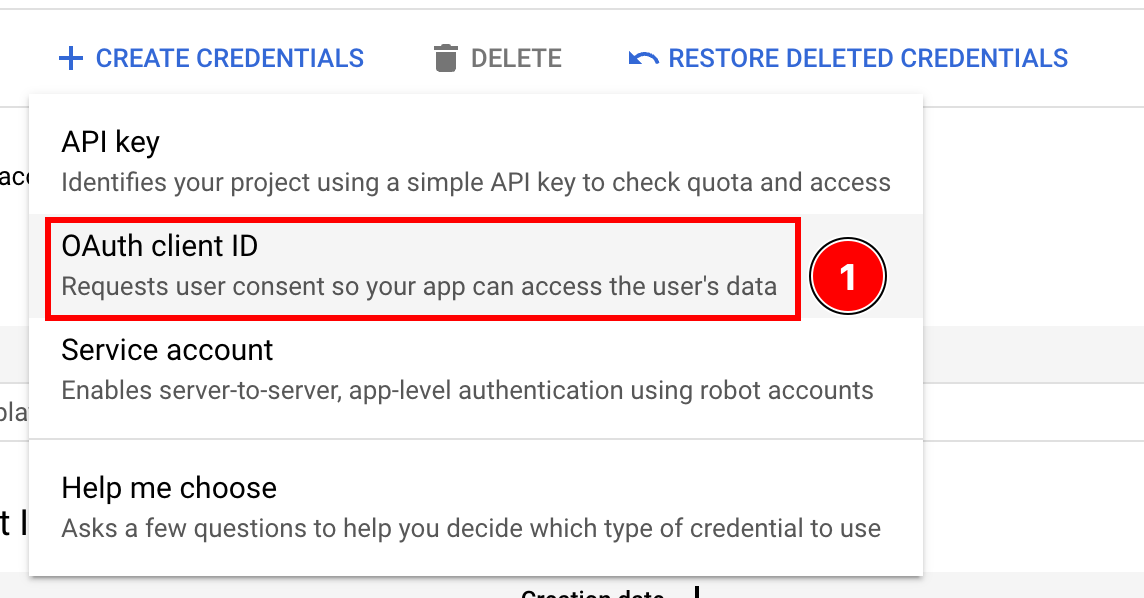
-
선택하세요
Application type으로iOS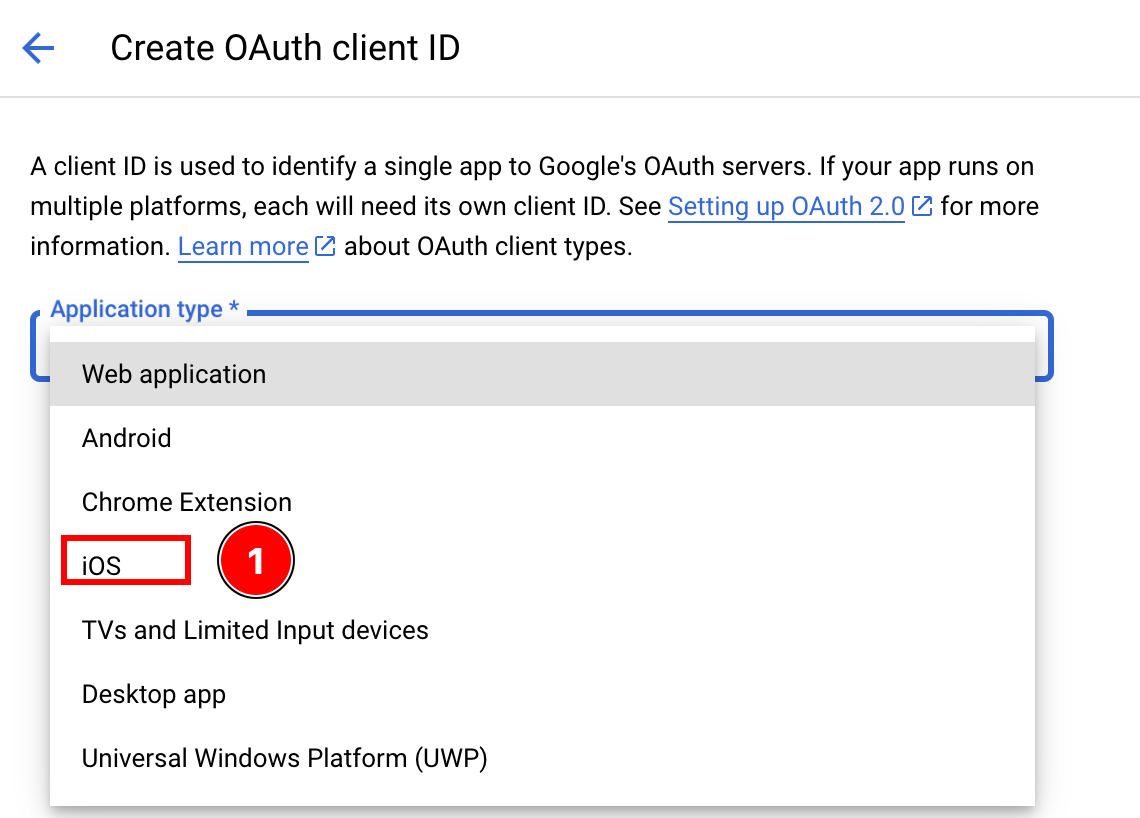
-
Xcode에서
-
Xcode에서
-
Xcode 프로젝트 탐색기에서
App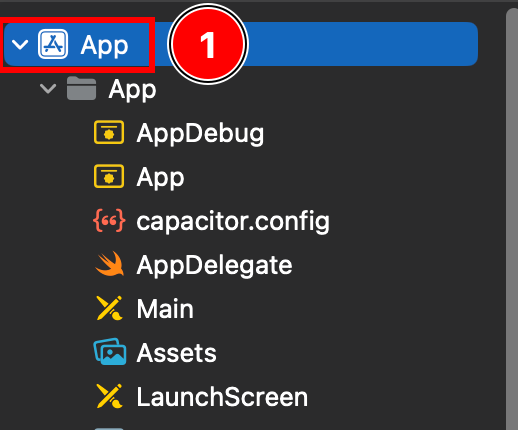
-
Xcode에서
Targets -> App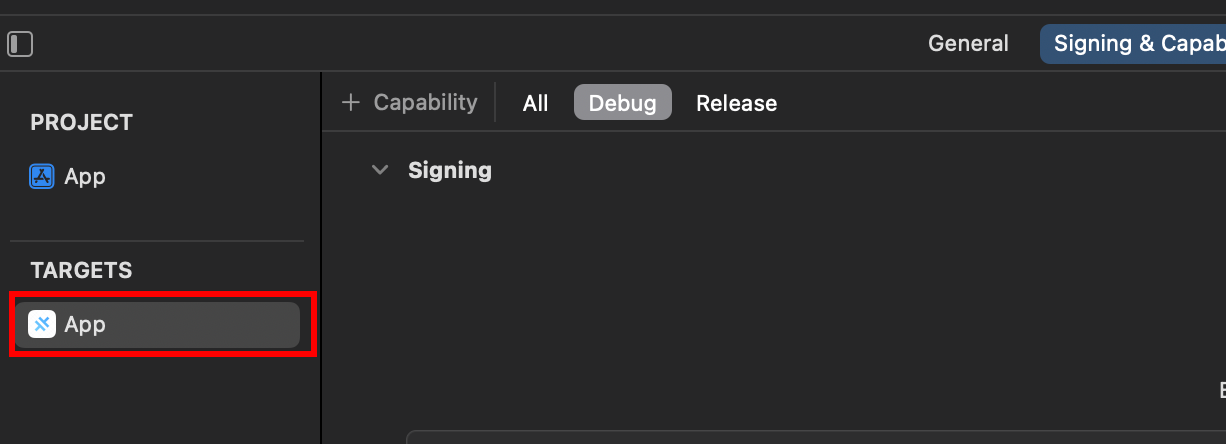
-
Find your account
Bundle Identifier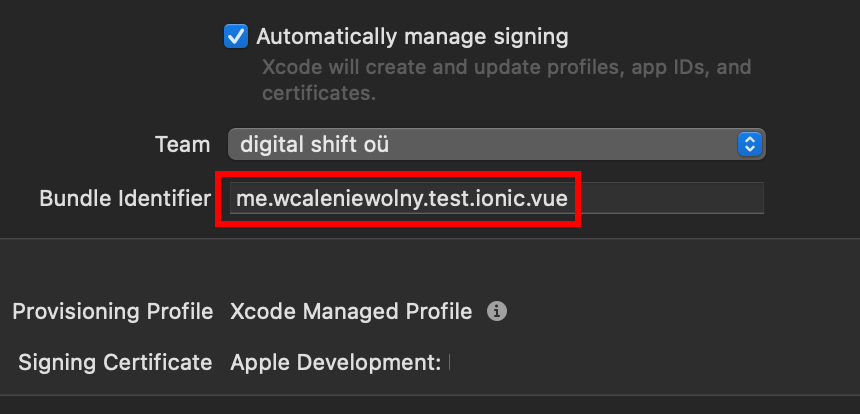
-
Bundle ID를 붙여넣으세요
Bundle IdentifierintoBundle ID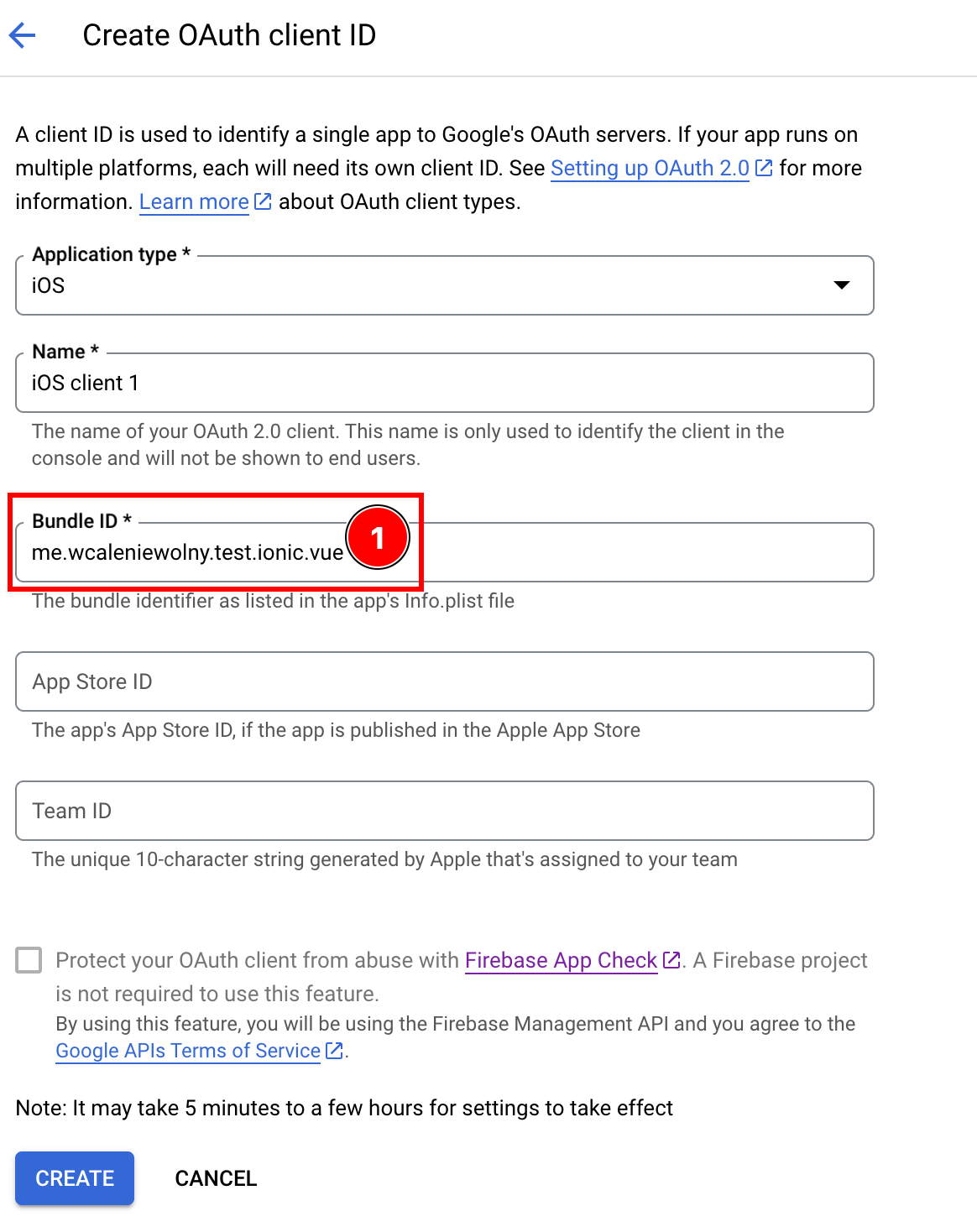
-
-
선택적으로, 앱의
App Store ID또는Team IDLive Update 대안으로 -
App Store에 앱을 배포한 경우
create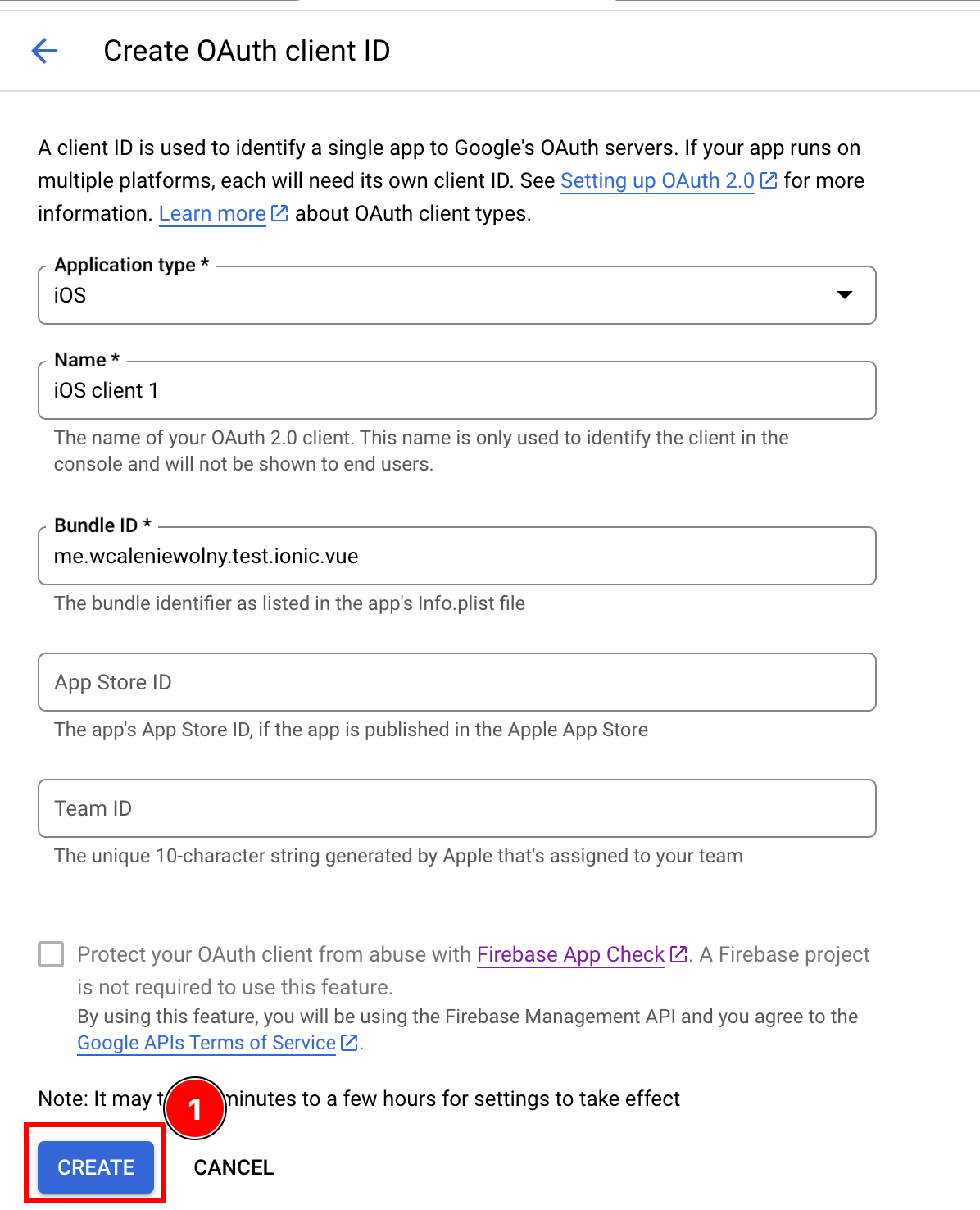
-
Click
OK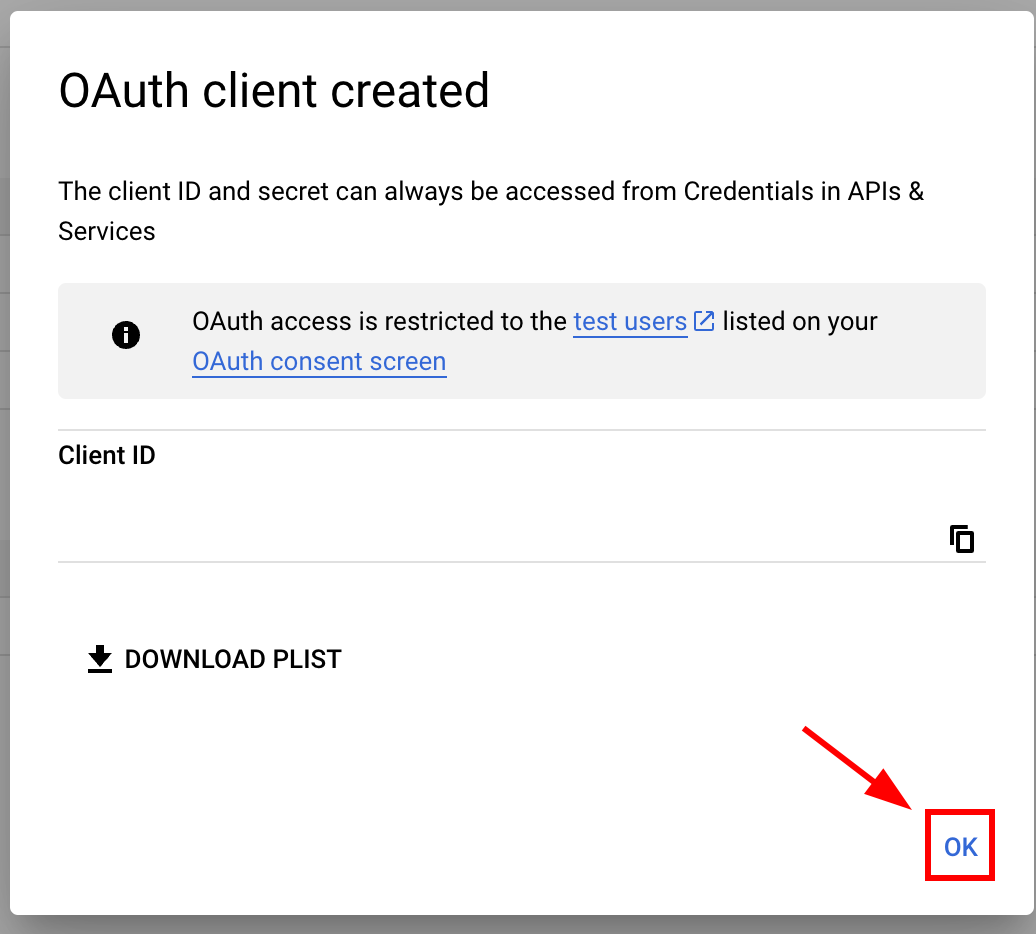
-
클라이언트 ID 생성 확인 대화 상자에
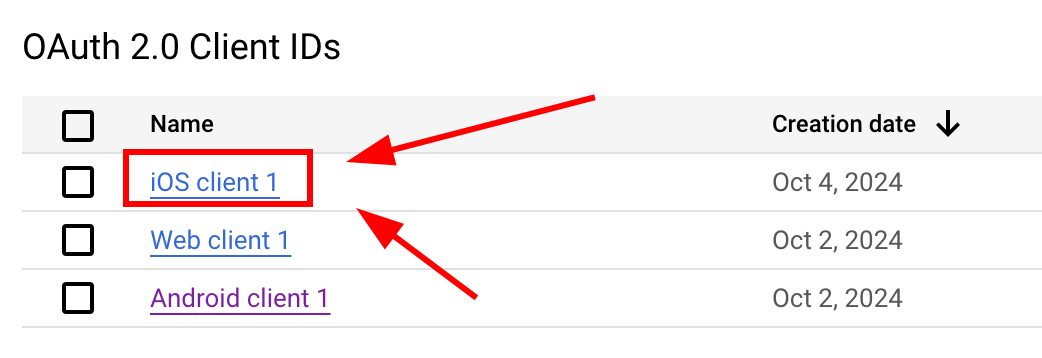
-
새로 생성된 iOS 클라이언트

-
-
이미지에서 나중에
-
앱의 Info.plist를 수정하세요
Info.plistfile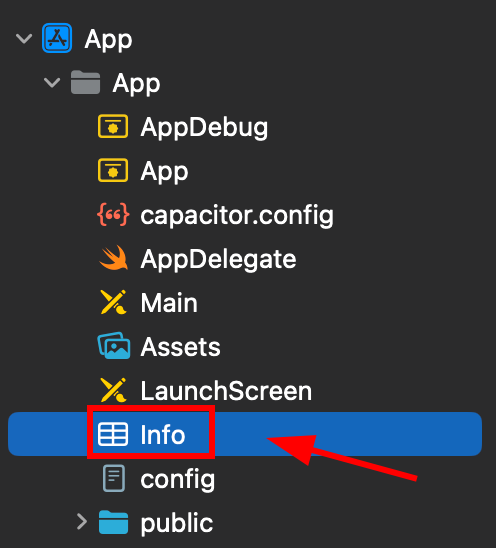
-
이 파일을 오른쪽 클릭하고 code으로 열기
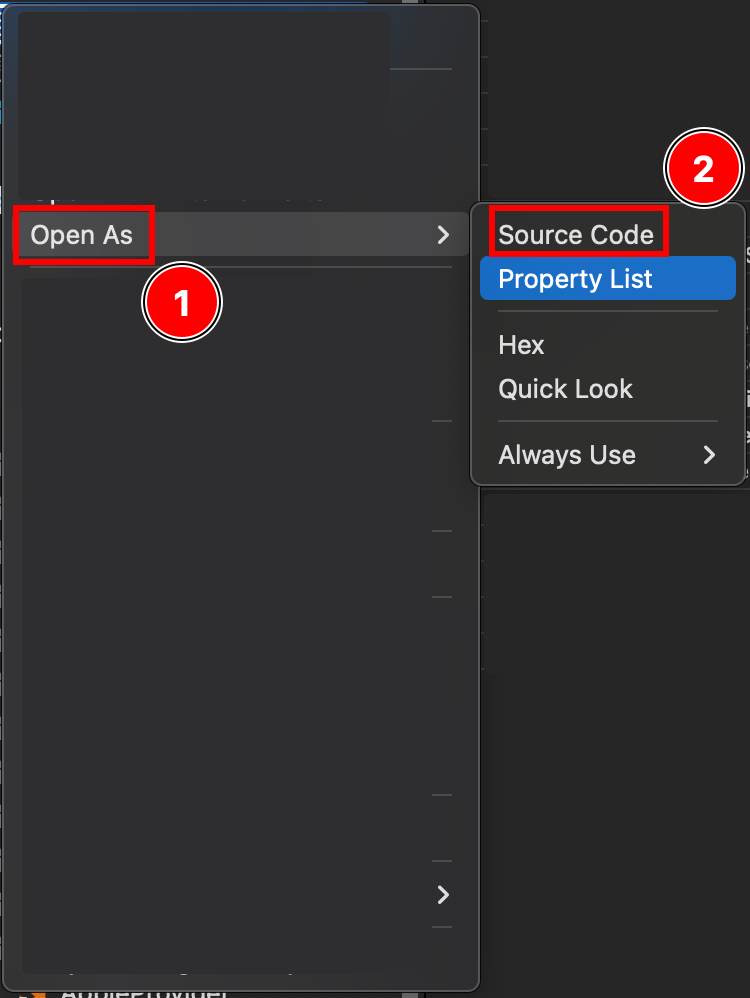
-
아래쪽에 있는
Plist파일에서</dict>태그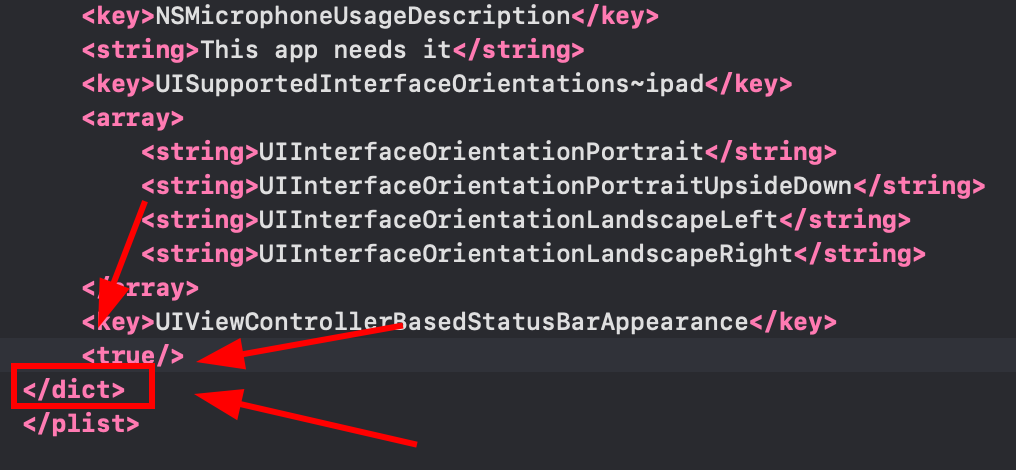
-
Info.plist 파일의 URL schemes __CAPGO_KEEP_0__을 닫는 dict 태그 앞에 삽입
</dict>태그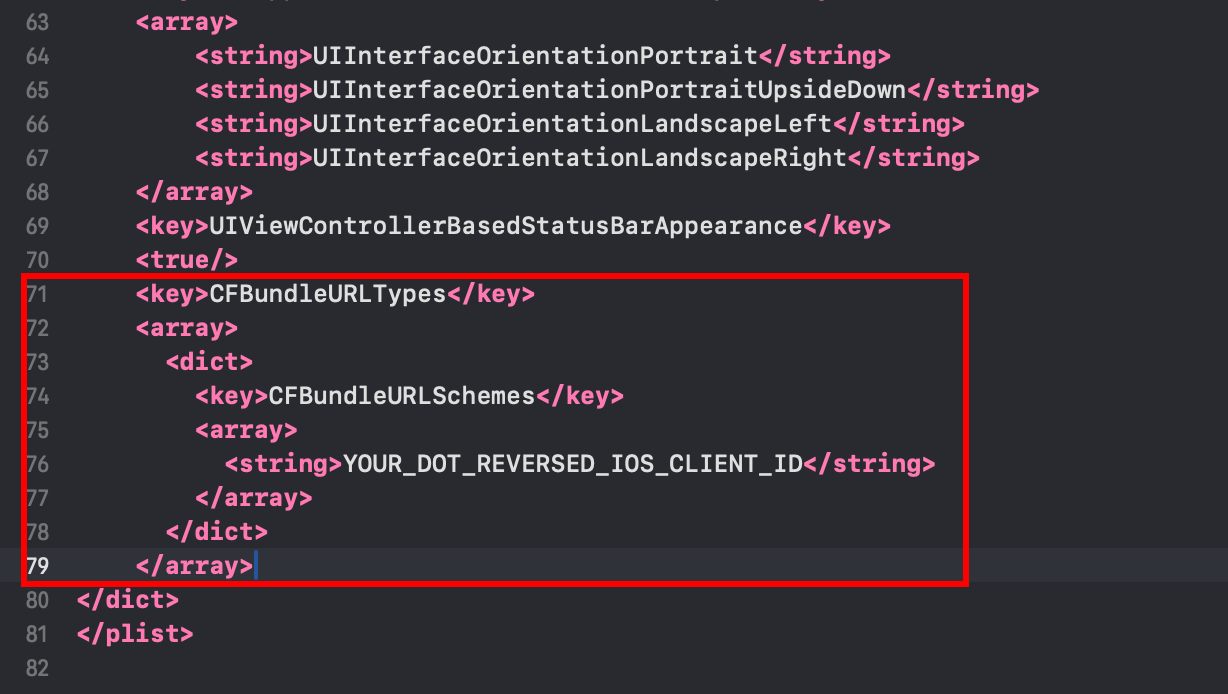 <key>CFBundleURLTypes</key><array><dict><key>CFBundleURLSchemes</key><array><string>YOUR_DOT_REVERSED_IOS_CLIENT_ID</string></array></dict></array>
 -
Info.plist
YOUR_DOT_REVERSED_IOS_CLIENT_ID이전 단계에서 복사한 값으로 설정하세요.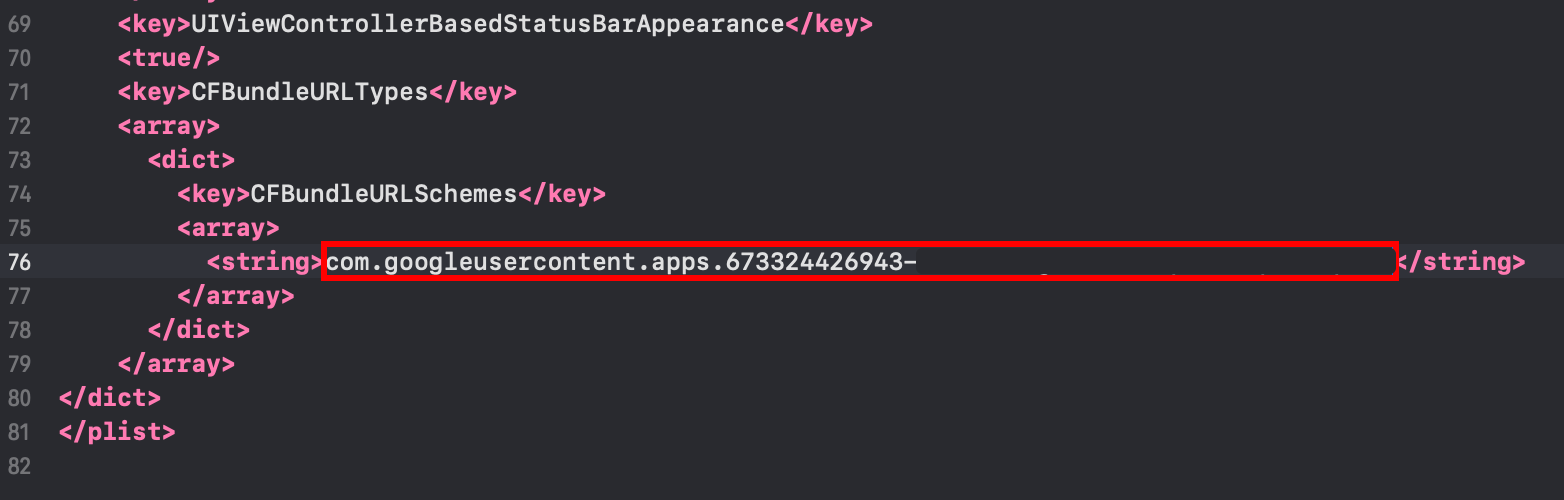
-
파일을 저장하세요.
Command + S
-
-
수정하세요.
AppDelegate.swift-
AppDelegate.swift 파일을 Xcode 프로젝트 탐색기에서 열어보세요.
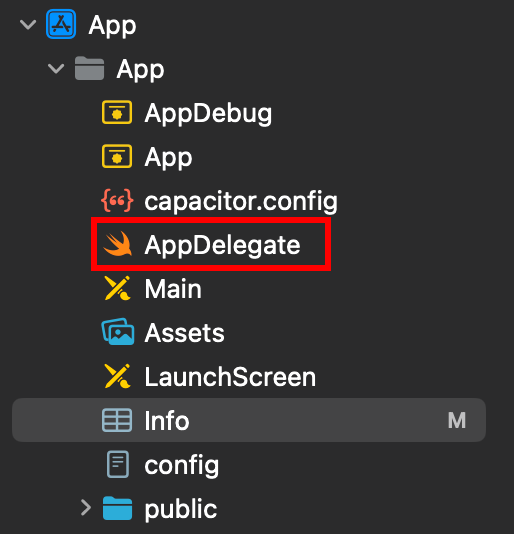
-
Insert
import GoogleSignIn파일 상단에 위치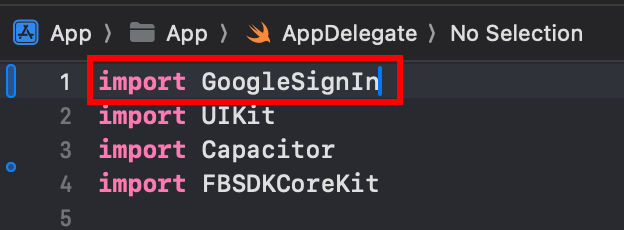
-
구글 소셜 로그인
func application(_ app: UIApplication, open url: URL, options: [UIApplication.OpenURLOptionsKey: Any] = [:])함수
-
함수 수정
func application(_ app: UIApplication, open url: URL, options: [UIApplication.OpenURLOptionsKey: Any] = [:]) -> Bool {// Called when the app was launched with a url. Feel free to add additional processing here,// but if you want the App API to support tracking app url opens, make sure to keep this callvar handled: Boolhandled = GIDSignIn.sharedInstance.handle(url)if handled {return true}return ApplicationDelegateProxy.shared.application(app, open: url, options: options)}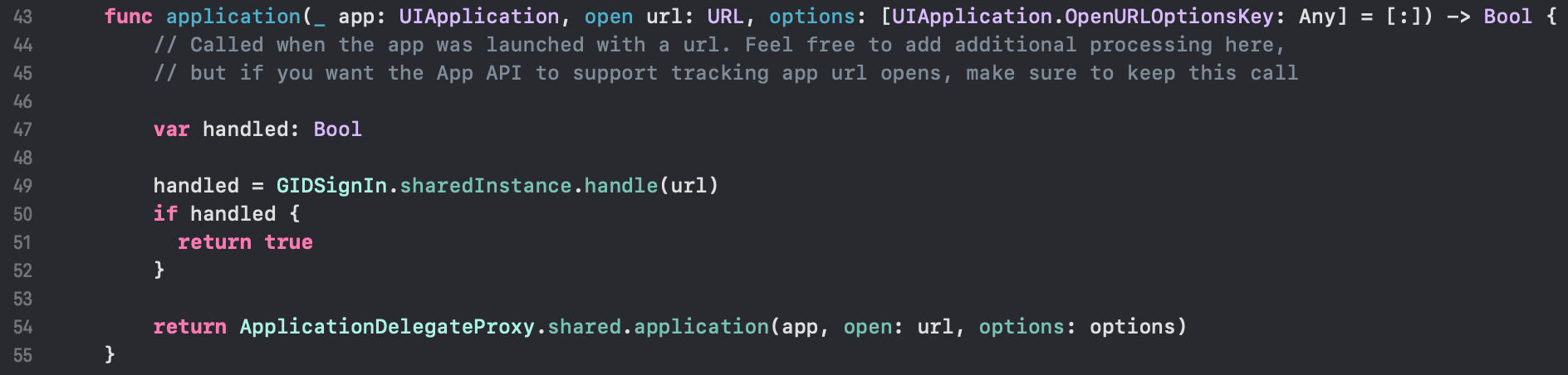
-
파일을 저장
Command + S
-
-
JavaScript/TypeScript code에서 Google 로그인 설정
-
import
SocialLogin및Capacitorimport { SocialLogin } from '@capgo/capacitor-social-login';import { Capacitor } from '@capacitor/core'; -
초기화 메서드를 호출하세요 (이 메서드는 한 번만 호출해야 함)
기본 설정 (온라인 모드 - 대부분의 앱에 권장):
// onMounted is Vue specificonMounted(() => {SocialLogin.initialize({google: {iOSClientId: '673324426943-redacted.apps.googleusercontent.com',mode: 'online' // Default mode}})})추가 클라이언트 ID를 사용하는 고급 설정:
onMounted(() => {SocialLogin.initialize({google: {webClientId: 'YOUR_WEB_CLIENT_ID', // Optional: for web platform supportiOSClientId: 'YOUR_IOS_CLIENT_ID', // Required: from step 1iOSServerClientId: 'YOUR_WEB_CLIENT_ID', // Optional: same as webClientId, needed for some advanced featuresmode: 'online' // 'online' or 'offline'}})}) -
로그인 기능을 구현하세요. 버튼을 생성하고 클릭 시 다음 code를 실행하세요.
클립보드에 복사
const res = await SocialLogin.login({provider: 'google',options: {}})// handle the response - contains user dataconsole.log(JSON.stringify(res))refresh
const res = await SocialLogin.login({provider: 'google',options: {forceRefreshToken: true // Recommended for offline mode}})// res contains serverAuthCode, not user data// Send serverAuthCode to your backend to get user information// Do not call SocialLogin.refresh() in offline modeconsole.log('Server auth code:', res.result.serverAuthCode)
-
-
애플리케이션을 테스트하세요
-
앱을 빌드하고 실행하세요
cap sync -
모든 것을 올바르게 수행했으면, Google 로그인 흐름이 올바르게 작동되어야 합니다

-
알려진 문제
알려진 문제개인 정보 보호 화면 플러그인 불일치
개인 정보 보호 화면 플러그인은 Google 로그인 플러그인과 불일치합니다개인 정보 보호 화면 플러그인은 Google 로그인 플러그인과 호환되지 않습니다. @capacitor/개인정보 보호 화면. Google 로그인 웹뷰가 개인정보 보호 화면으로 중단될 수 있습니다.
해결 방법: 호출 await PrivacyScreen.disable(); 로그인 함수를 호출하기 전에:
import { PrivacyScreen } from '@capacitor/privacy-screen';import { SocialLogin } from '@capgo/capacitor-social-login';
await PrivacyScreen.disable();await SocialLogin.login({  provider: 'google',  options: {}});
iOS에서 Google 로그인으로 계속 진행
iOS에서 Google 로그인으로 계속 진행Google 로그인 on iOS를 사용하는 경우 Google 로그인 on iOS를 사용하여 인증 및 계정 흐름을 계획하고 연결하려면 Using @__CAPGO_KEEP_0__/__CAPGO_KEEP_1__-social-login @capgo/capacitor-social-login Capgo의 네이티브 기능을 사용하는 @capgo/capacitor-social-login을 위해 @capgo/capacitor-social-login Capgo의 구현 세부 정보를 위한 @capgo/capacitor-social-login @capgo/capacitor-passkey Capgo의 구현 세부 정보를 위한 @capgo/capacitor-passkey @capgo/capacitor-native-생체인증 Capgo의 구현 세부 정보를 위한 @capgo/capacitor-native-biometric, 그리고 두 단계 인증 두 단계 인증의 구현 세부 정보를 위해