
Android에서 Apple 로그인
이 플러그인의 설치 단계와 전체 markdown 가이드가 포함된 설정 프롬프트를 복사하세요.
Android에서 Apple 로그인을 구현하는 것은 까다롭습니다. Apple은 공식적으로 지원하지 않기 때문입니다. Sign in with Apple Android에서는 구현 방식이 다소 까다롭습니다.
현재 Android는 OAuth2 웹사이트를 표시하기 위해 Chrome Tabs를 사용합니다. 이 방식에는 다음과 같은 어려움이 있습니다:
- 복잡한 설정 과정
- 백엔드 서버 필요
Android에서의 인증 흐름 이해
“Android에서의 인증 흐름 이해” 섹션다이어그램을 통해 Android의 인증 흐름을 설명하겠습니다:
flowchart TD
    A("await SocialLogin.login()") -->|Handled in the plugin|B(Generate the login URL)
    B --> |Pass the link| C(Open the Chrome browser)
    C --> D(Wait for the user to login)
    D --> |Apple redirects to your backend|E(Handle the data returned from Apple)
    E --> F(Redirect back to the app)
    F --> G(Return to JS)
이제 문제점과 흐름을 파악했으니, 설정을 시작해 보겠습니다.
Service ID 생성하기
“Service ID 생성하기” 섹션-
다음 사이트에 로그인하세요: Apple Developer Portal.
-
클릭하세요
Identifiers.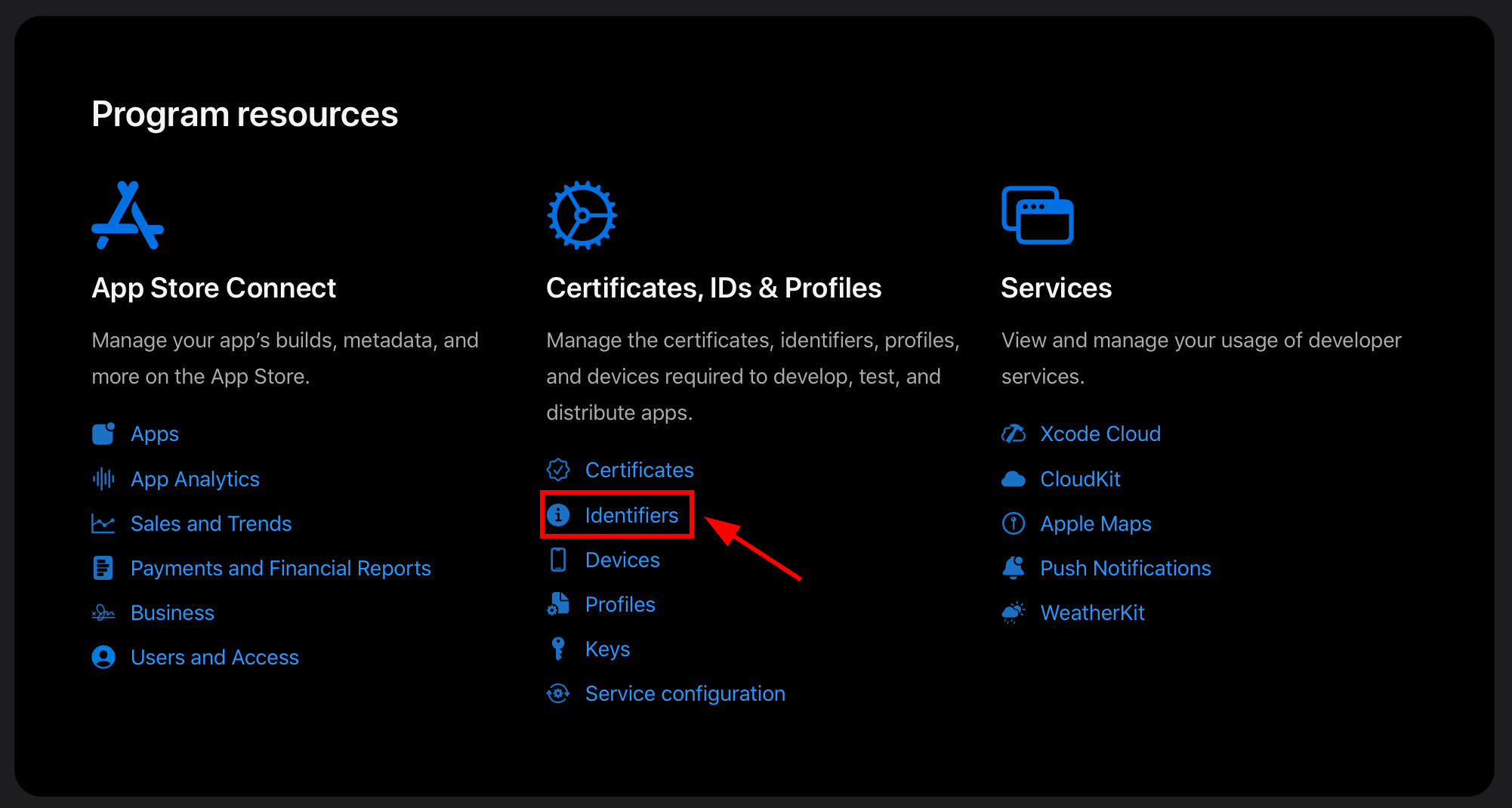
다음과 같은 화면이 나타납니다:
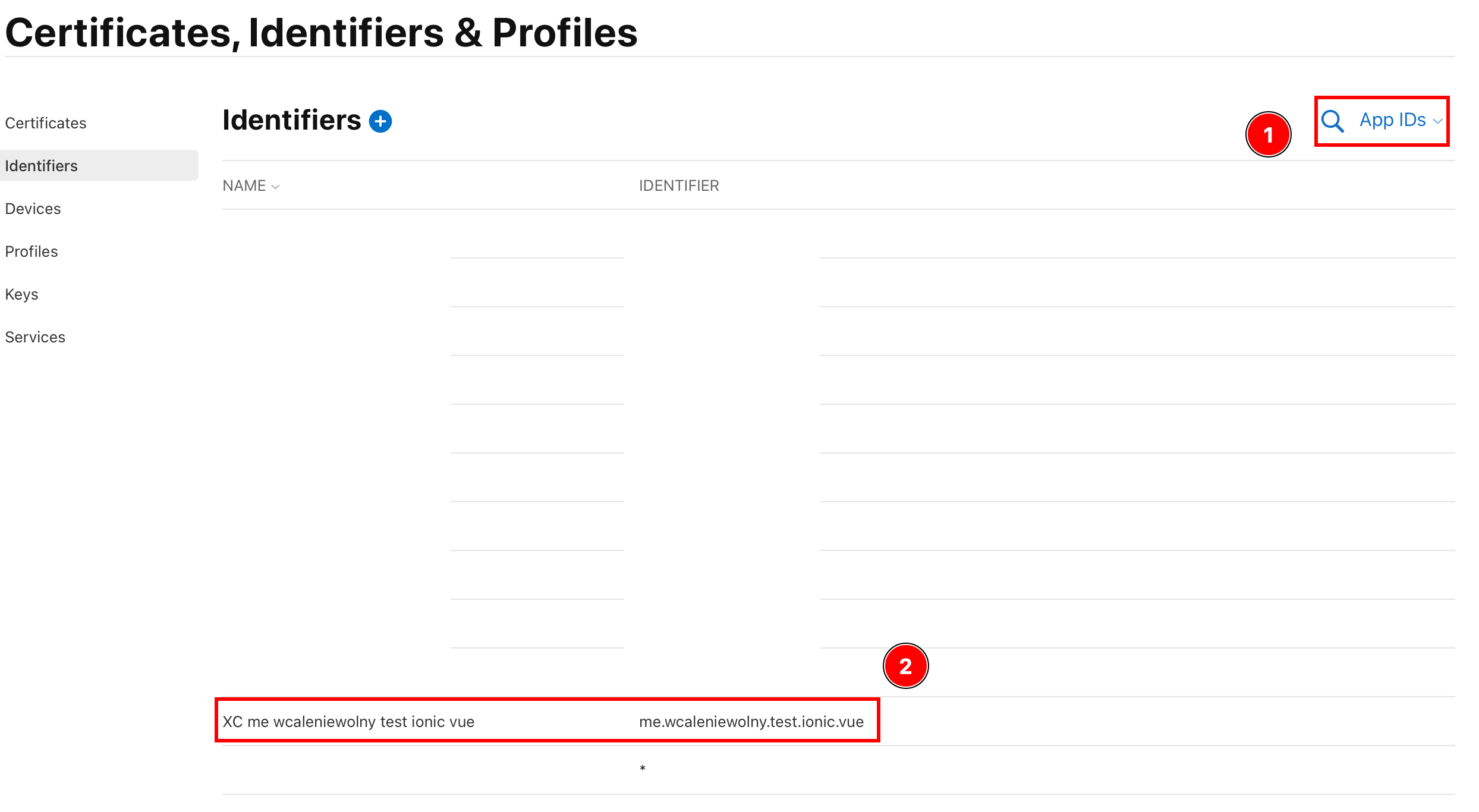
- 이 필드에 다음 내용이 있는지 확인하세요:
App IDs - App ID를 찾을 수 있는지 확인하세요.
- 이 필드에 다음 내용이 있는지 확인하세요:
-
다음 사항을 확인하세요:
Sign in with Apple앱에 capability가 활성화되어 있습니다- 앱을 클릭하세요
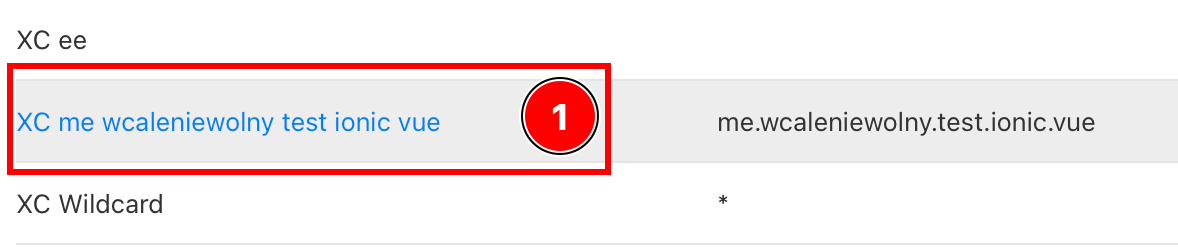
- 다음 사항을 확인하세요:
Sign in with Applecapability가 활성화되어 있는지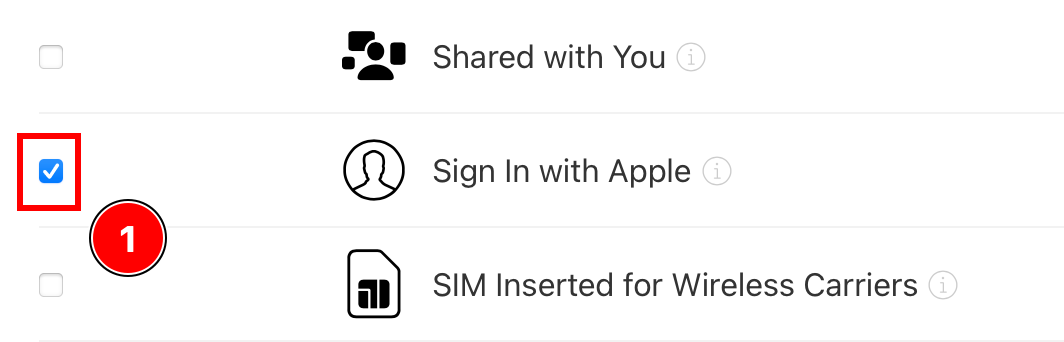
- 활성화되어 있지 않다면, 활성화하세요.
- 앱을 클릭하세요
-
전체 목록으로 돌아가기
All Identifiers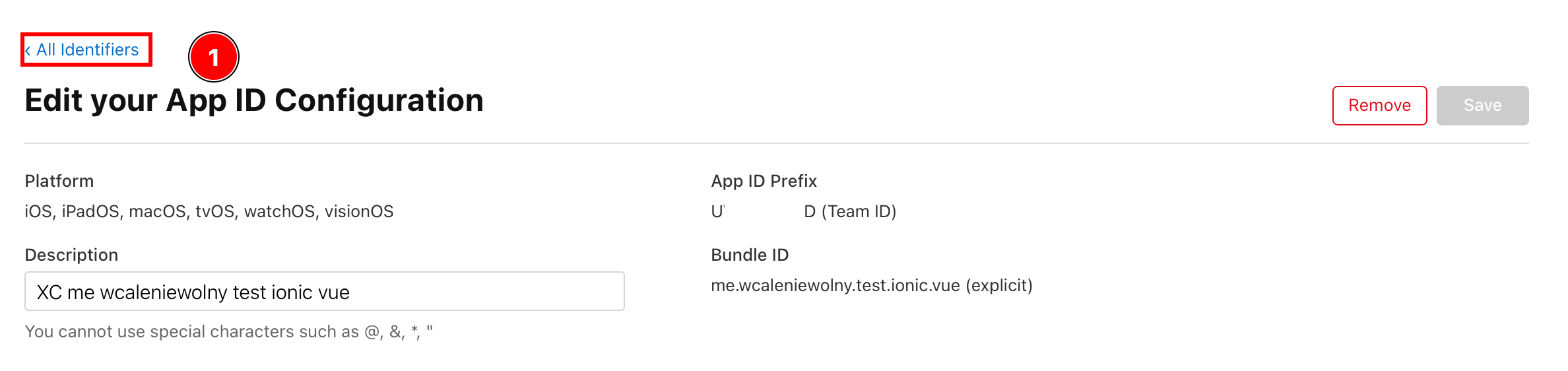
-
클릭하세요
App Ids로 이동하여Services IDs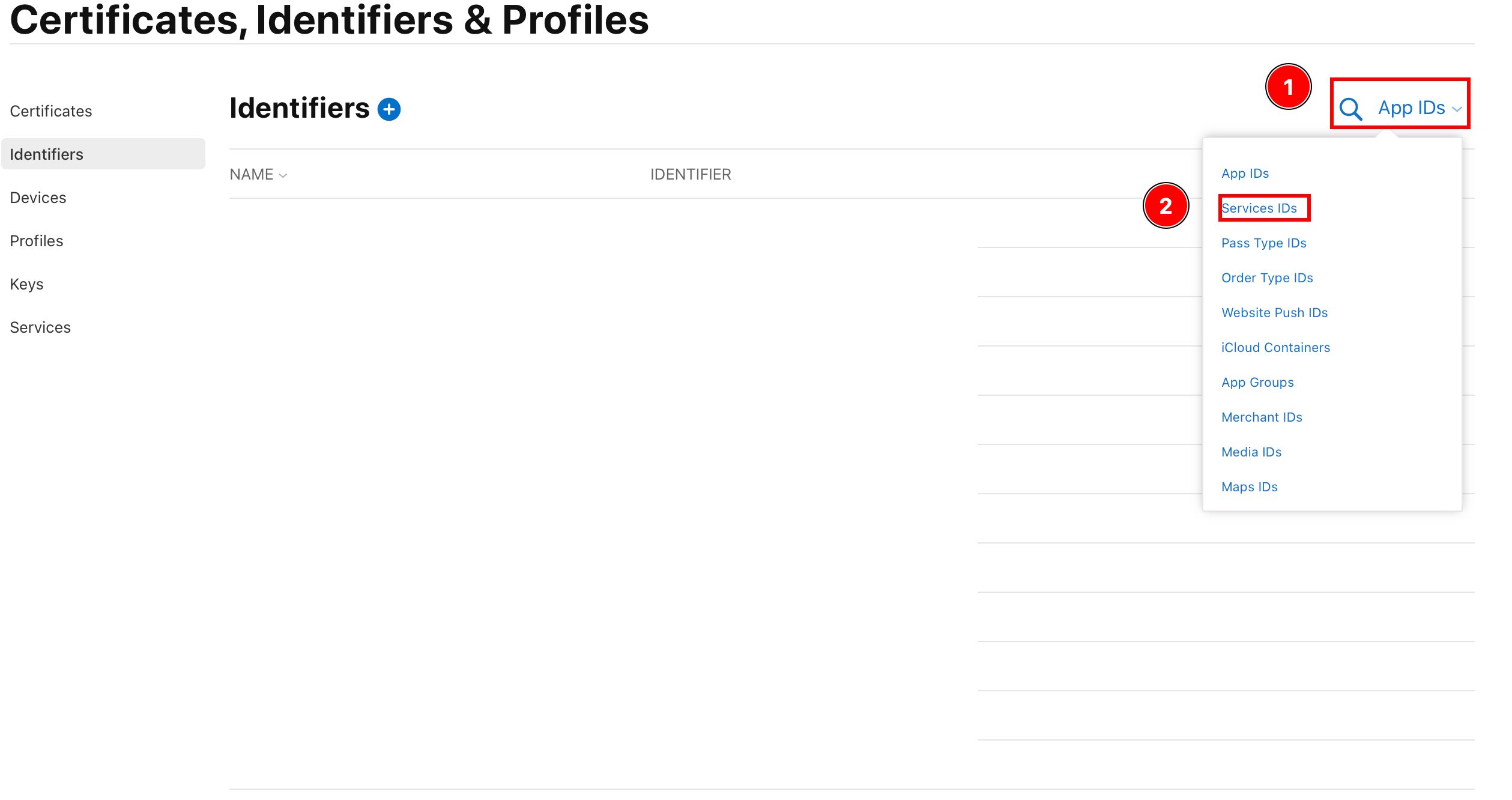
-
새로운 식별자 생성
-
플러스 버튼 클릭
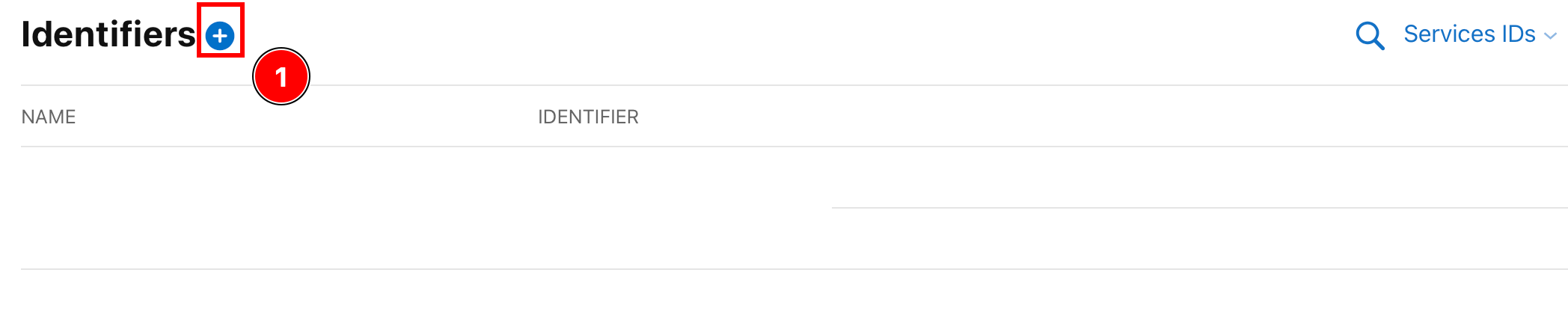
-
선택
Servcice IDs클릭하여Continue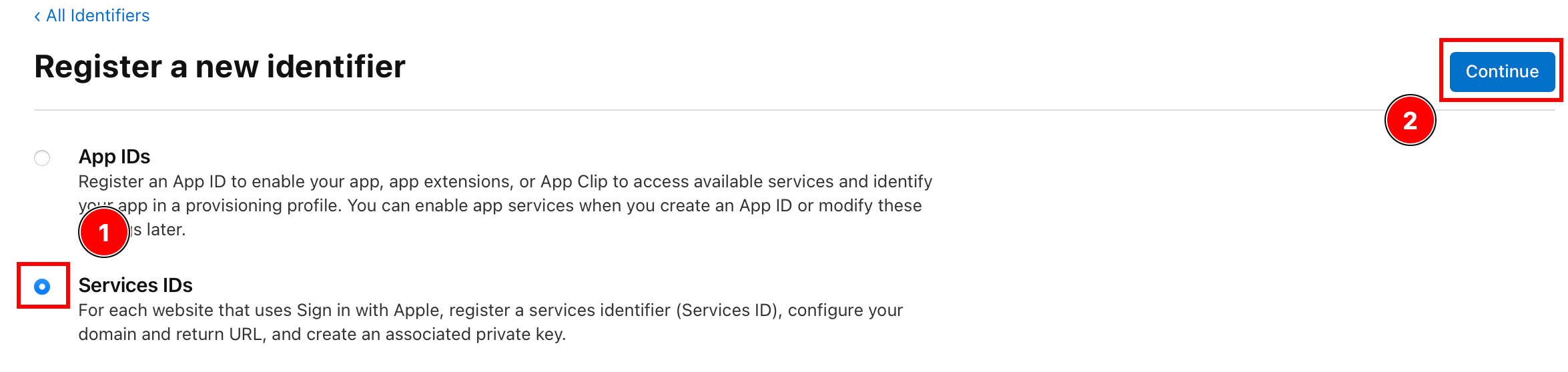
-
설명과 식별자를 입력하고 클릭
Continuie.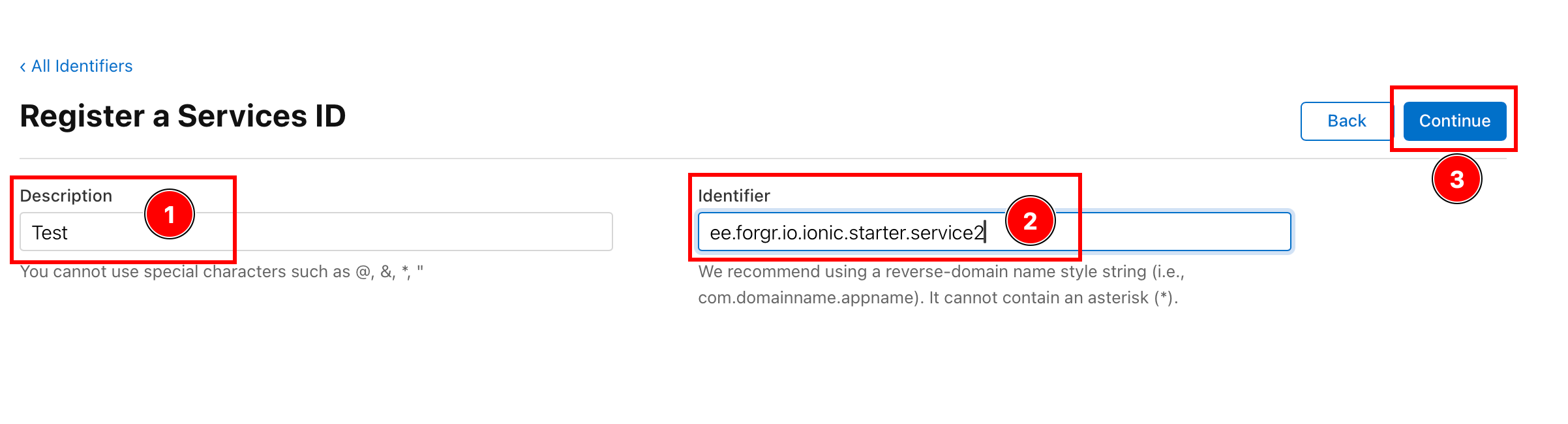
-
상세 내용을 확인한 후
Register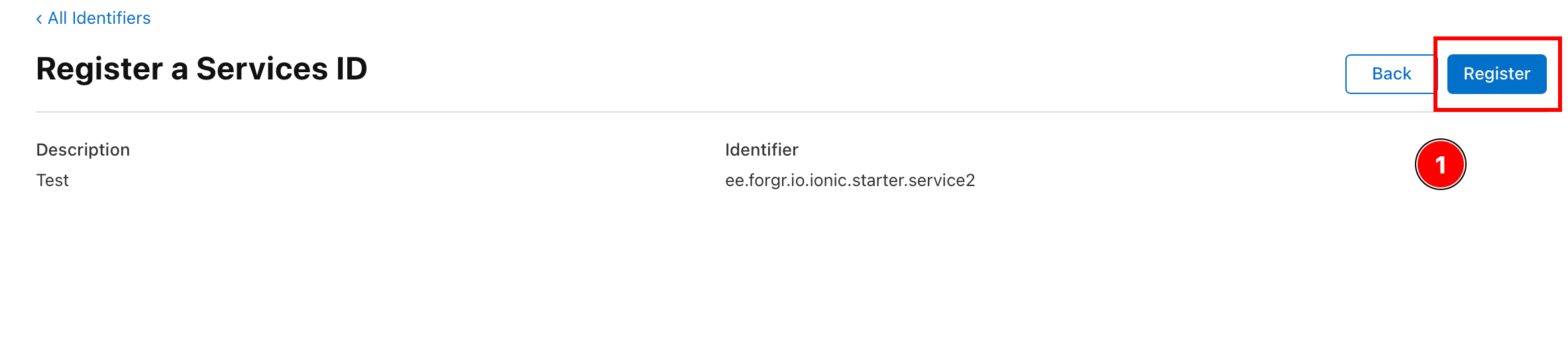
-
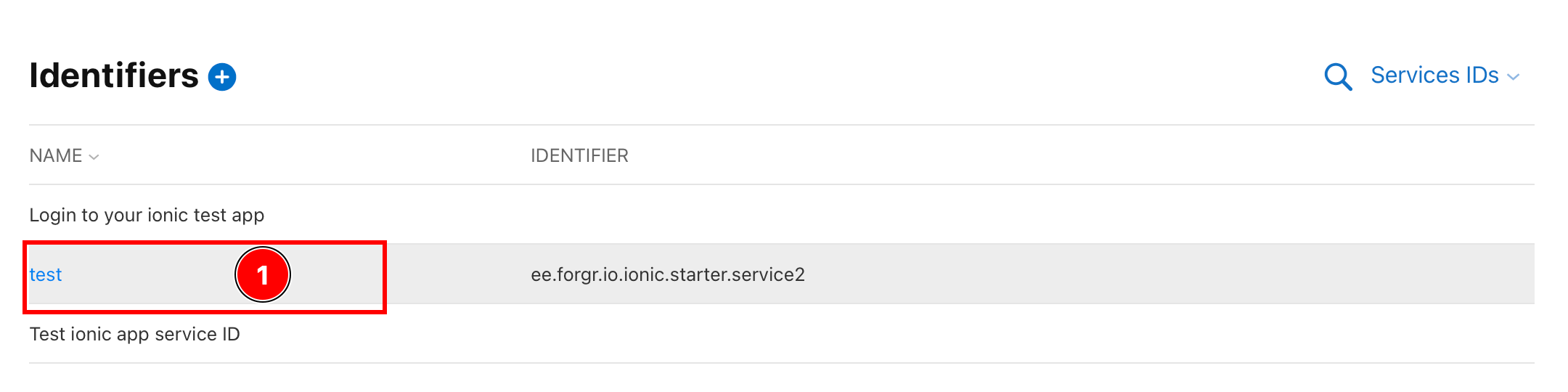
새로 생성된 서비스를 클릭하세요
-
다음 항목을 활성화하세요
Sign in with Apple옵션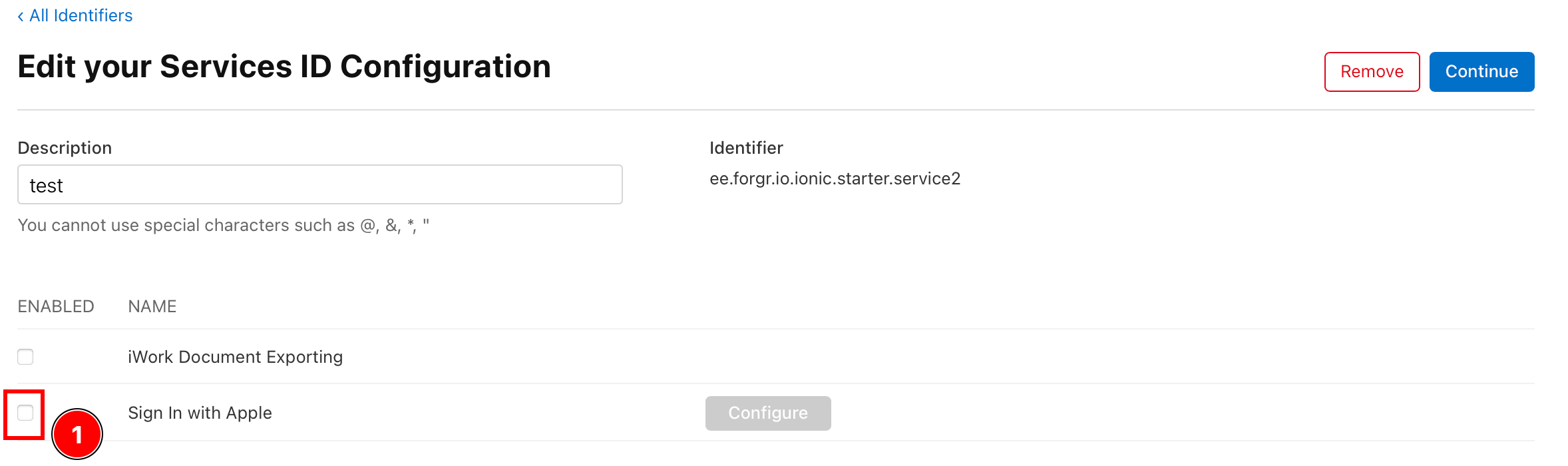
-
다음 항목을 구성하세요
Sign In with Apple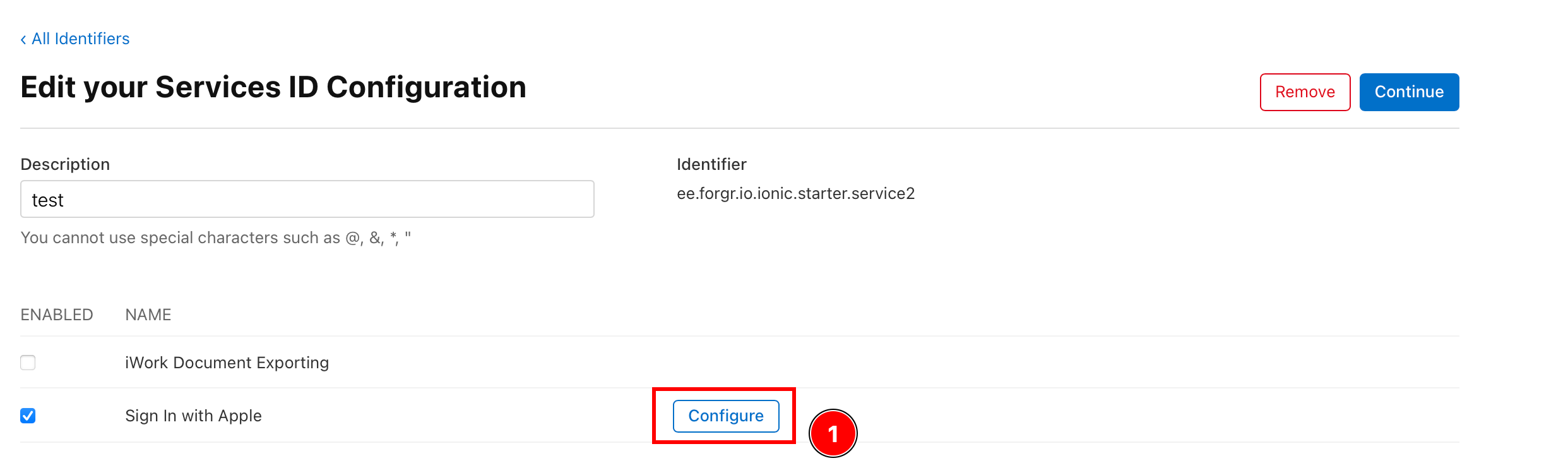
-
다음 항목을 확인하세요
Primary App ID이전 단계에서 구성한 App ID로 설정되어 있는지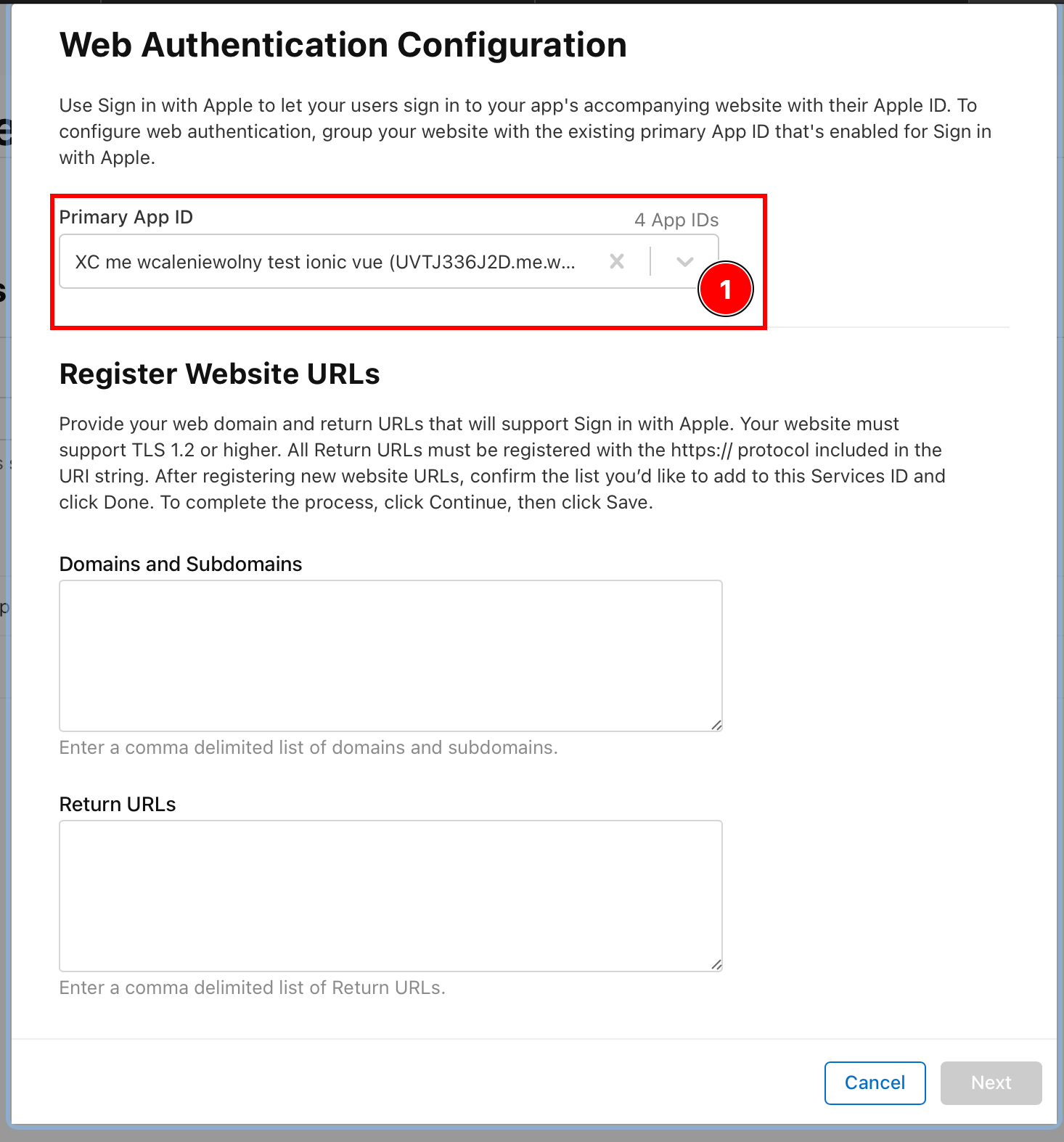
-
백엔드를 호스팅할 도메인을 추가하세요.
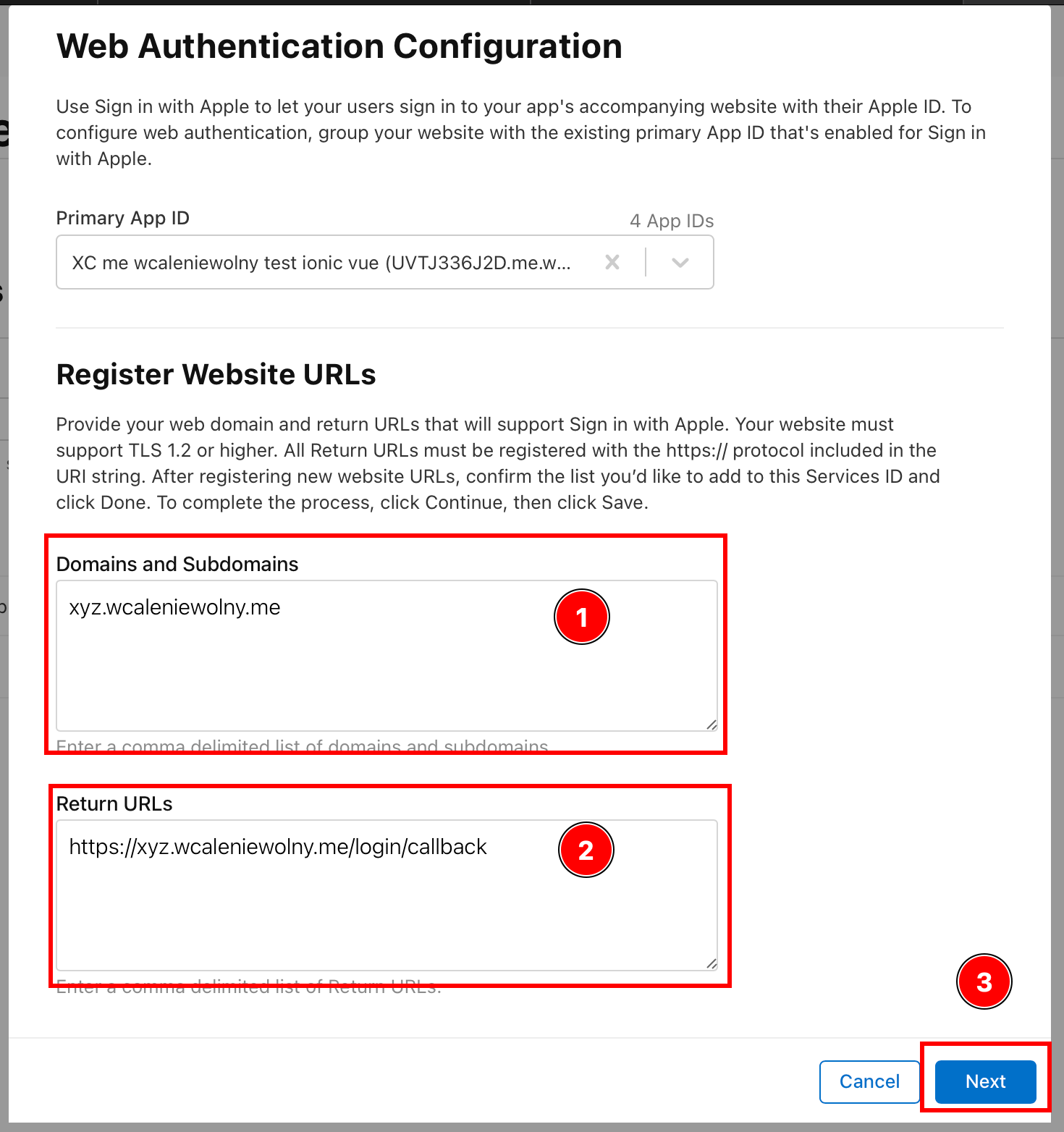
-
데이터를 확인하고
Done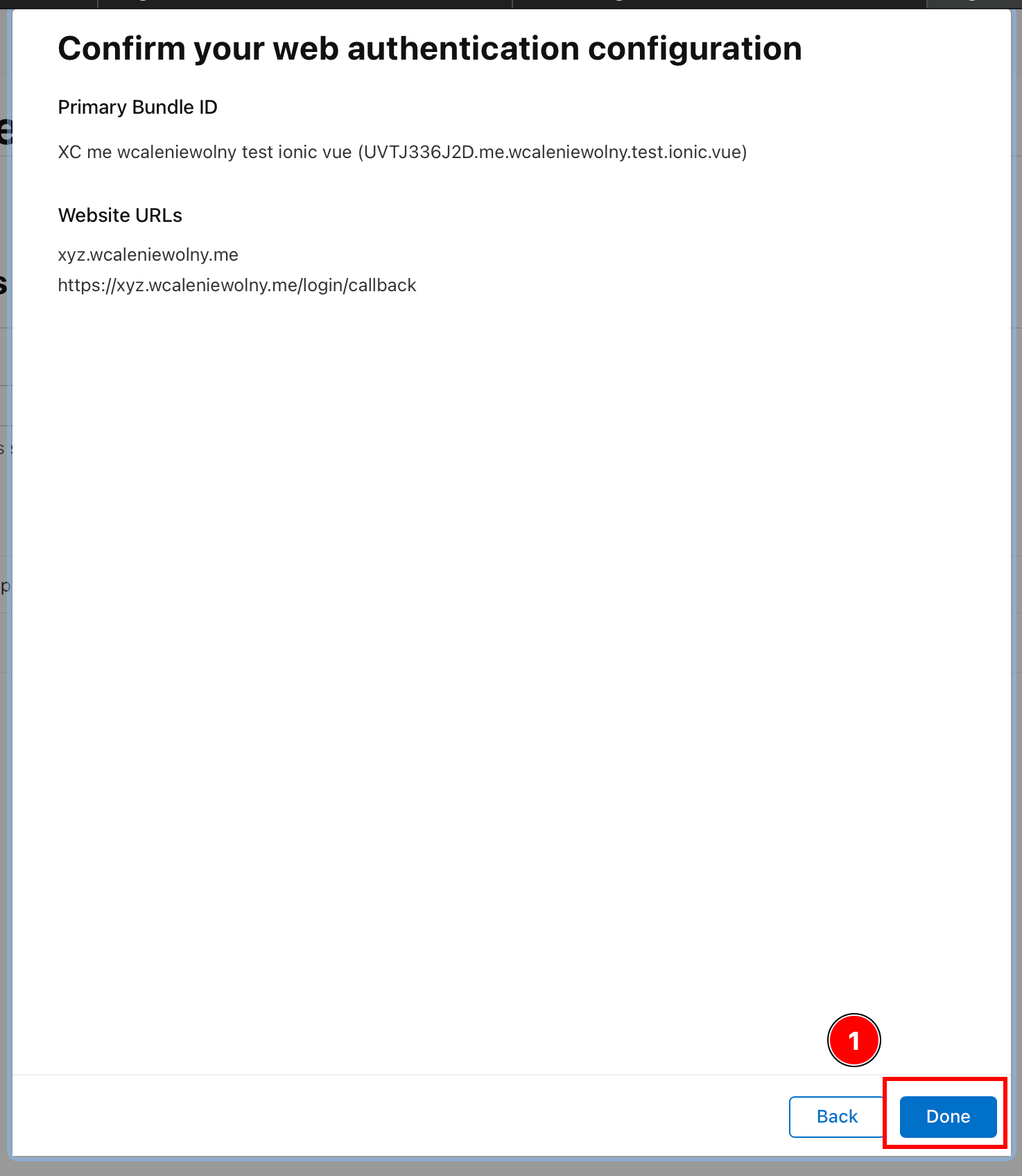
-
클릭하세요
Continue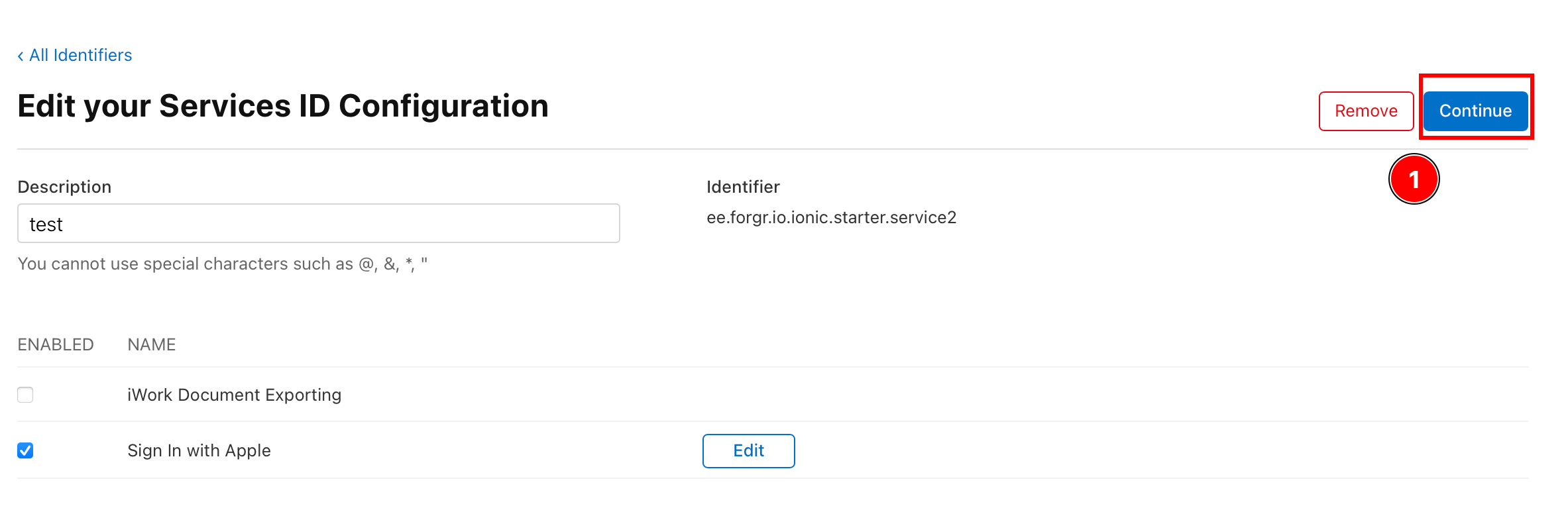
-
클릭하세요
Save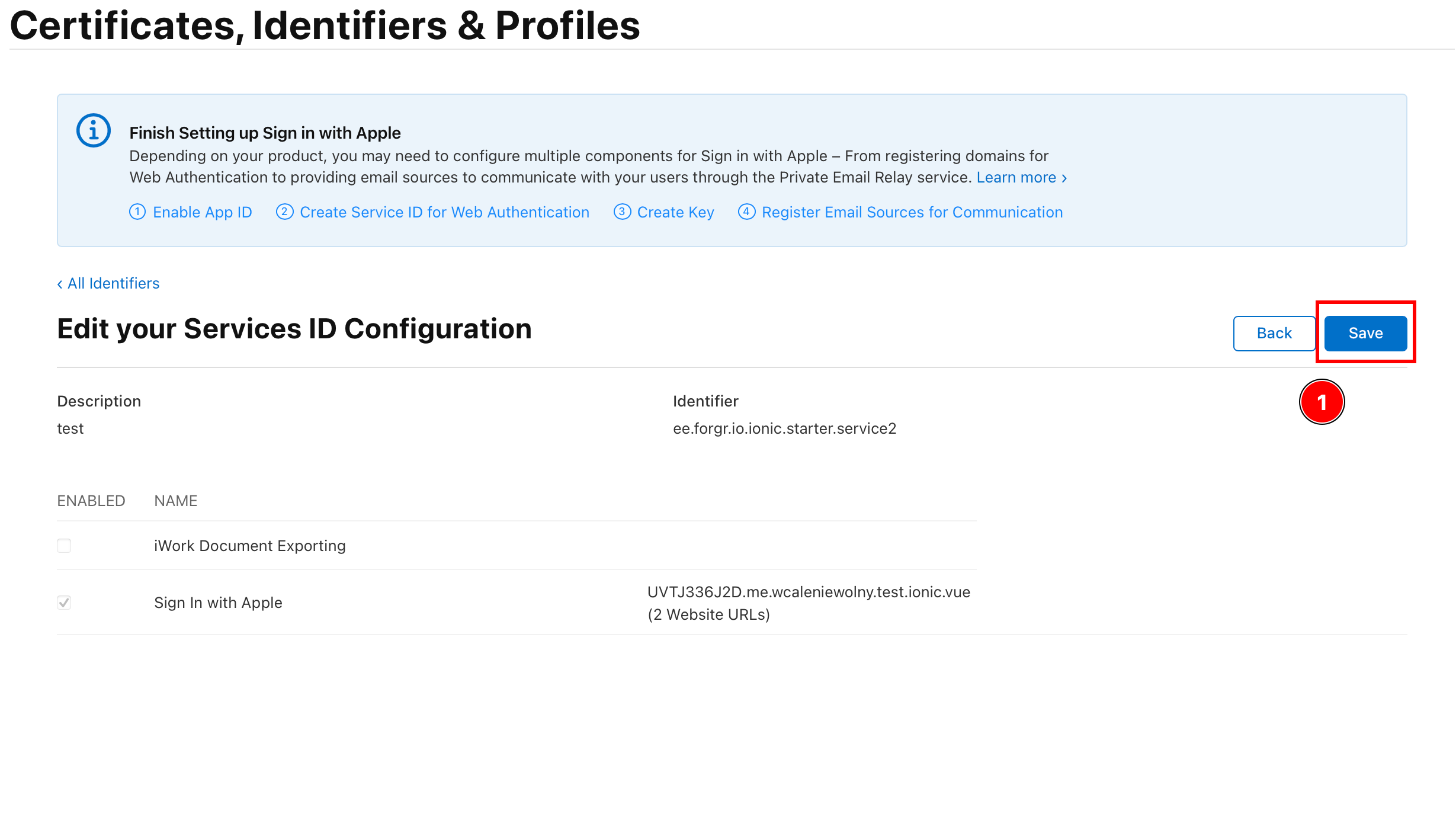
-
키 생성하기
“키 생성하기” 섹션-
전체 보기로 돌아가기
All Identifiers
-
클릭하세요
Keys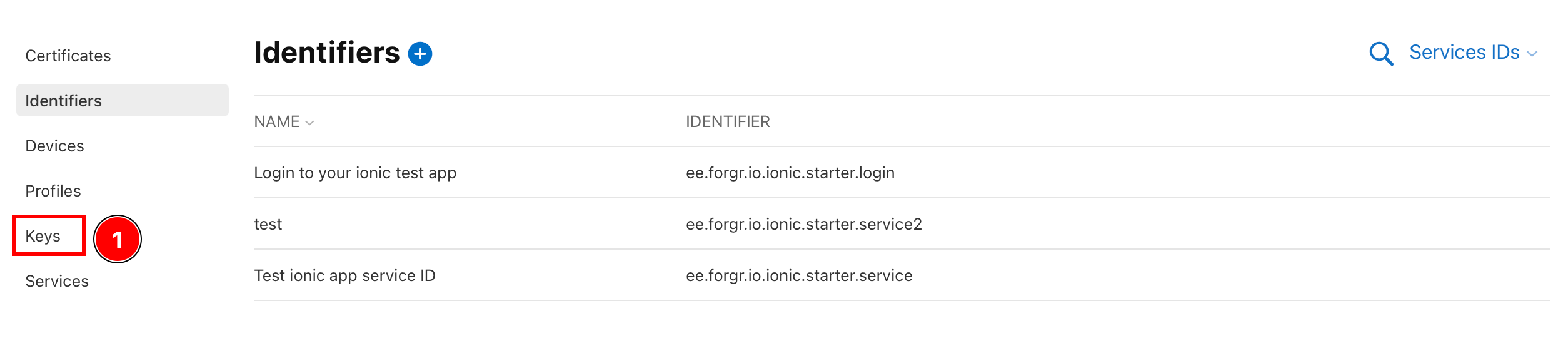
-
플러스(+) 아이콘 클릭
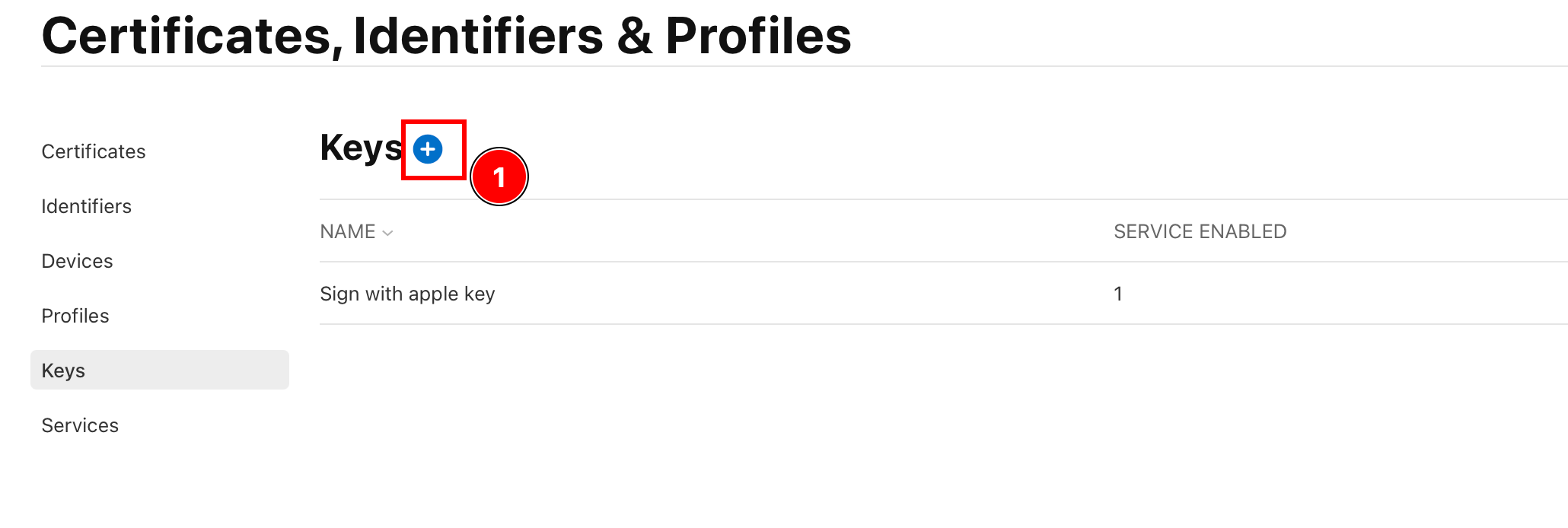
-
키 이름 지정

-
선택
Sign in with Apple클릭하세요Configure
-
기본 App ID를 선택한 후 다음을 누르세요
Save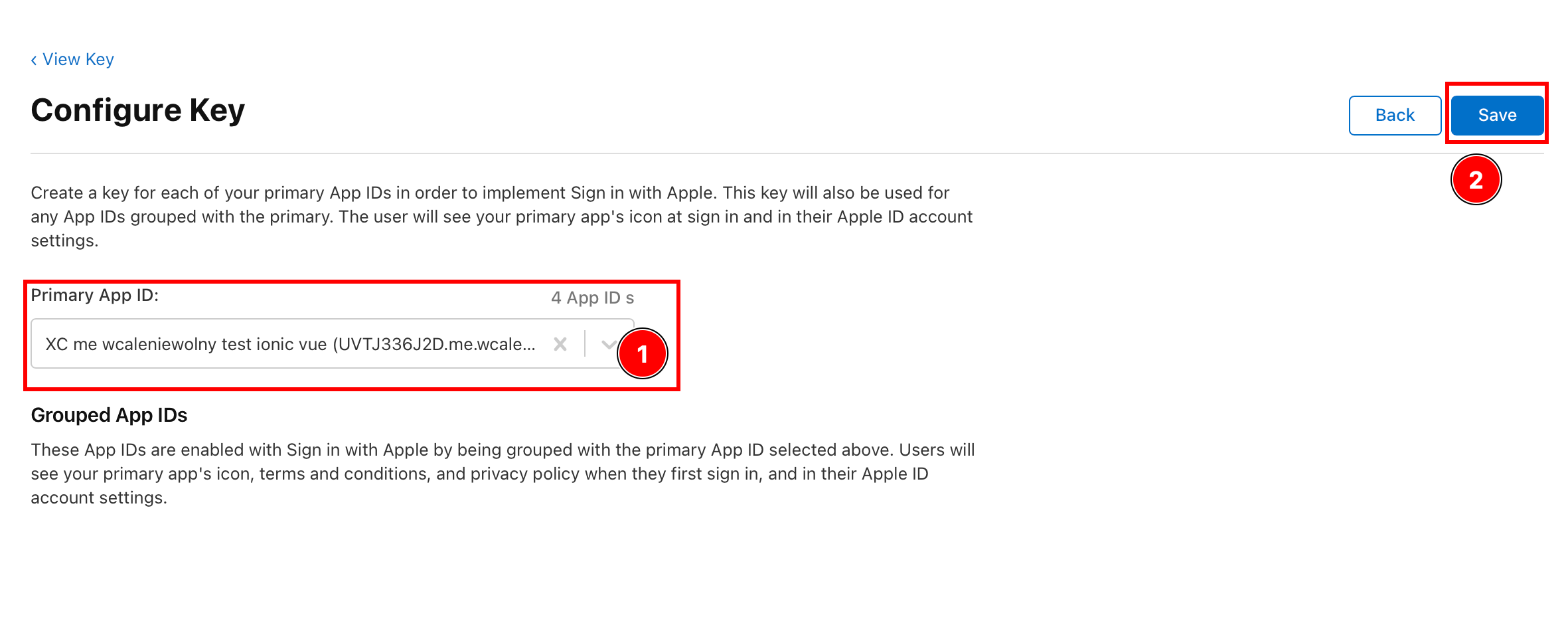
-
클릭하세요
Continue
-
클릭하세요
Register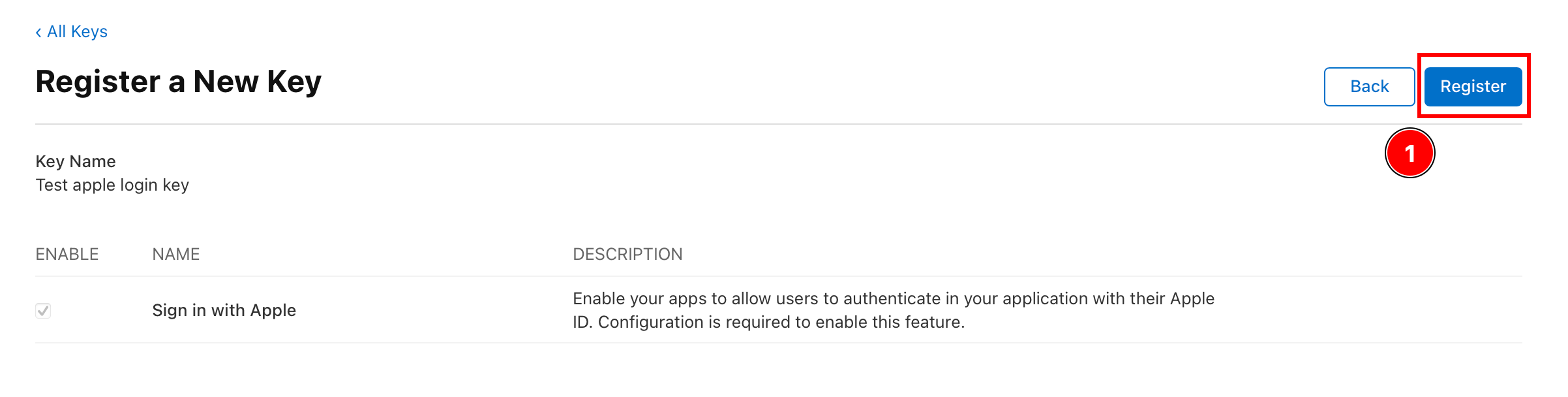
-
Key ID를 복사하고 키를 다운로드하세요.
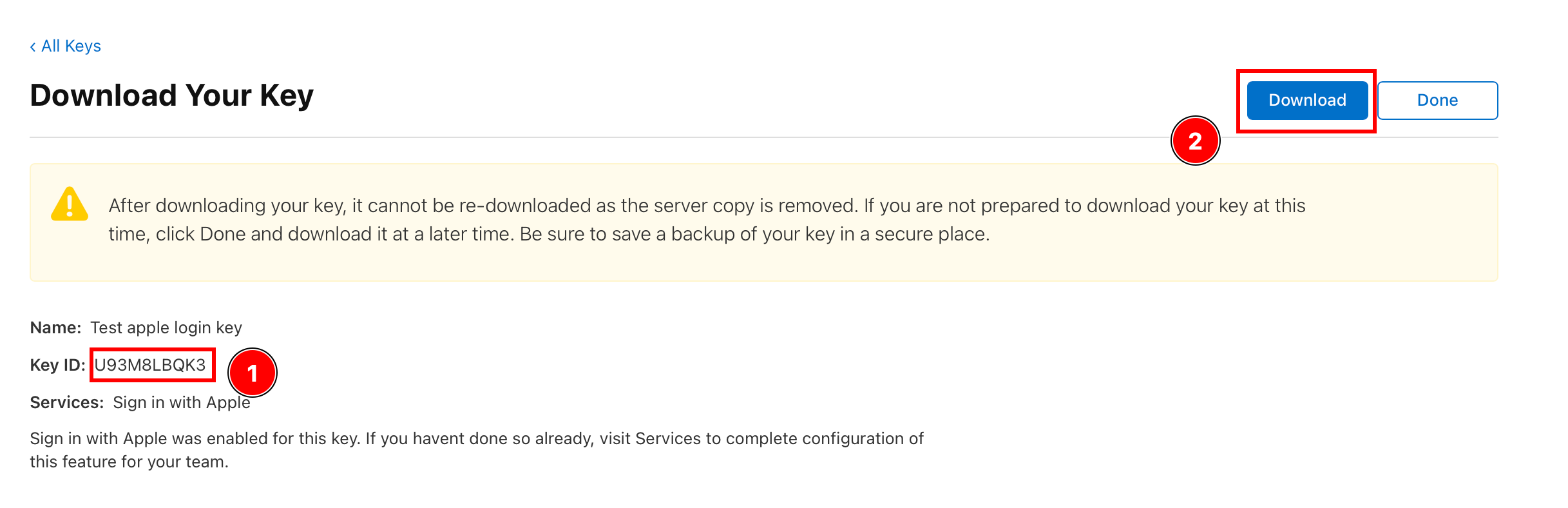
-
다운로드한 키를 찾아 백엔드 폴더에 저장하세요.
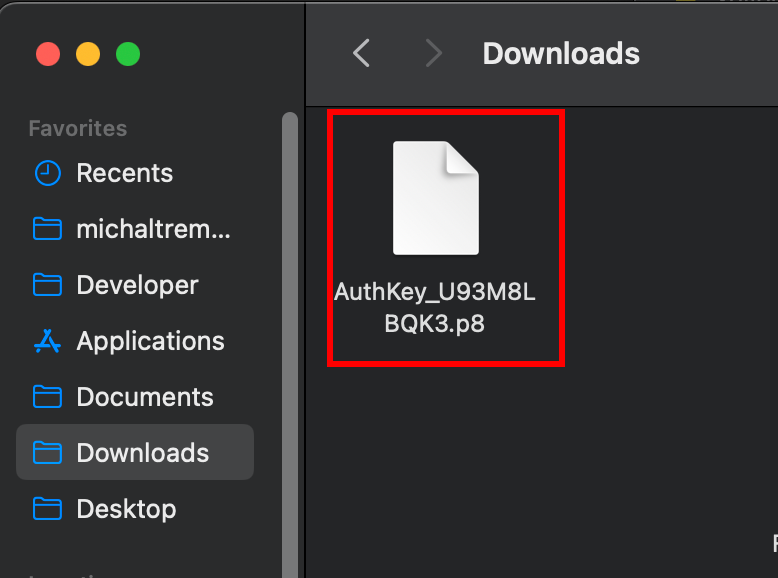
Team ID 가져오기
“Team ID 가져오기” 섹션사용하려면 Login with Apple Android에서 가져와야 합니다 Team ID이 값은 백엔드에서 사용됩니다.
-
다음으로 이동: 이 웹사이트에서 아래로 스크롤하여
-
다음 항목을 찾으세요:
Team ID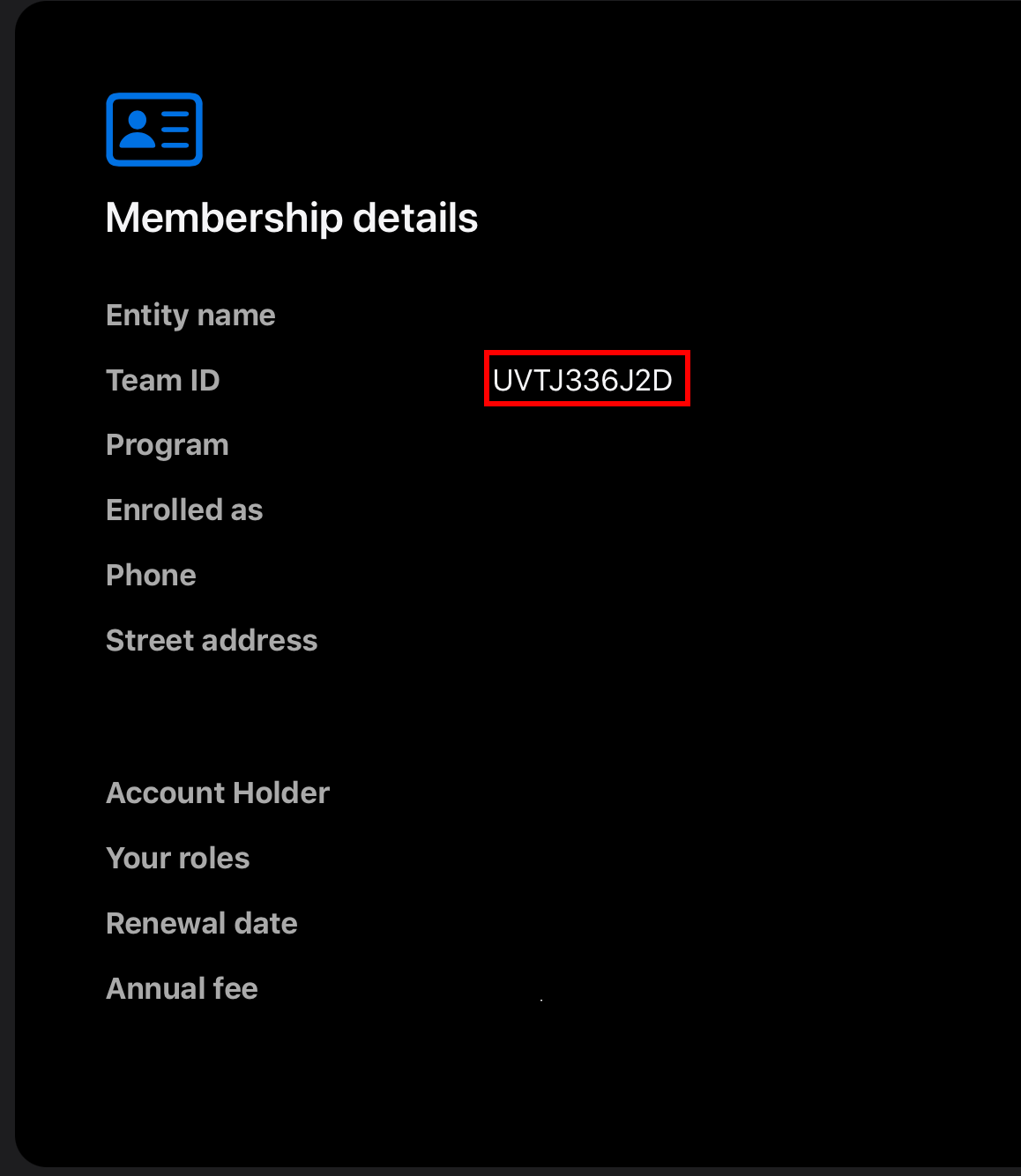
앱 리다이렉트 설정
“앱 리다이렉트 설정” 섹션다이어그램에서 보셨듯이, 백엔드에서 다음 단계를 수행합니다. Redirect back to the app. 이 과정은 앱에 수동 설정을 추가해야 합니다.
- 다음 항목을 수정하세요.
AndroidManifest.xml-
파일을 여세요. 여기서는
AndroidStudio
-
다음 항목을 찾으세요:
MainActivity다음 Intent filter를 추가합니다.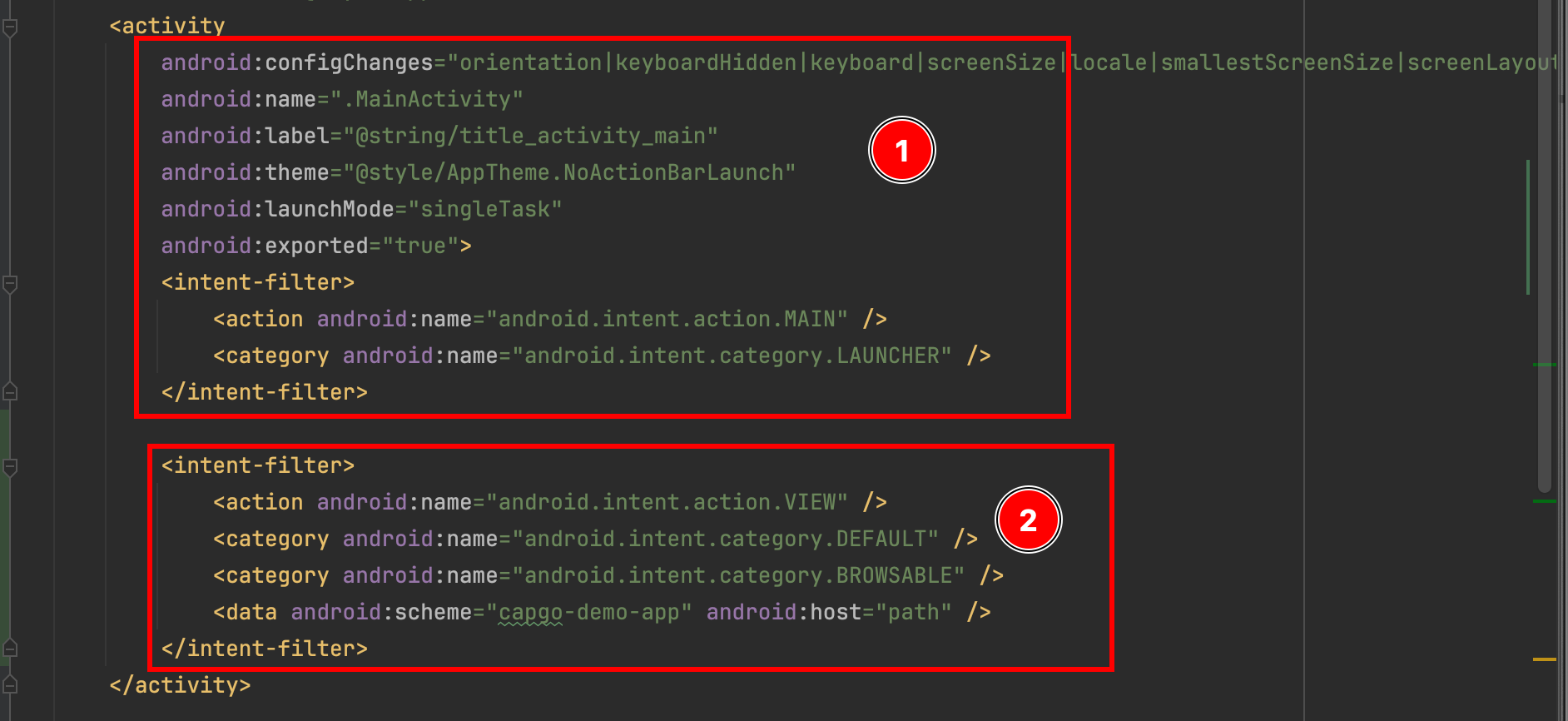 <intent-filter><action android:name="android.intent.action.VIEW" /><category android:name="android.intent.category.DEFAULT" /><category android:name="android.intent.category.BROWSABLE" /><data android:scheme="capgo-demo-app" android:host="path" /></intent-filter>
-
- 다음 항목을 수정하세요.
MainActivity-
다음 파일을 여세요.
MainActivity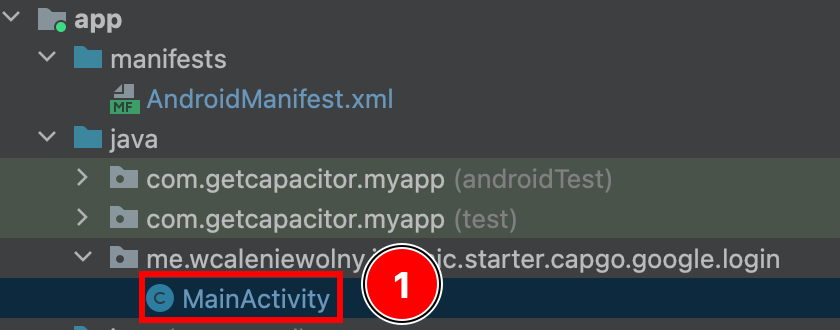
-
다음 code를 추가하세요:
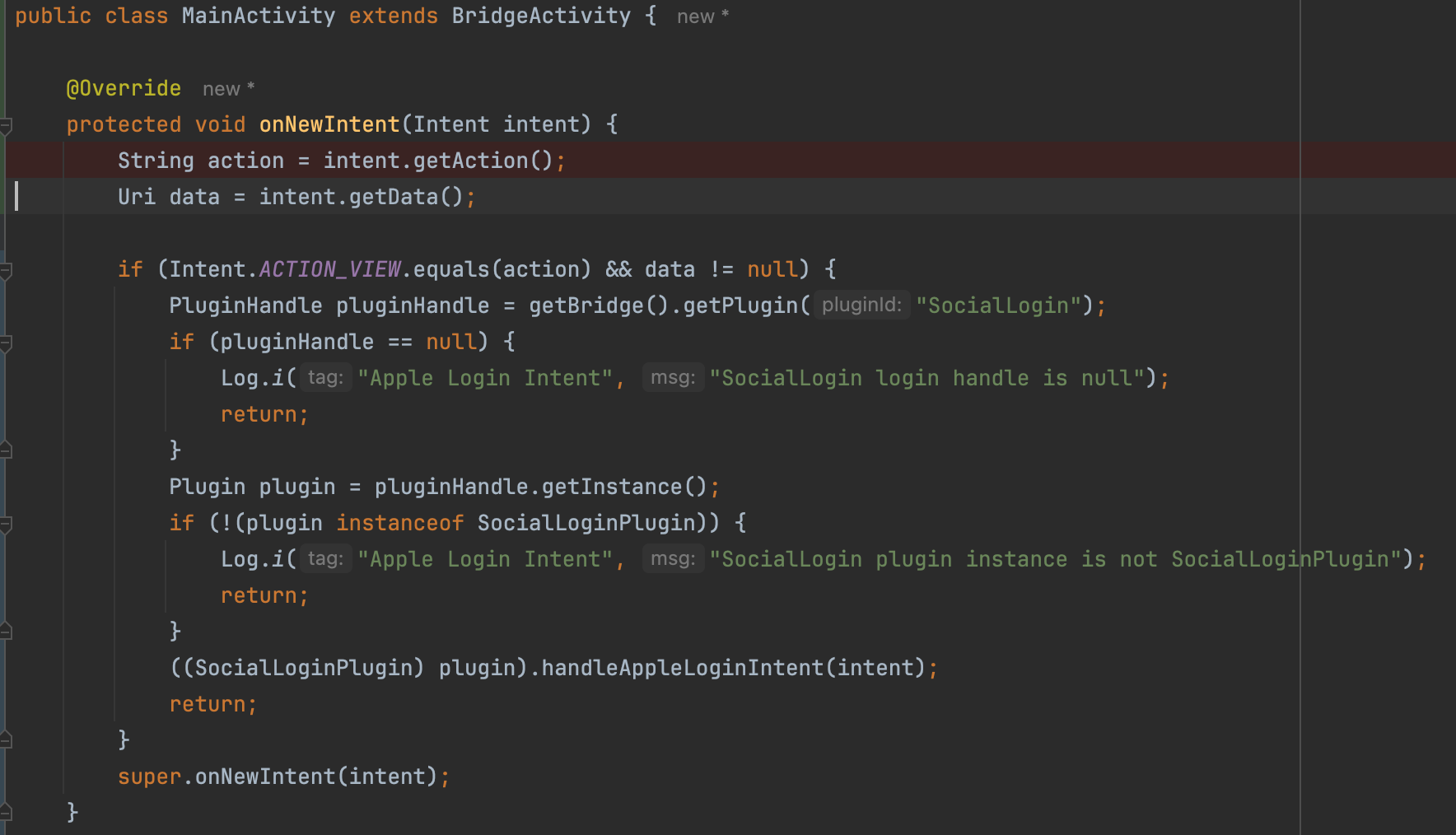 @Overrideprotected void onNewIntent(Intent intent) {String action = intent.getAction();Uri data = intent.getData();if (Intent.ACTION_VIEW.equals(action) && data != null) {PluginHandle pluginHandle = getBridge().getPlugin("SocialLogin");if (pluginHandle == null) {Log.i("Apple Login Intent", "SocialLogin login handle is null");return;}Plugin plugin = pluginHandle.getInstance();if (!(plugin instanceof SocialLoginPlugin)) {Log.i("Apple Login Intent", "SocialLogin plugin instance is not SocialLoginPlugin");return;}((SocialLoginPlugin) plugin).handleAppleLoginIntent(intent);return;}super.onNewIntent(intent);}
-
백엔드 설정
“백엔드 설정” 섹션Android에는 백엔드가 필수이지만, 백엔드 설정은 iOS에도 영향을 미칩니다. 예시 백엔드가 제공됩니다. 여기서
이 예제는 다음을 포함합니다:
- 간단한 JSON 데이터베이스
- Apple 서버로부터 JWT를 요청하는 방법
- 간단한 JWT 검증
이 튜토리얼에서 설명한 내용을 바탕으로, env 섹션은 다음과 같이 구성됩니다:
ANDROID_SERVICE_ID= Service IDIOS_SERVICE_ID= App ID
env: { PRIVATE_KEY_FILE: "AuthKey_U93M8LBQK3.p8", KEY_ID: "U93M8LBQK3", TEAM_ID: "UVTJ336J2D", ANDROID_SERVICE_ID: "ee.forgr.io.ionic.starter.service2", IOS_SERVICE_ID: "me.wcaleniewolny.test.ionic.vue", PORT: 3000, REDIRECT_URI: "https://xyz.wcaleniewolny.me/login/callback", BASE_REDIRECT_URL: "capgo-demo-app://path"}플러그인 사용법
“플러그인 사용법” 섹션의 사용법 login 함수 자체는 iOS와 동일합니다. 자세한 내용은 해당 섹션을 참조하세요. 하지만, initialize 방법이 약간 다릅니다.
await SocialLogin.initialize({ apple: { clientId: 'ee.forgr.io.ionic.starter.service2', redirectUrl: 'https://appleloginvps.wcaleniewolny.me/login/callback' }})앱 생성하기
“앱 생성하기” 섹션-
App ID가 없다면 플러스(+) 버튼을 클릭하세요
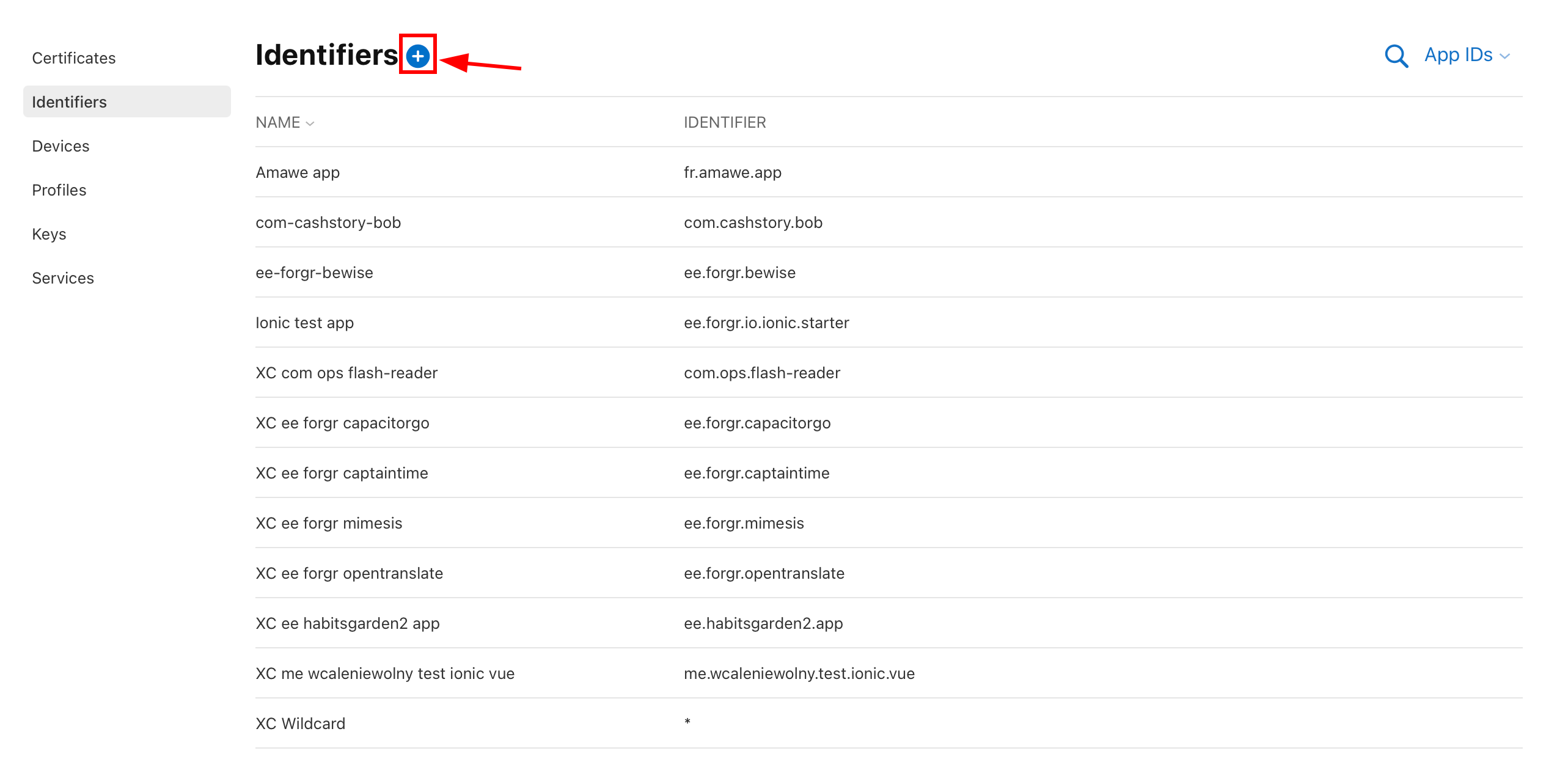
-
선택
App IDs다음으로 계속을 클릭하세요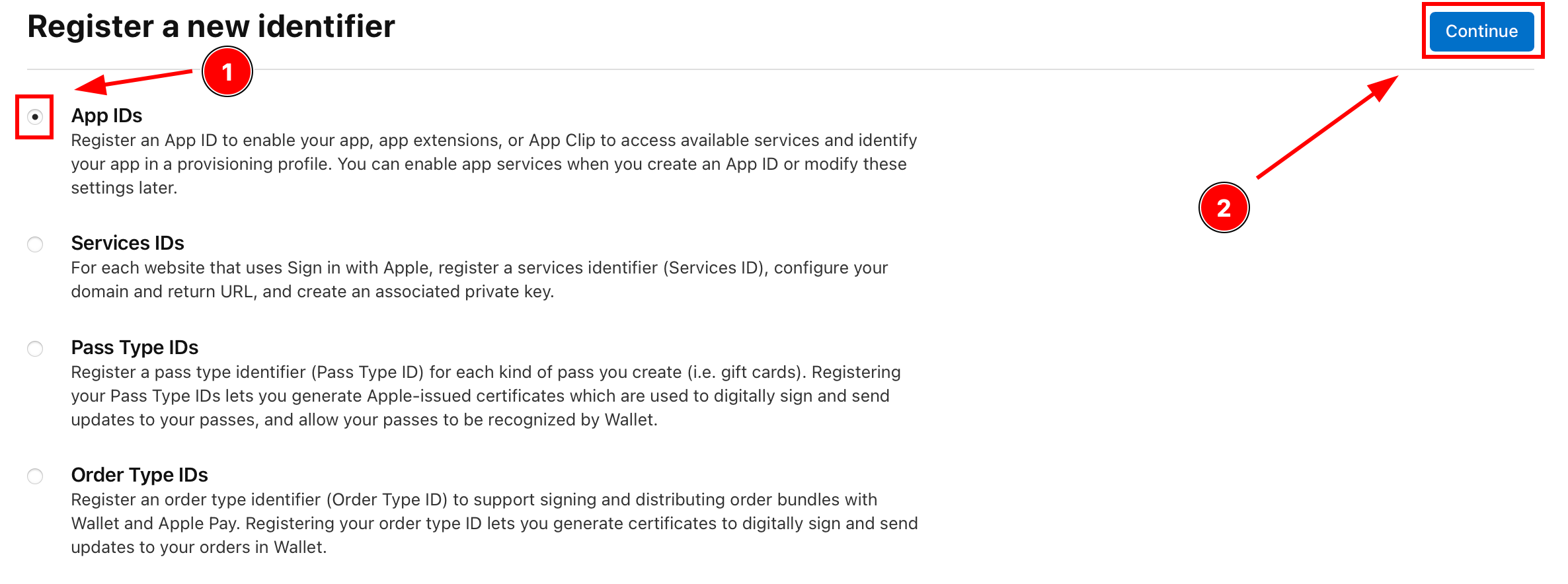
-
유형을 클릭하고
App클릭하세요Continue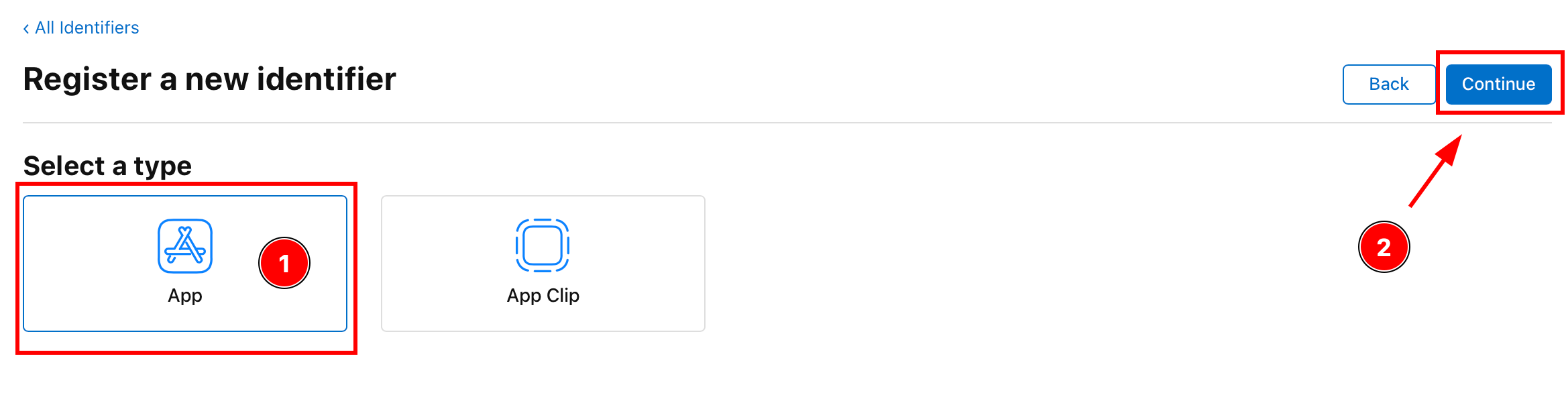
-
설명과 App ID를 입력하세요
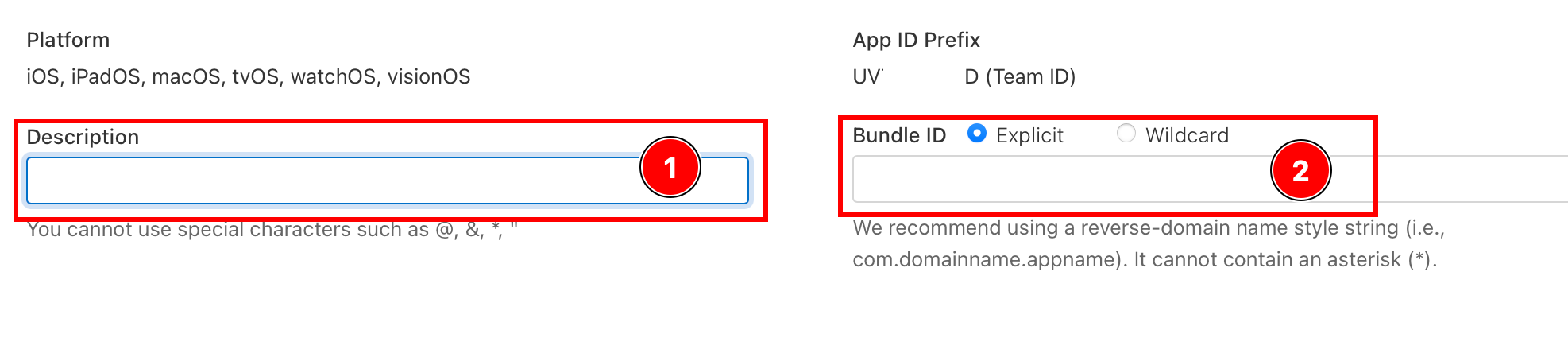
-
활성화
Sign with Applecapability
-
클릭
Continue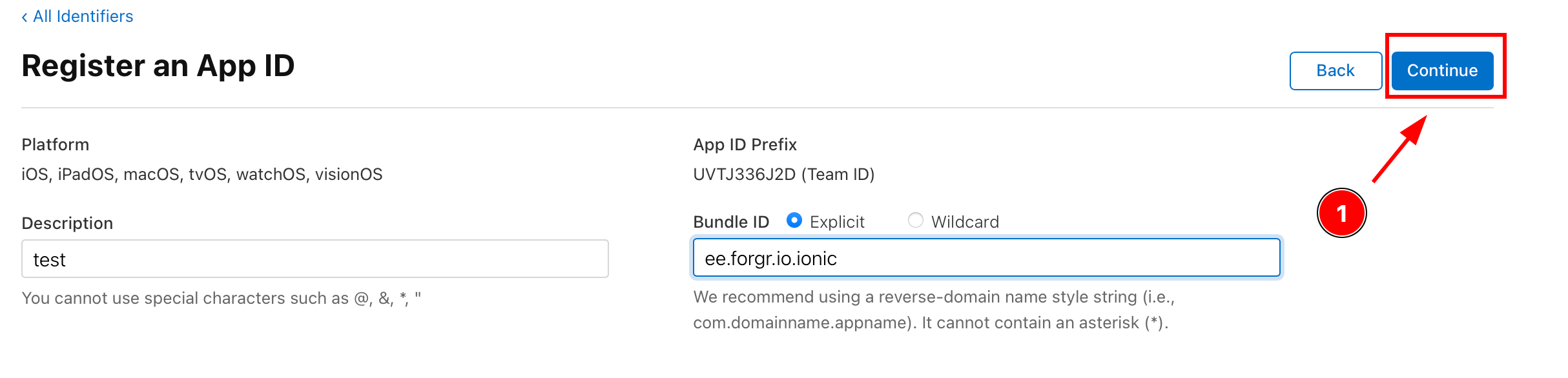
-
세부 정보를 확인하고 클릭하세요
Register
Android에서 Apple 로그인으로 계속하기
“Android에서 Apple 로그인으로 계속하기” 섹션사용 중인 경우 Android에서 Apple 로그인 인증 및 계정 흐름을 계획하려면, 이를 다음 항목과 연결하세요 @capgo/capacitor-social-login 사용하기 @capgo/capacitor-social-login의 네이티브 기능 활용 시, @capgo/capacitor-social-login @capgo/capacitor-social-login의 구현 세부 사항, @capgo/capacitor-passkey @capgo/capacitor-passkey의 구현 세부 사항, @capgo/capacitor-native-biometric @capgo/capacitor-native-biometric의 구현 세부 사항, 그리고 2단계 인증 2단계 인증의 구현 세부 사항.


