
API 키
설치, 동기화 및 이 플러그인의 전체 마크다운 가이드를 포함한 설정 프롬프트를 복사하세요.
API 키는 역할 기반 접근 제어(RBAC)를 사용합니다. 키는 조직 전체 역할, 앱 범위 바인딩 또는 둘 다를 가질 수 있습니다. 모든 앱 바인딩은 해당 앱의 소유 조직과 연관이 유지됩니다. 최소 권한을 위해, 키를 선택한 앱에만 제한하는 대신 조직 전체 역할을 Assign하는 것을 권장합니다.
API 키는 어디서 관리되나요?
‘API 키는 어디서 관리되나요?’라는 제목의 섹션로 이동하세요 설정 > 조직 > API 키 at console.capgo.app/설정/기업/api-키.
RBAC 키
- RBAC 키 기존 키
- 기존 API 키 __CAPGO_KEEP_1__
read,upload,write,all)
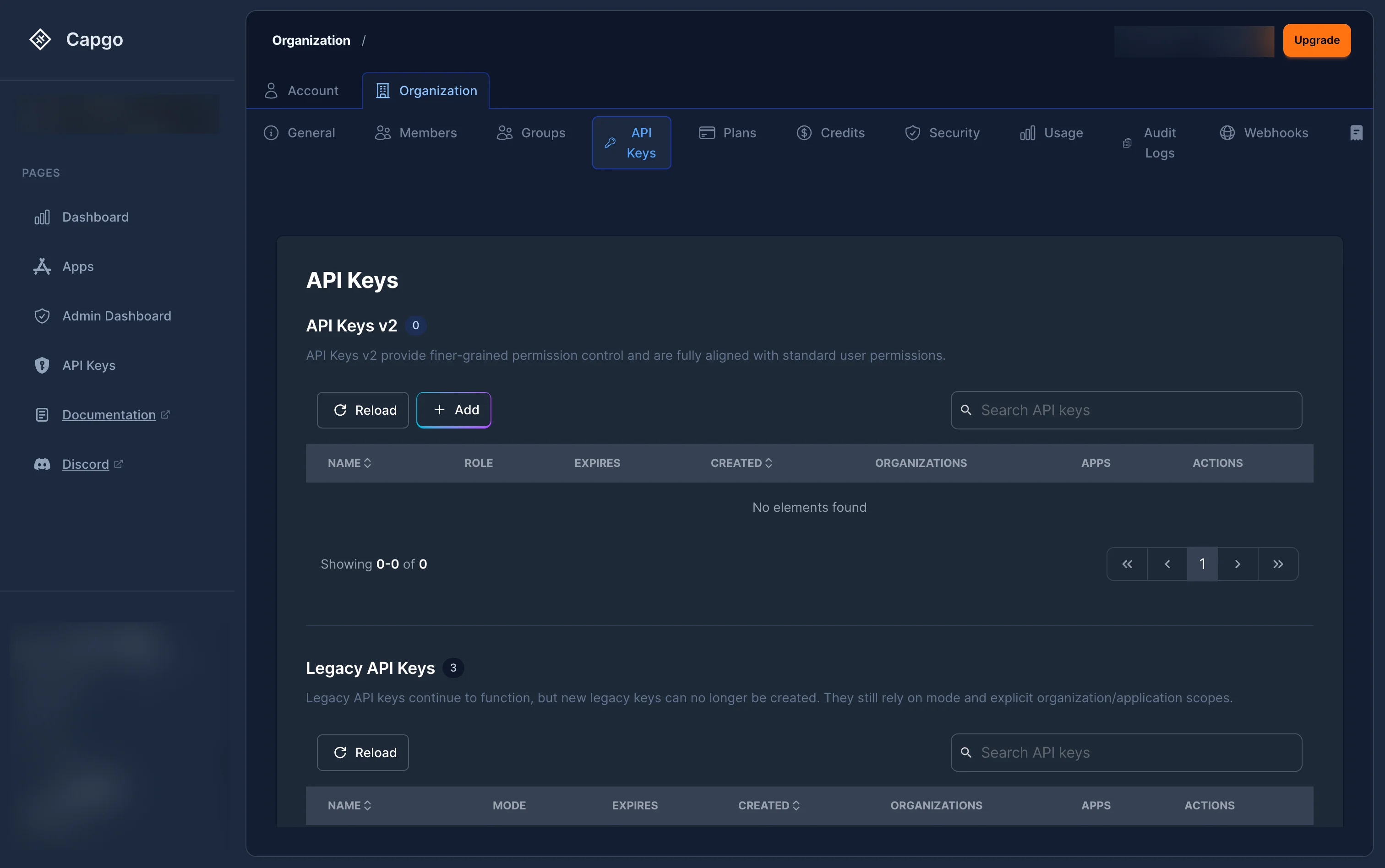
API 키를 새로 생성하는 방법
‘API 키를 새로 생성하는 방법’ 제목 섹션-
위치할 ”+” 버튼
-
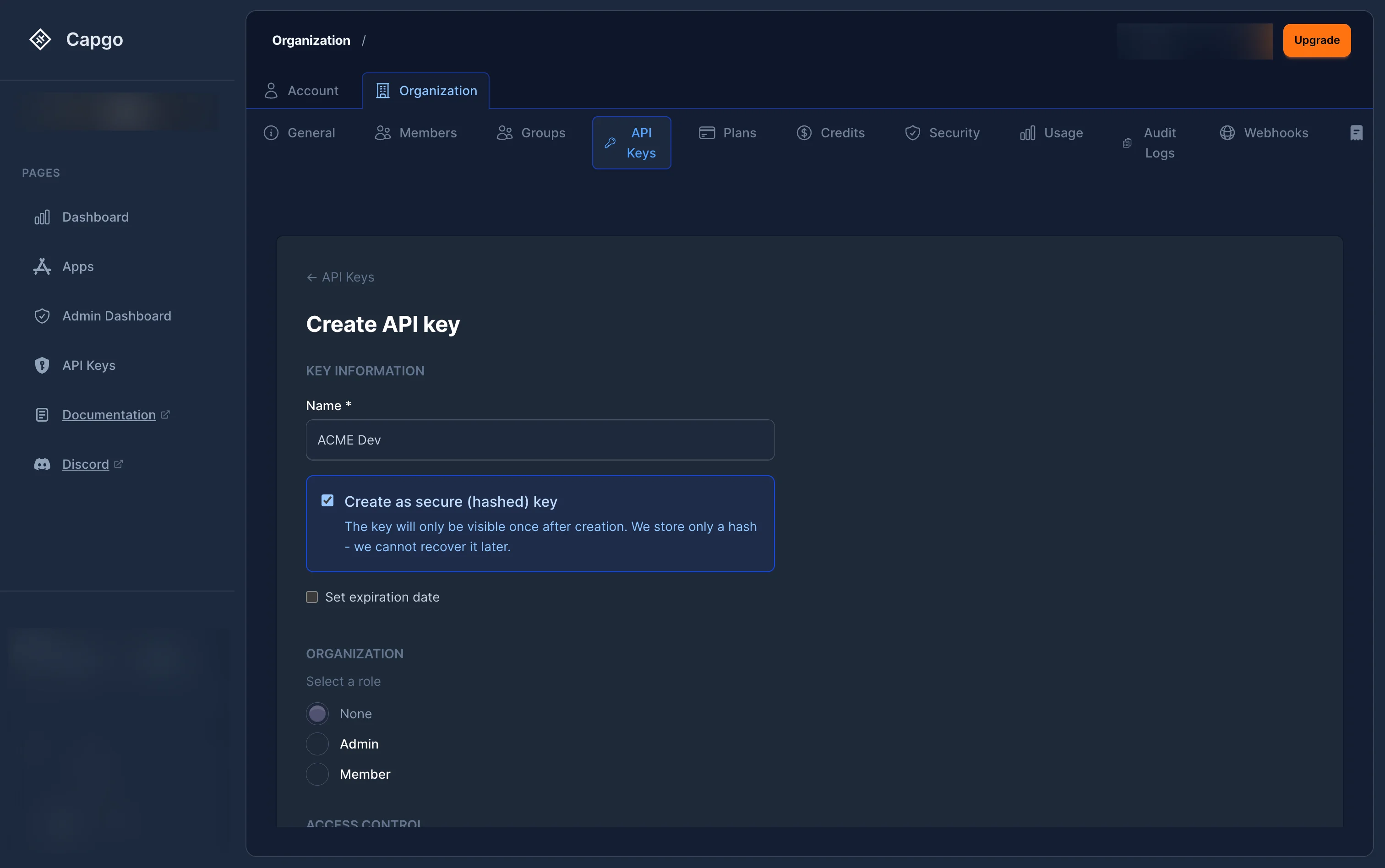
입력란 키 정보:
- 이름 (필수) — 키에 대한 설명 (예: ‘CI/CD Deploy’ 또는 ‘Monitoring Read-Only’)
- 보안 키 생성 (선택) — 체크하면 서버측에서 키를 해시합니다. 평문 키는 표시되지 않습니다. 한 번만 생성 후에는 나중에 다시 가져올 수 없습니다.
- 만료일 설정 (선택 사항) — 만료일을 선택하여 키가 더 이상 작동하지 않도록 하십시오. 일부 조직에서는 정책을 통해 필수적으로 만료를 강제합니다.
-
키 범위 선택:
- 조직 전체 접근 권한 — 선택하세요 없음 — 조직 전체 접근 권한이 없습니다.
- None Organization role
- 회원 — 조직에 대한 기본 읽기 접근 권한.
- 관리자 — 조직과 모든 앱에 대한 전체 관리 접근 권한.
- 앱 전용 접근 — 활성화 이 키를 선택한 앱에만 제한. 각 앱 바인딩은 해당 앱의 소유 조직과 연결이 유지되며, 이 모드는 조직 전체 RBAC 역할만 생략합니다.
- 조직 전체 접근 권한 — 선택하세요 없음 — 조직 전체 접근 권한이 없습니다.
-
키가 API에서 조직을 생성해야 하는 경우, 활성화 조직 생성 허용.
이 기능은 전역
org.create권한을 추가합니다. 키도 조직 범위의org_admin또는org_super_adminAPI 키. API 키를 선택하는 경우 Admin 관리자org_admin바인딩을 생성합니다. 새로운 조직이 생성될 때 이 키가 Capgo를 자동으로 Super Admin으로 할당합니다. -
권한 부여를 위해:
- When 선택된 앱 바인딩은 소유한 조직과 연관이 유지되며, 이 필터는 조직 전체에 대한 접근 권한을 부여하지 않습니다. 클릭 바인딩. 대시보드에서 선택 관리자
- Click ”+ 앱 추가”, 앱을 선택하거나 여러 앱을 선택한 후 각 앱에 역할을 assign합니다.
- 앱 리더 앱 리더는 앱에 읽기 전용 접근권한을 가집니다.
- 앱 업로더 앱 업로더는 새로운 배포본을 업로드할 수 있습니다.
- 앱 개발자 앱 개발자는 배포본을 업로드할 수 있으며, 장치 관리, 네이티브 빌드 트리거링, 채널 설정 업데이트와 같은 작업을 수행할 수 있습니다.
- 앱 관리자 앱 관리자는 앱에 전체 접근권한을 가집니다.
- 앱 프리뷰 앱 프리뷰는 CI/CD 라이프사이클을 미리보기할 수 있습니다. 배포본을 업로드하고 프리뷰 채널을 생성할 수 있습니다. 이 키에 대한 채널은 자동으로 채널 범위의 라이프사이클 권한을 가집니다.
-
클릭 “Create”.
-
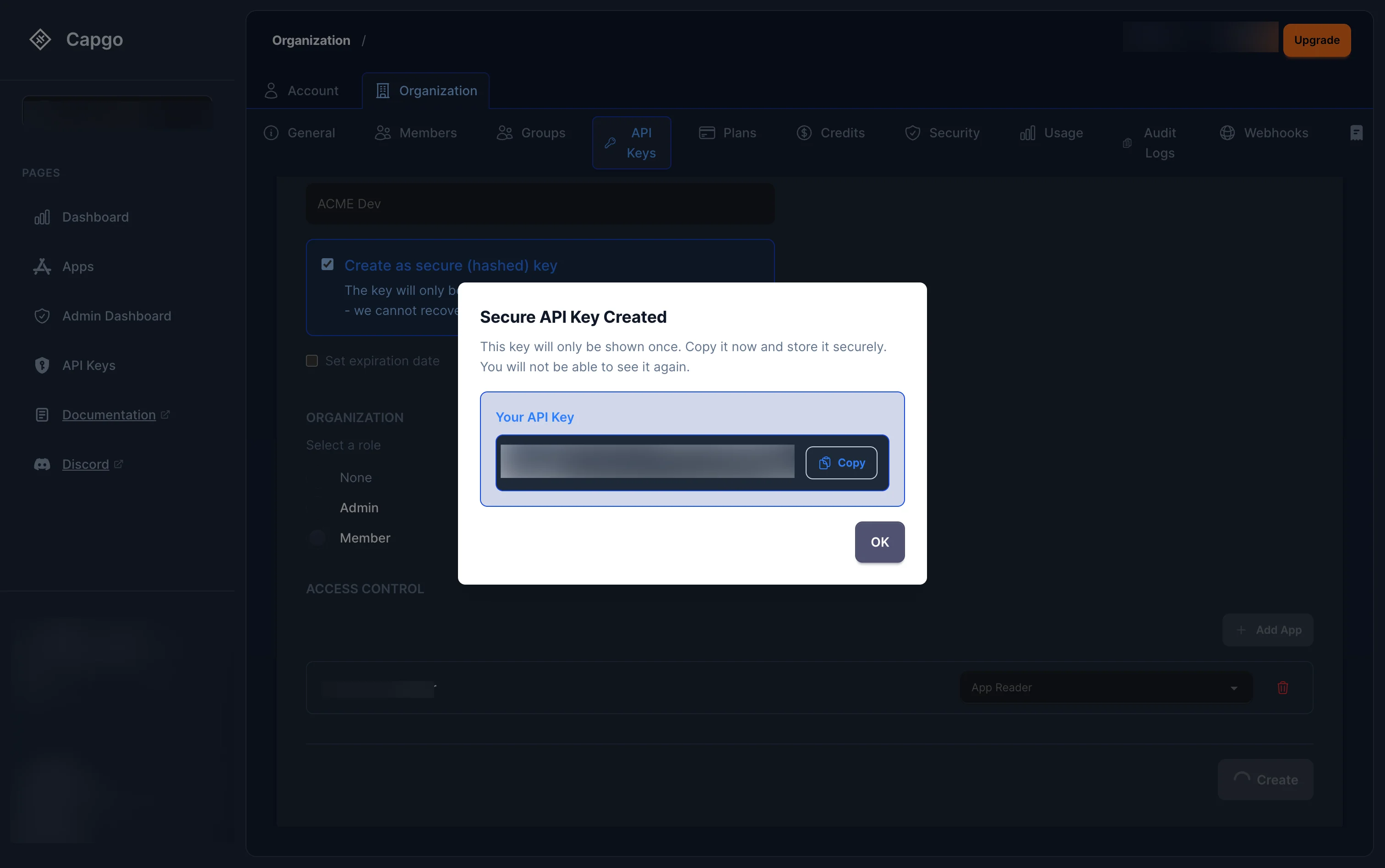
만약에 확인을 하셨다면 안전한 키 생성키를 복사하세요. — 모달을 닫으면 다시 찾을 수 없습니다. 일회용 __CAPGO_KEEP_0__ 키 비밀 모달에 복사 버튼 앱 미리보기 키를 사용하여 미리보기 워크플로우
사용
앱 미리보기앱 미리보기 키 앱 미리보기 키 CI가 임시, 비공개 미리보기 채널을 생성하고 업로드, 승격한 다음 채널과 패키지를 모두 삭제합니다. 이 기능은 기존 기본 또는 메인 채널에 대한 라이프 사이클 접근 권한이 없습니다.
- RBAC 키를 생성하고 활성화하세요 선택한 앱에만 제한하세요.
- 아래 조직을 필터링하는 앱을 선택하세요, 조직을 선택하여 해당 조직의 앱을 표시합니다. 선택한 앱은 각 조직 소유자와 연관됩니다.
- 미리보기 배포에 사용되는 앱만 추가하세요.
- 선택하세요 미리보기 앱 각 선택한 앱에 대해
- 보안 키를 생성하고 적절한 경우 만료일을 설정한 다음 CI 비밀 관리자에 저장하세요.
선택한 앱만 사용하는 모드는 조직 전체 역할을 생략합니다. Not 조직 연관을 제거하세요. 각 app_preview 바인딩은 선택한 앱과 그 앱의 소유 조직에 속한 앱으로 제한됩니다.
| 허용 | 권한 및 경계 |
|---|---|
app_preview 선택한 앱 | app.read, app.read_bundles, app.upload_bundle, 그리고 app.create_channel. |
자동 channel_preview 바인딩 | 이 키가 채널을 생성할 때, Capgo은 채널에 대한 키를 자동으로 제공합니다. channel.read, channel.promote_bundle, 그리고 channel.delete 그 채널에만. |
app_preview 유지한다 app.read, 따라서 키는 선택된 앱의 채널 메타데이터를 열거할 수 있습니다. 자동 자식 바인딩은 키가 생성하지 않은 채널에 대한 라이프 사이클 변형을 허용하지 않습니다. 관리 경계: 채널 키가 생성하지 않은 채널에 대한 라이프 사이클 변형을 허용하지 않습니다.
Capgo도 App Preview 키가 업로드 한 번들을 기록합니다. 키는 각 프리뷰 채널을 생성할 때만 자신의 번들을 설정할 수 있으며, 그 pair를 함께 삭제할 수 있습니다. 기존 기본 또는 메인 채널, 다른 프리뷰 키가 생성한 채널, 또는 다른 키의 번들을 받지 않습니다.
CI 작업의 일반적인 경우에는 pull request당 유니크한 채널 이름을 사용하세요:
APP_ID="com.example.app"PREVIEW_CHANNEL="pr-123"BUNDLE_VERSION="1.2.3-pr.123"
npx @capgo/cli@latest bundle upload "$APP_ID" \  --apikey "$CAPGO_API_KEY" \  --path ./dist \  --channel "$PREVIEW_CHANNEL" \  --bundle "$BUNDLE_VERSION"
npx @capgo/cli@latest channel delete "$PREVIEW_CHANNEL" "$APP_ID" \  --apikey "$CAPGO_API_KEY" \  --delete-bundle \  --success-if-not-found
새 채널을 만들 때 bundle upload --channel 채널을 생성하고 번들을 업로드하고, 한 번에 승격합니다. 마지막 명령은 narrow atomic cleanup 경로를 사용하여 succeeds합니다: 키가 프리뷰 채널과 그에 연결된, 공유되지 않은 번들을 소유할 때만 succeeds합니다. 앱 프리뷰 아직 일반적인 bundle.delete이러한 키는 임의의 번들을 삭제할 수 없습니다.
참조 자세한 경계를 보려면 권한 제어 참조
API 키를 어떻게 관리(편집)할까요?
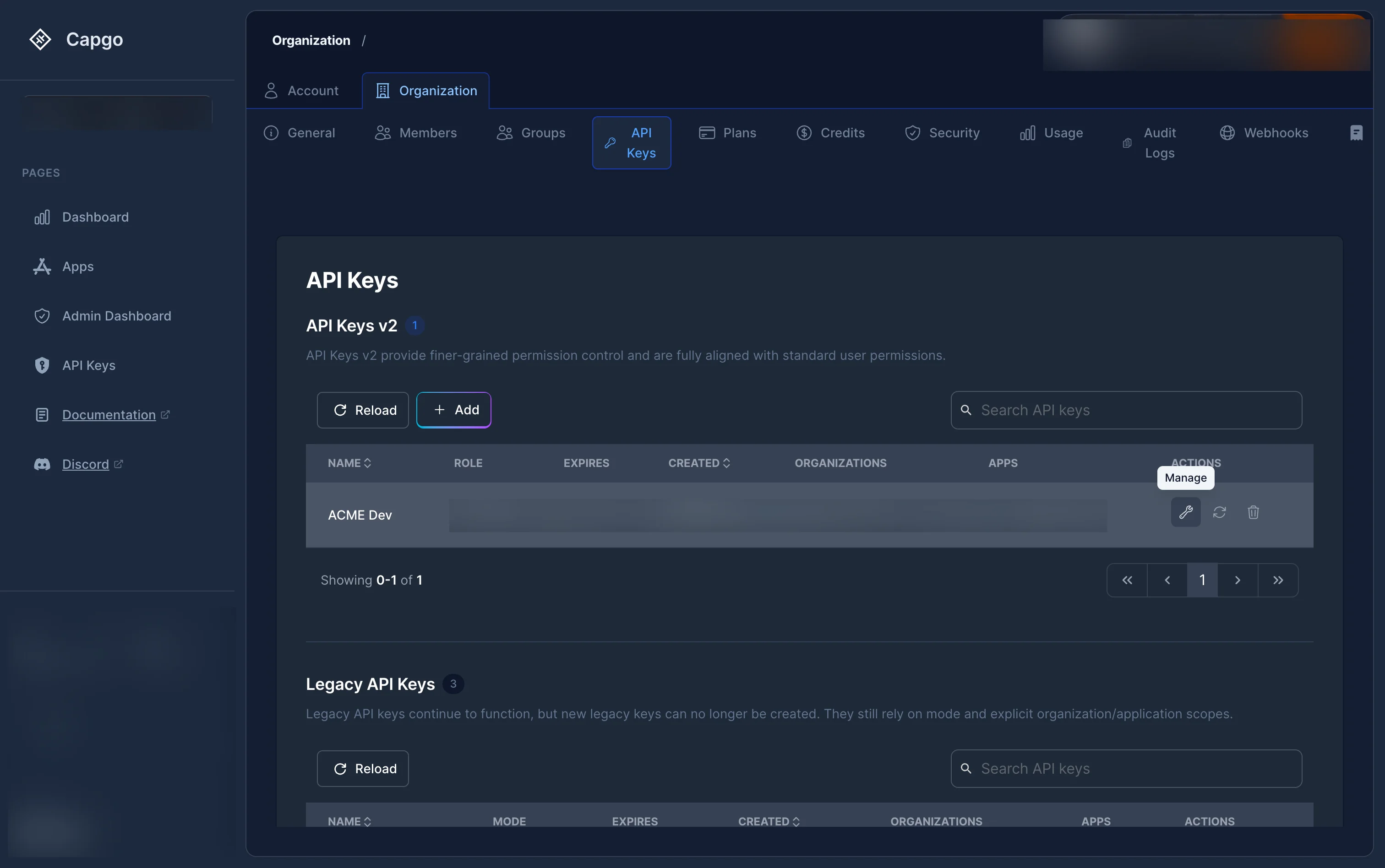
API 키를 관리(편집)하는 방법Click the 스파나이콘 (관리) 버튼을 클릭합니다. 이는 키 세부 정보 페이지를 열어 키를 편집할 수 있는 곳입니다.
- 키 이름을 변경합니다. 키 이름.
- 키의 조직 역할 .
- 키가 Admin 조직 역할을 가지고 있는 경우 조직을 만들 수 있도록 허용합니다. 조직을 만들 수 있도록 허용
- 추가, 제거 또는 변경 앱별 역할.
클릭 “변경 사항 저장” 완료되면.
API 키를 재생성하는 방법
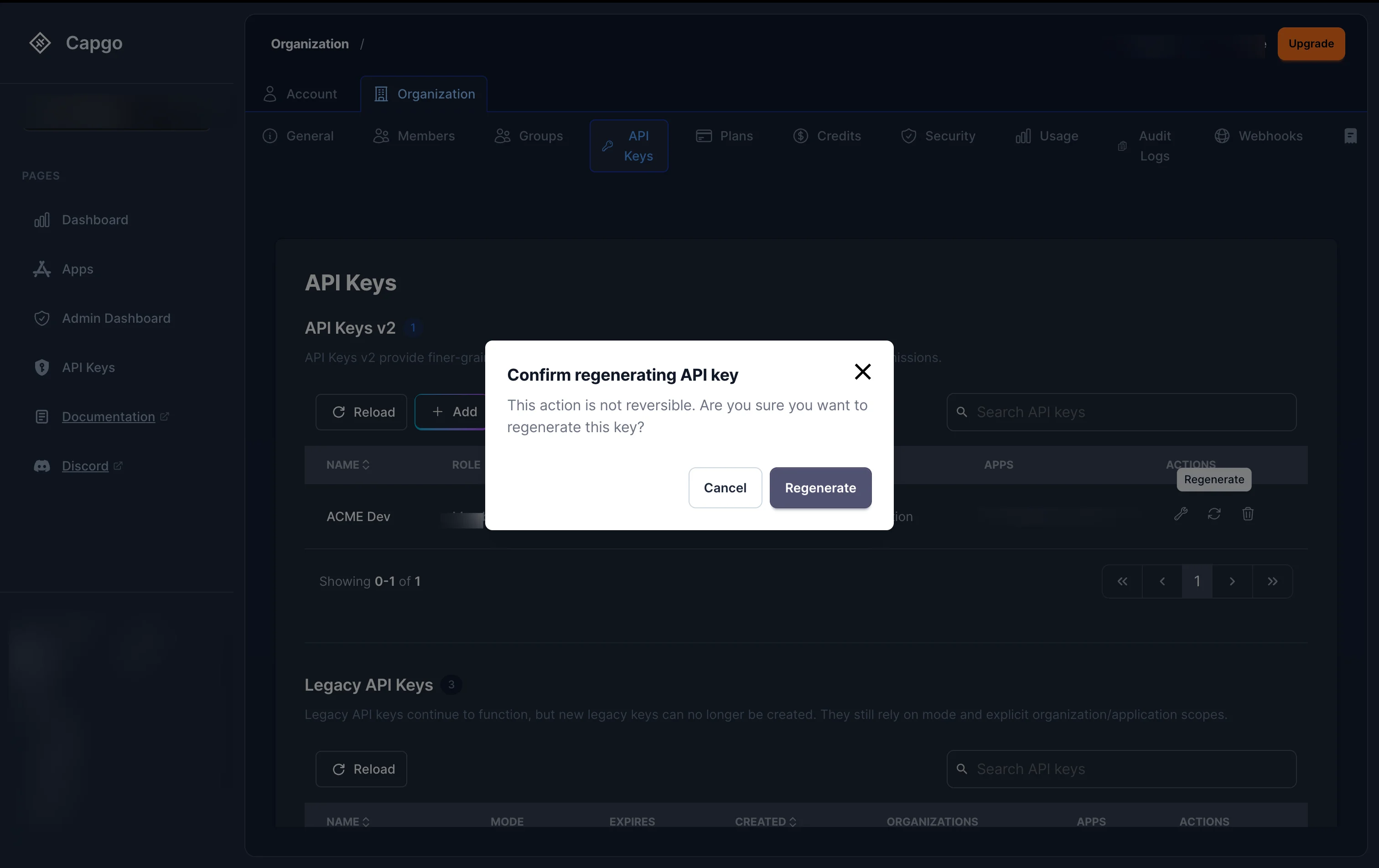
API 키를 재생성하는 방법API 키의 비밀 값을 재생성하려면 새로 고침 아이콘 (재생성) 목록 내의 키 중 하나에 클릭
확인 대화상자가 나타납니다. 확인 후:
- For 보안 (해시) 키: 새로운 평문 키가 모달에서 한 번만 표시되고, 즉시 복사하세요.
- For 평문 키: 키 값은 서버 측에서 재생성됩니다.
기존 키 값으로 사용하는 모든 통합이 즉시 작동을 멈추게 됩니다.
API 키를 삭제하는 방법
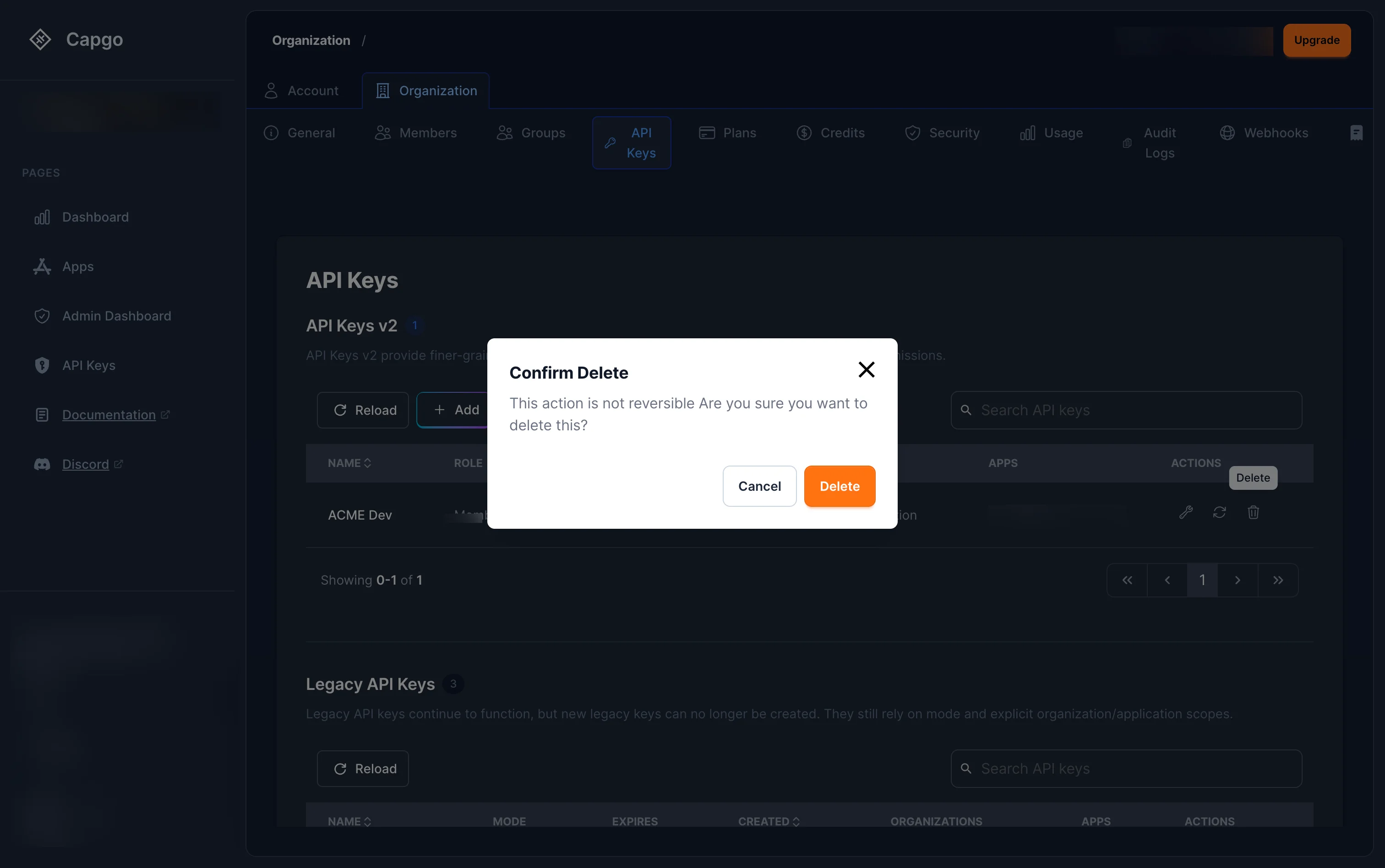
API 키를 삭제하는 방법삭제 아이콘을 클릭하세요 삭제 아이콘 리스트 내의 키 중 하나를 삭제합니다. 삭제를 확인하려면 대화상자에서 확인합니다.
키는 즉시 취소되며, 사용 중인 요청은 실패합니다.
기존 키
기존 키 제목키가 역할 할당이 없는 경우 (기존 모드 기반 권한 시스템을 사용하는 경우) 리스트 내에서 키를 확인할 수 있습니다. 기존 키 기존 키 섹션 (역할 할당이 없는 키)에서 키를 확인할 수 있습니다. 이 키들은 여전히 작동하지만 RBAC의 세부 권한을 받지 못합니다.read, upload, write, all기존 키는 목록에서 재생성 및 삭제할 수 있지만 RBAC 역할을 추가하여 편집할 수 없습니다. 새로운 RBAC 키를 생성하고 기존 키를 삭제하는 것을 권장합니다.
기존 키를 직접 관리해야 하는 경우에는 여전히
console.__CAPGO_KEEP_0__.app/dashboard/apikeys console.capgo.app/대시보드/API키. 이 페이지는 deprecated 상태이며 향후 업데이트에서 제거될 예정입니다.
API 키에서 계속 진행하세요.
API 키에서 계속 진행하세요__CAPGO_KEEP_0__ 키를 사용하여 대시보드와 __CAPGO_KEEP_0__ 연산을 계획하고 있다면, __CAPGO_KEEP_0__ Overview와 연결하세요. API Overview API Overview에서 구현 세부 정보를 확인하세요. API 개요 API 개요 Introduction __CAPGO_KEEP_0__ API Overview API 기기 기기 구현 세부 사항에 대해 배포 배포 구현 세부 사항에 대해
Capacitor 앱을 배포 기다리지 마세요
사용자에게 몇 분 만에 수정 사항을 푸시하고, Mac 없이 iOS 및 Android 앱을 빌드하고, 한 번의 클릭으로 되돌리세요.


기업용이 필요하세요? 우리 팀과 이야기하세요