
GoogleログインのiOS
このプラグインのインストール手順と全マークダウンガイドを含むセットアップコマンドをコピーします。
導入
導入このガイドでは、iOS向けにGoogleログインを設定する方法を学びます。 Capgo Social Loginの設定を完了します。 既読の一般設定ガイドがあることを前提としています。 一般設定ガイド.
iOSでGoogleログインを使用する
「iOSでGoogleログインを使用する」のセクションiOS向けのGoogleコンソールのクライアントIDを作成する
-
検索バーをクリックする
-
Googleコンソールの検索バー

-
でクリックする
credentials1つ目(スクリーンショットの2番目)APIs and Services検索結果のクレデンシャルオプションとAPIs & Servicesが強調表示されている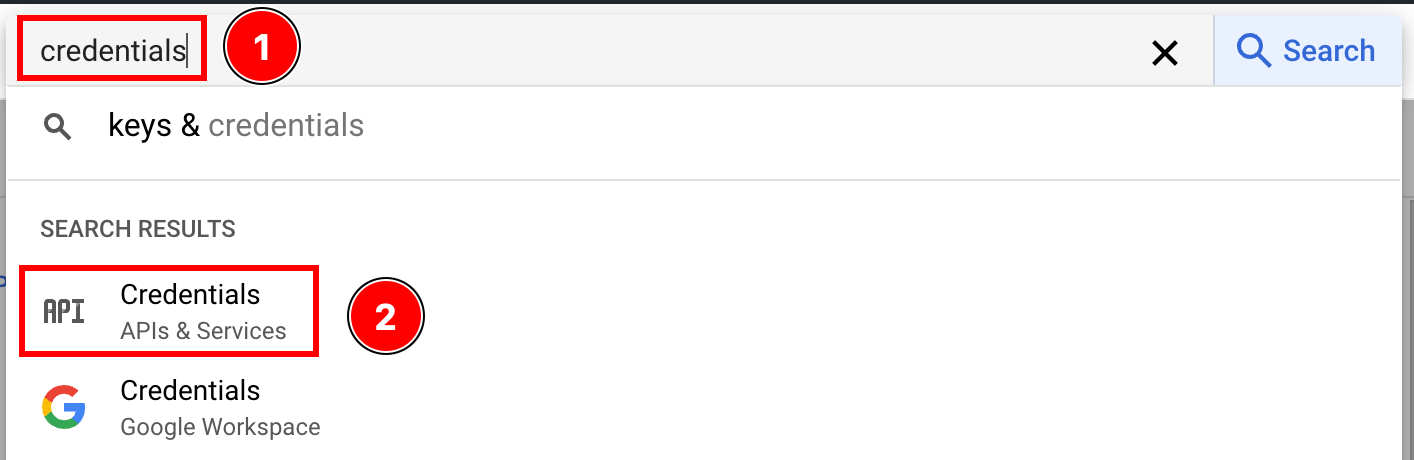
-
クリック
create credentials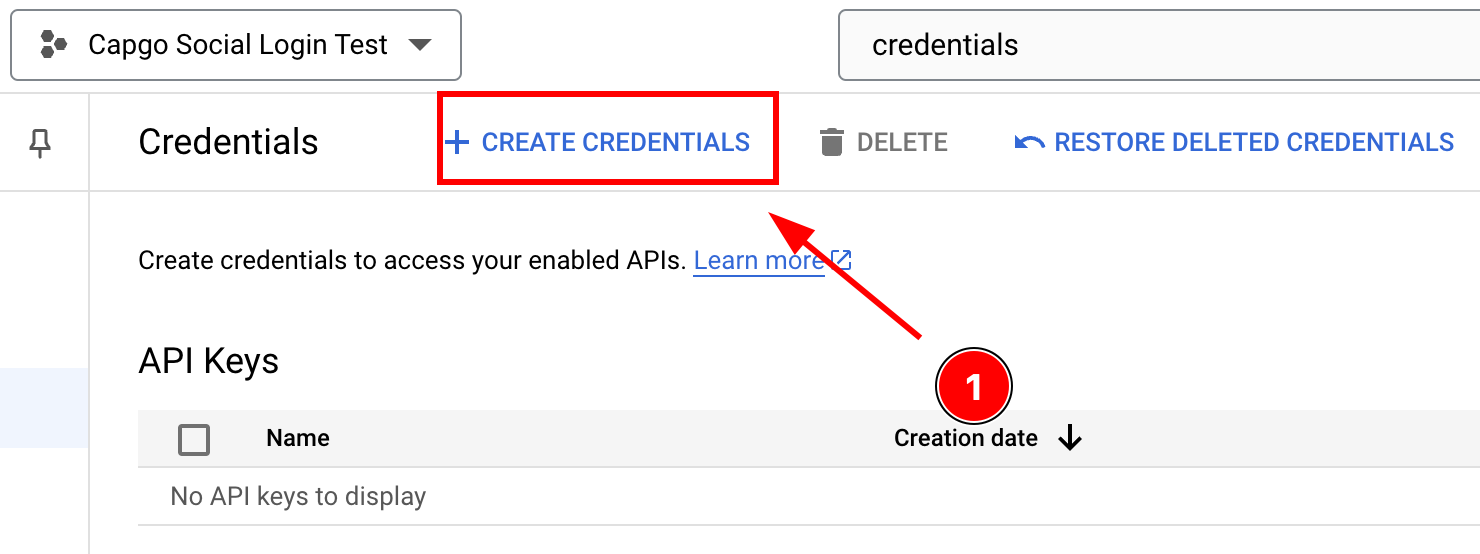
-
選択
OAuth client ID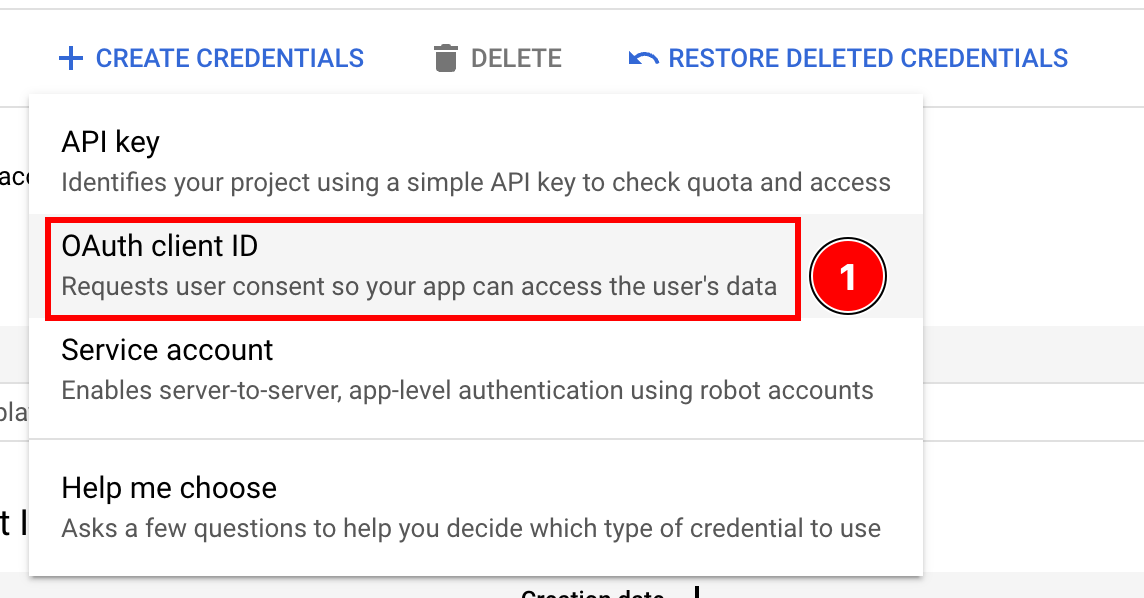
-
選択
Application typetoiOS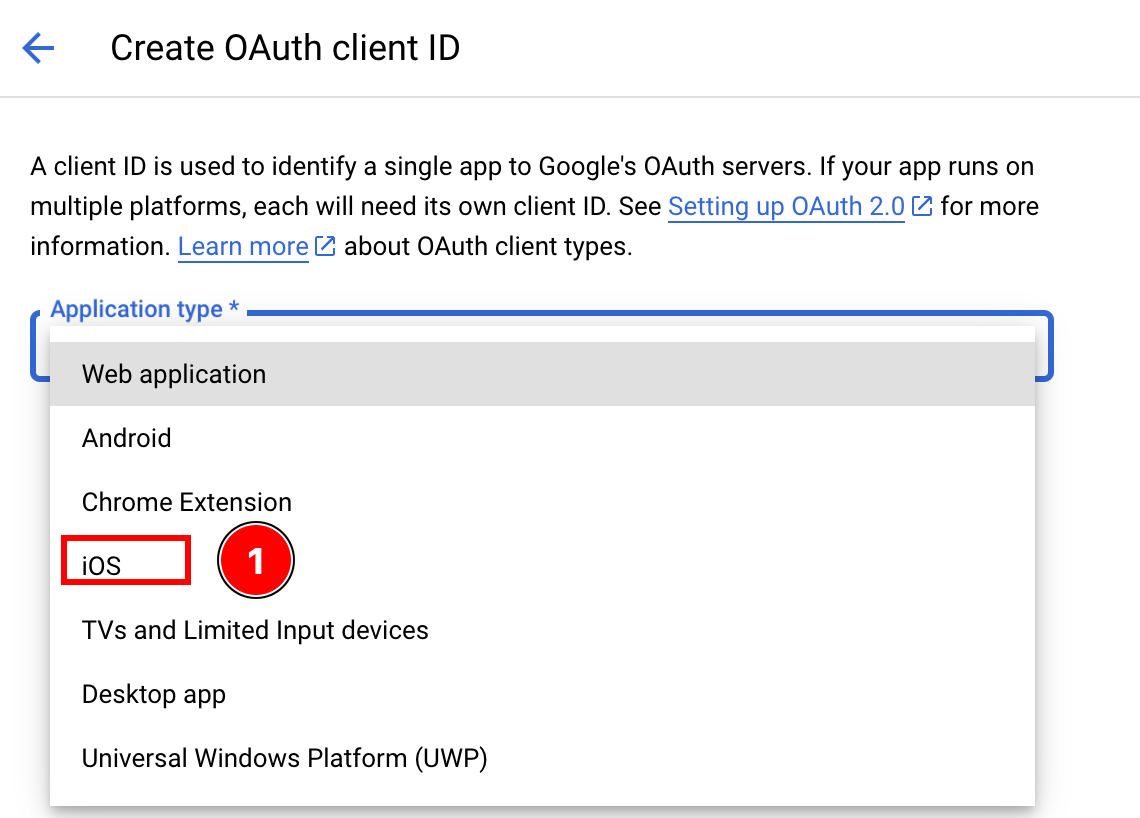
-
バンドルIDを探す
-
Xcodeを開く
-
Xcodeプロジェクトナビゲータで
App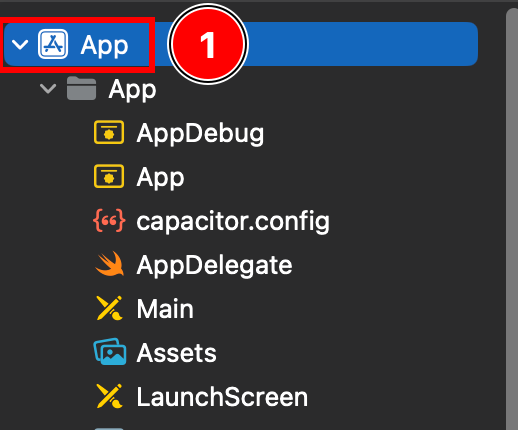
-
Xcodeプロジェクトナビゲータでアプリターゲット
Targets -> App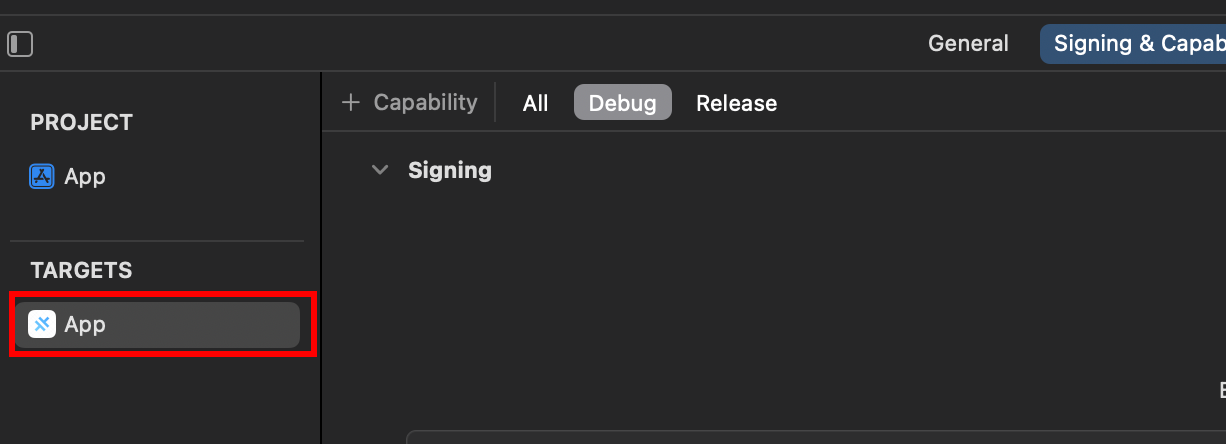
-
あなたの
Bundle Identifier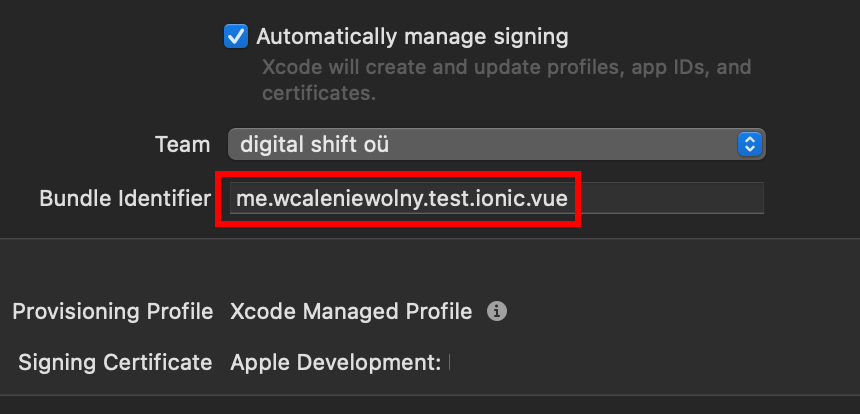
-
Googleコンソールに戻り、Bundle IDフィールドにあなたの
Bundle IdentifierをBundle ID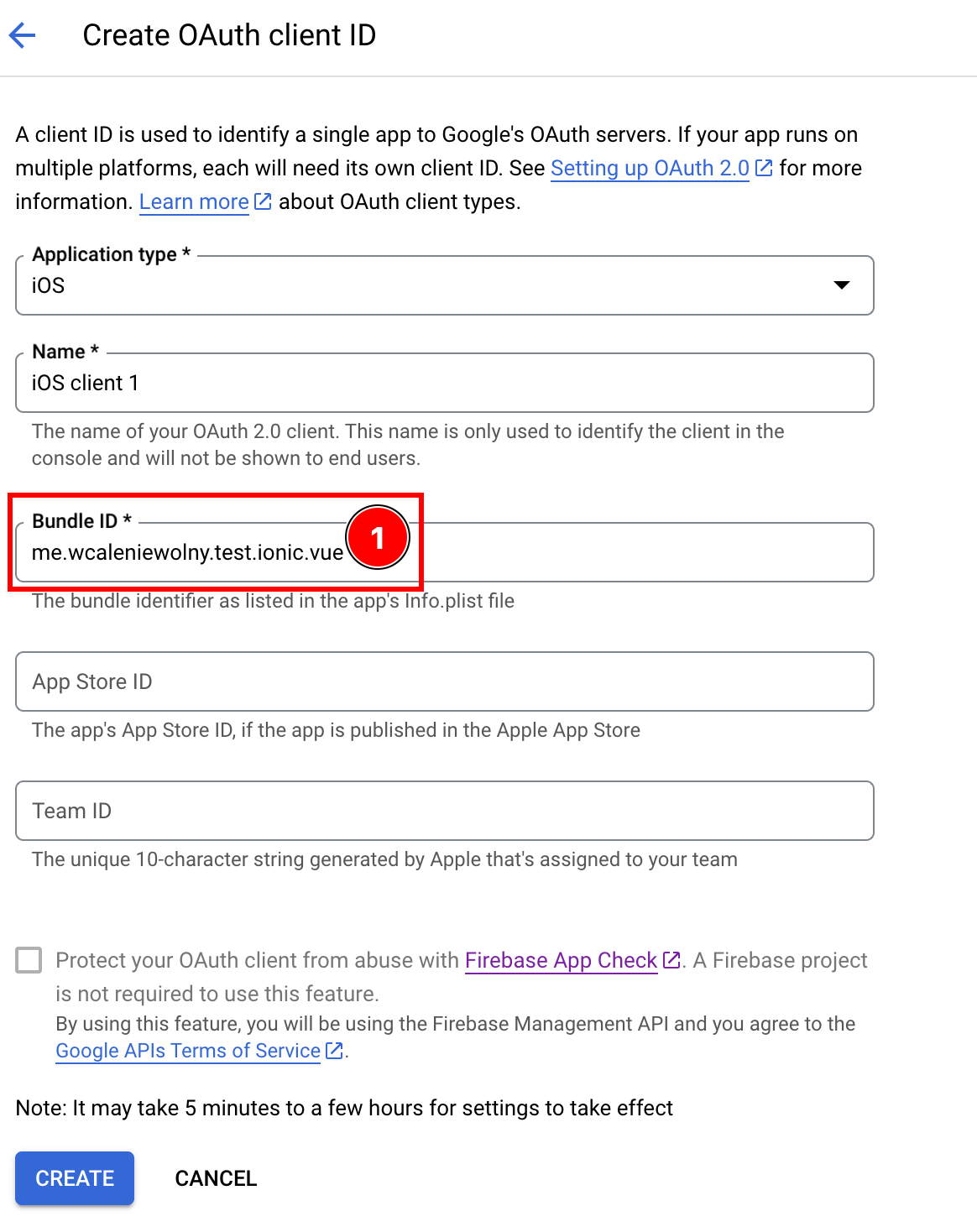
-
-
オプションで、
App Store IDまたはTeam IDクライアントIDに -
アプリをApp Storeに公開した場合
create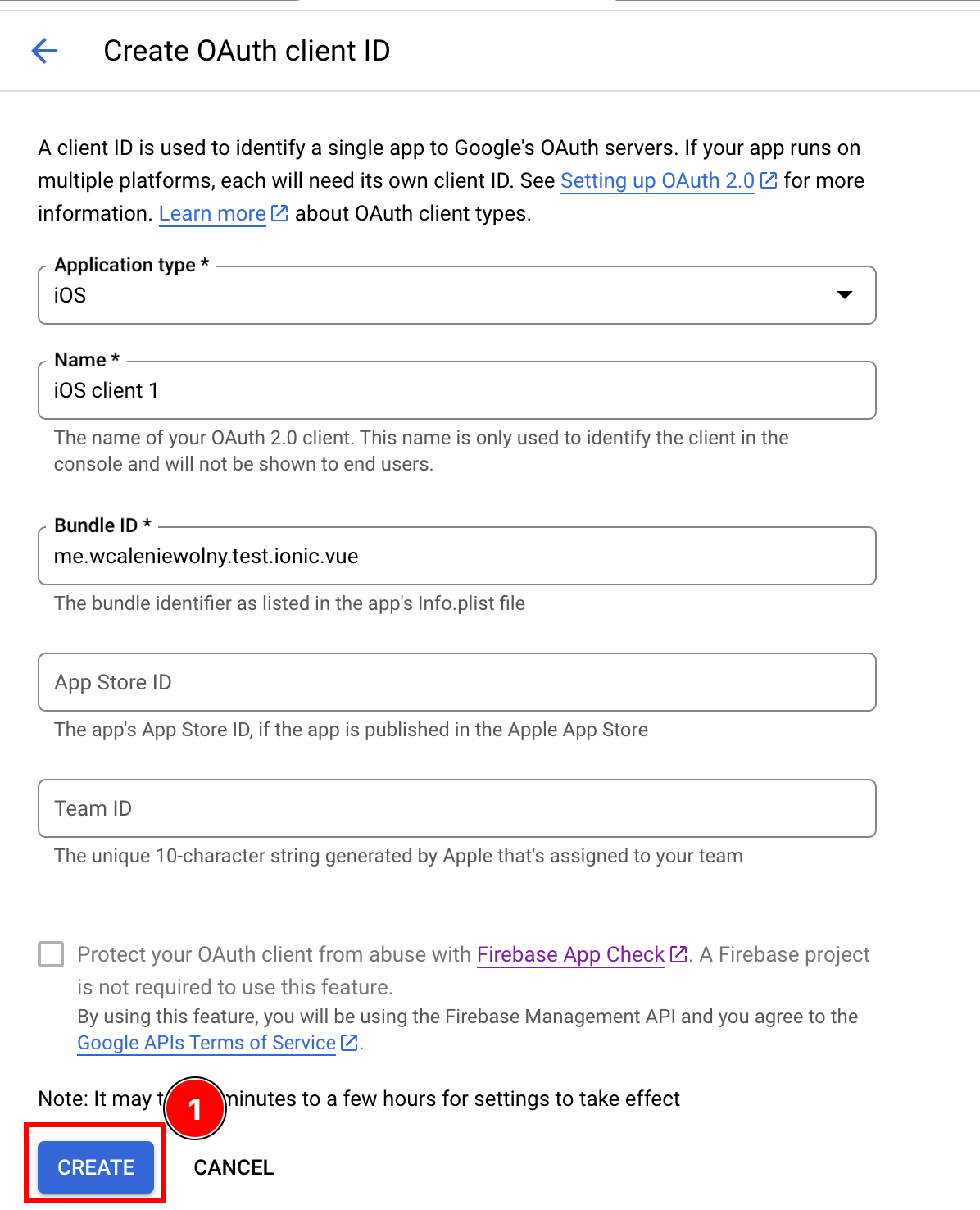
-
Click
OK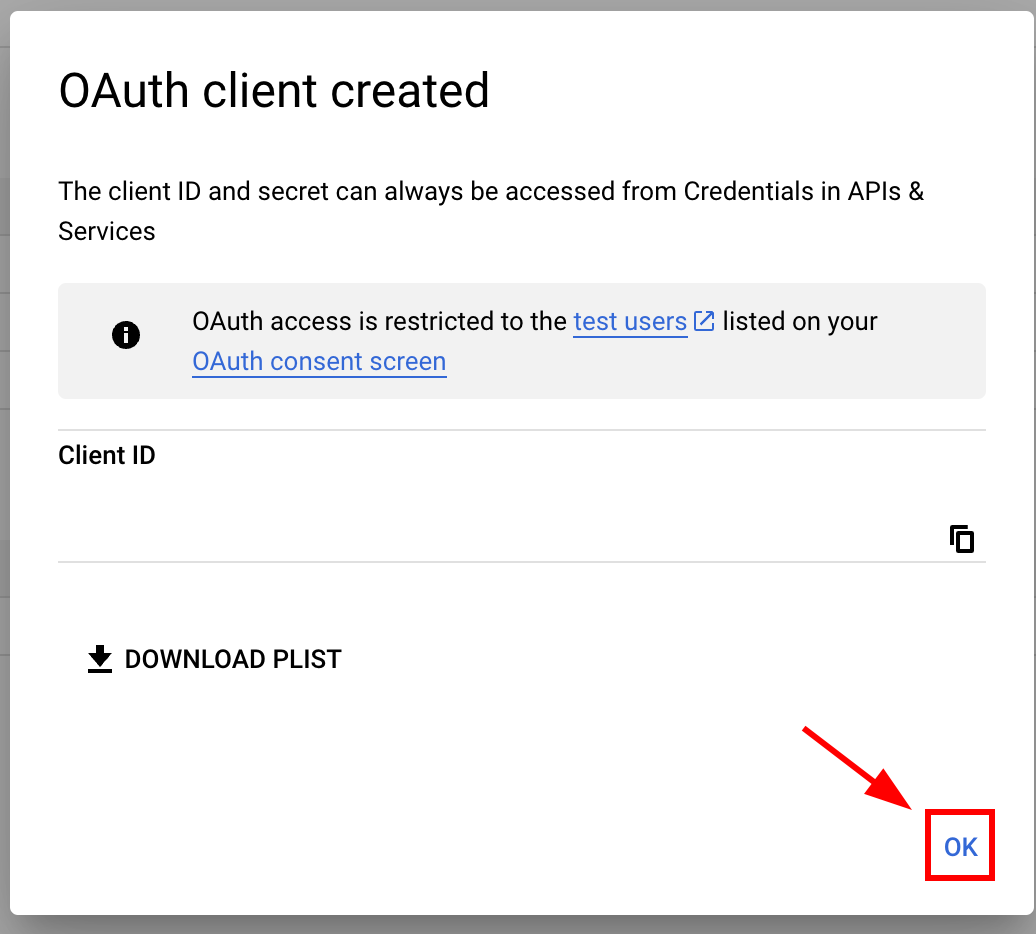
-
新しく作成した iOS クライアントを開く
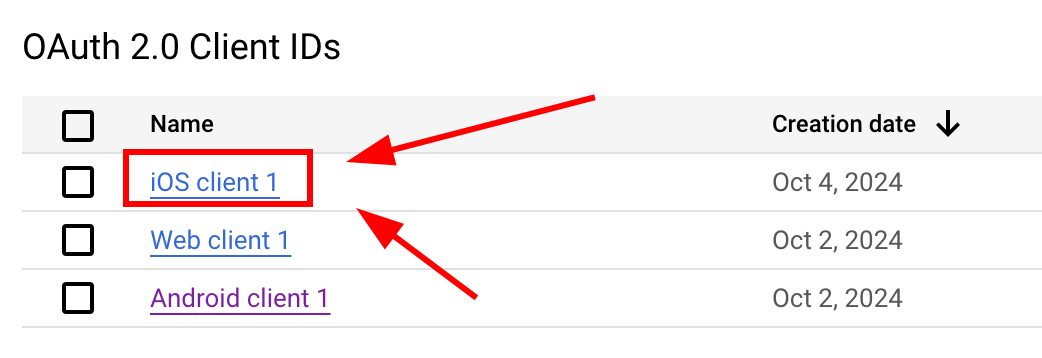
-
__CAPGO_KEEP_0__をコピーするデータ

-
-
アプリの Info.plist を変更する
-
Xcode を開いてプロジェクト ナビゲーターで
Info.plistファイル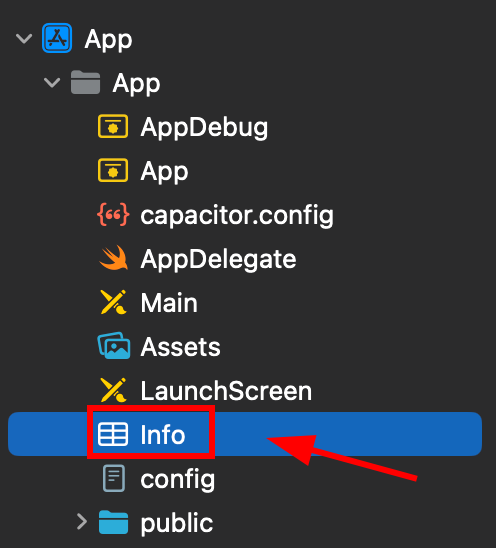
-
このファイルを右クリックし、ソースとして開く code
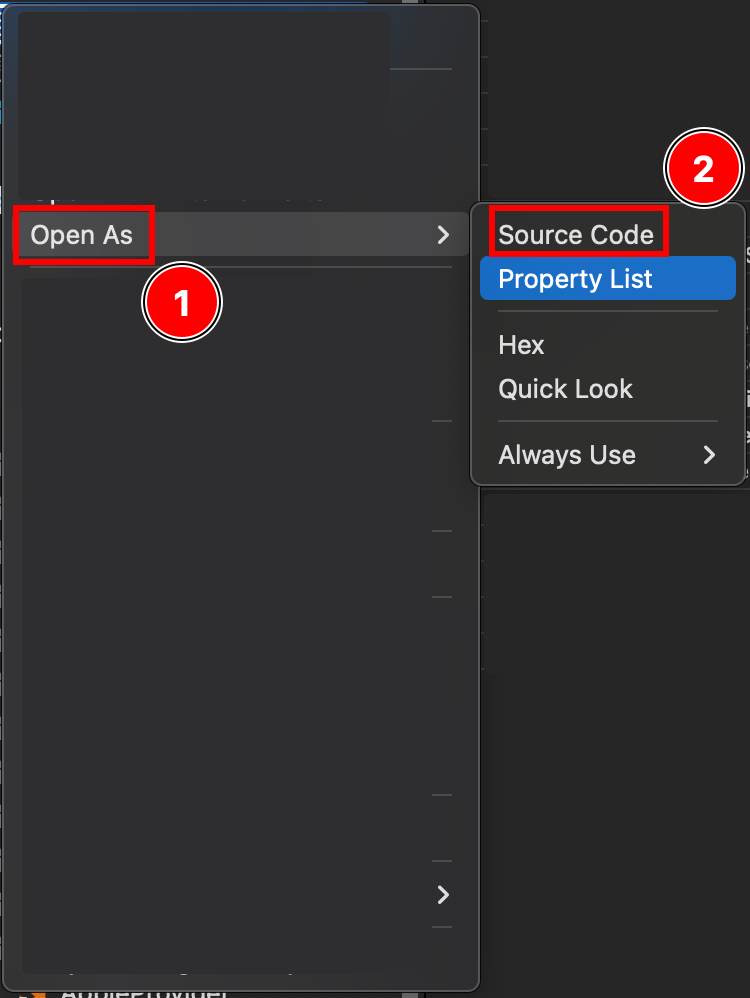
-
ファイルの下部に、
Plistタグ</dict>tag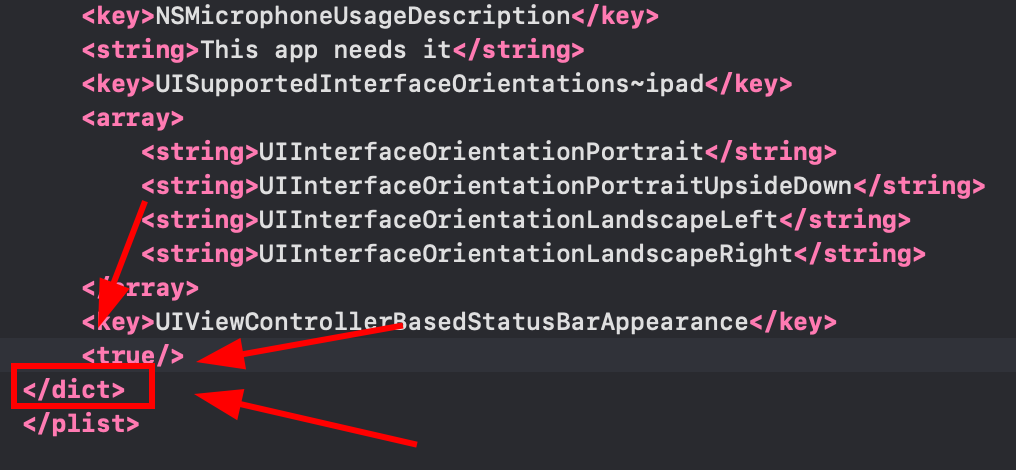
-
クロージング dict タグの直前に、以下のフラグメントを挿入する
</dict>タグ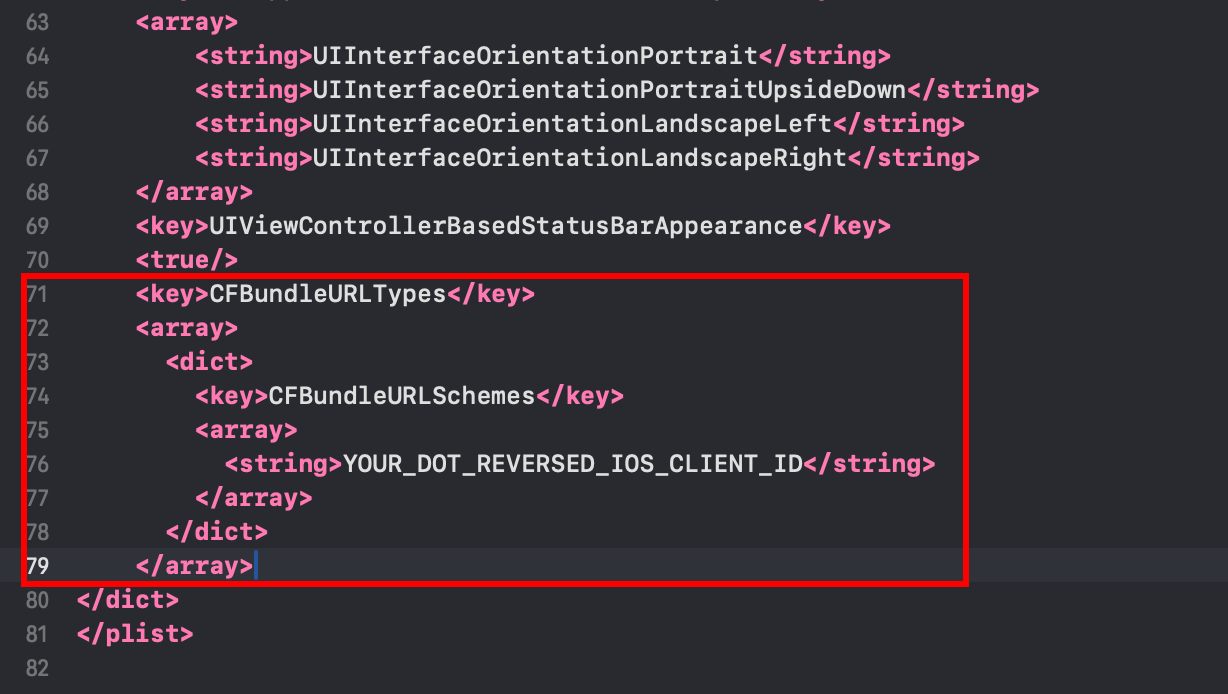 <key>CFBundleURLTypes</key><array><dict><key>CFBundleURLSchemes</key><array><string>YOUR_DOT_REVERSED_IOS_CLIENT_ID</string></array></dict></array>
 -
変更する
YOUR_DOT_REVERSED_IOS_CLIENT_ID前のステップでコピーした値に変更する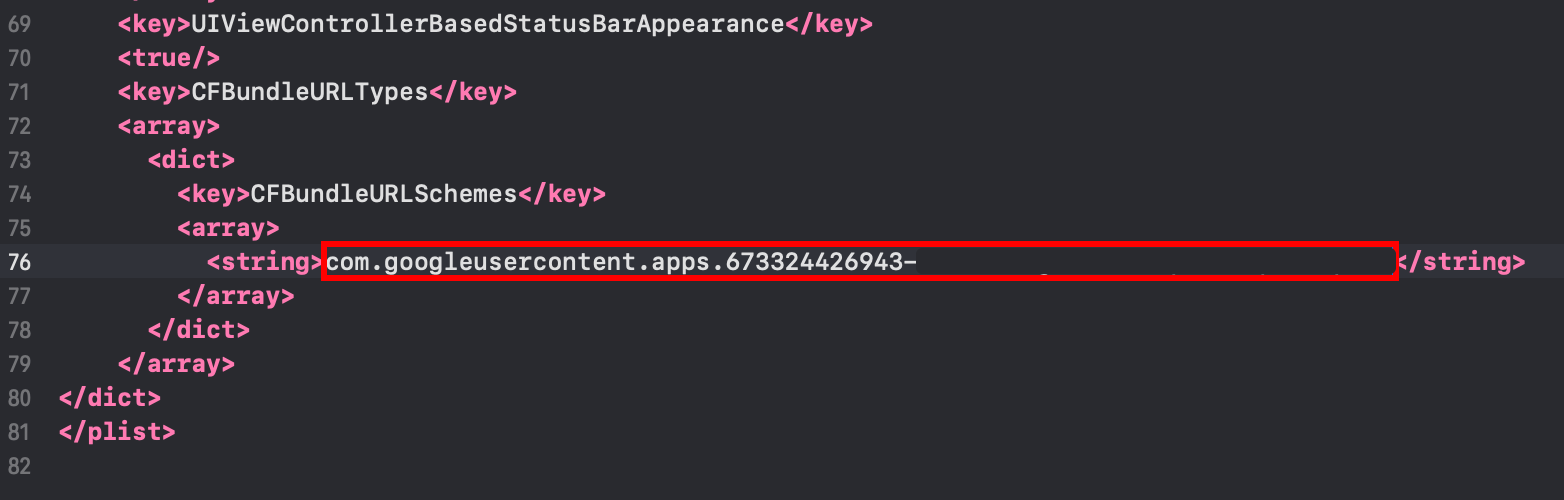
-
ファイルを保存する
Command + S
-
-
修正する
AppDelegate.swift-
Googleのソーシャルログインを
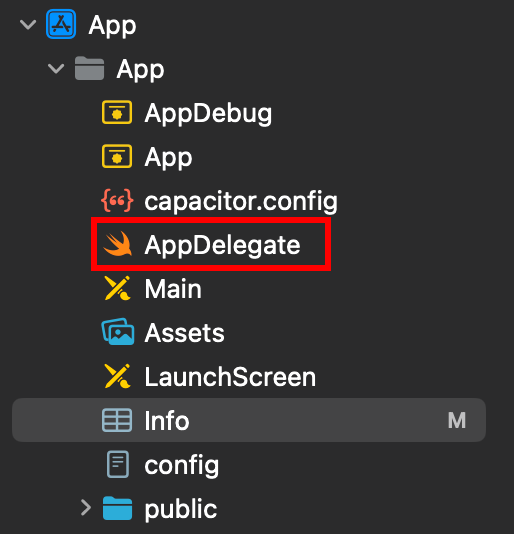
-
Insert
import GoogleSignInAppDelegate.swiftファイルの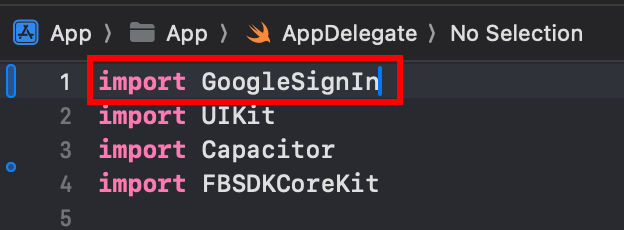
-
Find the
func application(_ app: UIApplication, open url: URL, options: [UIApplication.OpenURLOptionsKey: Any] = [:])function
-
AppDelegate.swiftファイルの
func application(_ app: UIApplication, open url: URL, options: [UIApplication.OpenURLOptionsKey: Any] = [:]) -> Bool {// Called when the app was launched with a url. Feel free to add additional processing here,// but if you want the App API to support tracking app url opens, make sure to keep this callvar handled: Boolhandled = GIDSignIn.sharedInstance.handle(url)if handled {return true}return ApplicationDelegateProxy.shared.application(app, open: url, options: options)}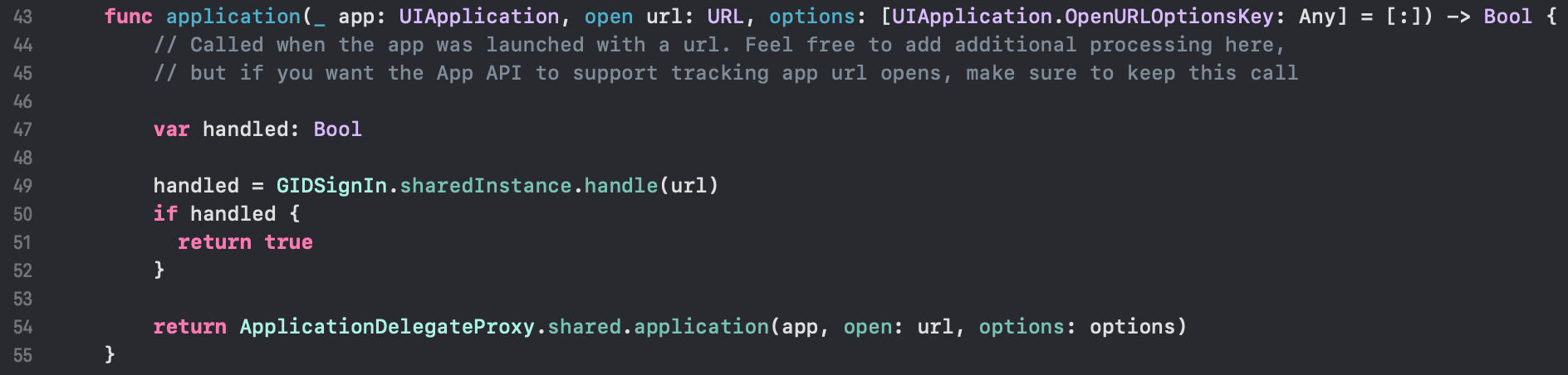
-
ファイルを保存してください
Command + S
-
-
Google ログインを設定するには、JavaScript/TypeScript code
-
インポート
SocialLoginそしてCapacitorimport { SocialLogin } from '@capgo/capacitor-social-login';import { Capacitor } from '@capacitor/core'; -
初期化メソッドを呼び出してください (これは、1 回だけ呼び出してください)
基本設定 (オンラインモード - 大多数のアプリ向けに推奨)
// onMounted is Vue specificonMounted(() => {SocialLogin.initialize({google: {iOSClientId: '673324426943-redacted.apps.googleusercontent.com',mode: 'online' // Default mode}})})高度な設定 (追加のクライアント ID を使用):
onMounted(() => {SocialLogin.initialize({google: {webClientId: 'YOUR_WEB_CLIENT_ID', // Optional: for web platform supportiOSClientId: 'YOUR_IOS_CLIENT_ID', // Required: from step 1iOSServerClientId: 'YOUR_WEB_CLIENT_ID', // Optional: same as webClientId, needed for some advanced featuresmode: 'online' // 'online' or 'offline'}})}) -
ソーシャルログイン機能を実装します。ボタンを作成し、次のcodeをクリック時に実行します。
オンラインモードの場合:
const res = await SocialLogin.login({provider: 'google',options: {}})// handle the response - contains user dataconsole.log(JSON.stringify(res))オフラインモードの場合:
const res = await SocialLogin.login({provider: 'google',options: {forceRefreshToken: true // Recommended for offline mode}})// res contains serverAuthCode, not user data// Send serverAuthCode to your backend to get user information// Do not call SocialLogin.refresh() in offline modeconsole.log('Server auth code:', res.result.serverAuthCode)
-
-
アプリケーションをテストする
-
アプリをビルドして実行する
cap sync -
すべてが正しく行われた場合、Google ログインフローが正常に動作するはずです

-
既知の問題
知られている問題プライバシースクリーン プラグインの不相応
プライバシースクリーン プラグインの不相応Google ログイン プラグインは @capacitor/プライバシースクリーンプライバシースクリーンが表示されるため、Google ログインのウェブビューが中断されます。
対処法: 呼び出し await PrivacyScreen.disable(); コピー
import { PrivacyScreen } from '@capacitor/privacy-screen';import { SocialLogin } from '@capgo/capacitor-social-login';
await PrivacyScreen.disable();await SocialLogin.login({  provider: 'google',  options: {}});
Google ログイン on iOS から続けて
Section titled “Google ログイン on iOS から続けて”iOSでGoogleログインを使用している場合 GoogleログインをiOSで使用する 認証とアカウントフローの計画に使用するには、Googleログインを接続します。 Using @capgo/capacitor-social-login Using @capgo/capacitor-social-login Using @capgo/capacitor-social-login Using @capgo/capacitor-passkey Using @capgo/capacitor-passkey Using @capgo/capacitor-native-biometric Using @capgo/capacitor-native-biometric @capgo/capacitor-native-biometricの実装詳細について 2要素認証 2要素認証の実装詳細については
Capacitor アプリを配信 待たずに
AI コーディング エージェントとともにビルドし、修正を数分で配信し、Mac を必要とせずに iOS と Android をビルドし、すべてのリリースを監視


企業向けのニーズがありますか チームと話しましょう