
iOS 端 Google Login
复制一条配置 prompt,包含安装步骤和该插件的完整 Markdown 指南。
在本指南中,你将学习如何通过 Capgo Social Login 在 iOS 上配置 Google Login。 我假设你已经阅读了 通用设置指南.
在 iOS 上使用 Google Login
“Using Google login on iOS” 章节在本节中,你将学习如何在 iOS 上配置 Google 登录。
-
在 Google Console 中创建 iOS Client ID
-
点击搜索栏

-
搜索
credentials然后点击APIs and Services这一项(截图中编号 2)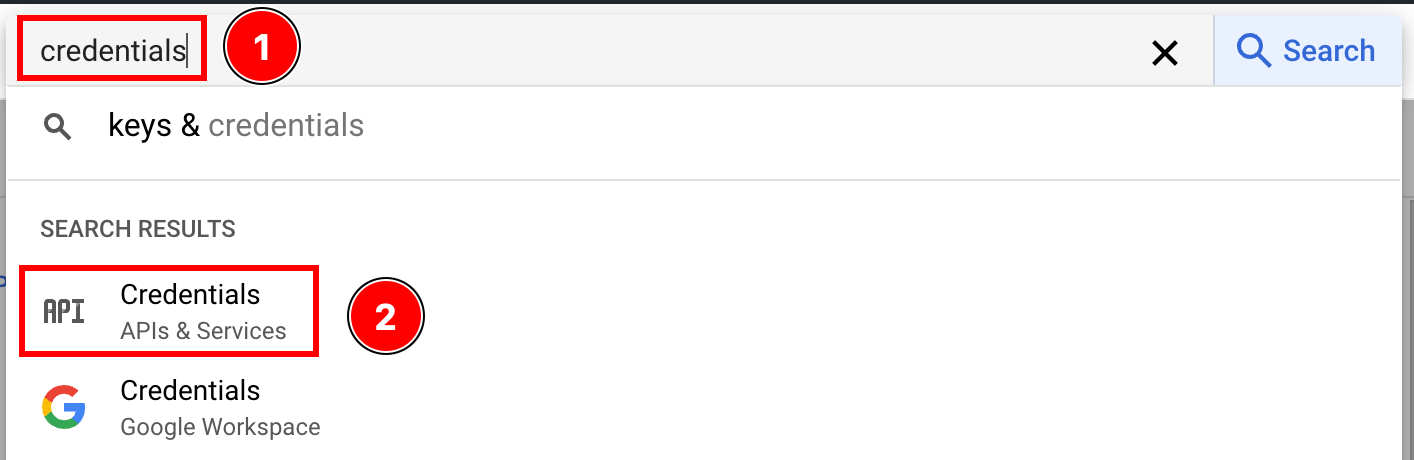
-
点击
create credentials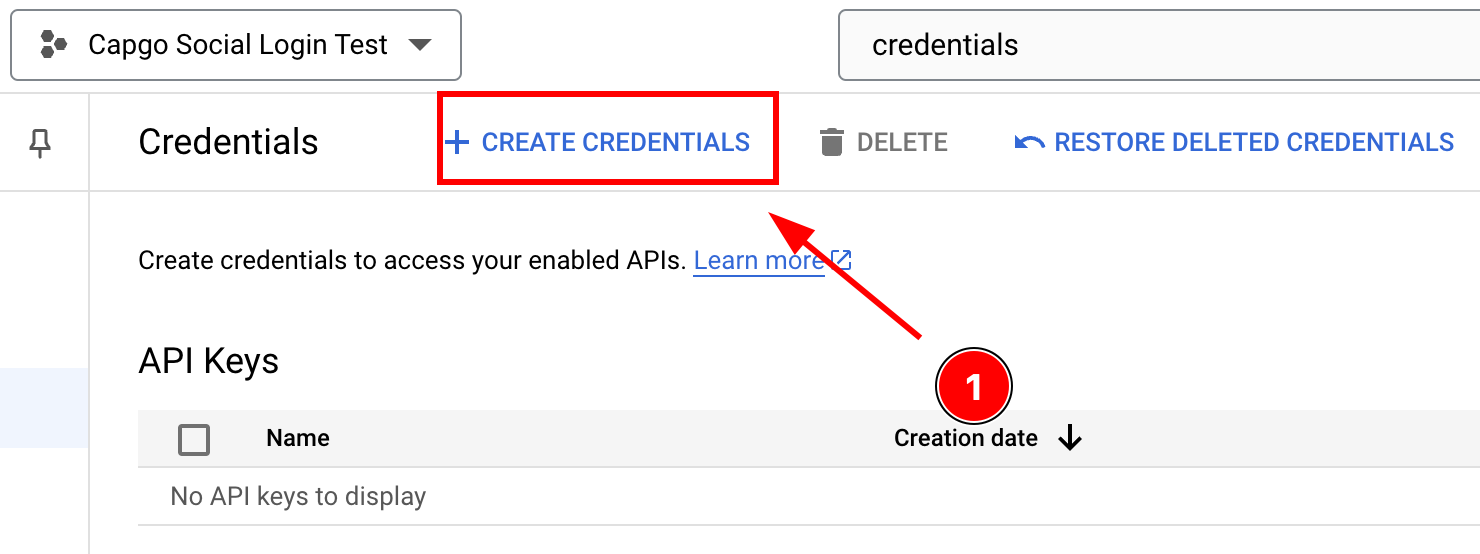
-
选择
OAuth client ID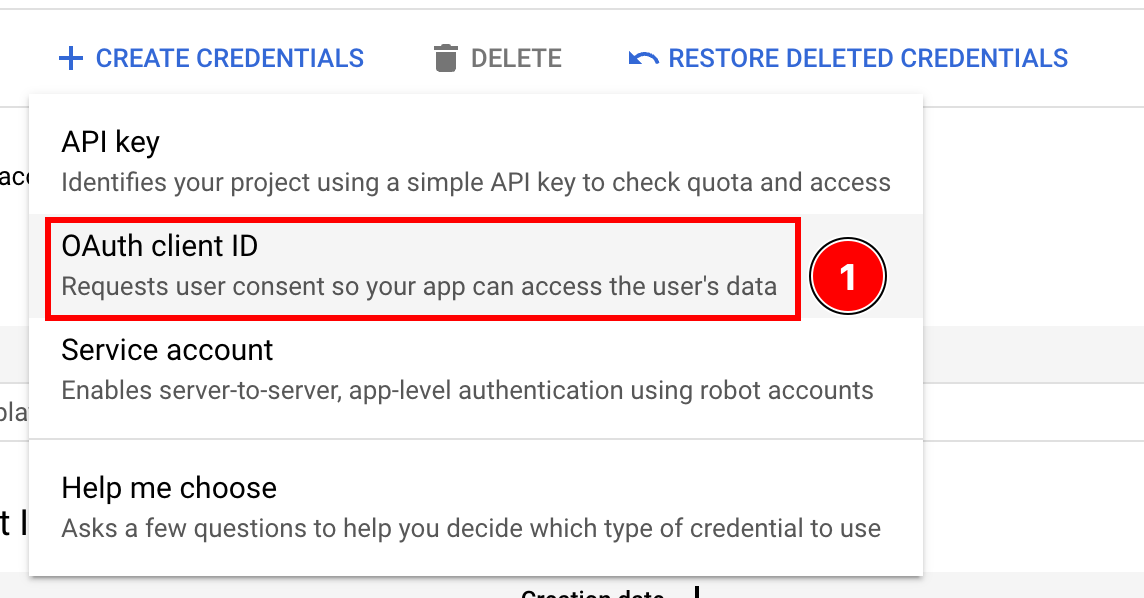
-
选择
Application type至iOS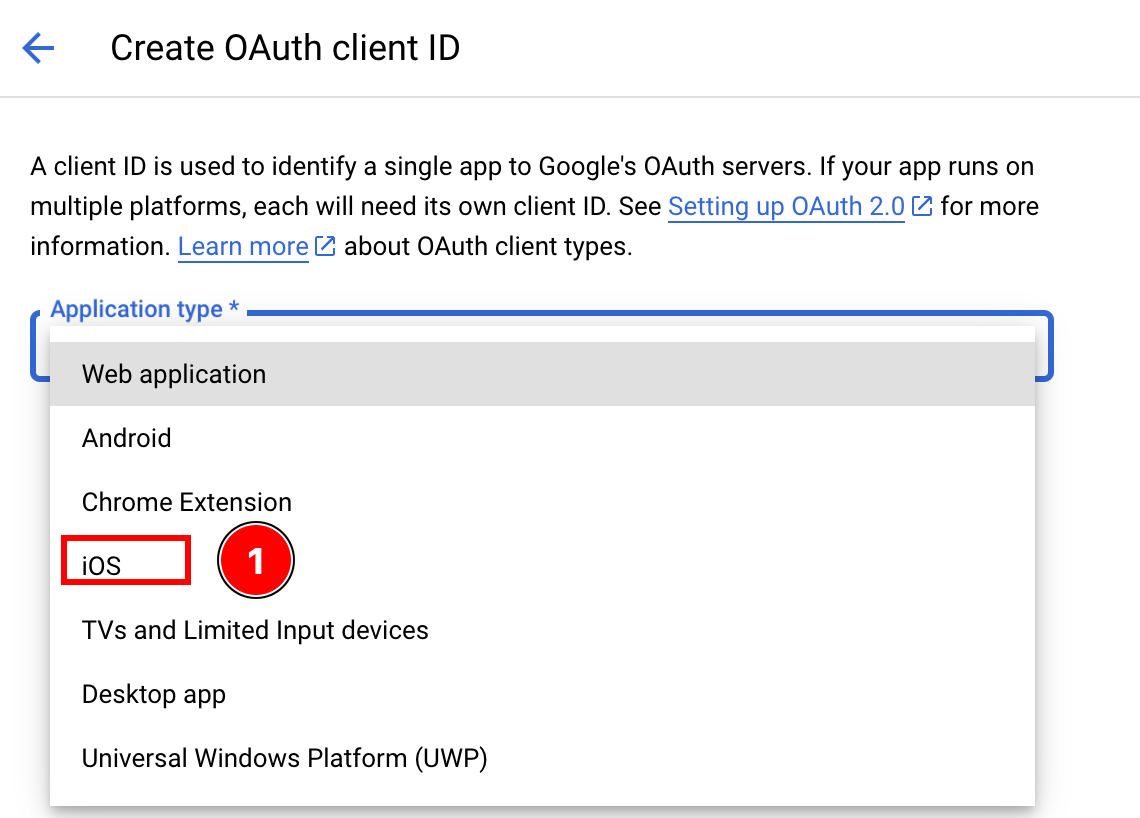
-
查找 Bundle ID
-
打开 Xcode
-
双击
App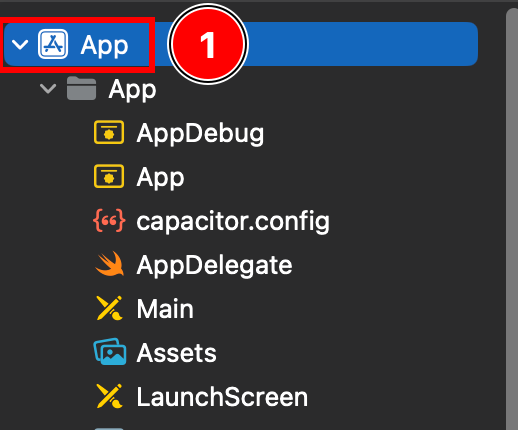
-
确保你处于
Targets -> App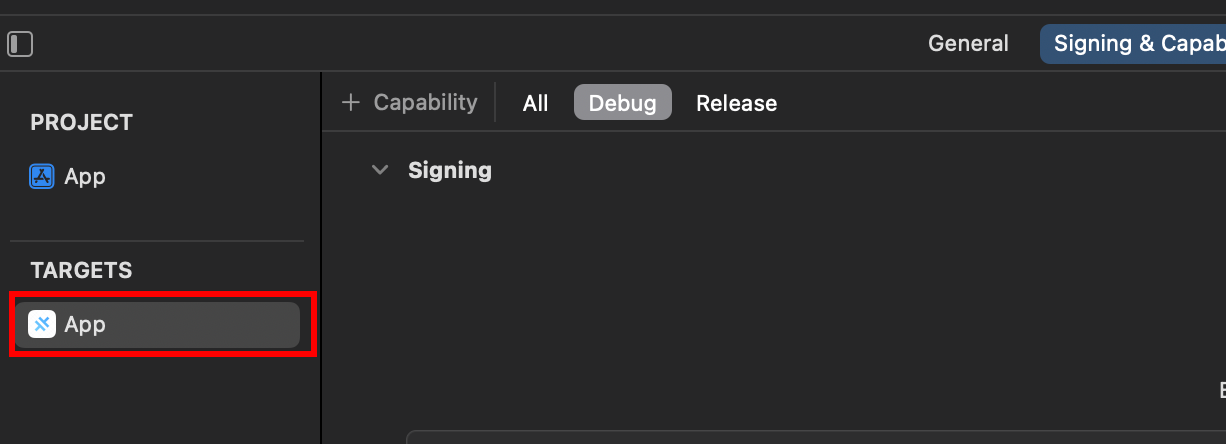
-
找到你的
Bundle Identifier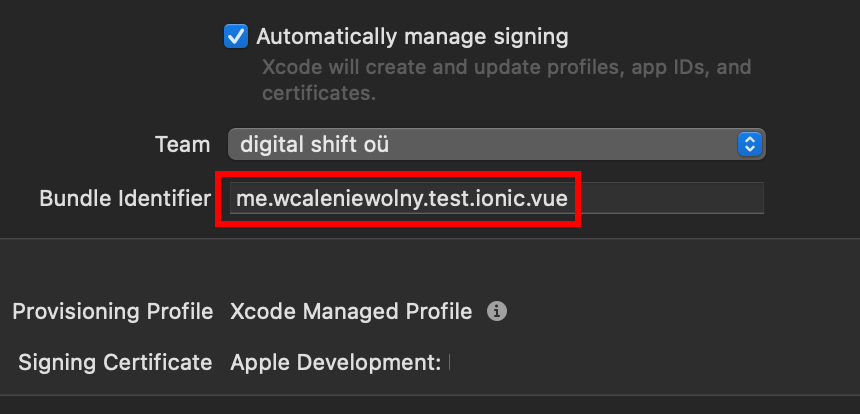
-
返回 Google Console 并粘贴你的
Bundle Identifier移至Bundle ID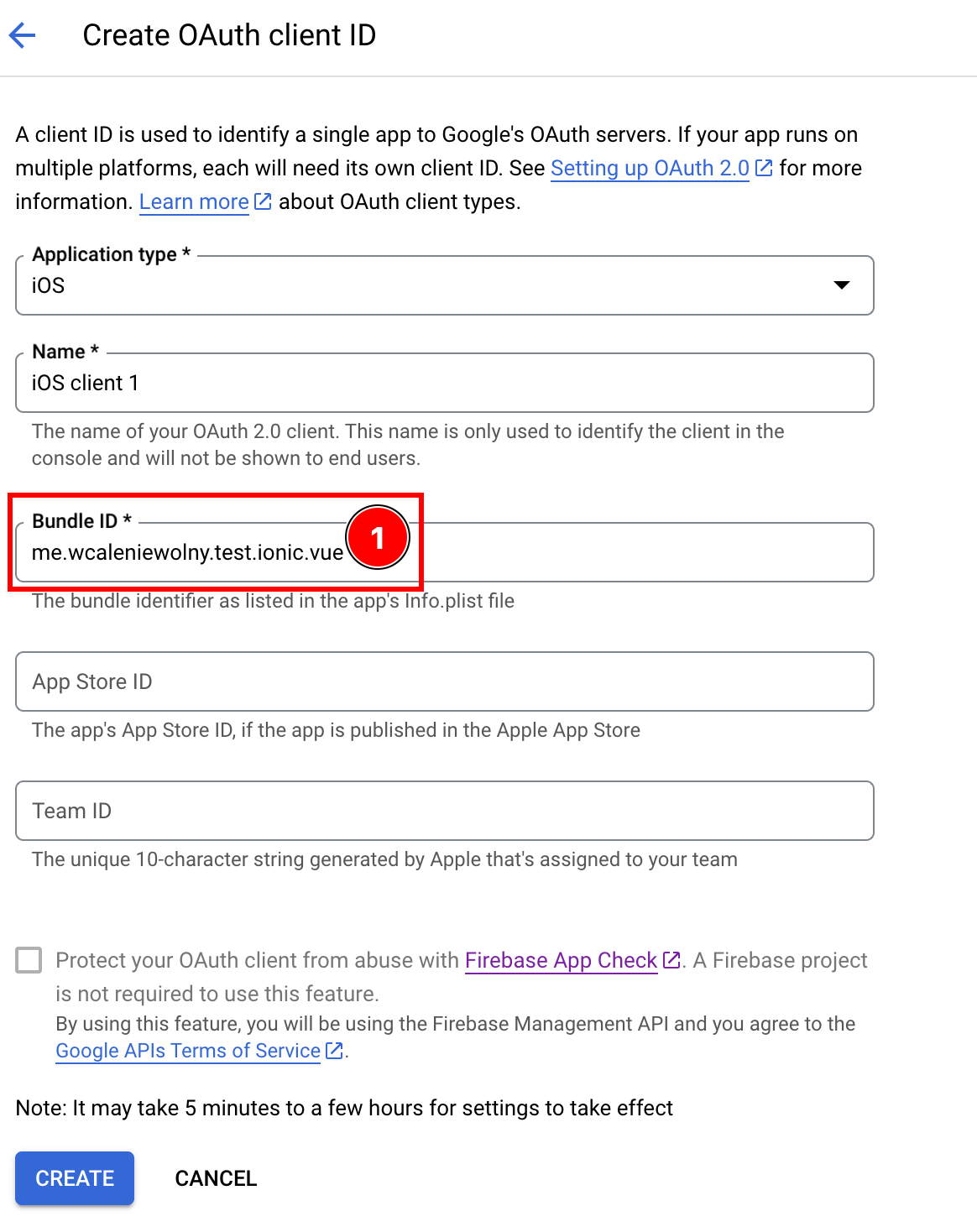
-
-
(可选)将您的
App Store ID或Team ID添加到 Client ID 中(如果您已将应用发布至 App Store) -
填写完所有详情后,点击
create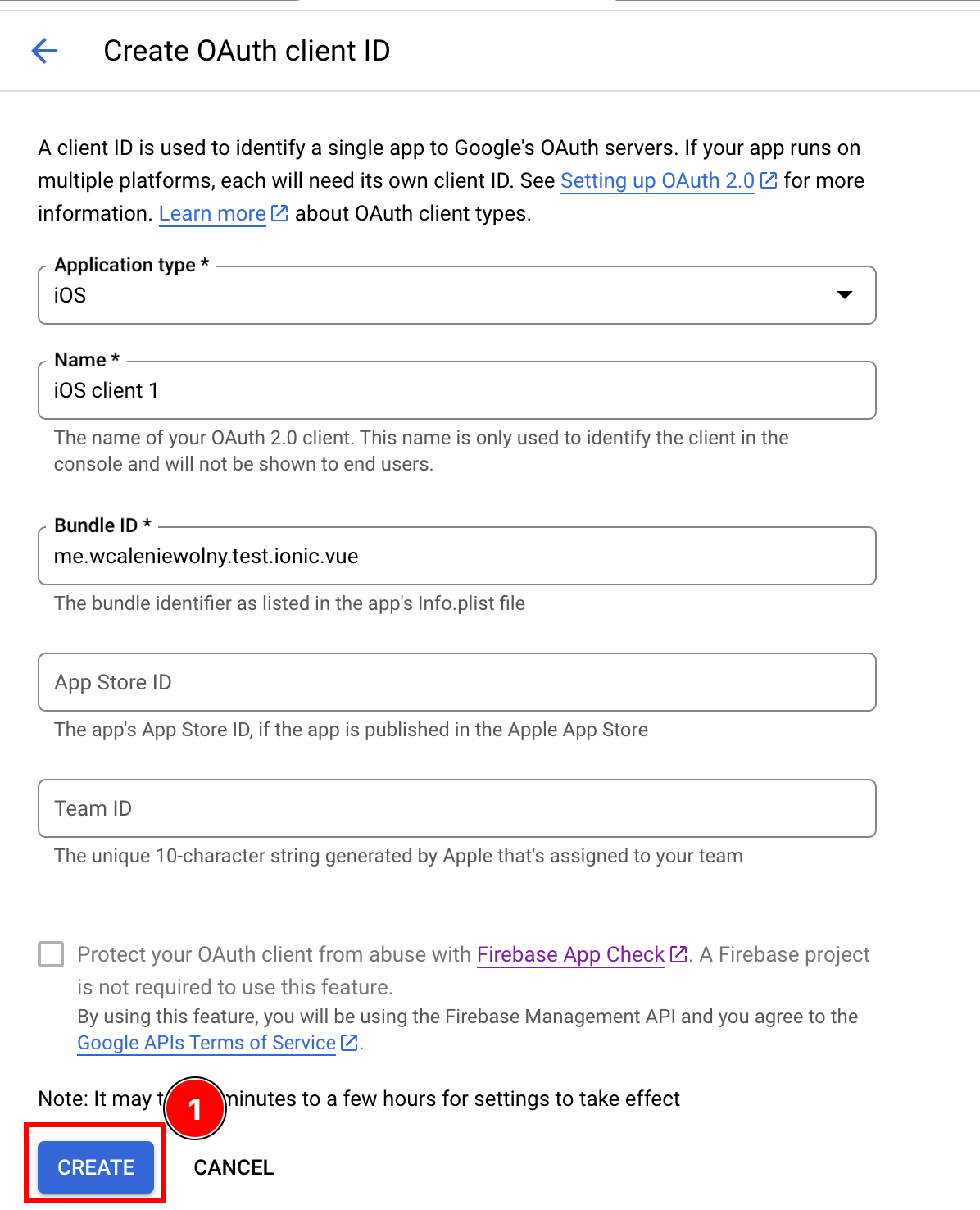
-
点击
OK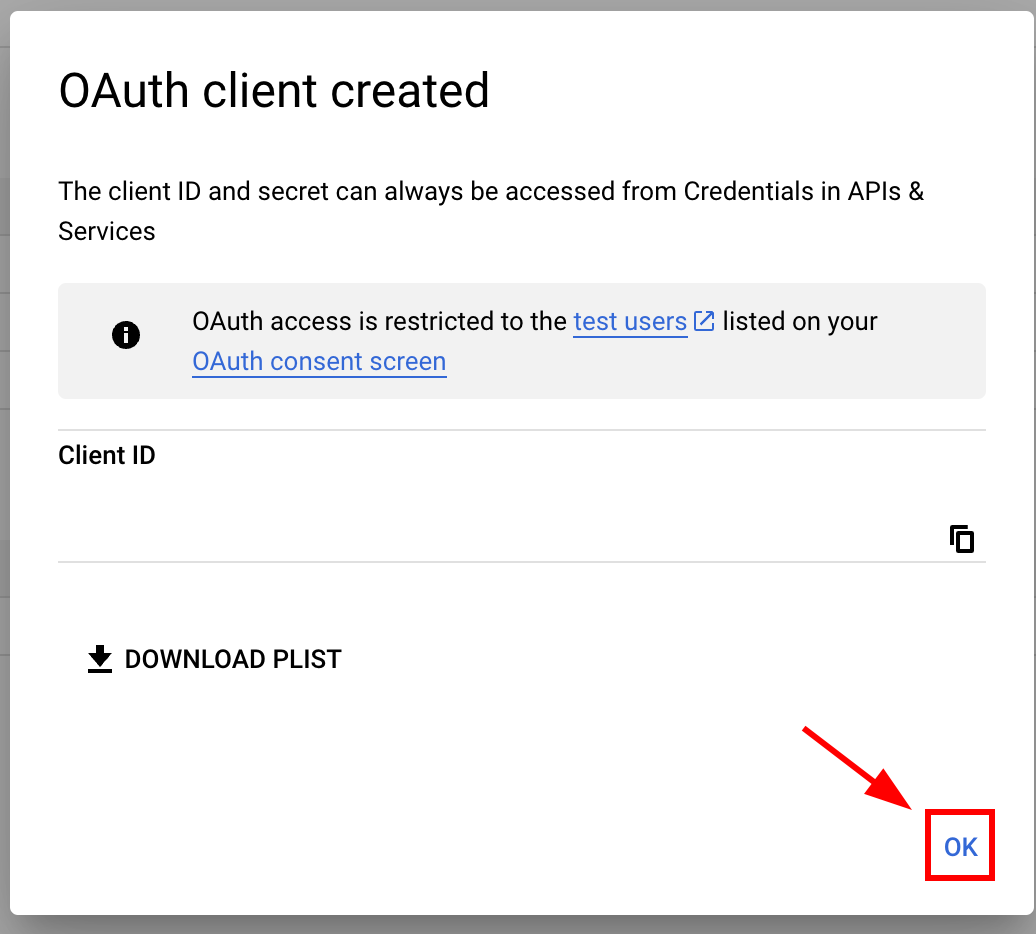
-
打开新创建的 iOS 客户端
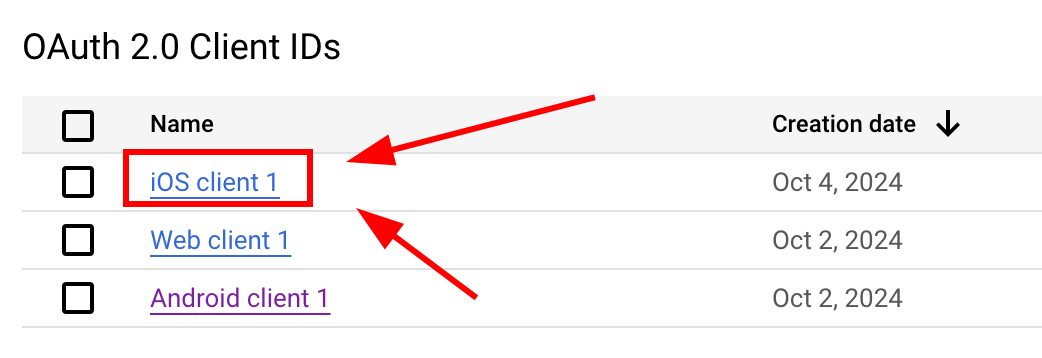
-
复制以下数据

-
-
修改应用的 Info.plist
-
打开 Xcode 并找到
Info.plist文件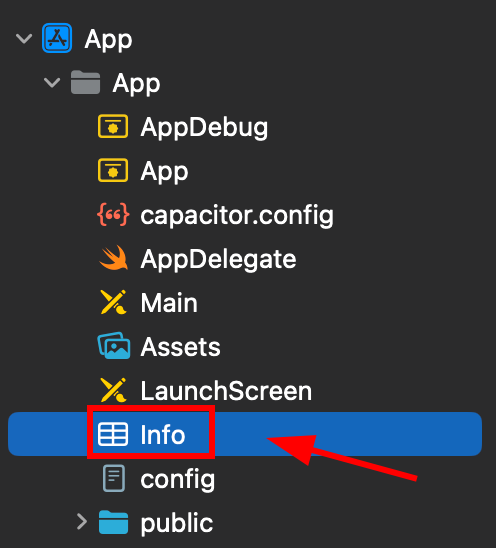
-
右键点击该文件,并选择以源码方式打开 code
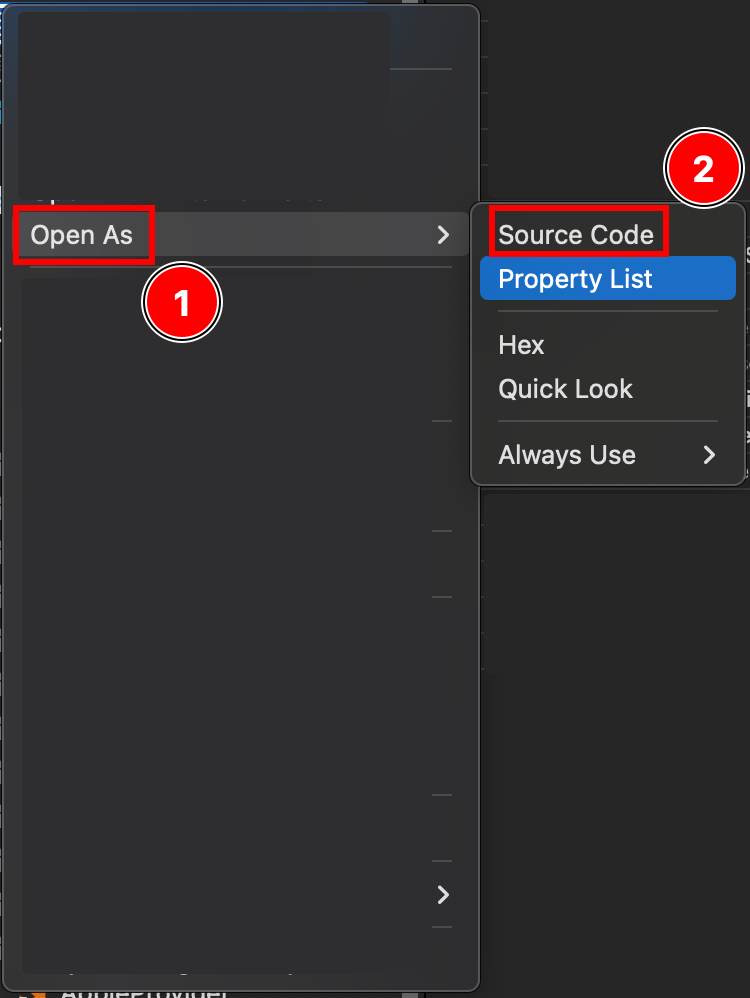
-
在文件的底部
Plist你会看到一个</dict>标签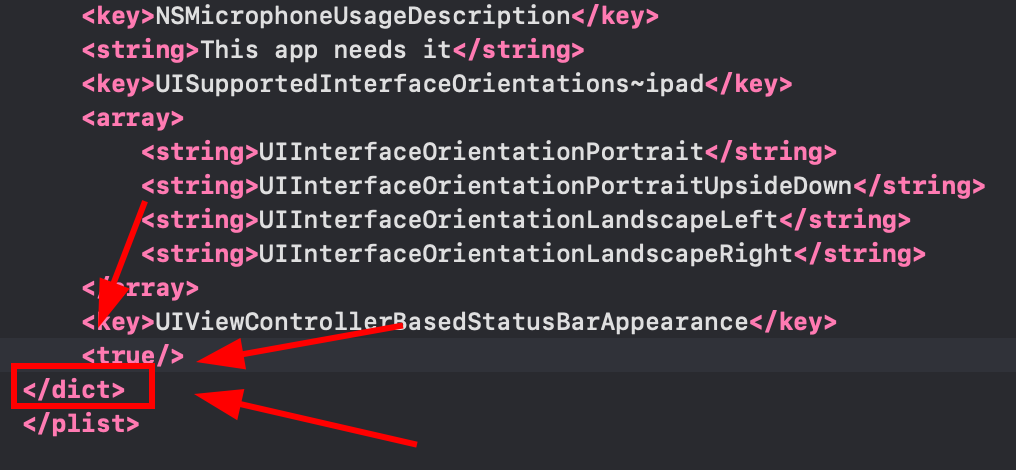
-
请在 closing 标签之前插入以下代码片段
</dict>标签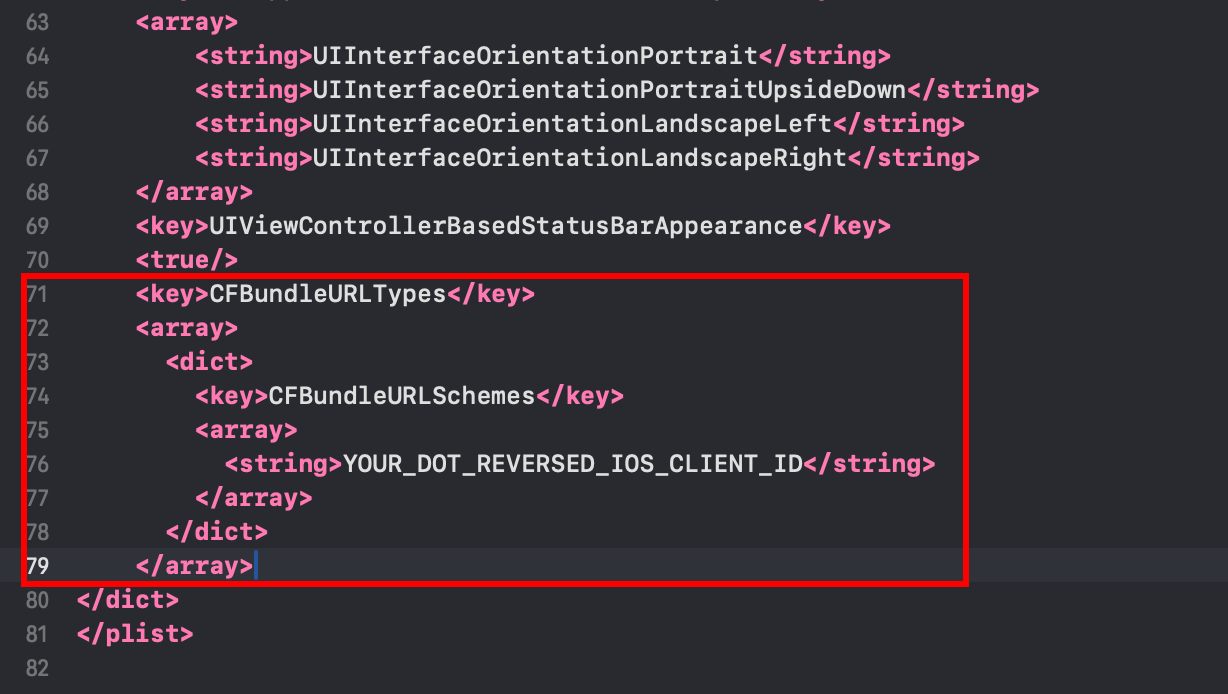 <key>CFBundleURLTypes</key><array><dict><key>CFBundleURLSchemes</key><array><string>YOUR_DOT_REVERSED_IOS_CLIENT_ID</string></array></dict></array>
 -
修改
YOUR_DOT_REVERSED_IOS_CLIENT_ID粘贴至上一步复制的值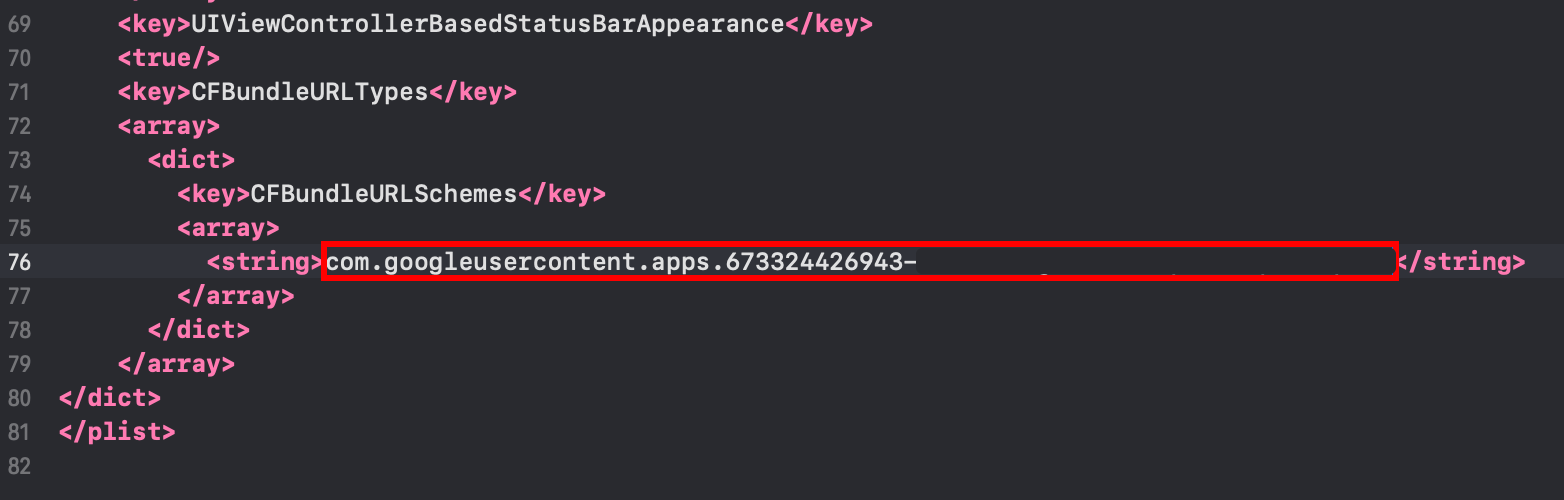
-
保存文件,包含
Command + S
-
-
修改
AppDelegate.swift-
打开 AppDelegate
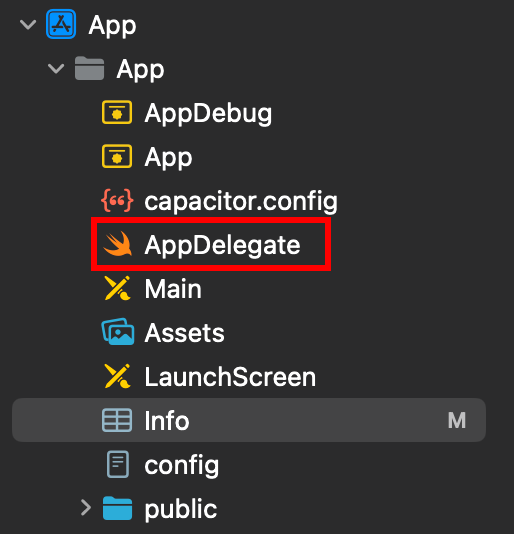
-
插入
import GoogleSignIn在文件顶部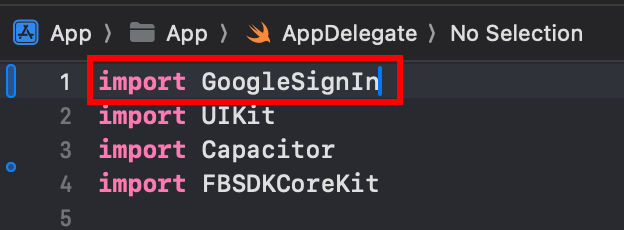
-
找到
func application(_ app: UIApplication, open url: URL, options: [UIApplication.OpenURLOptionsKey: Any] = [:])函数
-
将函数修改为如下所示
func application(_ app: UIApplication, open url: URL, options: [UIApplication.OpenURLOptionsKey: Any] = [:]) -> Bool {// Called when the app was launched with a url. Feel free to add additional processing here,// but if you want the App API to support tracking app url opens, make sure to keep this callvar handled: Boolhandled = GIDSignIn.sharedInstance.handle(url)if handled {return true}return ApplicationDelegateProxy.shared.application(app, open: url, options: options)}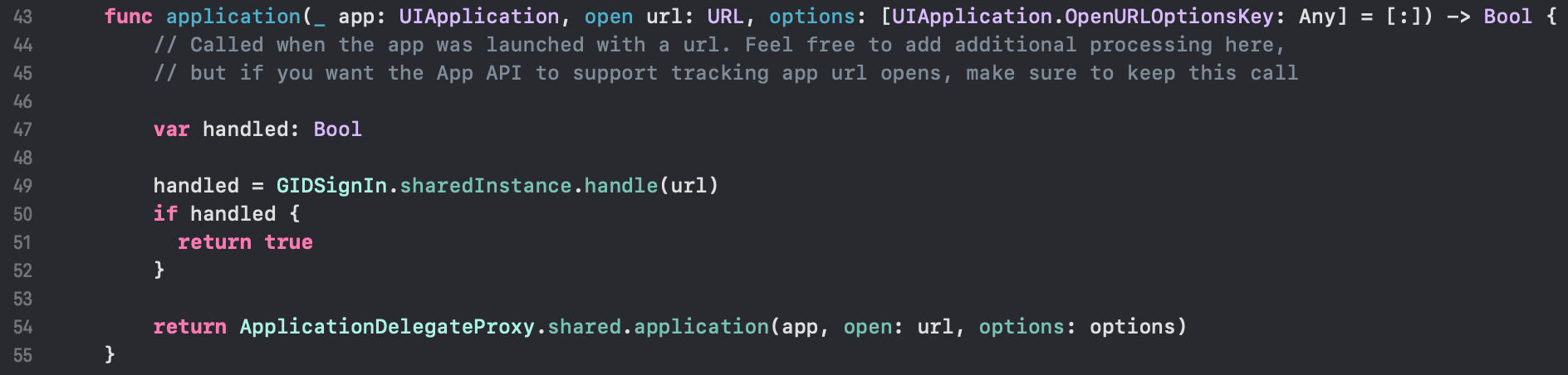
-
保存文件,内容如下
Command + S
-
-
在你的 JavaScript/TypeScript code 中配置 Google 登录
-
导入
SocialLogin和Capacitorimport { SocialLogin } from '@capgo/capacitor-social-login';import { Capacitor } from '@capacitor/core'; -
调用 initialize 方法(仅需调用一次)
基础配置(在线模式 - 大多数 App 的推荐选择):
// onMounted is Vue specificonMounted(() => {SocialLogin.initialize({google: {iOSClientId: '673324426943-redacted.apps.googleusercontent.com',mode: 'online' // Default mode}})})包含额外 Client ID 的高级配置:
onMounted(() => {SocialLogin.initialize({google: {webClientId: 'YOUR_WEB_CLIENT_ID', // Optional: for web platform supportiOSClientId: 'YOUR_IOS_CLIENT_ID', // Required: from step 1iOSServerClientId: 'YOUR_WEB_CLIENT_ID', // Optional: same as webClientId, needed for some advanced featuresmode: 'online' // 'online' or 'offline'}})}) -
实现登录功能。创建一个按钮,并在点击时运行以下 code
在线模式:
const res = await SocialLogin.login({provider: 'google',options: {}})// handle the response - contains user dataconsole.log(JSON.stringify(res))离线模式:
const res = await SocialLogin.login({provider: 'google',options: {forceRefreshToken: true // Recommended for offline mode}})// res contains serverAuthCode, not user data// Send serverAuthCode to your backend to get user information// Do not call SocialLogin.refresh() in offline modeconsole.log('Server auth code:', res.result.serverAuthCode)
-
-
测试您的应用
-
构建并运行应用
cap sync -

如果一切配置正确,您应该能看到 Google 登录流程正常工作
-
已知问题
标题为“已知问题”的部分Privacy Screen 插件不兼容
标题为“Privacy Screen 插件不兼容”的部分Google Login 插件与以下内容不兼容: @capacitor/privacy-screen. 如果同时使用这两个插件,Google 登录的 webview 会被 privacy screen 遮挡。
解决方案: 调用 await PrivacyScreen.disable(); 在调用登录函数之前:
import { PrivacyScreen } from '@capacitor/privacy-screen';import { SocialLogin } from '@capgo/capacitor-social-login';
await PrivacyScreen.disable();await SocialLogin.login({  provider: 'google',  options: {}});
iOS 上 Google Login 后继续
标题为 “Keep going from Google Login on iOS” 的章节如果你正在使用 iOS 端 Google Login 规划身份验证和账户流程,并将它与 使用 @capgo/capacitor-social-login 了解使用 @capgo/capacitor-social-login 时的原生能力, @capgo/capacitor-social-login 了解 @capgo/capacitor-social-login 中的实现细节, @capgo/capacitor-passkey 了解 @capgo/capacitor-passkey 中的实现细节, @capgo/capacitor-native-biometric 了解 @capgo/capacitor-native-biometric 中的实现细节,以及 双重身份验证 了解双因素认证中的实现细节。


