
Firebase iOS Google 登录
复制准备
本指南将帮助您在 iOS 上将 Google Sign-In 与 Firebase Authentication 集成。假设您已经完成了 Firebase Google 的基本设置。 基本设置.
设置步骤
Setup Steps-
前往您的项目概览 console.cloud.google.com
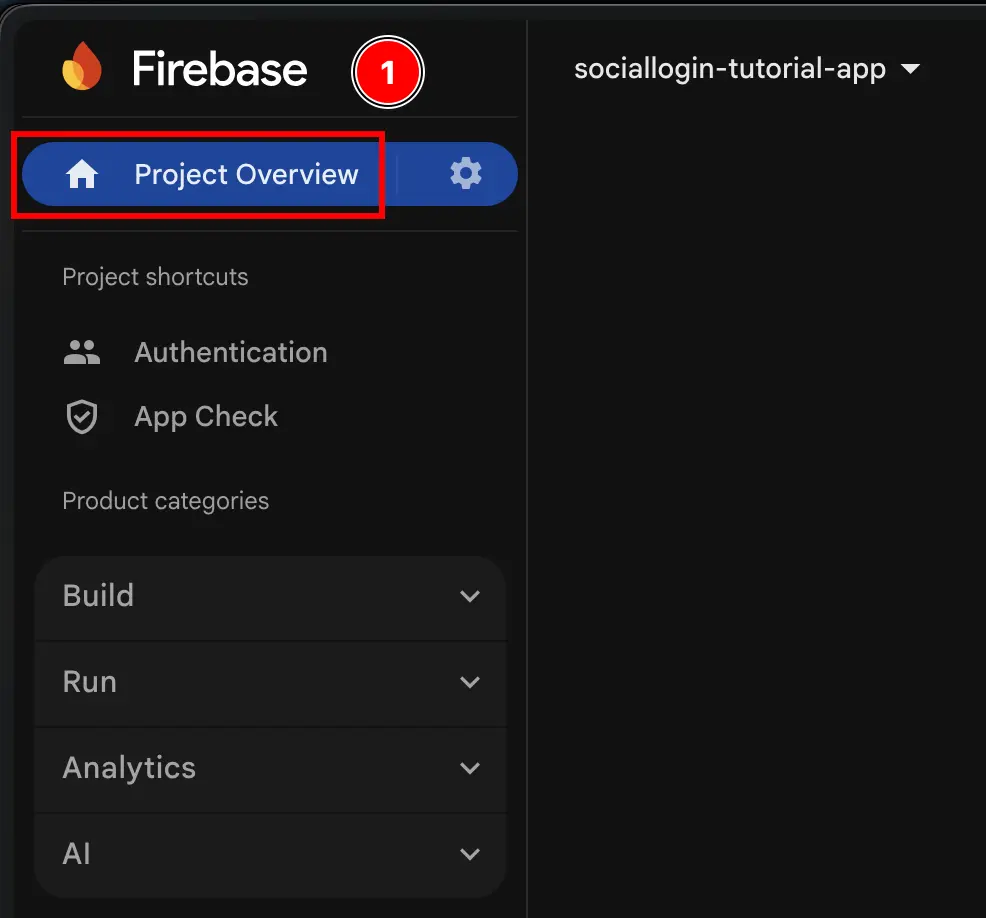
-
点击
Add appbutton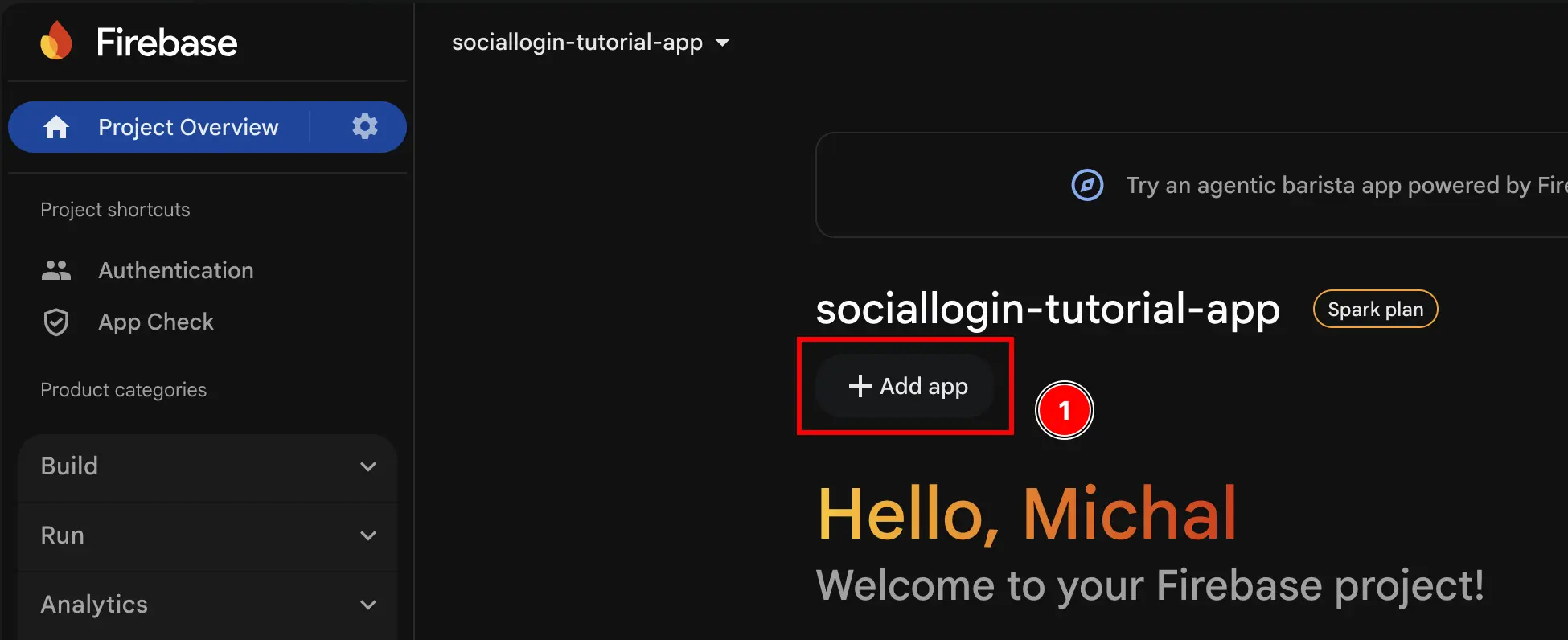
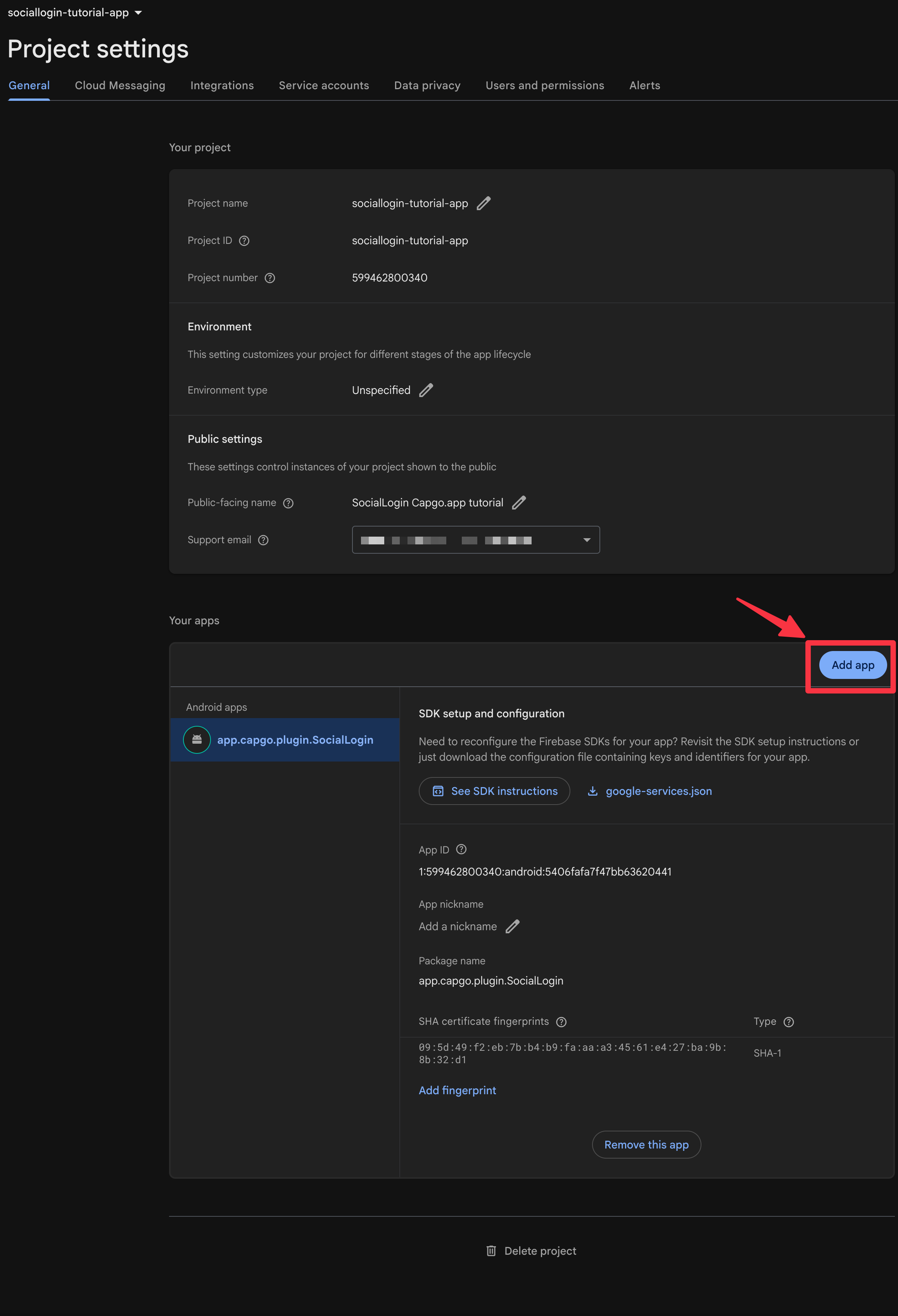
-
Select
iOS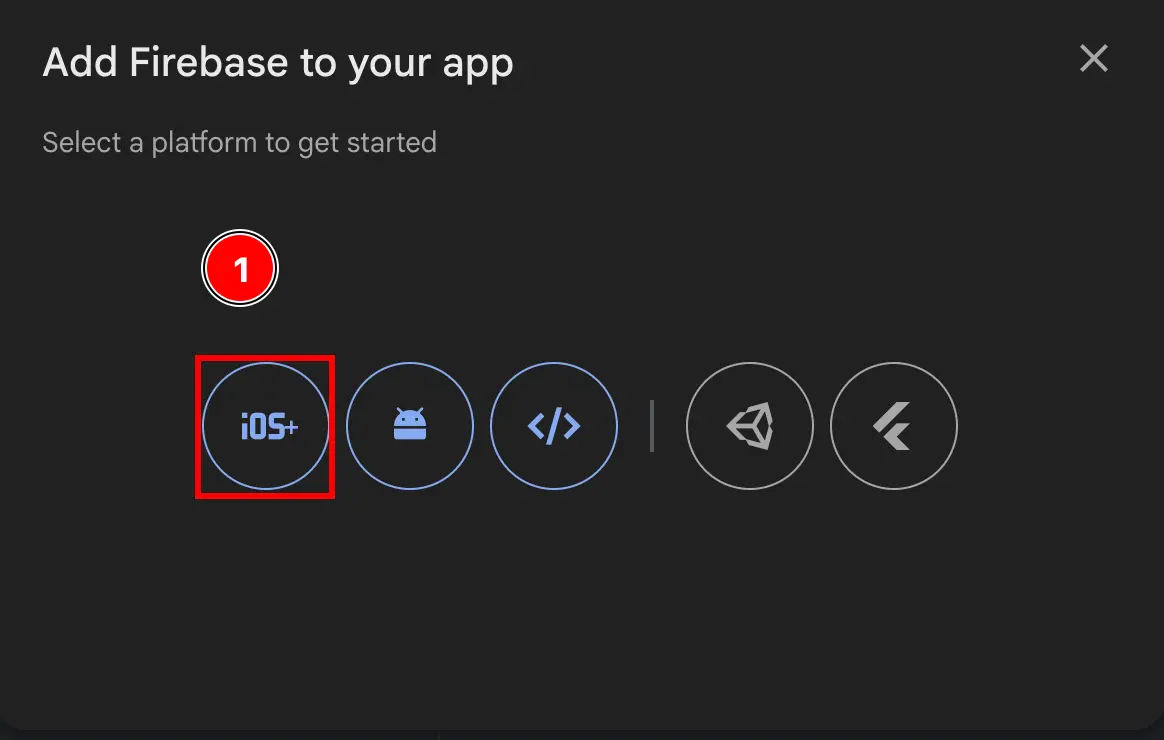
-
填写表单的第一部分
- 填写
Apple bundle ID- 打开使用您的应用程序的 Xcode
npx cap open ios - 双击 Xcode 项目导航器中的
App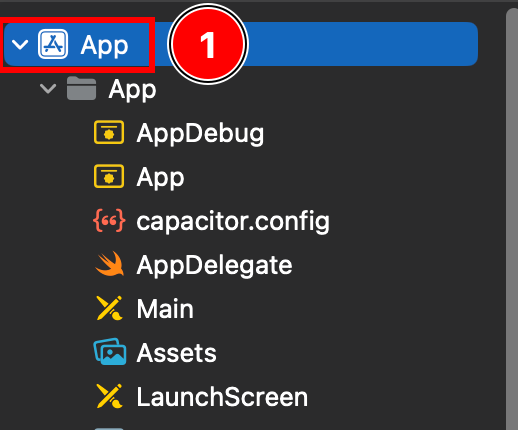
- 确保您在 Xcode 中选中
Targets -> App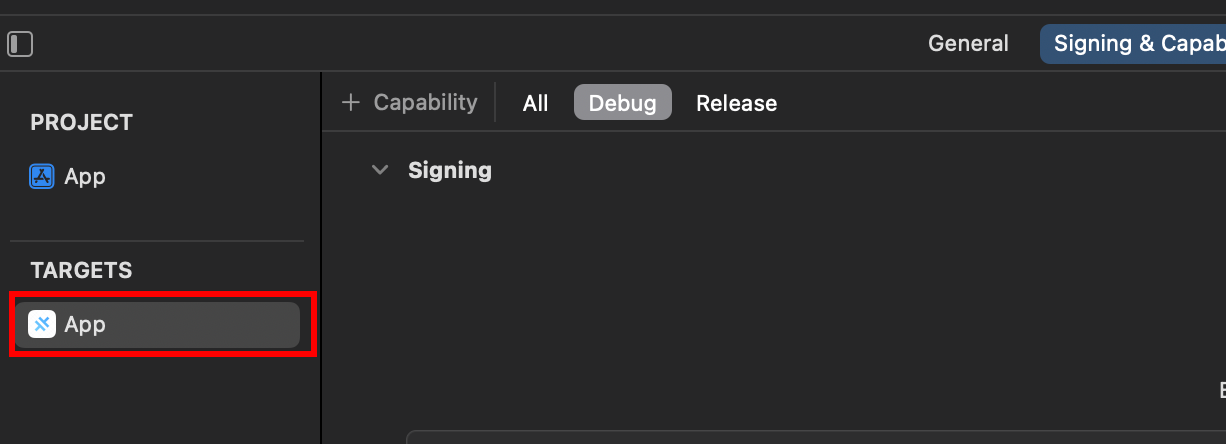
- 在 Xcode 项目设置中找到
Bundle Identifier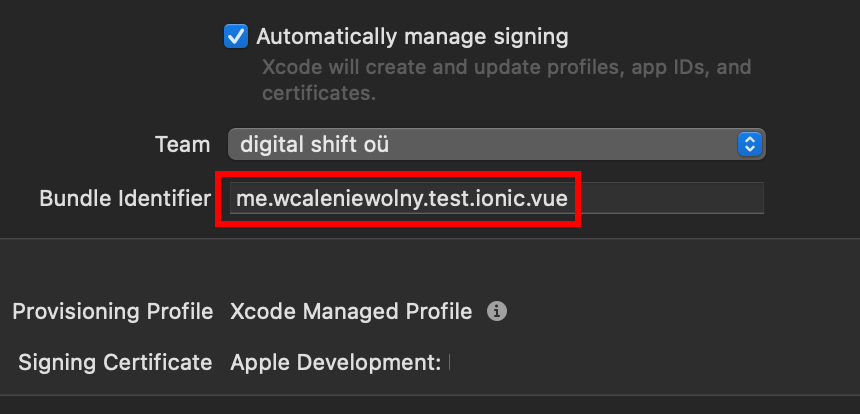
- 复制
Bundle Identifier并在 Firebase 控制台中粘贴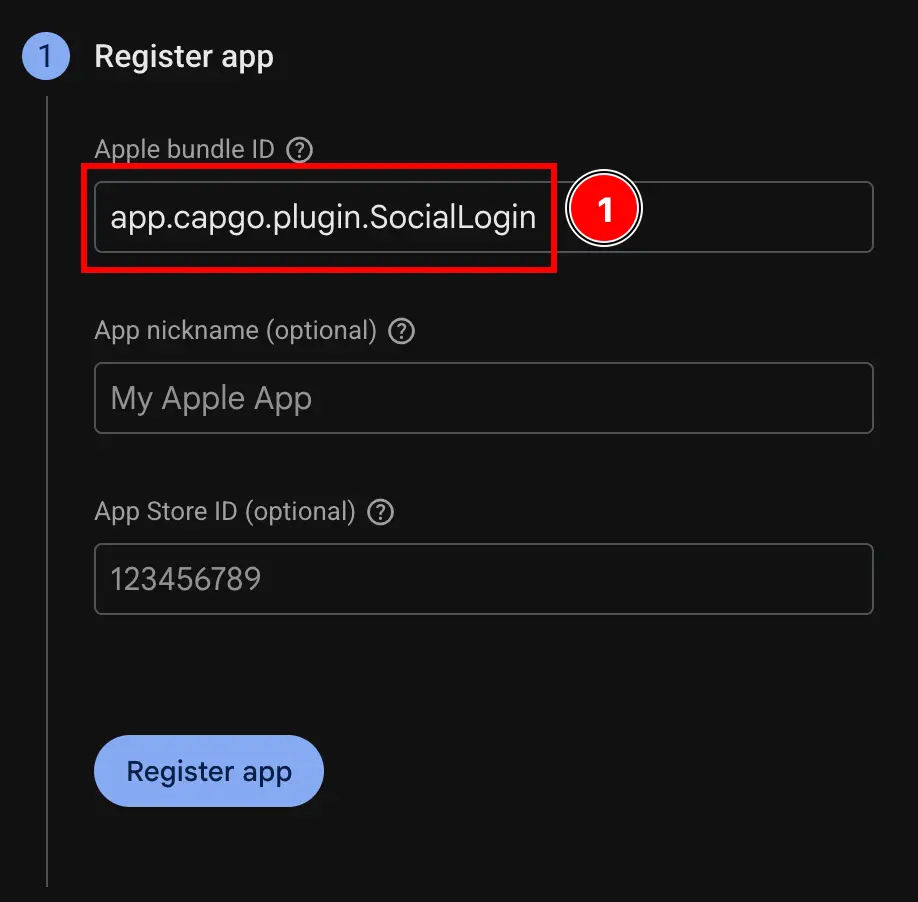
- 打开使用您的应用程序的 Xcode
- 点击
Register app按钮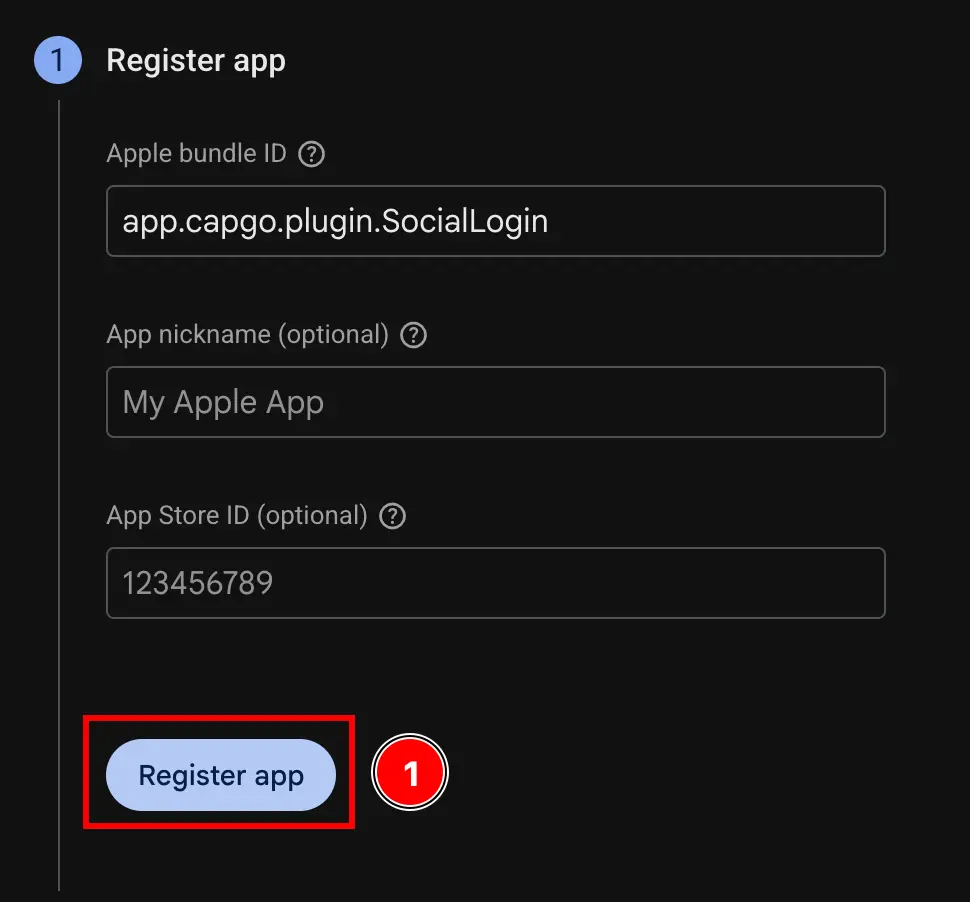
- 填写
-
跳过
Download config file步骤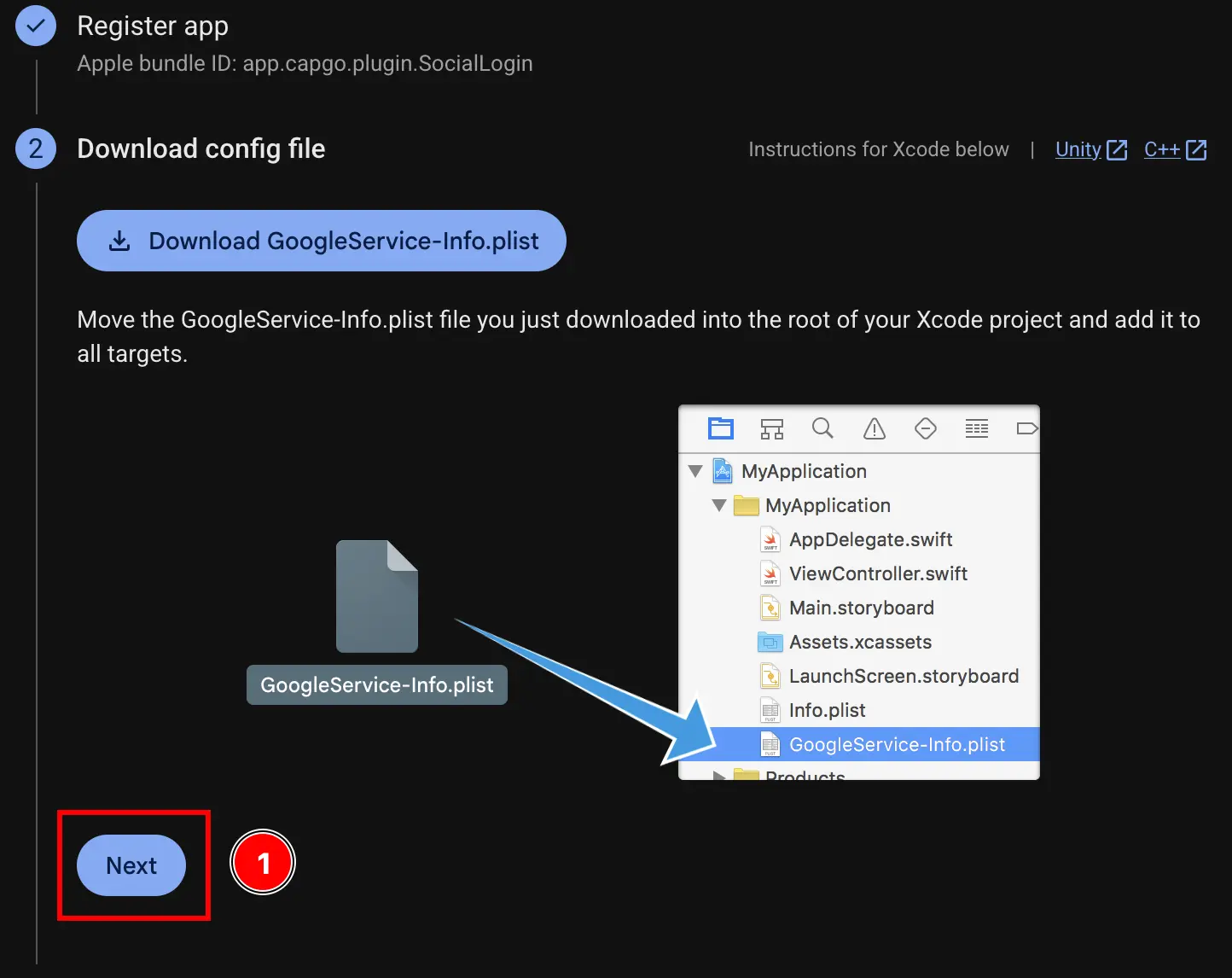
-
跳过
Add firebase SDK步骤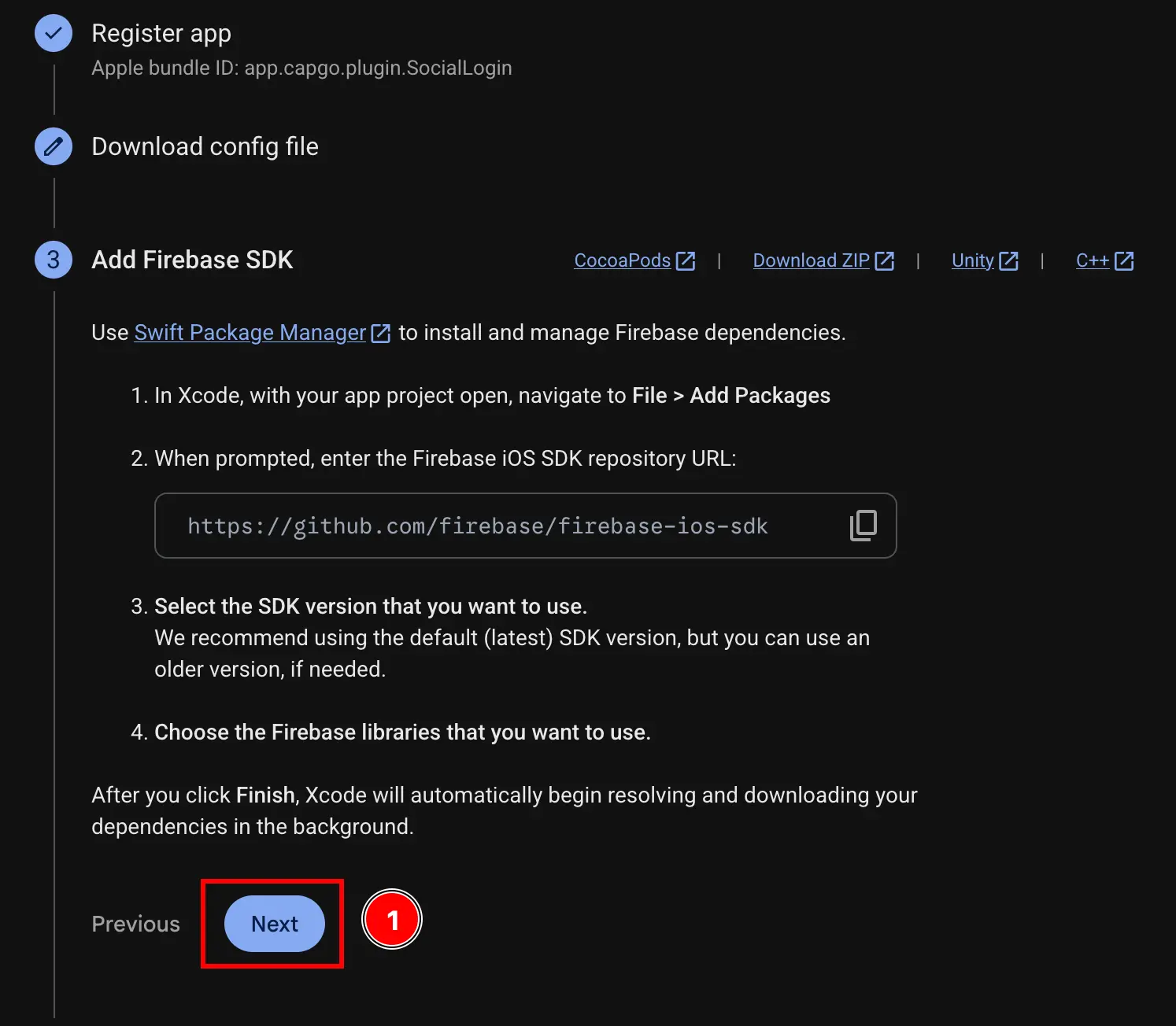
-
跳过
Add initialization code步骤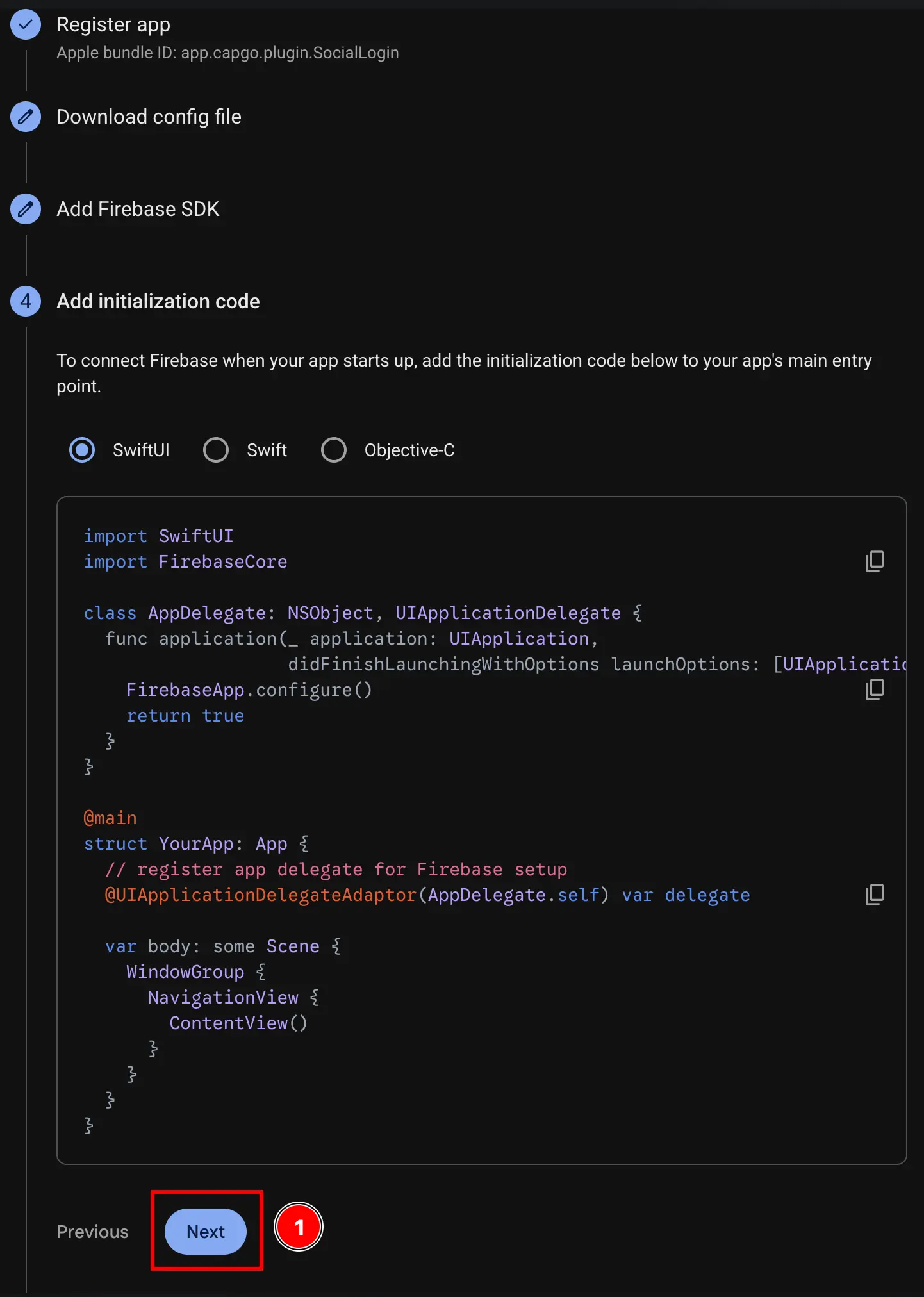
-
点击
Continue to console按钮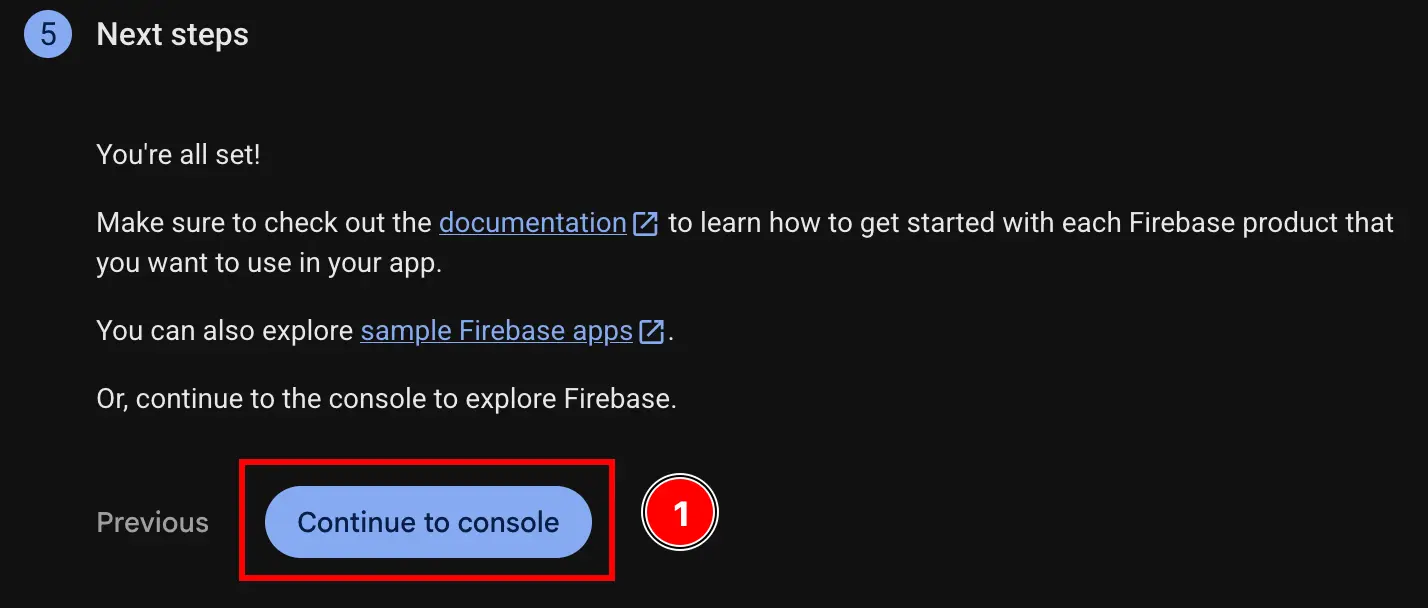
-
获取您的 iOS 客户端 ID 和您的
YOUR_DOT_REVERSED_IOS_CLIENT_ID-
前往 Google Cloud 控制台 console.cloud.google.com
-
找到您的项目
- 点击项目选择器
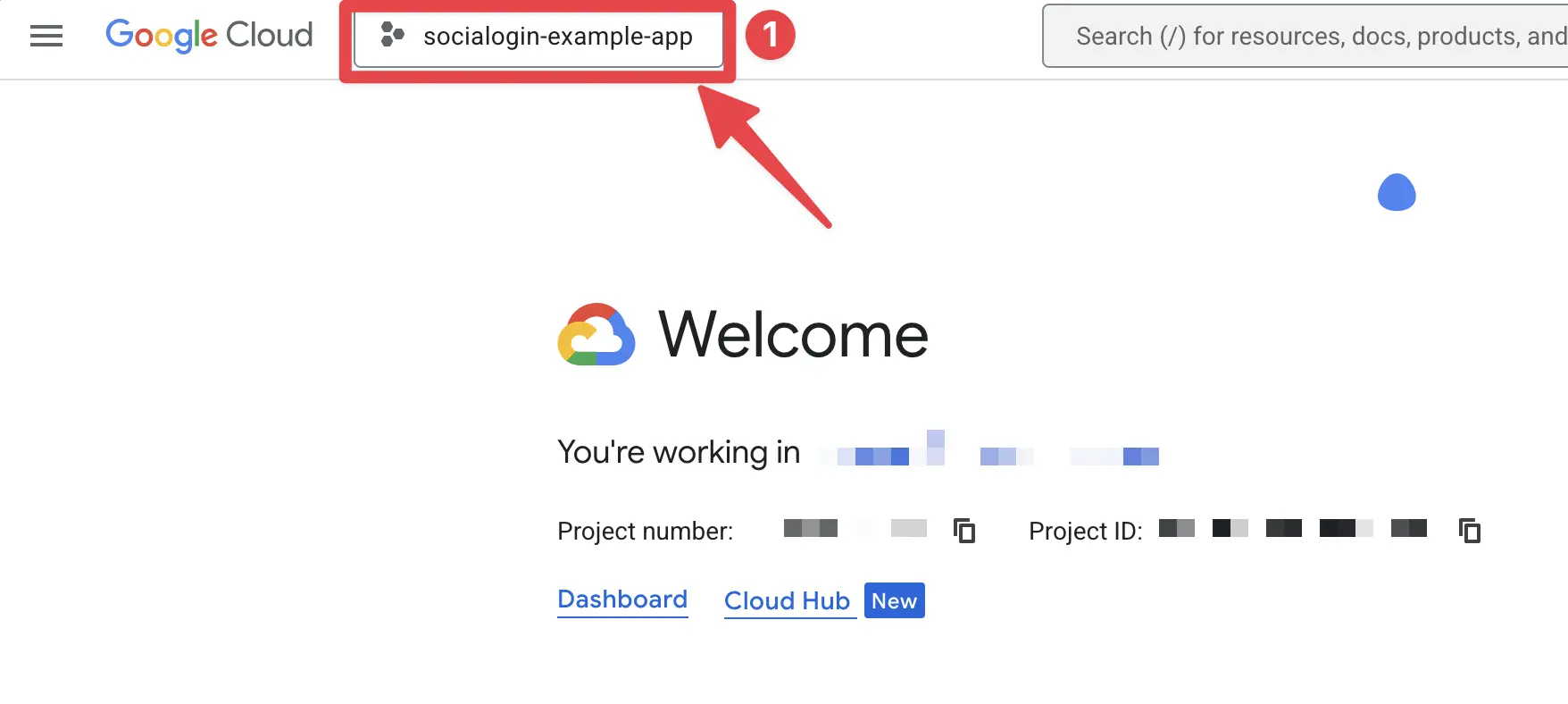
- 通过 Firebase 项目的准确名称搜索您的项目并点击它。在我的情况下,它是
sociallogin-tutorial-app.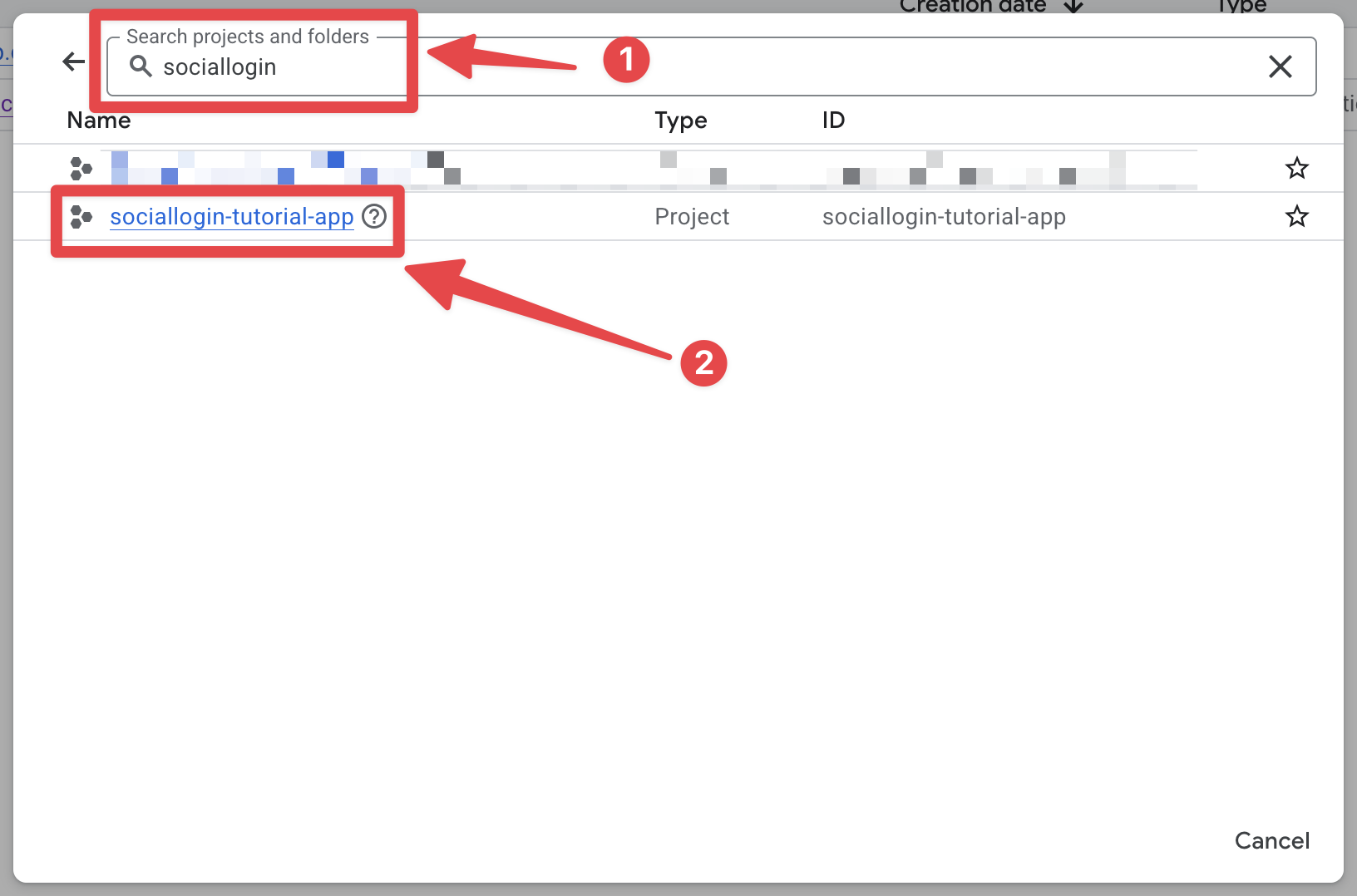
- 点击项目选择器
-
打开搜索栏并打开
credentials- 打开搜索栏
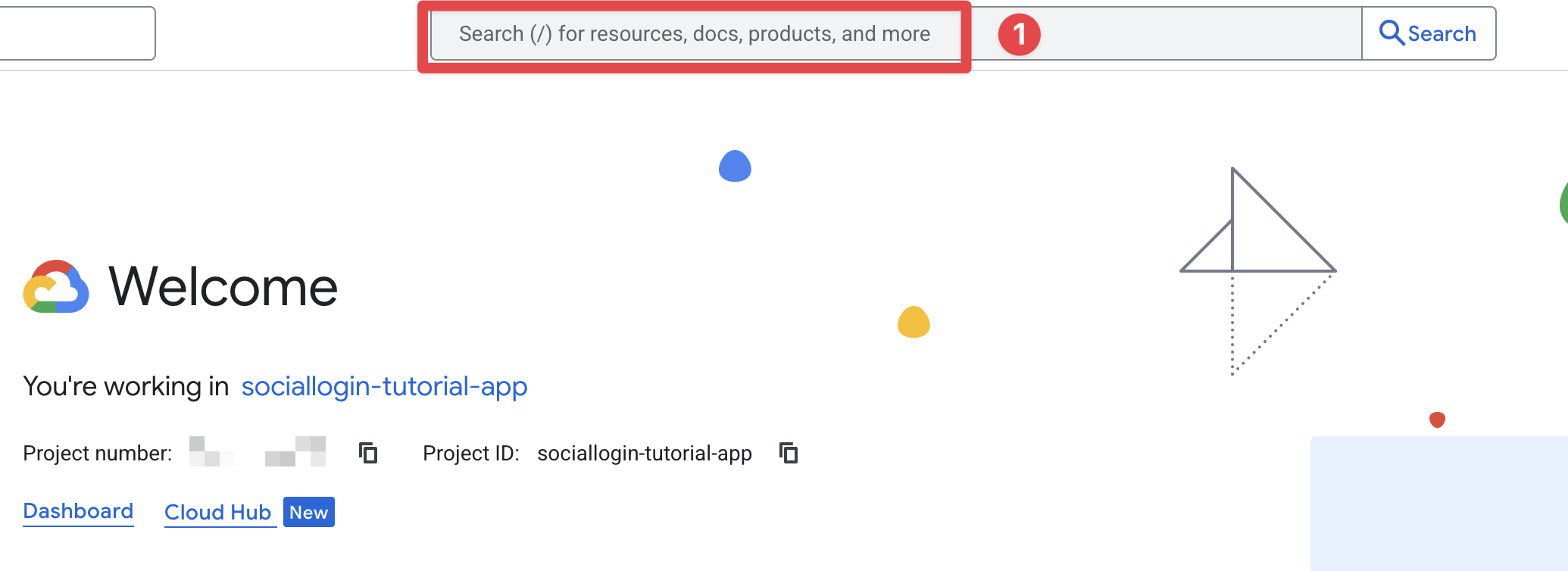
- 搜索
credentials并点击APIs and Services第 2 项(截图中的第 2 项)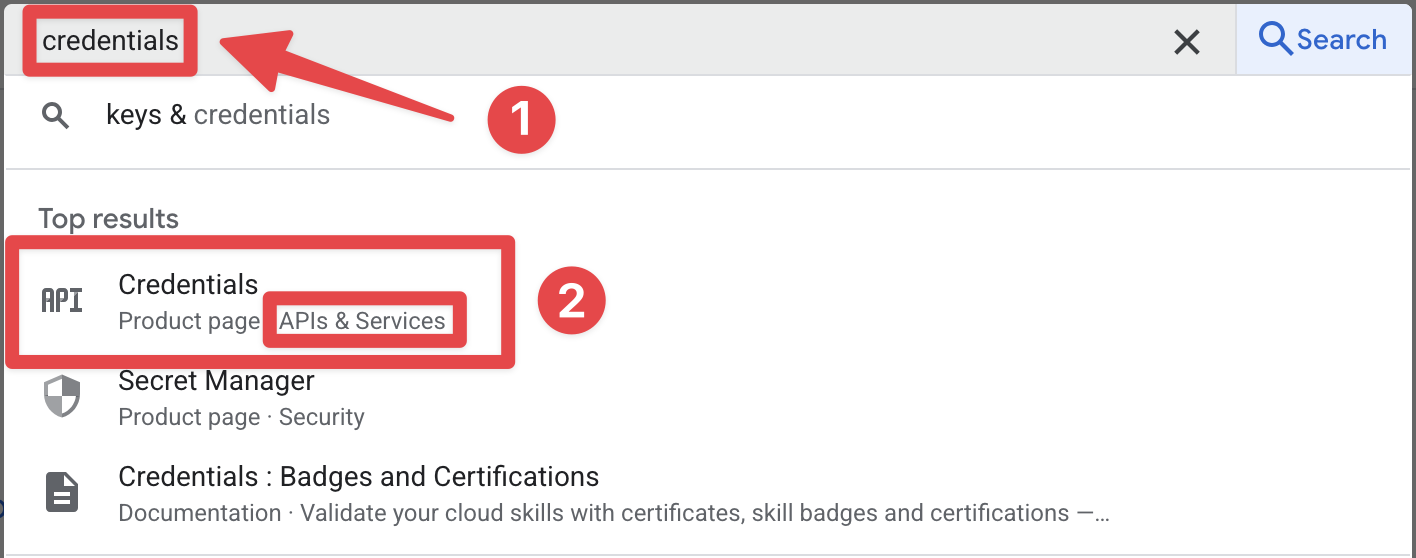
- 打开搜索栏
-
点击
iOS client for [YOUR_APP_ID] (auto created by Google Service)1. 在我的情况下,sociallogin-tutorial-app.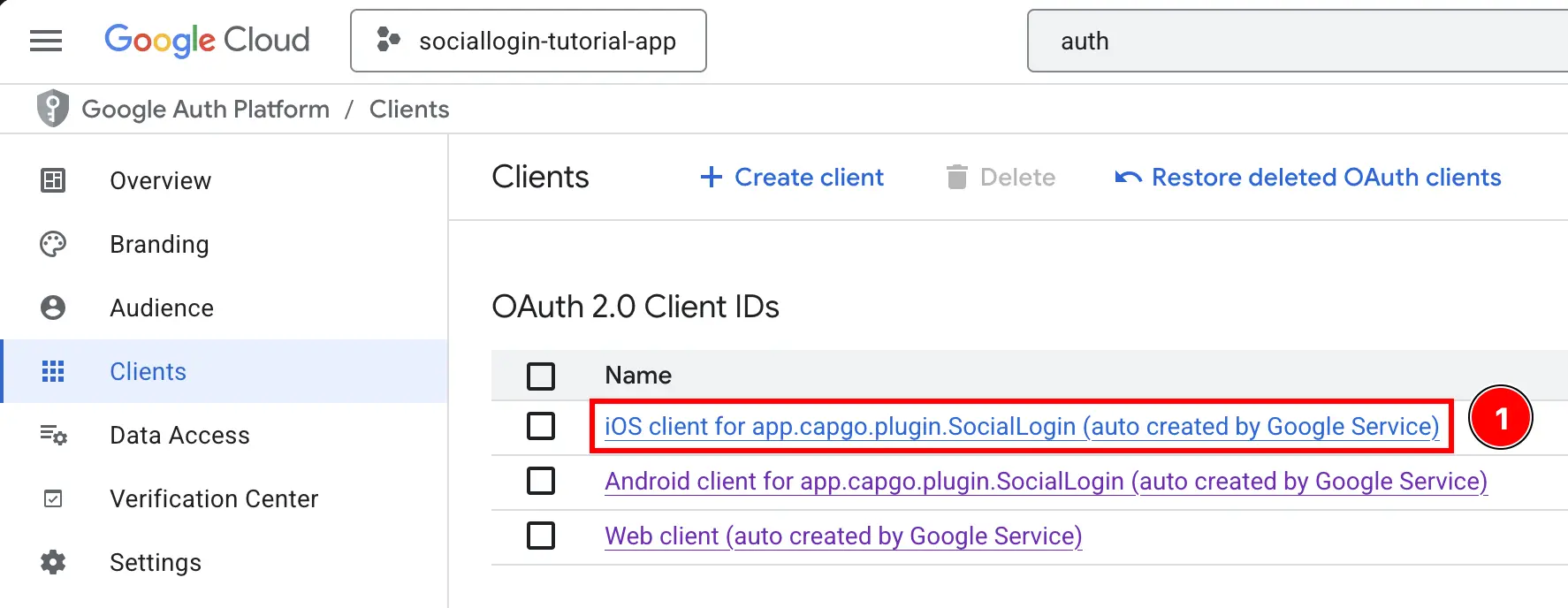
-
复制
Client ID以及iOS URL scheme. 这将分别是您的iOSClientId和YOUR_DOT_REVERSED_IOS_CLIENT_ID.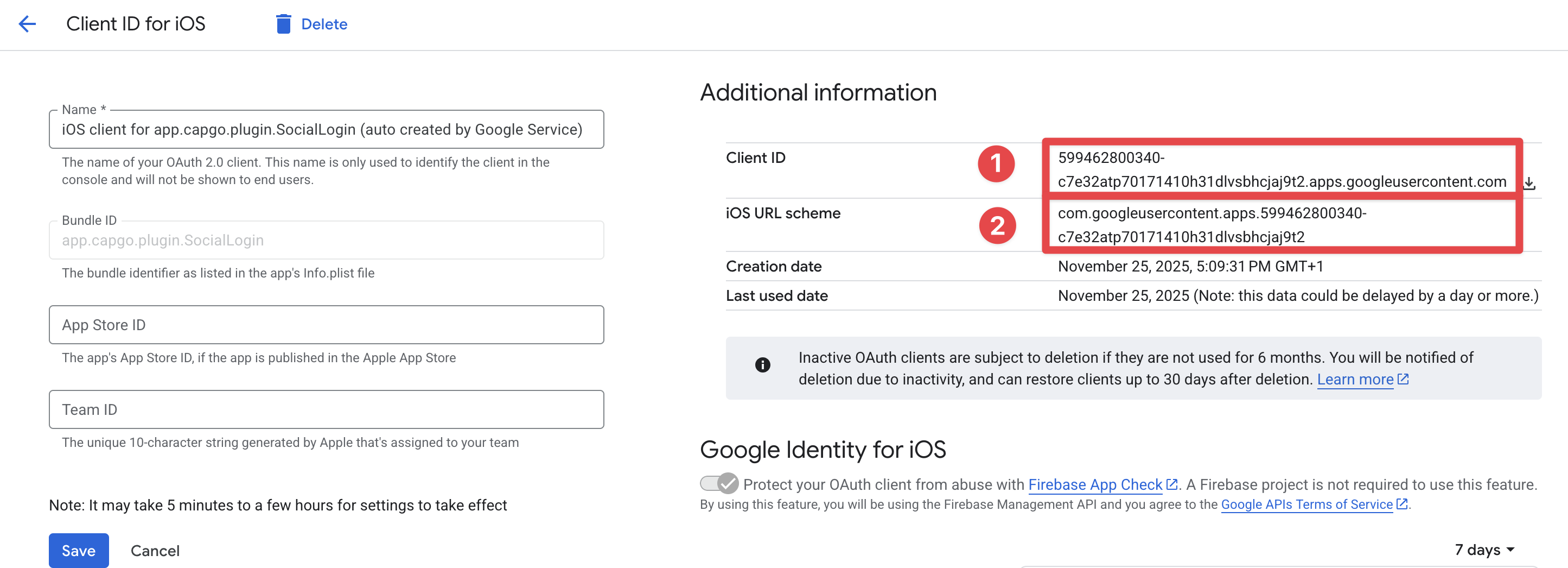
-
-
获取您的 Web 客户端 ID
- 返回 Firebase 控制台并转到
Build->Authentication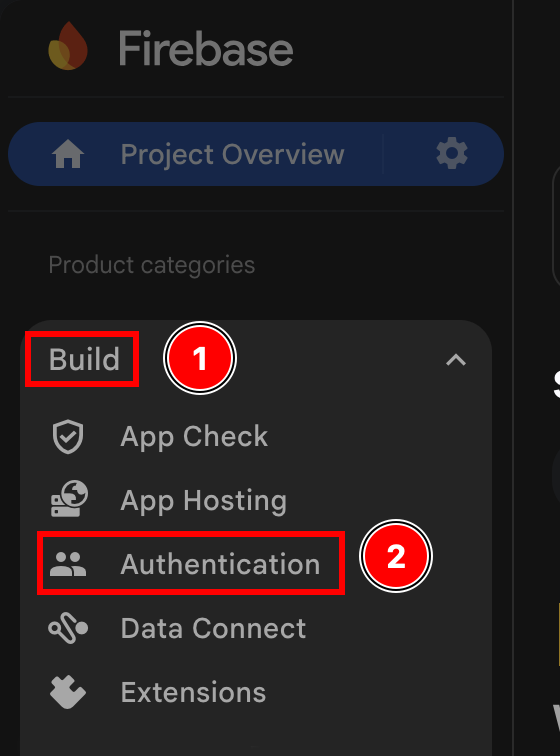
- 点击
Sign-in method按钮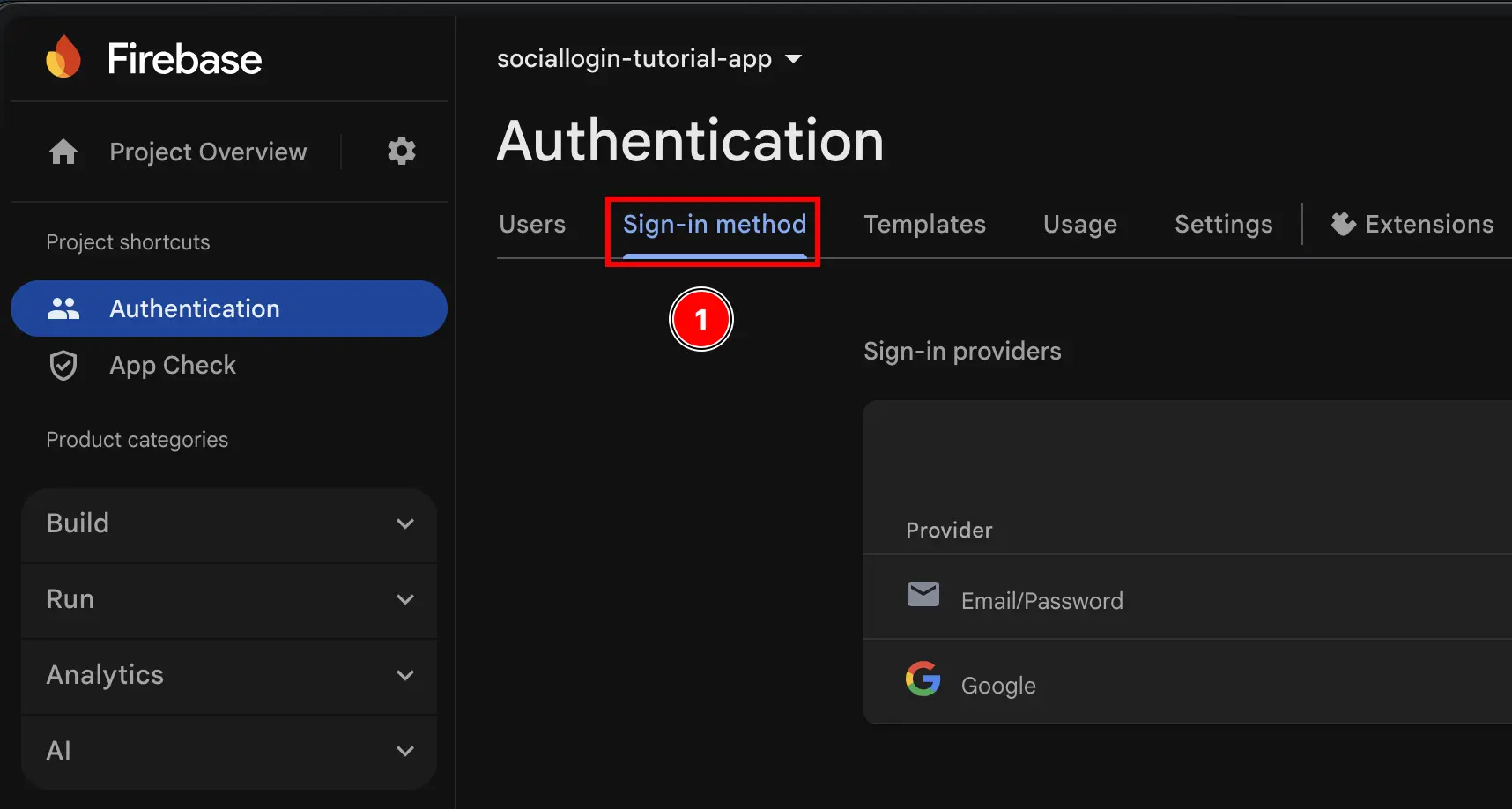
- 点击
Google提供者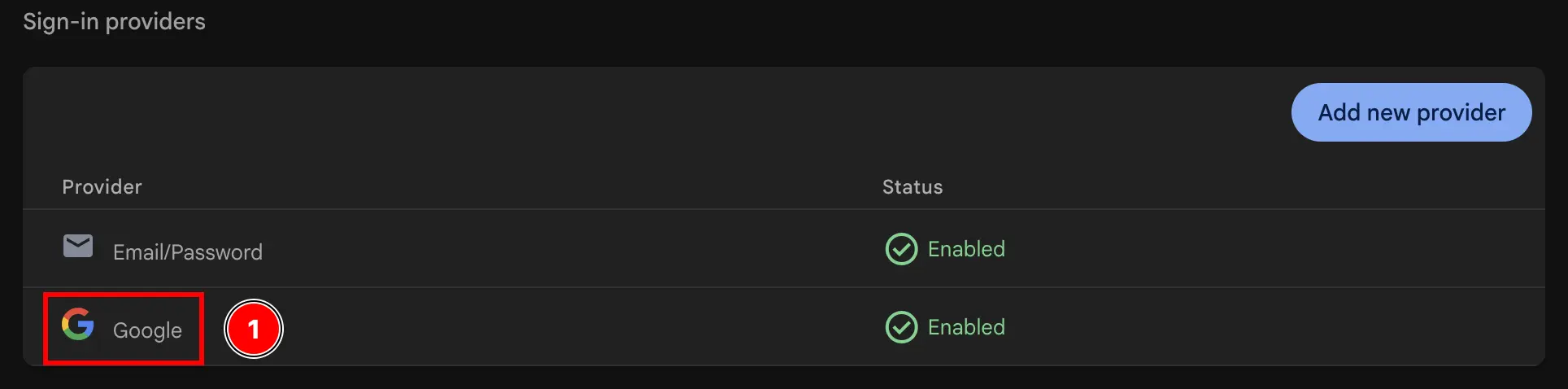
- 点击
Web SDK configurationbutton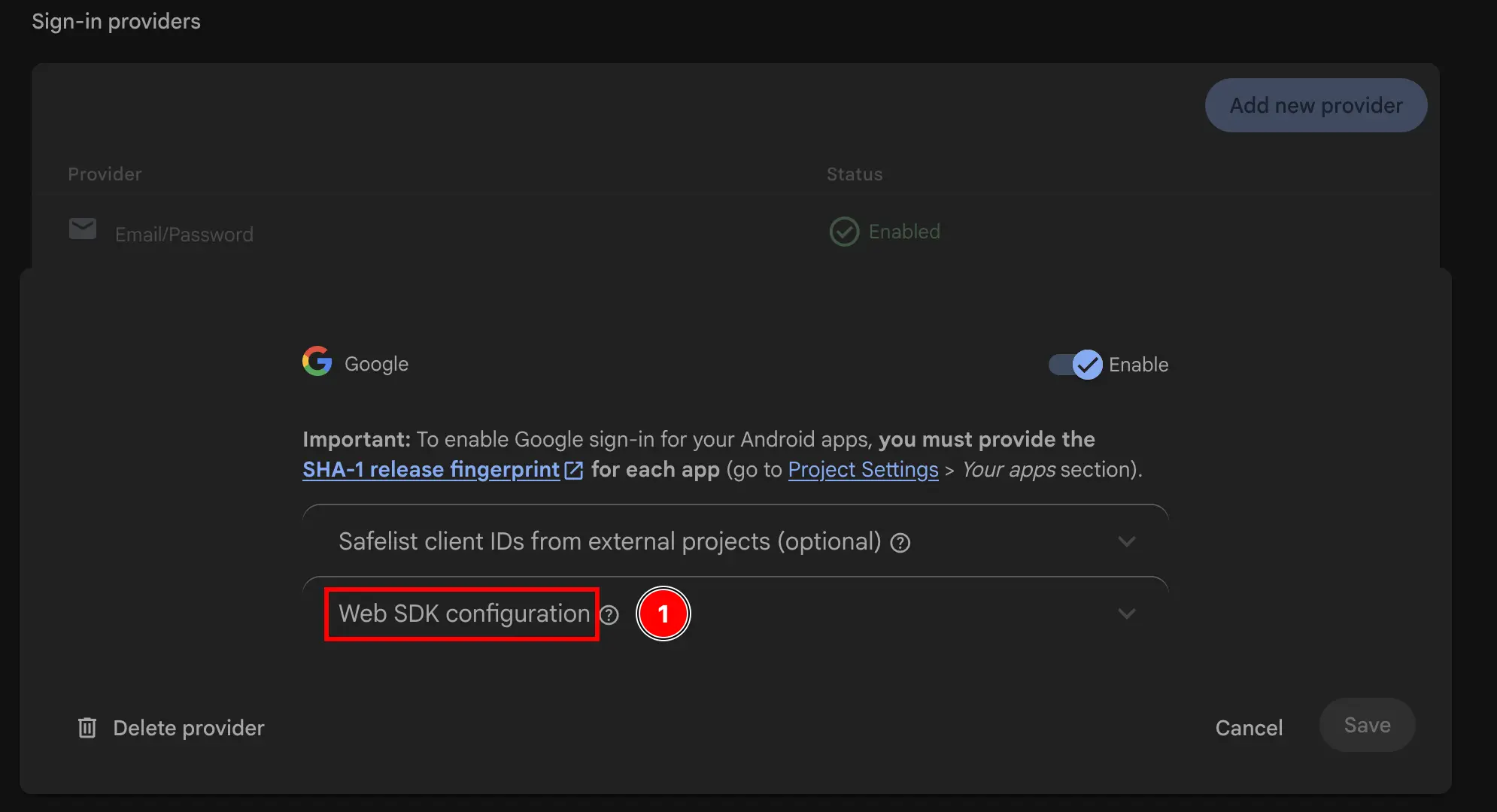
- 复制
Web client ID将会是你的webClientId在initialize该插件的方法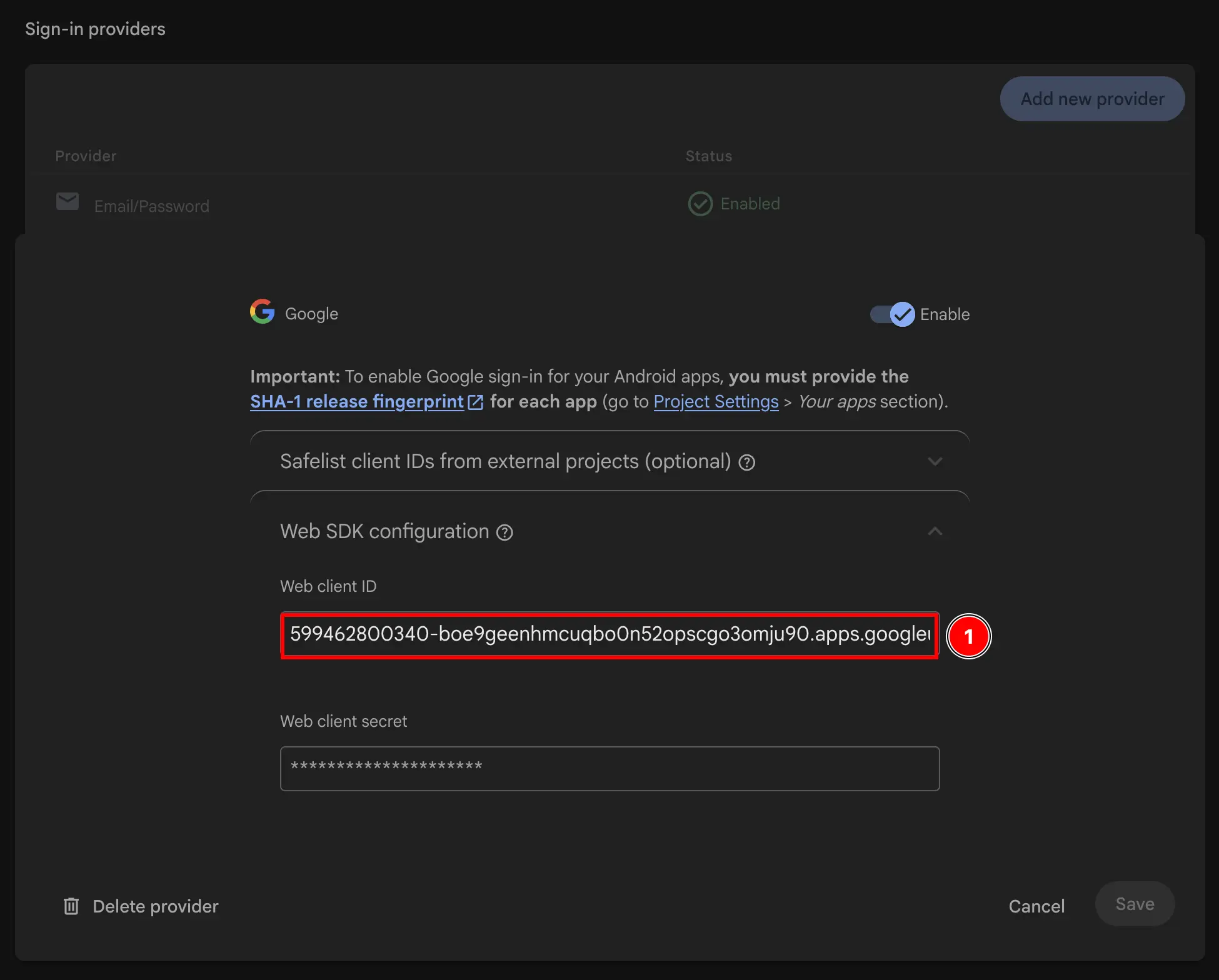
- 返回 Firebase 控制台并转到
-
修改你的应用的 Info.plist
-
打开 Xcode 并找到
Info.plist文件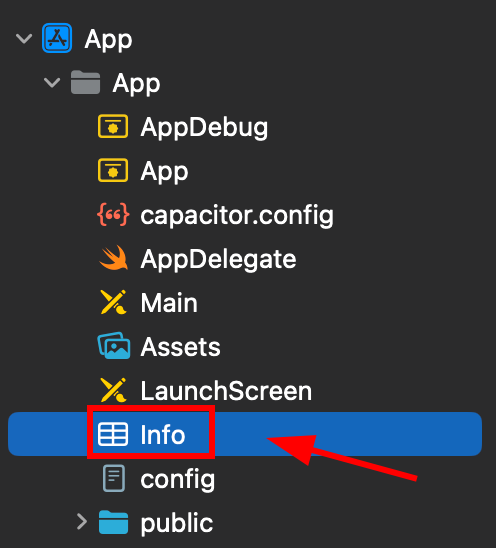
-
Right click this file and open it as source code
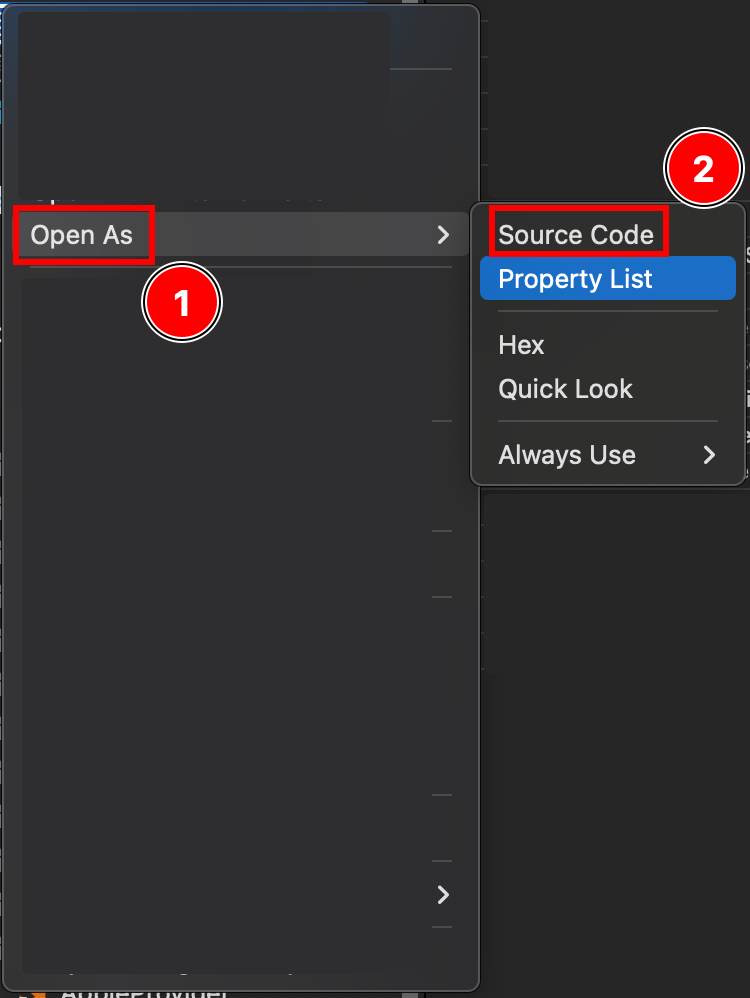
-
在文件底部
Plist你会看到一个</dict>标签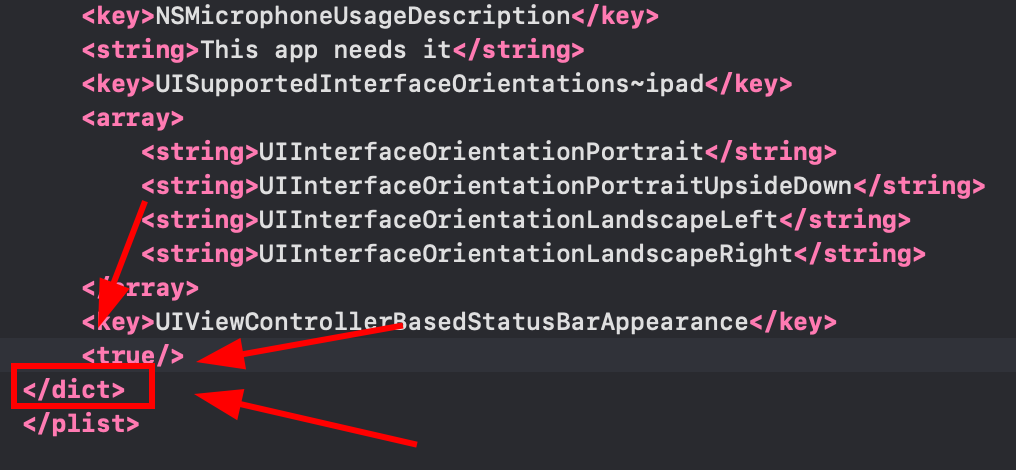
-
在 Info.plist 文件中的 Closing dict 标签之前
</dict>标签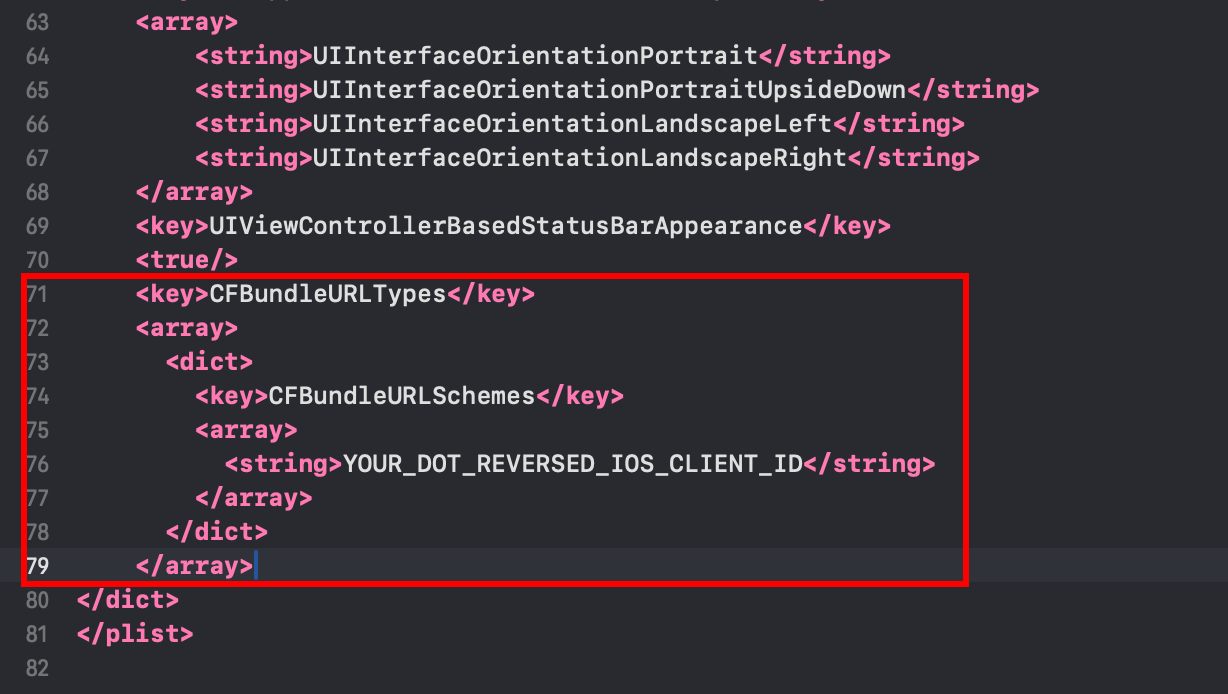 <key>CFBundleURLTypes</key><array><dict><key>CFBundleURLSchemes</key><array><string>YOUR_DOT_REVERSED_IOS_CLIENT_ID</string></array></dict></array><key>GIDClientID</key><string>YOUR_IOS_CLIENT_ID.apps.googleusercontent.com</string>
 -
复制到剪贴板
YOUR_DOT_REVERSED_IOS_CLIENT_ID将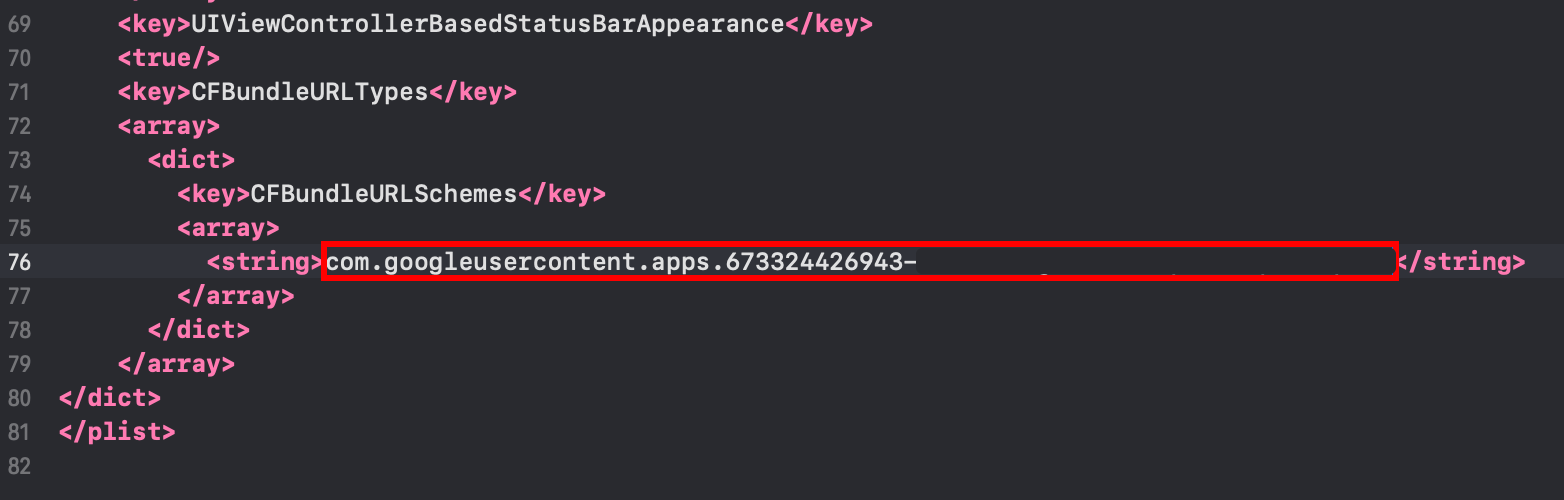
-
-
更改为
YOUR_IOS_CLIENT_ID将其更改为您在第 9 步中复制的 iOS 客户端 ID -
以
Command + S -
修改
AppDelegate.swift-
打开 AppDelegate
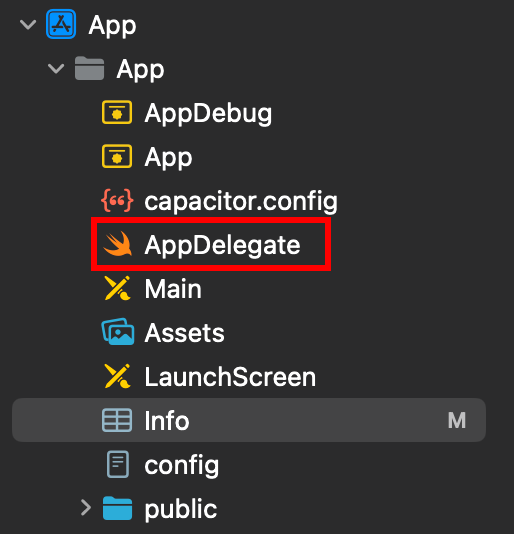
-
插入
import GoogleSignIn文件顶部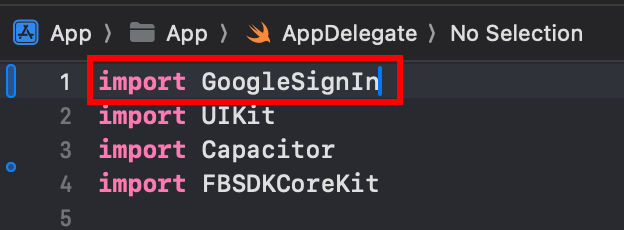
-
找到
func application(_ app: UIApplication, open url: URL, options: [UIApplication.OpenURLOptionsKey: Any] = [:])函数
-
修改函数使其看起来像这样
func application(_ app: UIApplication, open url: URL, options: [UIApplication.OpenURLOptionsKey: Any] = [:]) -> Bool {// Called when the app was launched with a url. Feel free to add additional processing here,// but if you want the App API to support tracking app url opens, make sure to keep this callvar handled: Boolhandled = GIDSignIn.sharedInstance.handle(url)if handled {return true}return ApplicationDelegateProxy.shared.application(app, open: url, options: options)}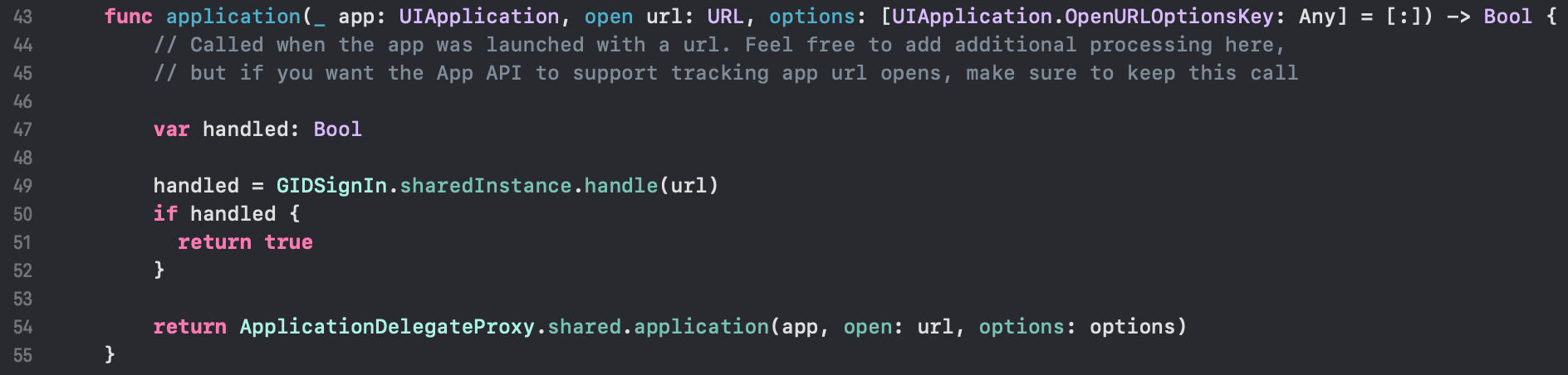
-
以
Command + S
-
-
在您的应用中使用Google登录
在这个步骤中,您已经准备好在应用中使用Google登录。 请使用 authUtils.ts firebase/google/ios/的示例应用程序文件以与Google进行身份验证。
用户将在首次登录时自动在Firebase Auth中创建。
故障排除
故障排除如果身份验证卡住或失败:
- 验证您的
idToken与Firebase Web Client ID匹配 - 检查Firebase控制台中是否启用了Google Sign-In
- 确保Info.plist中包含正确的URL方案和GIDClientID
- 验证
iOSServerClientId与您的Web Client ID匹配 - 查看 example app code 用于参考
从 Firebase Google Login on iOS 中继续
标题:从 Firebase Google Login on iOS 中继续如果您正在使用 Firebase iOS Google 登录 来规划身份验证和帐户流程,连接它到 使用 @capgo/capacitor-social-login 为在使用 @capgo/capacitor-social-login 中的原生能力 @capgo/capacitor-社交登录 用于在 @capgo/capacitor-social-login 中的实现细节 @capgo/capacitor-passkey 为 @capgo/capacitor-passkey 的实现细节 @capgo/capacitor-native-biometric 为 @capgo/capacitor-native-biometric 的实现细节, 和 双因素认证 为双因素认证的实现细节