
Google Webでログイン
このプラグインのインストール手順とフルマークダウンガイドを含む設定プロンプトをコピーする
導入
導入このガイドでは、Capgo Social Loginを使用してウェブアプリケーションでGoogleログインを設定する方法を学びます。 既読の一般設定ガイドを読んだことを前提としています。 一般設定ガイド.
ウェブ上でのGoogleログインの使用
ウェブ上でのGoogleログインの使用ウェブ上でGoogleログインを使用することは比較的簡単です。 使用するには、以下の手順を実行する必要があります。
-
Googleコンソールでウェブクライアントを作成します。
-
検索バーをクリックします。

-
で検索します。
credentials検索結果を表示します。APIs and ServicesAPIsとServicesが強調表示されているクレデンシャルオプションをクリックします。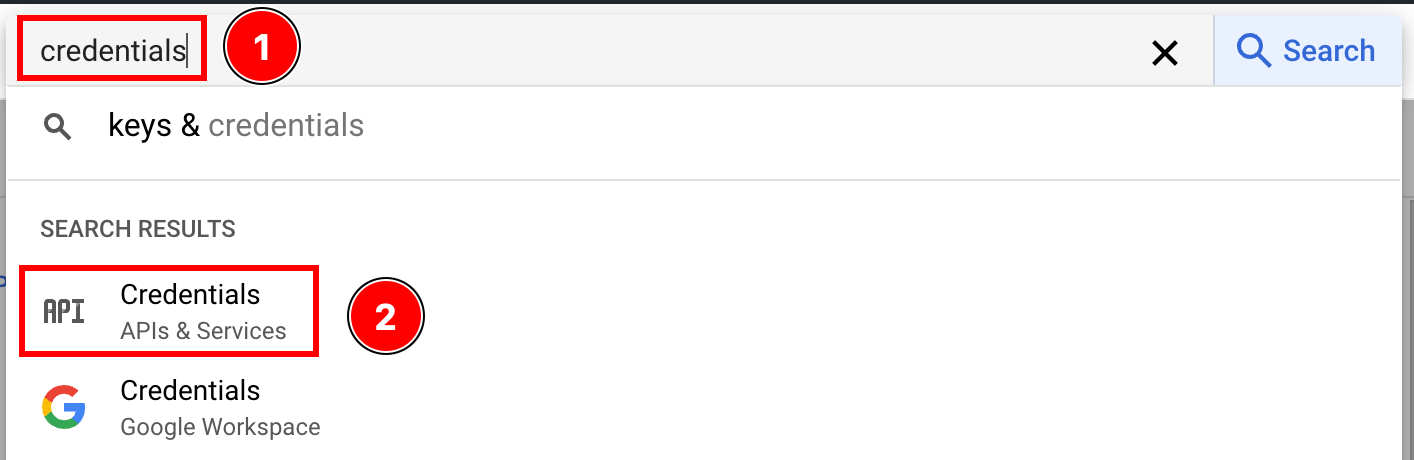
-
(スクリーンショットの2番目)
create credentials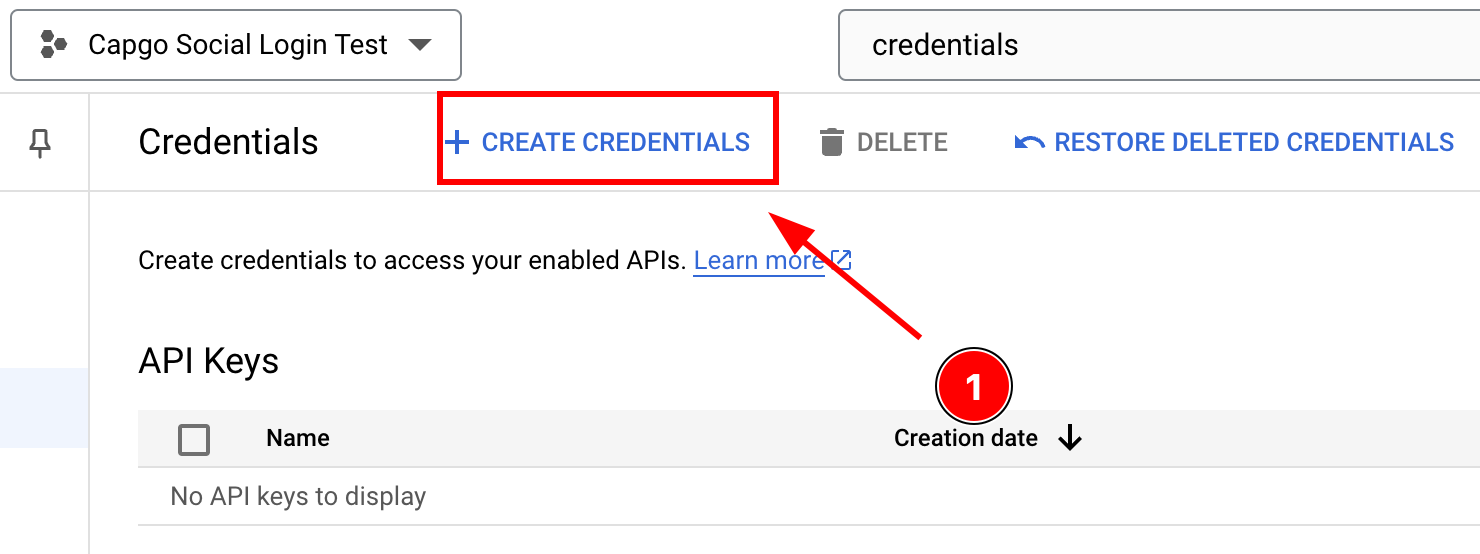
-
選択
OAuth client ID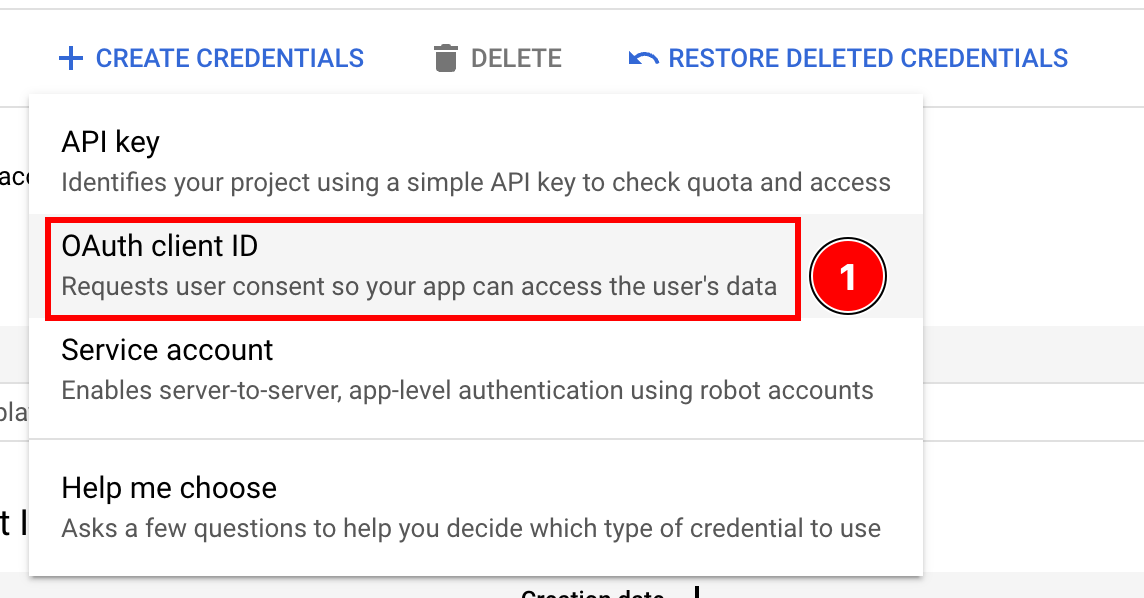
-
選択する
Application typeasWeb application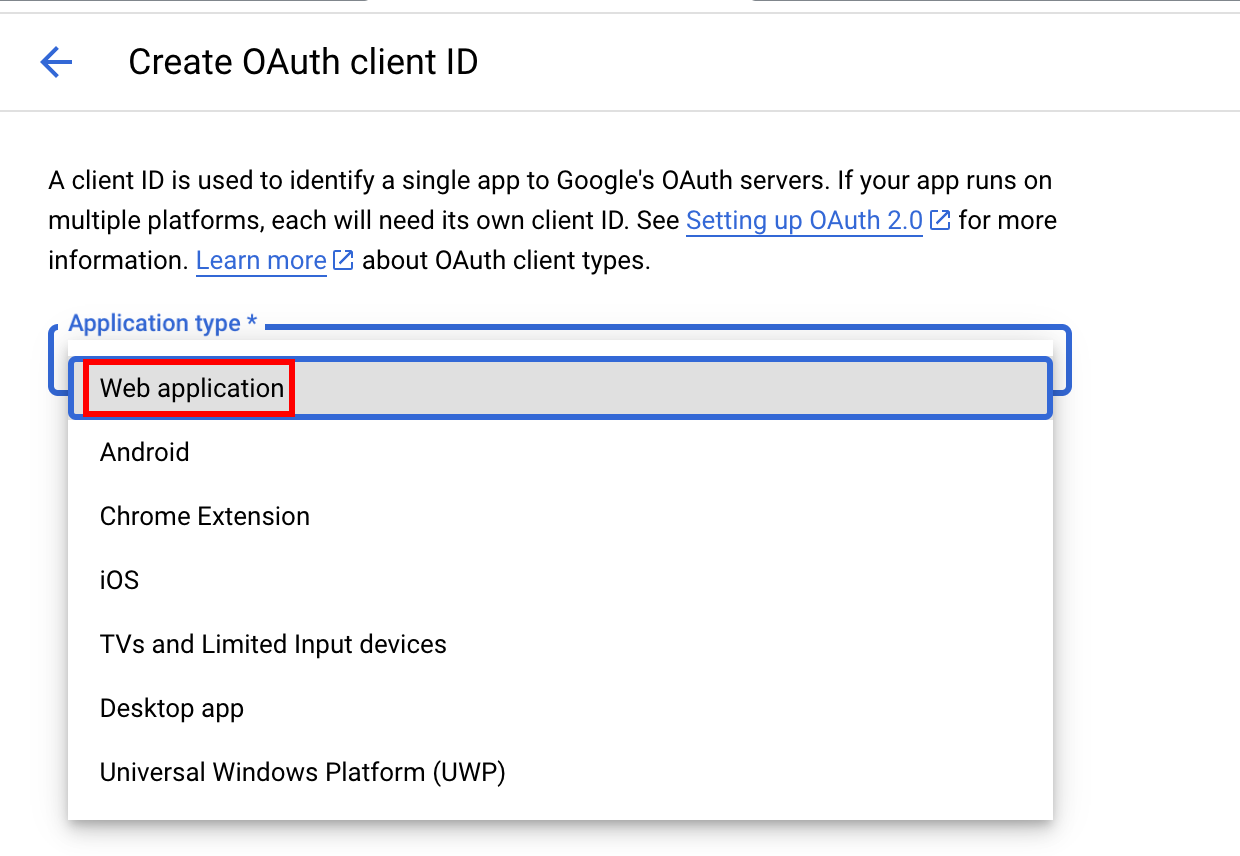
-
クライアントに名前を付け、クリック
Create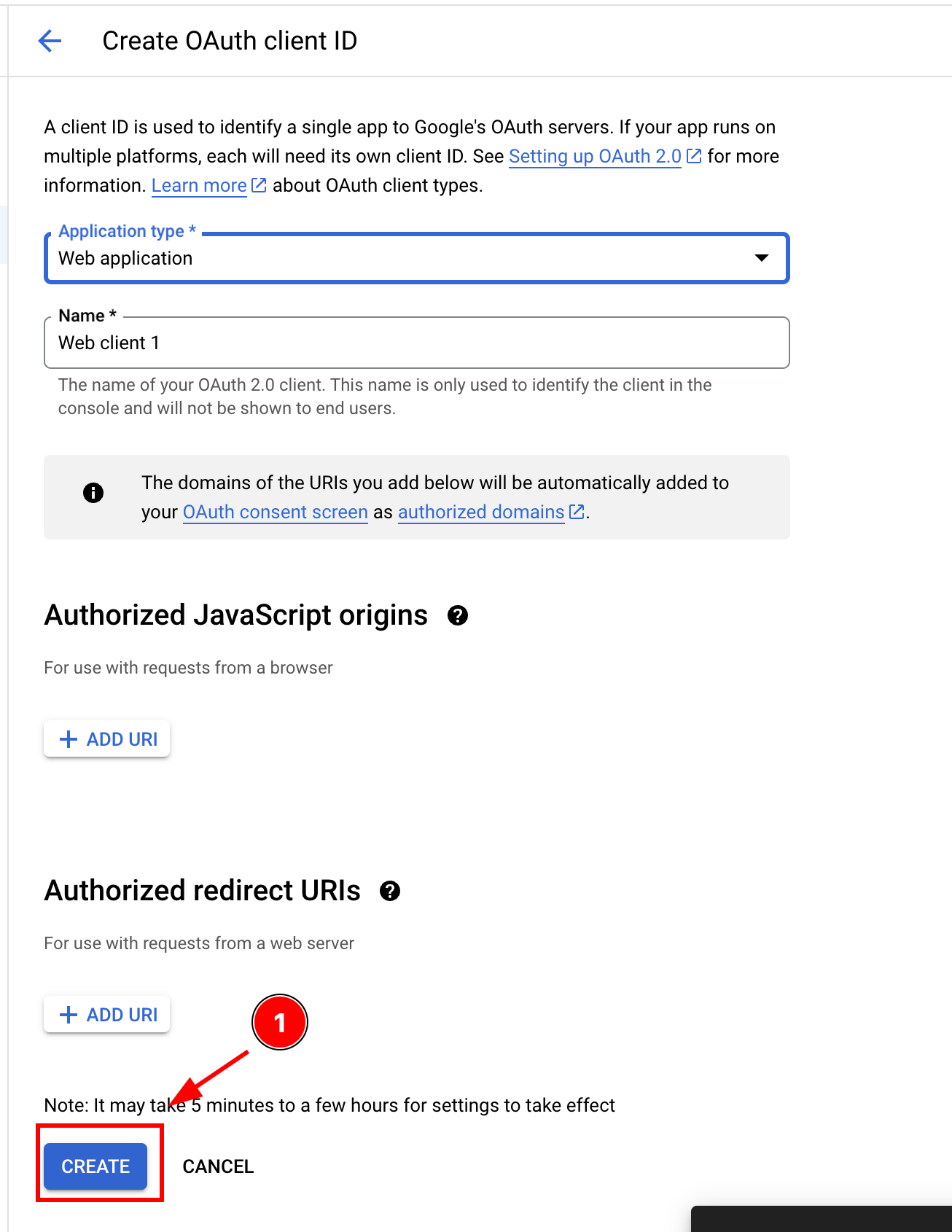
-
__CAPGO_KEEP_0__をアプリケーションにコピー
webClientId__CAPGO_KEEP_0__の詳細を表示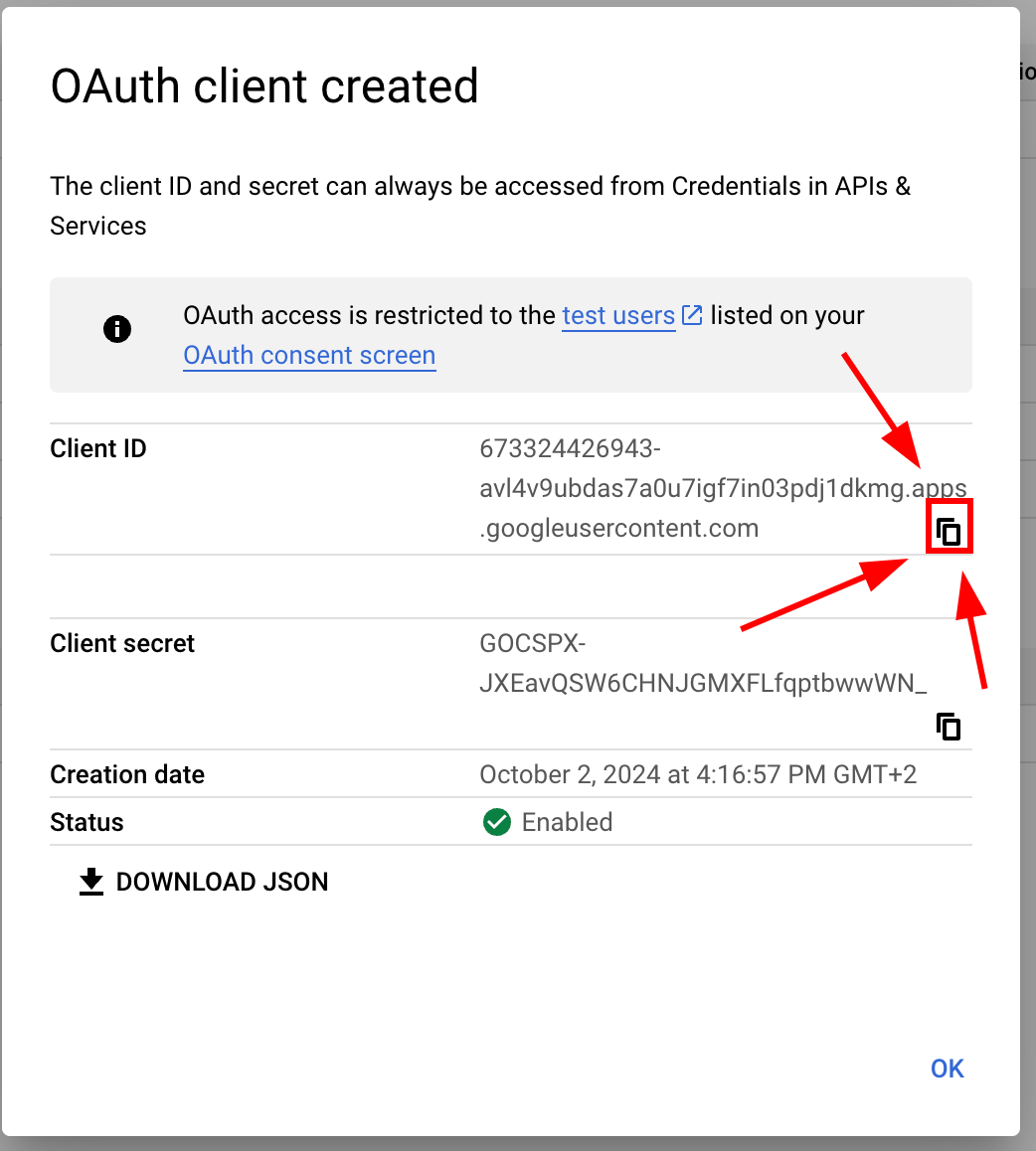
-
-
Google Console でウェブクライアントを設定する
-
Googleアカウントを使用したログイン 認証情報のページを開いてください Webクライアントをクリックしてください
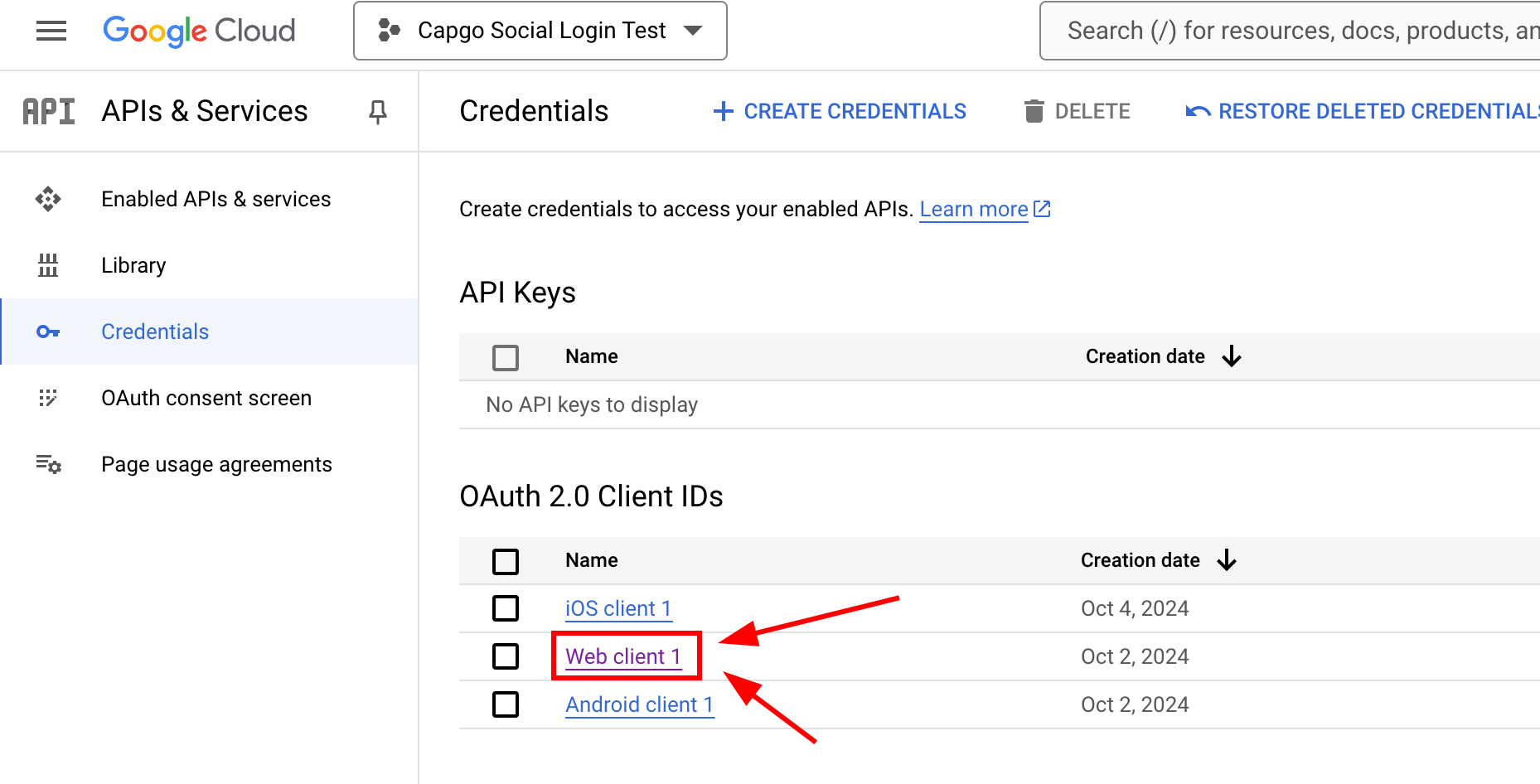
-
Googleアカウントを追加してください
Authorized JavaScript originsこの設定には、すべてのアプリで使用する可能性のあるアドレスを含める必要があります。 ONLY そしてhttp://localhostandhttp://localhost:5173-
URLを入力してください
add URI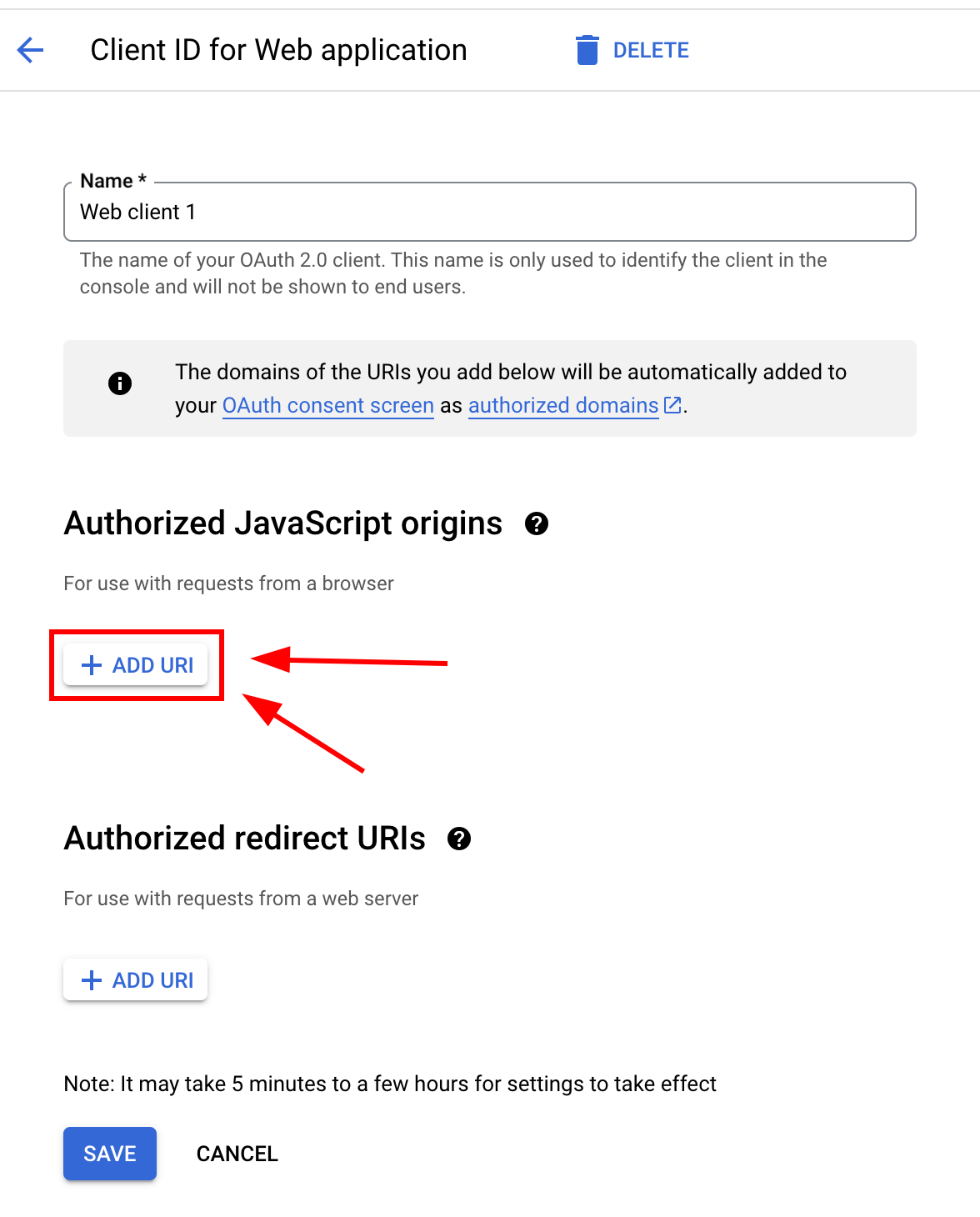
-
認可されたJavaScriptオリジンのセクションにADD URIボタンをクリックしてください
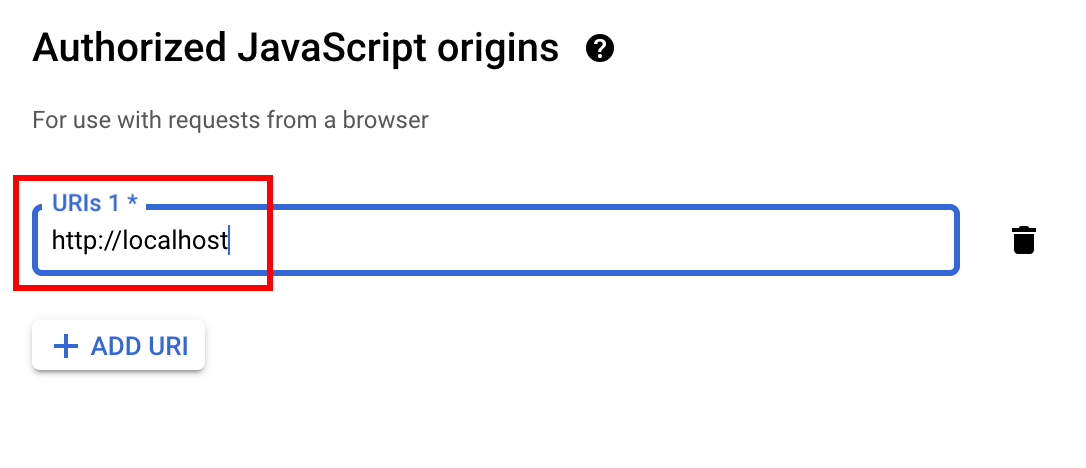
-
URLをすべて追加するまで、繰り返してください
-
完了したら、画面は次のようになります
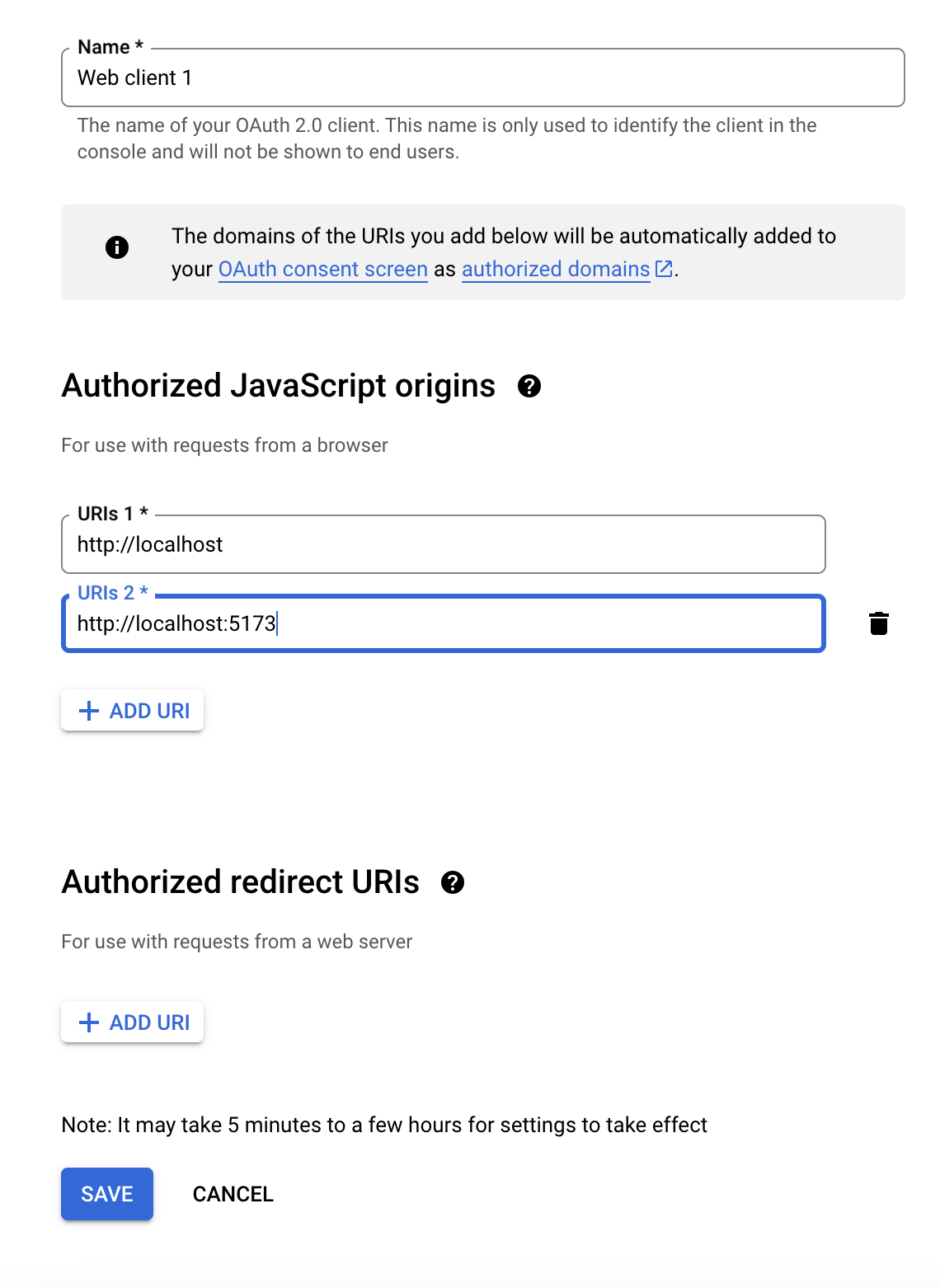
-
-
次に、以下のものを追加してください
Authorized redirect URIsCapacitorSocialLoginプラグインを使用するページに応じて、必要なものが異なります。私の場合は、以下のページを使用しますhttp://localhost:5173/auth-
以下のボタンをクリックしてください
ADD URI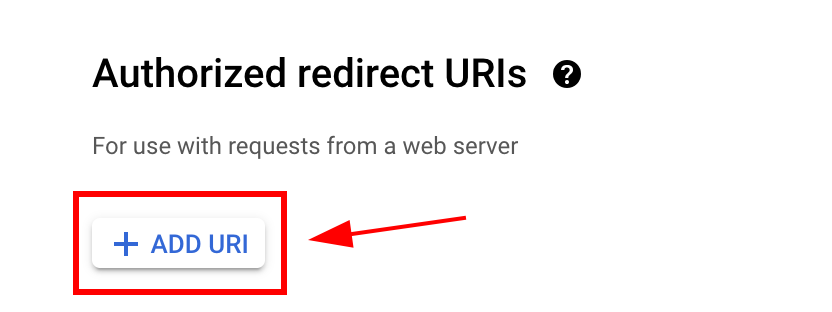
-
URLを入力して、以下のボタンをクリックしてください
ADD URL再度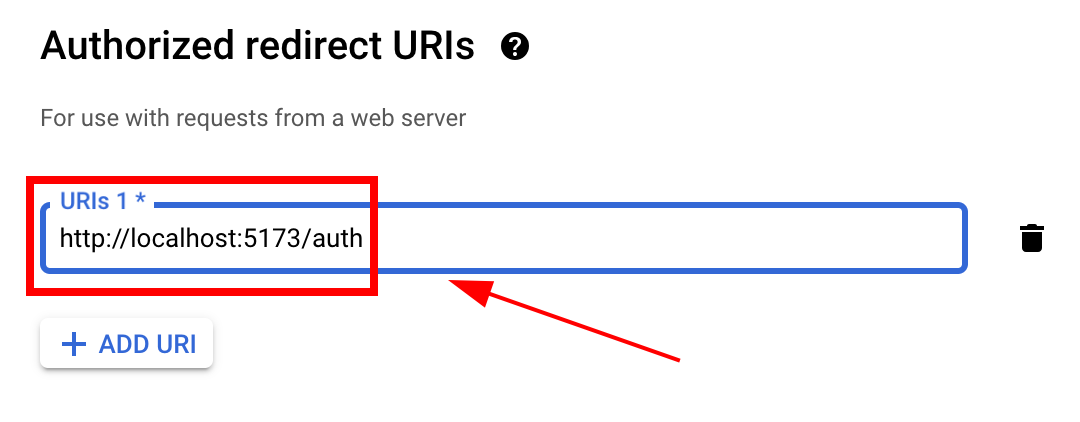
-
-
Click
save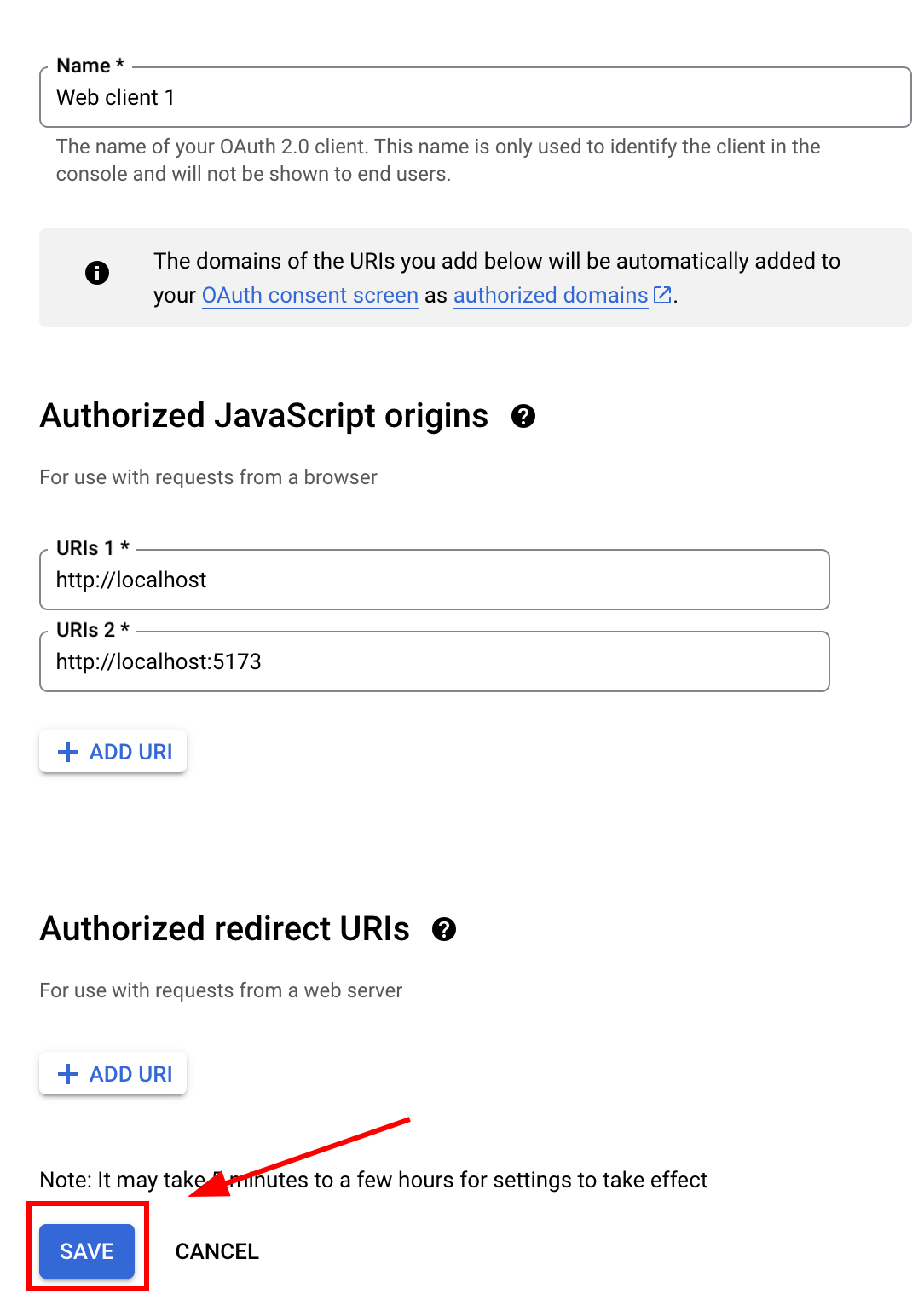
-
-
ここで、Google のログインを呼び出す準備ができているはずです。
loginJavaScript から呼び出すようにしてください。-
最初に、次のコードをインポートしてください。
SocialLoginimport { SocialLogin } from '@capgo/capacitor-social-login'; -
次に、initialize を呼び出してください。この関数は、Web クライアント設定の下部の保存ボタンを押したときにのみ呼び出してください。
// onMounted is Vue specific// webClientId is the client ID you got in the web client creation step not the android client ID.onMounted(() => {SocialLogin.initialize({google: {webClientId: '673324426943-avl4v9ubdas7a0u7igf7in03pdj1dkmg.apps.googleusercontent.com',}})})
-
ログインボタンを作成して、クリックされたときに
SocialLogin.loginを呼び出します。const res = await SocialLogin.login({provider: 'google',options: {}})// Handle the responseconsole.log(JSON.stringify(res));
-
Google Webから続ける
Google Webから続けるあなたが使用している Google Web 認証とアカウントフローの計画に使用している場合、Google Webを @capgo/capacitor-ソーシャルログイン Using @capgo/capacitor-social-login Using @capgo/capacitor-social-login Using @capgo/capacitor-passkey Using @capgo/capacitor-passkey Using @capgo/capacitor-native-biometric @capgo/capacitor-social-login for the capgo implementation detail in capacitor-native-biometric, and 2要素認証 2要素認証の実装詳細


