
双因素身份验证
什么是 2FA?
Section titled “什么是 2FA?”2FA 是一种安全措施,旨在防止不良行为者接管您的 capgo 帐户。
它通过需要额外的代码来实现它。该代码存储在您的手机或硬件 2FA 密钥上。每30秒变化一次,让人无法猜测
本指南的要求
Section titled “本指南的要求”- Android 或 IOS 手机
- 互联网连接
本指南将涵盖哪些内容?
Section titled “本指南将涵盖哪些内容?”本指南将展示如何使用 Google Authenticator 设置 2FA。其他应用程序的存在也具有类似的目的,但我无法在本指南中涵盖 2FA 的整个主题。
如何设置 2FA?
Section titled “如何设置 2FA?”首先下载Google Authenticator应用程序。如果您使用的是 Android,则可以从 play 商店 下载它。在 IOS 上,您可以从 App store 下载它
其次,请进入capgo的账户设置。在那里你应该看到一个绿色按钮,看起来像这样
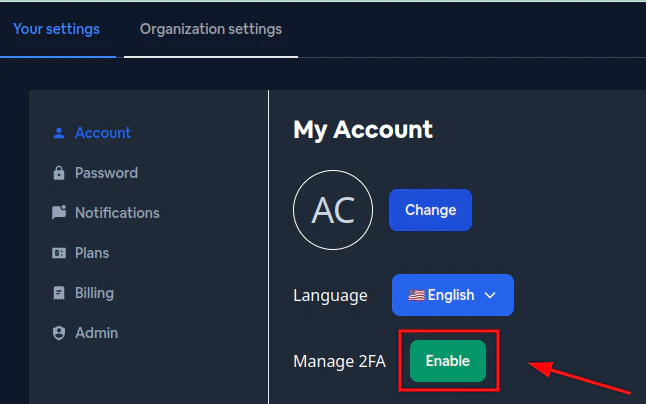
单击它,一旦单击,就会出现一个二维码
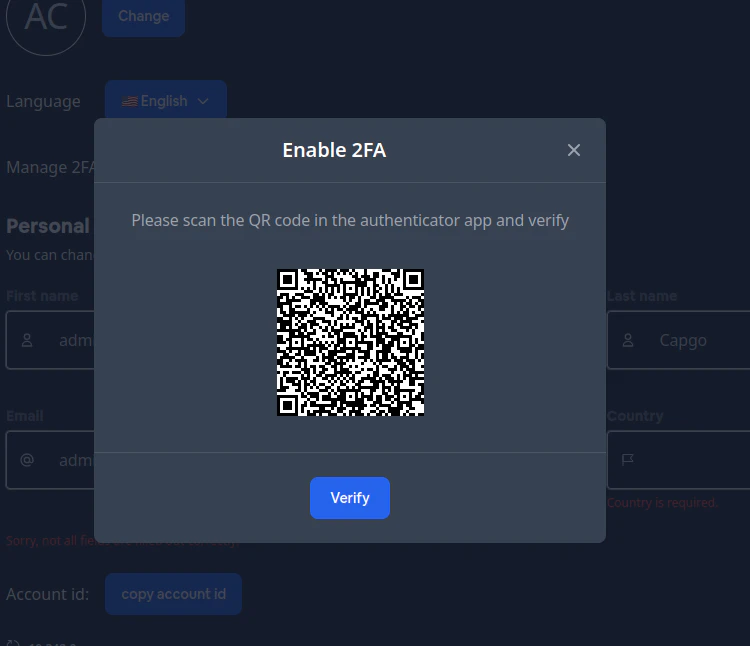
接下来,请打开手机上的Google Authenticator。完成后,请按照下列步骤操作:
单击加号按钮
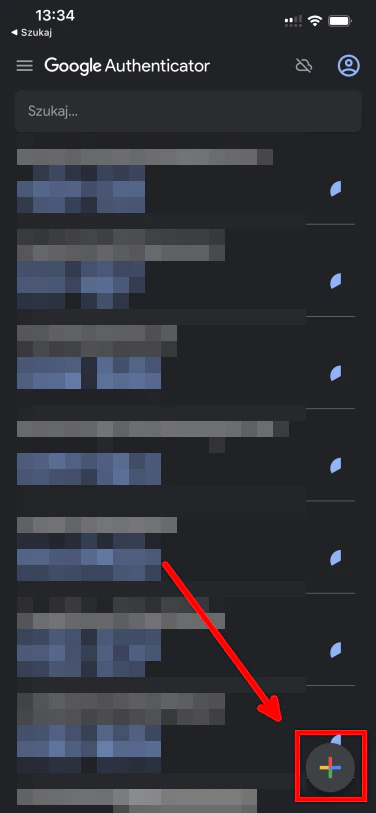
之后,请单击相机按钮
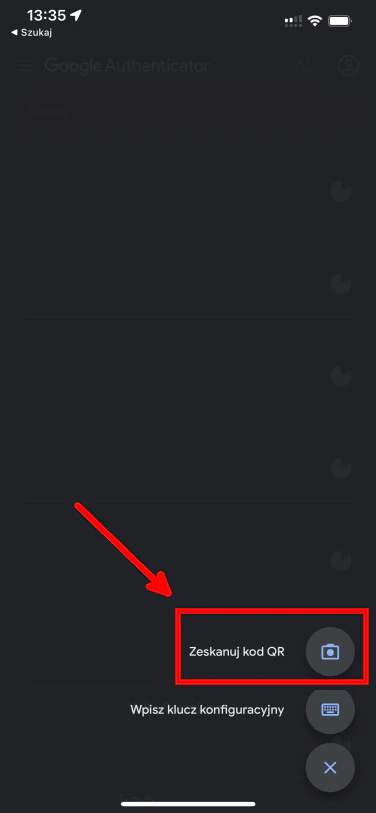
这将打开相机预览。请扫描电脑上显示的二维码。执行此操作后,您应该会看到如下内容:
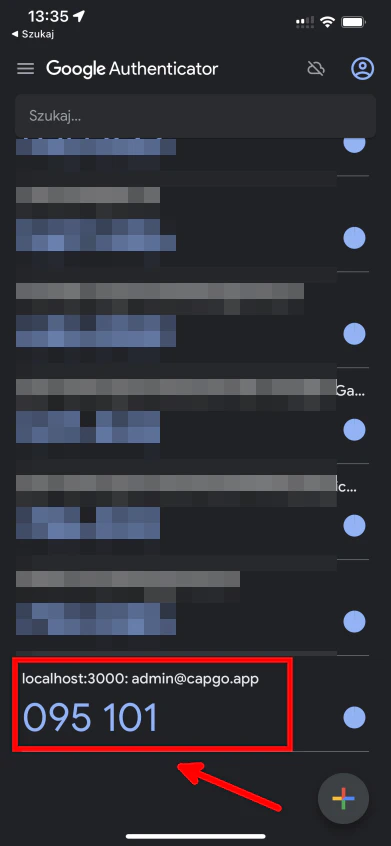
然后请返回PC并点击验证按钮
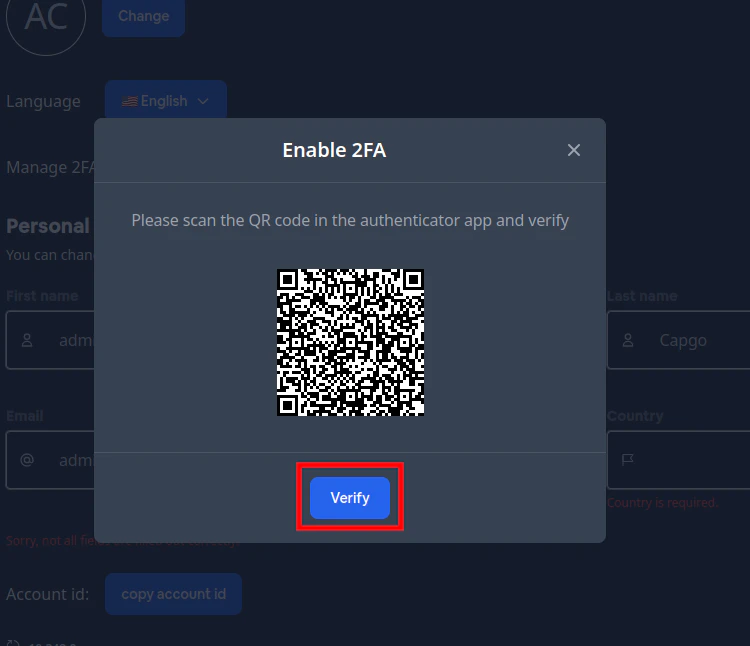
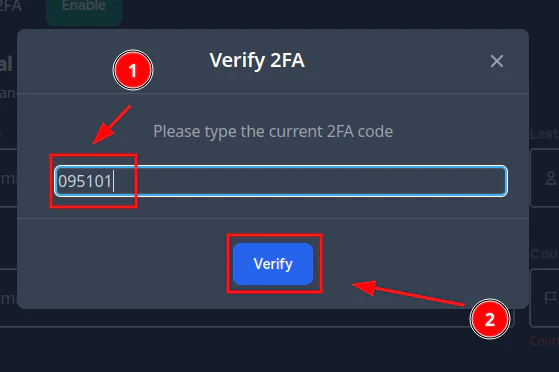
这将打开一个窗口来输入我们的 2FA 代码。就我而言,此代码是 095101 但对您来说会有所不同。
输入此代码后,请单击 verify 按钮
如果您输入了正确的代码并按下 verify 您应该会看到如下所示的弹出窗口
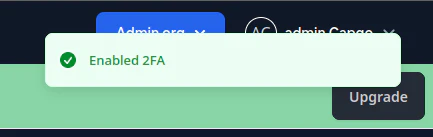
恭喜!
您启用了 2FA 身份验证 🎉
如何使用 2FA 登录
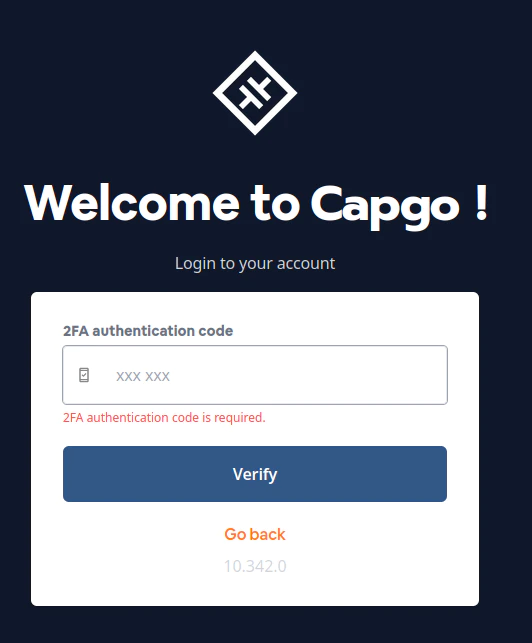
Section titled “如何使用 2FA 登录”下次您登录您的帐户时,您将看到这样的窗口
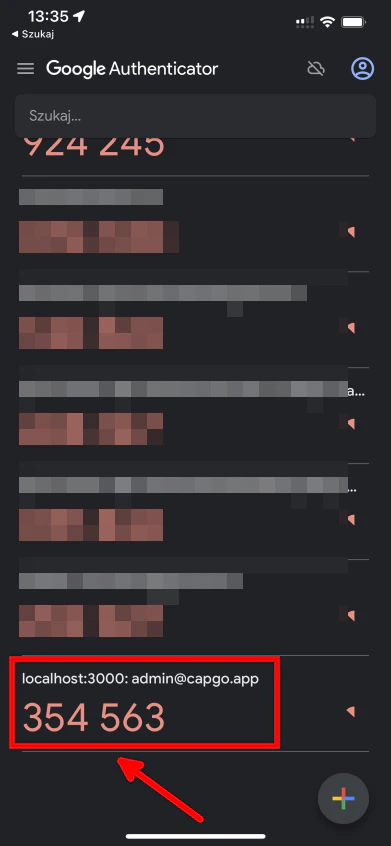
请打开验证器并复制您的授权码
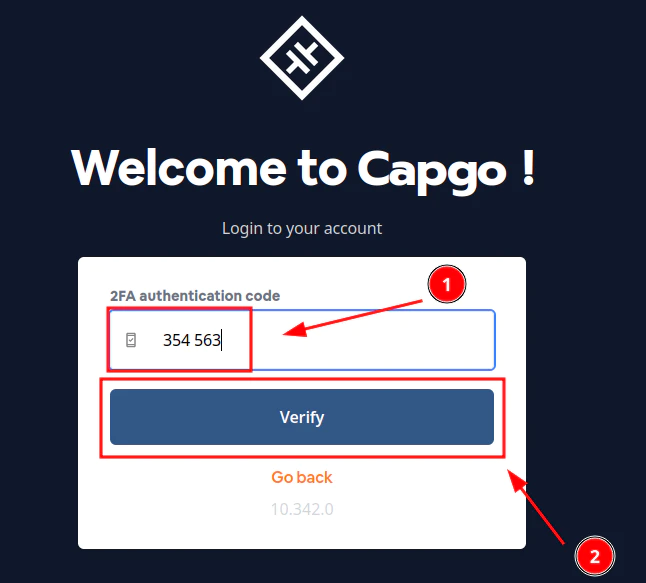
然后在登录表单中输入代码并按 verify
如果您输入了正确的代码,您应该会看到 capgo 仪表板
如何禁用 2FA要禁用 2FA,请转至 capgo 的帐户设置。在那里您应该看到一个红色按钮,如下所示:
Section titled “如何禁用 2FA要禁用 2FA,请转至 capgo 的帐户设置。在那里您应该看到一个红色按钮,如下所示:”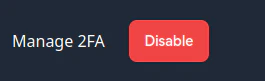
单击它,您应该看到这样的屏幕
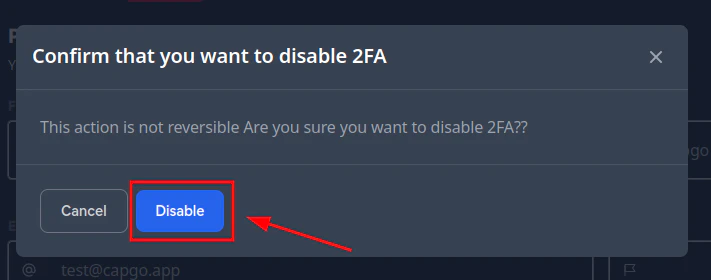
只需按下 disable 按钮即可。