
Android 上的 Firebase Google 登录
本指南将帮助你在 Android 上集成带有 Firebase Authentication 的 Google 登录。我假设你已经完成了通用 Firebase Google 设置
-
在 console.cloud.google.com 转到项目概览
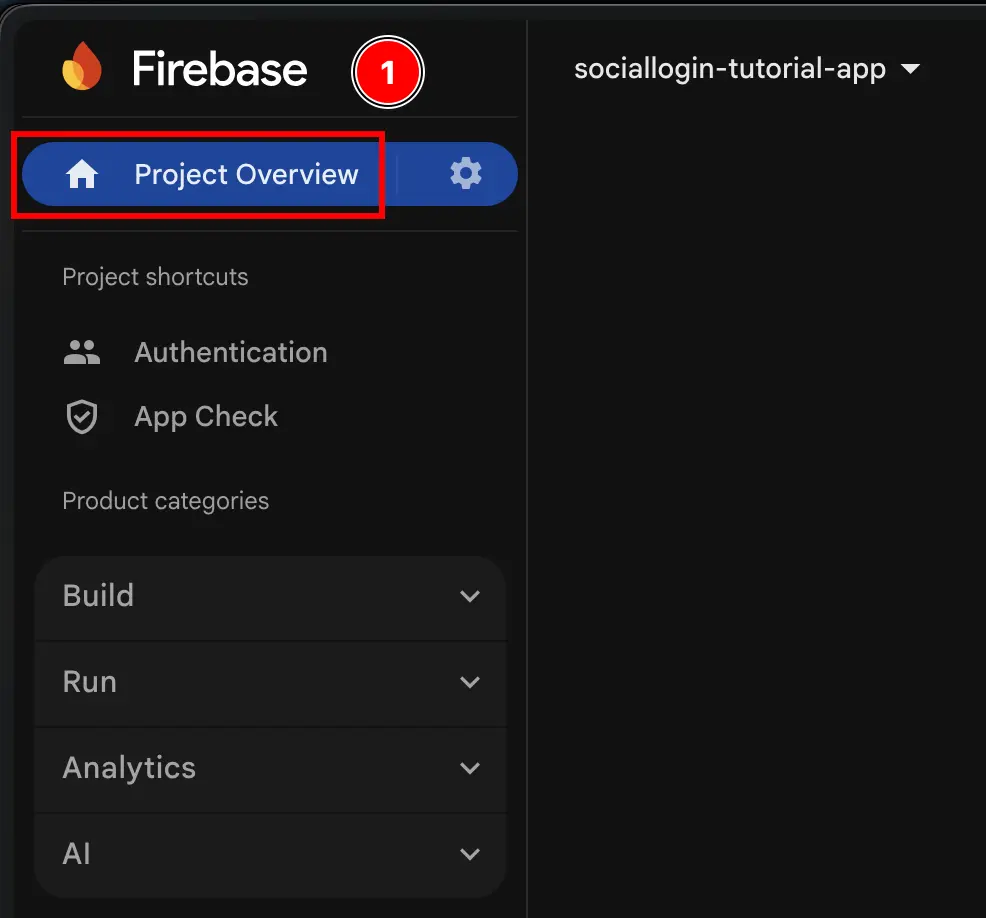
-
点击
Add app按钮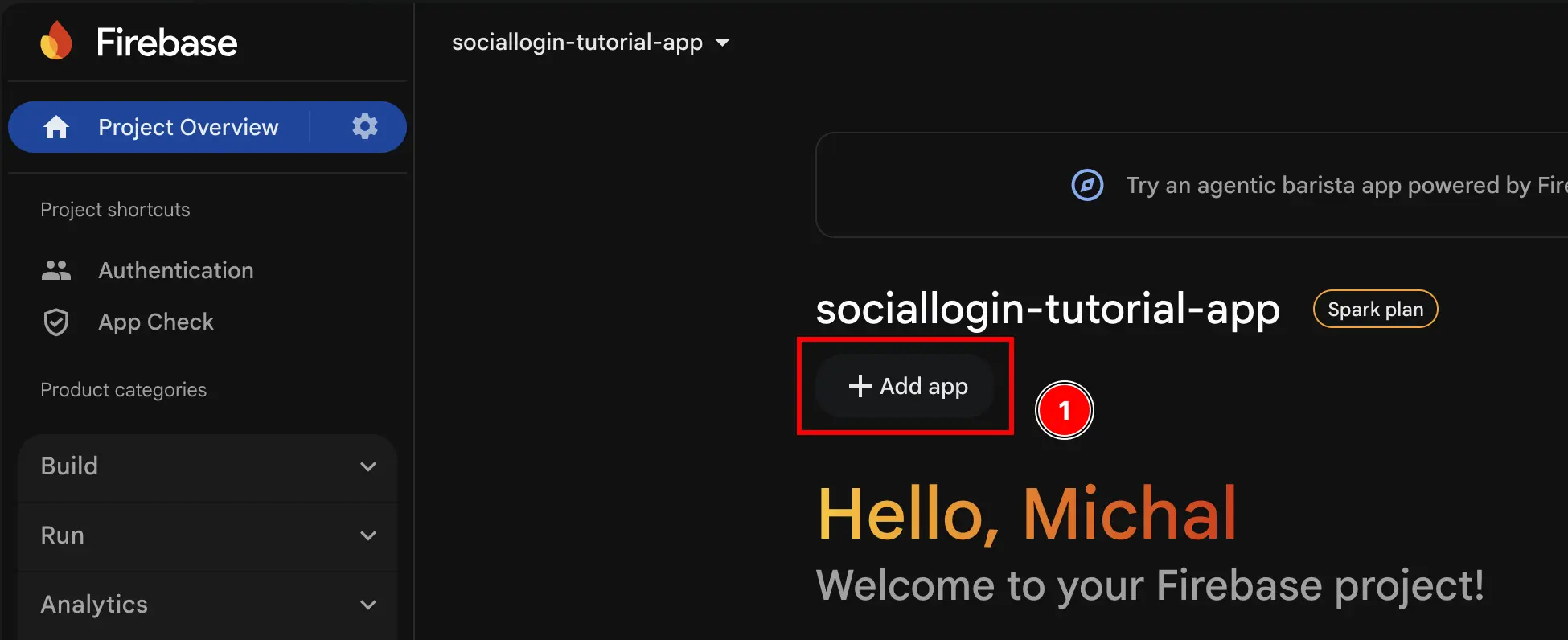
-
选择
Android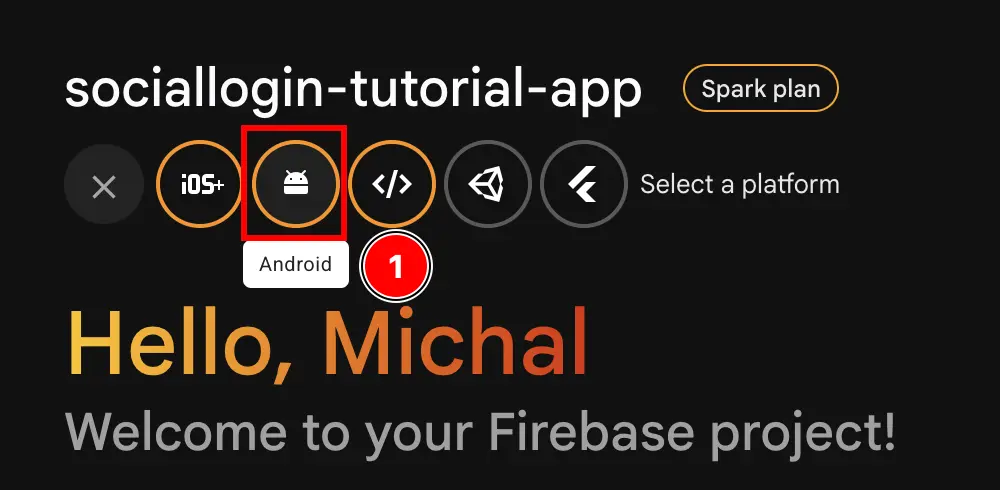
-
填写表单的第一部分
- 填写
Android package name- 使用
npx cap open android在 Android Studio 中打开你的应用 - 在导航器的最底部,找到
Gradle Scripts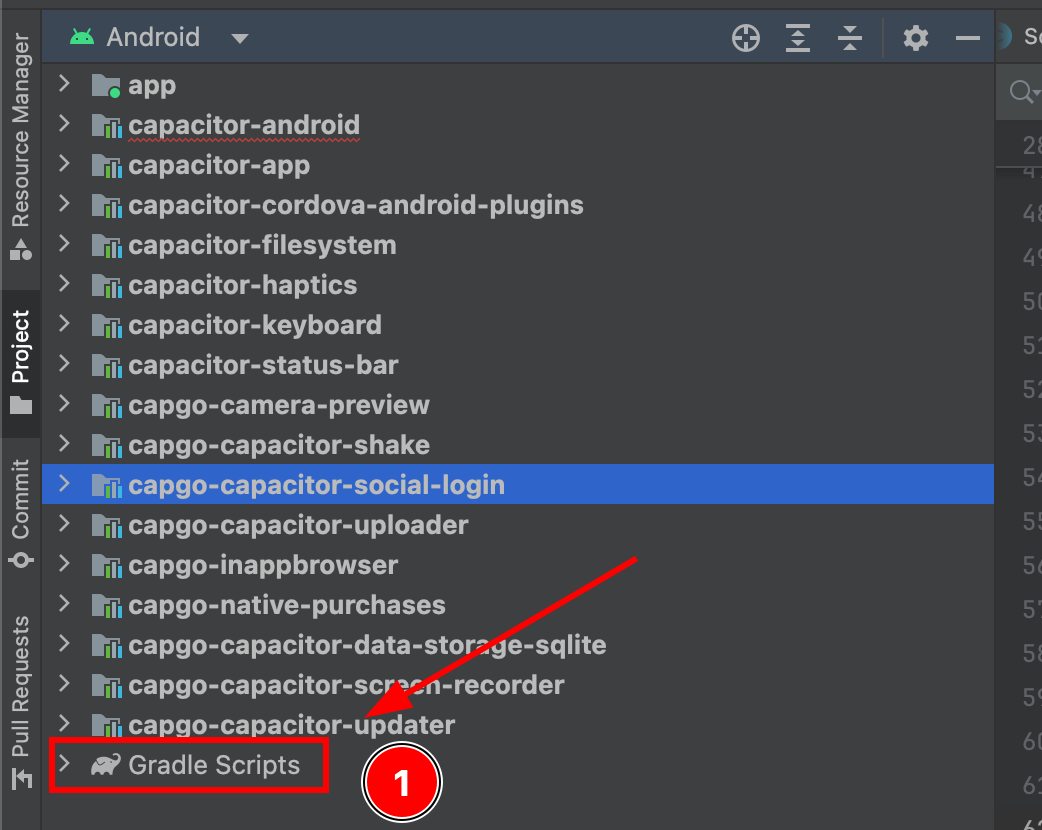
- 找到模块
app的build.gradle
- 复制
android.defaultConfig.applicationId。这将是 Firebase 控制台中的package name
- 在 Firebase 控制台中粘贴
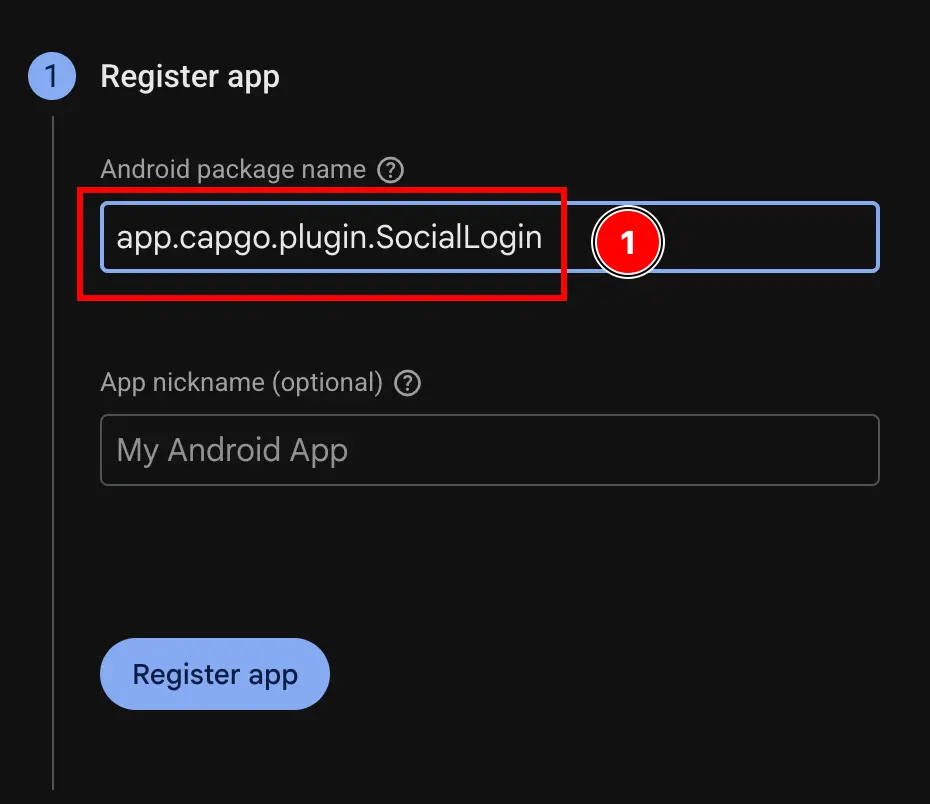
- 使用
- 点击
Register app按钮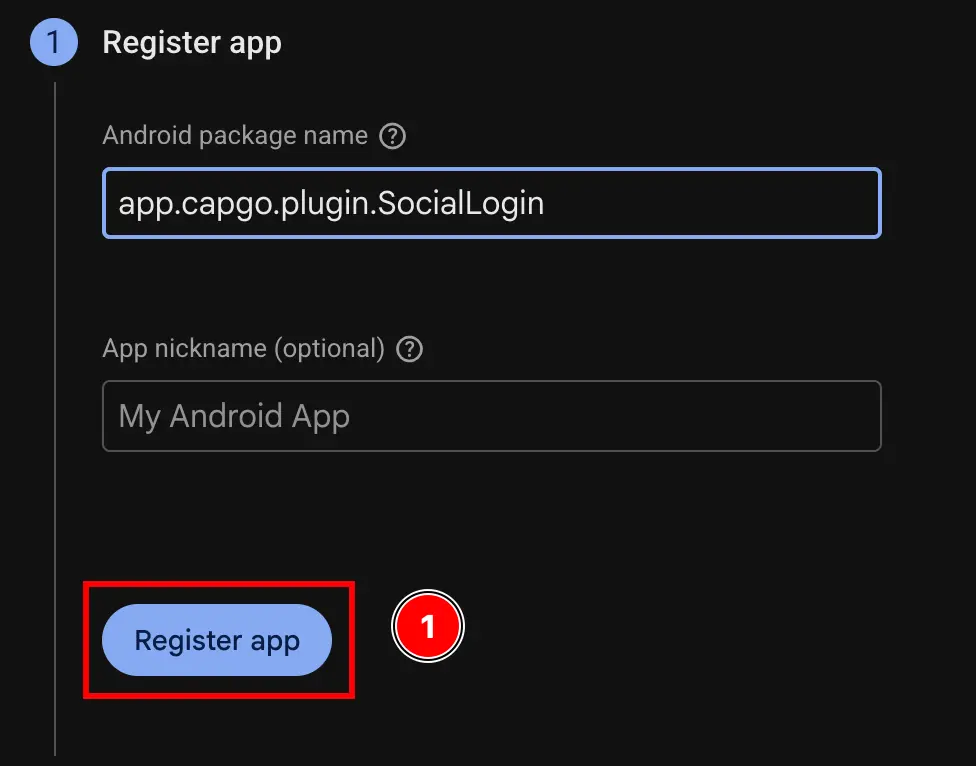
- 填写
-
跳过
Download and then add config file步骤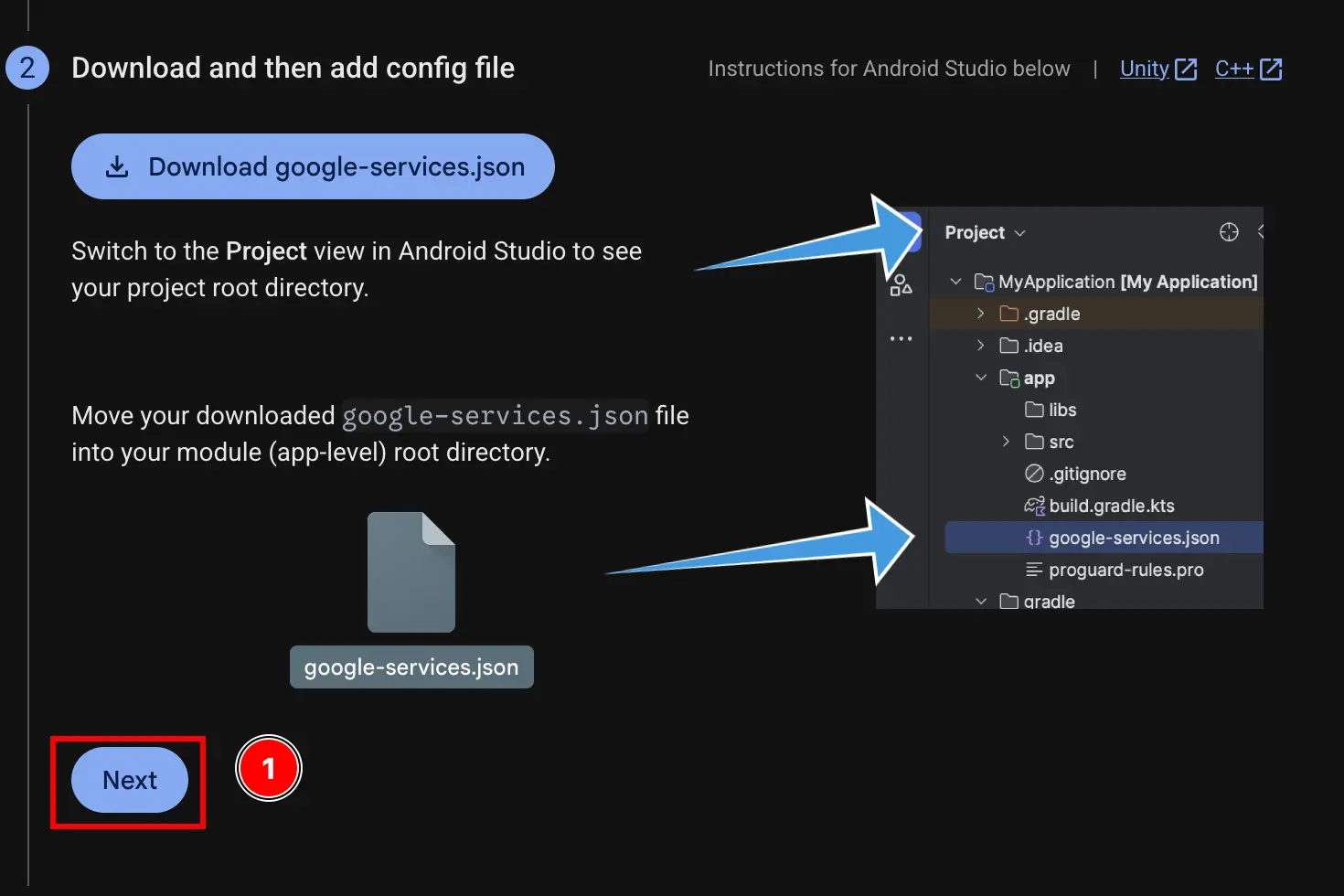
-
跳过
Add firebase SDK步骤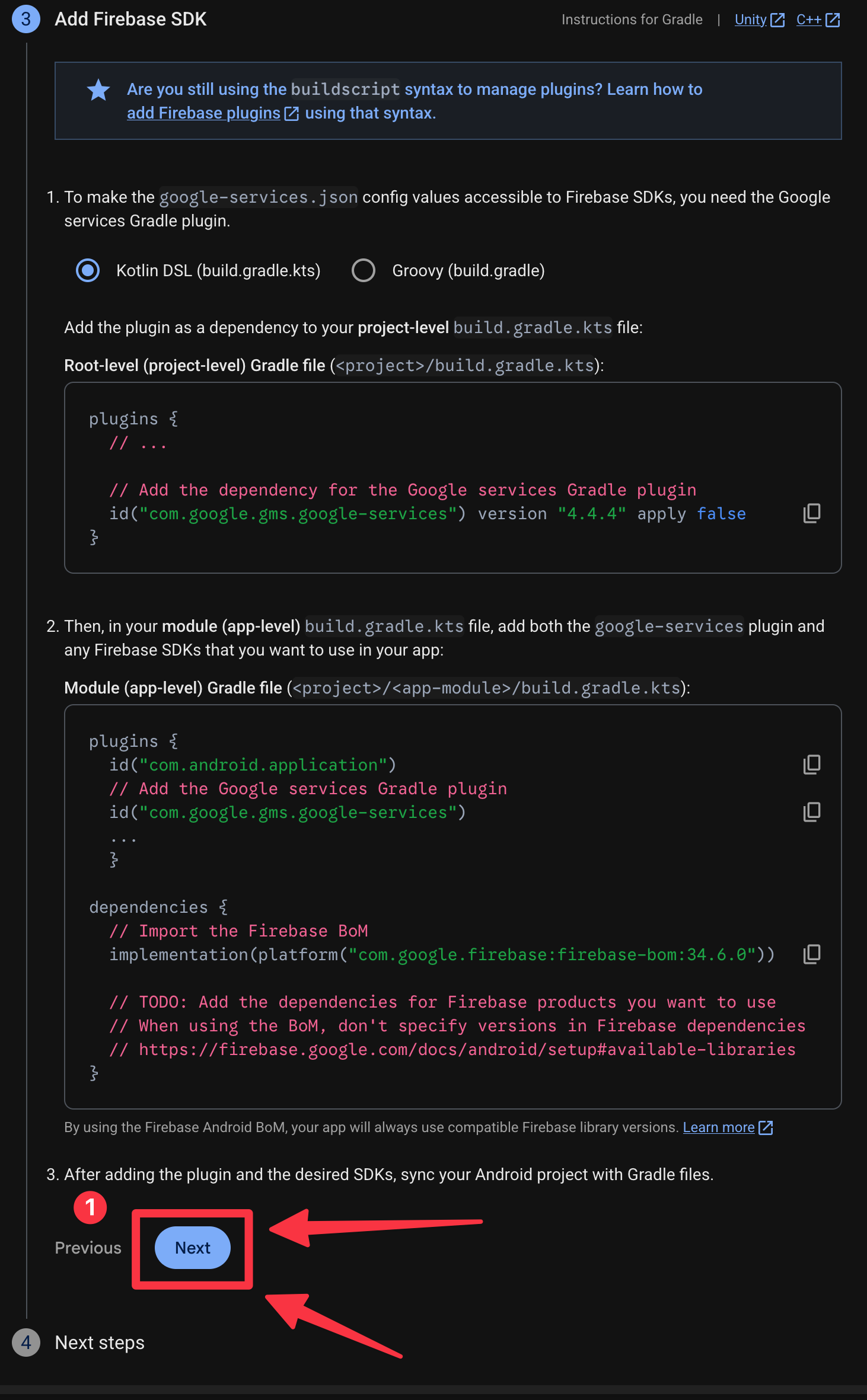
-
点击
Continue to console按钮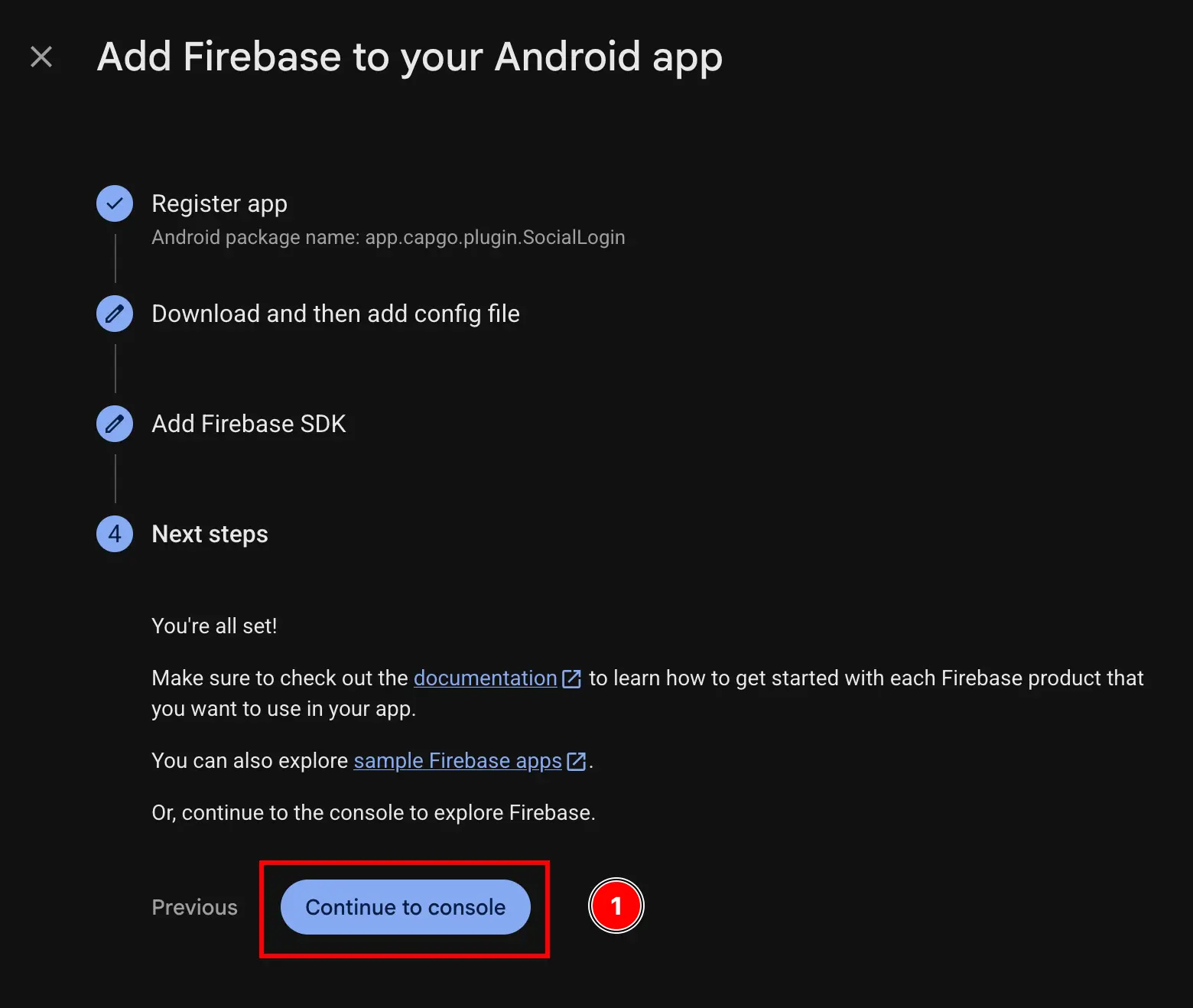
-
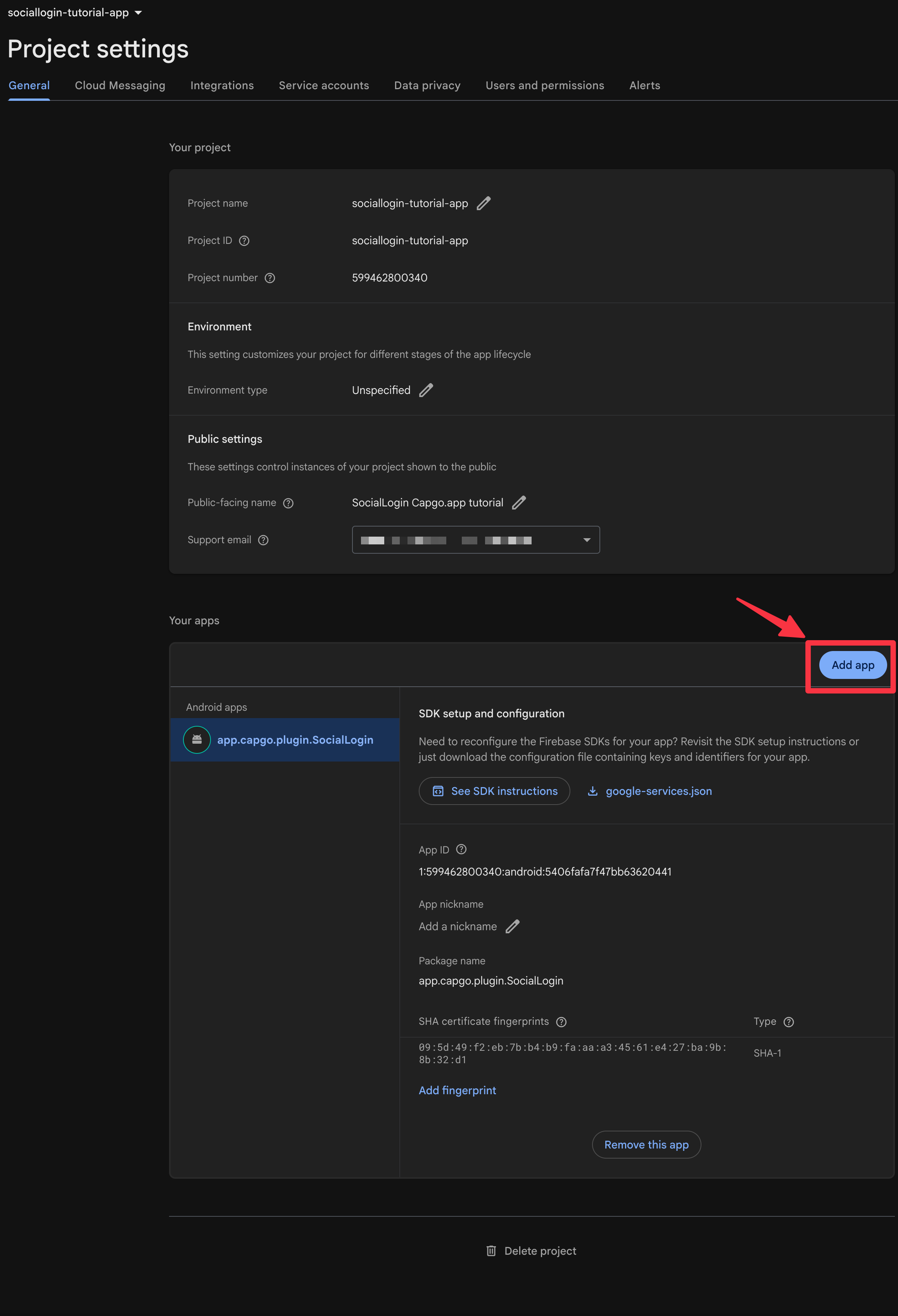
如果未自动进行身份验证,请转到
settings->general->your apps-> 找到你的 Android 应用并点击它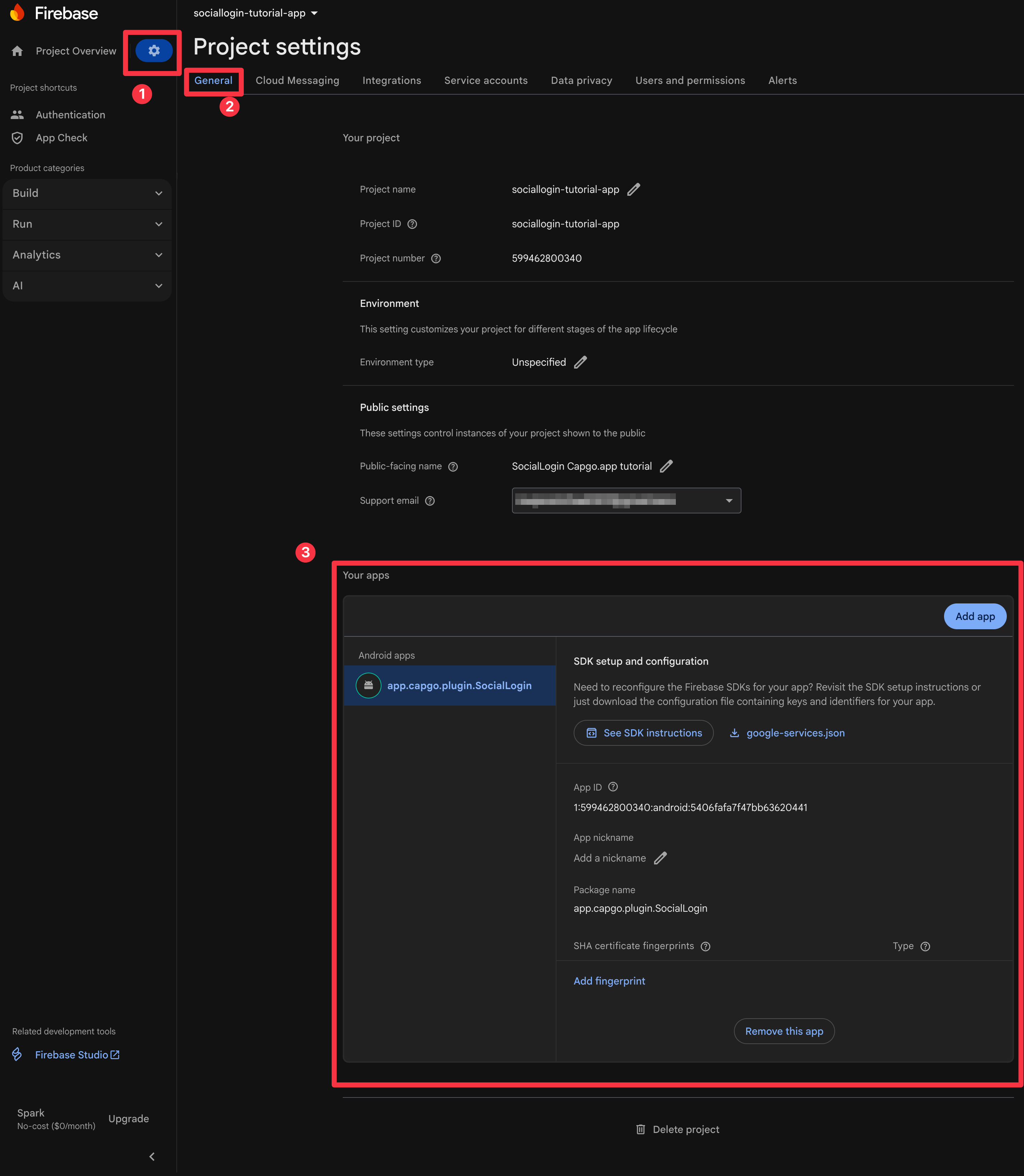
-
获取你的 SHA1 指纹
按照 Google Login Android 设置指南中的步骤 10-11:
-
现在,打开终端。确保你在应用的
android文件夹中并运行./gradlew signInReport
-
滚动到此命令的顶部。你应该看到以下内容。复制
SHA1。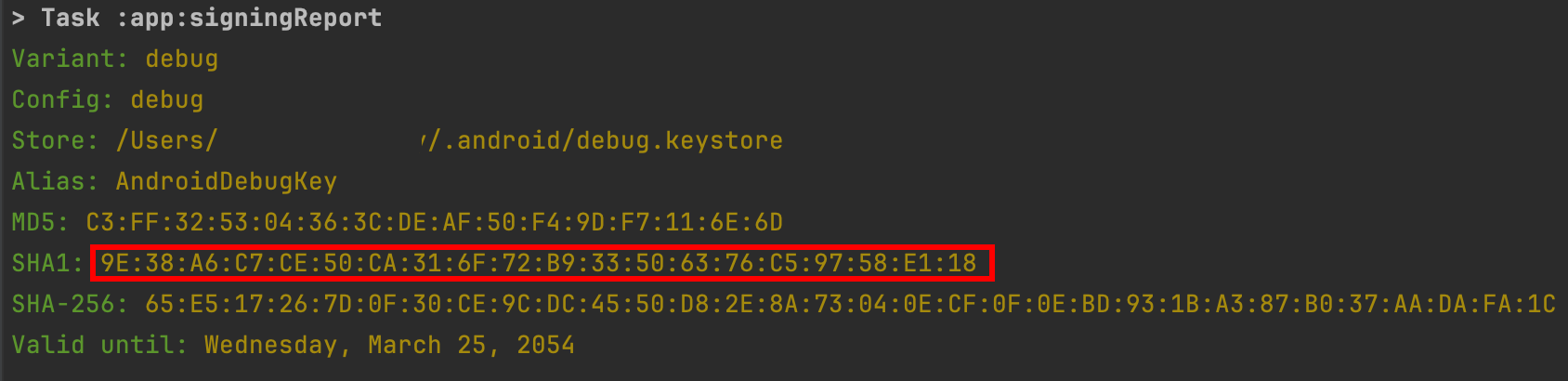
-
-
将 SHA1 添加到 Firebase 项目
- 点击
Add fingerprint按钮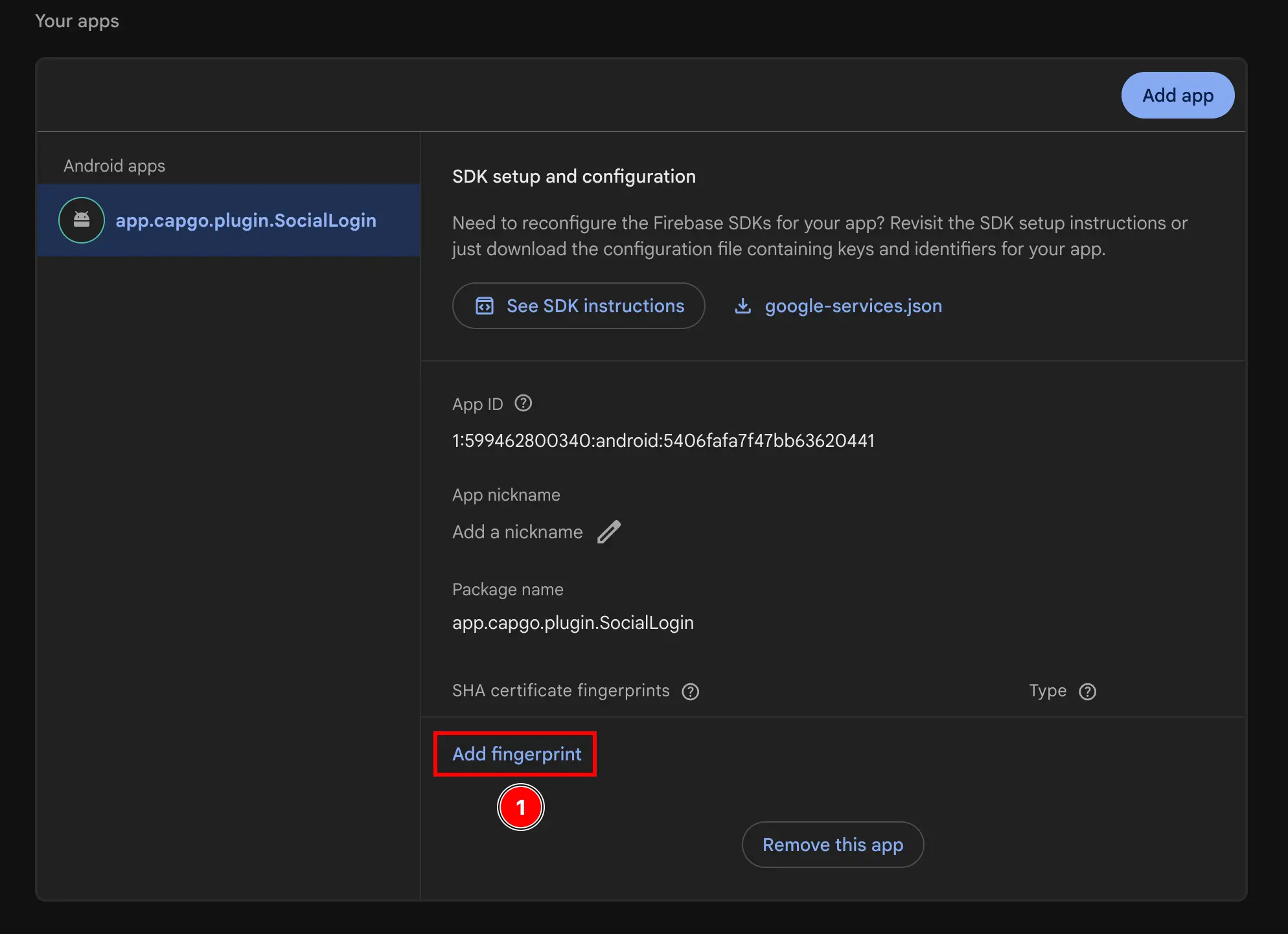
- 粘贴你在上一步中复制的 SHA1
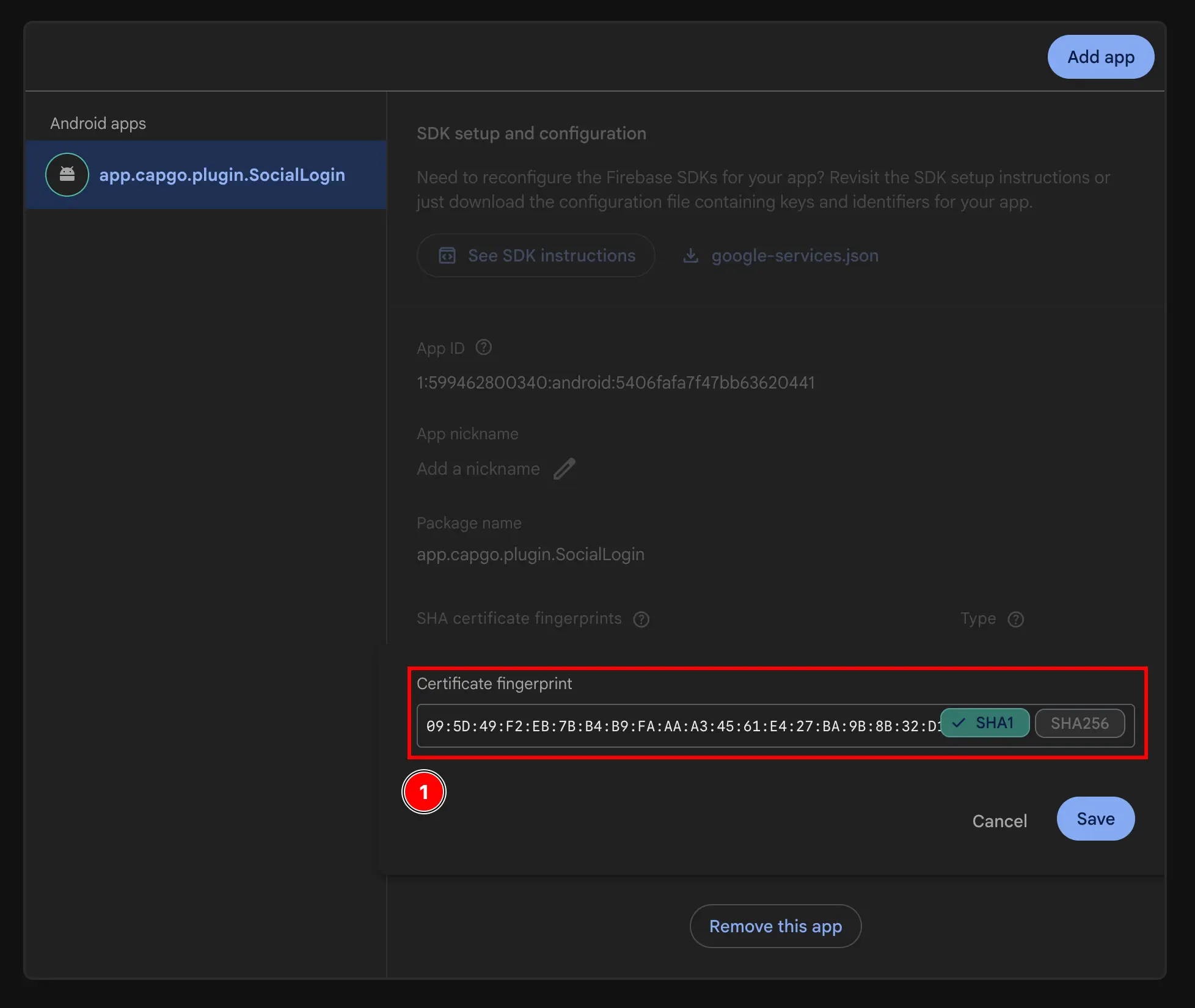
- 点击
Save按钮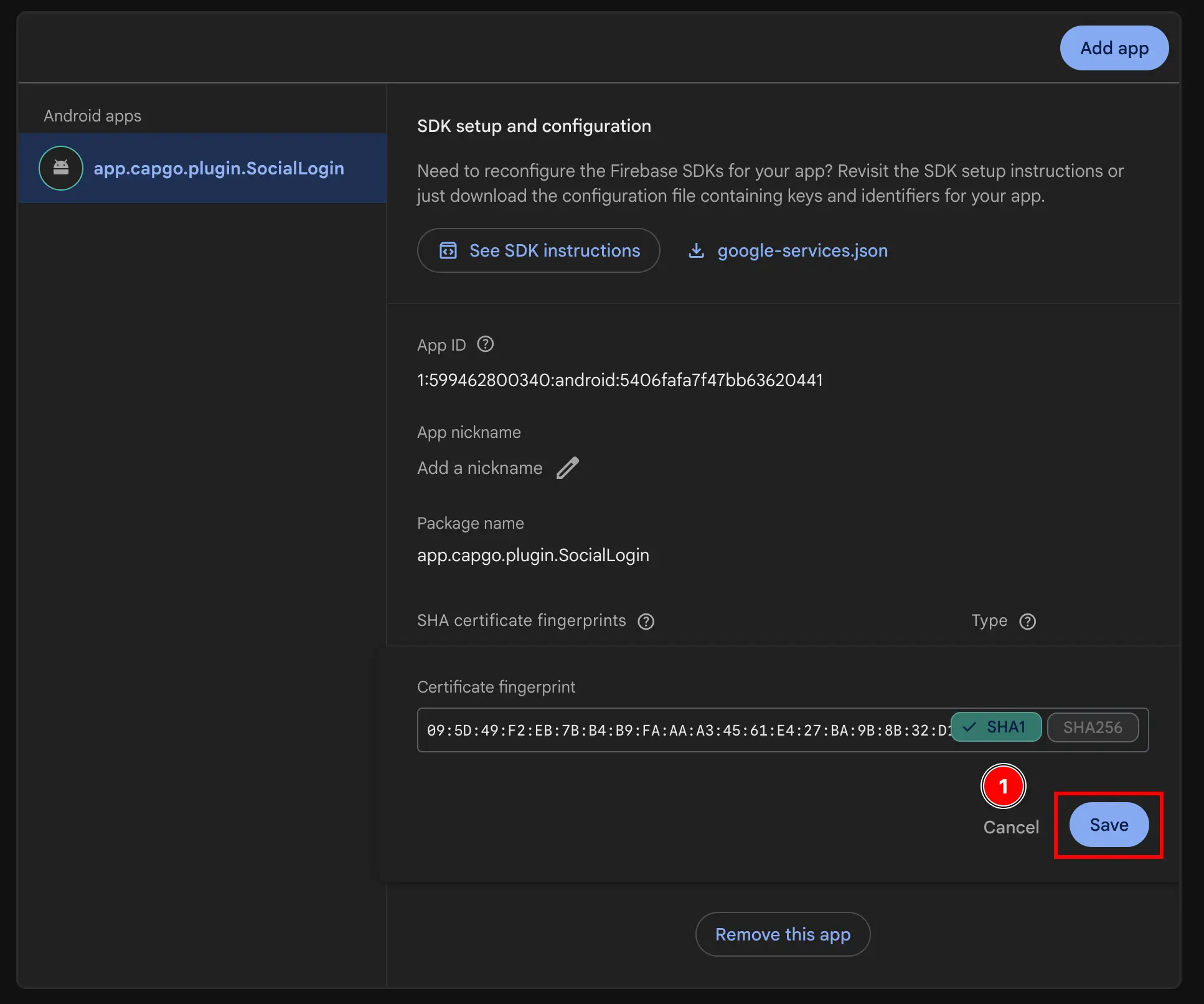
- 点击
-
获取你的 Web 客户端 ID
- 转到
Build->Authentication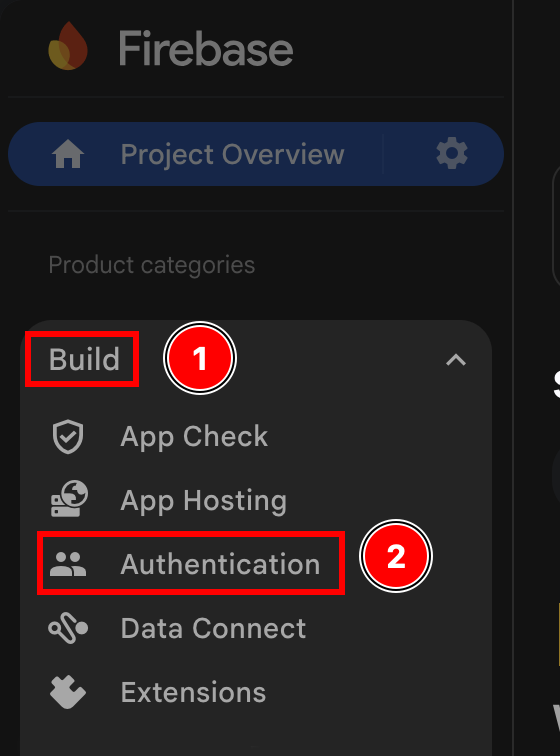
- 点击
Sign-in method按钮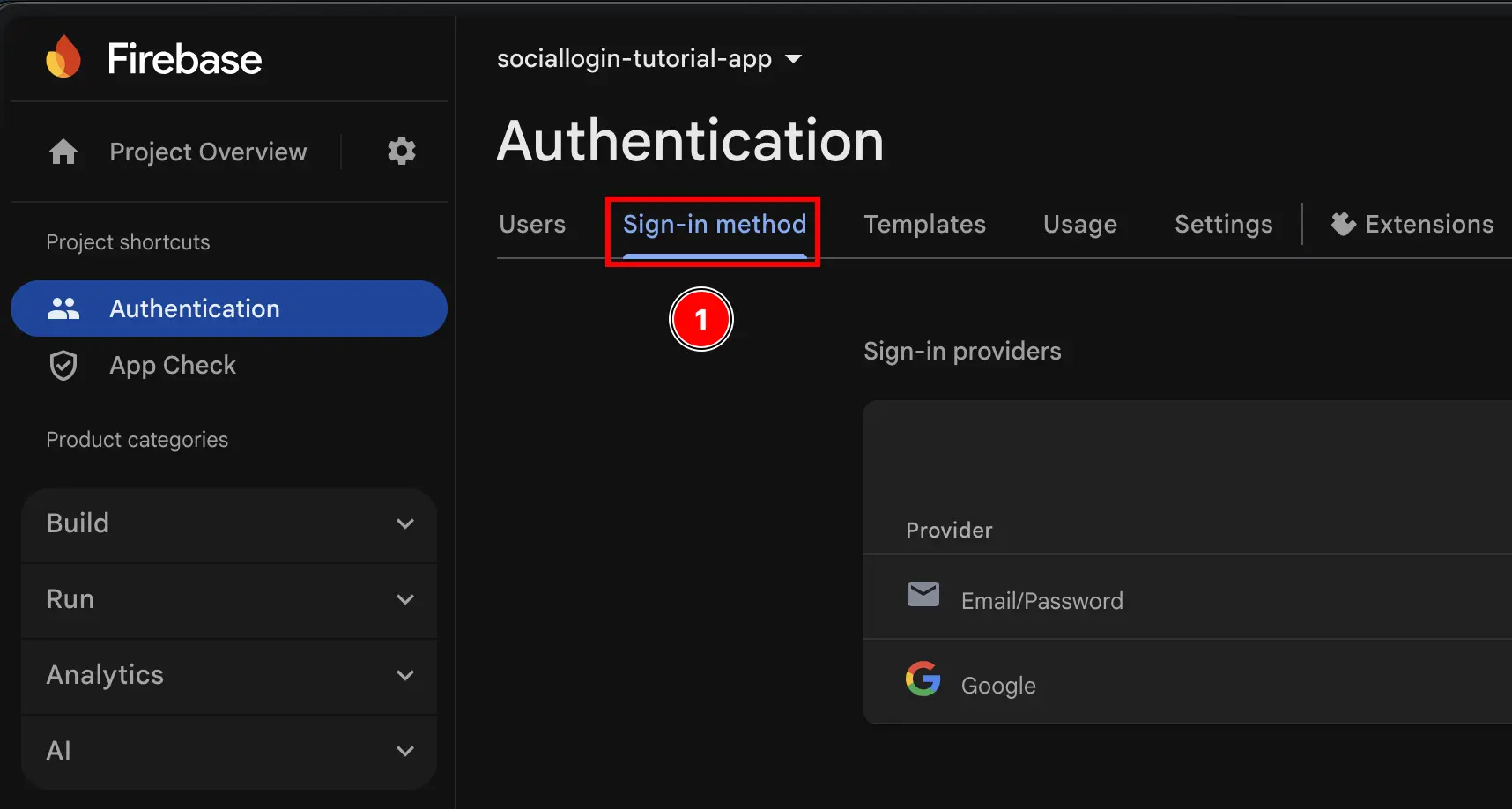
- 点击
Google提供商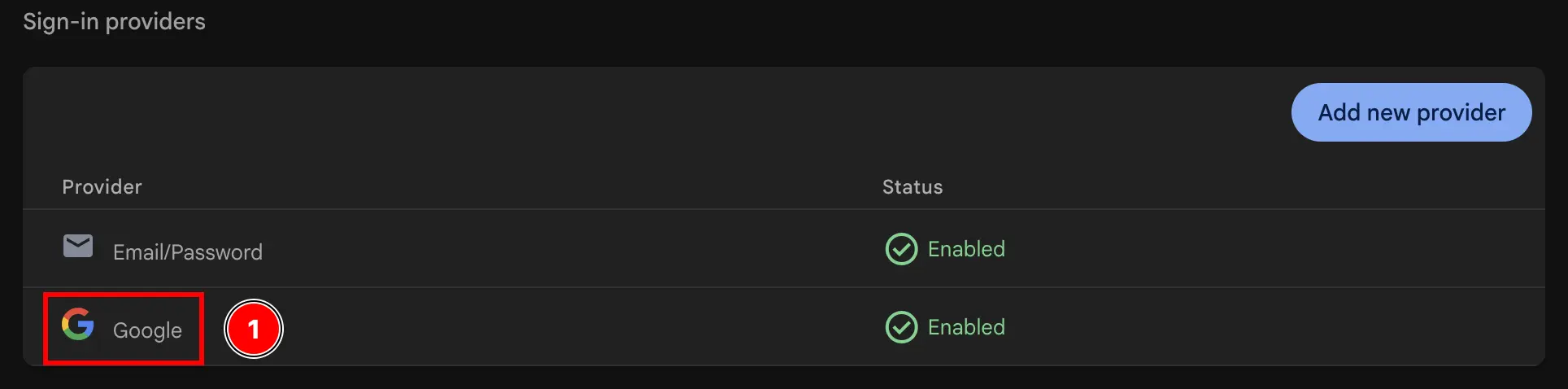
- 点击
Web SDK configuration按钮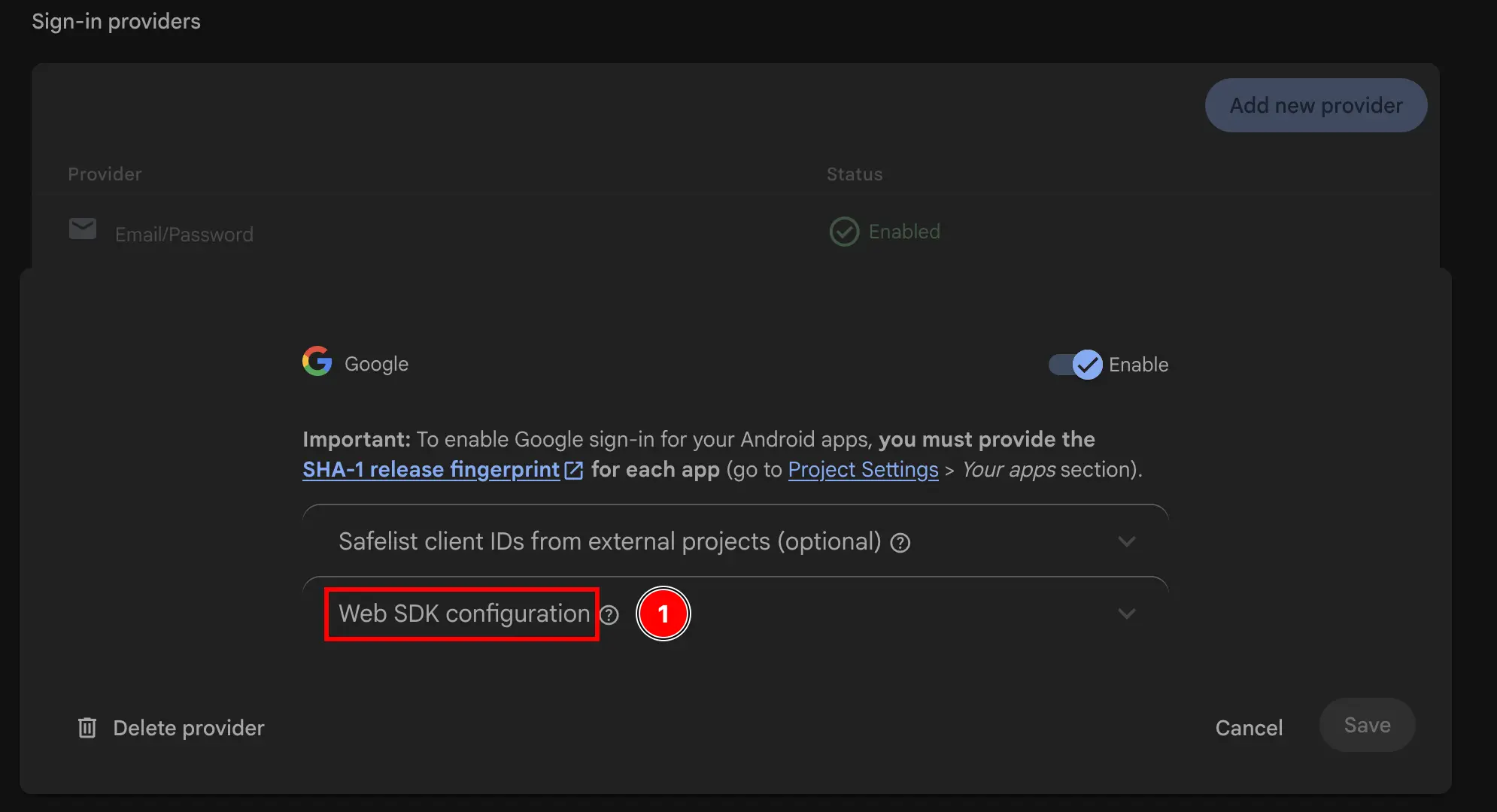
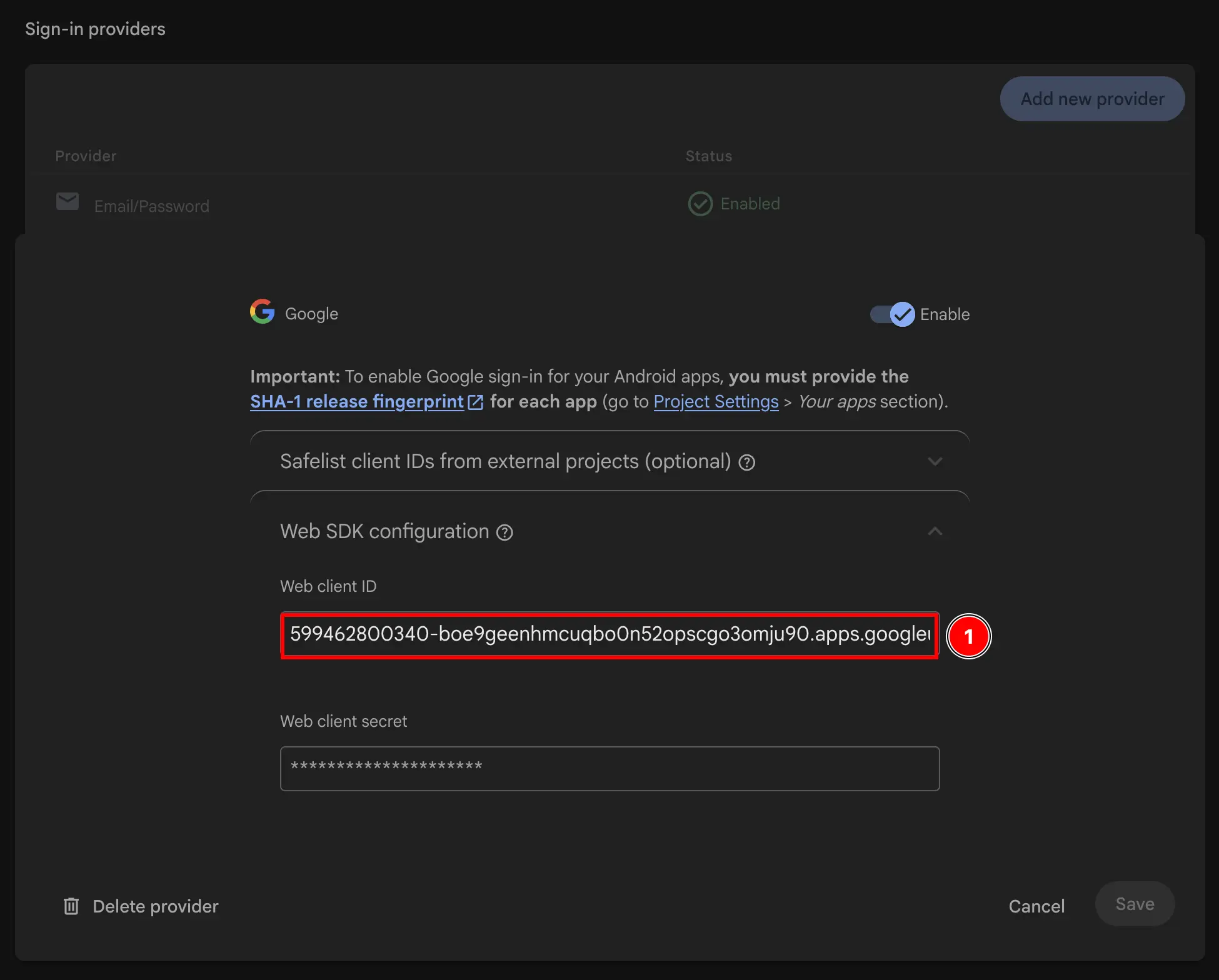
- 复制
Web client ID。这将是插件的initialize方法中的webClientId。
- 转到
-
在 JS 中使用 Web 客户端 ID。
此时,你技术上已准备好在 Android 上使用带有 Firebase Authentication 的 Google 登录。但是,我建议按照下一步中的说明在 Google Cloud 控制台中仔细检查设置。
在 Google Cloud 控制台中仔细检查设置
Section titled “在 Google Cloud 控制台中仔细检查设置”为了确保设置正确,你应该在 Google Cloud 控制台中仔细检查设置。
-
找到你的项目
- 点击项目选择器
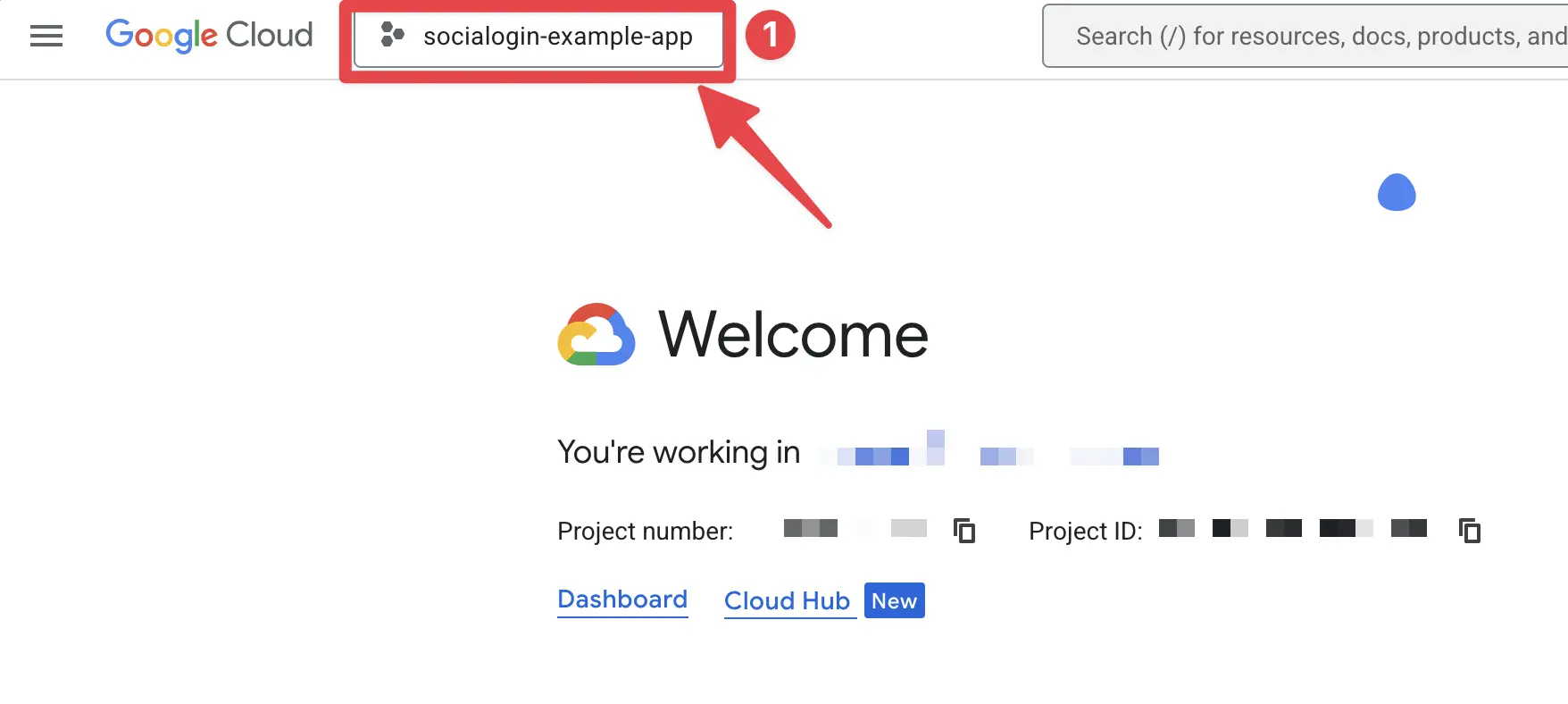
- 按 Firebase 项目的确切名称搜索你的项目并点击它。在我的情况下,它是
sociallogin-tutorial-app。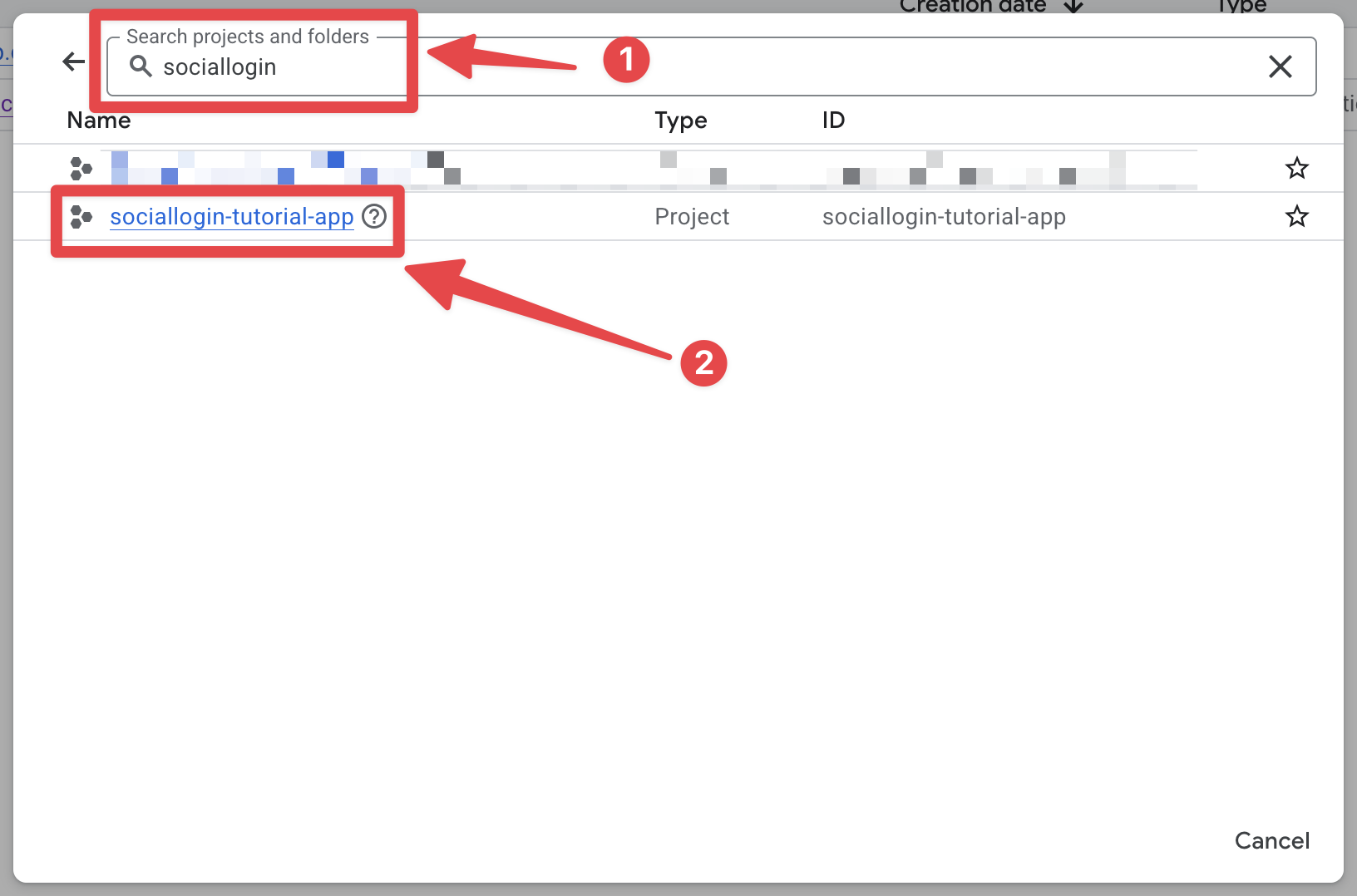
- 点击项目选择器
-
打开搜索栏并打开
credentials- 打开搜索栏
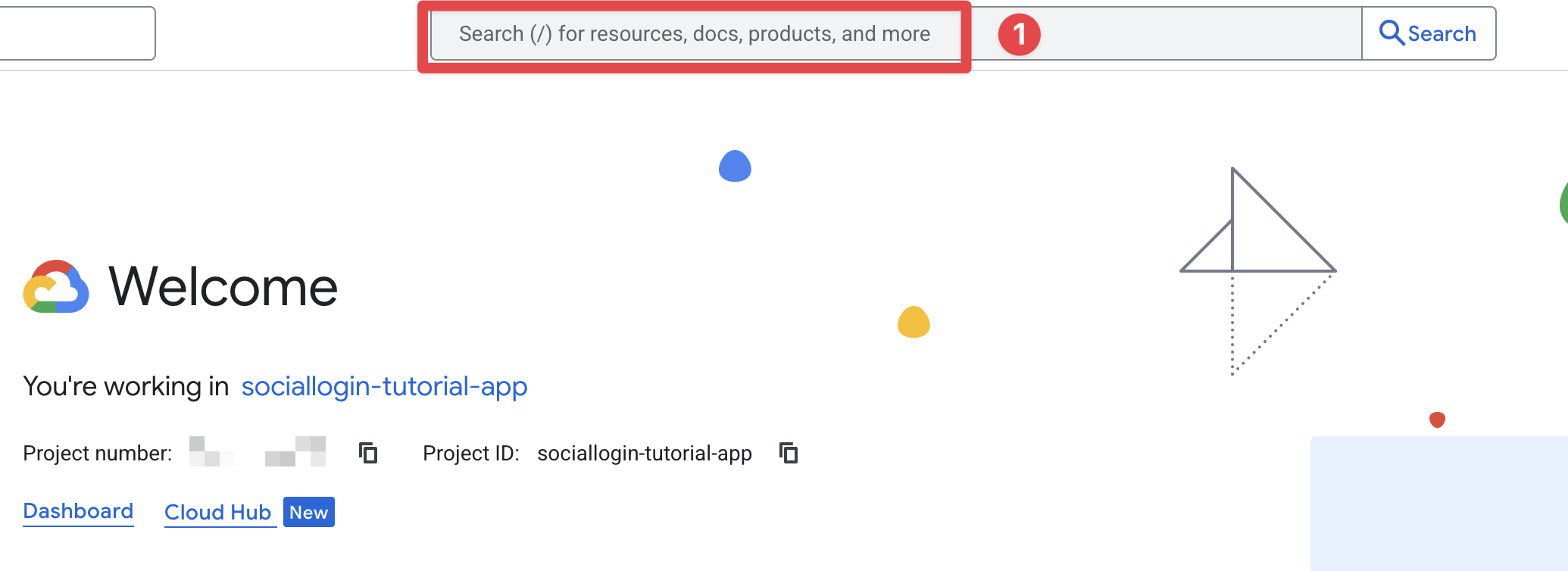
- 搜索
credentials并点击APIs and Services那个(截图上的第 2 个)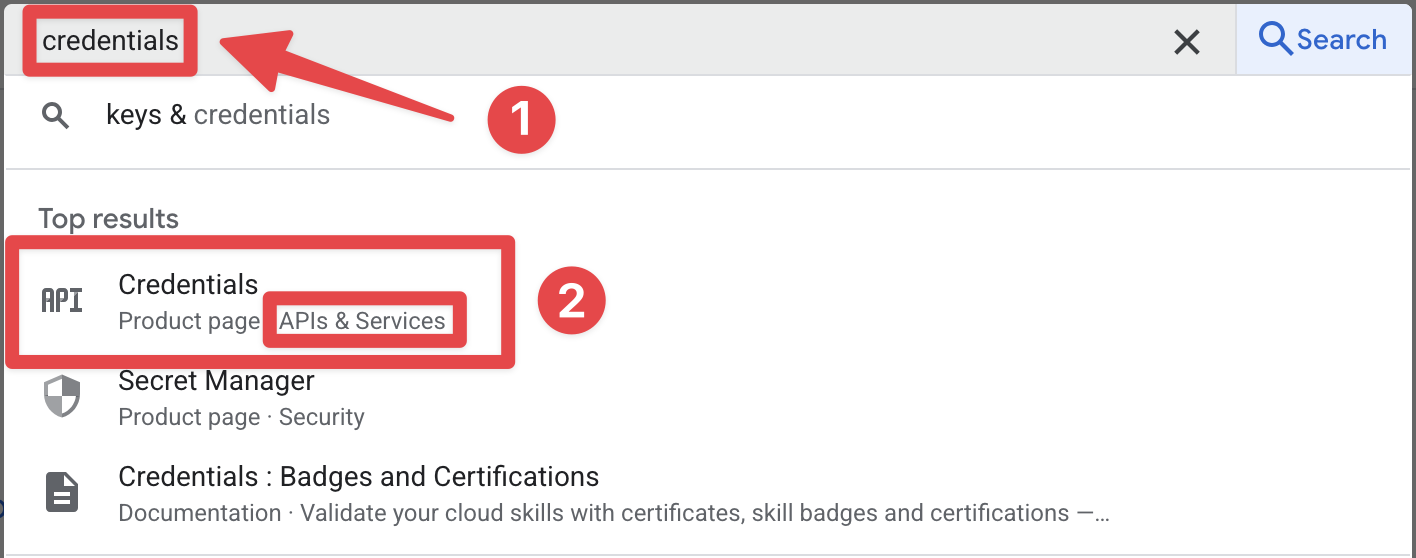
- 打开搜索栏
-
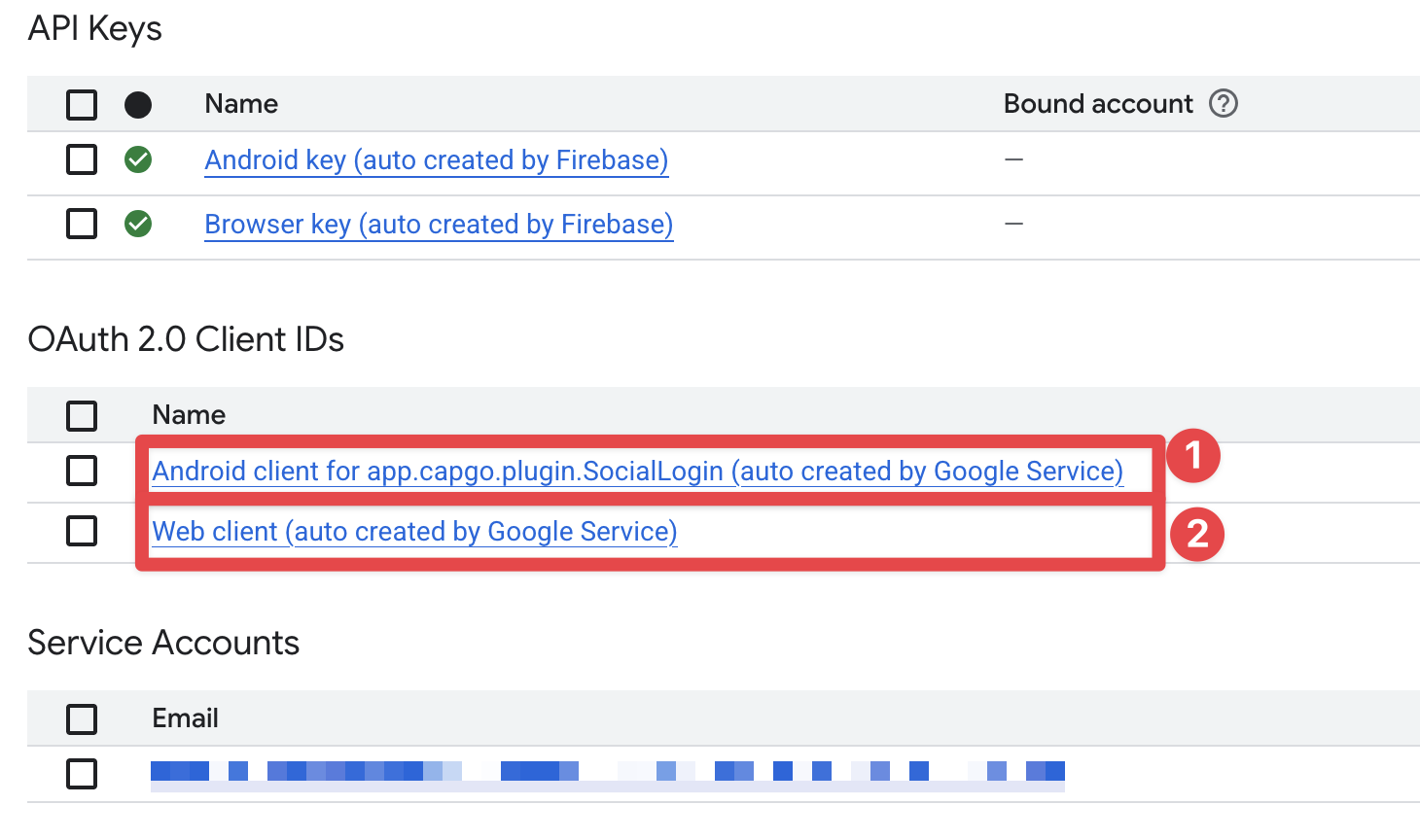
验证你在列表中看到 Android 和 Web 客户端 ID。
-
验证 Android 客户端 ID 在 Firebase 控制台中是否正确配置。
- 点击
Android应用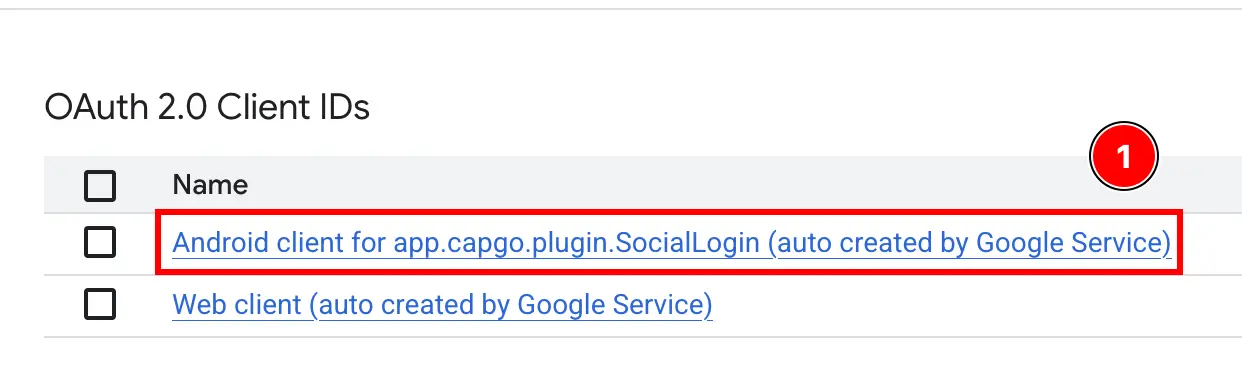
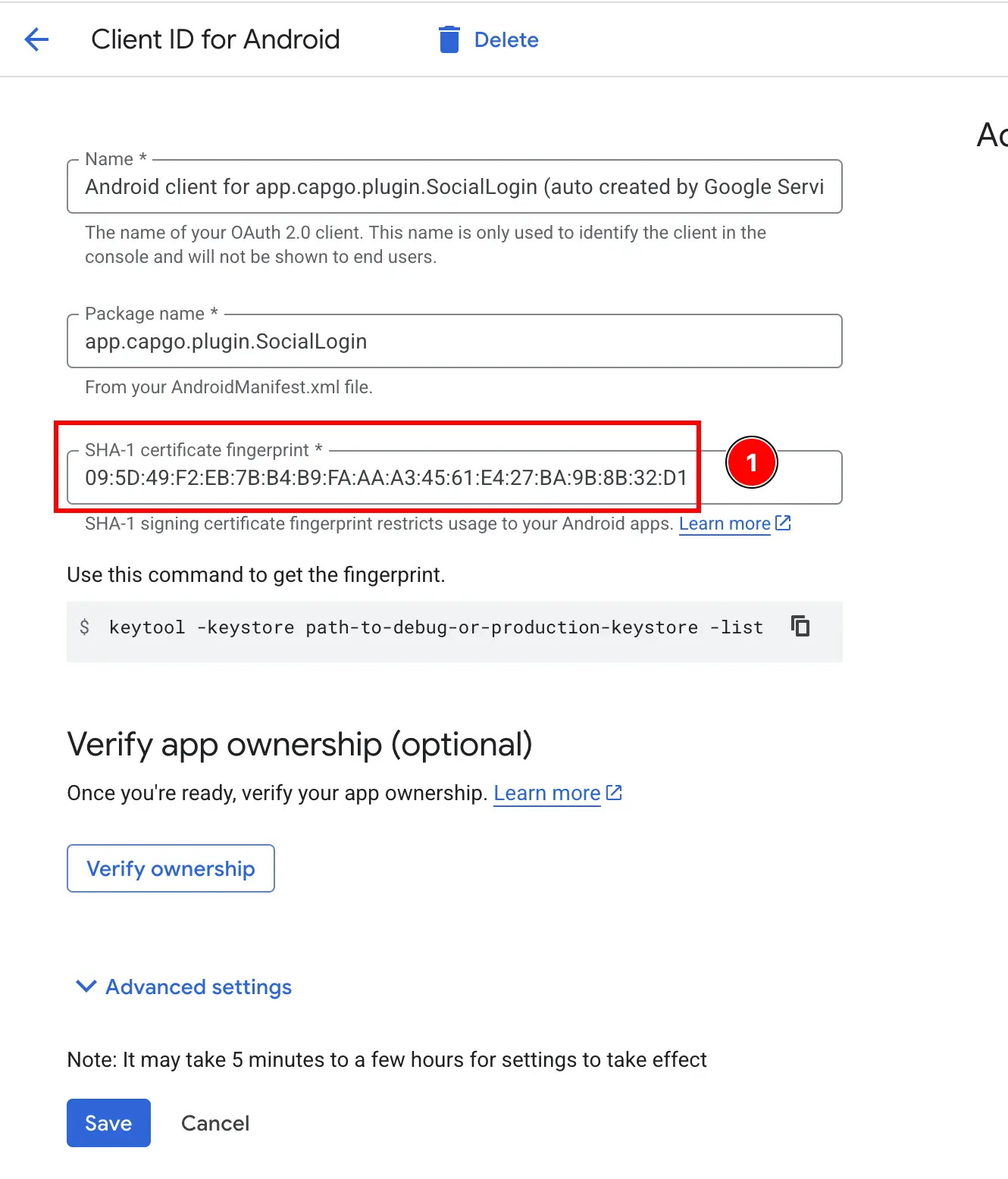
- 确认 SHA1 哈希配置正确,并且与你在之前步骤中复制的匹配。
- 点击
-
验证 Web 客户端 ID 在 Firebase 控制台中是否正确配置。
- 点击
Web应用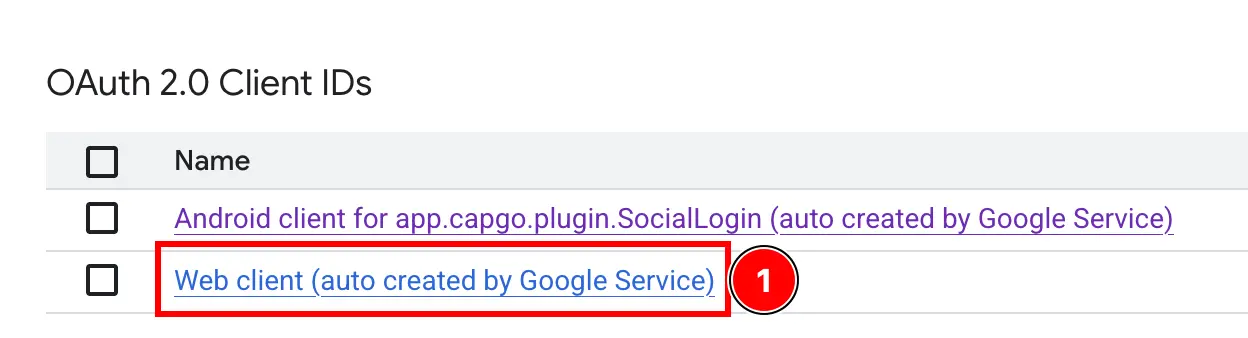
- 确认客户端 ID 与你在之前步骤中复制的匹配。
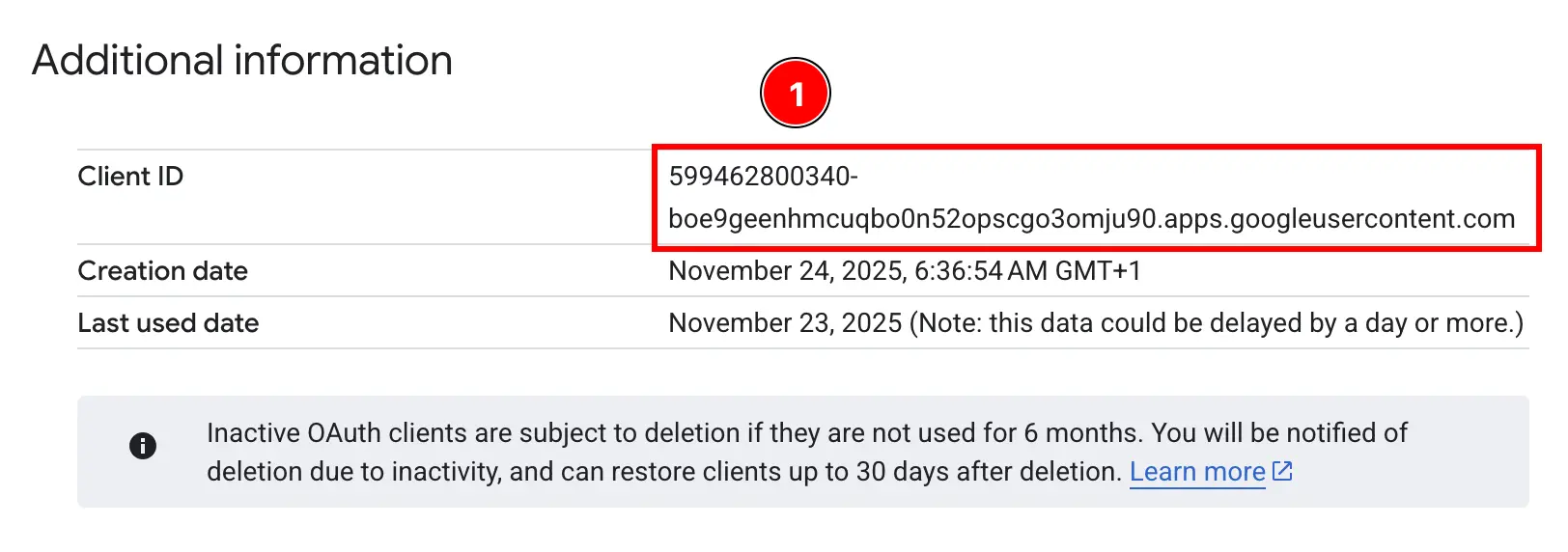
- 点击
万岁!你现在已准备好在 Android 上使用带有 Firebase Authentication 的 Google 登录。
如果身份验证挂起或失败:
- 验证
idTokenaudience 是否与你的 Firebase Web 客户端 ID 匹配 - 检查 Firebase Console 中是否启用了 Google 登录
- 确保 SHA-1 指纹配置正确
- 查看示例应用代码以供参考