
Google Connexion Configuration
Introduction
Section titled “Introduction”In this Guide, you will learn how to Configuration Google Connexion with Capgo Social Connexion. You will need the following in order to Configuration Google Connexion:
- A Google Compte
General Configuration
Section titled “General Configuration”This step is required regardless of which the platform you decide to use.
In this part, you will Configuration the Connexion screen displayed by Google.
- Please go to console.cloud.google.com
- Click on the project selector
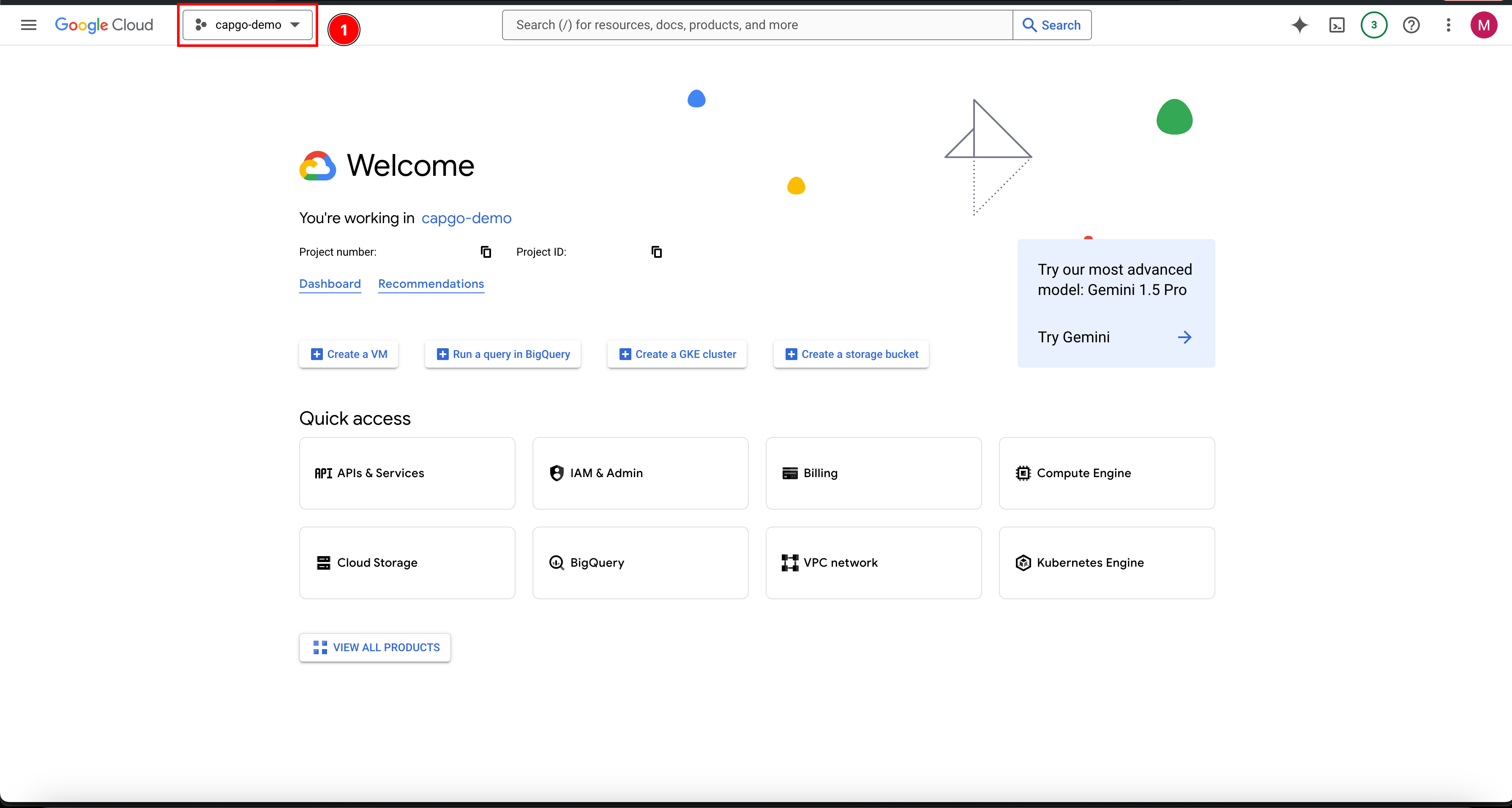
- If you don’t have a project already, please Créer a Nouveau project.
- Click on
New project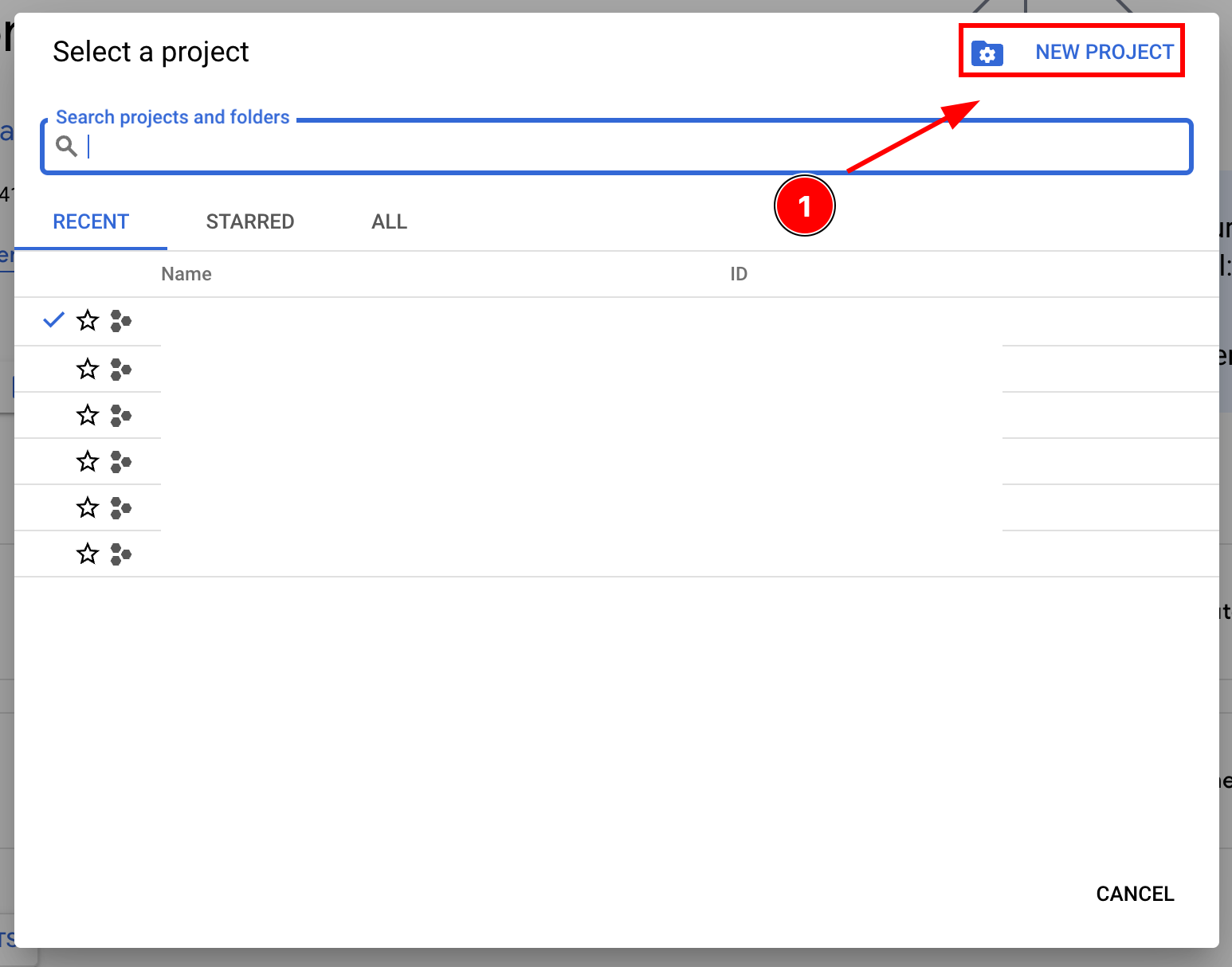
- Name your project and click
Create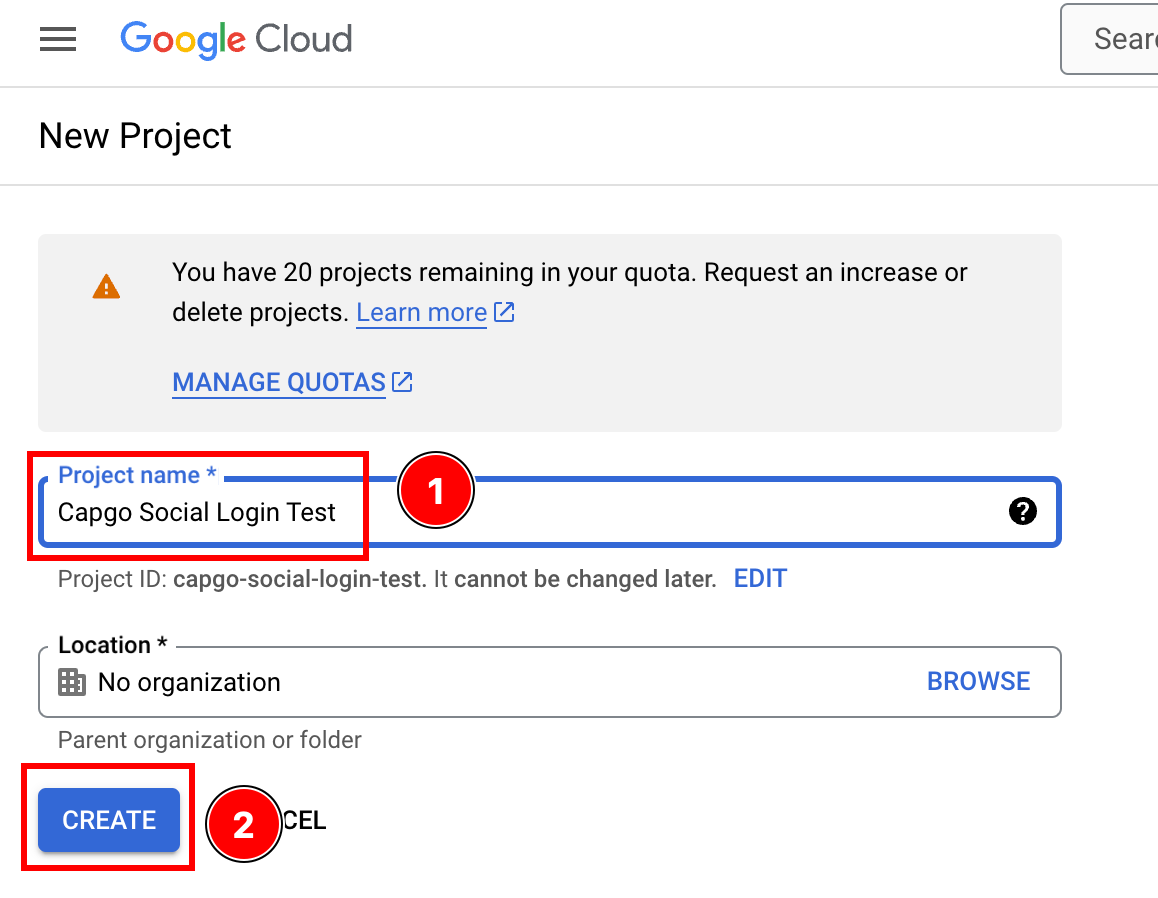
- Ensure that you are on the right project
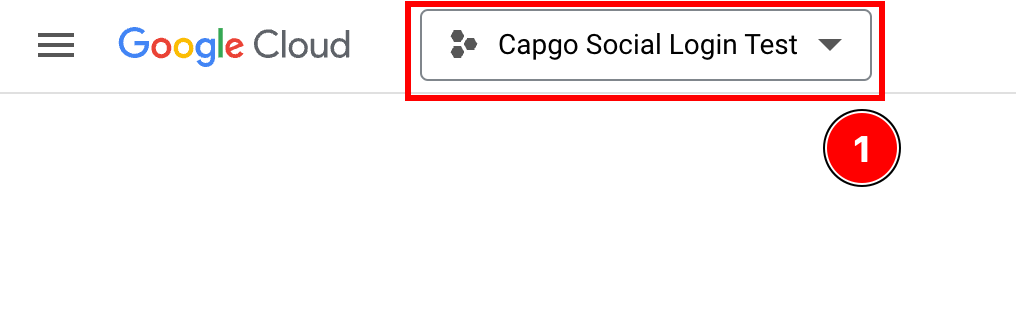
- Click on
- Start to configure the
OAuth consent screen-
Click on the Recherche bar

-
Search for
OAuth consent screenand click on it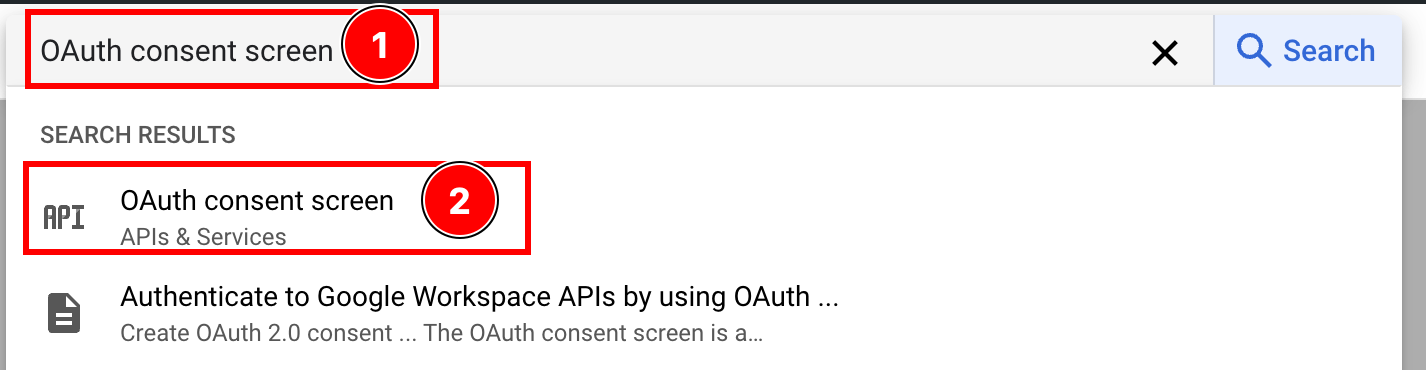
-
Configure the consent screen
I will assume that you are developing an app open to the public, so I will use the
externaluser type. Please select the user type that suits you the best AND clickcreateClick on
create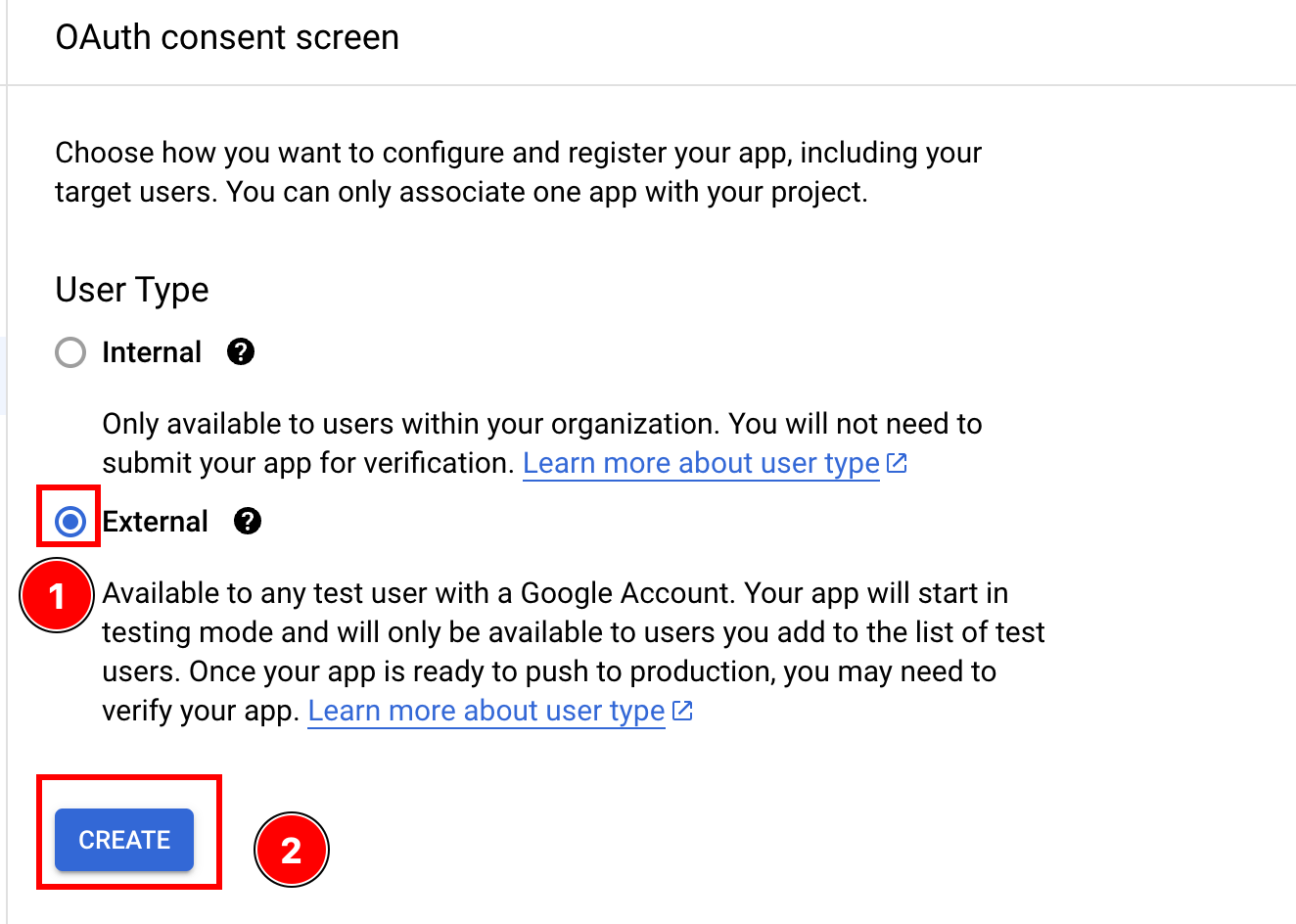
-
- Fill the Information À propos your Application
-
Let’s start with the
App Information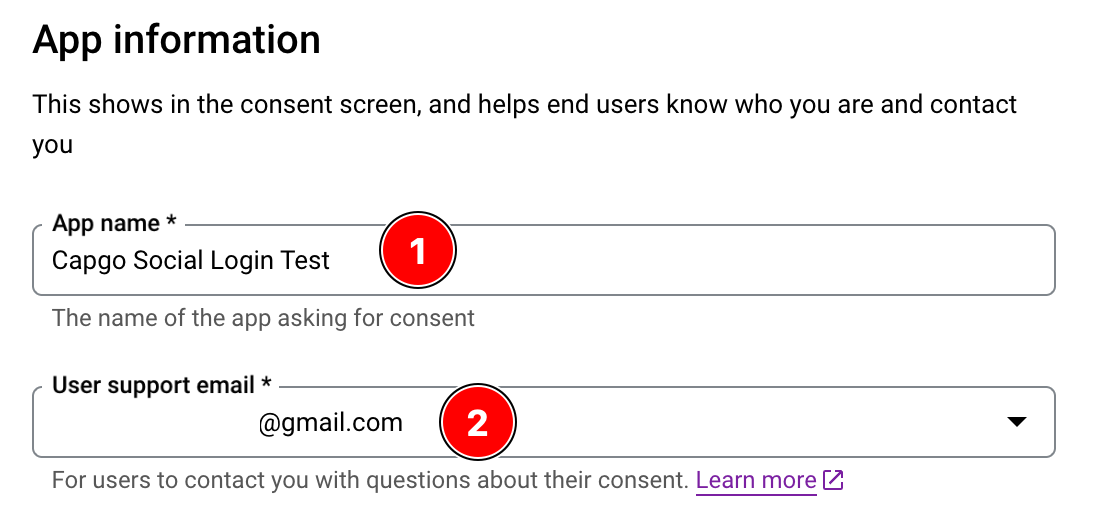
- Please type in your
App NameTHIS WILL BE DISPLAYED TO THE USERS
- Enter the
user support emailYou can learn more À propos the Support email here
-
You CAN Ajouter the Application logo.
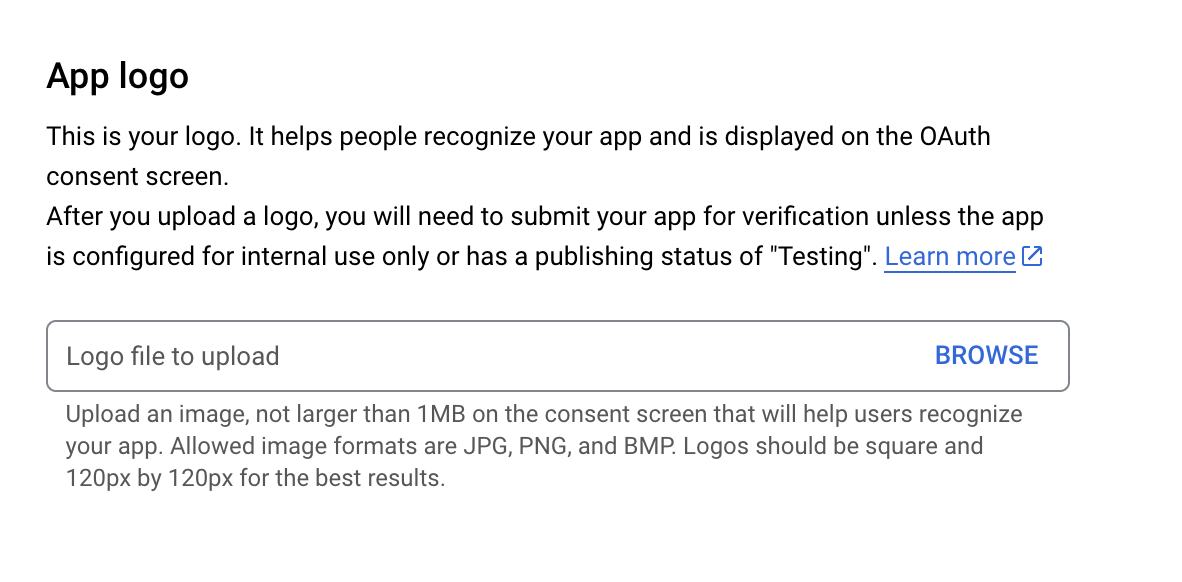
This is not obligatory and I will skip this step
-
You SHOULD configure the
App domain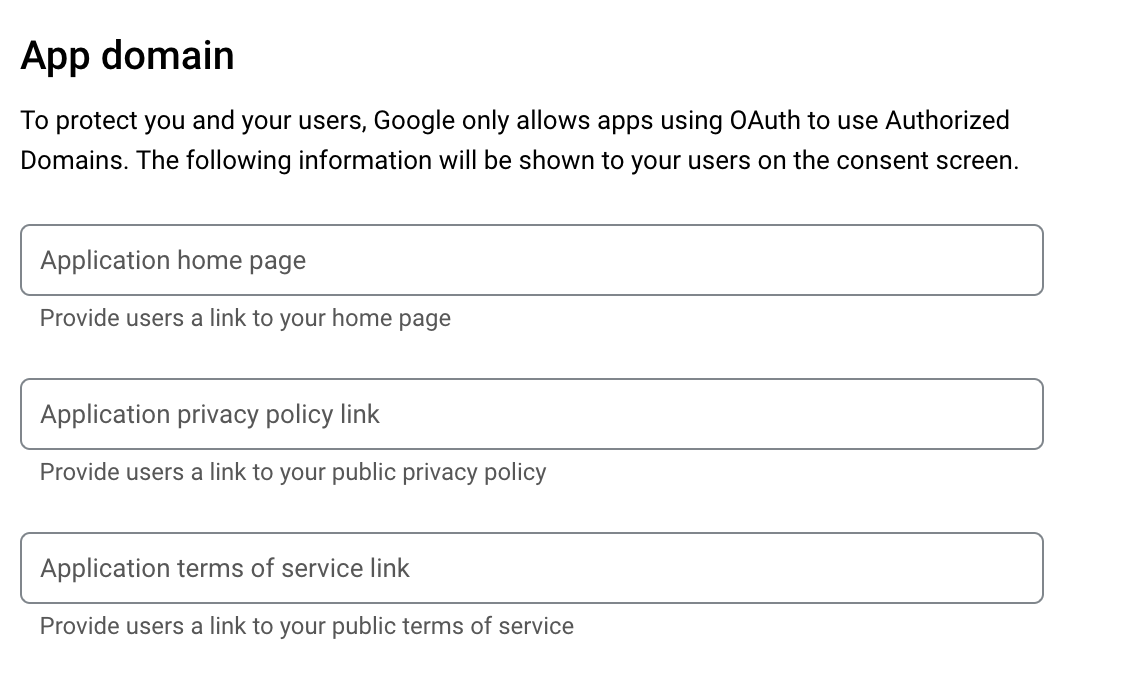
I will not do that because this is just a simple demonstration that will NOT get published, but I strongly recommend filling this section.
-
You HAVE TO provide the developer’s email
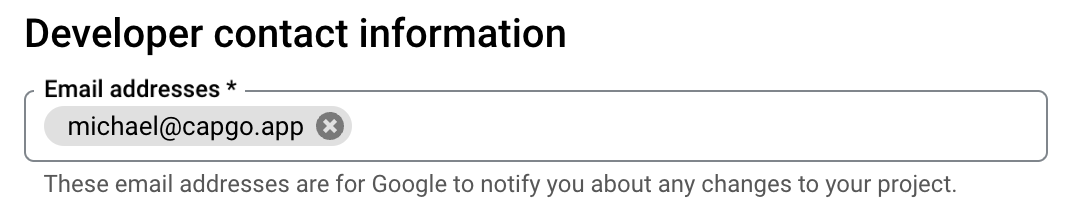
-
Click on
save and continue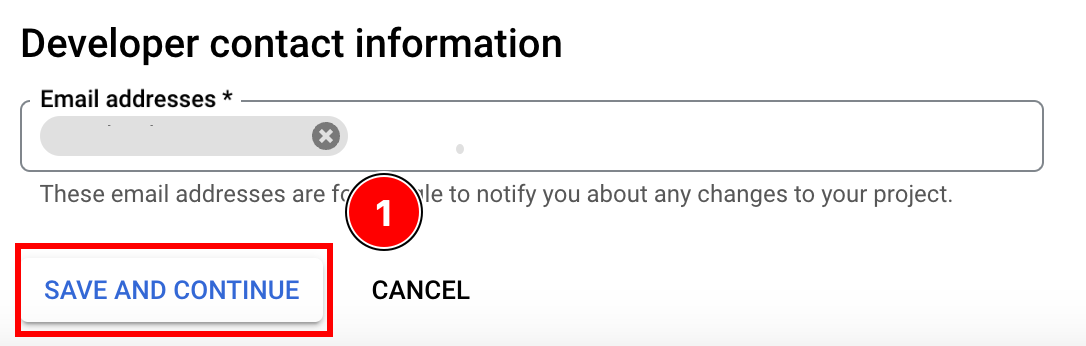
- Please type in your
-
- Configure the scopes
-
Click on
add or remove scopes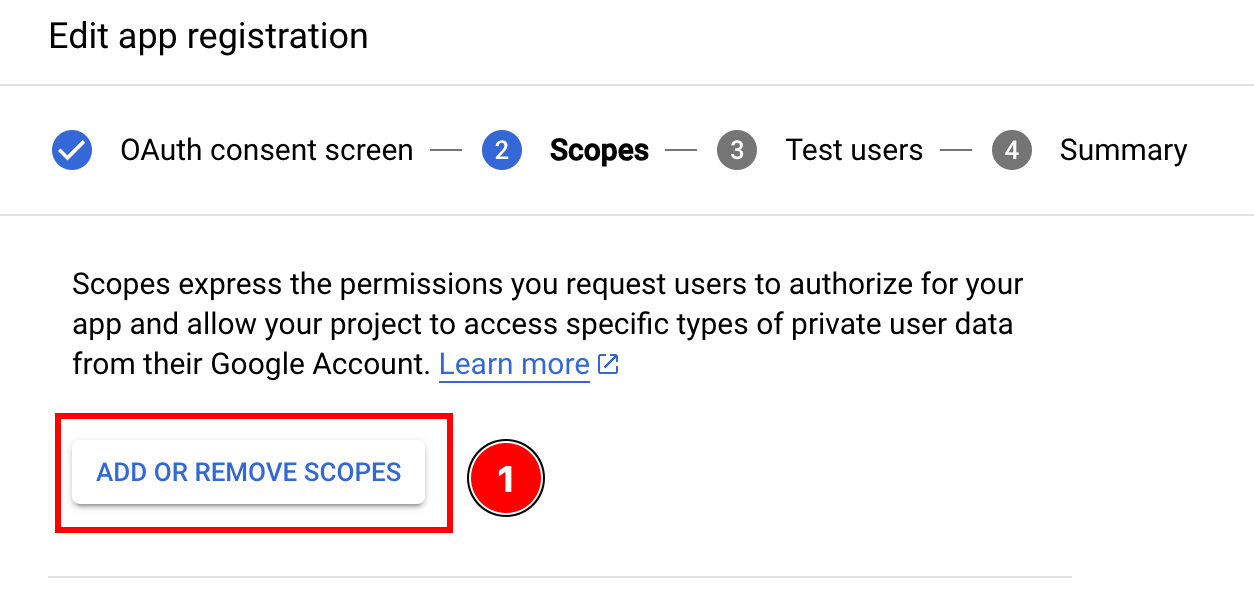
-
Select the following scopes and click
update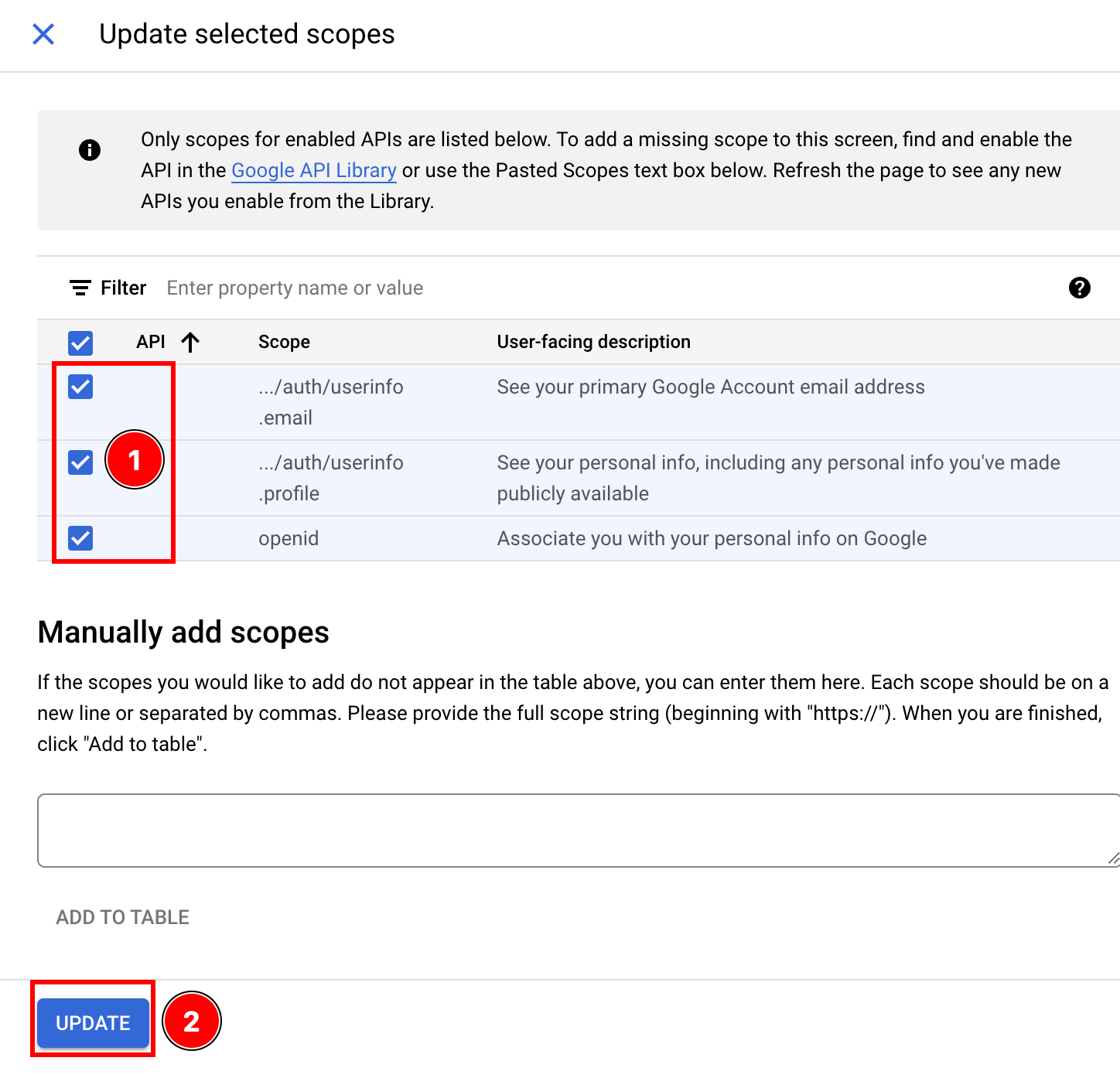
-
Click
save and continue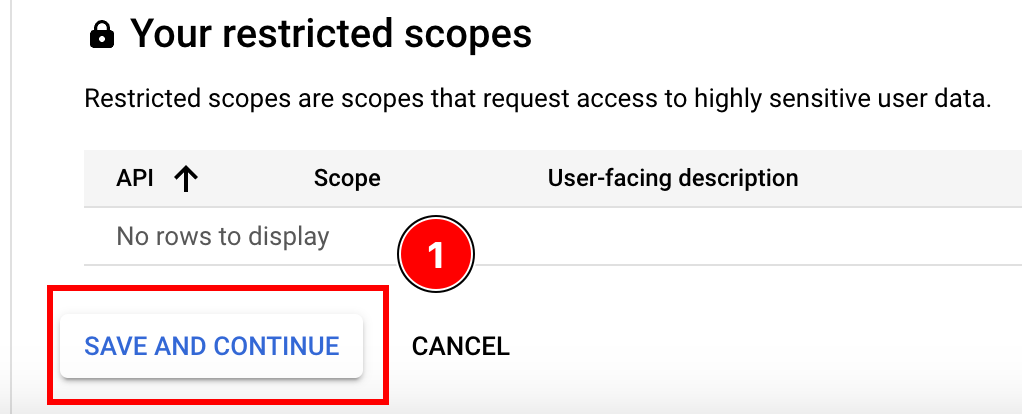
-
- Ajouter a Test Utilisateur
- Click on
add users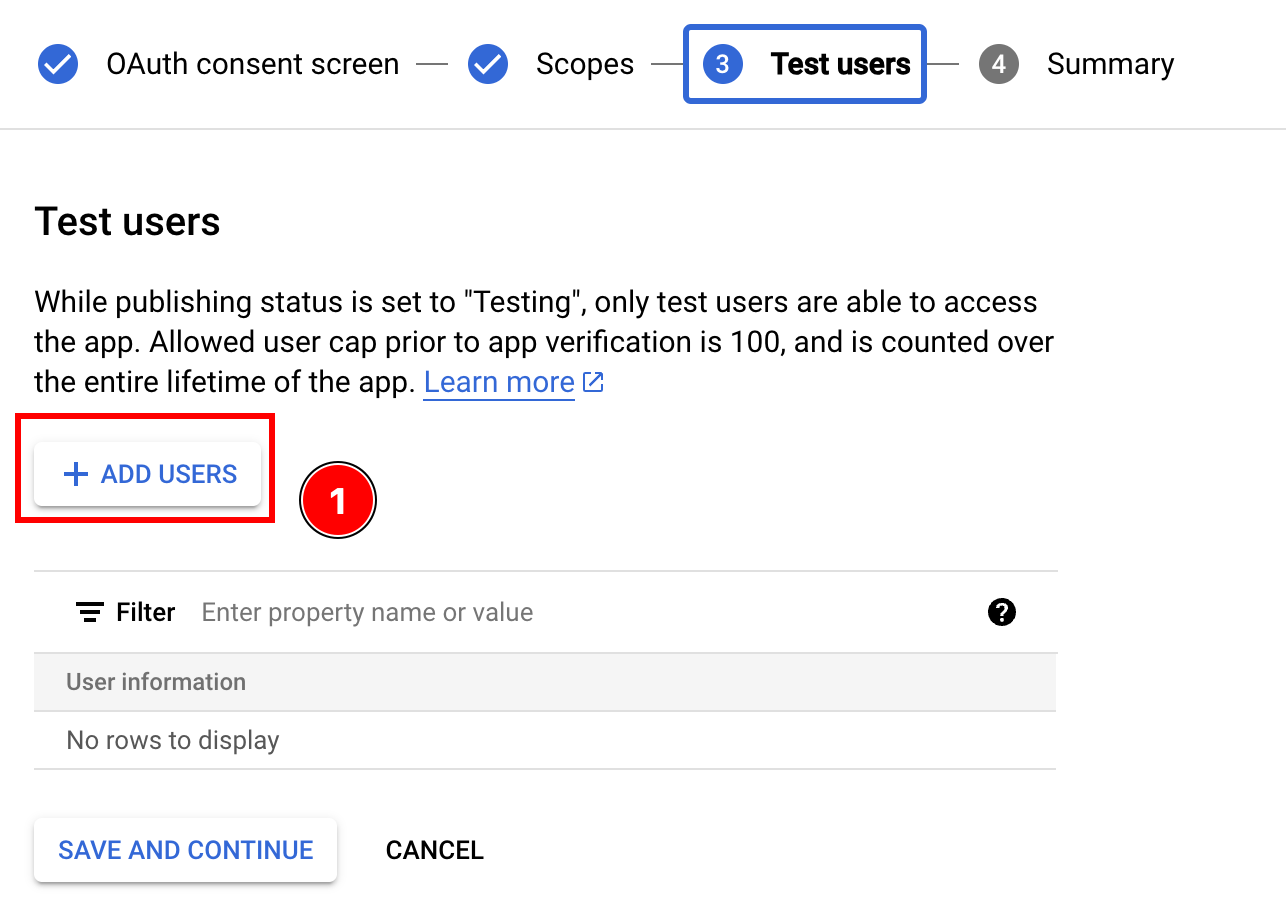
- Enter your Google email, click enter, and click
add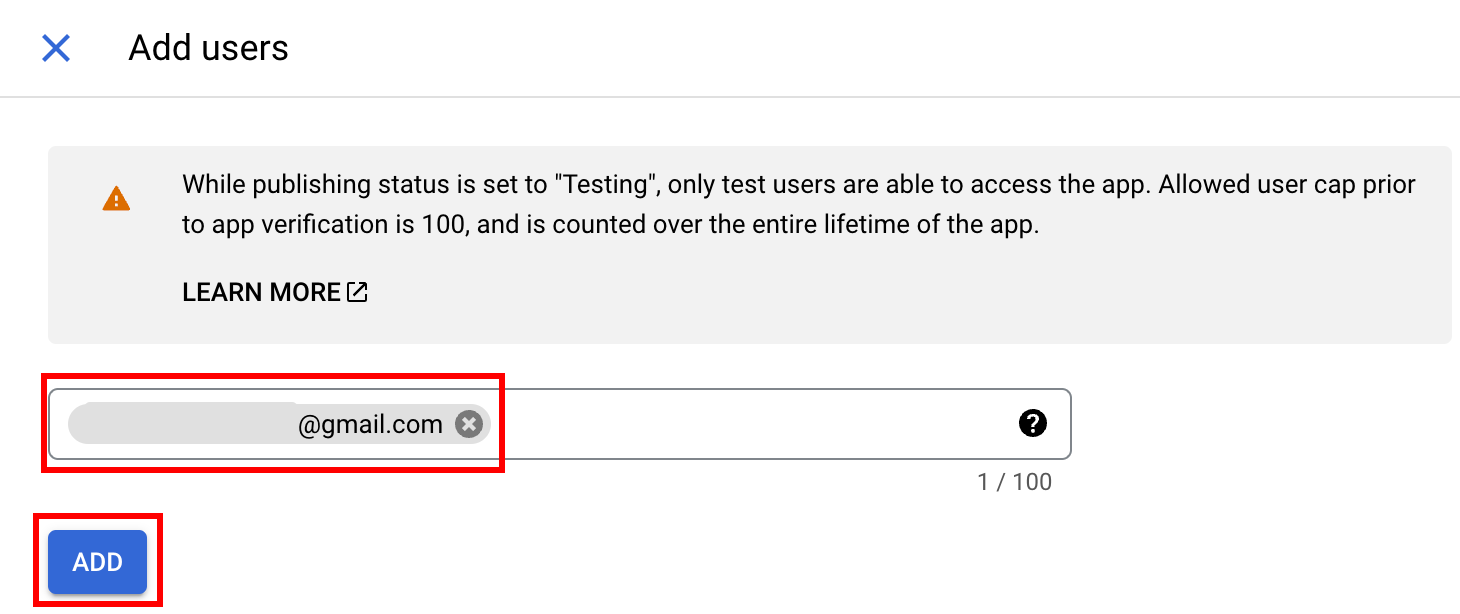
- Click
save and continue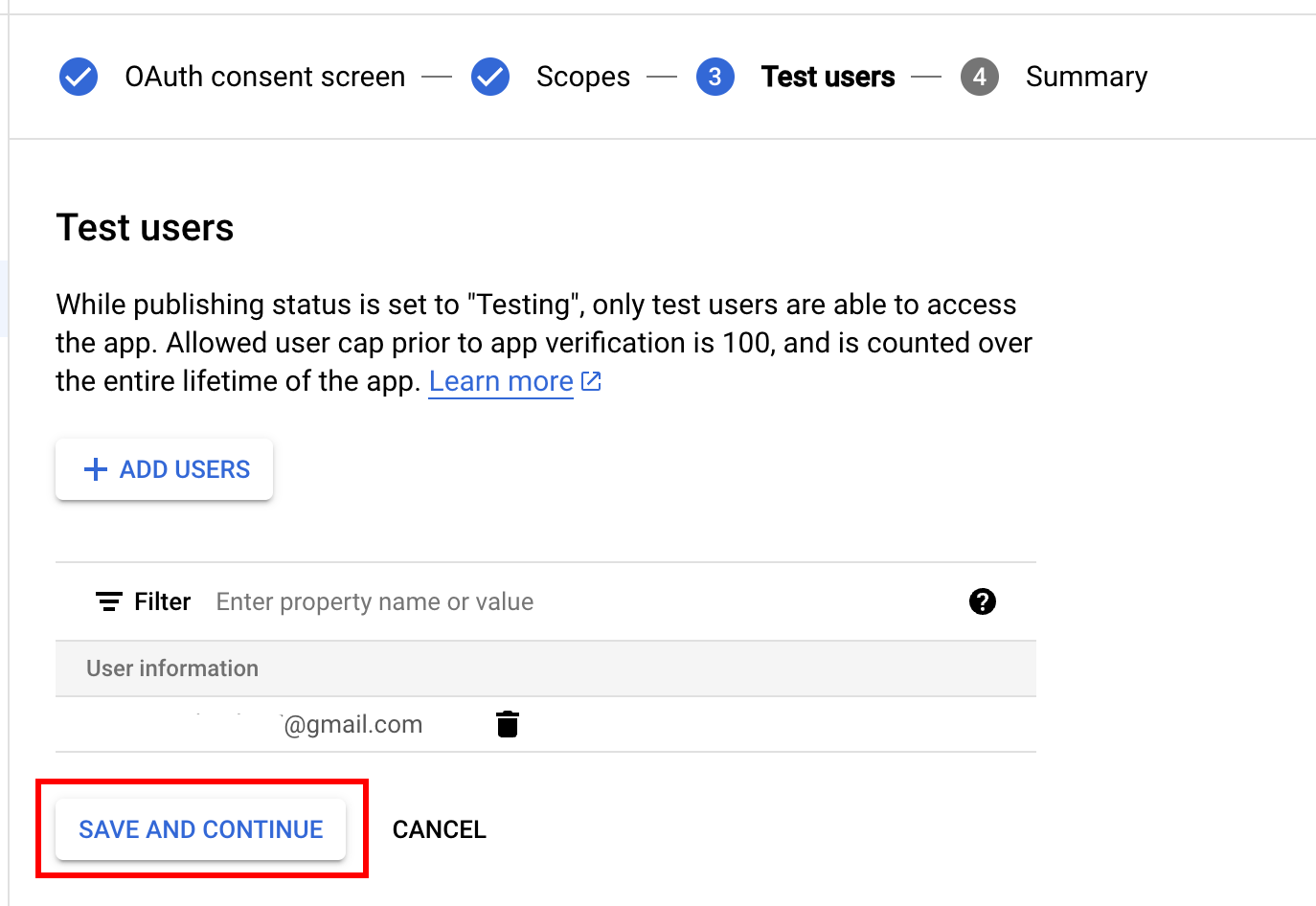
- Click on
- Click
back to dashboard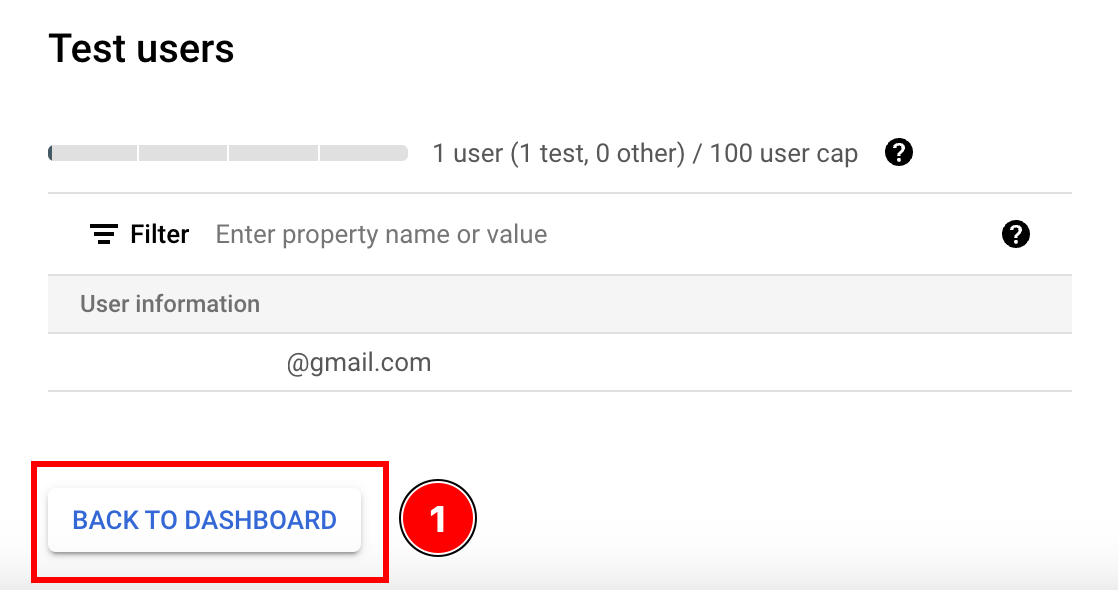
- Soumettre your Application for verification
I strongly recommend submitting you Application for verification. This is outside the scope of this Tutoriel. You can learn more here. This isn’t required for local Test, but is required for Production.
Differences between online access and offline access
Section titled “Differences between online access and offline access”There are multiple ways to use Google Connexion with Capacitor. Here is a table that summarizes the differences between the two:
| Online access | Offline access | |
|---|---|---|
| Requires a backend | ❌ | ✅ |
| Long-lived access token | ❌ | ✅ |
| Easy Configuration | ✅ | ❌ |
Offline mode means that your backend can access Google’s APIs even when the user is not actively using your app (i.e., when the user is “offline” from your app’s perspective). Long-lived access tokens enable this functionality by allowing the backend to call Google APIs on behalf of the user at any time.
Offline mode REQUIRES a backend server. When using offline mode, the frontend receives minimal information (primarily just a server auth code). Without a backend to exchange this code for tokens and user information, offline mode provides no useful data to your frontend application.
If you still do not know which one you should choose, please consider the following scenarios:
-
You want the Utilisateur to Connexion, immediately after you are going to Problème him a custom JWT. Your Application will NOT call Google APIs
In this case, choose online access.
-
Your Application will call some Google APIs from the client, but never from the backend
In this case, choose online access
-
Your Application will call some google APIs from the backend, but only when the Utilisateur is actively using the Application
In this case, choose online access
-
Your Application will periodically Vérifier the Utilisateur’s calendar, even when he is not actively using the Application
In this case, choose offline access
An Exemple backend for online access
Section titled “An Exemple backend for online access”In this part of the Tutoriel, I will show how to Valider the Utilisateur on your backend.
This Exemple will be very simple and it will be based on the following technologies:
You can find the code for this Exemple here
As you can see:
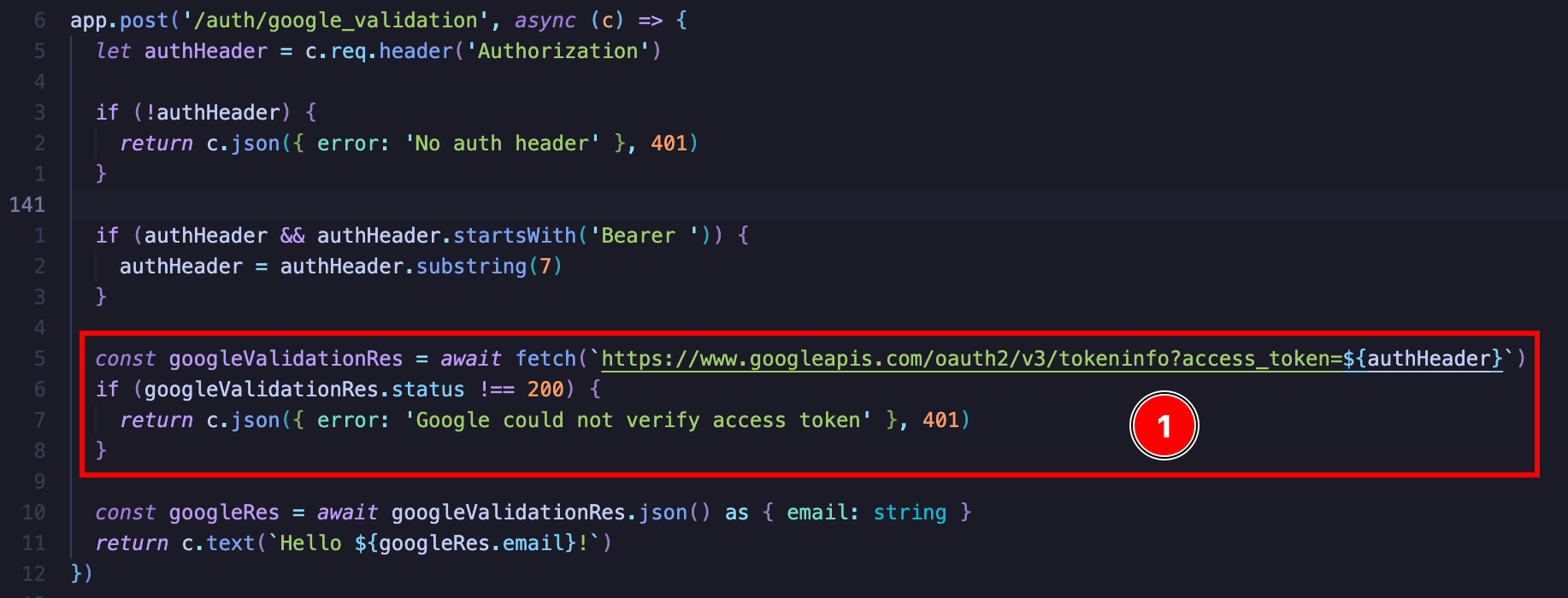
The idea is rather simple. You send a simple GET request to https://www.googleapis.com/oauth2/v3/tokeninfo and this returns you whether the token is valid or not and if it it is, it gives you the email of the user. It also gives you some other info about the user token

From there, you could Problème the Utilisateur with your own JWT or Problème some sort of session cookie. The possibilities are endless, for the final auth implementation.
If you do want to call Google API’s, I would strongly recommend looking at Google’s OAuth 2.0 Playground. From there you can easily see what APIs you can call.
Using offline access with your own backend
Section titled “Using offline access with your own backend”In order to use online access you will need the following:
- An HTTP server
In this Exemple, I will be using the following technologies to provide the offline access in my Application:
-
LowDb (a simple database)
The code for this Exemple can be found here
As for the client code, it looks like this:
import { Capacitor } from '@capacitor/core';import { GoogleLoginOfflineResponse, SocialLogin } from '@capgo/capacitor-social-login';import { usePopoutStore } from '@/popoutStore'; // <-- specific to my app
const baseURL = "[redacted]";
async function fullLogin() {  await SocialLogin.initialize({    google: {      webClientId: '[redacted]',      iOSClientId: '[redacted]',      iOSServerClientId: 'The same value as webClientId',      mode: 'offline' // <-- important    }  })  const response = await SocialLogin.login({    provider: 'google',    options: {      forceRefreshToken: true // <-- important    }  })
  if (response.provider === 'google') {    const result = response.result as GoogleLoginOfflineResponse    const res = await fetch(`${baseURL}/auth/google_offline`, {      headers: {        "Content-Type": "application/json"      },      body: JSON.stringify({        serverAuthCode: result.serverAuthCode,        platform: Capacitor.getPlatform()      }),      method: "POST"    })
    if (res.status !== 200) {      popoutStore.popout("Full google login failed", "check console");      return    }
    const { jwt } = await res.json();    const userinfo = await fetch(`${baseURL}/auth/get_google_user`, {      headers: {        Authorization: `Bearer ${jwt}`      }    })    if (userinfo.status !== 200) {      popoutStore.popout("Full google (userinfo) login failed", "check console");      return    }    popoutStore.popout("userinfo res", await userinfo.text());  }}