
Connexion Google Firebase sur Android
Copiez ce prompt de configuration avec les étapes d'installation et la guide markdown complet pour ce plugin.
Introduction
Section titled “Introduction”Cette guide vous aidera à intégrer l'authentification Google avec Firebase Authentication sur Android. Je suppose que vous avez déjà terminé le configuration Firebase Google
-
Allez dans votre vue d'ensemble du projet sur console.cloud.google.com
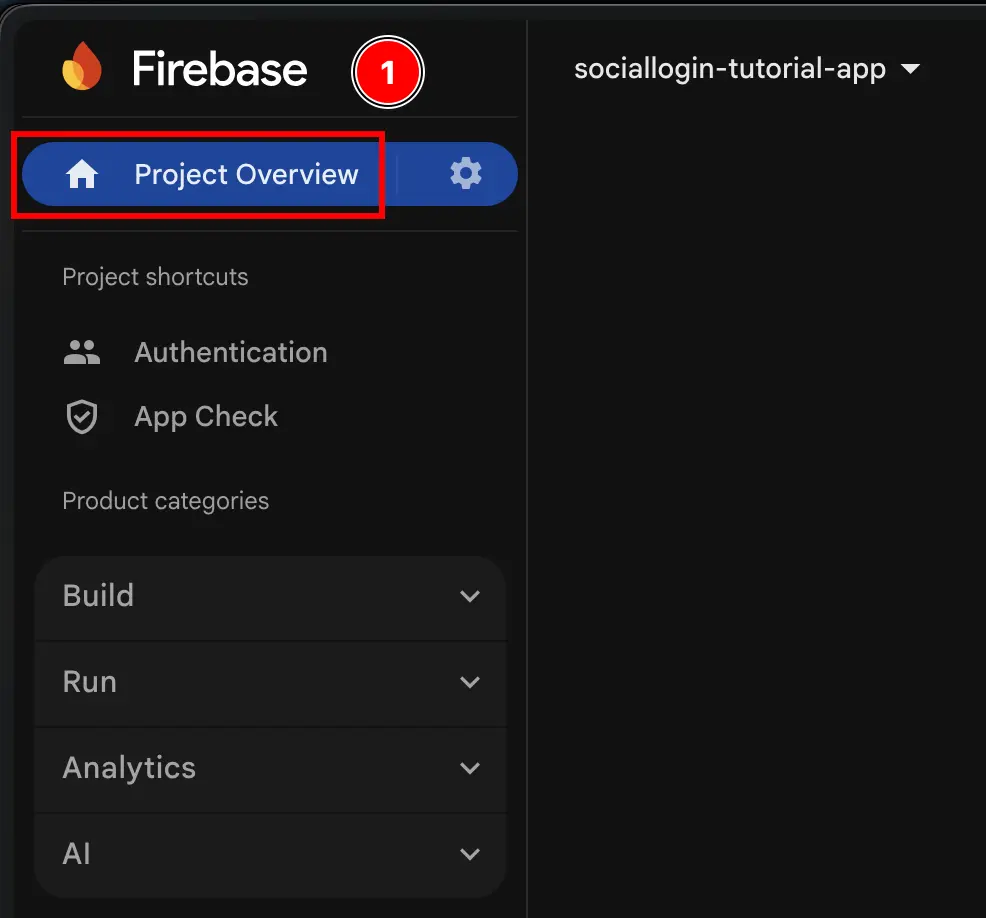
-
Cliquez sur le
Add appbouton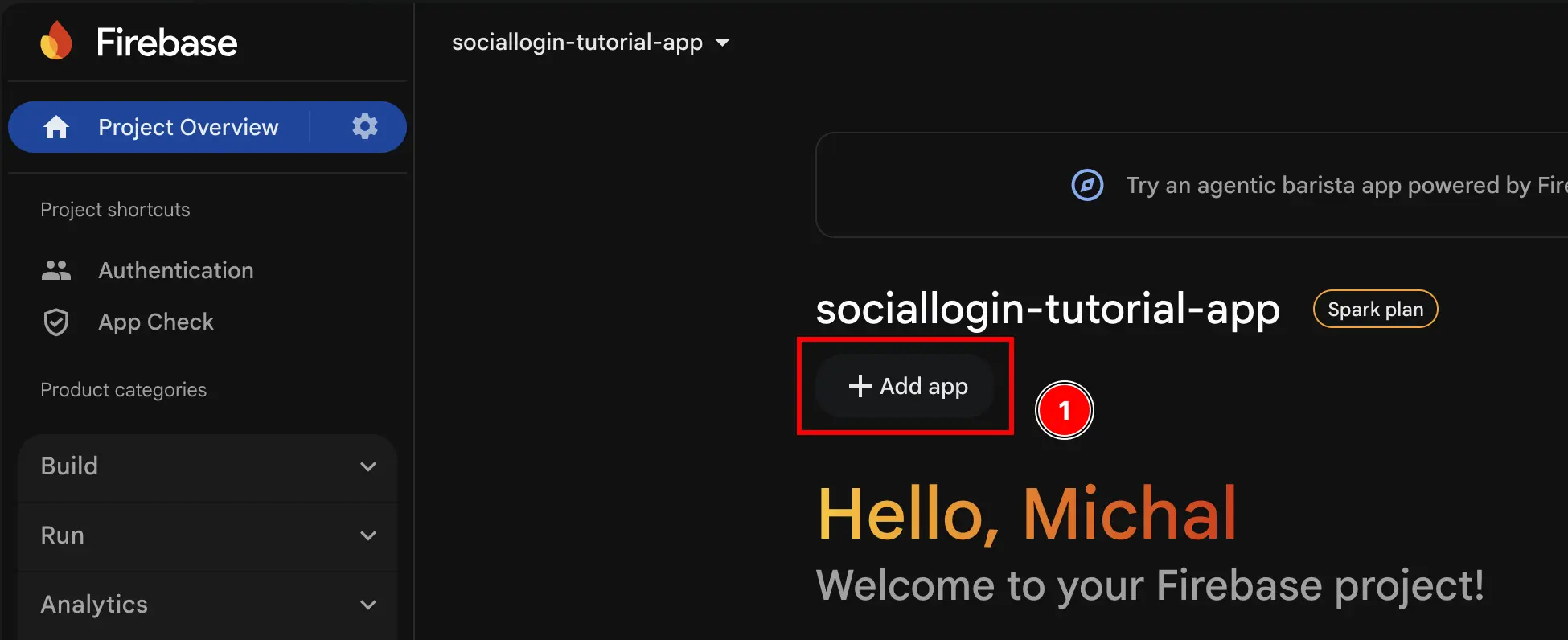
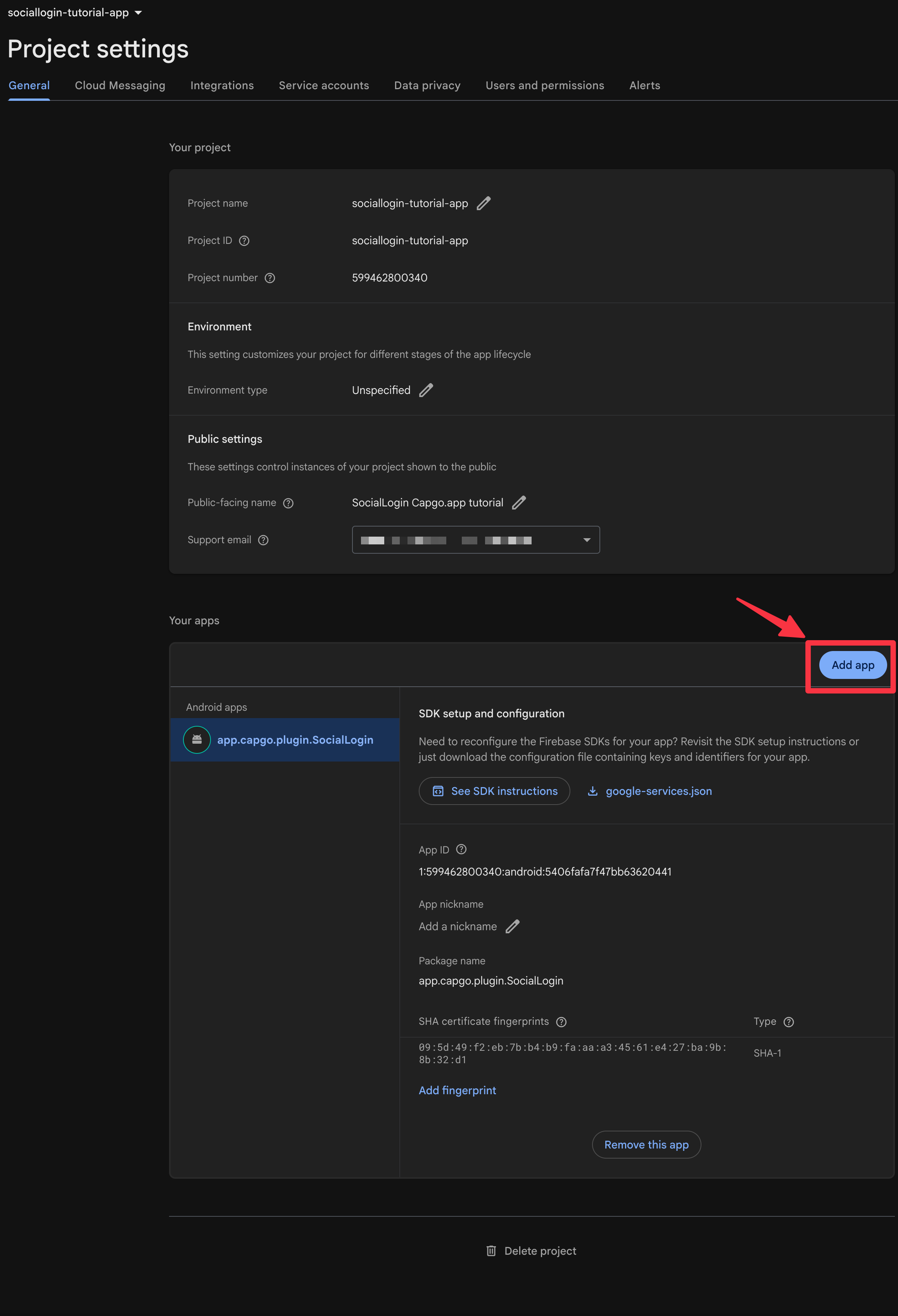
-
Sélectionner
Android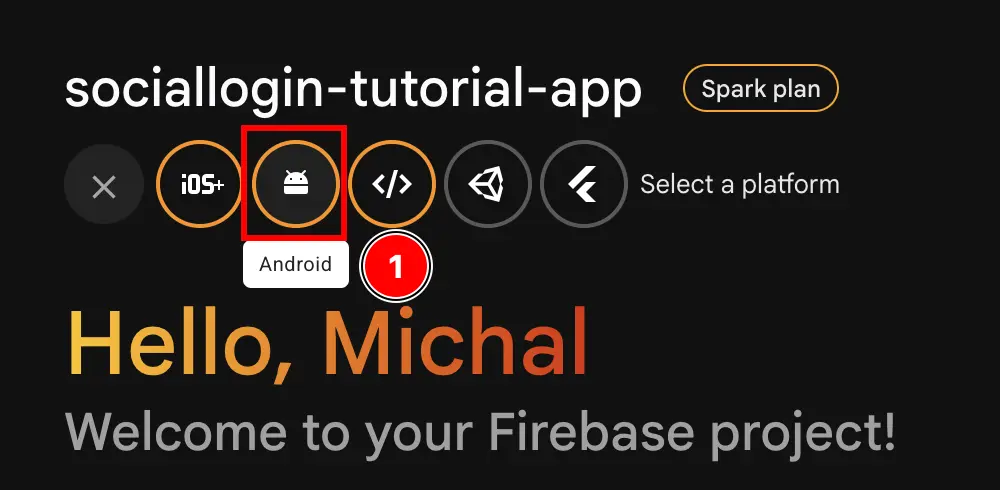
-
Remplir la première partie du formulaire
- Remplir le
Android package name- Ouvrez Android Studio à partir de votre application
npx cap open android - À la base de la barre de navigation, trouvez la section
Gradle Scripts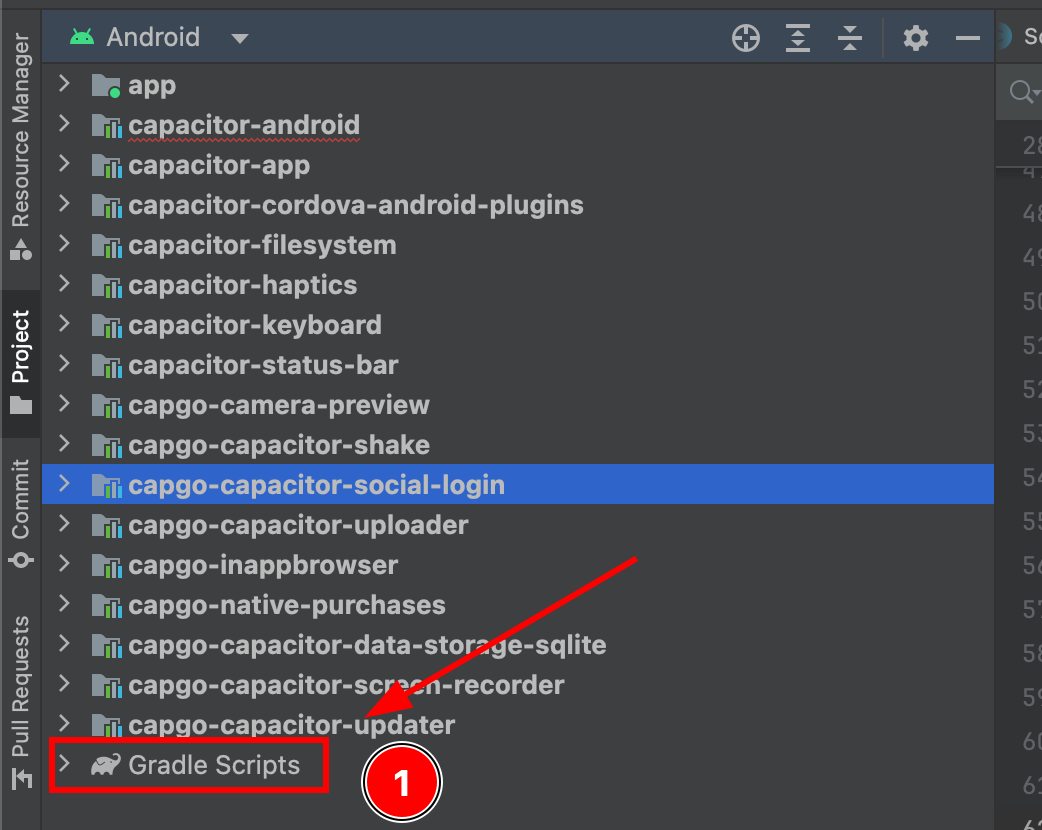
- Trouvez
build.gradlepour le moduleapp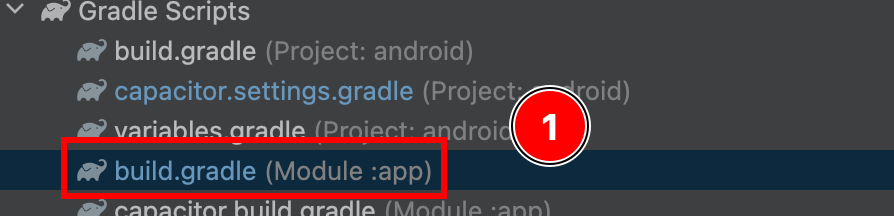
- Copiez le
android.defaultConfig.applicationIdCela sera votrepackage namedans le console Firebase
- Collez-le dans la console Firebase
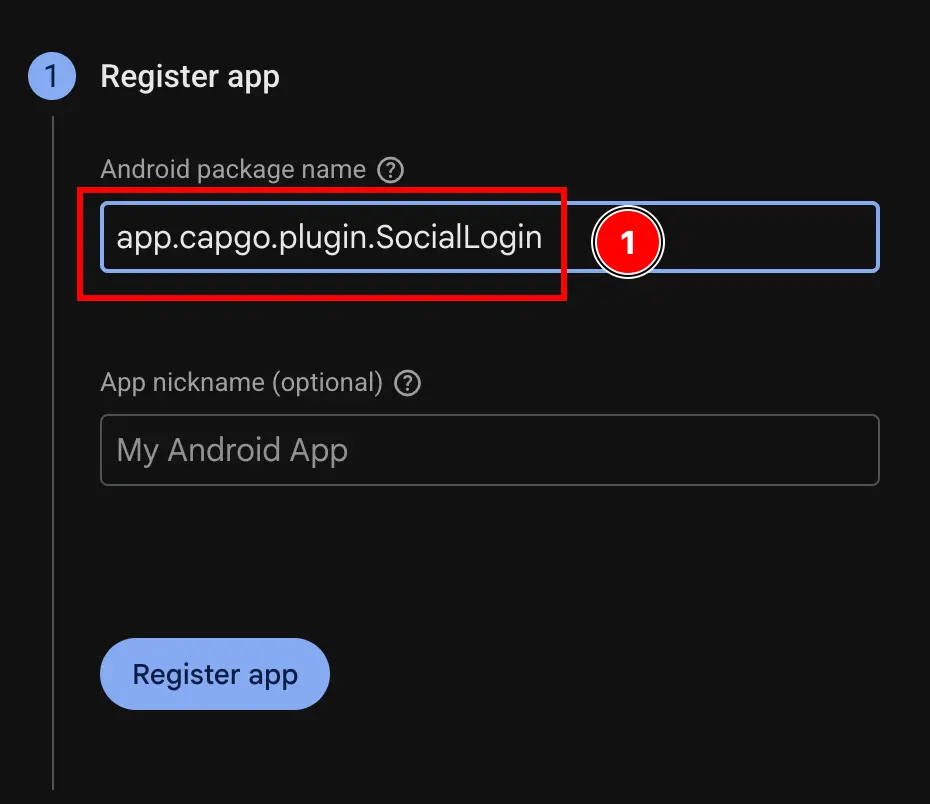
- Ouvrez Android Studio à partir de votre application
- Cliquez sur le
Register appbouton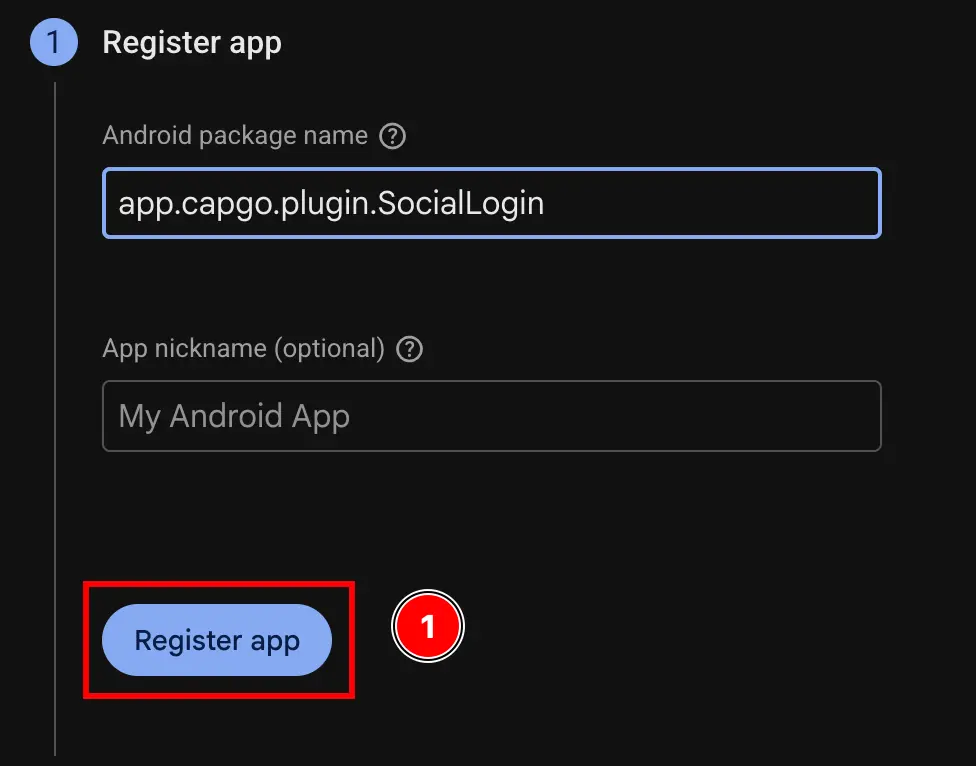
- Remplir le
-
Sauter la
Download and then add config fileétape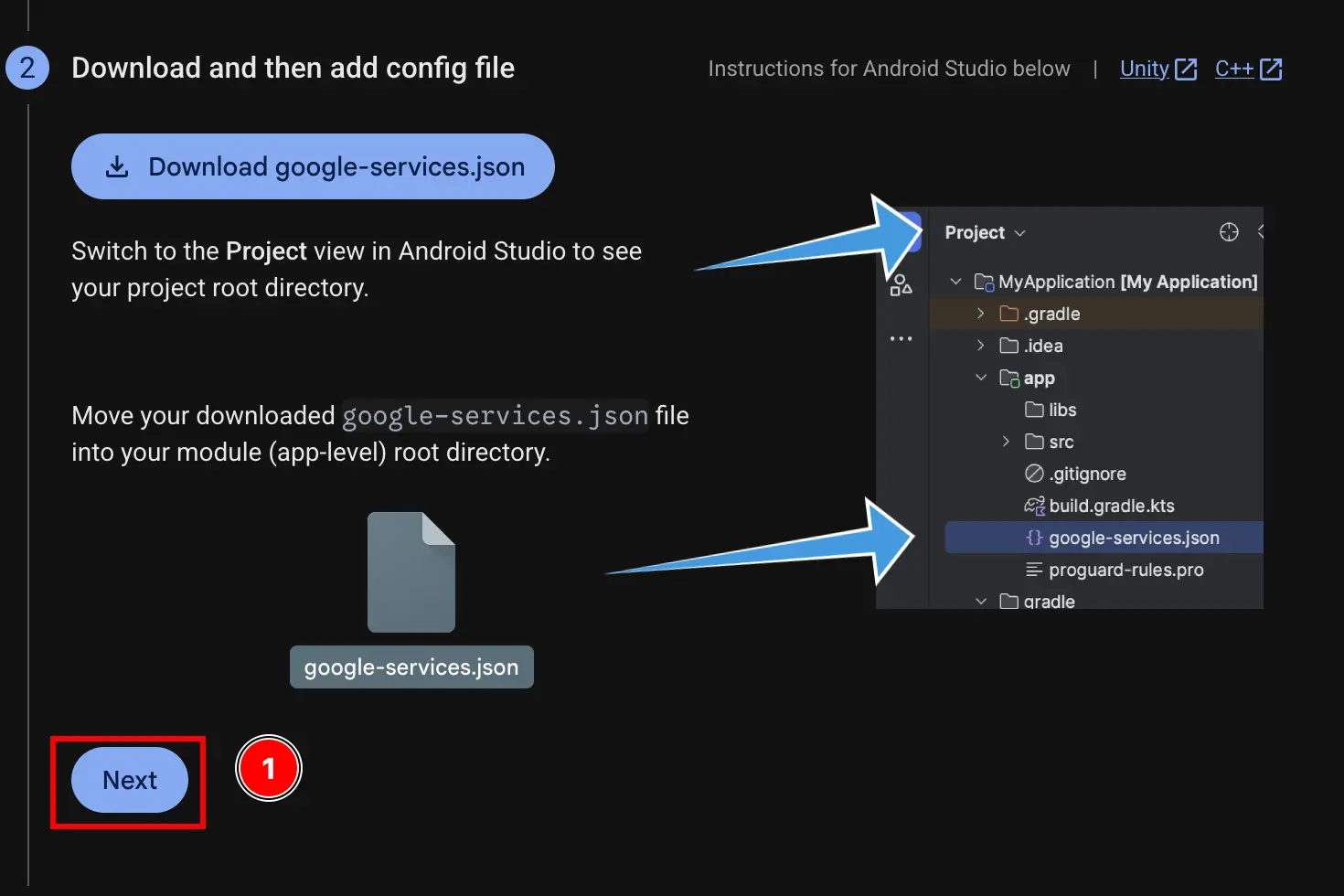
-
Sauter la
Add firebase SDKétape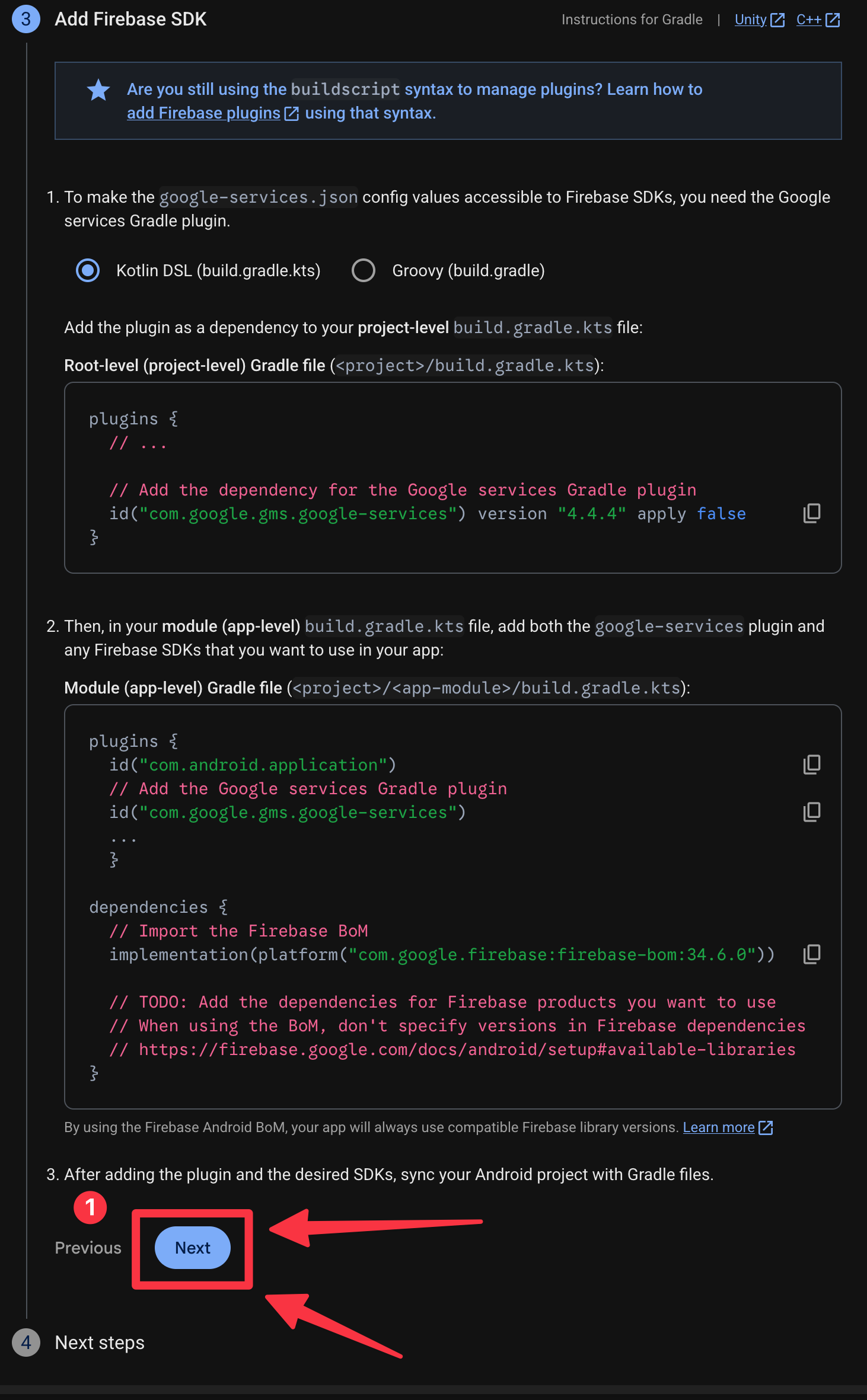
-
Cliquez sur le
Continue to consolebouton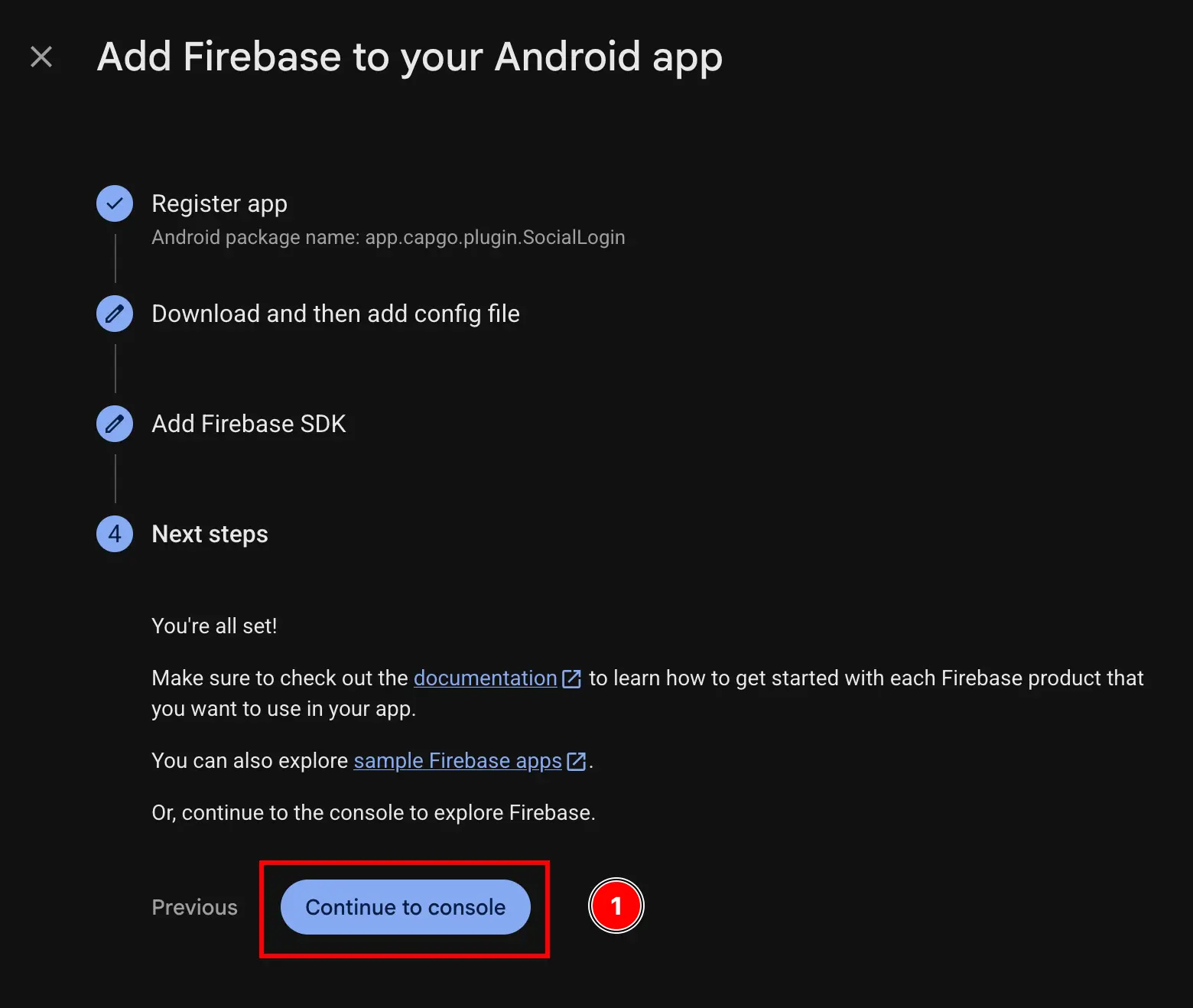
-
Si vous n'êtes pas automatiquement authentifié, allez à
settings->general->your apps-> Trouvez votre application Android et cliquez dessus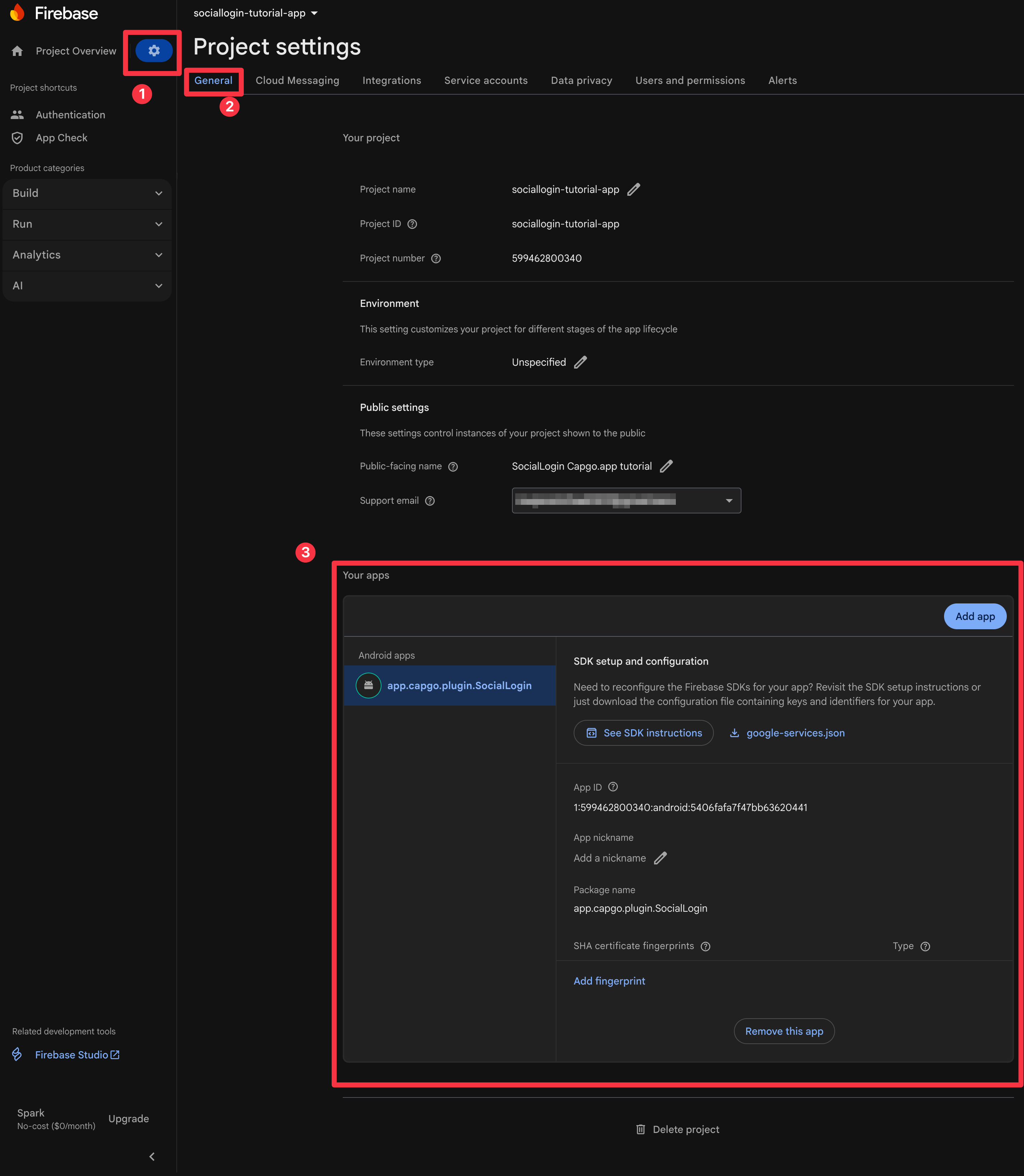
-
Obtenez votre empreinte SHA1
Suivez les étapes 10-11 de la Guide de configuration de l'authentification Google sur Android:
-
Ouvrez maintenant le terminal. Assurez-vous d'être dans le
androiddossier de votre application et exécutez./gradlew signInReport
-
Faites défiler vers le haut de cette commande. Vous devriez voir le suivant. Copiez le
SHA1.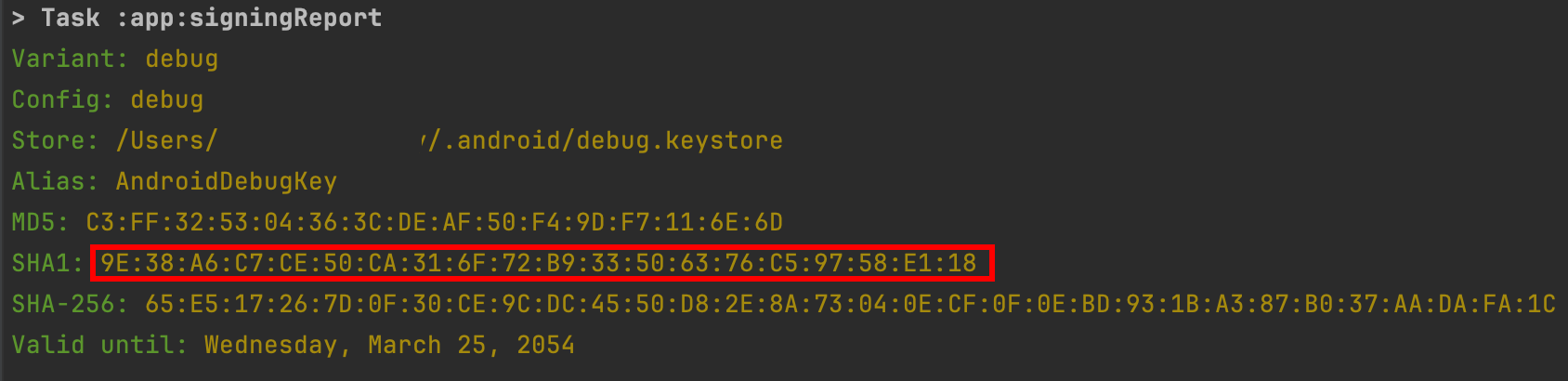
-
-
Ajoutez la valeur SHA1 au projet Firebase
- Cliquez sur le
Add fingerprintbouton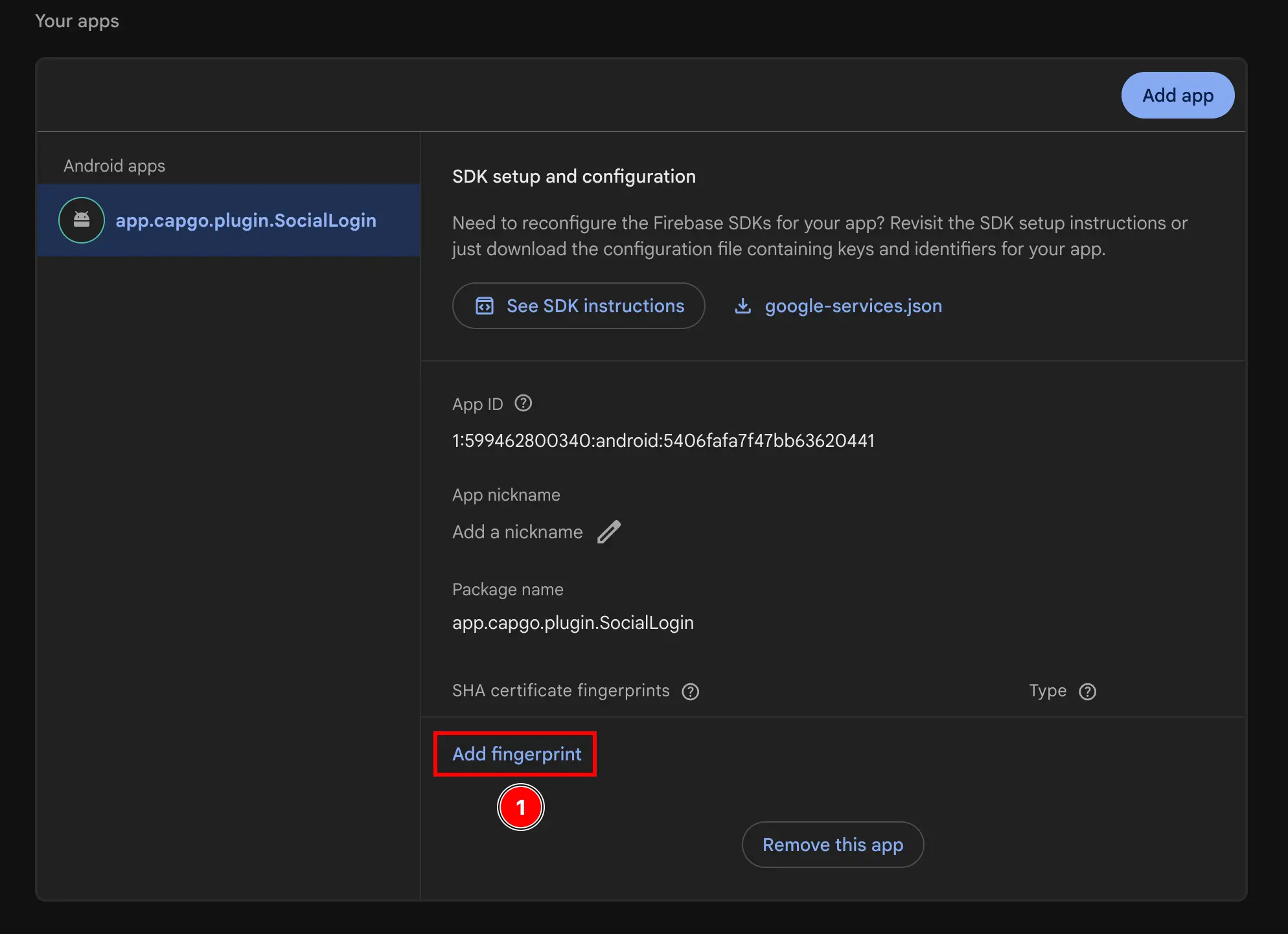
- Collez le SHA1 que vous avez copié dans l'étape précédente
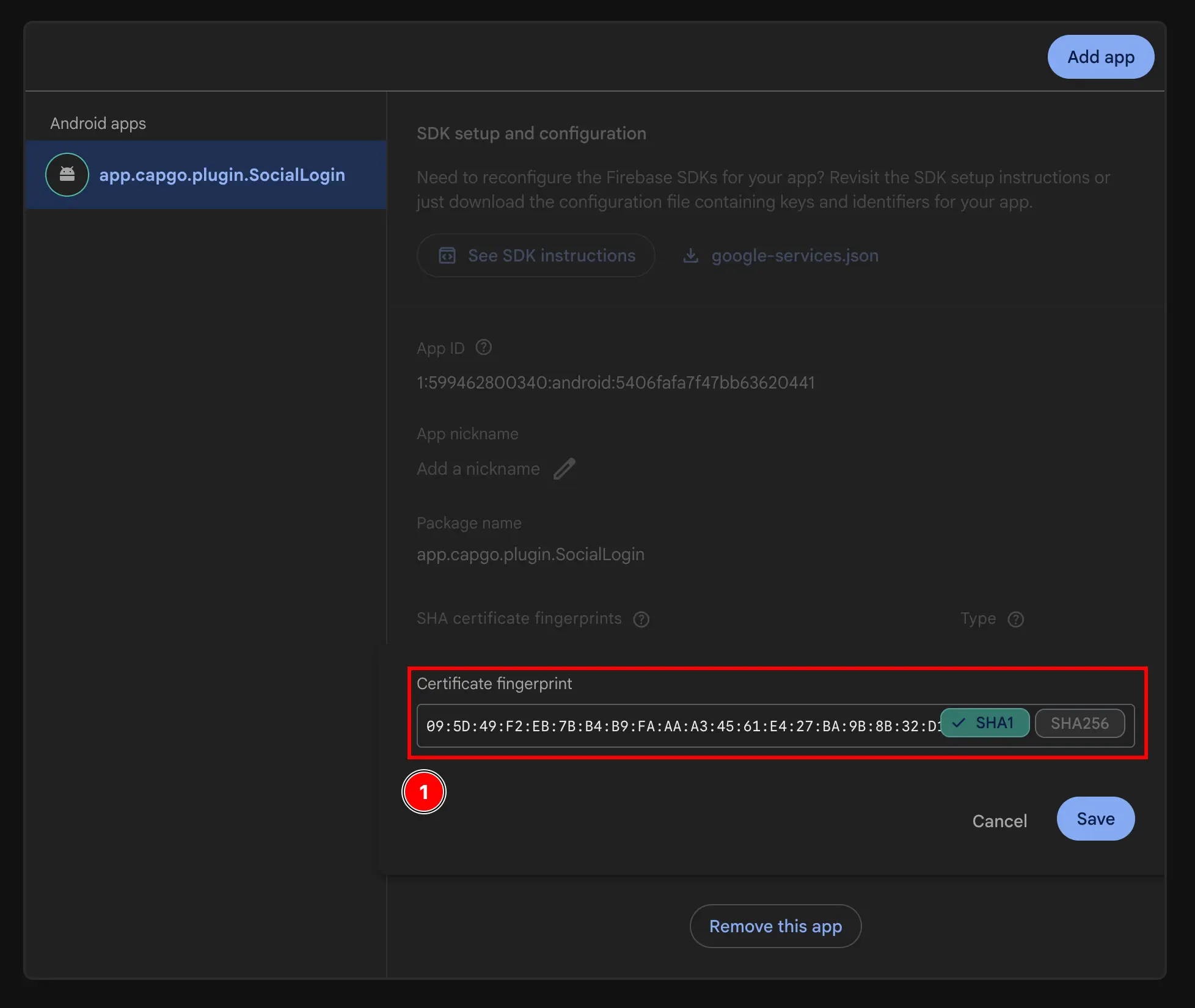
- Cliquez sur le
Savebouton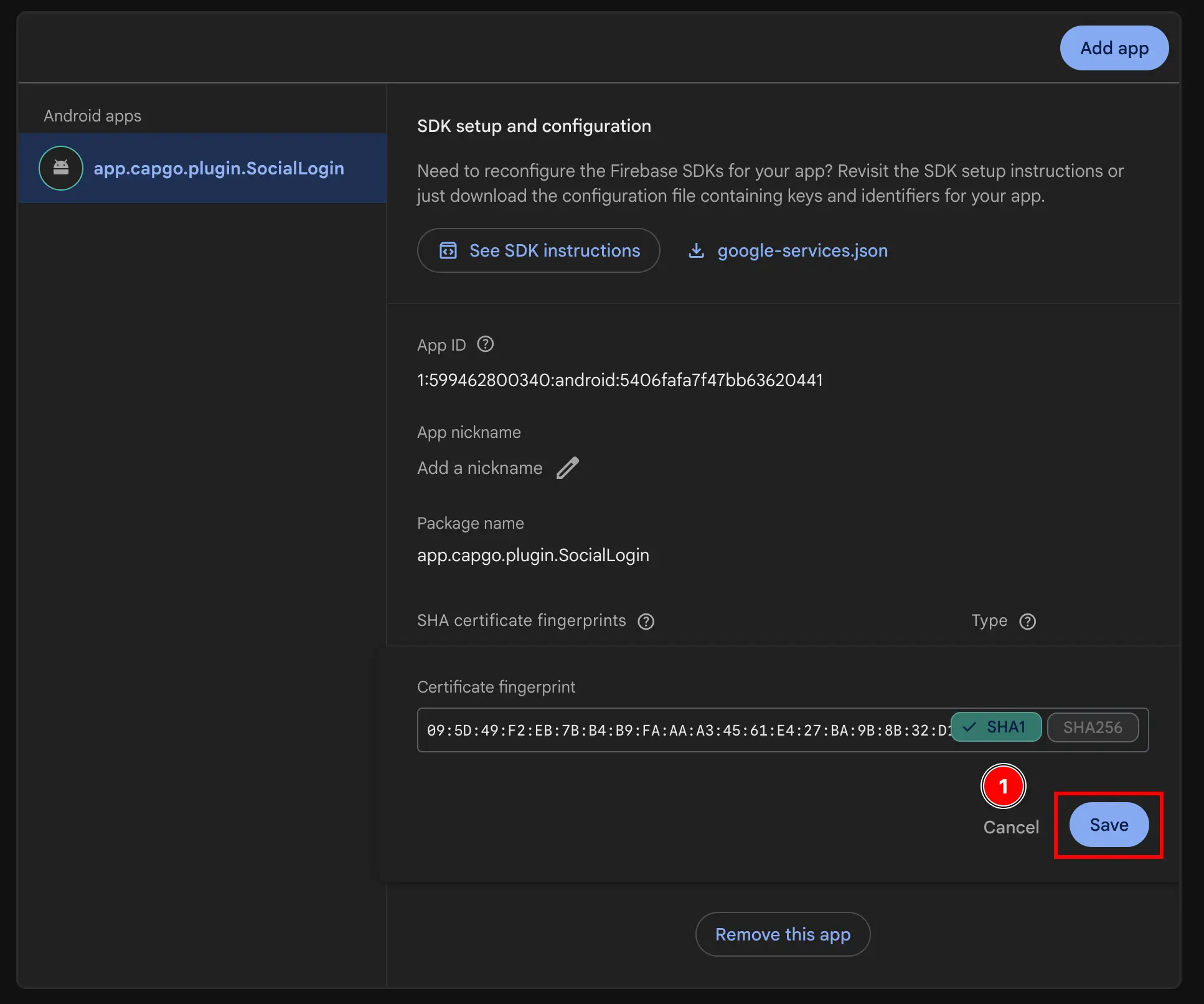
- Cliquez sur le
-
Obtenez votre ID client web
- Allez à
Build->Authentication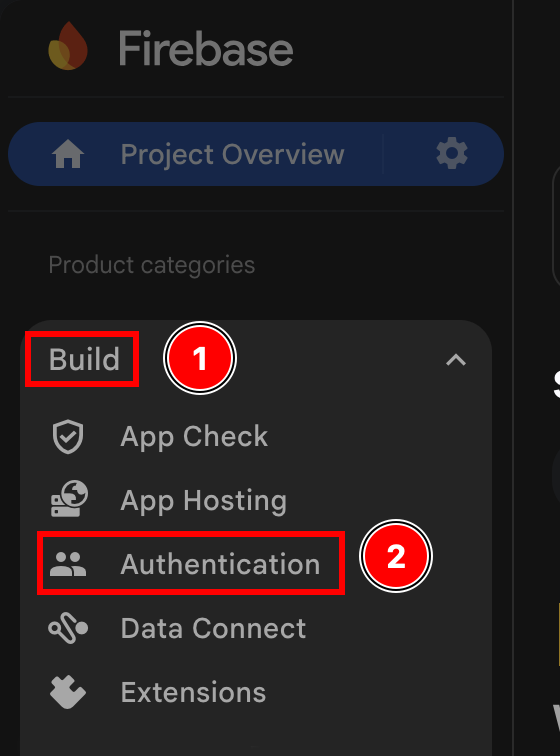
- Cliquez sur le
Sign-in methodbouton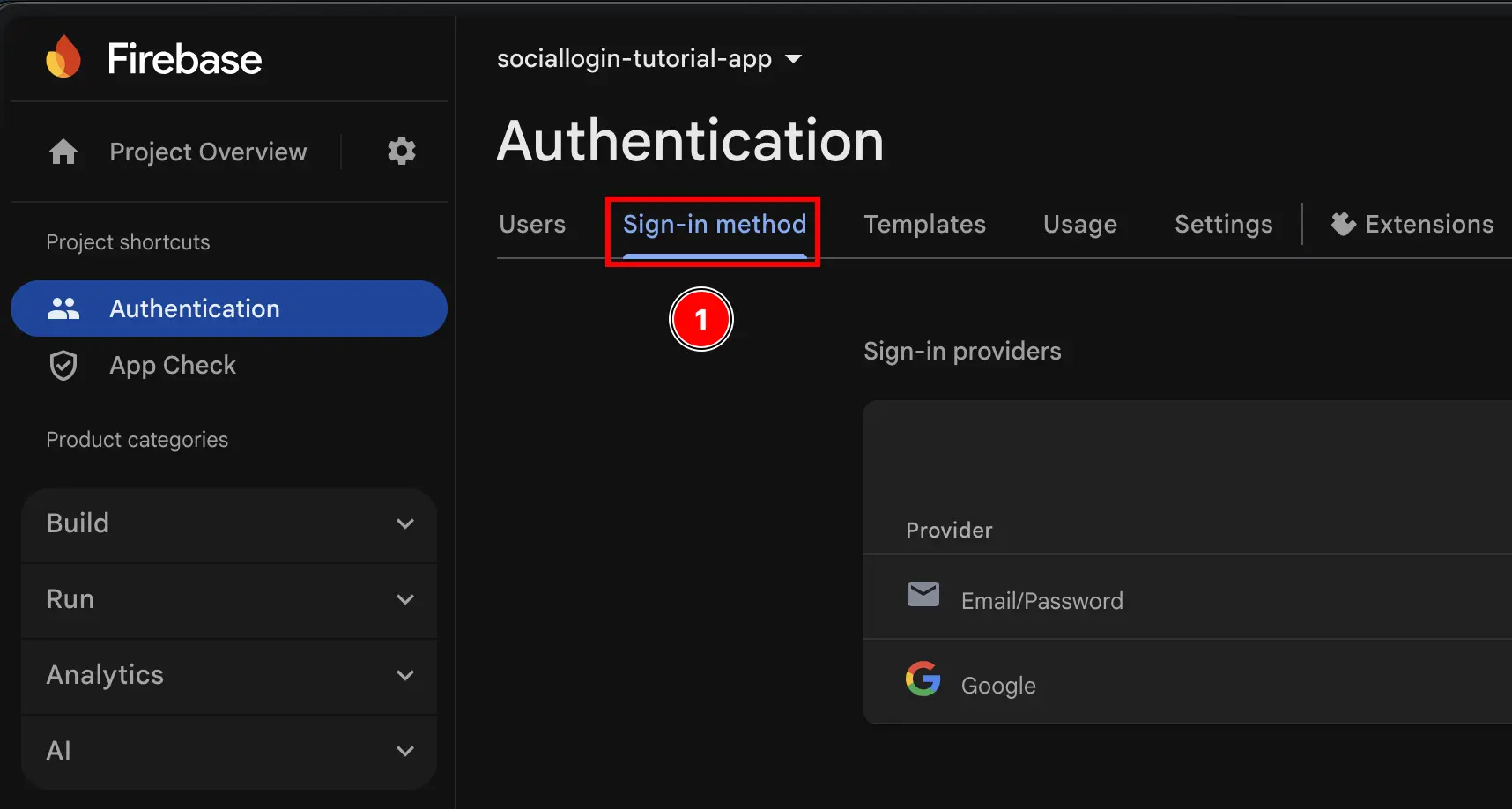
- Cliquez sur le
Googlefournisseur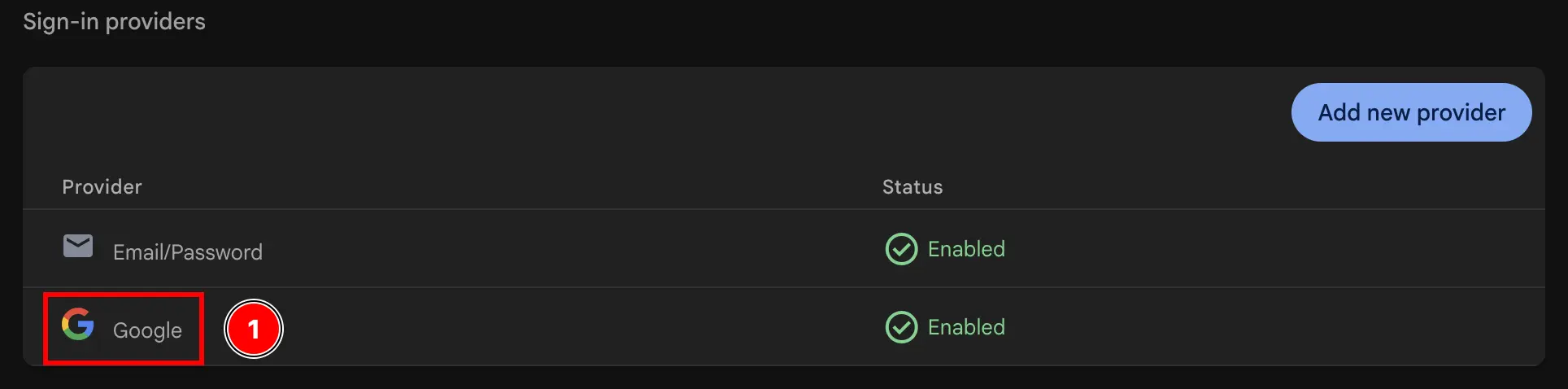
- Cliquez sur le
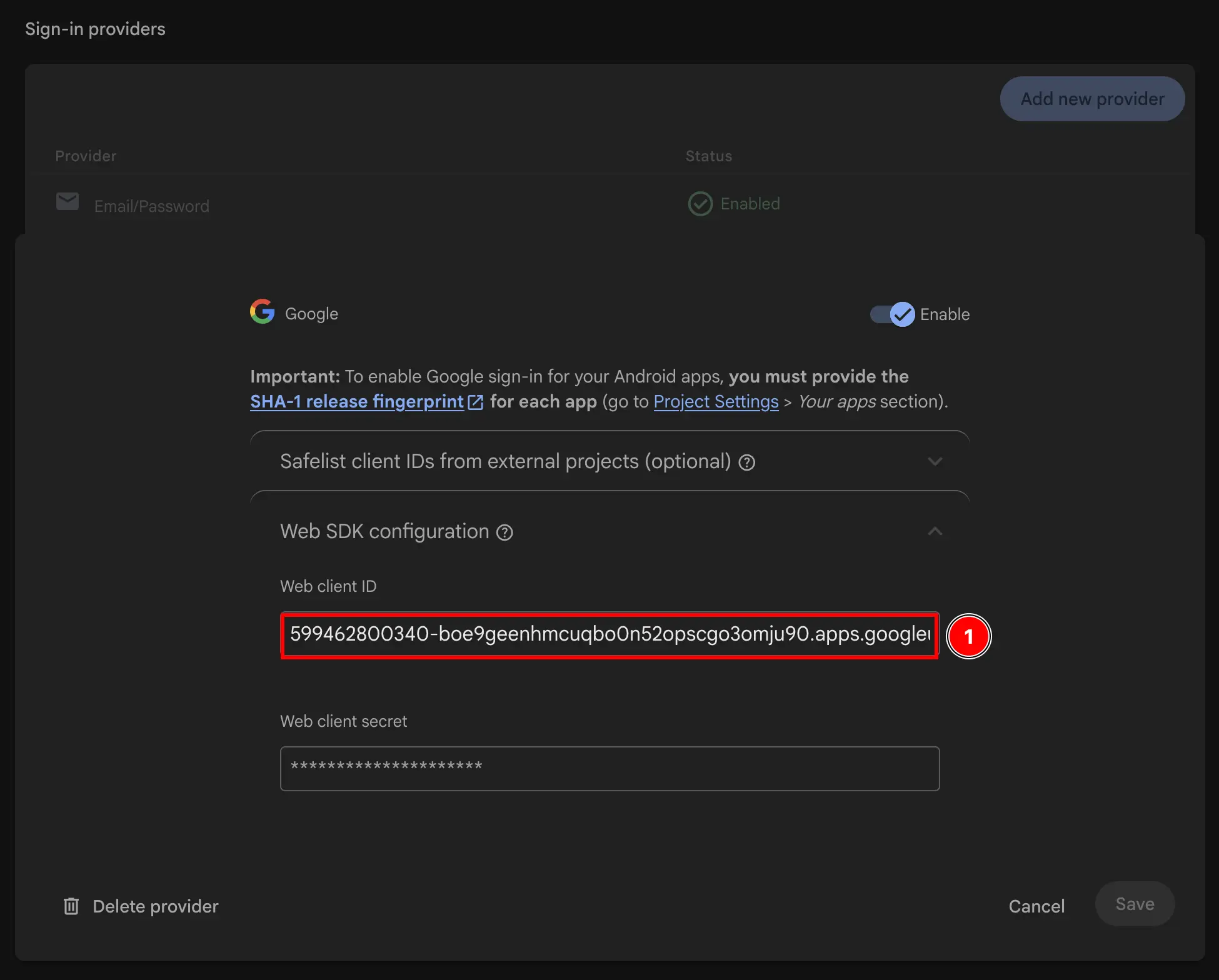
Web SDK configurationbouton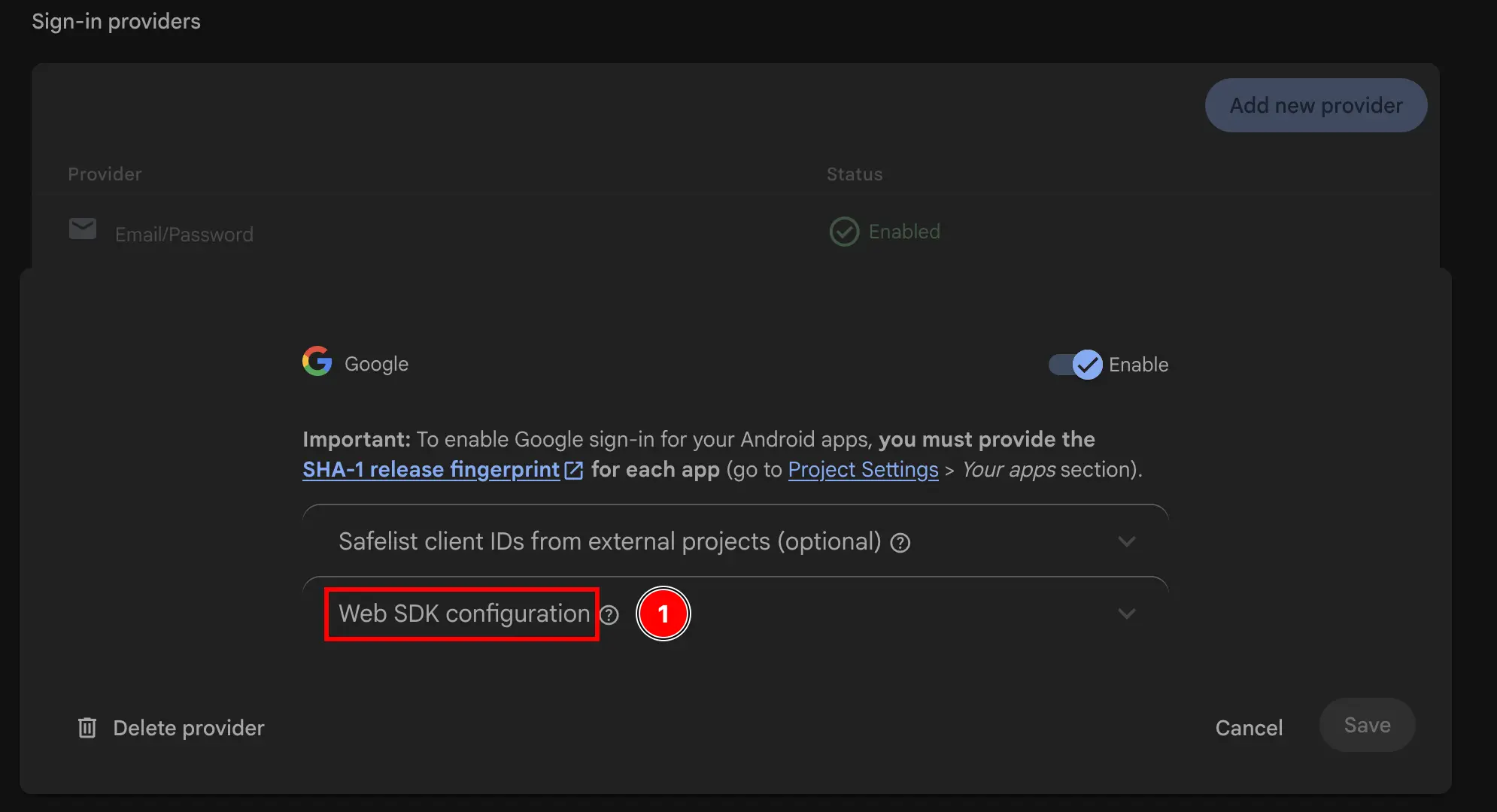
- Copiez le
Web client IDCela sera votrewebClientIddans leinitializeméthode du plugin.
- Allez à
-
Utilisez l'ID du client web en JS.
À ce stade, vous êtes TECHNIQUEMENT prêt à utiliser l'authentification Google avec Firebase Authentication sur Android. Cependant, je vous recommande de vérifier à nouveau la configuration dans le console Google Cloud, comme expliqué dans l'étape suivante.
Vérifiez à nouveau la configuration dans la console Google Cloud
Section intitulée « Vérifiez à nouveau la configuration dans la console Google Cloud »Pour vous assurer que la configuration est correcte, vous devez vérifier à nouveau la configuration dans la console Google Cloud.
-
Allez à console.cloud.google.com
-
Trouvez votre projet
- Cliquez sur le sélecteur de projet
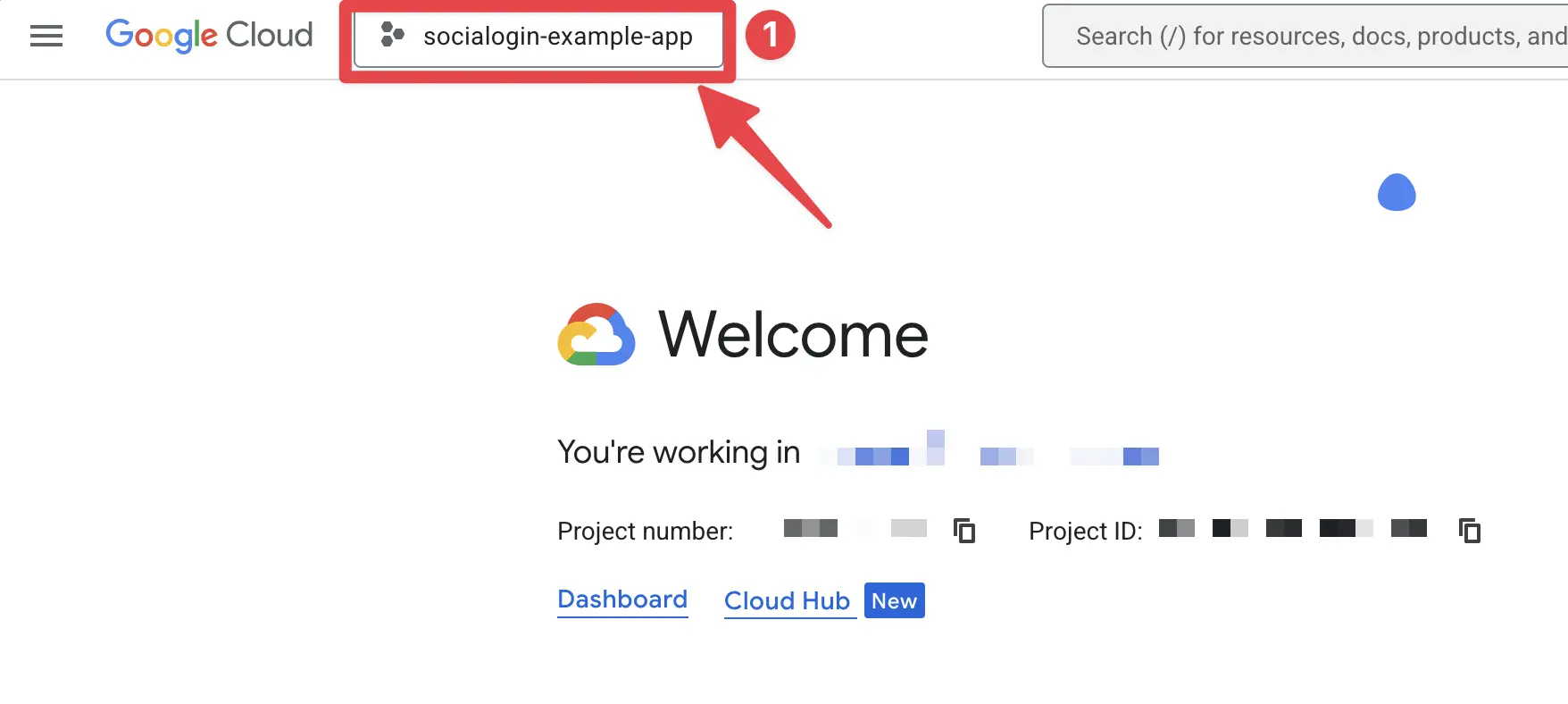
- Recherchez votre projet en utilisant le nom exact de votre projet Firebase et cliquez dessus. Dans mon cas, il s'agit de
sociallogin-tutorial-app.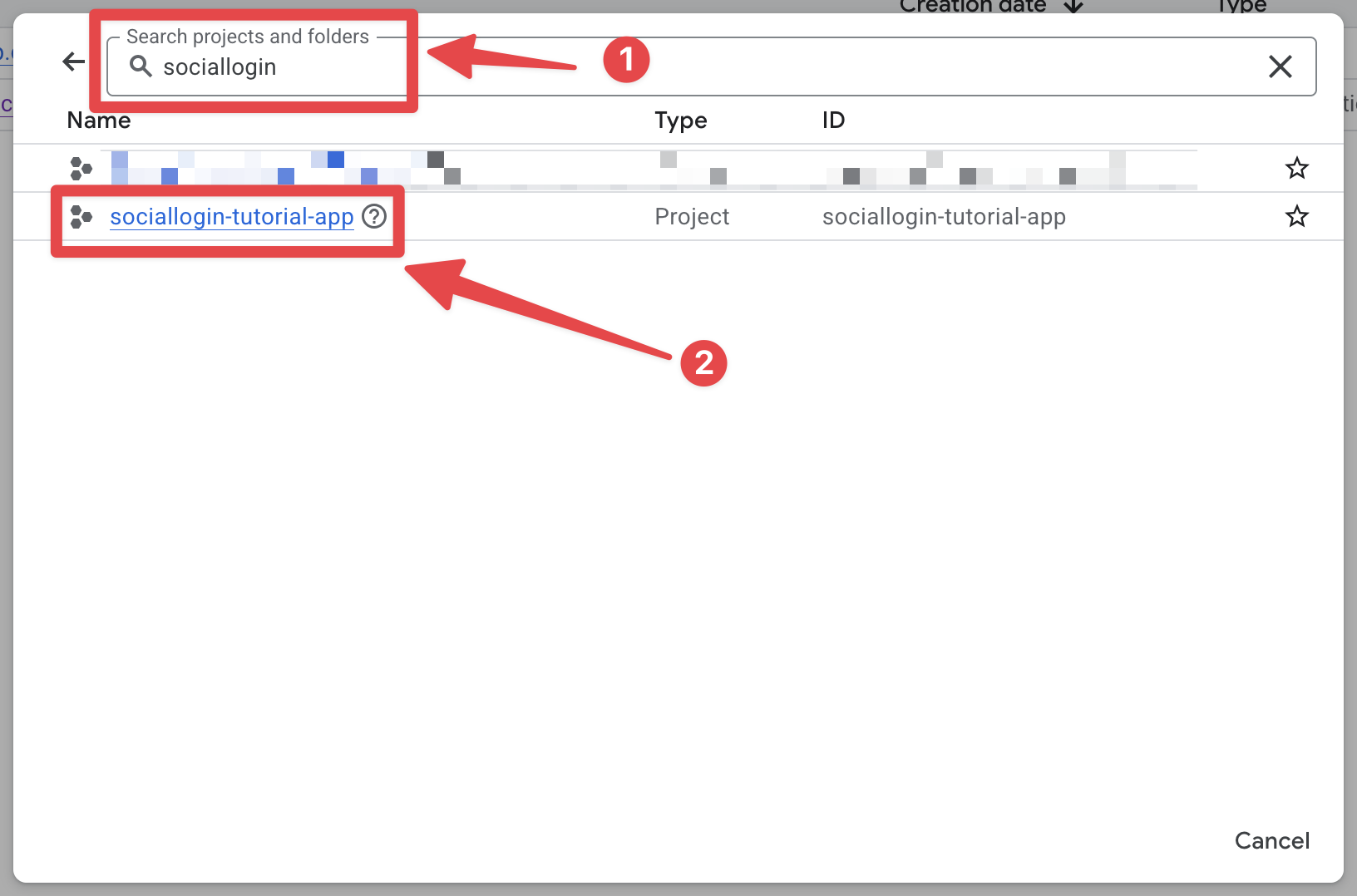
- Cliquez sur le sélecteur de projet
-
Ouvrez la barre de recherche et ouvrez
credentials- Ouvrez la barre de recherche
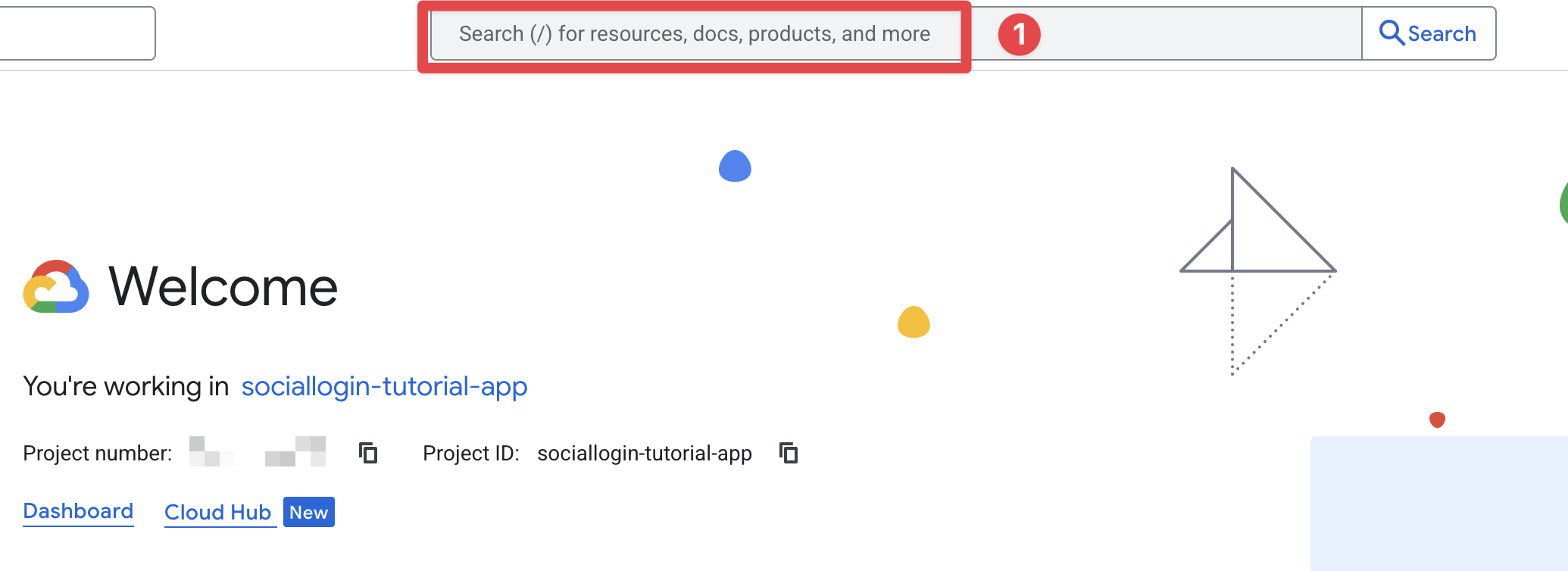
- Recherchez
credentialset cliquez sur leAPIs and Servicesun (le numéro 2 sur l'écran d'écran)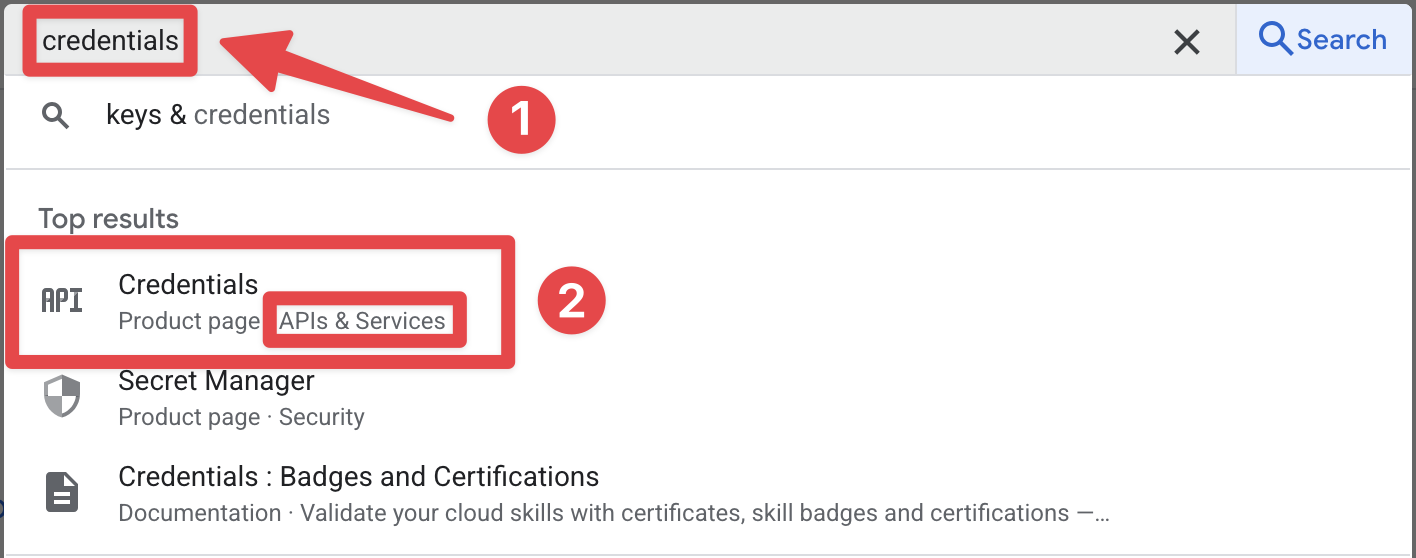
- Ouvrez la barre de recherche
-
Vérifiez que vous voyez les deux identifiants de client Android et Web dans la liste.
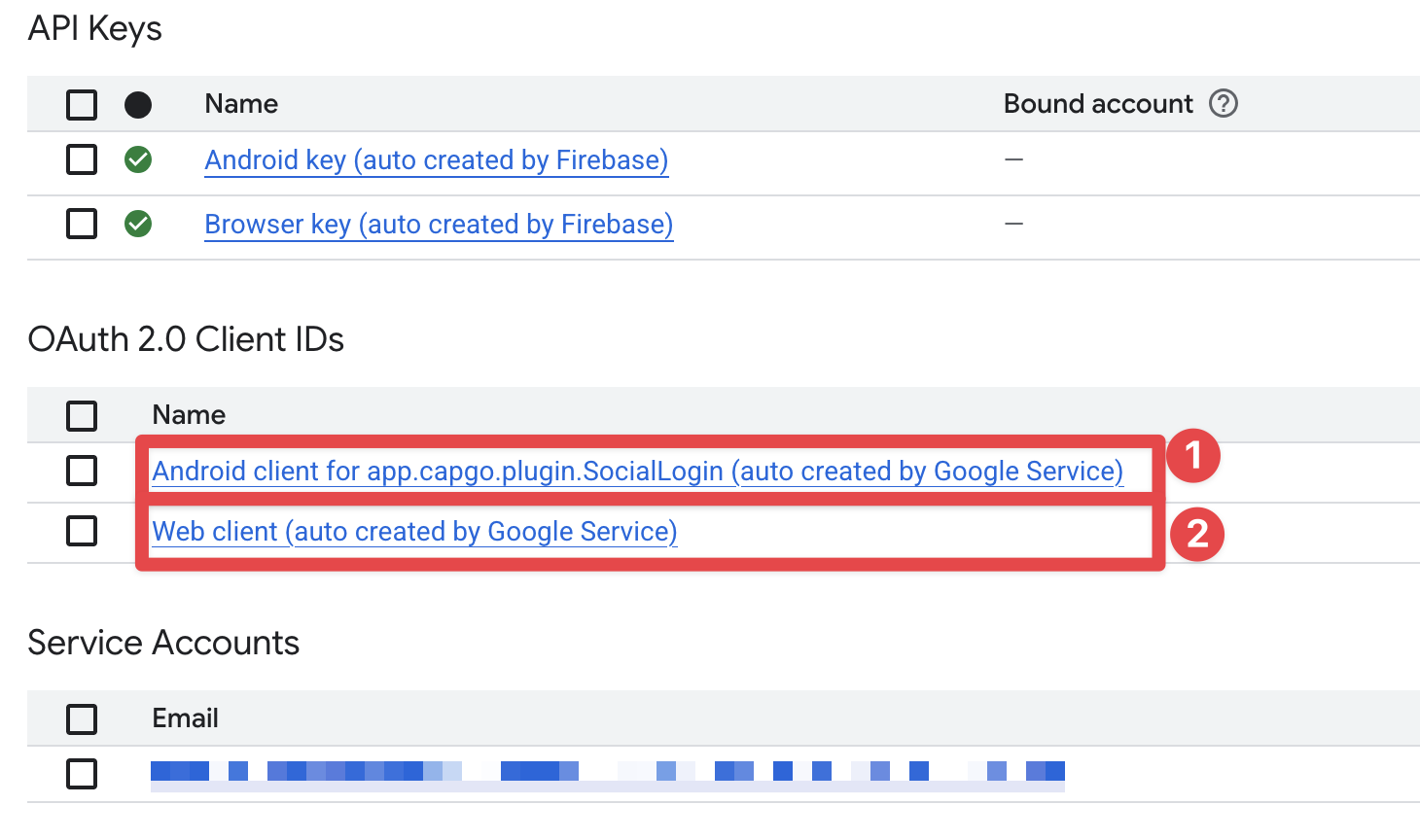
-
Vérifiez que l'identifiant de client Android est correctement configuré dans la console Firebase.
- Cliquez sur l'
AndroidApplication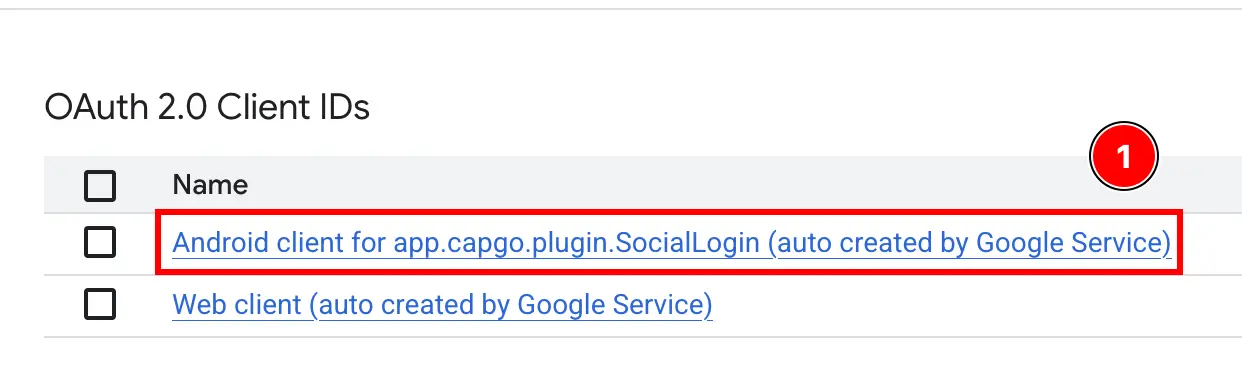
- Confirmez que la chaîne SHA1 est correctement configurée et qu'elle correspond à celle que vous avez copiée dans les étapes précédentes.
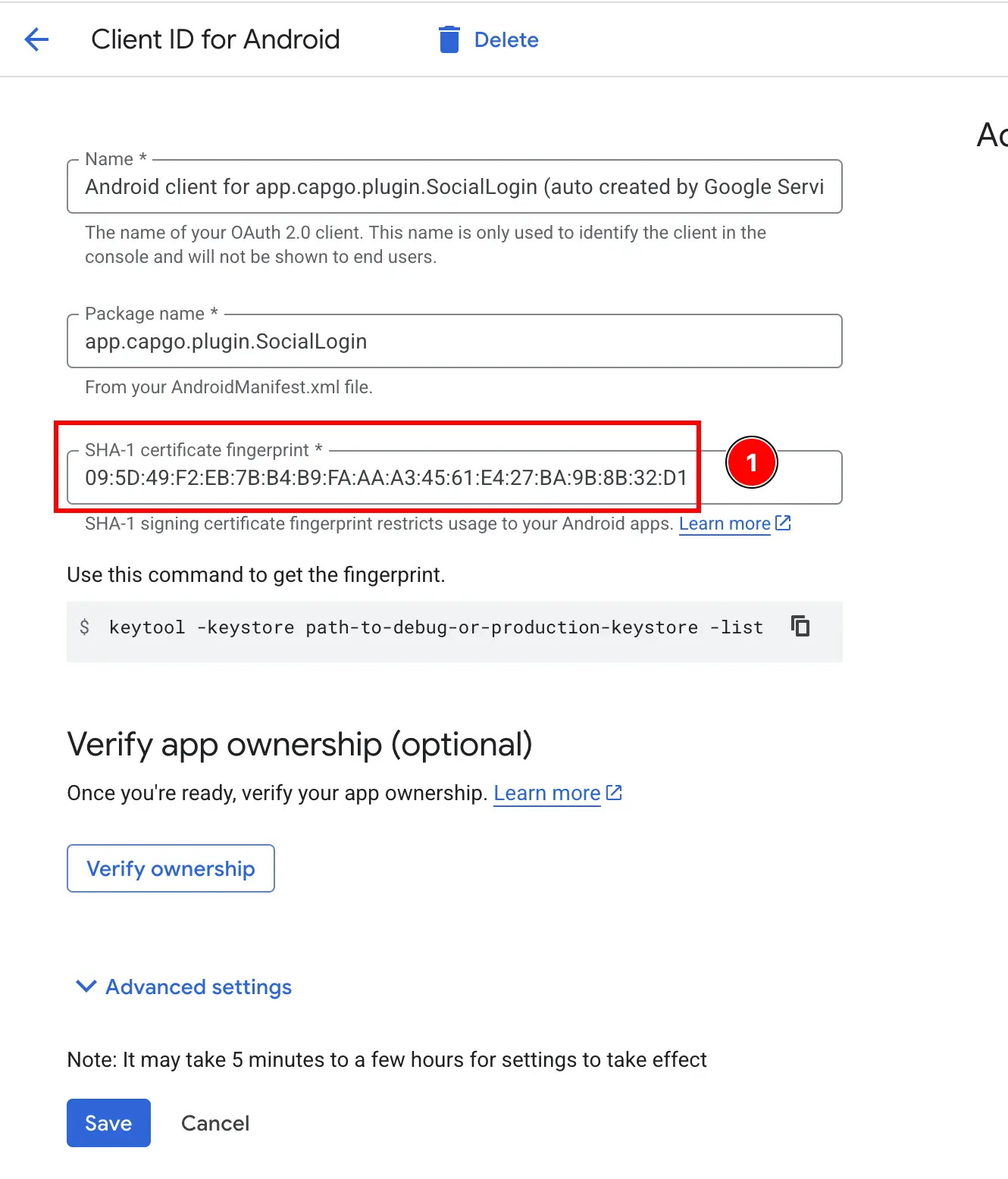
- Cliquez sur l'
-
Vérifiez que l'ID client Web est correctement configuré dans la console Firebase.
- Appuyez sur le
Webapp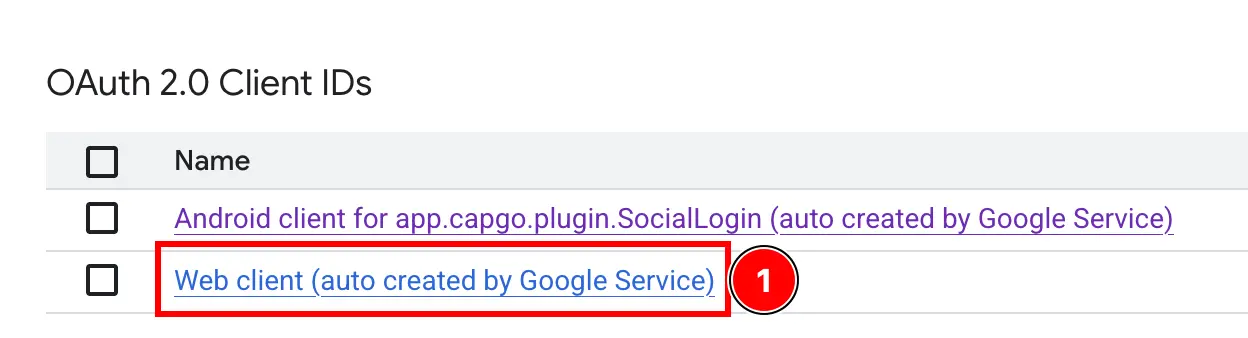
- Confirmez que l'ID client correspond à celui que vous avez copié dans les étapes précédentes.
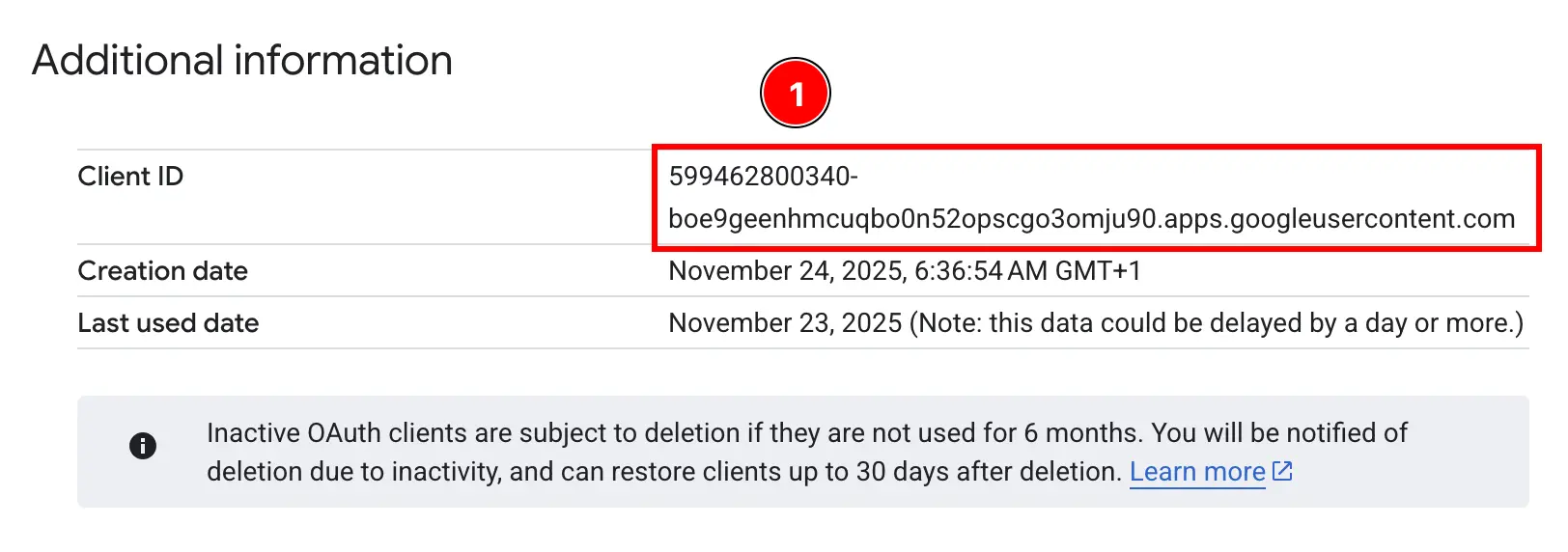
- Appuyez sur le
Vous êtes maintenant prêt à utiliser l'authentification Google avec Firebase Authentication sur Android.
Troubleshooting
Section intitulée « Résolution des problèmes »Si l'authentification s'arrête ou échoue :
- Vérifiez que
idTokencorrespond à votre identifiant client Firebase web - Vérifiez que Google Sign-In est activé dans le Console Firebase
- Assurez-vous que le SHA-1 est correctement configuré
- Examinez l' exemple d'application code pour référence
Continuez de l'étape suivante avec Firebase Google Login sur Android
Section intitulée « Continuez de l'étape suivante avec Firebase Google Login sur Android »If vous utilisez Firebase Google Login sur Android pour planifier l'authentification et les flux de compte, connectez-l’avec En utilisant @capgo/capacitor-social-login pour la capacité native dans En utilisant @capgo/capacitor-social-login, @capgo/capacitor-connexion-social pour le détail d'implémentation dans @capgo/capacitor-social-login, @capgo/capacitor-passkey pour le détail d'implémentation dans @capgo/capacitor-passkey, et @capgo/capacitor-native-biometrique pour le détail d'implémentation dans @capgo/capacitor-native-biometric, et l'authentification à deux facteurs pour les détails d'implémentation dans l'authentification à deux facteurs.
Envoyez des applications Capacitor sans attendre Sans l'attente
Construirez avec votre agent de codage AI, envoyez des correctifs aux utilisateurs en quelques minutes, construisez des applications iOS et Android signées sans Mac, et revenez en arrière en un clic.


Besoin de solutions d'entreprise ? Parlez à notre équipe