
Supabase Google Login - Paramètres généraux
Copiez un prompt de configuration avec les étapes d'installation et le guide Markdown complet pour ce plugin.
Introduction
Section intitulée « Introduction »Ce guide vous guidera à travers l'intégration de l'authentification Google Sign-In avec Supabase Authentication à l'aide du plugin d'authentification sociale Capacitor. Cette configuration vous permet d'utiliser l'authentification native Google Sign-In sur les plateformes mobiles tout en exploitant l'authentification Supabase pour l'authentification backend.
Prerequisites
Section intitulée « Prérequis »Avant de commencer, assurez-vous d'avoir :
-
Lisez le Paramètres de configuration général de connexion Google Guide de configuration des clés OAuth Google
-
Suivez les guides spécifiques à votre plateforme pour configurer les clés OAuth Google pour votre plateforme cible.
Activer le fournisseur OAuth Google dans Supabase
Titre de la section “Activer le fournisseur OAuth Google dans Supabase”-
Allez à votre Tableau de bord Supabase
-
Cliquez sur votre projet
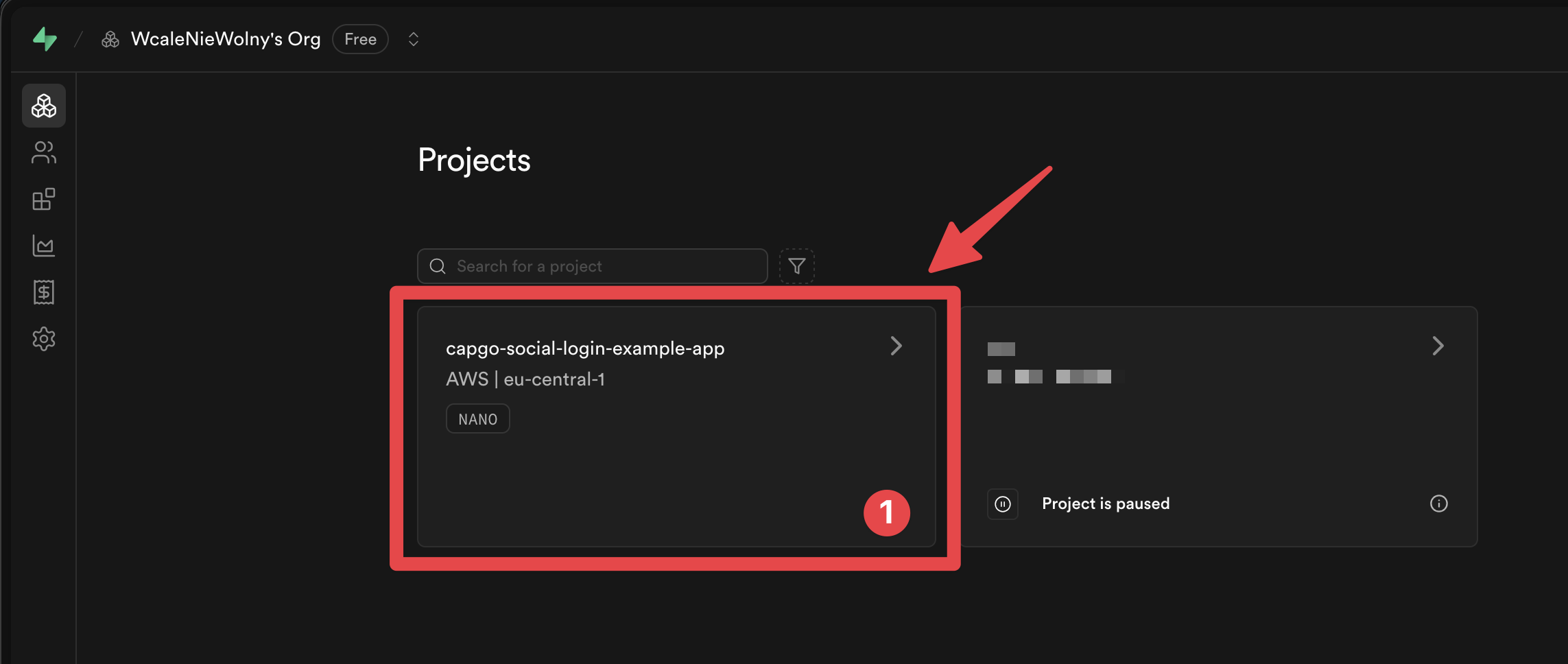
-
Allez à la
Authenticationmenu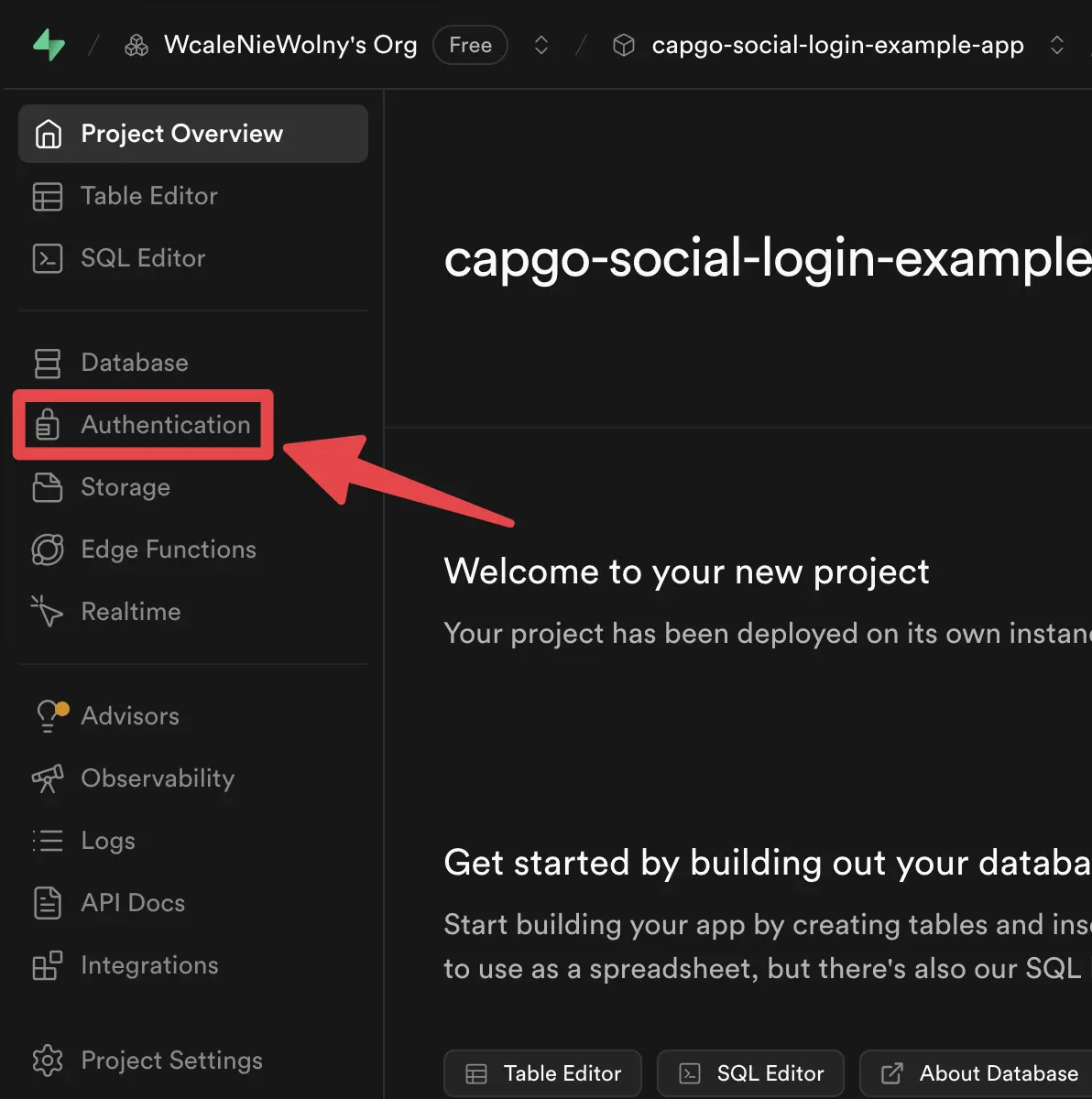
-
Cliquez sur l'onglet
Providerstab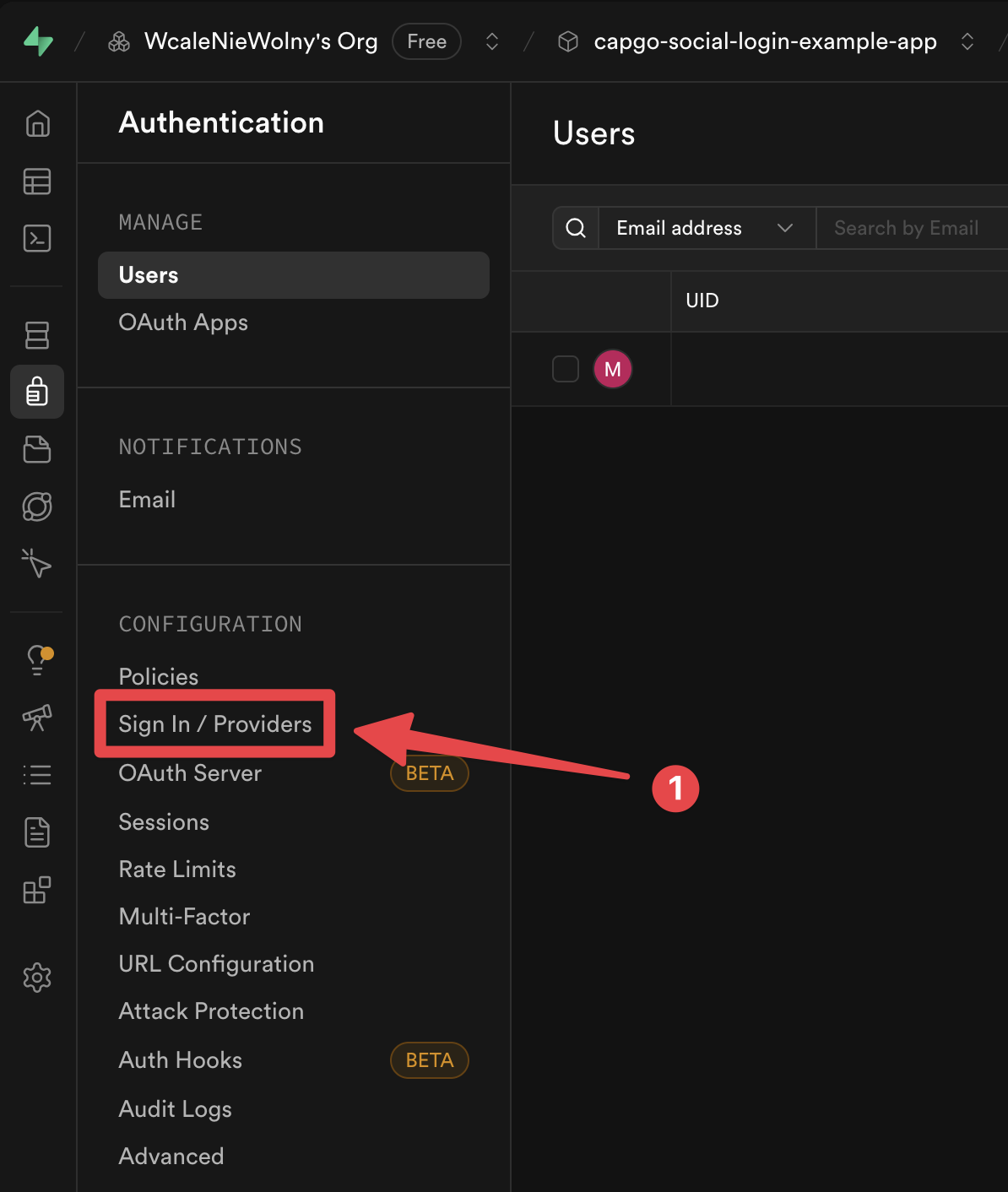
-
fournisseur
Googlefournisseur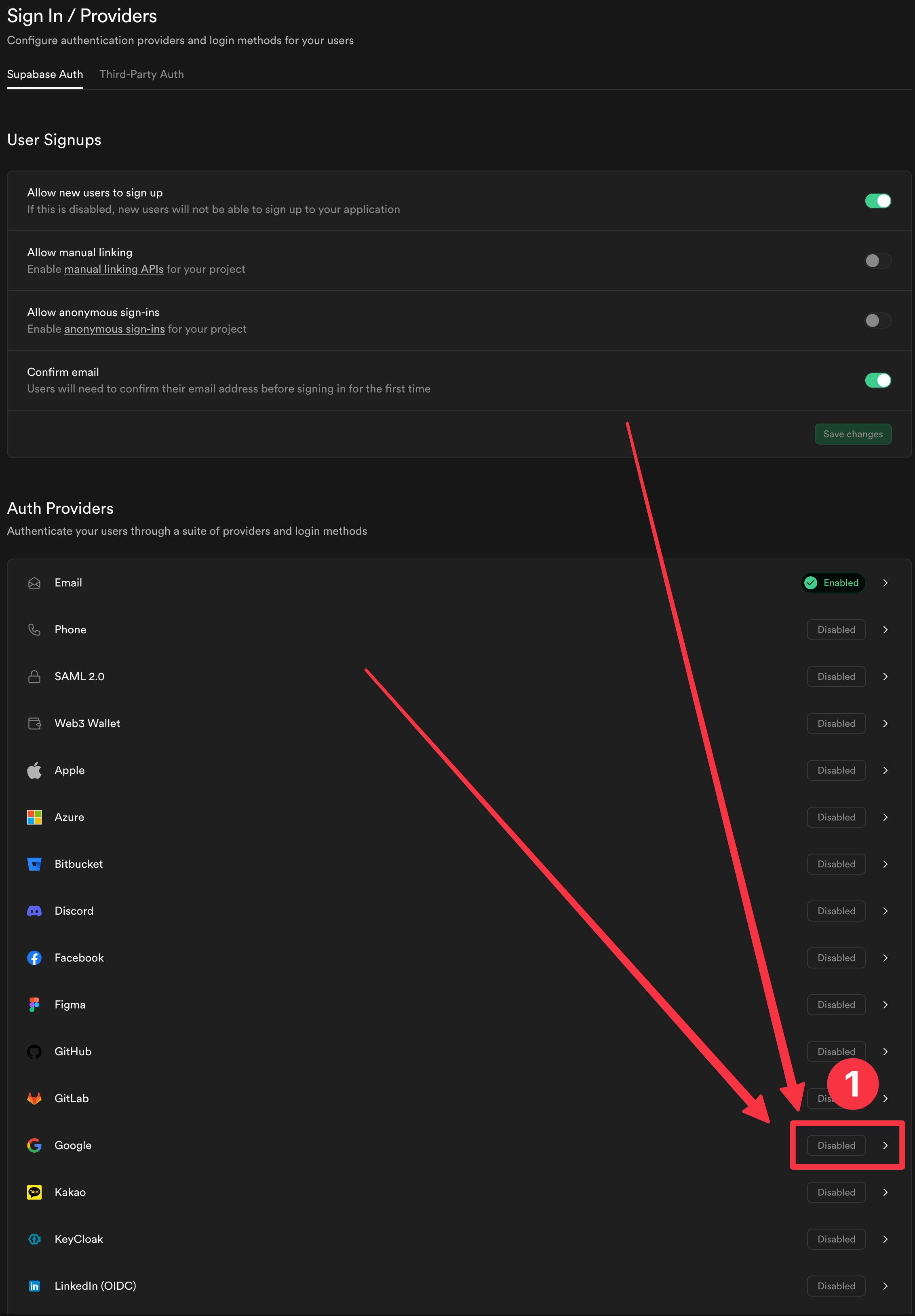
-
Activer le fournisseur
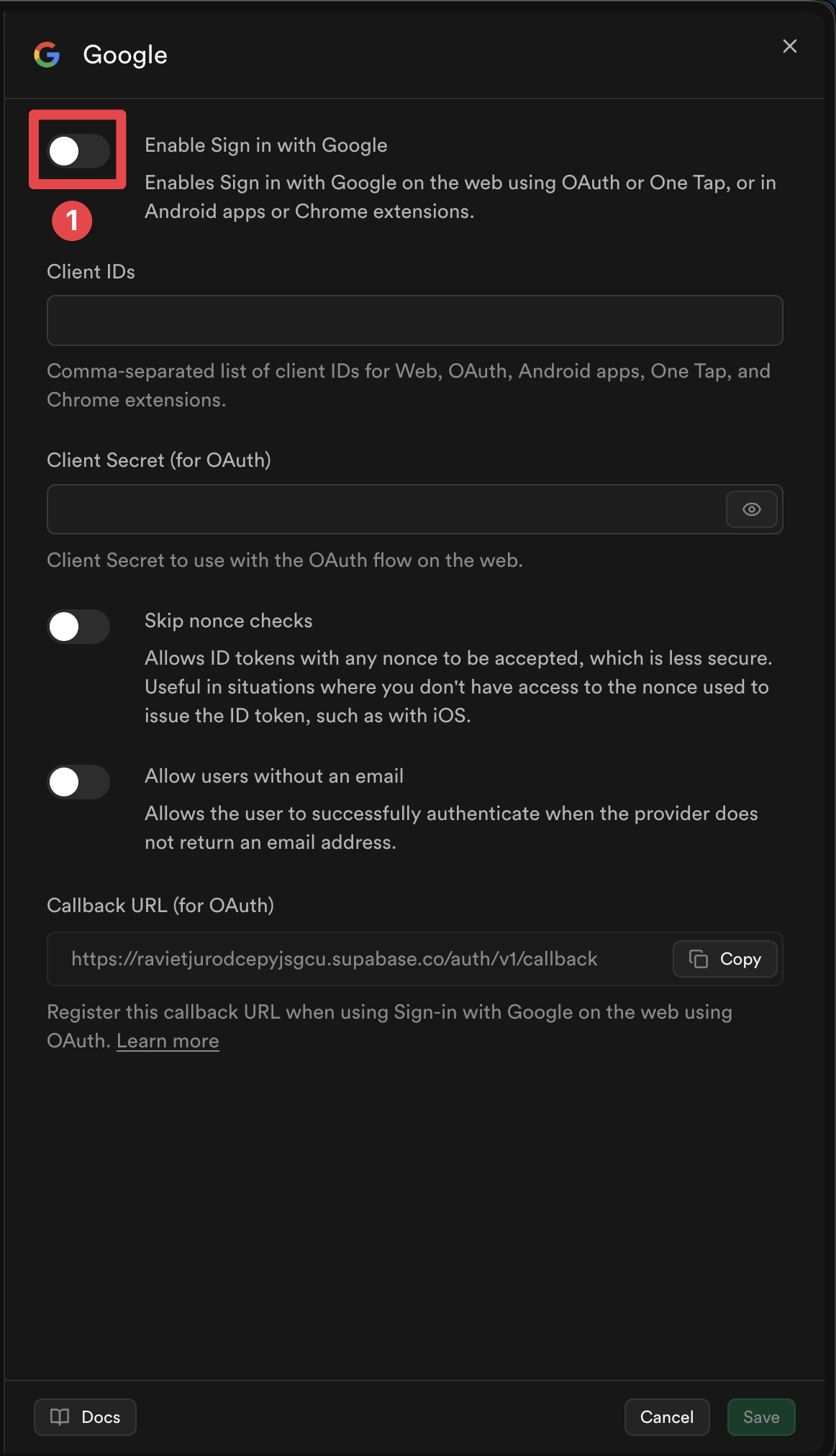
-
Add the client IDs for the platforms you plan to use
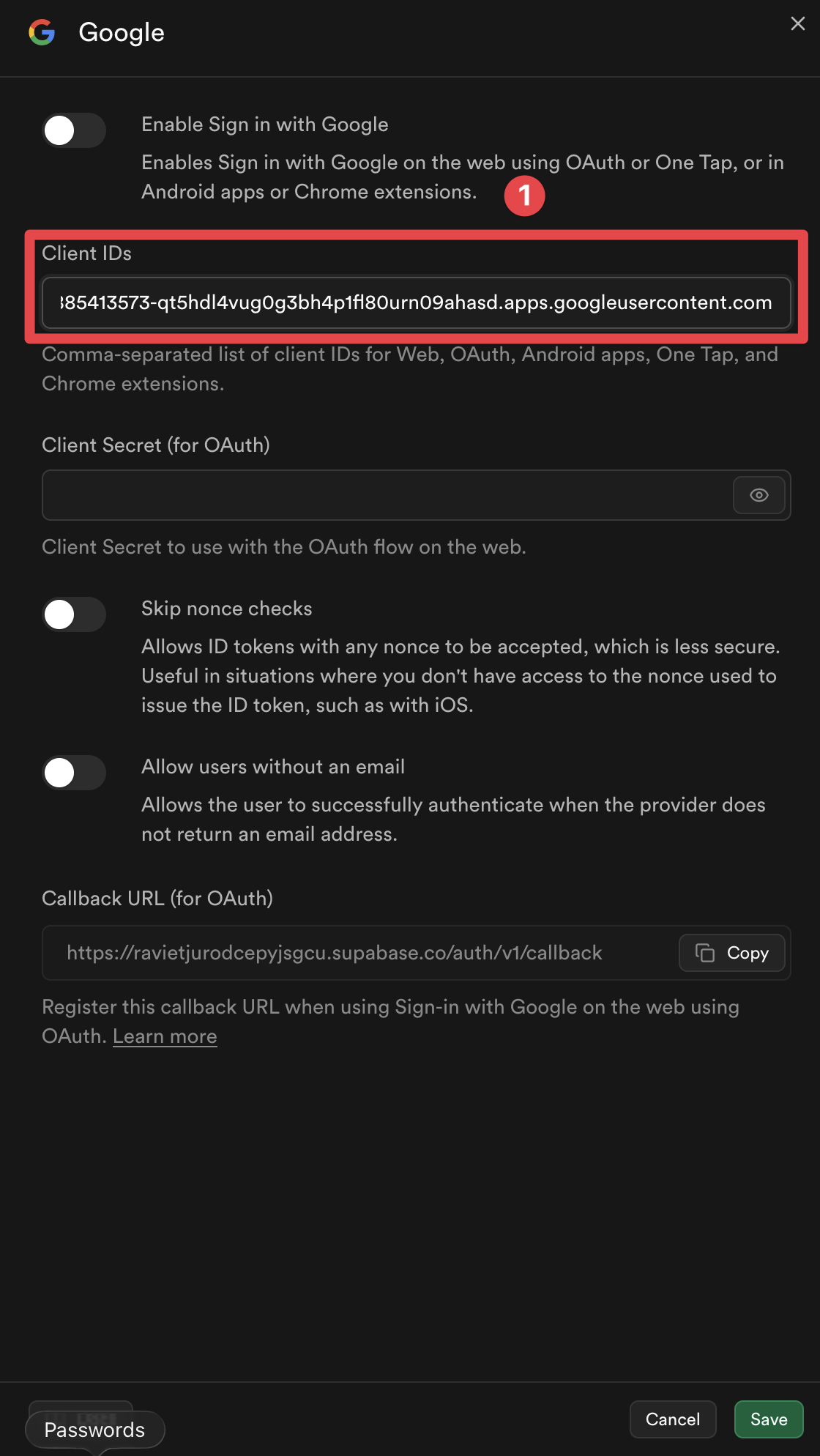
-
Cliquez sur le
Savebouton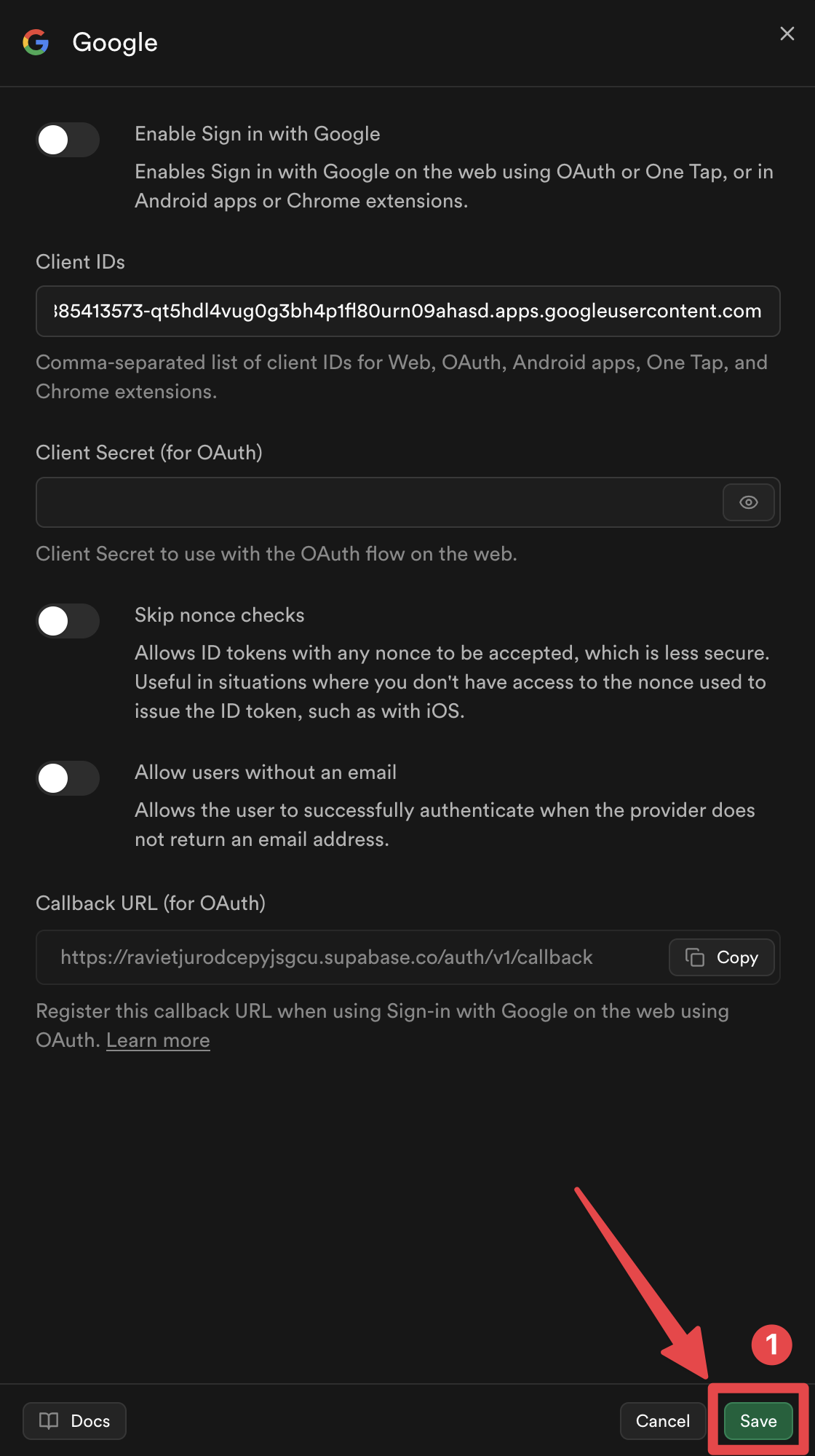
Voilà, vous avez désormais activé l'authentification Google avec Supabase.
Comment fonctionne l'authentification Google avec l'aide de Supabase
Voilà, vous avez maintenant activé l'authentification Google avec Supabase !This section explains how the Google Sign-In integration with Supabase works under the hood. Understanding this flow will help you implement and troubleshoot the authentication process.
Section intitulée « 1. Génération de Nonce »
Section titled “1. Nonce Generation”La mise en œuvre génère un couple de nonce sécurisé en suivant Copier dans le presse-papier:
// Generate URL-safe random noncefunction getUrlSafeNonce(): string {  const array = new Uint8Array(32);  crypto.getRandomValues(array);  return Array.from(array, (byte) => byte.toString(16).padStart(2, '0')).join('');}
// Hash the nonce with SHA-256async function sha256Hash(message: string): Promise<string> {  const encoder = new TextEncoder();  const data = encoder.encode(message);  const hashBuffer = await crypto.subtle.digest('SHA-256', data);  const hashArray = Array.from(new Uint8Array(hashBuffer));  return hashArray.map((b) => b.toString(16).padStart(2, '0')).join('');}
// Generate nonce pairasync function getNonce(): Promise<{ rawNonce: string; nonceDigest: string }> {  const rawNonce = getUrlSafeNonce();  const nonceDigest = await sha256Hash(rawNonce);  return { rawNonce, nonceDigest };}
Flow:
rawNonceChaîne alphanumérique sécurisée (64 caractères hexadécimaux)nonceDigest1. Génération de NoncerawNonce(codé en hex)nonceDigestest transmis à Google Sign-In → Google inclut le digest nonce dans le jeton d'IDrawNonceest transmis à Supabase → Supabase hache le nonce brut et le compare avec le nonce du jeton
2. Connexion Google
Sous-section intitulée « 2. Google Sign-In »La fonction initialise le plugin et se connecte avec Google :
await SocialLogin.initialize({  google: {    webClientId: 'YOUR_WEB_CLIENT_ID.apps.googleusercontent.com',    // iOS only:    iOSClientId: 'YOUR_IOS_CLIENT_ID.apps.googleusercontent.com',    mode: 'online', // Required to get idToken  },});
const response = await SocialLogin.login({  provider: 'google',  options: {    scopes: ['email', 'profile'],    nonce: nonceDigest, // Pass the SHA-256 hashed nonce  },});
3. Validation JWT
Sous-section intitulée « 3. Validation JWT »Avant d'envoyer le jeton à Supabase, l'implémentation valide le jeton JWT :
function validateJWTToken(idToken: string, expectedNonceDigest: string): { valid: boolean; error?: string } {  const decodedToken = decodeJWT(idToken);
  // Check audience matches your Google Client IDs  const audience = decodedToken.aud;  if (!VALID_GOOGLE_CLIENT_IDS.includes(audience)) {    return { valid: false, error: 'Invalid audience' };  }
  // Check nonce matches  const tokenNonce = decodedToken.nonce;  if (tokenNonce && tokenNonce !== expectedNonceDigest) {    return { valid: false, error: 'Nonce mismatch' };  }
  return { valid: true };}
Pourquoi valider avant Supabase ?
Vérifiez le jeton JWT avant de l'envoyer à Supabase pour plusieurs raisons importantes :
-
Prévenir les requêtes invalides: Si le jeton a une audience ou une non-prise en charge incorrecte, Supabase rejette le jeton de toute façon. La validation avant l'envoi évite les appels API inutiles et fournit des messages d'erreur plus clairs.
-
Problèmes de cache de jetons: Sur certaines plateformes (notamment iOS), Google Sign-In SDK peut stocker les jetons pour améliorer les performances. Lorsqu'un jeton stocké est retourné, le jeton stocké peut avoir été généré avec un non-prise en charge différent (ou aucun non-prise en charge du tout), ce qui entraîne une erreur de « non-prise en charge » de Supabase. En validant avant d'envoyer à Supabase, nous pouvons détecter ce problème tôt et réessayer automatiquement avec un jeton frais.
-
Sécurité context : Page/zone : Page de produit/taux d'entreprise. Rôle : Étiquette de l'interface utilisateur. Voir dans : page entreprise.astro. Clé de message `enterprise_hero_security_label` (Étiquette de sécurité de l'héros de l'entreprise).
-
Gestion des Erreurs AmélioréeDétection d'erreurs avant que Supabase n'autorise la logique de relecture automatique, essentielle pour gérer les problèmes de cache iOS de manière transparente.
Si la validation échoue, la fonction s'exécute automatiquement :
- Déconnecte de Google (efface les jetons stockés en cache - critique sur iOS)
- Authentifiez à nouveau (force la génération d'un jeton frais avec un nonce correct)
- Si la réessayer également échoue, retourne une erreur.
4. Connexion Supabase
Section intitulée « 4. Connexion Supabase »Finalement, le jeton validé est envoyé à Supabase :
const { data, error } = await supabase.auth.signInWithIdToken({ provider: 'google', token: googleResponse.idToken, nonce: rawNonce, // Pass the raw (unhashed) nonce});Référence complète Code
Section intitulée « Référence complète Code »La mise en œuvre complète est disponible dans le l'application d'exemple supabaseAuthUtils.ts fichier, qui comprend :
getUrlSafeNonce()- Hache une chaîne avec SHA-256sha256Hash()Section intitulée « 4. Connexion Supabase »getNonce()- Génère un couple de noncedecodeJWT()- Décode le jeton JWTvalidateJWTToken()- Vérifie l'audience et la nonce du jeton JWTauthenticateWithGoogleSupabase()- Fonction d'authentification principale avec relecture automatique
Fichiers d'exemple supplémentaires
Section intitulée « Fichiers d'exemple supplémentaires »- SupabasePage.tsx - Exemple de composant avec gestion de redirection (Web)
- SupabaseCreateAccountPage.tsx - Exemple de page de création de compte
Étapes suivantes
Section intitulée « Étapes suivantes »Procédez à la configuration spécifique au plateforme pour votre plateforme cible :
Continuez de la configuration Supabase Google Login - Général
Section intitulée “Continuez de la configuration Supabase Google Login - Général”Si vous utilisez Supabase Google Login - Général pour planifier l'authentification et les flux de compte, connectez-l’avec En utilisant @capgo/capacitor-social-login pour la capacité native dans En utilisant @capgo/capacitor-social-login, @capgo/capacitor-connexion-social pour les détails d'implémentation dans @capgo/capacitor-connexion sociale, @capgo/capacitor-passkey pour les détails d'implémentation dans @capgo/capacitor-passkey, @capgo/capacitor-native-biometrique pour les détails d'implémentation dans @capgo/capacitor-authentification biométrique native, et L'authentification à deux facteurs pour les détails d'implémentation dans L'authentification à deux facteurs.
Envoyez des applications Capacitor sans attendre Sans attendre
Déployez des correctifs chez les utilisateurs en quelques minutes, créez des applications iOS et Android signées sans Mac et annulez en un clic.


Besoin d'une solution d'entreprise ? Parlez à notre équipe