
Google Connexion on Web
Introduction
Section titled “Introduction”In this Guide, you will learn how to Configuration Google Connexion with Capgo Social Connexion for web applications. I assume that you have already read the general Configuration Guide.
Using Google Connexion on the web
Section titled “Using Google Connexion on the web”Using the google Connexion on the web is rather simple. In order to use it, you have to do the following:
-
Créer a web client in the Google Console
If you have already configured Google Connexion for Android, you can skip this step as you’ve already created a web client. You can proceed directly to step 2.
-
Click on the Recherche bar

-
Search for
credentialsand click on theAPIs and Servicesoption (number 2 on the screenshot)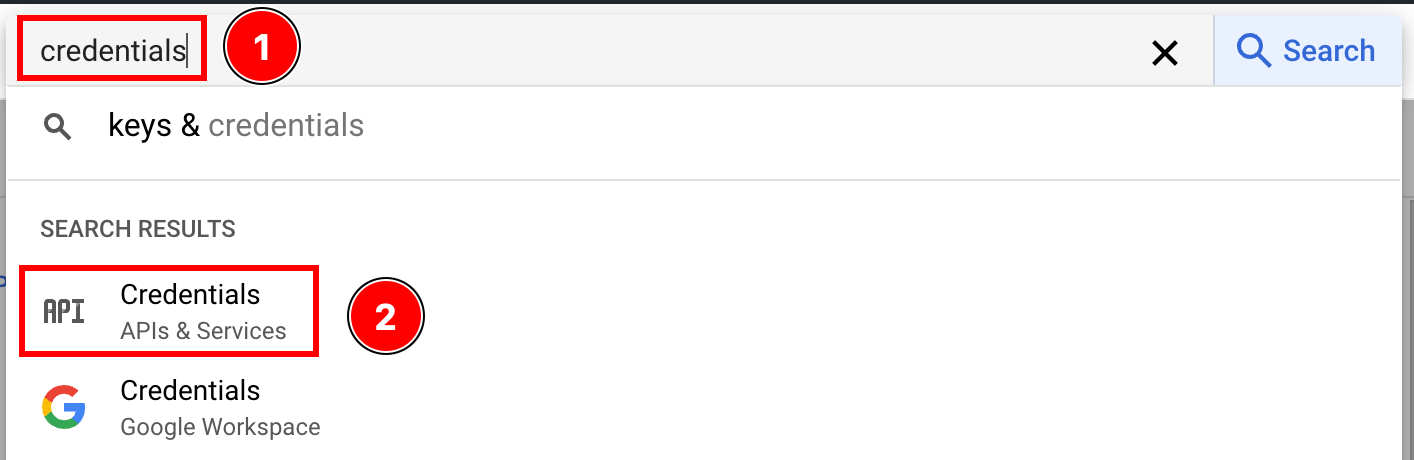
-
Click on the
create credentials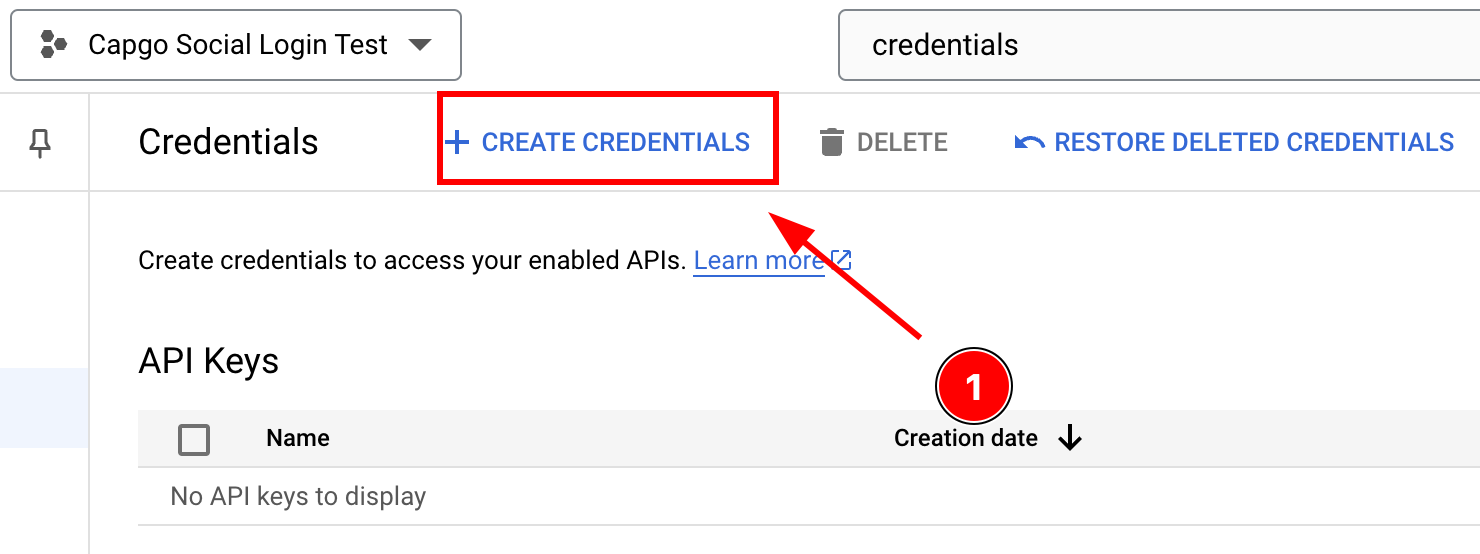
-
Select
OAuth client ID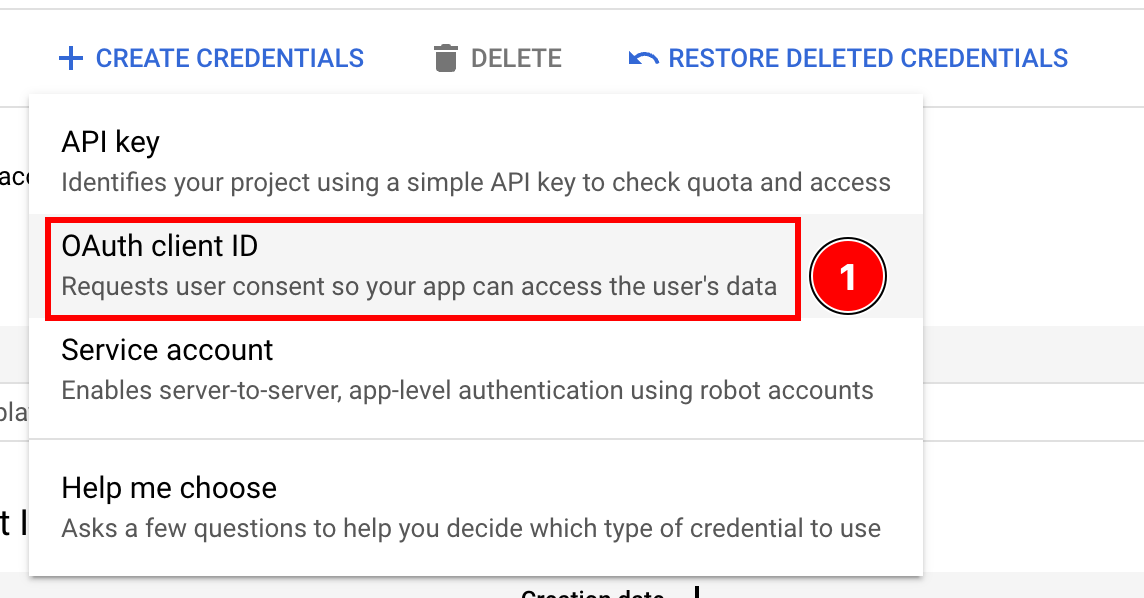
-
Select the
Application typeasWeb application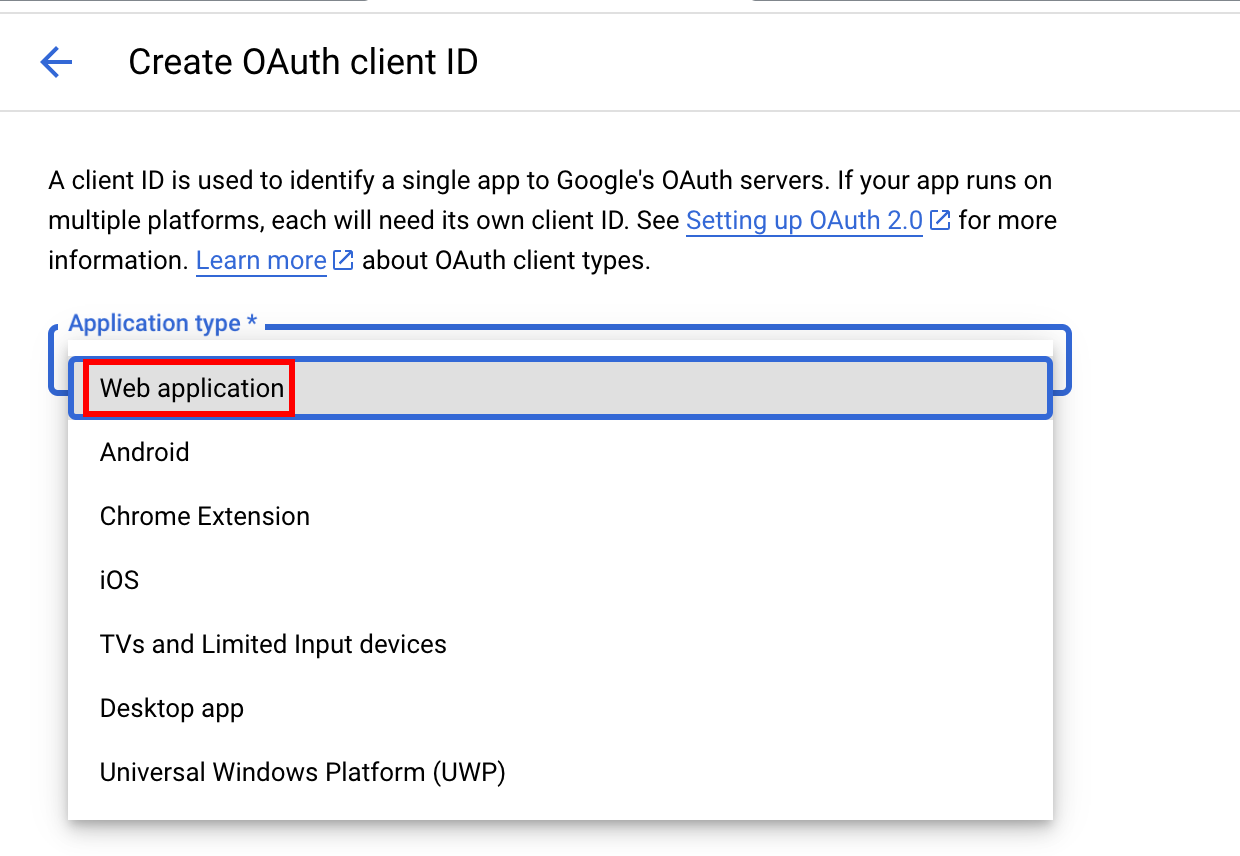
-
Name your client and click
Create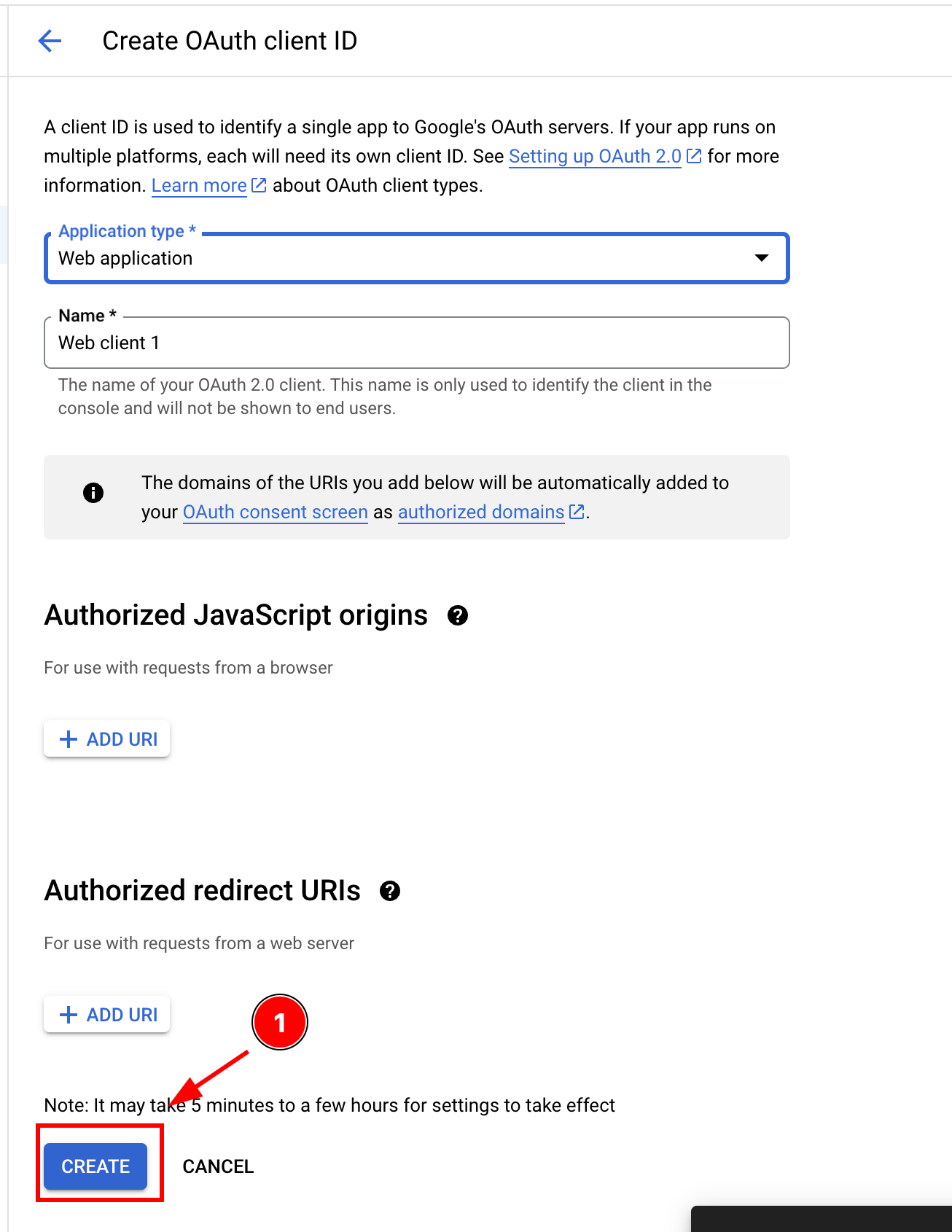
-
Copy the client ID, you’ll use this as the
webClientIdin your application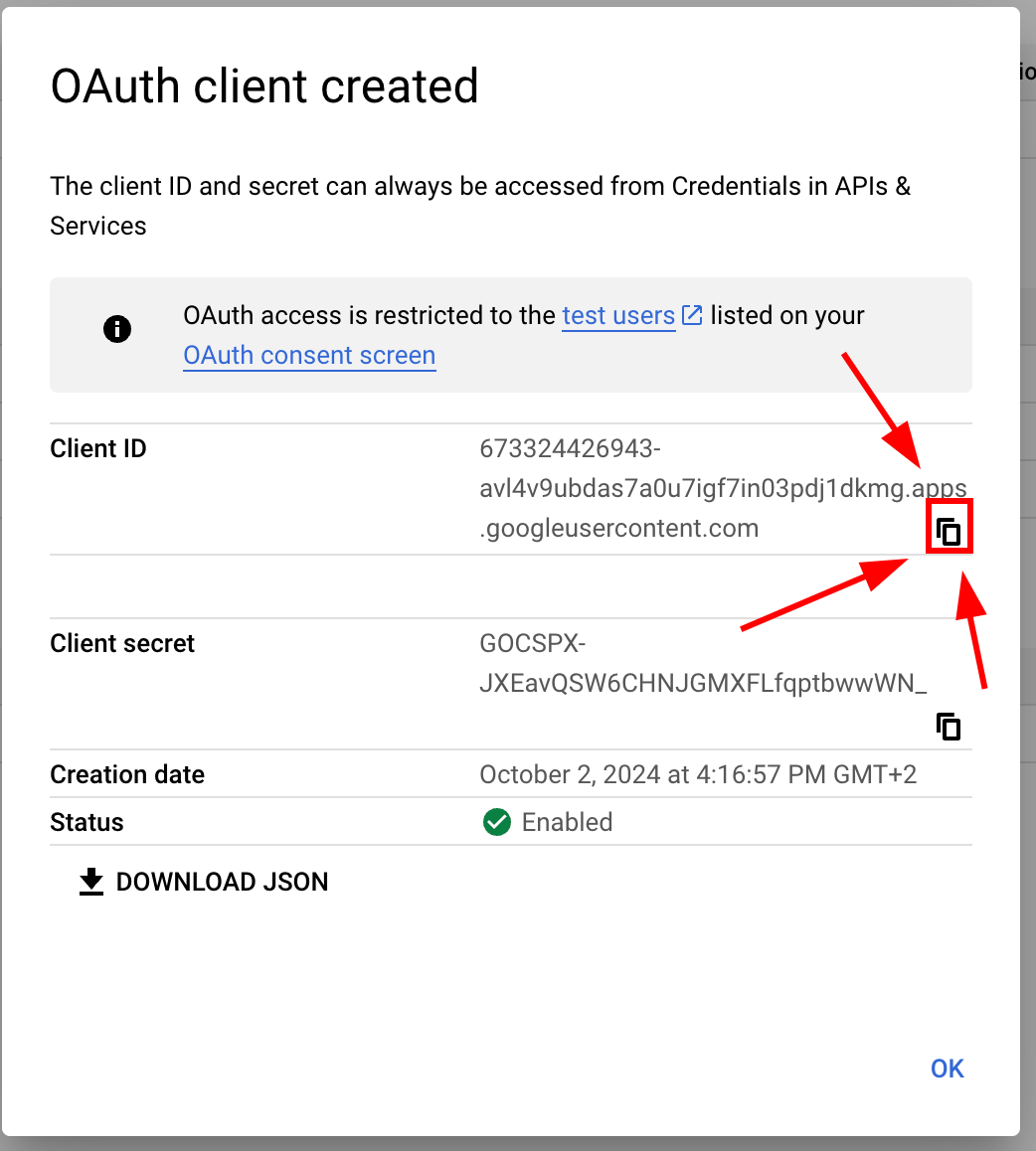
-
-
Configure the web client in the Google Console
-
Please open the credentials page and click on your web client
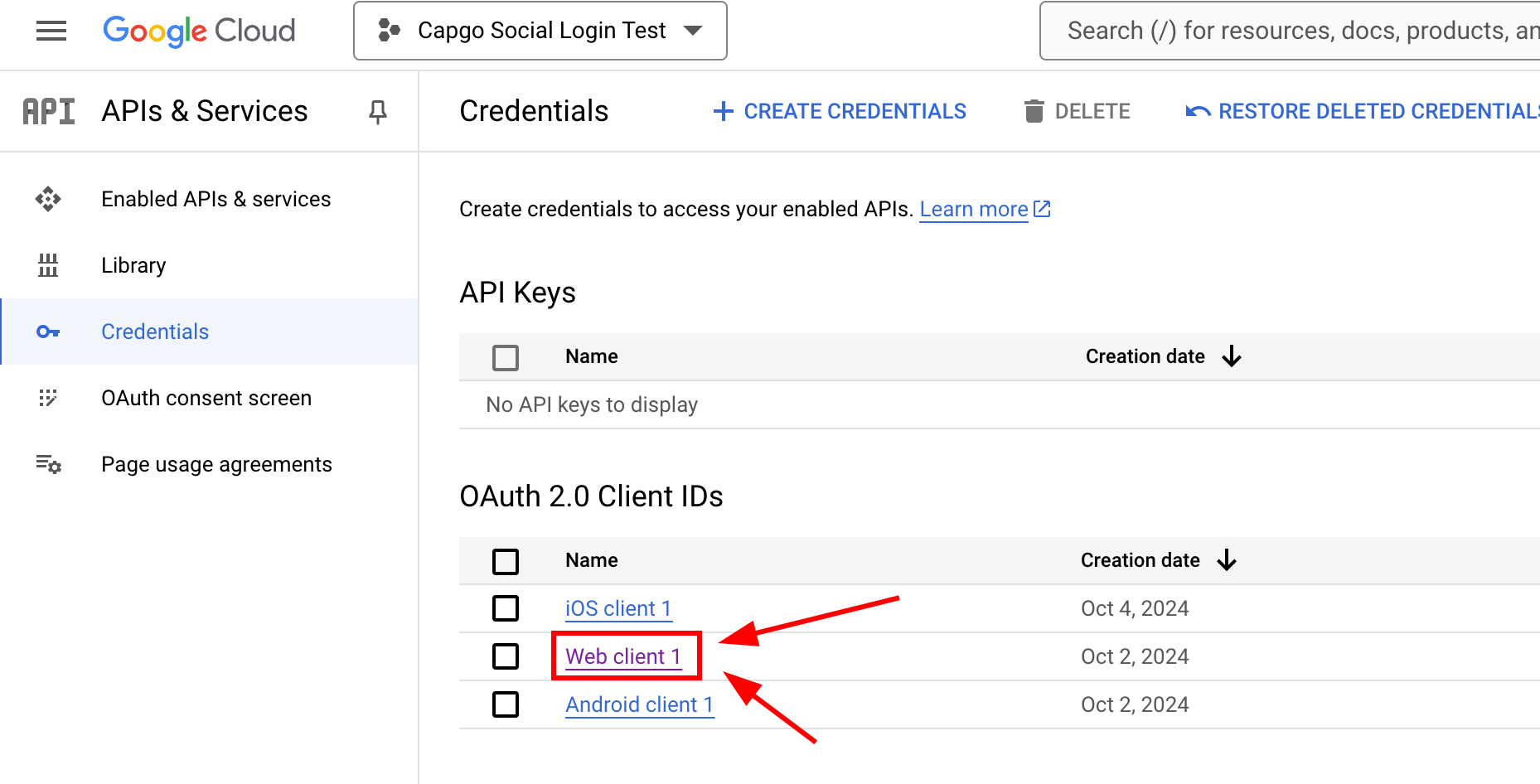
-
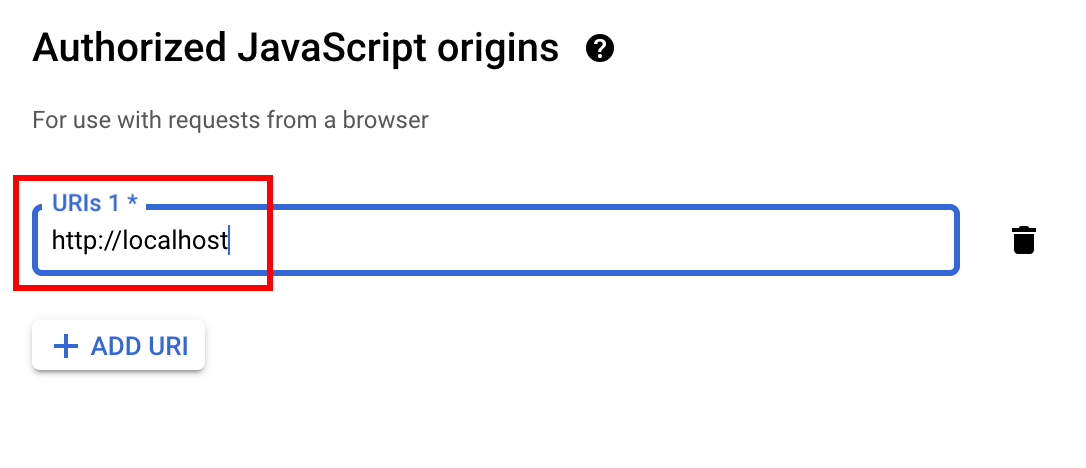
Now, please add the
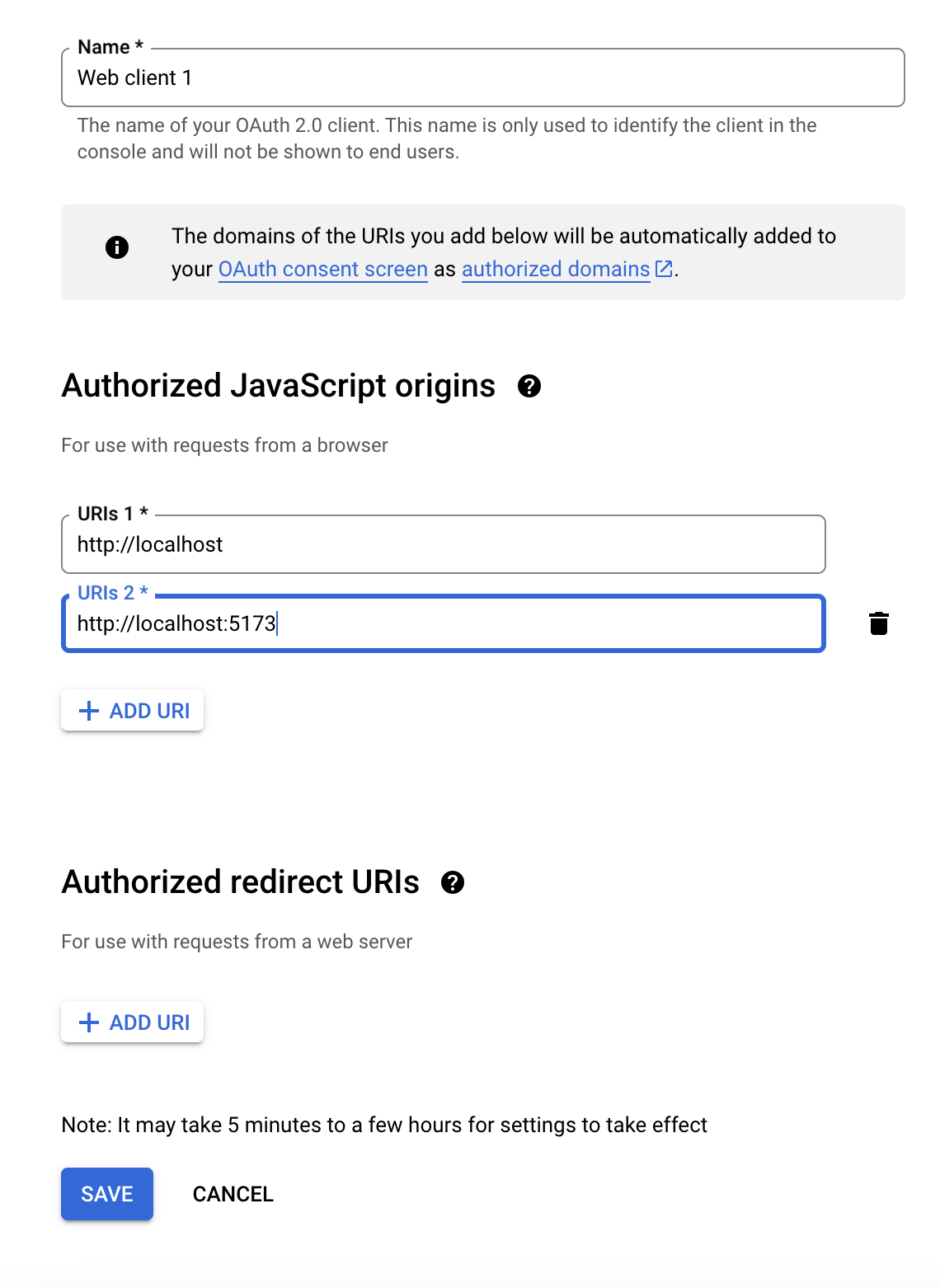
Authorized JavaScript origins. This should include all the addresses that you might use for your app. In might case, I will ONLY use localhost, but since I use a custom port I have to add bothhttp://localhostandhttp://localhost:5173-
Please click on
add URI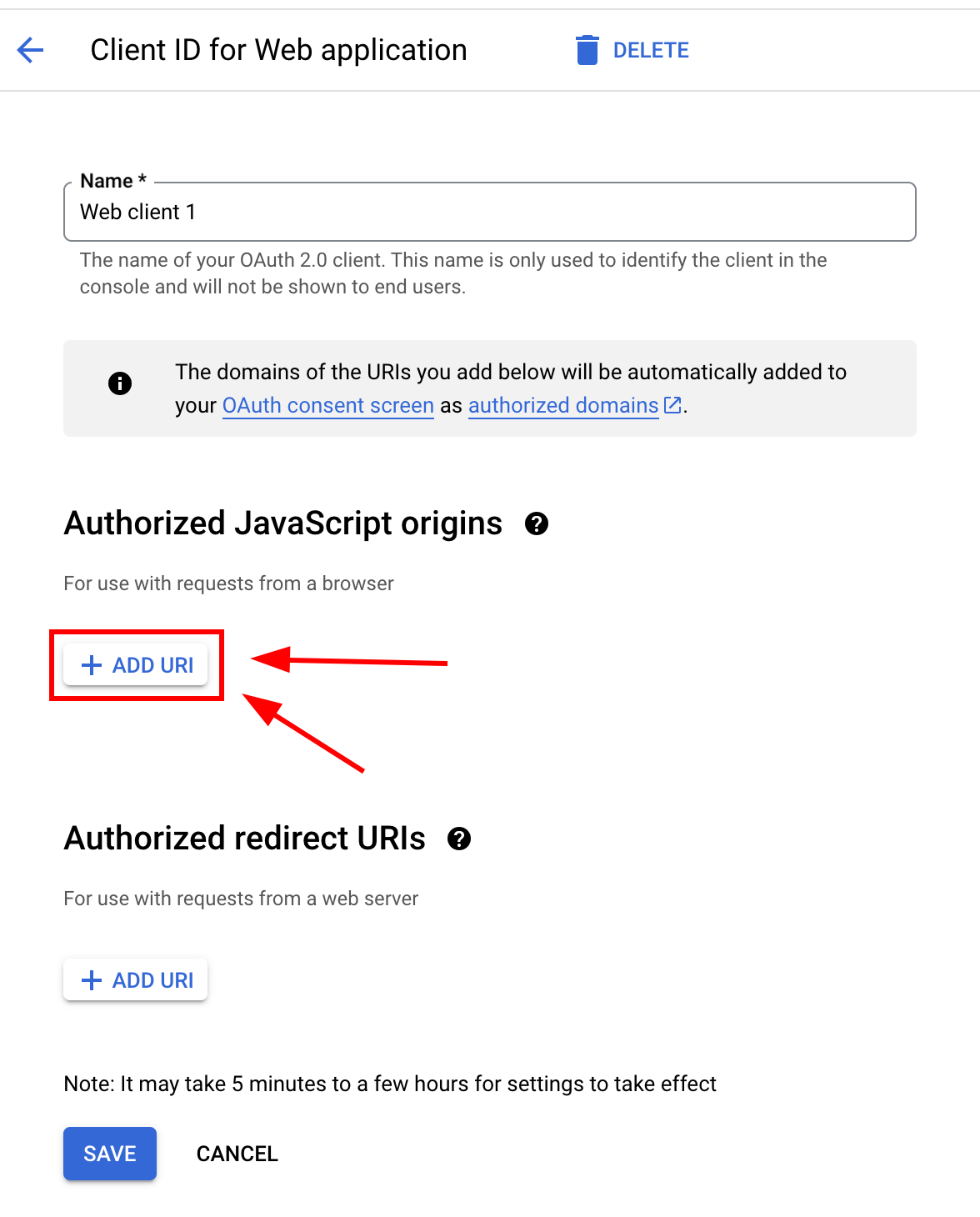
-
Please type your URL
-
Please repeat until you added all the URLs
-
When you finish, your screen should look something like this
-
-
Now, please add some
Authorized redirect URIs. This will depend on what page do you depend to use the CapacitorSocialLogin plugin on. In my case, I am going to be using it onhttp://localhost:5173/auth-
Please click on
ADD URI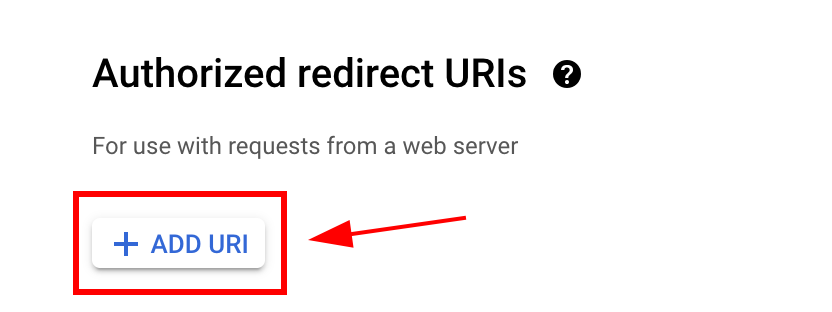
-
Enter your URL and click
ADD URLagain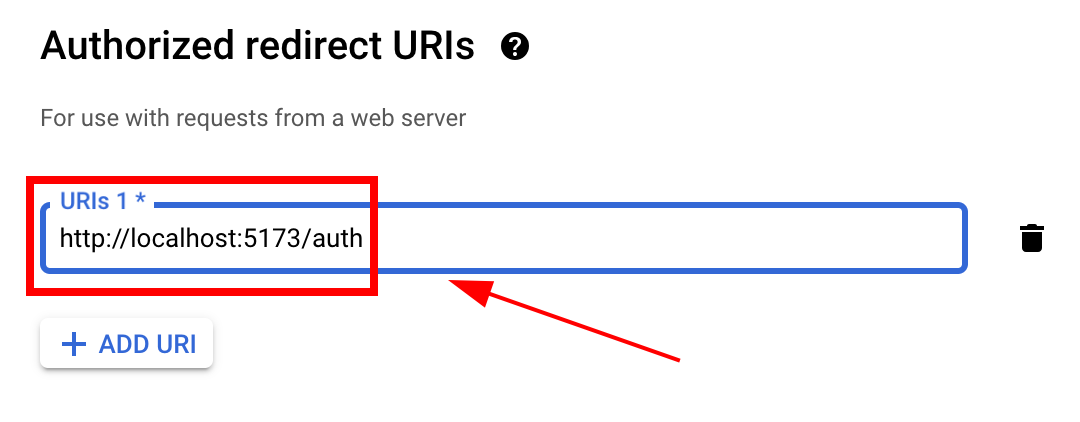
-
-
Click
save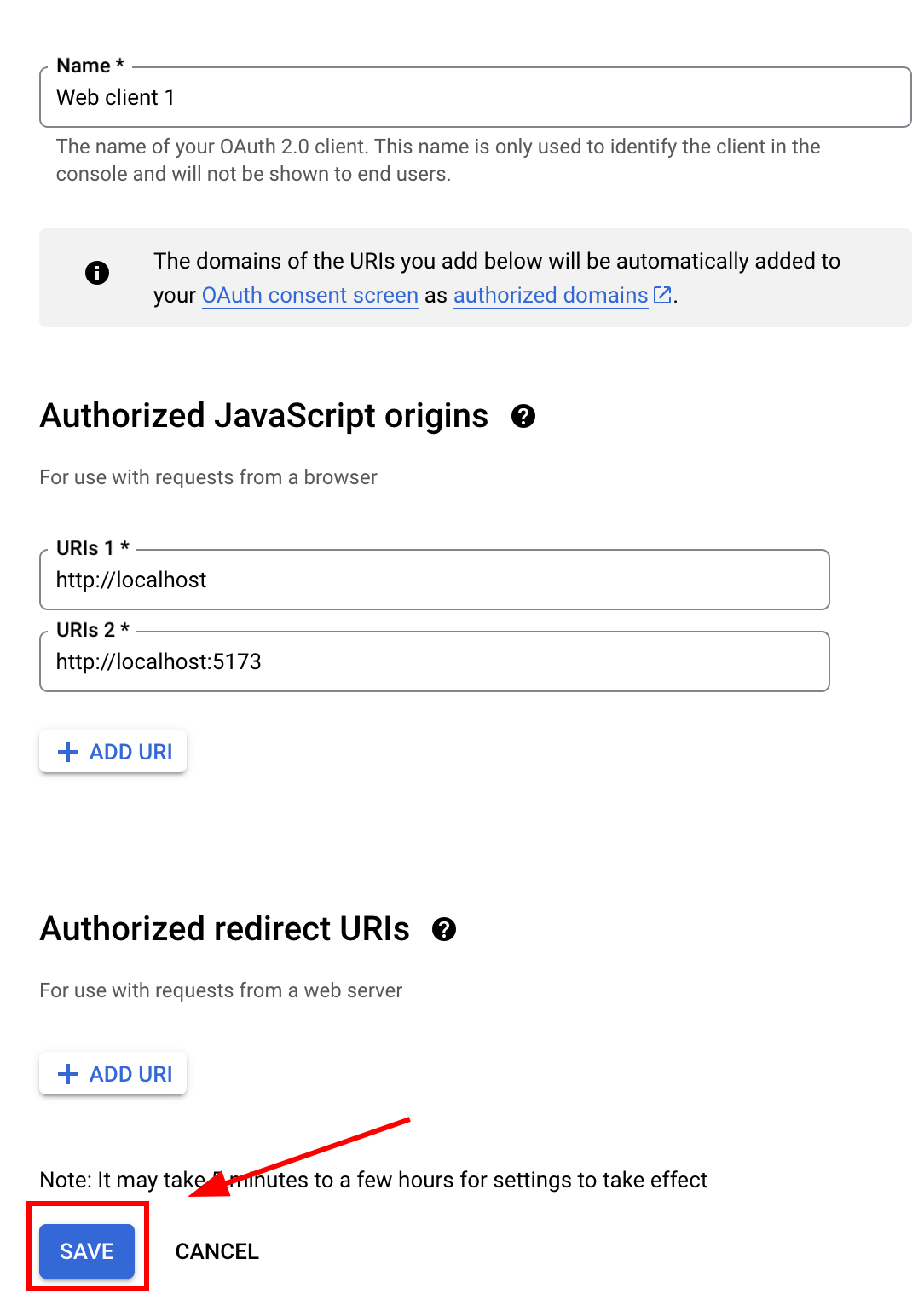
-
-
Now, you should be ready to call
loginfrom JavaScript like so:-
First, import
SocialLoginimport { SocialLogin } from '@capgo/capacitor-social-login'; -
Then, call Initialiser. This should be called ONLY once.
// onMounted is Vue specific// webClientId is the client ID you got in the web client creation step not the android client ID.onMounted(() => {SocialLogin.initialize({google: {webClientId: '673324426943-avl4v9ubdas7a0u7igf7in03pdj1dkmg.apps.googleusercontent.com',}})})
Web Redirect Handling
When using Google login on web, you MUST call any function from the plugin when the redirect happens to initialize the plugin so it can handle the redirect and close the popup window. You can call either
isLoggedIn()ORinitialize()- both will trigger the redirect handling:// Option 1: Call isLoggedIn when the redirect page loadsSocialLogin.isLoggedIn({ provider: 'google' }).catch(() => {// Ignore the result, this is just to initialize the plugin});// Option 2: Call initialize when the redirect page loadsSocialLogin.initialize({google: {webClientId: 'YOUR_WEB_CLIENT_ID.apps.googleusercontent.com',}}).catch(() => {// Ignore any errors, this is just to handle the redirect});-
Create a login button that calls
SocialLogin.loginwhen clickedconst res = await SocialLogin.login({provider: 'google',options: {}})// Handle the responseconsole.log(JSON.stringify(res));
-