
Bundles
Copiez le prompt de configuration avec les étapes d'installation et la guide markdown complet pour ce plugin.
Afficher tous les bundles
Section intitulée « Afficher tous les bundles »In Capgo, a bundle represents a specific version of your application’s code and assets, ready to be distributed to devices. First, let’s take a look at the bundles page. You can access it by Cliquez sur votre application et ensuite Cliquez sur l'onglet Bundles.
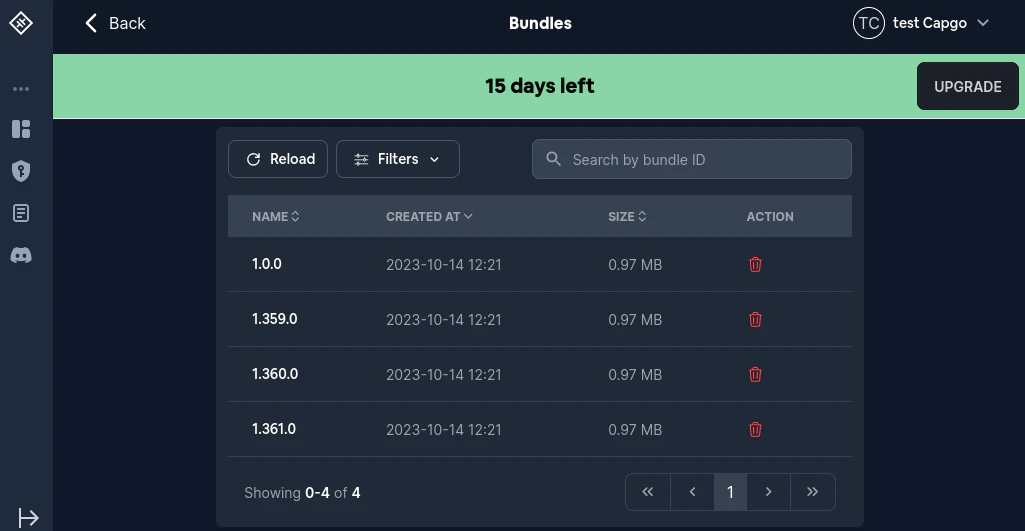
La liste des bundles affiche :
- Nom: La version du bundle
- Créé le: Lorsque le bundle a été téléchargé
- Chaîne: La chaîne (si elle existe) auquel le bundle est actuellement lié
- Taille: La taille du fichier du bundle
- Action: Actions rapides incluant lien vers le canal (icône de roue dentée) et supprimer (icône de poubelle)
Vous pouvez utiliser le Reload bouton pour rafraîchir la liste, + Ajouter pour télécharger un nouveau bundle, et Filtres pour restreindre les bundles affichés. Un champ de recherche vous permet de trouver des bundles par nom.
Supprimer un bundle
Section intitulée “Supprimer un bundle”Il existe deux façons pour supprimer un bundle :
- Normalement
- Sans sécurité
La méthode non sécurisée de suppression d'un bundle a été ajoutée dans Capgo le 12 août 2024.
La différence entre les deux méthodes réside dans la capacité à réutiliser le numéro de version après la suppression.
Par exemple, si vous supprimez une version 1.0.0 la manière normale et tenter d'envoyer ensuite un 1.0.0 version, cela échouera.
Si vous supprimez cette version via la suppression non sécurisée, vous pourrez uploader une 1.0.0 version.
Stockage, conservation et livraison
Section intitulée « Stockage, conservation et livraison »Qu'est-ce qui compte pour le stockage ?
Section intitulée « Qu'est-ce qui compte pour le stockage ? »Le stockage comprend les versions historiques des ensembles de fichiers et les actifs Delta conservés pour une application. Un ensemble lié à plus d'une chaîne ou servi à partir de plus d'une région est compté une seule fois pour le stockage.
Puis-je contrôler la durée de conservation des bundles non utilisés ?
Puis-je contrôler la durée de conservation des bundles non utilisés ?Yes. Set the unused-bundle retention period for each app in the Paramètres d'informations de l'application. Les ensembles qui sont toujours liés à une chaîne active ou à un lancement restent protégés afin de rester disponibles pour la livraison et le retrait.
La réplication régionale multiplie-t-elle le stockage ou la bande passante ?
Section intitulée « La réplication régionale multiplie-t-elle le stockage ou la bande passante ? »No. Regional replication does not multiply storage. Capgo bandwidth is based on device downloads that are not served from the edge cache; cache-served deliveries do not count against Capgo bandwidth usage.
Gestion d'un ensemble spécifique
Section intitulée “Gestion d’un bundle spécifique”Une fois que vous voyez la liste de tous les bundles, cliquez sur celui que vous souhaitez gérer. Une fois que vous avez fait cela, vous devriez voir quelque chose comme ceci :
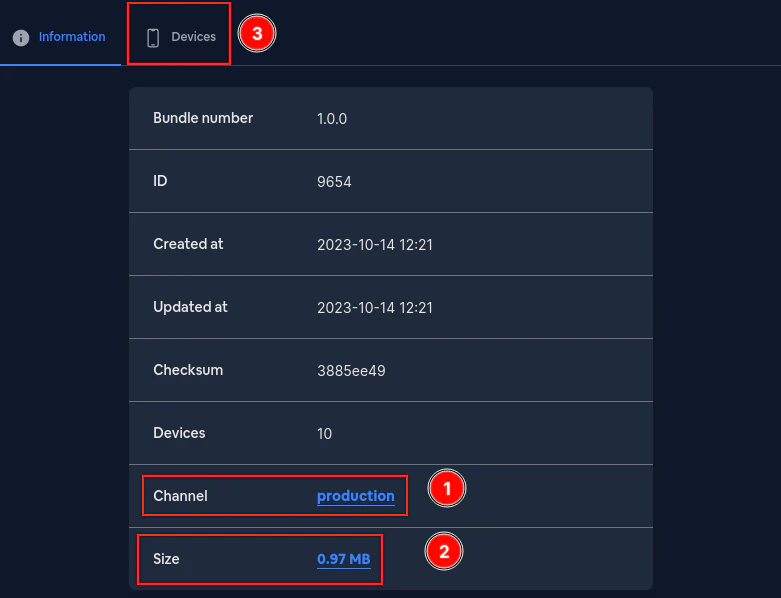
La page détaillée du bundle comporte trois onglets :
- Informations : Affiche toutes les métadonnées et propriétés du bundle
- Dépendances : Liste les dépendances incluses dans ce bundle
- Historique : Affiche l'historique des modifications pour ce bundle
Informations du Bundle
Section intitulée “Informations du Bundle”La rubrique Informations affiche les détails suivants :
- Numéro de bundle: Le numéro de version (par exemple, 12.87.1)
- ID: L'identifiant unique interne pour ce bundle
- Créé le: When the bundle was first uploaded
- Mis à jour le: When the bundle was last modified
- Checksum: L'intégrité du bundle (cliquez pour copier)
- Channel: Le canal lié à ce bundle (cliquez pour ouvrir le canal ou le modifier)
- Chiffrement: Le bundle est-il chiffré ?
- CLI version: La version de Capgo CLI utilisée pour télécharger ce bundle
- Fichier zip d'application: La taille du bundle compressé (cliquez pour télécharger)
- Fichiers delta: Ouvre la liste des fichiers delta pour ce bundle, ou montre Aucun fichier delta Lorsque le bundle a été téléchargé sous forme de zip complet.
- ÉtatÉtat : Actif ou Inactif (cliquez sur l'icône de la poubelle pour supprimer)
Liage d'un bundle à un canal
Section intitulée « Liage d'un bundle à un canal »Cliquez sur l'icône de roue dentée à côté de la ligne Canal ou dans la colonne Action pour ouvrir le modal de liaison de canal :
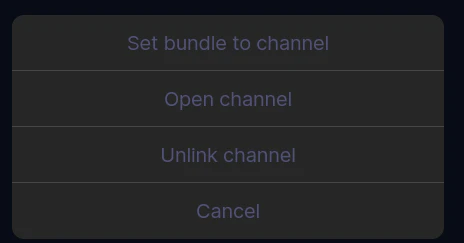
Le modal fournit :
- Recherche de canal: Filtrez les canaux disponibles par nom
- Bundle actuel: Affiche la version du bundle en cours de liaison
- Canal disponible: Liste de tous les canaux avec leurs détails (ID, visibilité, plateformes, date de création). Les canaux marqués comme « actuel » indiquent où ce bundle est déjà lié. Les canaux publics affichent un icône de lien.
- Configure le paquet pour le canal: Confirme la sélection et attribue ce paquet au canal sélectionné
Configure le paquet pour le canal : Assigne ce bundle à un canal choisi. Sur les canaux configurés pour le lancement, le titre de la boîte de dialogue est Ce canal utilise la mise à jour progressive et vous choisissez Automatique (recommandé), Déploiement cible, ou Remplacez la version stableLes nouvelles mises à jour et liens sont envoyés vers la cible de déploiement sauf si vous remplacez stable. Mises à jour progressives.
Pour ouvrir la page dédiée d'un canal, cliquez sur le lien du nom du canal dans la ligne Canal.
Pour délier un bundle d'un canal, naviguez vers la page de configuration du canal.
Téléchargement d'un bundle
Section intitulée « Téléchargement d'un bundle »Pour télécharger un bundle, cliquez sur le Bundle d'application Zip valeur de taille dans l'onglet Informations. Un dialogue de confirmation apparaîtra, et après confirmation, le bundle sera téléchargé directement sur votre appareil.
Continuez d'ici les Bundles
Section intitulée « Continuez d'ici les Bundles »Si vous utilisez les Bundles to plan channel routing and staged rollout, connect it with Canaux pour les détails d'implémentation dans les Canaux, Canaux pour les détails d'implémentation dans les Canaux, Canaux pour les détails d'implémentation dans les Canaux, Solution de test bêta pour le flux de travail du produit dans la Solution de test bêta, et Solution de ciblage de version pour le flux de travail du produit dans la Solution de ciblage de version.
Envoyez Capacitor applications Sans attendre
Construirez avec votre agent de codage AI, envoyez des correctifs aux utilisateurs en quelques minutes, construisez des applications iOS et Android signées sans Mac, et revenez en arrière en un clic.


Besoins d'entreprise ? Parlez à notre équipe